How to Create a Freeze Frame Pause Effect in After Effects
Introduction
In this tutorial, you’ll learn how to add a pause effect to your video in Adobe After Effects. This includes freezing the video at a specific moment and overlaying a pause icon with smooth scaling animation for added clarity and style.
Step 1: Import Your Video
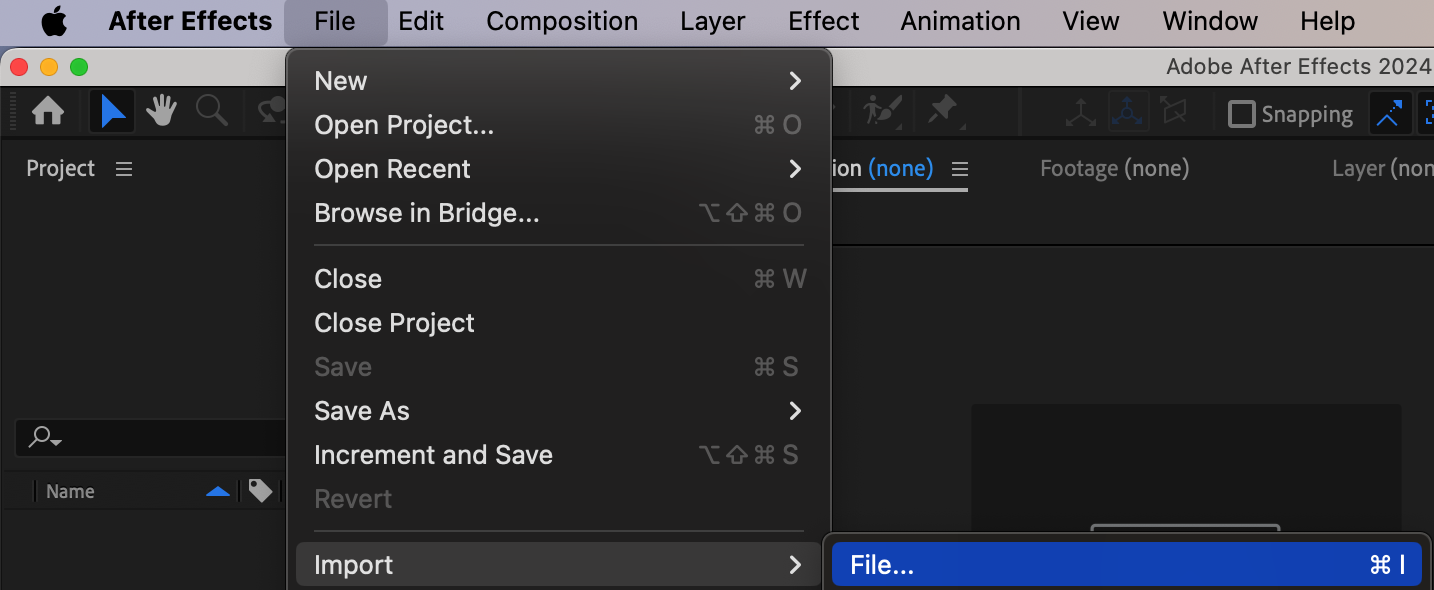
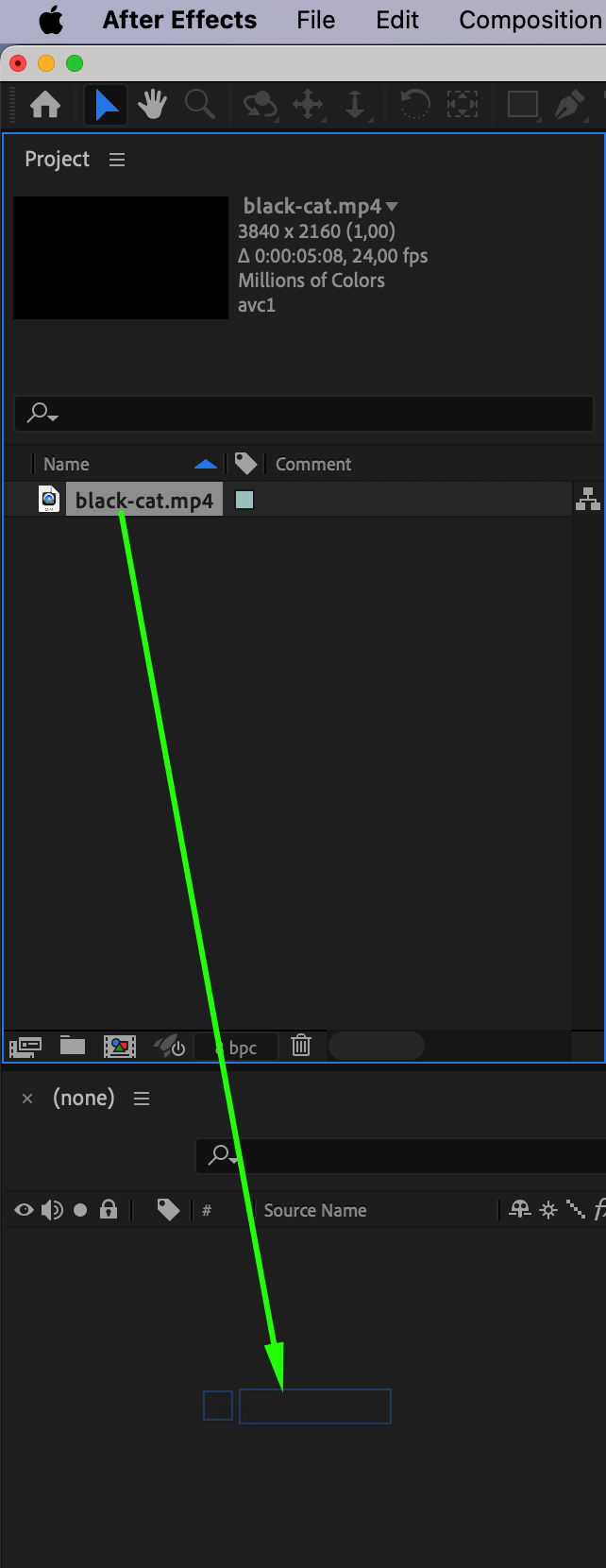
Go to File > Import > File and bring your video into the project panel. Drag it onto the timeline to start editing.
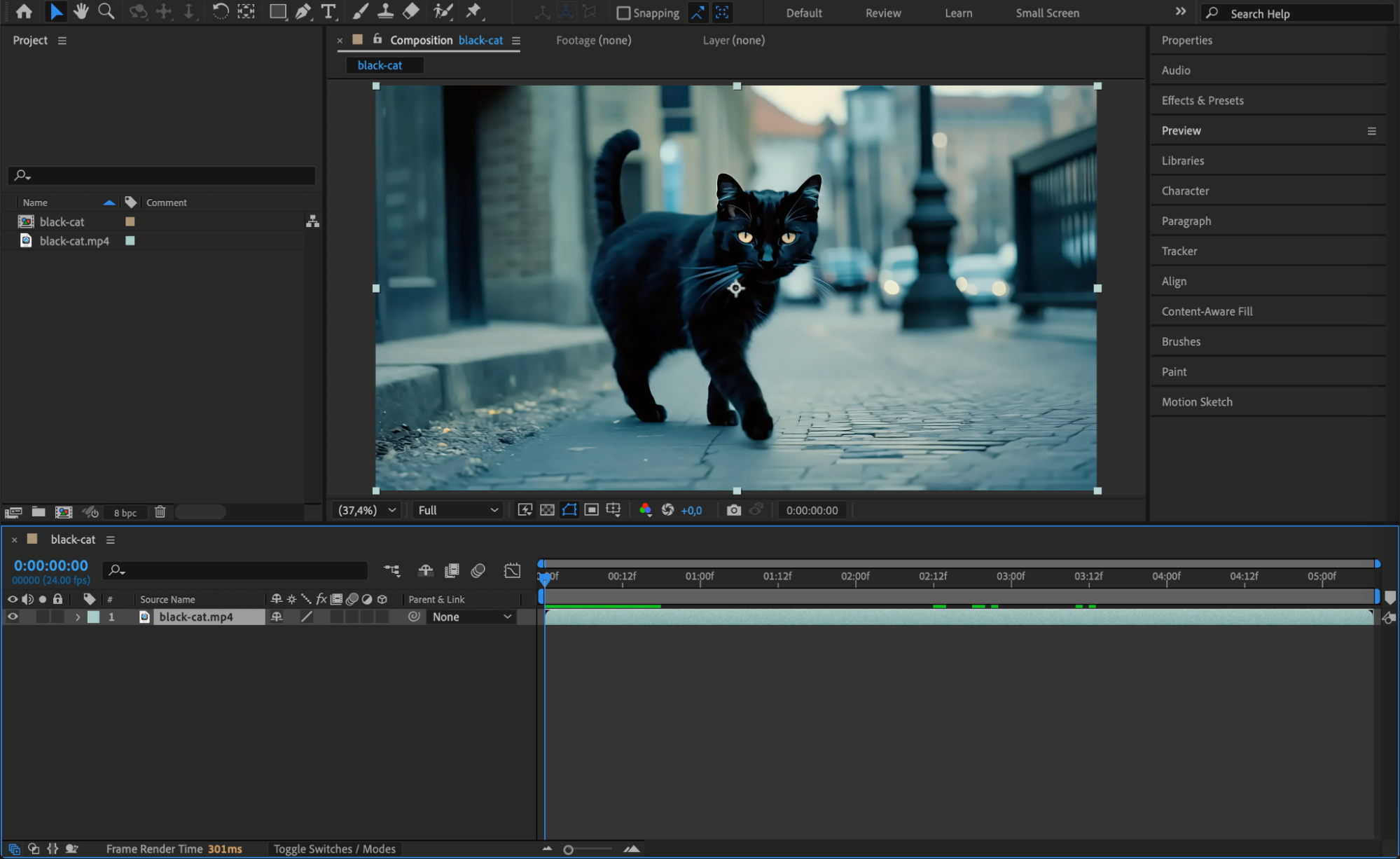 Step 2: Split the Video Layer
Move the Current Time Indicator (CTI) to the moment where you want the pause to begin. Then go to Edit > Split Layer (or press Ctrl/Cmd + Shift + D) to divide the video into two layers.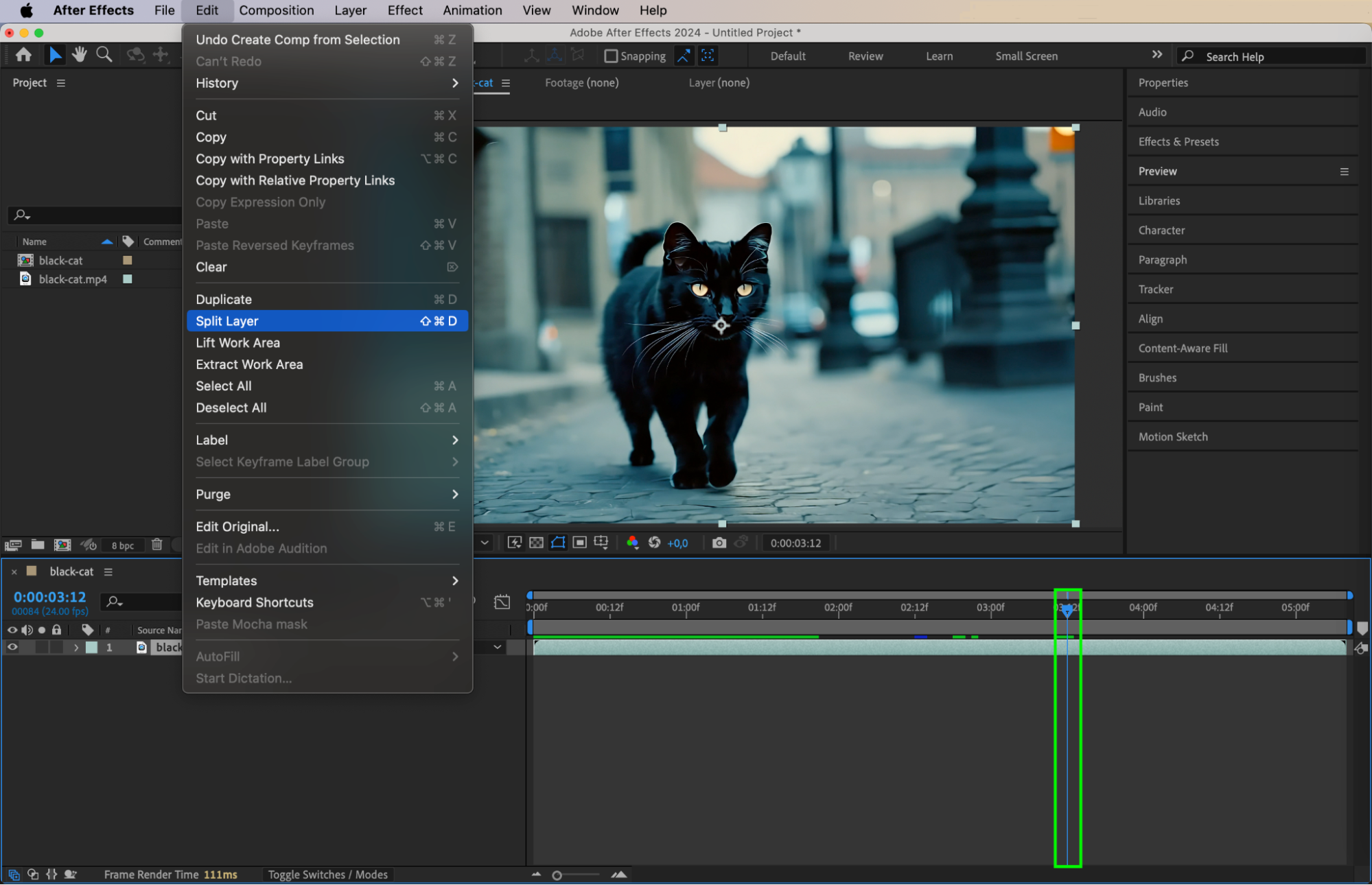 Step 3: Shorten the New Layer
Click on the upper segment of the split video and drag the end handle to make it just 1 frame long. This step prepares it for freeze frame conversion.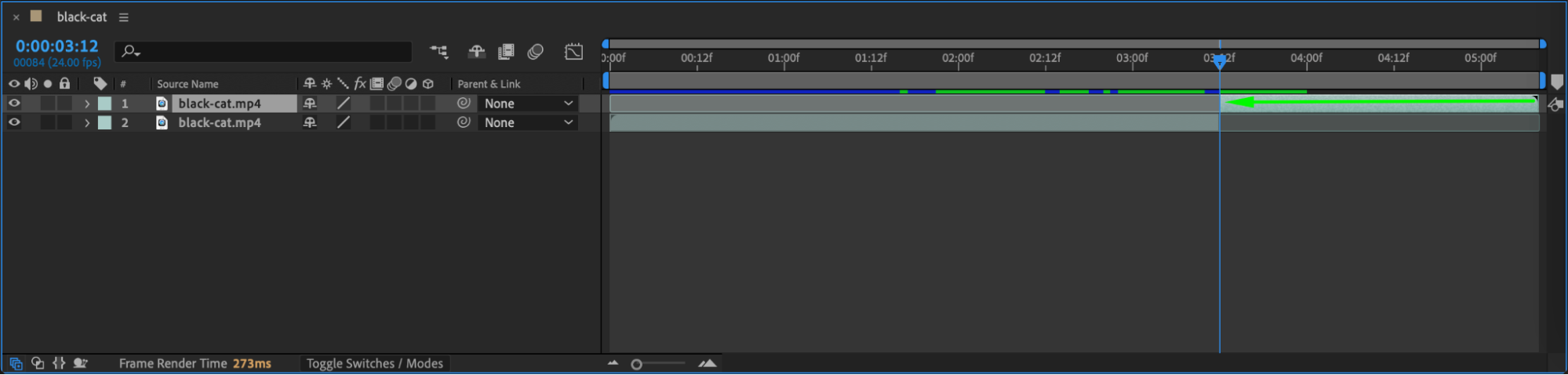
Get 10% off when you subscribe to our newsletter

Step 4: Apply Freeze Frame
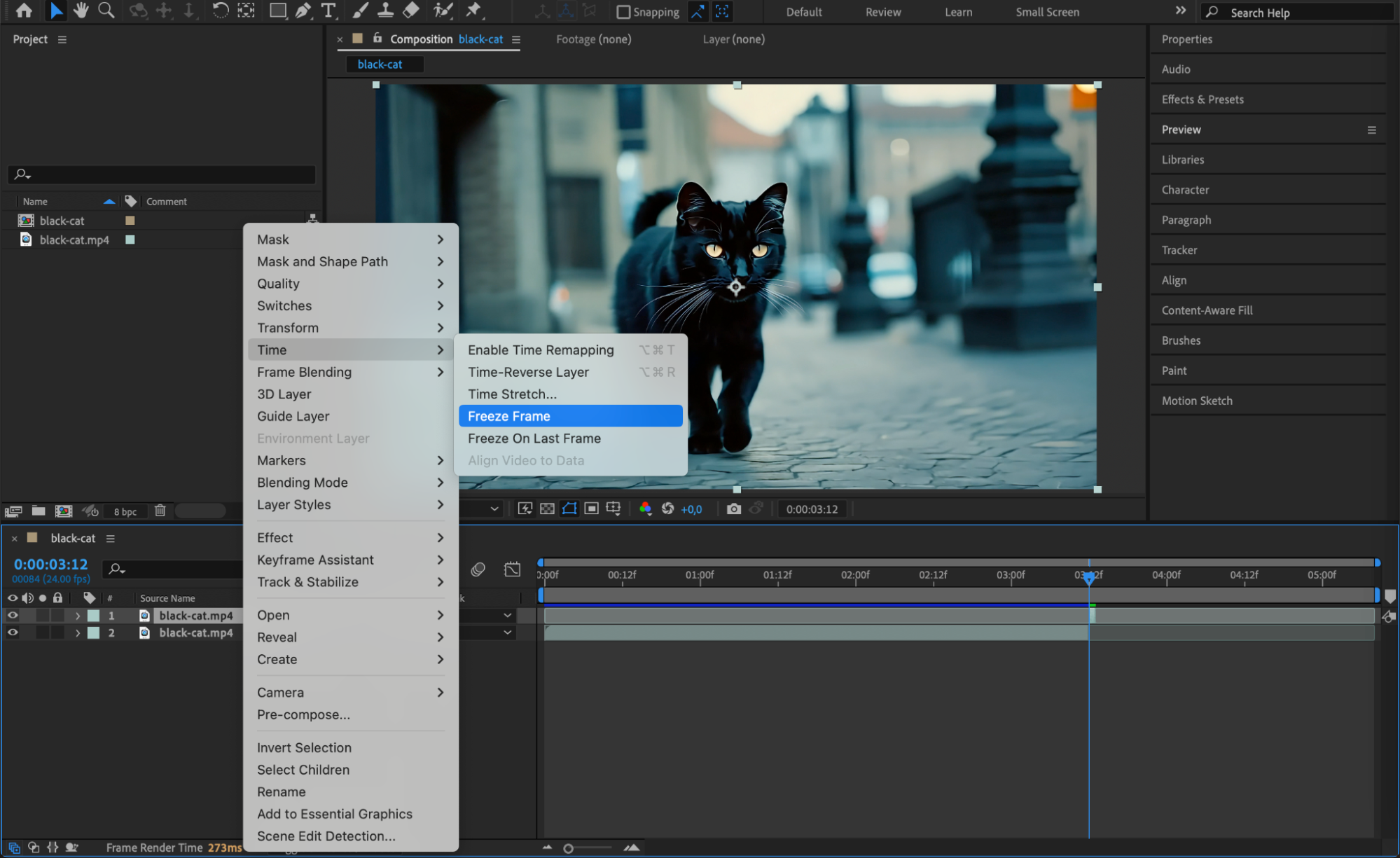
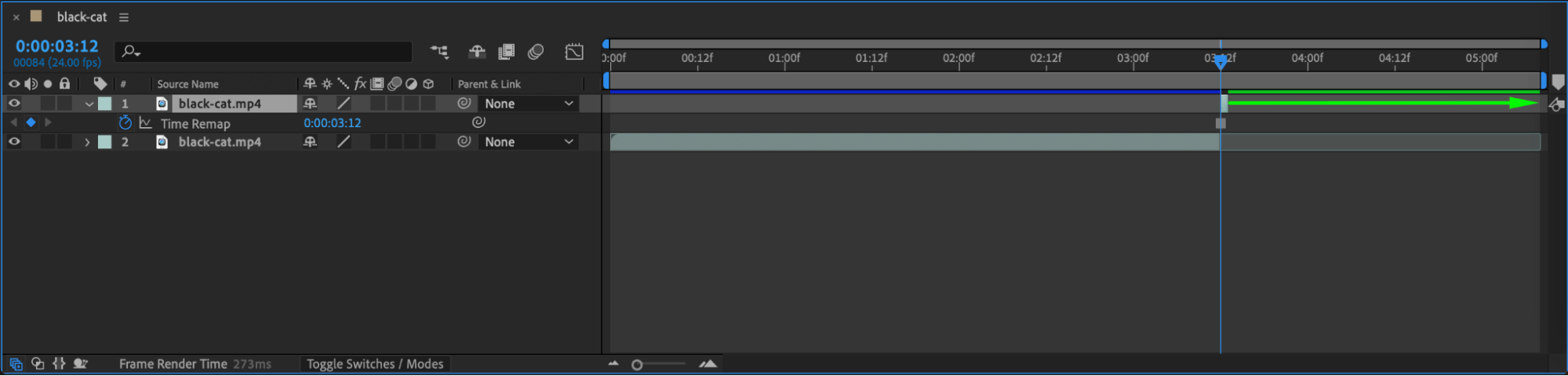
Right-click on the short video layer and go to Time > Freeze Frame. This holds the image on-screen. Then drag the end of this layer to extend it for as long as you want the pause to last.
 Step 5: Add the Pause Icon
Import a pause icon image and place it on the timeline above the freeze frame layer. Adjust the duration of the icon layer so it matches the freeze frame. Resize and position it in the center or wherever it fits best.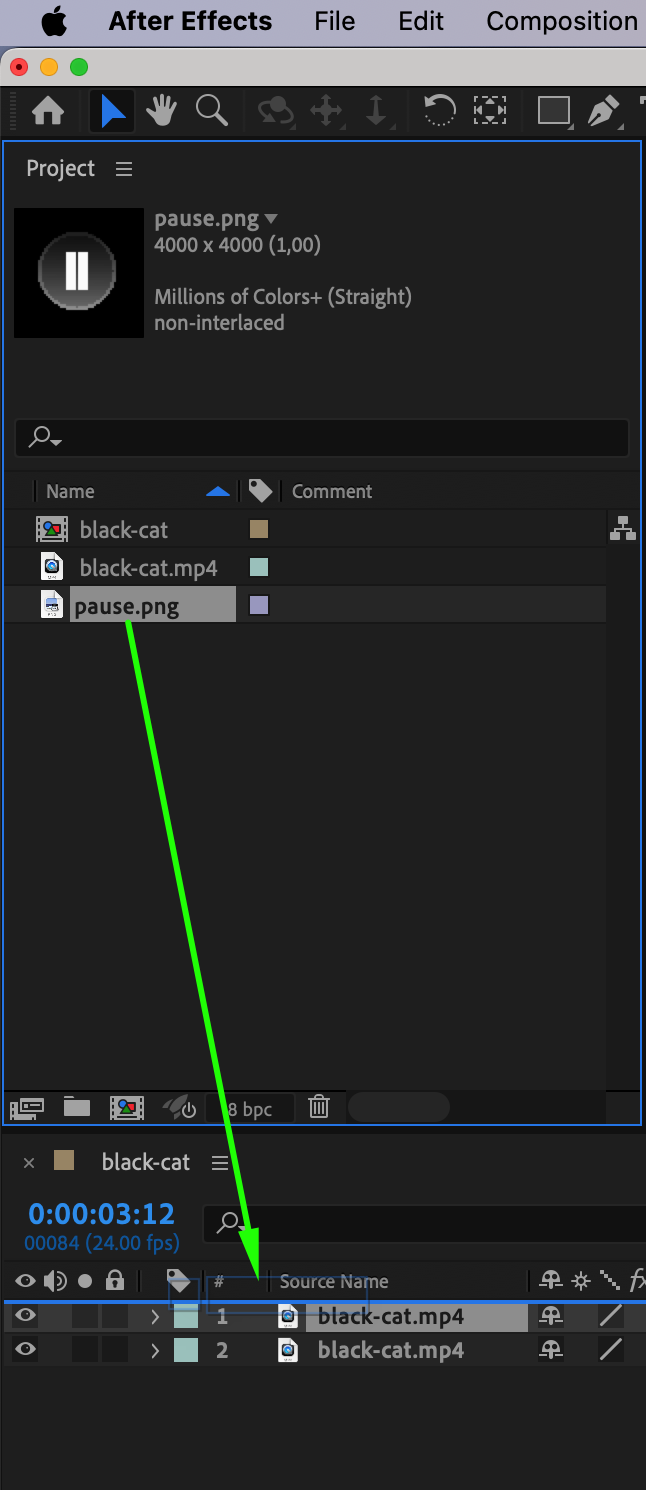
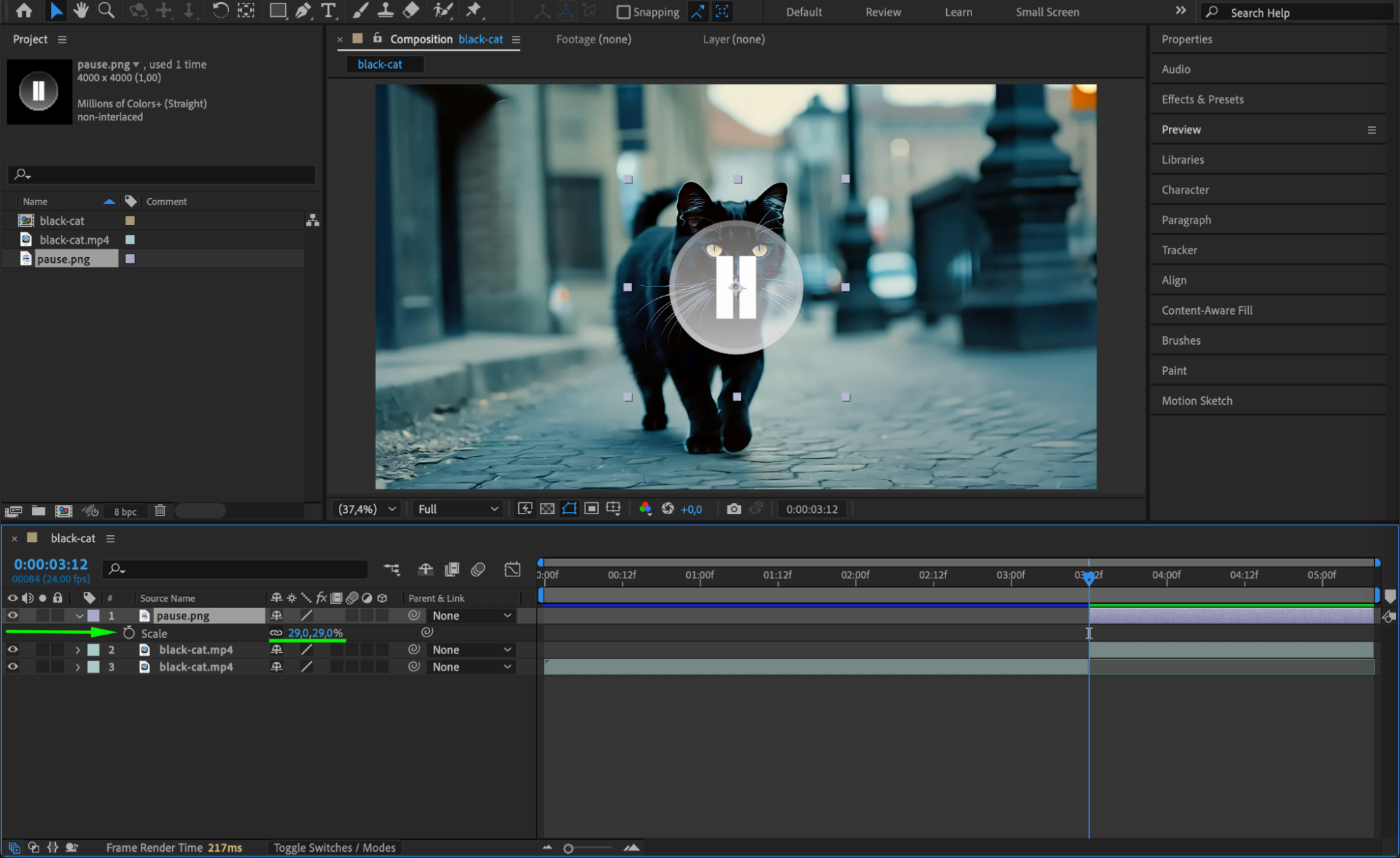 Step 6: Animate the Icon’s Scale
Move the CTI 5 frames from the start of the pause icon layer. Then click the stopwatch next to Scale to create a keyframe. Move the CTI to the start of the layer and change the scale to 0%. This will animate the icon from invisible to full size.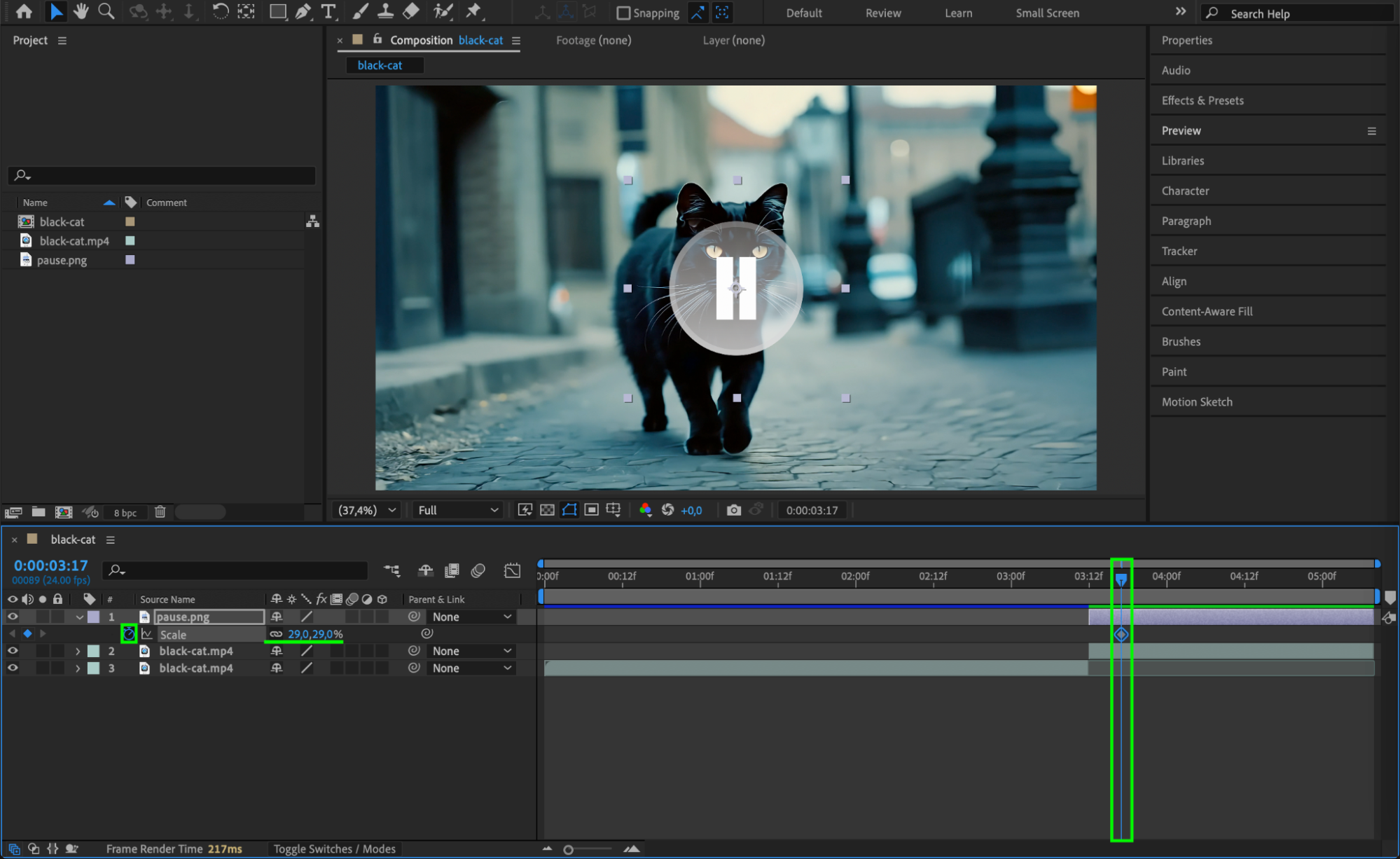
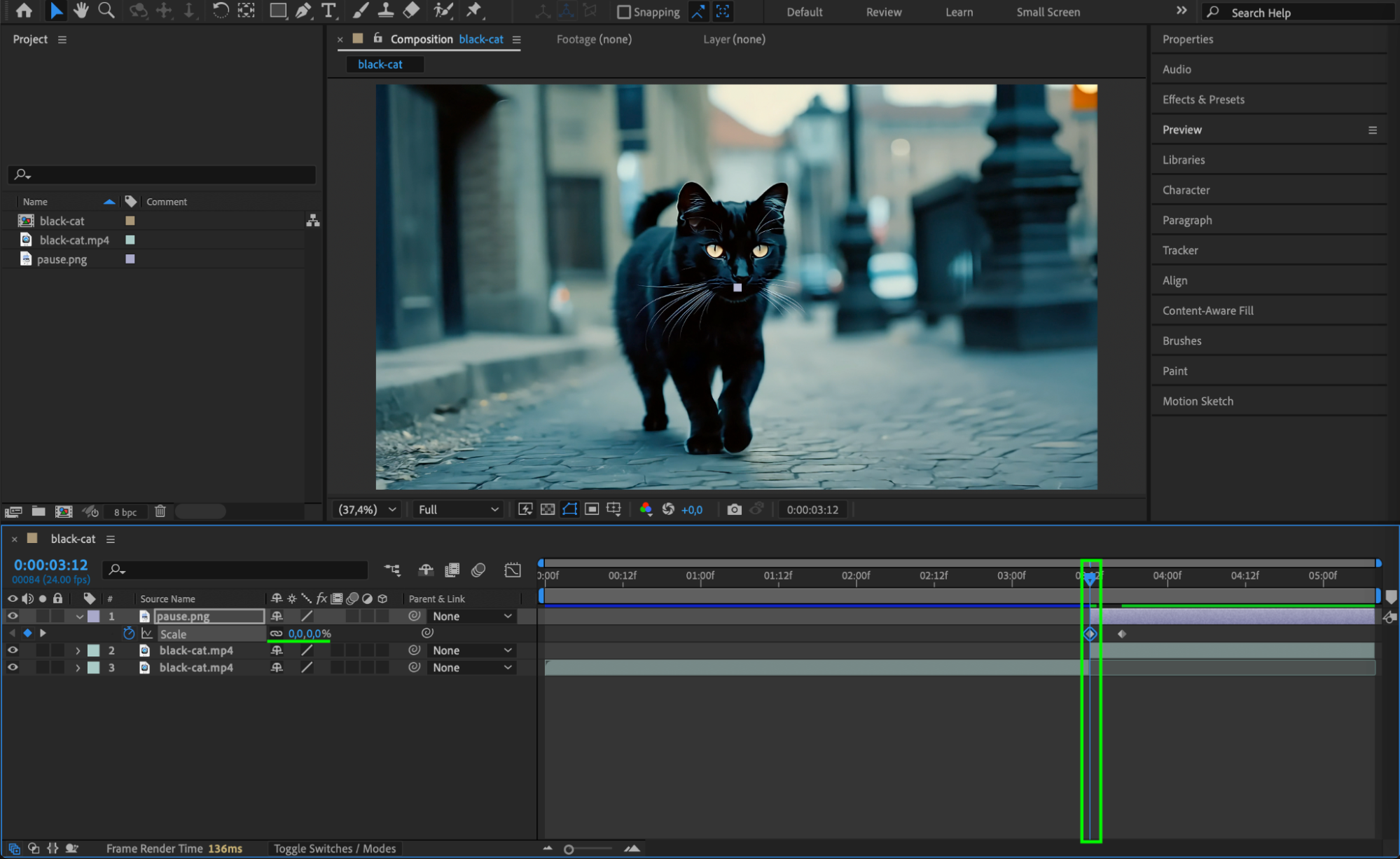
Step 7: Add Easy Ease and Adjust the Graph
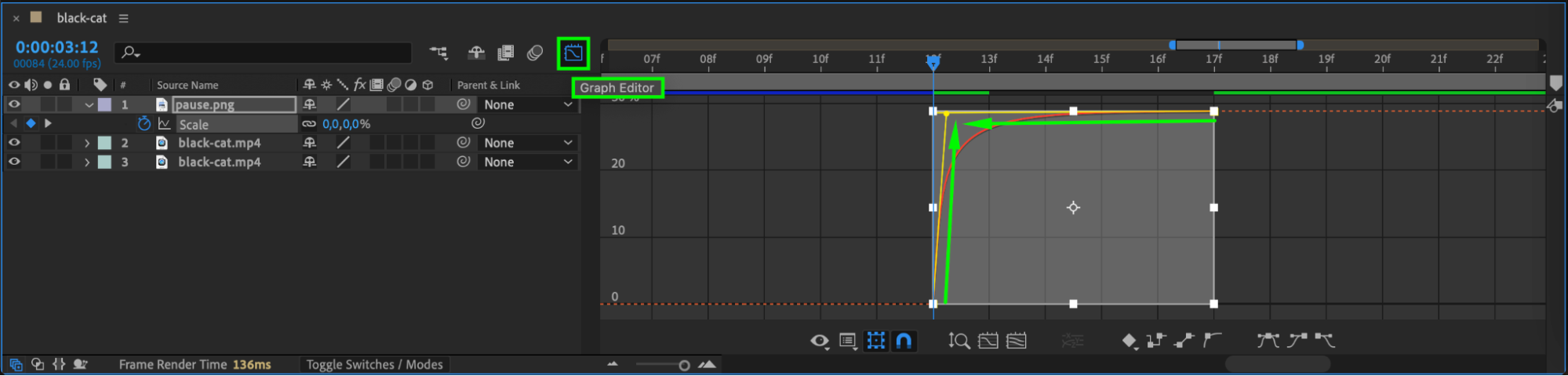
Select both keyframes, right-click and choose Keyframe Assistant > Easy Ease. Then open the Graph Editor to refine the motion for a smooth and natural scale-up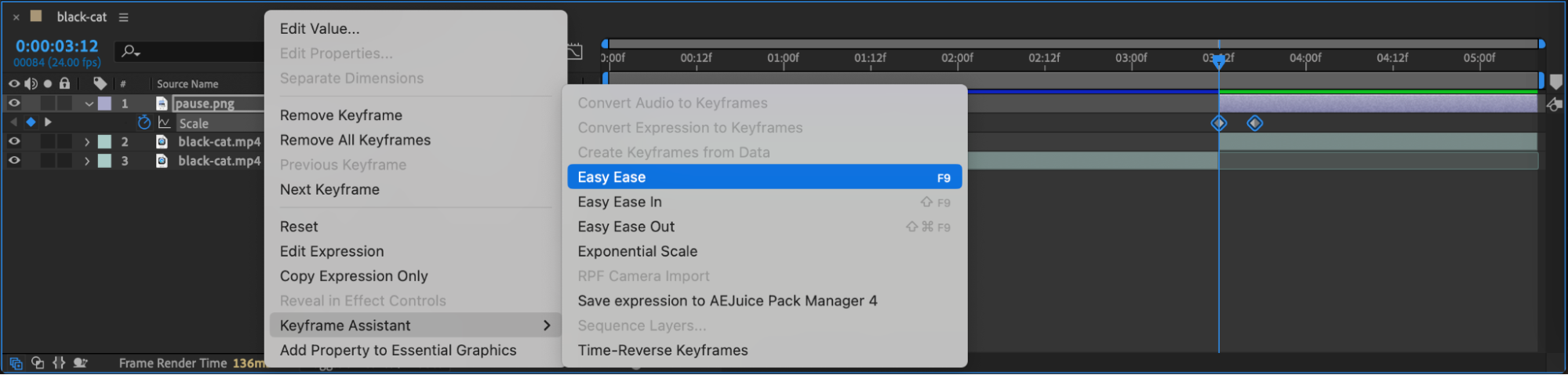
 Step 8: Preview and Final Adjustments
Play back the sequence to check the timing and visual flow. Adjust the duration of the pause or fine-tune the icon animation as needed.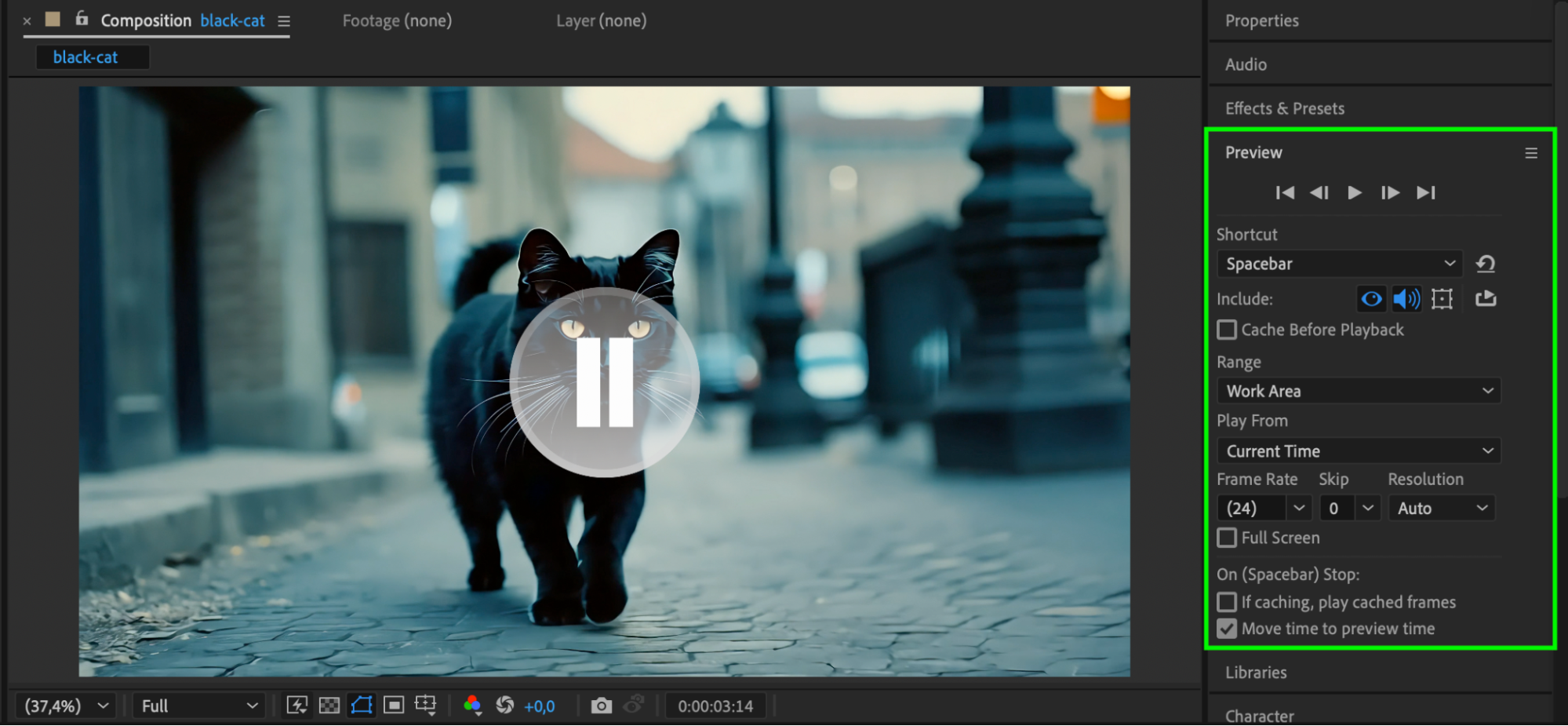 Conclusion
The pause effect in After Effects is a simple yet powerful way to add emphasis or style to your edits. By combining a freeze frame with a smoothly animated pause icon, you can clearly communicate a break in action and keep your viewers visually engaged.
Our Bestsellers


