Introduction
This tutorial explains how to place a video behind a photo in After Effects by removing part of the image and revealing a moving background. You’ll learn how to import assets, create a mask with the Pen Tool, extend a photo’s duration, and preview the final result.
Step 1: Import the Photo and Video Background
Go to File > Import > File and import:
The photo you want to edit
The video that will be used as the background
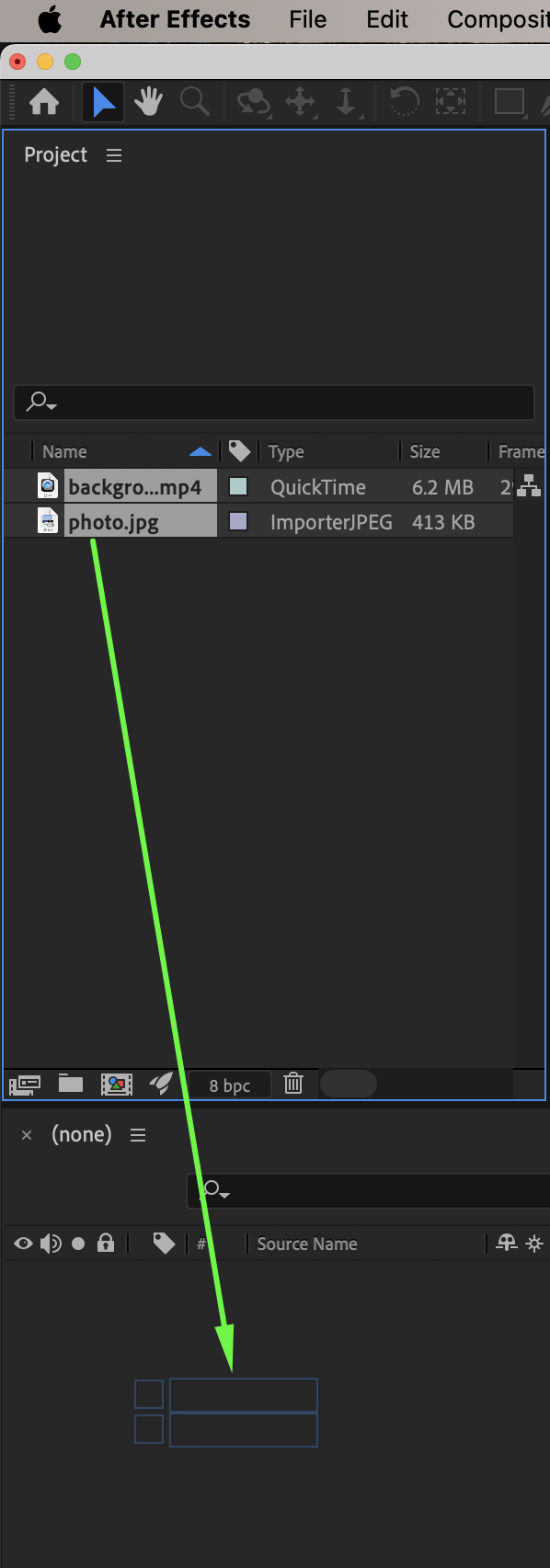
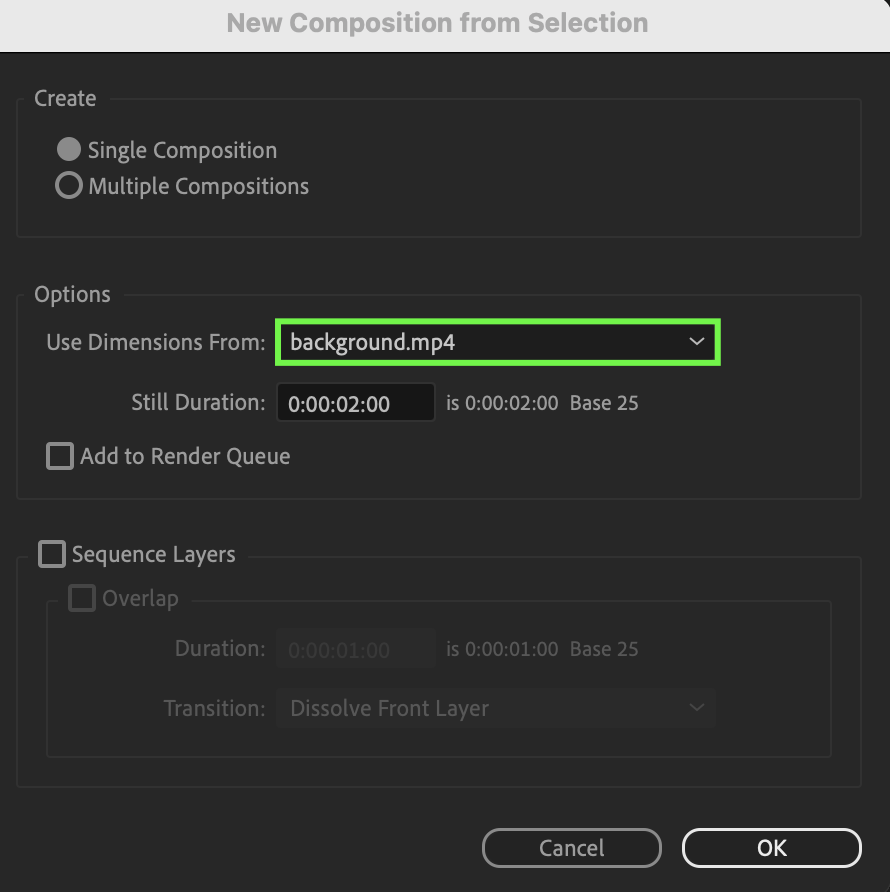
Drag both the photo and the video onto the timeline. When prompted, choose New Composition from Selection and set Dimensions to Choose your video.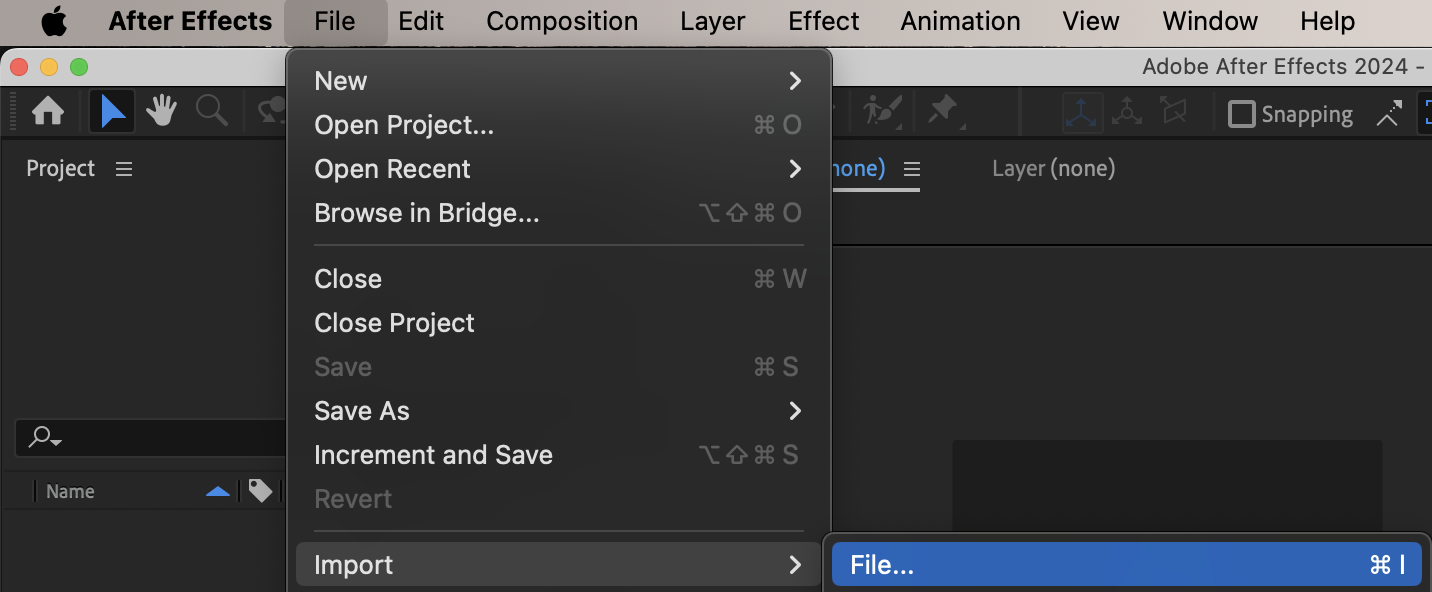
 Step 2: Create a Mask on the Photo
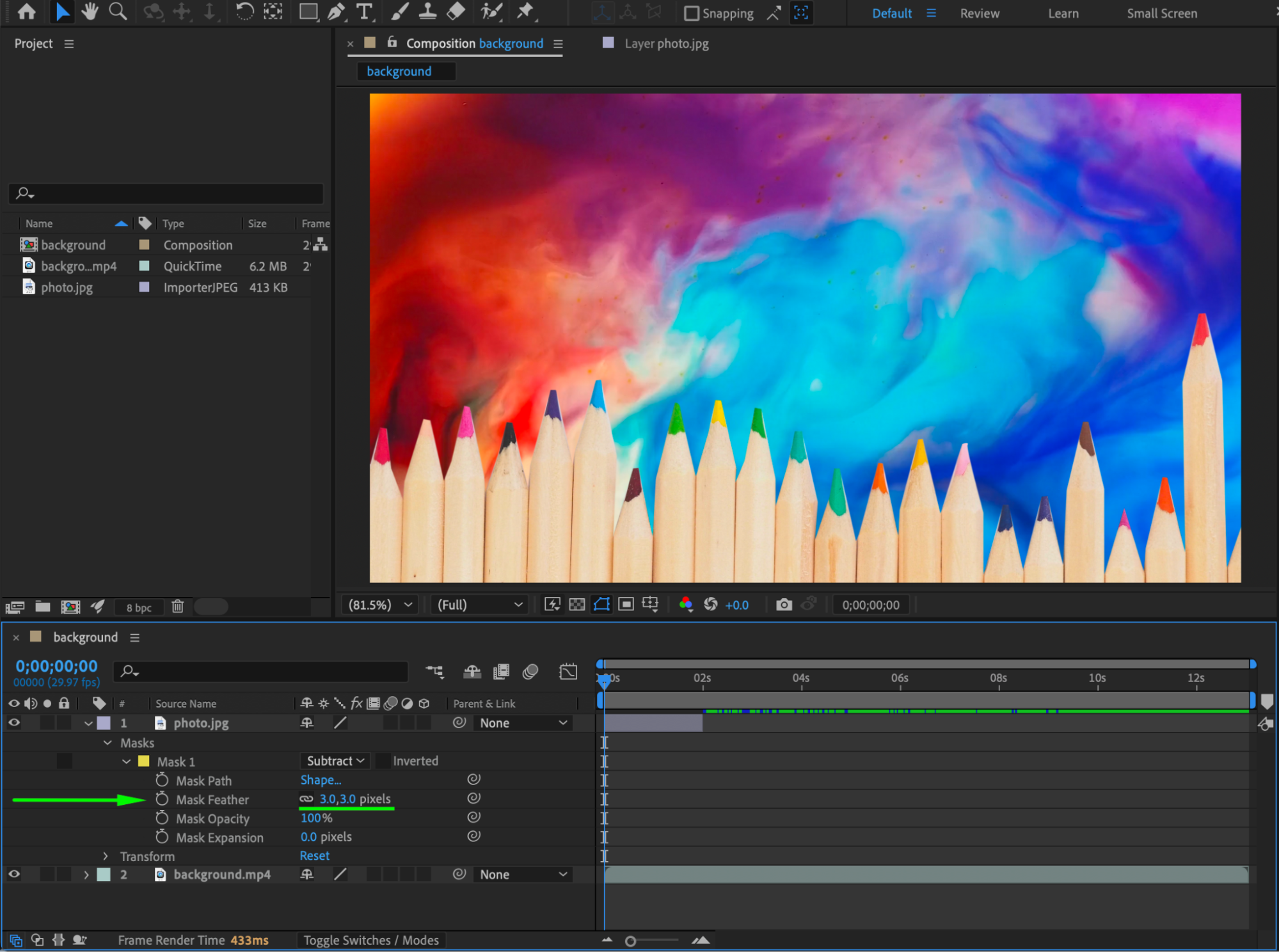
Select the photo layer. Choose the Pen Tool (G). Draw a mask around the area of the photo you want to remove. In the Mask settings:
Set Mask Mode to Subtract
Set Mask Feather to 3
This will cut out the selected area and reveal the video underneath.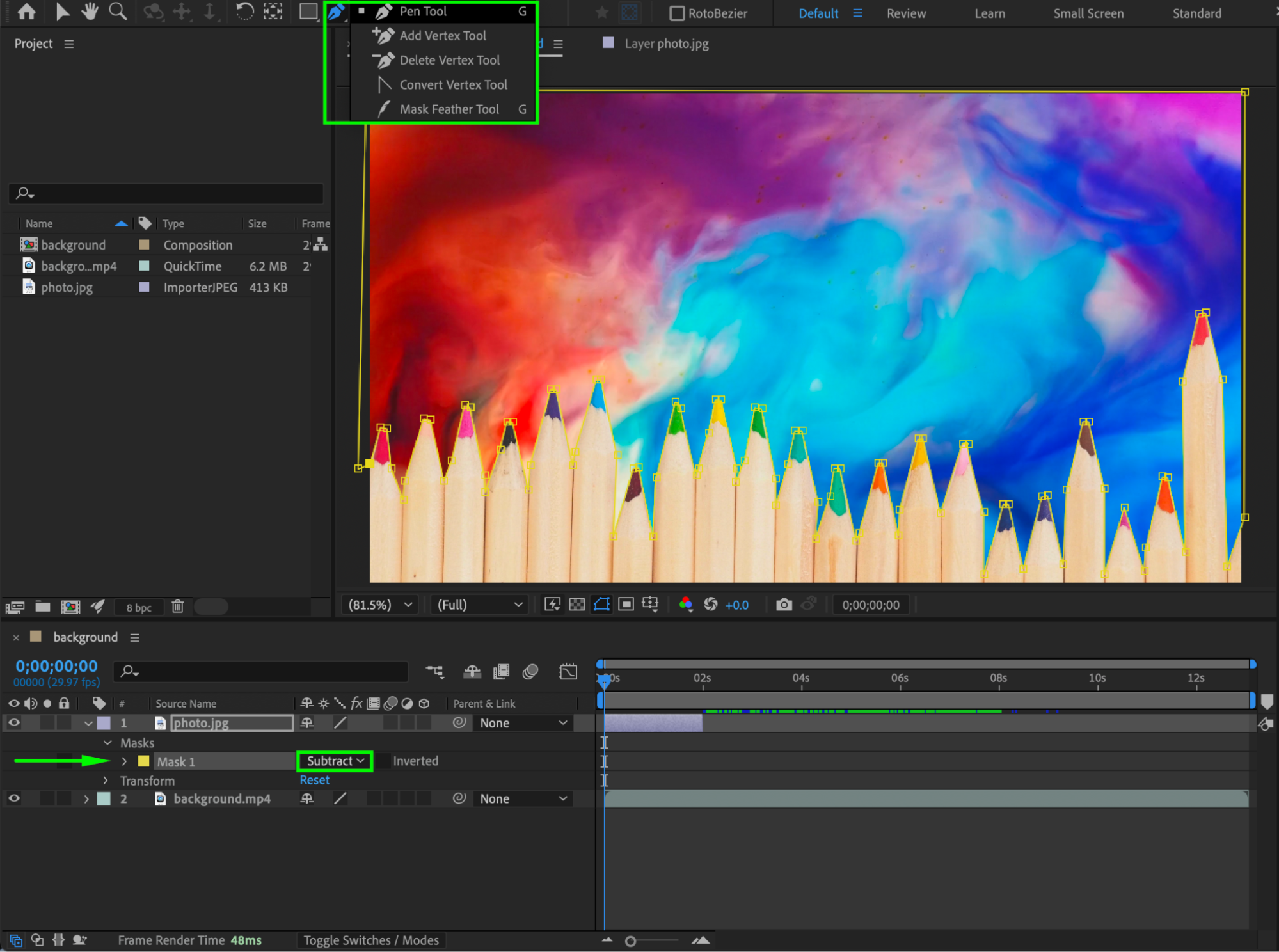
Get 10% off when you subscribe to our newsletter

Step 3: Match the Photo Duration to the Video
To make the photo last as long as the video:
Right-click on the photo layer
Choose Time > Time Stretch
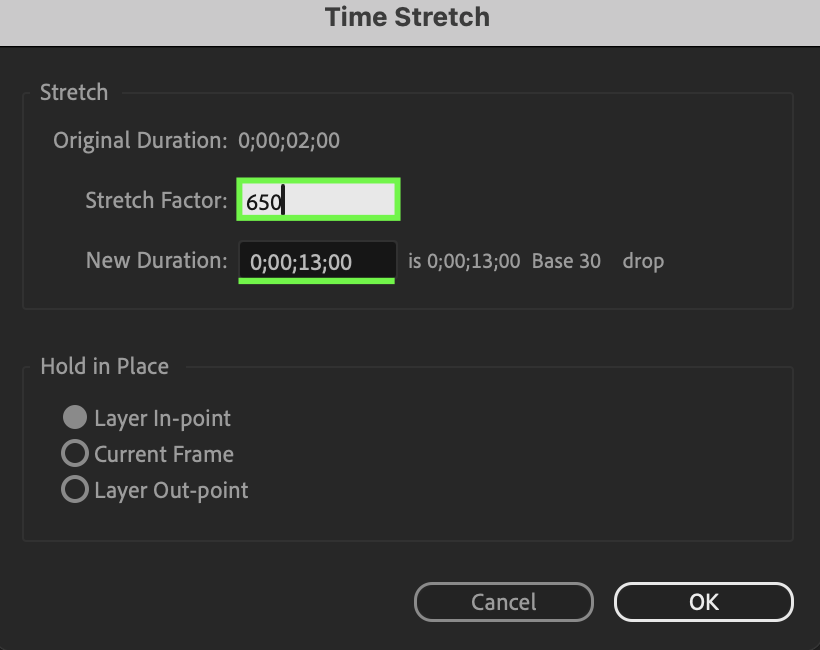
Set the Stretch Factor to 650 (or another value that matches your video length), then click OK.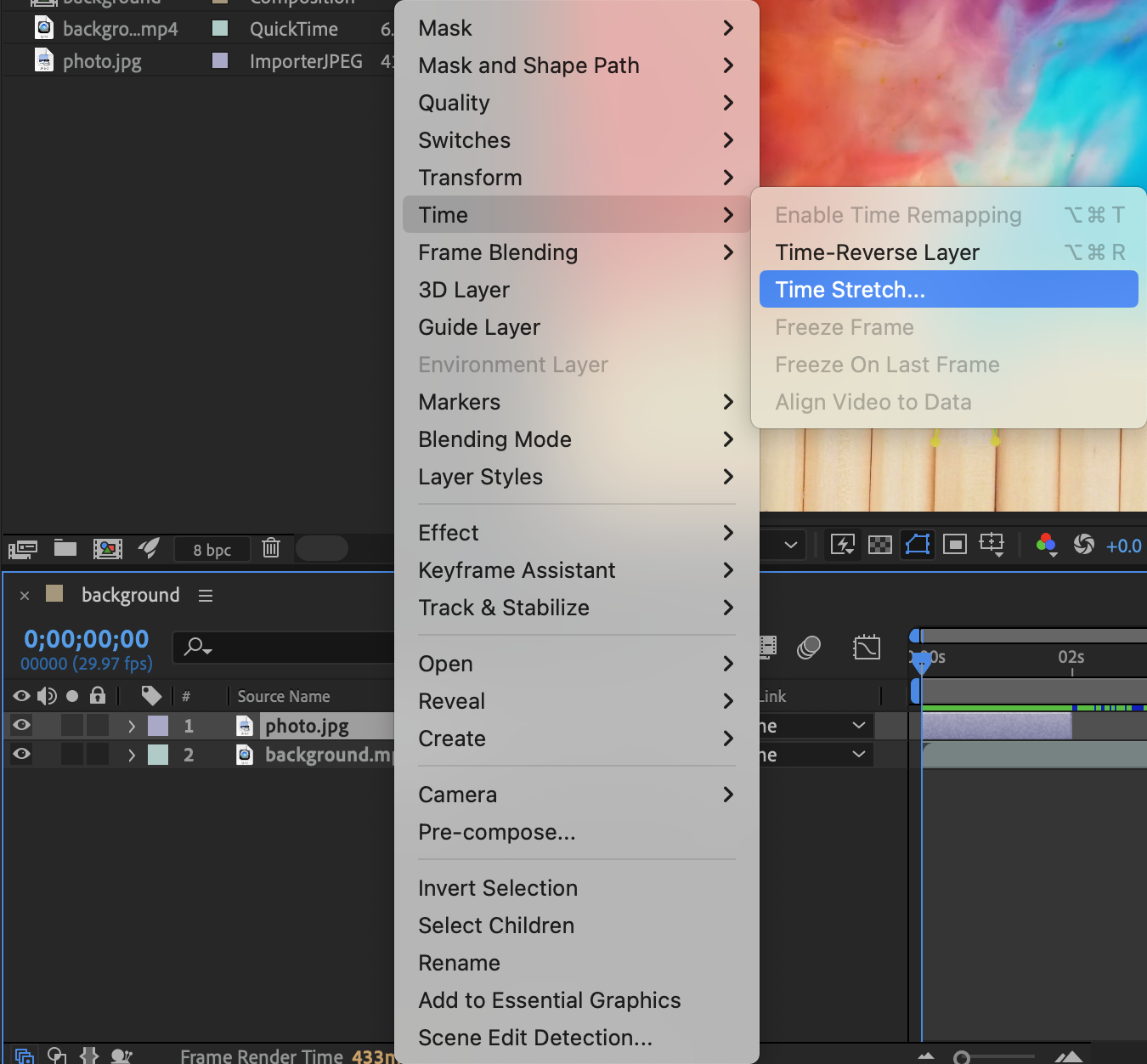
Step 4: Preview and Adjust
Preview the composition. Refine the mask shape, feather value, and layer alignment if needed until the video background blends naturally with the photo.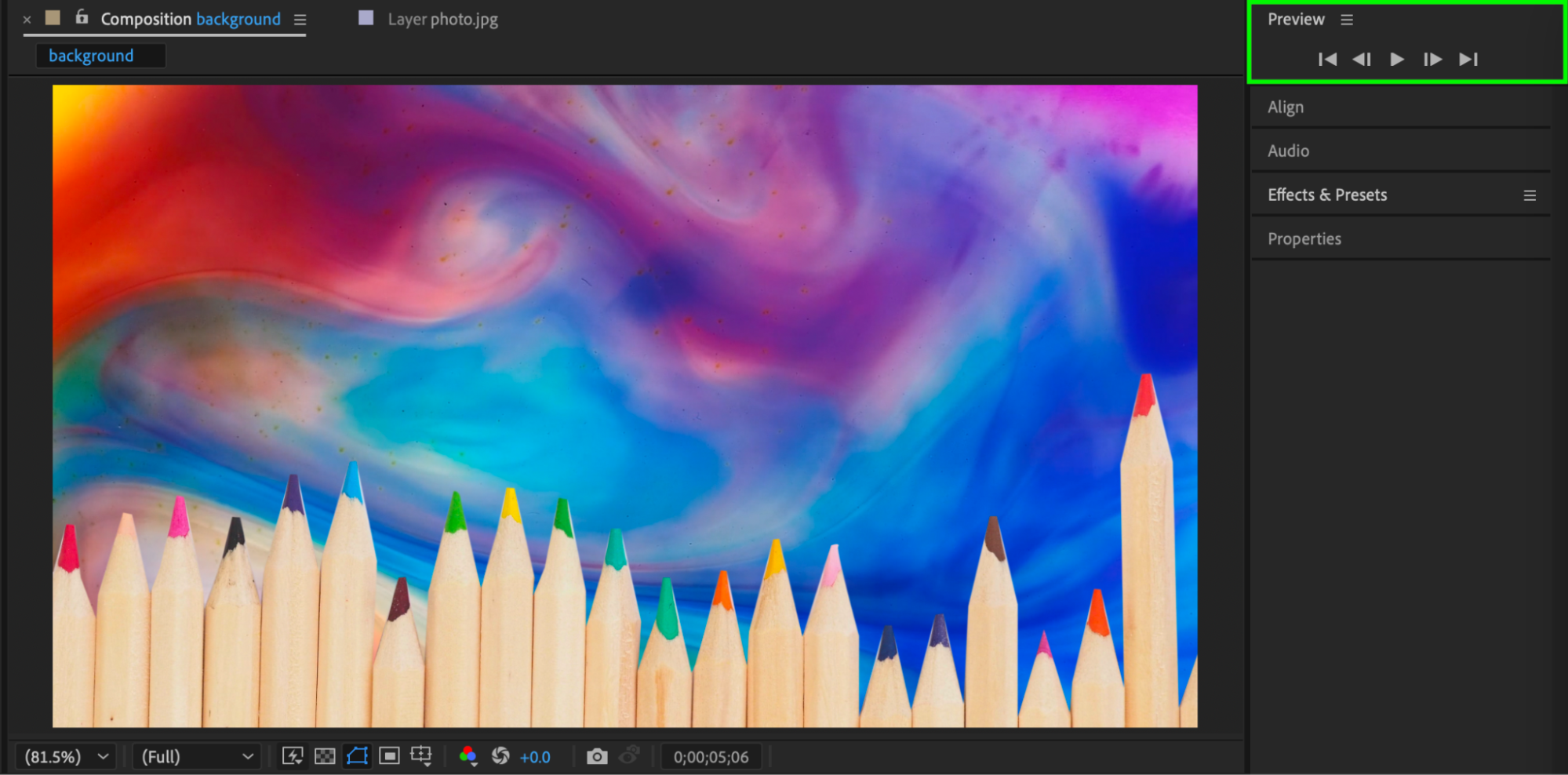
Conclusion
By masking the photo and placing a video underneath it, you can easily create a dynamic background effect in After Effects. This technique is useful for portraits, social media visuals, cinematic edits, and motion design projects.
Our Bestsellers


