Introduction
This tutorial shows how to create simple and effective transition effects between two videos in After Effects. You will learn how to import footage, set up a composition with overlap, animate positions, and enhance the transition with easing and motion blur.
Step 1: Import Videos and Create a Composition
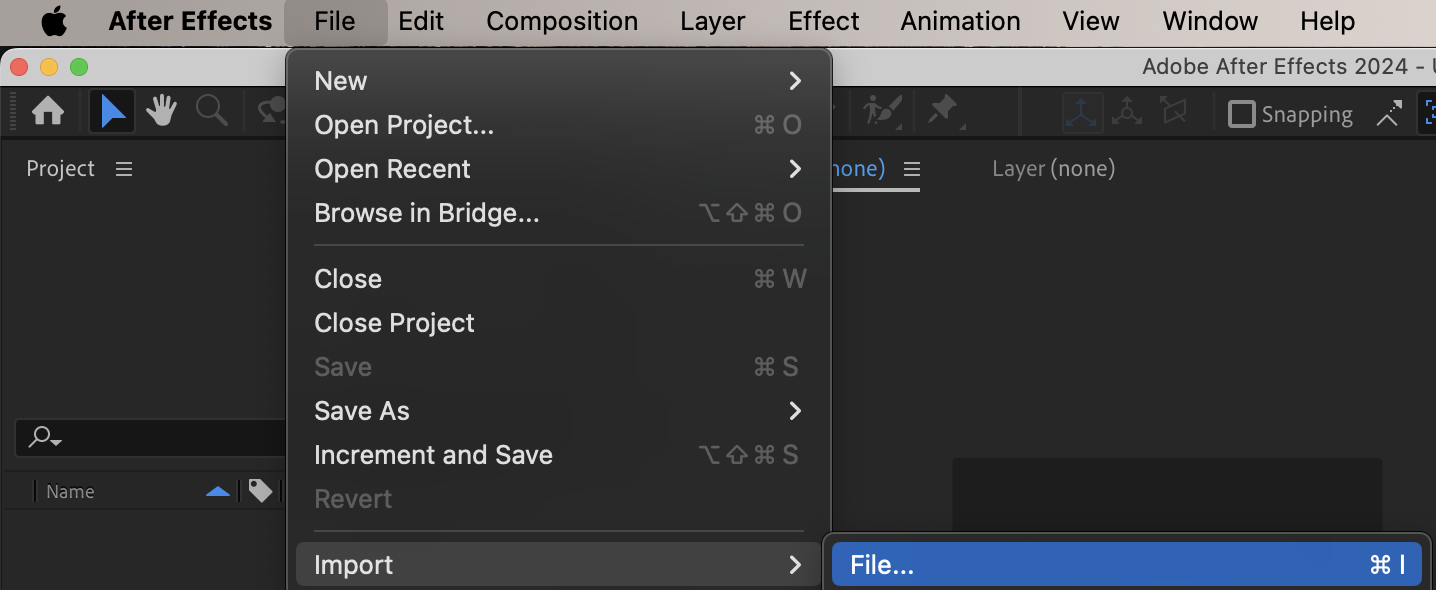
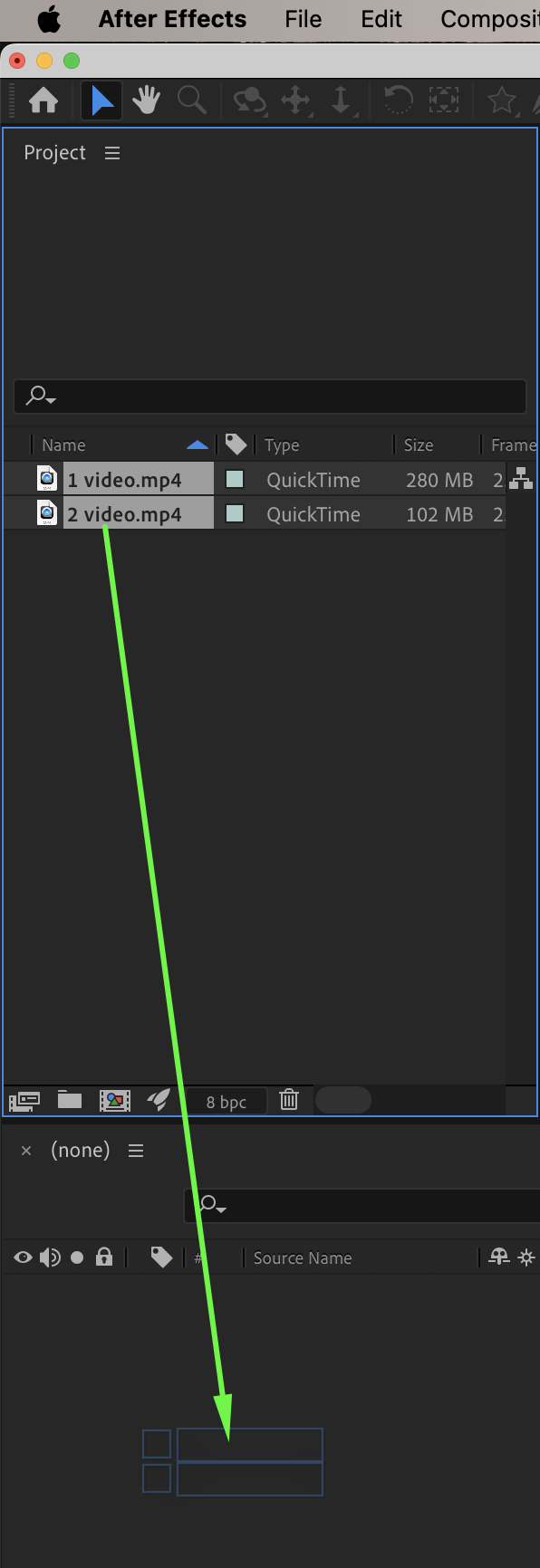
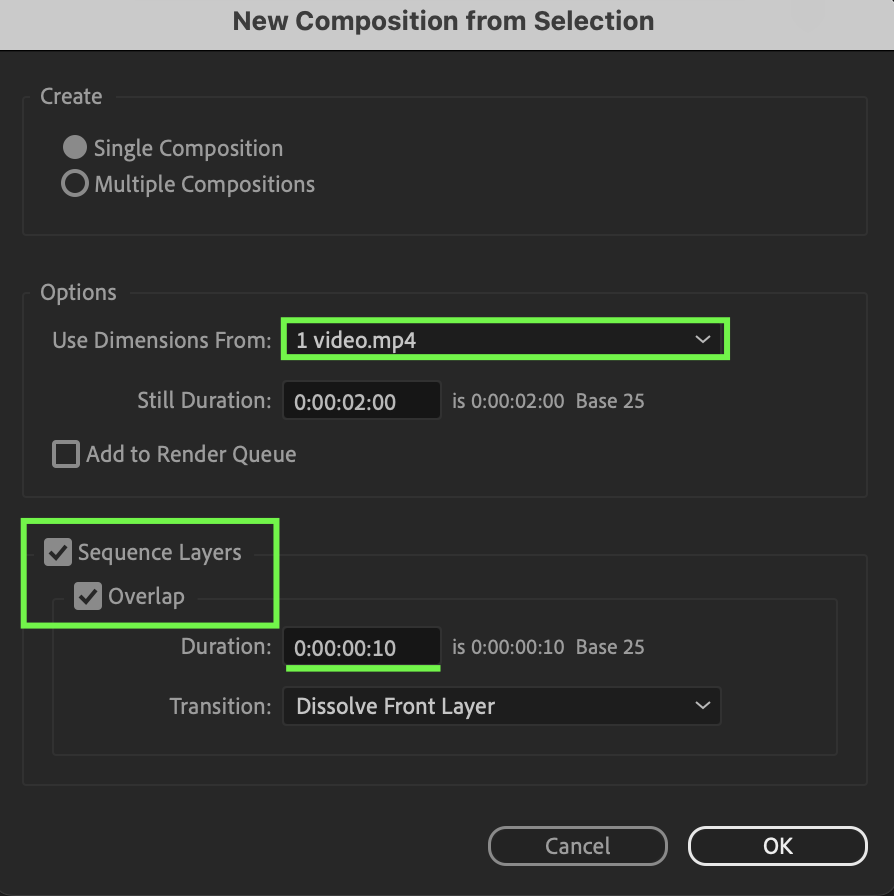
Go to File > Import > File and import your two videos. Drag both videos onto the timeline. When the New Composition from Selection window opens:
Set Use Dimensions From to one of your videos
Enable Sequence Layers
Enable Overlap and set Duration to 0:00:00:10
This automatically creates a simple crossfade transition between the two videos.
 Step 2: Animate the Position of the First Video
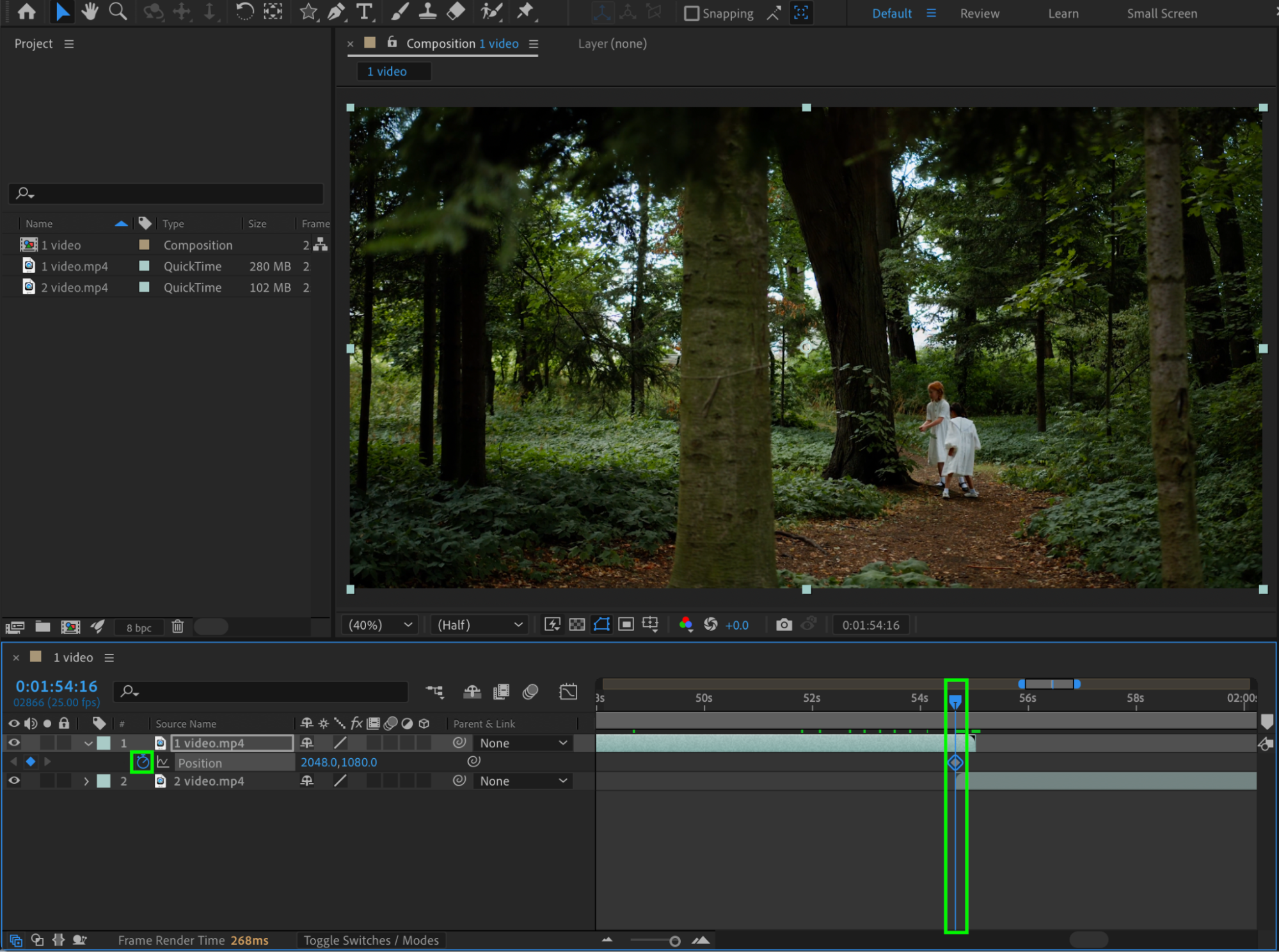
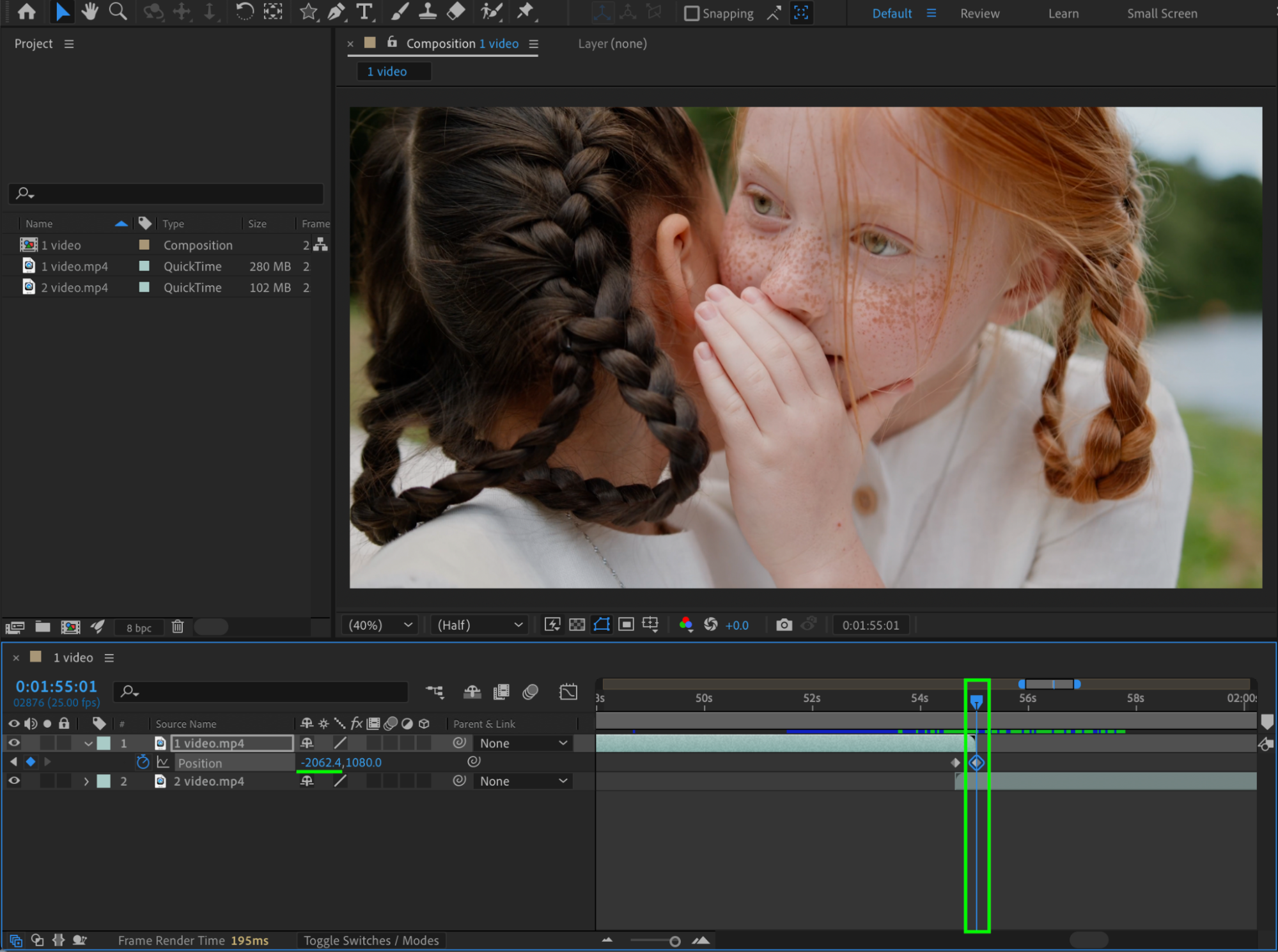
Move the CTI (Current Time Indicator) to the point where the second video begins. On the first video layer, click the stopwatch icon next to Position to create a keyframe.
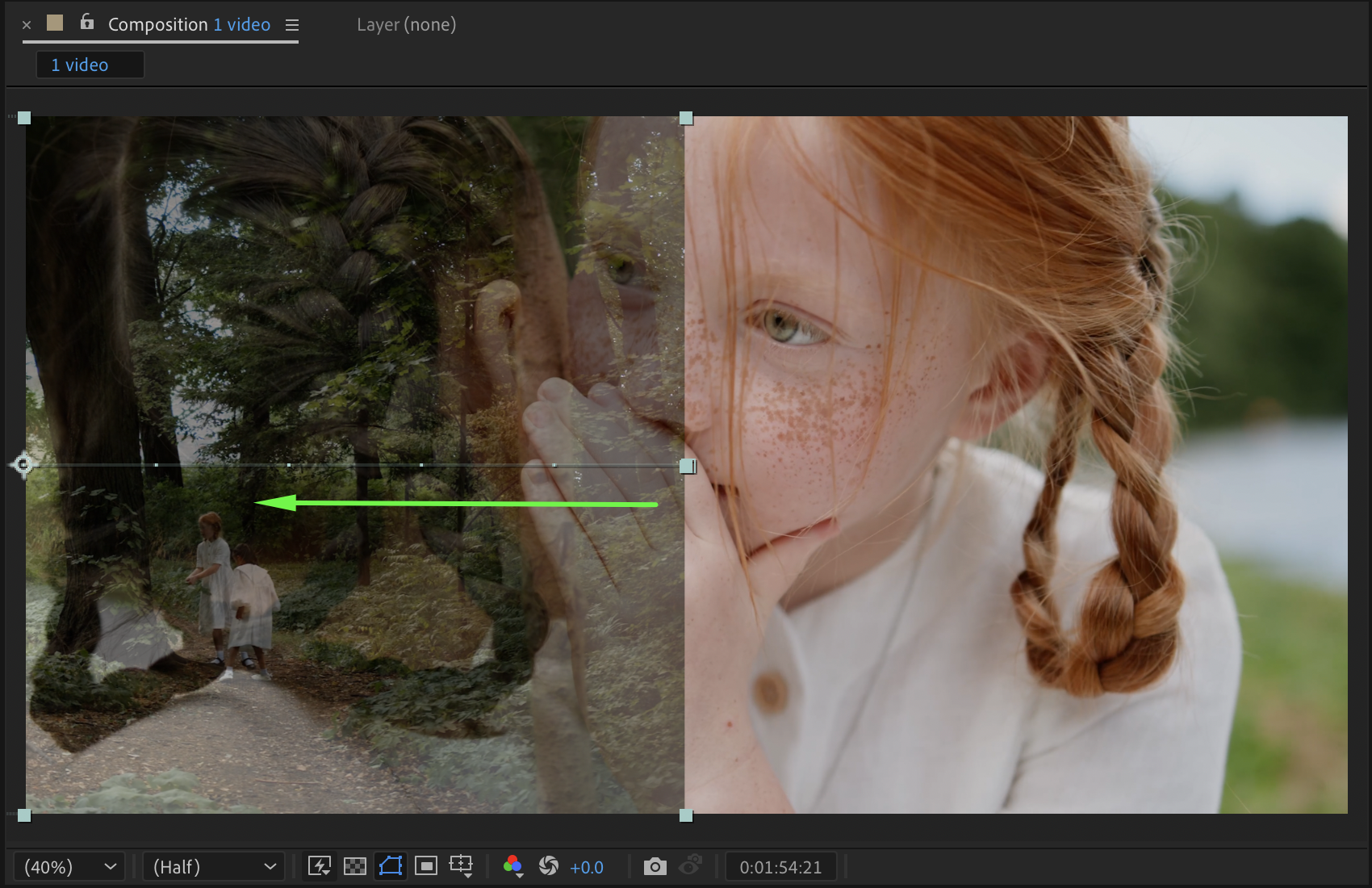
Move the CTI 10 frames forward. Change the X Position of the first video so that it moves completely out of the composition to the right.
Get 10% off when you subscribe to our newsletter

Step 3: Animate the Position of the Second Video
Move the CTI to the point where the first video ends. On the second video layer, click the stopwatch icon next to Position to set a keyframe.
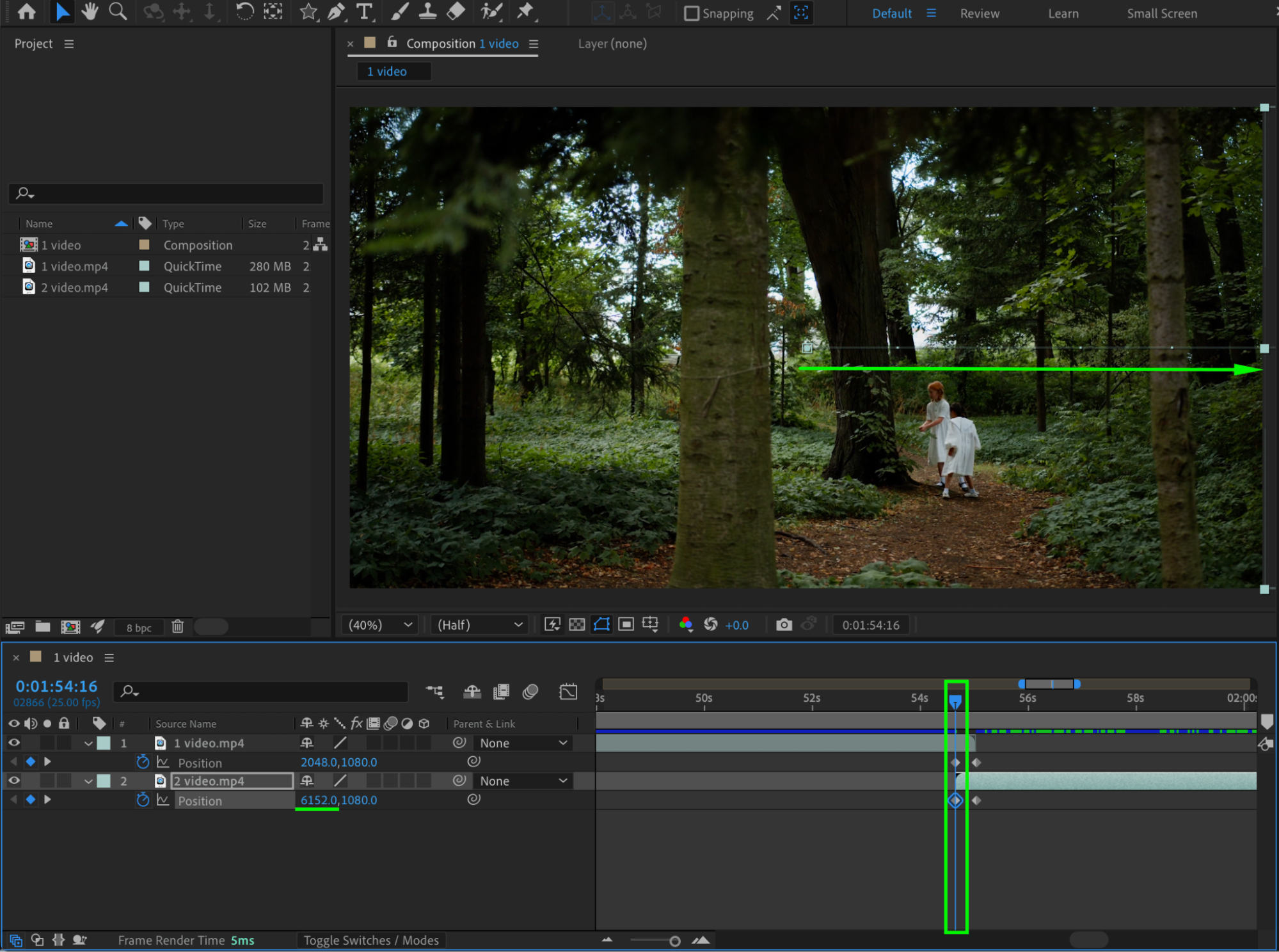
Move the CTI 10 frames backward. Change the X Position of the second video so that it starts completely off-screen to the left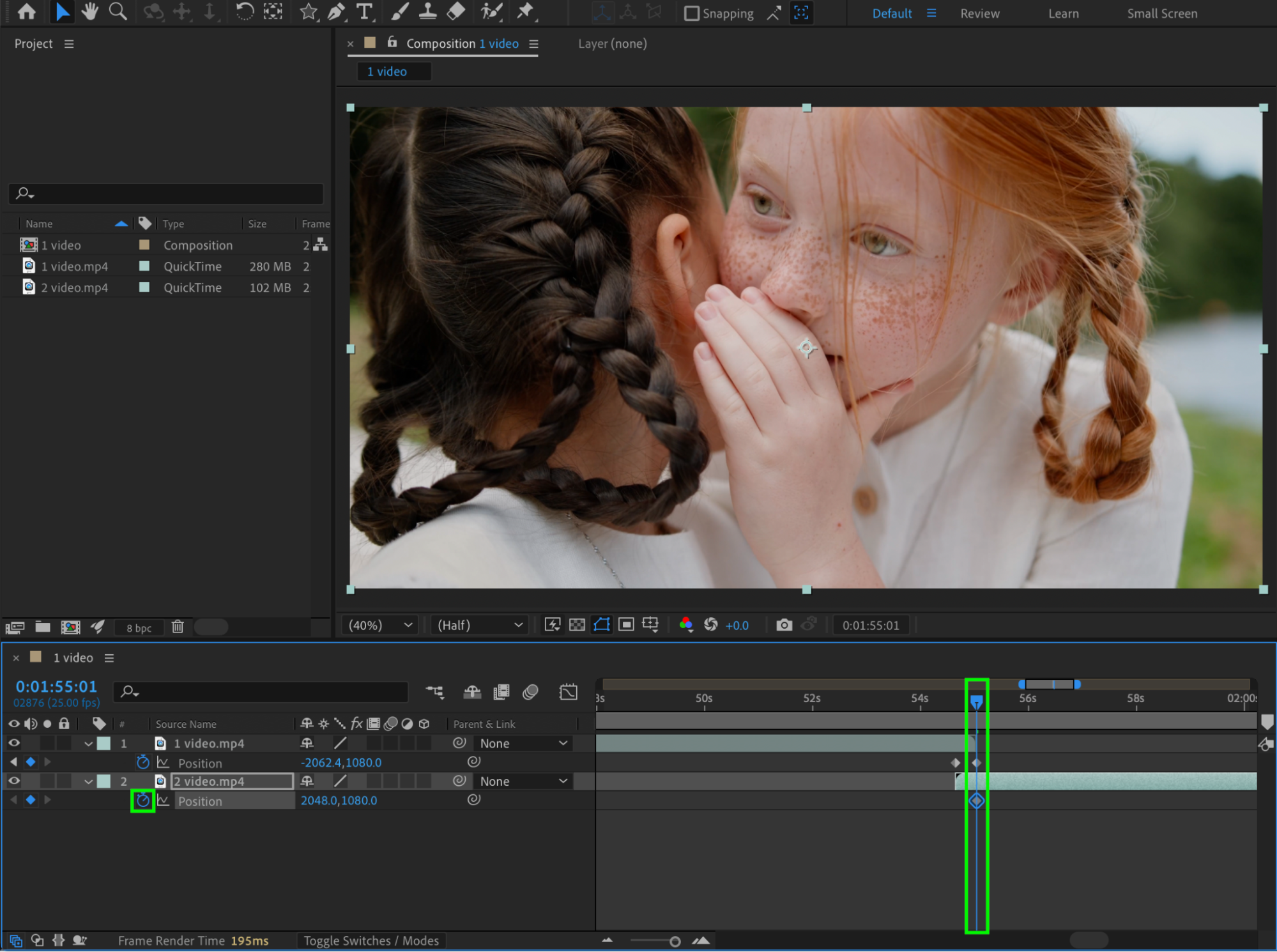
 Step 4: Add Easy Ease
Select your position keyframes. Right-click and choose Keyframe Assistant > Easy Ease to smooth the motion and make the transition more natural.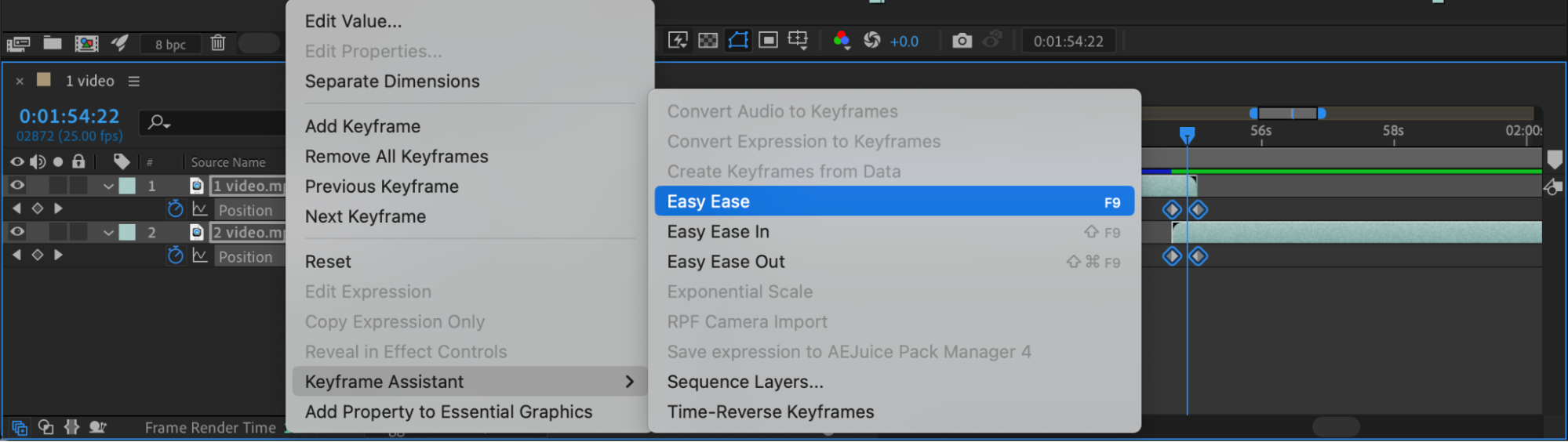
Step 5: Enable Motion Blur
Turn on Motion Blur for both video layers and enable Motion Blur for the composition. This will give the sliding transition a more realistic look.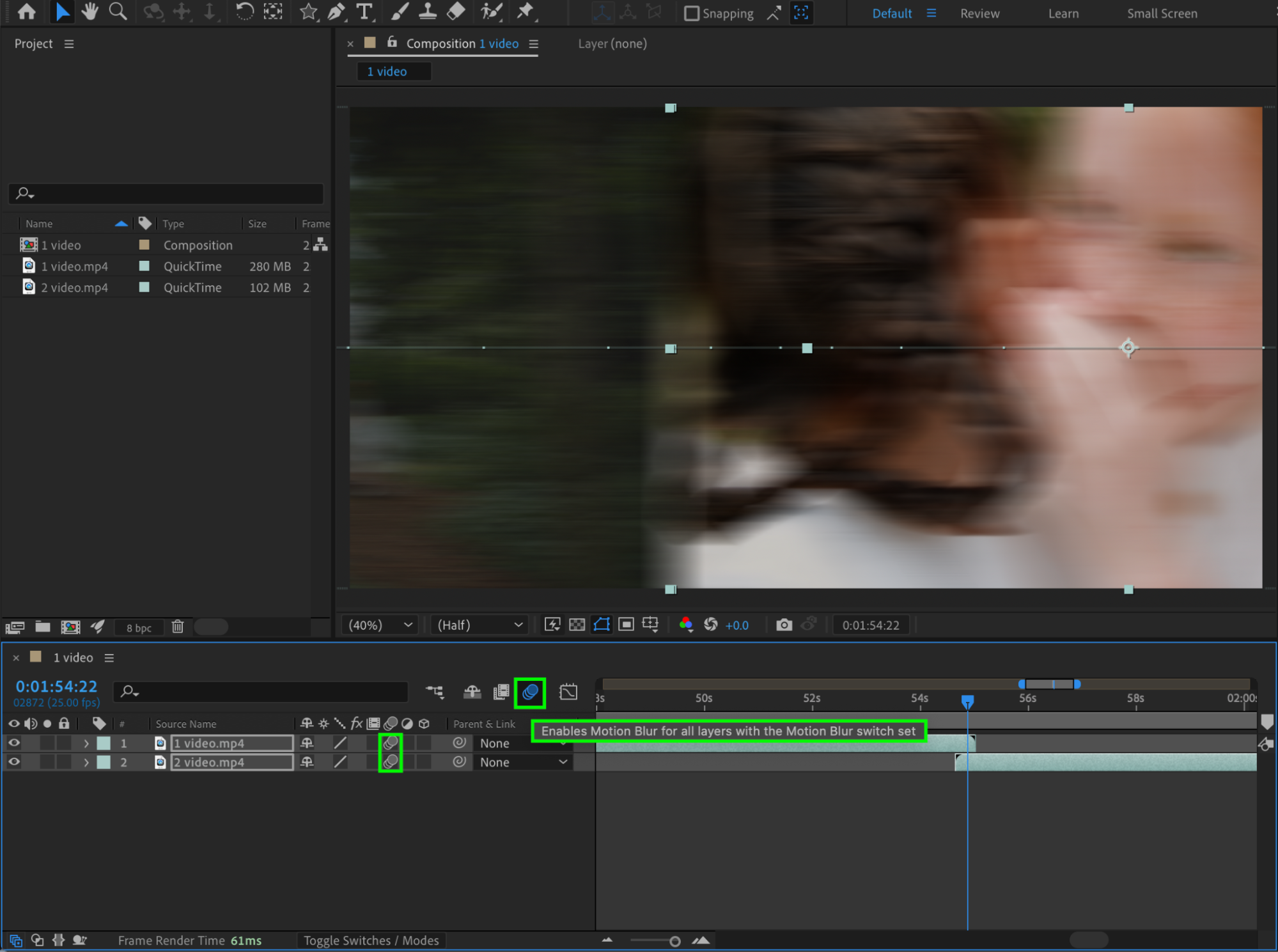 Step 6: Preview and Refine
Preview the animation. Adjust the keyframes, overlap duration, and motion blur settings until the transition feels smooth and natural.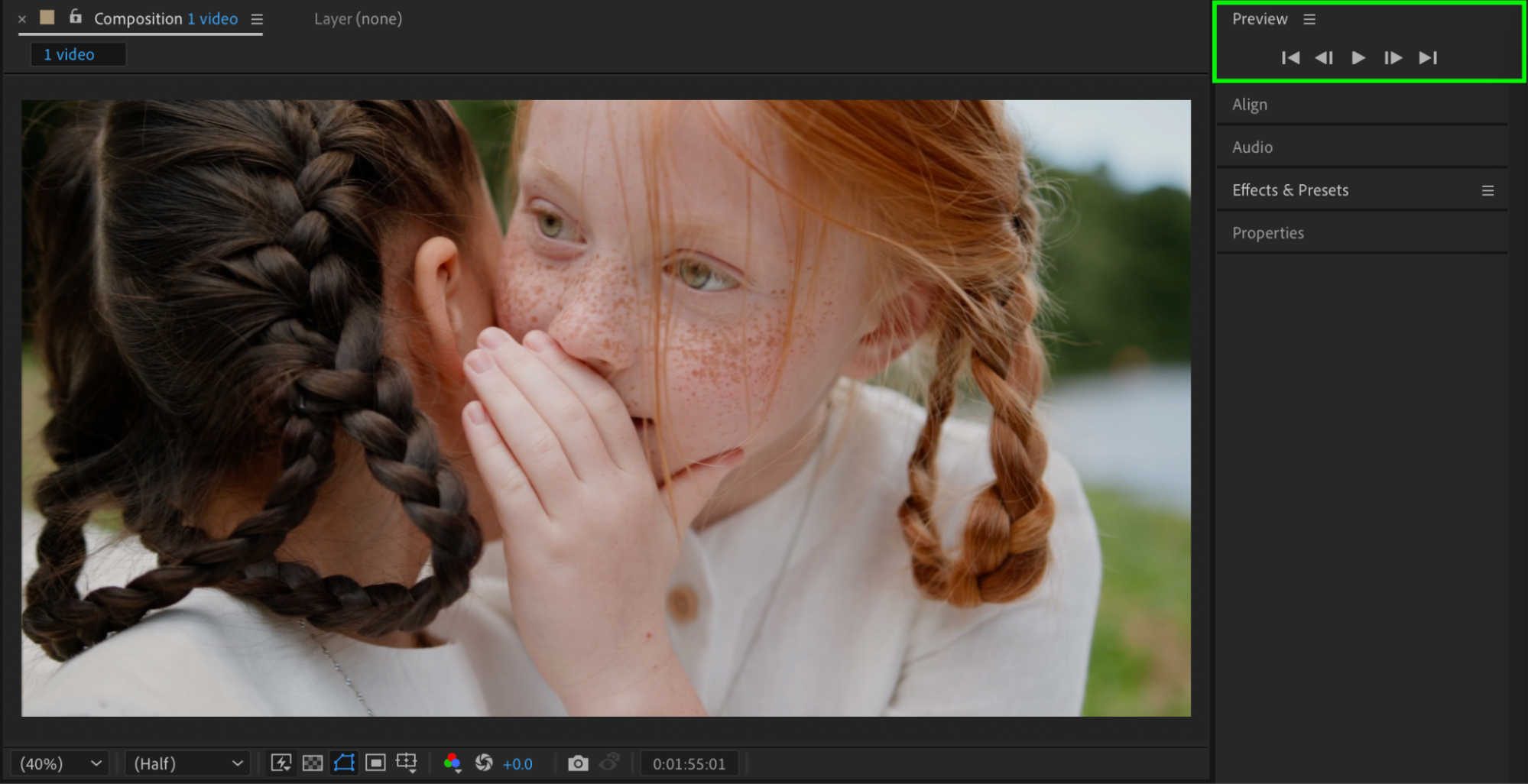 Conclusion
By combining sequence layers, position animation, easing, and motion blur, you can create professional-looking transitions between videos in After Effects. This method is quick, customizable, and works for a variety of projects including vlogs, films, and social media content.
Our Bestsellers


