Introduction
Animating hundreds of layers in After Effects can quickly become overwhelming and slow down your workflow. Instead of animating each layer individually, you can use a combination of precomposing, expressions, and layer management techniques to keep your project organized and efficient.
Step 1: Import and Organize Your Layers
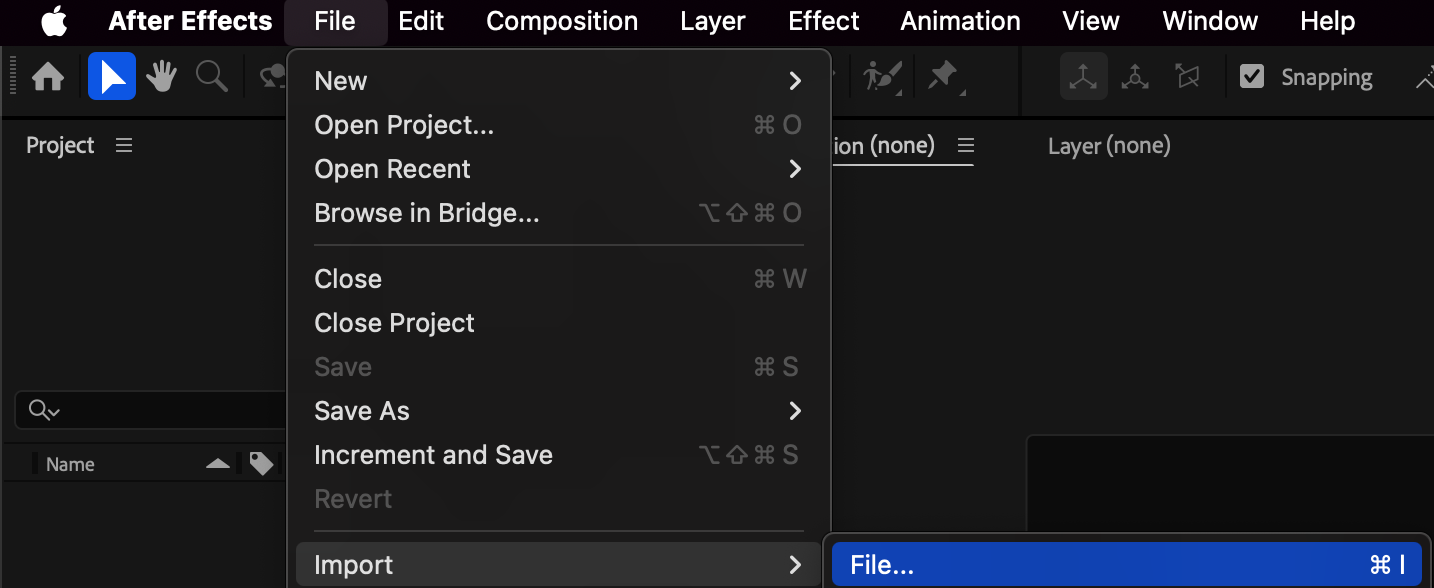
Import all your assets (such as images, shapes, or text) through File > Import > File.
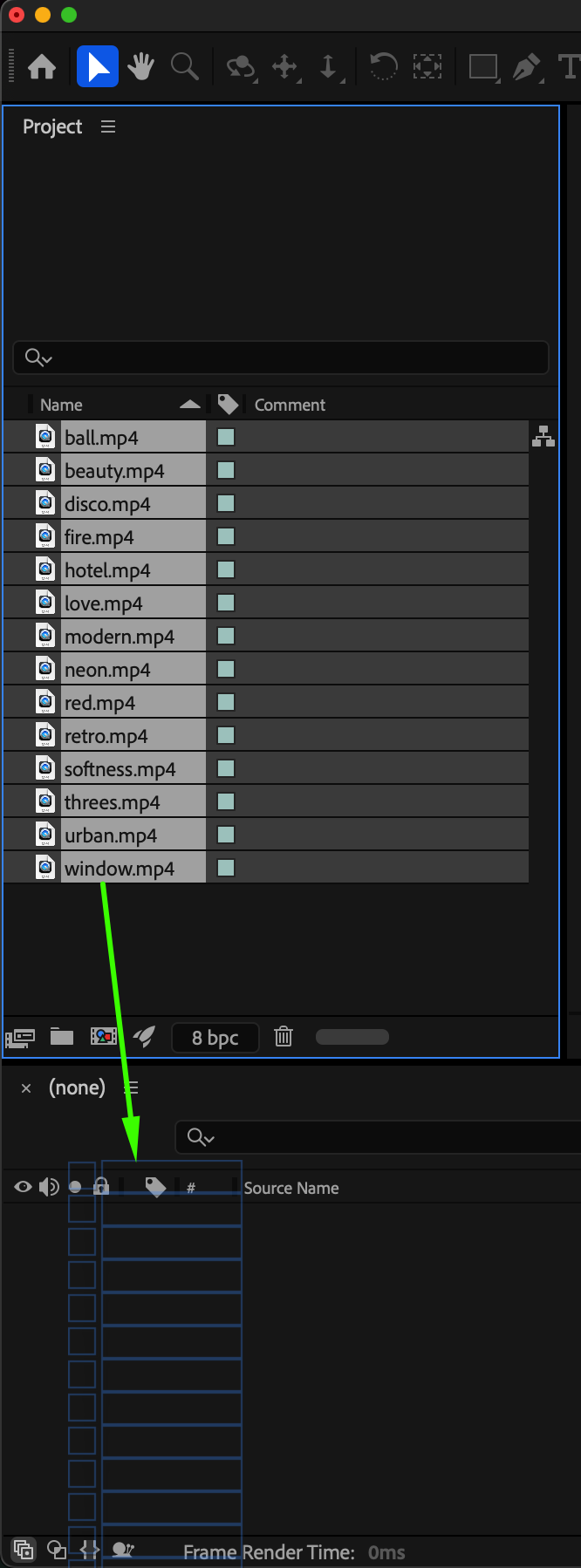
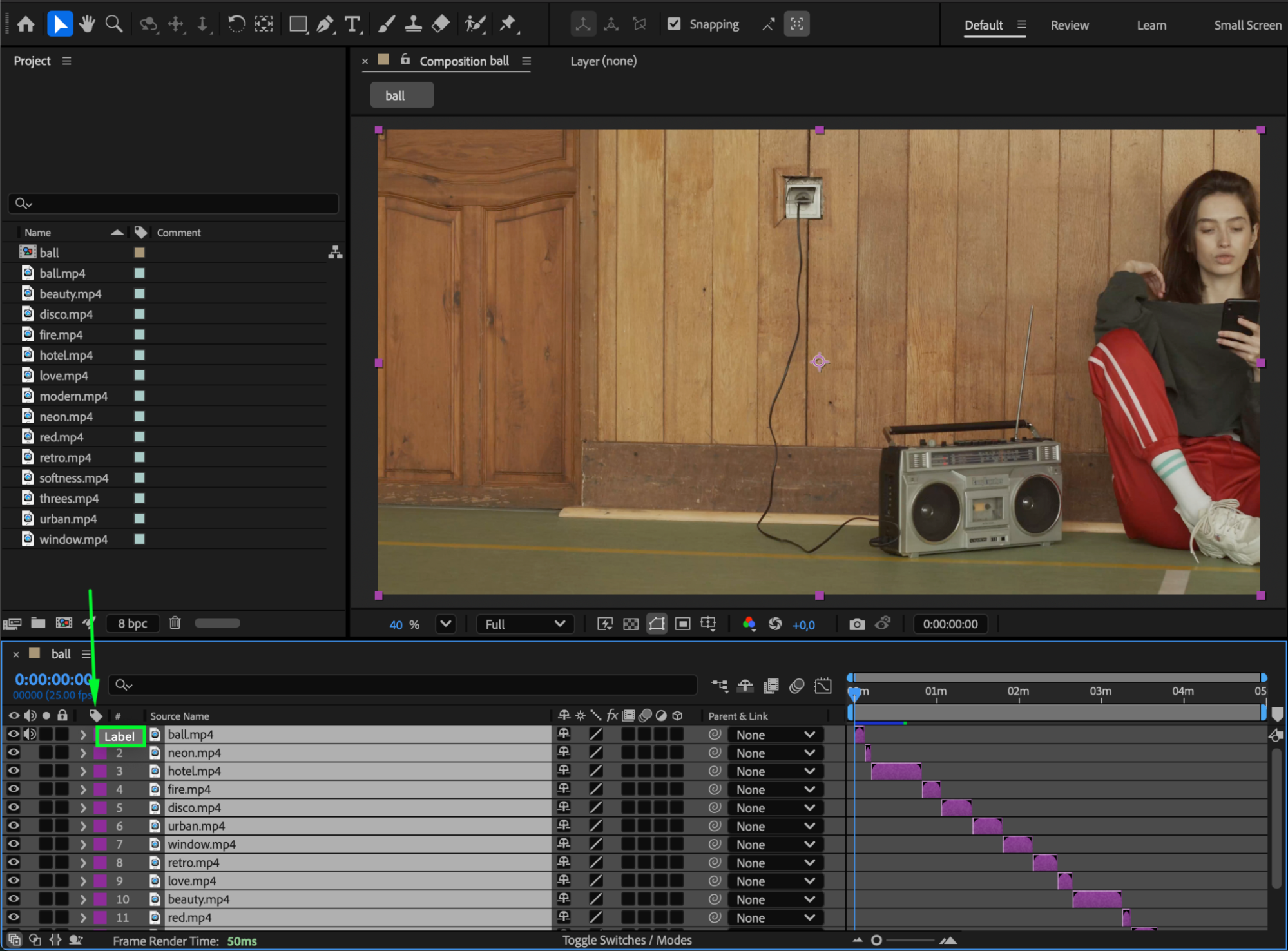
Once imported, drag them into your composition. Rename and color-label your layers in the Timeline panel to easily identify different elements.
 Step 2: Precompose Groups of Layers
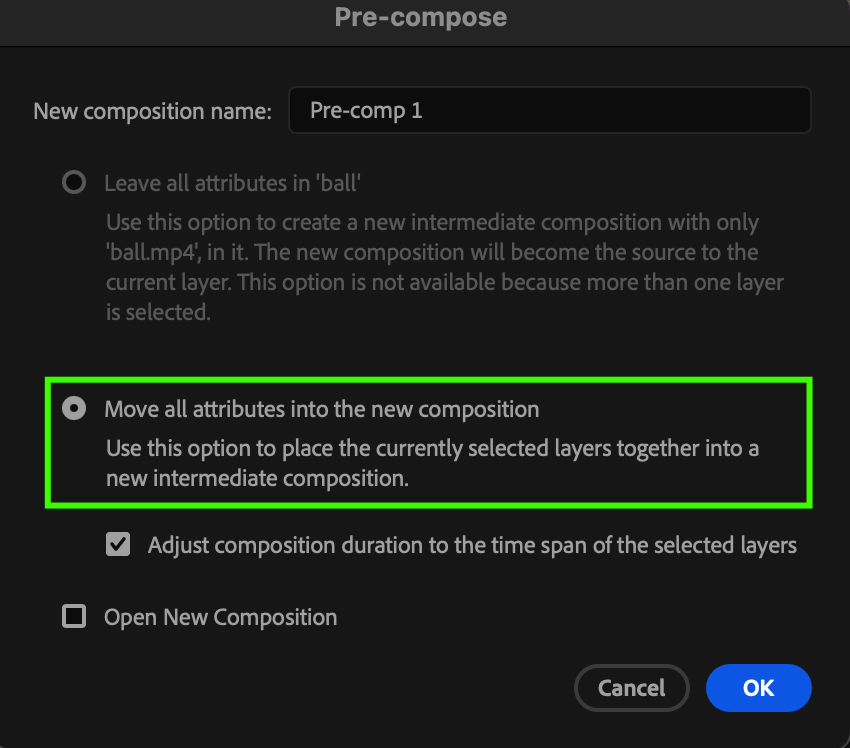
Select multiple related layers, then go to Layer > Pre-compose. Choose Move all attributes into the new composition and click OK. This helps reduce clutter and allows you to animate entire groups as single layers.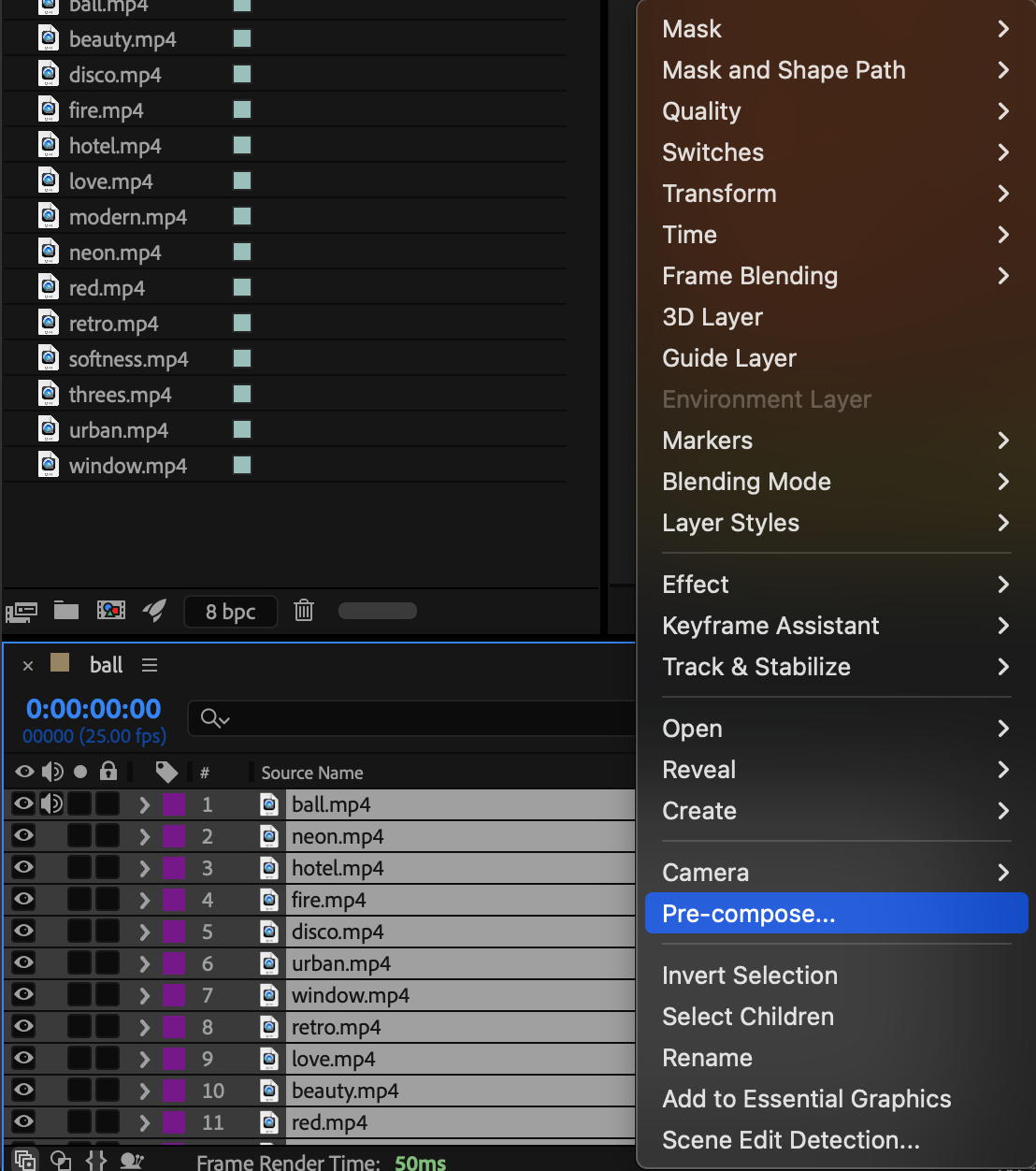
Get 10% off when you subscribe to our newsletter

Step 3: Apply Animation Presets or Expressions
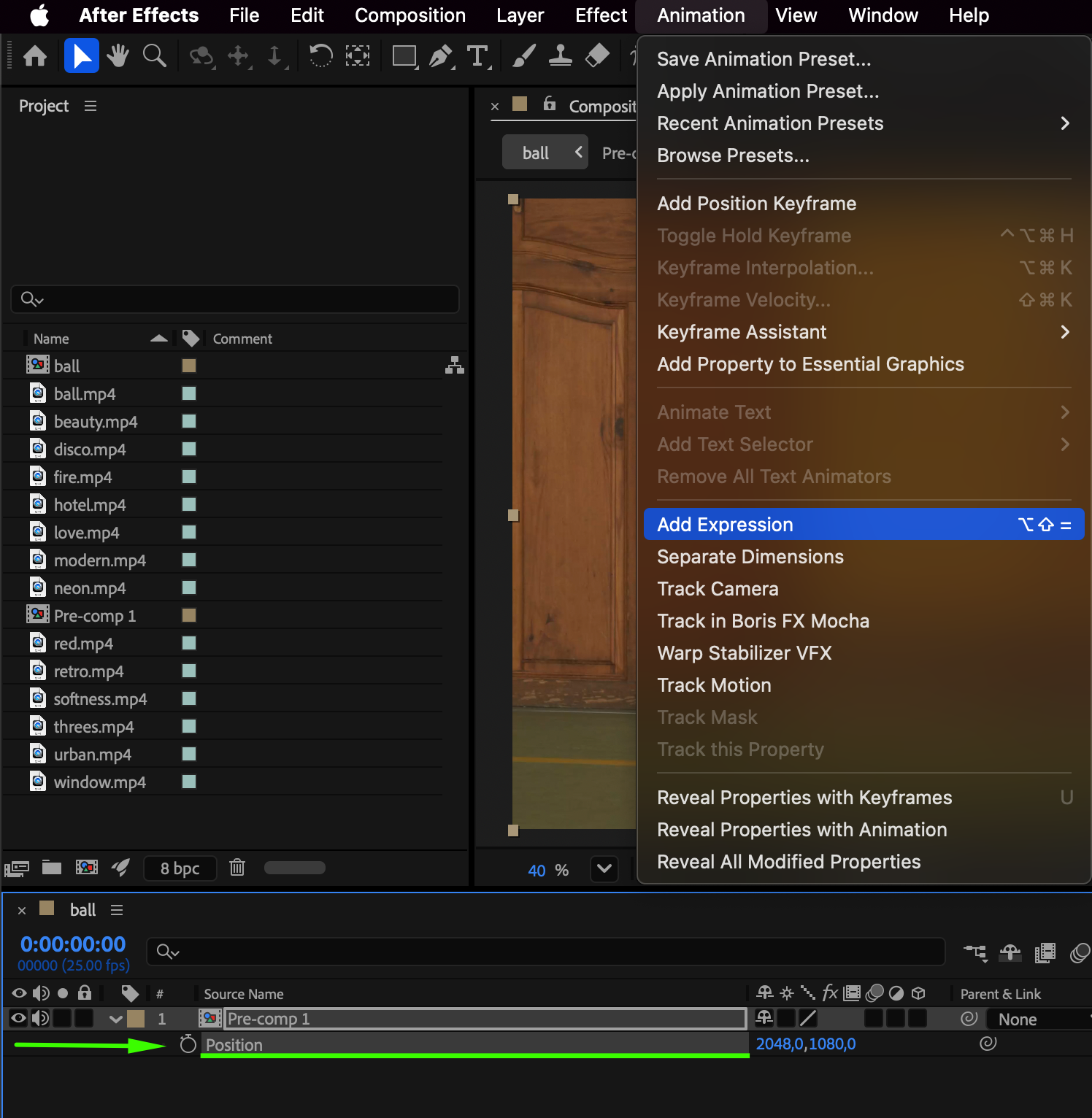
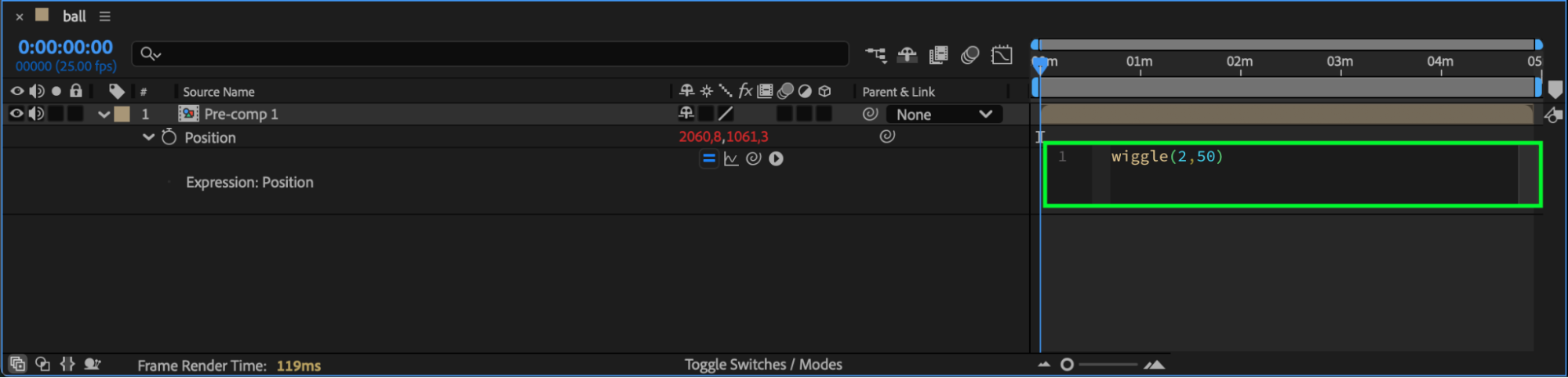
For large-scale animations, use animation presets (e.g., Position Wiggle, Opacity Fade, Scale Bounce) or add expressions. To add a simple randomized animation, Alt/Option + Click the stopwatch next to a property like Position and type:
wiggle(2,50)
This makes each layer move slightly at random, creating a dynamic effect without manual keyframing.
 Step 4: Use Adjustment Layers for Global Effects
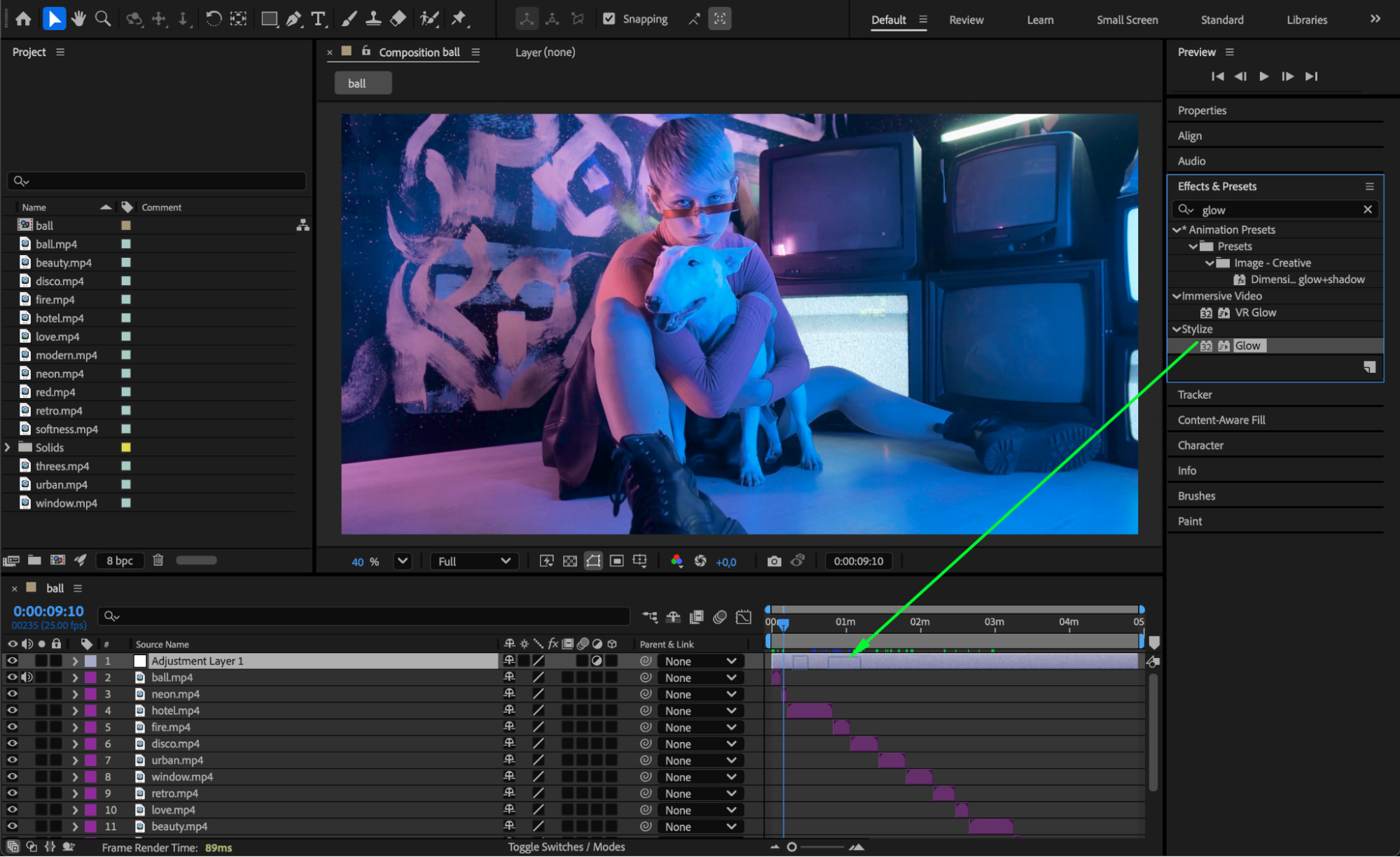
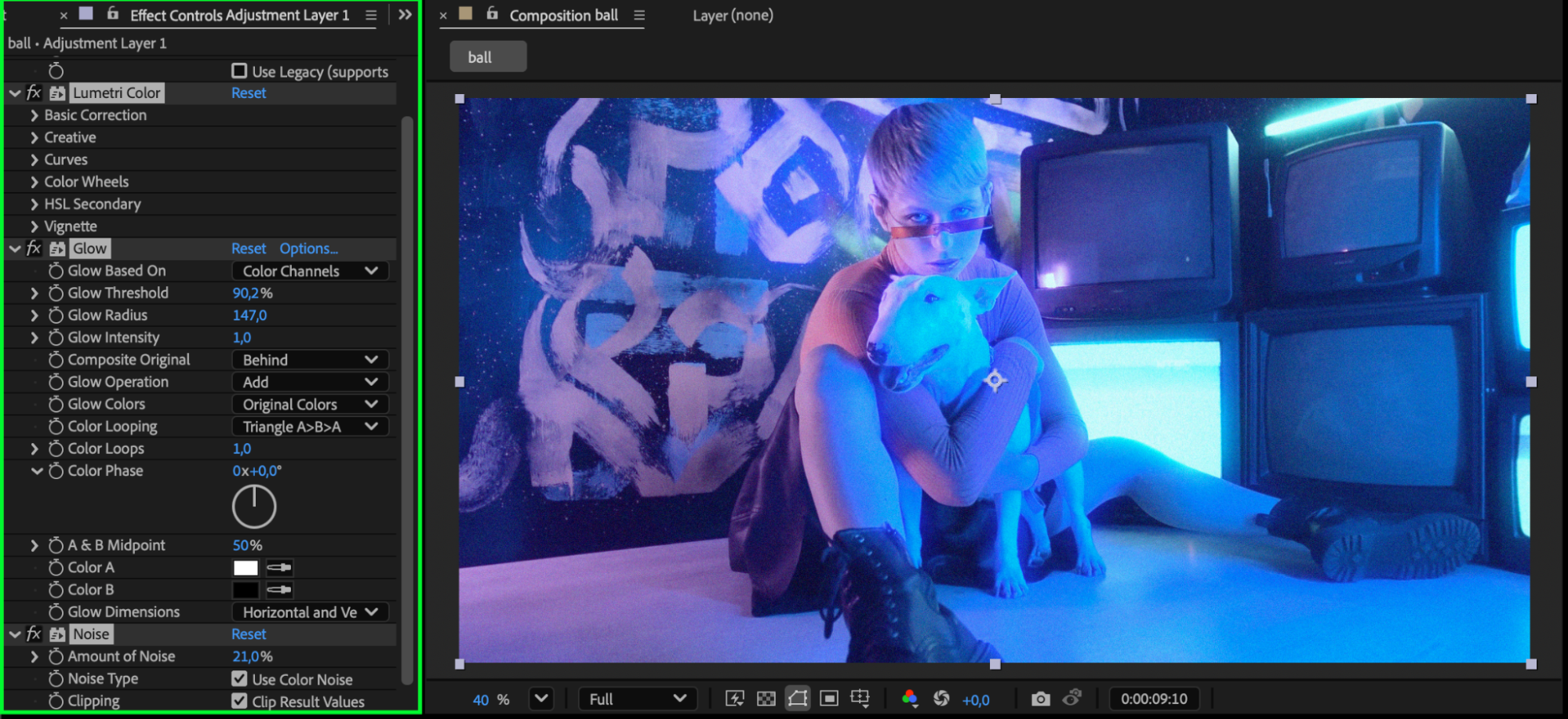
Instead of applying the same effect to each layer, use Layer > New > Adjustment Layer, and apply effects (like Glow, Tint, or Blur) to it. This way, the effect applies to all layers below it in the stack, saving time and system resources.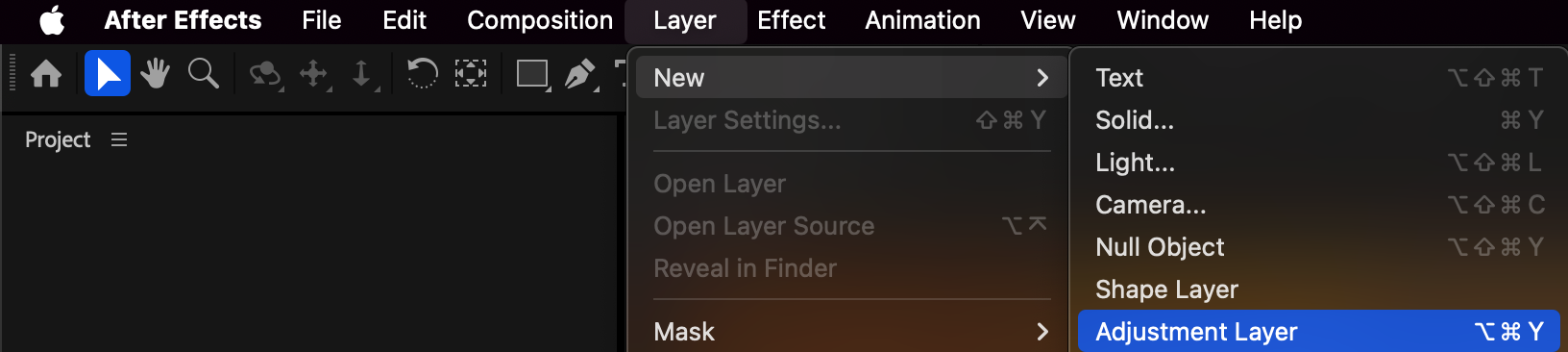
Step 5: Optimize Performance
Animating hundreds of layers can slow down playback. To optimize performance:
Turn off motion blur until final render.
Use Draft 3D or Fast Draft preview modes.
Pre-render complex precomps if needed.
Step 6: Preview and Refine
Press Spacebar to preview your animation. Adjust timing or expression values as needed. You can duplicate precomps or modify keyframes to create variation across multiple elements.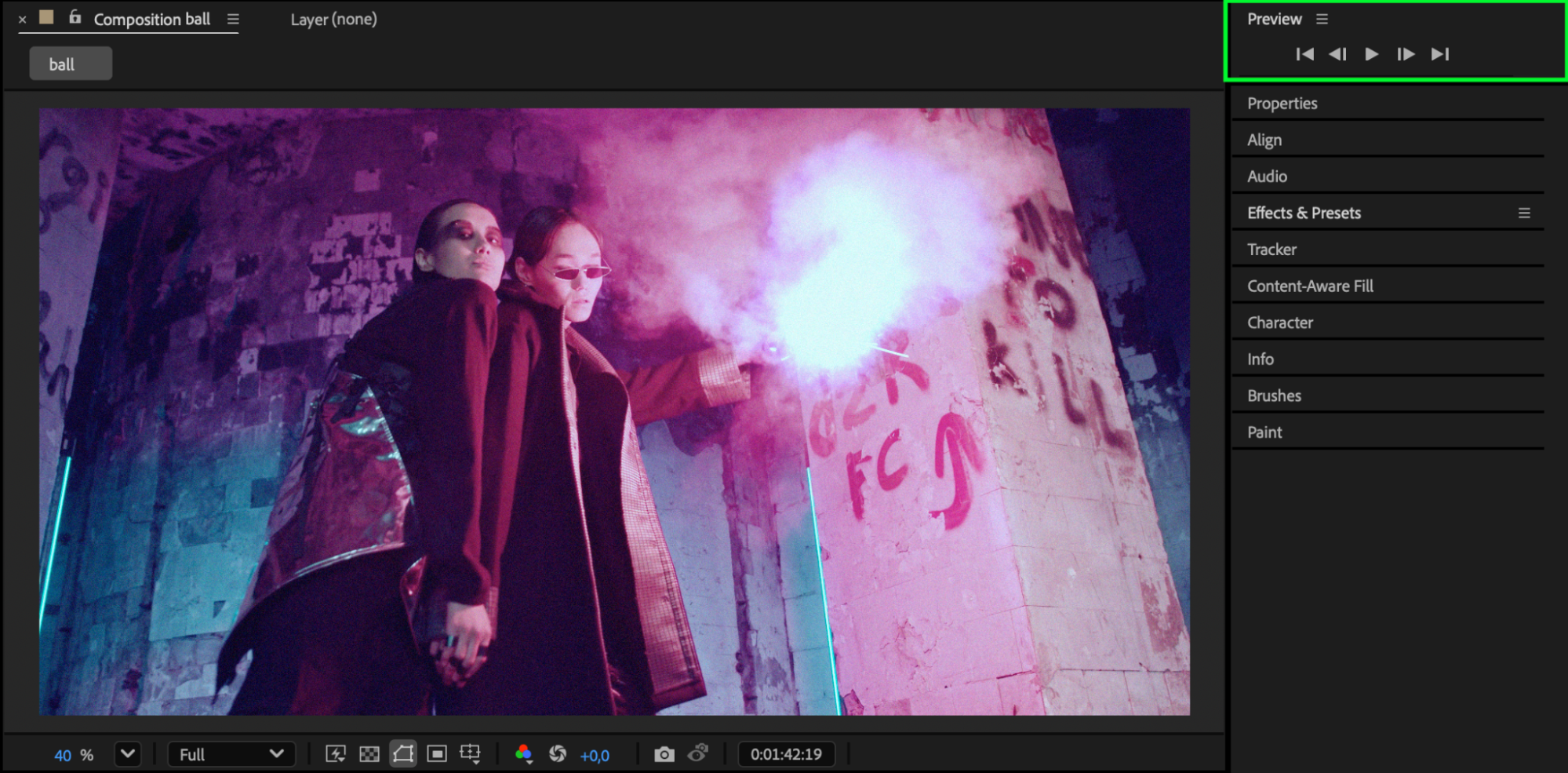
Conclusion
Animating hundreds of layers in After Effects doesn’t have to be complicated. By precomposing, using expressions, and managing your layers efficiently, you can achieve complex, large-scale animations while keeping your workflow smooth and organized.
Our Bestsellers


