Attaching an Image to a Tracked Object in After Effects
Introduction
In this tutorial, you’ll learn how to attach an image to a moving object in Adobe After Effects. We will use motion tracking to follow the movement of an object and then link an image to that movement using a Null Object. This method is useful for adding logos, graphics, or other visual elements that stay attached to something in your video.
Step 1: Open Your Project
Start by opening your existing After Effects project and selecting the footage where you want to attach the image. Make sure the layer with the object you want to track is selected.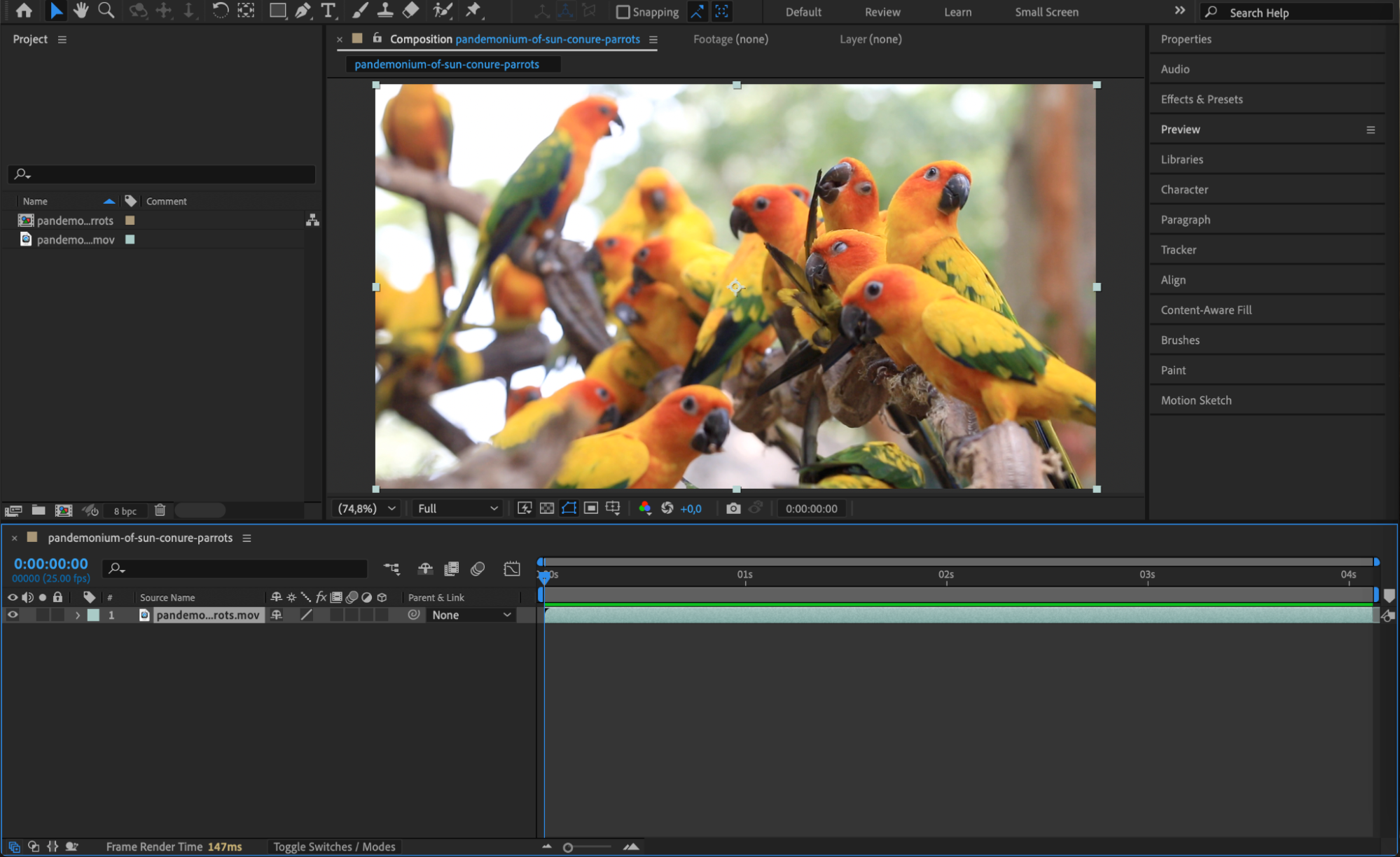 Step 2: Enable the Tracker Panel
Go to the top menu and select Window > Tracker to open the Tracker panel. With your footage layer selected, click on Track Motion. This will add a track point to your footage and open motion tracking settings.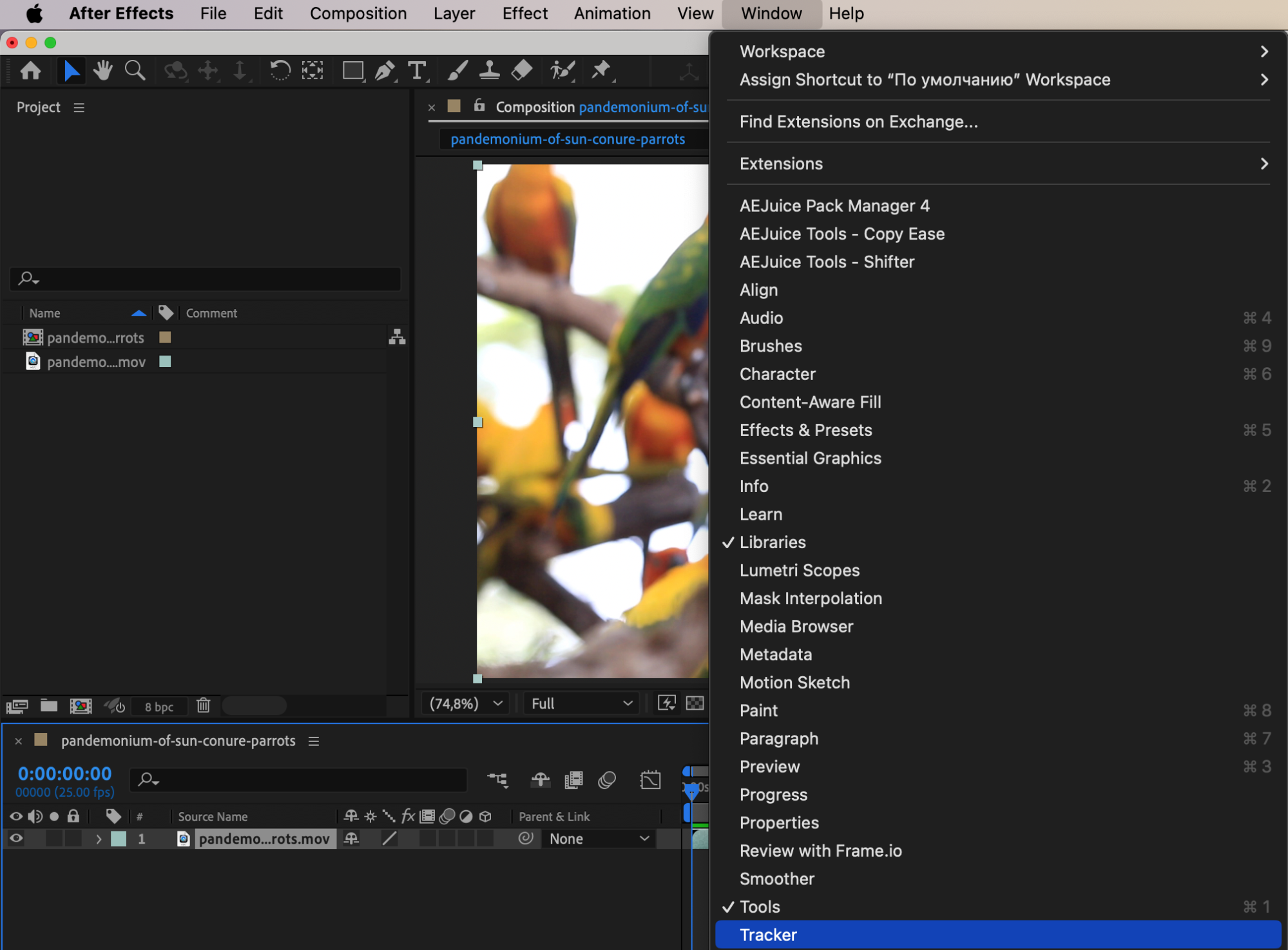
Get 10% off when you subscribe to our newsletter

Step 3: Set the Track Point and Analyze Motion
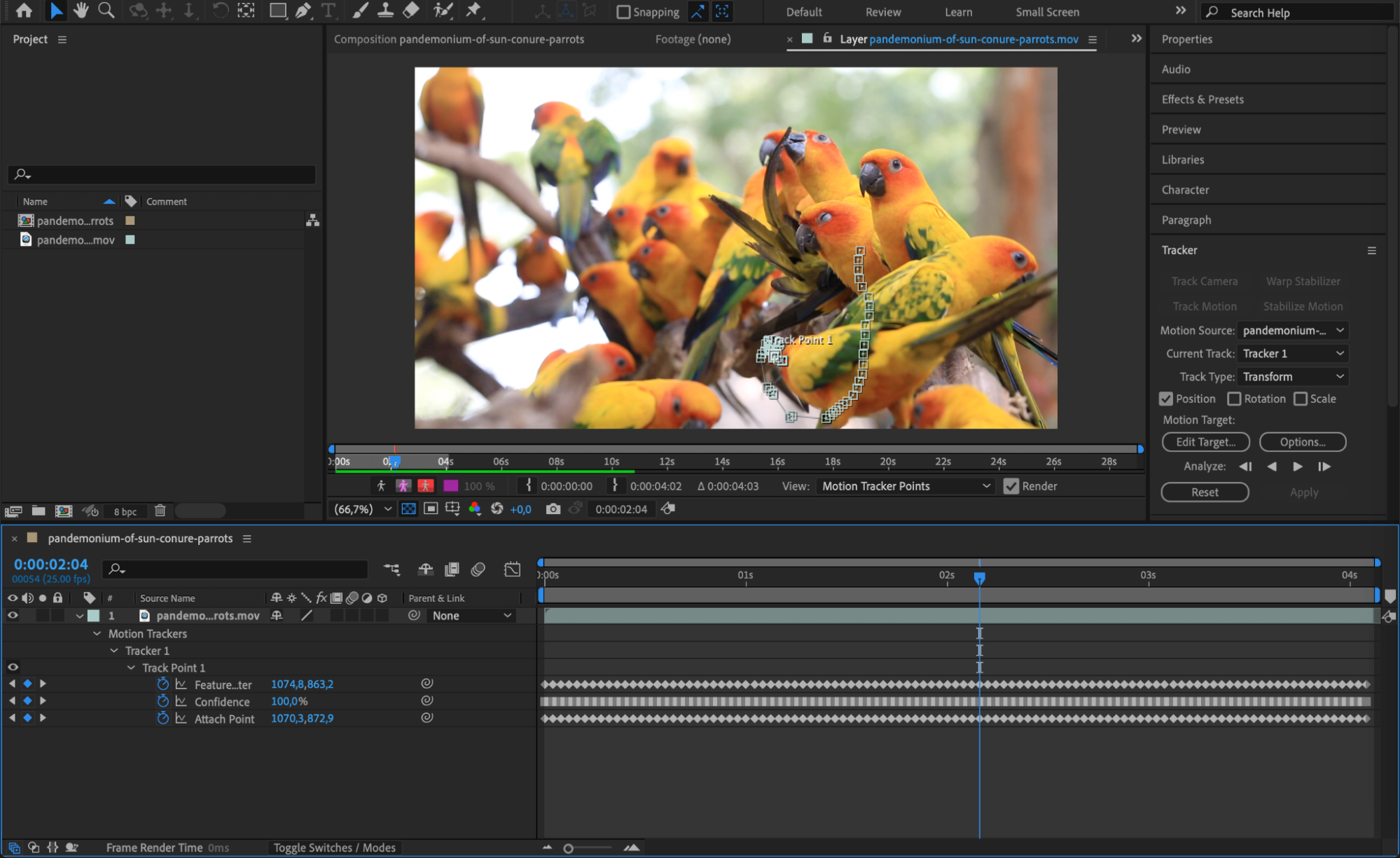
Position Track Point 1 over a high-contrast area on the object you want to track – this should be something that stays visible throughout the clip. Press the Play button in the Tracker panel to begin analyzing the motion. After Effects will analyze the movement of the selected point frame by frame.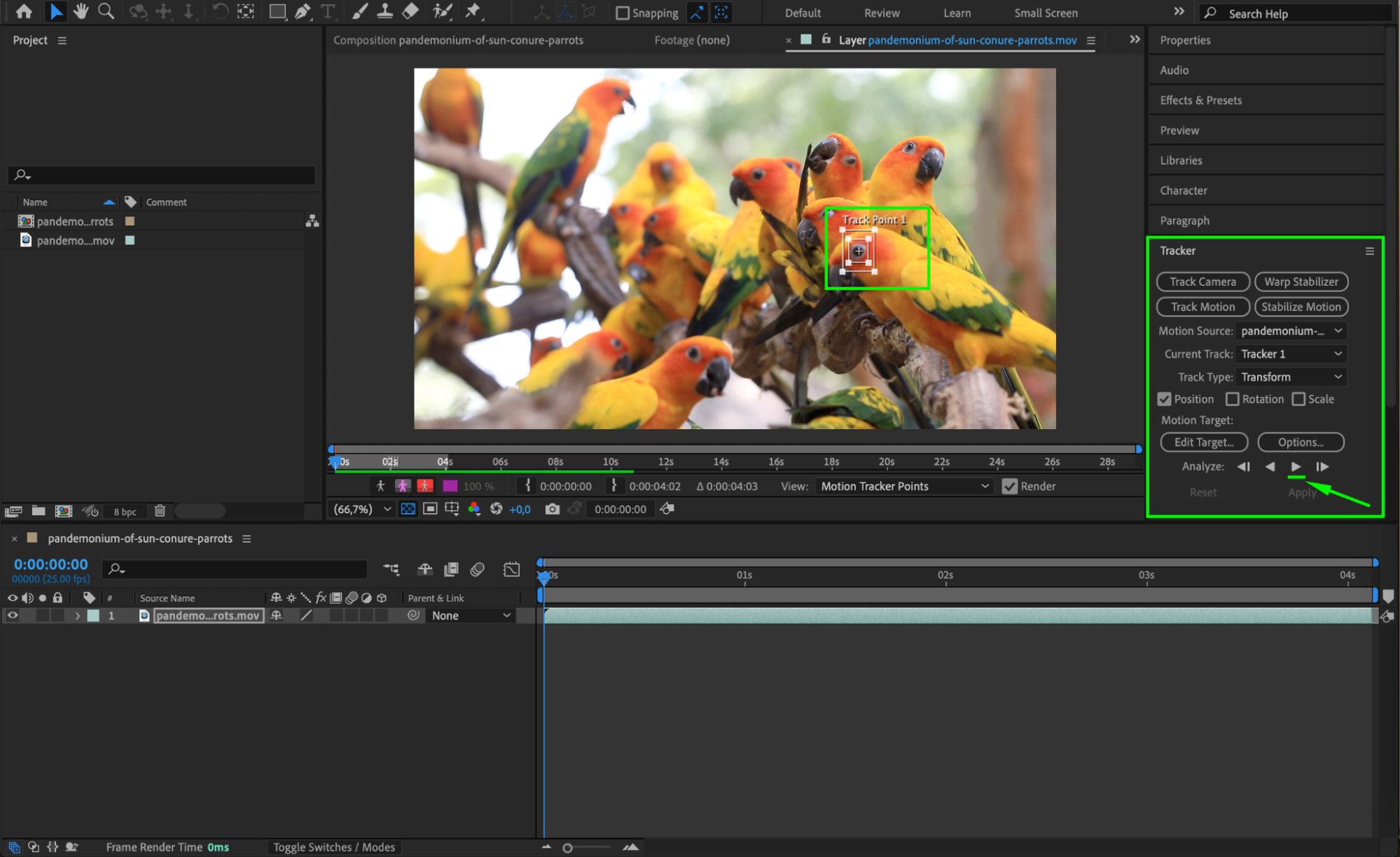
 Step 4: Create a Null Object and Apply Tracking Data
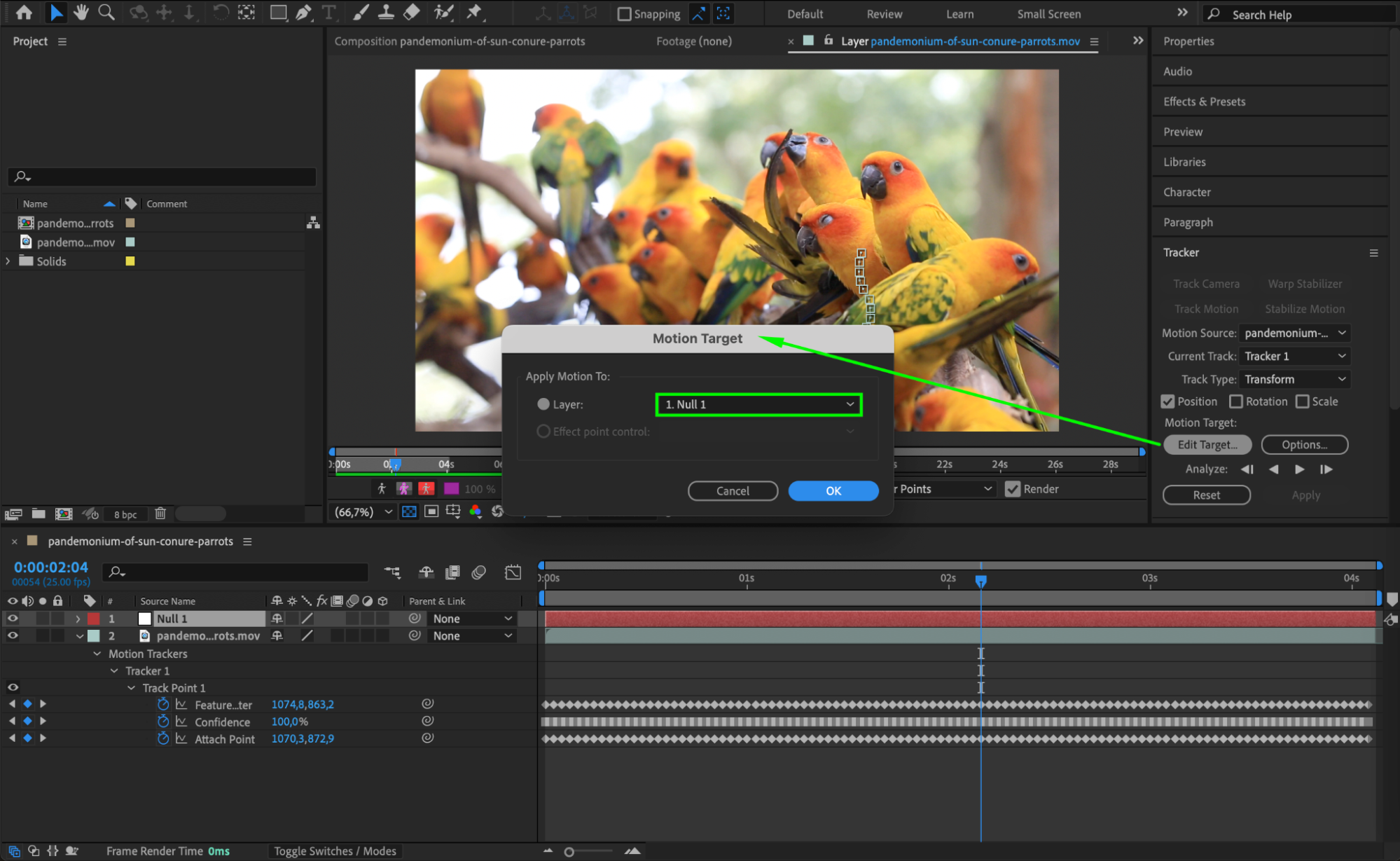
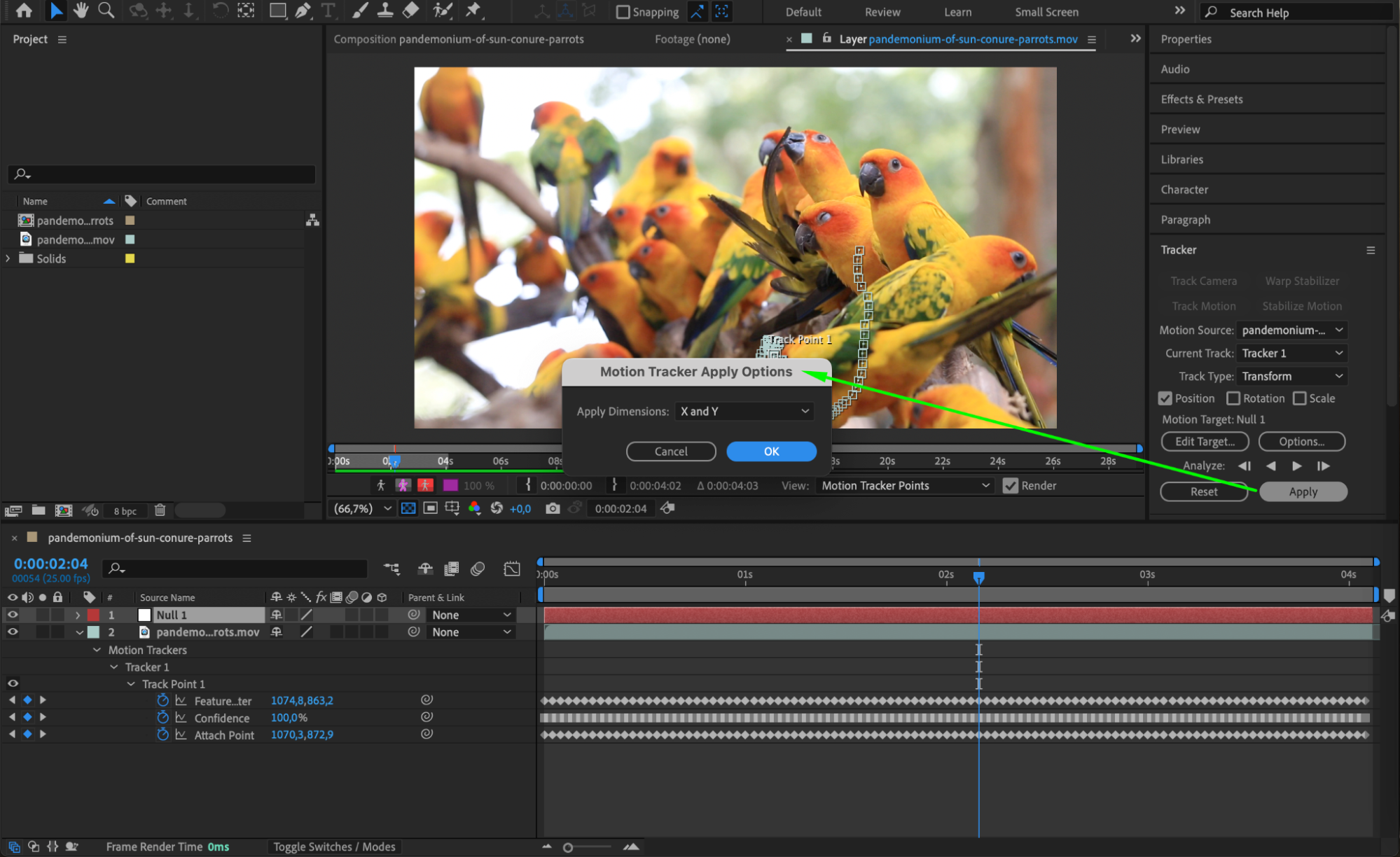
Go to Layer > New > Null Object to create a new null layer. Then, in the Tracker panel, click Edit Target, choose the Null Object as the target, and hit OK. Finally, click Apply to apply the tracking data to the null layer.
 Step 5: Import and Prepare Your Image
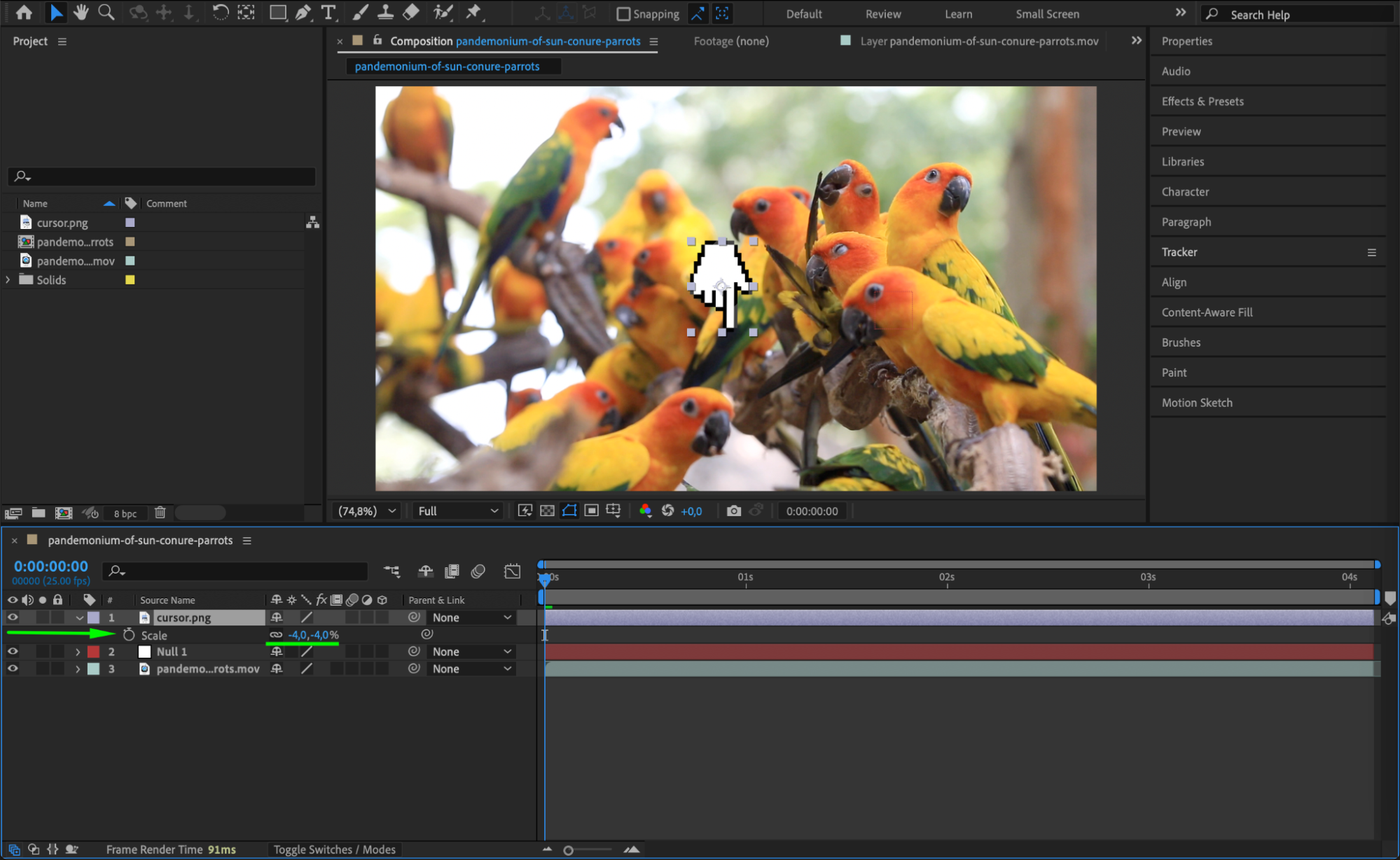
Import the image you want to attach by going to File > Import > File, and drag it onto your timeline. Resize and reposition the image to your liking, aligning it with the object in your footage.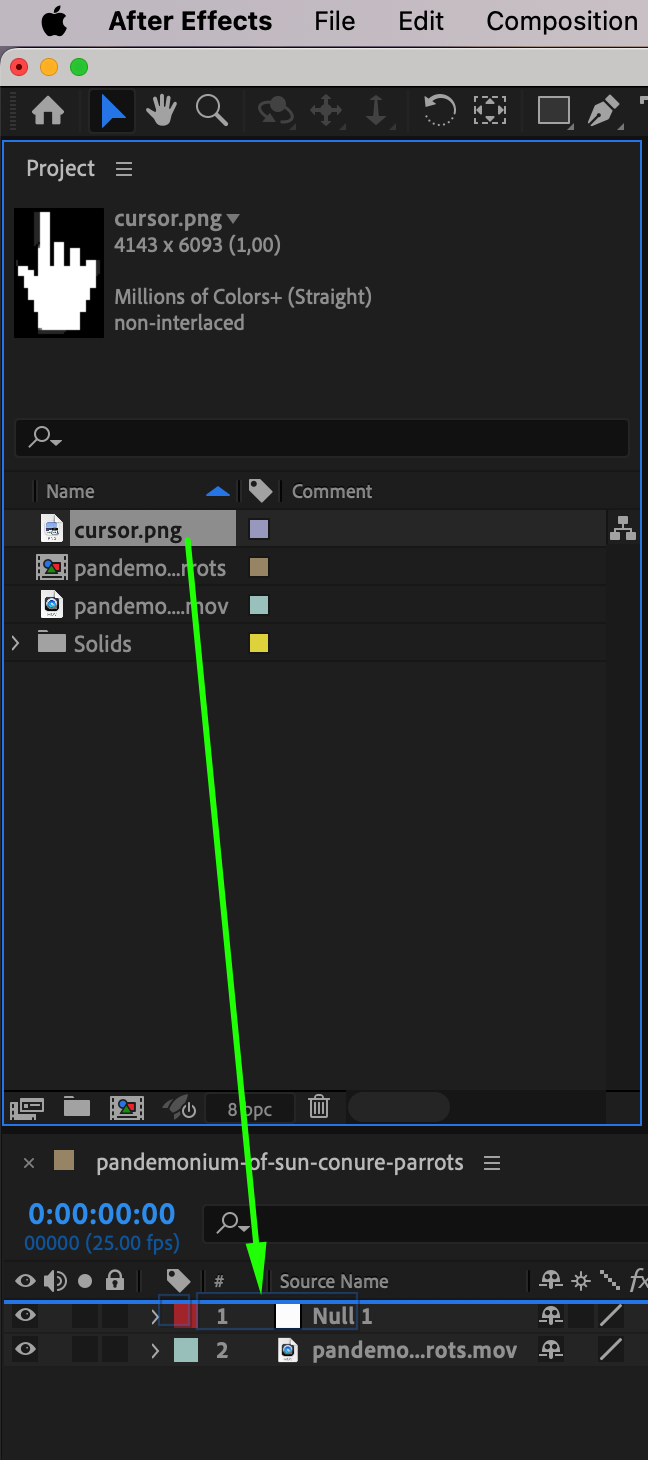
Step 6: Parent the Image to the Null Object
In the Parent & Link column of the timeline, use the pick whip tool (or the drop-down menu) to parent your image to the null layer. This links the image’s position to the tracked motion.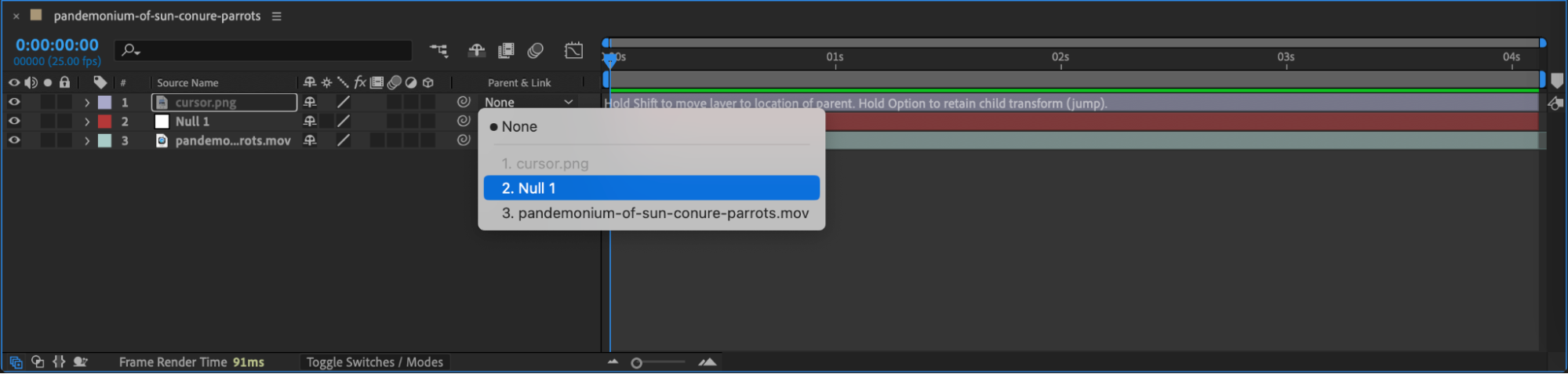
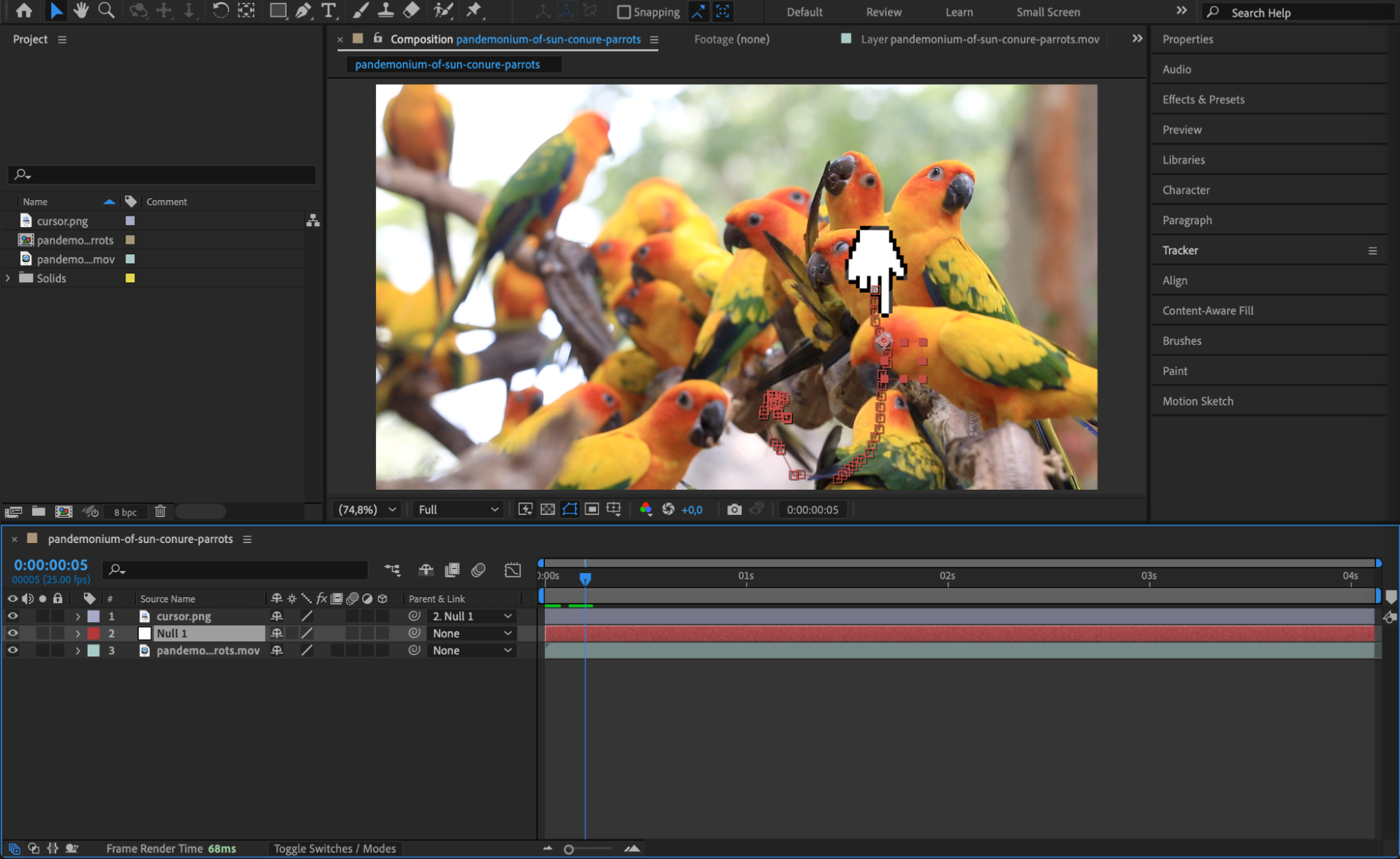 Step 7: Preview the Result
Press the spacebar to see how the image now follows the movement of the tracked object. If needed, adjust the image’s scale, rotation, or position for better alignment.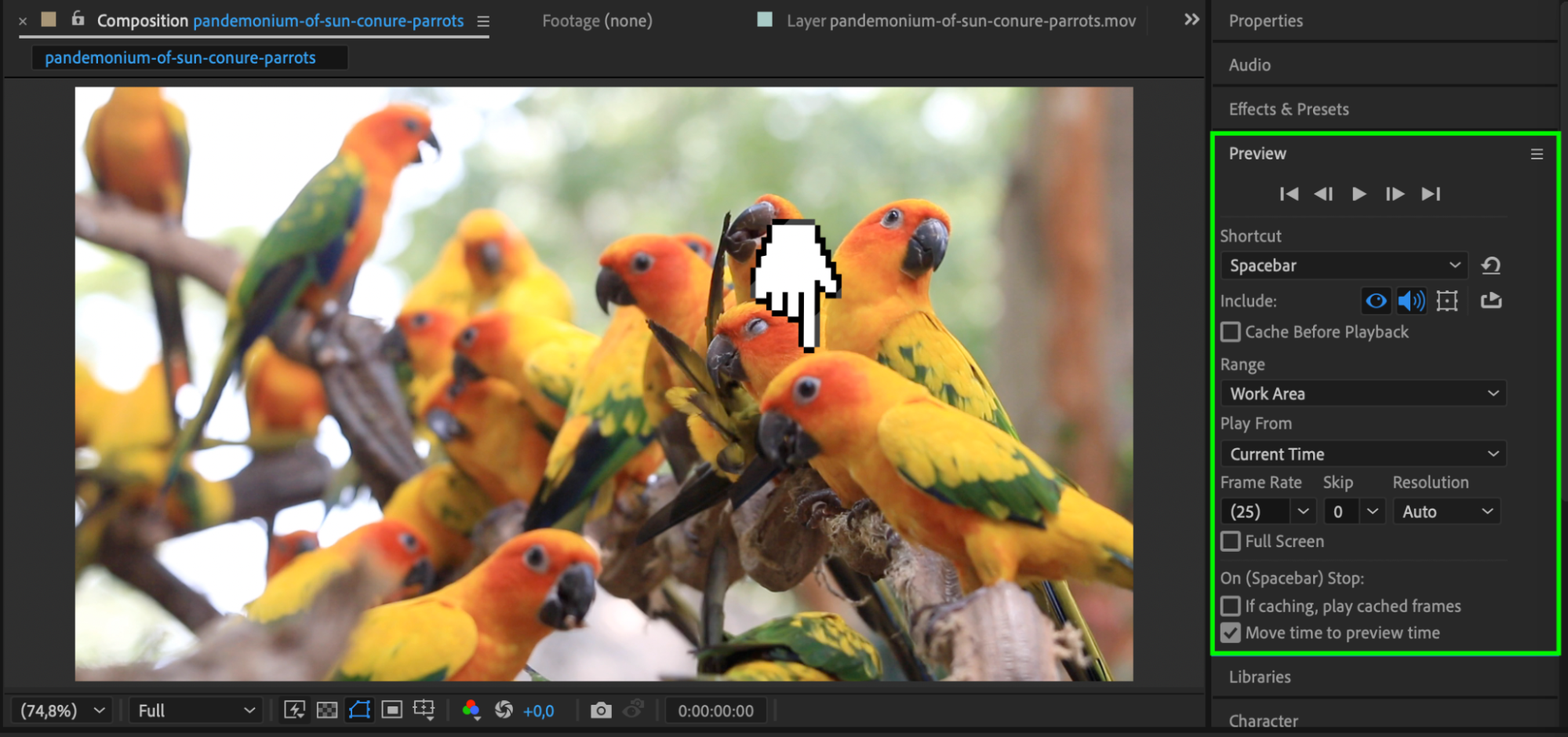
Conclusion
Attaching an image to a moving object in After Effects is simple and effective using motion tracking and a null object. By tracking the movement of an object and parenting your image to the tracking data, you can make the image follow the motion seamlessly.
Our Bestsellers


