Introduction – Why Add Theatre Lighting?
Theatre or stage lighting adds drama and focus to your video. It mimics how light falls on a subject during a live performance, concert, or stage show. Using After Effects’ 3D layers and lighting tools, you can recreate this cinematic lighting style to enhance your footage or give it a stylized, moody atmosphere. Follow these steps to bring theatrical lighting into your project.
Step 1: Import Your Footage
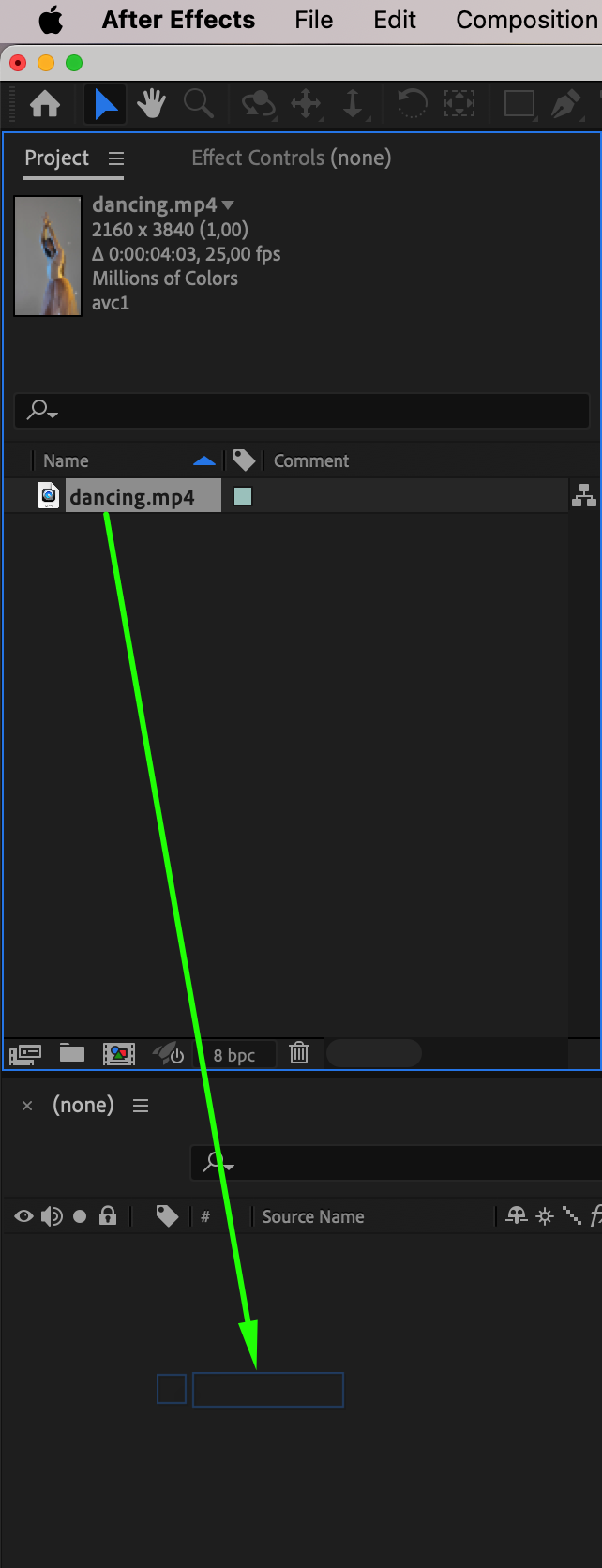
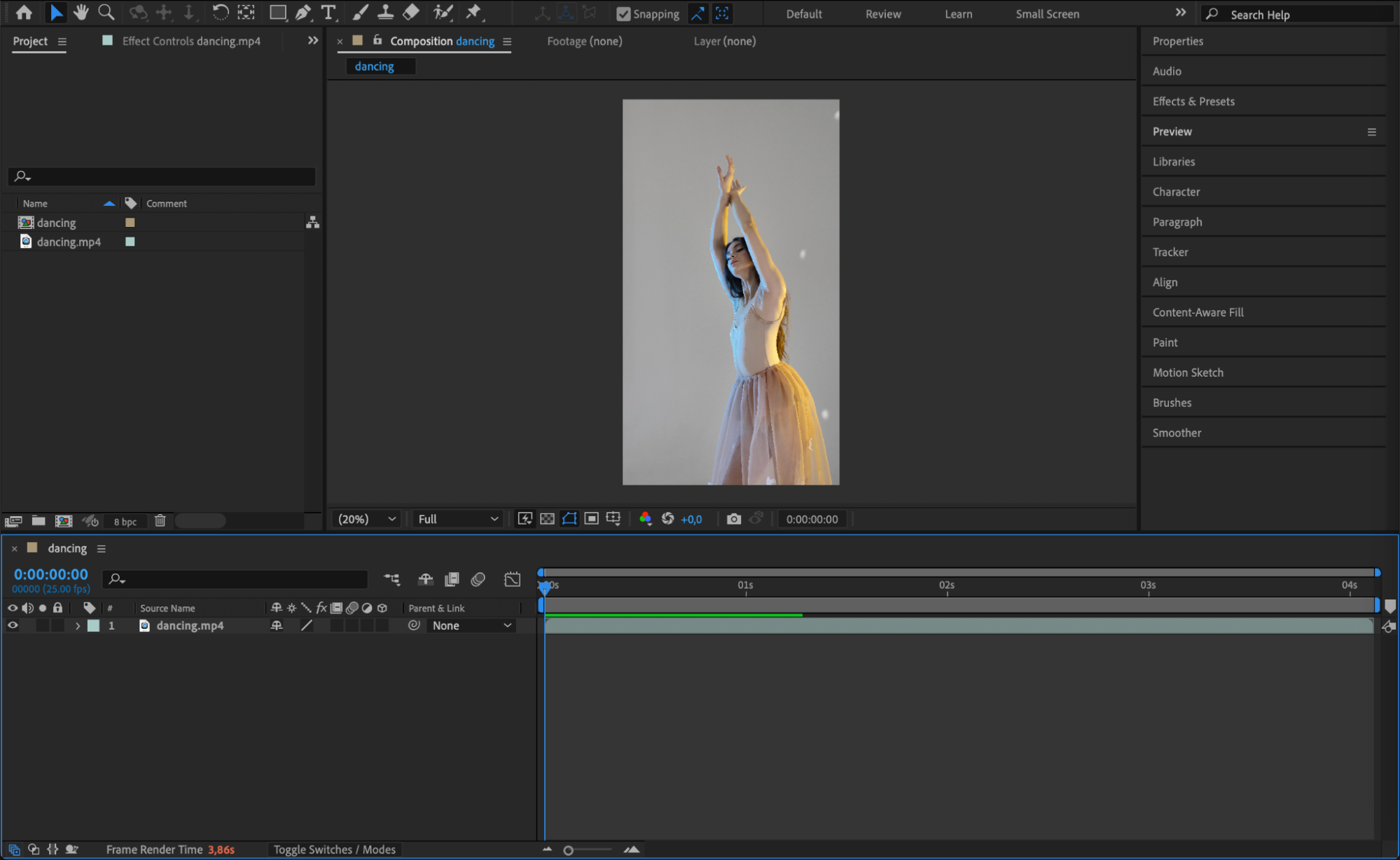
Go to File > Import > File and bring your video or image sequence into After Effects. Drag the footage into a new composition or directly onto the timeline. This will serve as your stage background.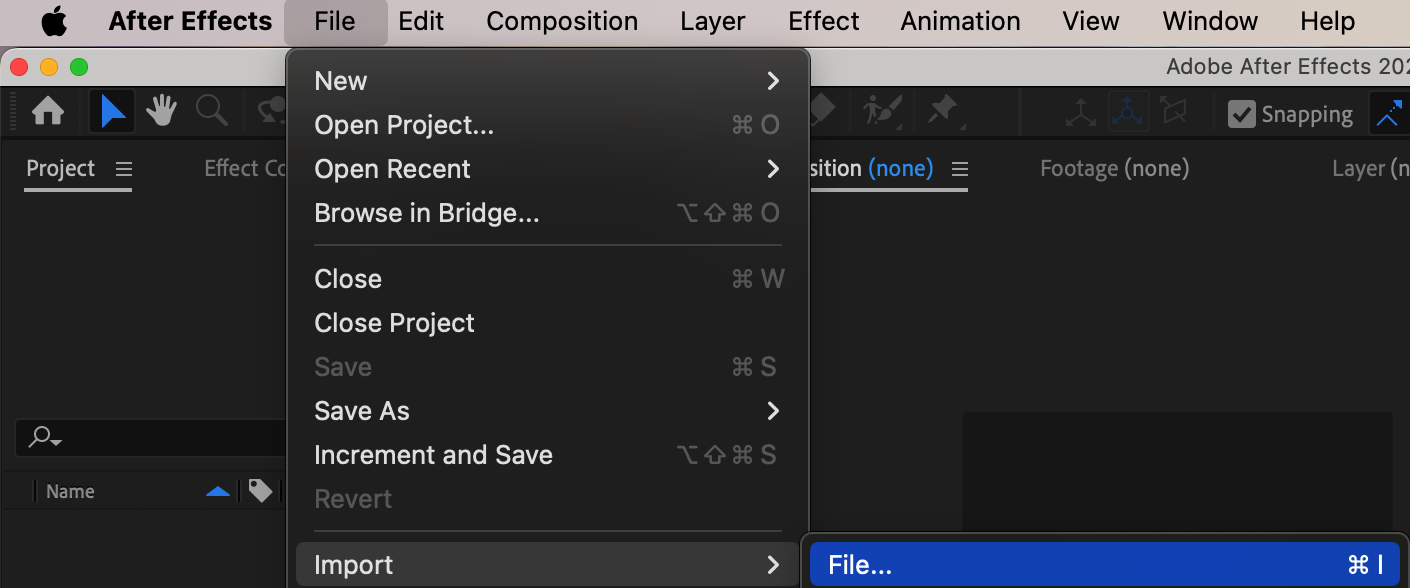
Step 2: Make Your Footage a 3D Layer
Select your footage in the timeline and click the 3D Layer switch (a cube icon). This allows the layer to respond to lighting, depth, and camera changes in 3D space, which is essential for realistic light interaction.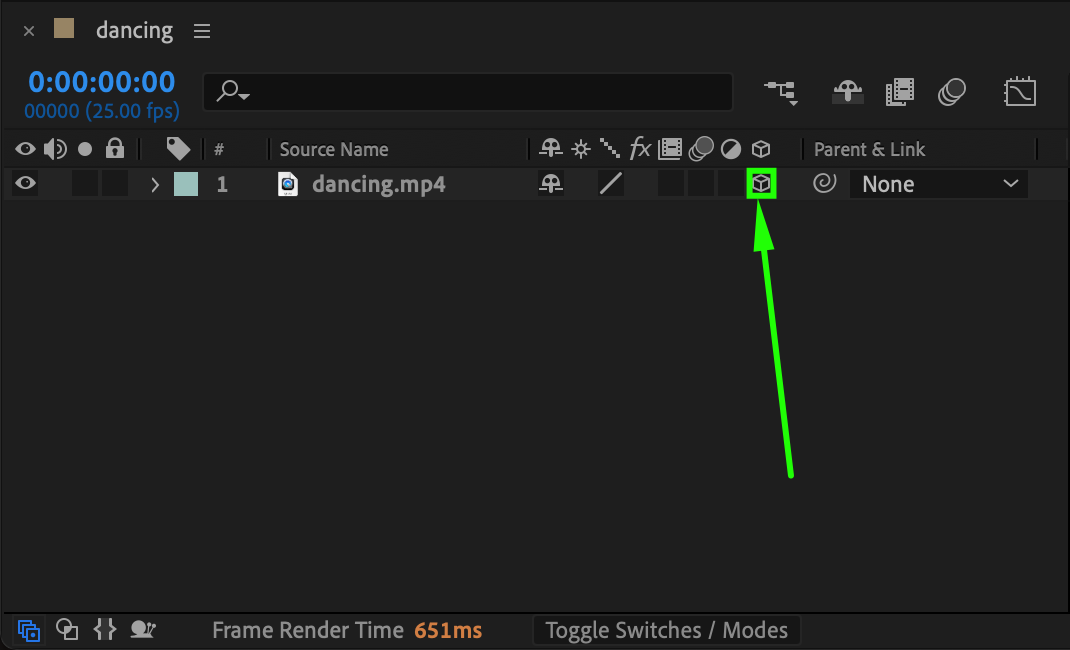
Get 10% off when you subscribe to our newsletter

Step 3: Adjust Z-Position to Create Depth
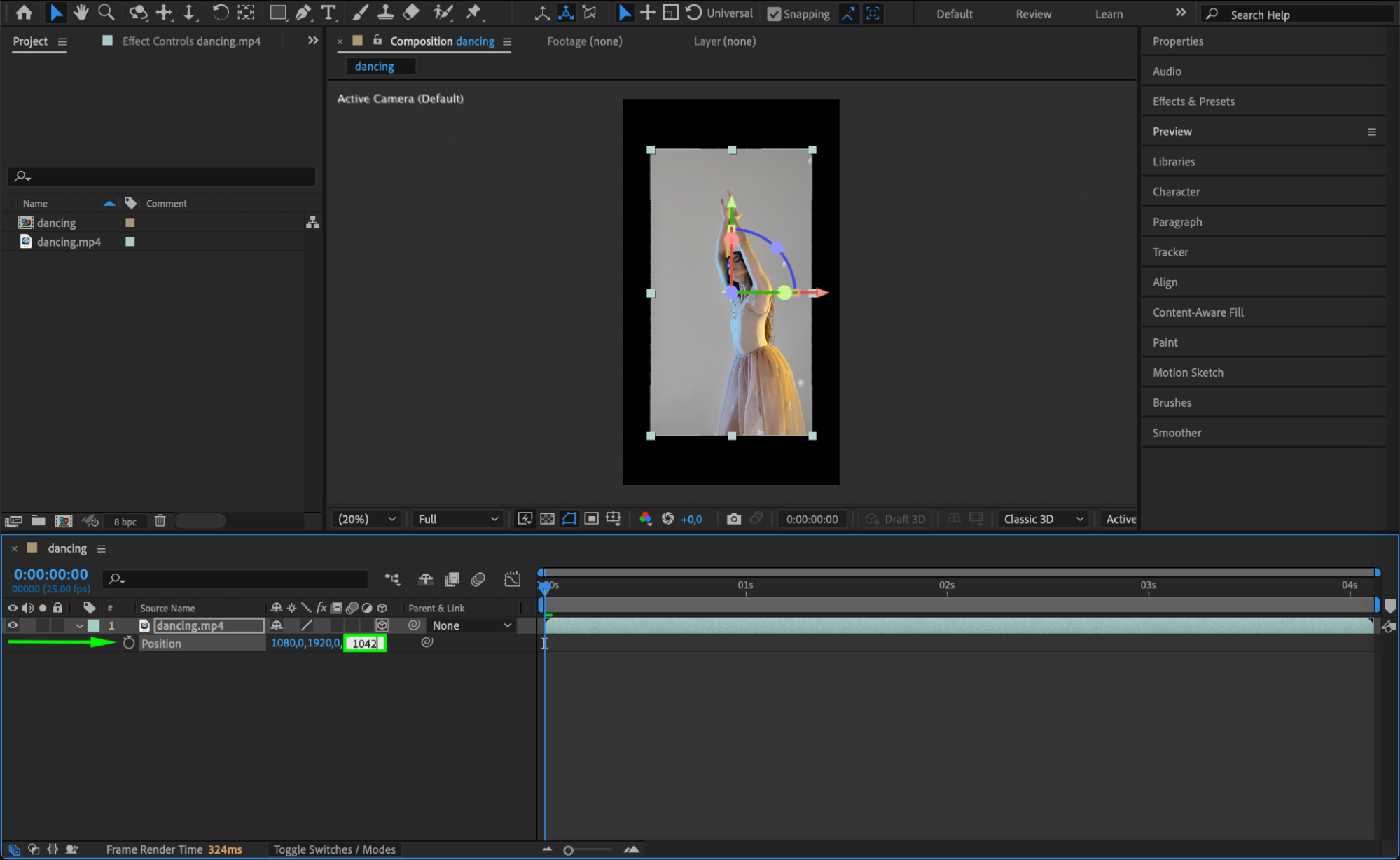
Press “P” to reveal the Position property. Change the Z-value to around +1000. This pushes your footage back in 3D space. Then, grab the corner of your footage in the Composition panel and scale it up to restore its original size and fill the frame.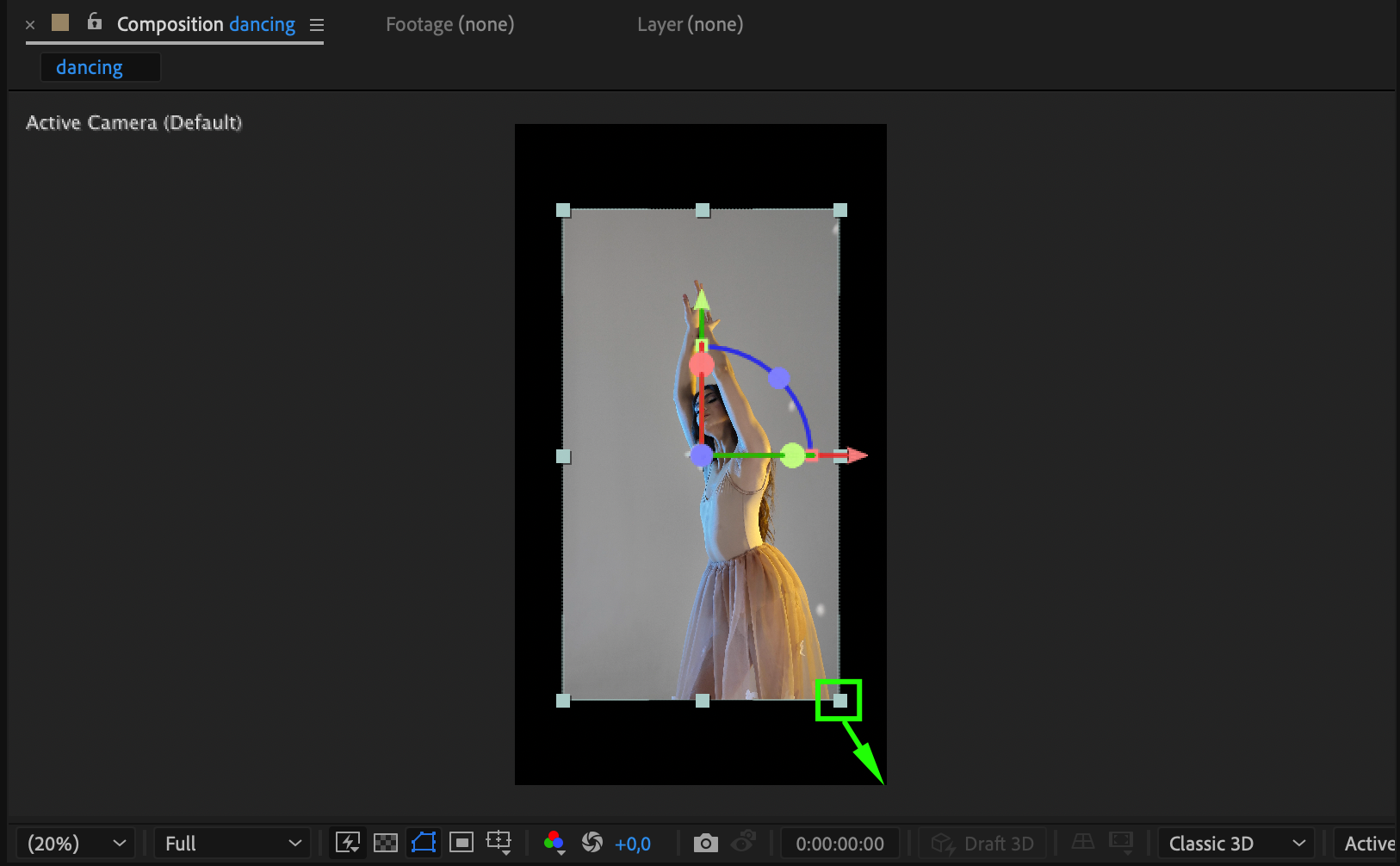
 Step 4: Add a Spotlight
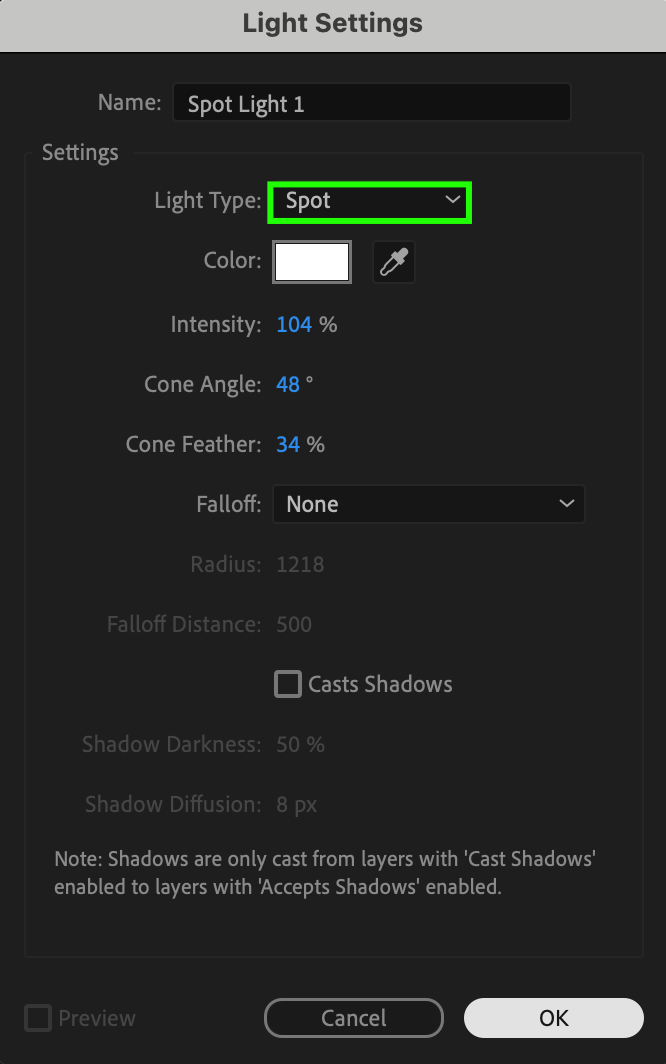
Go to Layer > New > Light and select Light Type: Spot. Spotlights work like real stage lights, creating focused beams of light that fall off at the edges. Give the light a name and press OK.
 Step 5: Adjust Light Settings and Rotation
With the spotlight selected, open its settings in the timeline. Adjust Intensity, Color, Cone Angle, and Cone Feather to shape the light beam. Use X, Y, and Z rotation properties to aim the light exactly where you want it — for example, highlighting a face or center stage.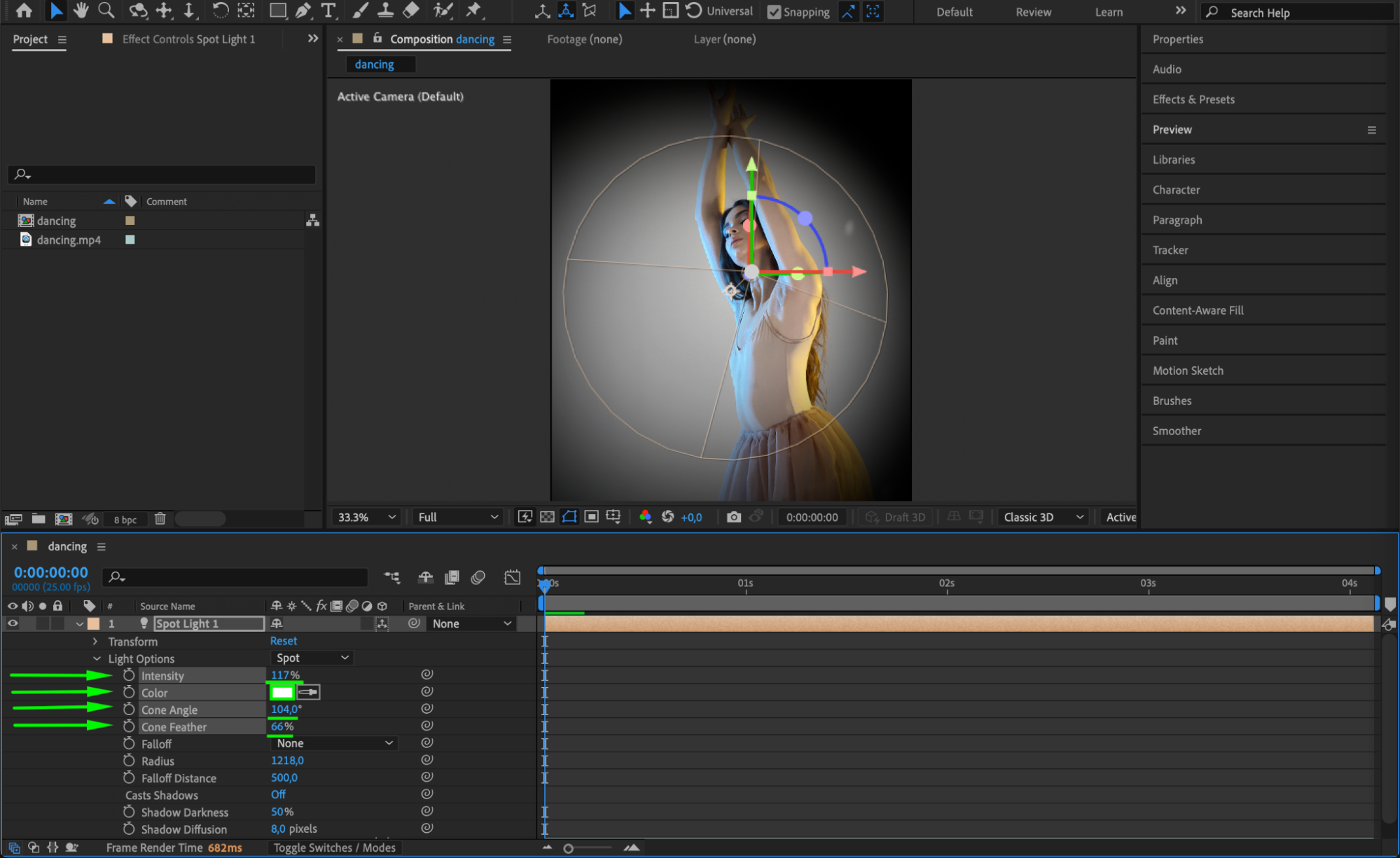
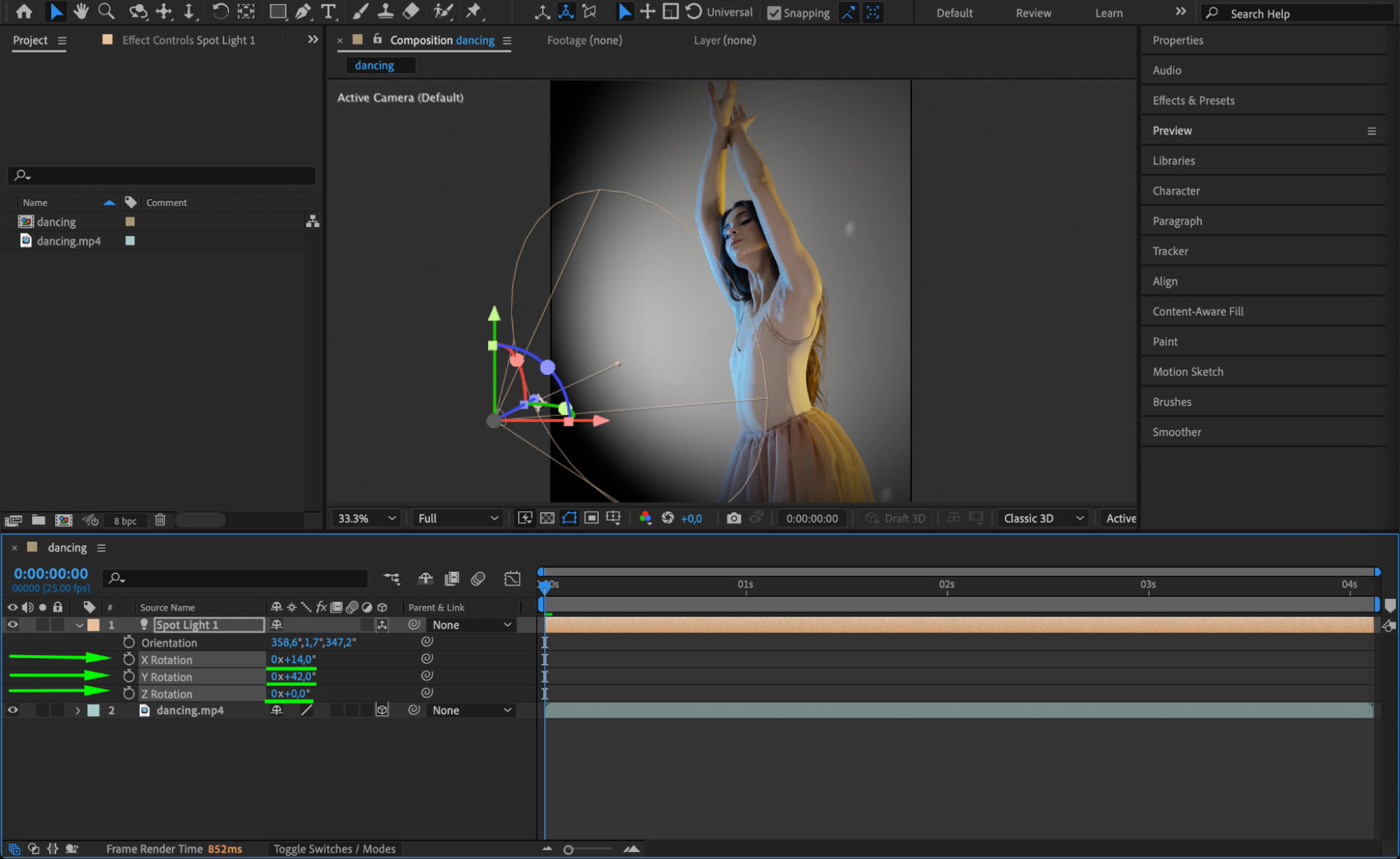
Step 6: Duplicate and Position Additional Lights
To create a multi-light setup, duplicate the spotlight layer (Ctrl/Cmd + D) and move the copies around the scene. Each light can point in a different direction or have different colors to simulate a concert, theatre, or dramatic set design.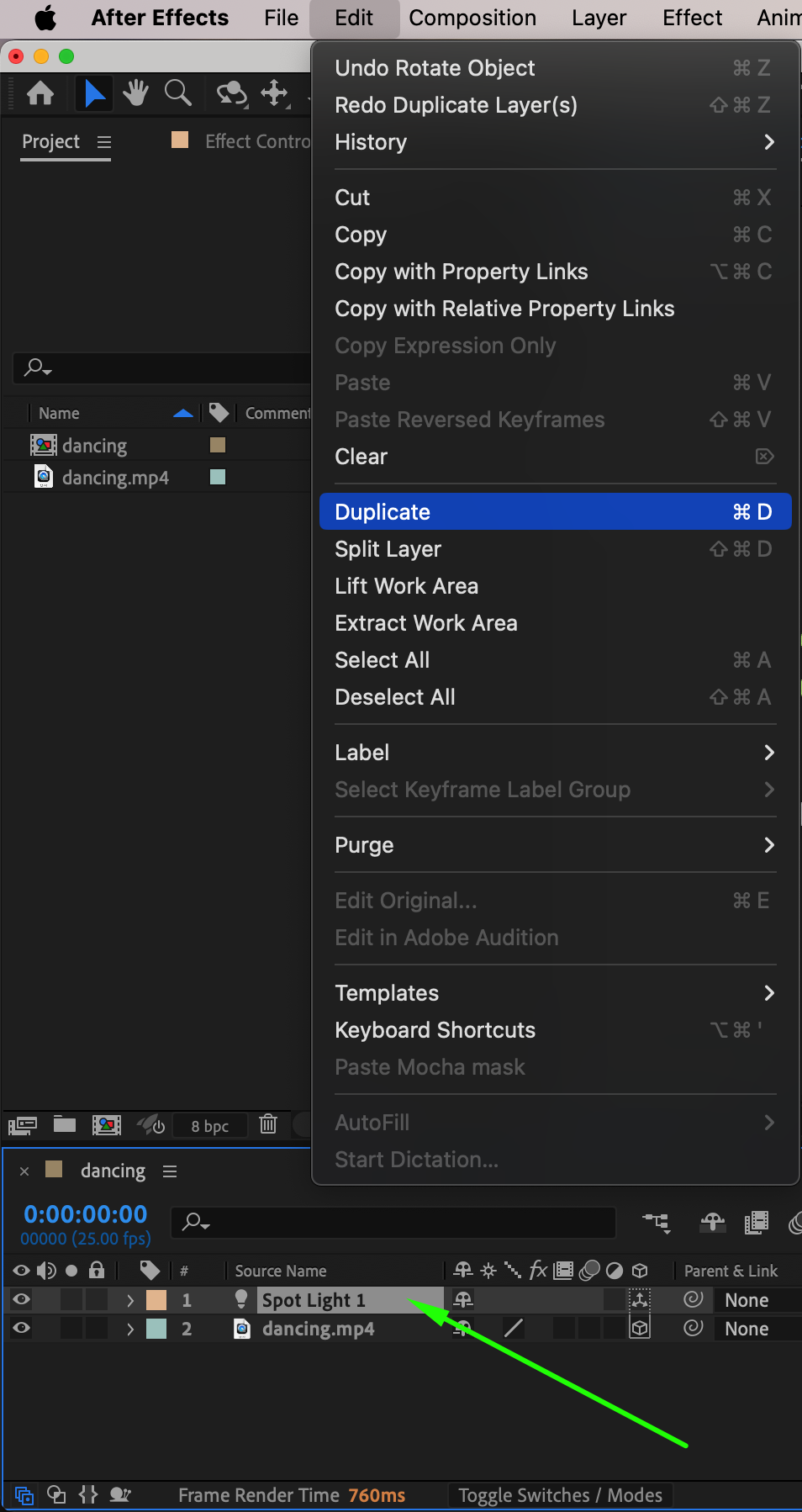
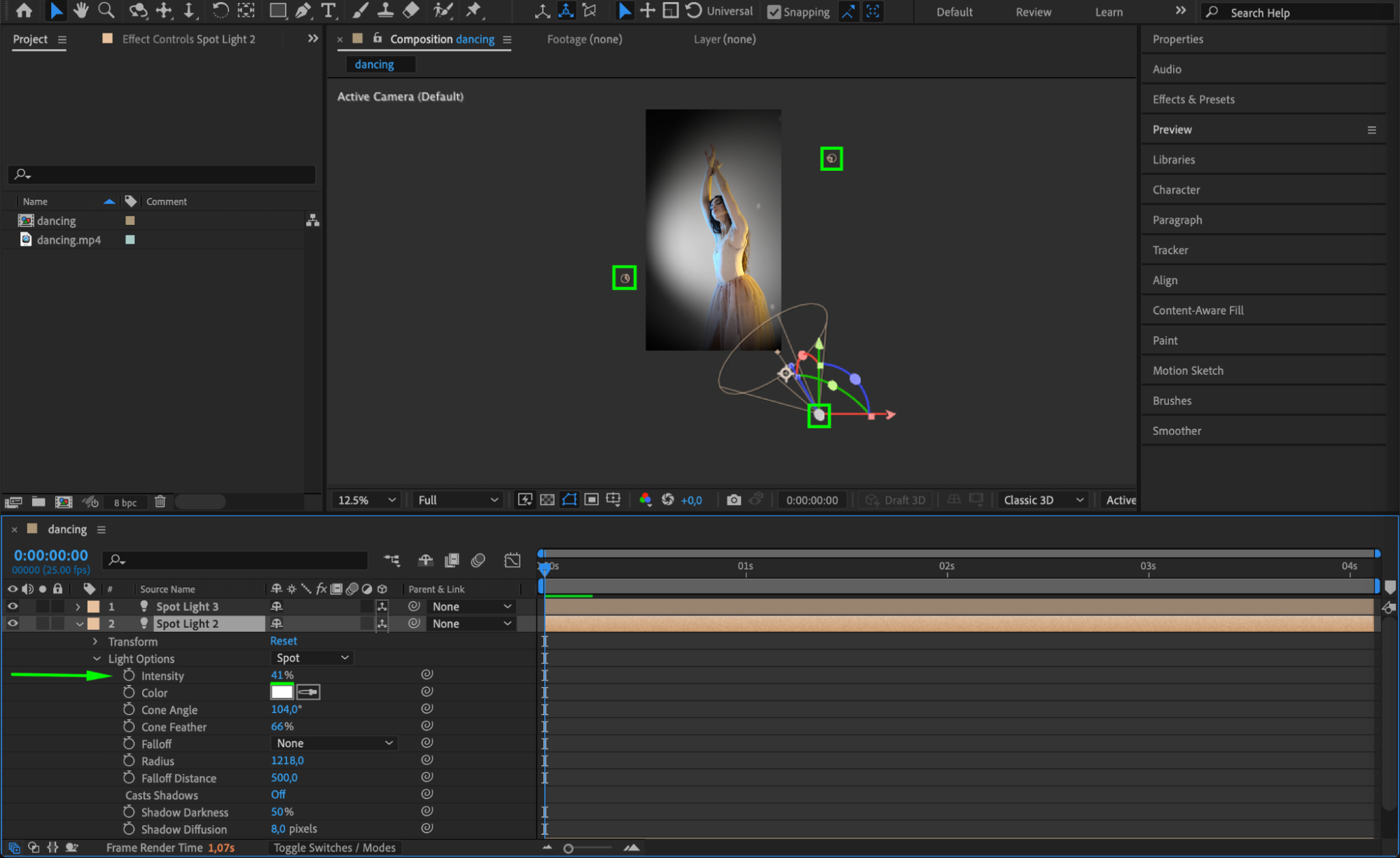 Step 7: Add Color Grading and Contrast
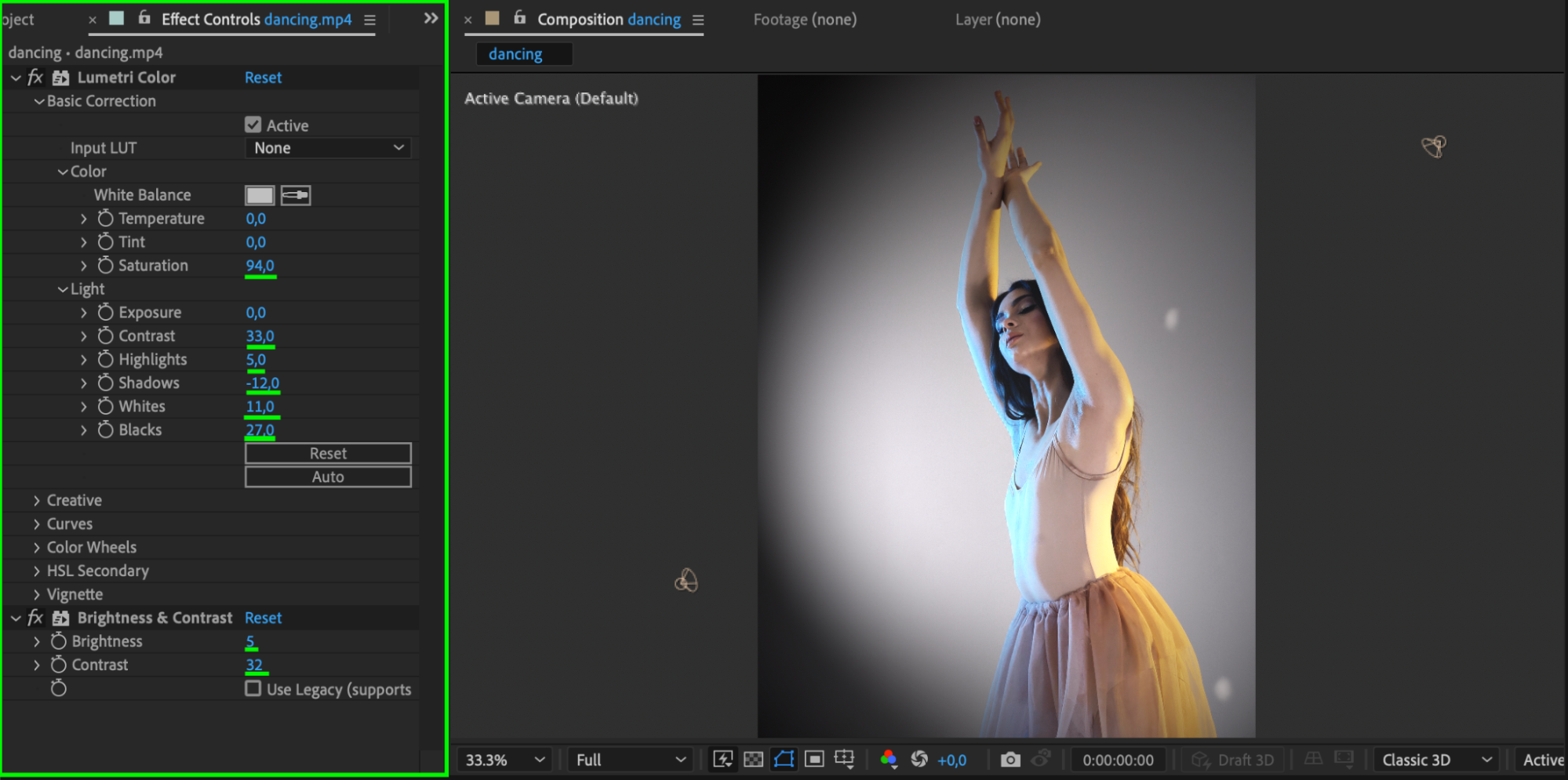
Apply Lumetri Color and Brightness & Contrast from the Effects & Presets panel to your footage. These effects help refine the cinematic look and adjust highlights or shadows to better match the lighting setup.
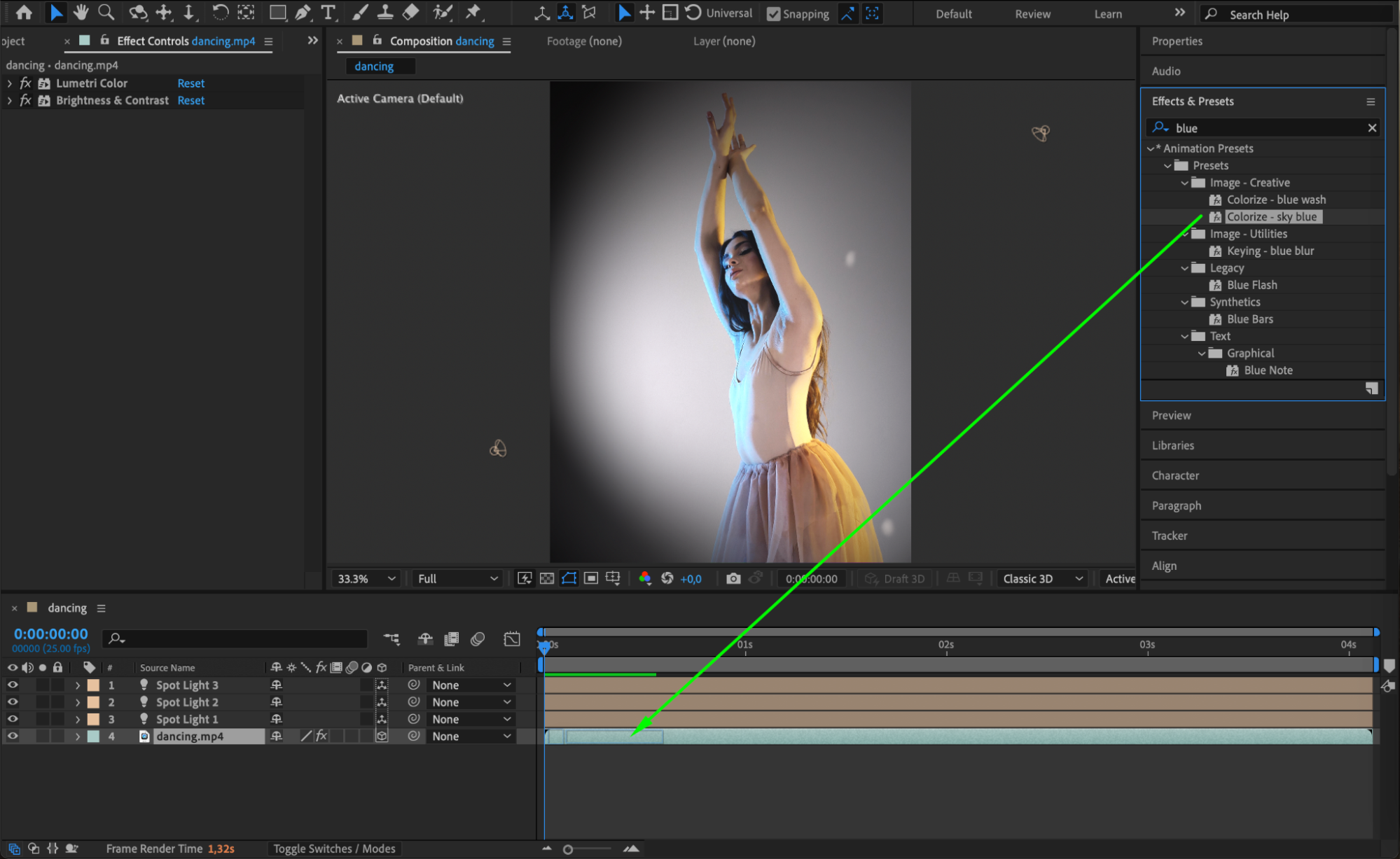
 Step 8: Add Colorize and Noise for Texture
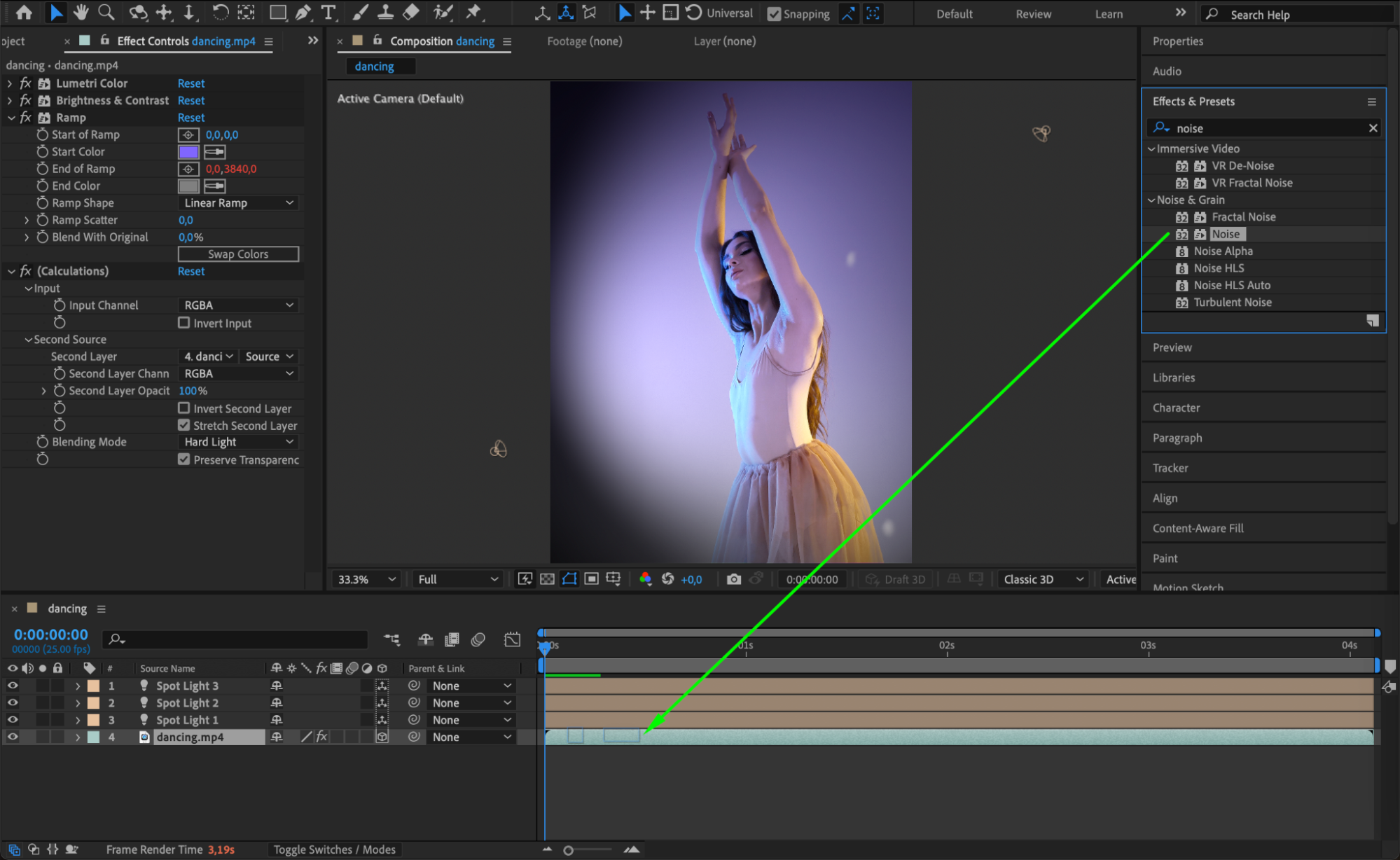
To stylize further, add the Colorize effect to shift the tone of your footage toward a desired palette — for example, cool blues or warm stage tones. Then apply Noise (set around 5–15%) to give the footage a slightly textured, filmic feel that blends better with the lighting effects.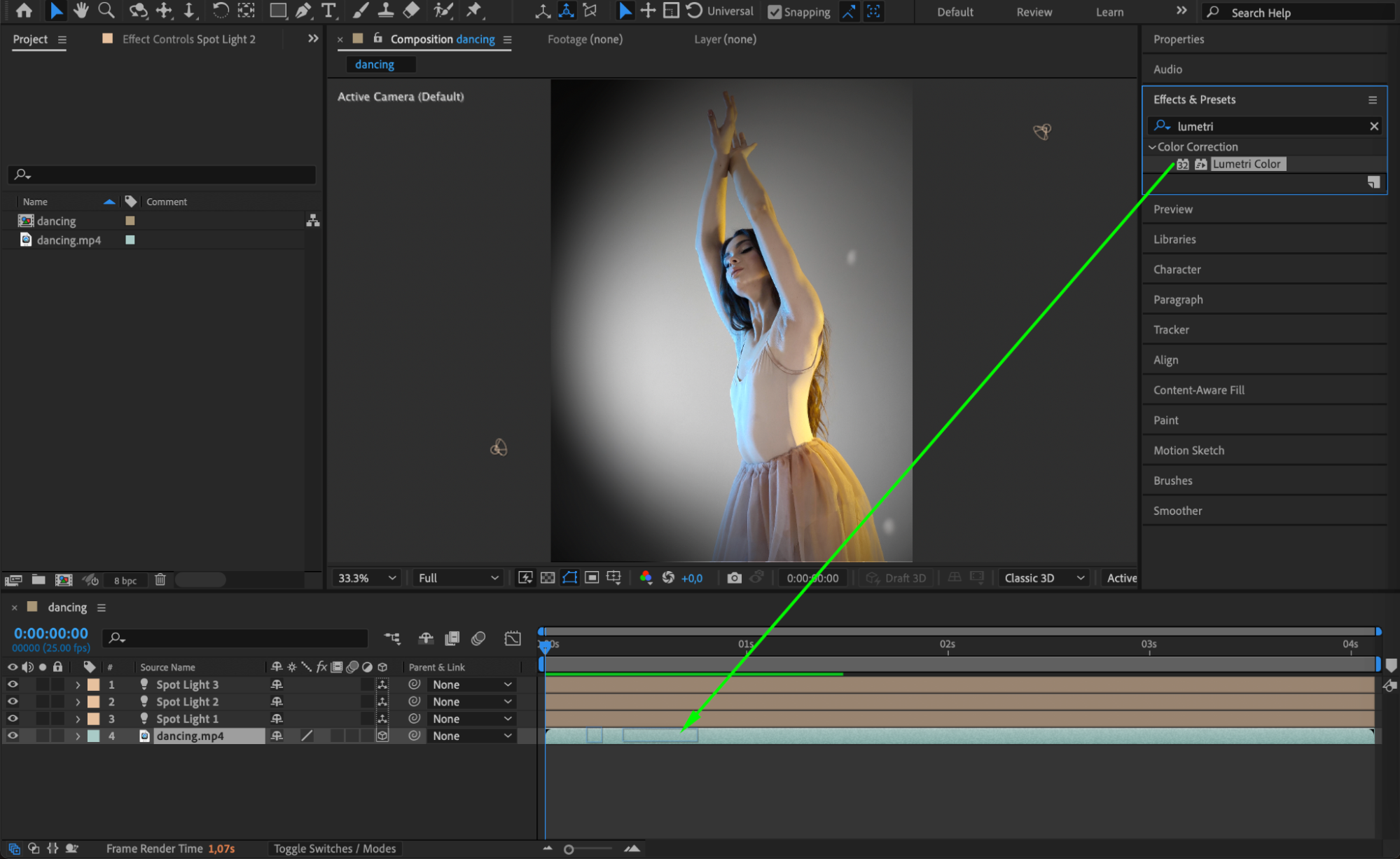
 Step 9: Preview and Adjust
Press Spacebar to preview your scene. Make final tweaks to light angles, intensity, or effect settings. You can also animate the light position or rotation to create moving beams or spotlight reveals.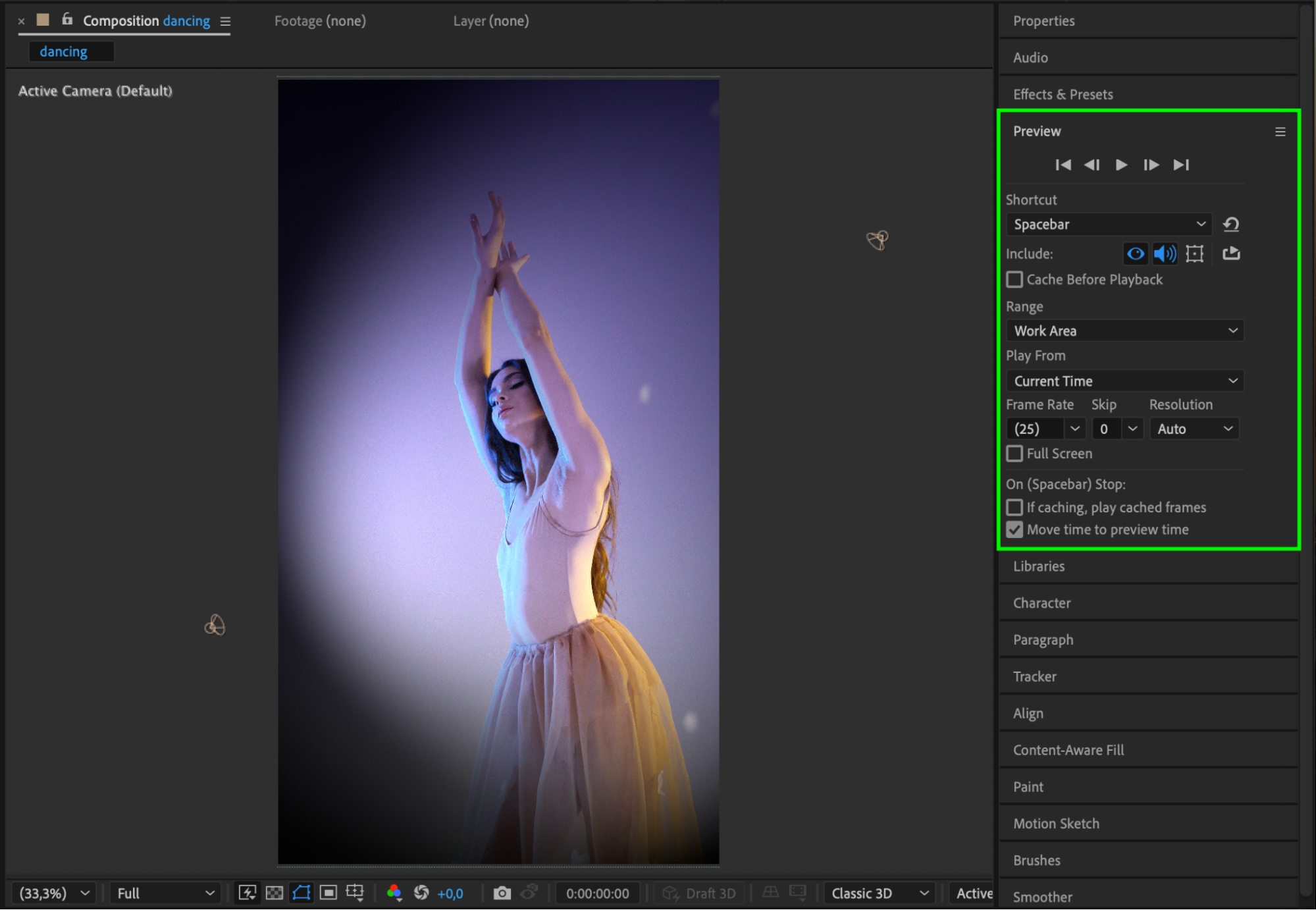
Conclusion
Simulating theatre lights in After Effects is a powerful way to add depth, focus, and mood to your video. With 3D layers, spotlights, and creative use of color and texture, you can turn any scene into a dramatic performance. Once you master the setup, it’s easy to adapt for music videos, trailers, or artistic edits.
Our Bestsellers


