Introduction
Removing dark or black regions from footage is essential when working with overlays, glows, VFX elements, or any bright graphics placed over a background. After Effects offers several fast and effective methods to isolate bright details and make everything dark fully transparent.
Step 1: Import Your Footage
Go to File > Import > File, choose your media, and place it into your composition so the layer is ready for editing.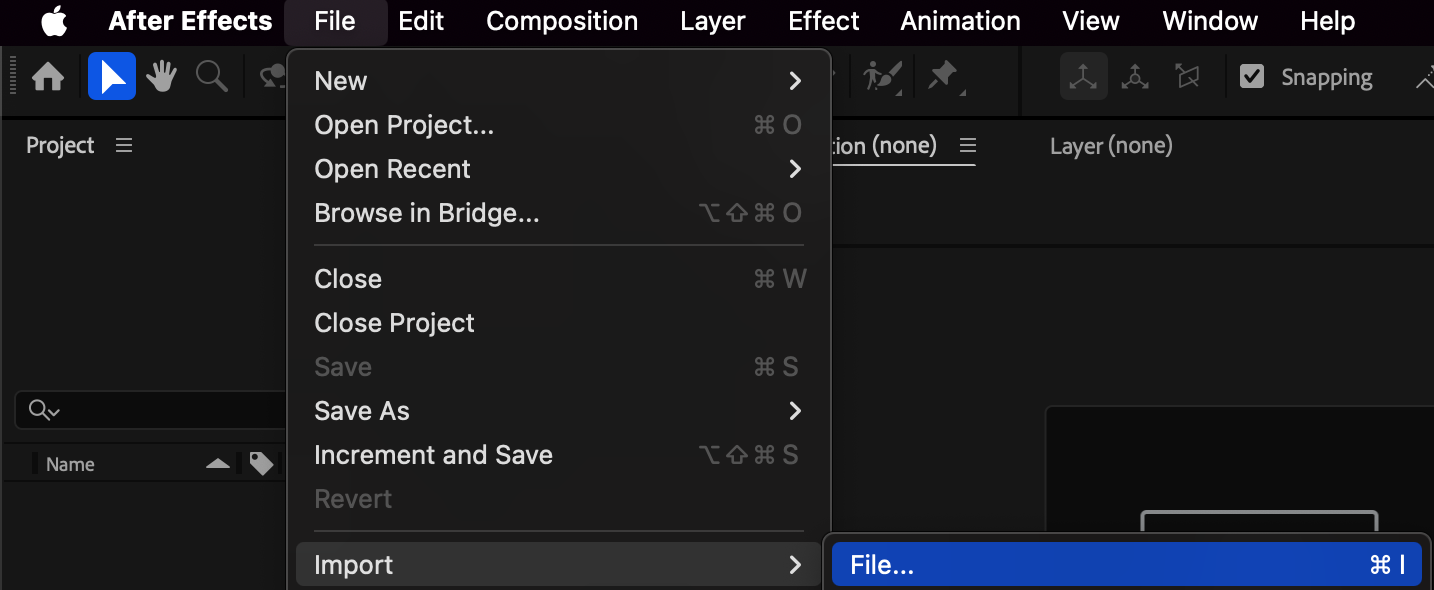
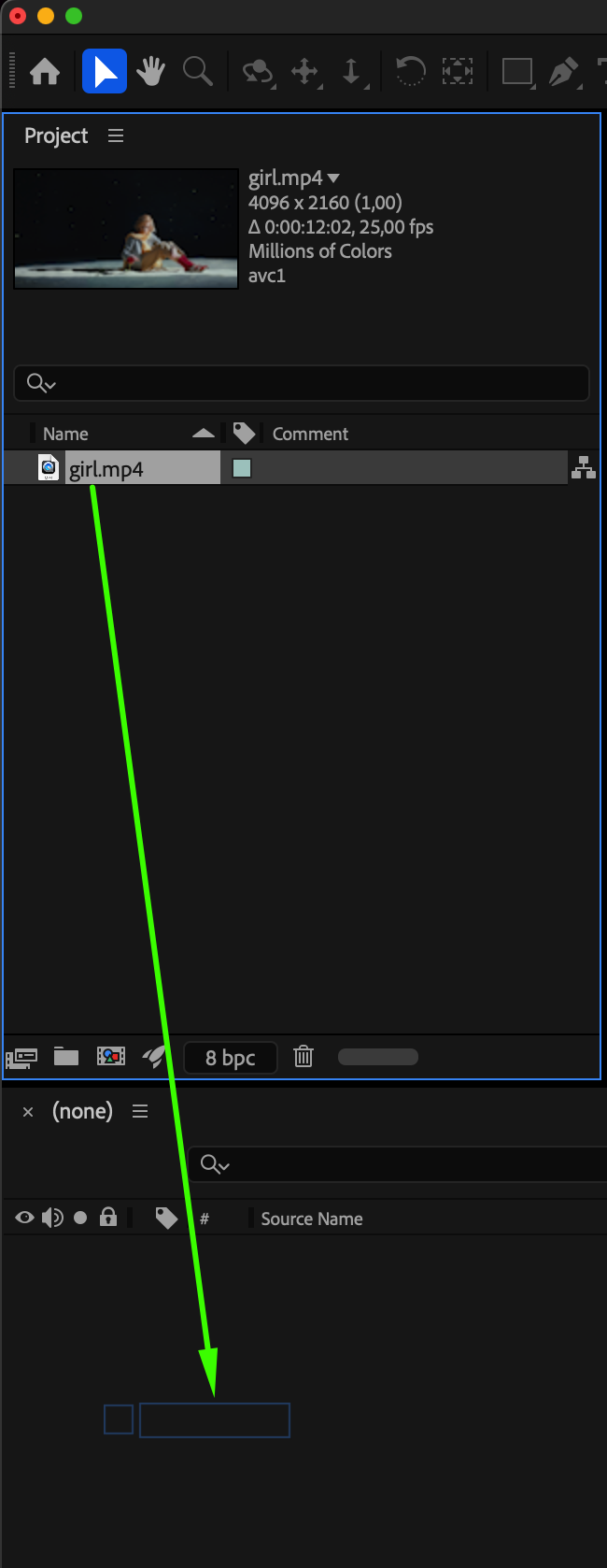 Step 2: Use the Screen Blend Mode (Fastest Method)
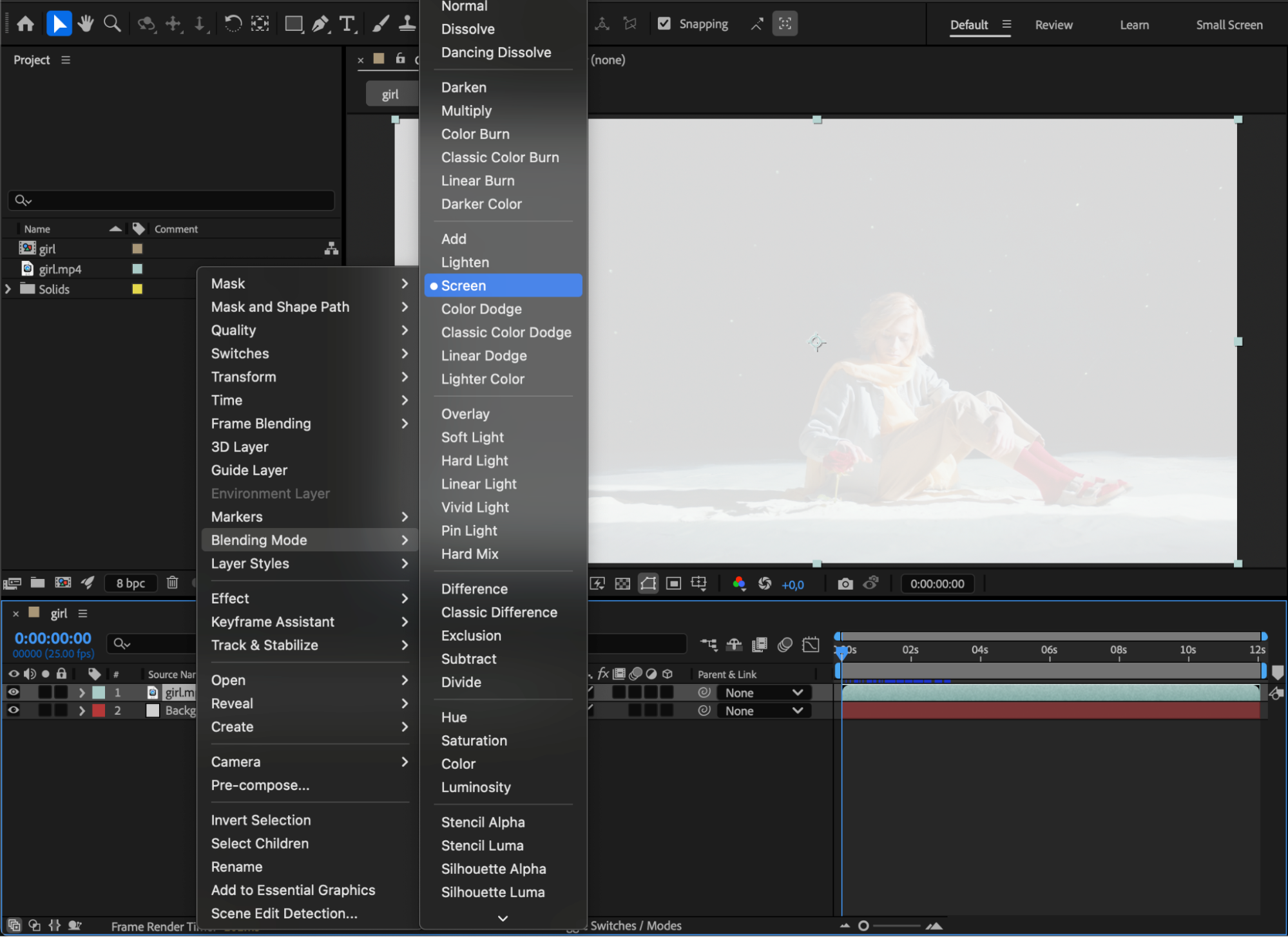
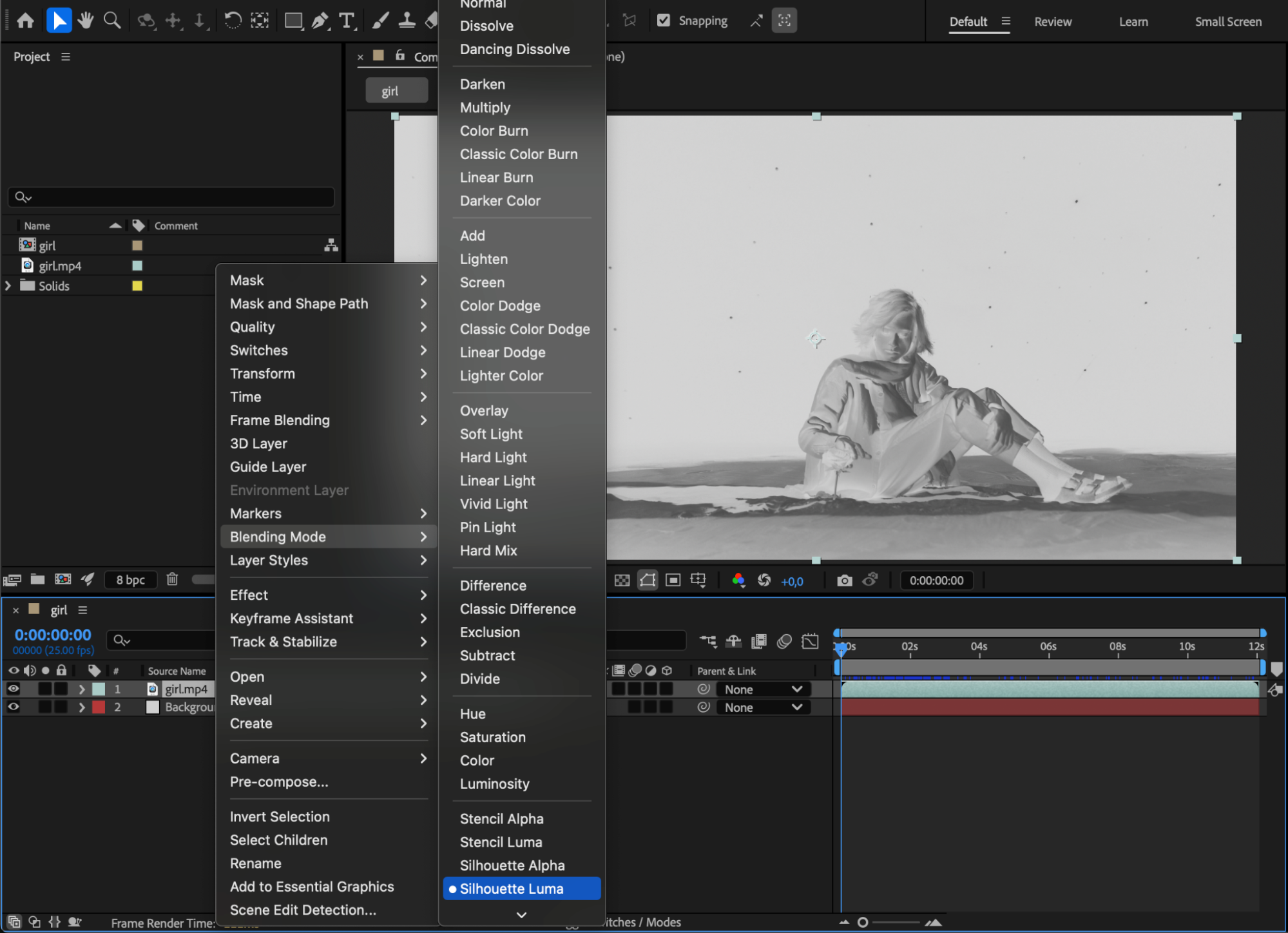
Place a white solid below your footage if needed, then select your layer and change the blend mode from Normal to Screen or Silhouette Luma. This instantly removes dark areas and keeps bright pixels visible, making it the quickest method for glows, flares, sparks, or any light-based elements.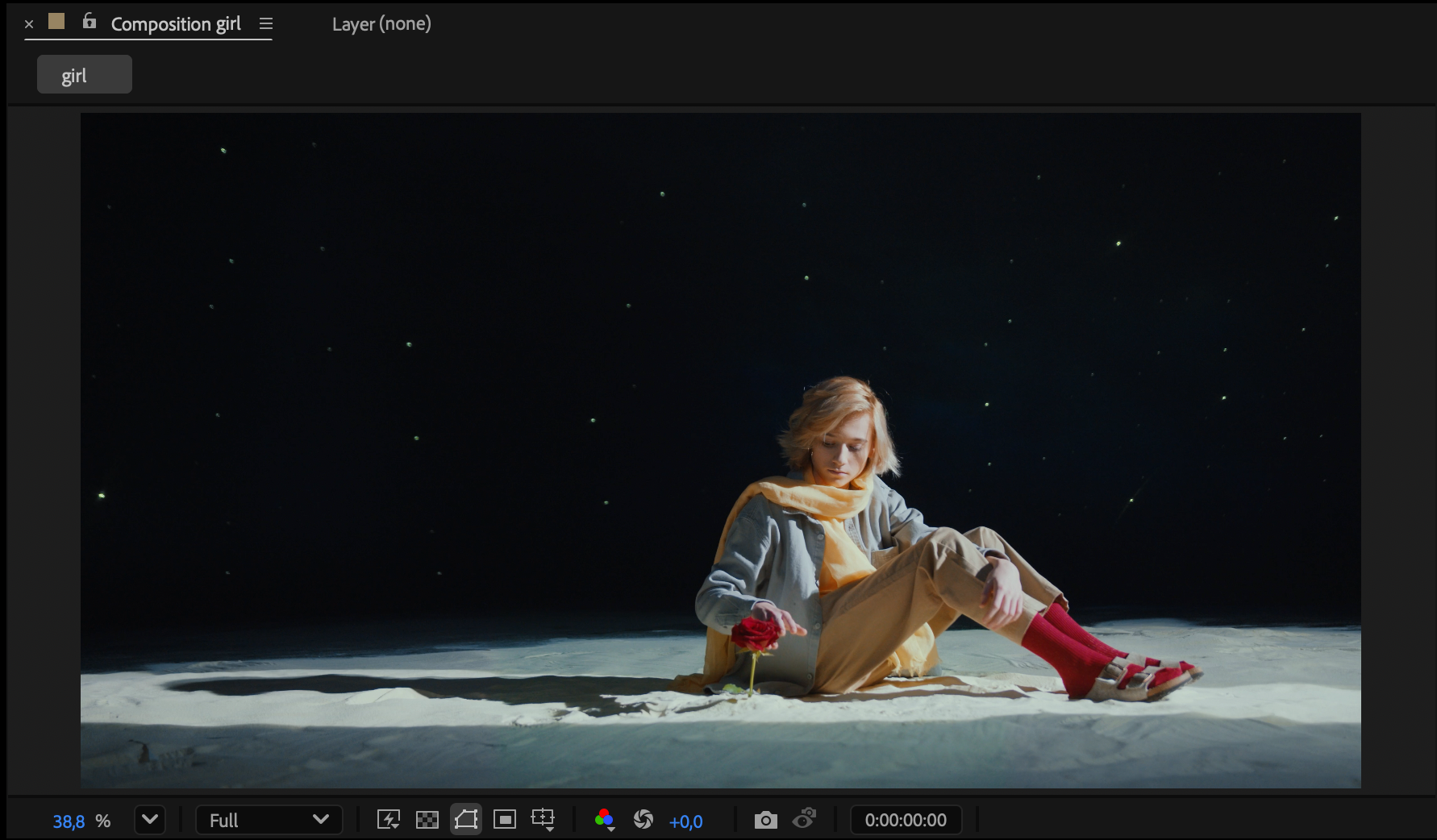
Get 10% off when you subscribe to our newsletter

Step 3: Use the Linear Color Key Effect
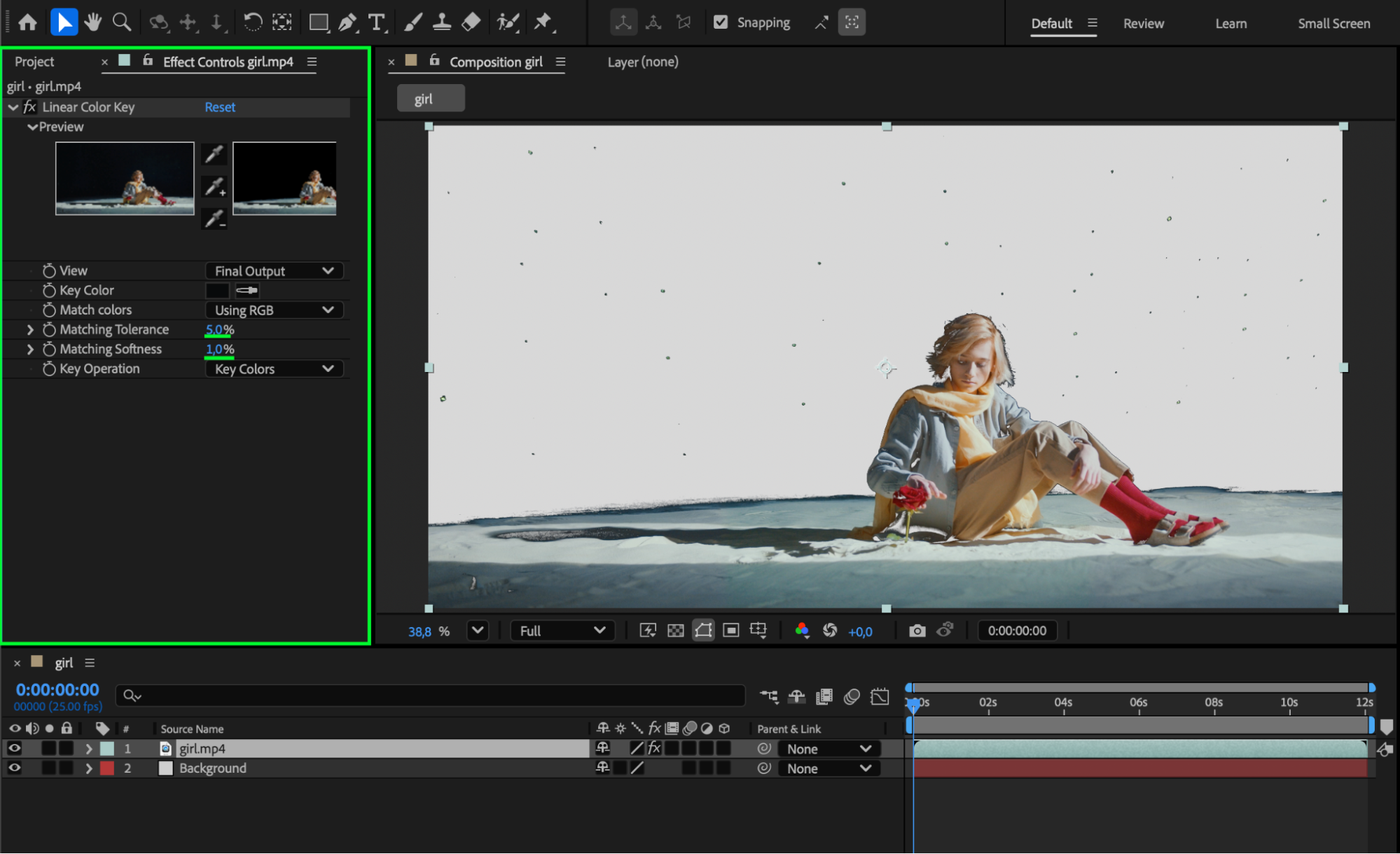
Go to Effect > Keying > Linear Color Key, use the eyedropper to select the black area as your Key Color, then adjust Matching Tolerance and Matching Softness until all unwanted dark regions disappear while preserving important bright details.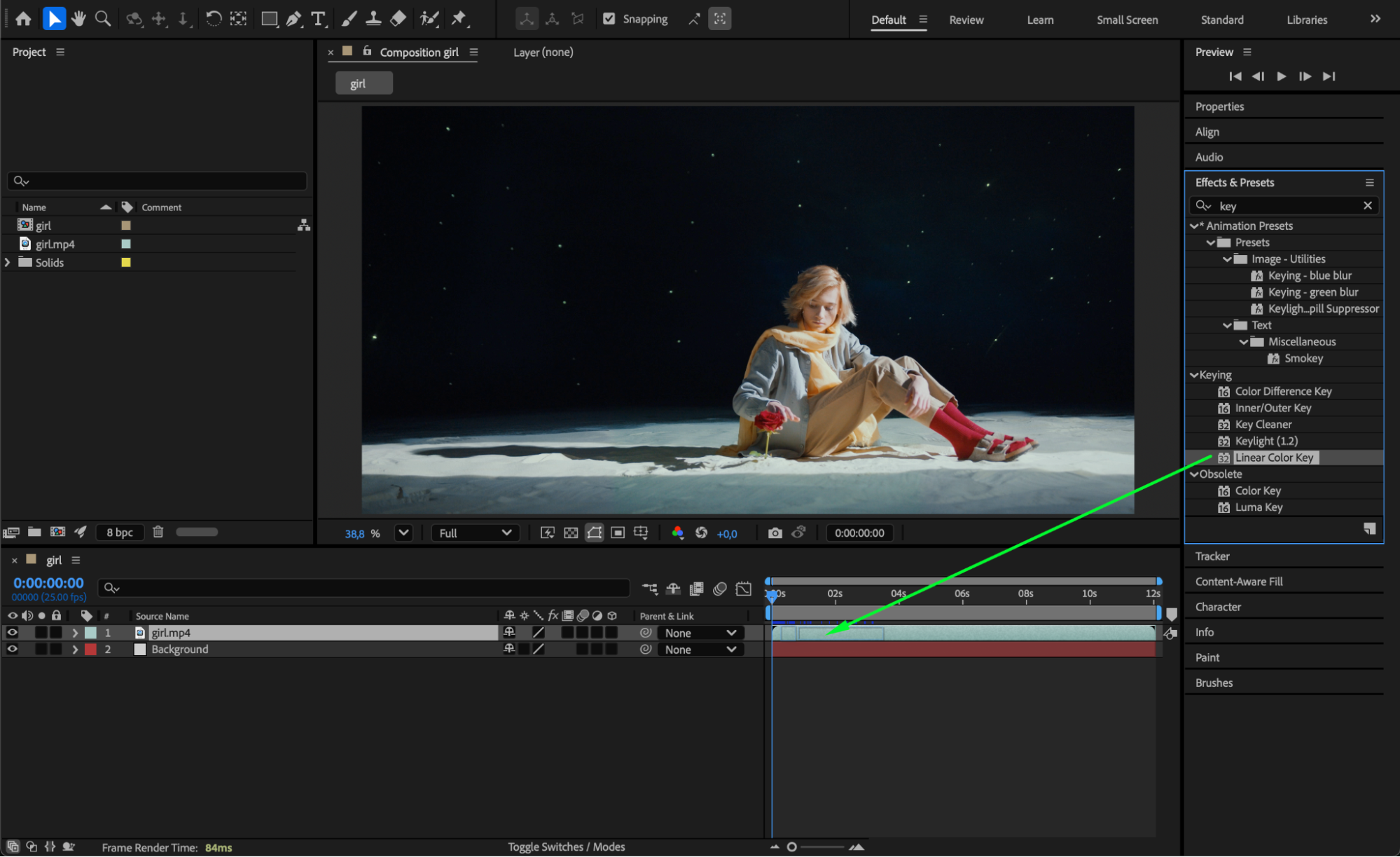
 Step 4: Create a Luminance-Based Matte
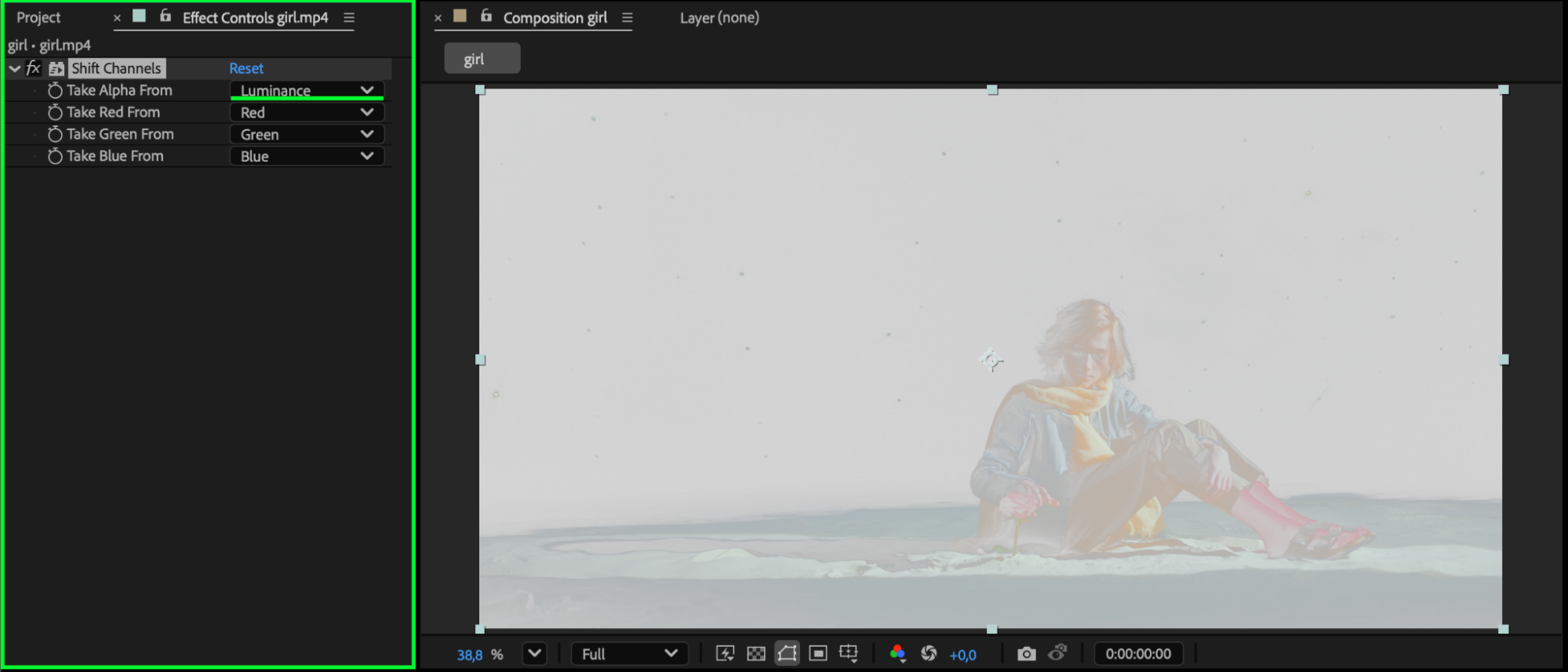
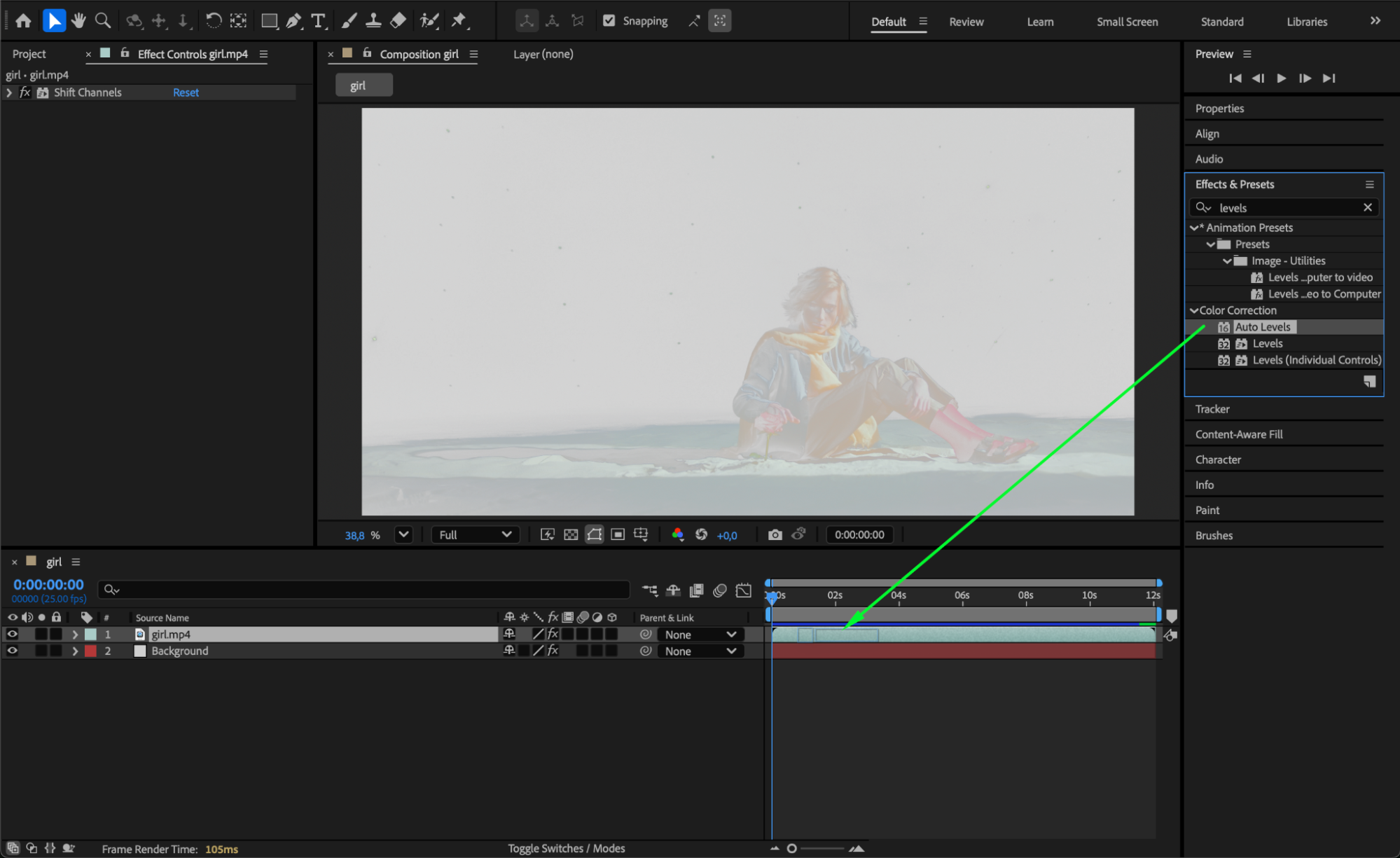
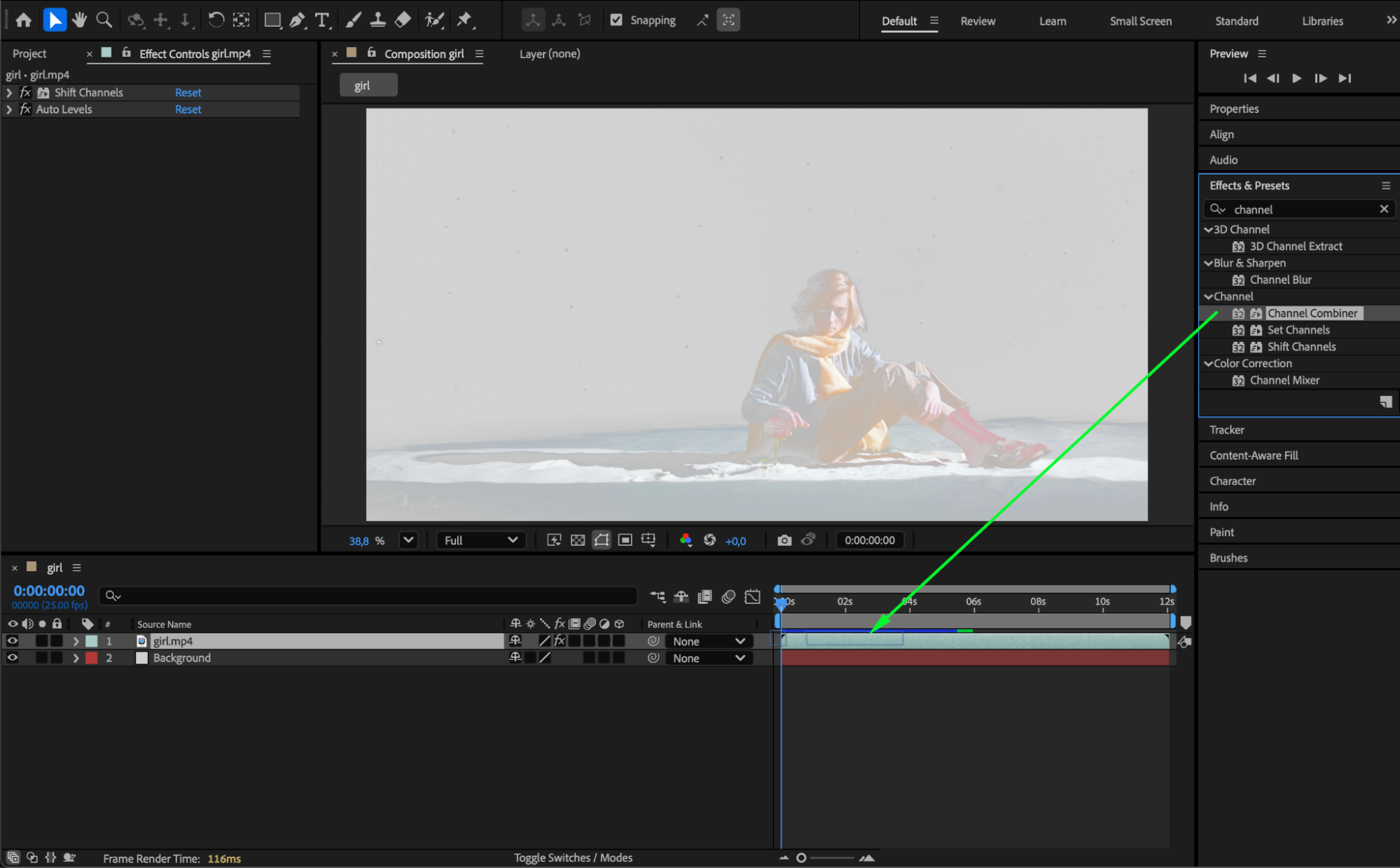
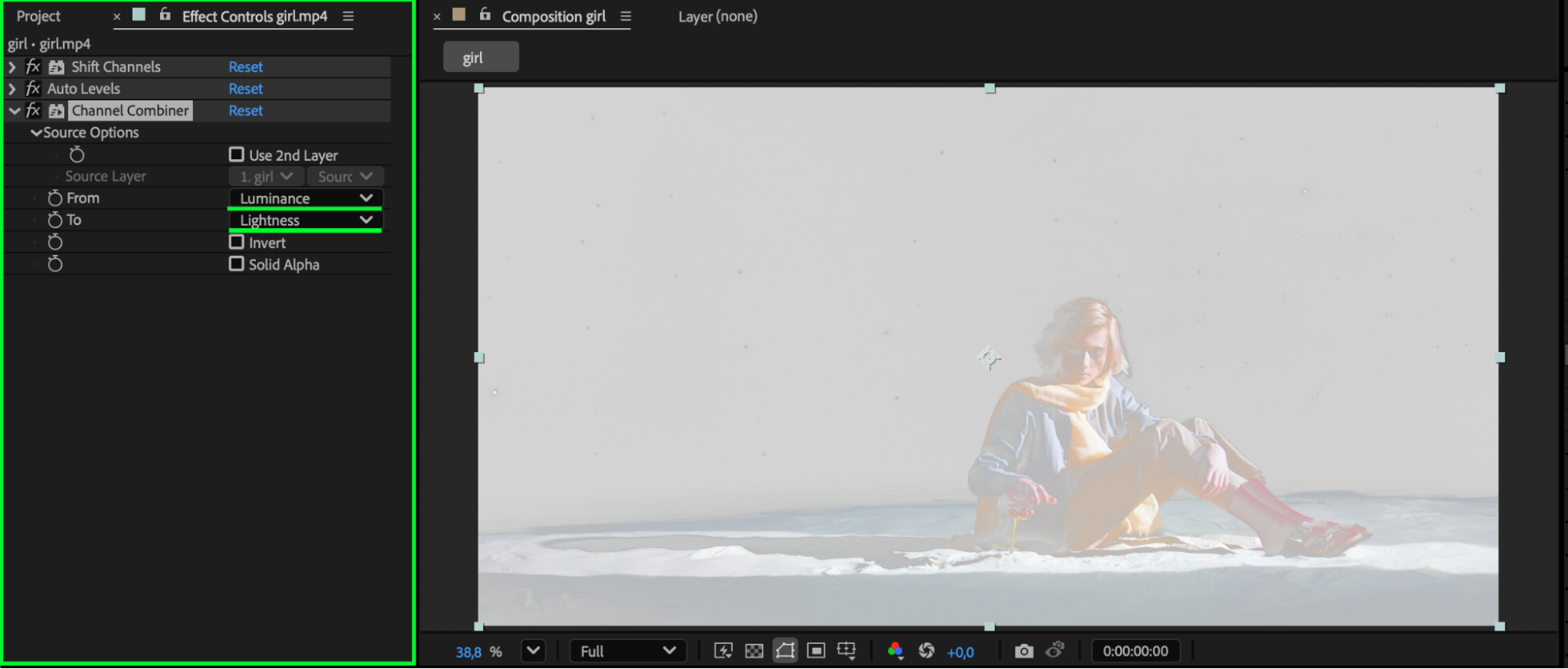
Duplicate your footage, apply Shift Channels, and set Take Alpha From → Luminance. Then refine the matte by applying Auto Levels and Channel Combiner (e.g., converting luminance to saturation) to better separate bright and dark regions. This method provides deeper control compared to simple keying.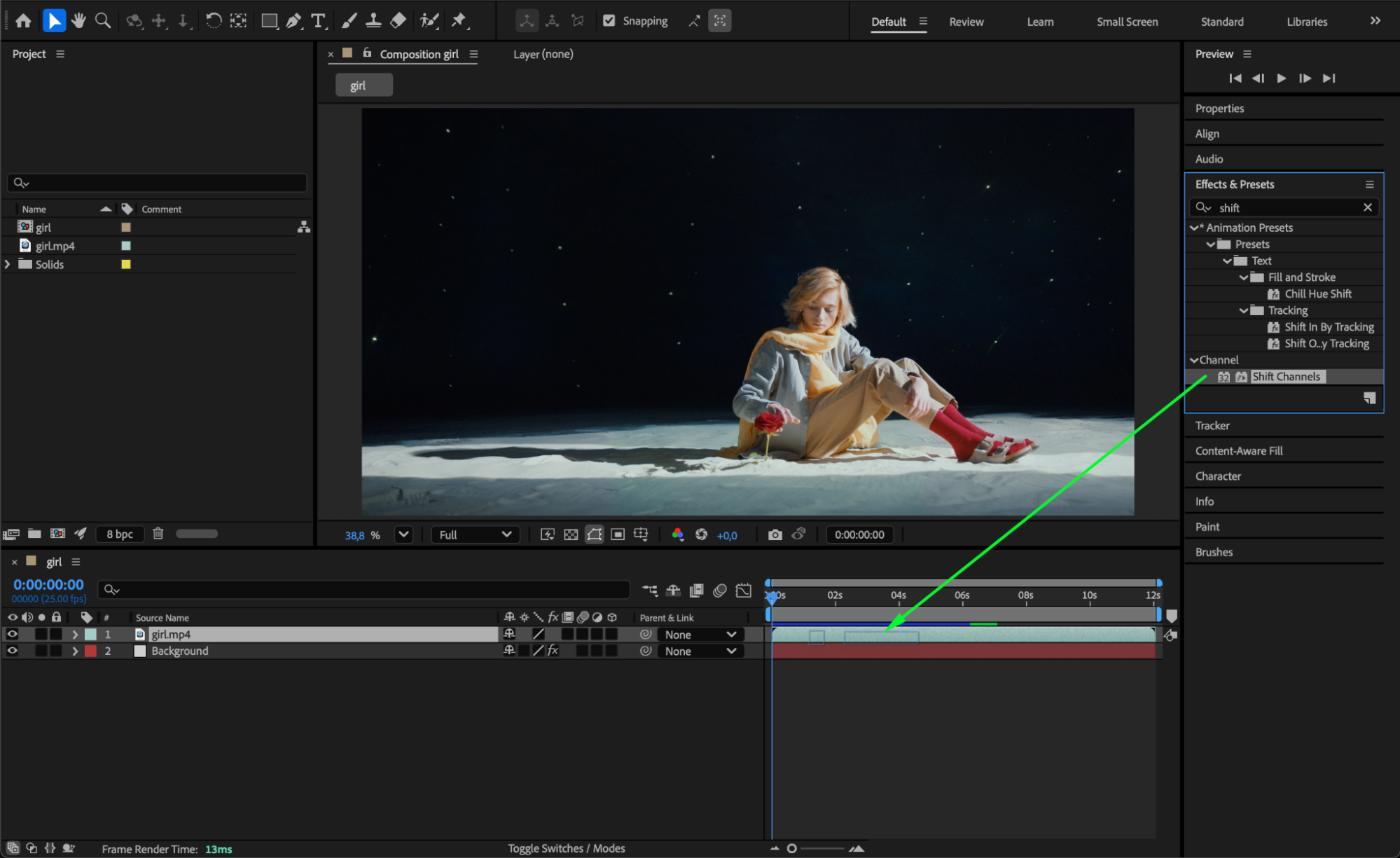
Step 5: Use a Mask for the Cleanest Result
For the highest quality and accuracy, use the Pen Tool (G) to draw a mask around all areas you want to keep, excluding the dark regions entirely. This method is ideal when the dark background has uneven lighting or cannot be cleanly removed with keying.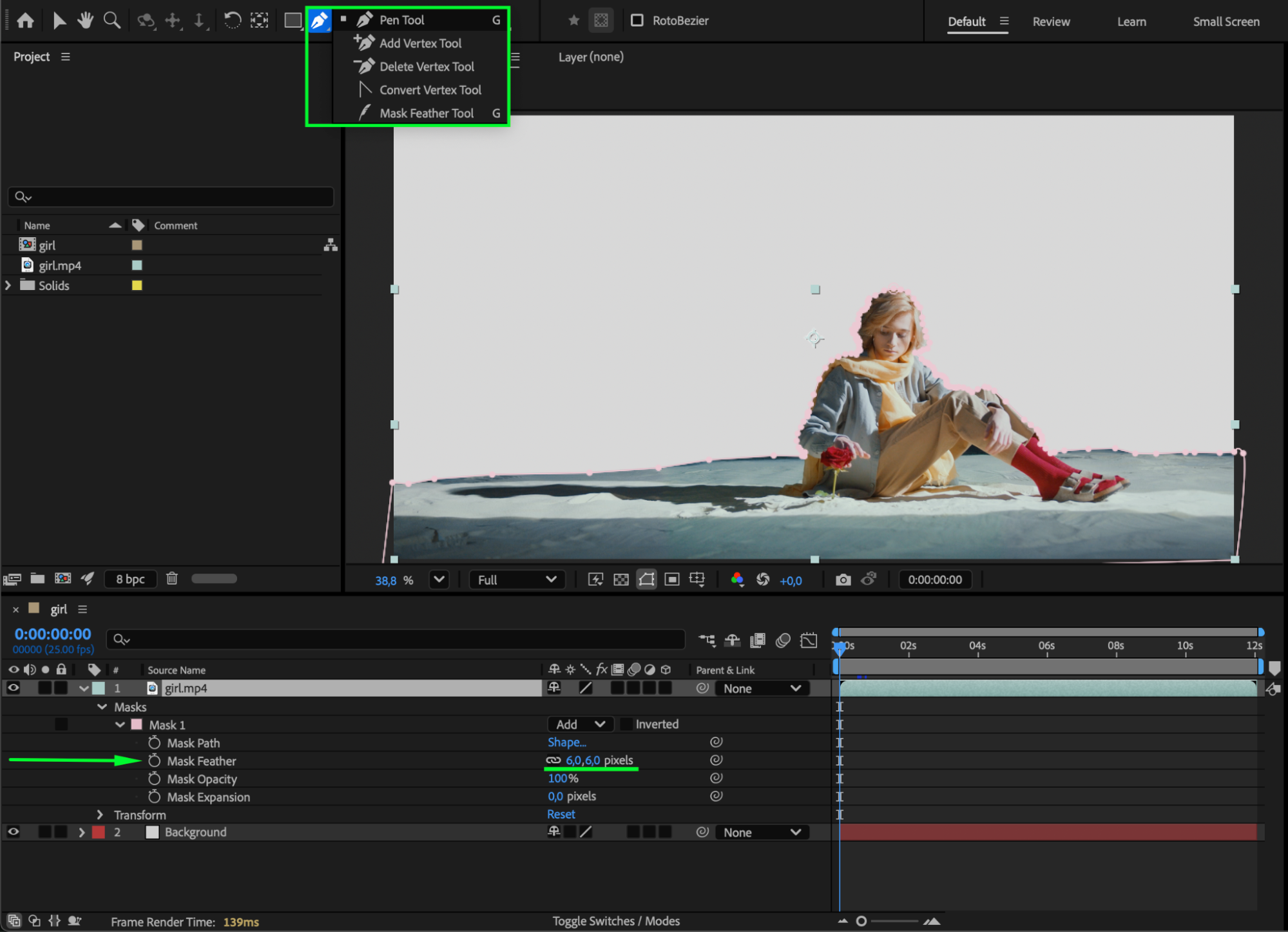 Step 6: Preview and Adjust
Press Spacebar to preview your composition and fine-tune blend modes, tolerance values, matte settings, or mask shapes to achieve the cleanest possible transparency.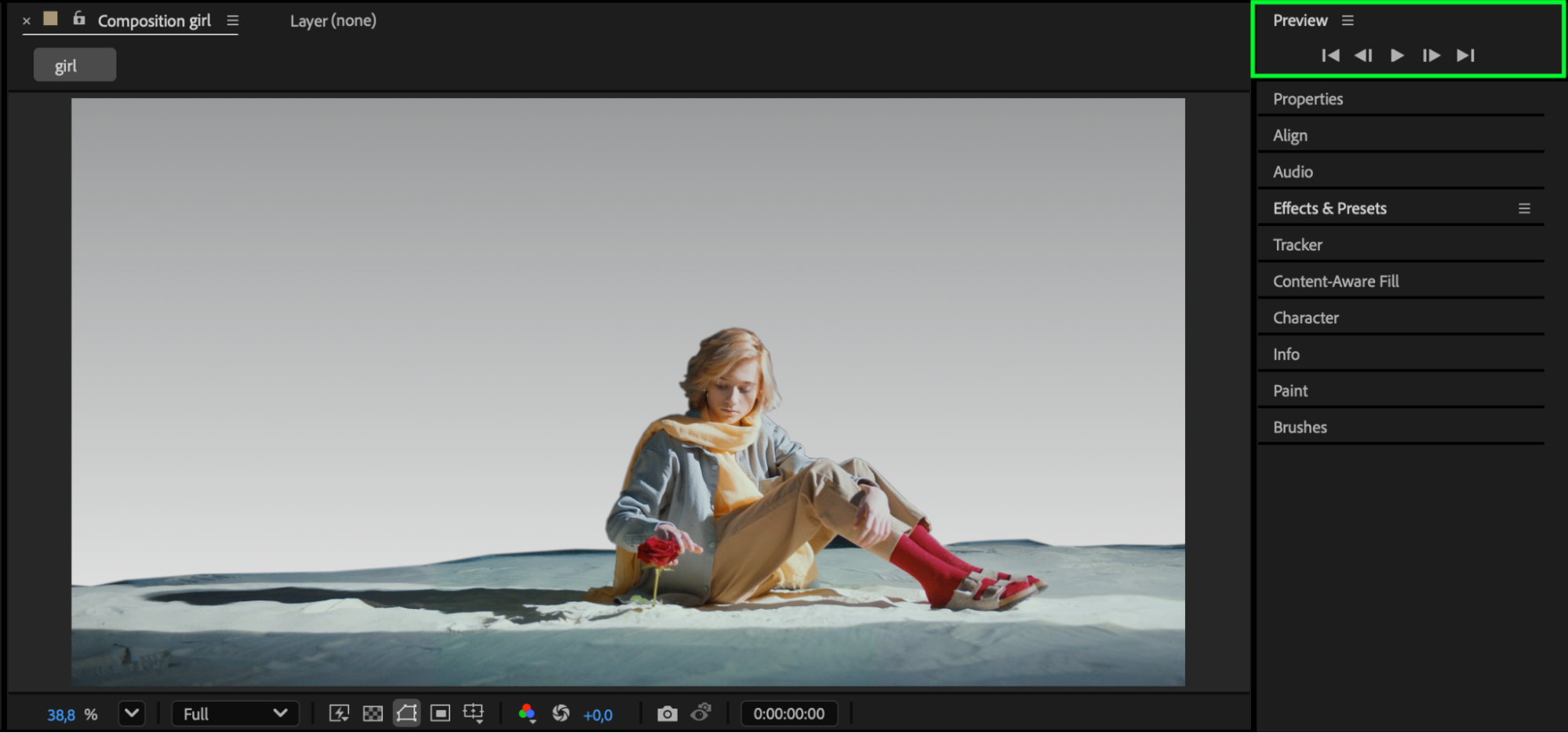 Conclusion
By combining blend modes, Linear Color Key, luminance-based mattes, and precise masking, you can remove dark areas in After Effects quickly and professionally. These methods work for glowing overlays, VFX elements, text animations, and any bright graphics that need a clean transparent background.
Our Bestsellers


