Introduction
Animating shape borders is a powerful way to add motion and style to titles, UI elements, or graphic frames in After Effects. By combining gradient fills, stroke customization, and dash animation, you can create modern animated outlines with smooth movement. In this tutorial, you’ll learn how to build and animate dynamic shape borders step by step.
Step 1: Create a New Composition
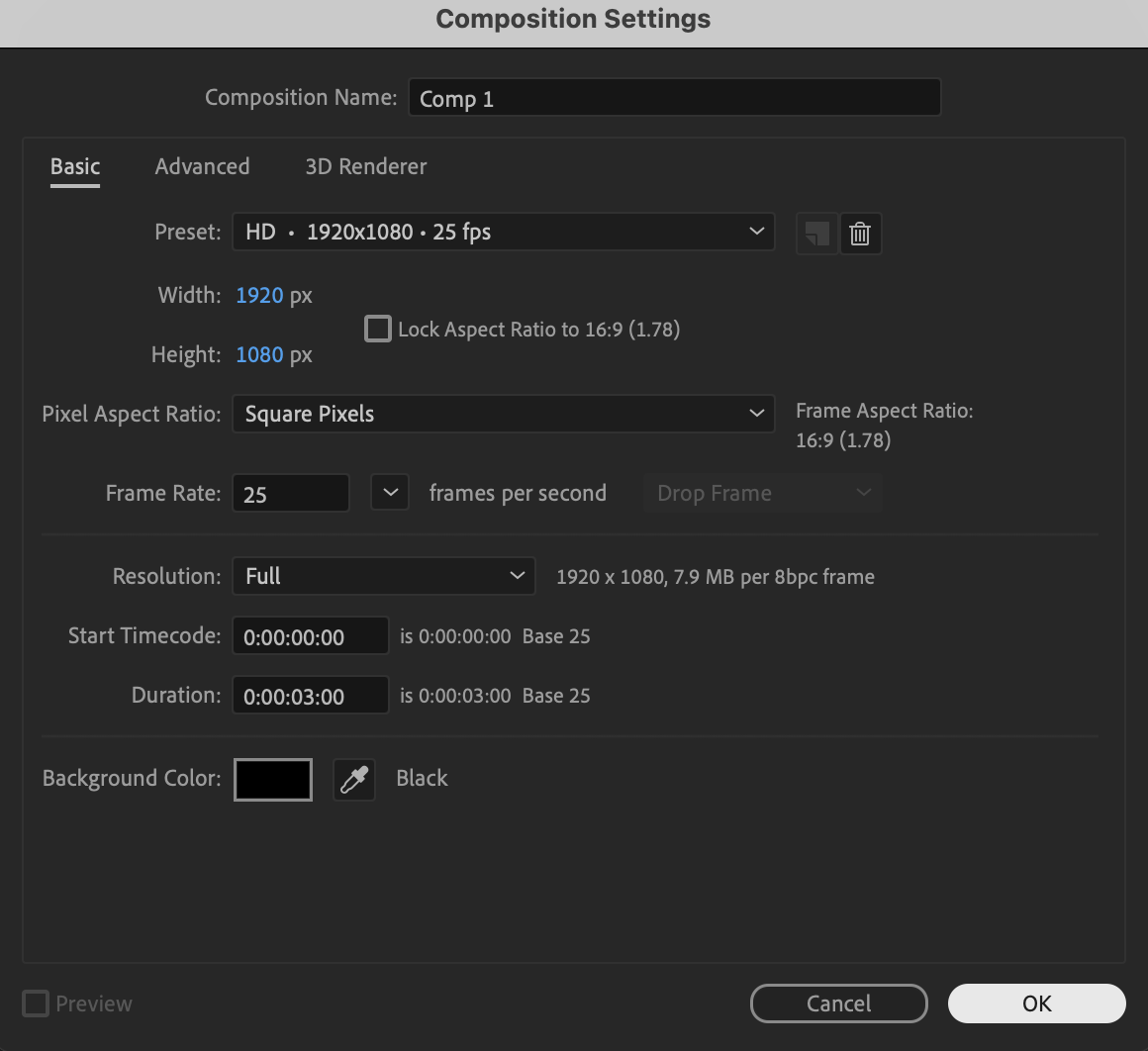
Click New Composition, choose your desired resolution and frame rate, and press OK to create your working timeline.
 Step 2: Create a Shape Layer
Select the Shape Tool (Q) and draw your desired shape in the Composition panel, then set the Fill to Linear Gradient and choose two colors, and set the Stroke Width to 48 px while selecting a stroke color of your choice.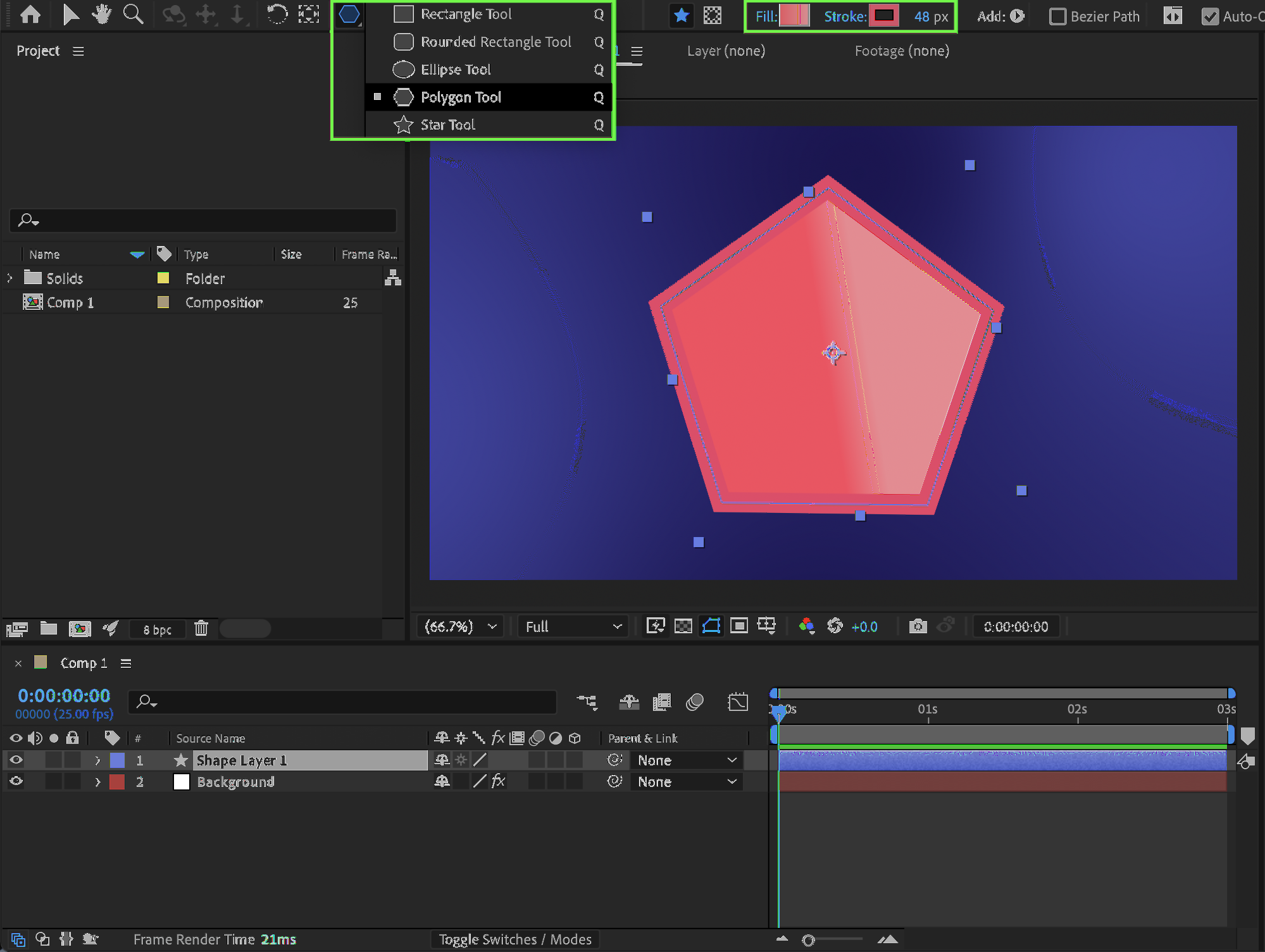
10 % Rabatt bei Newsletter-Anmeldung

Step 3: Adjust the Gradient
Expand the shape layer properties in the Timeline, open the Gradient Fill settings, and adjust the Start Point and End Point values to control the direction and blending of the gradient.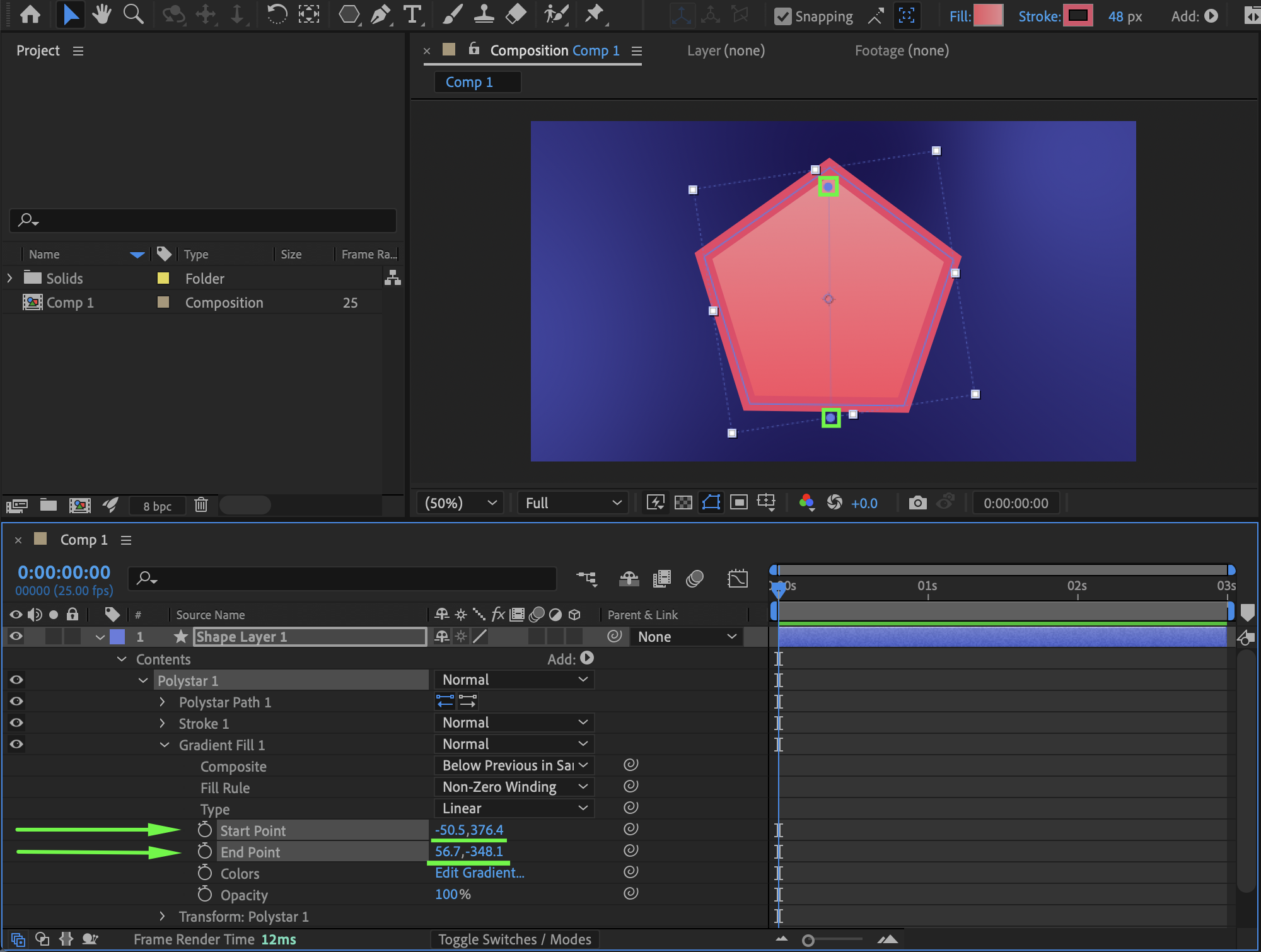 Step 4: Customize and Animate the Stroke
Open Stroke 1, set Line Join to Round Join, click the “+” button next to Dashes to add dash controls, set Line Cap to Round Cap, and then animate parameters such as Dash, Offset, and in the Wave section adjust Amount and Wavelength by setting keyframes and experimenting with values to create flowing border motion.
Dash — Controls the length of each visible stroke segment; increasing the value makes longer dashes, while smaller values create shorter, more frequent segments.
Offset — Moves the dash pattern along the path; animating this value creates the illusion of motion traveling around the shape border.
Wave Amount — Determines the intensity or height of the wave distortion applied to the stroke; higher values create more dramatic border movement.
Wavelength — Controls the distance between wave peaks; smaller values create tighter waves, while larger values produce smoother, wider oscillations.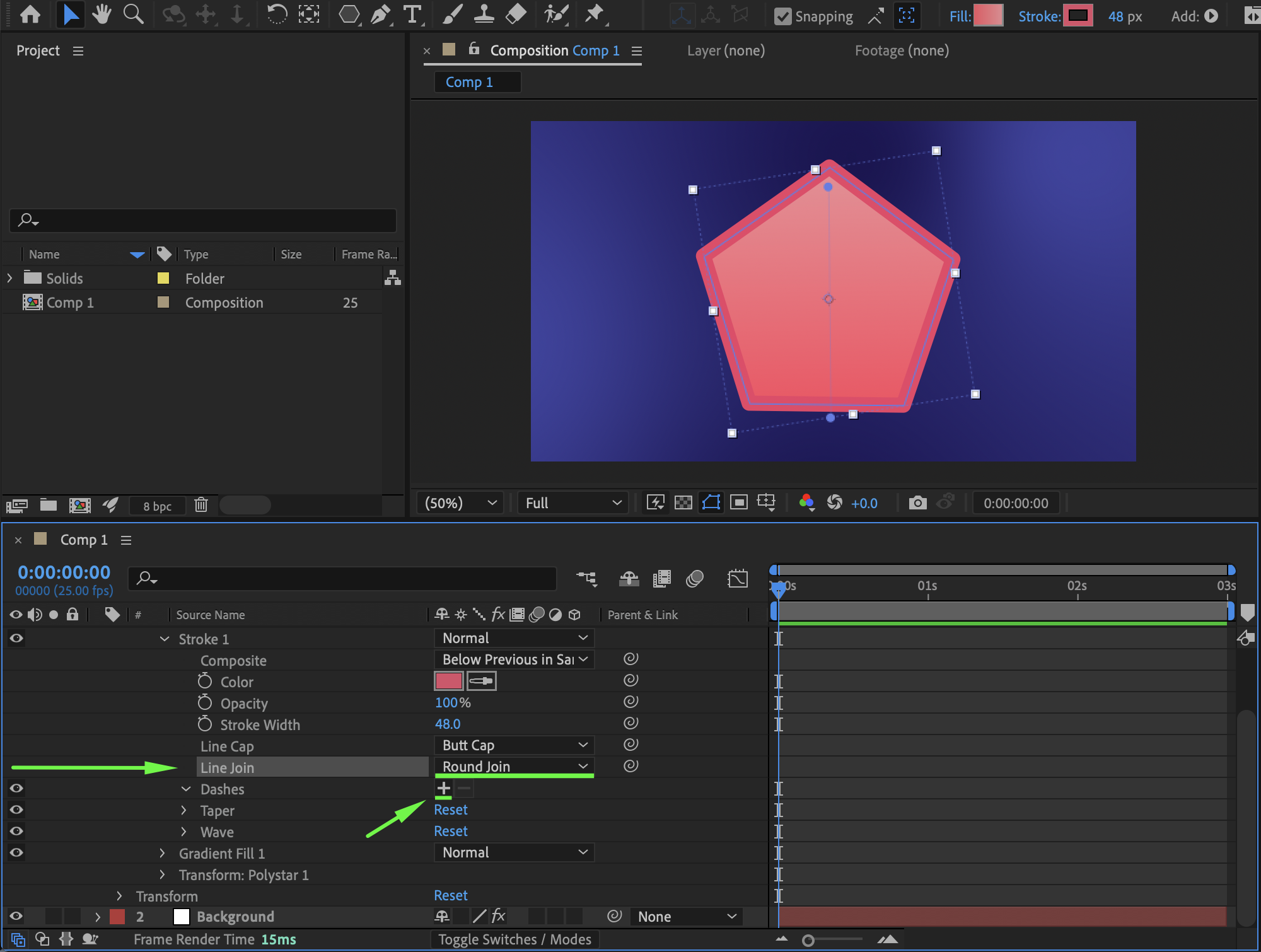
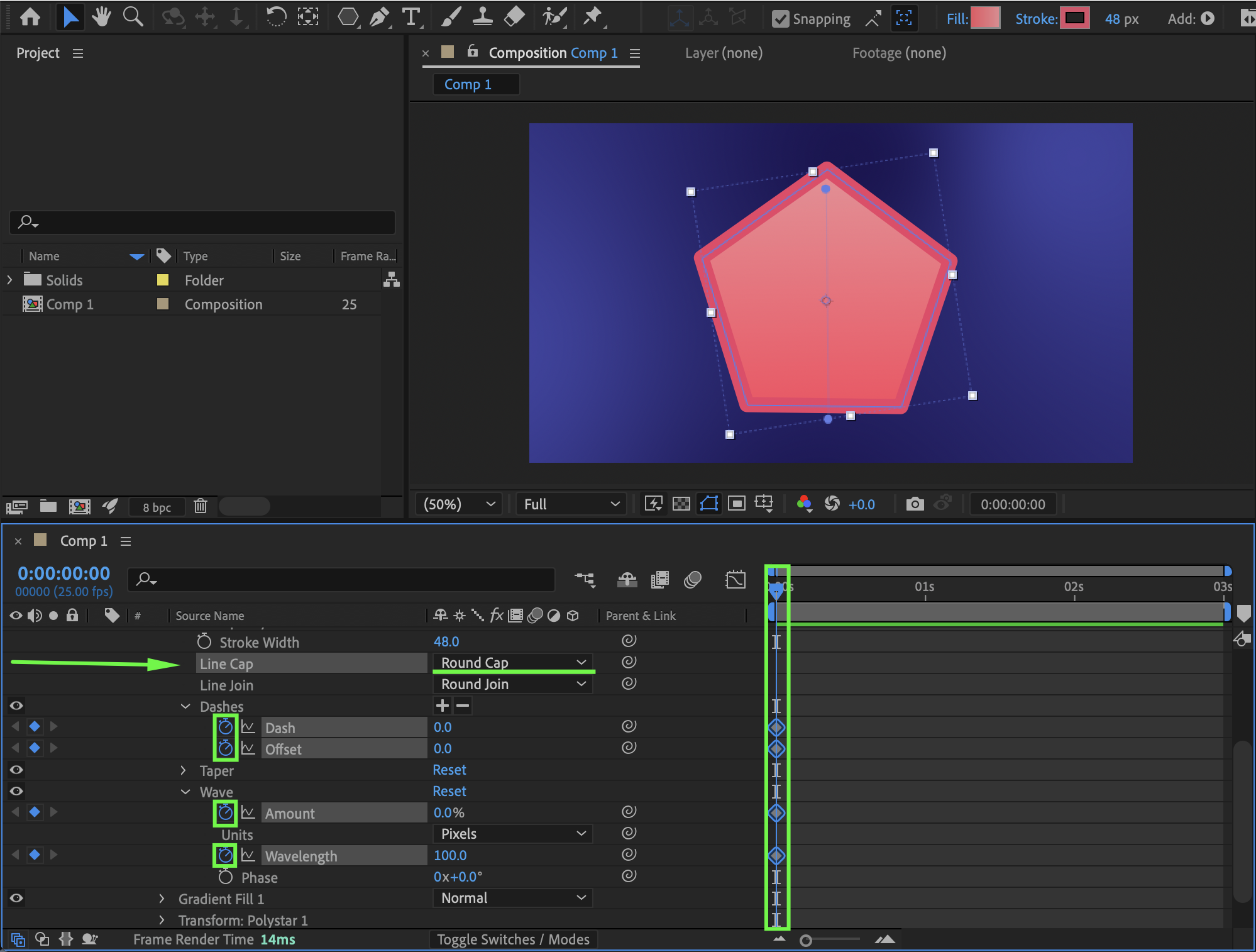
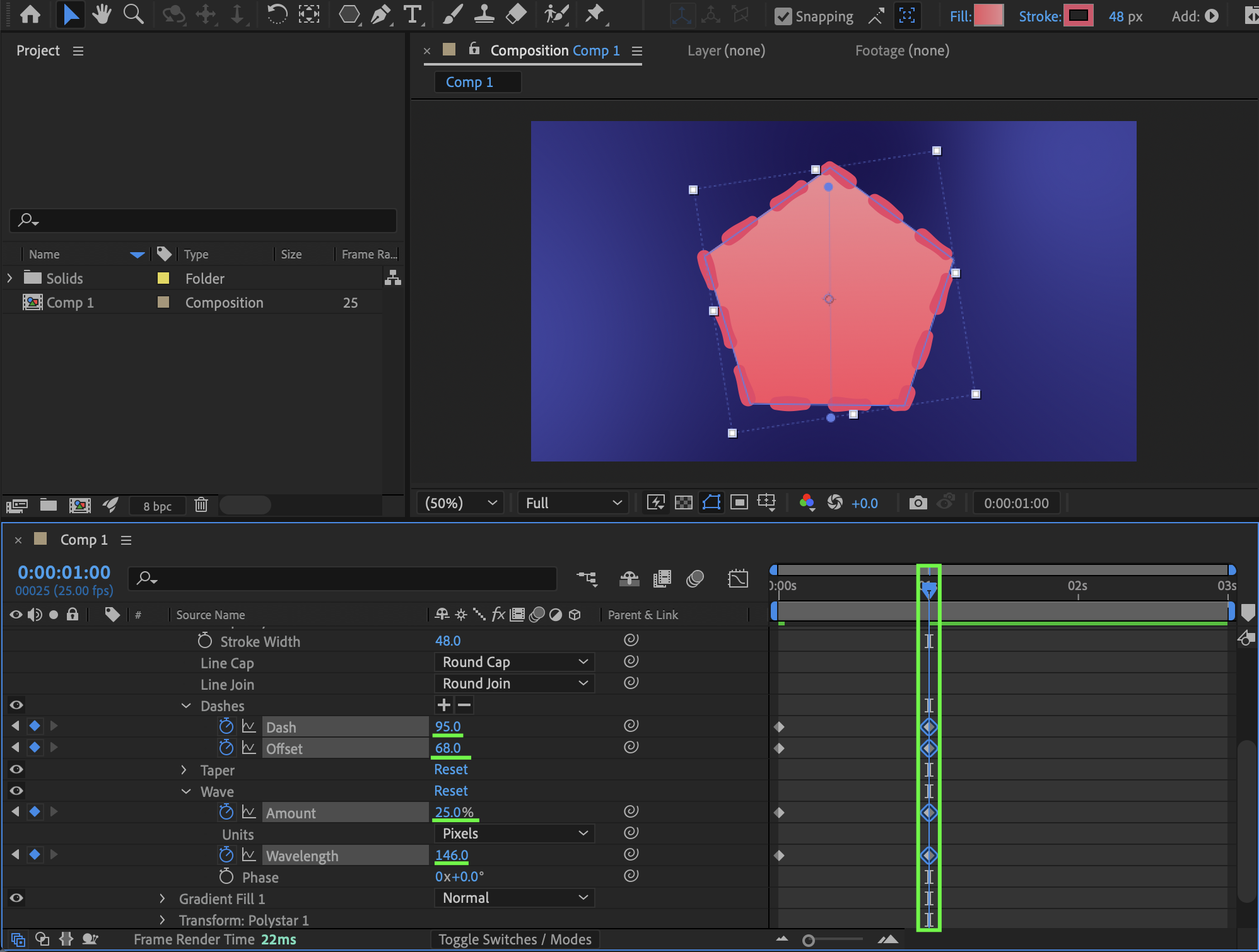
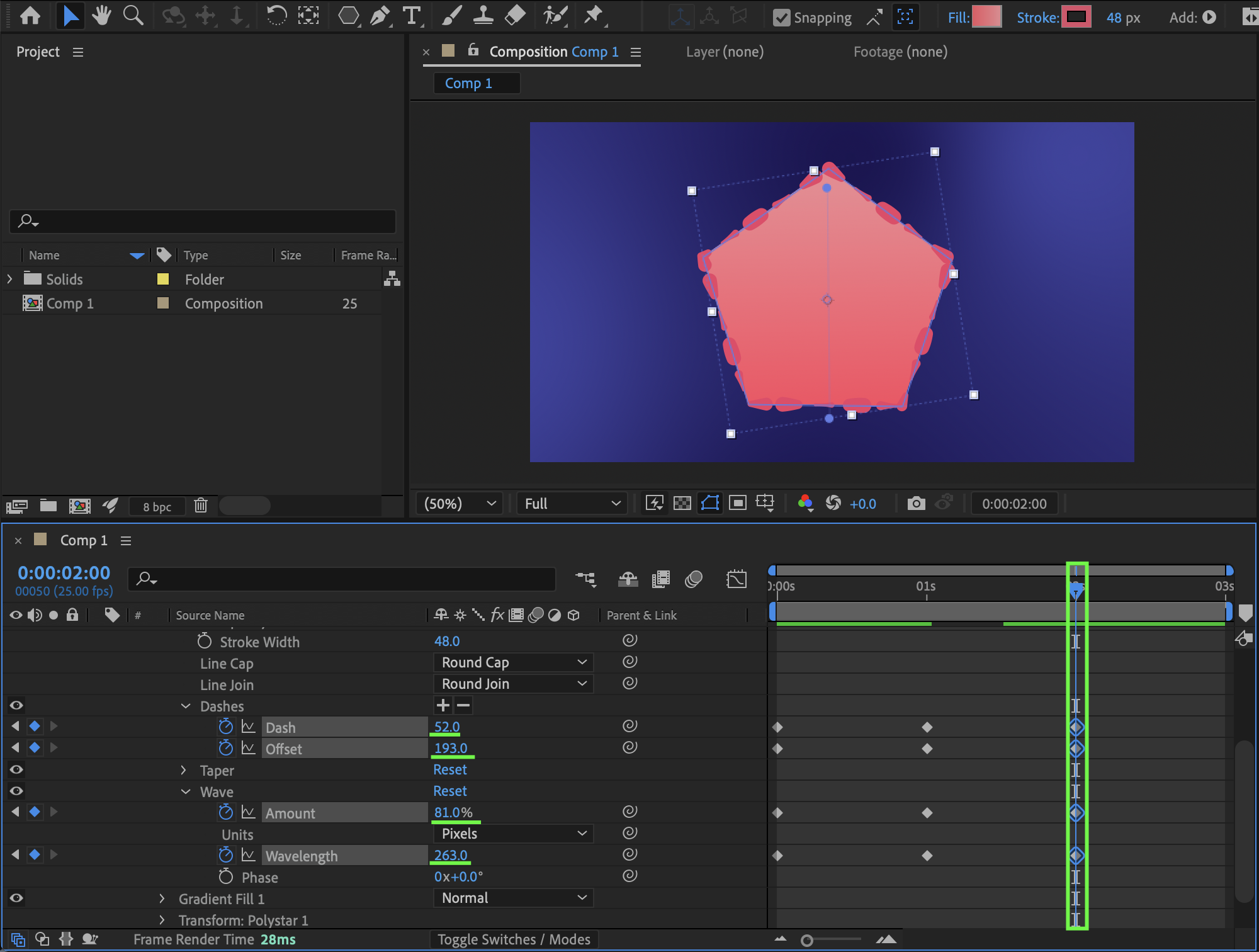
Step 5: Apply Easy Ease
Select all animated keyframes and press F9 to apply Easy Ease for smoother and more natural movement.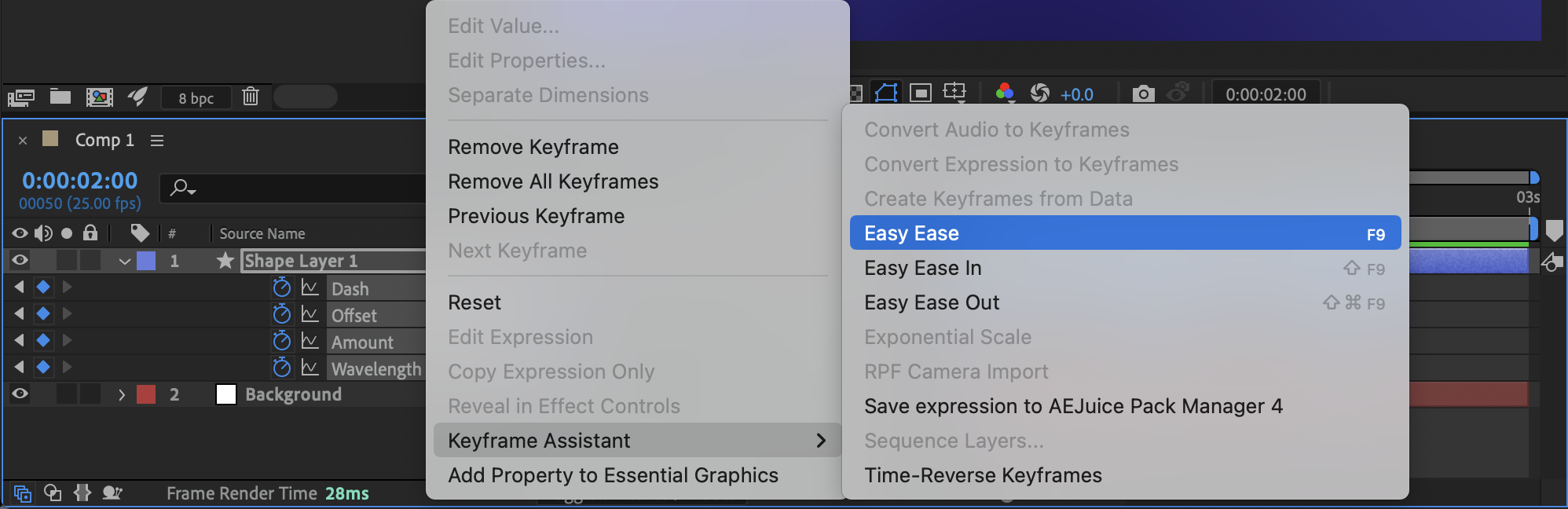
Step 6: Preview the Animation
Press Spacebar or use RAM Preview to play the animation and fine-tune dash timing, offset speed, or gradient settings if needed.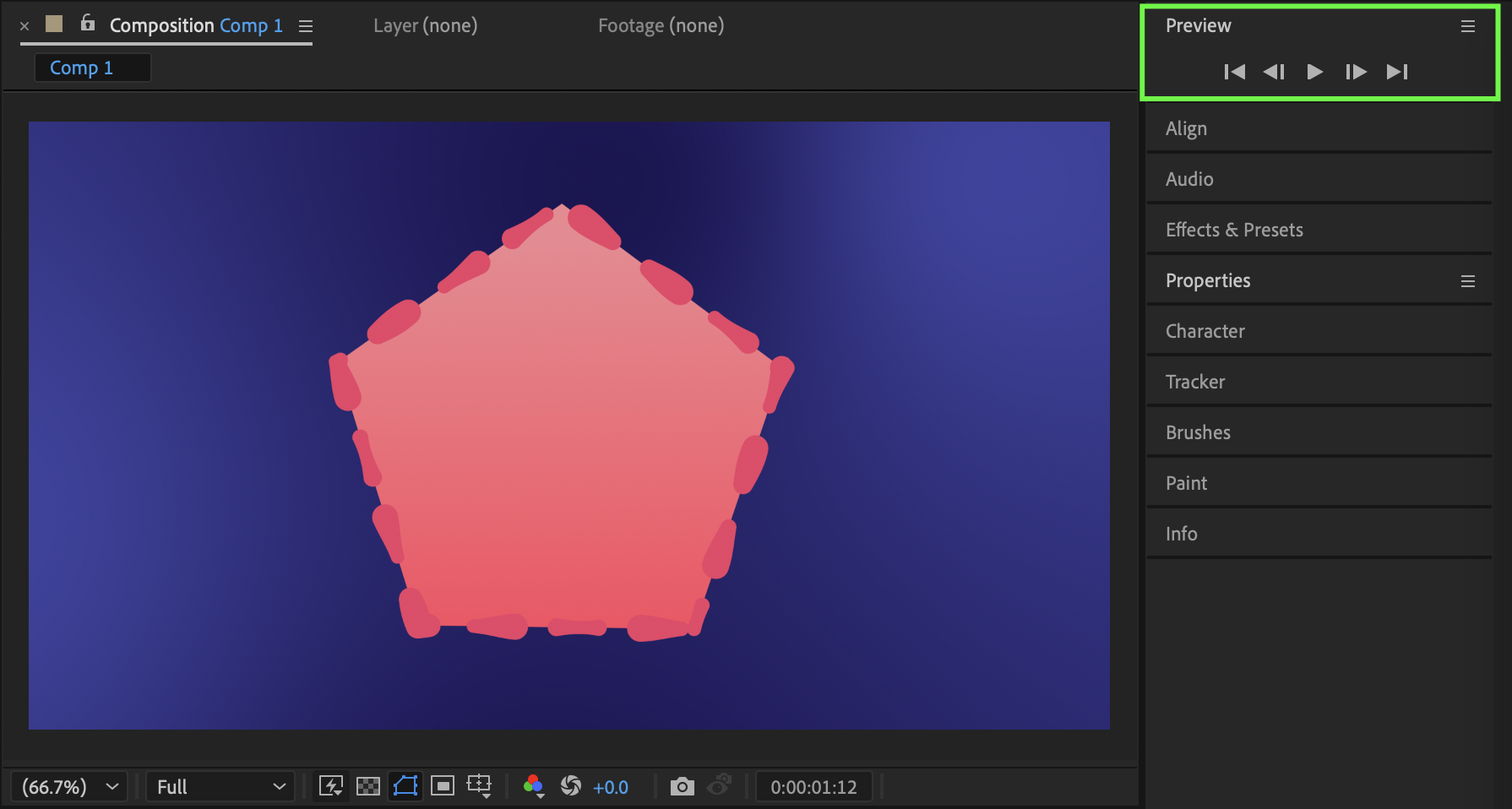 Conclusion
By combining gradient fills with animated stroke dash settings, you can create stylish and dynamic shape borders in After Effects. This technique is highly customizable and works perfectly for modern motion graphics, UI animations, and creative design accents.
Our Bestsellers
Our Bestsellers

