Introduction
Using video as a background inside text is a popular effect in motion graphics. In this tutorial, you’ll learn how to place one video inside text while using another video as the composition background in After Effects.
Step 1: Import and Create the Composition
Go to File → Import → File and import both video clips:
One video to be used inside the text
One video to be used as the background of the composition
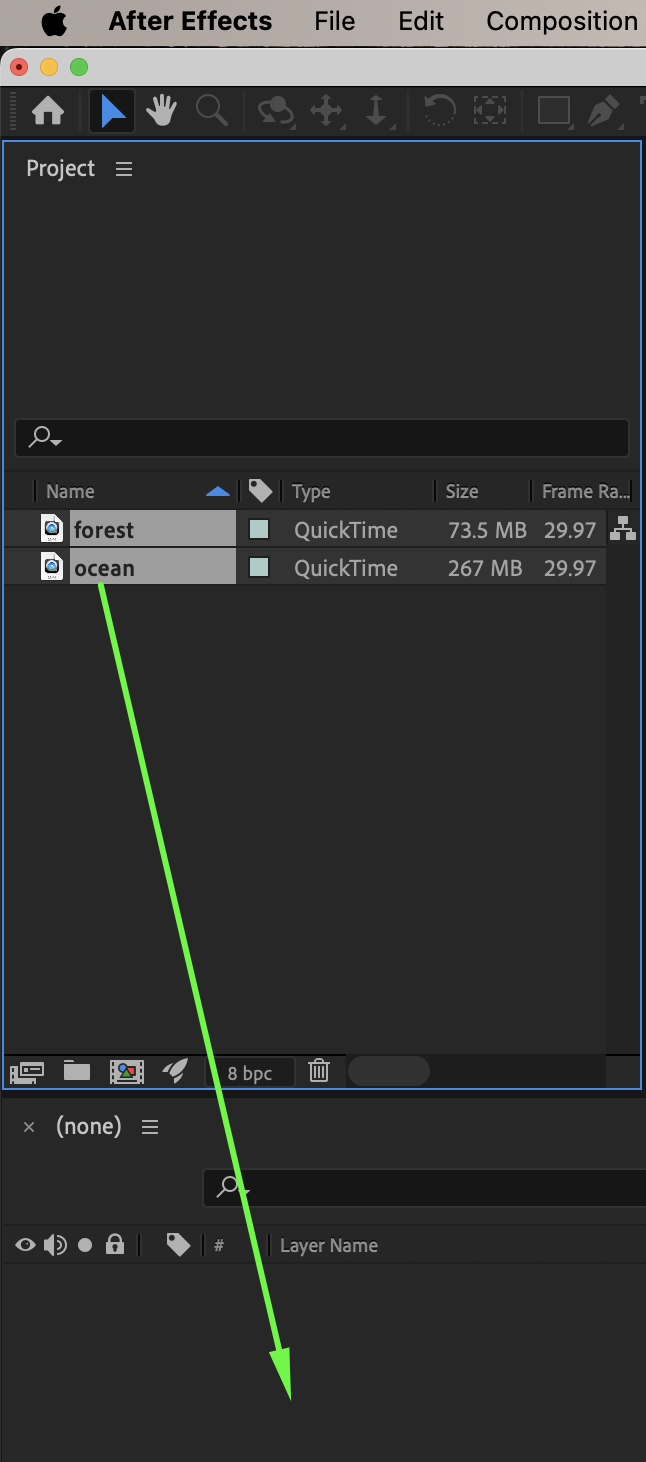
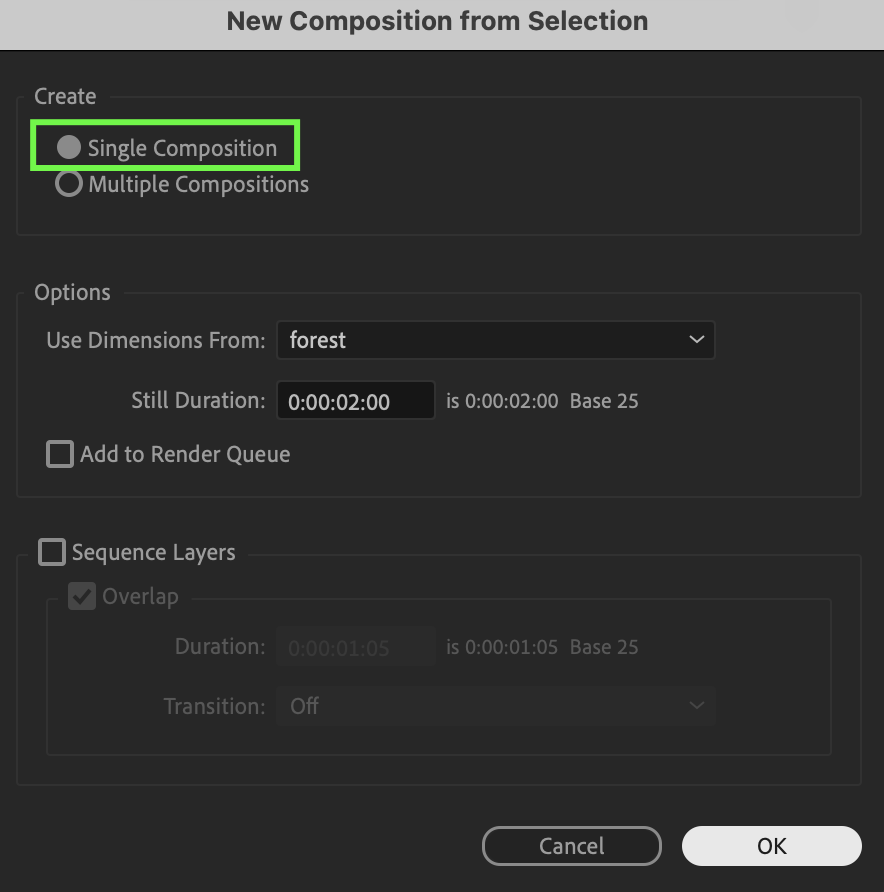
Drag both videos onto the timeline. When the New Composition from Selection window appears, choose:
Single Composition
Click OK.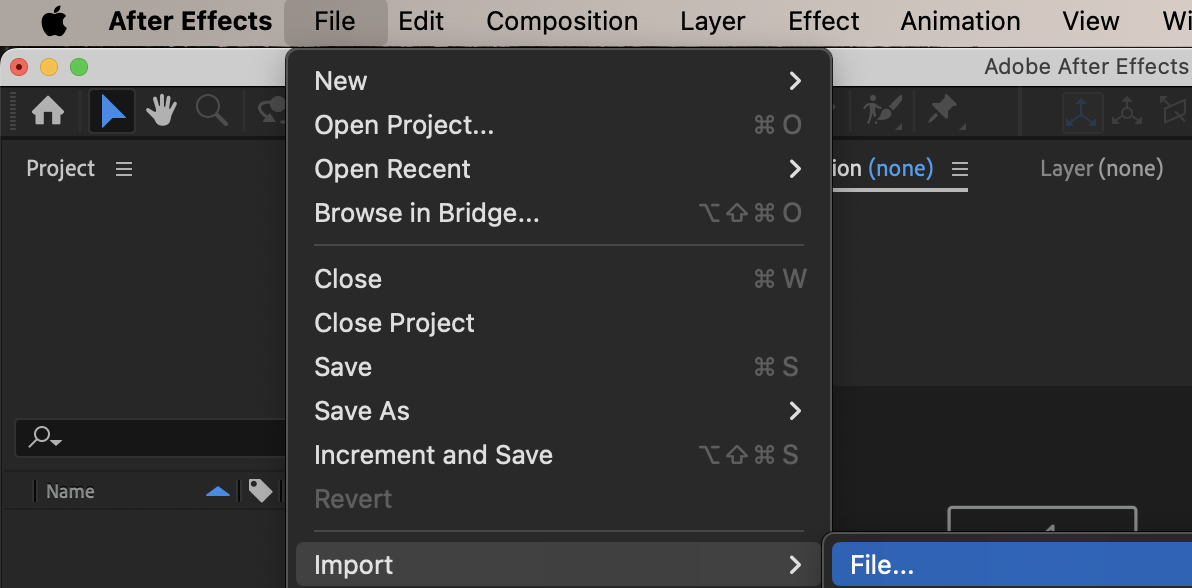
Obtenga un 10% de descuento al suscribirse a nuestro boletín

Step 2: Create the Text
Select the Type Tool (Ctrl / Cmd + T) and create your text. Use the Character panel to customize the font, size, and alignment.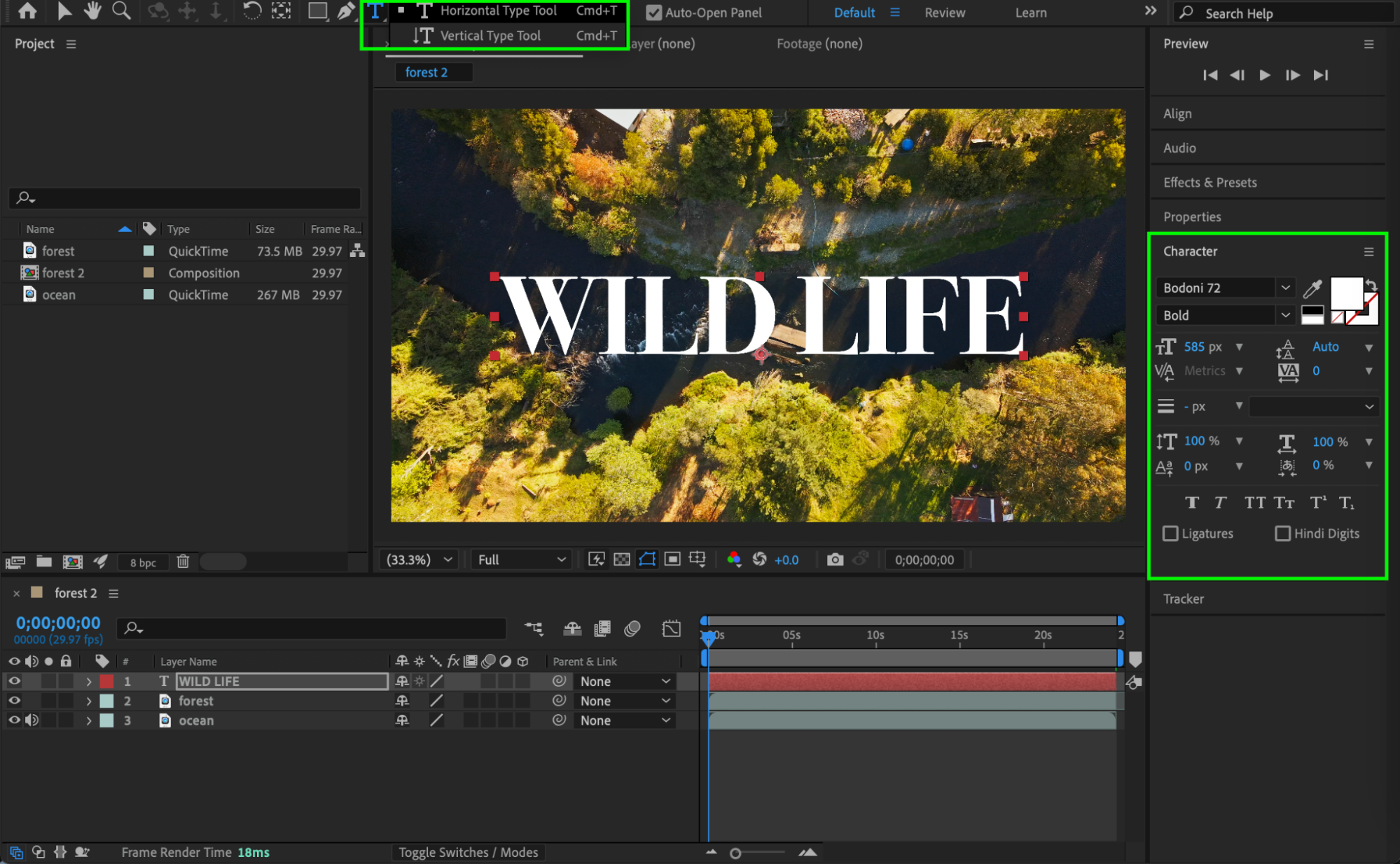 Step 3: Set Up the Track Matte
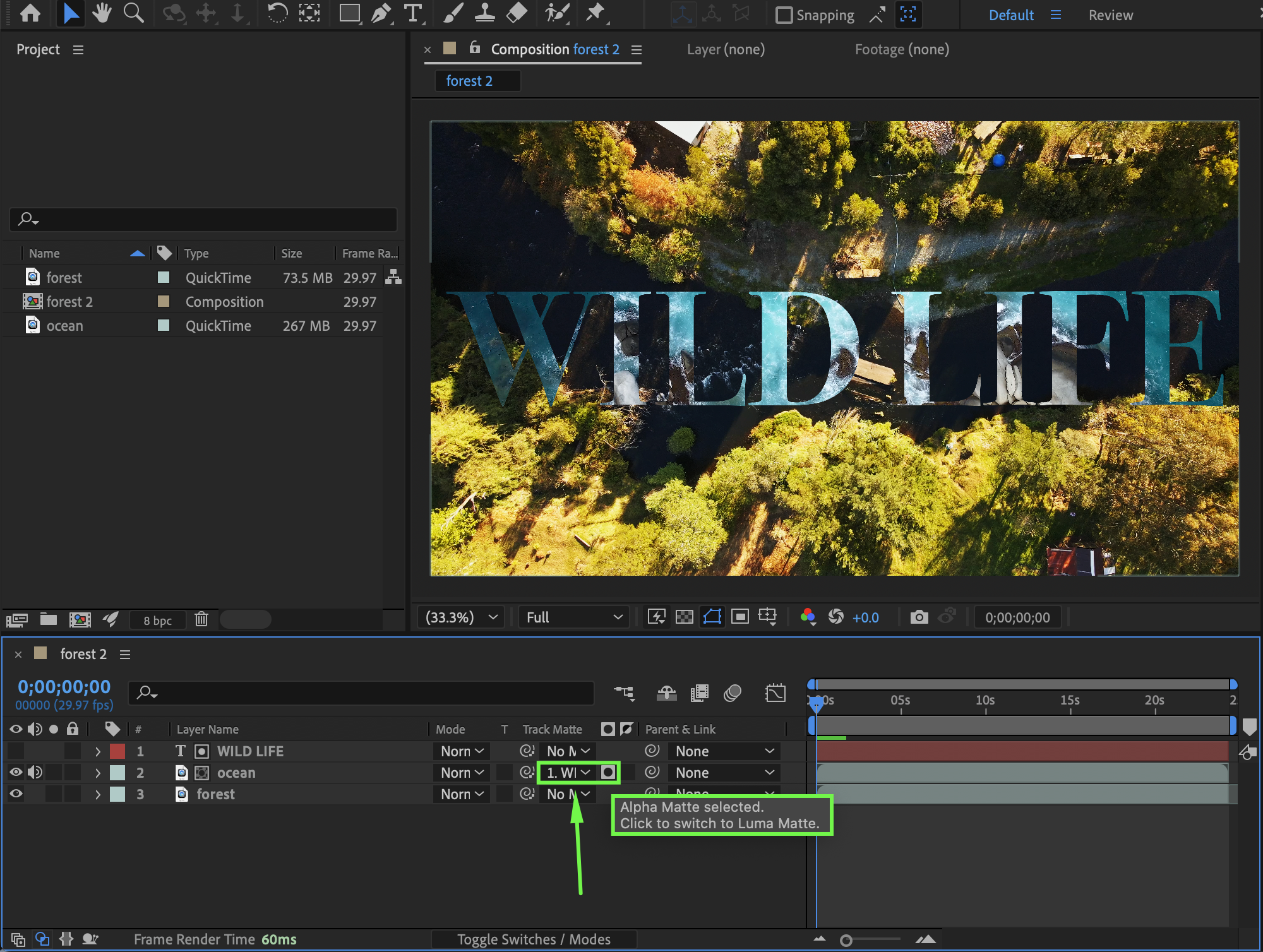
Make sure the composition background video is placed below the video that will appear inside the text. In the Track Matte column:
For the text background video, choose Alpha Matte (Text Layer)
This masks the video so it appears only inside the text.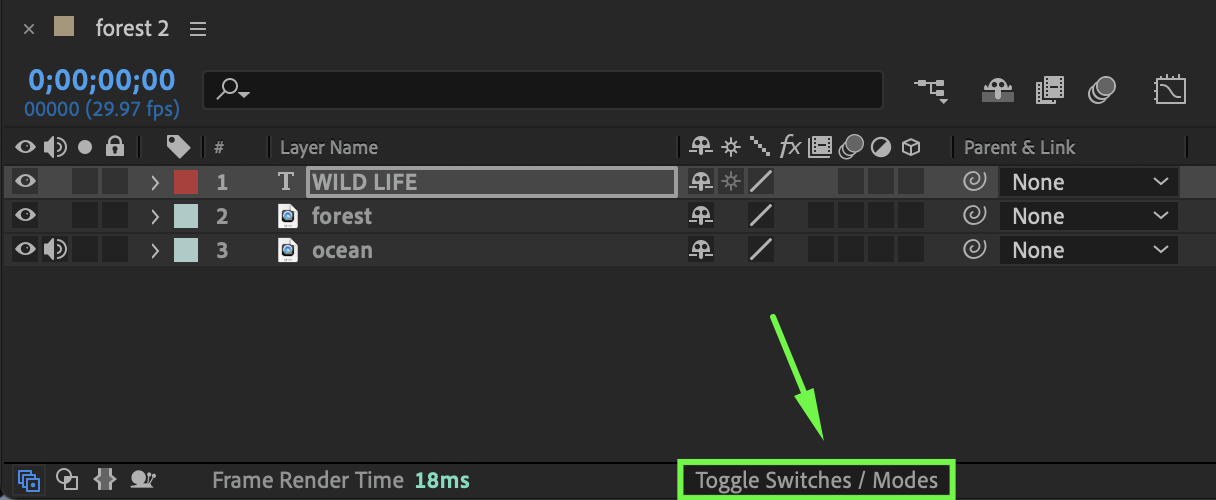
Step 4: Preview the Result
Preview the composition to see both:
The background video
The video playing inside the text simultaneously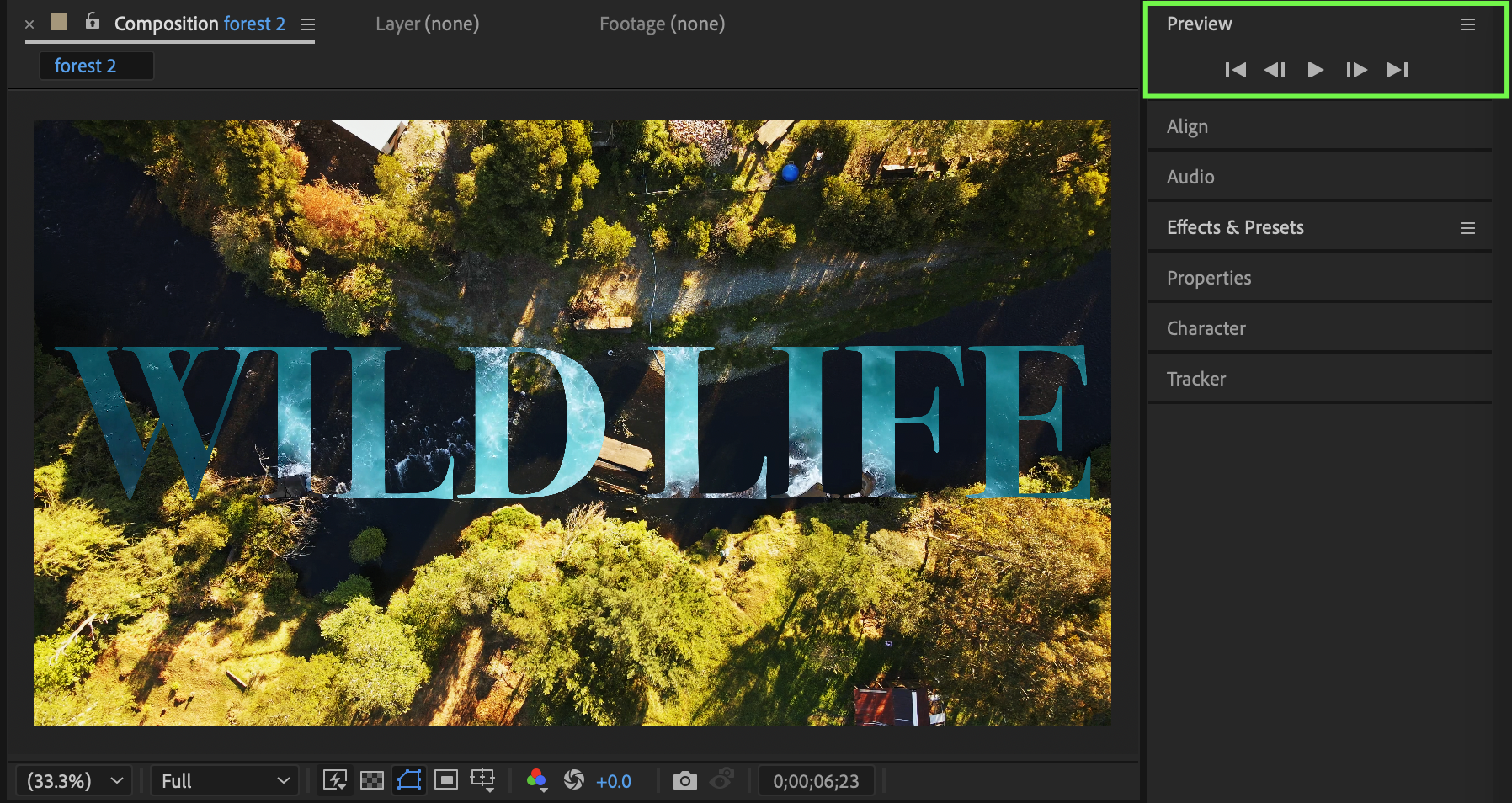
Conclusion
By using text as an alpha matte, you can easily place video inside text while keeping a separate background video in After Effects. This technique is perfect for titles, promos, and creative motion graphics.
Our Bestsellers
Our Bestsellers

