
Introduction to Customizing Menu Colors
Adobe After Effects allows you to customize the appearance of its interface, including the menu and panel colors. Adjusting these colors can make your workflow more comfortable, especially for long editing sessions, and can improve visibility depending on your lighting conditions. In this guide, you’ll learn how to change the color theme and enable accessible color contrasts to suit your preferences.
Step 1: Open Appearance Preferences
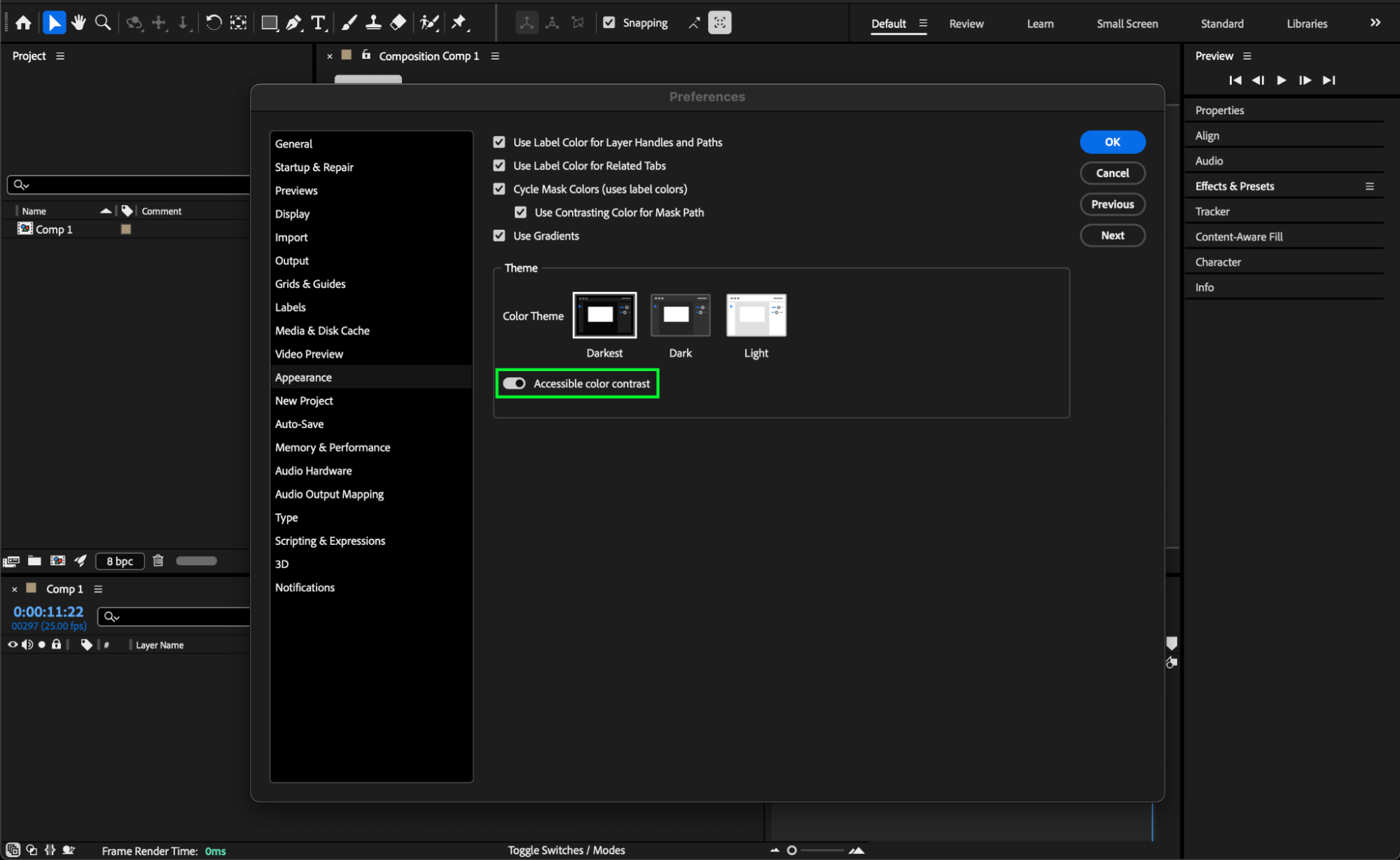
Go to Edit (Windows) / After Effects (Mac) > Preferences > Appearance. This panel controls the interface colors, including the menu, panels, and work area background.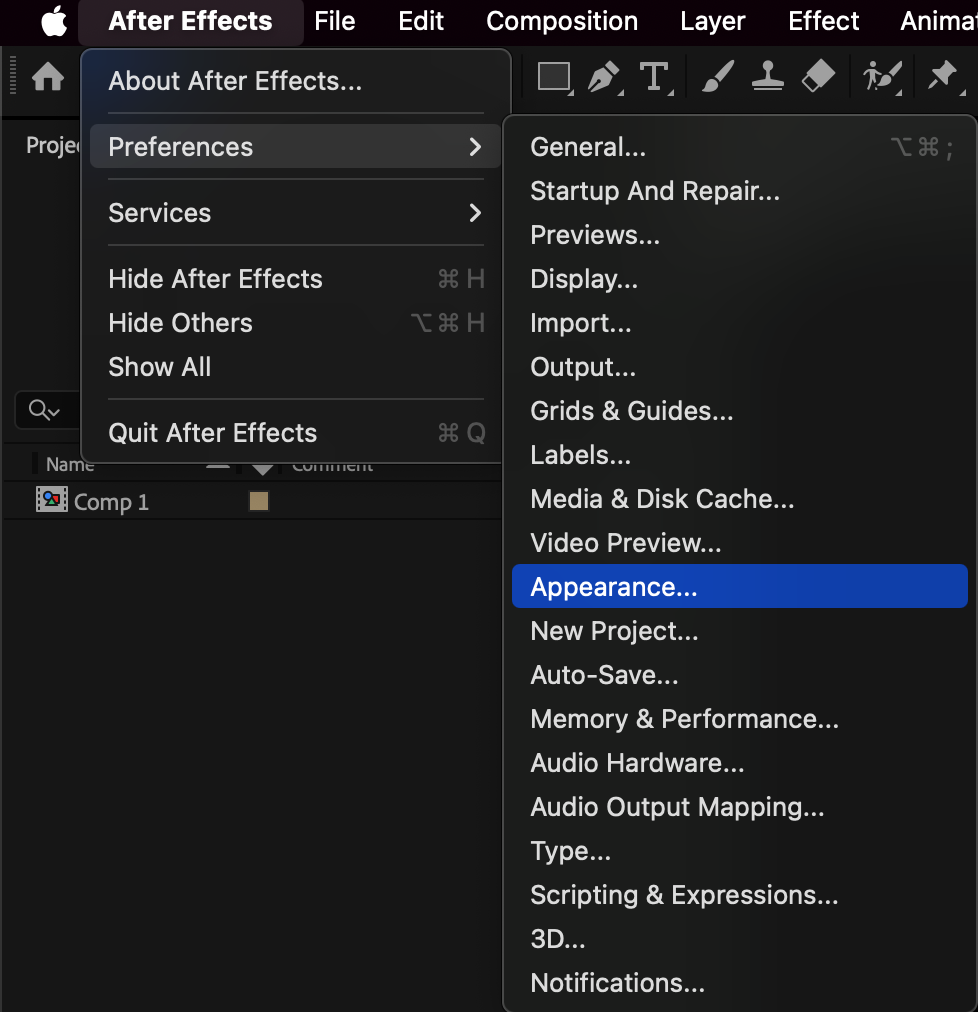
Step 2: Choose a Color Theme
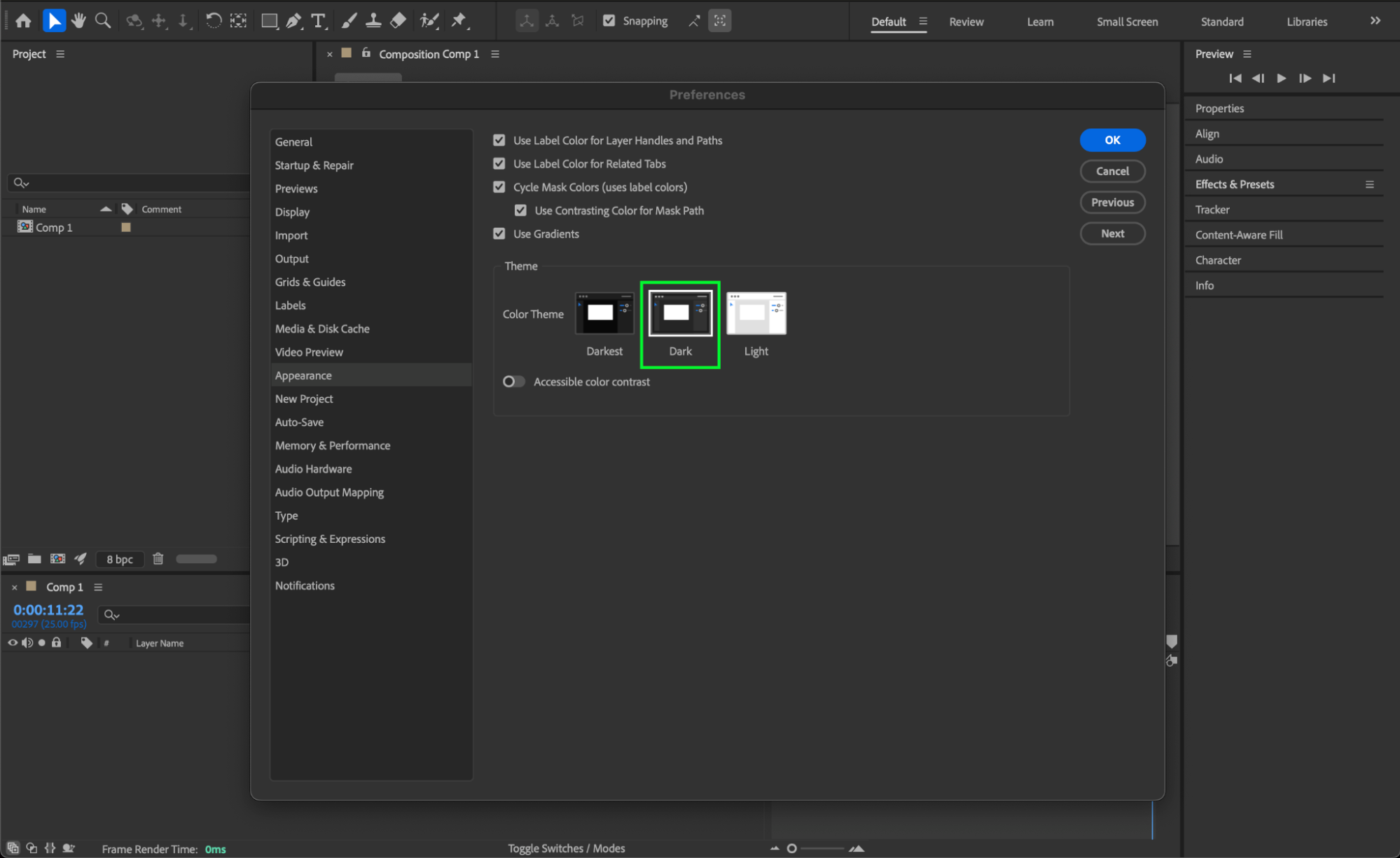
In the Appearance panel, you can select from pre-defined color themes:
Darkest – for maximum contrast and minimal eye strain in dark environments.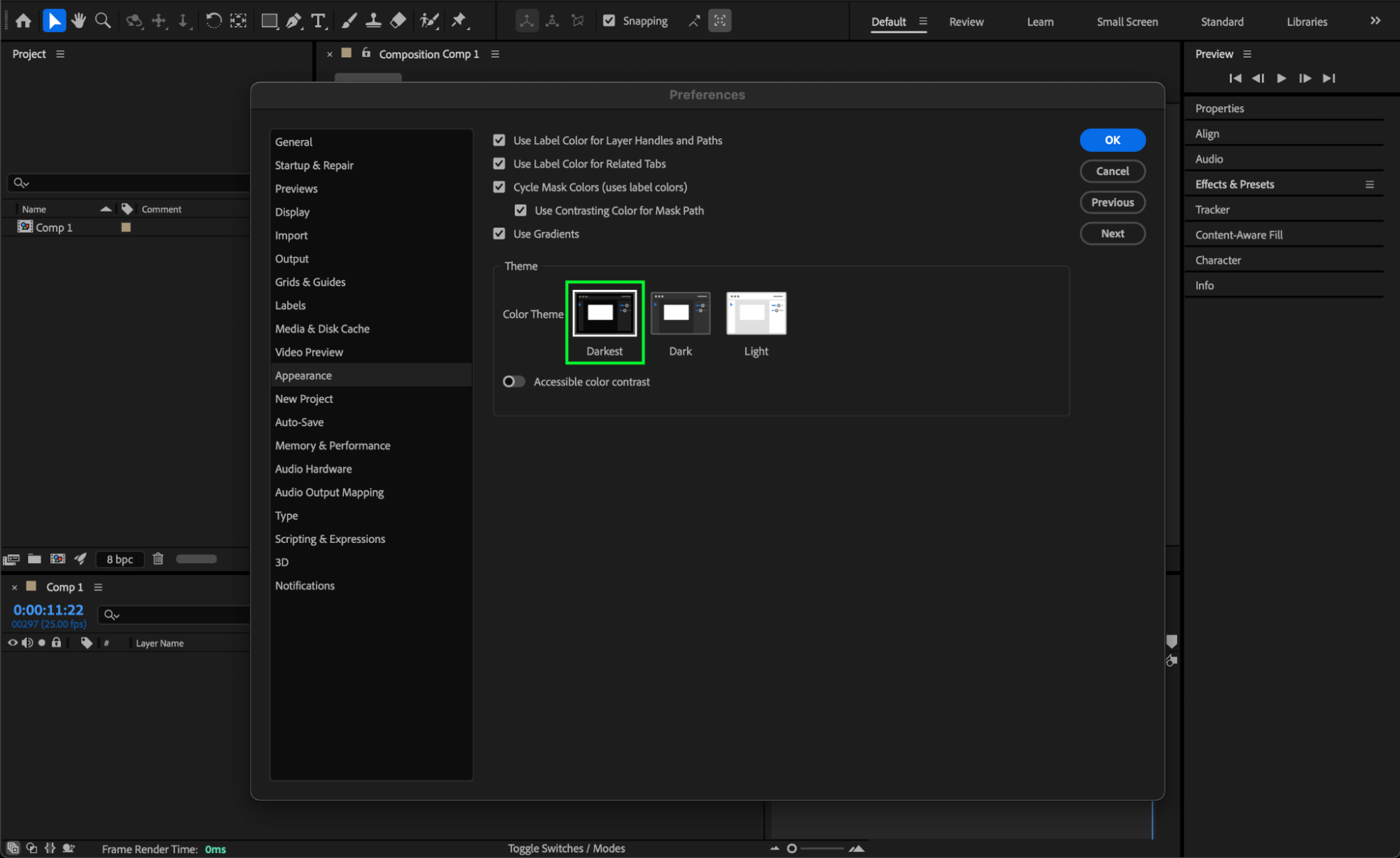
Dark – a balanced dark interface.
Light – for bright working conditions or personal preference.
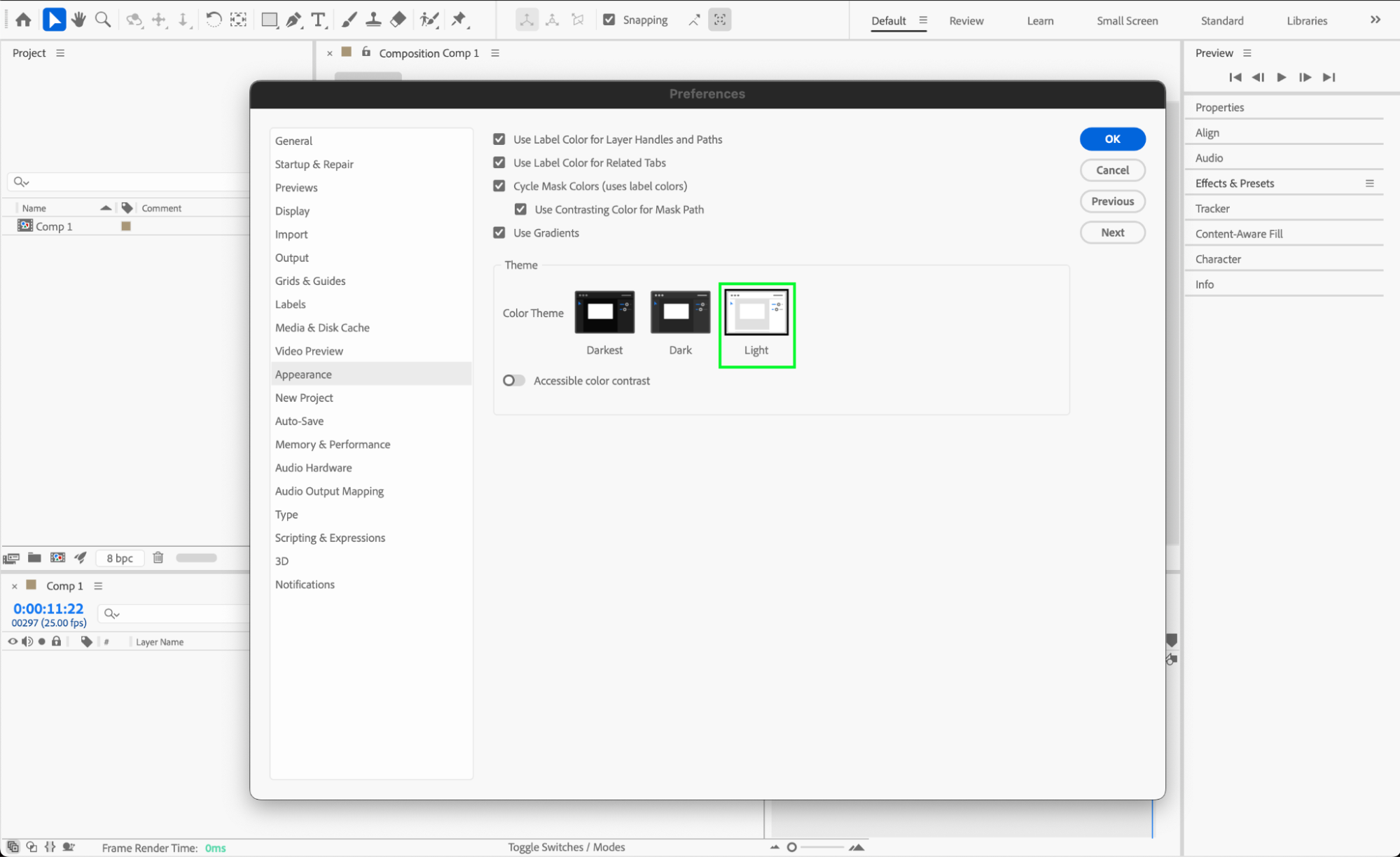
Changing the theme updates all menus and panels, giving you a consistent and comfortable visual workspace.
Step 3: Enable Accessible Color Contrast
For each theme, you can also enable Accessible Color Contrast. This option increases the contrast between interface elements, making text, icons, and menu items easier to read. This is especially useful for users with vision sensitivity or when working on high-resolution displays.
Step 4: Apply and Preview Changes
After selecting your preferred theme and contrast settings, click OK to apply the changes. Take a moment to navigate your menus and panels to ensure the new colors suit your workflow and comfort. You can always return to the Appearance preferences to make further adjustments.
Conclusion
Customizing the menu and interface colors in After Effects improves both comfort and visibility during editing. By choosing the right theme and enabling accessible color contrast, you can create a workspace that reduces eye strain and fits your personal preferences. This simple adjustment can make long sessions in After Effects much easier on your eyes while keeping your workflow efficient.
Our Bestsellers
Our Bestsellers


