
Introduction
In this tutorial, you will learn how to create a honeycomb effect in After Effects using shape layers and the Repeater tool. This technique is perfect for abstract backgrounds, tech visuals, and motion graphics designs.
Step 1: Create a New Composition
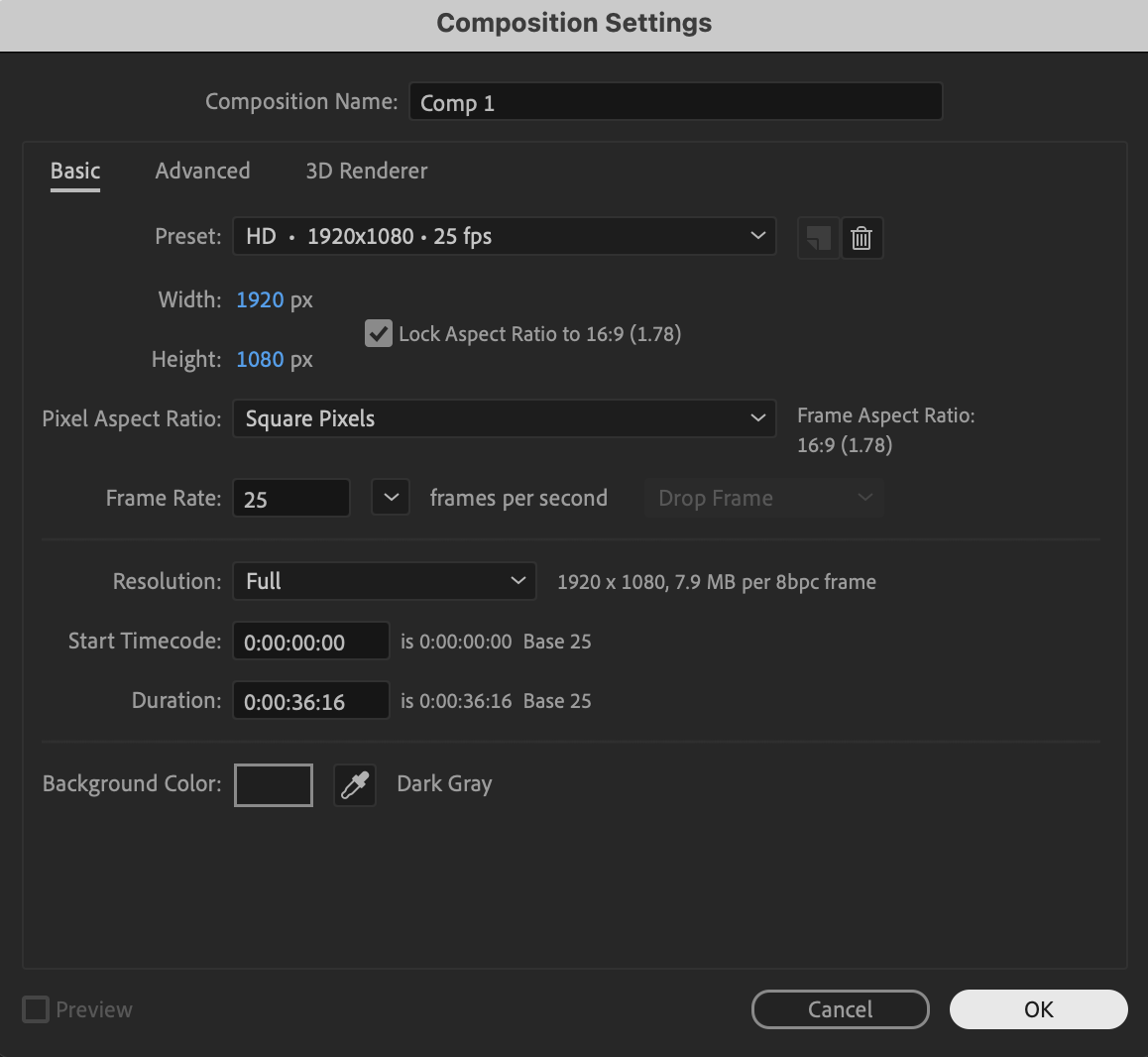
Create a new composition with your desired resolution and frame rate.
 Step 2: Create a Hexagon Shape
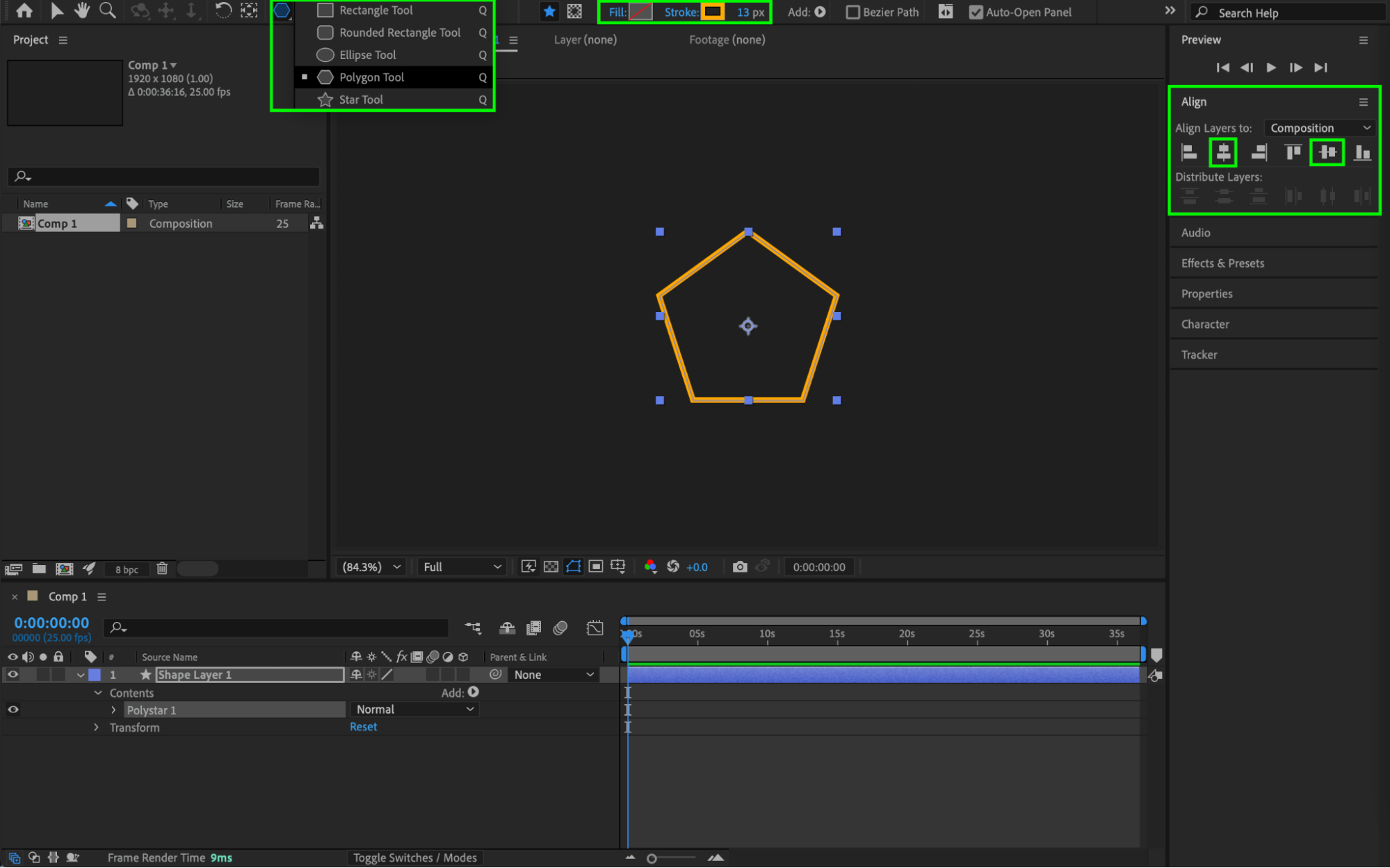
Select the Polygon Tool (Q). Set:
Fill: None
Stroke Width: 13
Stroke Color: Orange
Draw a polygon shape in the Composition panel.
 Step 3: Set the Number of Sides
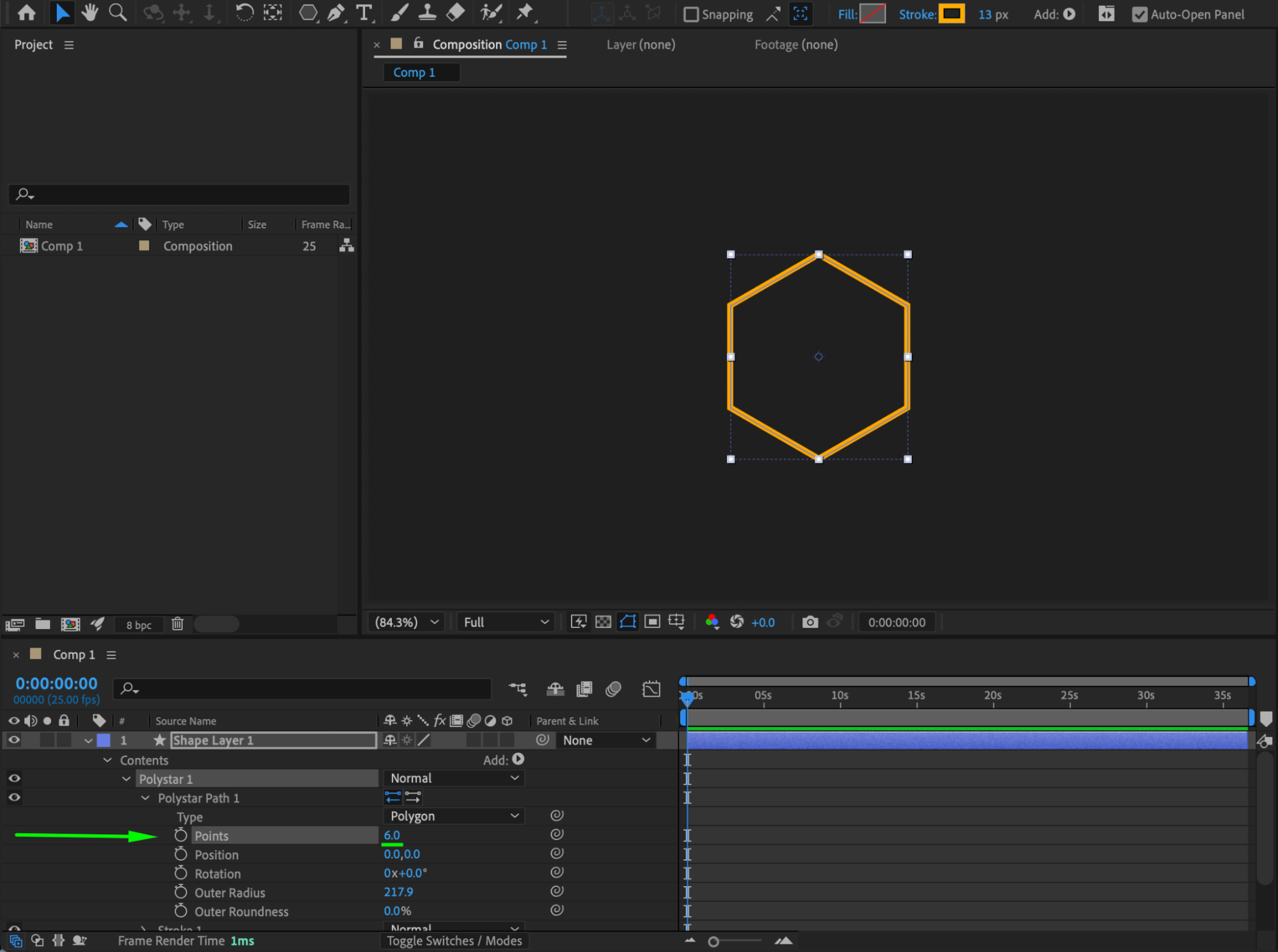
Open the shape layer properties. Under Polygon Path, set Points to 6 to create a hexagon.
Step 4: Add a Repeater
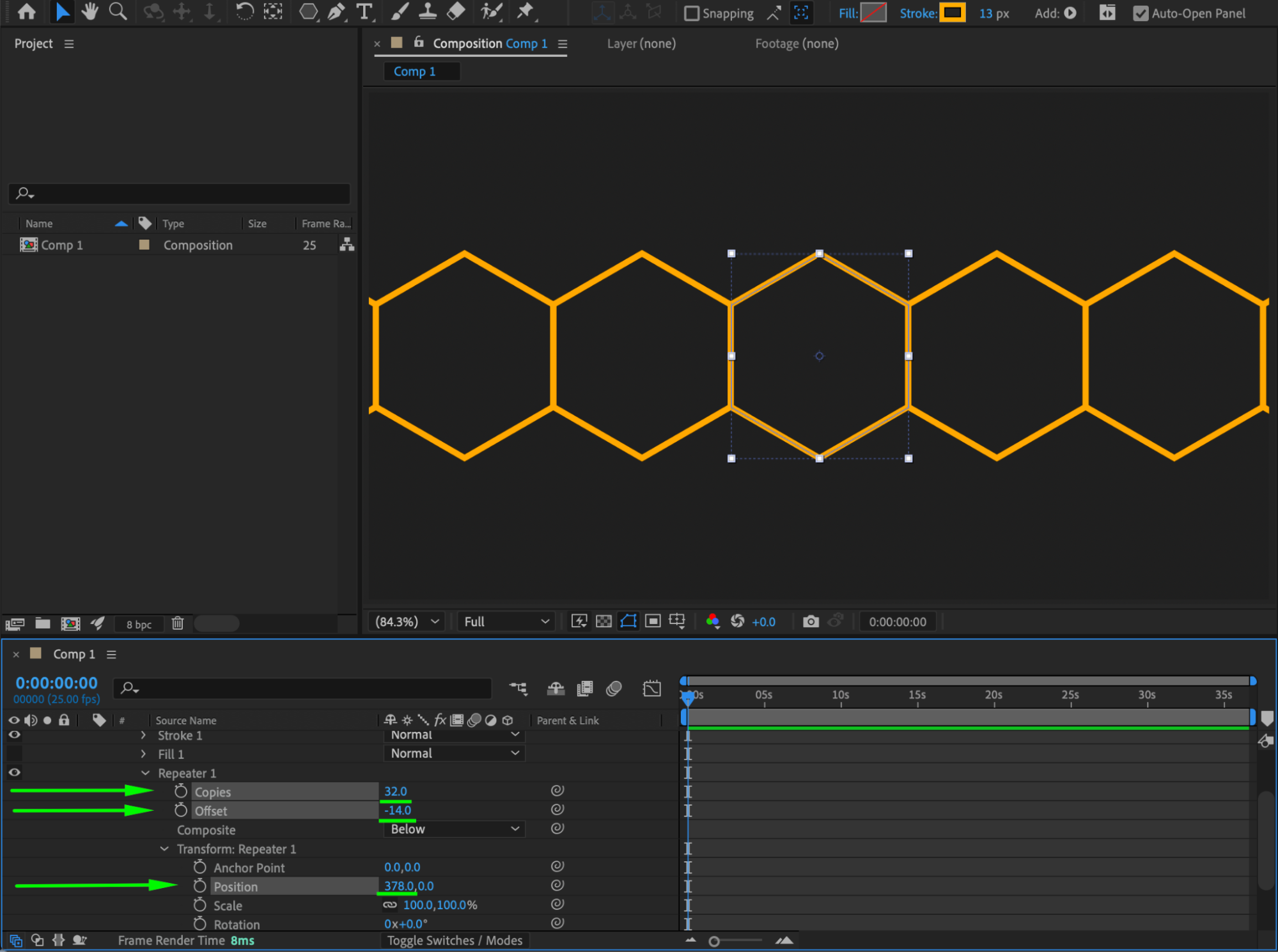
In the shape layer, expand Contents. Click Add and choose Repeater.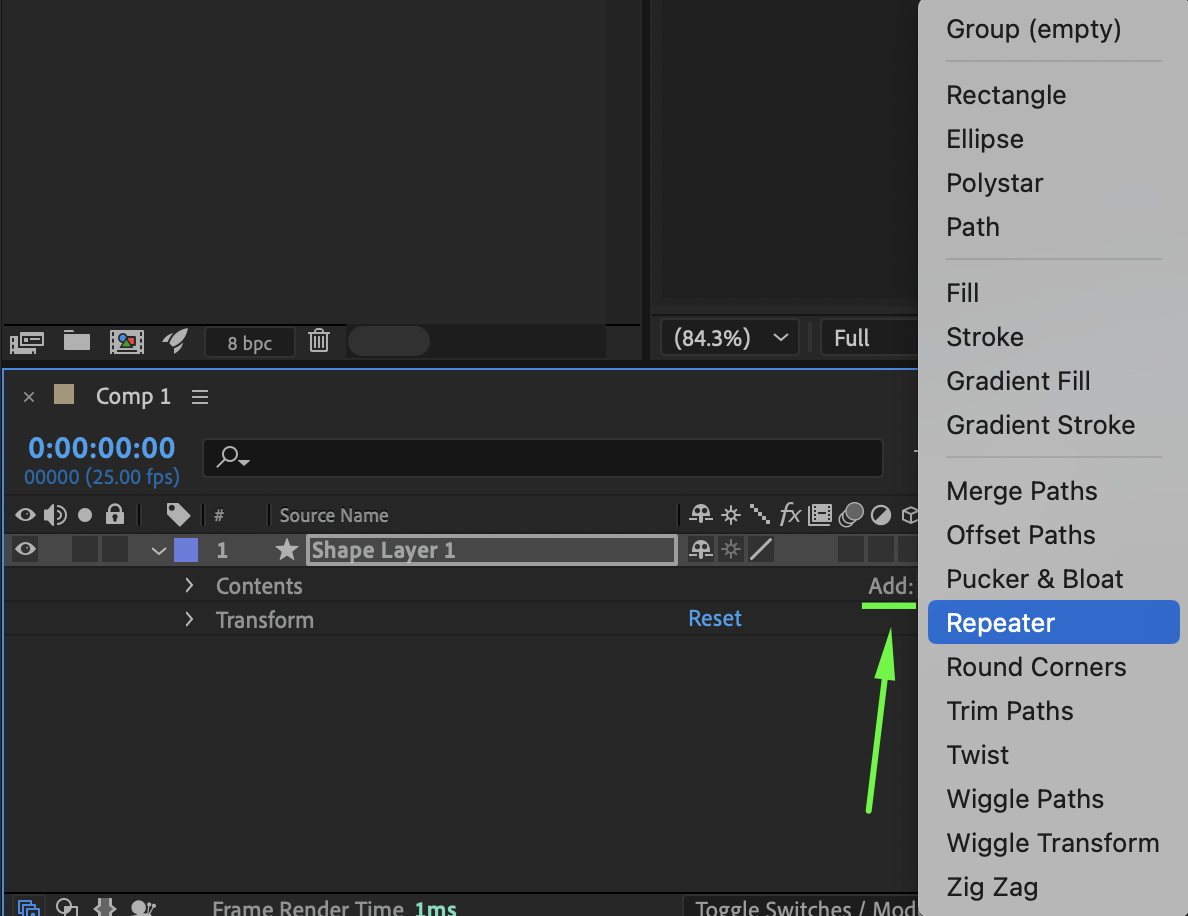 Step 5: Adjust Repeater Settings
Expand the Repeater properties and set:
Copies: 32
Offset: −14
Position: X value 378
This will create a horizontal row of hexagons.
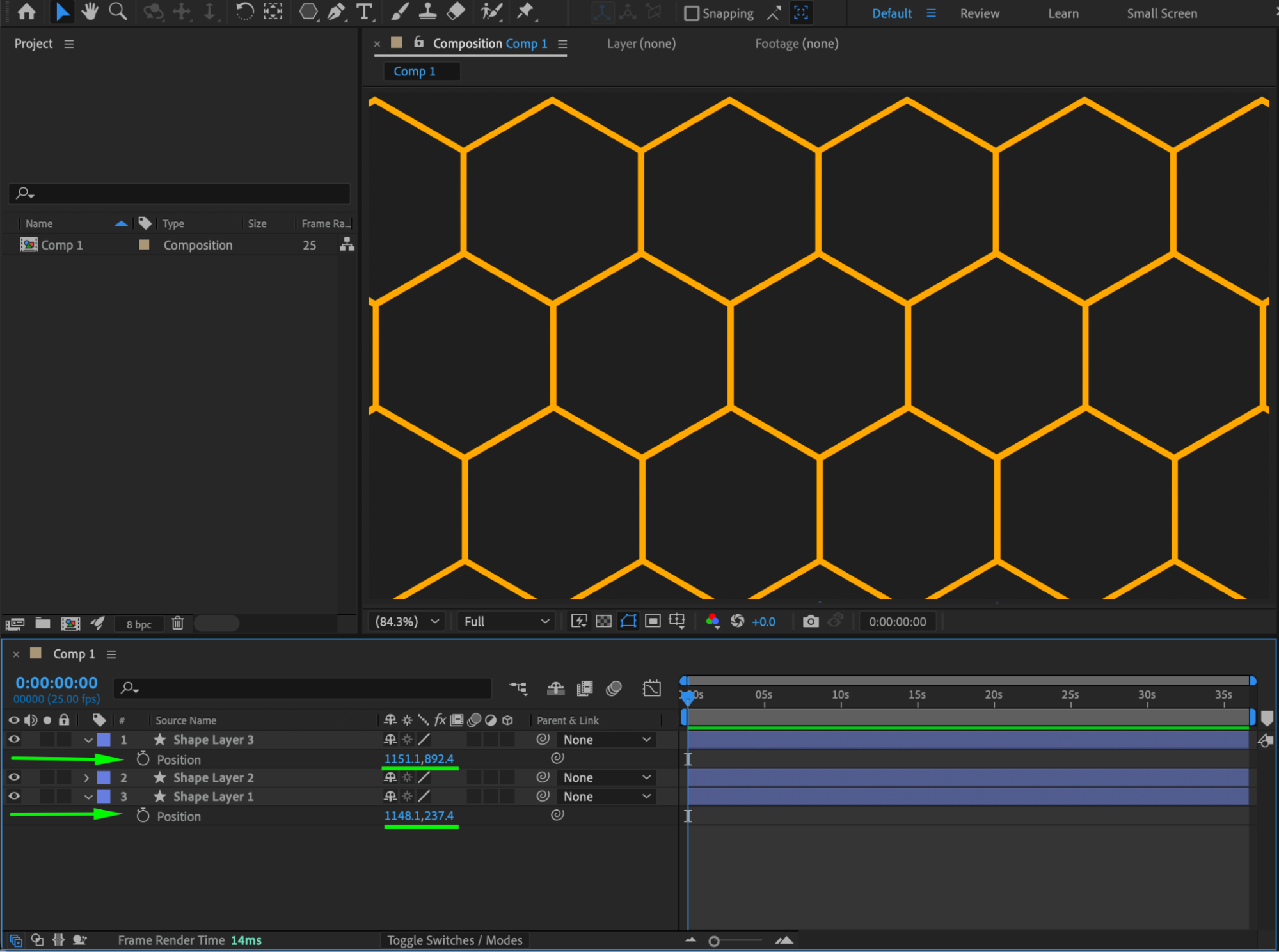
Step 6: Build the Honeycomb Grid
Duplicate the shape layer as many times as needed. Adjust the Position of each layer to align the shapes and form a clean honeycomb (bee hive) pattern.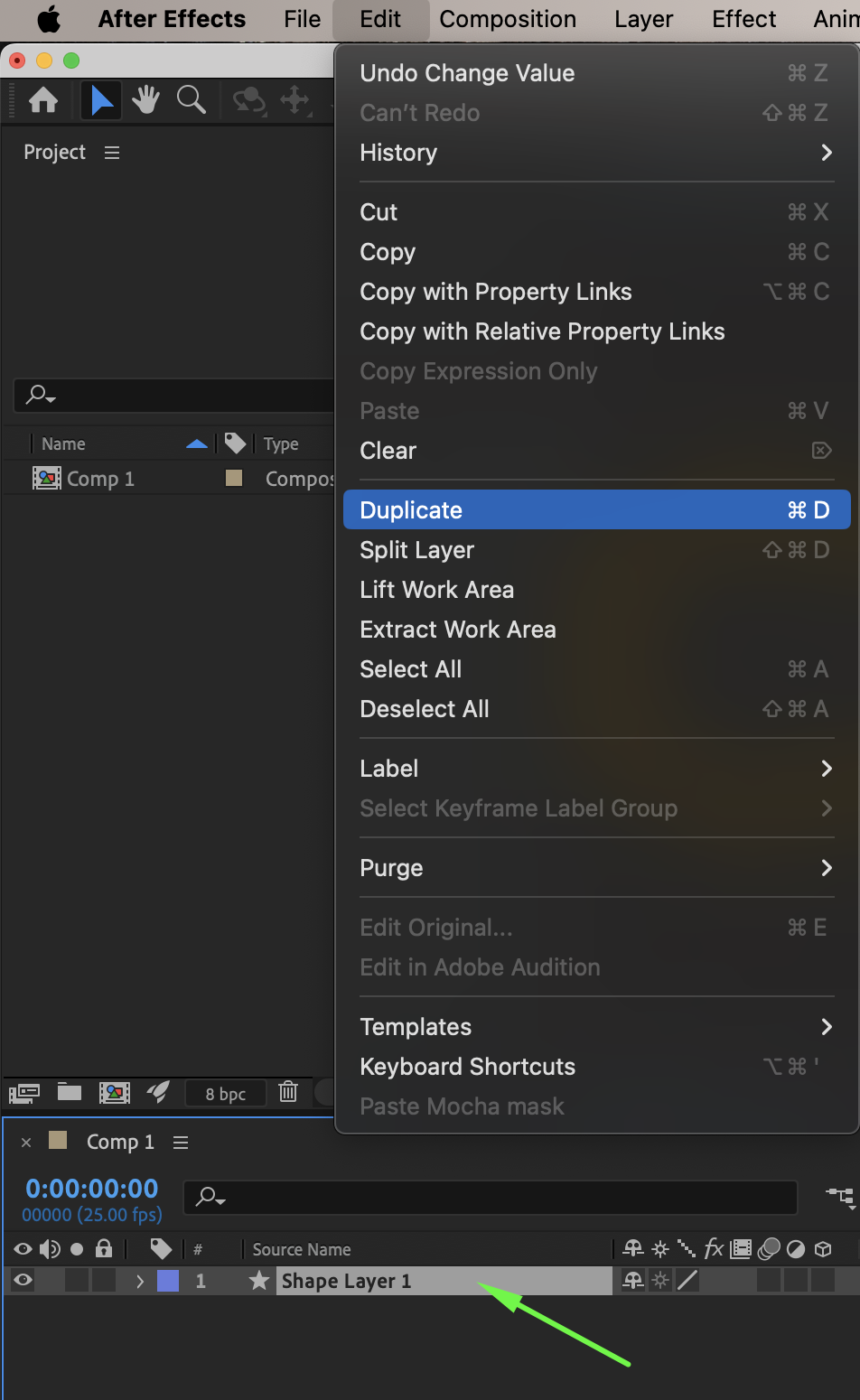
 Step 7: Create an Adjustment Layer
Go to Layer → New → Adjustment Layer.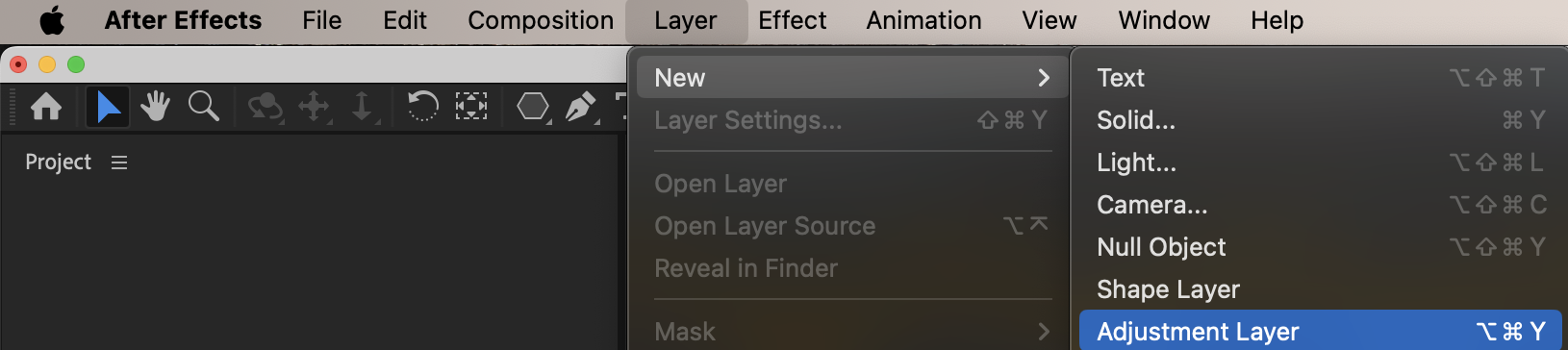 Step 8: Apply CC Glass
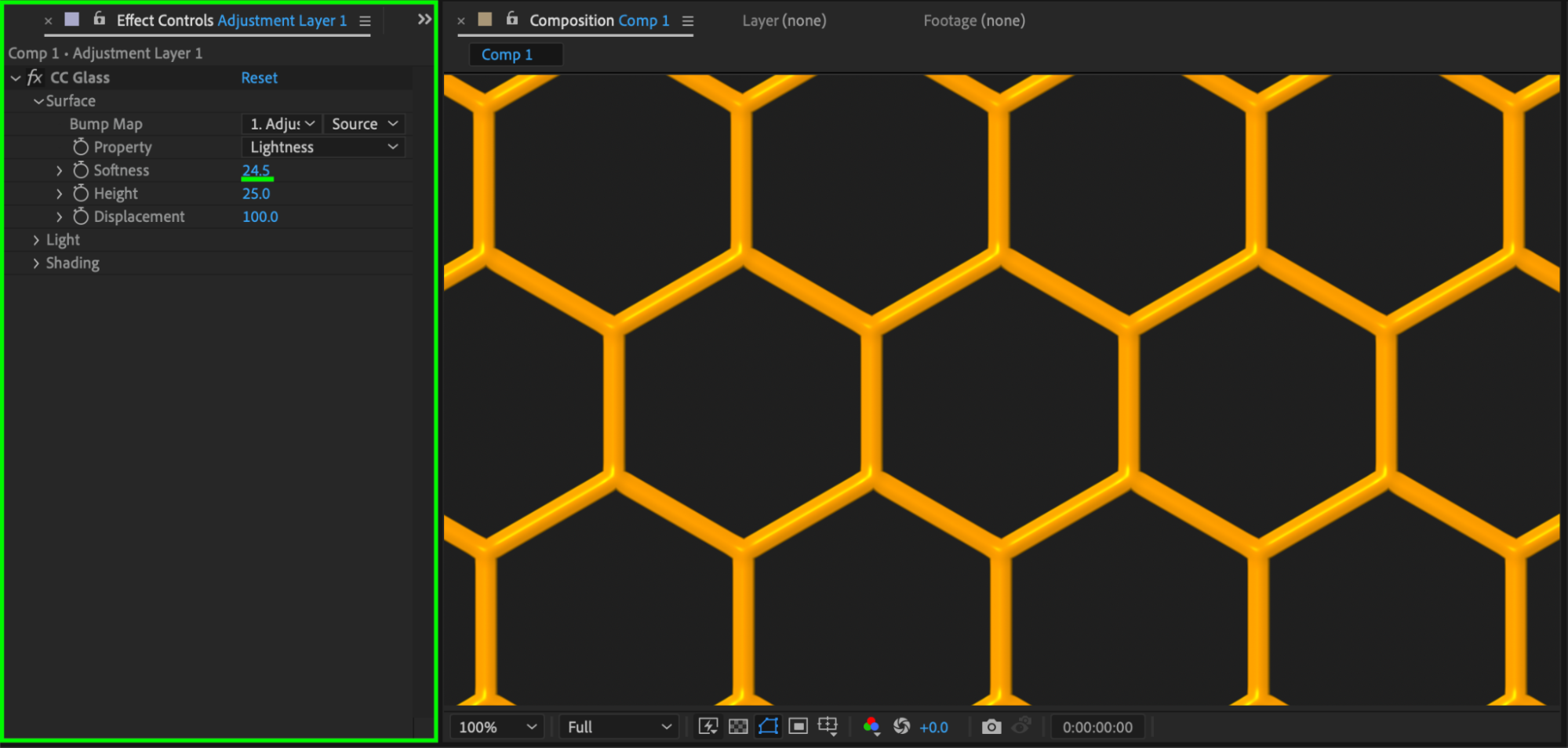
Apply the CC Glass effect to the Adjustment Layer. Set Softness to 24 to add depth and texture.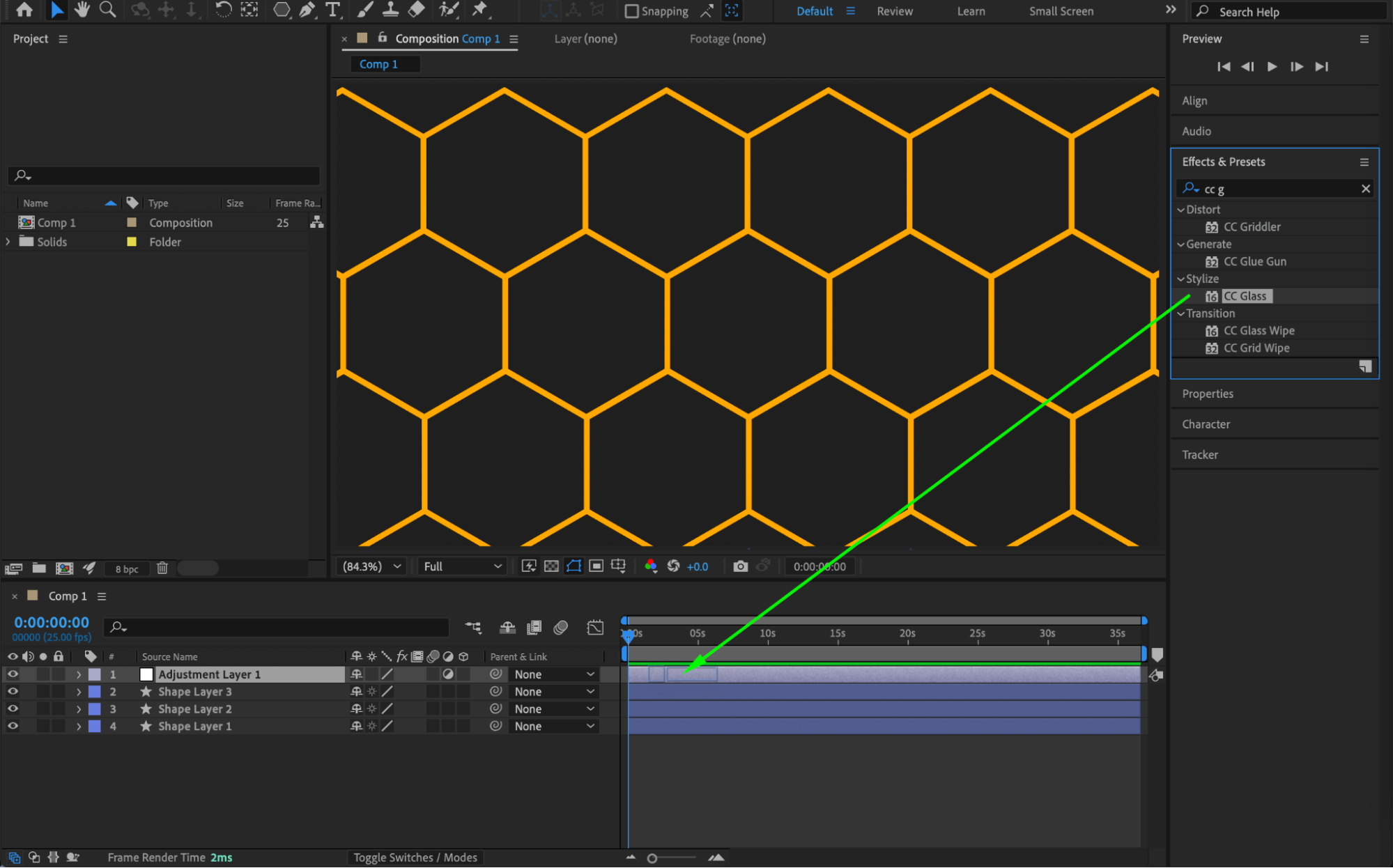
 Step 9: Add Glow
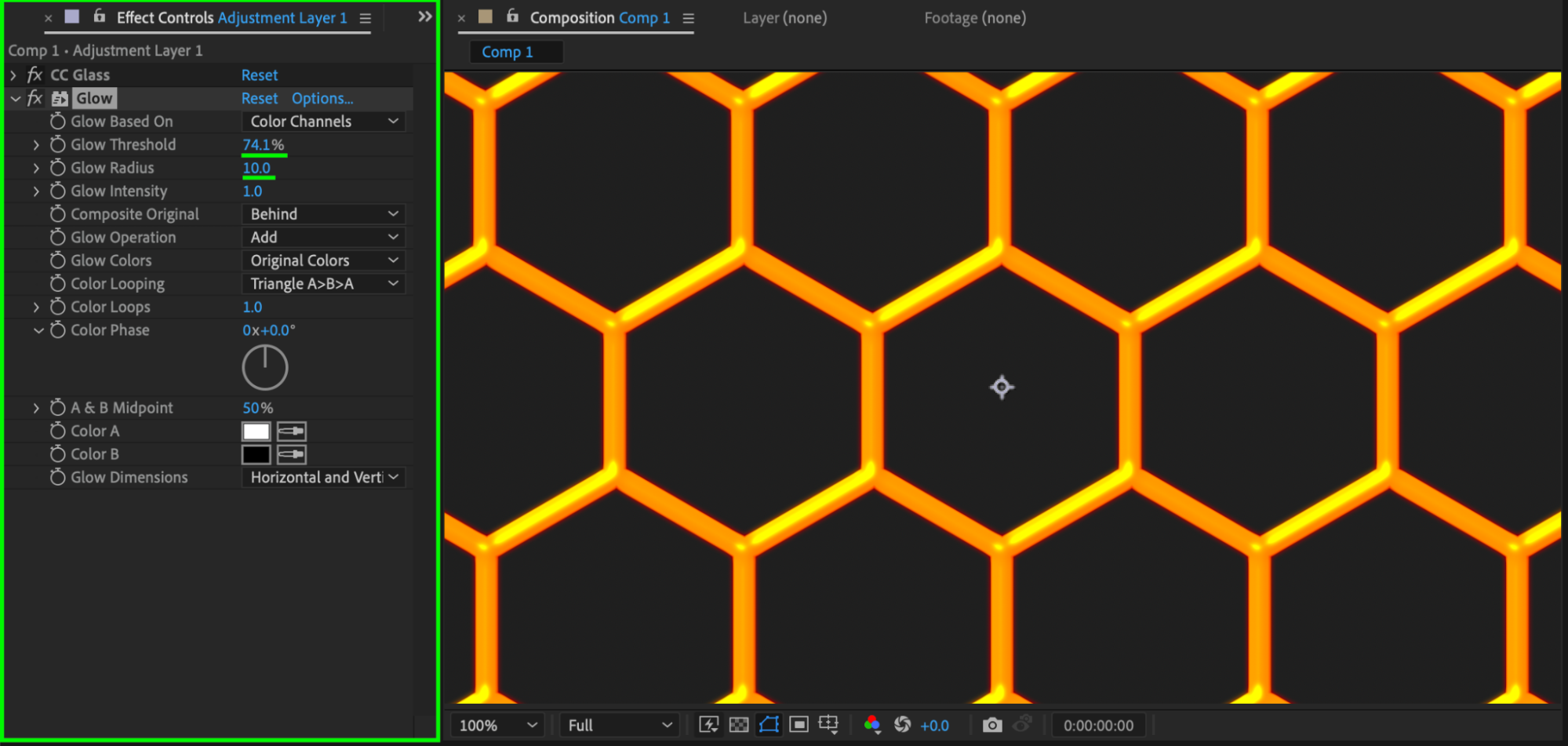
Add the Glow effect to the Adjustment Layer. Set:
Glow Threshold: 74
Glow Radius: 10
This enhances the honeycomb highlights.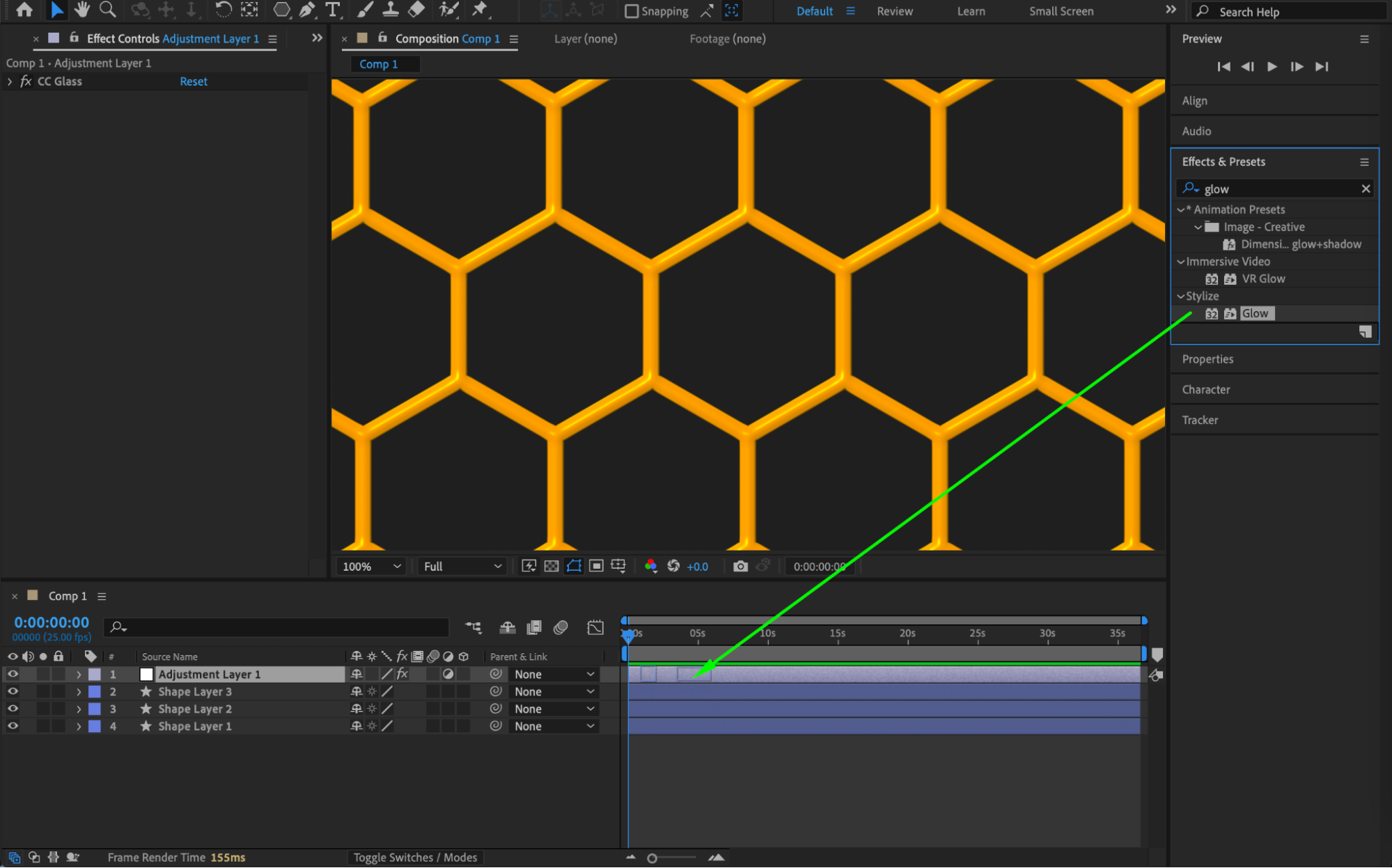
 Step 10: Preview and Finalize
Preview the composition and fine-tune the spacing, glow, and glass settings until the honeycomb effect looks clean and balanced.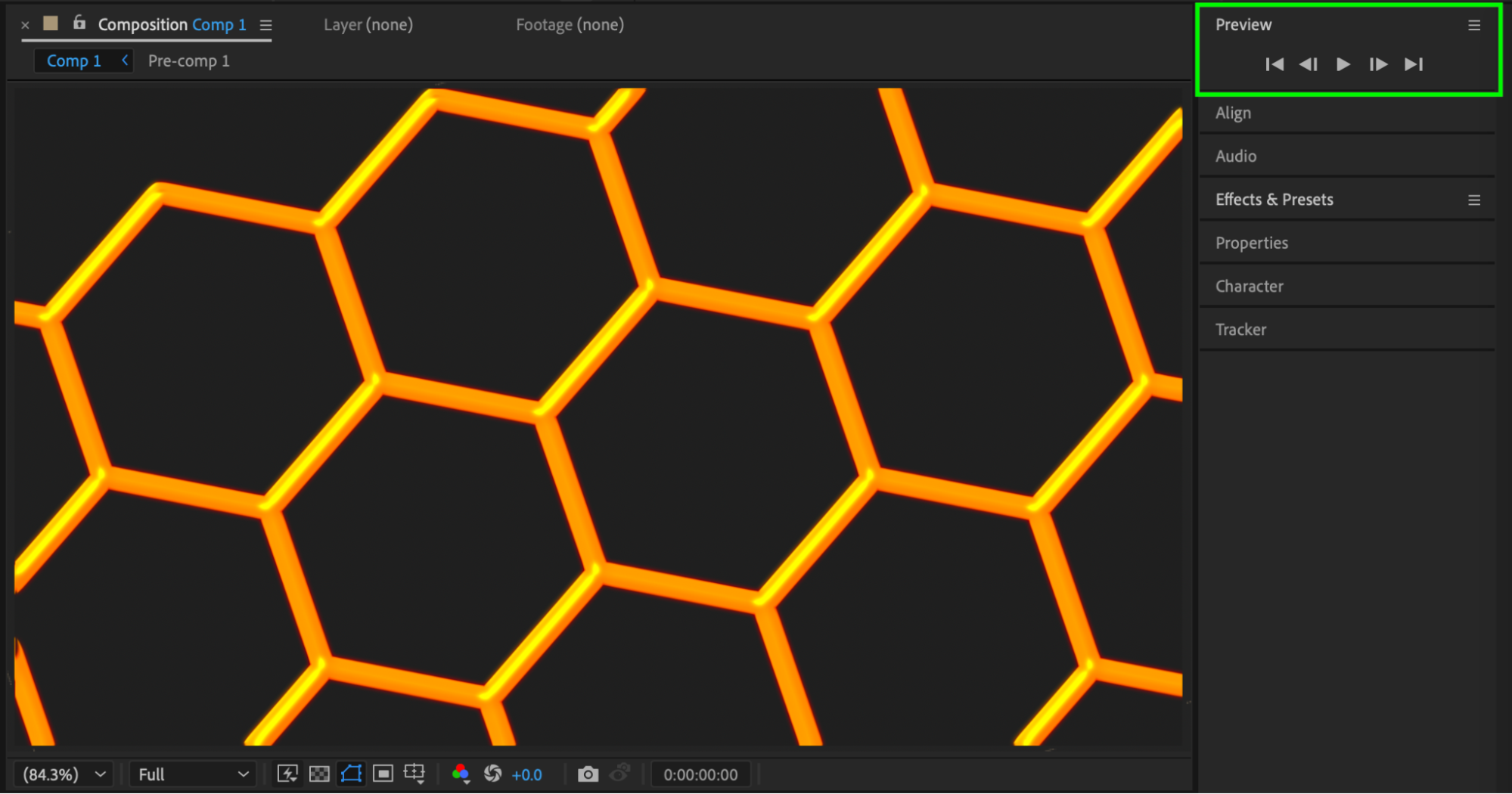
Conclusion
By combining polygon shapes, repeaters, and adjustment layer effects, you can easily create a customizable honeycomb effect in After Effects. This setup works well for animated backgrounds, sci-fi visuals, and modern motion graphics.
Our Bestsellers
Our Bestsellers


