
Introduction
This tutorial explains how to create a juice-dripping or melting text effect in After Effects. By using the CC Smear effect and animating its parameters, you can simulate liquid dripping from individual letters for a dynamic and stylized look.
Step 1: Create a New Composition
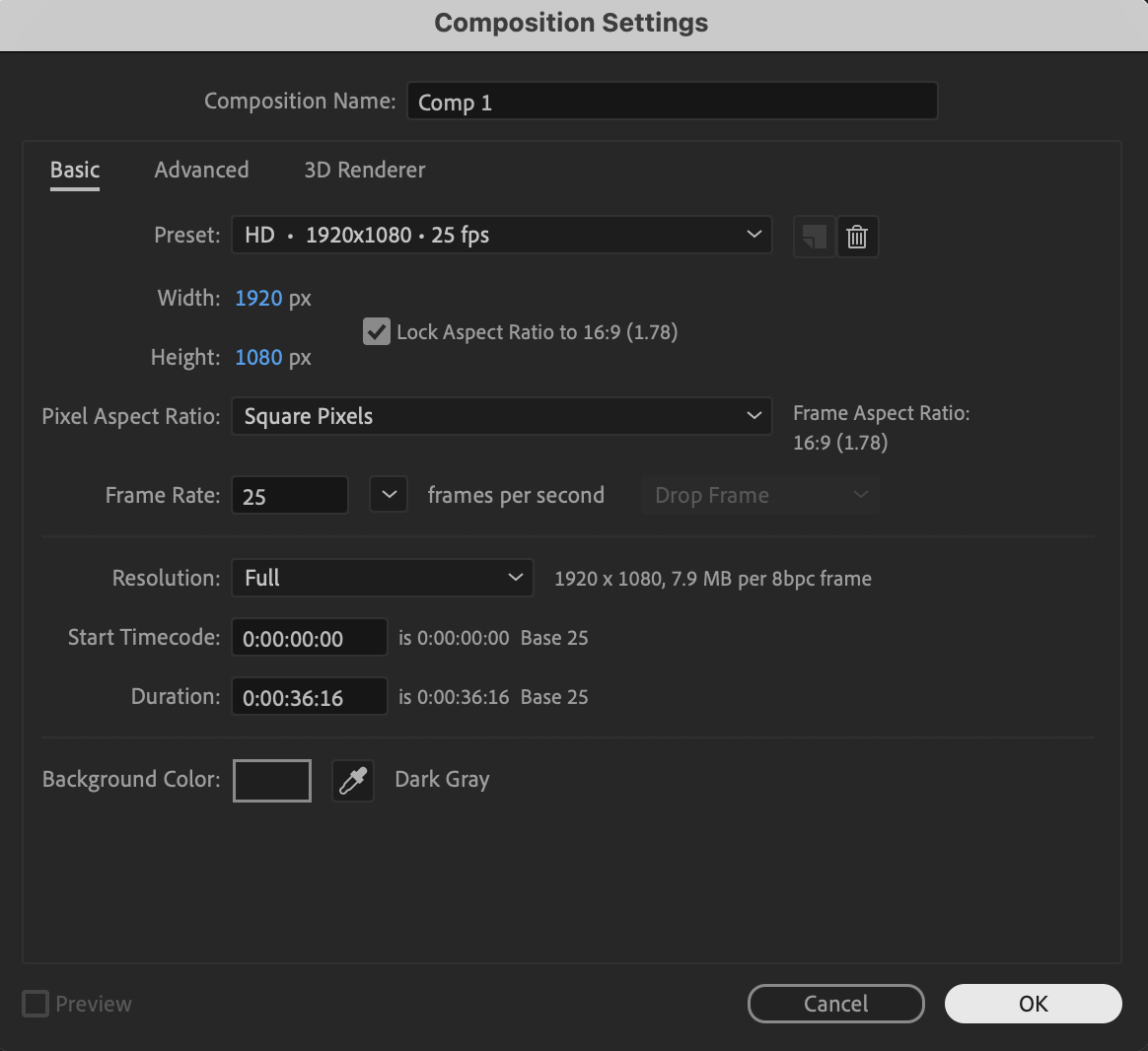
Create a new composition with your desired resolution and frame rate.
 Step 2: Create the Text Layer
Select the Type Tool (Ctrl / Cmd + T) and create your text in the Composition panel.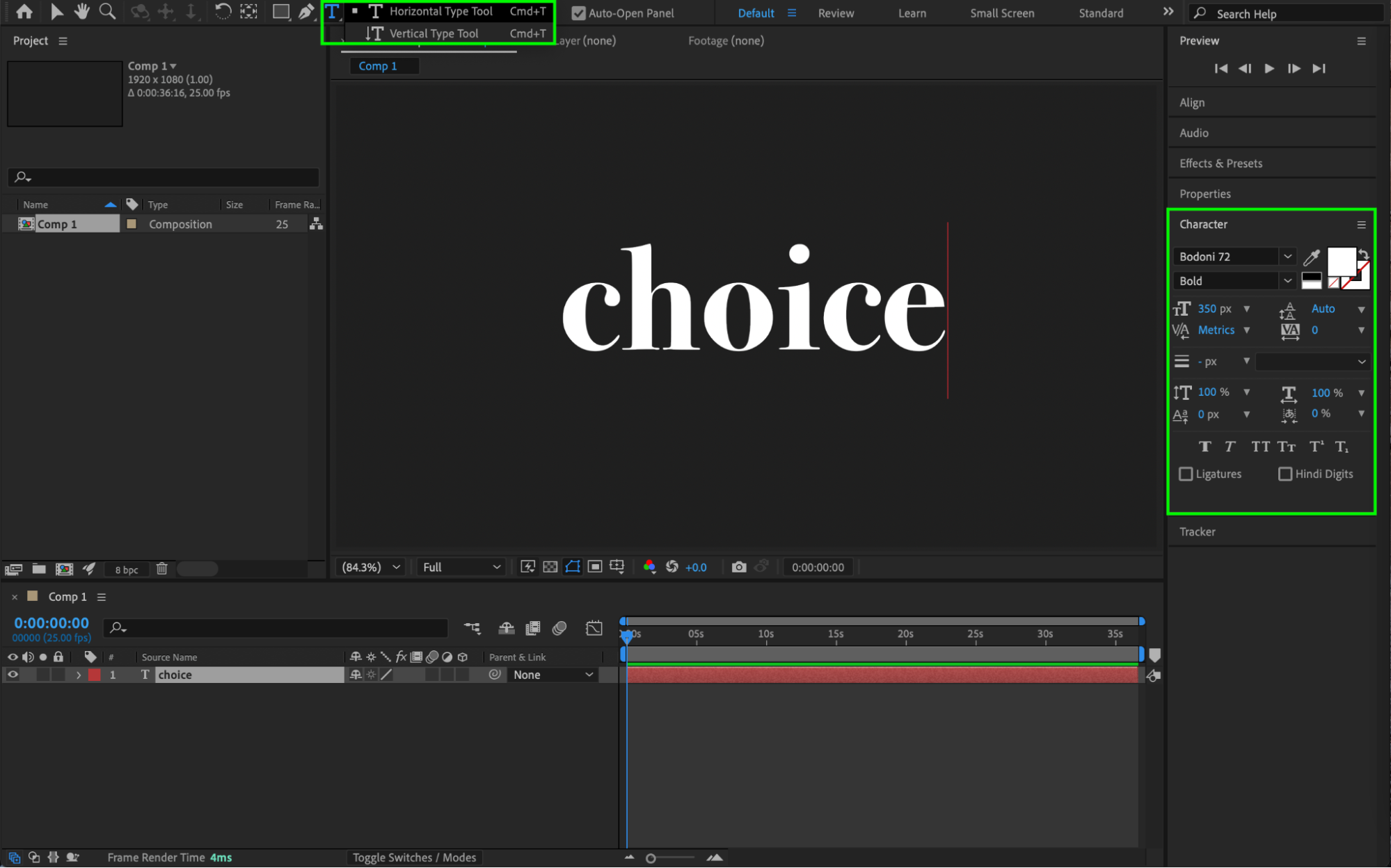
Step 3: Apply the CC Smear Effect
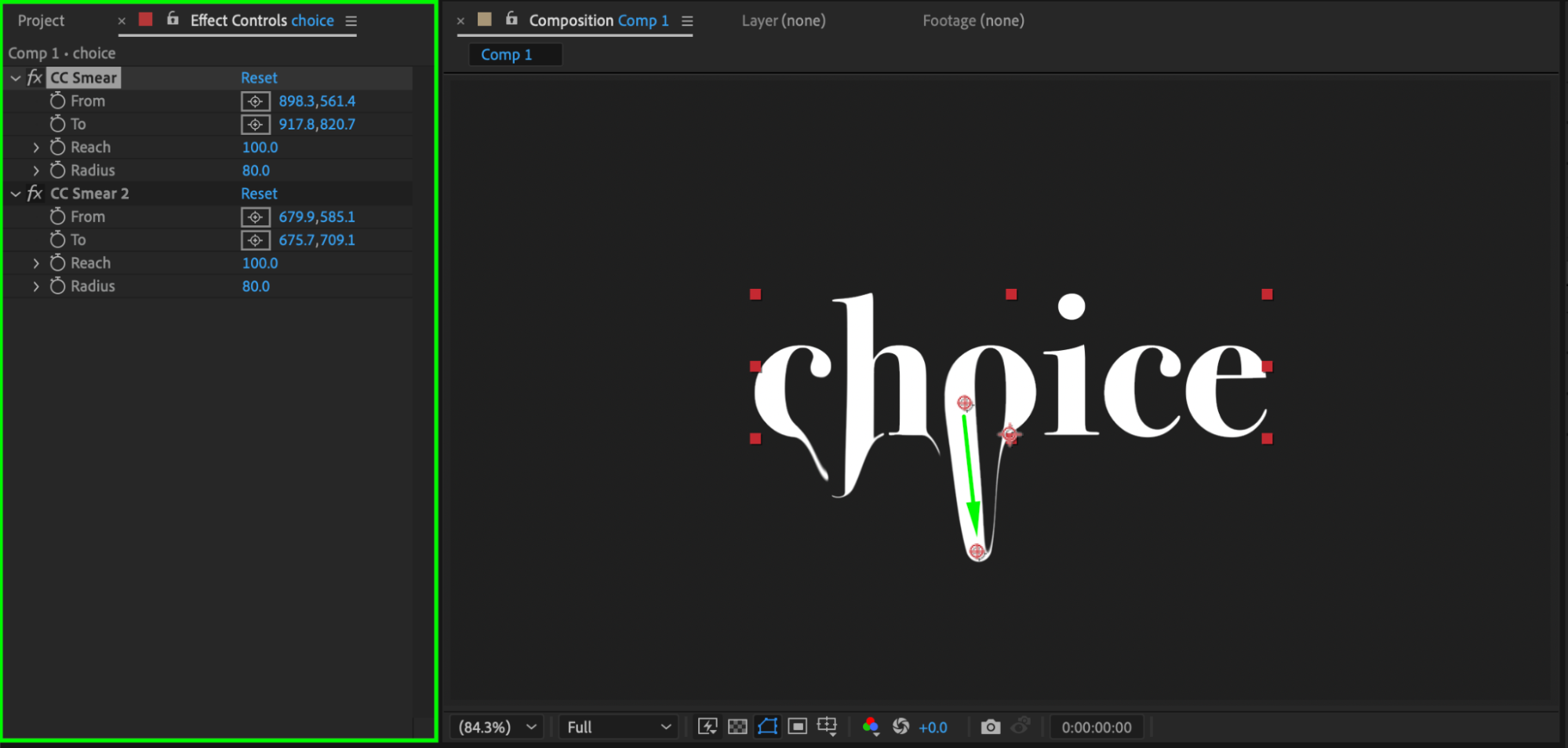
Select the text layer. From the Effects & Presets panel, apply the CC Smear effect. Apply the effect multiple times if needed—one instance for each letter you want to modify. Set:
From: the point where the dripping should start
To: the point where the letter should smear or drip to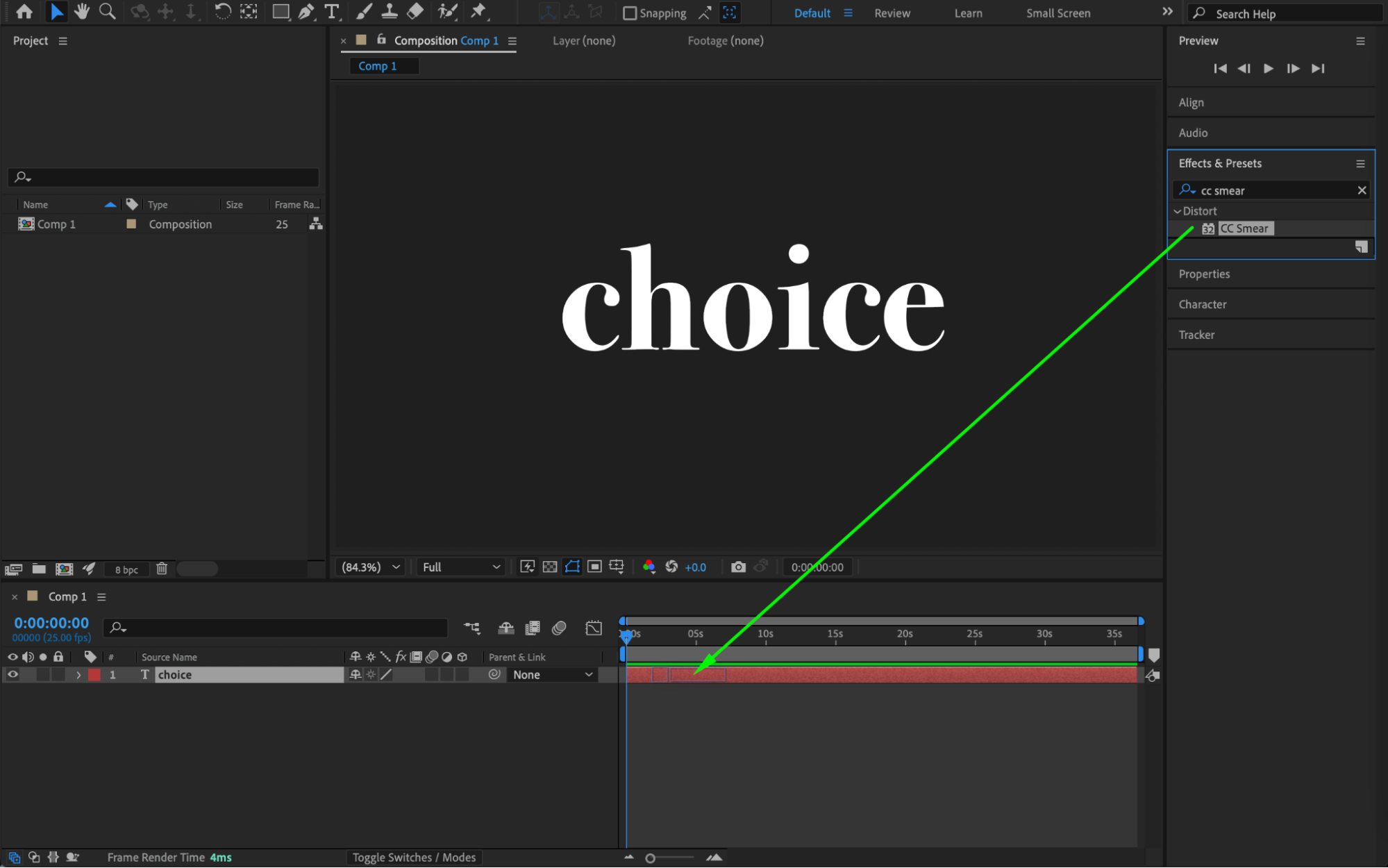
Step 4: Animate the Dripping Effect
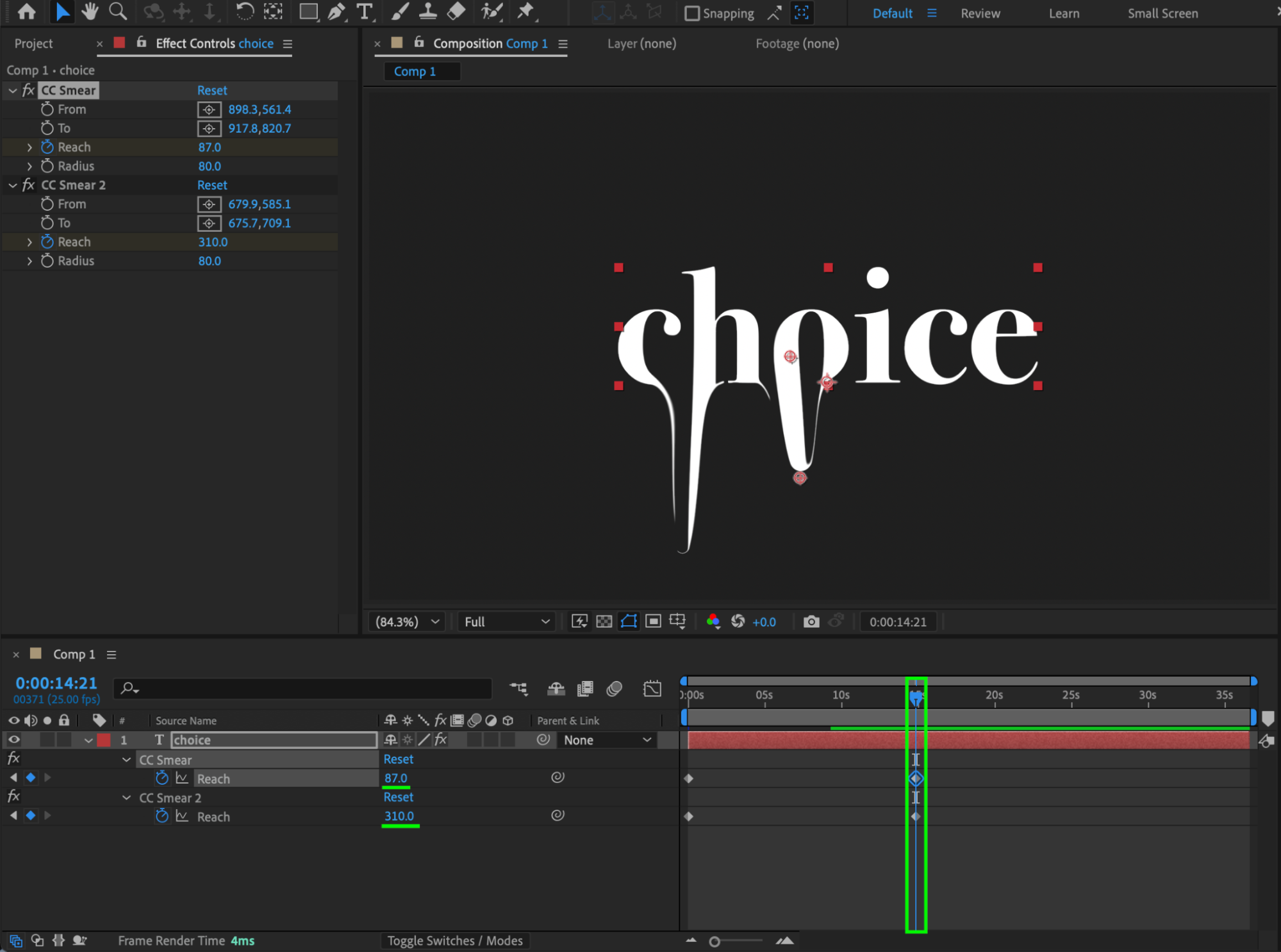
Move the CTI (Current Time Indicator) to the beginning of the composition. Set Reach to 0 and click the stopwatch to create a keyframe.Move the CTI forward in time and increase Reach to a value between 50 and 400, depending on the desired drip length.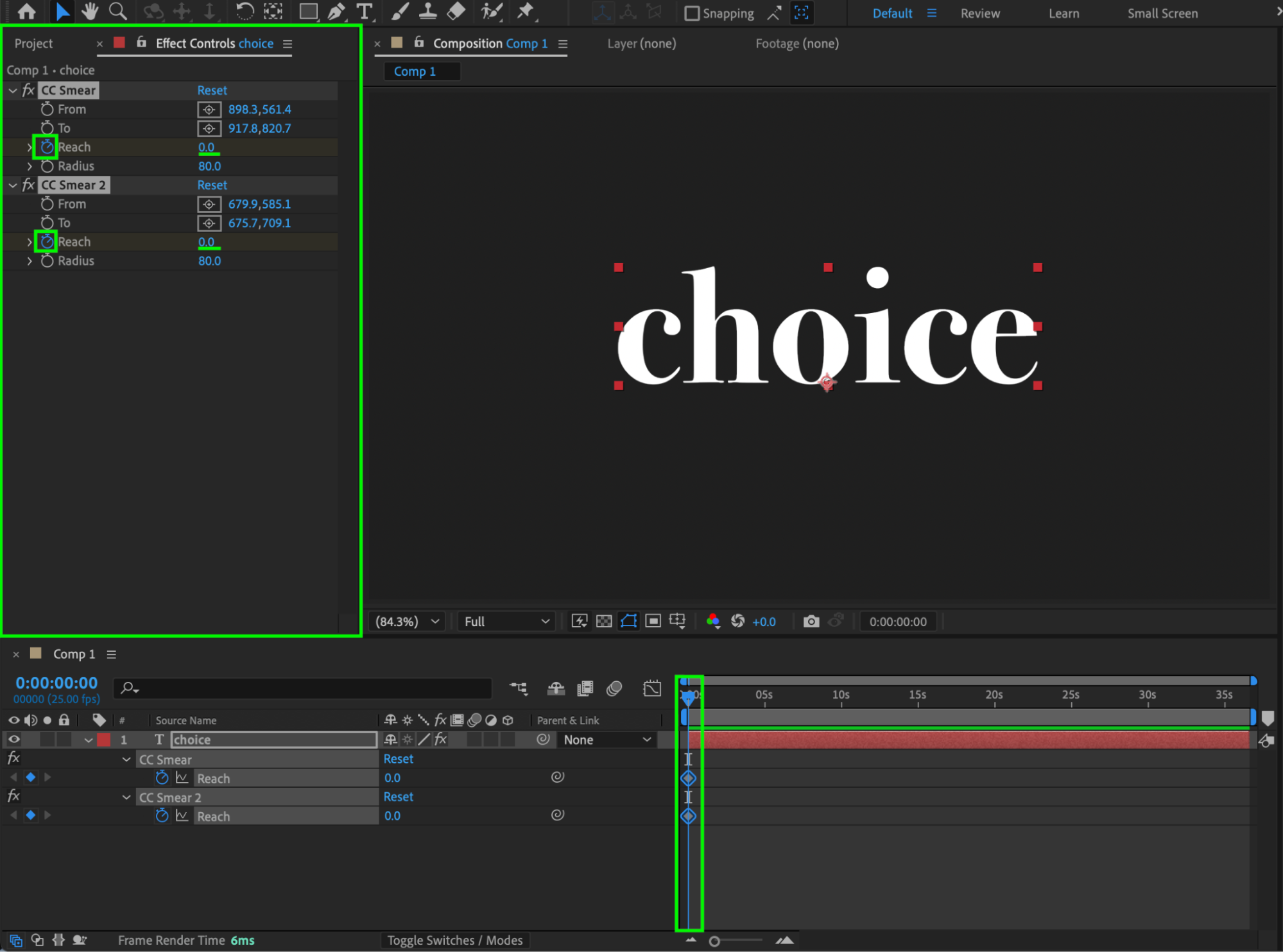
 Step 5: Add Easy Ease and Adjust the Graph Editor
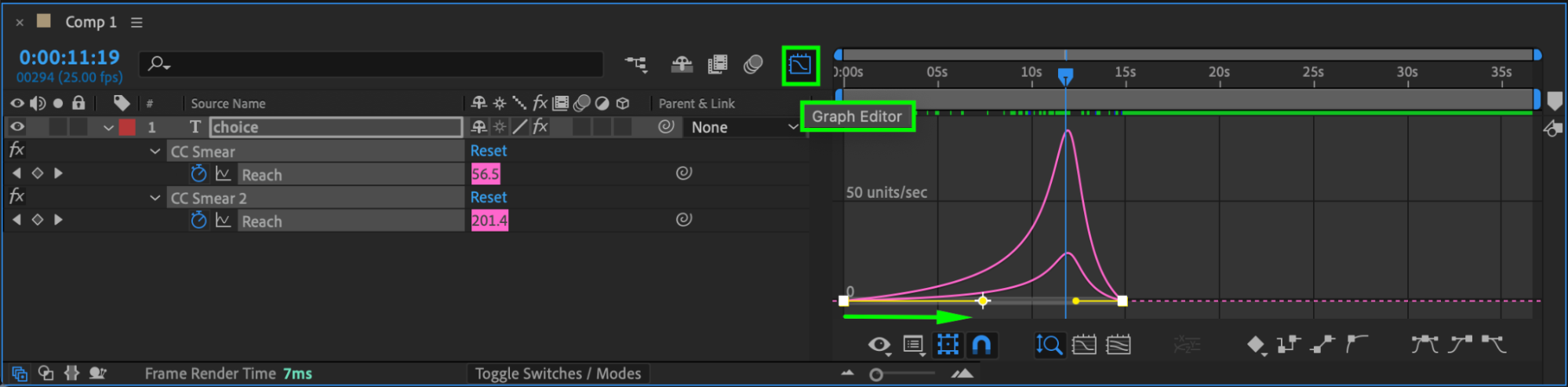
Select the Reach keyframes. Apply Easy Ease, then fine-tune the motion using the Graph Editor for smoother, more natural dripping animation.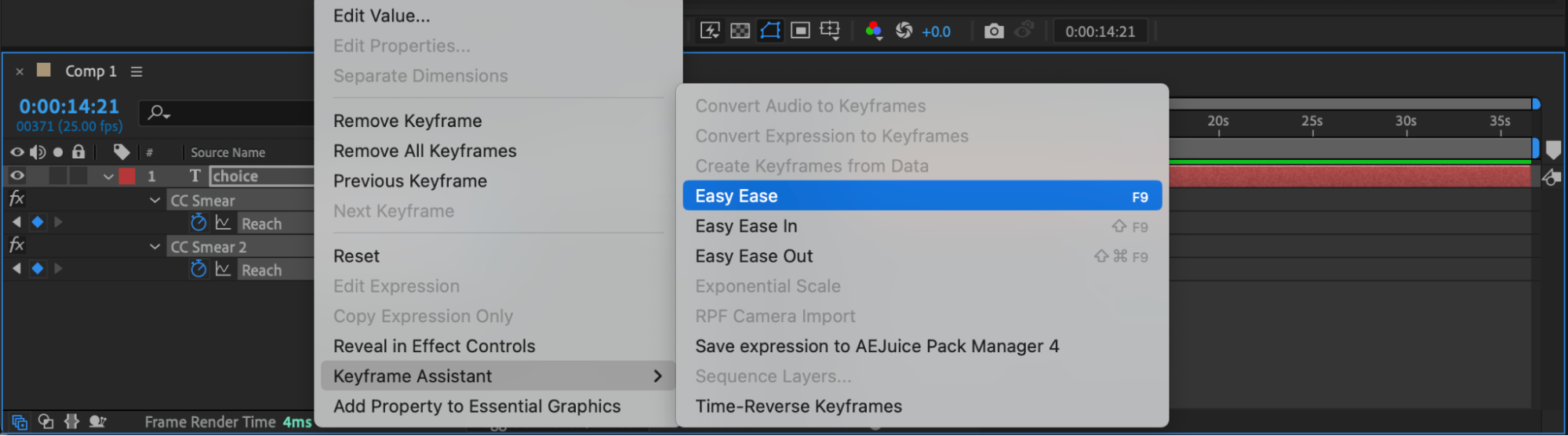
Step 6: Preview and Finalize
Preview the animation and adjust the CC Smear settings, timing, or easing until the juice-dripping effect looks convincing.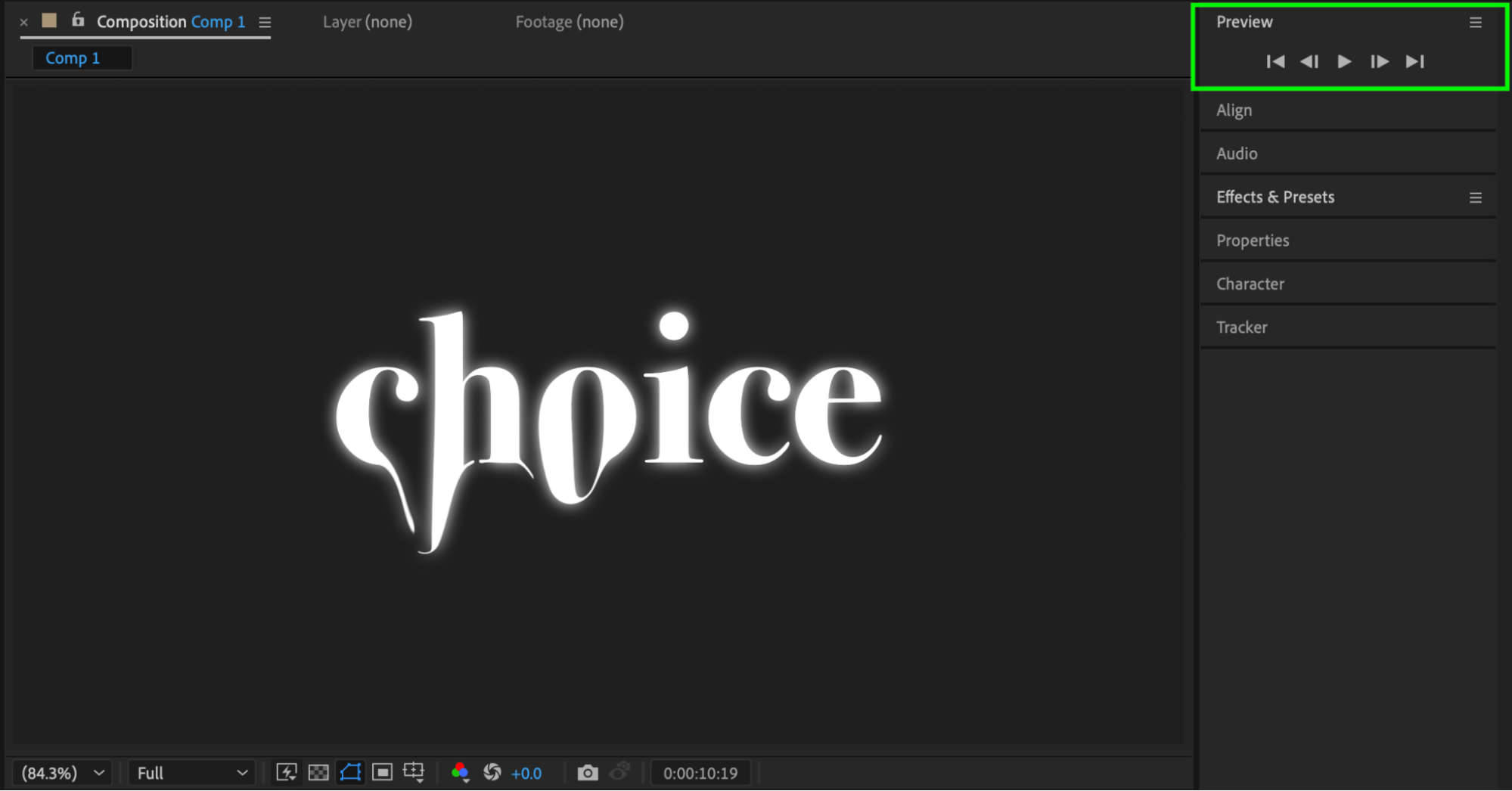
Conclusion
By animating the CC Smear effect on text, you can easily create a juice-dripping preset in After Effects. This technique works well for playful titles, food-themed graphics, and creative motion design projects.
Our Bestsellers
Our Bestsellers


