
Introduction
The Ken Burns effect is a classic cinematic technique that adds slow, smooth zooming and panning motion to static images. It’s widely used in documentaries, slideshows, and photo montages. In this tutorial, you’ll learn how to create a realistic Ken Burns effect in Adobe After Effects.
Step 1: Import Your Image
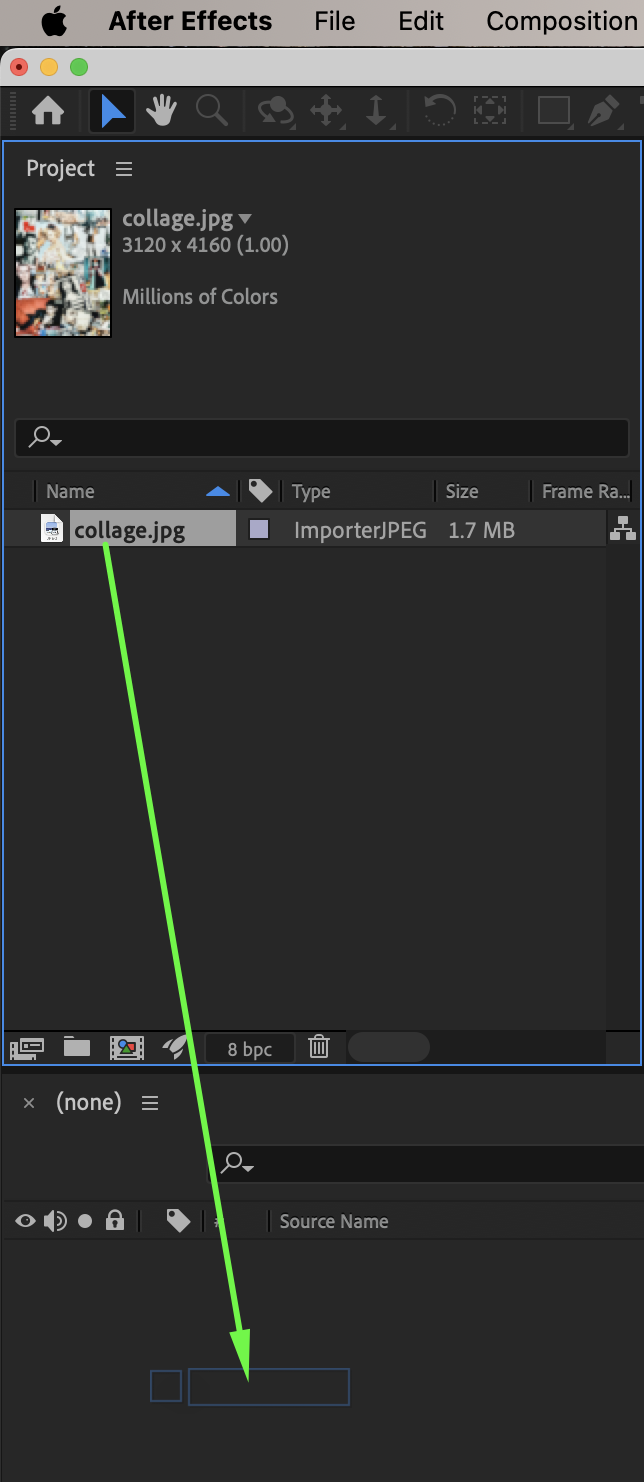
Go to File → Import → File and import your photo or collage. Drag the image onto the timeline.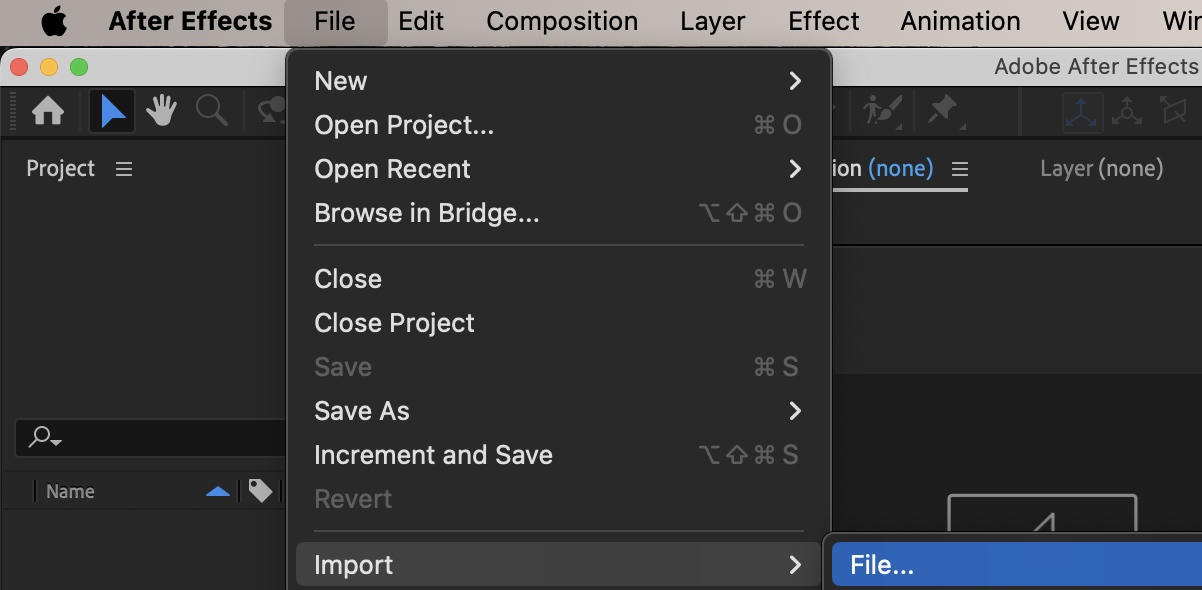
 Step 2: Create a Null Object
Go to Layer → New → Null Object. This null will be used to control the movement smoothly.
Step 3: Parent the Photo to the Null Object
Select your photo layer. Use the Parent & Link pick whip to parent the photo layer to the Null Object.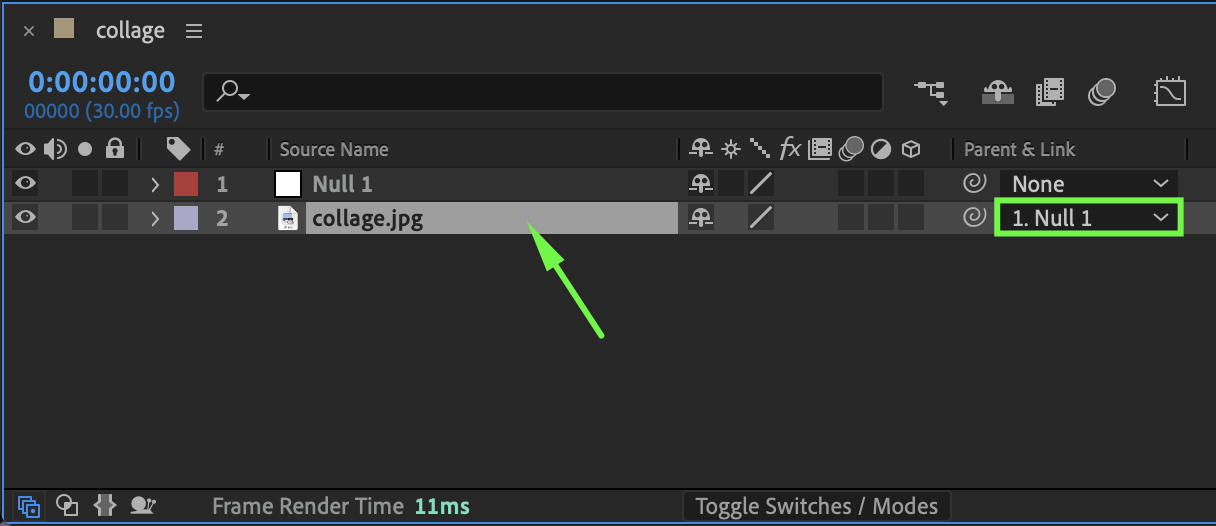 Step 4: Set Initial Keyframes
Move the Current Time Indicator (CTI) to the beginning of the composition. On the Null Object, enable keyframes for:
Anchor Point
Scale
Click the stopwatch icons to create the first keyframes.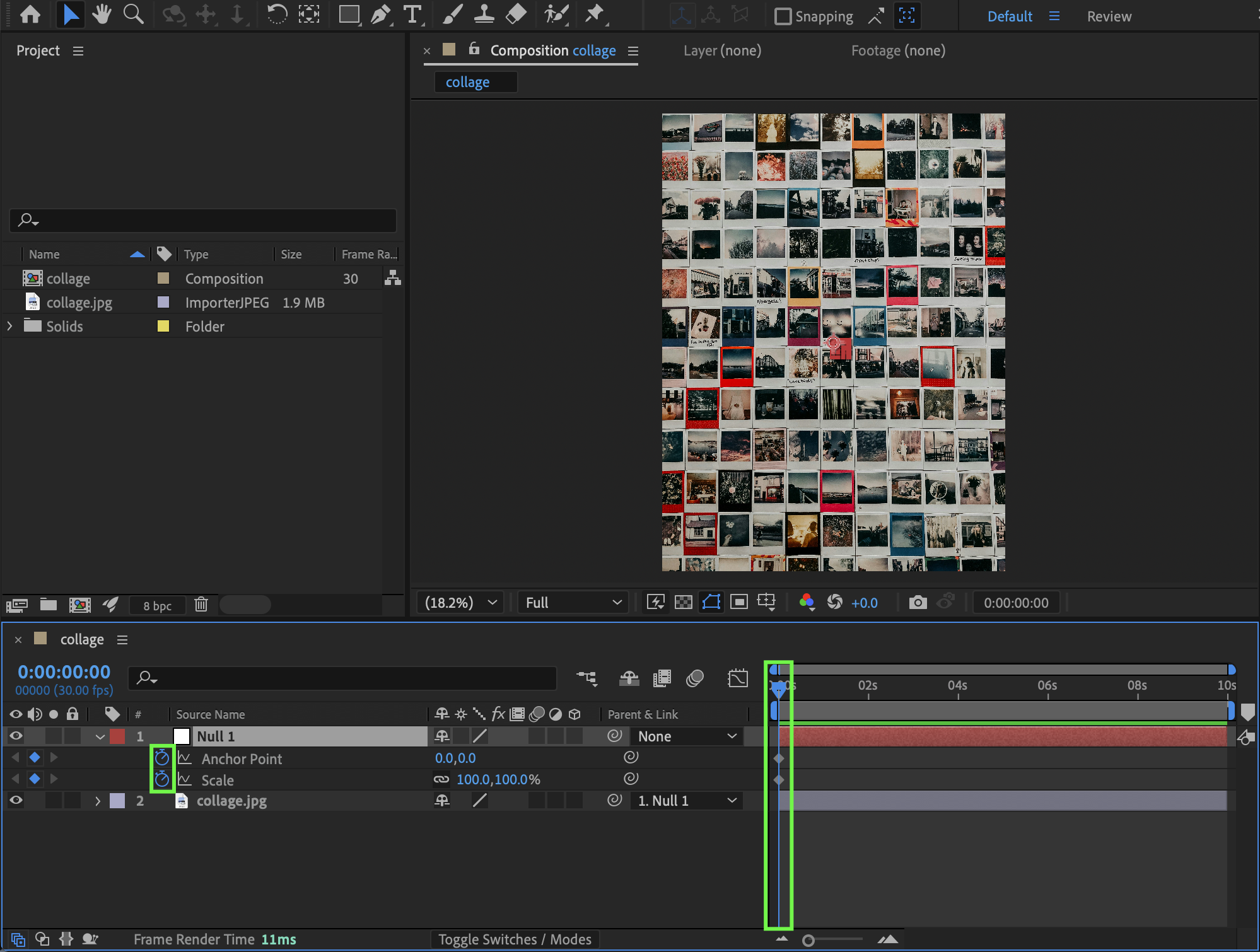
Step 5: Animate the First Zoom and Pan
Move the CTI a few seconds forward. Adjust the Anchor Point so it centers on the first subject you want to focus on. Increase the Scale slightly to create a smooth zoom-in effect.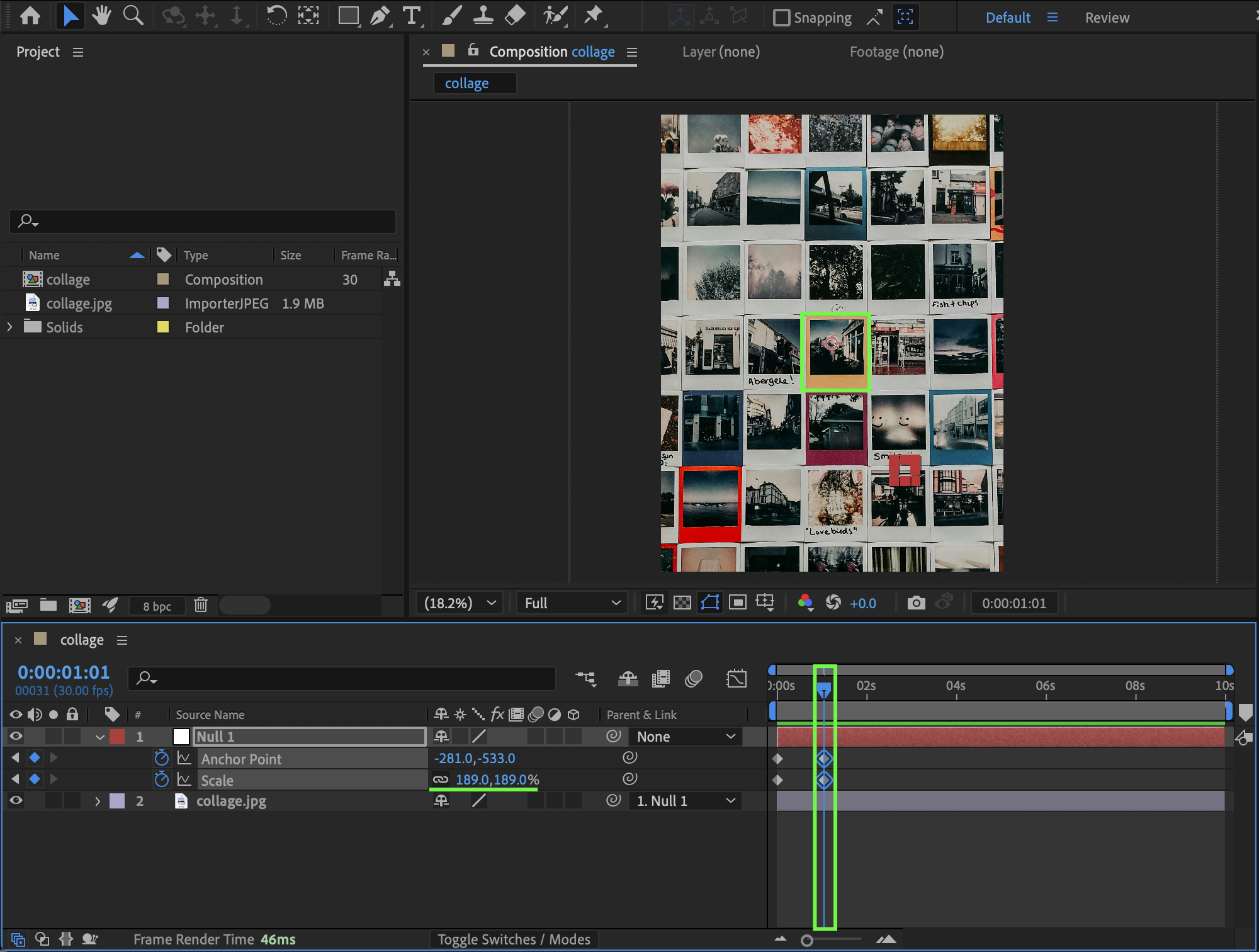
Step 6: Animate the Second Focus Point
Move the CTI a few more seconds forward. Change the Anchor Point again to focus on a different subject. Increase the Scale even more to continue the Ken Burns motion.
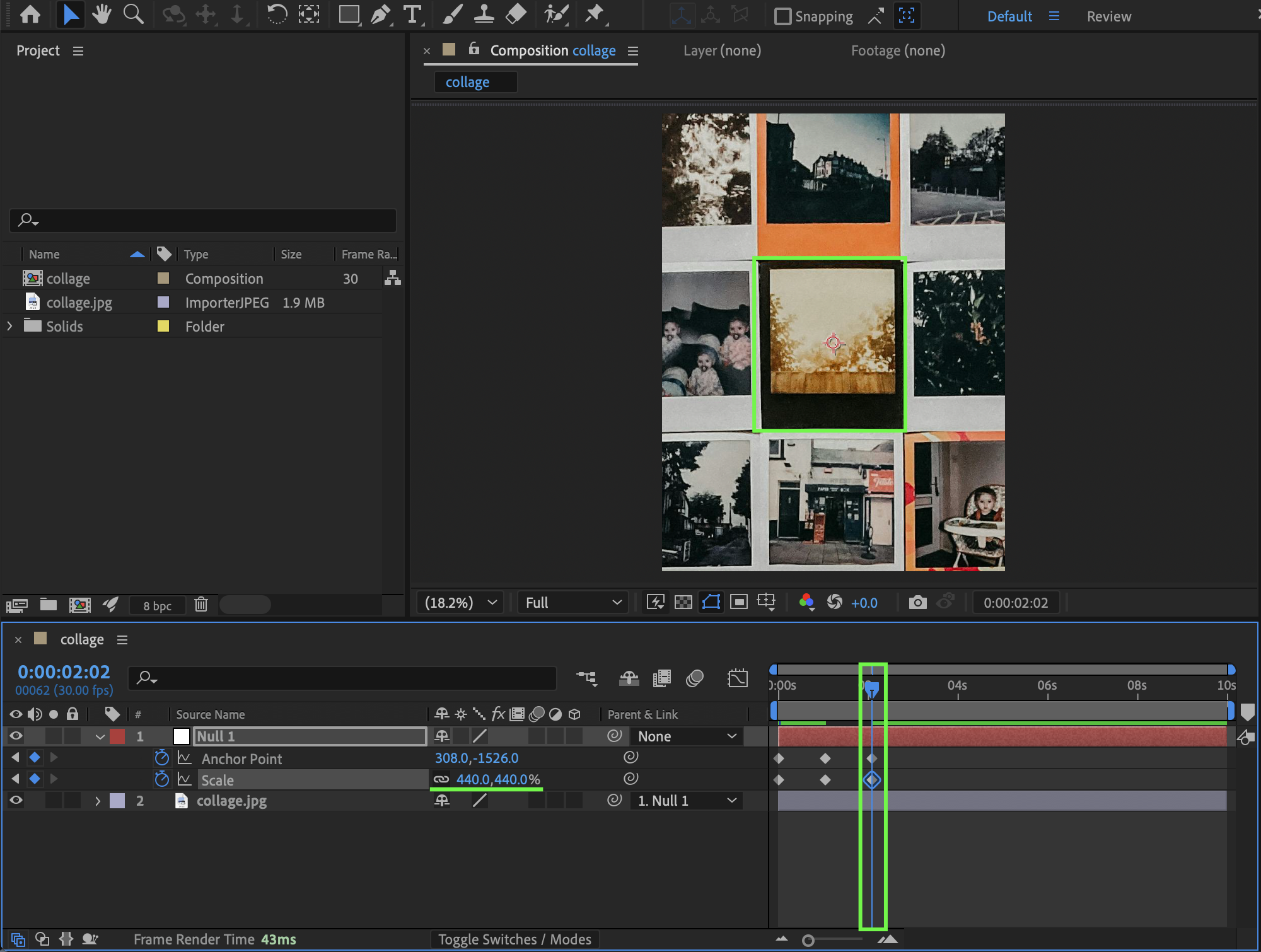
Step 7: Smooth the Animation
Select all keyframes. Apply Easy Ease (F9). Open the Graph Editor and refine the curves to make the movement feel smooth and natural.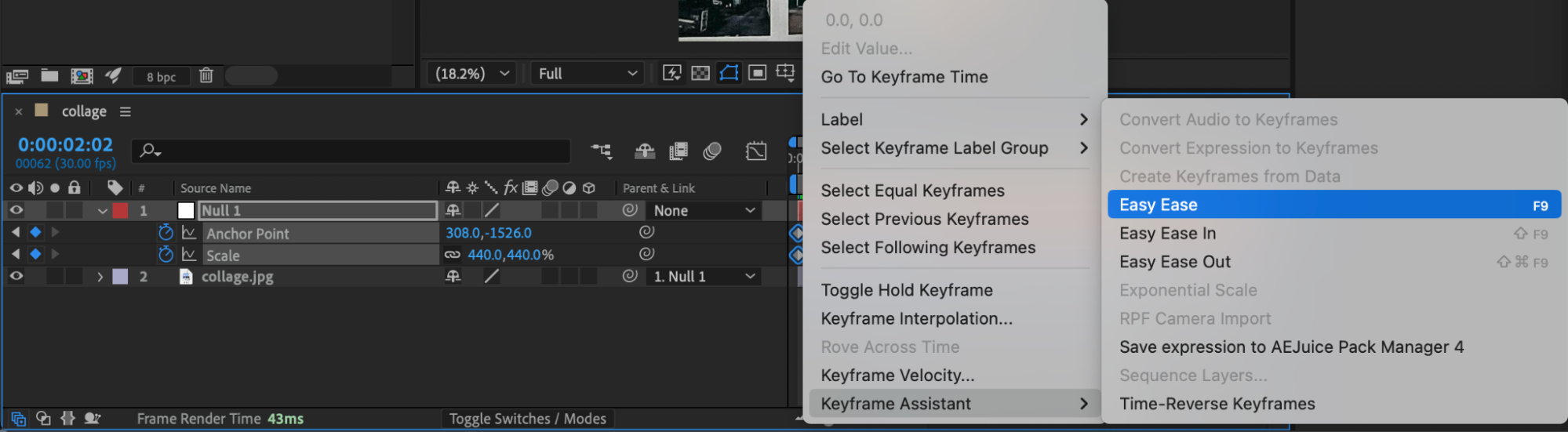
Step 8: Preview the Result
Preview the animation and fine-tune the timing and easing until the motion feels cinematic and realistic.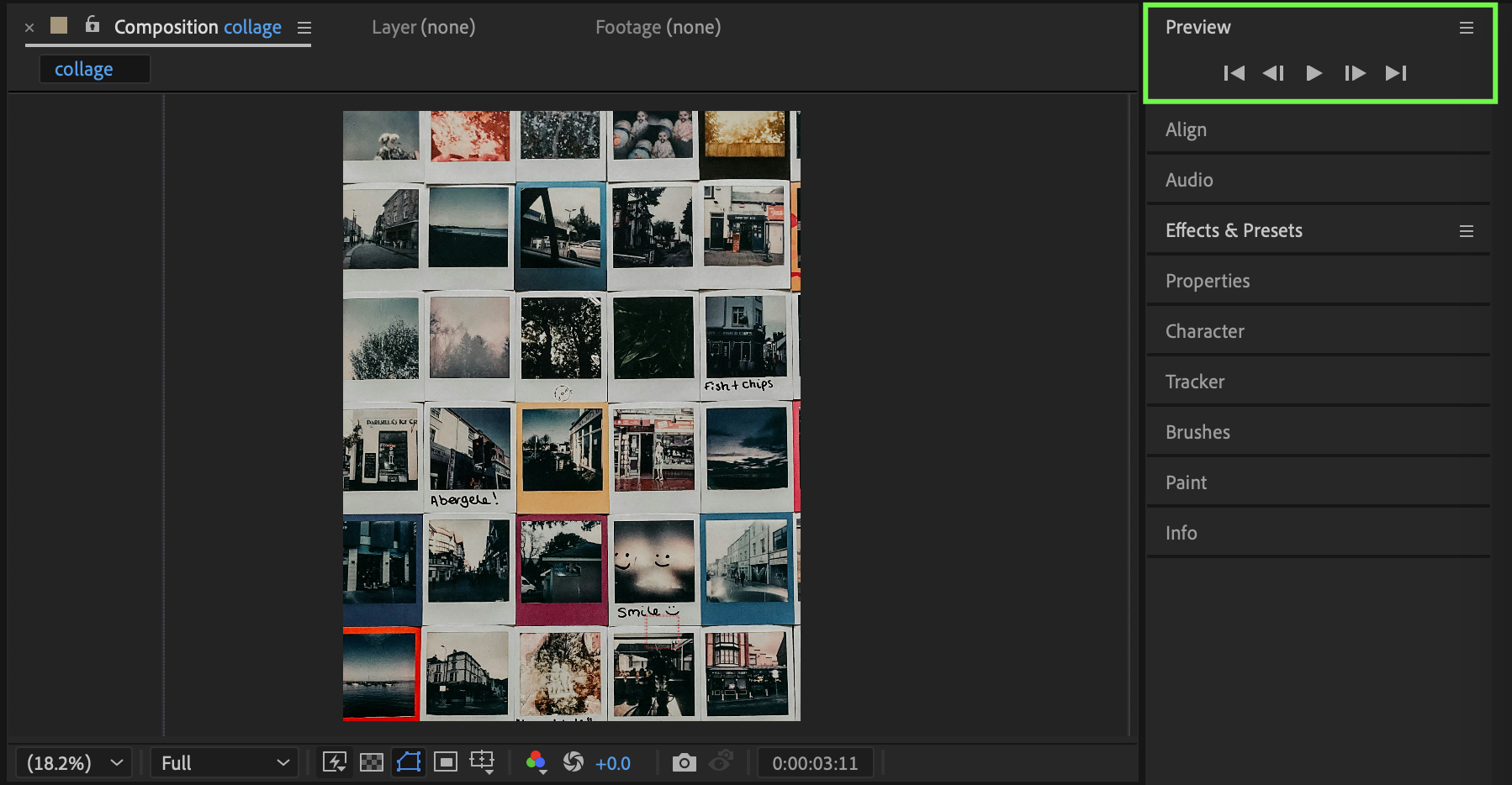
Conclusion
By animating Anchor Point and Scale through a Null Object, you can easily create a professional Ken Burns effect in After Effects. This method gives you precise control and smooth motion, perfect for storytelling and photo animations.
Our Bestsellers
Our Bestsellers


