
Introduction
Adding a logo to a text layer in After Effects allows you to combine branding with dynamic typography. This is useful for intros, lower thirds, or end screens where you want your text and logo to move together as one design element.
Step 1: Create a New Composition
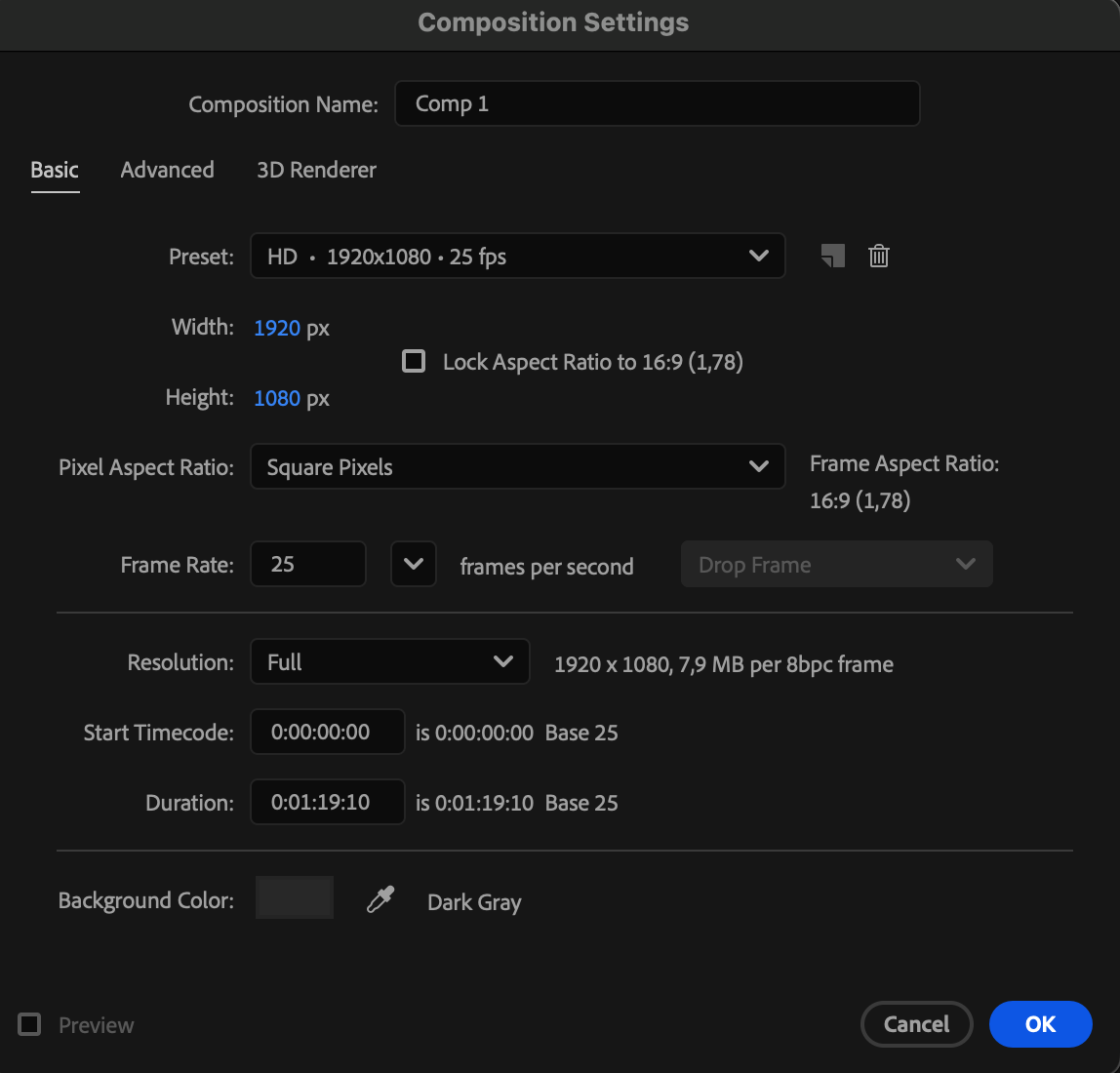
Go to Composition > New Composition, set your desired resolution, frame rate, and duration, then click OK.
 Step 2: Add Your Text
Select the Type Tool (Ctrl/Cmd + T) and click anywhere in the Composition panel to type your text. Customize the font, size, and color using the Character panel.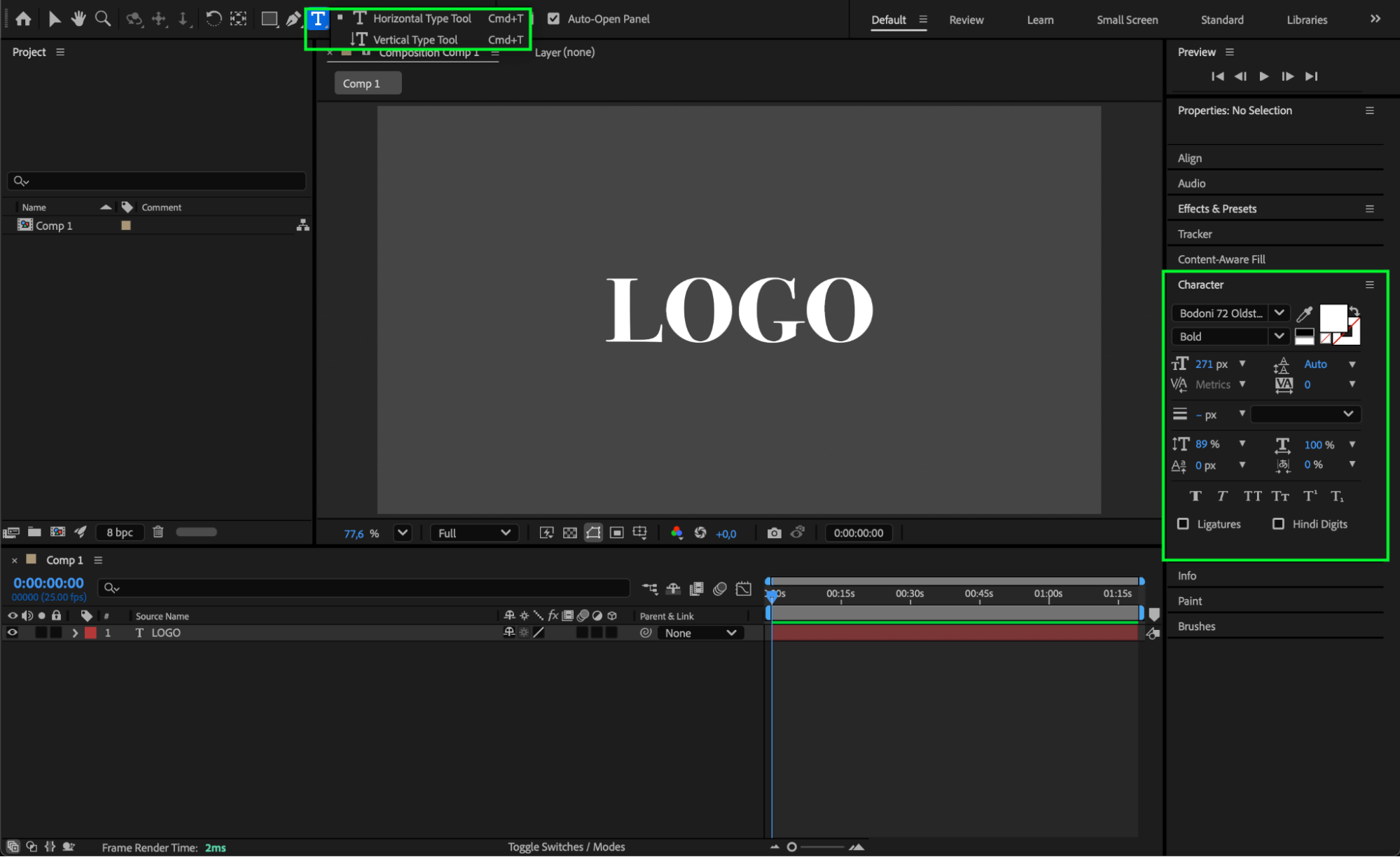 Step 3: Import and Add Your Logo
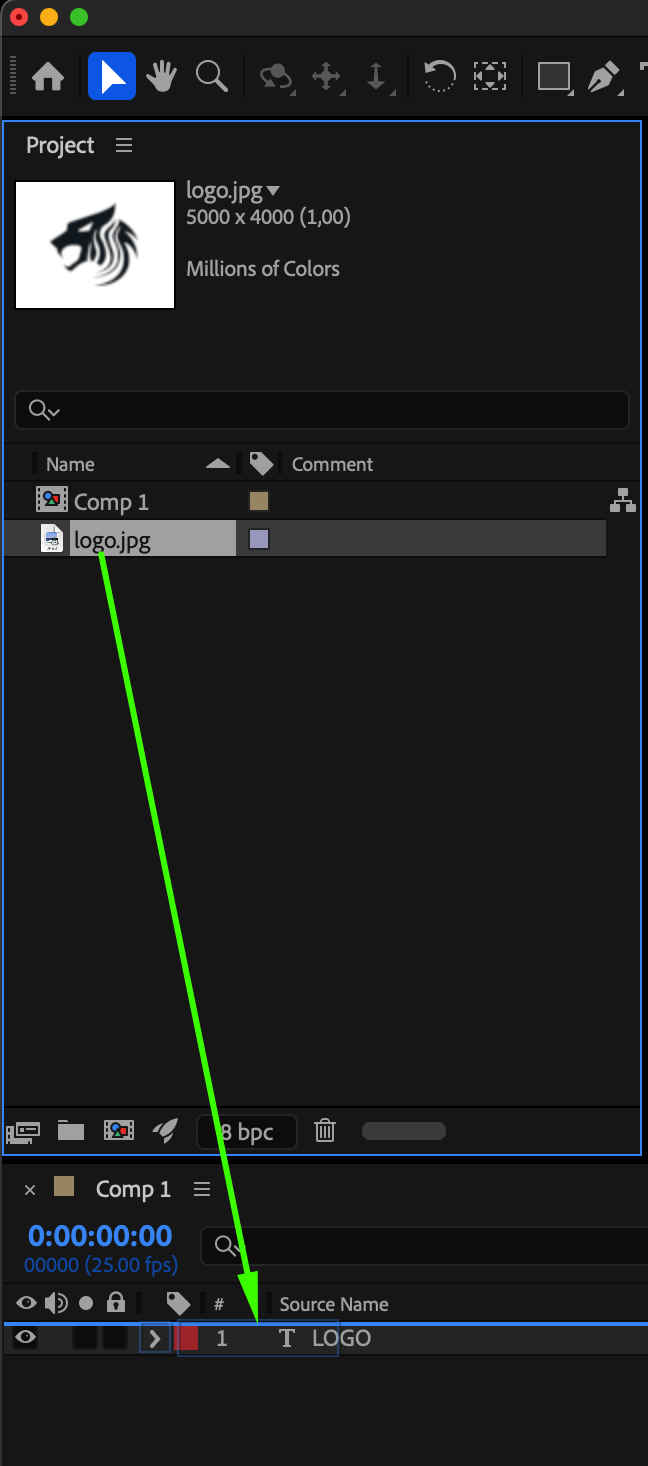
Go to File > Import > File and choose your logo image (e.g., PNG or SVG). Drag it from the Project panel onto your Timeline. Resize the logo by selecting it and pressing “S” to open the Scale property, then adjust its size to fit near your text.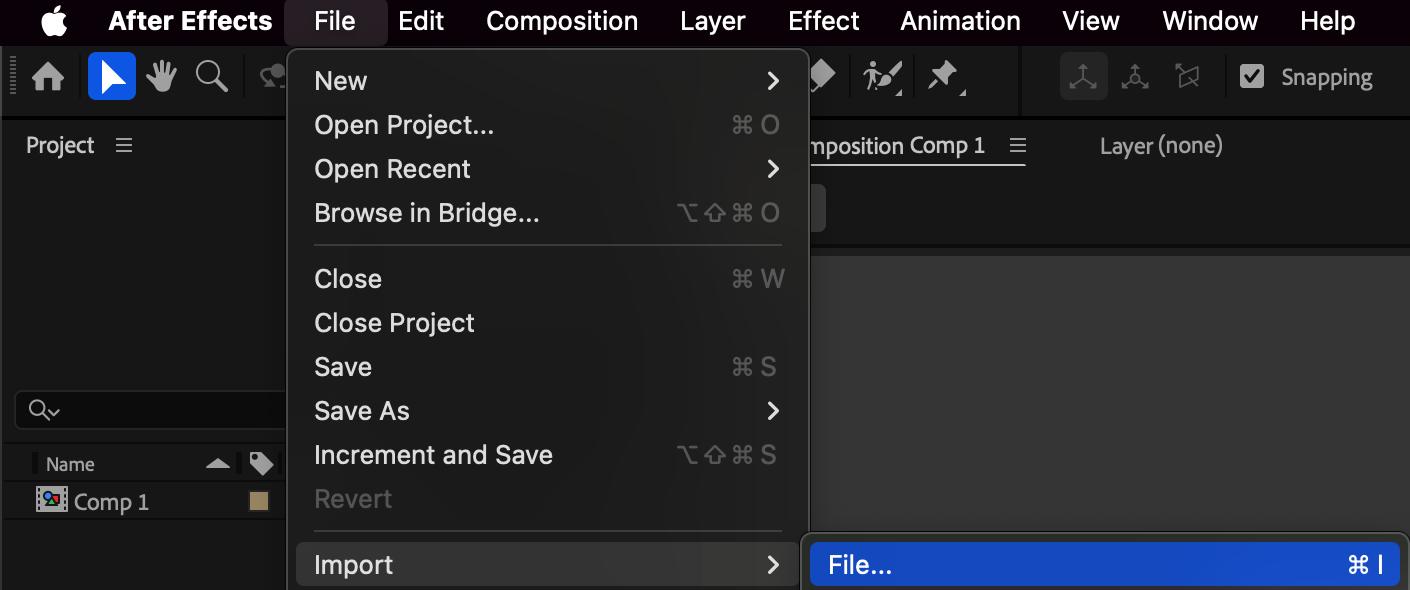
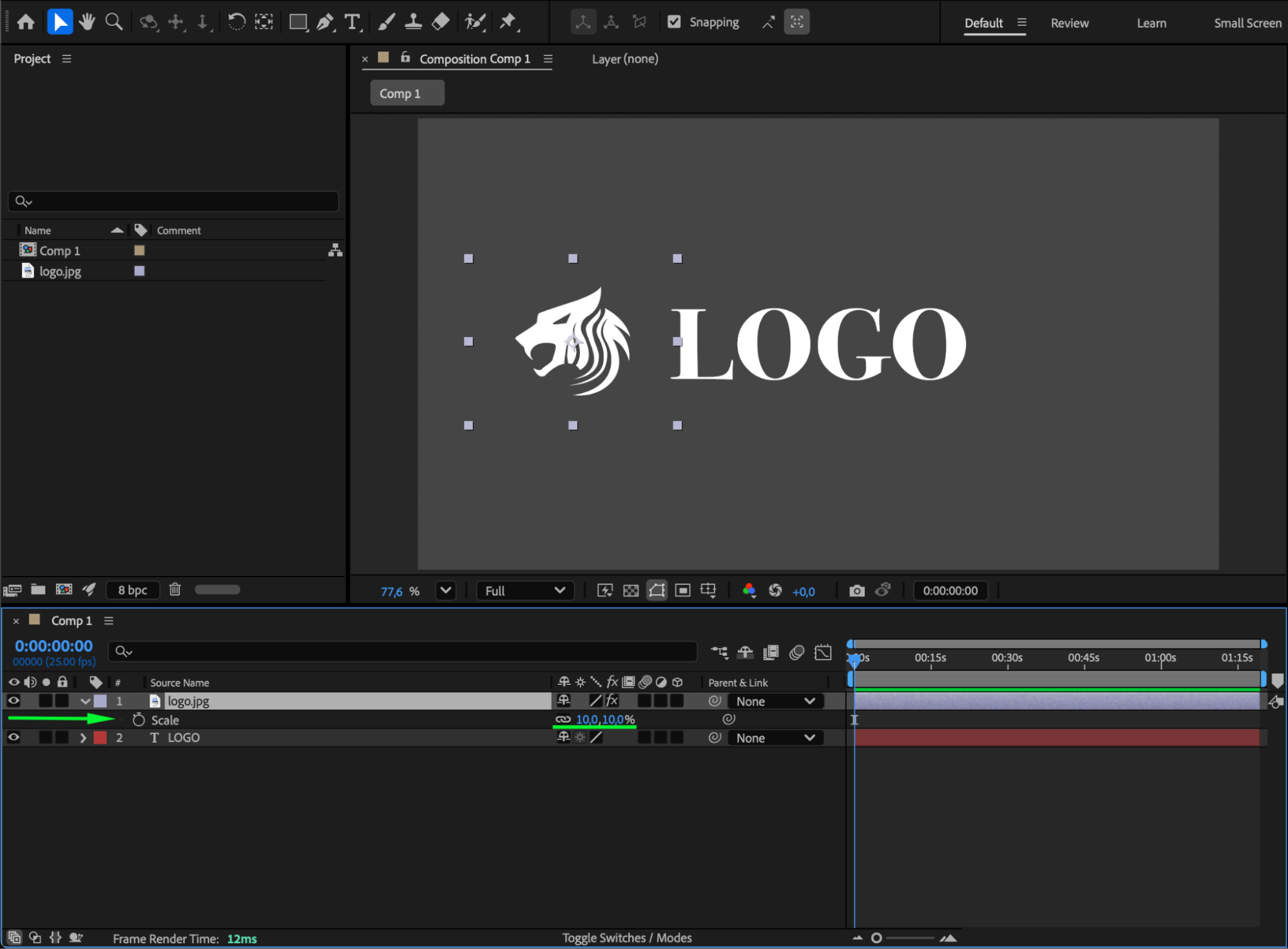
Step 4: Align the Logo with the Text
Use the Selection Tool (V) or the Position (P) property to move the logo next to or above the text. For precise placement, open the Align panel (Window > Align) and center the elements as needed.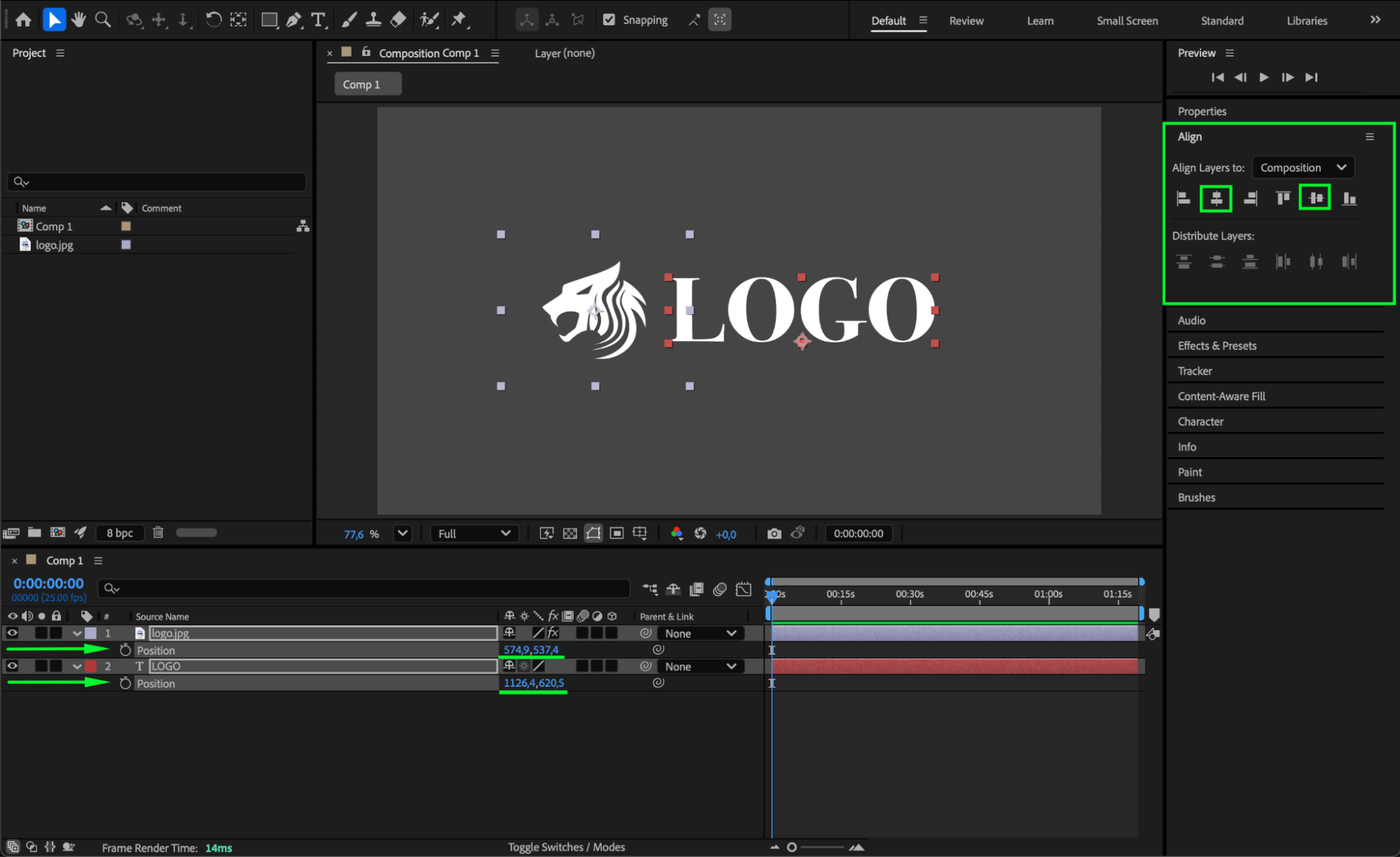 Step 5: Pre-compose the Text and Logo
Select both the text layer and logo layer, then right-click and choose Pre-compose. Name the new composition (for example, “Logo Pre-comp”) and select Move all attributes into the new composition. This combines both elements into a single composition, making them easier to animate together.
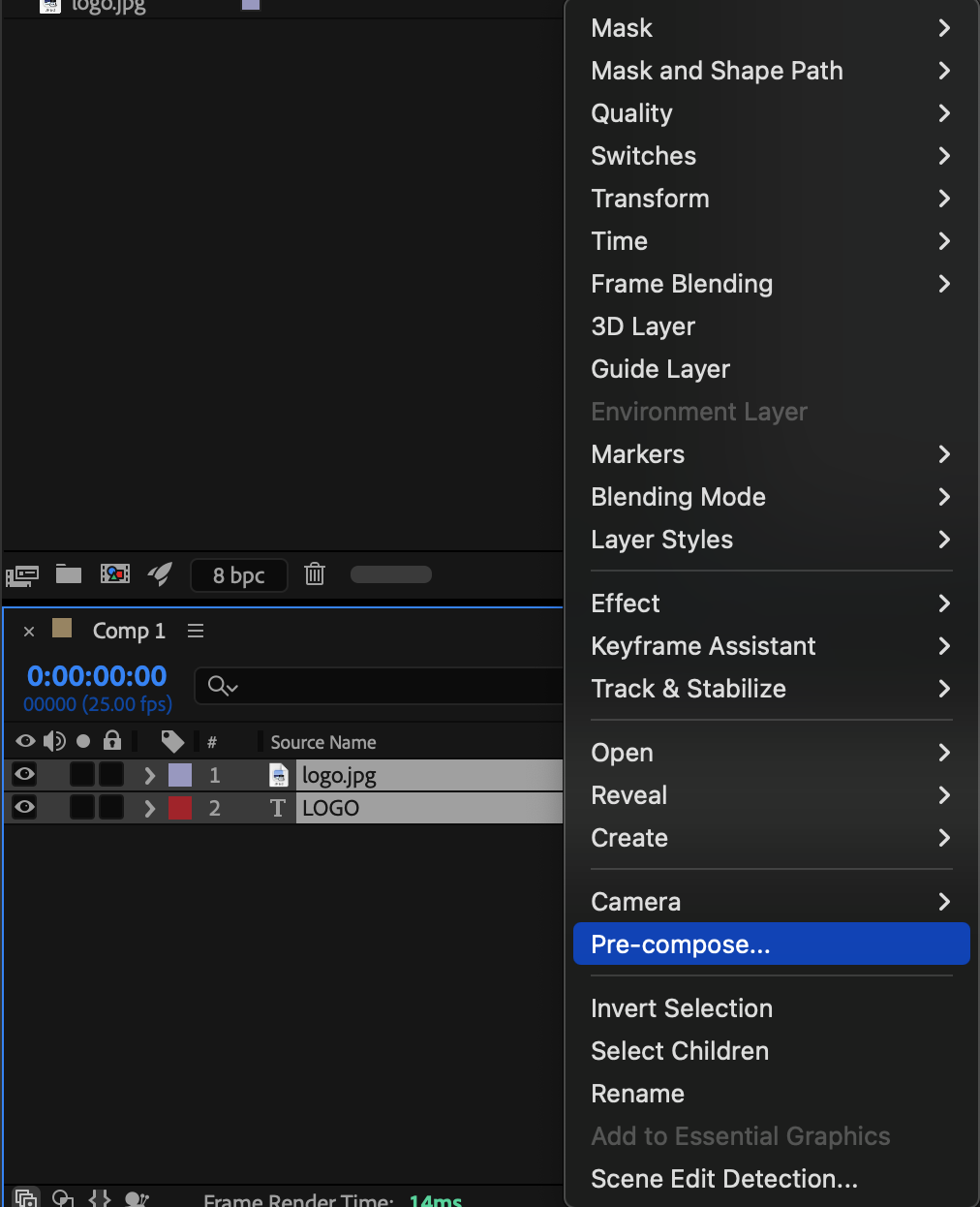
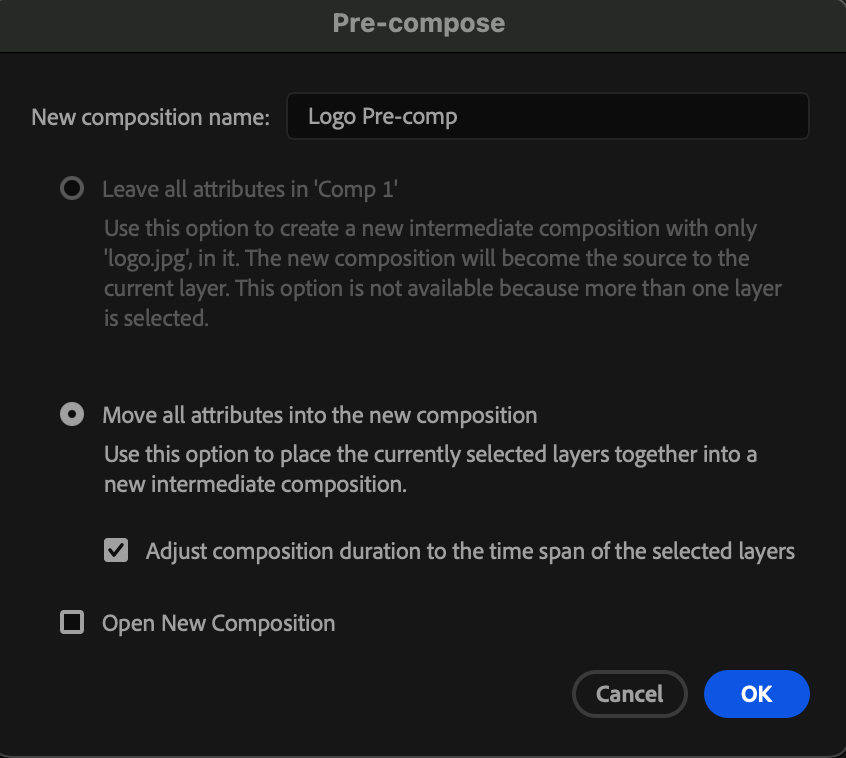 Step 6: Animate the Pre-comp
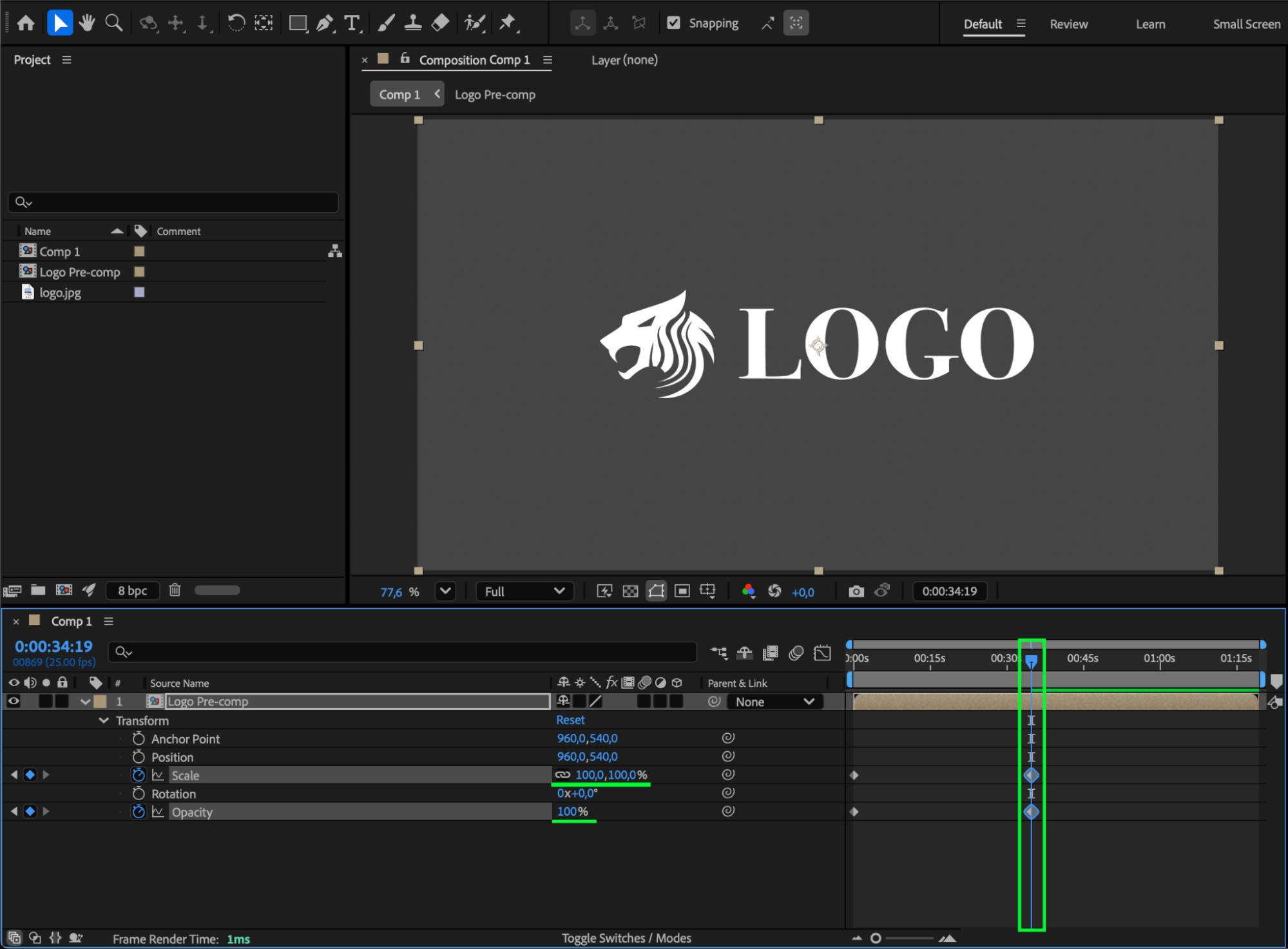
Select the pre-comp layer and press “S” for Scale or “T” for Opacity. Add keyframes to animate a smooth entrance — for example, scaling up from 0% to 100% or fading in.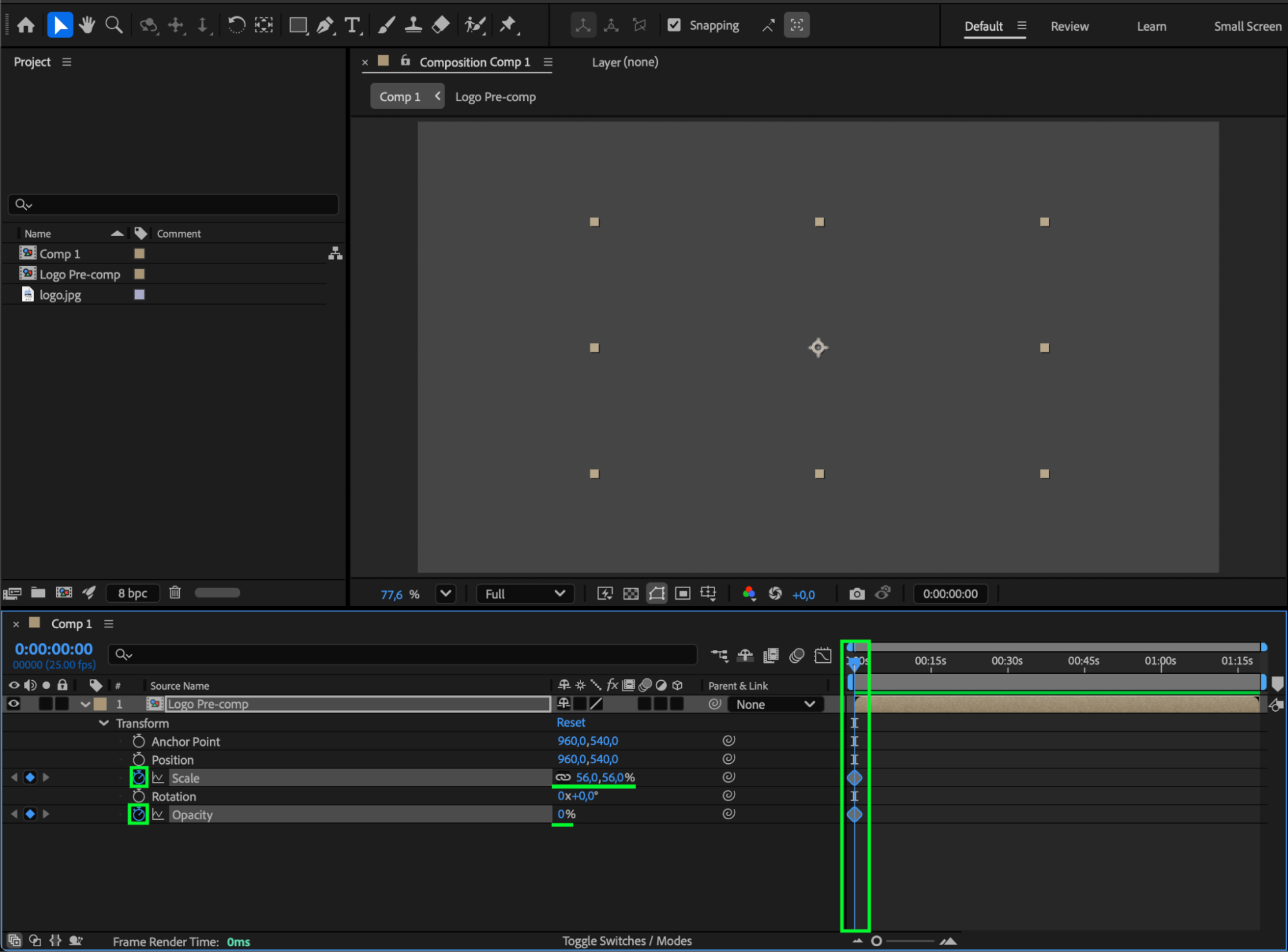
Step 7: Refine with Easy Ease and Graph Editor
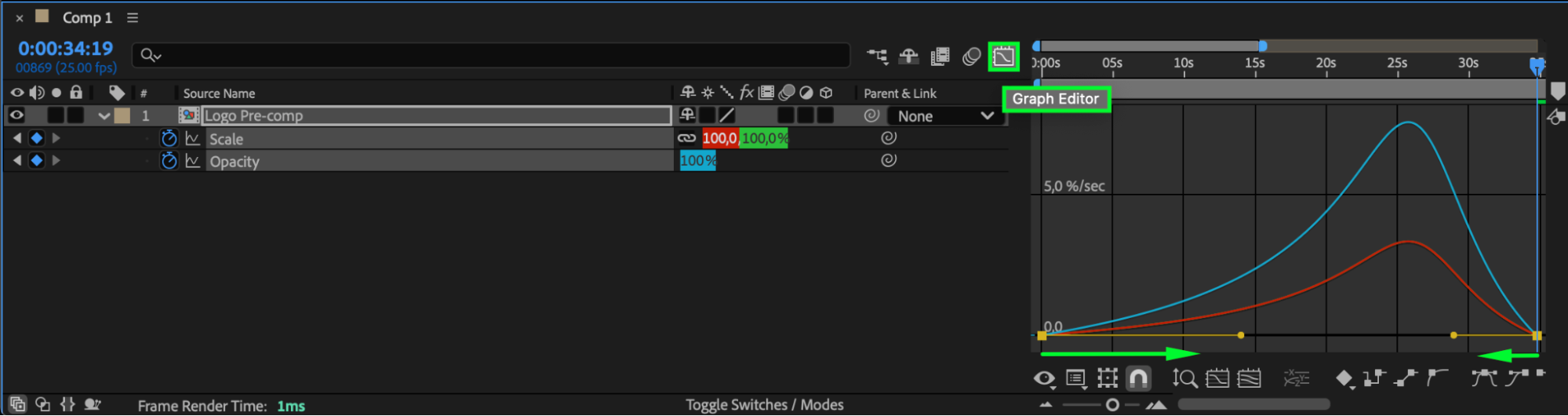
Select your animation keyframes, right-click, and choose Keyframe Assistant > Easy Ease to smooth the motion. Then open the Graph Editor to fine-tune speed and timing for a more professional look.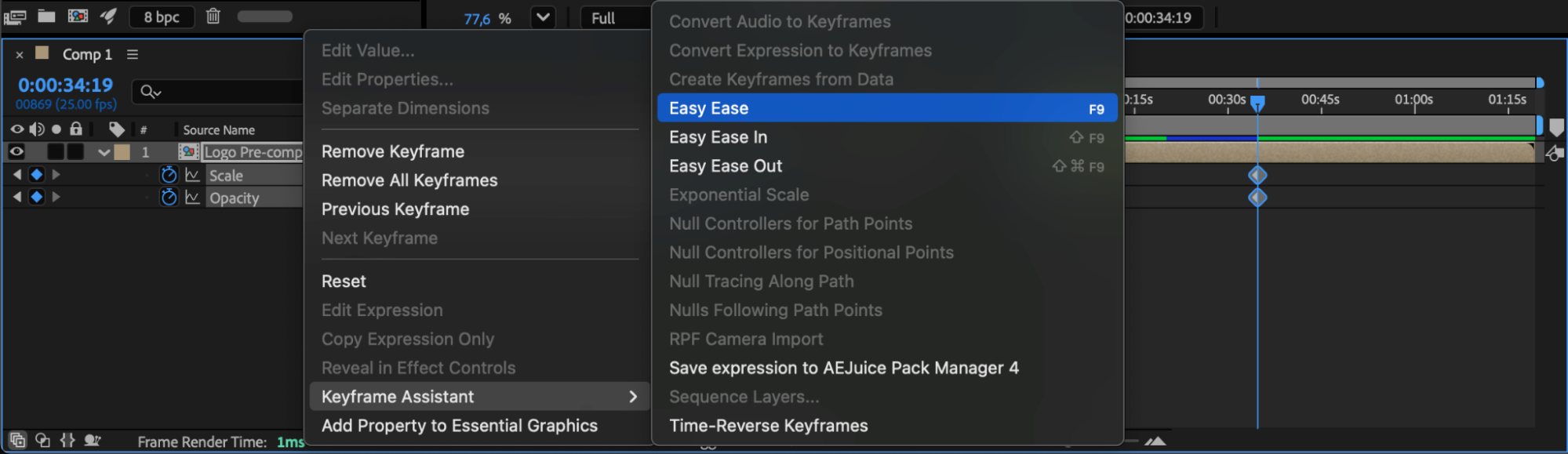
 Step 8: Add Effects for Polish
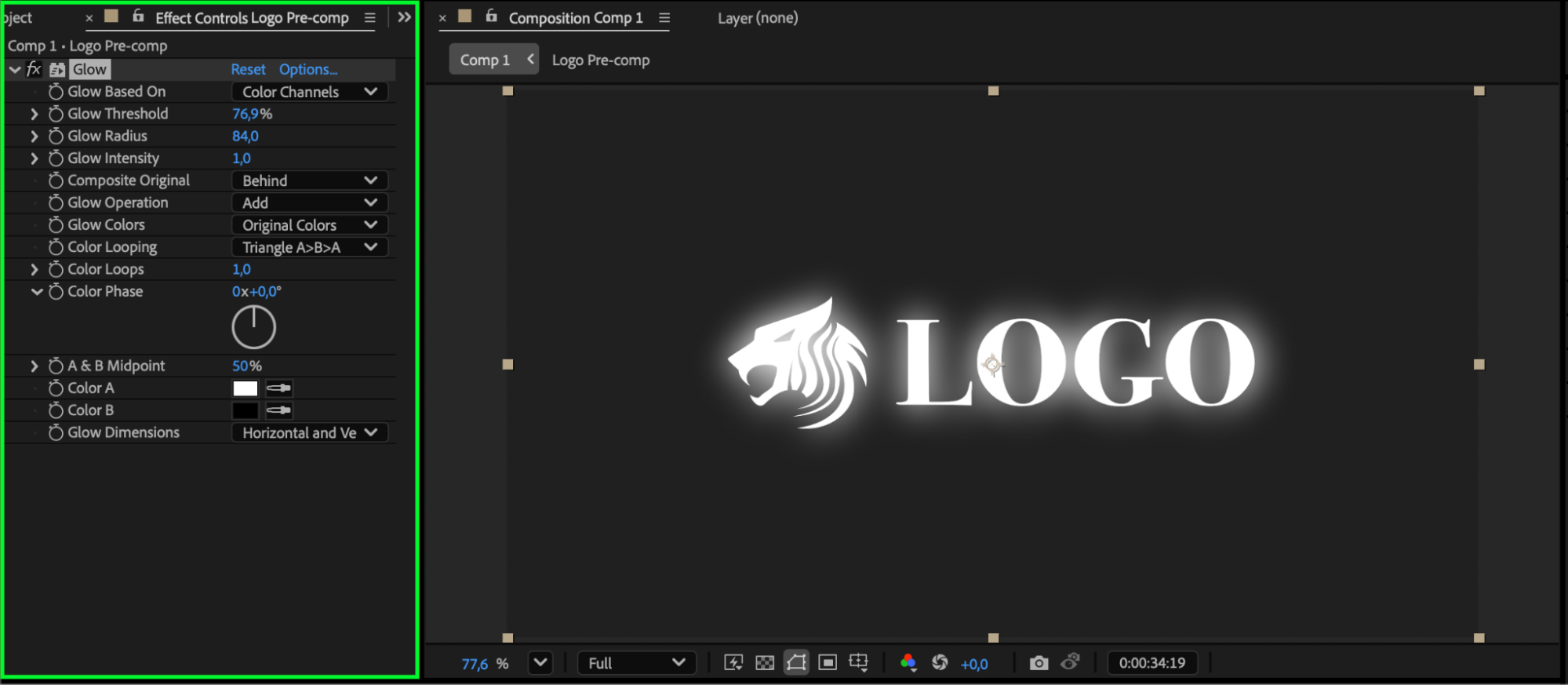
From the Effects & Presets panel, add subtle effects like Drop Shadow, Glow, or Gaussian Blur to make your logo and text blend naturally with the background.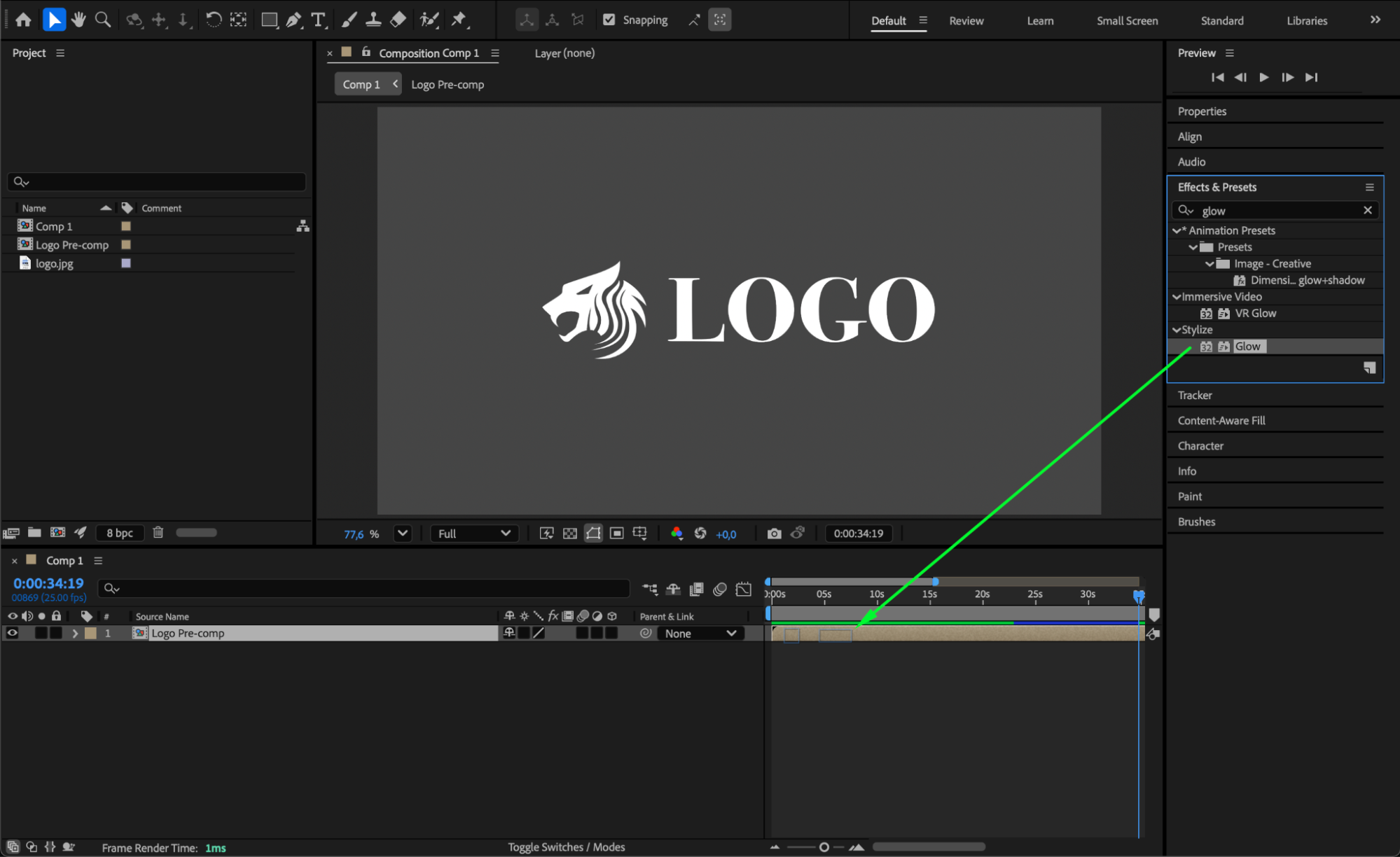
Step 9: Preview Your Composition
Press Spacebar to preview. Your logo and text should now move together smoothly as a single animated unit.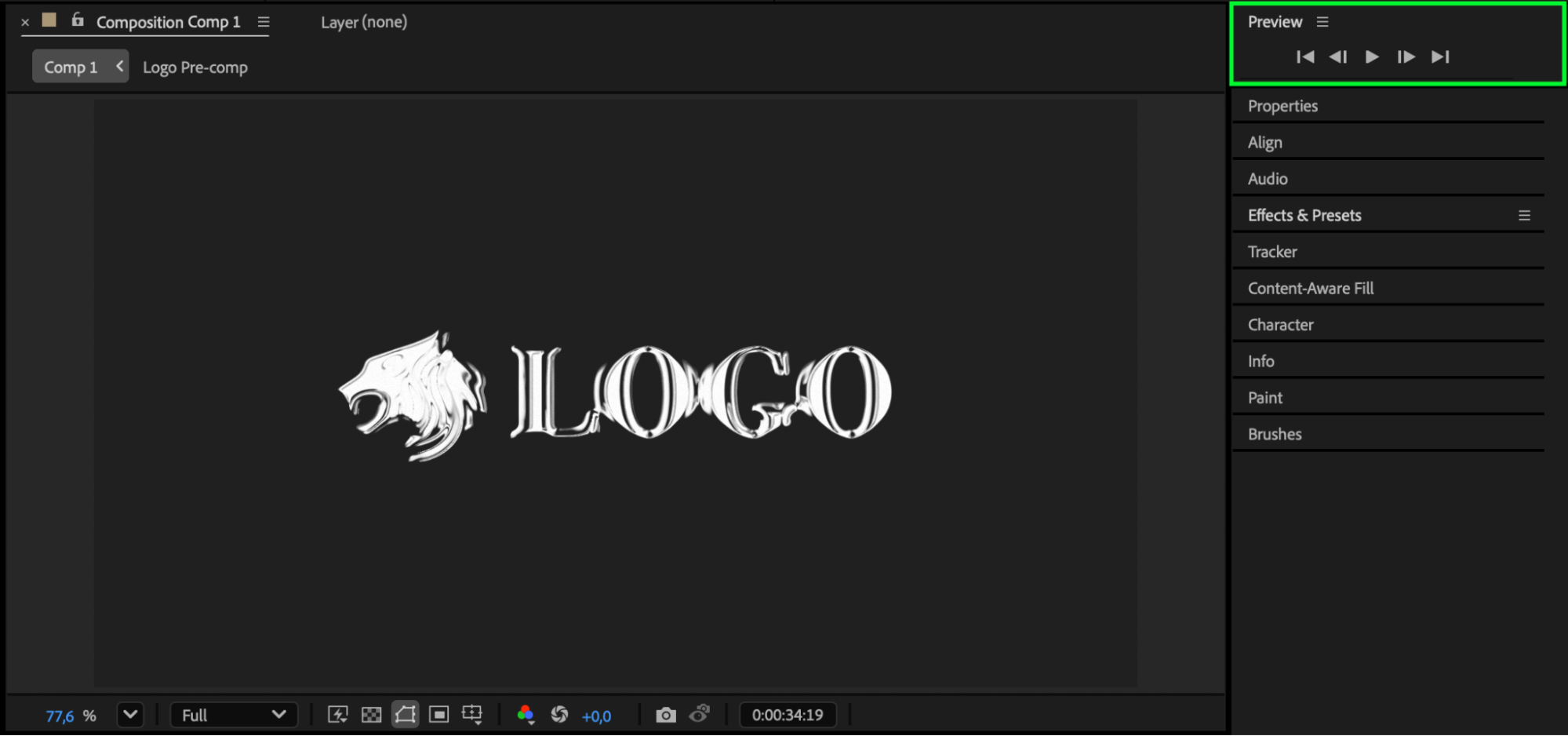
Conclusion
By combining your logo and text layer into one pre-comp and applying simple animations, you can create clean, professional-looking branded titles in After Effects. This method keeps your project organized and makes it easy to customize timing, effects, and transitions later.
Our Bestsellers
Our Bestsellers


