
Introduction
Masking allows you to place images inside custom shapes or cut them out of backgrounds. In this tutorial, you’ll learn how to add a photo inside a mask in After Effects and adjust it for smooth, professional results.
Step 1: Import Your Assets
Go to File → Import → File and select all the assets you plan to use (photos, videos, or backgrounds).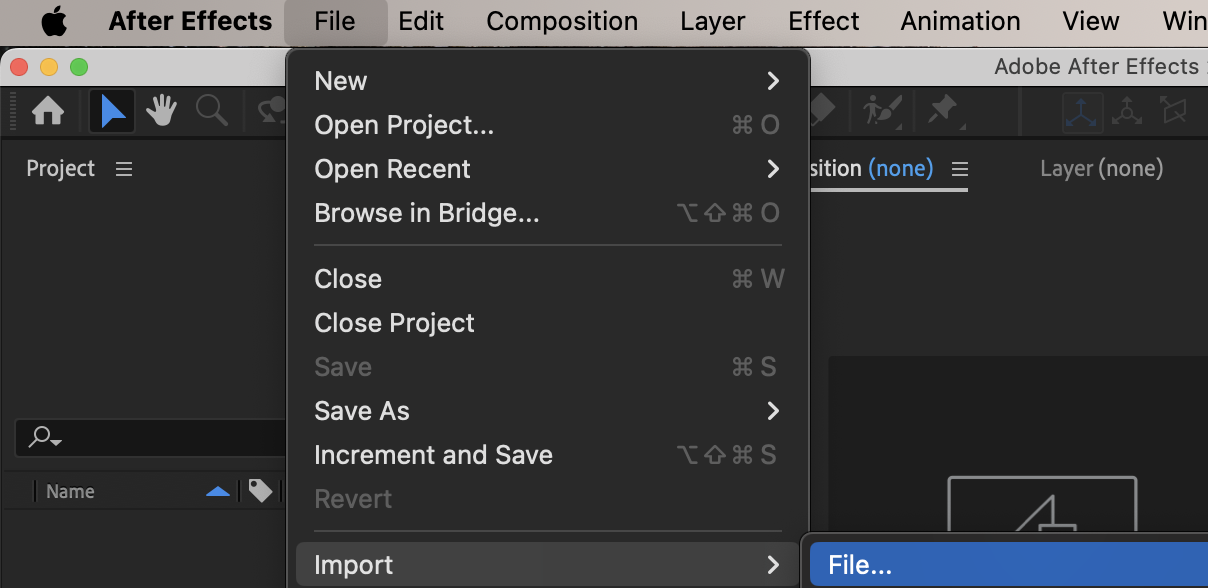
Step 2: Create a New Composition
Create a new composition with your desired resolution and frame rate.
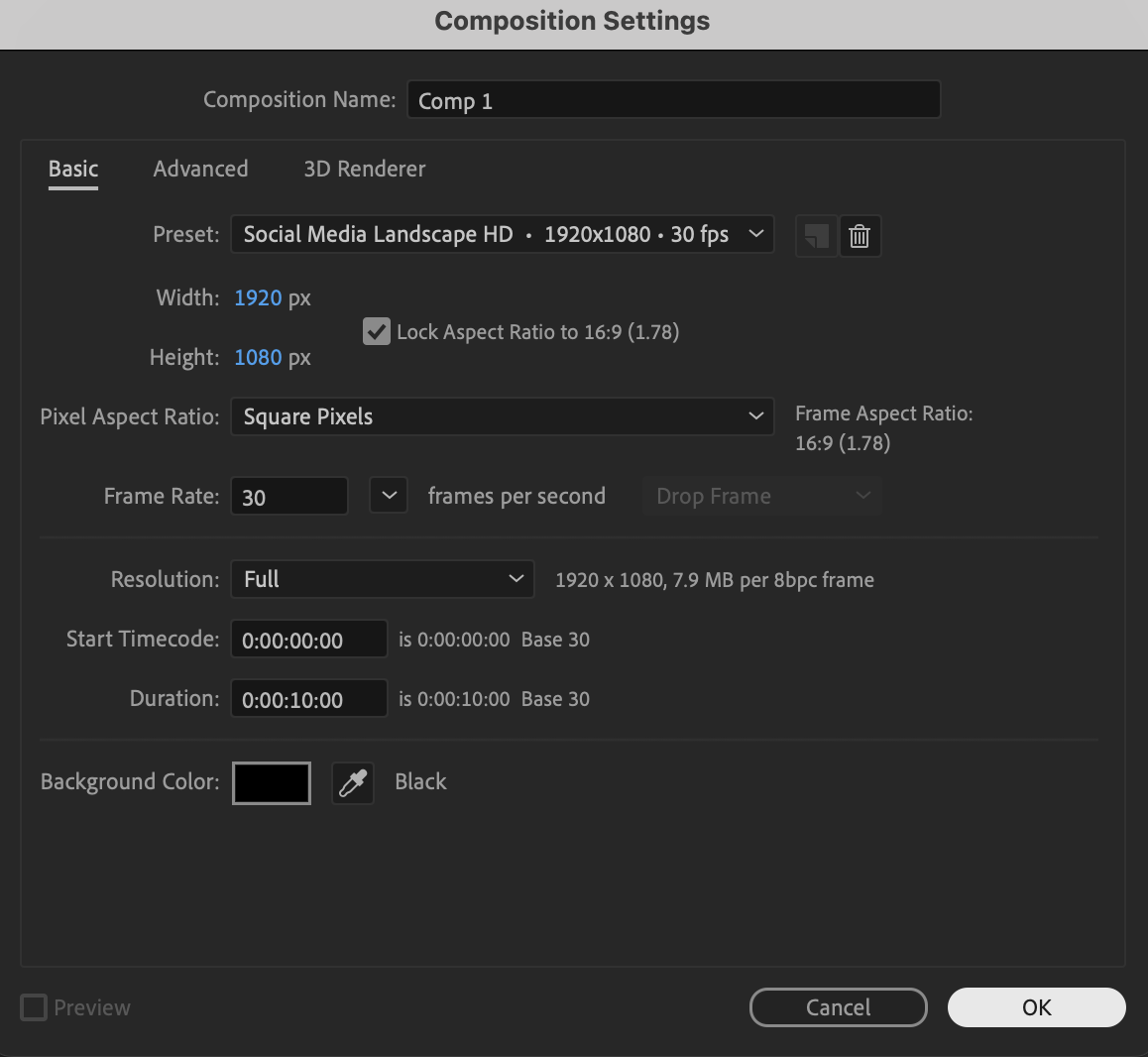
Step 3: Prepare the Mask Layer
Add a layer that will contain the mask:
Import a background video or image, or
Create a Solid layer (Layer → New → Solid)
Place this layer on the timeline where the mask will be created.
Step 4: Create the Mask
Select the mask layer. Use the Shape Tool (Q) or Pen Tool (G) to draw a mask. Set the Mask Mode to Subtract (or Add, depending on your desired result).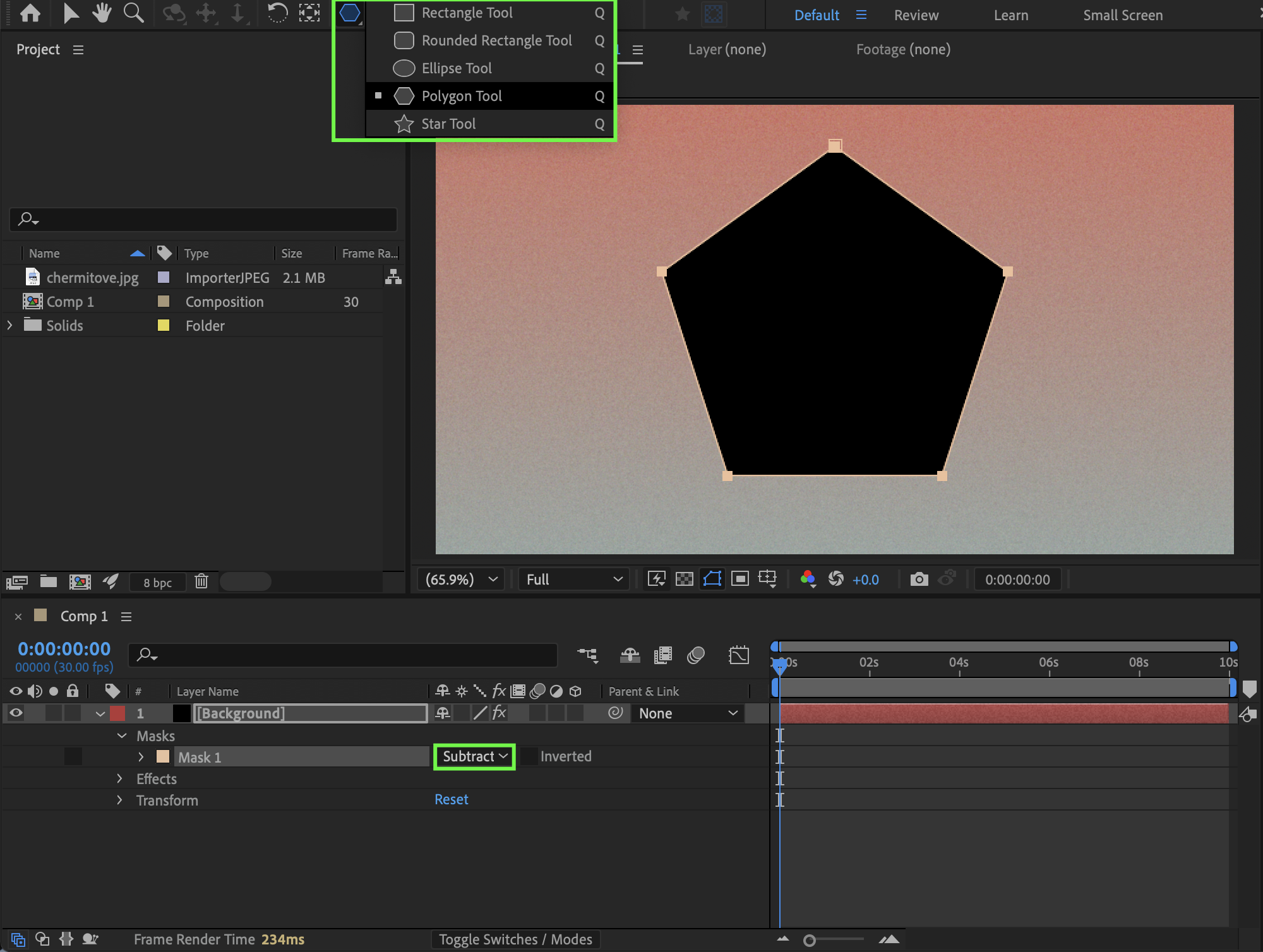
Step 5: Place the Photo into the Mask
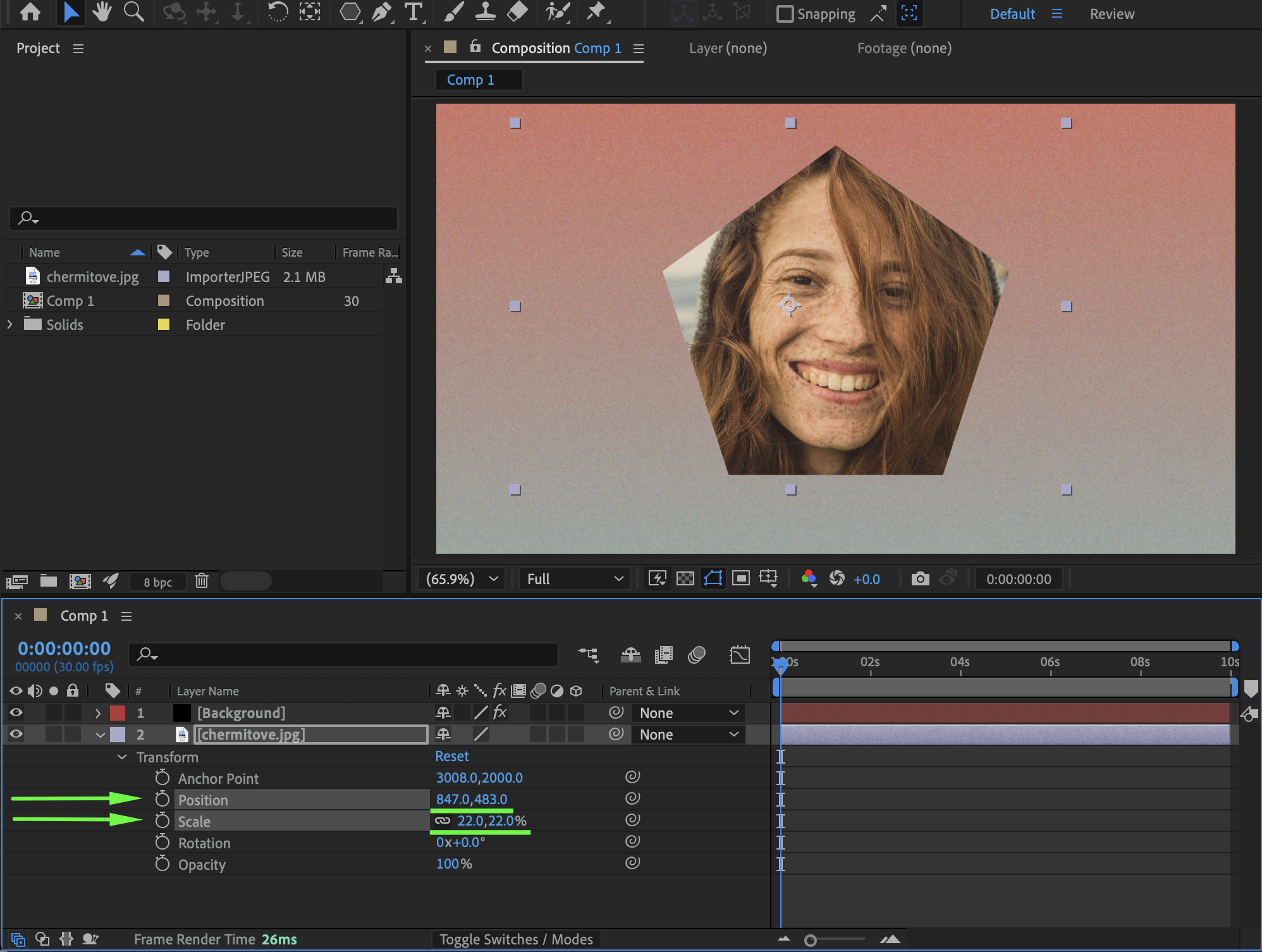
Drag your photo from the Project panel onto the timeline. Position it below the mask layer. Adjust the Scale and Position of the photo so it fits correctly inside the masked area.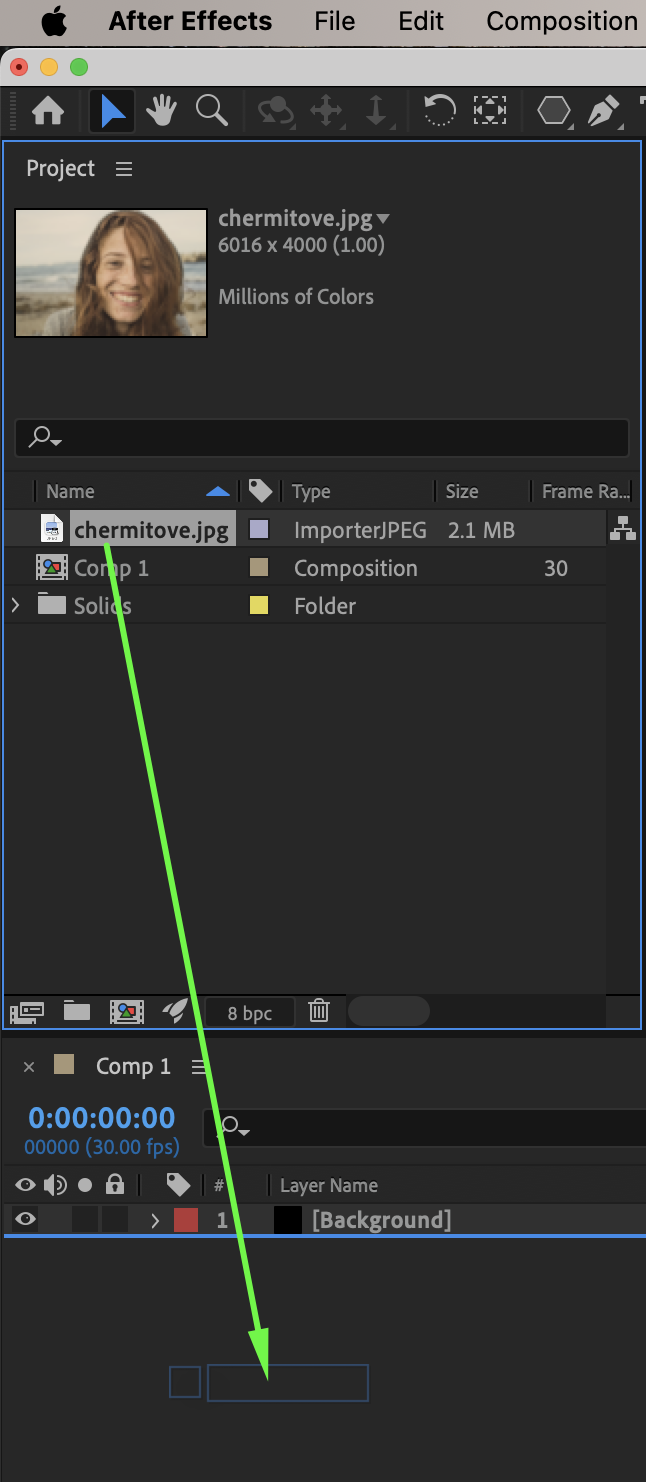
 Step 6: Refine the Mask
Expand the mask properties and adjust:
Mask Feather for smoother edges
Mask Expansion to fine-tune the mask size
You can also animate Mask Expansion if needed.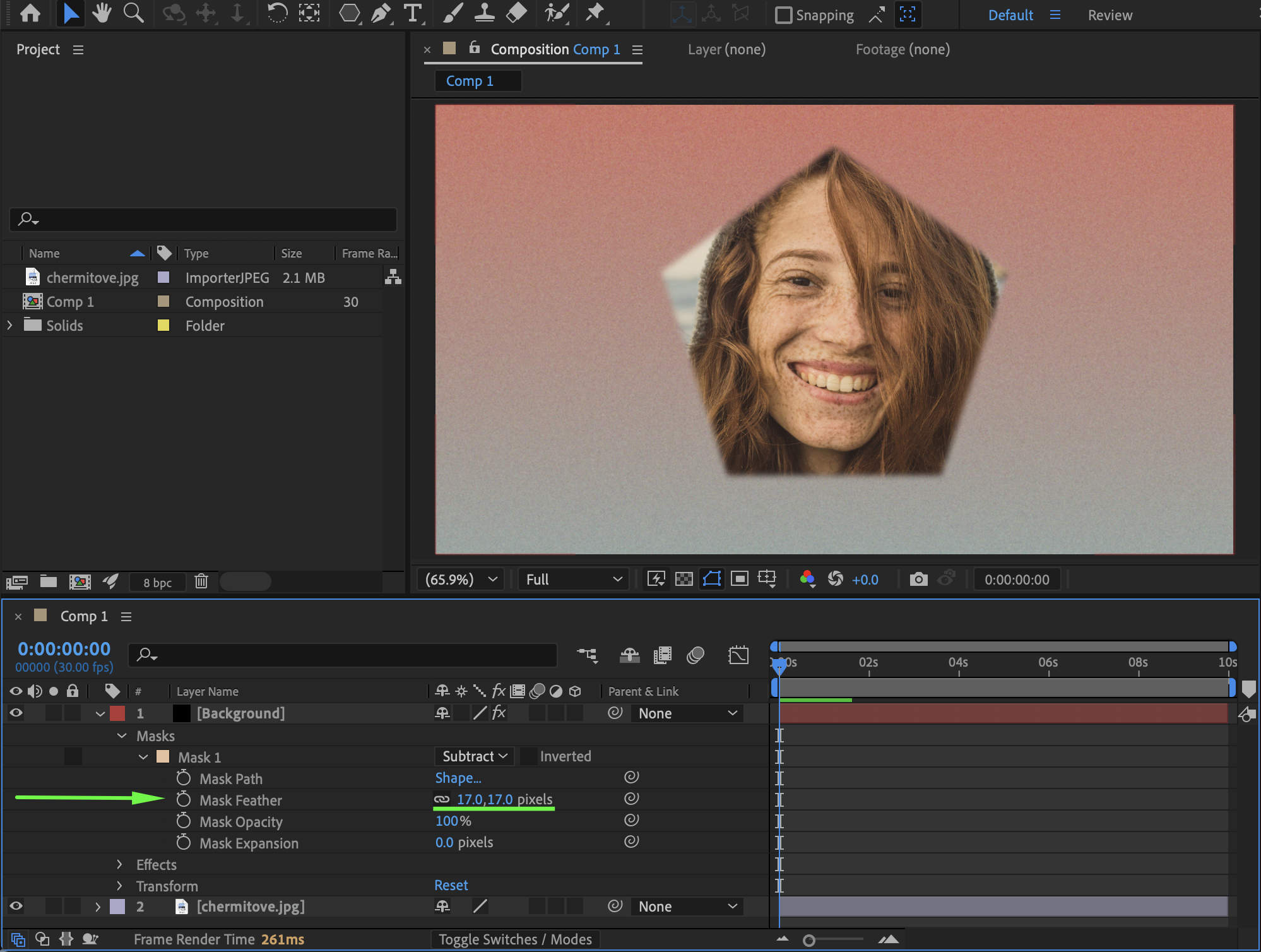 Step 7: Preview the Result
Preview the composition and make final adjustments to ensure the photo sits cleanly inside the mask.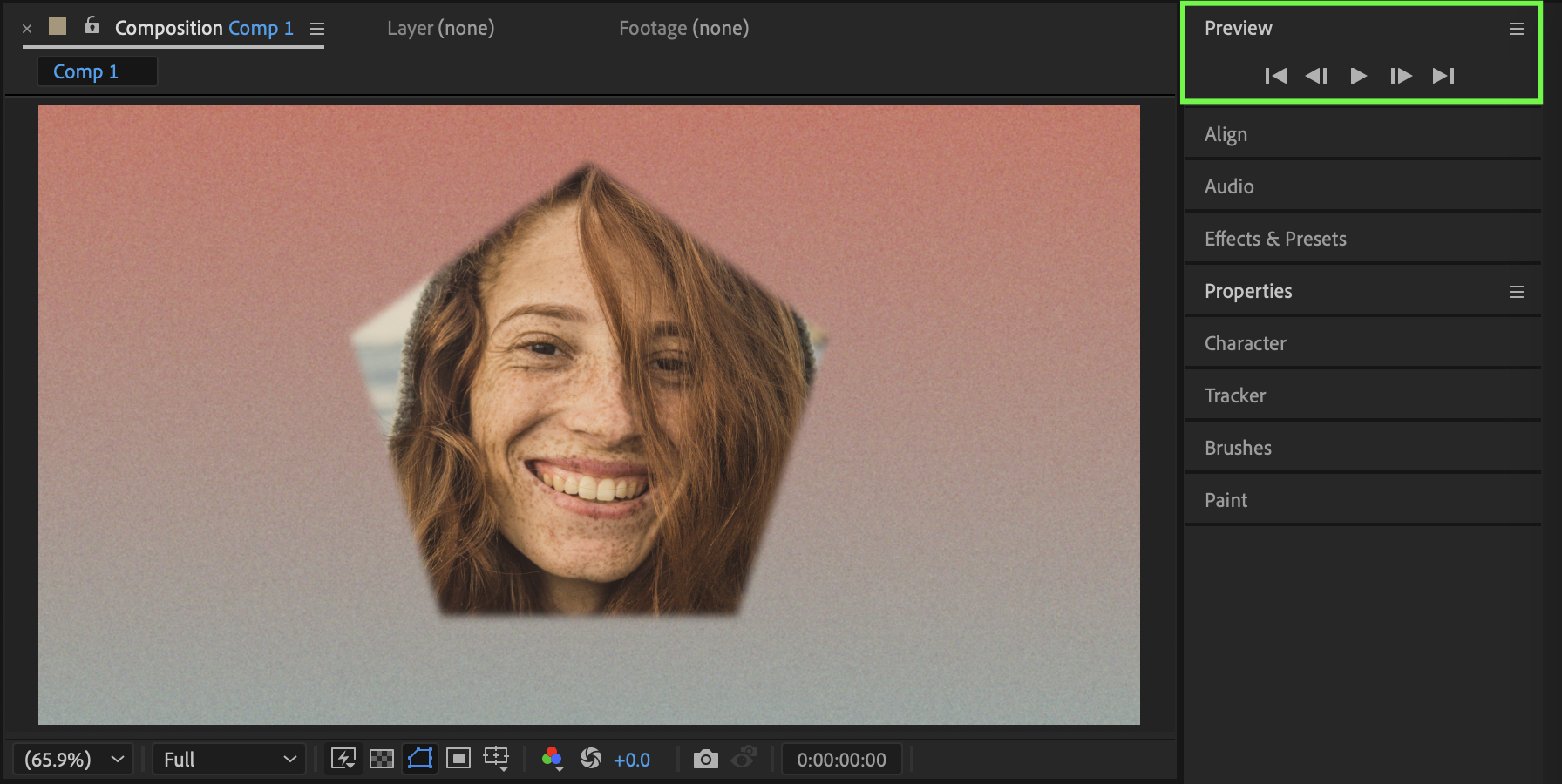
Conclusion
By using masks with proper feathering and expansion, you can easily place photos inside custom shapes in After Effects for clean layouts, transitions, and creative compositions.
Our Bestsellers
Our Bestsellers


