
Introduction
Adding a tear can enhance the emotional impact of your composition. In this tutorial, you’ll learn how to paint a tear on a photo and make it look realistic using After Effects’ Brush, Paint, and CC Glass effects.
Step 1: Import Your Photo
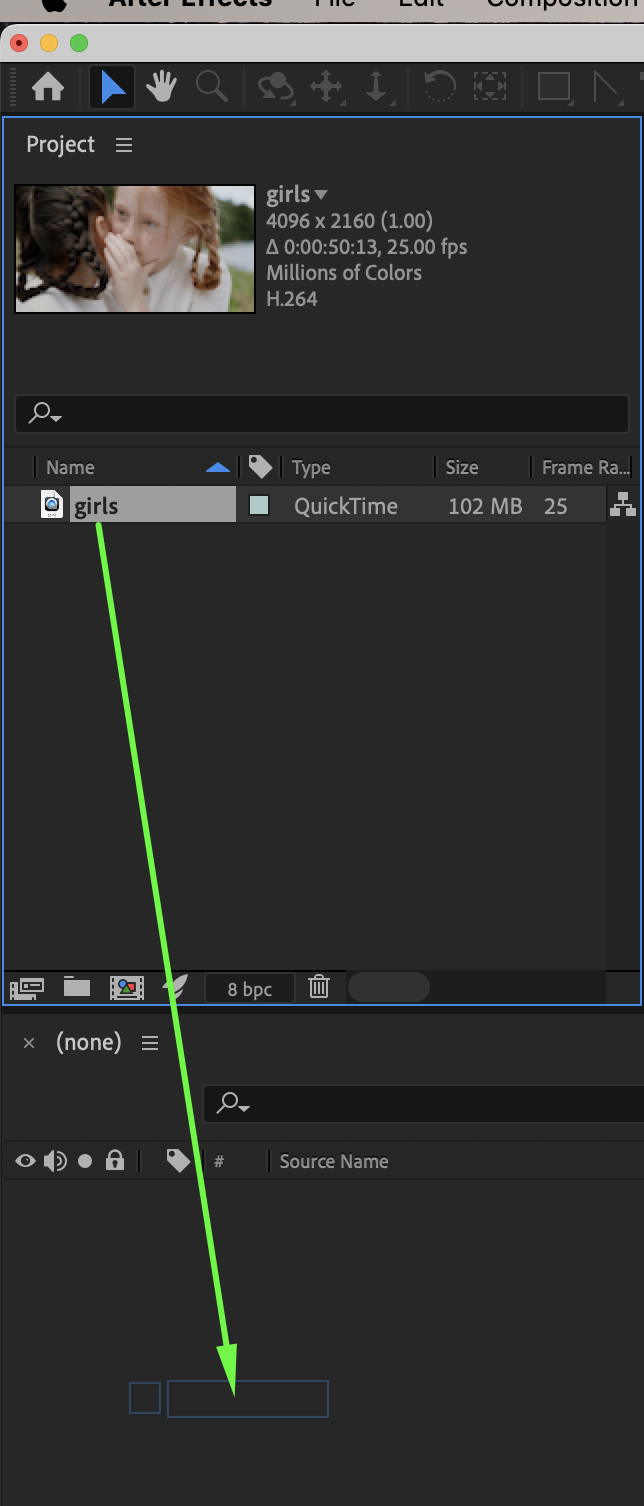
Go to File → Import → File and import your photo. Drag it onto the timeline.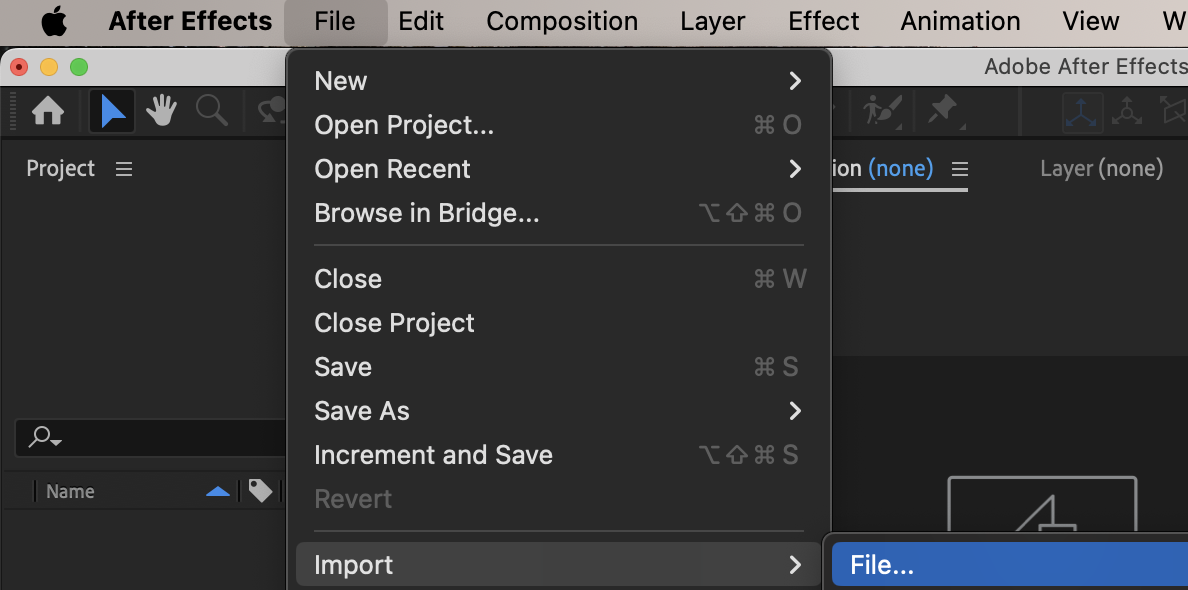
 Step 2: Open the Layer Panel
Double-click on your photo layer to open it in the Layer Panel.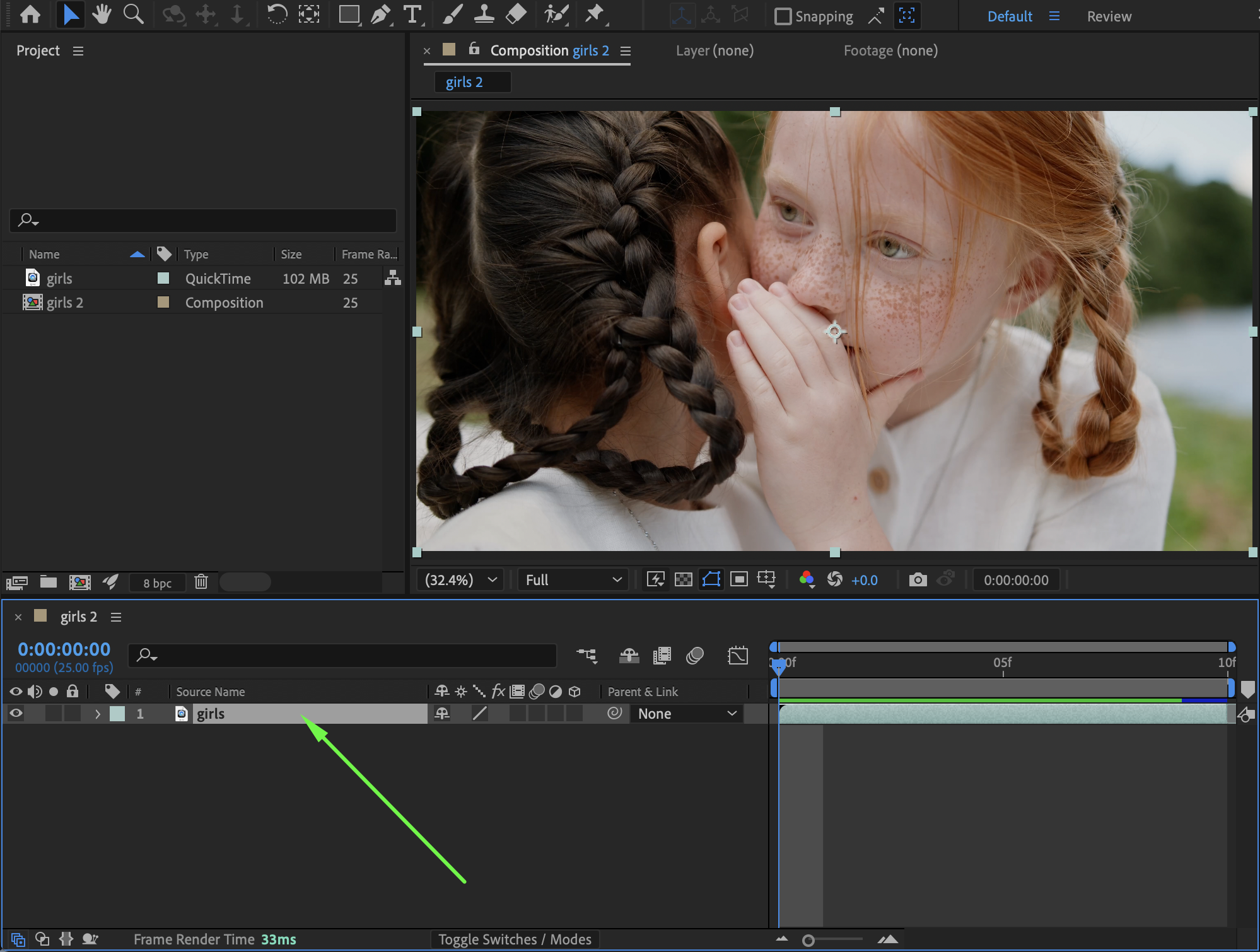
Step 3: Use the Brush Tool to Draw a Tear
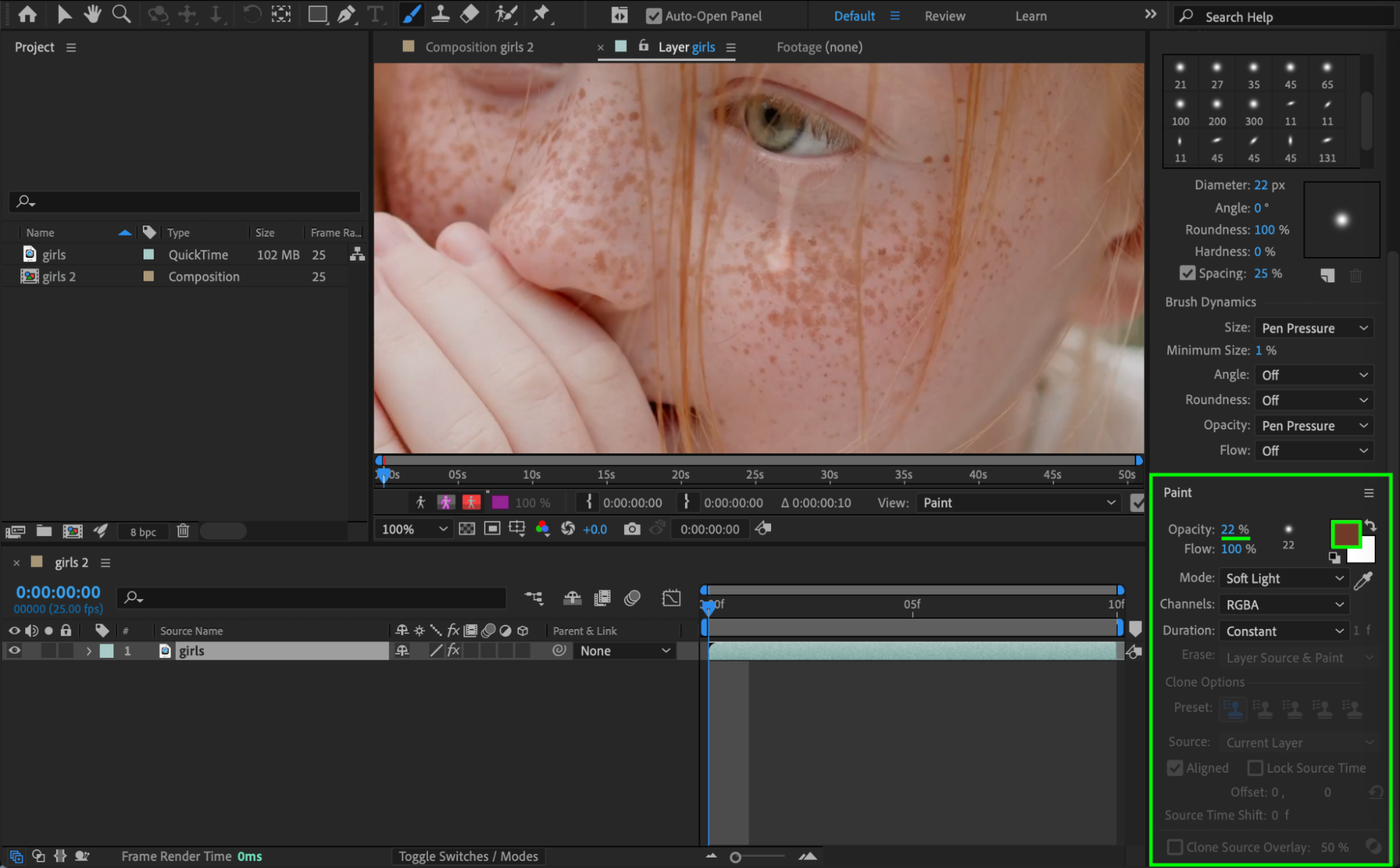
Select the Brush Tool (Ctrl/Cmd + B). In the Brush Panel, set:
Diameter: 22
Opacity: 35
Flow: 100
Mode: Soft Light
Channels: RGBA
Duration: Contrast
Color: White
Start by drawing a small water droplet on the cheek, then extend it upward toward the eye to create a realistic tear streak.
Optional: Use a slightly darker brush to add subtle shadow and depth.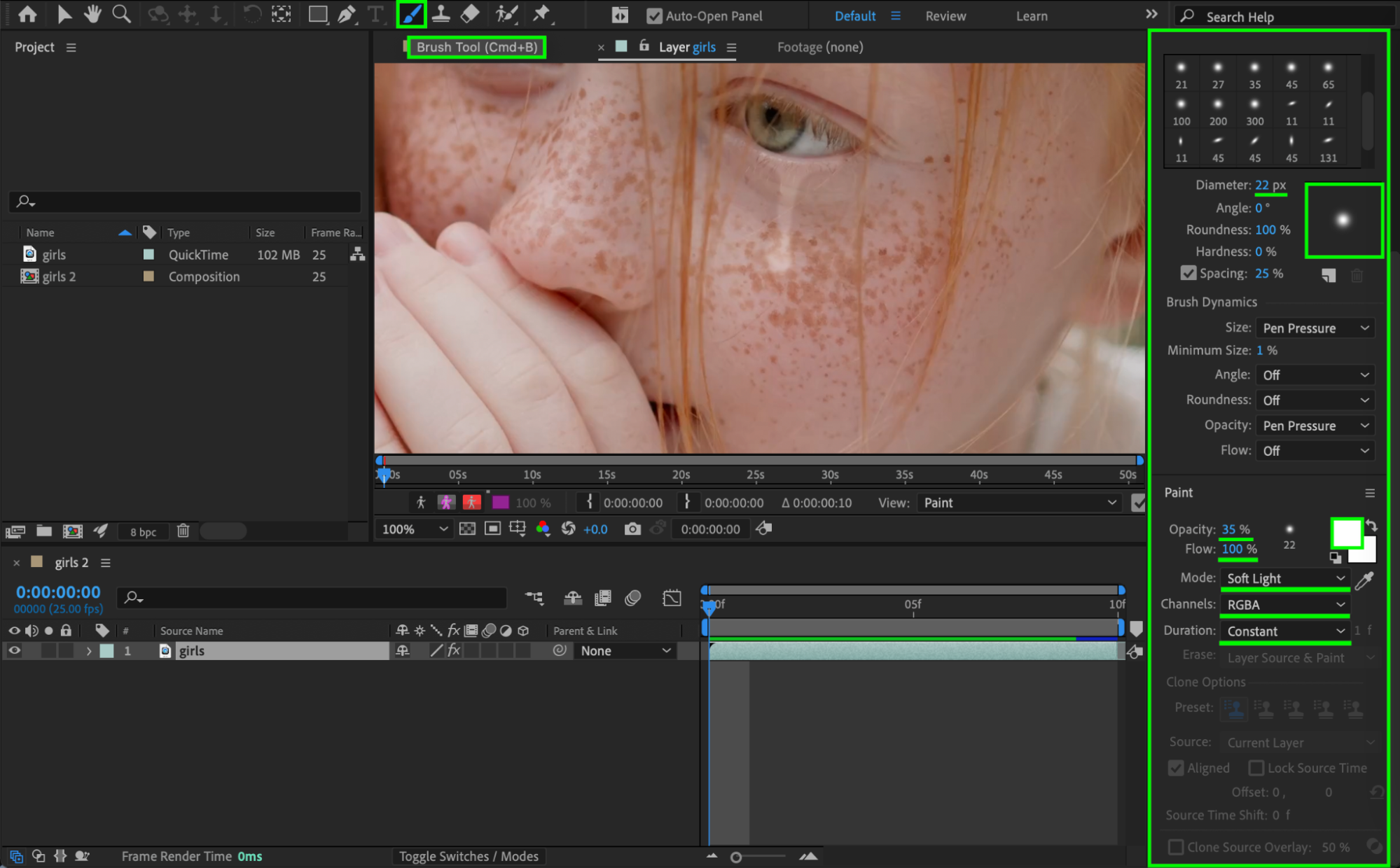
 Step 4: Set Up Paint on Transparent
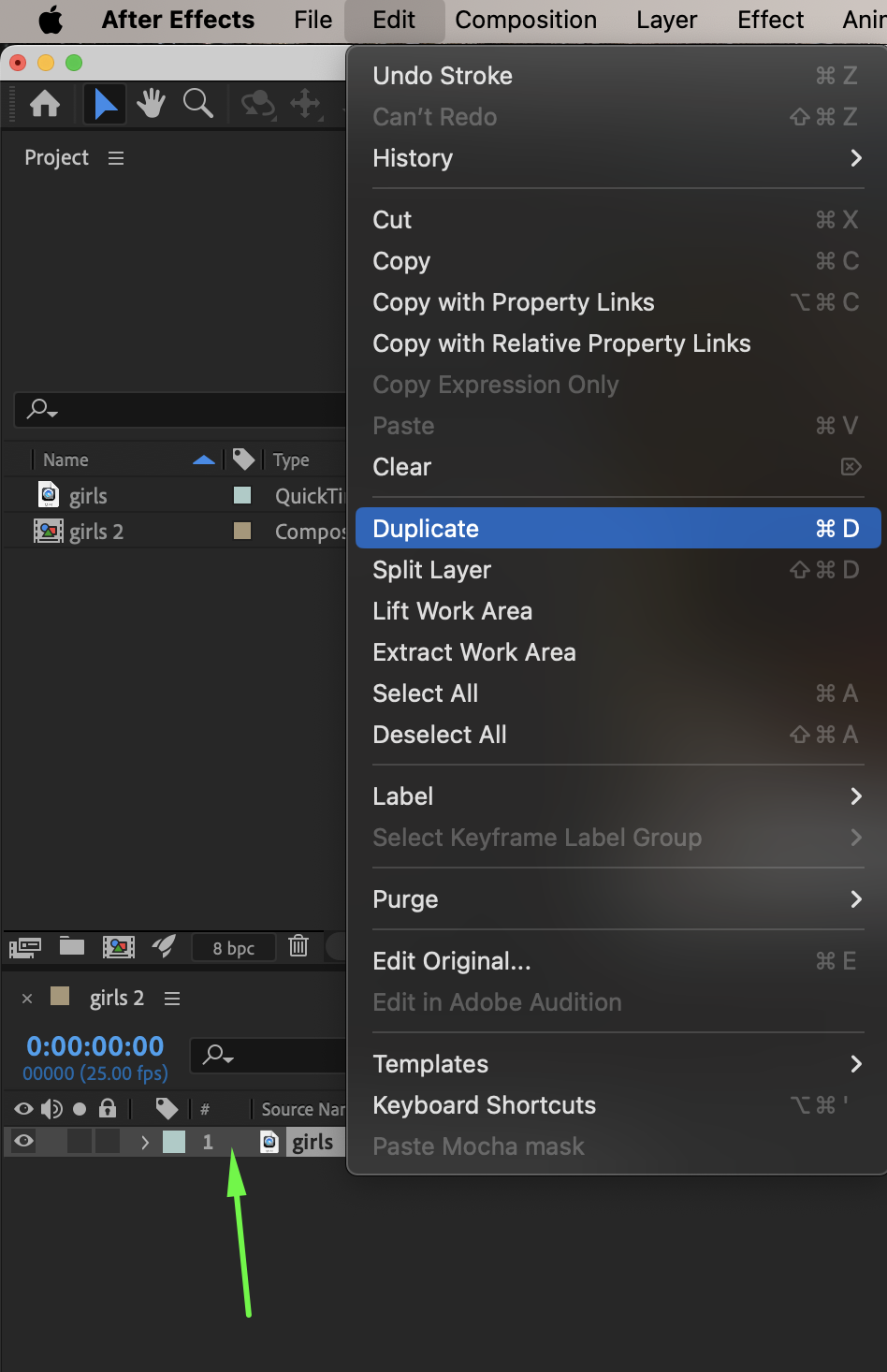
Return to the Composition Panel. Duplicate the layer:
Lower layer: Original photo (remove Paint effect)
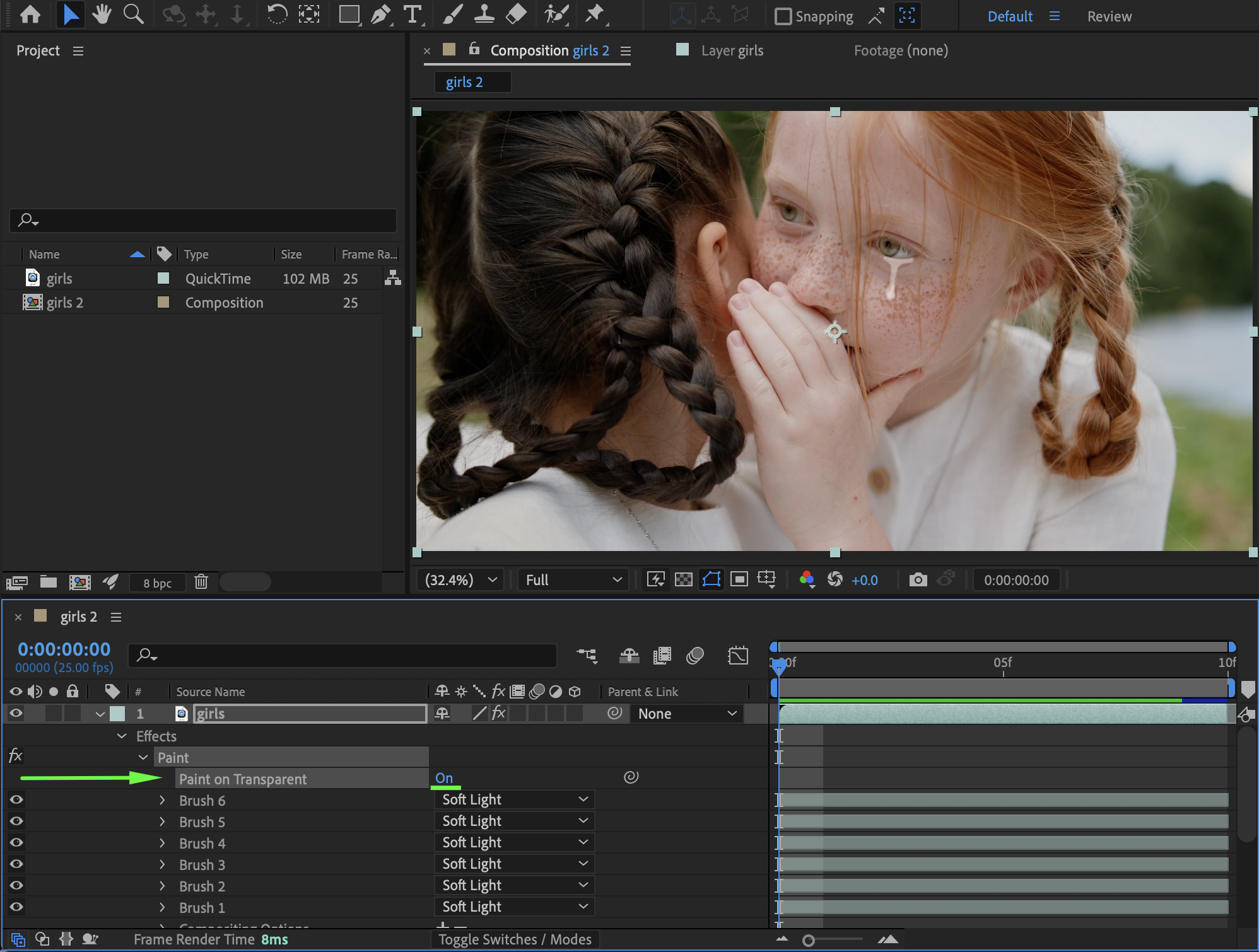
Upper layer: Duplicate (expand layer properties and set Paint on Transparent → On)
This allows you to edit the tear independently.
Step 5: Adjust Opacity
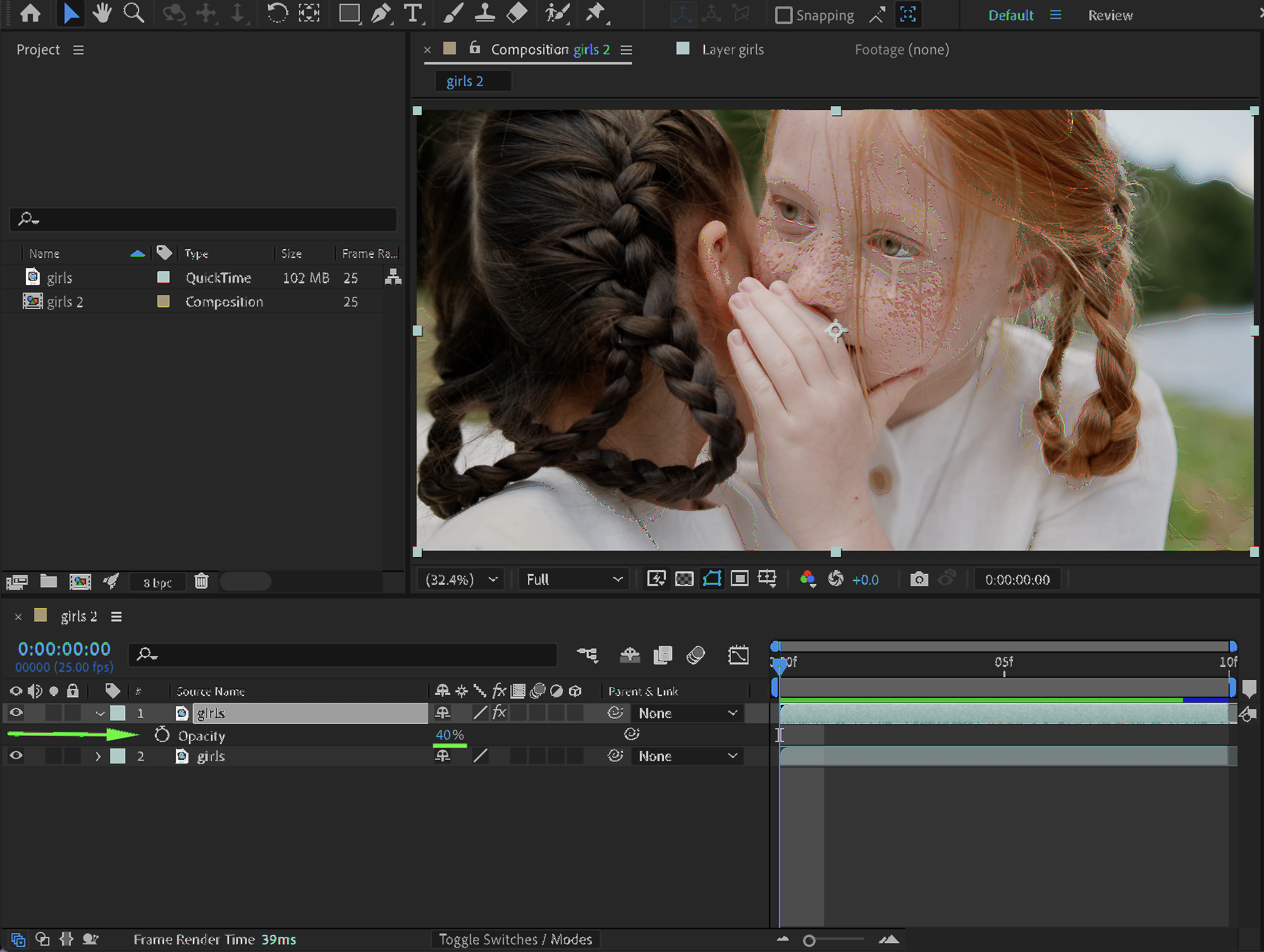
Fine-tune the opacity of the tear layer to achieve a natural look.
Step 6: Add Edge Definition
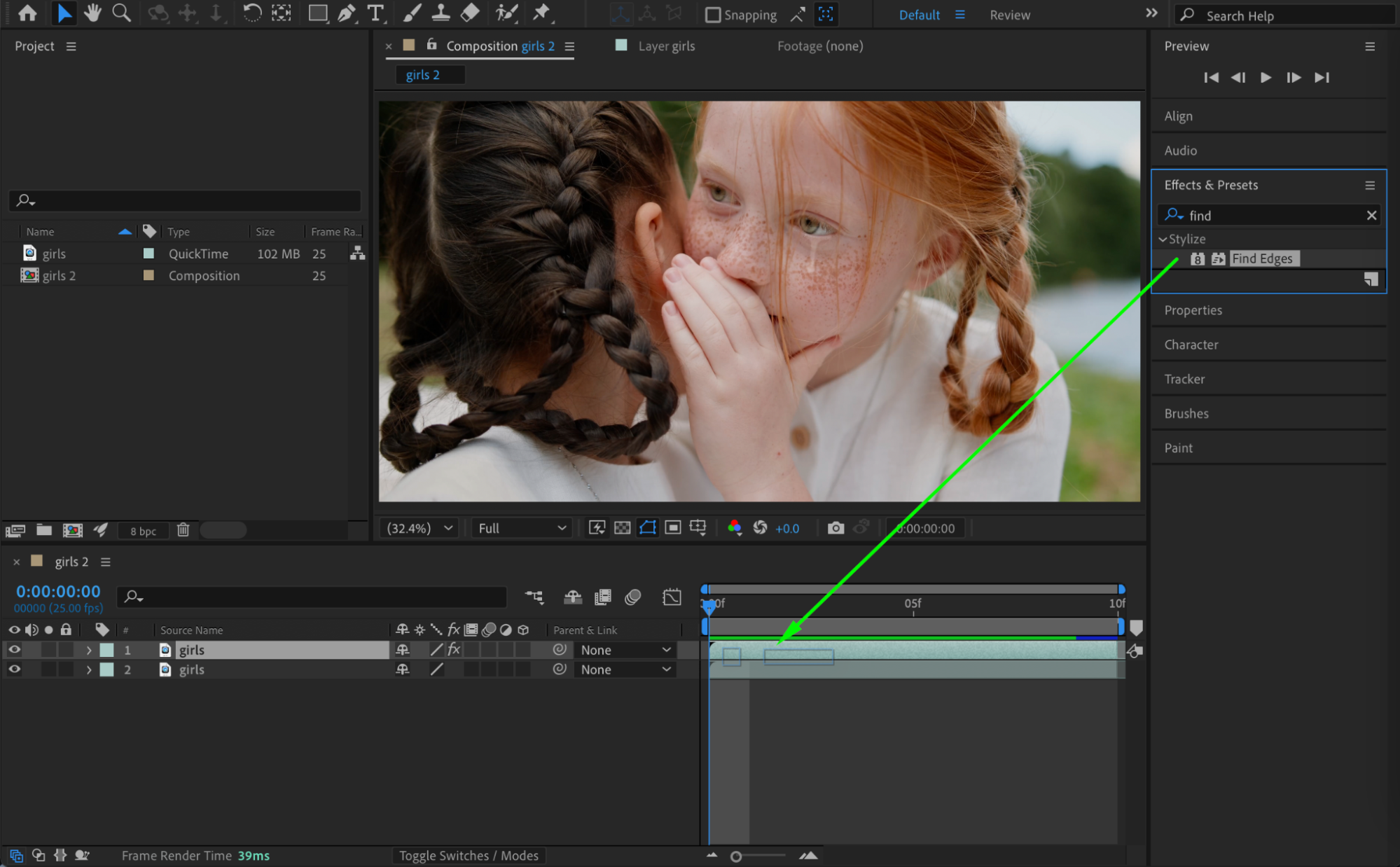
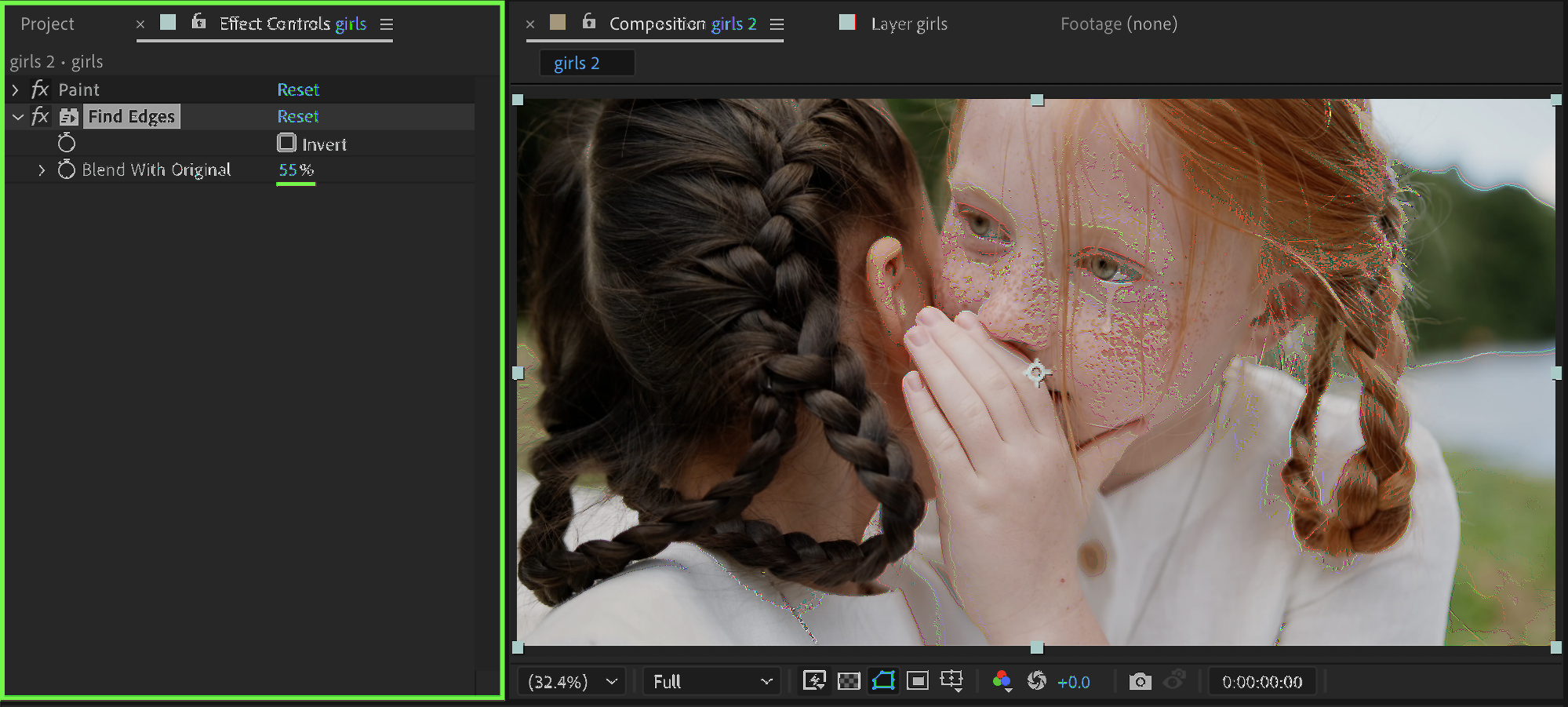
Apply the Find Edges effect from Effects & Presets:
Blend With Original: 55
This enhances the tear’s contours for realism.
Step 7: Add Glass Distortion
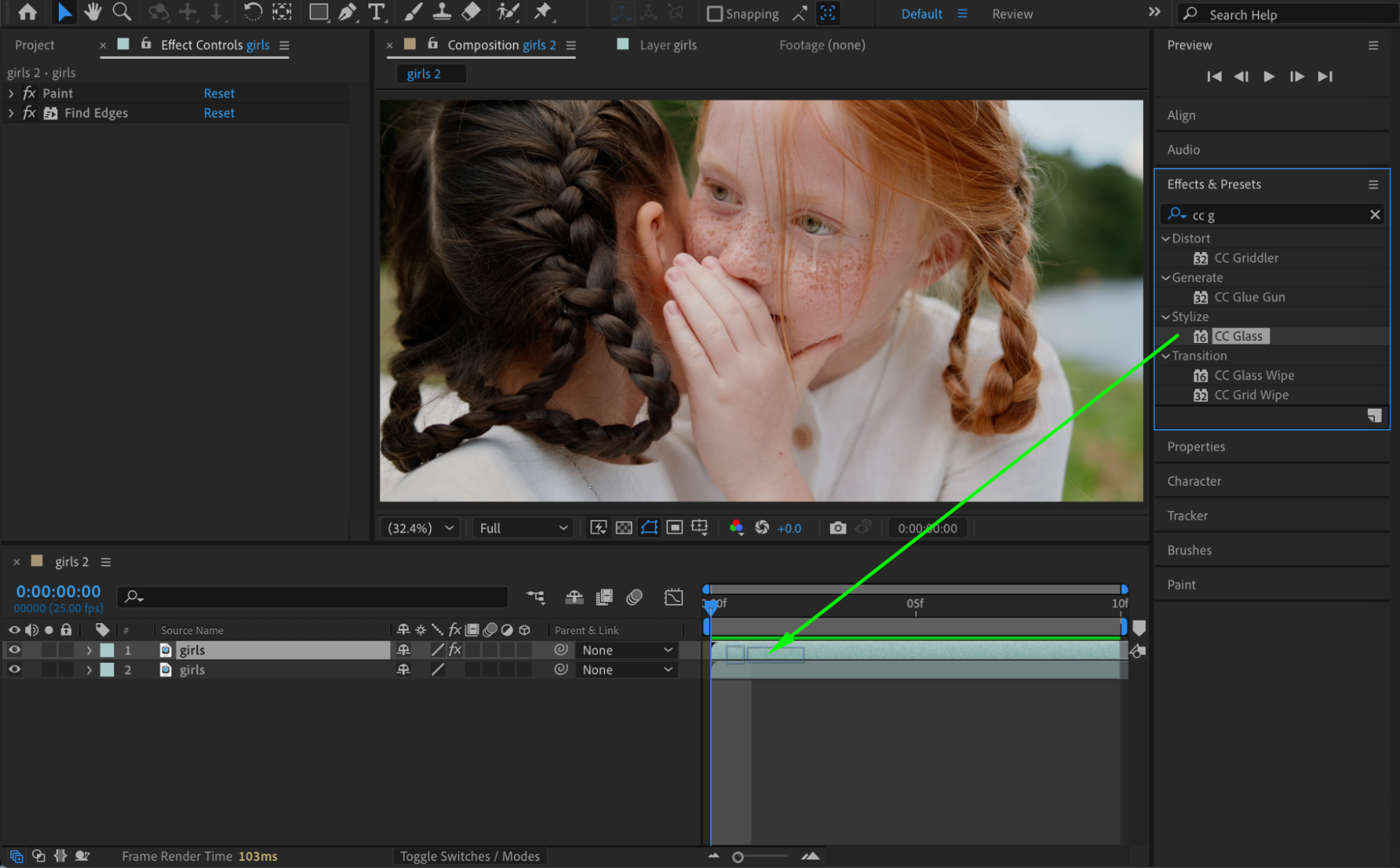
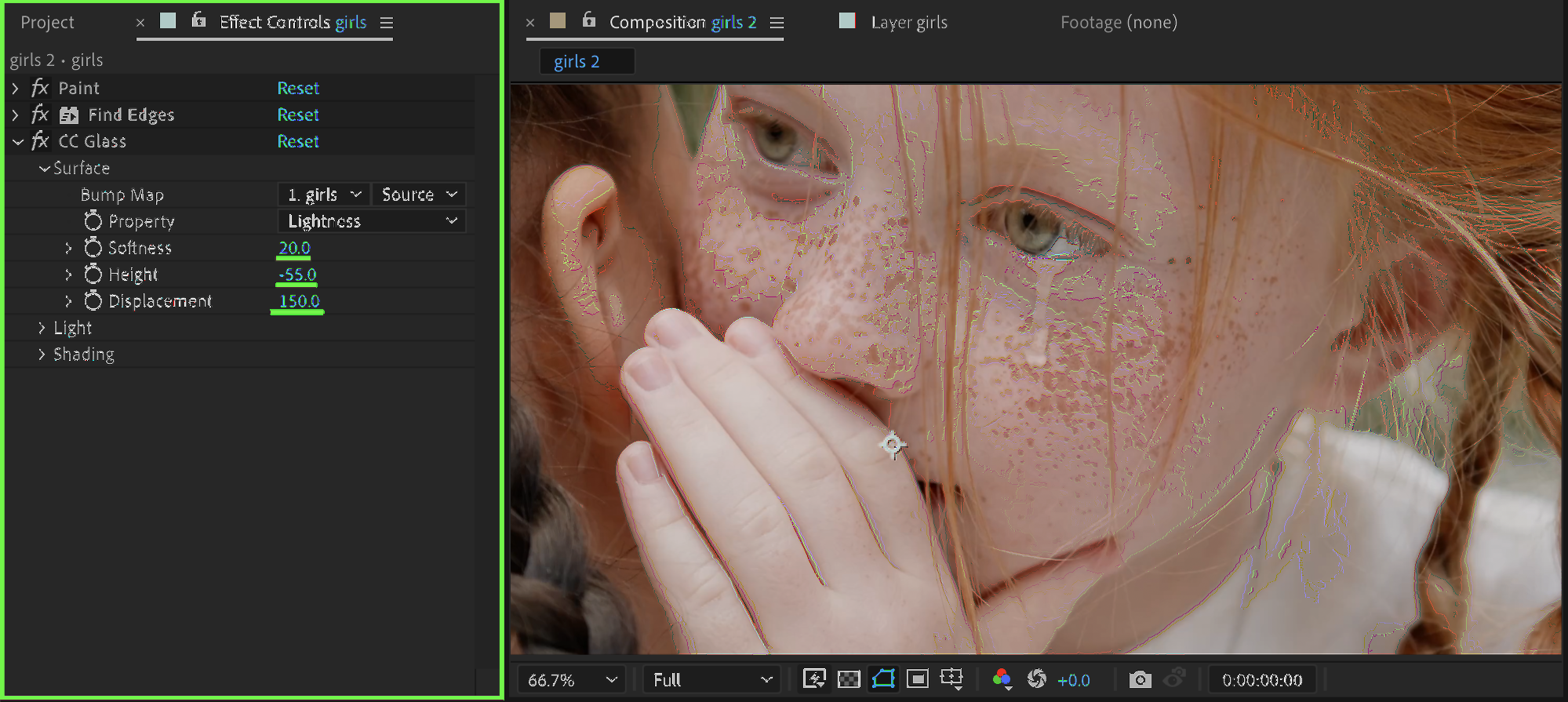
Apply CC Glass to the tear layer and adjust:
Softness: 20
Height: -55
Displacement: 150
This gives the tear a realistic 3D surface and refractive effect.
 Step 8: Preview the Result
Play back your composition to check the tear effect. Adjust brush opacity, CC Glass settings, or Find Edges blending as needed to achieve the most natural look.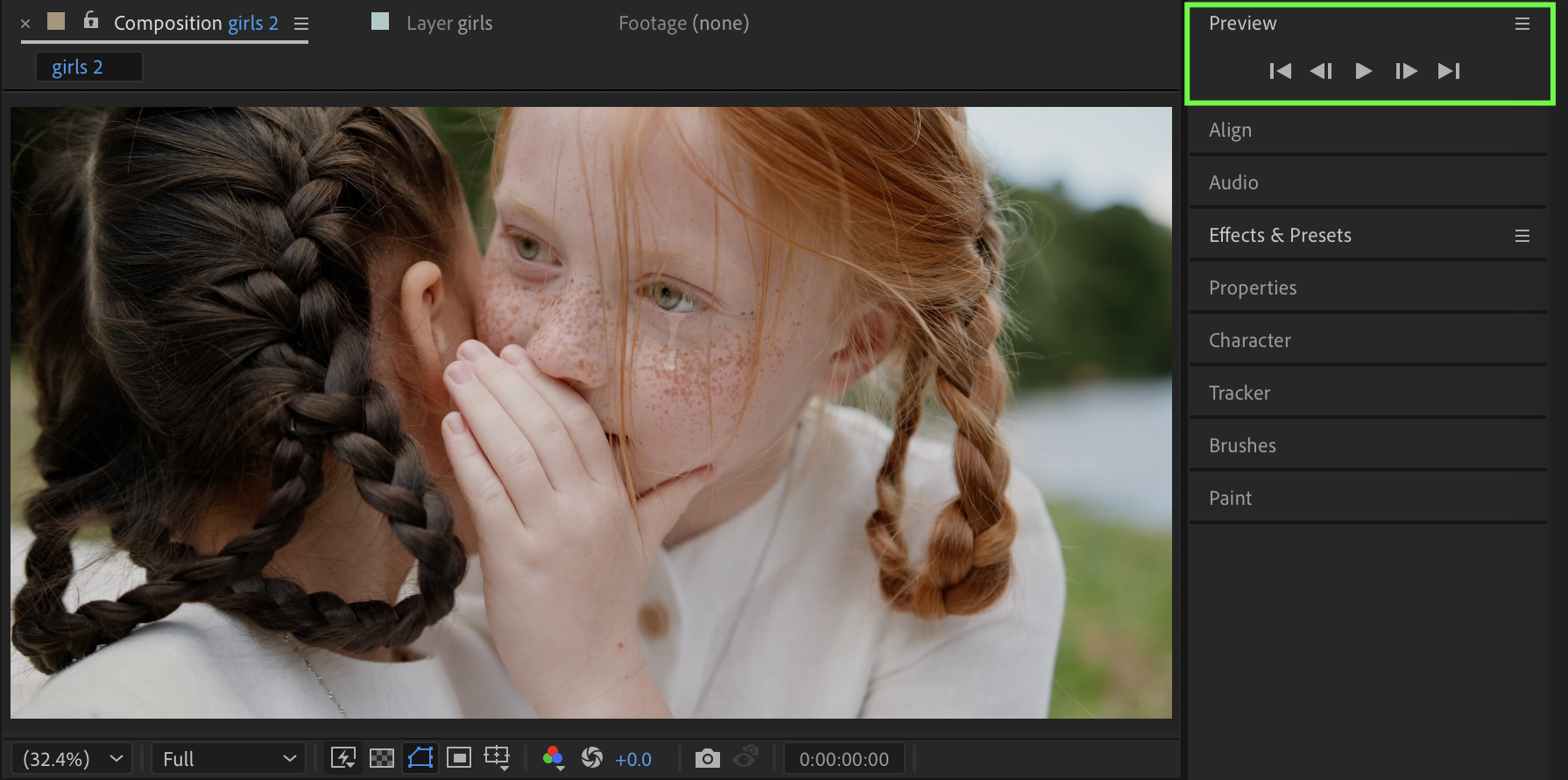
Conclusion
Using Brush, Paint on Transparent, and CC Glass, you can create a realistic tear effect in After Effects that adds emotional depth to your images.
Our Bestsellers
Our Bestsellers


