
Introduction
The terminal text effect mimics the look of computer command-line interfaces, where characters appear sequentially with a digital glow. This effect is perfect for tech intros, sci-fi visuals, and hacker-style motion graphics. In this tutorial, you’ll learn how to build it using text animators and visual effects in After Effects.
Step 1: Create a New Composition
Create a new composition with your desired resolution and frame rate.
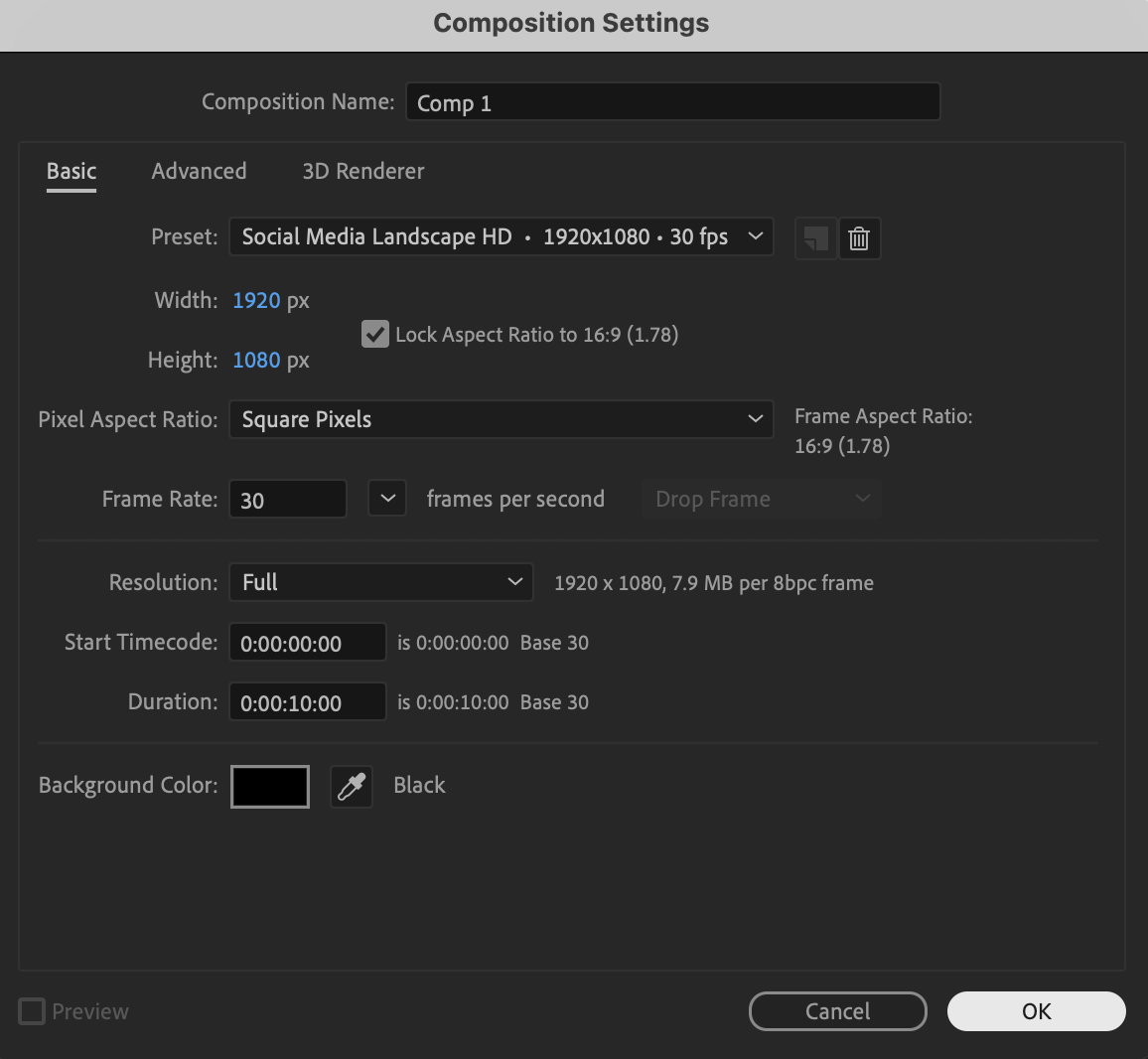 Step 2: Create and Style the Text
Use the Type Tool (Ctrl/Cmd + T) to create your text. Customize the font, size, color, and spacing using the Character panel. 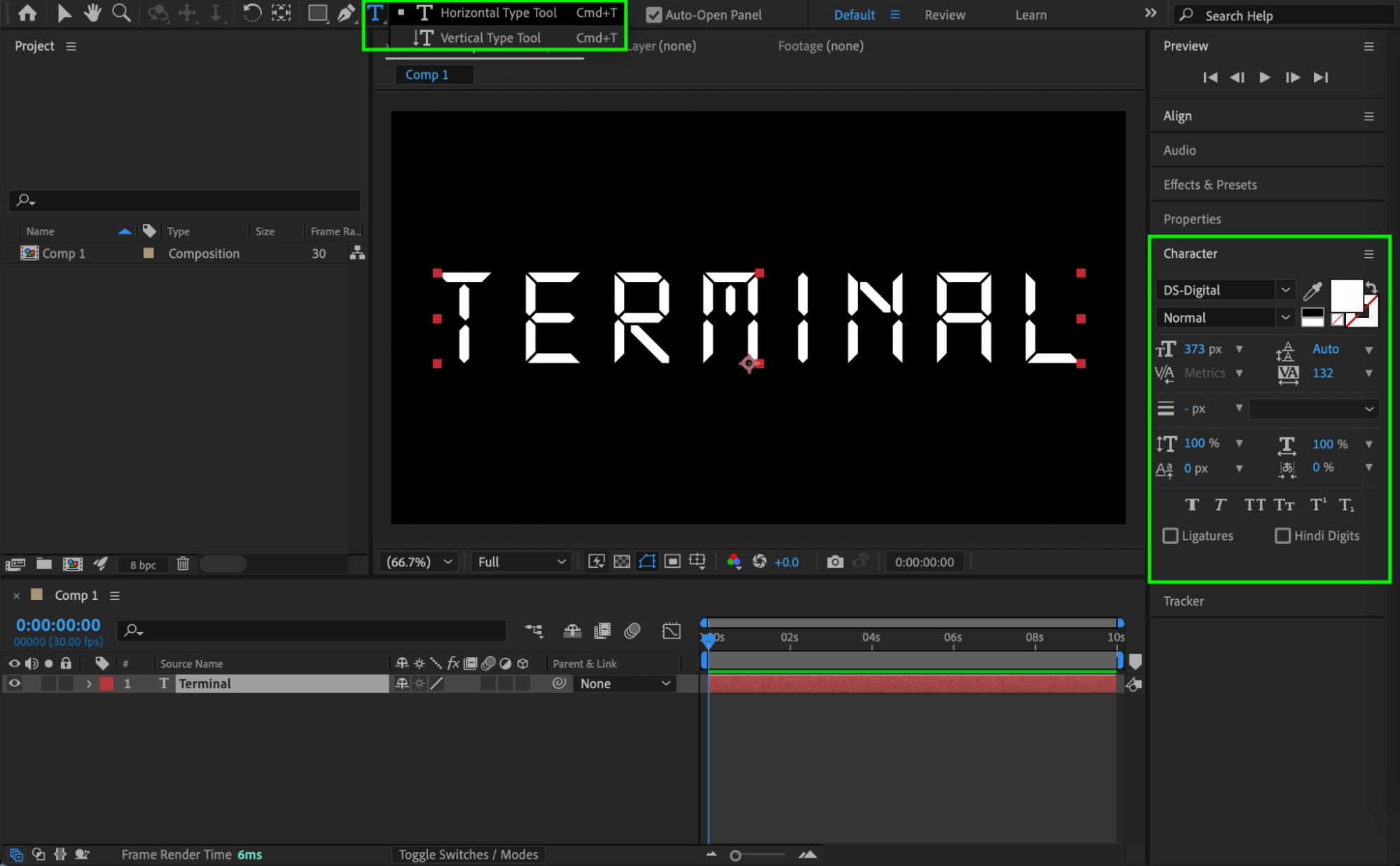
Step 3: Add a Character Offset Animator
Expand the text layer properties. Click Animate → Character Offset to add a text animator. This will allow characters to reveal one by one.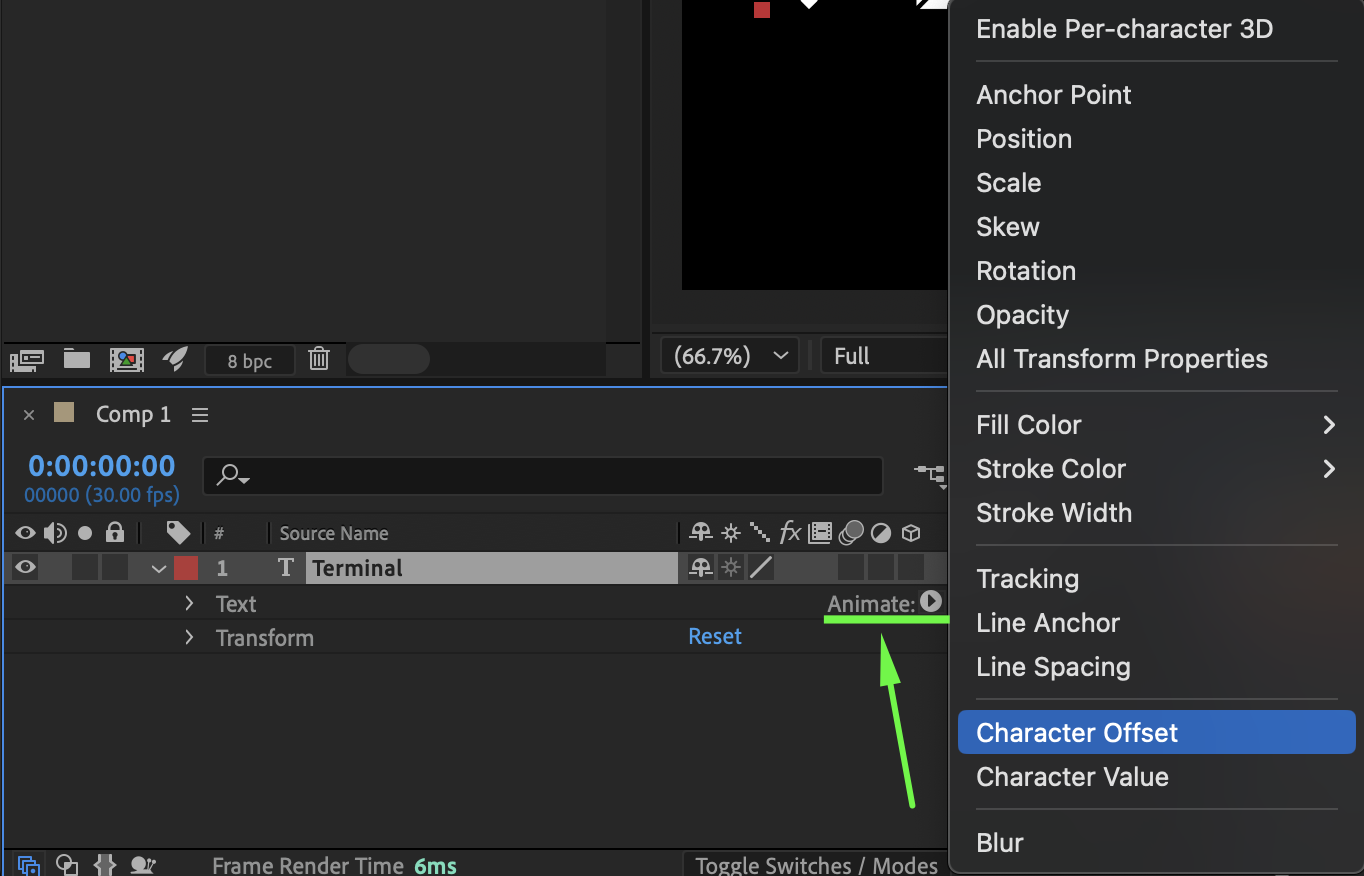 Step 4: Add Opacity to the Animator
Inside the same text animator, click Add → Property → Opacity. Set Opacity to 0.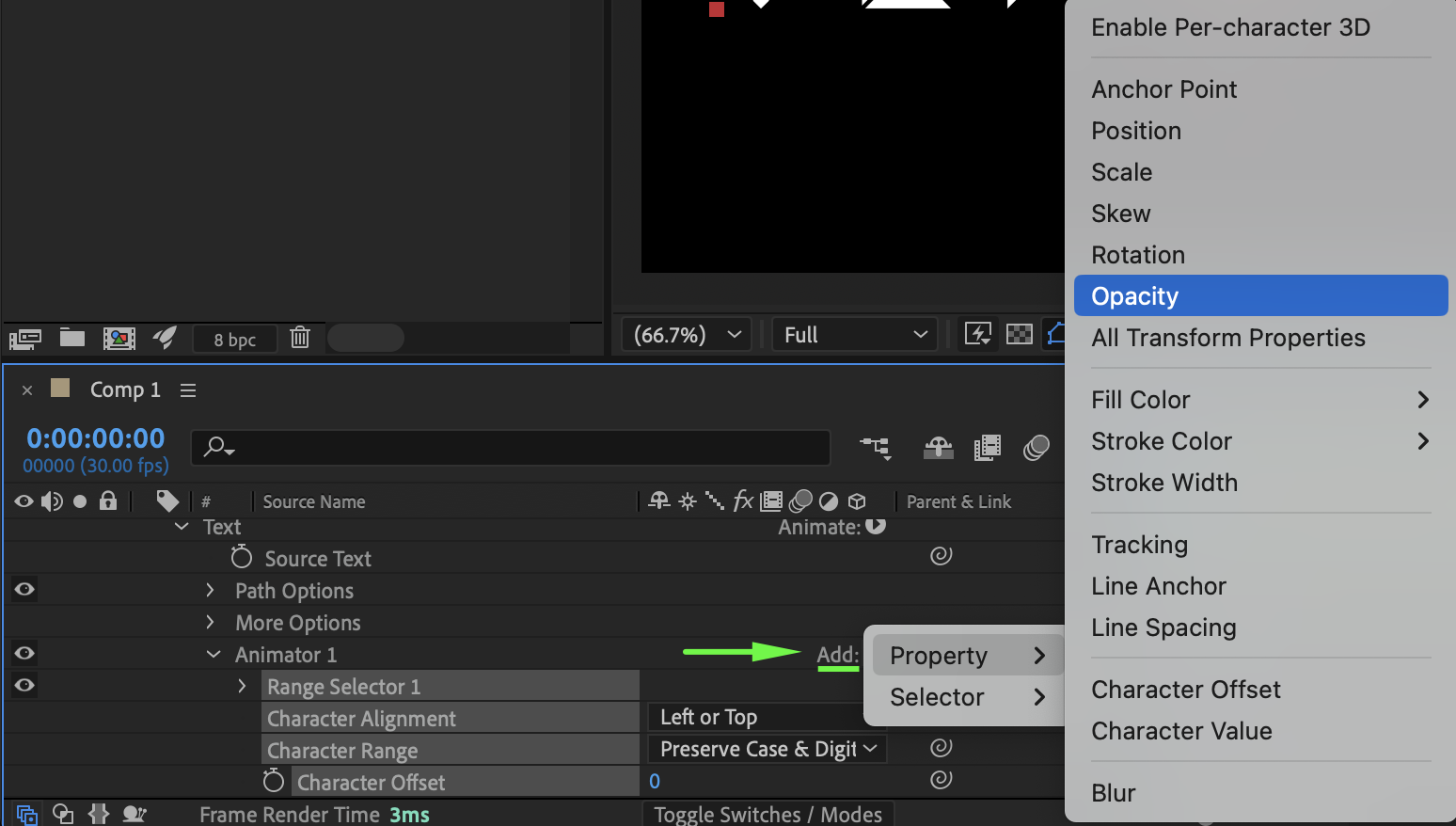
Step 5: Animate the Text Reveal
Animate the Start value:
Set Start = 0% at the beginning of the composition
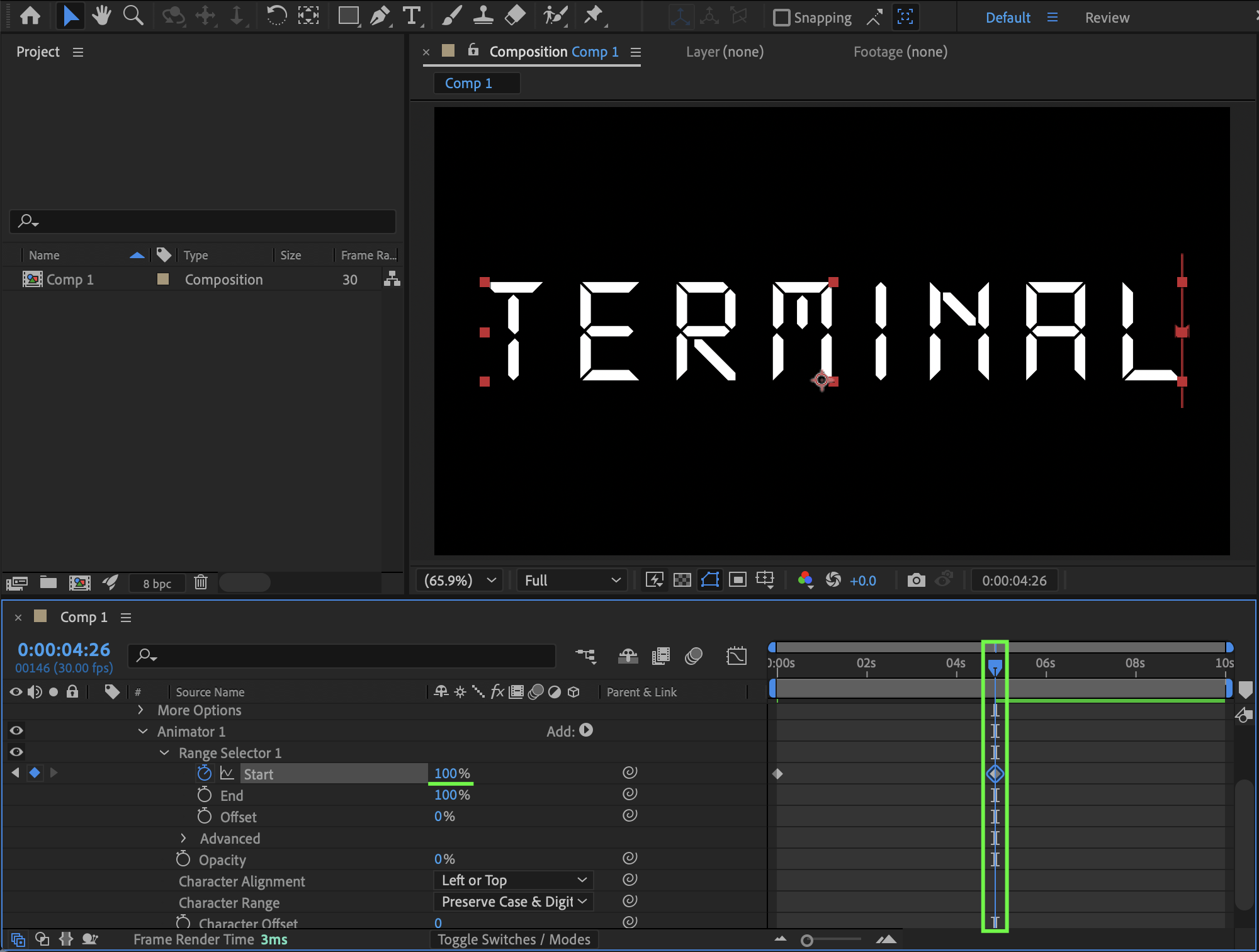
Move the CTI to the middle of the composition and set Start = 100%
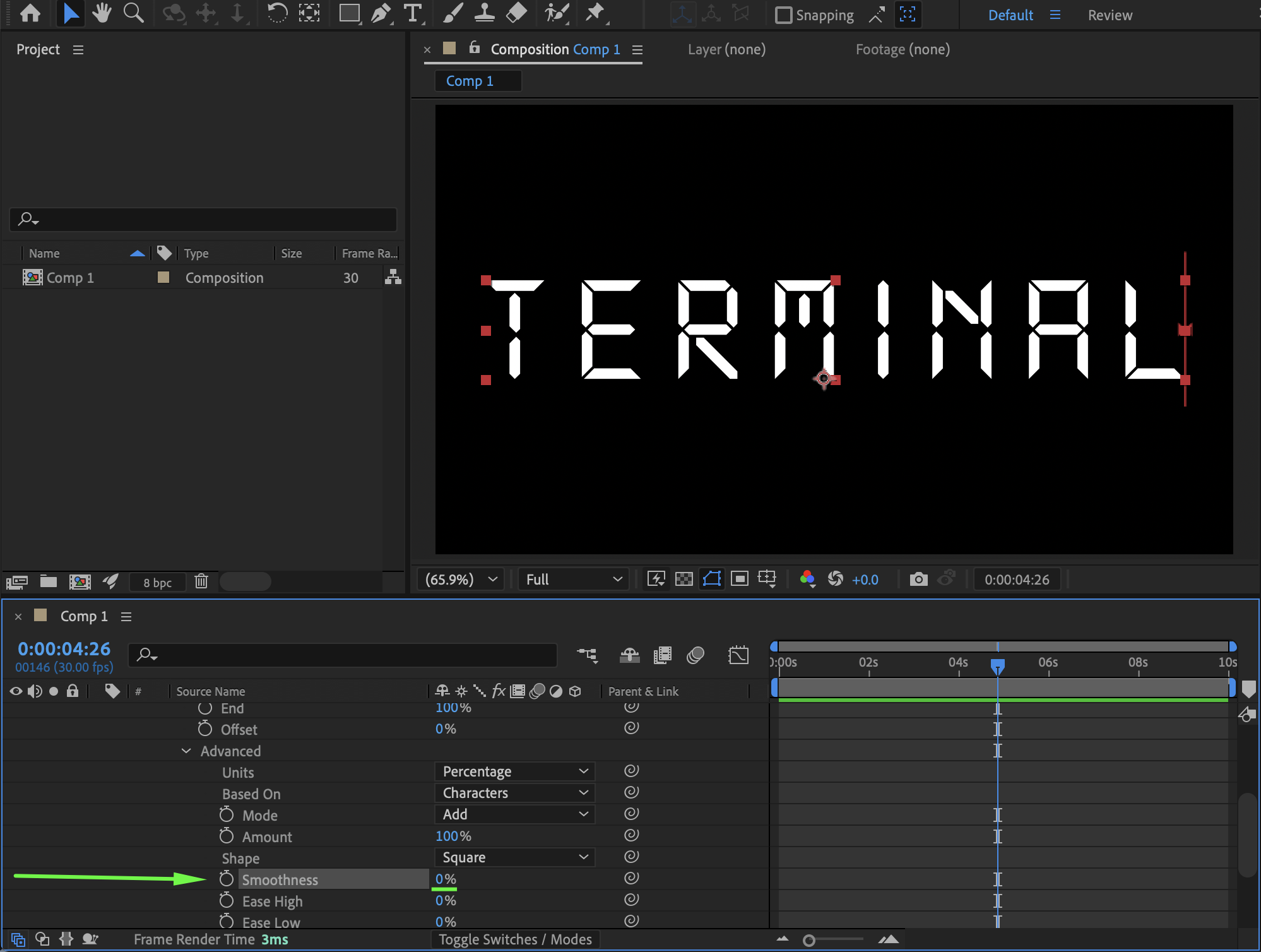
Set Smoothness to 0 to keep the animation sharp and mechanical.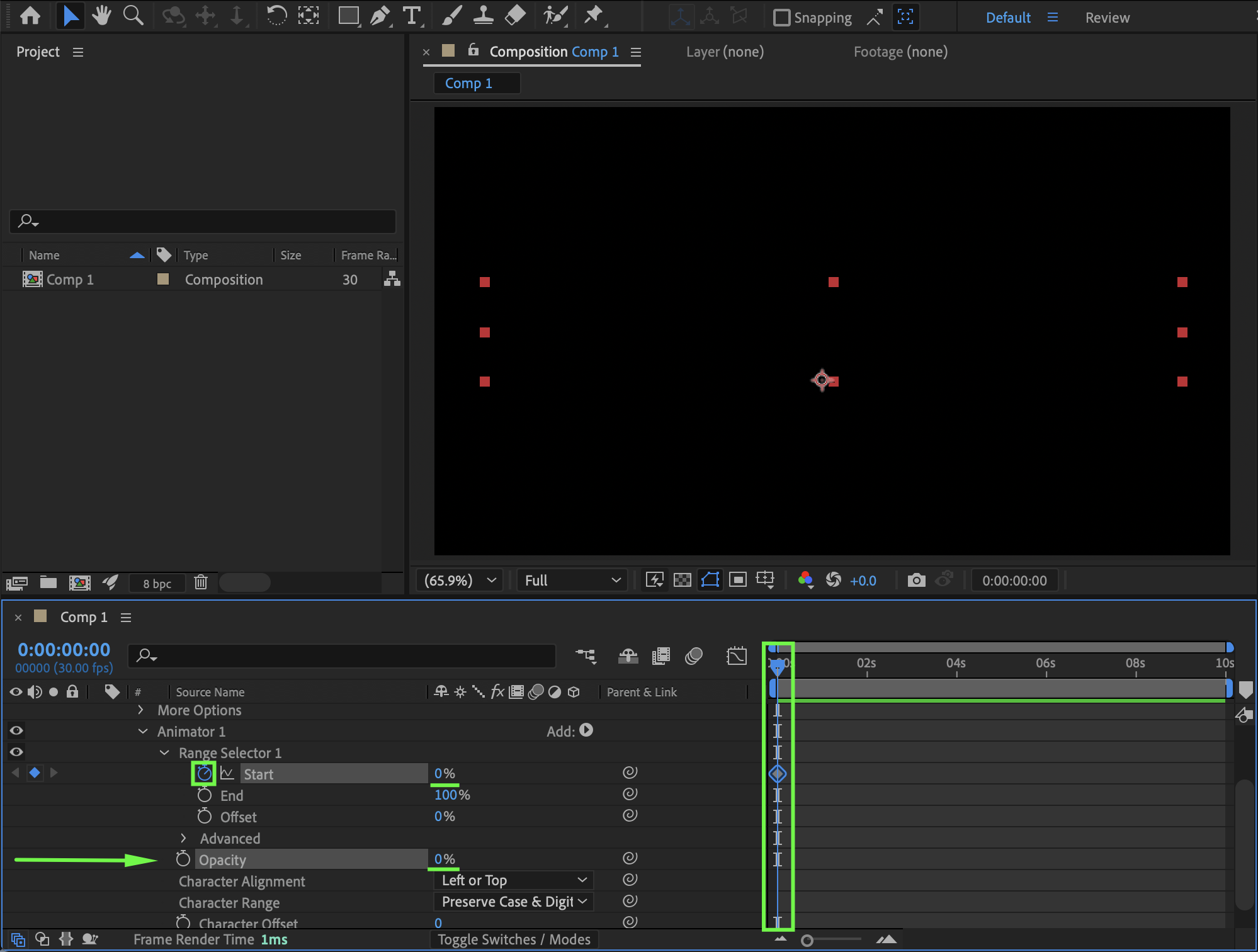
Step 6: Add Glow for a Digital Look
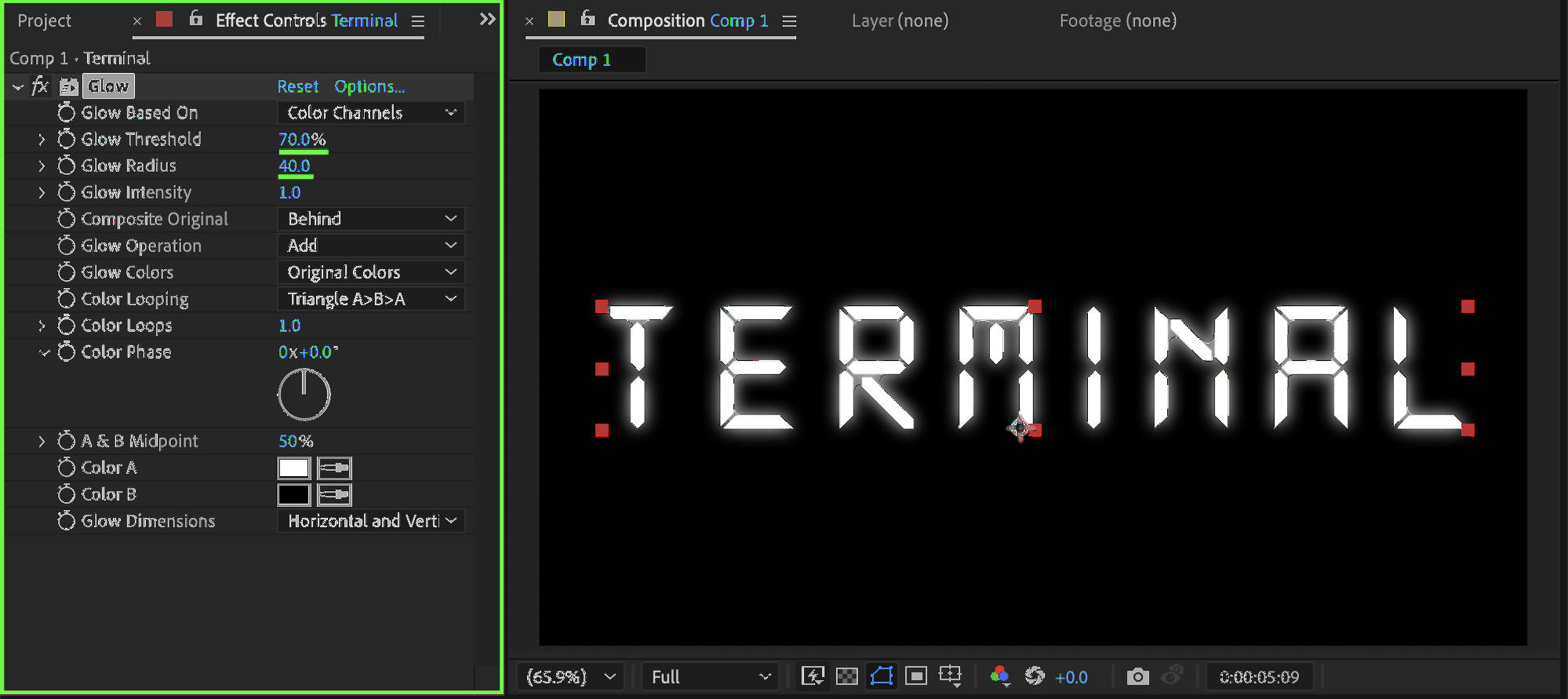
Apply the Glow effect from Effects & Presets and set:
Glow Threshold: 70
Glow Radius: 40
This creates the soft illuminated terminal glow.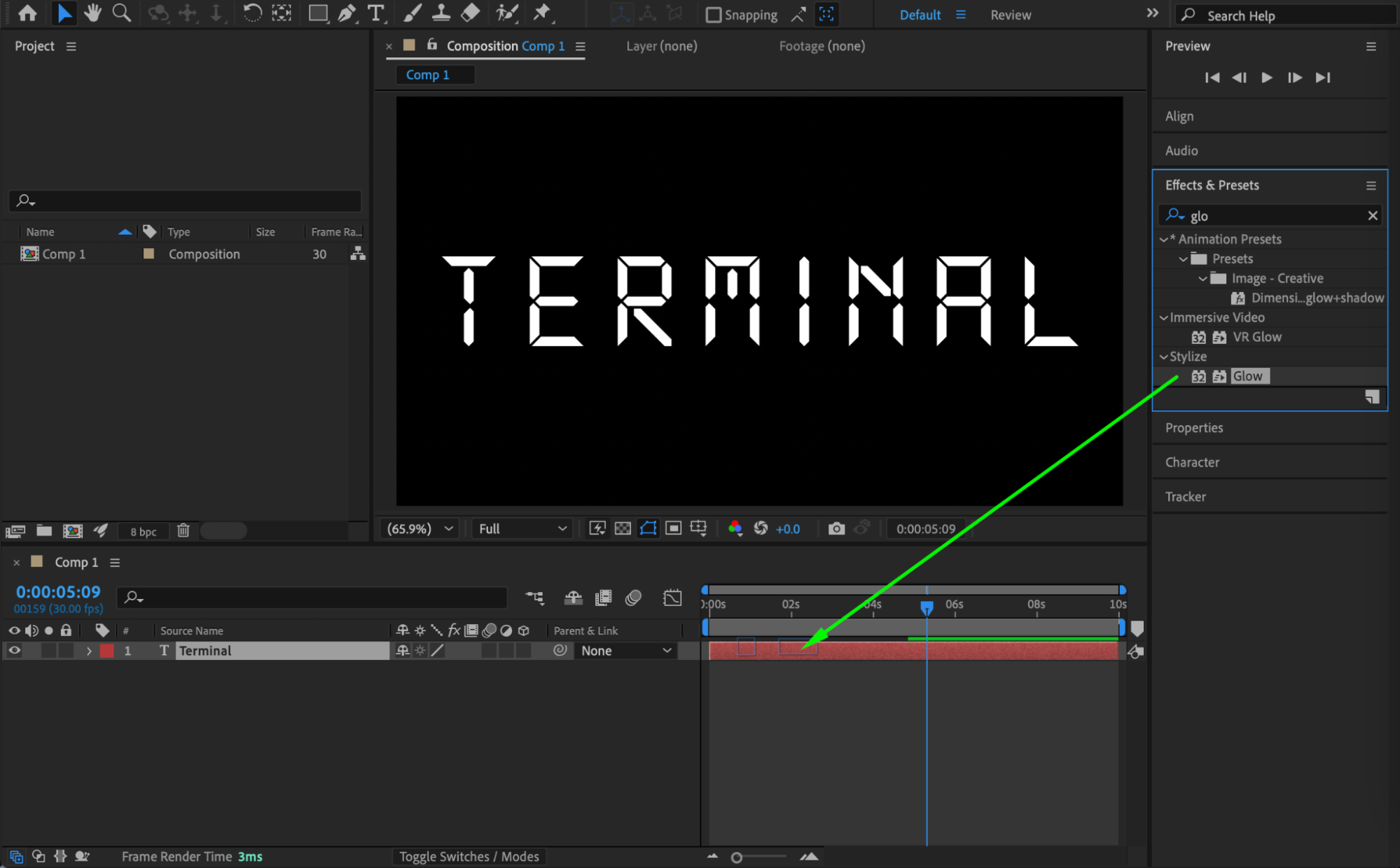
 Step 7: Add Scanline Distortion
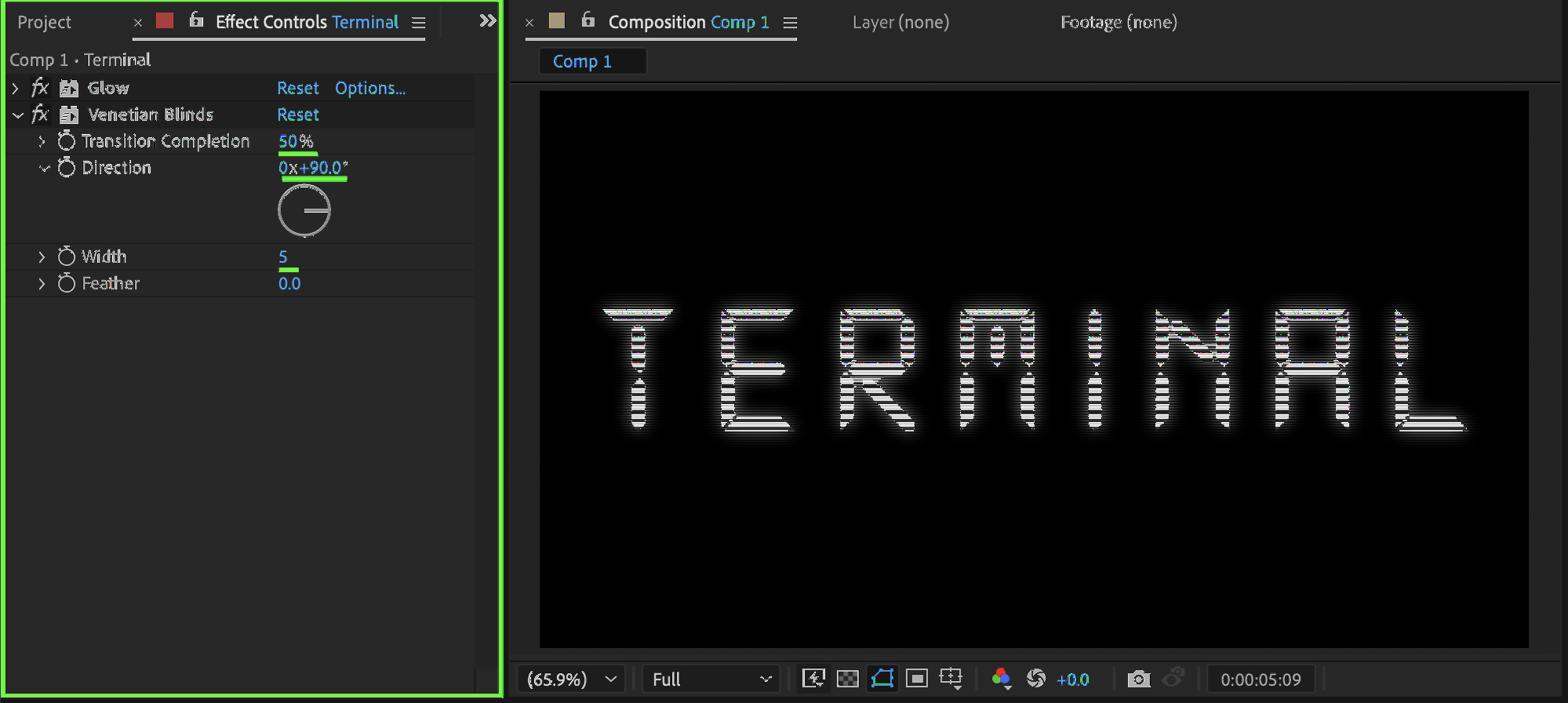
Apply the Venetian Blinds effect from Effects & Presets. Set the values as follows:
Transition Completion: 50
Direction: 90
Width: 5
This adds subtle scanline distortion for a retro terminal feel.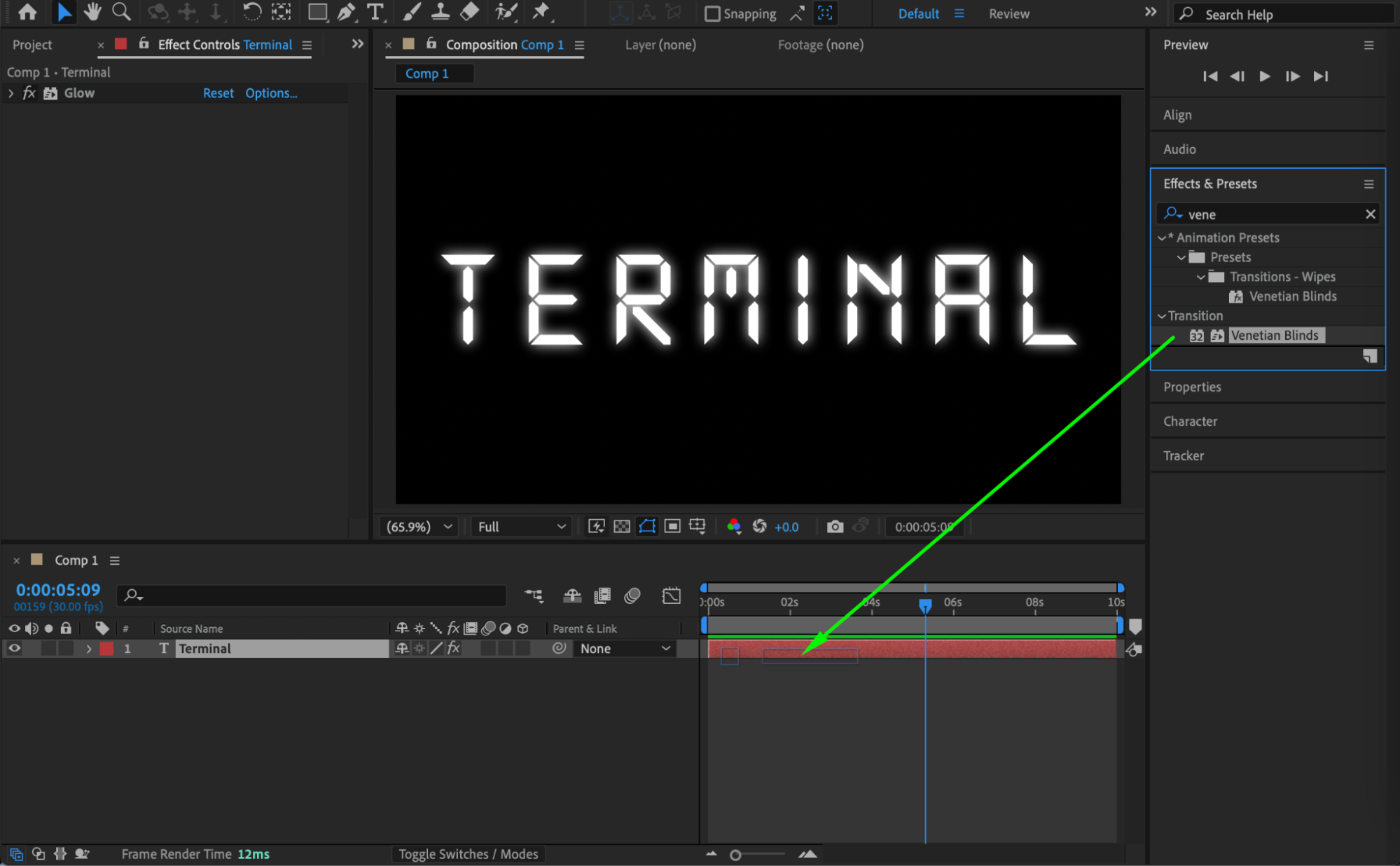
 Step 8: Preview the Animation
Preview the composition and adjust the animation speed, glow, or distortion until the terminal effect looks clean and authentic.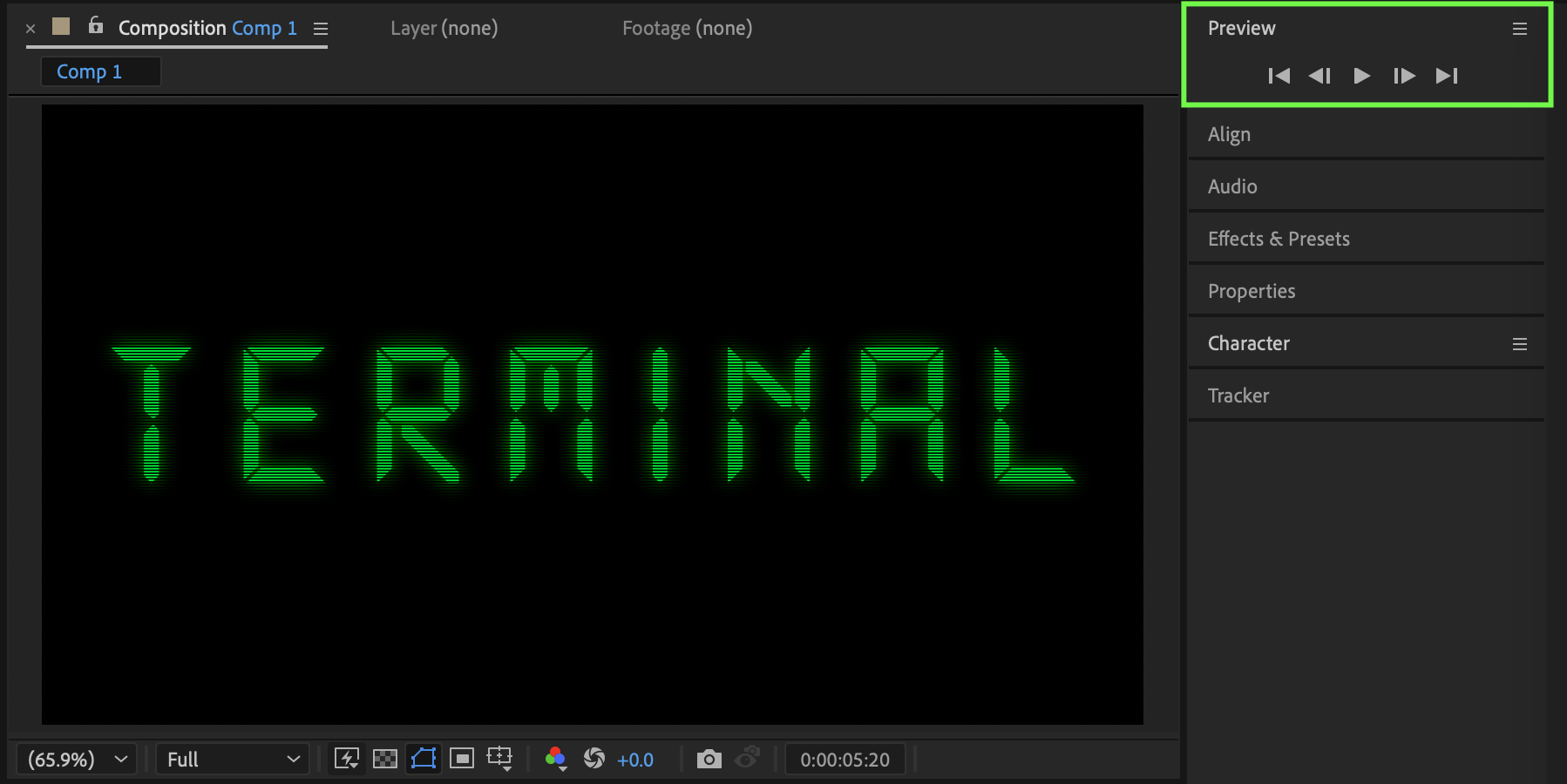
Conclusion
By using text animators, opacity control, and subtle visual effects, you can easily recreate a classic terminal text effect in After Effects. This technique works great for tech interfaces, sci-fi titles, and digital UI animations.
Our Bestsellers
Our Bestsellers


