
Introduction
Expressions in After Effects allow you to automate animation and link properties together. When working with multiple layers, applying the same expression one by one can be time-consuming. This tutorial shows several efficient methods to add an expression to all layers at once.
Method 1: Copy and Paste the Expression
Step 1: Add the Expression to One Layer
Select a layer and open the property you want to control (for example, Position, Scale, or Opacity). Hold Alt / Option and click the stopwatch to enable expressions. Type or paste your expression.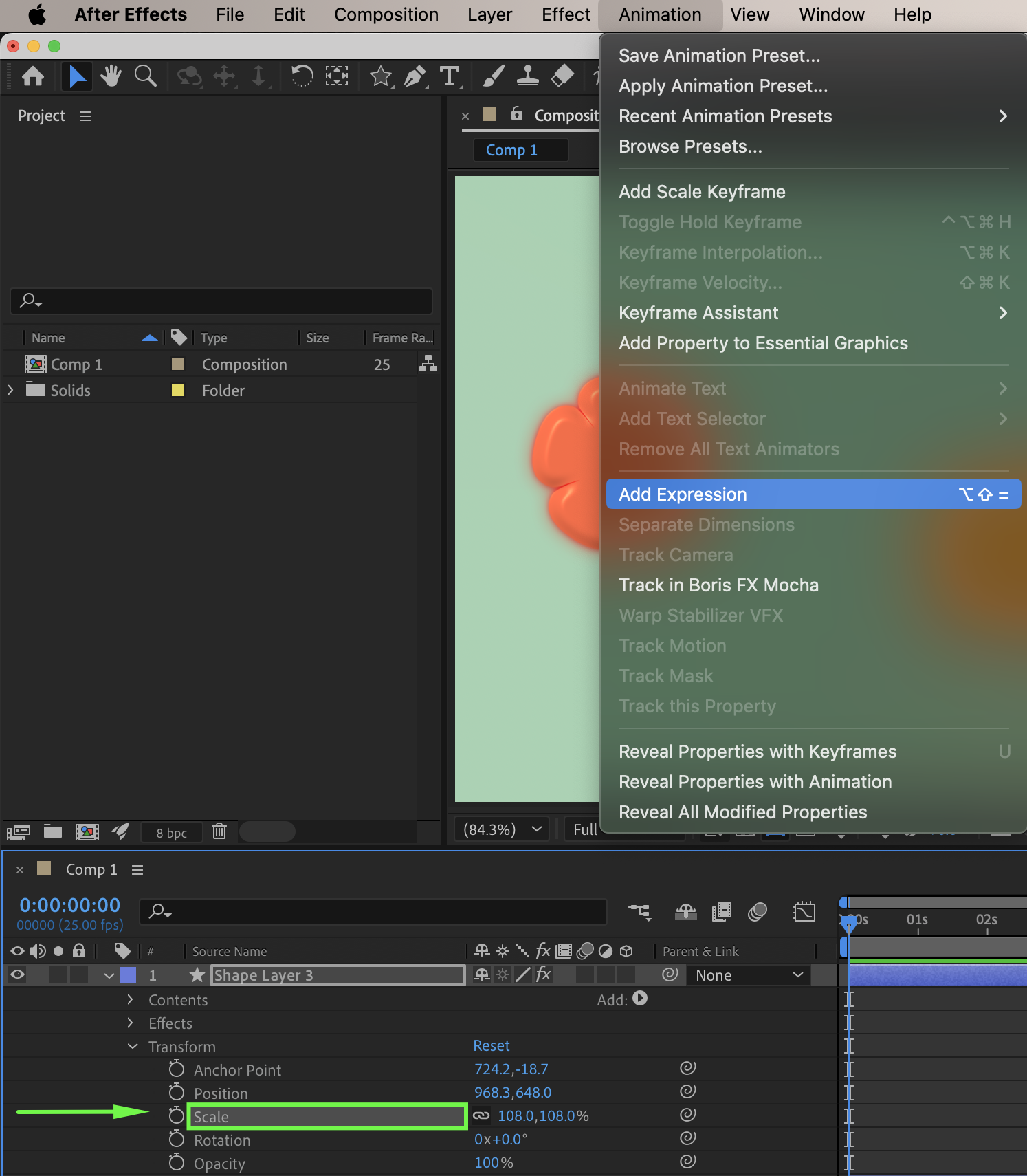
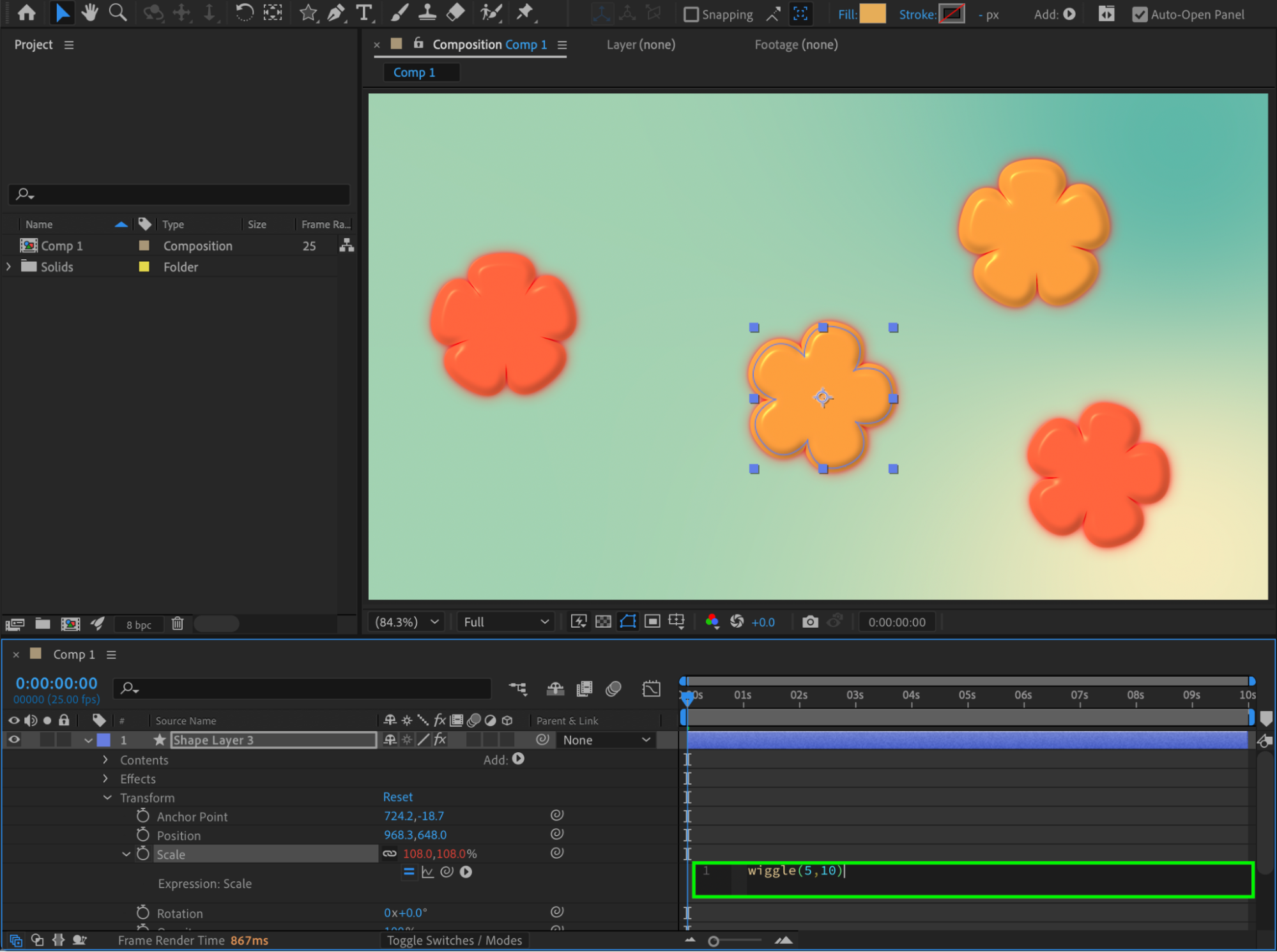 Step 2: Copy the Expression
Select the property name (for example, Position). Press Ctrl / Cmd + C to copy it.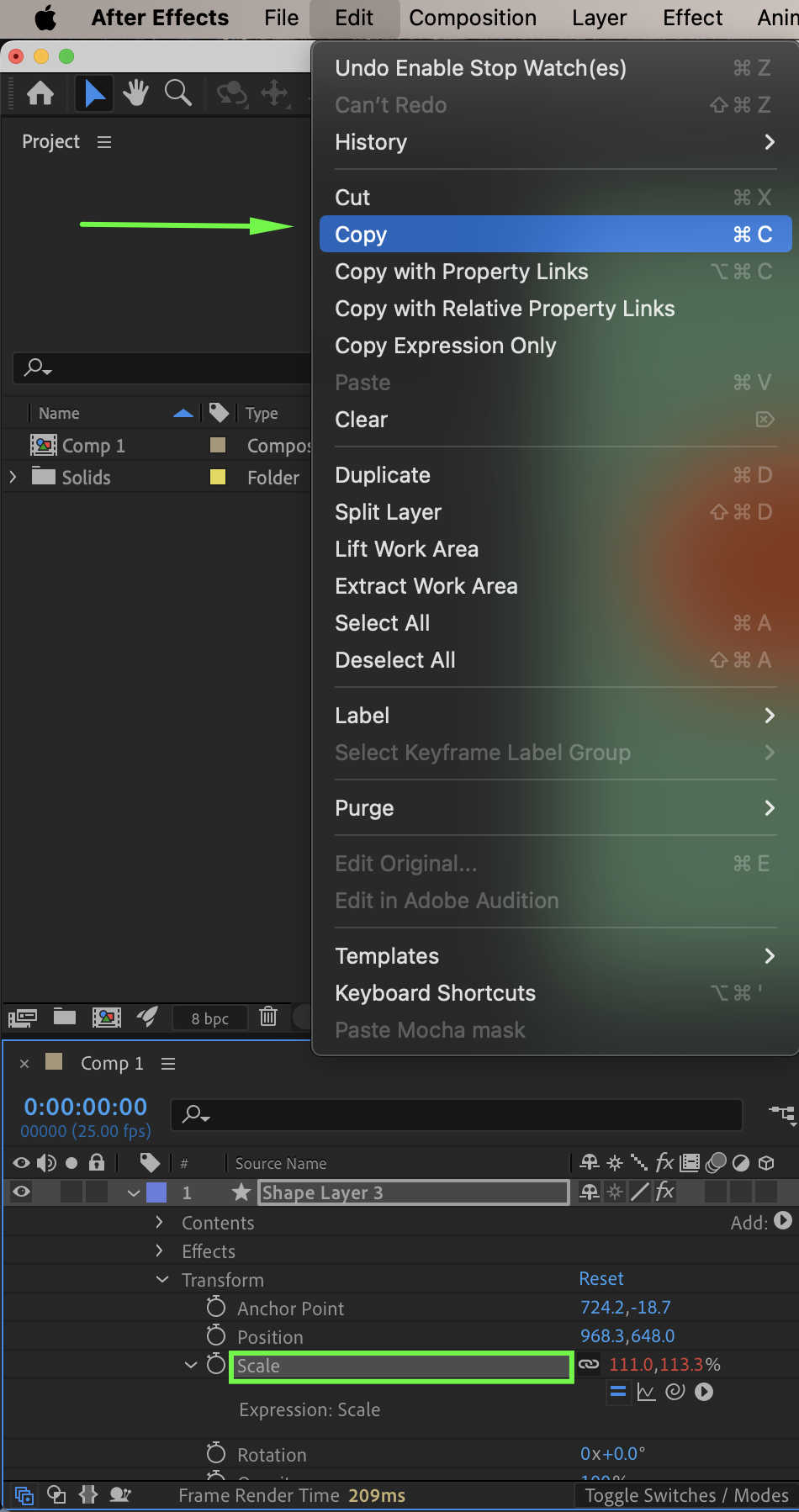
Step 3: Paste the Expression to All Layers
Select all other layers that need the same expression. Make sure the same property is visible on all selected layers. Press Ctrl / Cmd + V to paste the expression to every selected layer.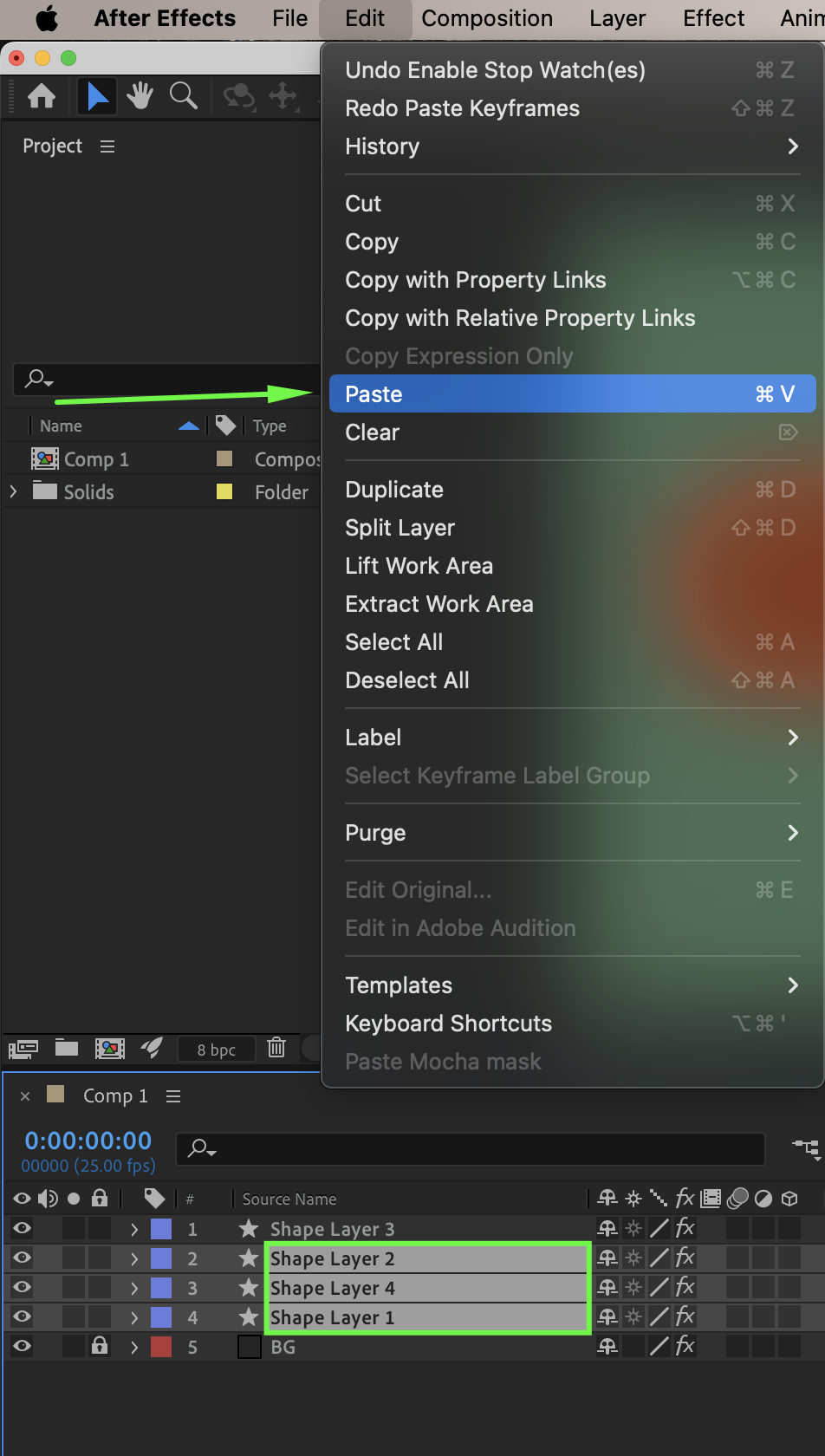 Method 2: Use the Pick Whip (When Linking to One Control)
Step 1: Create a Controller
Create a Null Object or Adjustment Layer.  Step 2: Link Multiple Layers
Enable expressions on the desired property for each layer. Use the Pick Whip to link the property to the Null Object’s control or property. This keeps all selected properties driven by a single value.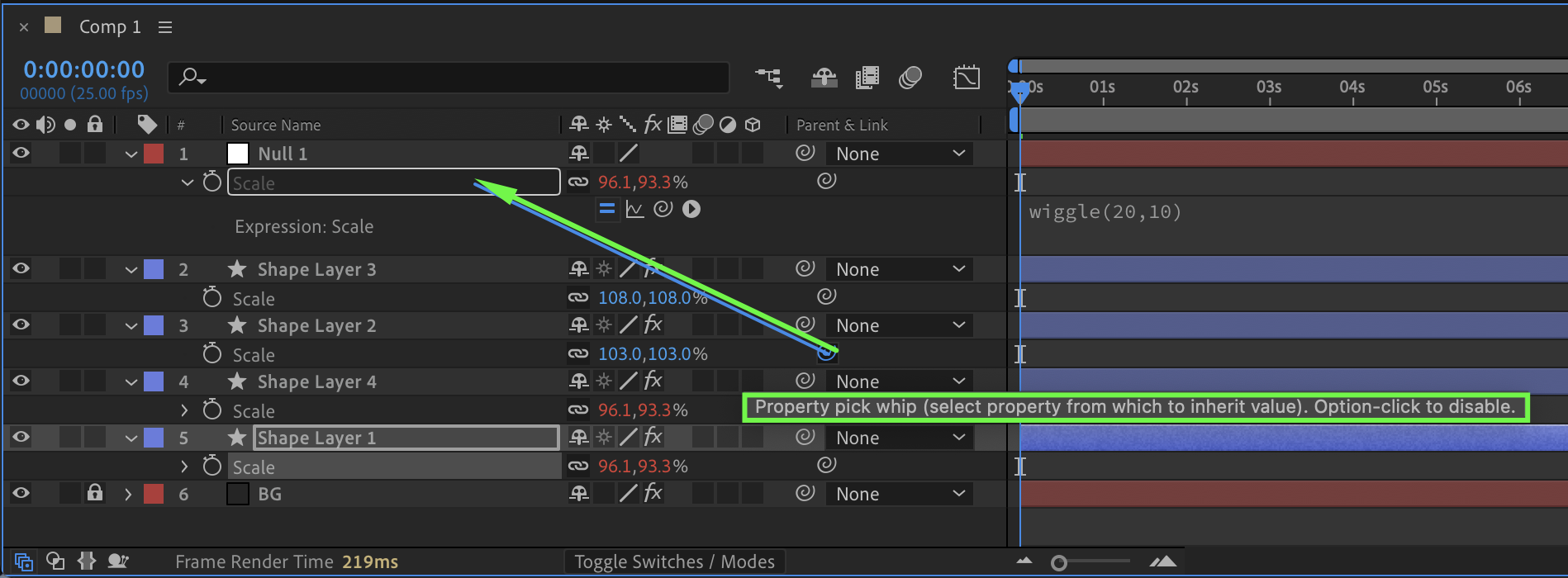
Method 3: Apply Expressions via Animation Presets
Step 1: Save an Expression as a Preset
Apply an expression to a layer. Select the animated property and go to: Animation → Save Animation Preset.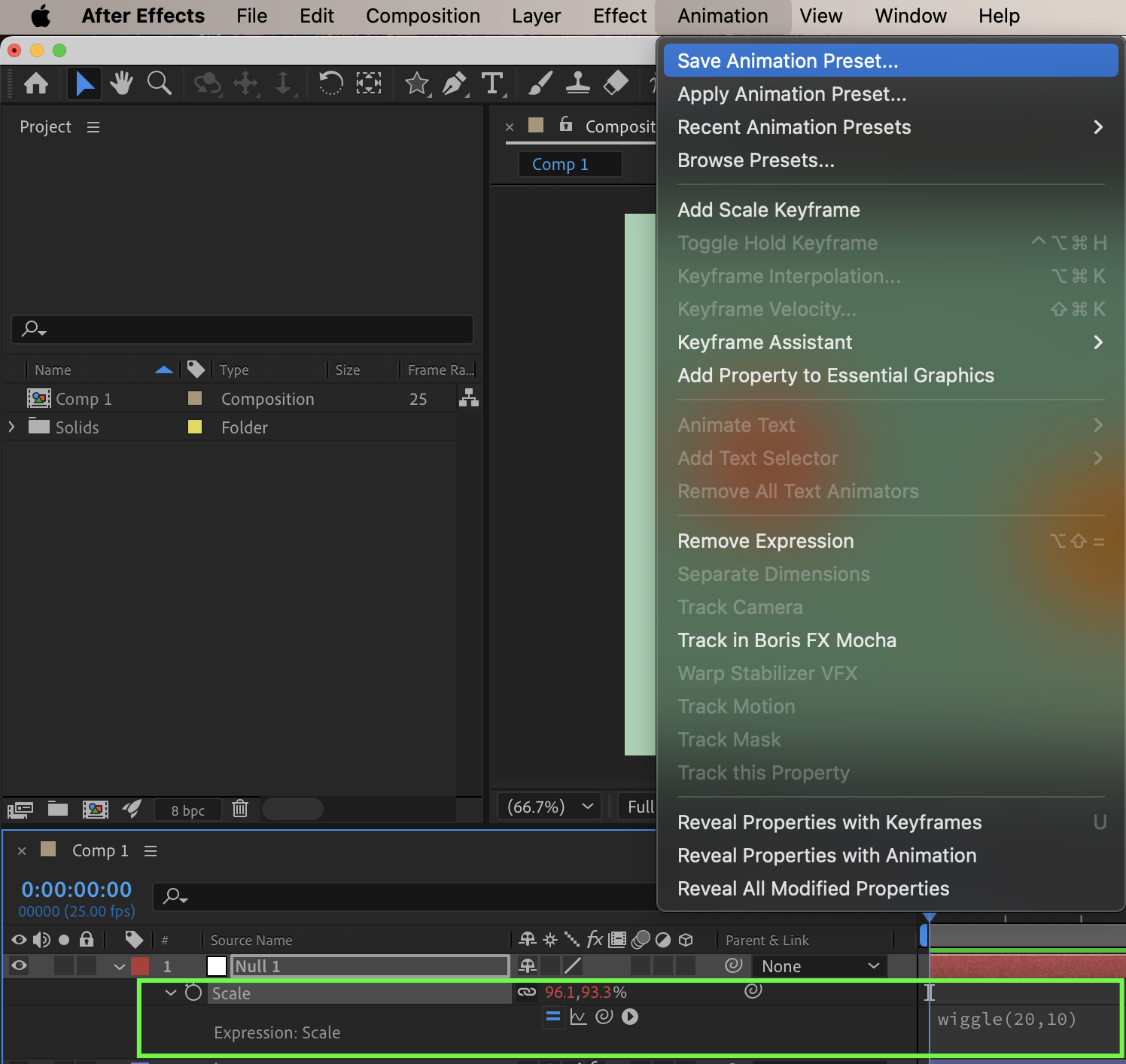
Step 2: Apply to Multiple Layers
Select all target layers. Double-click the saved preset or drag it onto the selected layers. The expression will be applied to all layers instantly.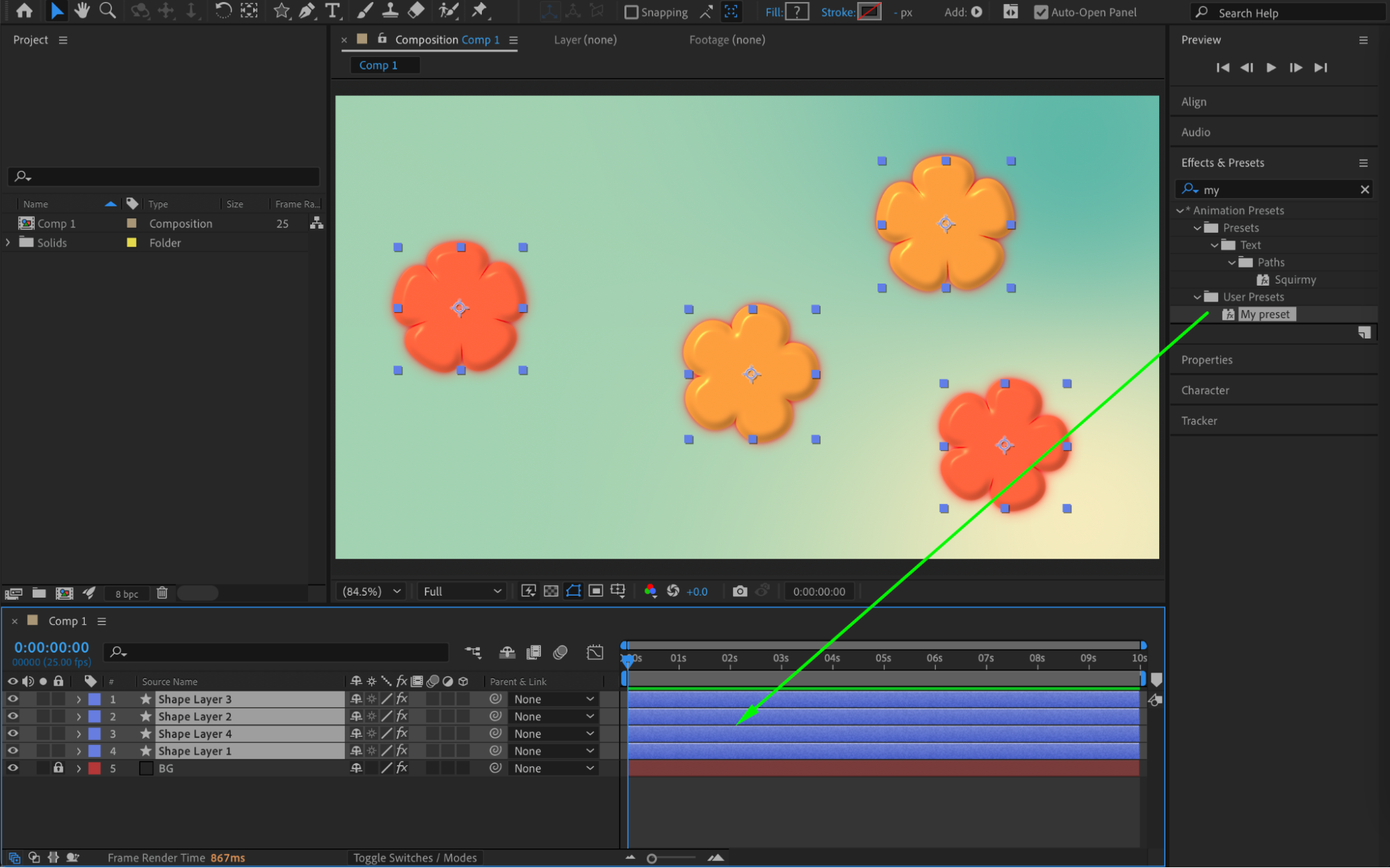
Tips and Notes
All selected layers must have the same property type visible.
Expressions cannot be pasted between different property types.
Animation presets are the fastest method for repeated workflows.
Conclusion
Applying expressions to all layers in After Effects can be done quickly using copy–paste, controllers, or animation presets. These methods help speed up your workflow and keep complex animations consistent and easy to control.
Our Bestsellers
Our Bestsellers


