
Learn how to add and customize brush-style lower thirds in Premiere Pro using AEJuice templates for dynamic video graphics.
Add Brush Lower Thirds in Premiere Pro with AEJuice Templates
Introduction to Lower Thirds for Stylish Video Titles
Brush-style lower thirds are a creative way to highlight names, titles, or key info in your videos. Whether you’re editing interviews, vlogs, or promotional content, AEJuice’s Brush Lower Thirds Pack gives you access to dynamic and textured lower third templates that feel fresh and hand-crafted. In this tutorial, you’ll learn how to install, import, and customize these brush animations right inside Premiere Pro.
Step 1: Launch Premiere Pro and Create a Project
Open Premiere Pro. In the start window, give your project a name under Project Name, import your footage, and click Create to open your timeline.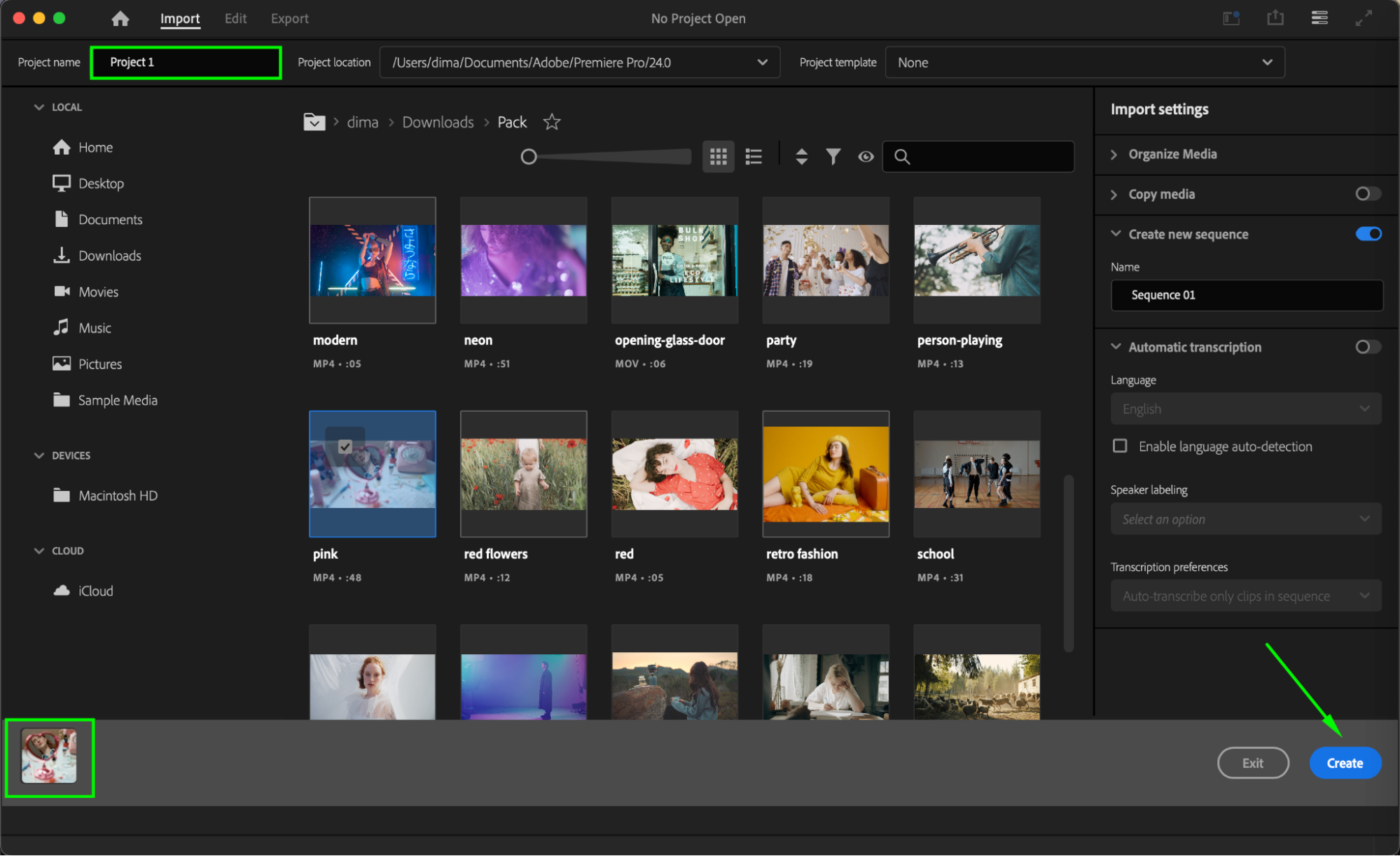 Step 2: Open AEJuice Pack Manager
Go to Window > Extensions > AEJuice Pack Manager 4 to launch the plugin panel. This is where you can access and install all AEJuice content you own.

Step 3: Download the Brush Lower Thirds Pack
In the Pack Manager, locate the Brush Lower Thirds pack. If it’s not already installed, click the pack to download it. Once installed, you’ll be able to preview a variety of animated lower thirds with brush-style textures.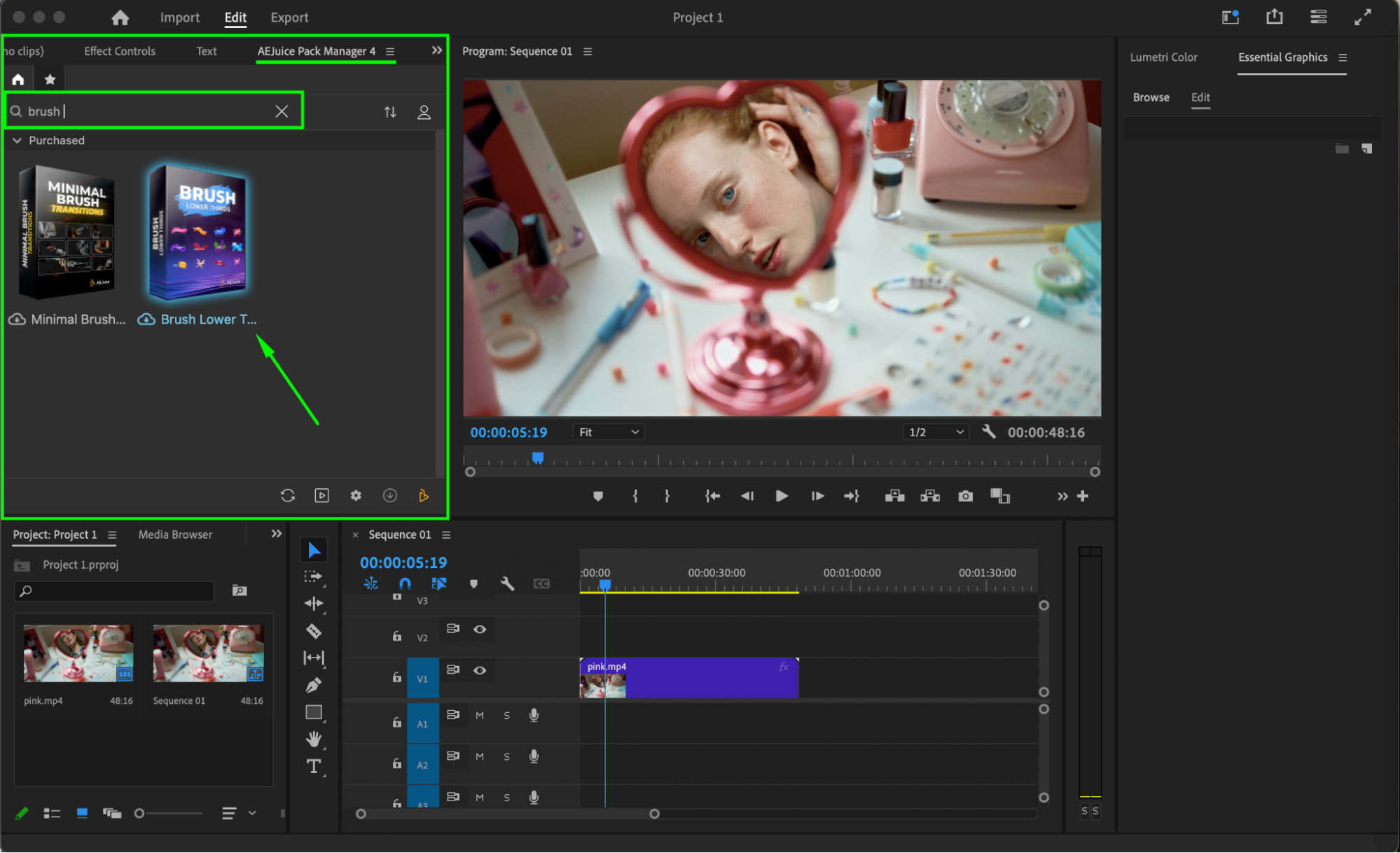 Step 4: Choose and Import a Template
Browse the available designs and choose one that fits your video’s style. Make sure your playhead is positioned where you want the text animation to appear. Click on the template and then press Import — it will be added to your timeline as a pre-composed layer.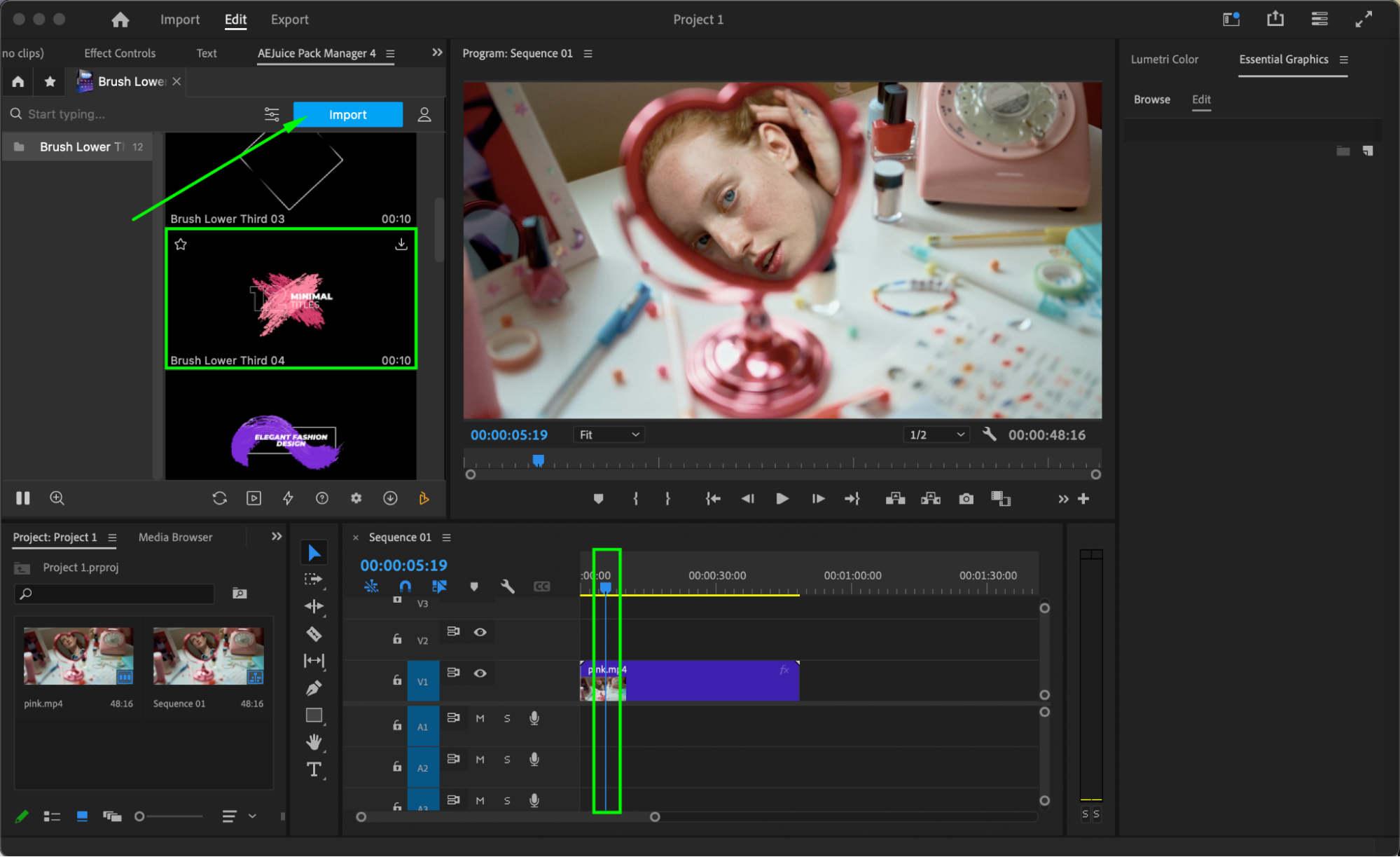 Step 5: Customize the Template
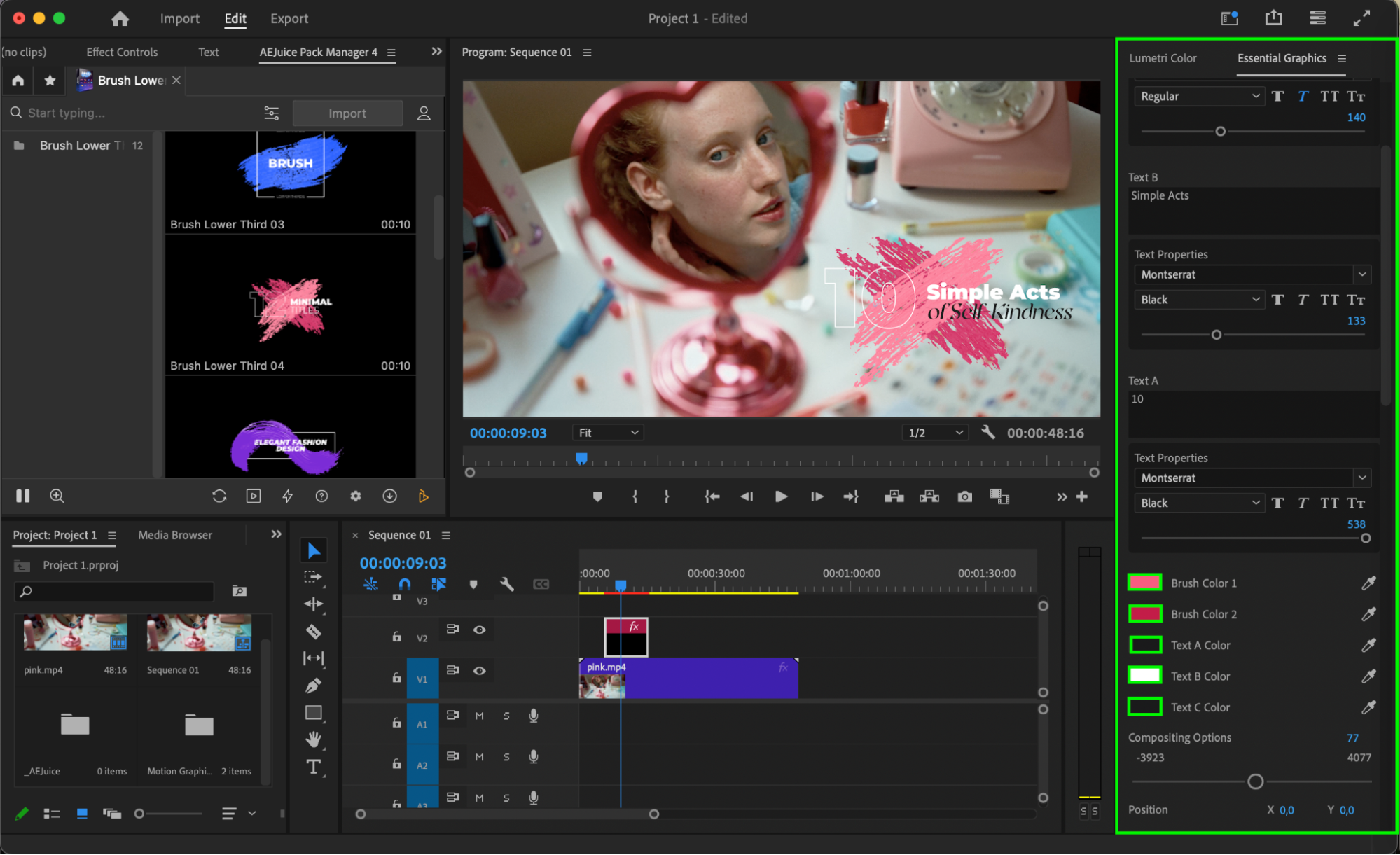
Select the imported lower third layer in the timeline. Then, go to the Essential Graphics panel and open the Edit section. Here, you can change the placeholder text, font, size, brush and text color, and position. You can also adjust the brush animation settings to better match your video’s aesthetic.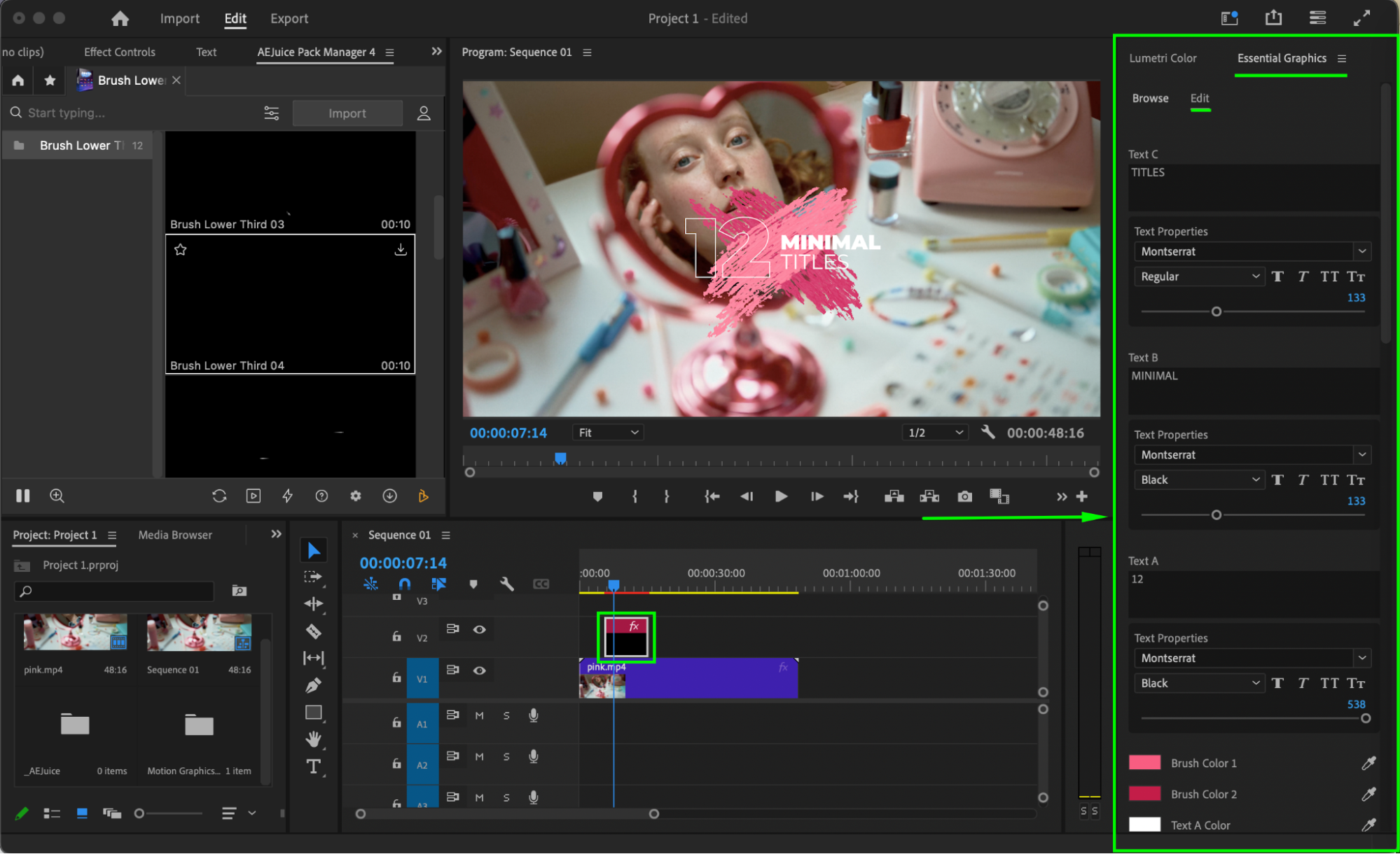
Step 6: (Optional) Add Drop Shadow for Emphasis
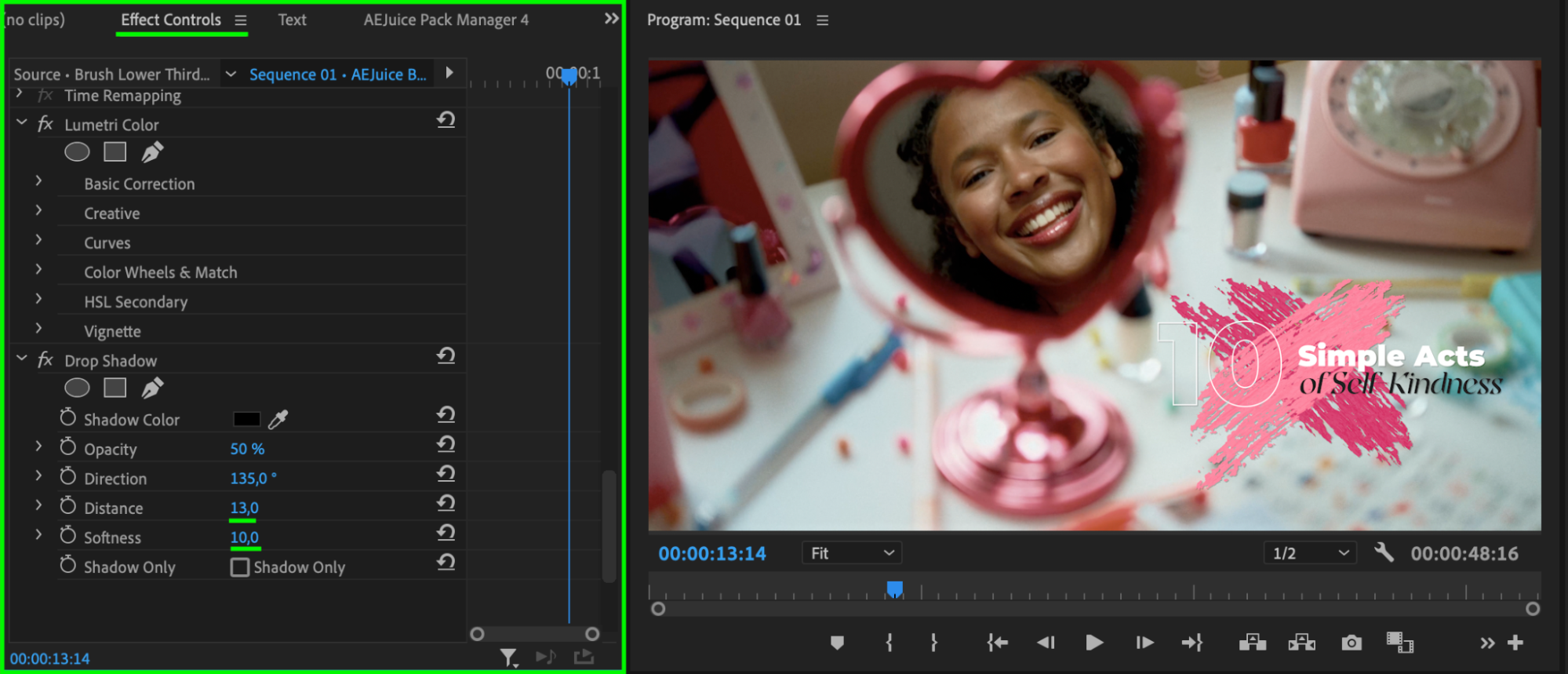
If you want to make your lower third stand out more, you can apply a Drop Shadow effect. Go to the Effects panel, search for “Drop Shadow,” and drag it onto your imported lower third layer in the timeline. Then, in the Effect Controls panel, adjust settings like opacity, distance, and softness to achieve the desired look.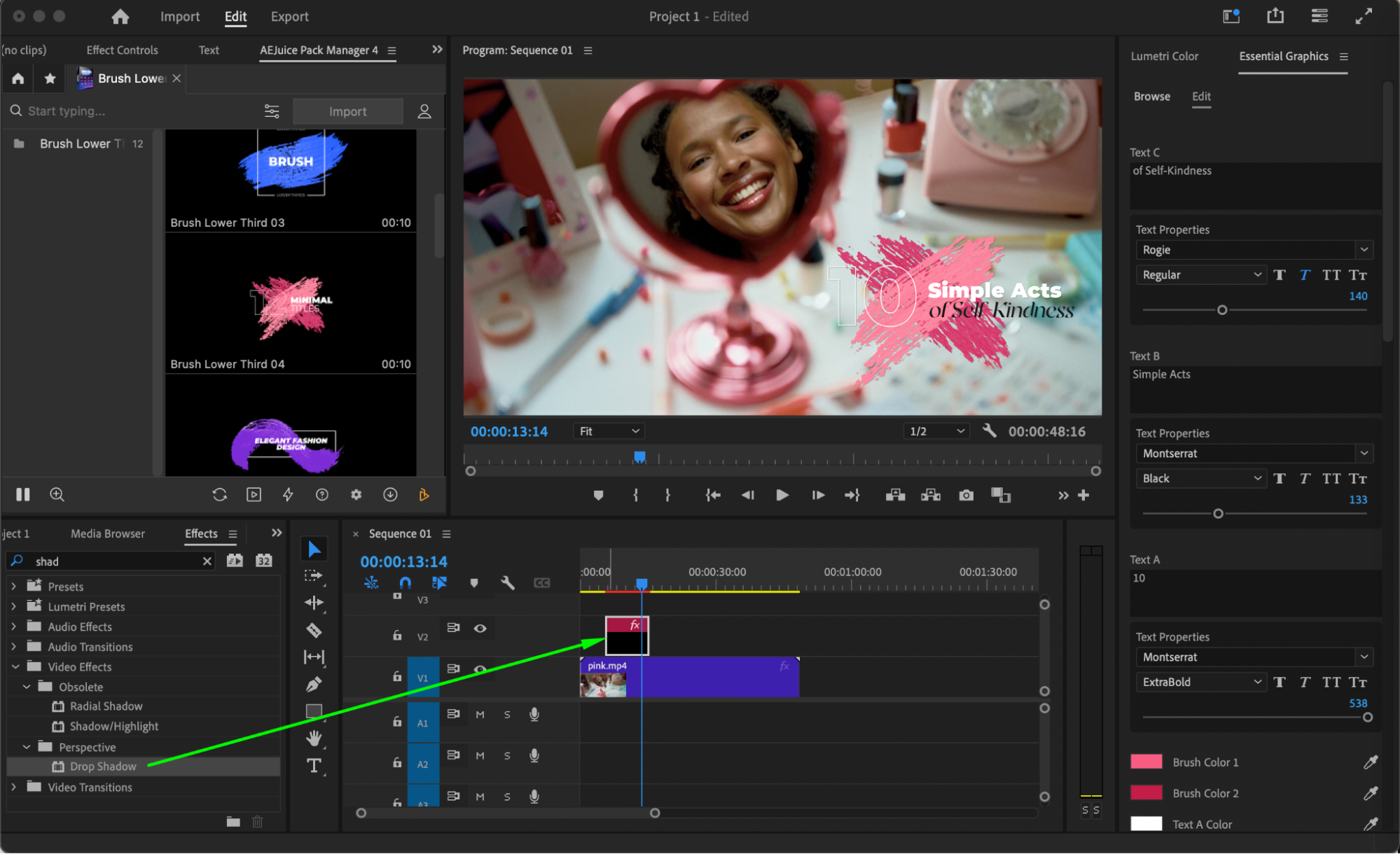
 Step 7: Preview and Final Adjustments
Press the Play button or hit the Spacebar to preview the animation. Make any final tweaks to timing, placement, or appearance to complete your lower third.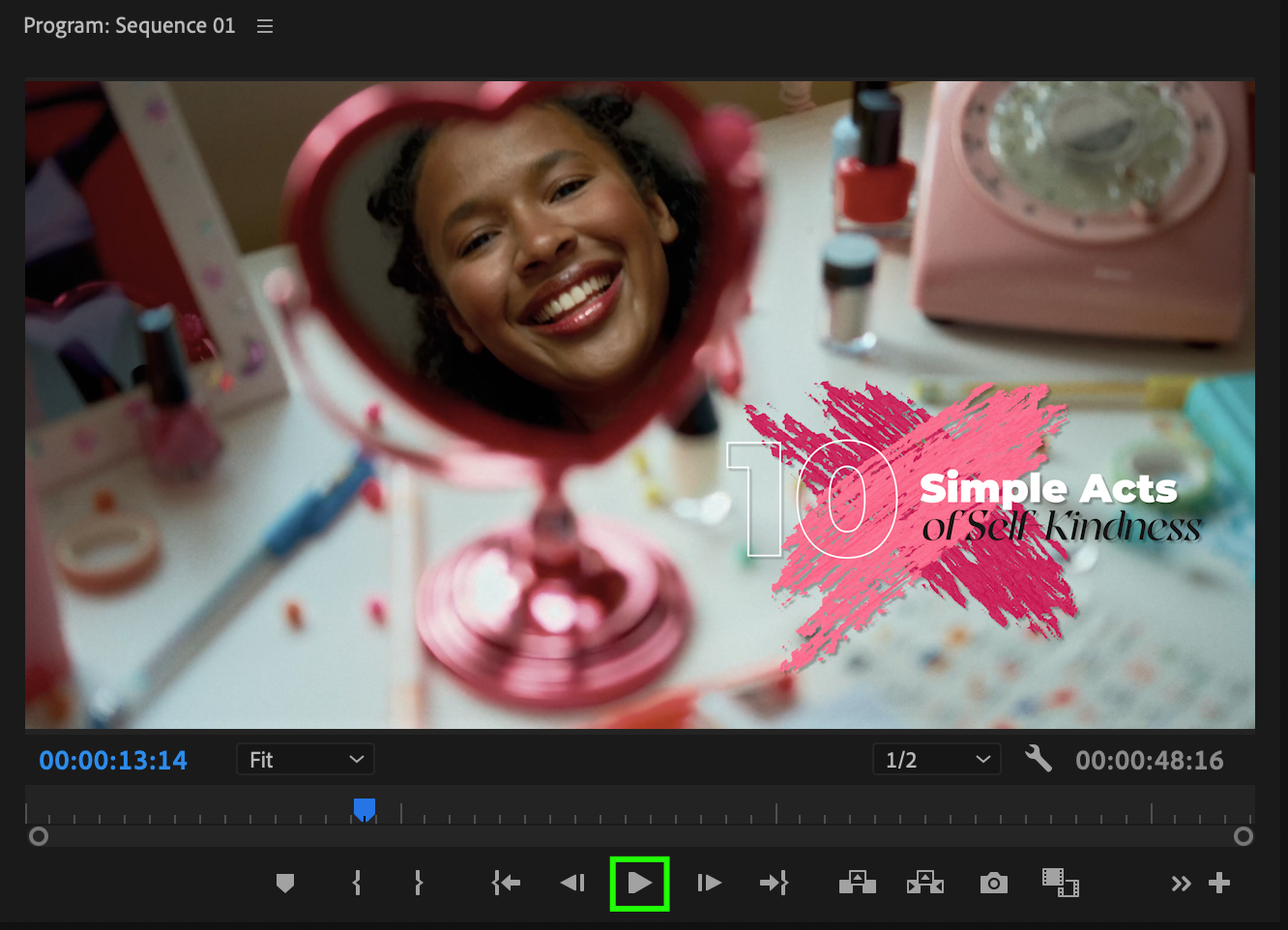 Conclusion
With the AEJuice Brush Lower Thirds Pack, you can easily add expressive and stylish titles to your projects. Whether you’re creating interviews, tutorials, or social media edits, this pack offers some of the best brush lower third templates for graphics. For more inspiration, check out the brush lower thirds tutorial included in the AEJuice library.
Our Bestsellers
Our Bestsellers


