
Introduction
Film burn transitions are a popular way to add a cinematic, analog feel to your edits. In this tutorial, you’ll learn how to import a film burn overlay and place it correctly between two clips in After Effects.
Step 1: Download a Film Burn Transition
Find a film burn transition online and download it to your computer. Make sure the file is compatible with After Effects.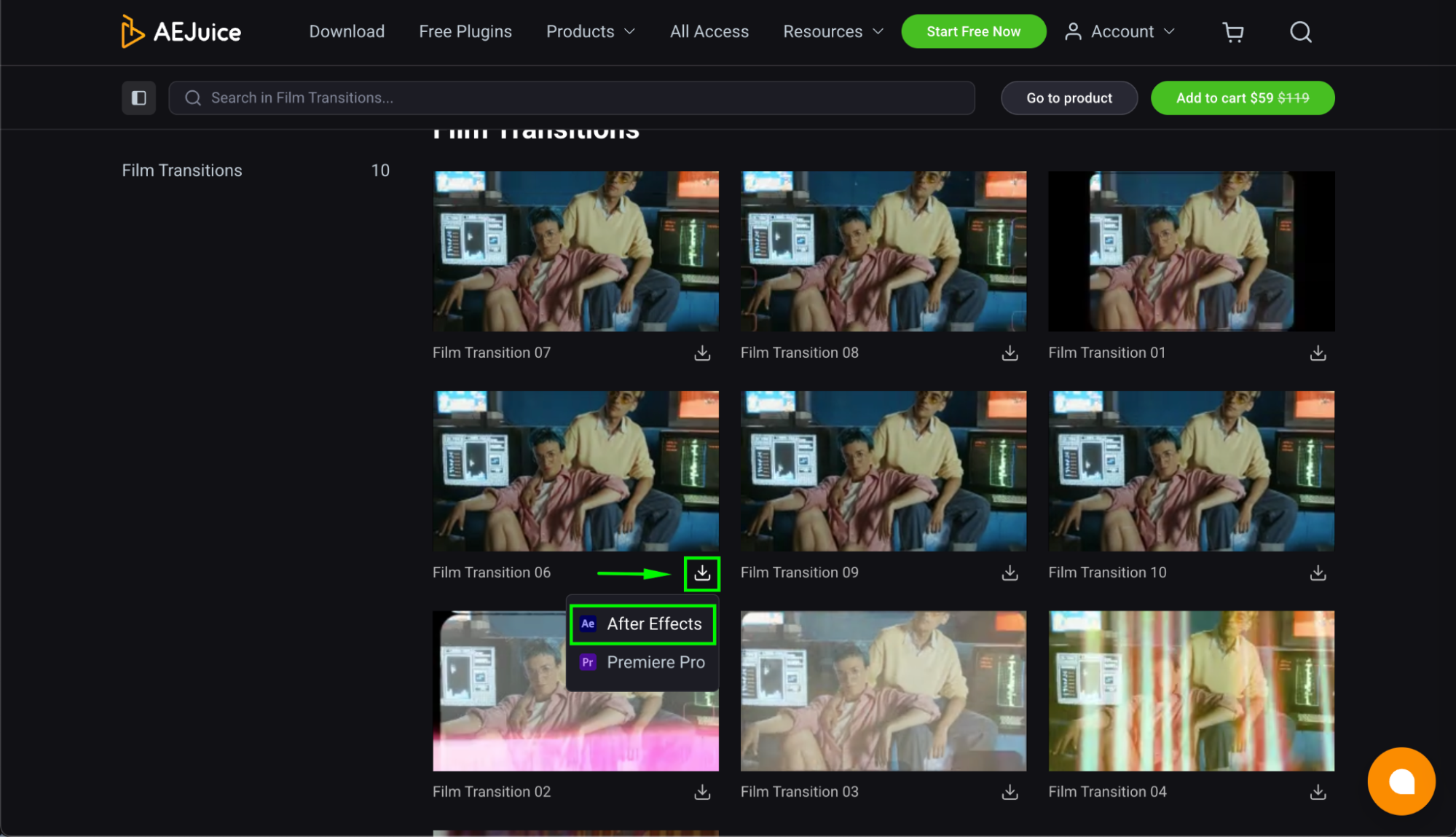
Step 2: Import Files into After Effects
Go to File → Import → File. Import:
Your video clips
The film burn transition footage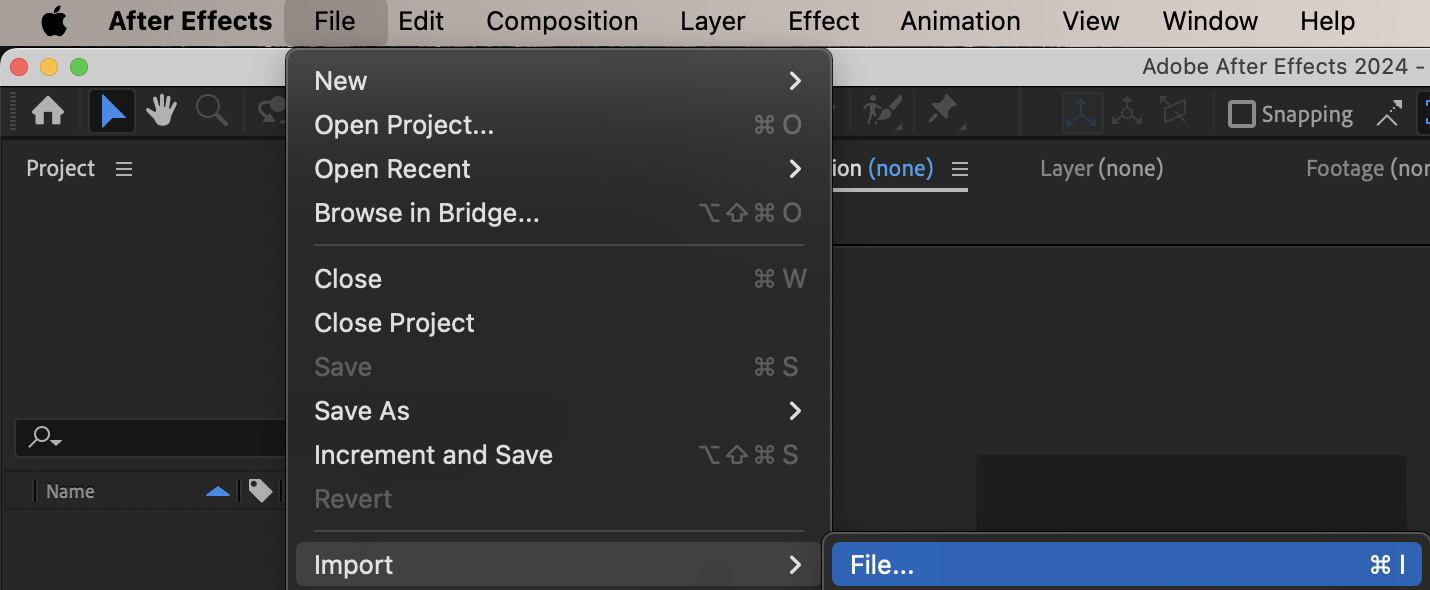
Step 3: Create the Composition
Drag both video clips onto the timeline. When the New Composition from Selection window appears, choose:
Single Composition
Sequence Layers
Click OK to create the composition.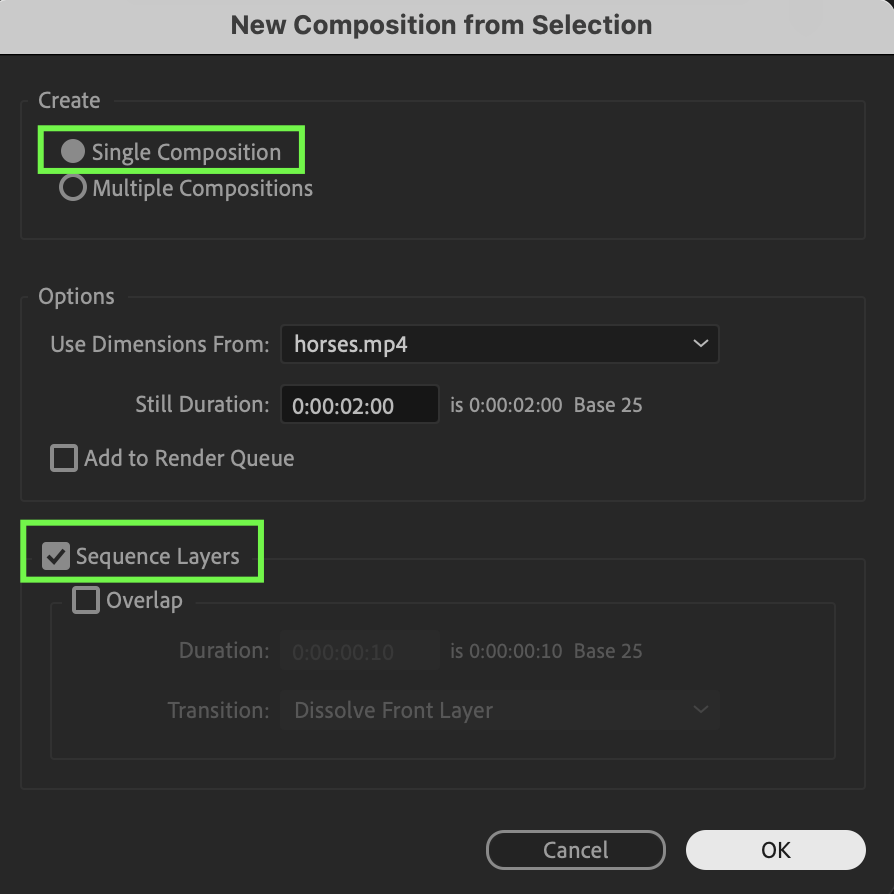
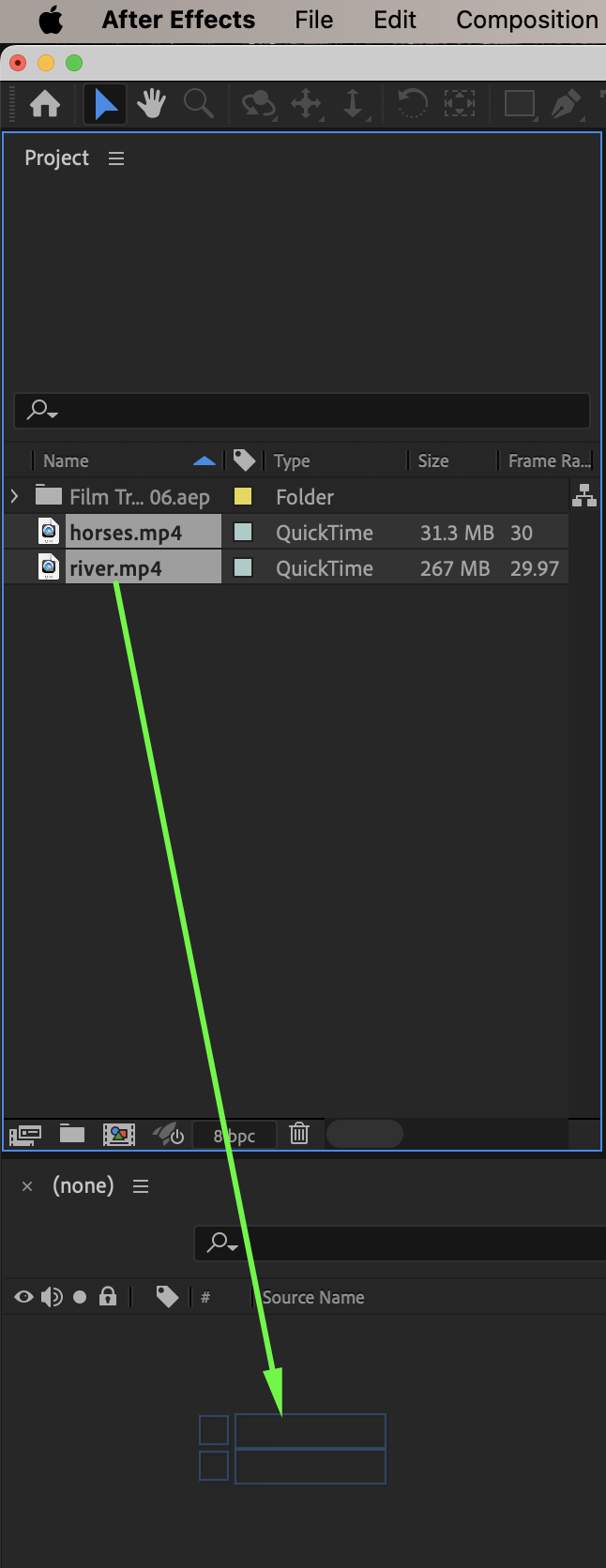
Step 4: Add the Film Burn Transition
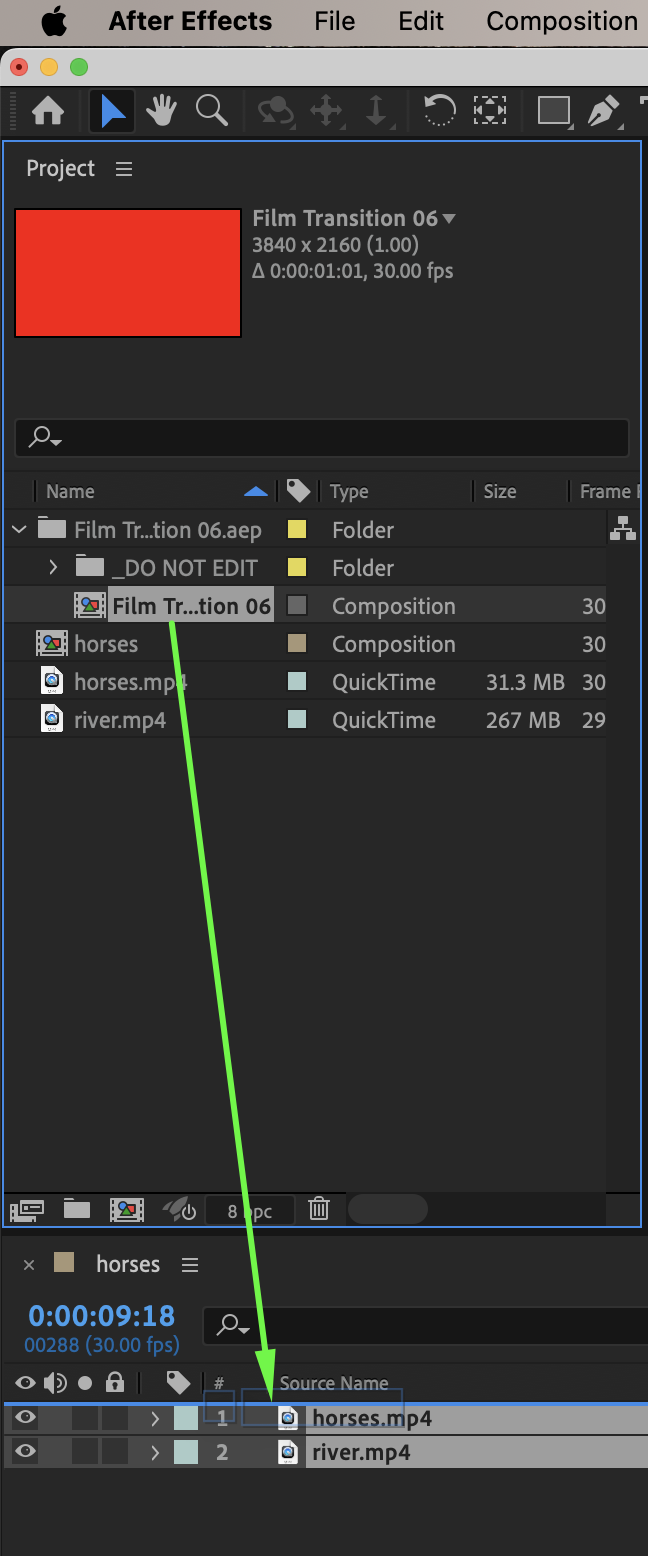
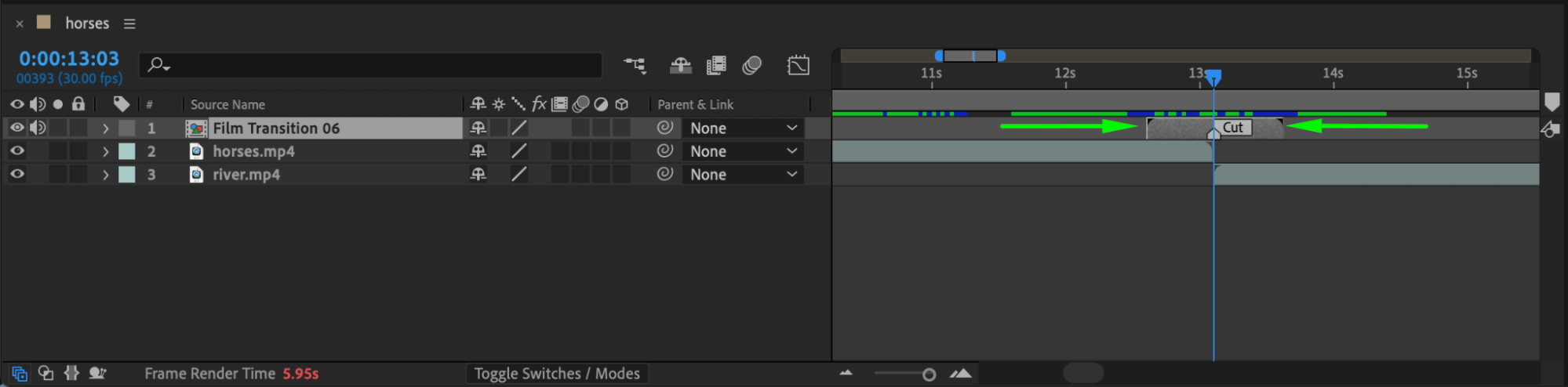
Drag the film burn footage onto the timeline and place it between the two video clips. Adjust its timing so it overlaps both clips during the transition.
Step 5: Set the Blending Mode
Select the film burn layer. Choose a suitable Blending Mode such as:
Screen
Add
Lighten
Adjust opacity if needed for a smoother result.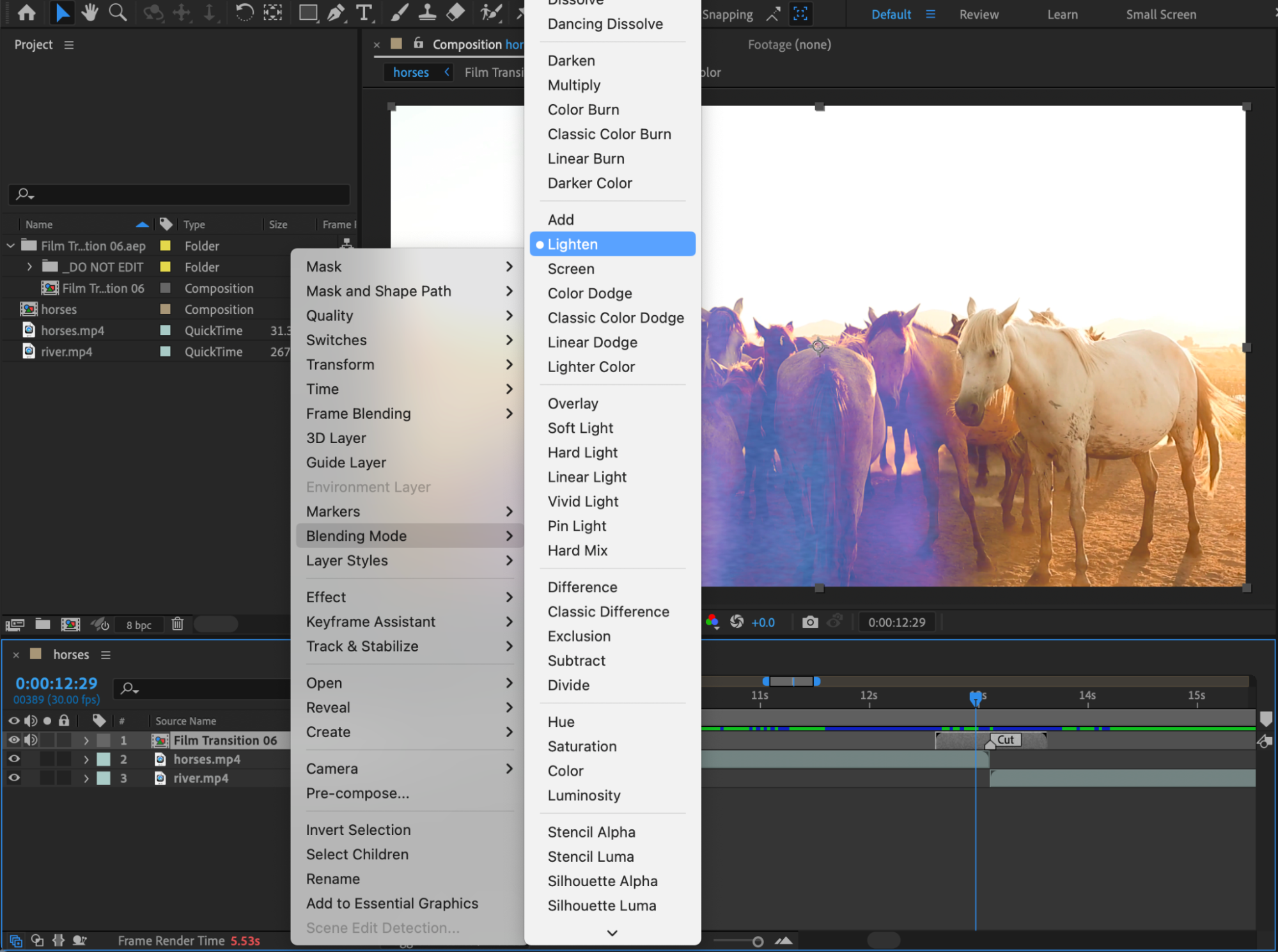
Step 6: Preview the Result
Preview the composition to ensure the transition blends smoothly between the clips.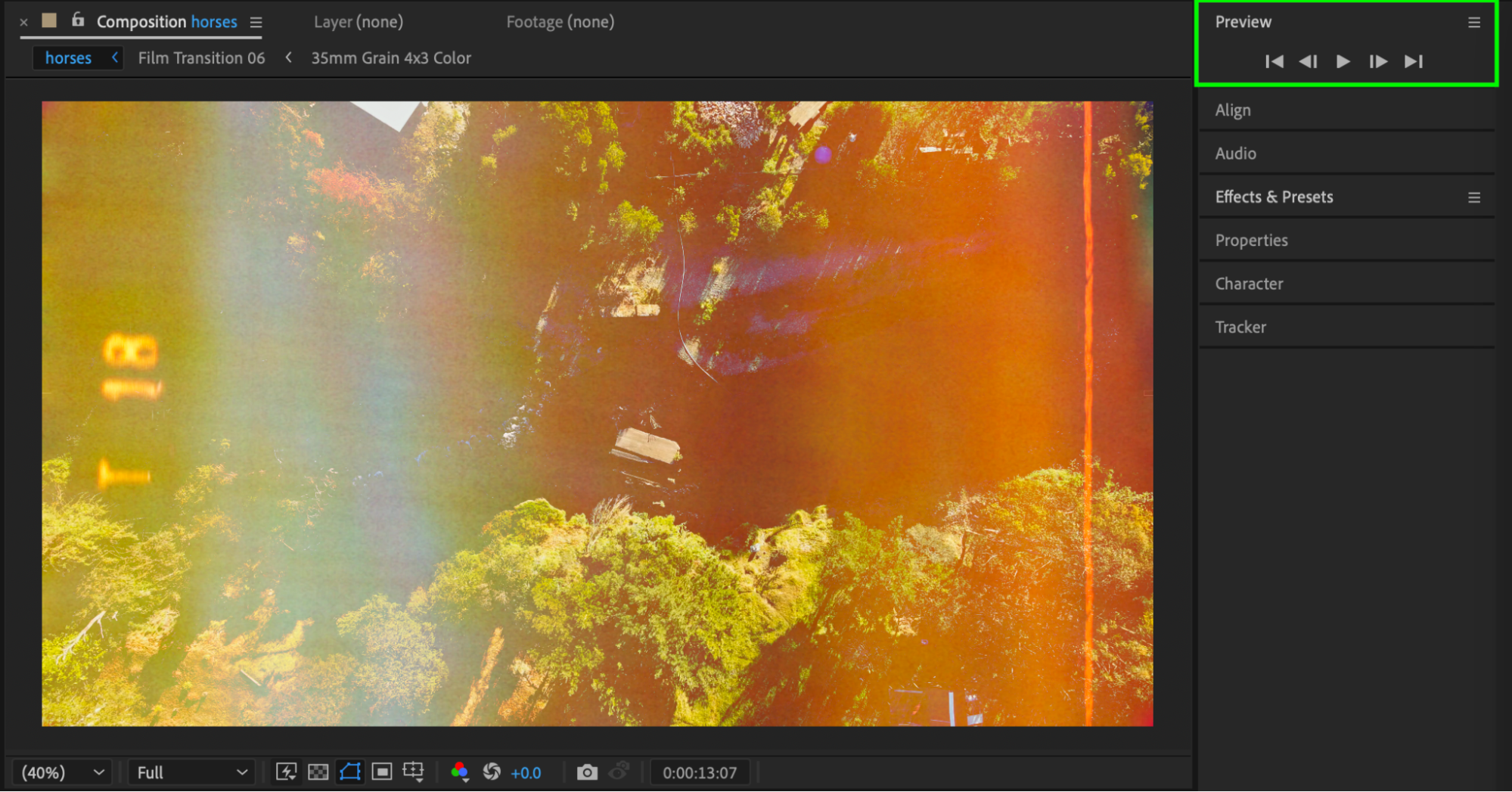
Conclusion
By using film burn overlays and blending modes, you can quickly add a cinematic transition to your videos in After Effects. This method is simple, flexible, and works well for edits, reels, and music videos.
Our Bestsellers
Our Bestsellers


