
Introduction
Adding labels to a 3D map in After Effects helps you highlight cities, landmarks, or routes in a clean and cinematic way. This technique is often used in travel videos, documentaries, and infographics to visualize geographic information.
You can create and animate these labels easily using text layers, shape layers, and 3D camera tools.
Step 1: Import or Create Your 3D Map
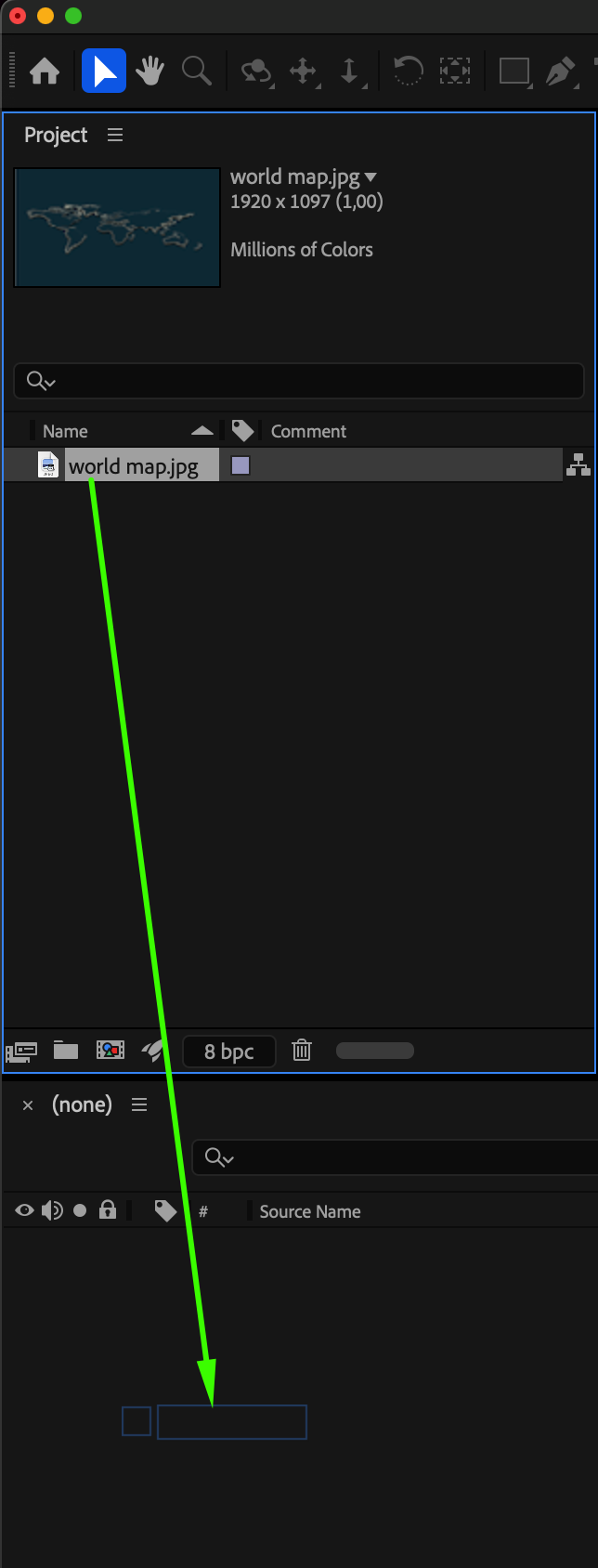
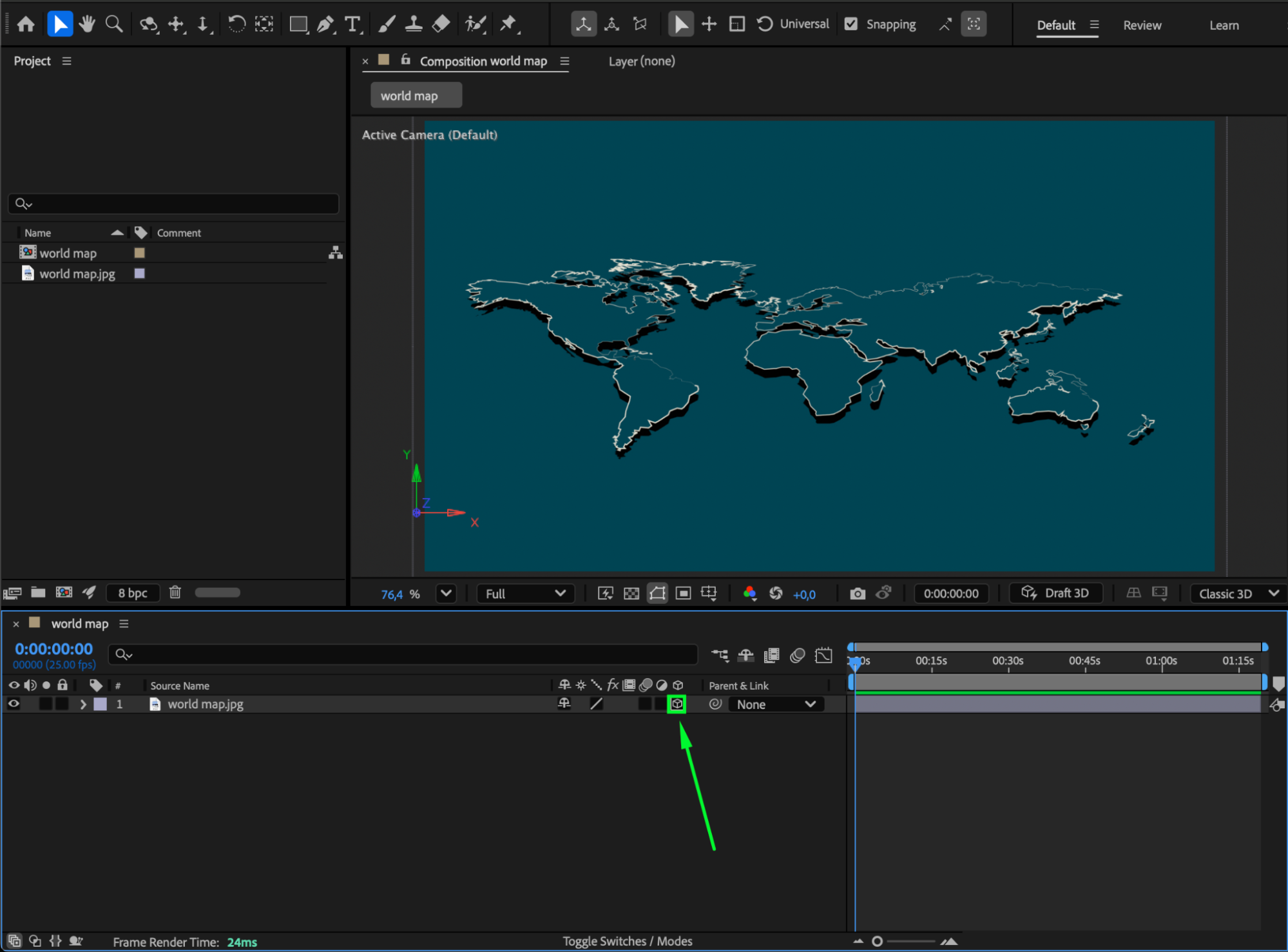
Start by importing your map image or 3D environment. Go to File > Import > File and select your map (JPEG, PNG, or a pre-rendered 3D map video). Drag it into your Composition Timeline. If you’re using a static image, right-click the map layer and enable 3D Layer by clicking the cube icon.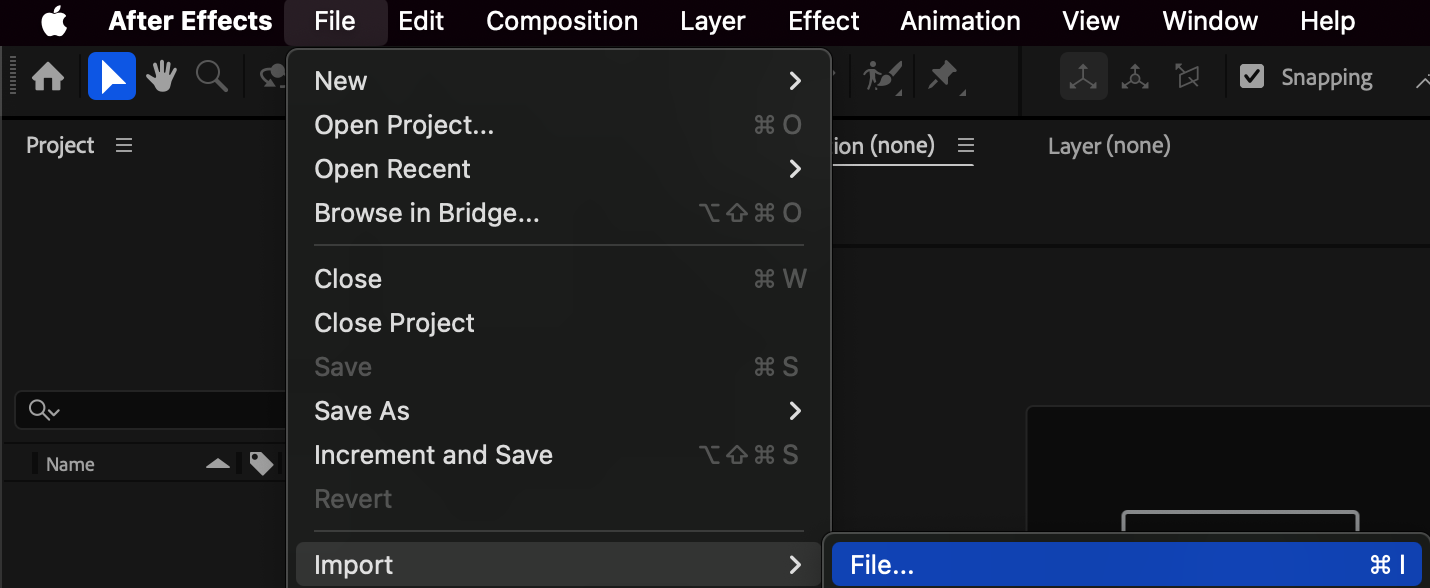
 Step 2: Create a New Text Label
Select the Type Tool (Ctrl/Cmd + T) and click on the map to type the location name — for example, Paris or Tokyo. Customize the font, color, and size using the Character panel for better readability.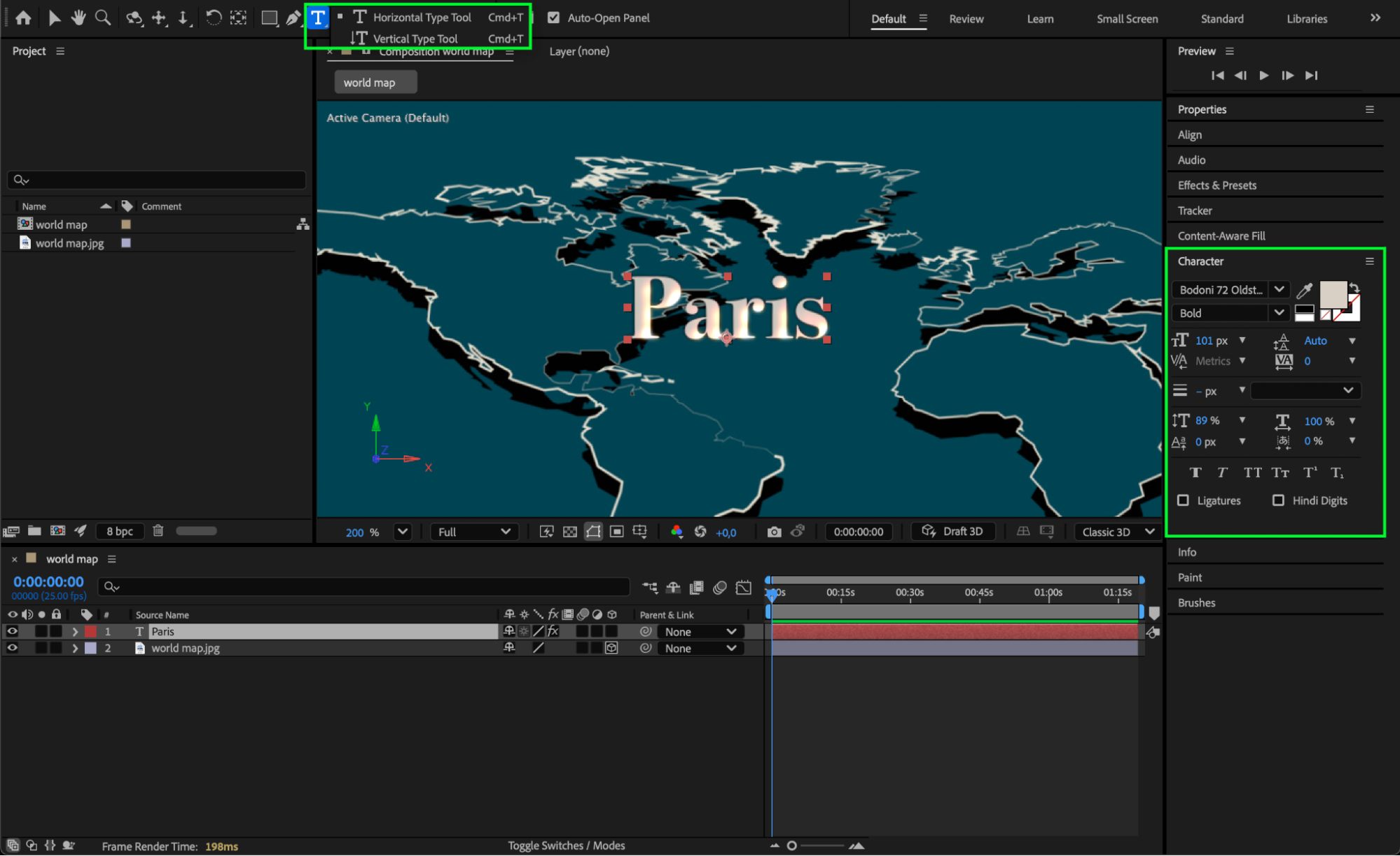 Step 3: Convert the Text to a 3D Layer
In the Timeline, enable the 3D Layer switch (the small cube icon) for your text.
This allows the label to move and rotate naturally in 3D space, matching the perspective of your map.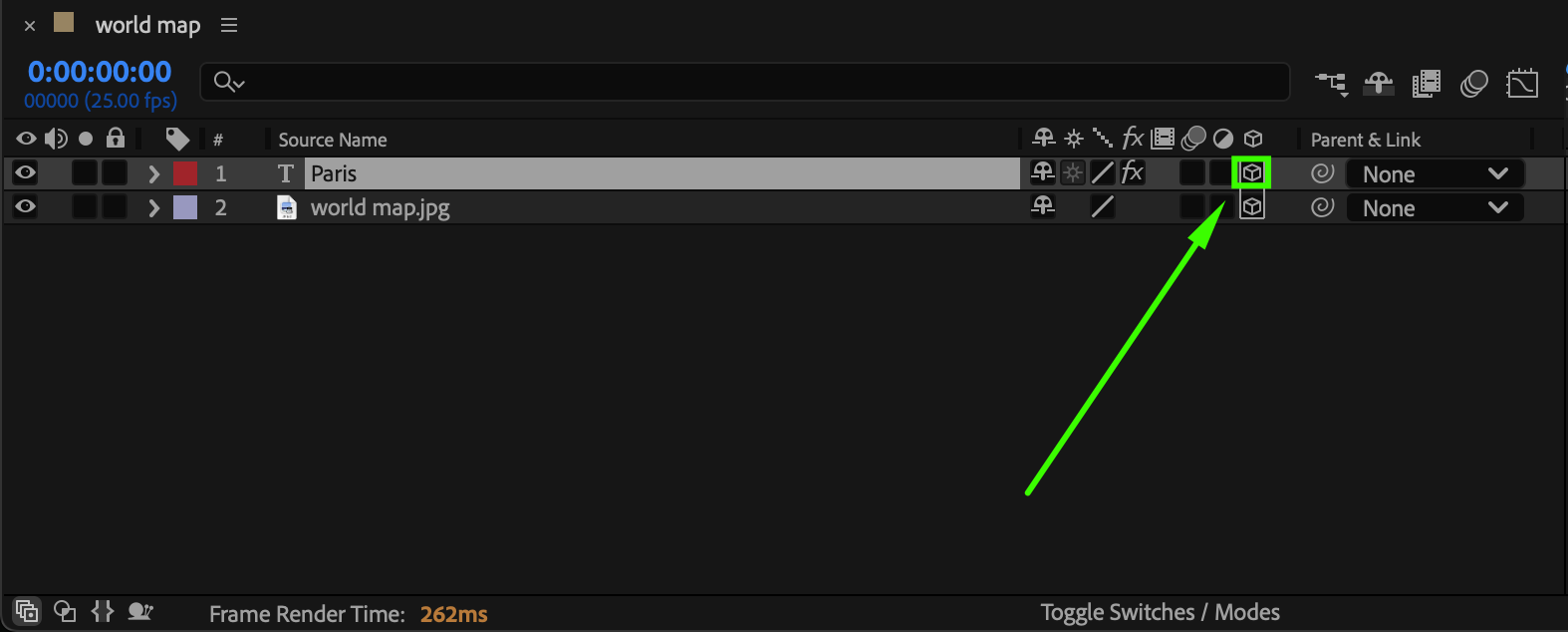
Step 4: Position the Label on the Map
Use the Selection Tool (V) and the Position (P) property to move the label above the correct location on the map. You can also adjust Z-position to make the text appear slightly above the map surface.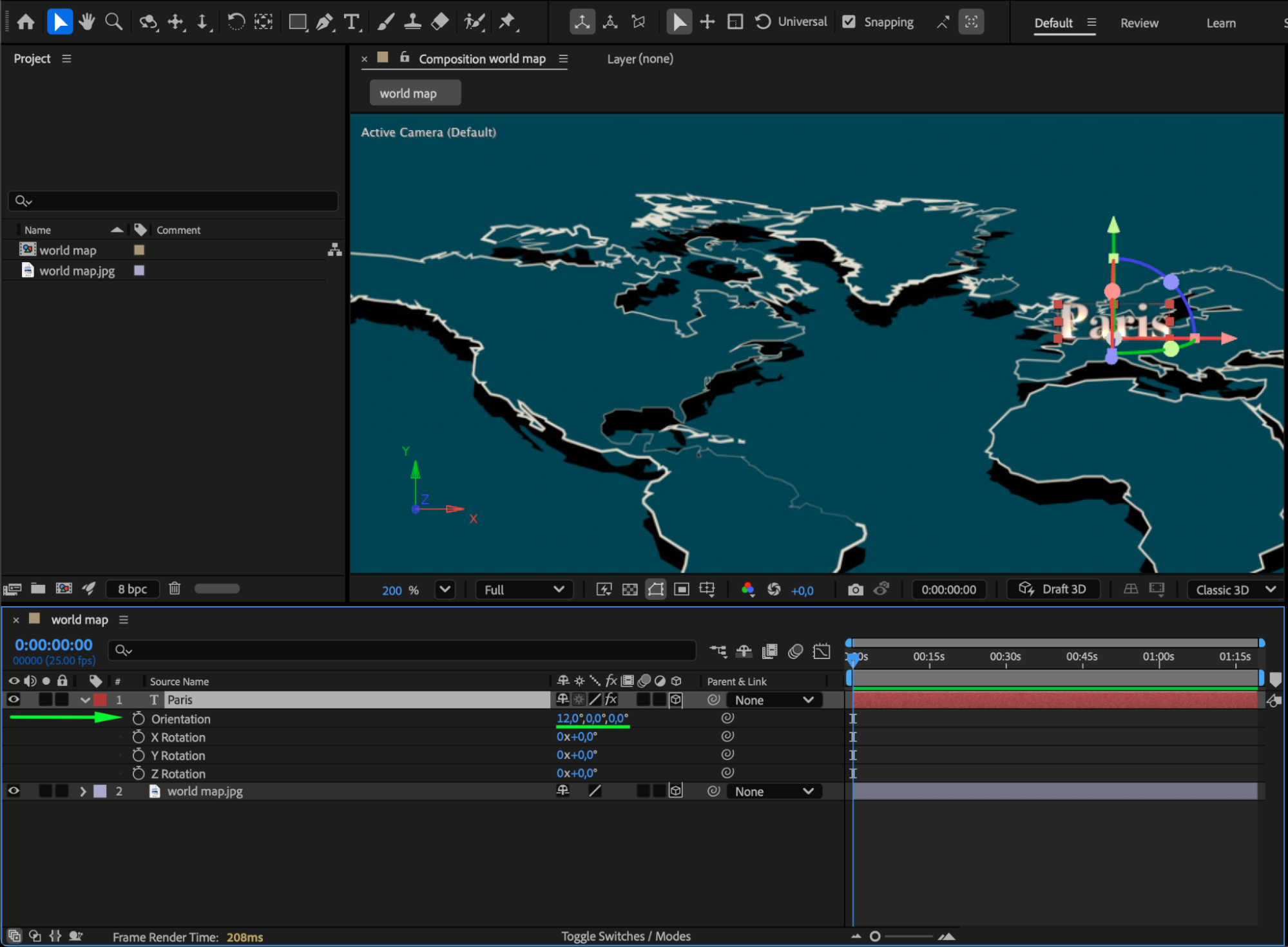 Step 5: Add a Connecting Line or Pin
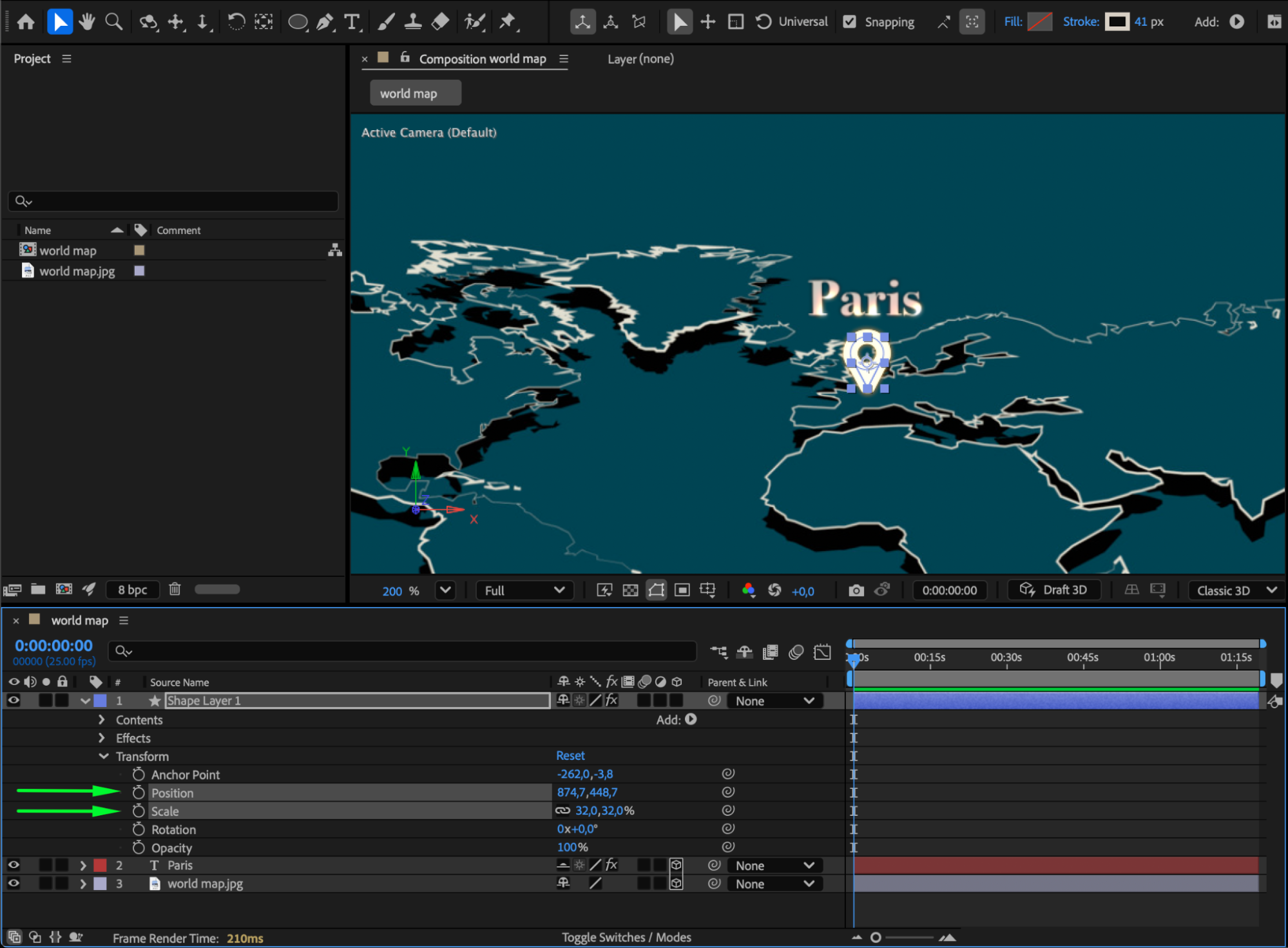
First, draw an ellipse using the Ellipse Tool (Q) to create a circular marker. Then, switch to the Pen Tool (G) and draw a small angled line beneath the circle to form the pin shape. Adjust the roundness of the corner and the Stroke Width in the Shape Layer settings for a clean look. Finally, reposition and scale the pin to place it accurately on the map.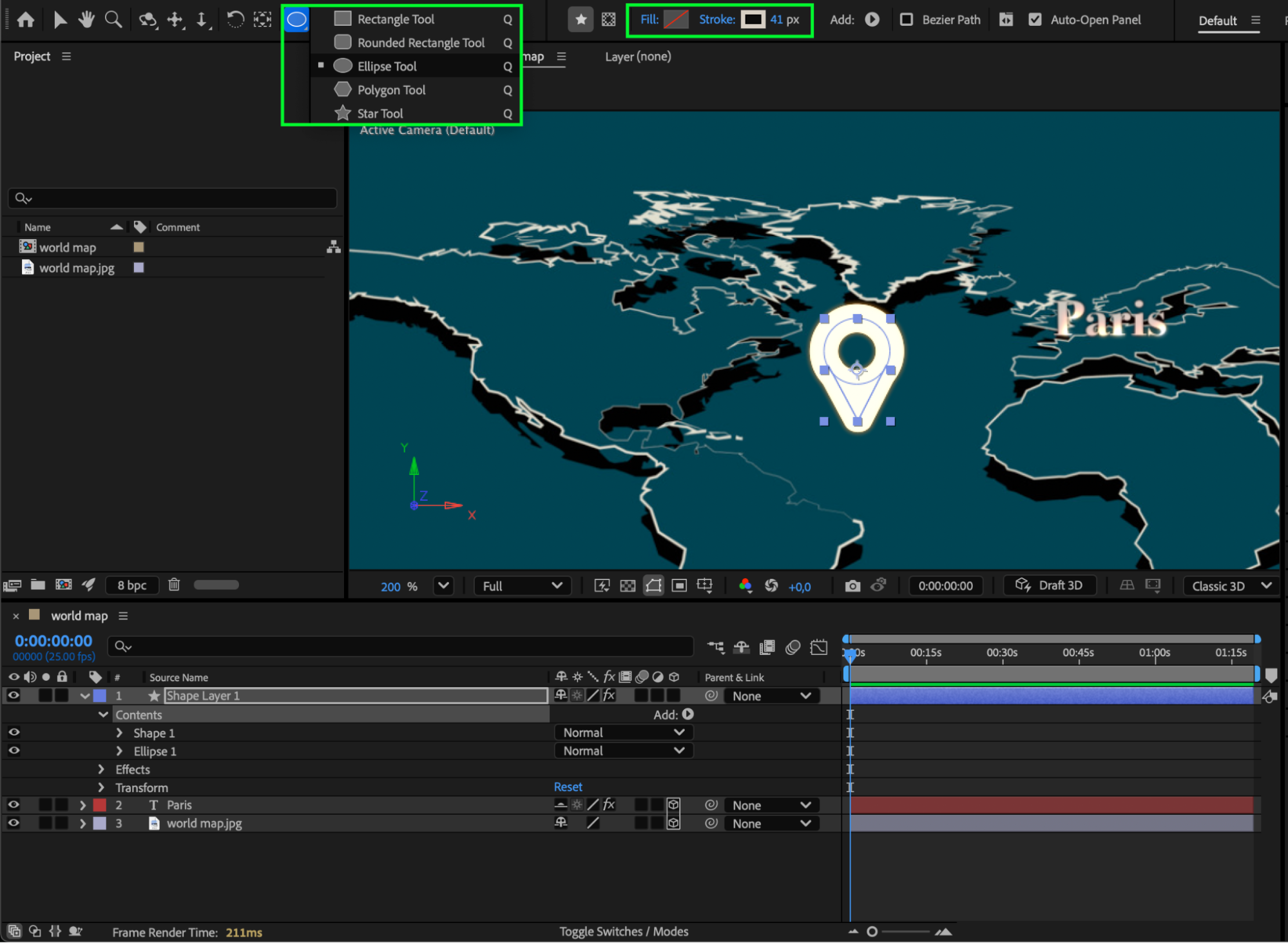
 Step 6: Animate the Label Appearance
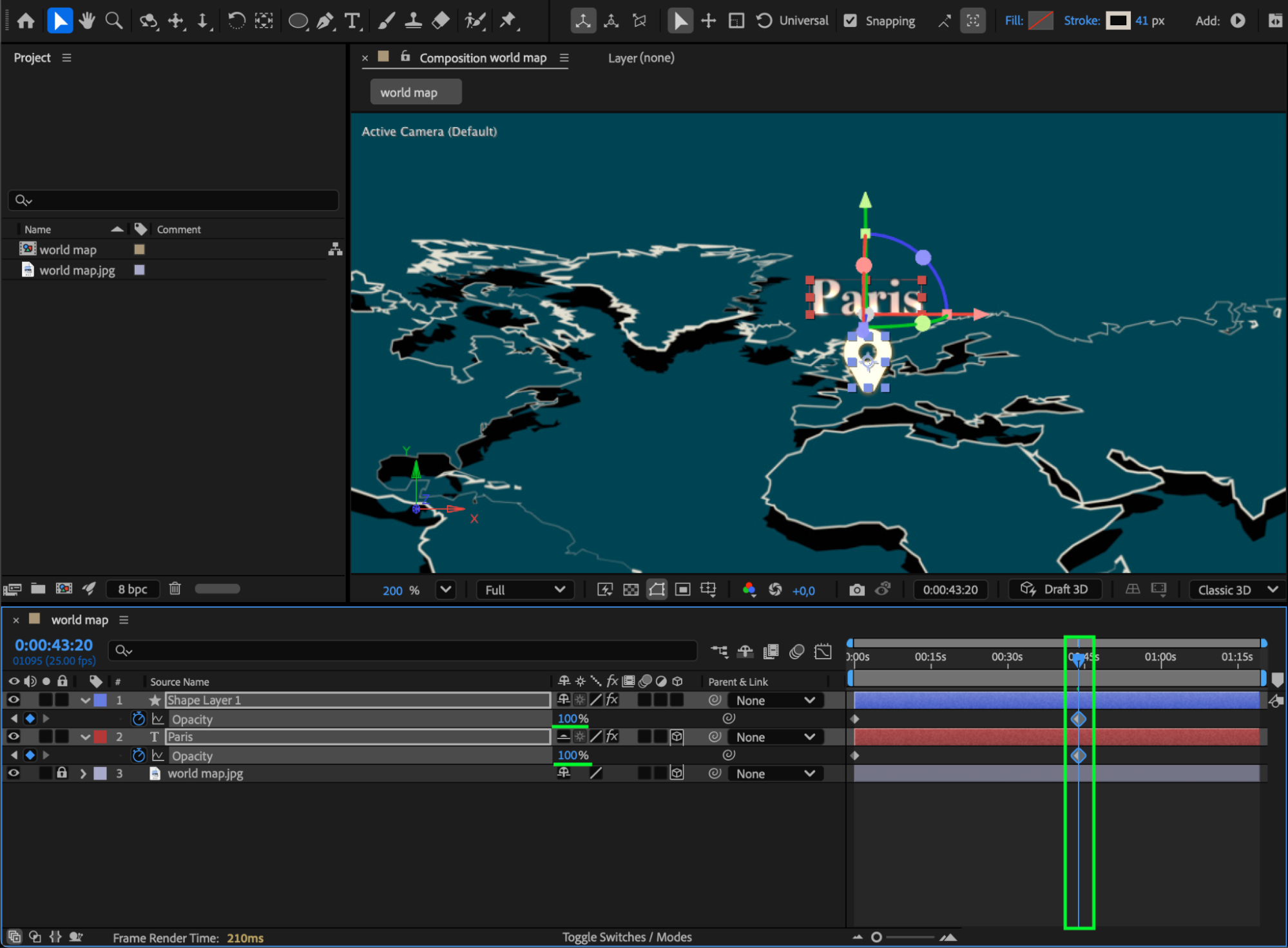
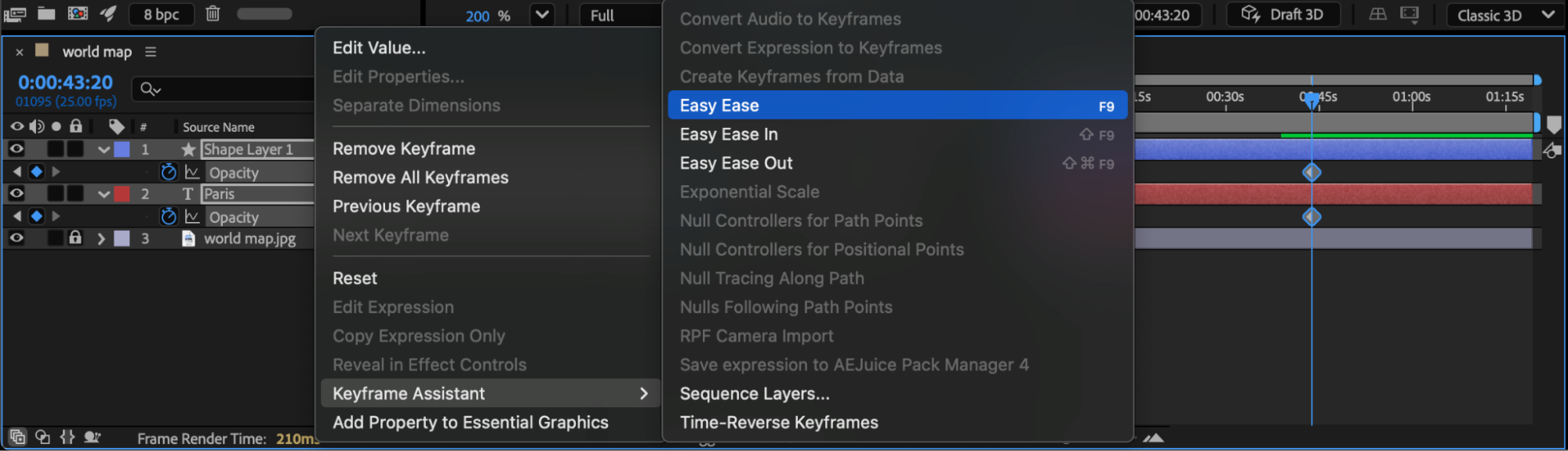
Select both the text and shape layers. Press “T” to reveal the Opacity property and add keyframes to make them fade in. For smoother animation, right-click the keyframes and choose Keyframe Assistant > Easy Ease.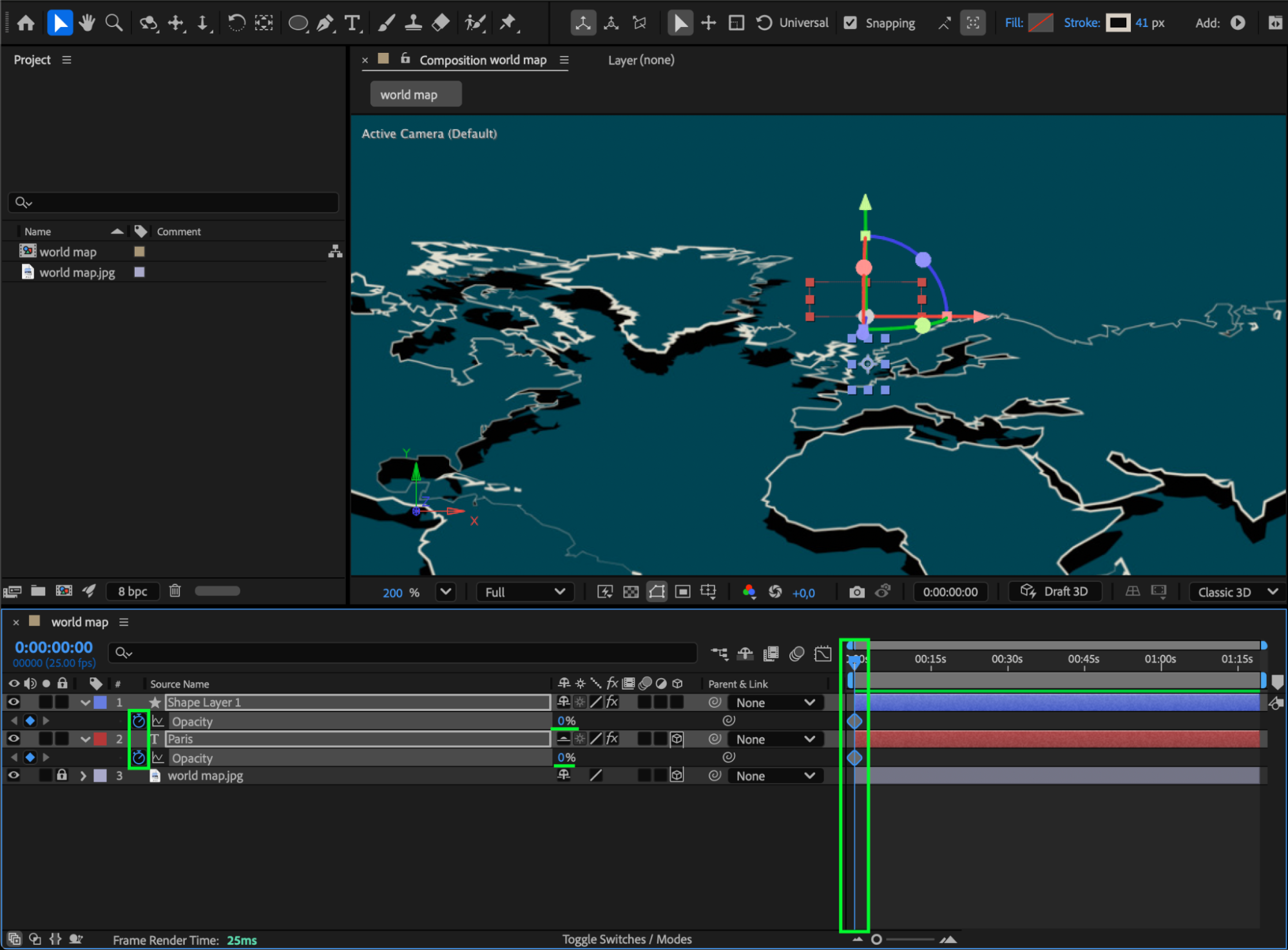
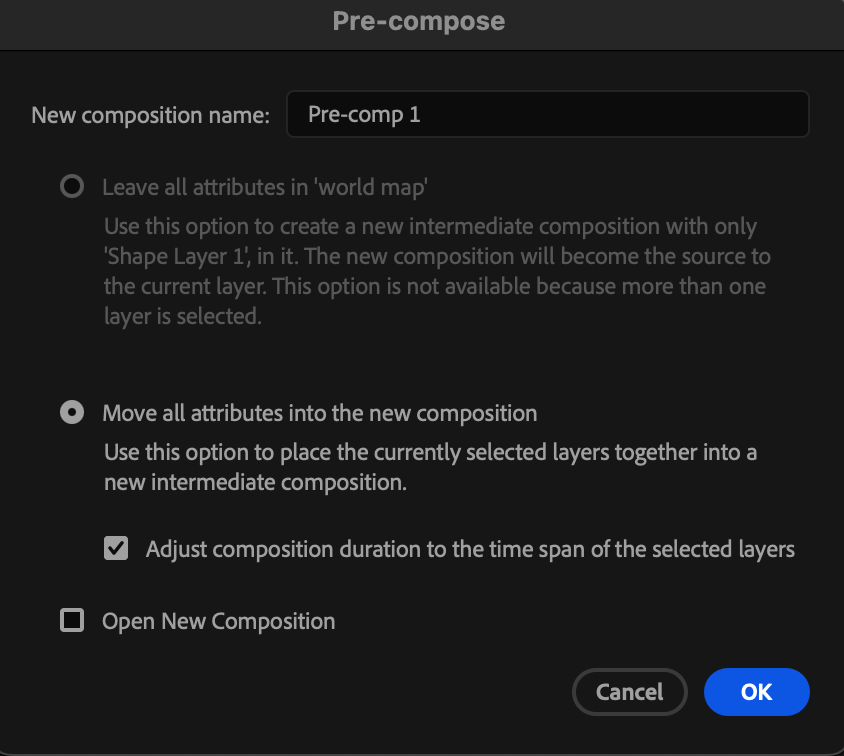
Step 7: Pre-compose the Label and Map Layers
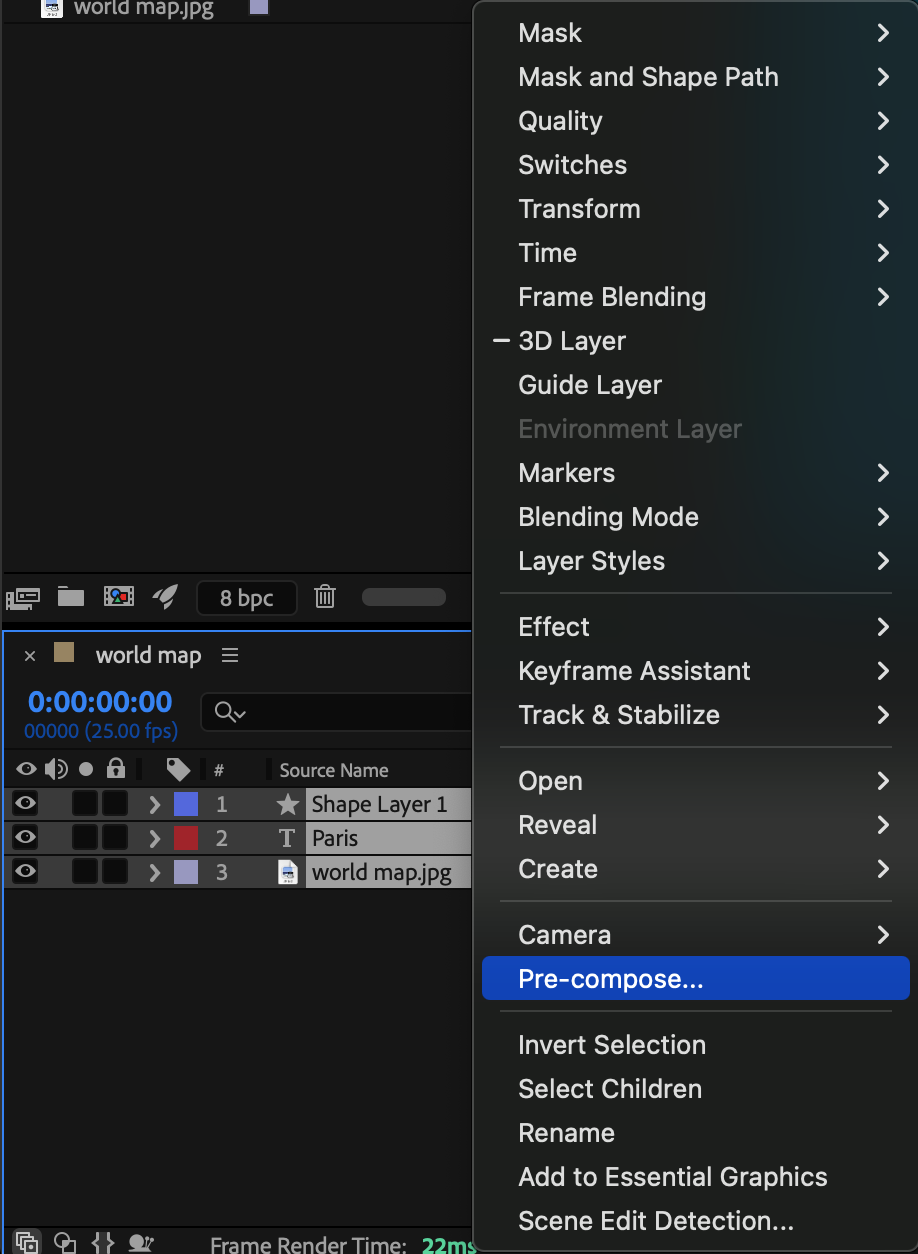
Select the text, label (pin), and map layers. Right-click and choose Pre-compose to keep them organized and animate them as a single group.
 Step 8: Make the Pre-comp 3D and Add a Camera
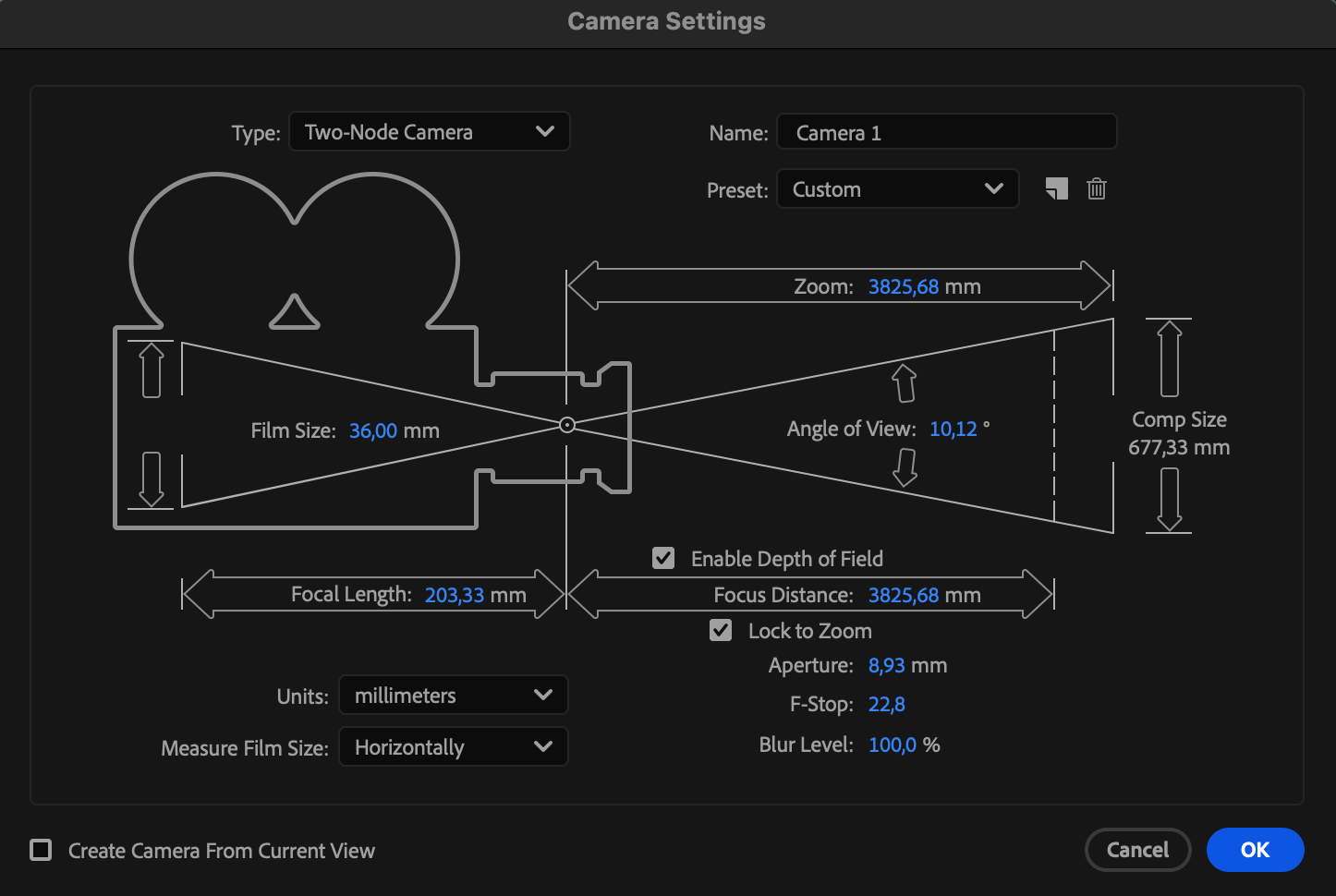
Enable the 3D Layer switch for your pre-comp. If needed, go to Layer > New > Camera, then animate the camera’s Position and Point of Interest to create smooth movement and depth.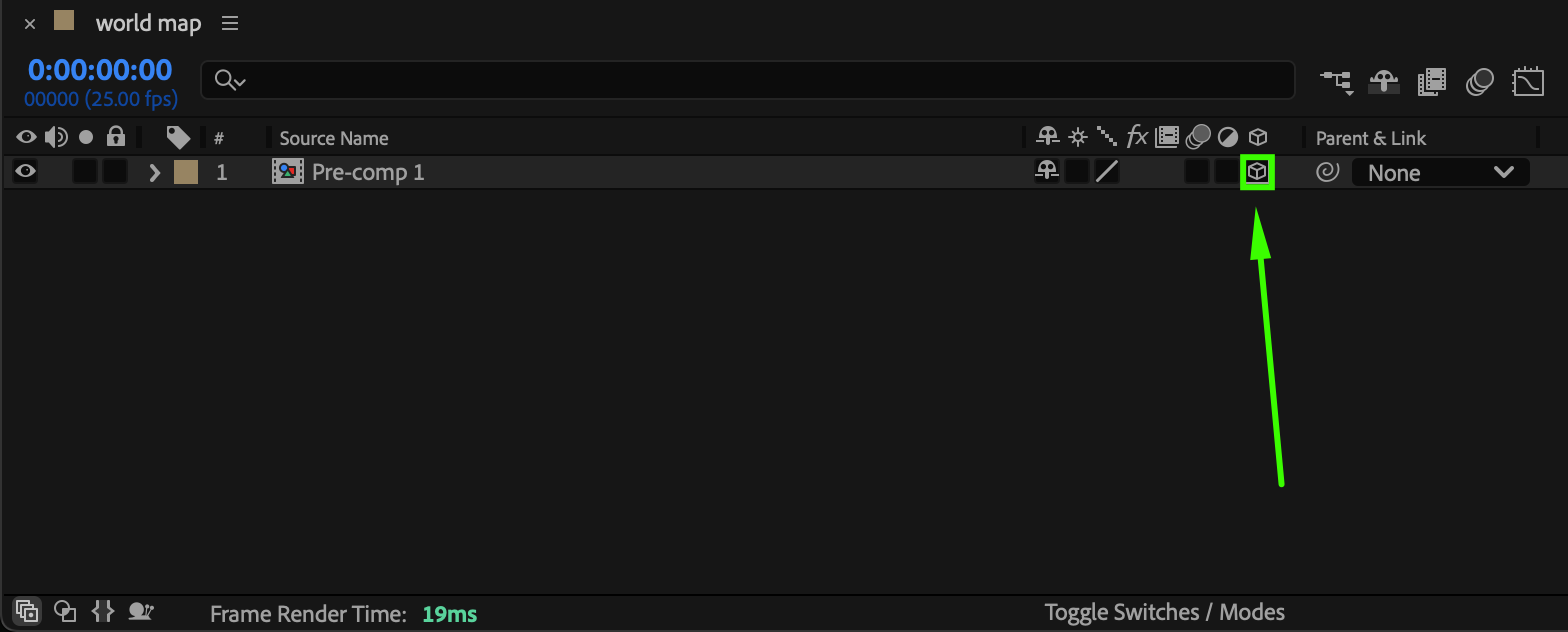

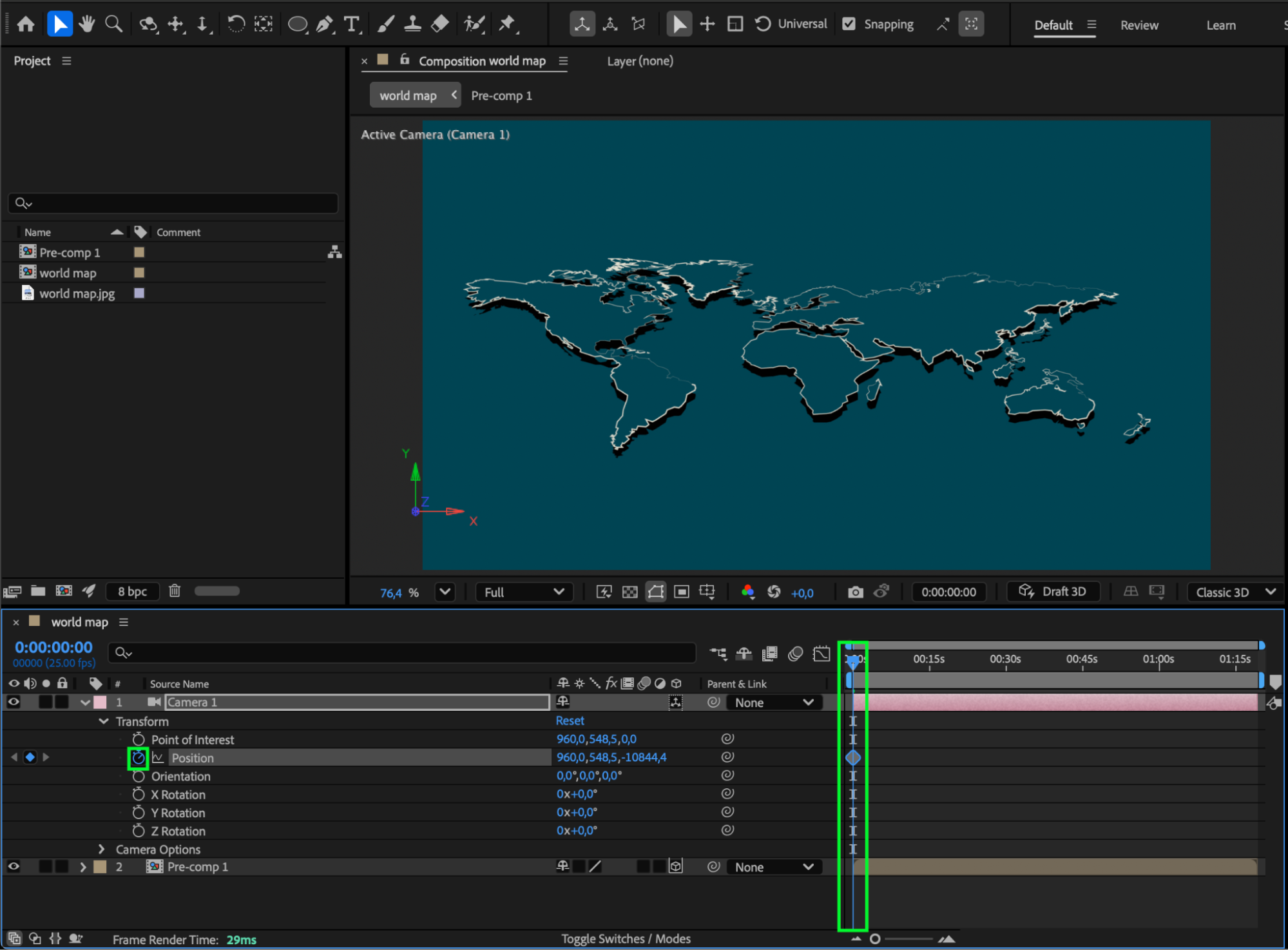
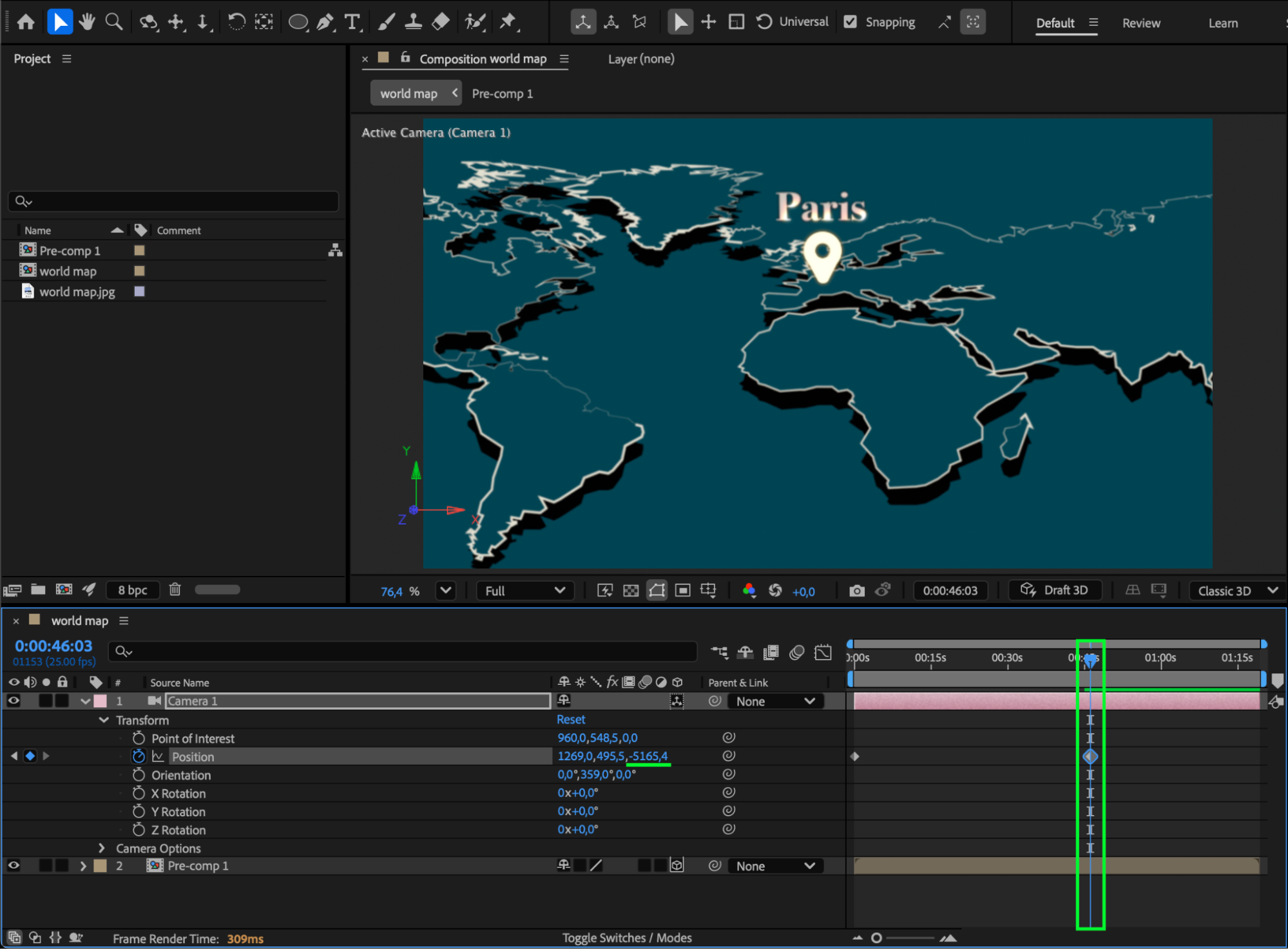 Step 9: Preview and Adjust
Press Spacebar to preview your animation. Check that the labels align correctly with your map’s perspective and adjust timing or spacing if needed.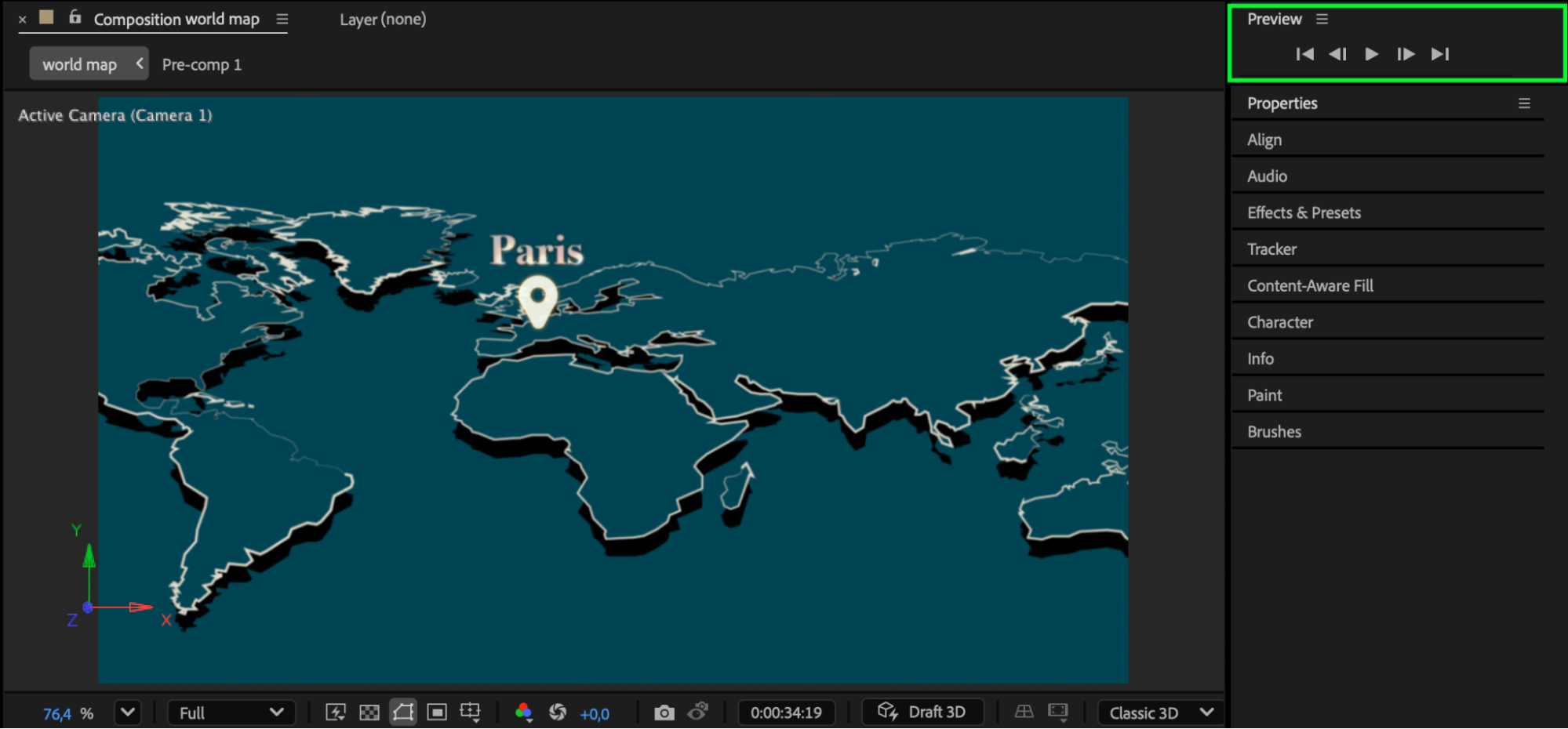
Conclusion
Adding labels to a 3D map in After Effects is an effective way to visualize data, locations, or routes dynamically.
By combining text layers, shape connectors, and a 3D camera, you can create clean, professional motion graphics perfect for travel videos, documentaries, and presentations.
Our Bestsellers
Our Bestsellers


