
Description: Learn how to add and customize sound effects in After Effects using the AEJuice Sound Effects Pro pack — also available for Premiere Pro.
Adding Sound Effects in After Effects with AEJuice Sound Effects Pro
Bring Your Videos to Life with High-Quality Audio for Filmmaking
Sound design plays a major role in how your video feels. Whether you’re working on a short film, commercial, or motion graphics piece, sound effects can make a big difference in how the audience experiences your content. The AEJuice Sound Effects Pro pack is a powerful audio library with hundreds of ready-to-use sounds — from cinematic hits to ambient textures. It works with both After Effects and Premiere Pro, making it a flexible tool for any video editor.
Step 1: Import Your Footage
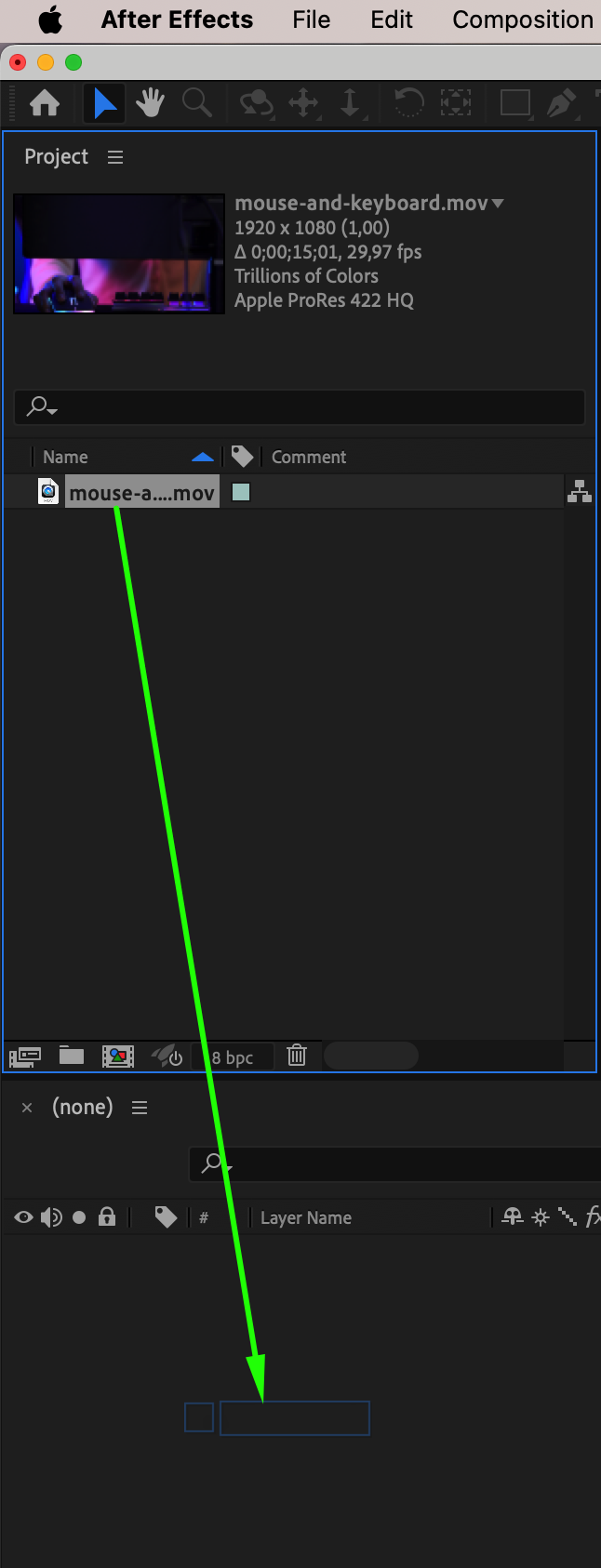
Start by opening After Effects and importing your video clip. Go to File > Import > File and select the footage you want to use. Then drag it into the timeline. This will automatically create a new composition, which serves as the base for your project.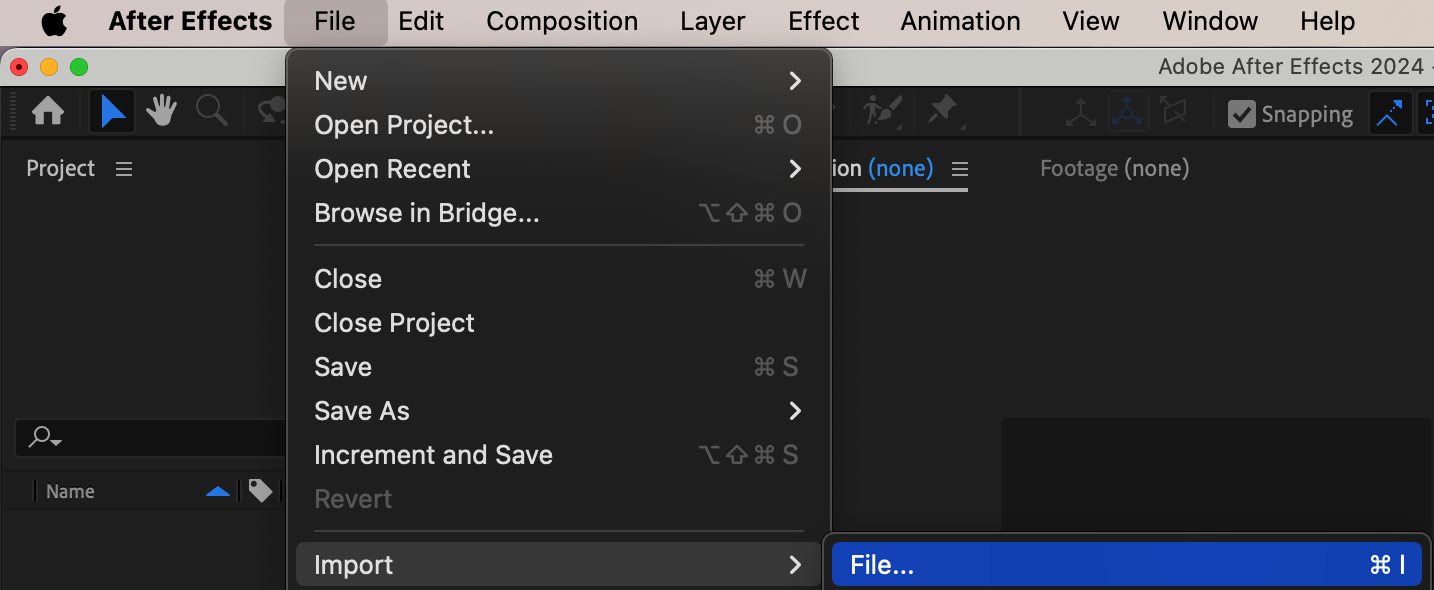
 Step 2: Open AEJuice Pack Manager
To access the sound library, go to Window > AEJuice Pack Manager 4. This will open the AEJuice panel where you can browse all your available packs. If you haven’t logged in yet, make sure to do so to unlock full access.
Step 3: Download the Sound Effects Pro Pack
In the Pack Manager, find the Sound Effects Pro pack. If it’s not installed yet, click Download. Once the download is complete, you’ll be able to explore hundreds of high-quality sound effects organized by category — including transitions, cinematic booms, foley, impacts, and more.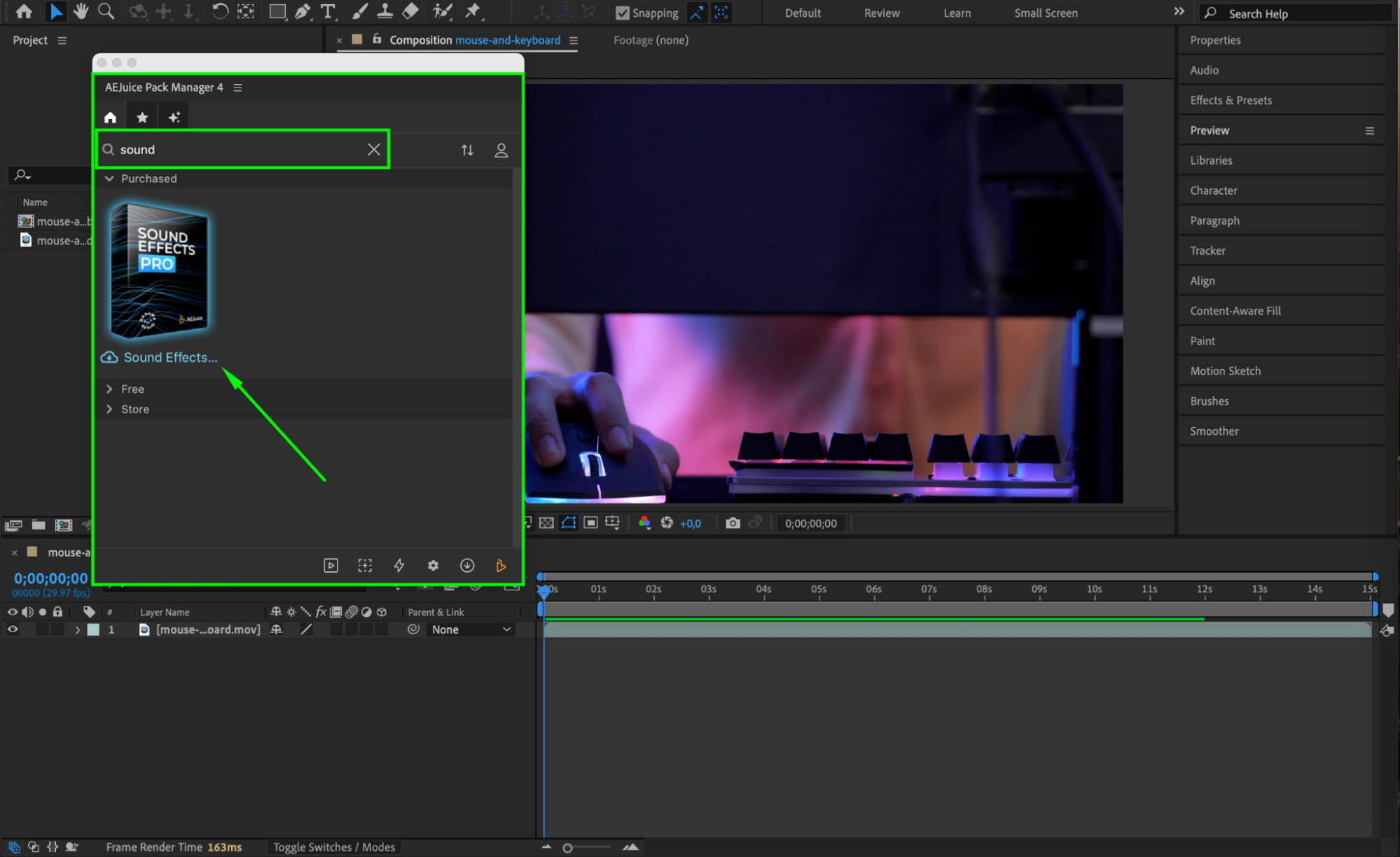 Step 4: Choose and Import a Sound Effect
Scroll through the pack and listen to different audio previews. Set the CTI (Current Time Indicator) at the desired position on the timeline. Once you find a sound that fits your scene, click on it and press Import. The sound effect will be added to your timeline as a .wav file, ready to be positioned and synced with your visuals.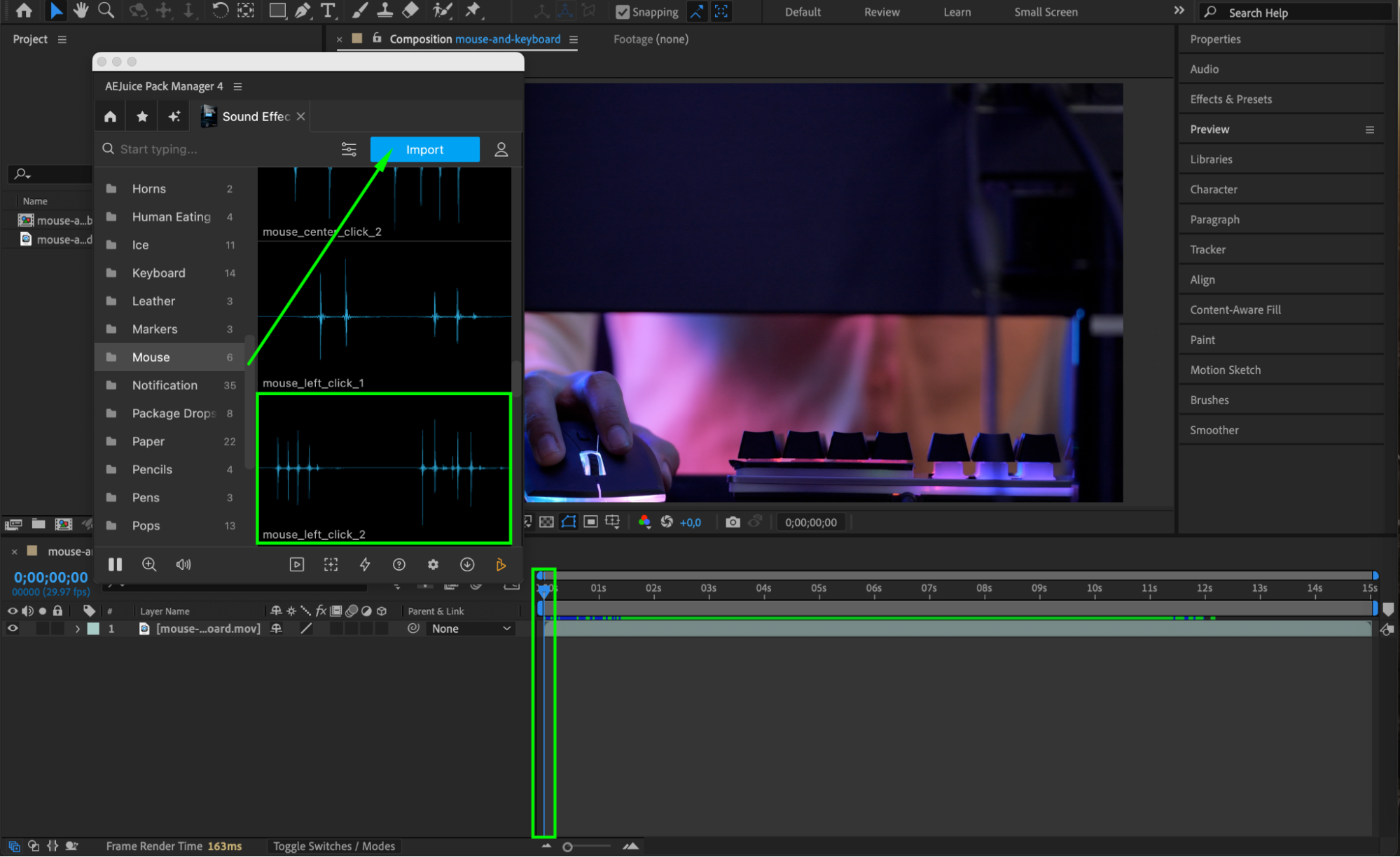
Step 5: Adjust Audio Settings
Click on the imported audio layer in the timeline. Press “L” to reveal the Audio Levels property. You can animate the levels using keyframes — for example, set it to -70 dB to mute the sound or +12 dB for maximum volume. Use the Waveform view to see the audio visually, which helps you align it with specific moments in your animation or edit.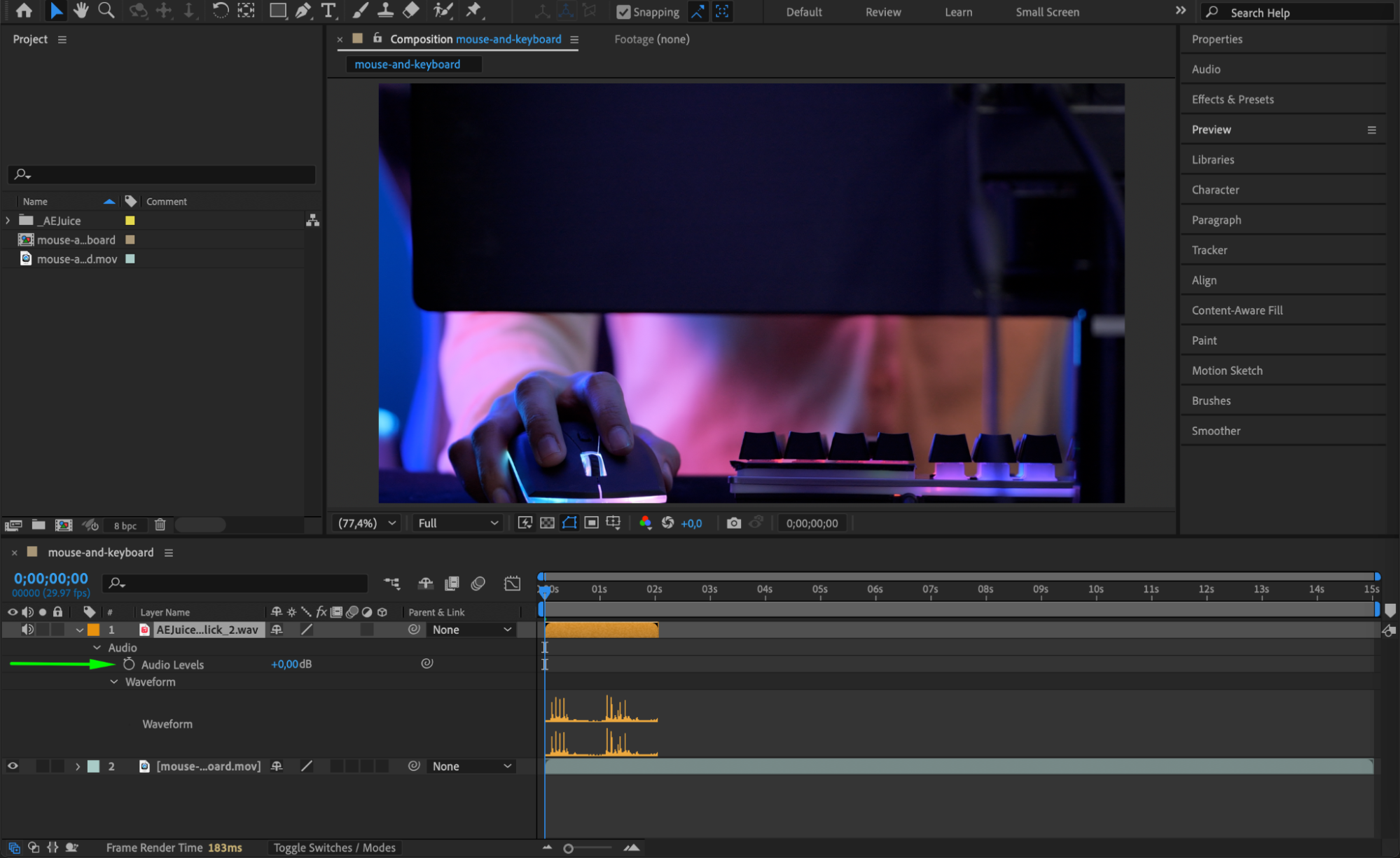 Step 6: Add Multiple Effects as Needed
You can import as many sound effects as your project requires. Combine background textures, transitions, and impact sounds to create a layered, immersive audio environment. 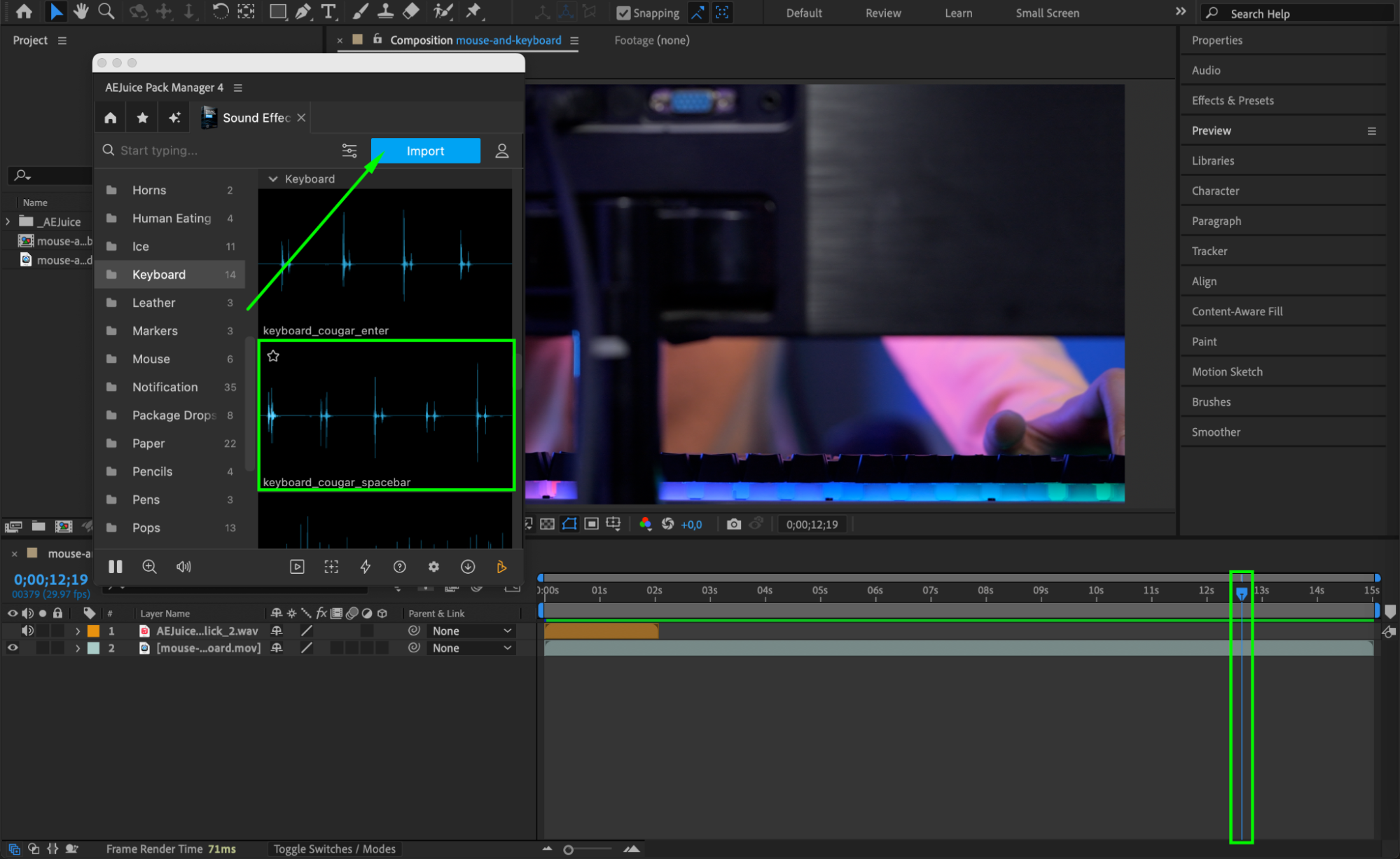 Step 7: Preview and Finalize
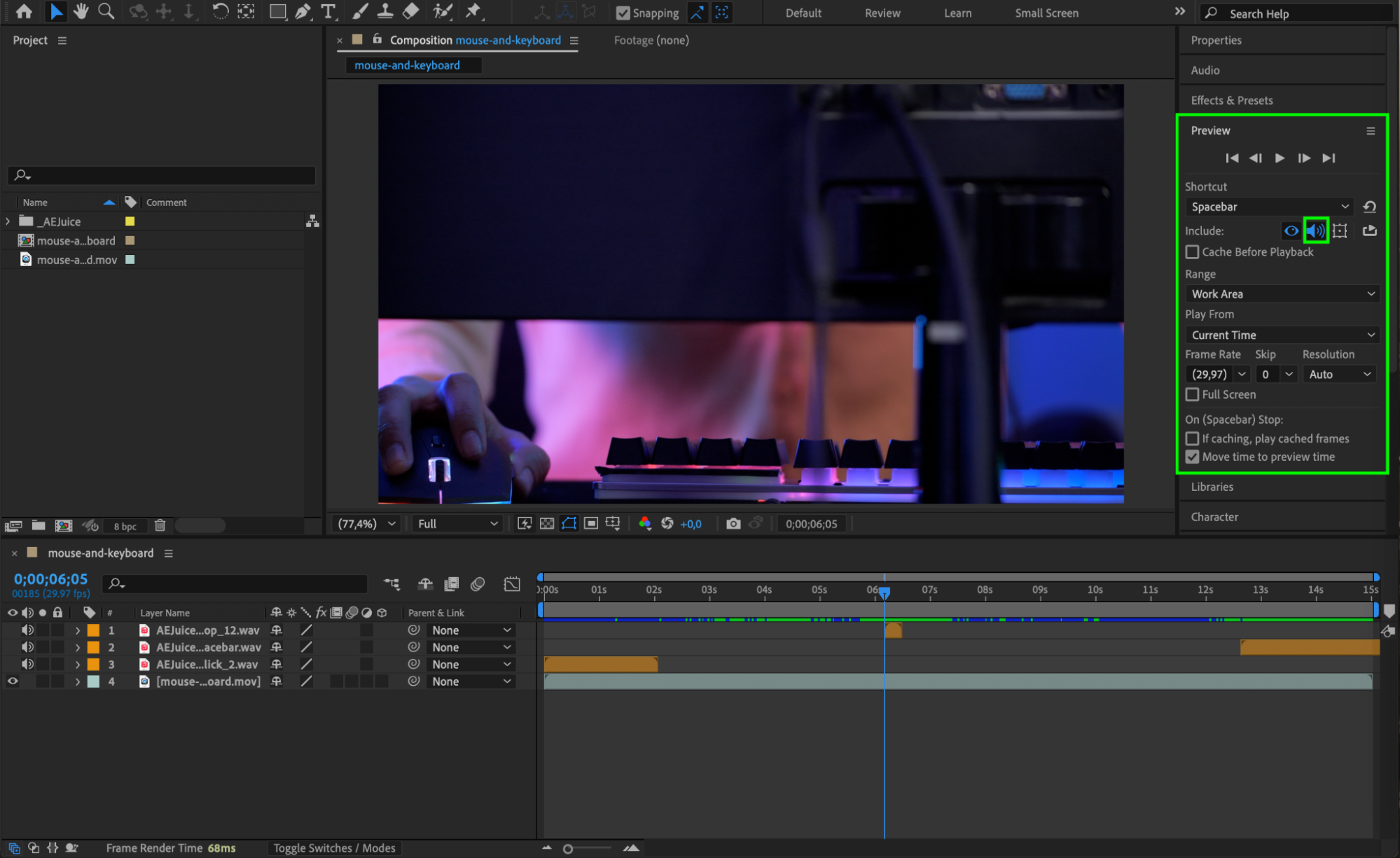
Press Spacebar to preview your timeline with sound. Make any volume or timing adjustments to ensure your effects feel balanced and well-timed. When everything sounds right, you’re ready to render or continue editing your project.
 Conclusion
Adding professional-grade sound effects is easy with AEJuice Sound Effects Pro. Whether you’re creating motion graphics, trailers, or short films, this pack gives you a rich set of tools to enhance your storytelling. It’s available for both After Effects and Premiere Pro, making it a must-have resource for filmmakers and editors alike.
Our Bestsellers
Our Bestsellers


