
Introduction
In After Effects, only one expression can be applied to a property at a time. However, you can still combine multiple behaviors — such as wiggle, math calculations, or value offsets — by writing them together inside a single expression. This tutorial shows how to correctly add and combine two expressions on one property.
Step 1: Open the Expression Editor
Select the layer and property you want to animate (for example, Position, Scale, or Rotation). Hold Alt (Windows) or Option (Mac) and click the stopwatch icon next to the property to enable expressions.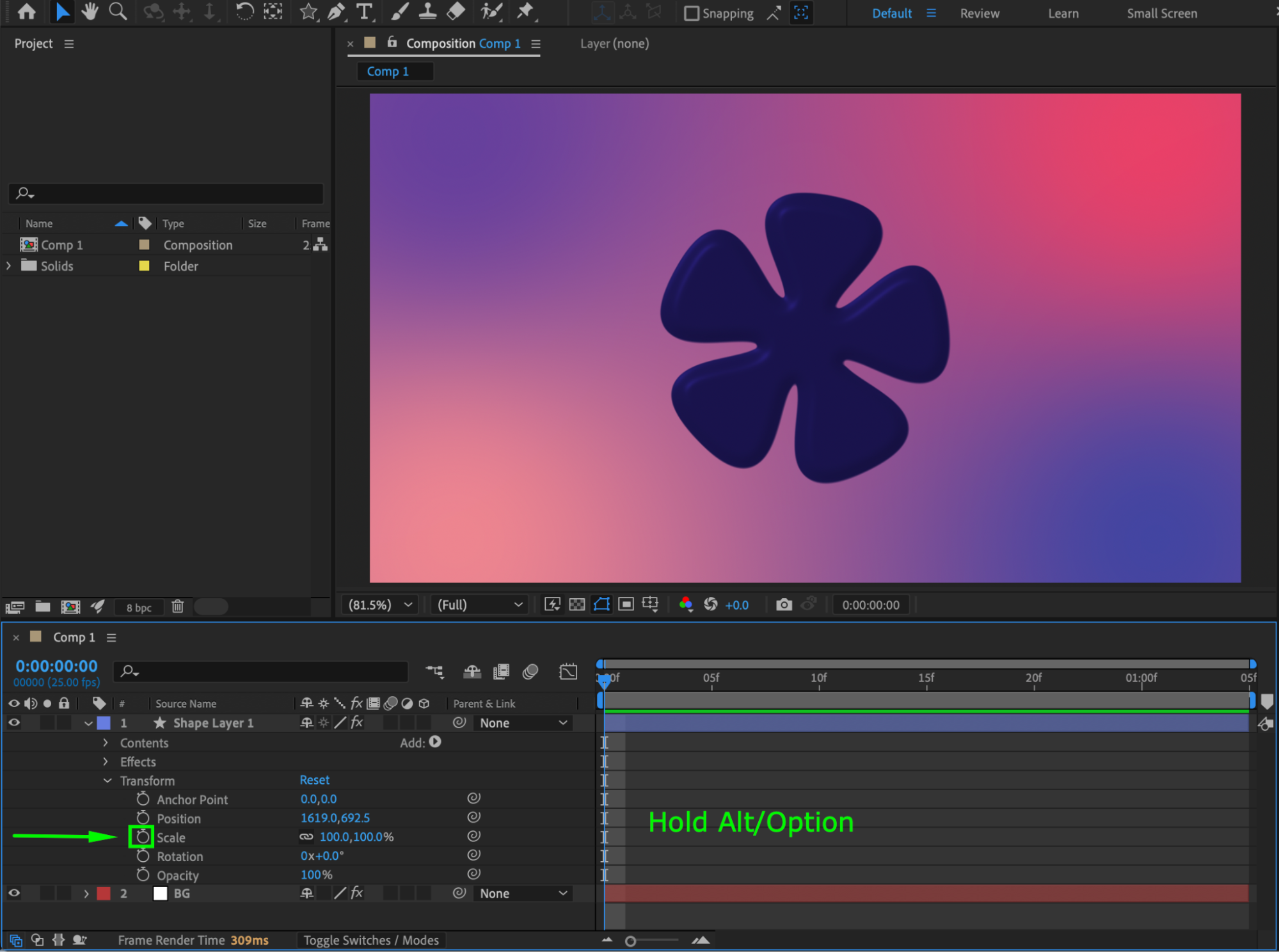 Step 2: Understand Why Expressions Must Be Combined
After Effects does not allow stacking expressions separately. If you paste a second expression, it will replace the first one. To use two expressions together, you must merge them into a single script using variables.
Step 3: Combine Two Expressions Using Variables
Example: combining wiggle and a position offset
wiggleValue = wiggle(3, 50);
offset = [100, 0];
wiggleValue + offset;
Explanation:
wiggle(3, 50) creates motion
[100, 0] adds a constant offset
The final line outputs the combined result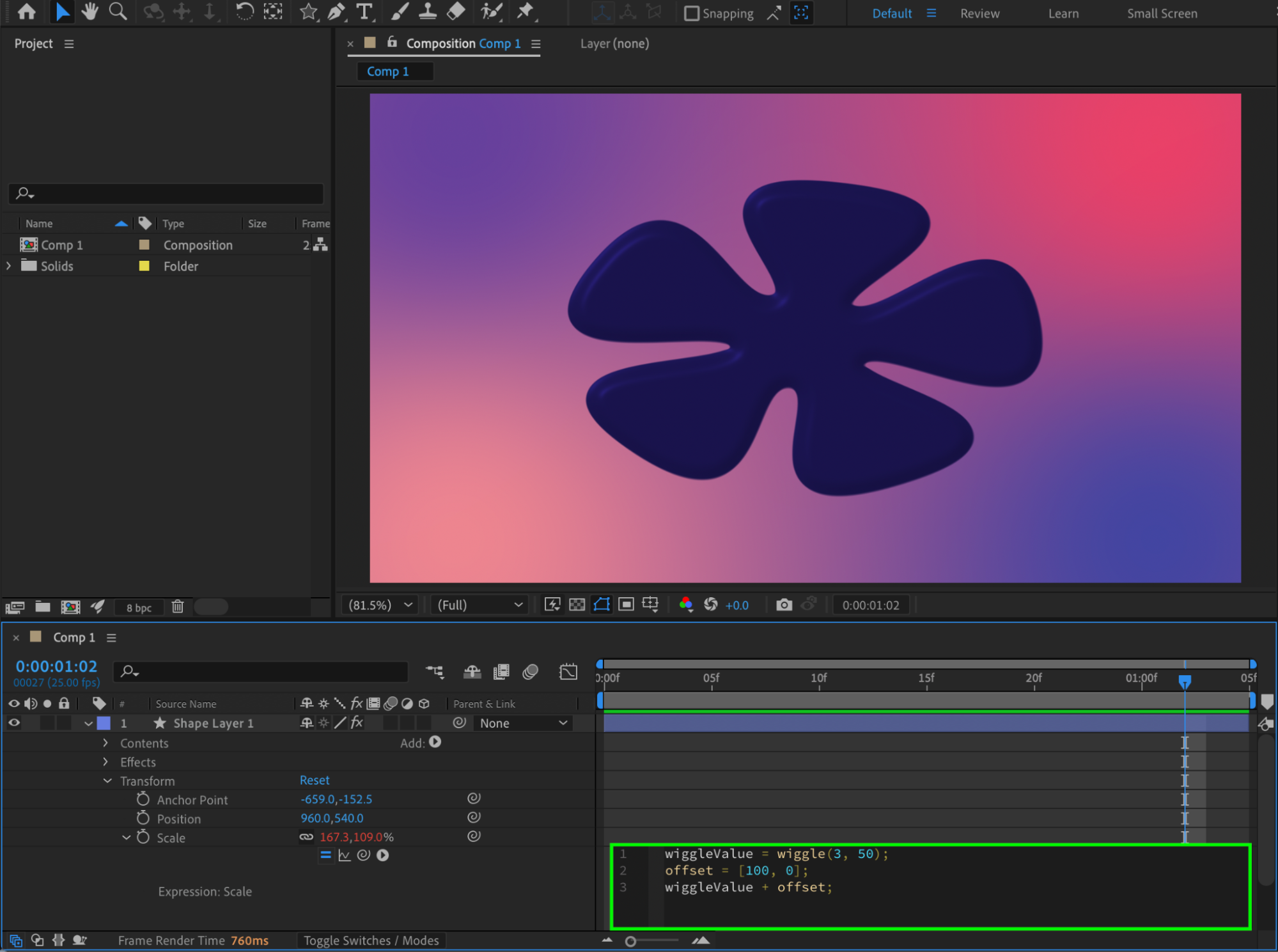
Step 4: Combine Expressions with the Original Value
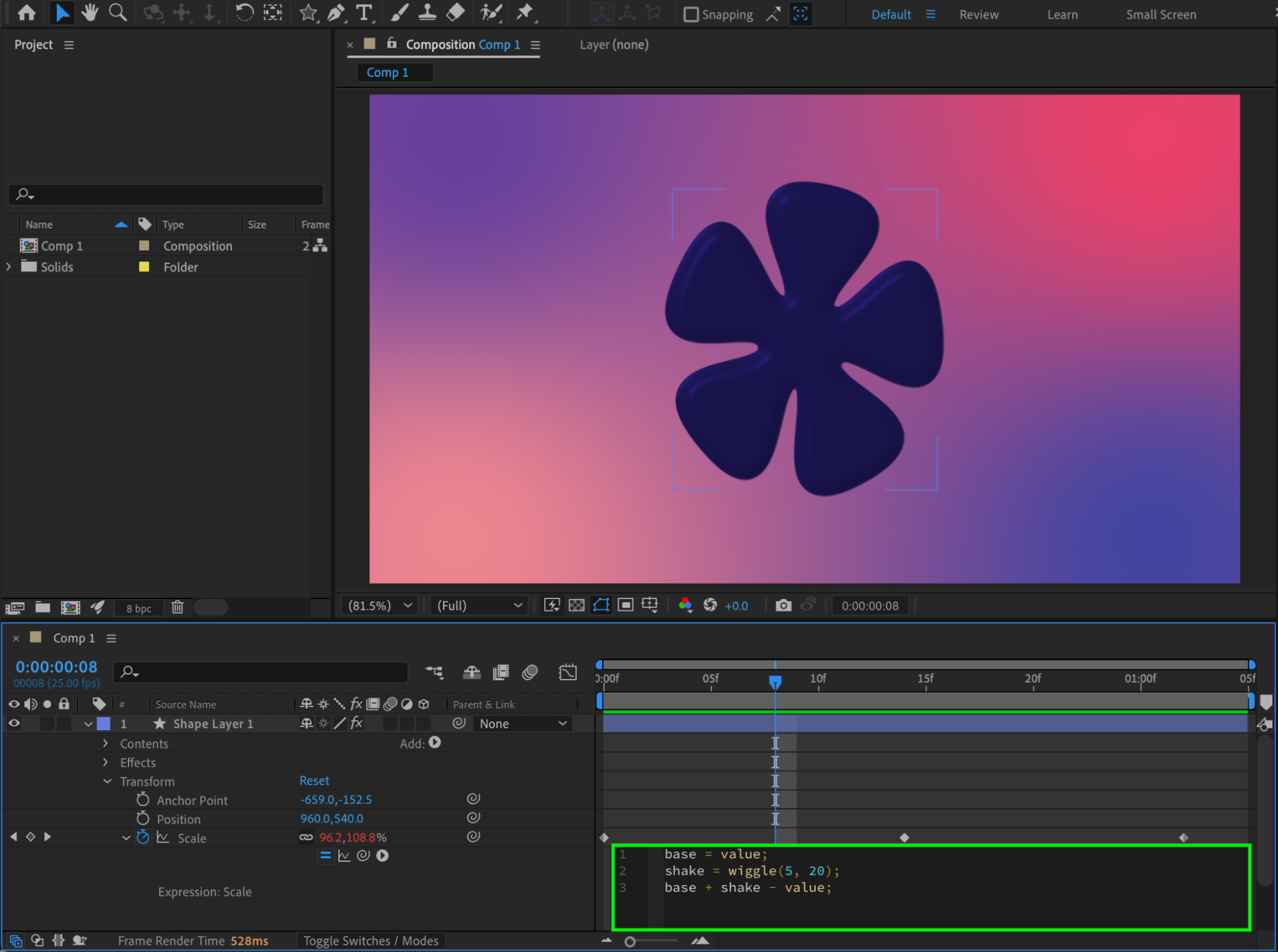
If you want to keep the original animation and add an effect on top:
base = value;
shake = wiggle(5, 20);
base + shake – value;
This preserves keyframes while adding motion.
Step 5: Combine Expressions Using Math Operations
You can also combine expressions mathematically:
value * 1.2 + wiggle(2, 10);
This:
Scales the value by 120%
Adds subtle motion on top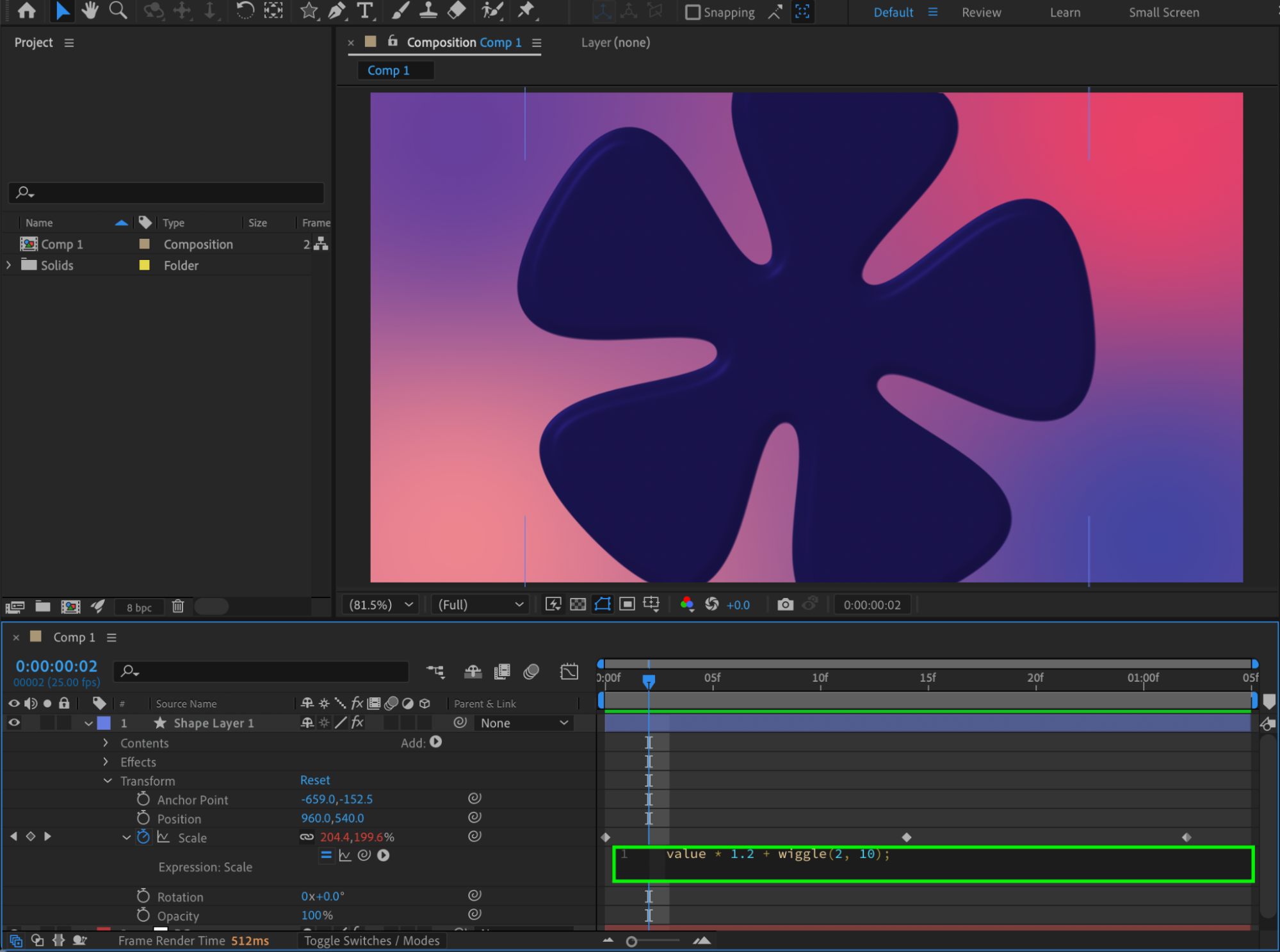
Step 6: Use Conditional Logic (Optional)
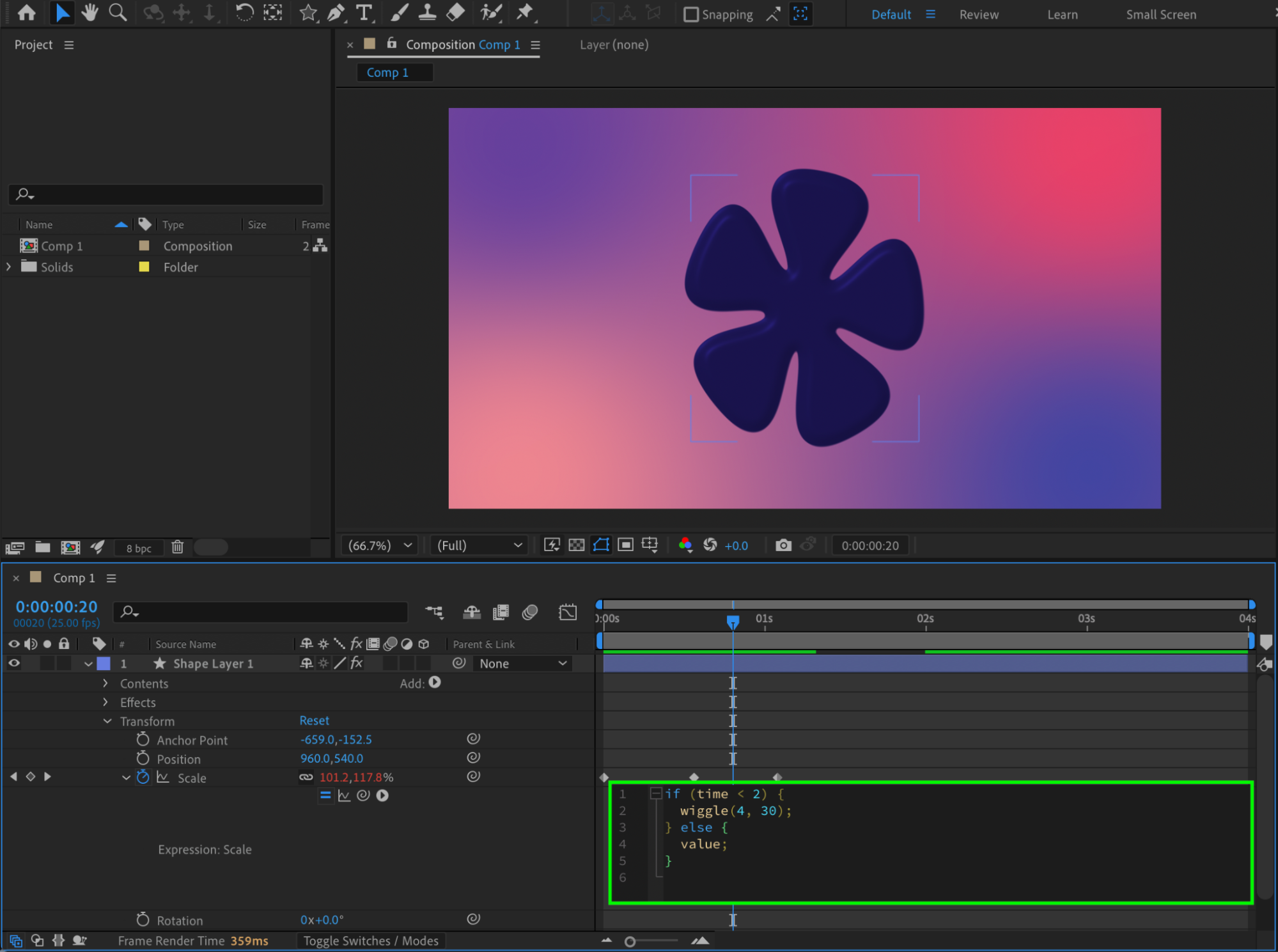
Example: combining expressions with a condition:
if (time < 2) {
wiggle(4, 30);
} else {
value;
}
This applies motion only during the first 2 seconds.
 Step 7: Preview and Refine
Preview the animation. Adjust wiggle frequency, amplitude, offsets, or math values until the result feels natural.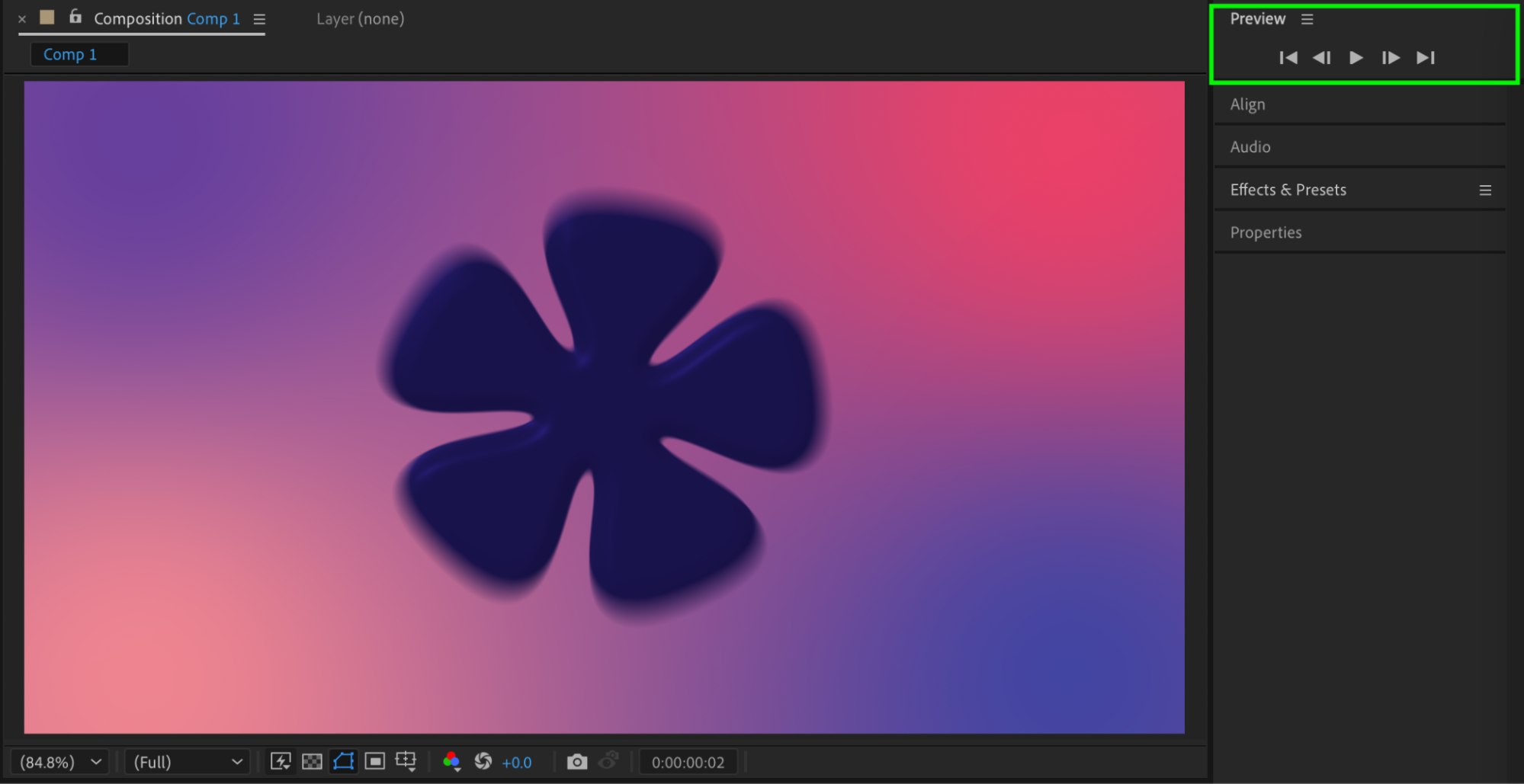
Conclusion
Although After Effects allows only one expression per property, you can easily combine multiple expressions by writing them together using variables and math operations. This approach gives you full control and lets you create complex, flexible animations without limitations.
Our Bestsellers
Our Bestsellers


