
Introduction
This tutorial shows how to realistically place a video inside a TV screen in After Effects. You’ll use chroma keying, 3D rotation, noise, and RGB channel effects to achieve a convincing screen composite.
Step 1: Import and Place the TV Image
Go to File > Import > File and import:
A TV image (with a green screen or empty screen area)
The video you want to display on the TV
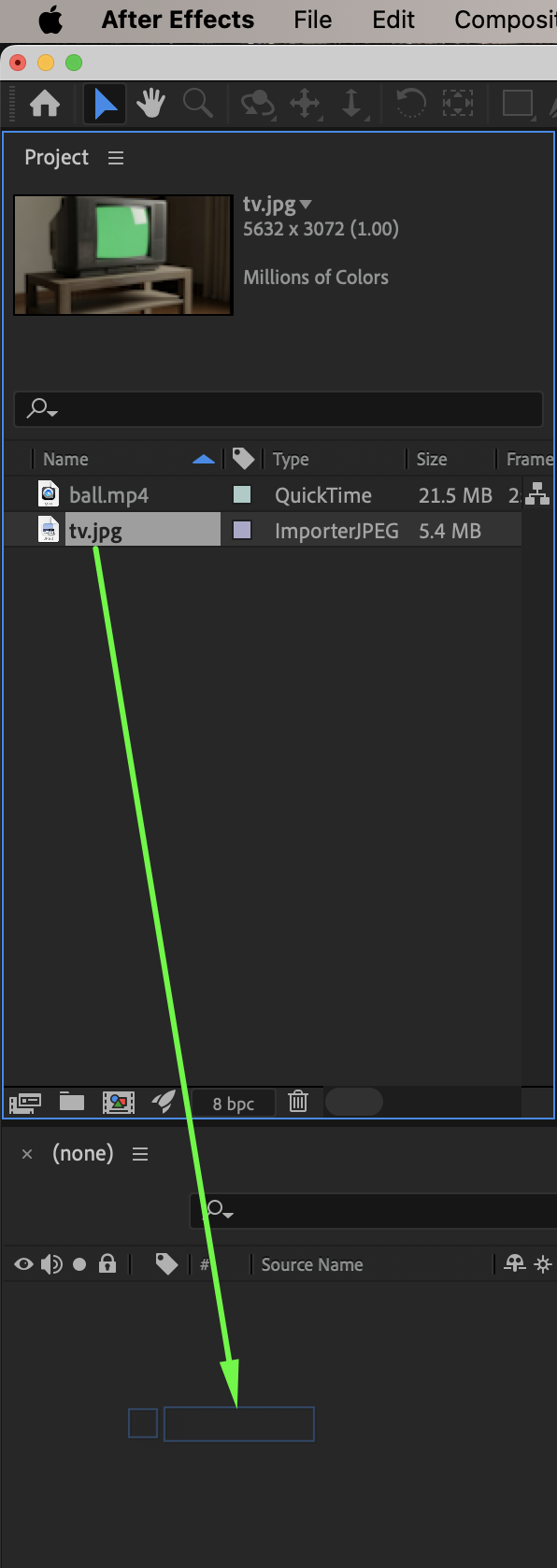
Drag only the TV image onto the timeline.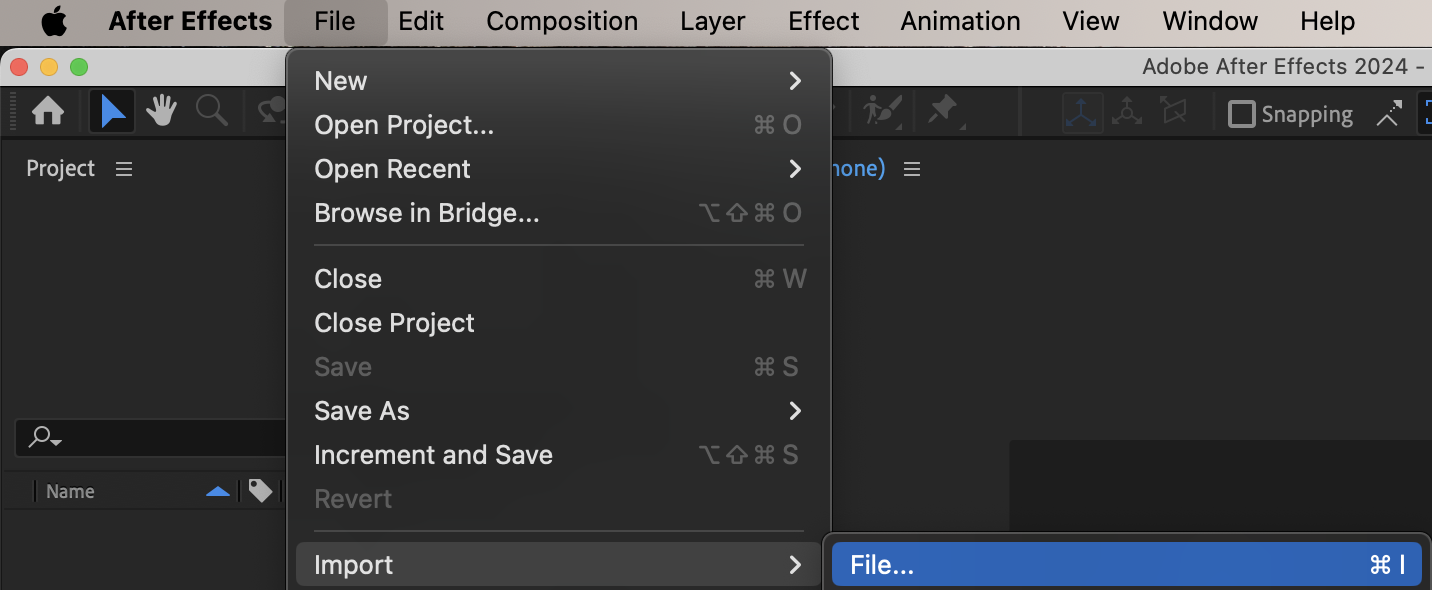
 Step 2: Remove the Green Screen from the TV
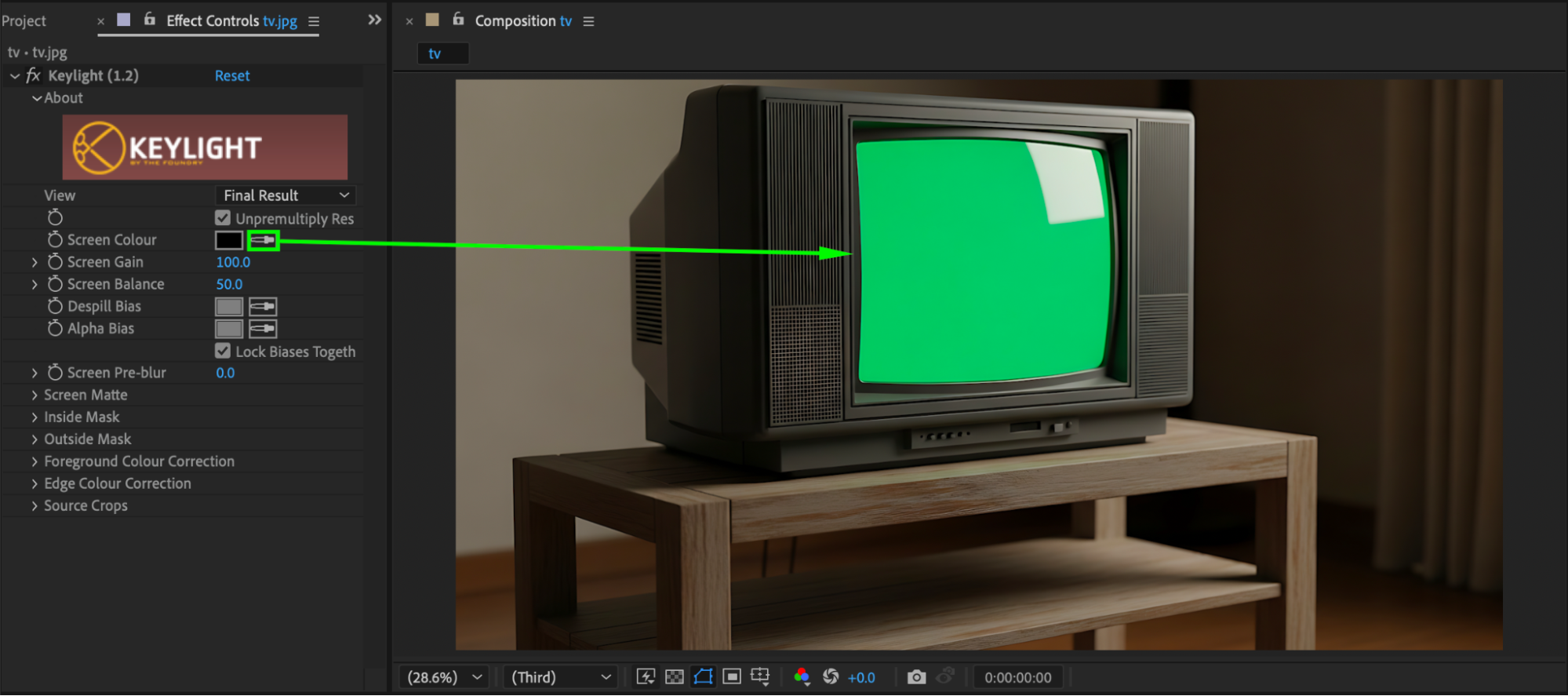
Select the TV image layer. Apply Keylight (1.2) from the Effects & Presets panel. Use the Screen Colour eyedropper to remove the green screen from the TV display area.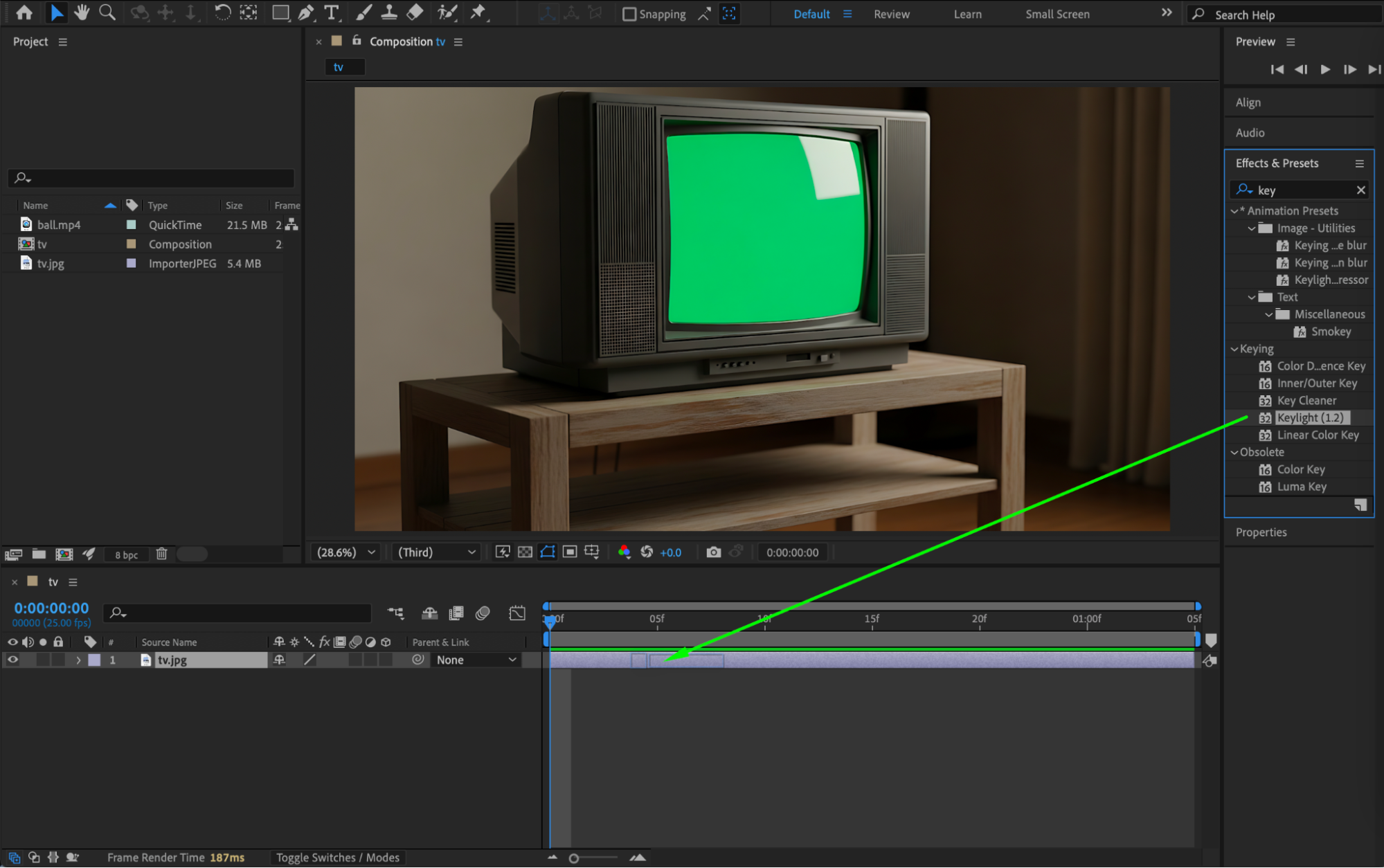
 Step 3: Import and Add the Screen Video
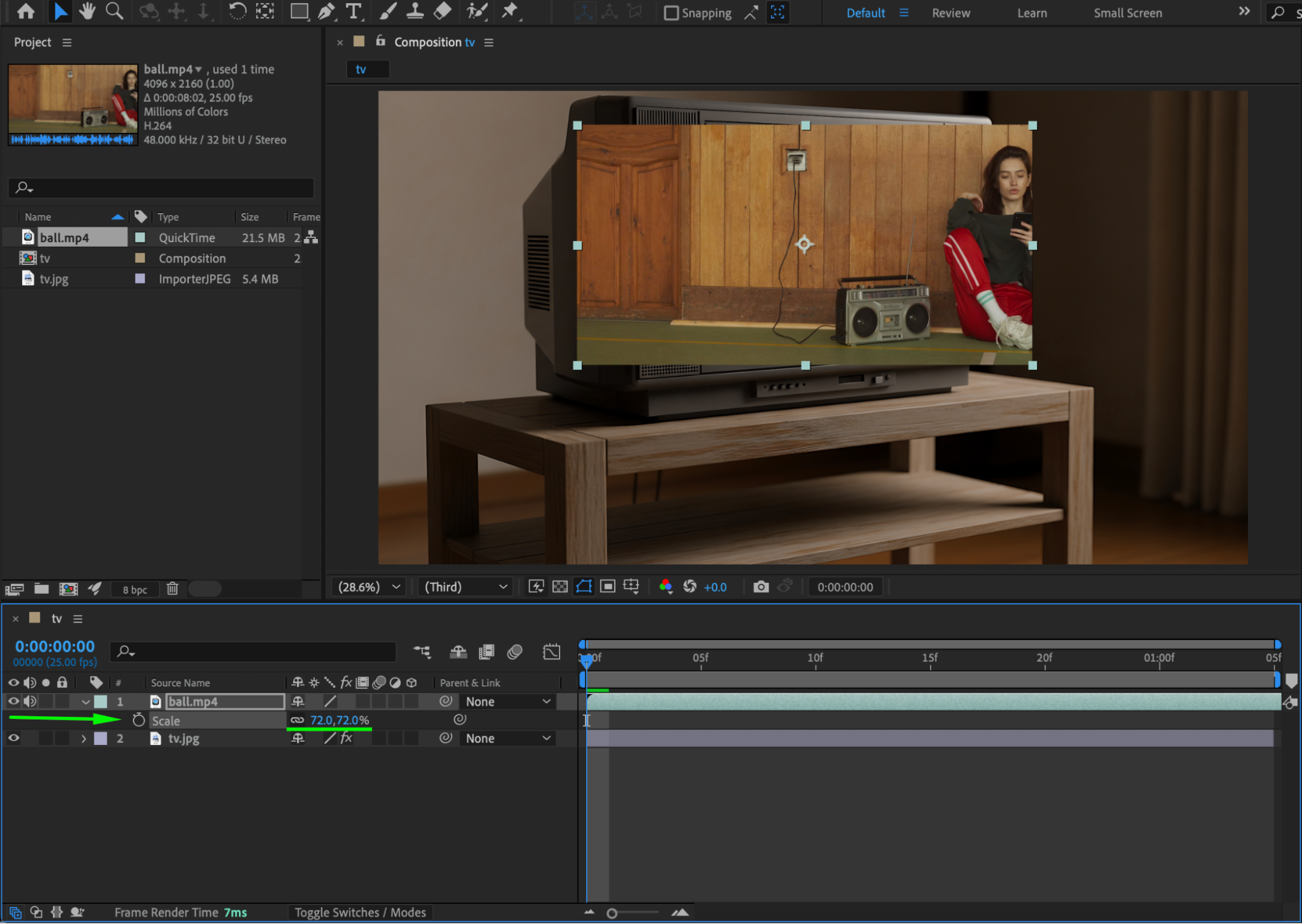
Now drag the video you want to show on the TV onto the timeline. Place it below the TV image layer. Adjust the Scale and Position so the video fits inside the TV screen.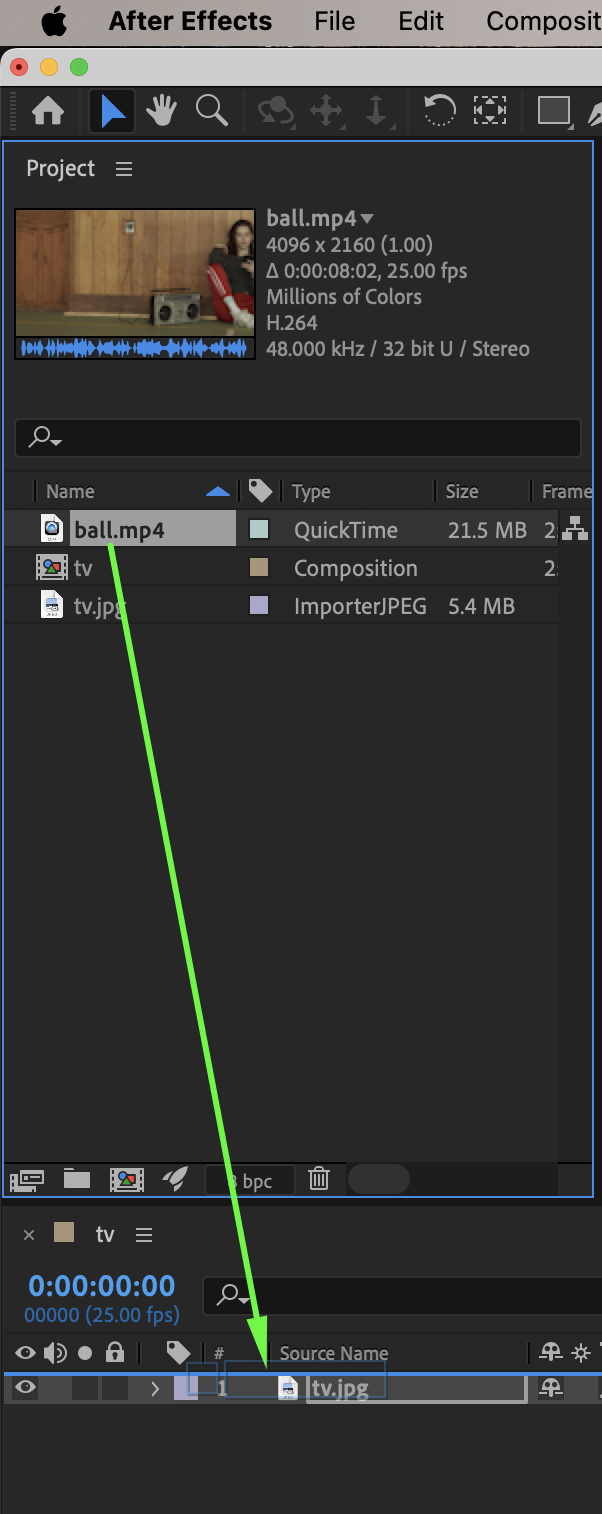
Step 4: Enable 3D and Place the Video Correctly
Enable the 3D Layer switch for the video layer. Make sure the video remains under the TV image in the layer stack.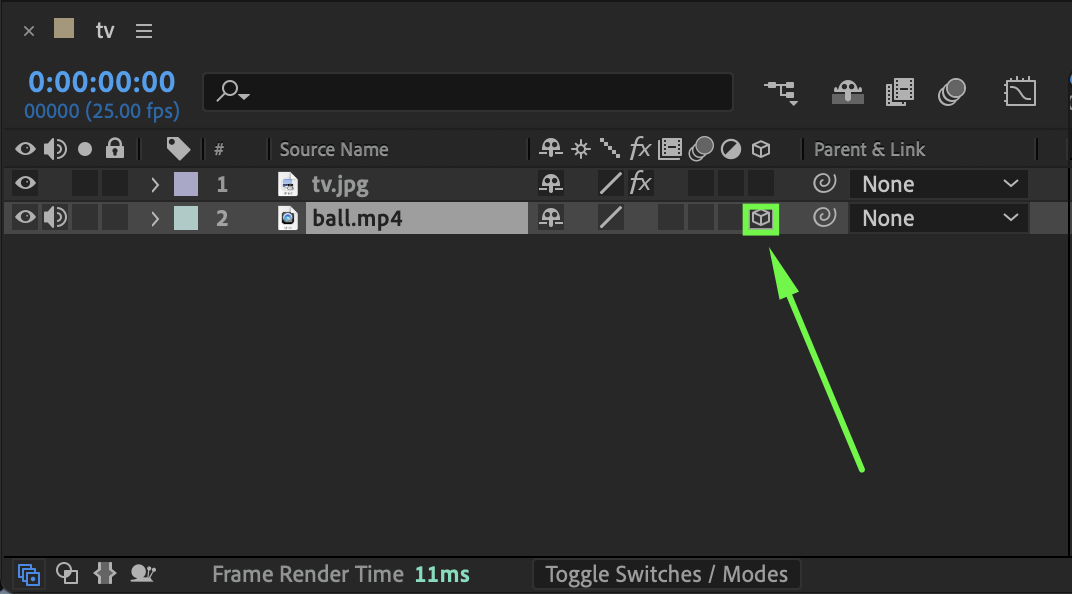 Step 5: Match the Screen Perspective
Manually adjust the Orientation or Y Rotation of the video layer. Rotate it until the video aligns with the TV screen’s perspective and feels naturally embedded.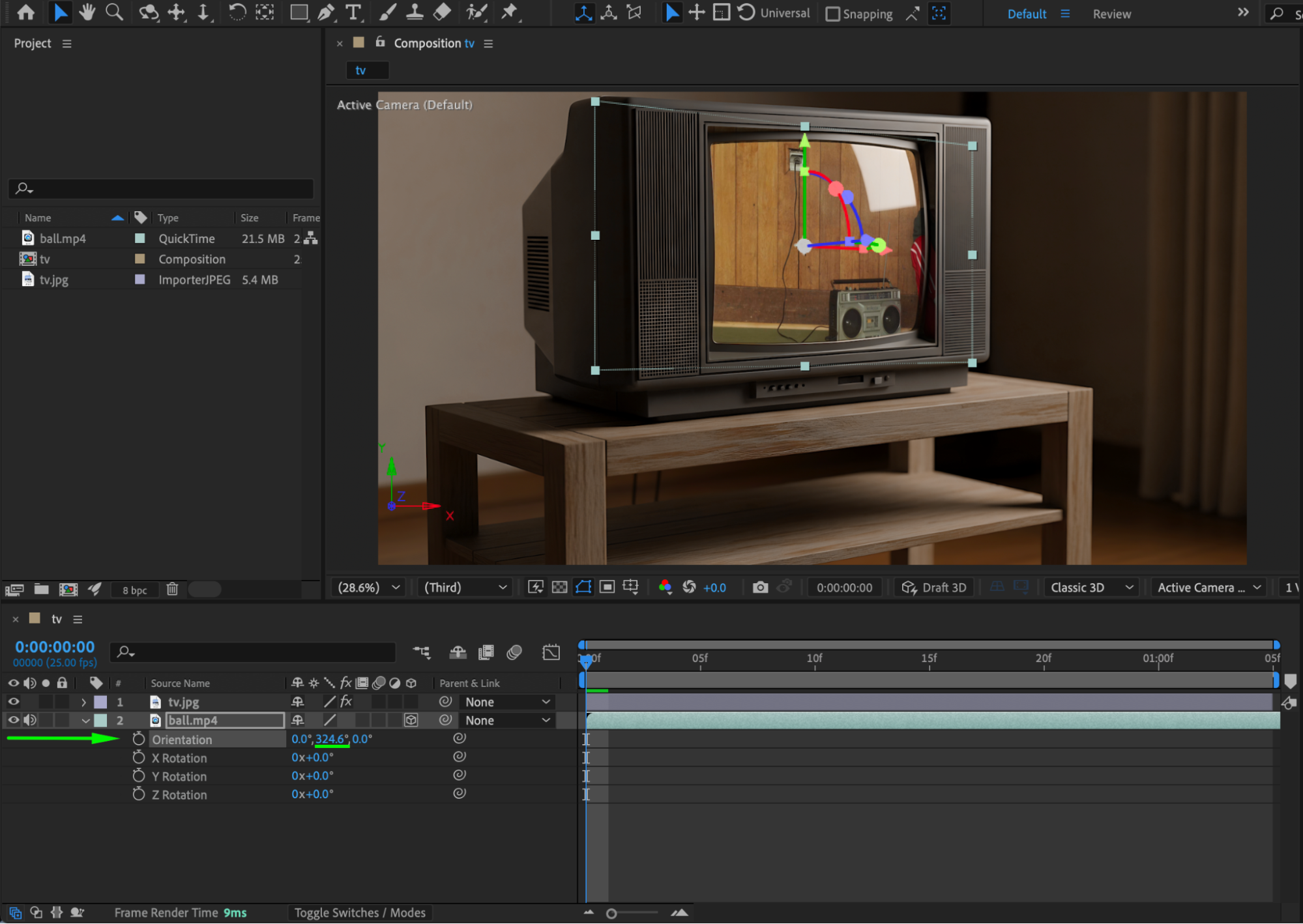 Step 6: Add Screen Noise
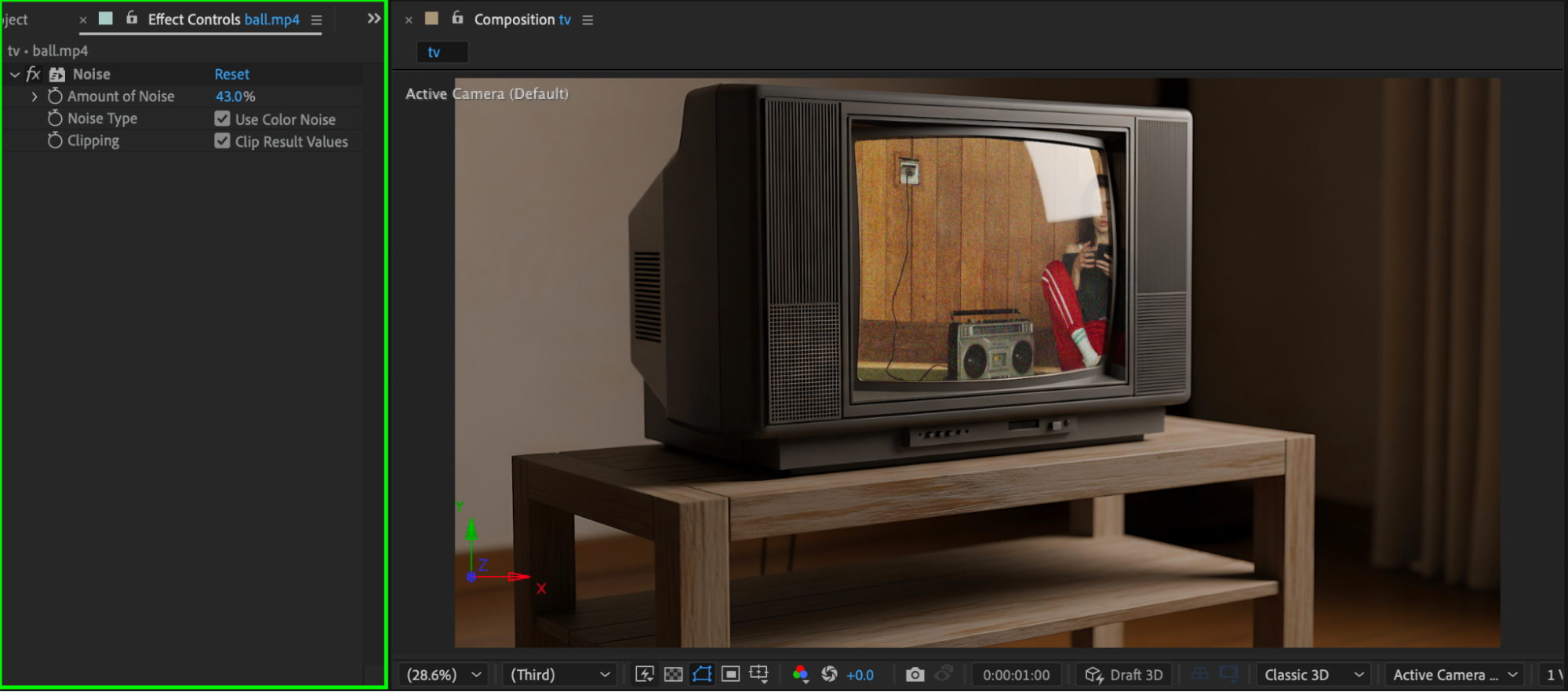
Apply the Noise effect from the Effects & Presets panel to the video layer. This helps the screen look more realistic and less digitally clean.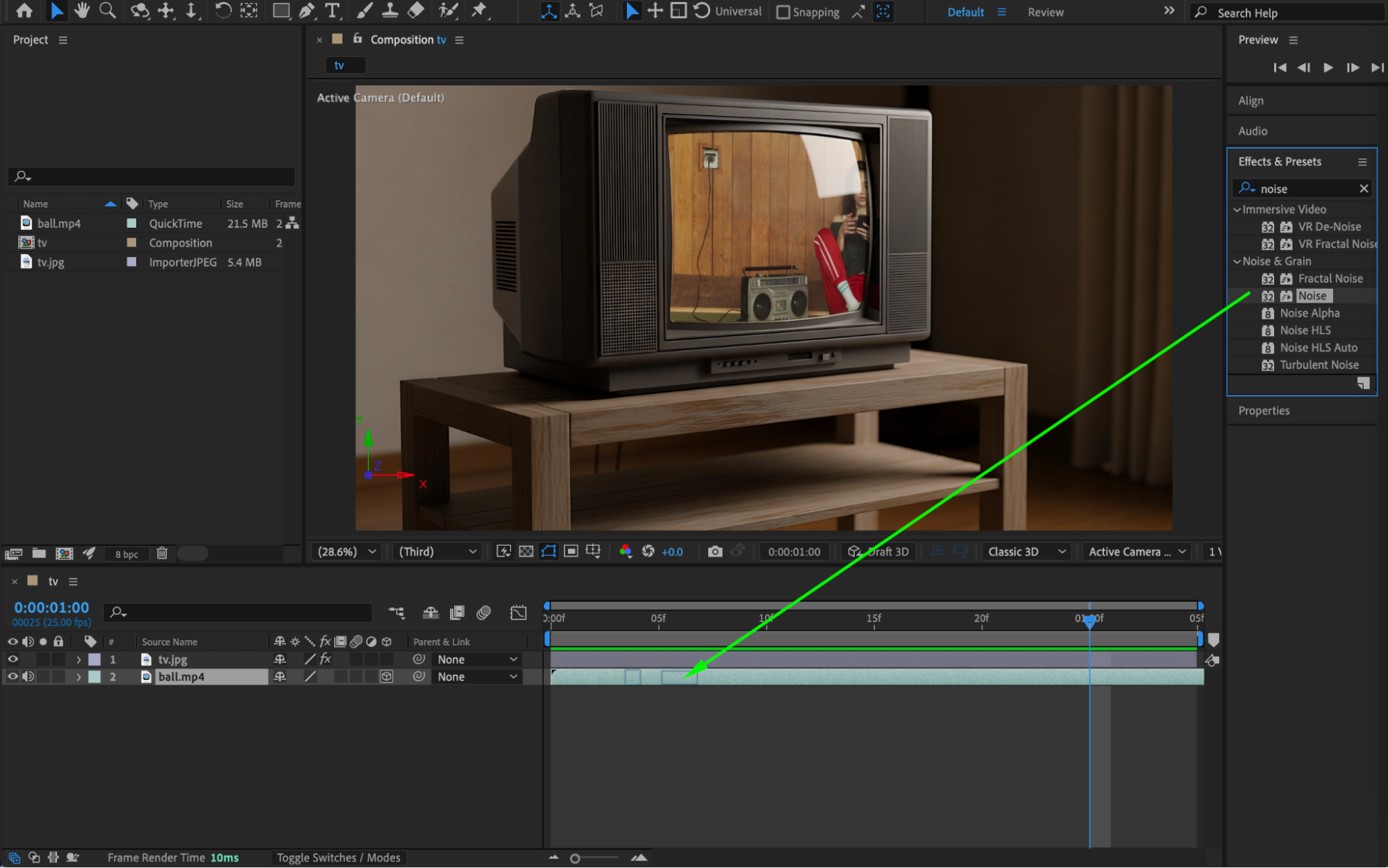
 Step 7: Pre-compose the Screen Video
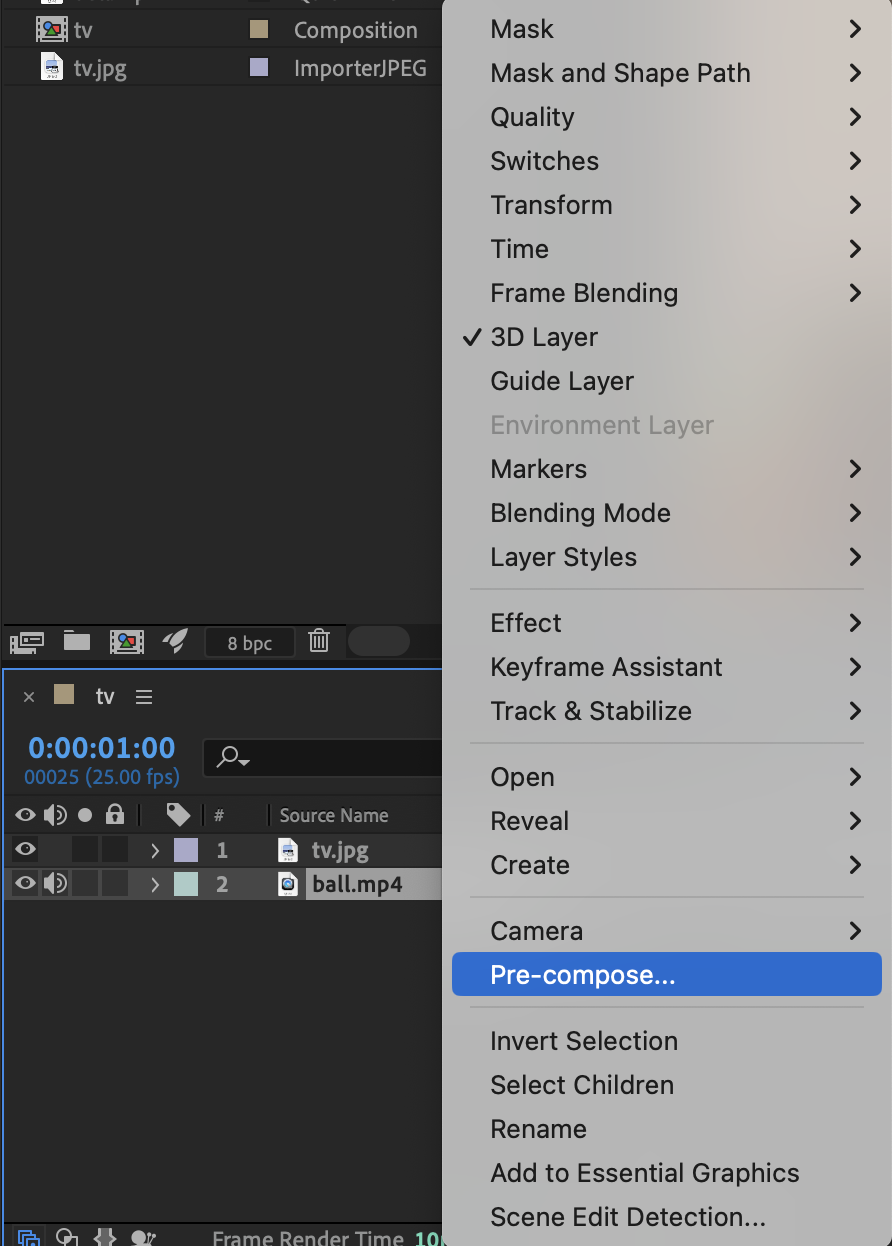
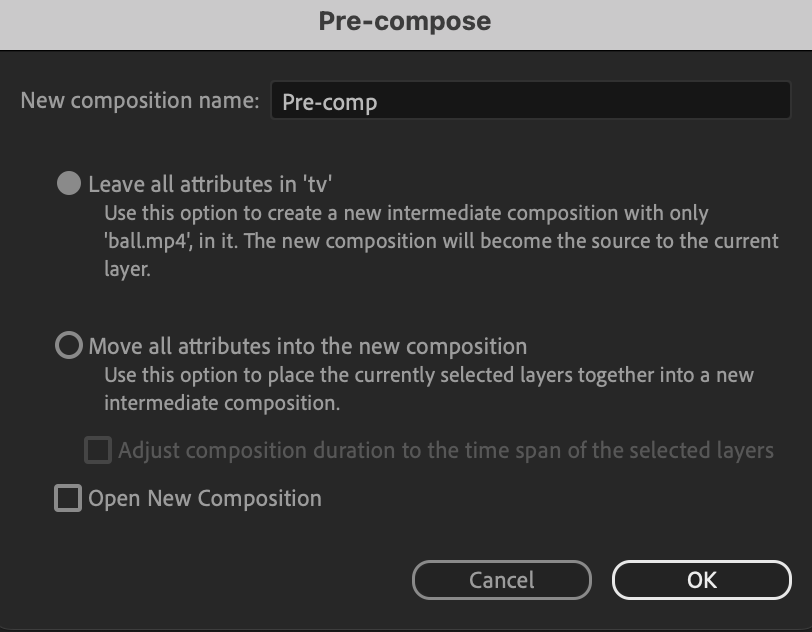
Select the video layer. Right-click and choose Pre-compose.
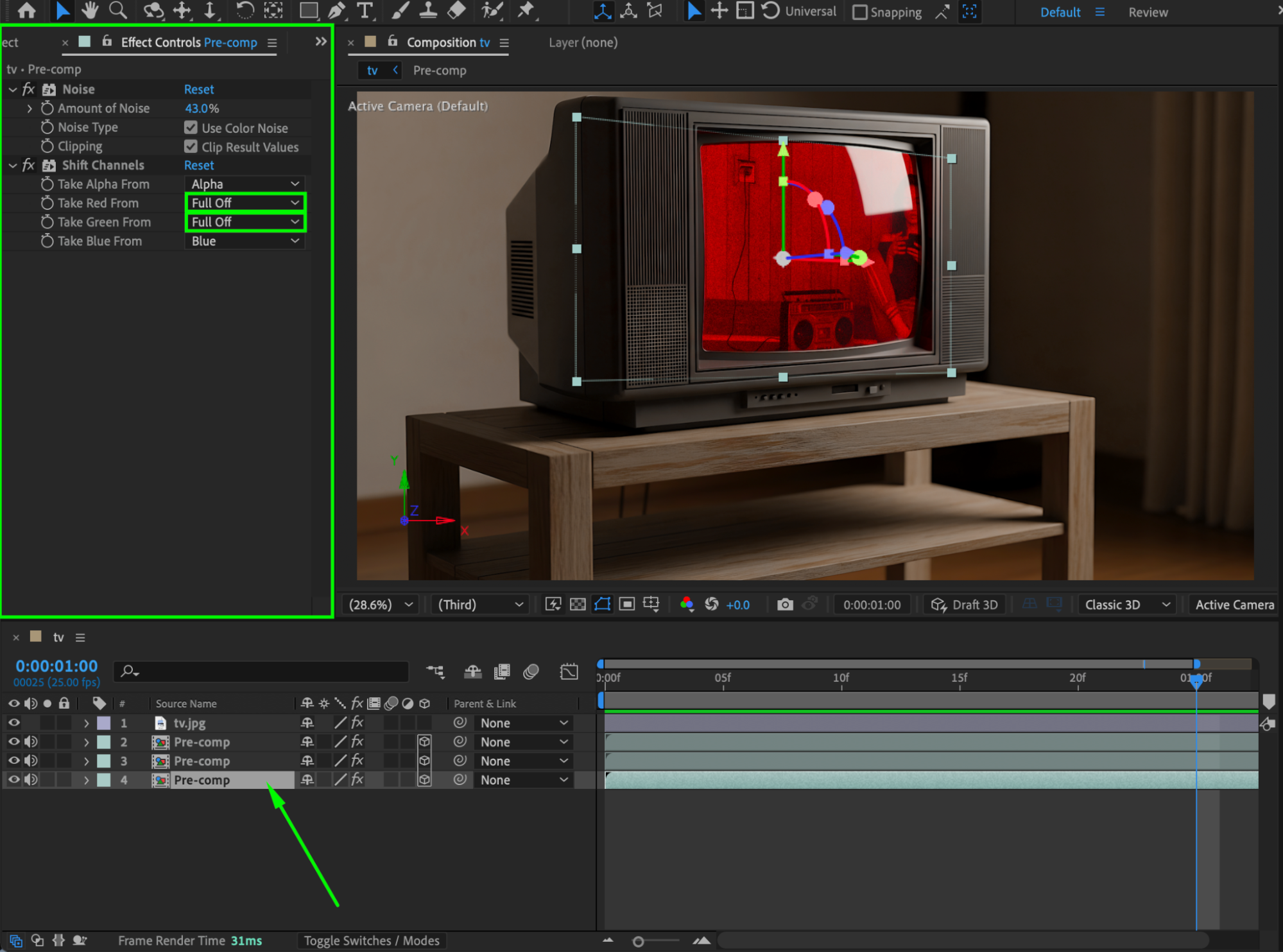
Step 8: Apply Shift Channels
Apply the Shift Channels effect to the pre-composition. This effect will be used to create RGB channel separation.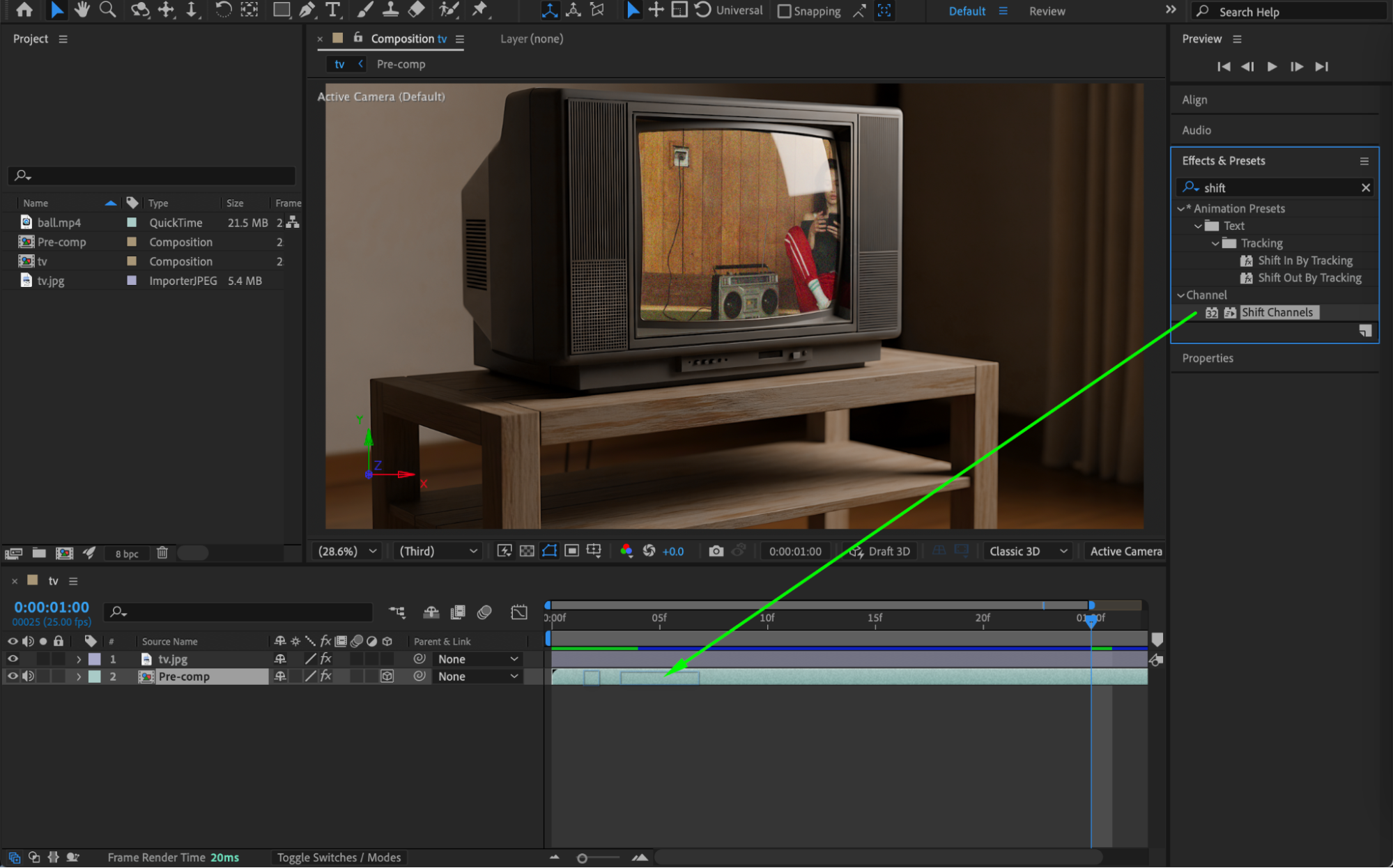
Step 9: Duplicate for RGB Separation
Duplicate the pre-comp two times, so you have three identical layers. In the Effect Controls panel:
Layer 1: Set Blue and Green to Full Off
Layer 2: Set Red and Blue to Full Off
Layer 3: Set Red and Green to Full Off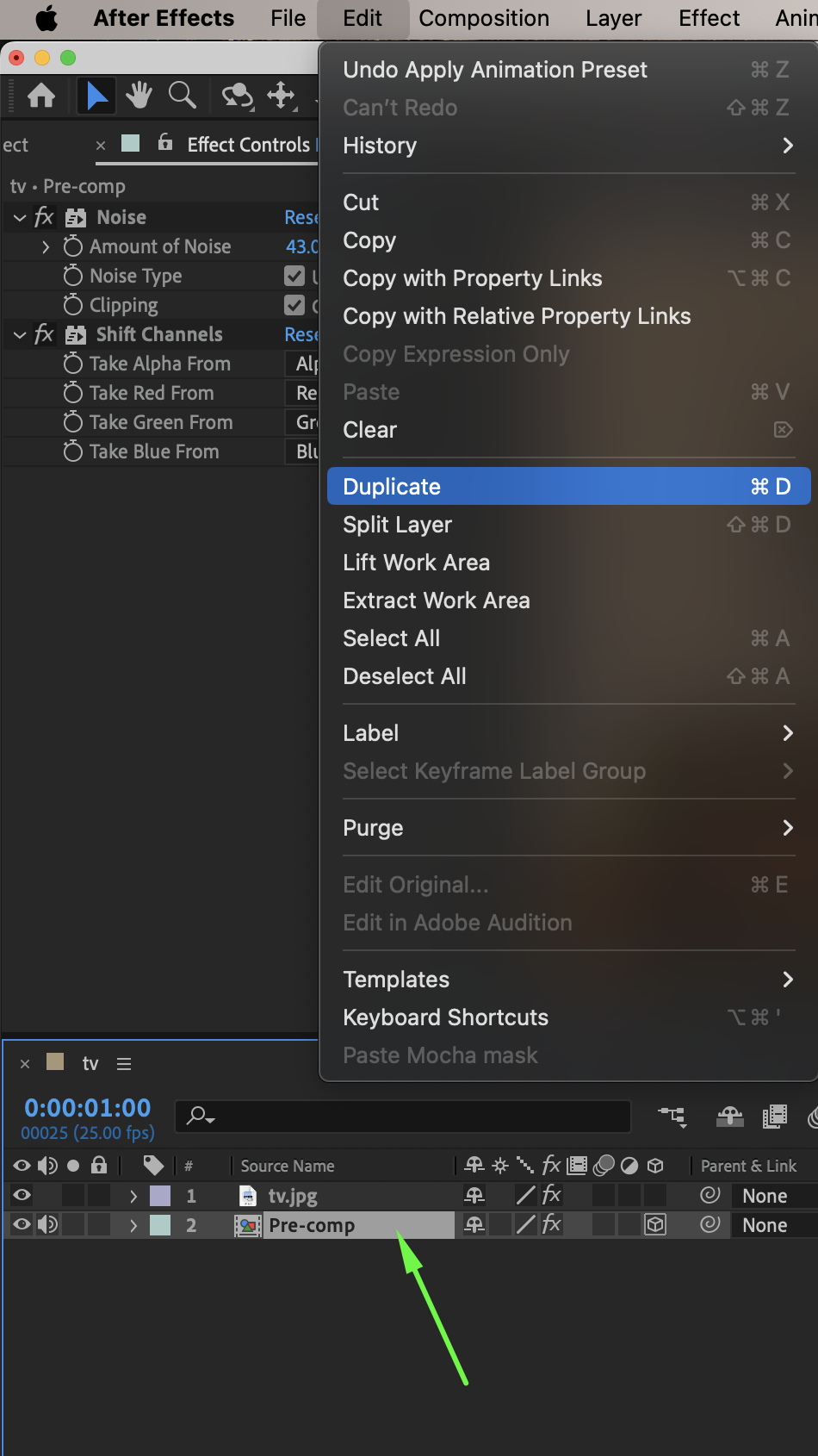
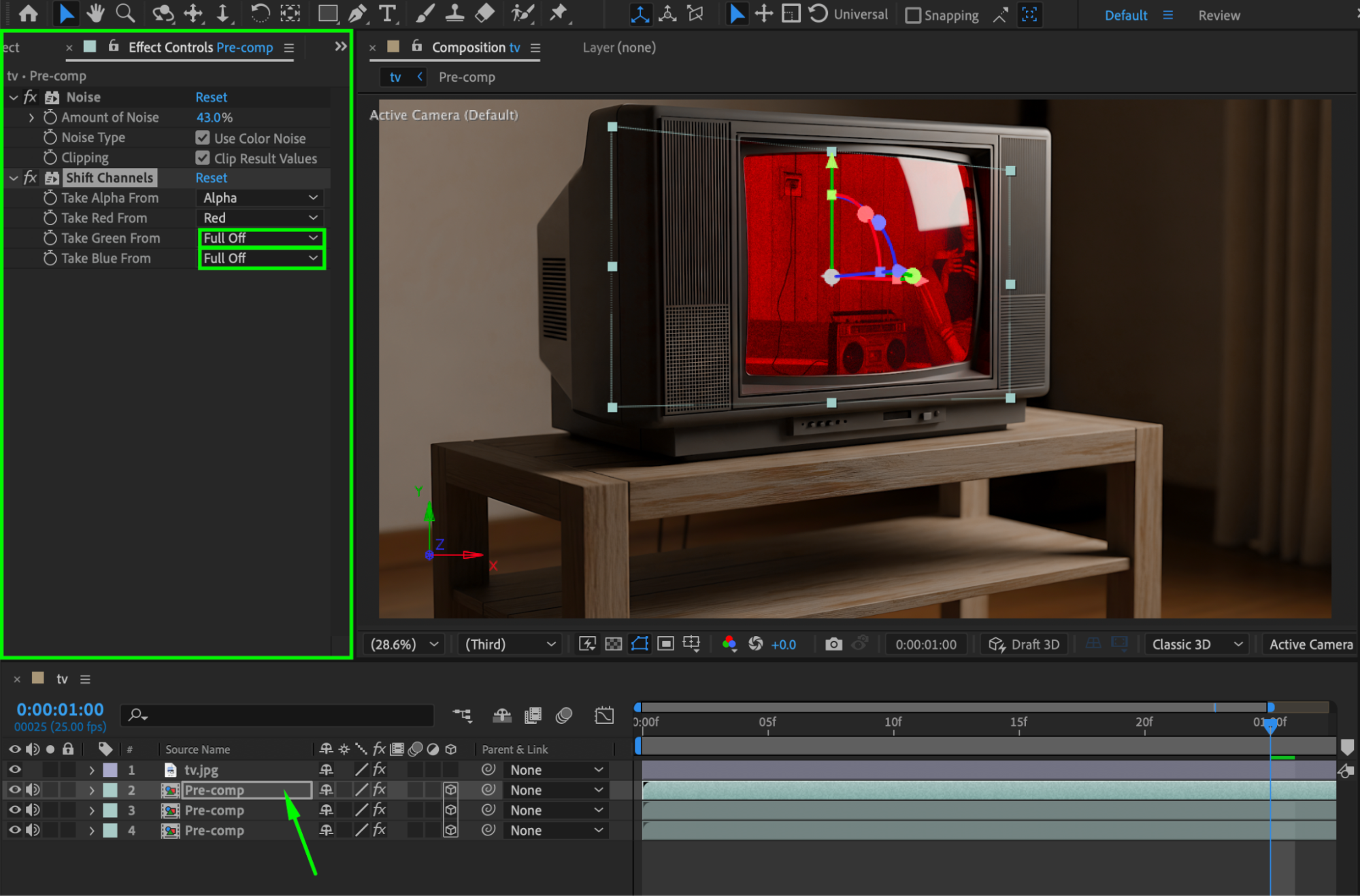
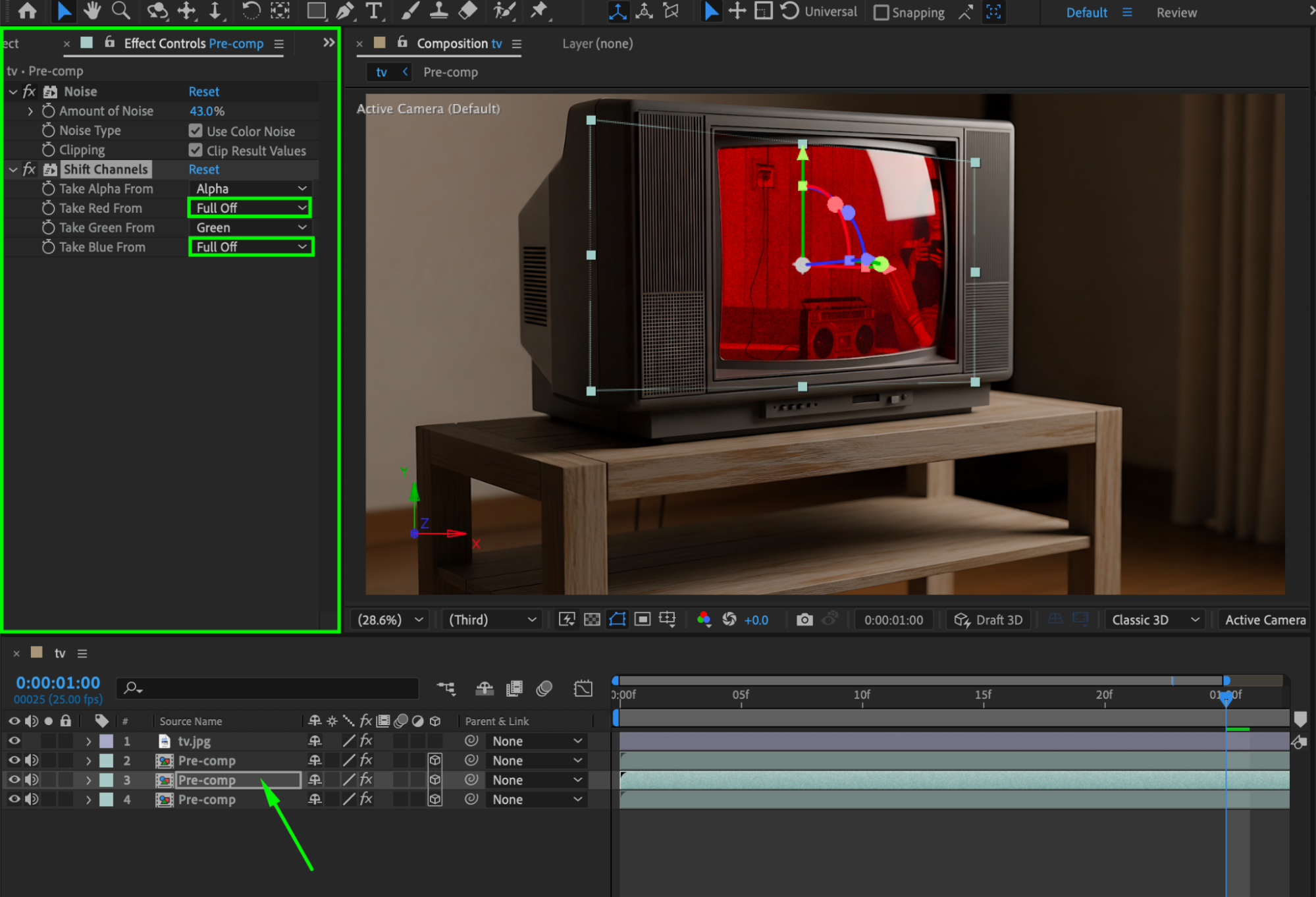
 Step 10: Blend and Offset the Channels
Select all three pre-comp layers. Right-click and set Blending Mode > Add. Slightly adjust the Position of each layer to create a subtle chromatic aberration effect.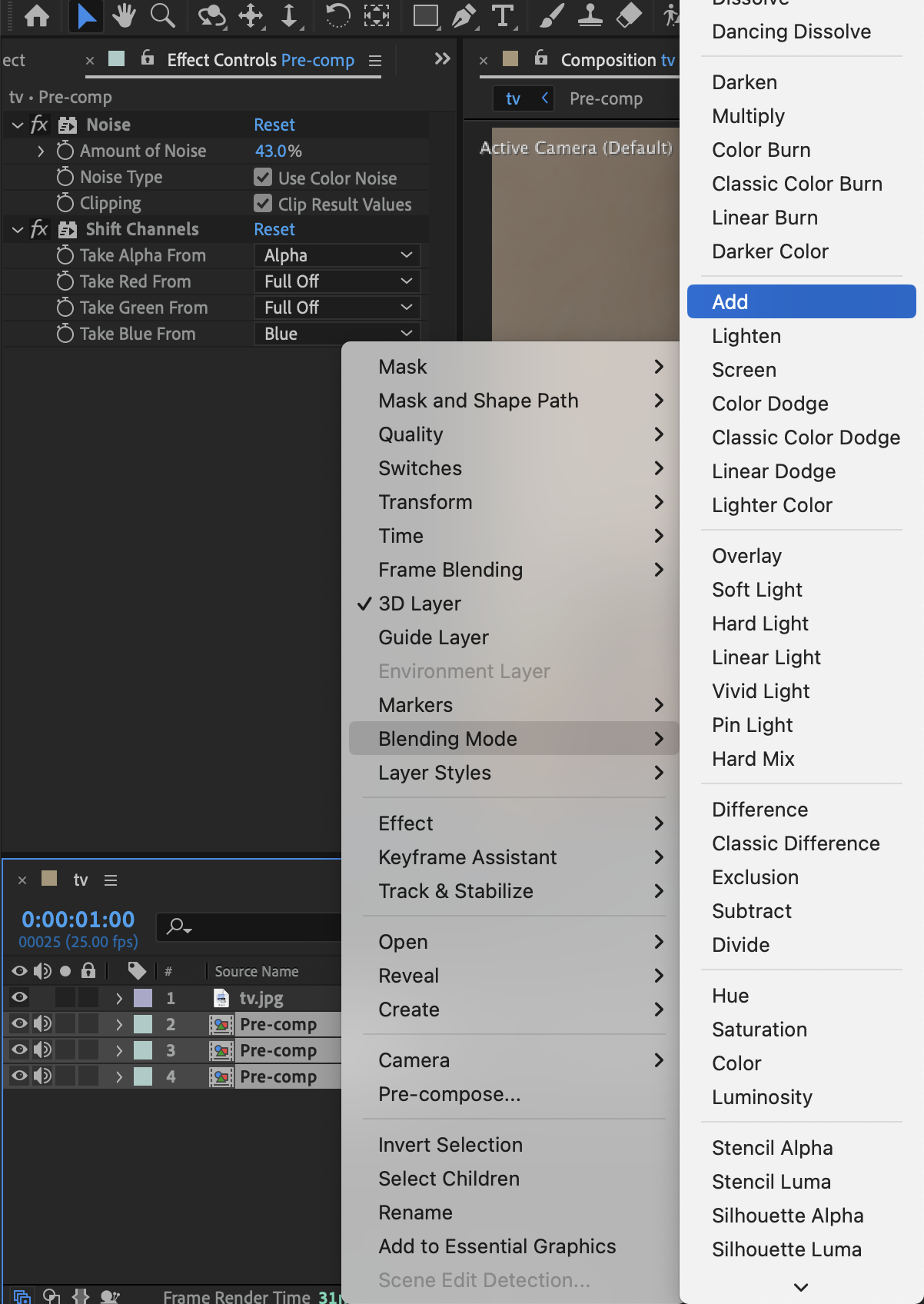
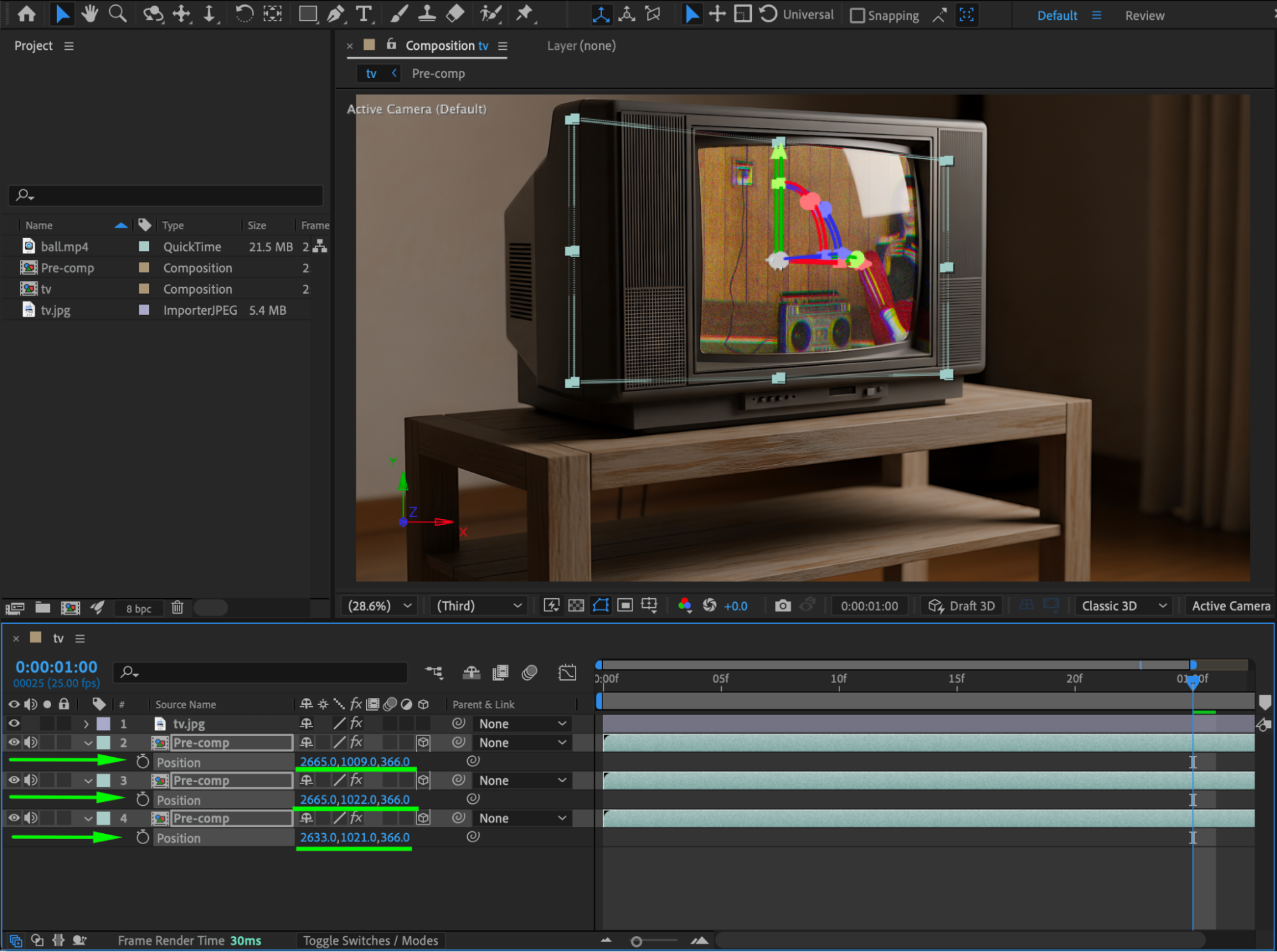 Step 11: Preview and Refine
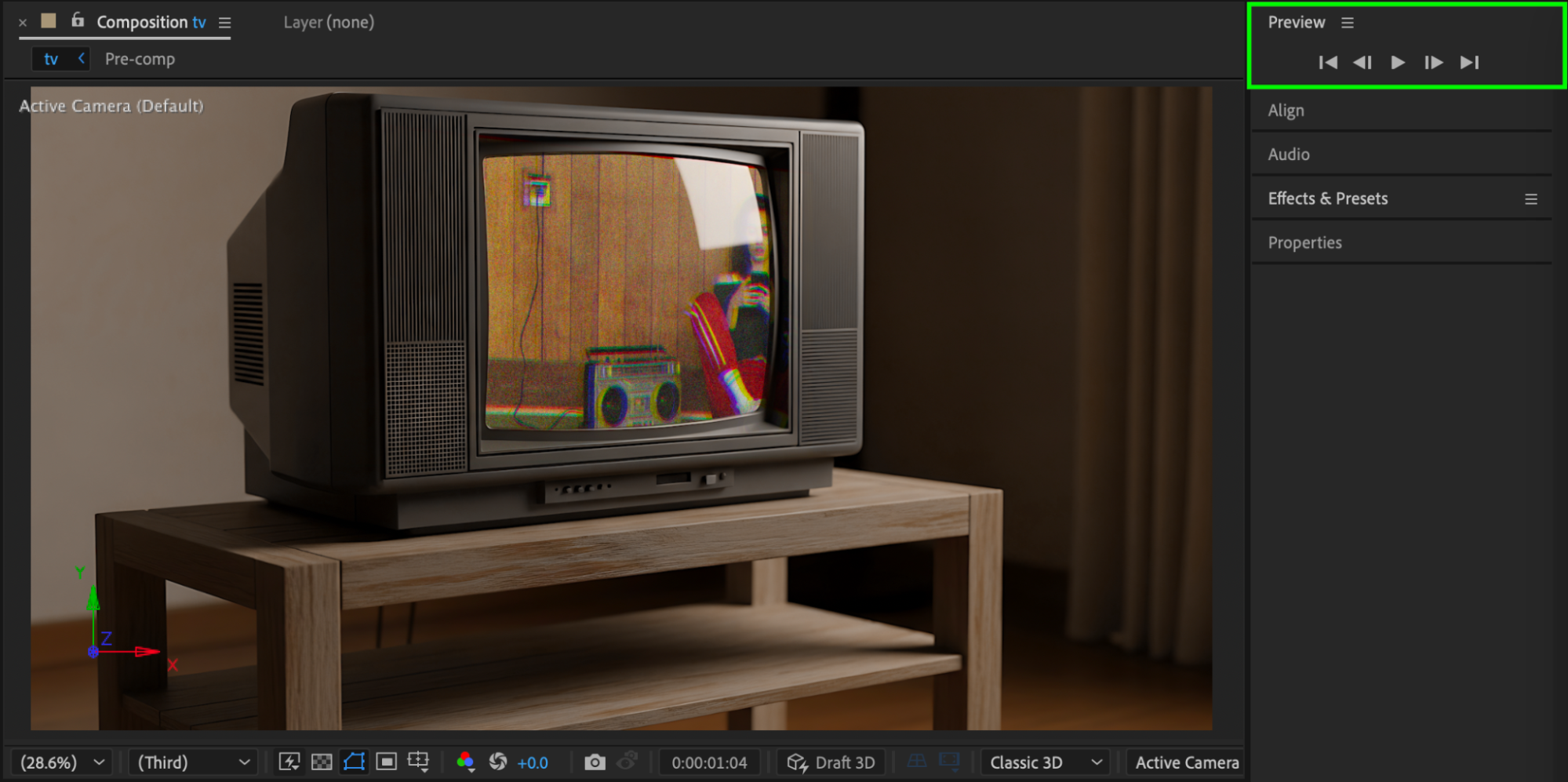
Preview the animation. Fine-tune rotation, noise amount, and RGB offsets until the video feels fully integrated into the TV screen.
Conclusion
By compositing the video behind the TV image, matching perspective with 3D transforms, and adding noise and RGB separation, you can create a realistic TV screen effect in After Effects suitable for films, motion graphics, and visual effects projects.
Our Bestsellers
Our Bestsellers


