
Introduction
After Effects allows you to create eye-catching visual effects using shape layers and built-in effects — without any plugins. In this tutorial, you will build a dynamic abstract animation using a circle, Repeater, and several distortion and glow effects.
Step 1: Create a New Composition
Go to Composition > New Composition and set your desired resolution, frame rate, and duration.
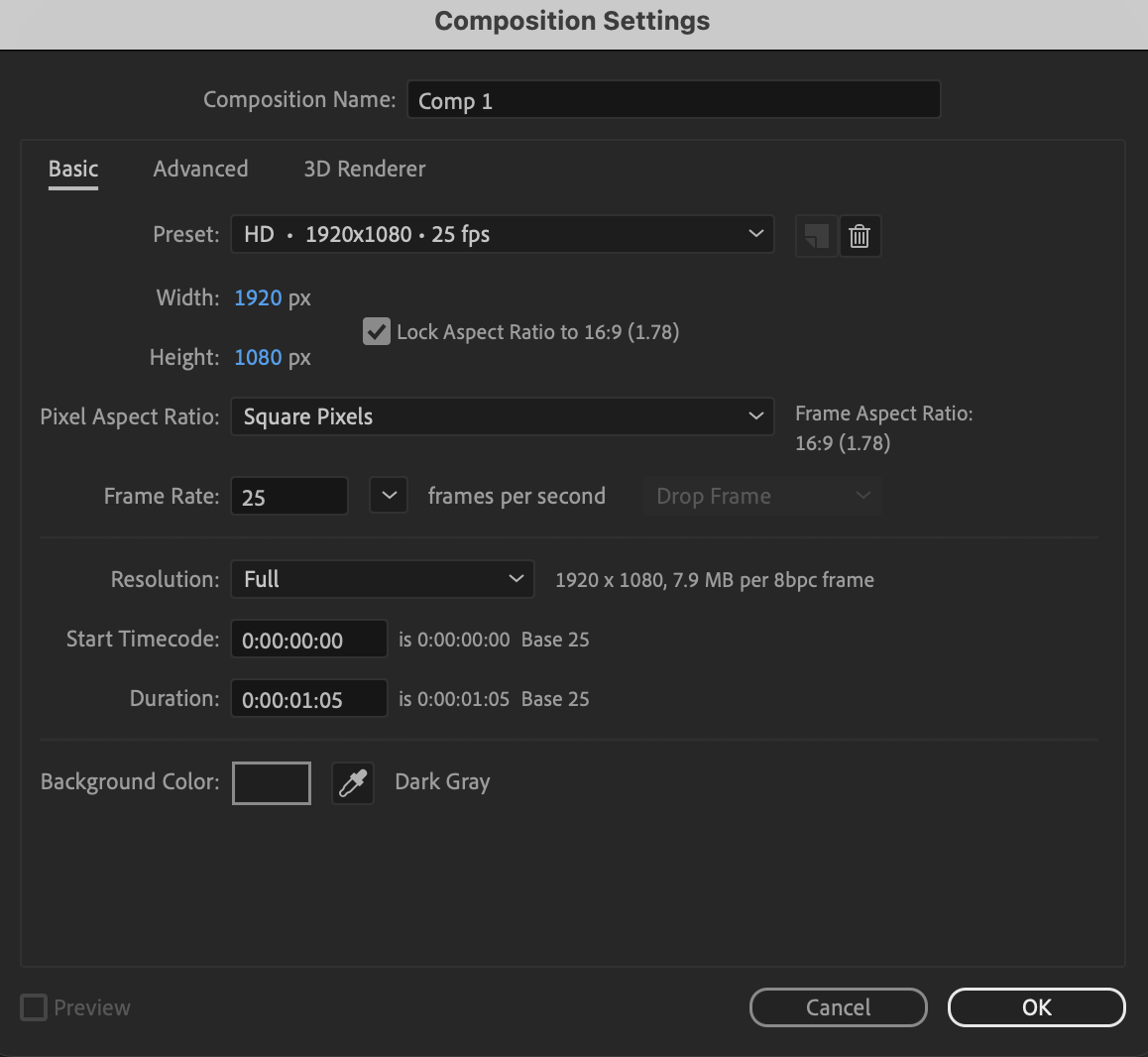 Step 2: Create a Circular Shape
Select the Ellipse Tool (Q). Draw a circle in the Composition panel. Set:
Fill: None
Stroke Width: 73 px
Stroke Color: Any color you prefer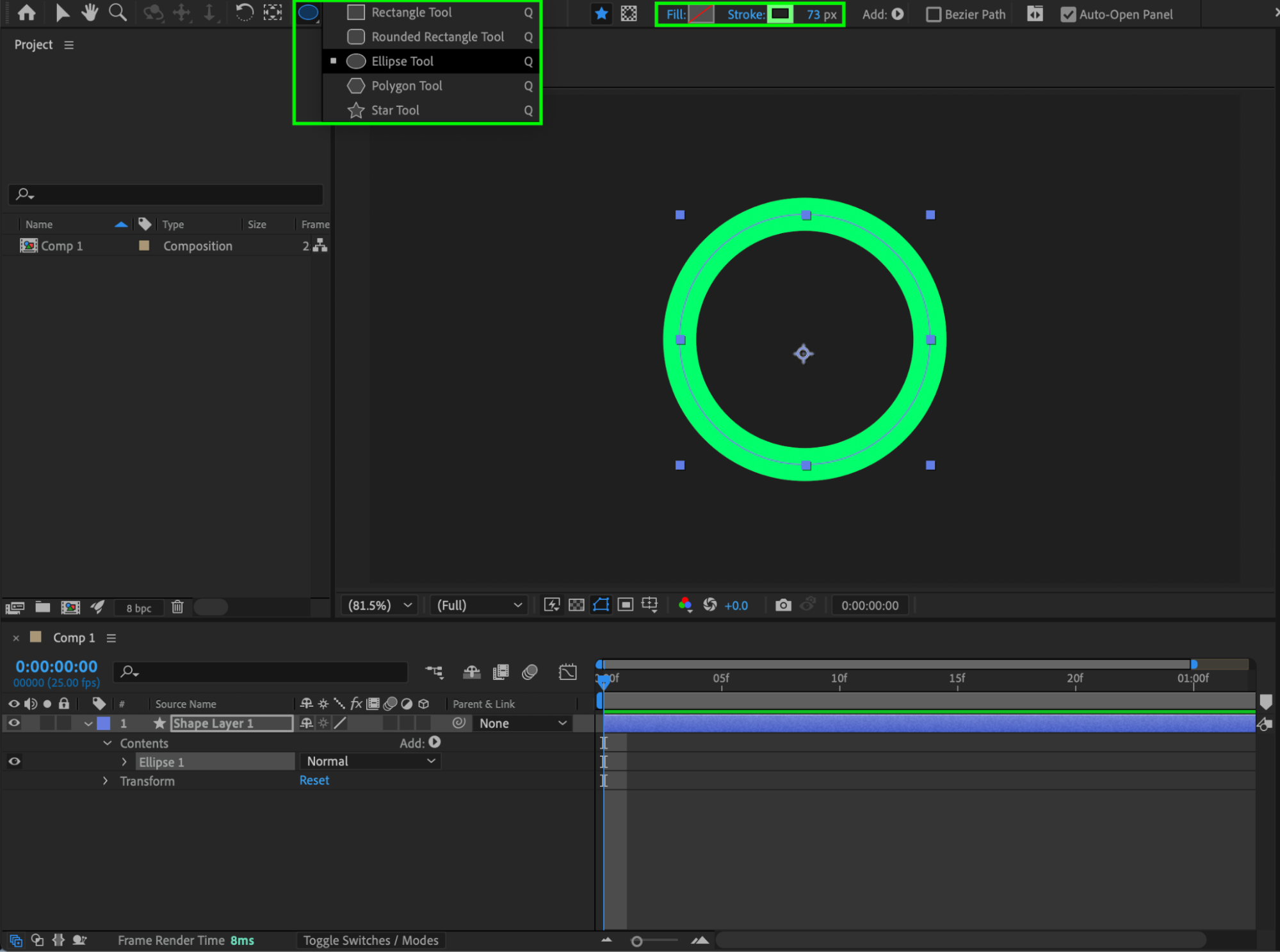
Step 3: Add a Repeater
Expand the shape layer properties. Next to Contents, click Add > Repeater. Adjust the Repeater settings:
Copies: 76
Position: X = 0
Scale: 62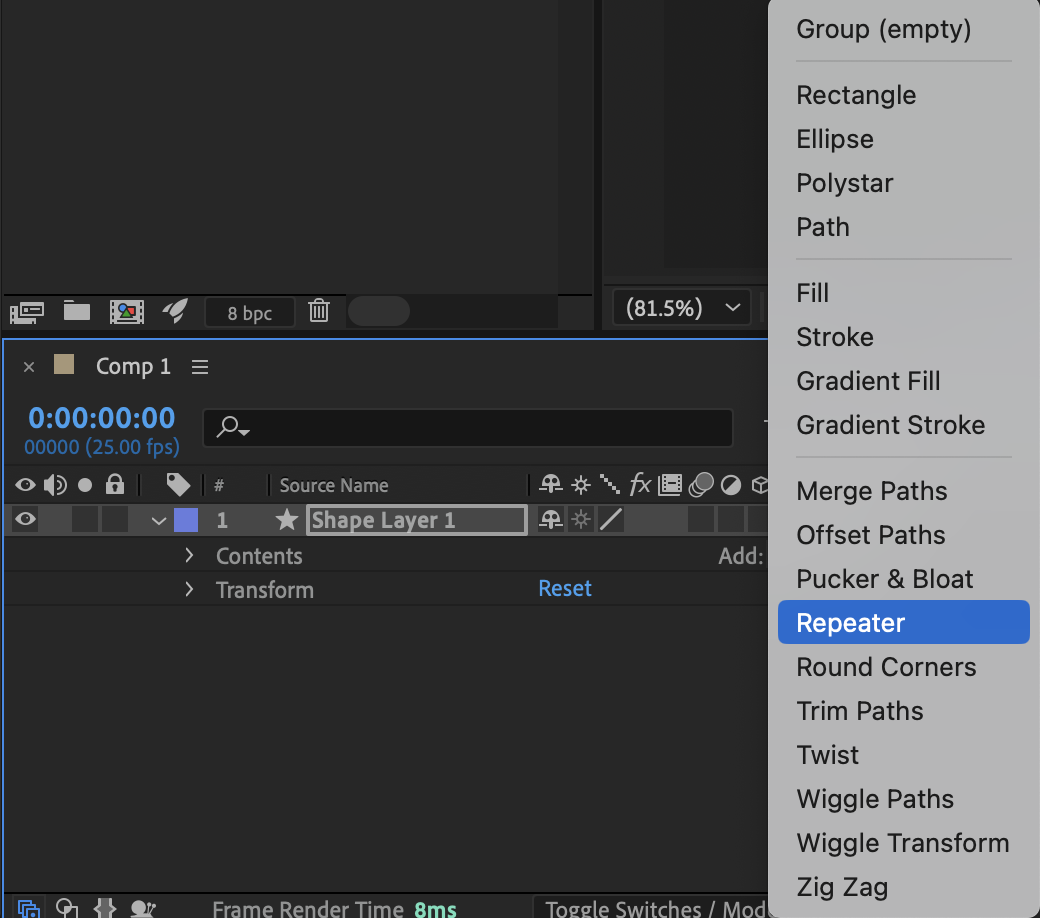
Step 4: Animate the Repeater Offset
Enable the stopwatch for Offset. Hold Alt / Option and click the stopwatch. Enter the following expression:
time * -3
This creates continuous motion in the repeated shapes.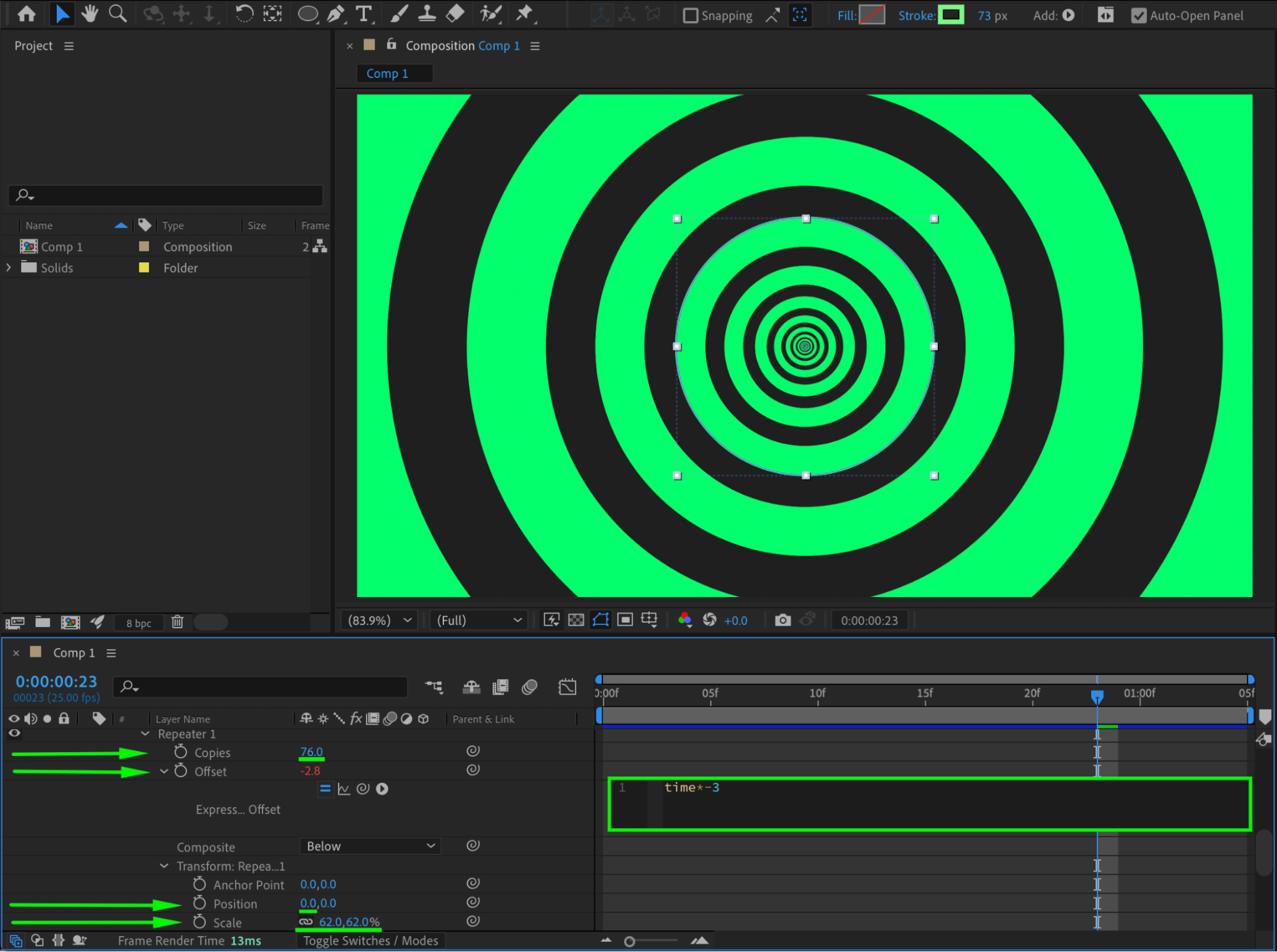
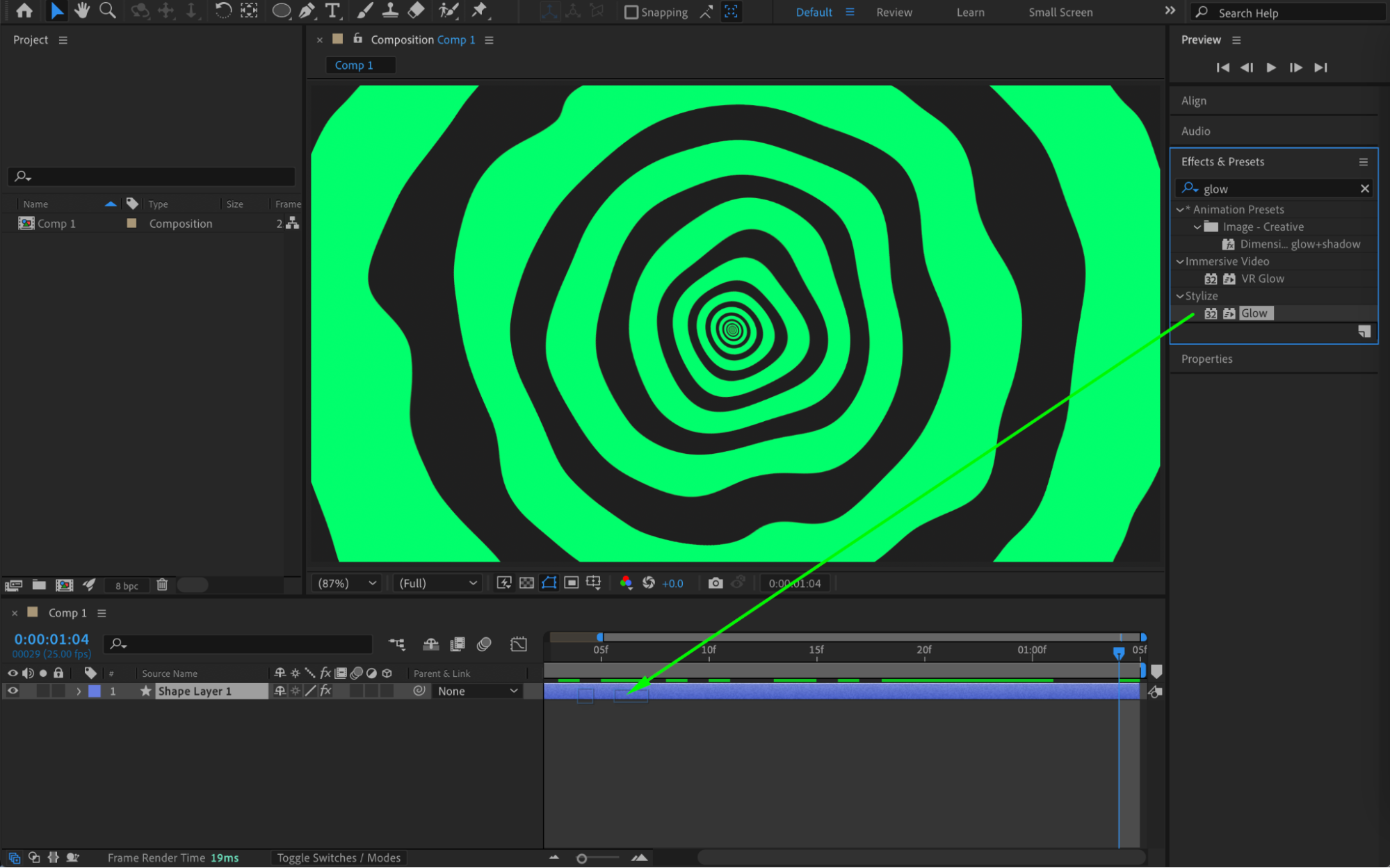
Step 5: Add Turbulent Displace and Glow
From the Effects & Presets panel, apply:
Turbulent Displace
Glow
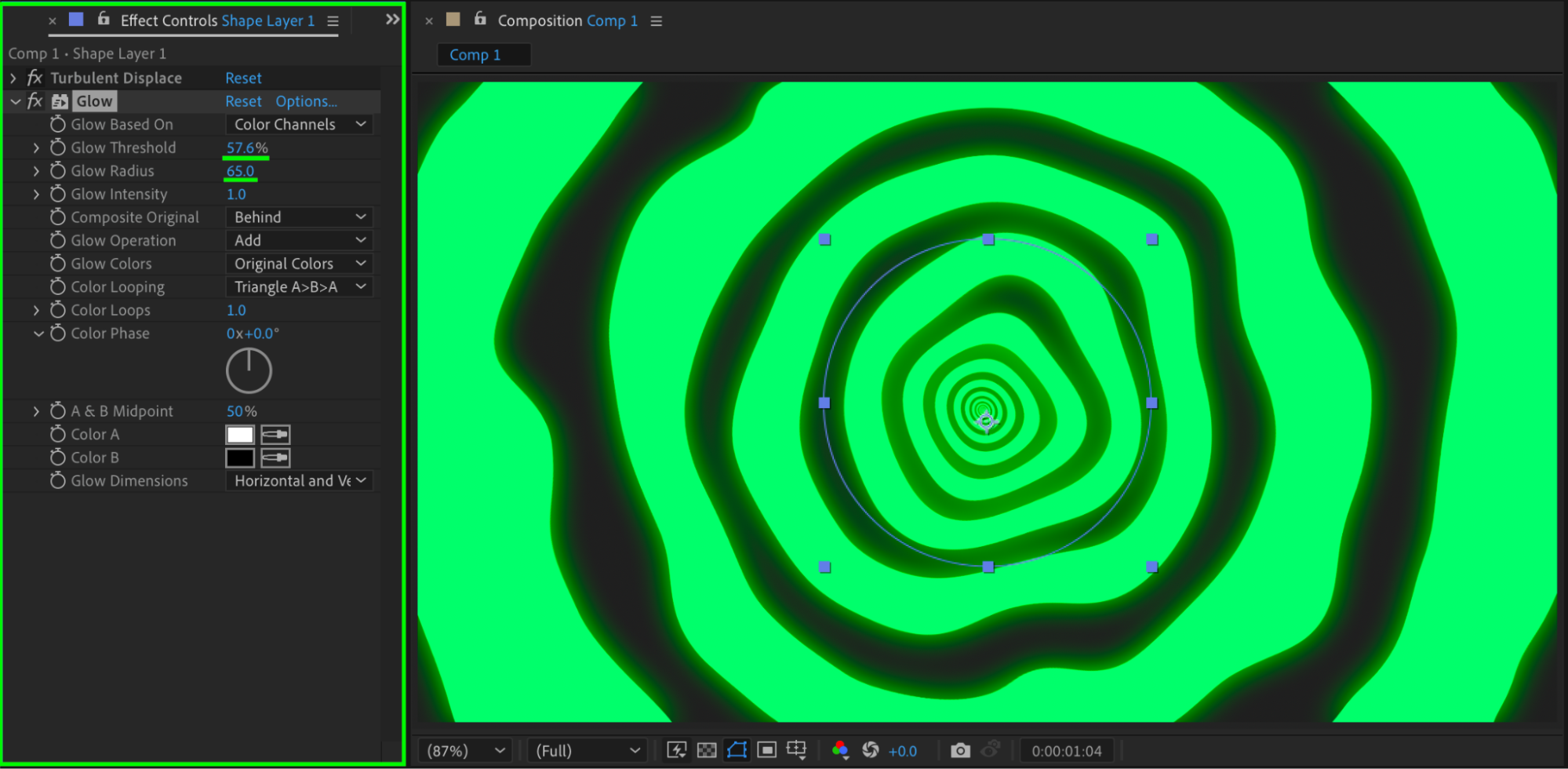
For the Glow effect, set:
Glow Threshold: 57
Glow Radius: 65
These effects add organic distortion and luminous highlights.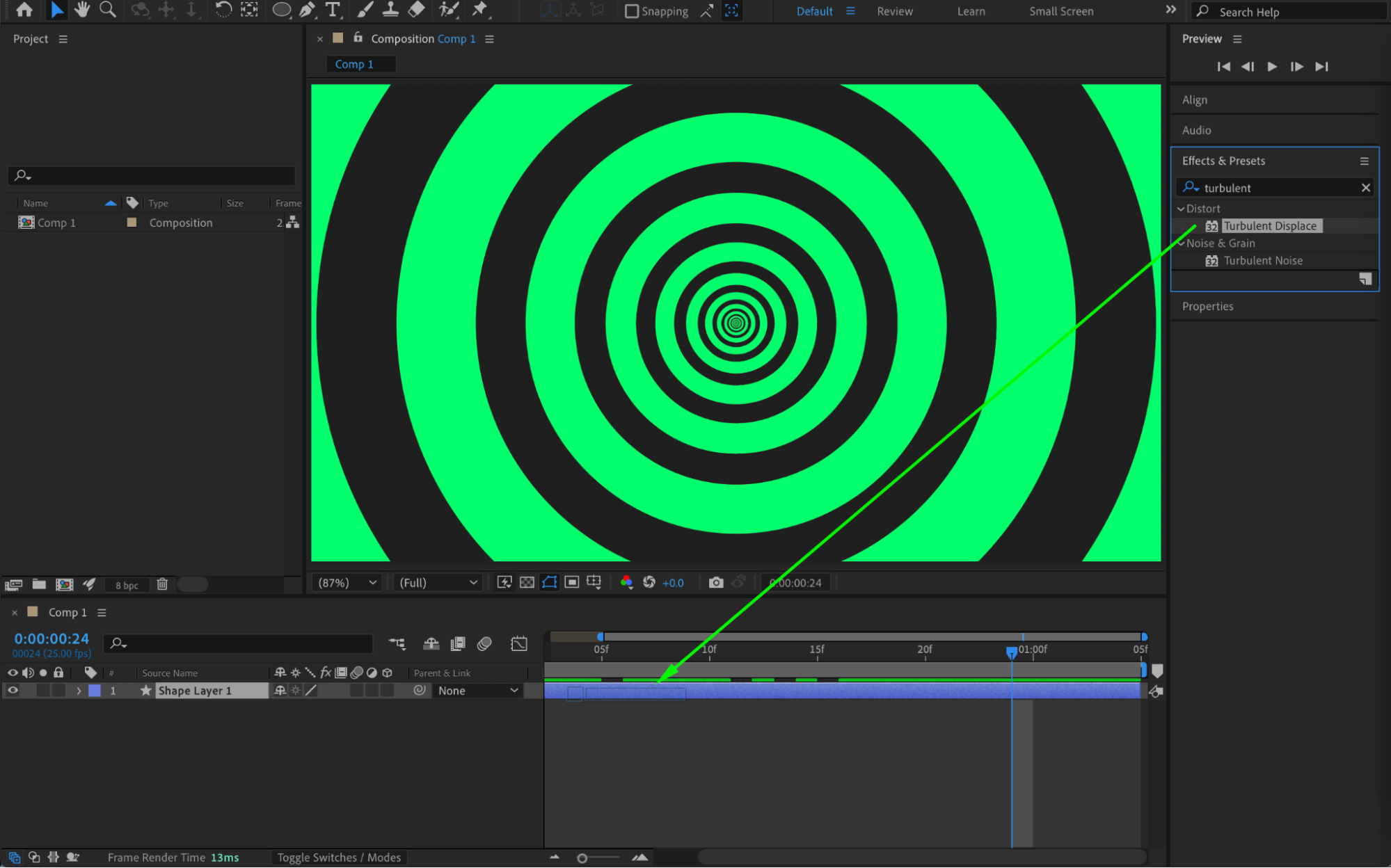
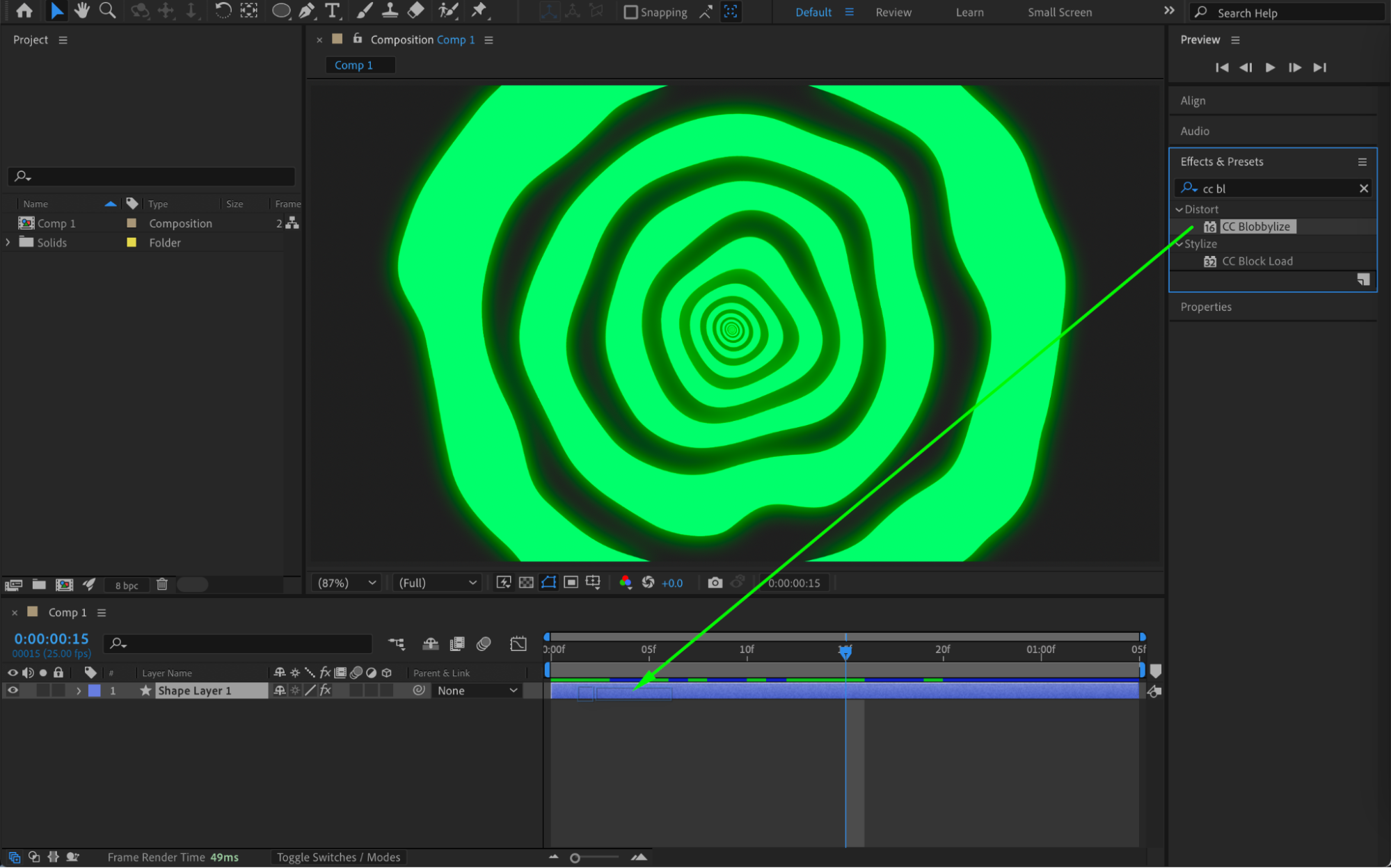
Step 6: Apply CC Blobbylize
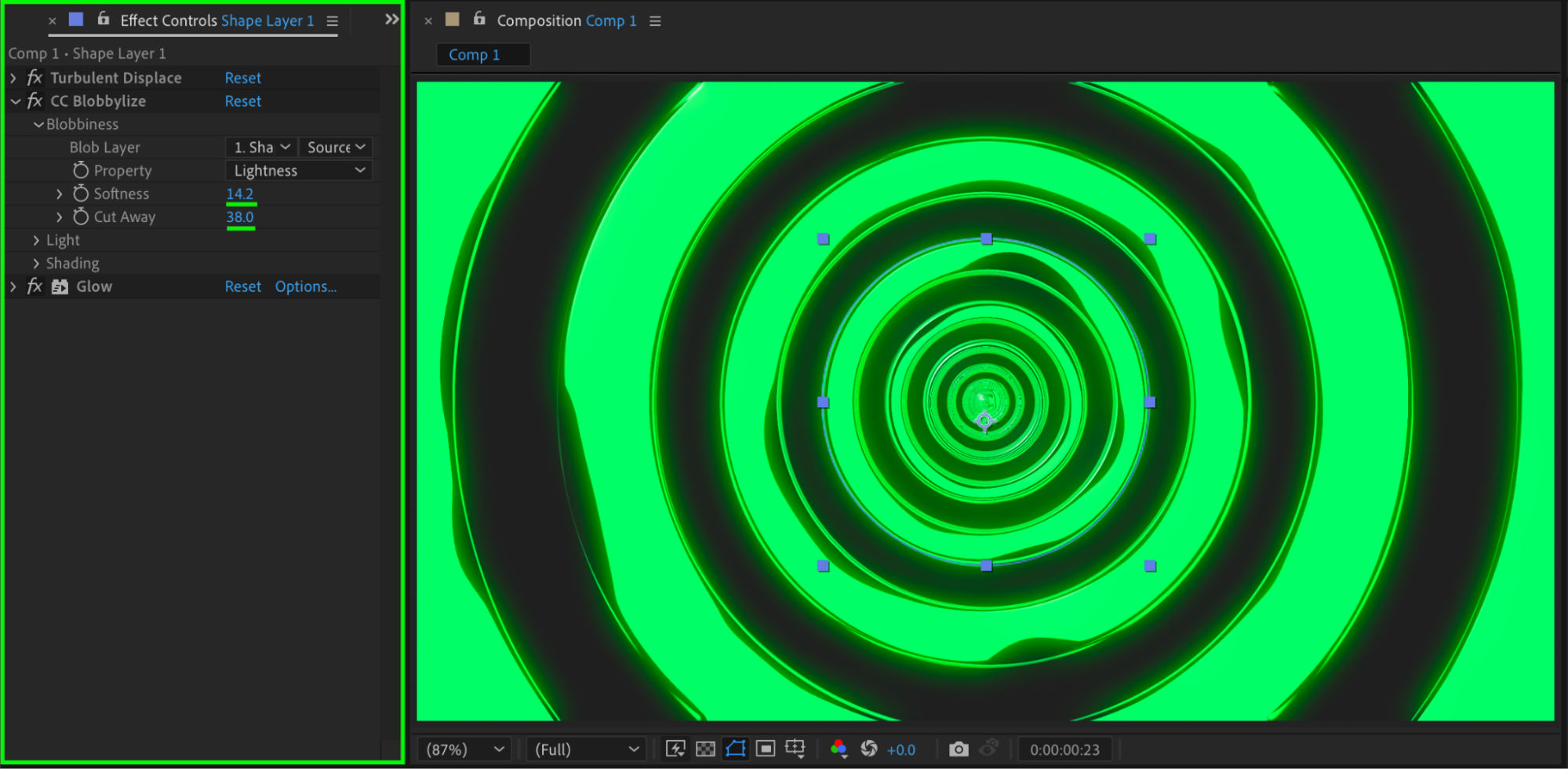
Add the CC Blobbylize effect from the Effects & Presets panel. Set:
Softness: 14
Cut Away: 38
This smooths and merges the shapes, creating a fluid visual effect.
Step 7: Preview the Animation
Press Spacebar to preview your animation. Adjust the Repeater, Glow, or distortion settings until the visual effect feels dynamic and balanced.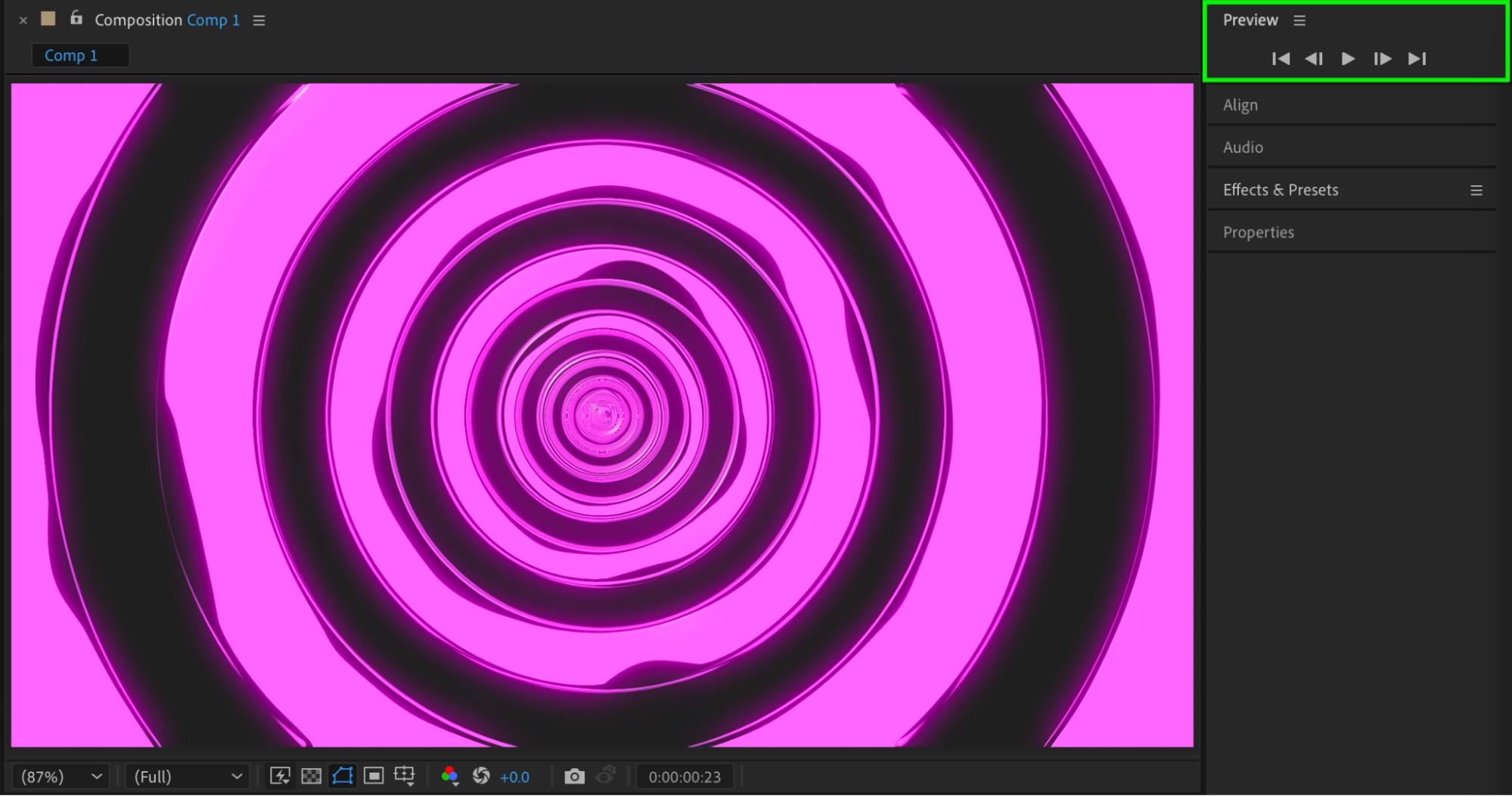
Conclusion
By combining shape layers, the Repeater operator, expressions, and distortion effects, you can create complex and engaging visual effects directly in After Effects. This technique is perfect for abstract backgrounds, motion graphics, and experimental visuals.
Our Bestsellers
Our Bestsellers


