
Introduction
Adjusting keyframes proportionally is essential when you want to maintain the relative timing between multiple keyframes while speeding up or slowing down an animation. This technique is useful for motion graphics, character animation, and visual effects.
Step 1: Create Keyframes with Even Spacing
Select the layer and property you want to animate (e.g., Position, Scale, Rotation).
Press the Stopwatch to add keyframes at the start and end.
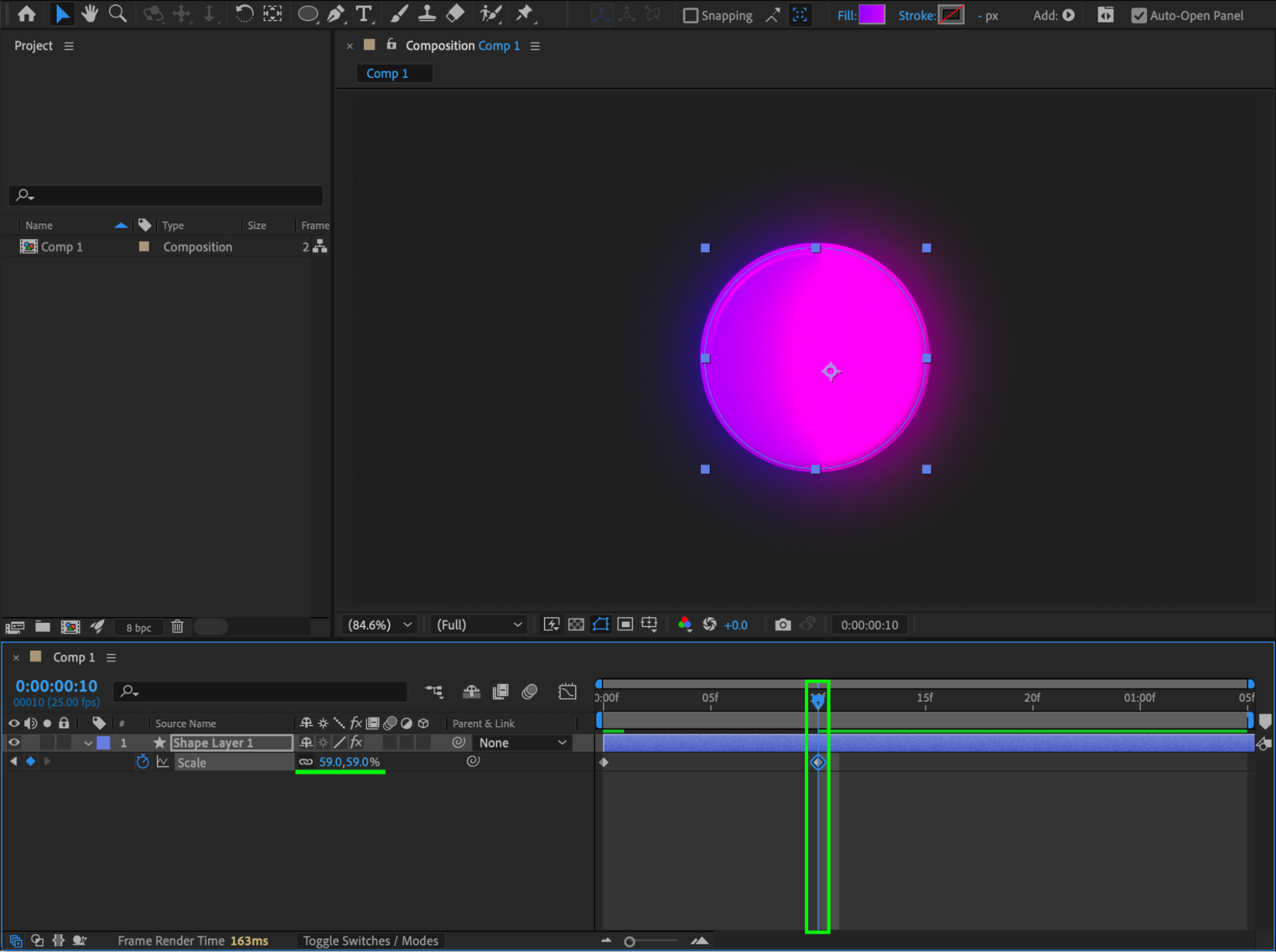
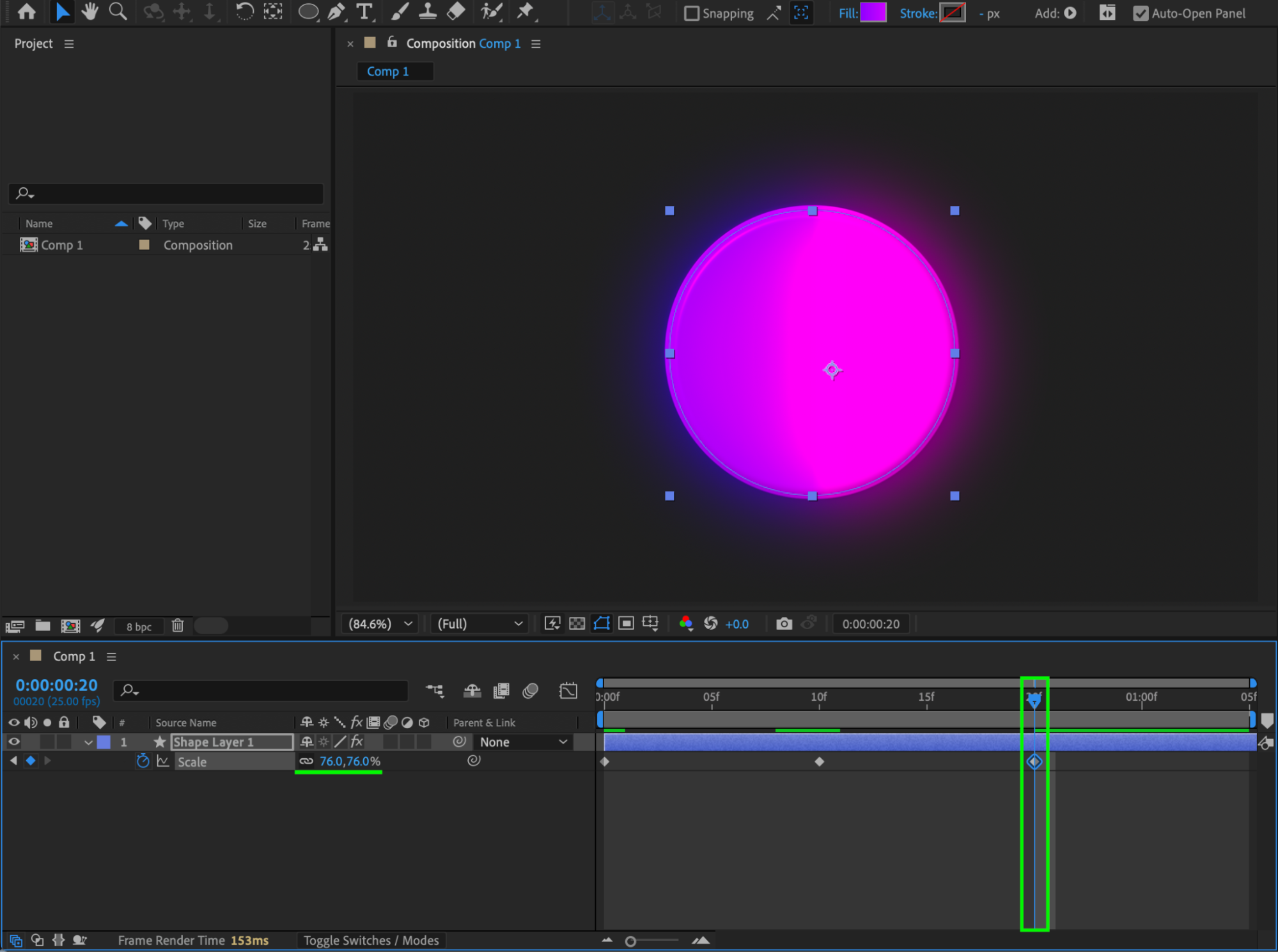
For precision, you can create keyframes at regular intervals using shortcut:
Move the CTI (Current Time Indicator) forward 10 frames (Ctrl/Cmd + Shift + Right Arrow).
Repeat for each interval to create evenly spaced keyframes.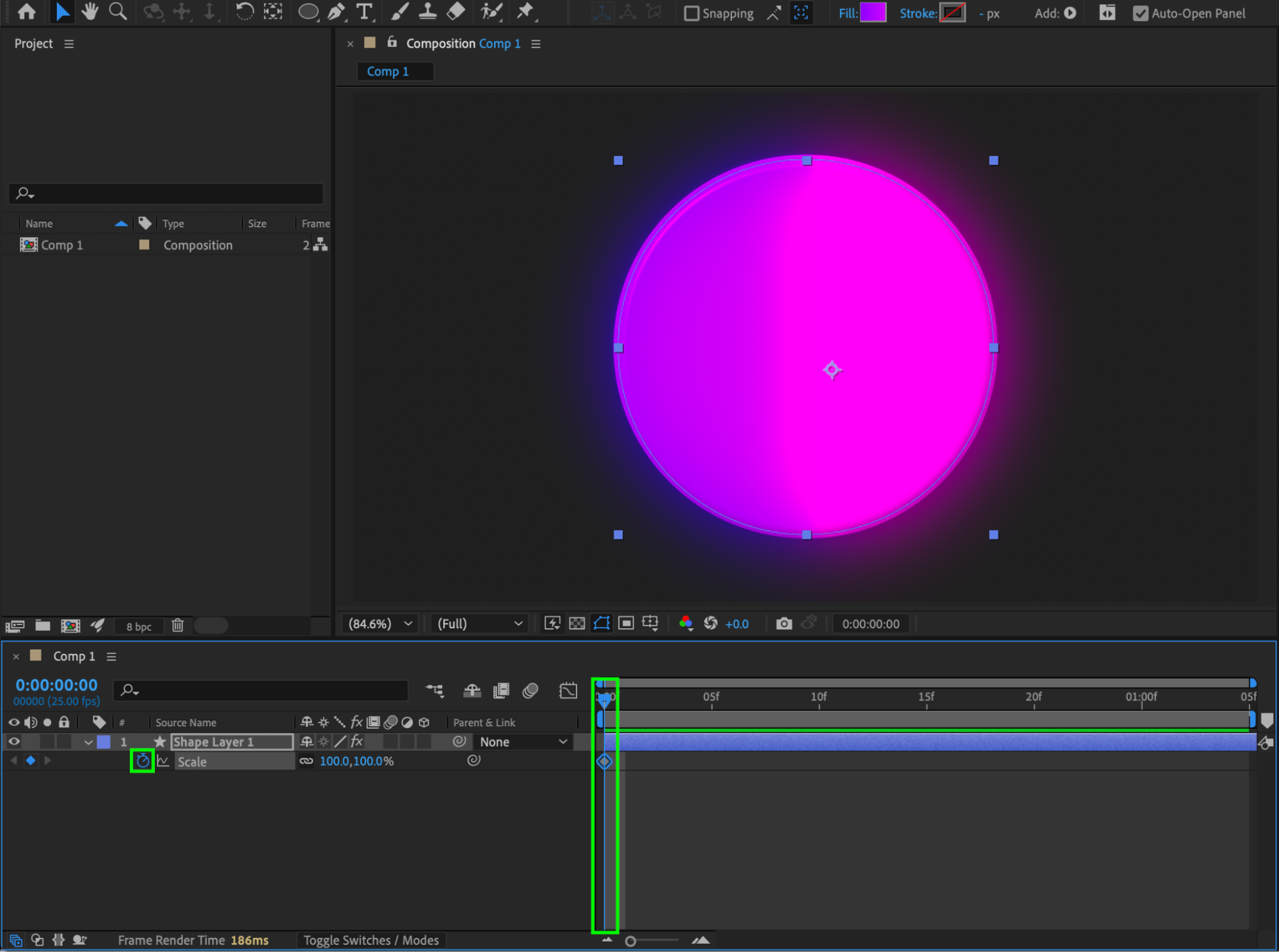
Step 2: Select Keyframes to Adjust
Highlight all the keyframes you want to scale. Ensure you are in the Timeline panel and have only the desired keyframes selected.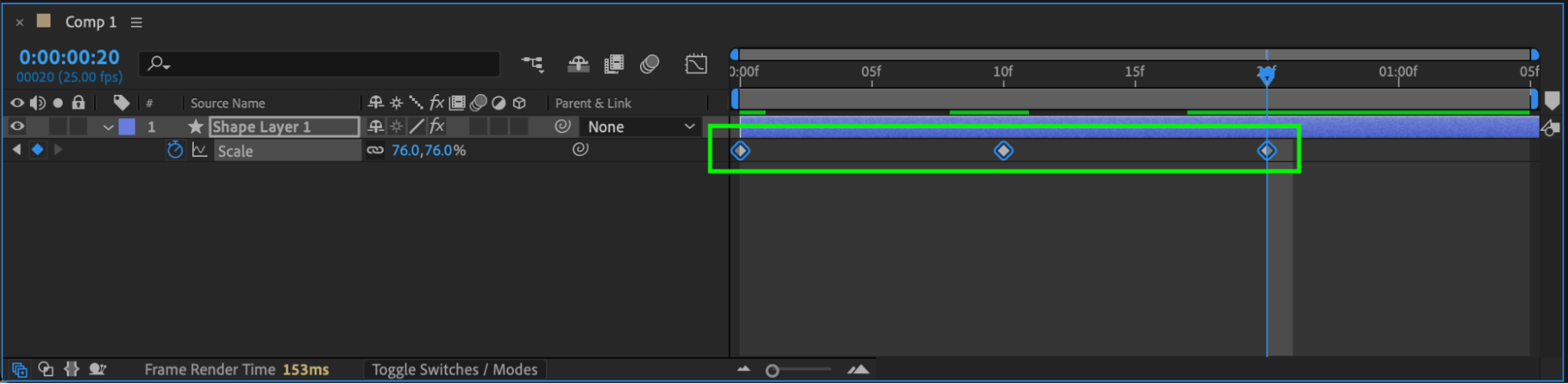
Step 3: Enable Proportional Scaling of Keyframes
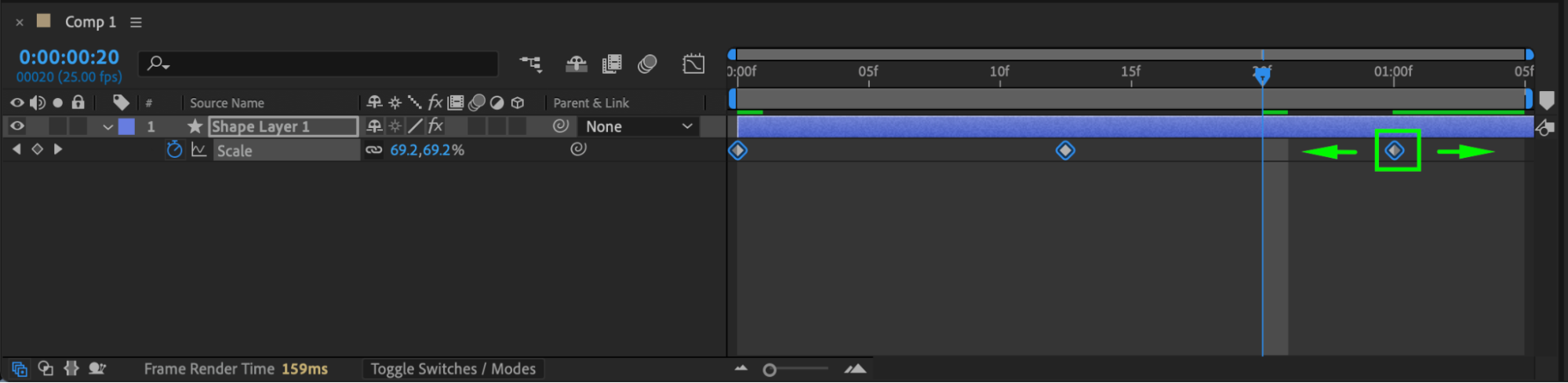
Hold Alt (Windows) / Option (Mac). Hover over the last selected keyframe. The cursor changes to a Proportional Scaling tool. Click and drag left or right to compress or expand the timing of all selected keyframes proportionally, keeping the relative spacing intact.
Step 4: Fine-Tune with the Graph Editor (Optional)
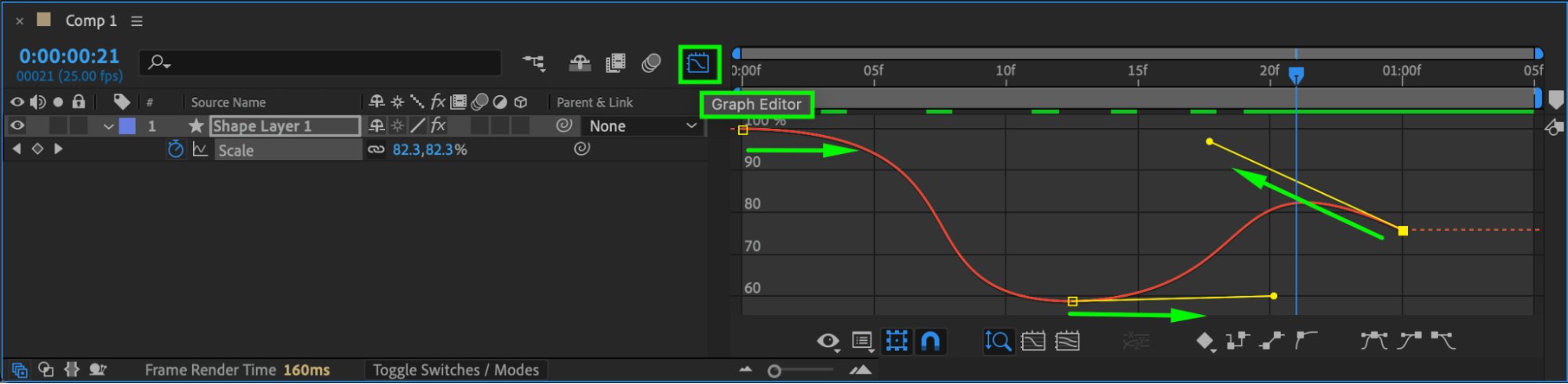
Apply Easy Ease to your keyframes and use the Graph Editor to adjust the motion curves for smoother animation while maintaining proportional spacing between keyframes.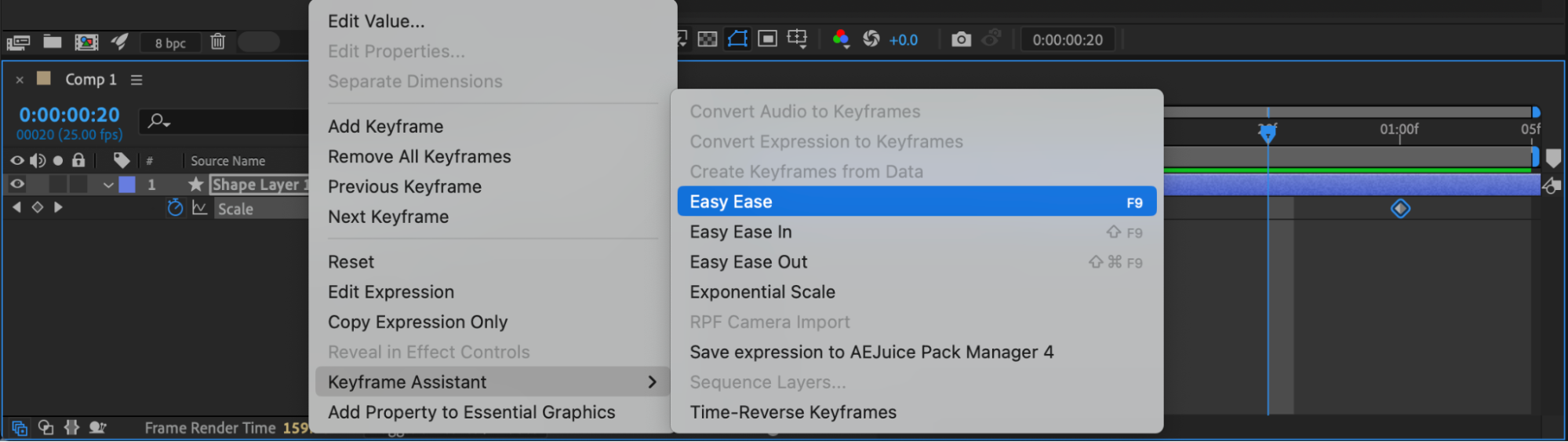
 Step 5: Preview and Adjust
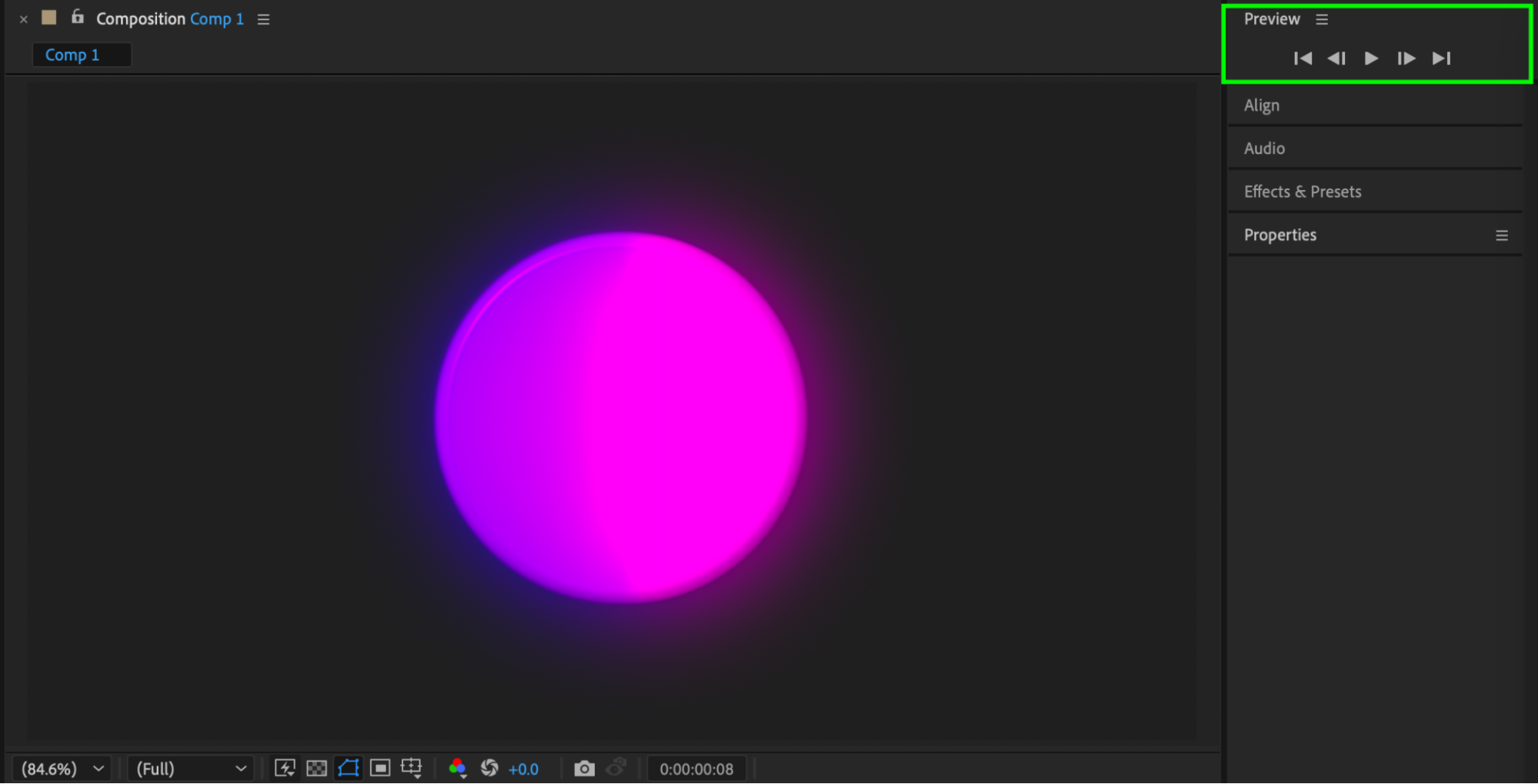
Press Spacebar to preview your animation. If needed, repeat Step 3 to further scale keyframes proportionally.
Conclusion
By using proportional keyframe scaling, you can efficiently adjust the timing of complex animations without disturbing the relative positions of keyframes. Combining manual placement with shortcuts allows precise control and saves time in After Effects.
Our Bestsellers
Our Bestsellers


