
Introduction
Rounded rectangles are widely used in motion graphics, UI animations, and titles. Adjusting the corner roundness allows you to create a subtle or dramatic effect, giving your design a custom look. In this tutorial, you’ll learn how to change the roundness of a rounded rectangle using built-in shape tools.
Step 1: Create a New Composition
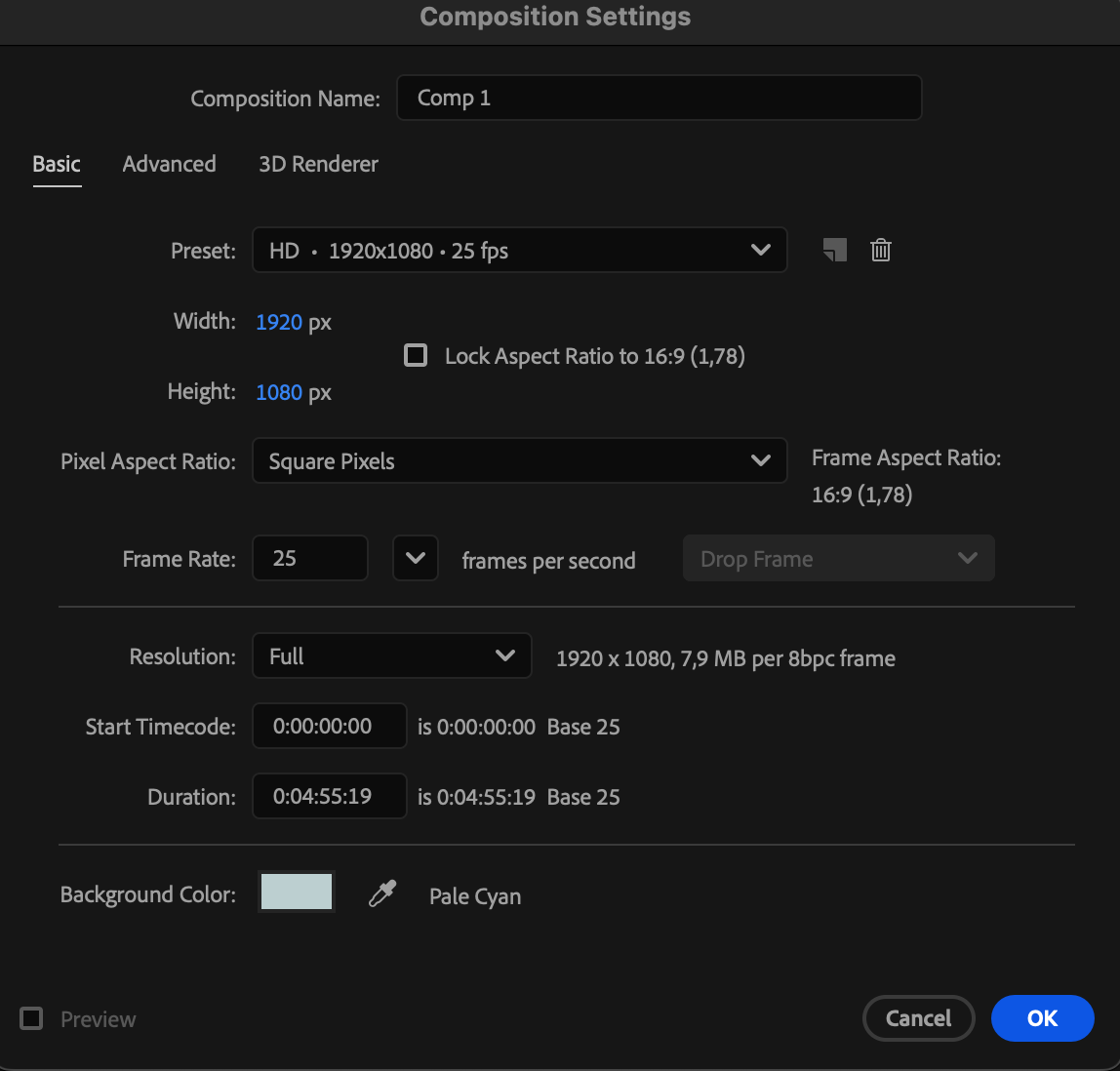
Go to Composition > New Composition, set your desired resolution, frame rate, and duration, then click OK.
 Step 2: Create a Rounded Rectangle
Select the Rounded Rectangle Tool from the toolbar (hold the shape tool to see more options). Click and drag on the composition panel to create your rectangle. By default, it will have some corner roundness applied.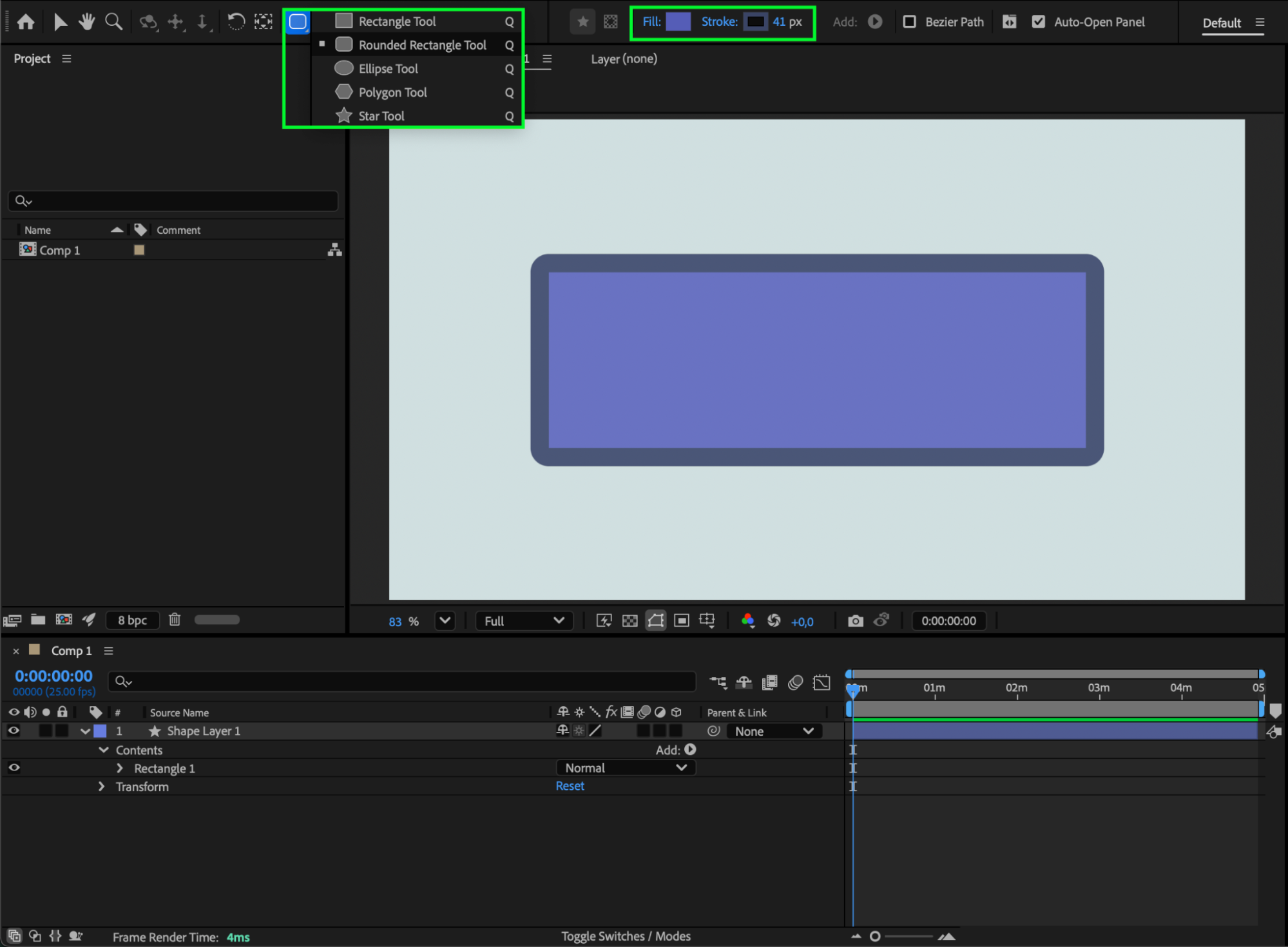
Step 3: Adjust the Roundness
Expand the shape layer properties: Contents > Rectangle 1 > Rectangle Path 1.
Here, you will see the Roundness property. Drag the value higher to make corners more curved, or lower to make them sharper. You can also animate this property over time for dynamic effects.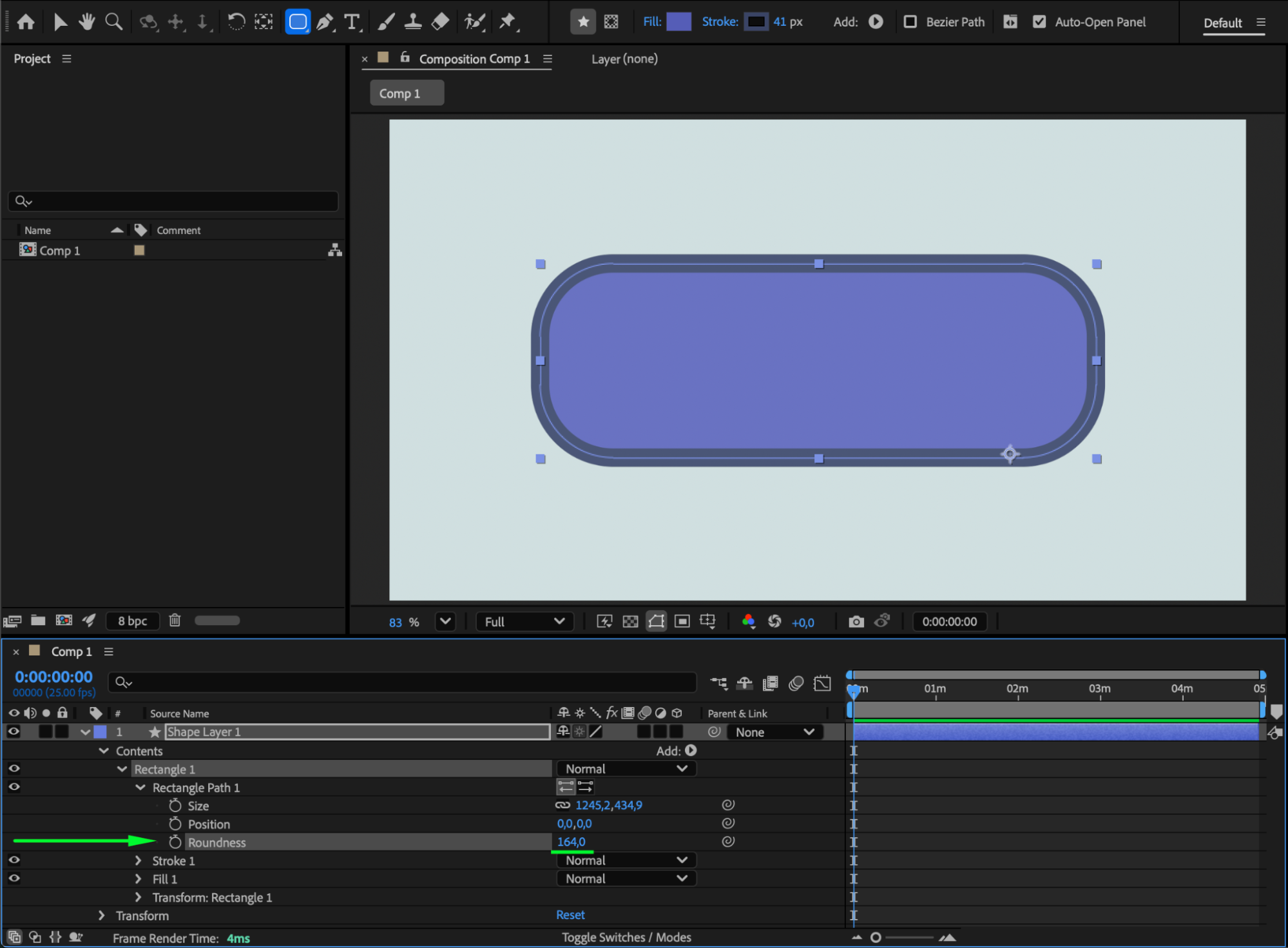
Step 4: Customize Size and Position
If needed, adjust the Size property in the same menu to change the rectangle dimensions.
Use the Selection Tool (V) to reposition the shape in your composition for the desired layout.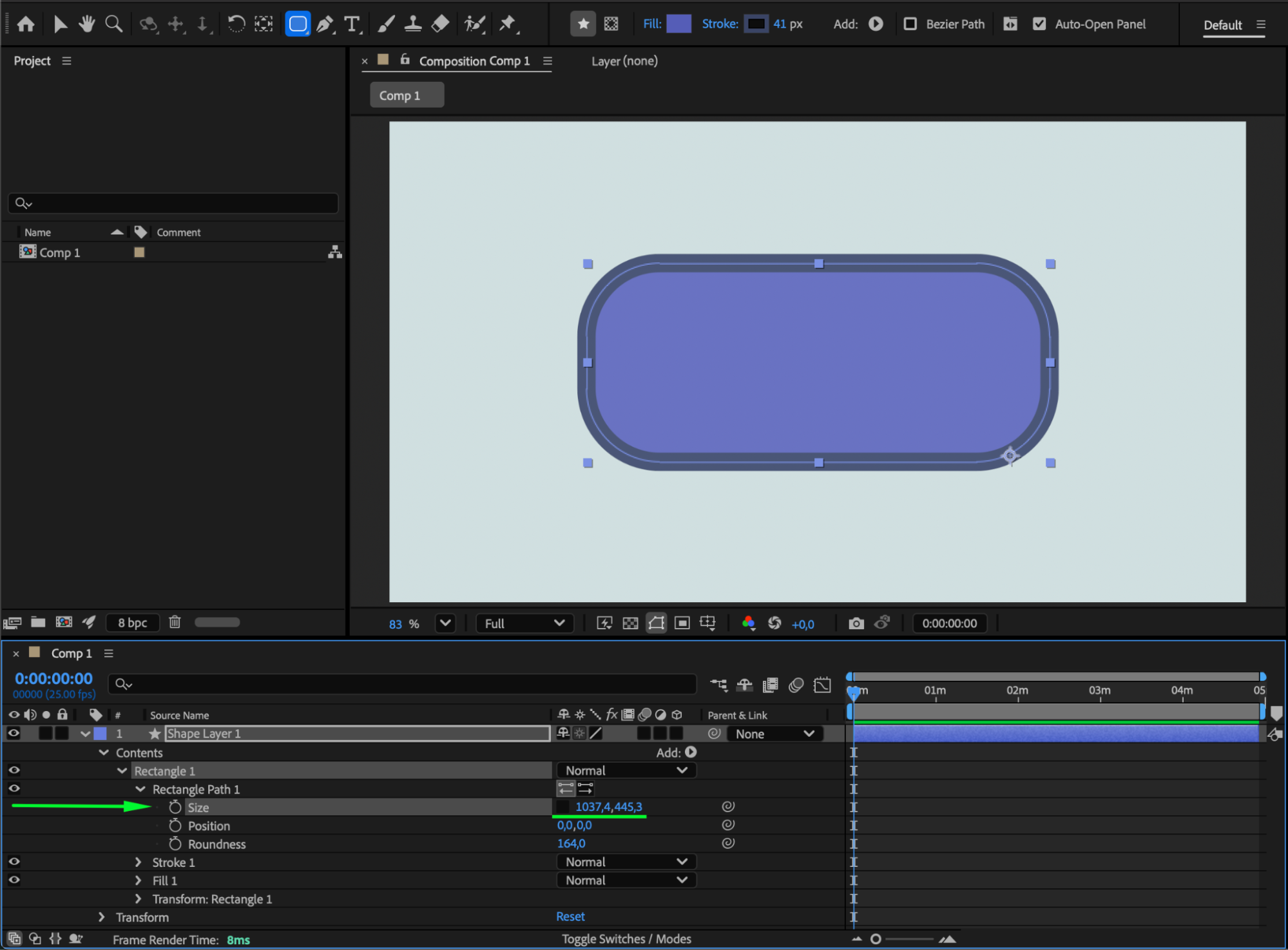
Step 5: Optional Styling
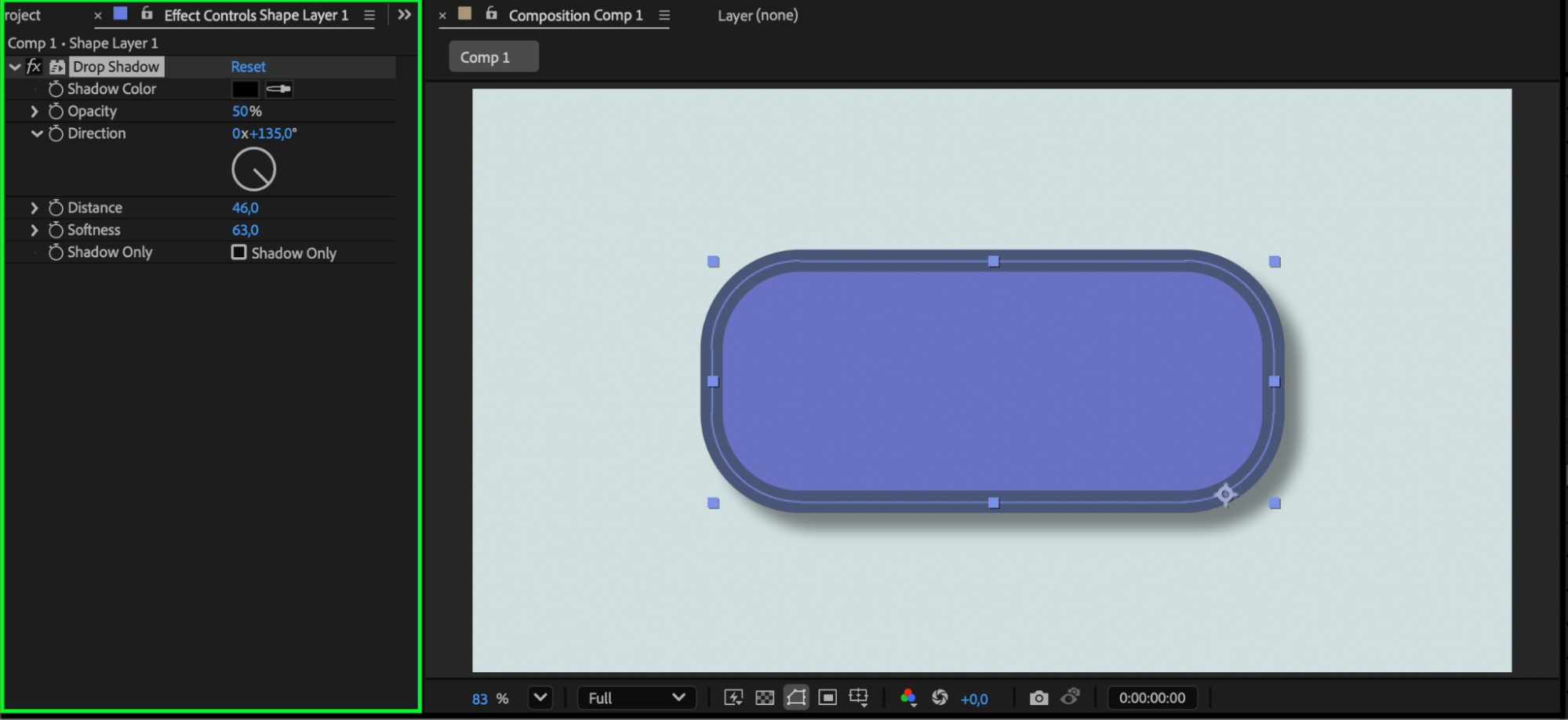
You can apply fill colors, strokes, or effects from the Effects & Presets panel to enhance your rectangle. For example, add a Drop Shadow or Glow for a more polished look.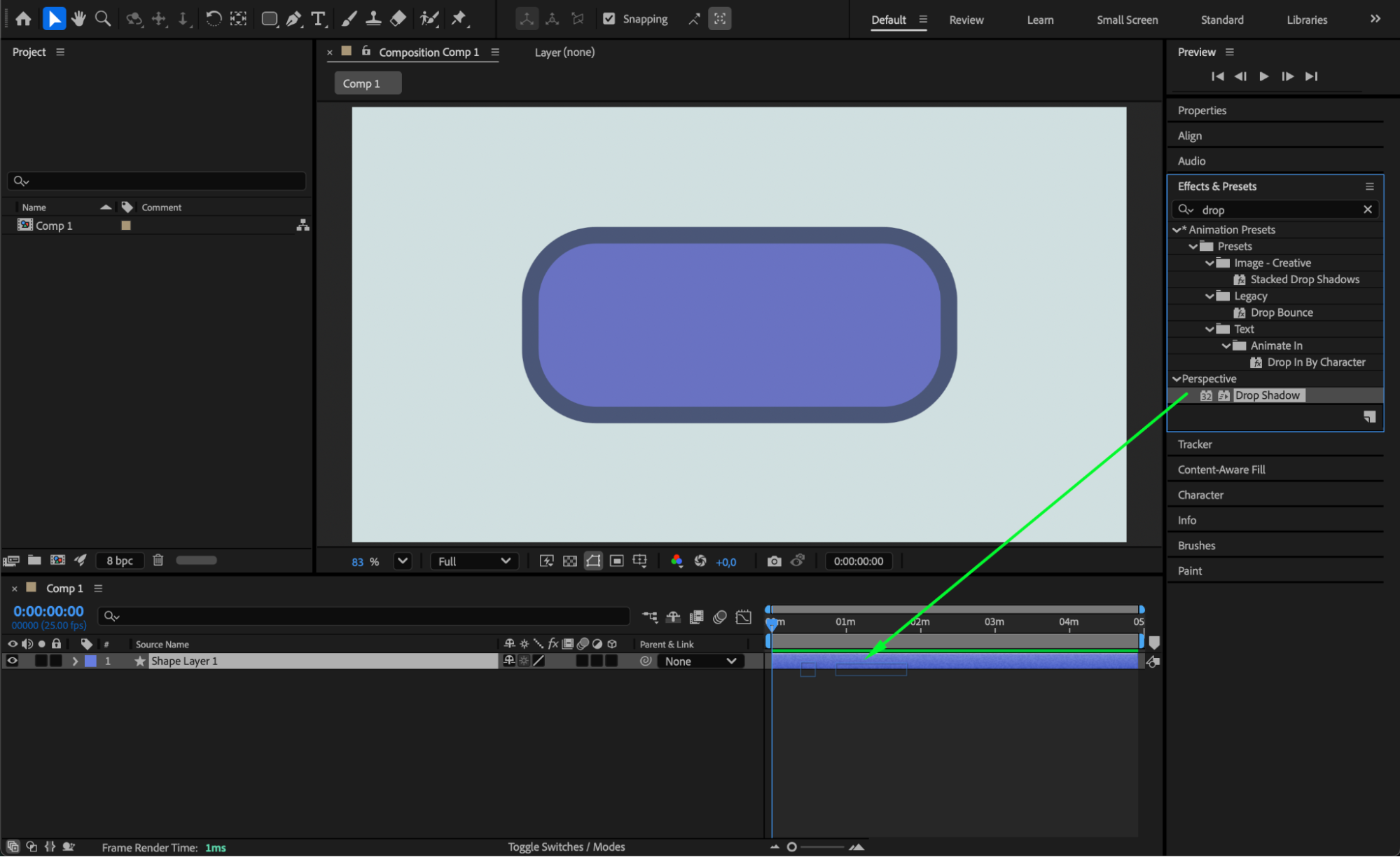
 Step 6: Preview Your Changes
Press Spacebar to preview your composition and see how the adjusted roundness affects the overall design.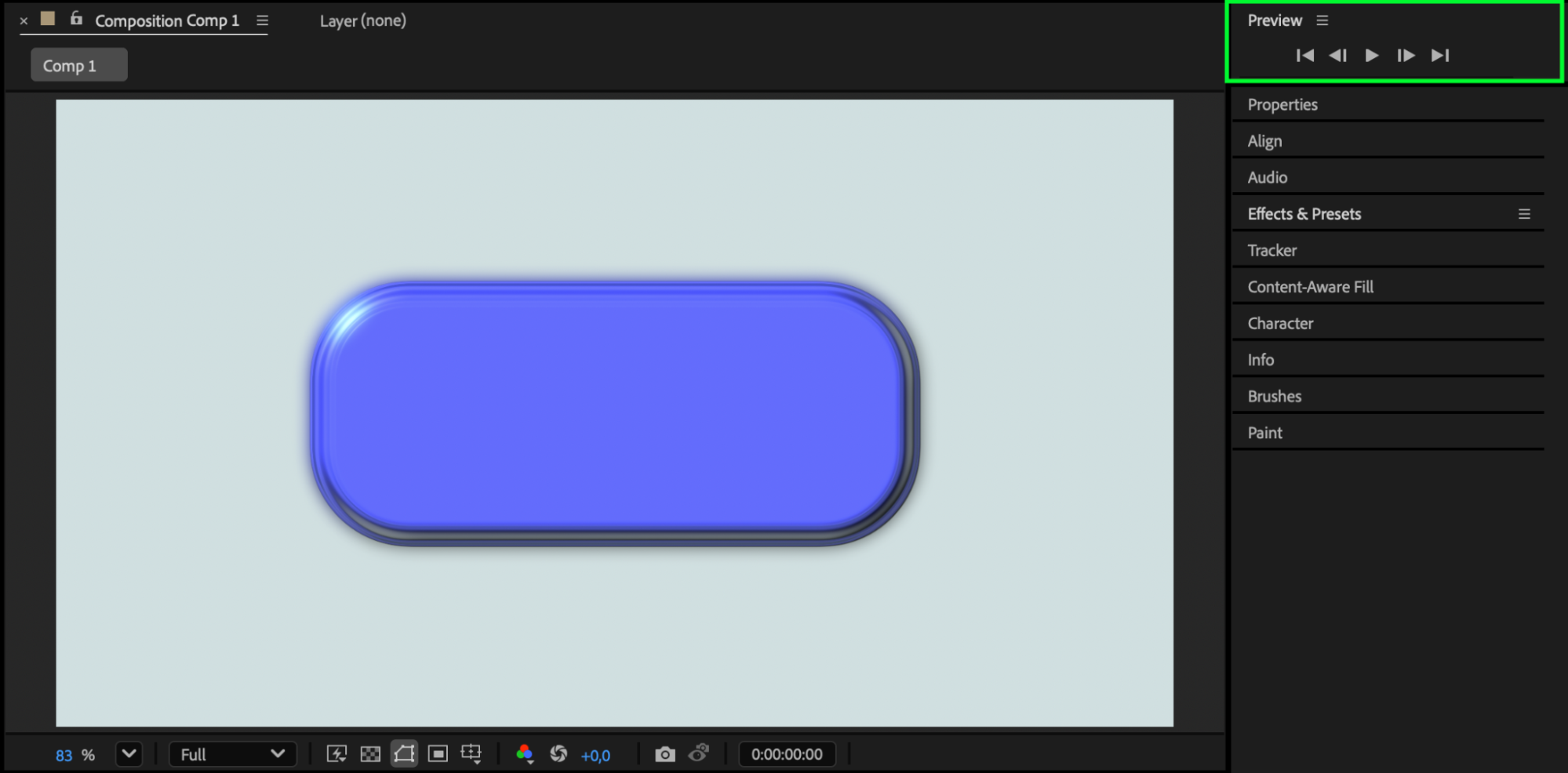 Conclusion
Adjusting the roundness of a rounded rectangle in After Effects is simple but powerful. By modifying the Roundness property, you can create smooth, modern shapes for UI elements, titles, or motion graphics. This technique gives you full control over the style and feel of your shapes, making your designs more dynamic and professional.
Our Bestsellers
Our Bestsellers


