
Introduction to Luma Matte
Luma Matte is a powerful technique in After Effects that allows you to reveal a layer based on the brightness of another layer. Using a white texture as a Luma Matte is ideal for making text or objects visible only where the background is bright. This method creates a clean and creative way to blend your elements into a scene.
Step 1: Create a New Composition
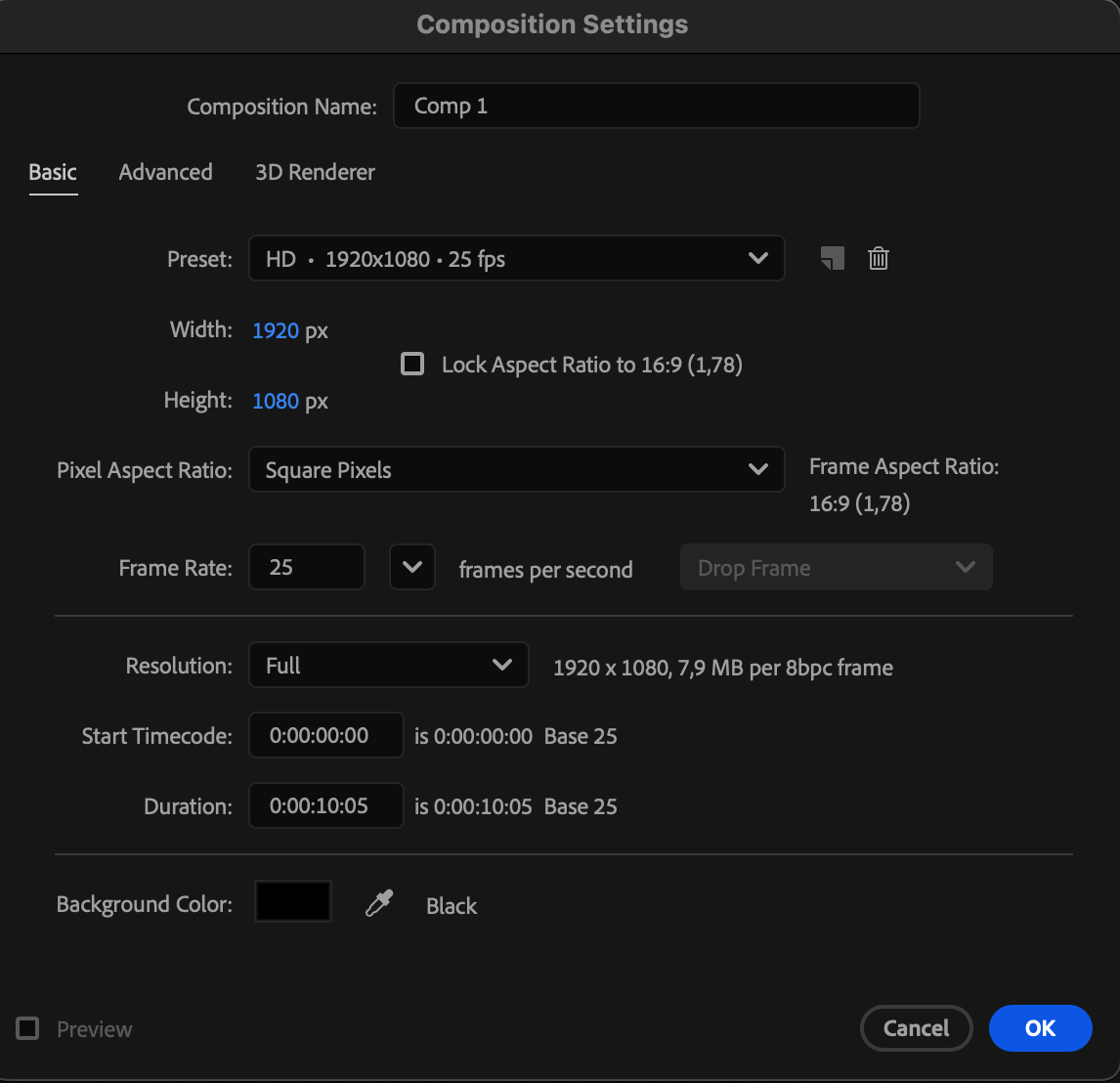
Open After Effects and create a new composition with your desired resolution and duration. This will be the workspace for your text and background elements.
Step 2: Import Your White Texture
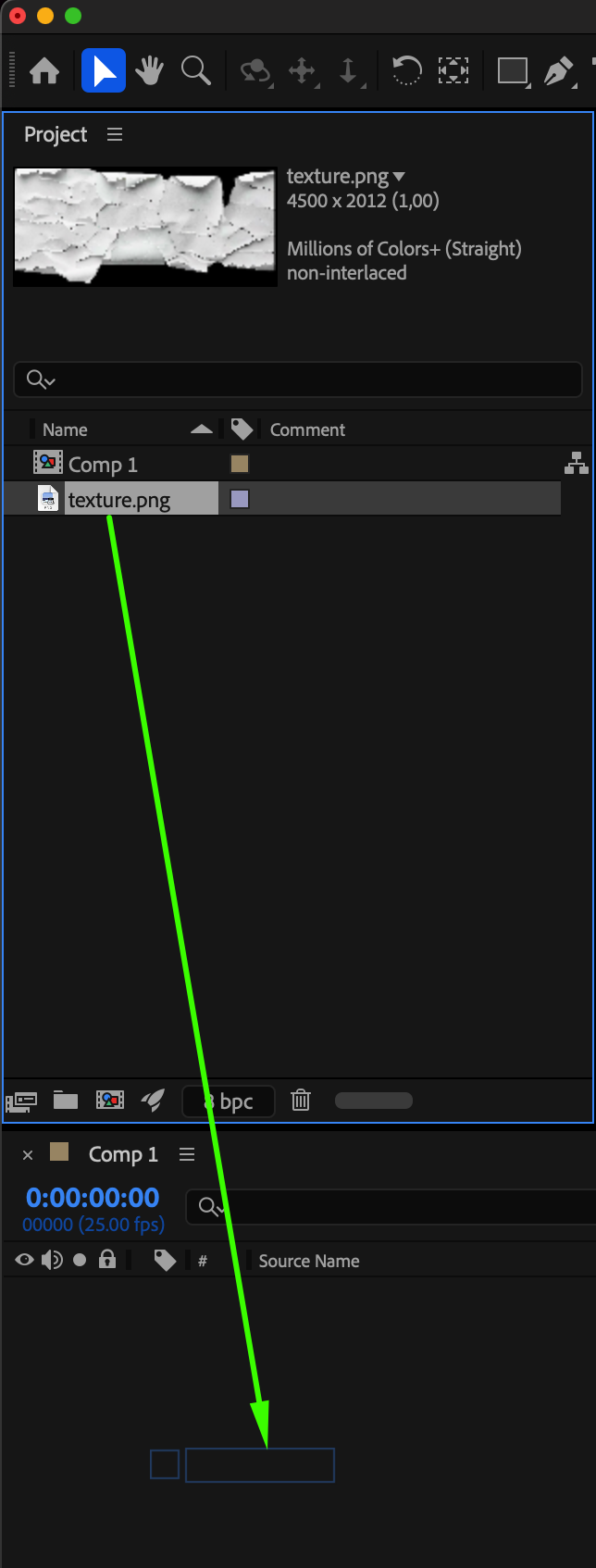
Go to File > Import > File and select your white texture. Drag it onto the timeline. This layer will act as the Luma Matte for your text or object.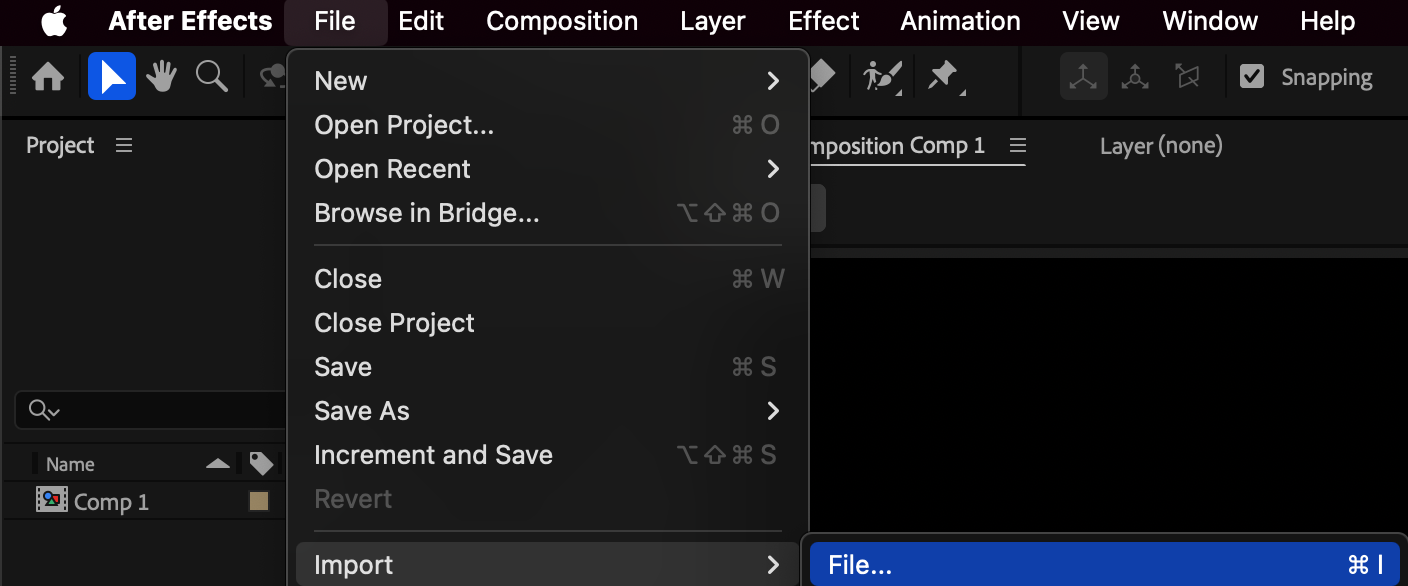
 Step 3: Create or Import Text/Object
Use the Type Tool (Ctrl/Cmd + T) to create your text, or import the object you want to reveal through the white areas. Position it below the white texture layer in the timeline.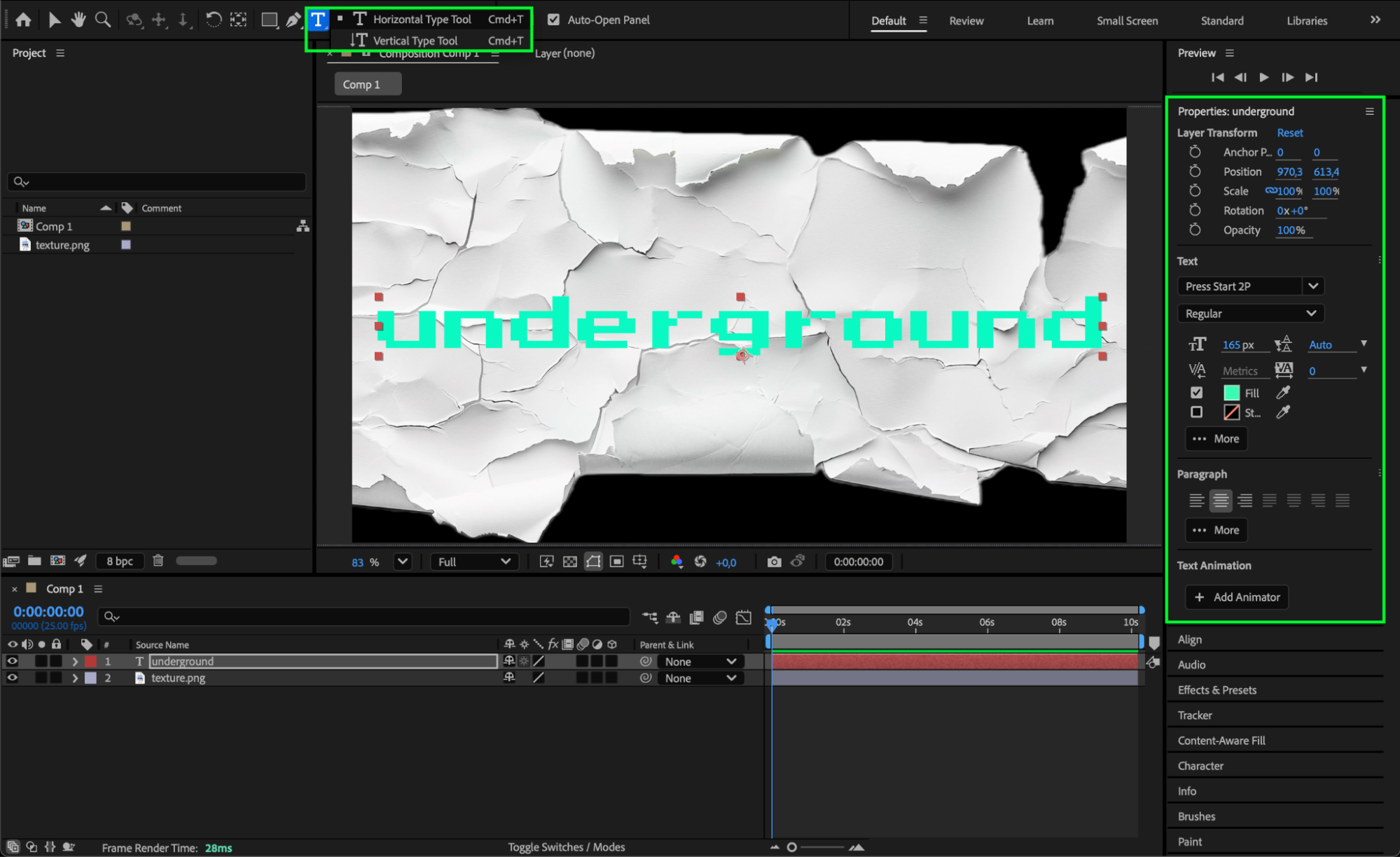
Step 4: Apply Luma Matte
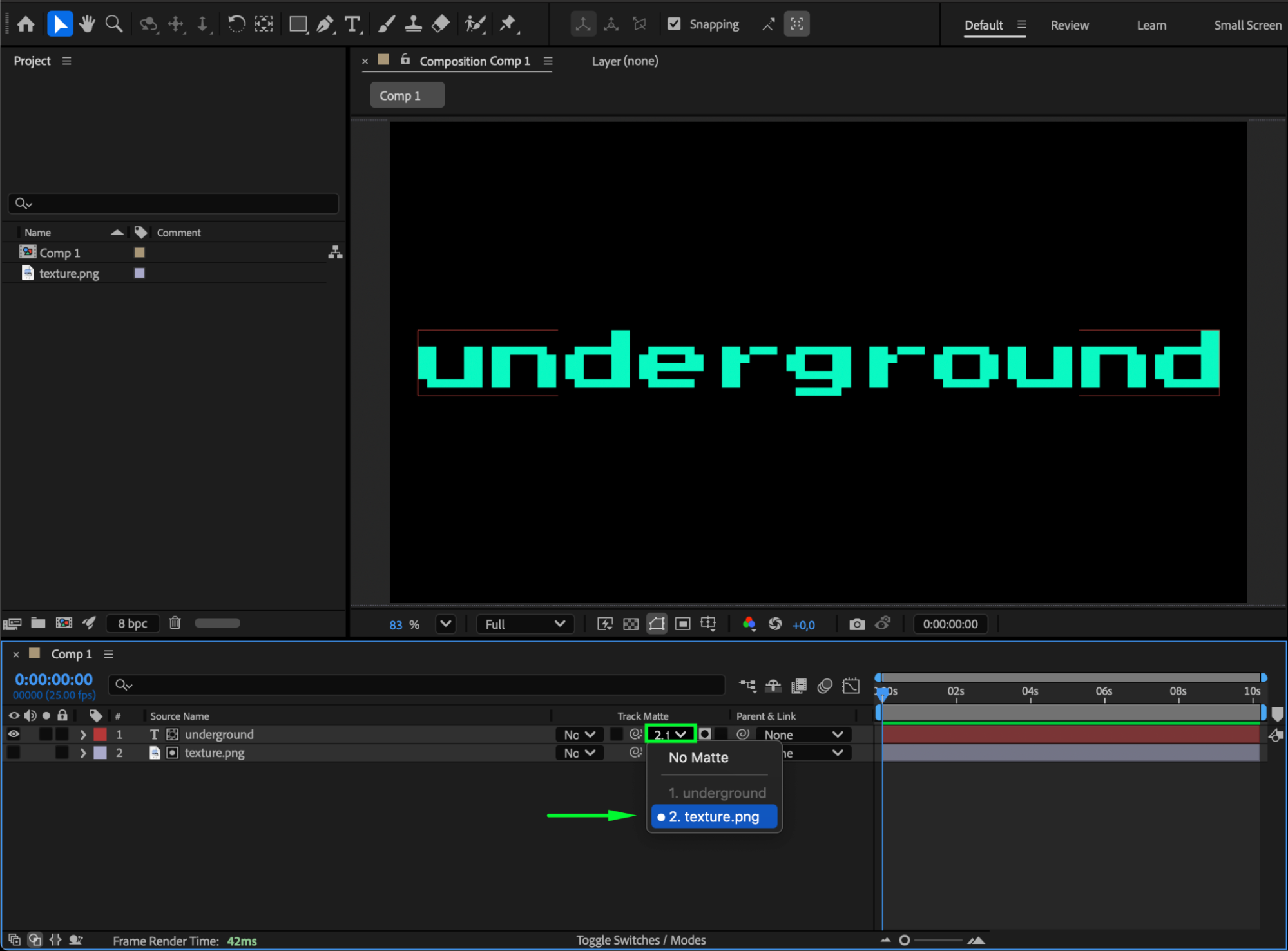
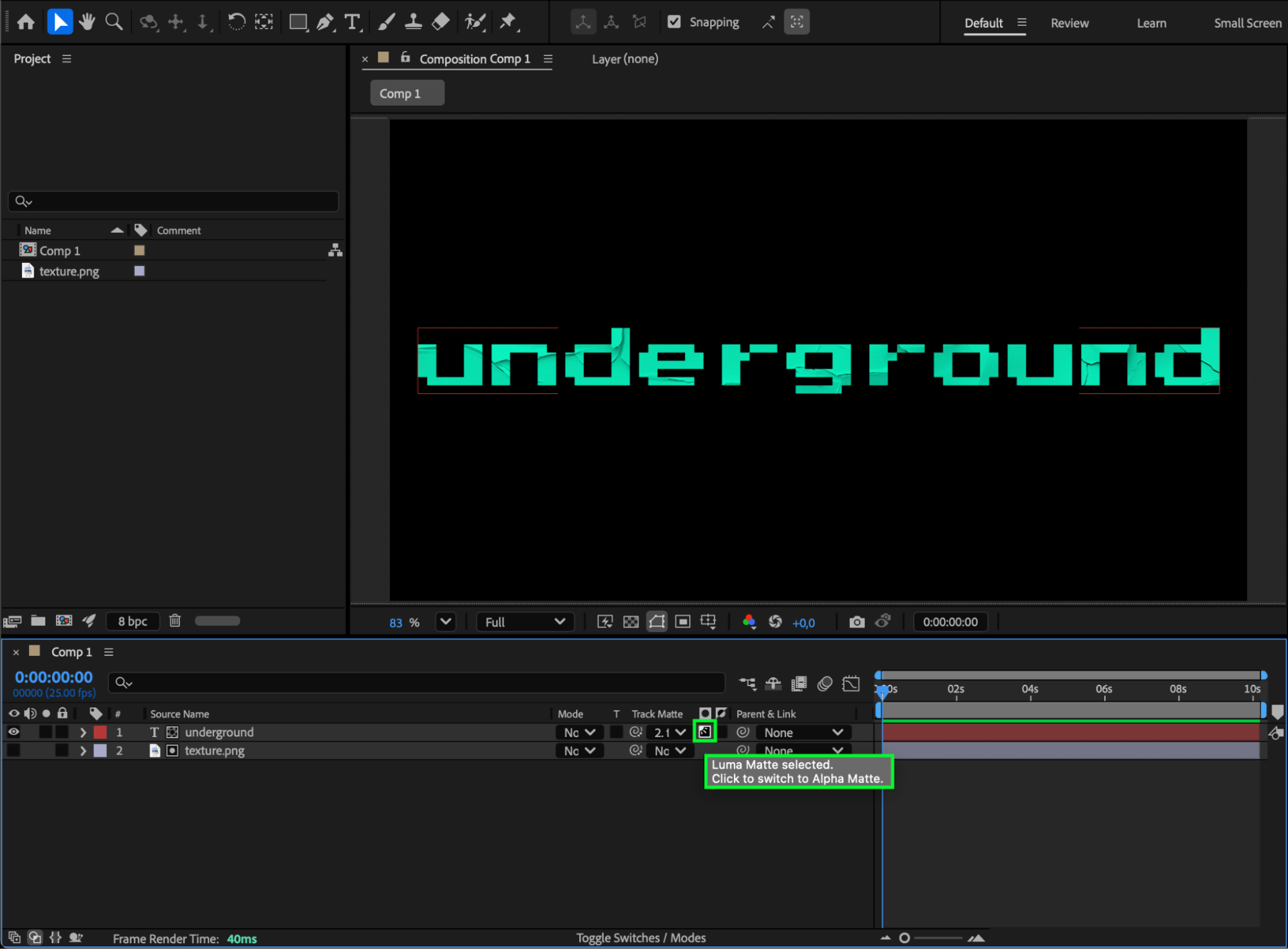
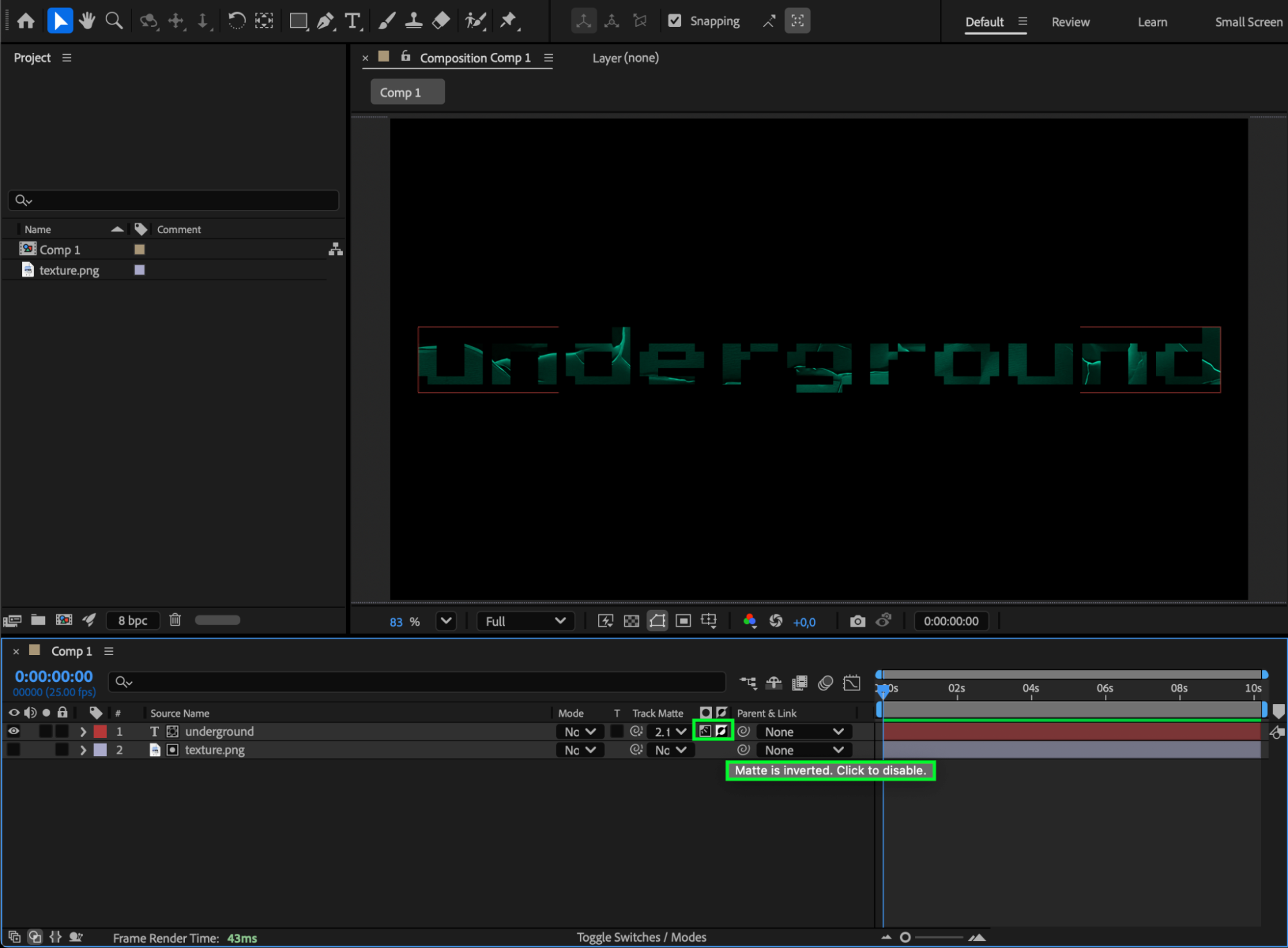
Click Toggle Switches / Modes at the bottom of the timeline to reveal the Track Matte column. For your text or object layer, select the white texture layer as the source and choose either Luma Matte or Luma Matte Inverted, depending on whether you want the layer to appear on bright or dark areas.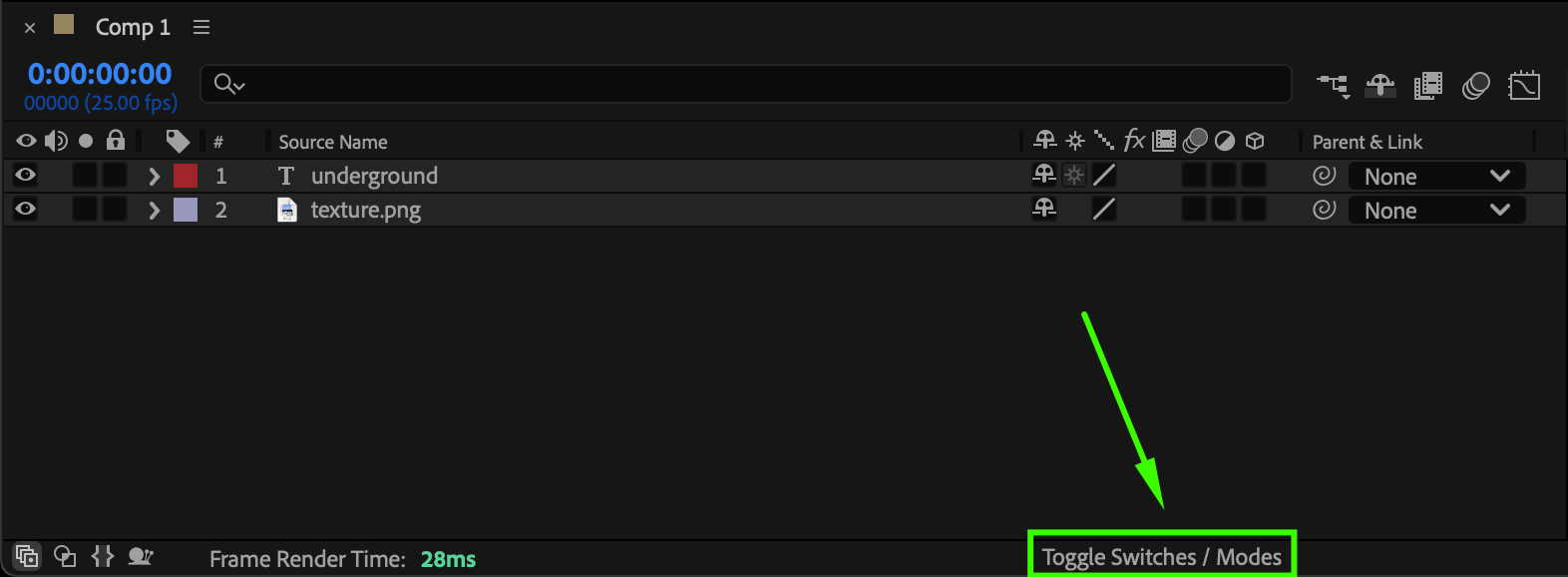
 Step 5: Preview Your Result
Press Spacebar to preview the animation. Adjust position, scale, or opacity as needed to fine-tune how your text or object interacts with the white texture.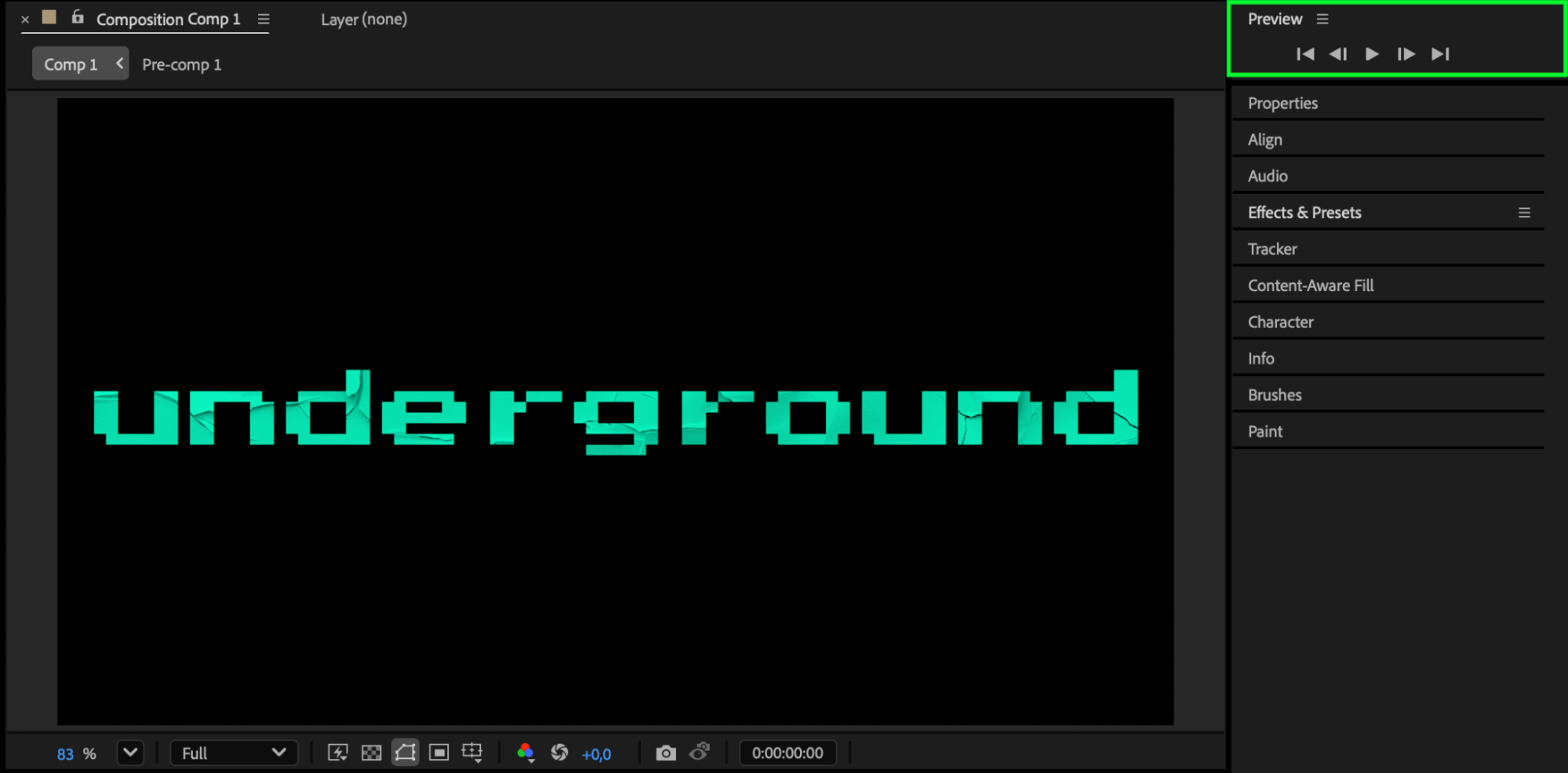
Conclusion
Using a white texture as a Luma Matte is an effective way to create interesting reveals and integrate text or objects with bright areas of your background. With simple steps, you can achieve professional-looking results without additional plugins.
Our Bestsellers
Our Bestsellers


