
Learn how to use neon glitch shapes in After Effects with AEJuice to give your footage a bold cyberpunk vibe using overlays and effects.
Creating Cyberpunk Vibes with Neon Glitch Shapes in After Effects
Introduction: Neon Glitch Shapes for Futuristic Video Style
Neon glitch shapes are perfect for giving your videos a cyberpunk, tech, or EDM-inspired aesthetic. They can be used as overlays, accents, or animated transitions to energize your footage. AEJuice offers one of the best neon glitch overlays for cyberpunk videos, and in this tutorial, you’ll learn how to quickly apply and customize them in After Effects.
Step 1: Import Your Footage
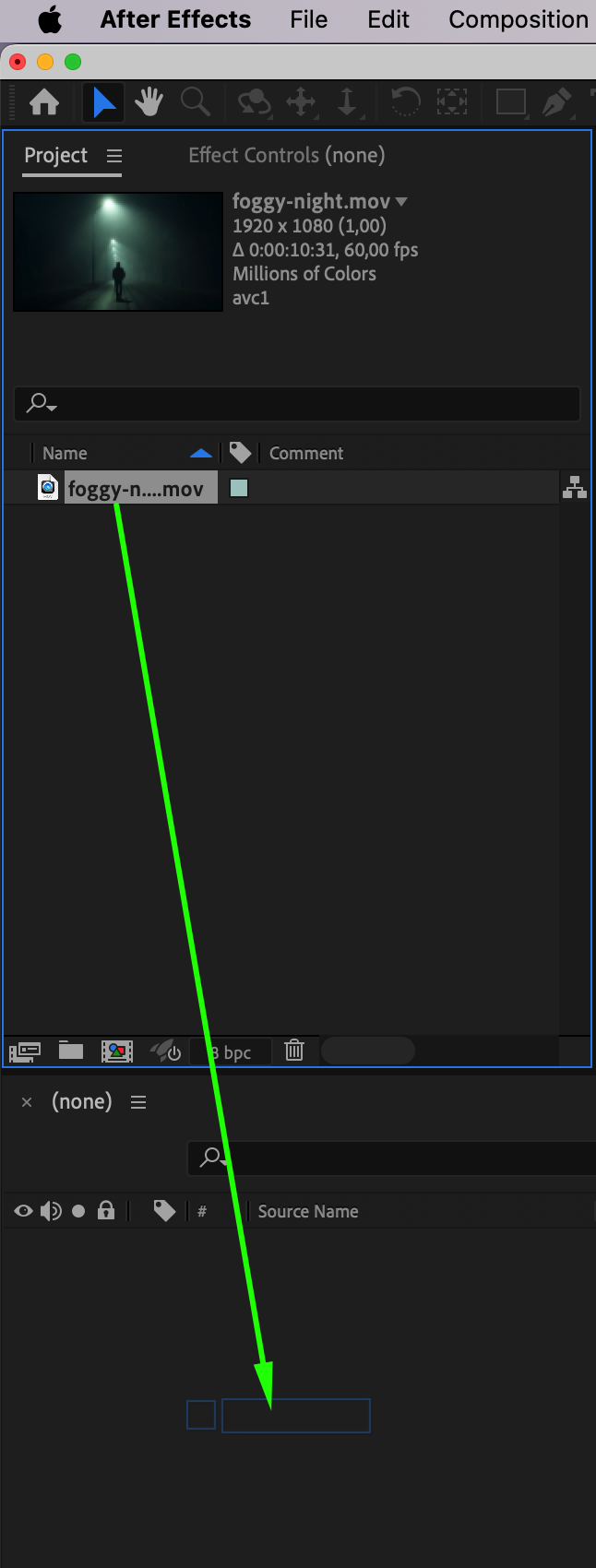
Start by going to File > Import > File and selecting the video clip you want to work with. Drag the footage into the timeline to create a new composition. This layer will serve as the background or base for your glitch effects.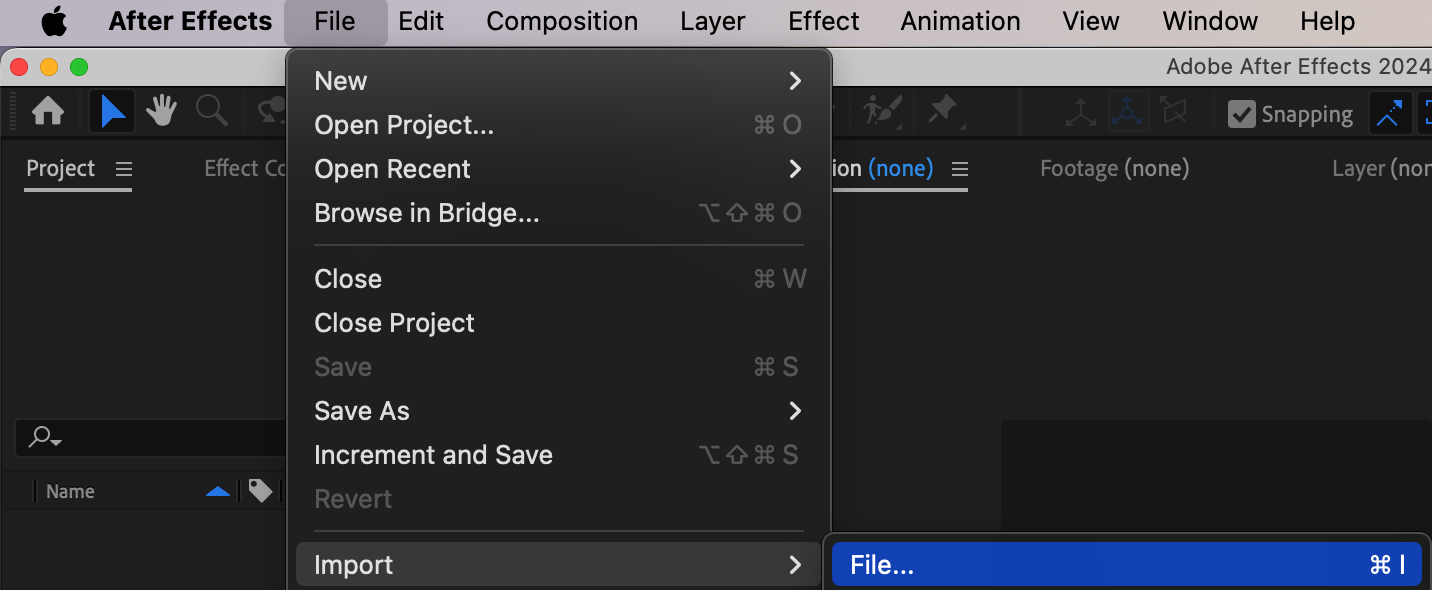
 Step 2: Open AEJuice Pack Manager
Open the plugin by going to Window > AEJuice Pack Manager 4. This panel contains all of your installed AEJuice packs. Make sure everything is up to date so you can access the latest glitch animations.
Step 3: Download the Neon Glitch Shapes Pack
Inside the Pack Manager, locate the Neon Glitch Shapes pack. If it’s not already installed, click on it to download. Once ready, you’ll have access to a collection of high-quality animated shapes with neon outlines and glitch movement.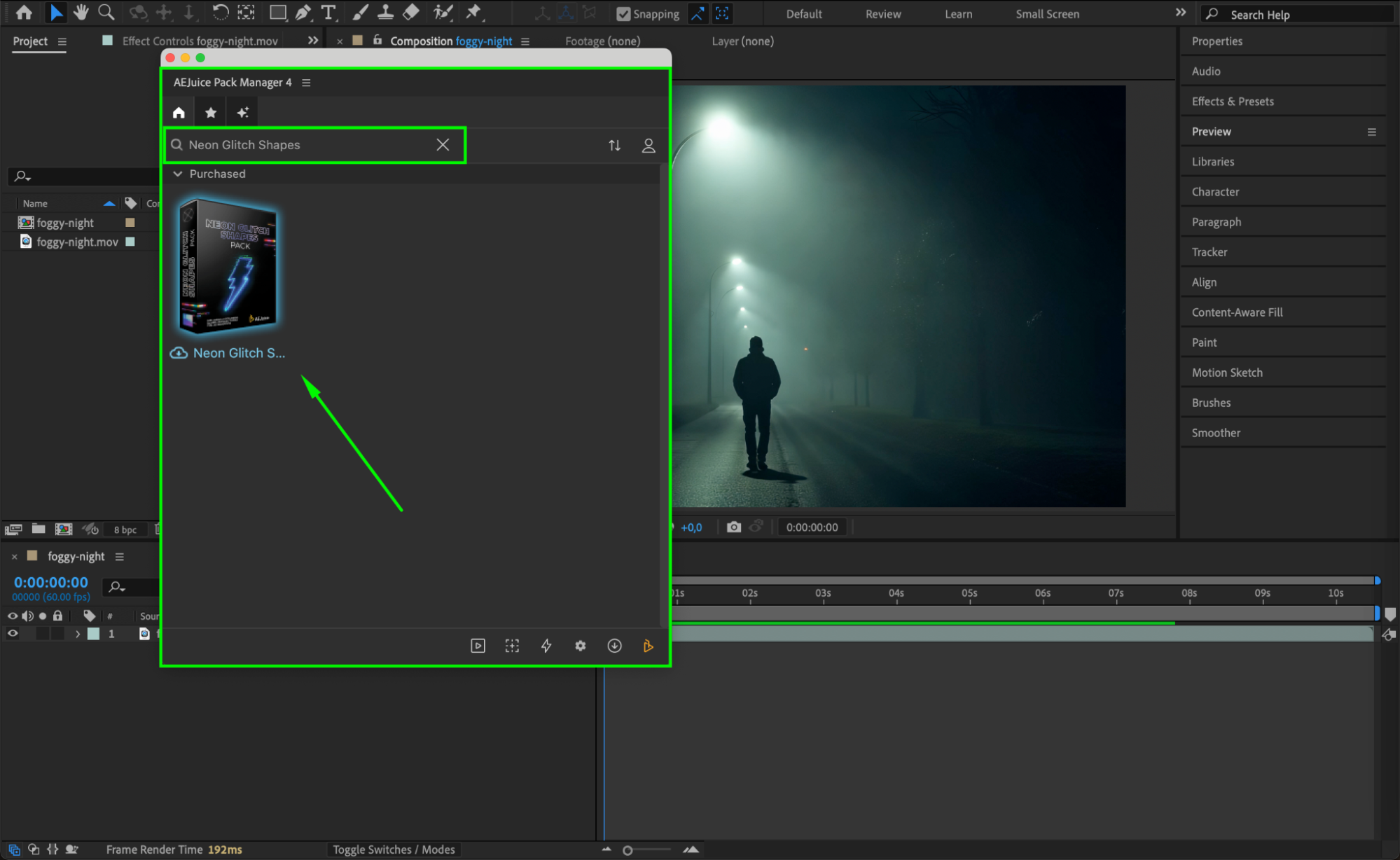 Step 4: Choose and Import a Glitch Shape
Browse through the pack and choose an animation that fits your visual style. Click on the glitch shape you like and hit Import. It will appear in your timeline as a video layer (or sometimes a pre-comp, depending on the file).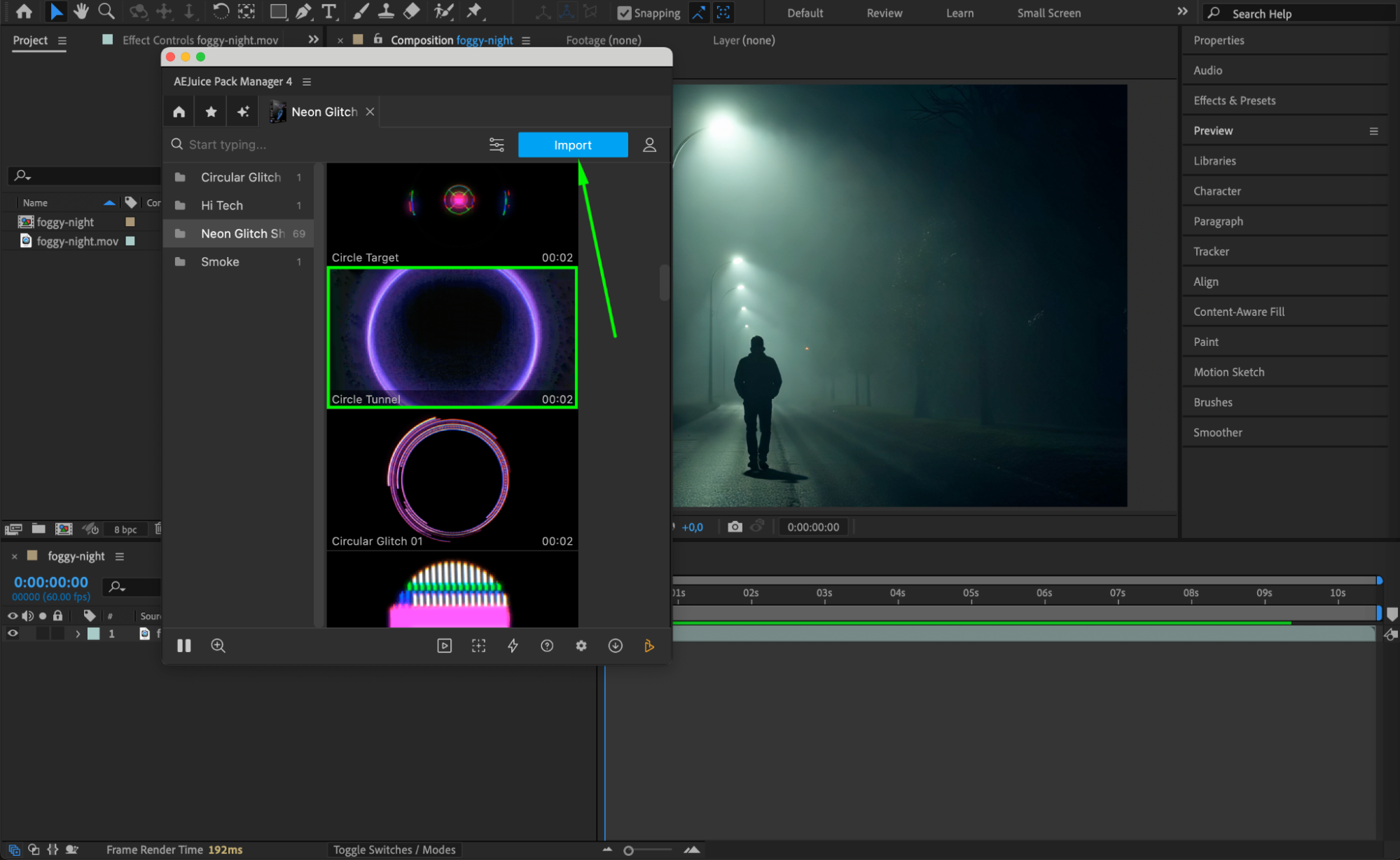
Step 5: Apply Additional Effects (Optional)
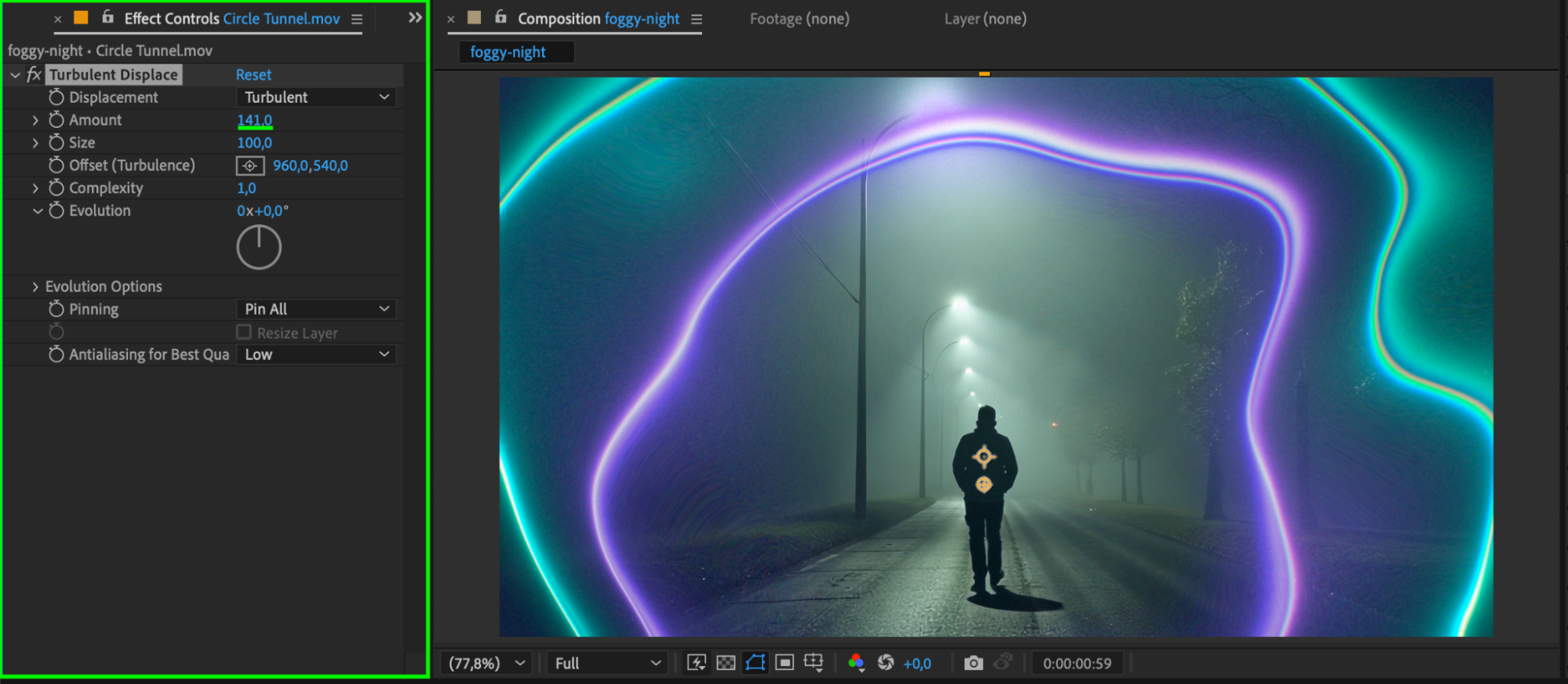
To further customize the look, go to the Effects & Presets panel and search for Turbulent Displace. Drag it onto the glitch shape layer to give it an even more distorted, edgy feel. You can also try Glow, Hue/Saturation, or Add Grain to create a deeper sci-fi texture.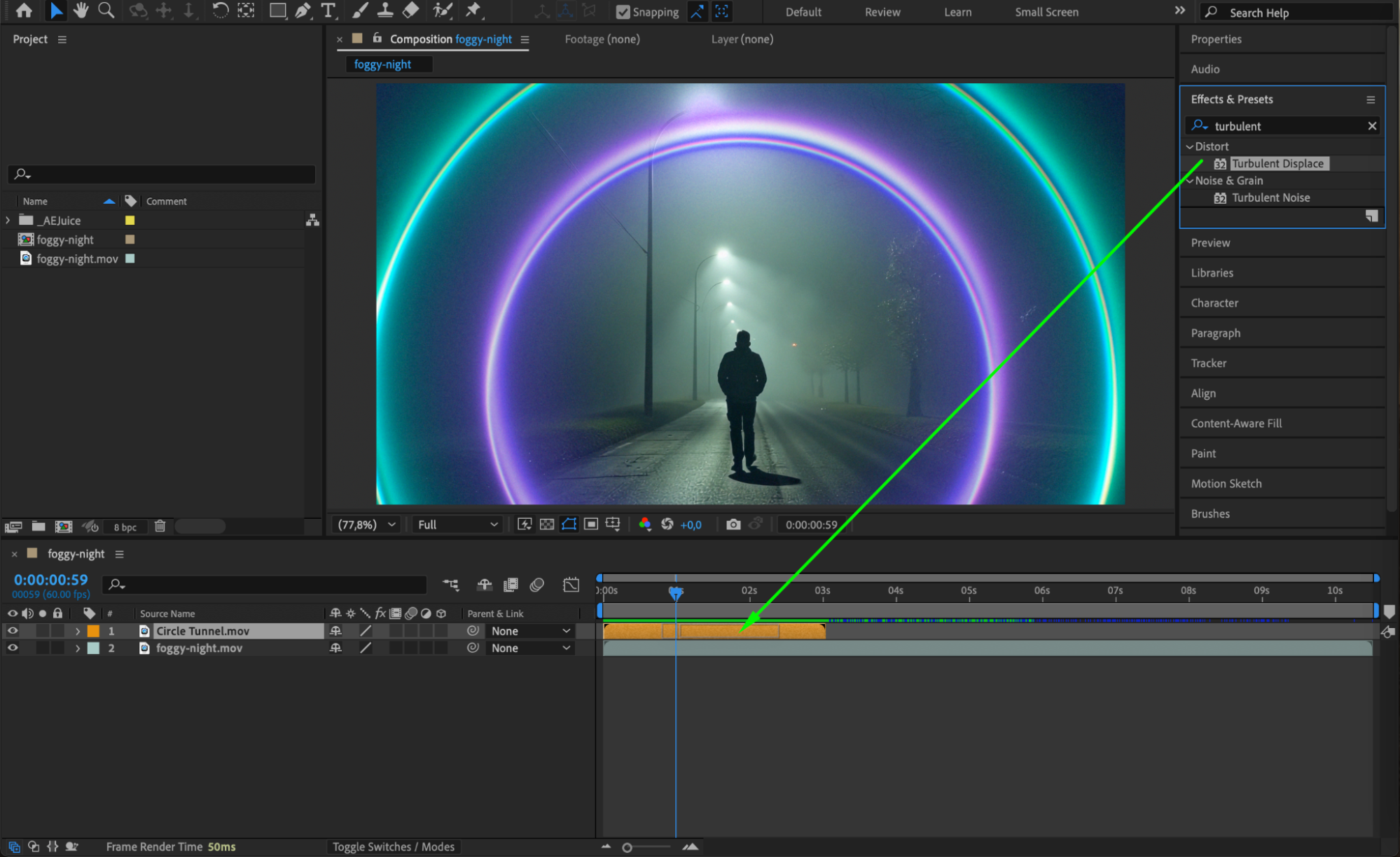
 Step 6: Preview and Finalize
Press spacebar to preview your animation and see how the glitch shapes blend with your footage. Adjust timing, opacity, or effects until it feels smooth and impactful. Once satisfied, you’re ready to render your video.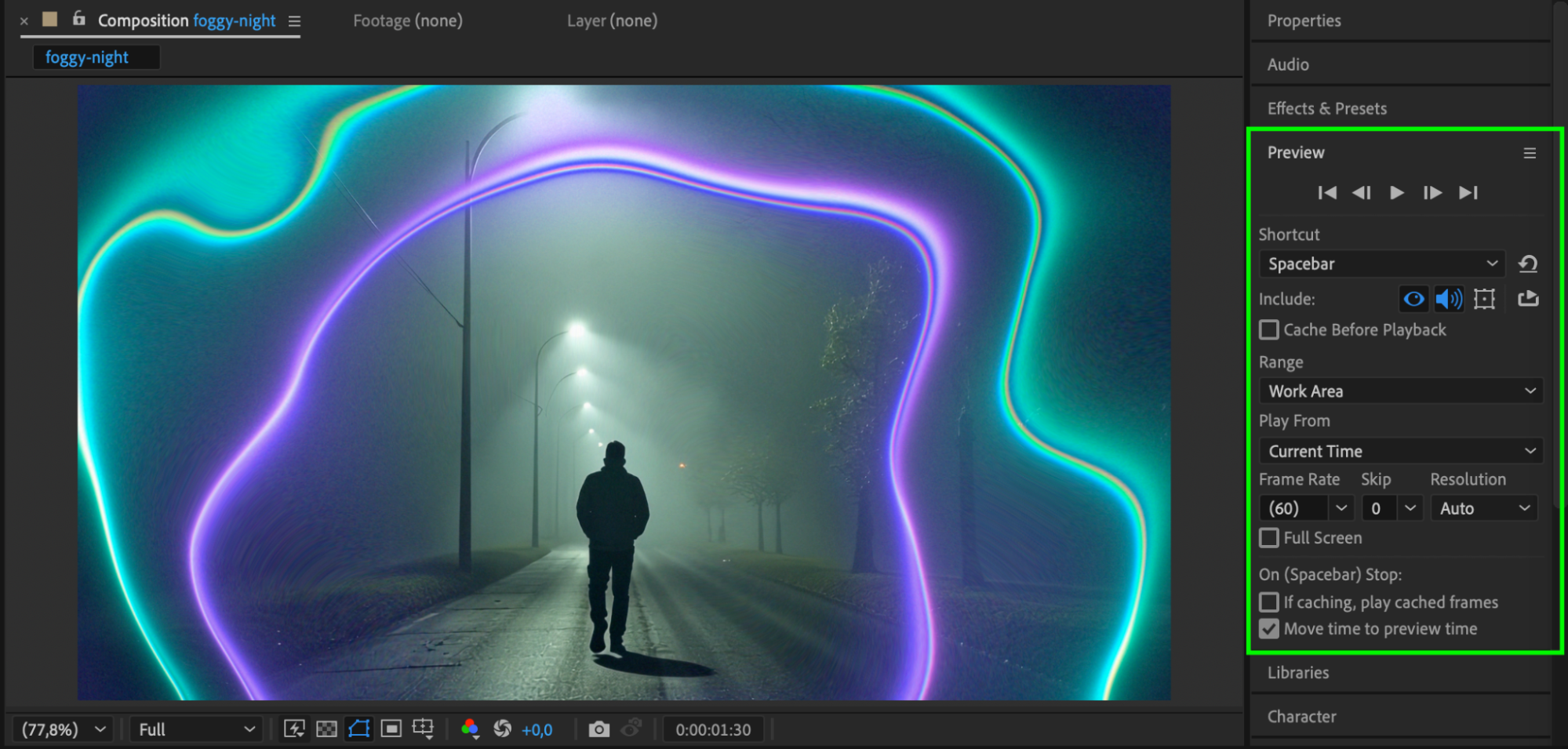 Conclusion
Neon glitch shapes are a fantastic tool to add high-energy, cyberpunk-style overlays to your video projects. Whether you’re working on a music video, fashion reel, or motion graphic intro, AEJuice’s glitch shapes pack gives you fast, professional results with full customization.
Our Bestsellers
Our Bestsellers


