
Introduction to Brightness Control in After Effects
When working on complex compositions in After Effects, you may need to brighten or darken several layers at once — such as multiple clips, shapes, or text elements. Instead of applying the same effect to each layer individually, you can use an Adjustment Layer to control brightness for all selected elements simultaneously. This method saves time and keeps your project more organized.
Step 1: Open Your Project
Start by opening your After Effects project and making sure all the layers you want to modify are visible in the Timeline panel.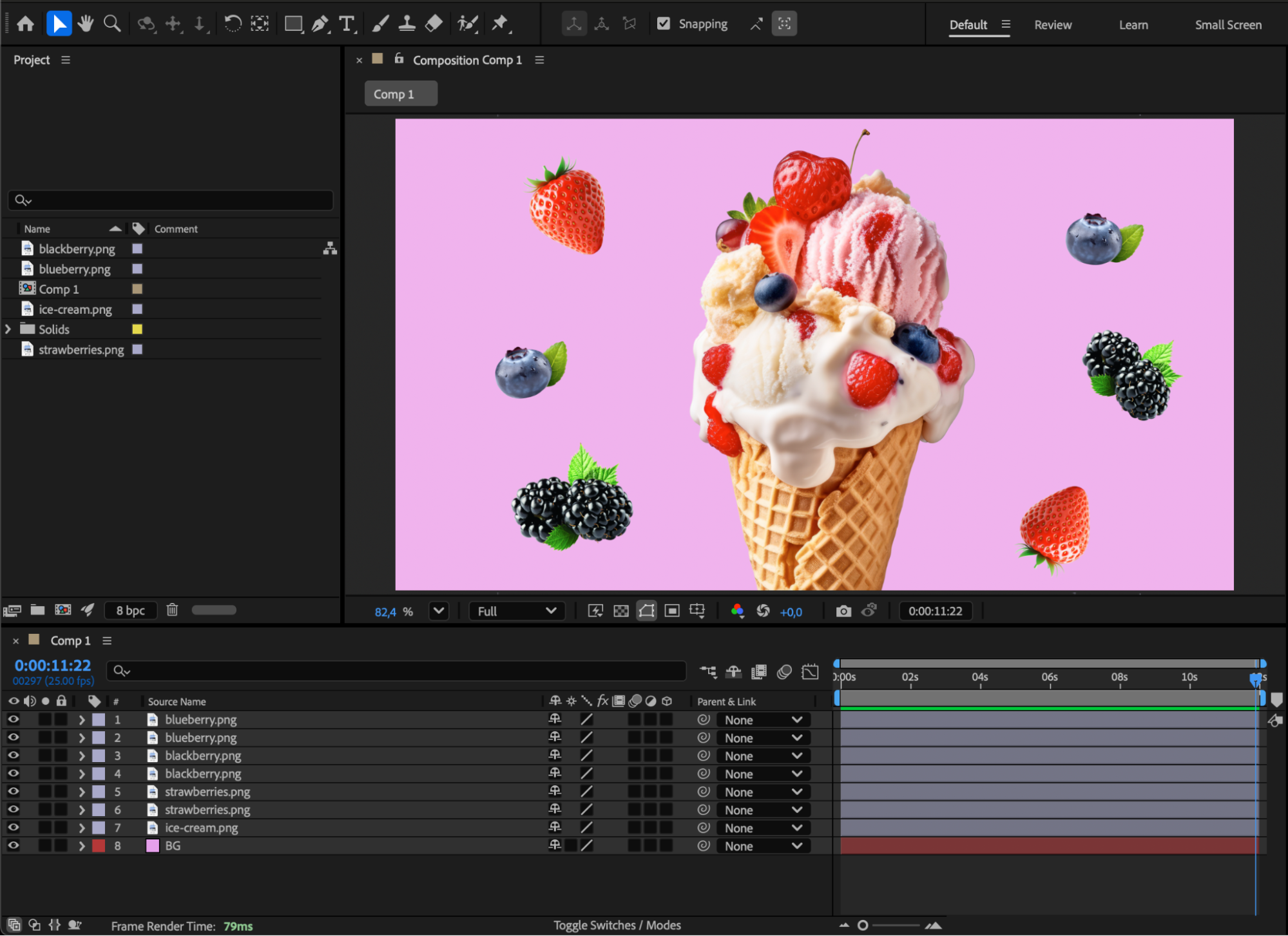
Step 2: Create an Adjustment Layer
Go to Layer > New > Adjustment Layer. An adjustment layer acts like a transparent filter — any effect you apply to it will affect all layers beneath it.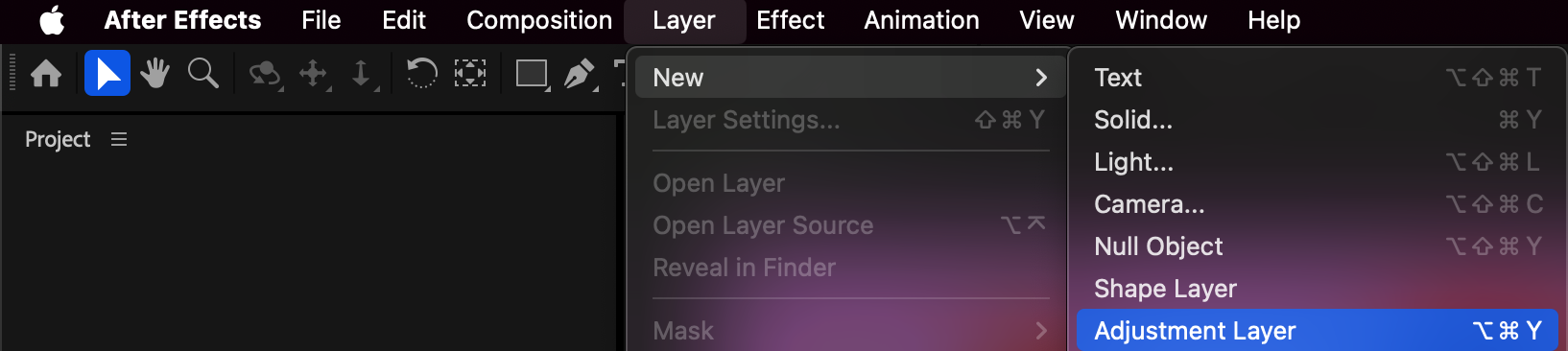
Step 3: Position the Adjustment Layer
Place the adjustment layer above all the layers you want to change in brightness. Then, go to the Effects & Presets panel and drag the Brightness & Contrast effect onto the adjustment layer.
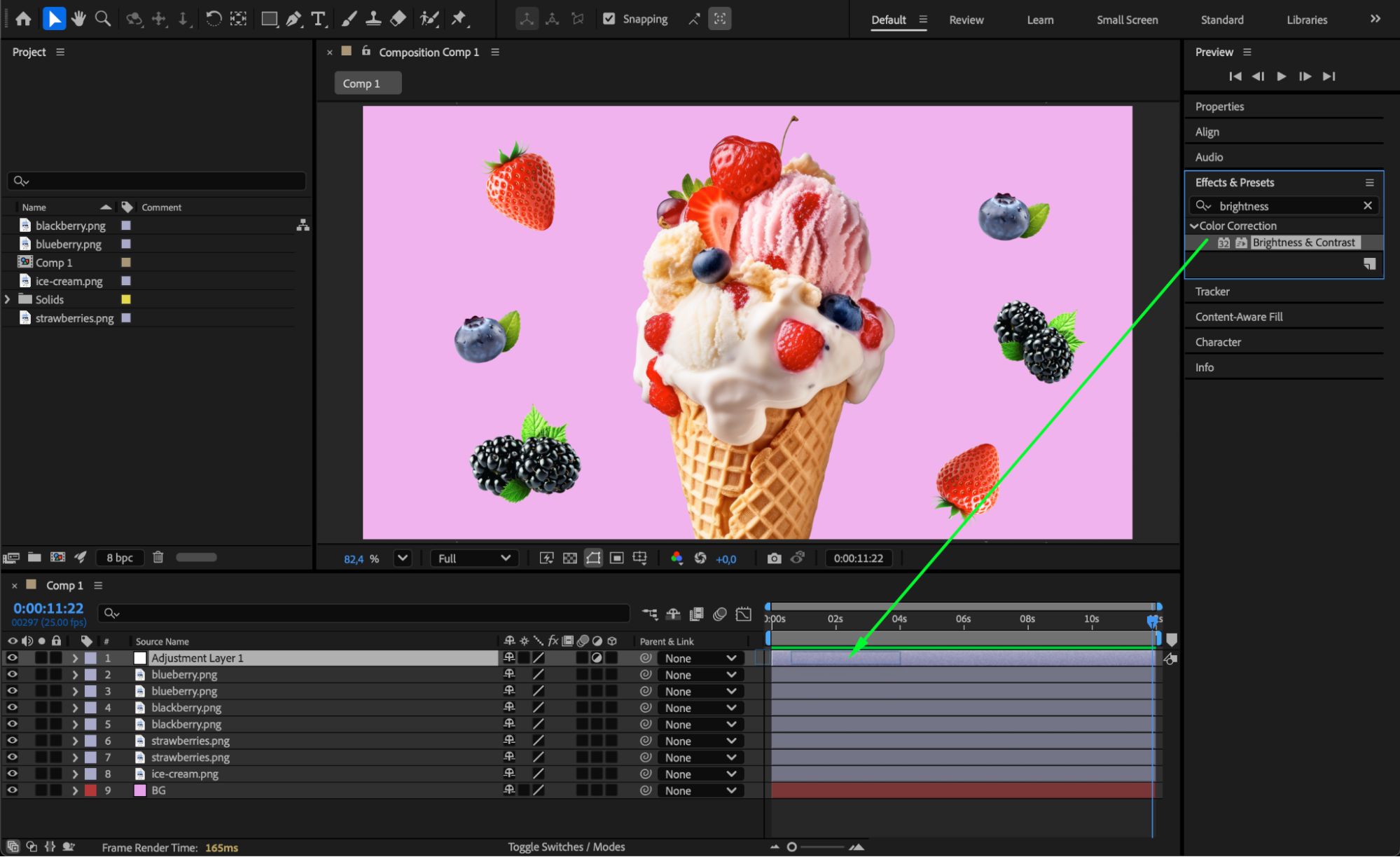
Step 4: Adjust Brightness and Contrast
In the Effect Controls panel, use the Brightness slider to make your objects lighter or darker. You can also adjust Contrast to enhance the difference between light and dark areas for a more dynamic look.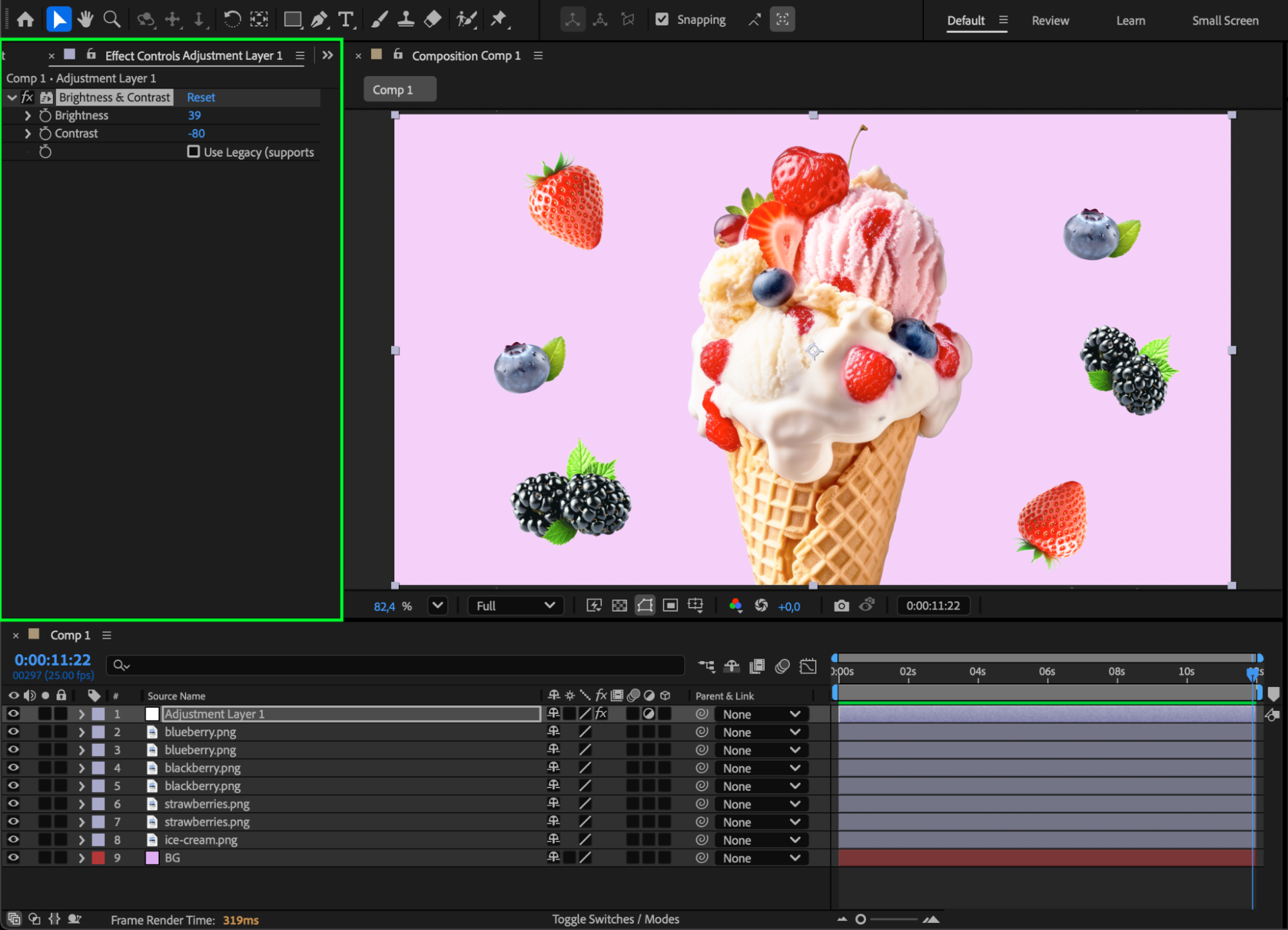
Step 5: Exclude or Include Specific Layers
If you don’t want certain layers to be affected, move them above the adjustment layer in the timeline.
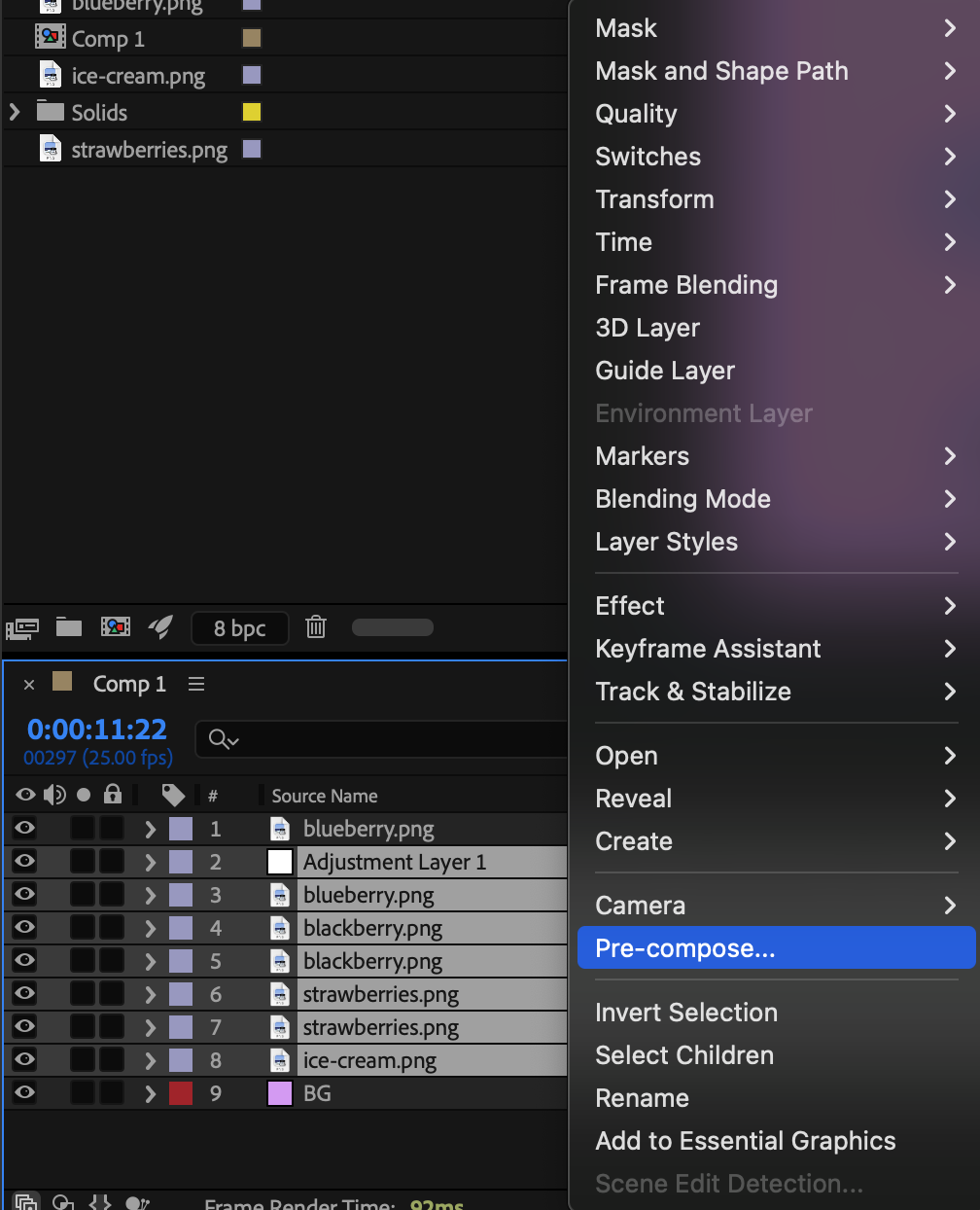
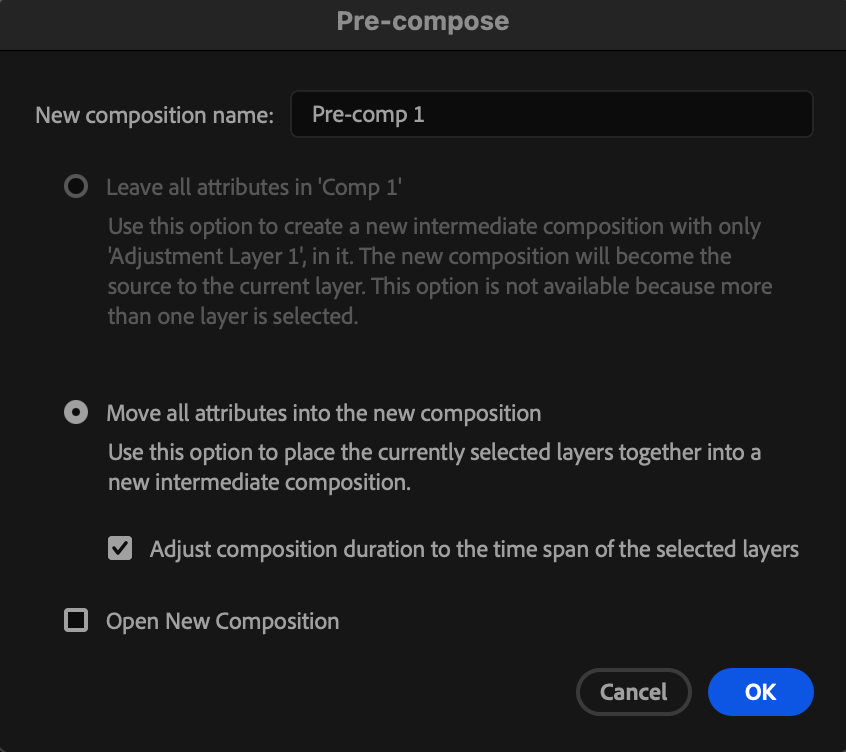
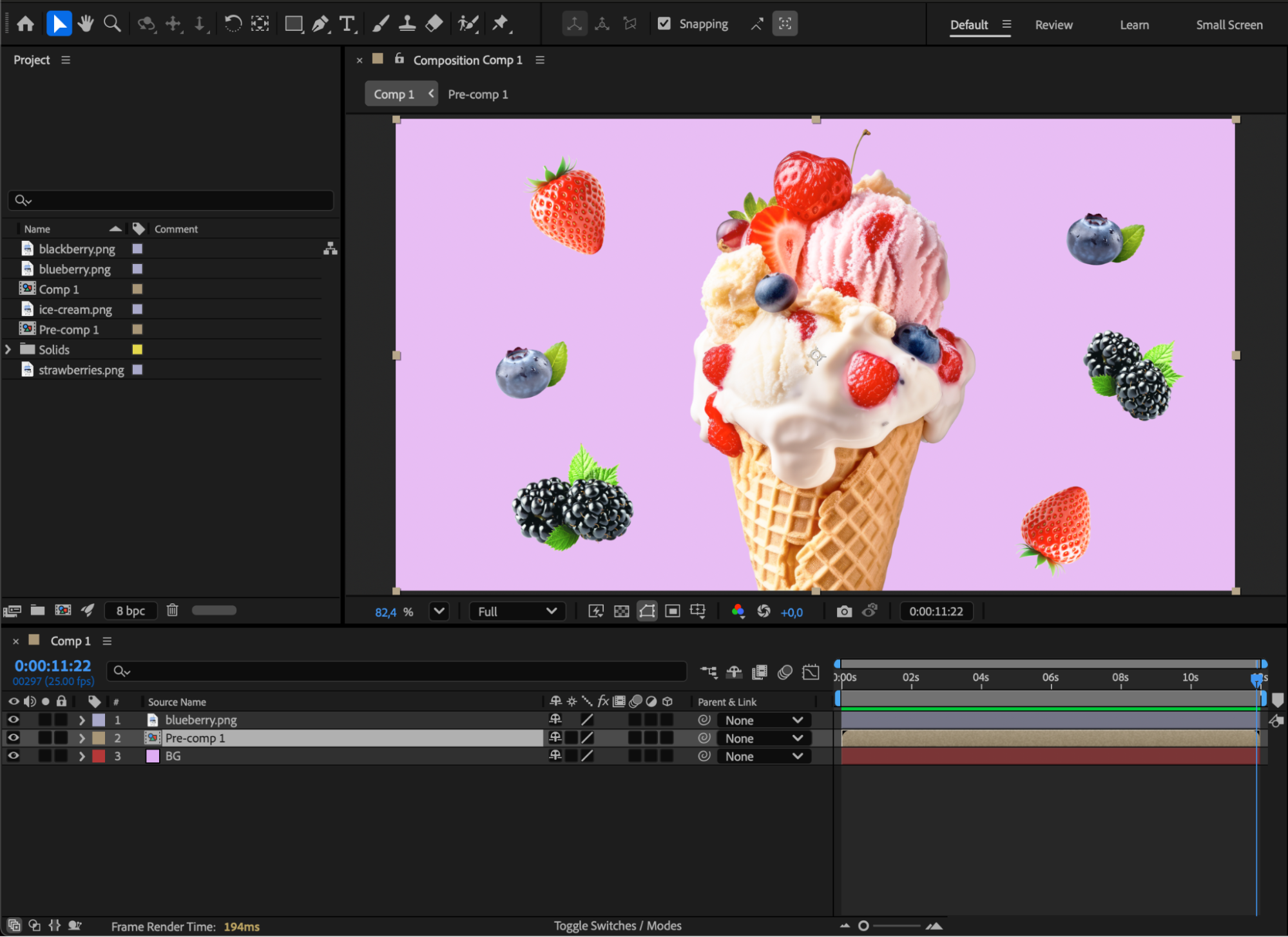
If your background is below all other layers, but you want to include it in the brightness adjustment, select both the Adjustment Layer and all the layers you want to affect, then go to Right-Click > Pre-compose. This combines them into one composition where your brightness changes will apply evenly.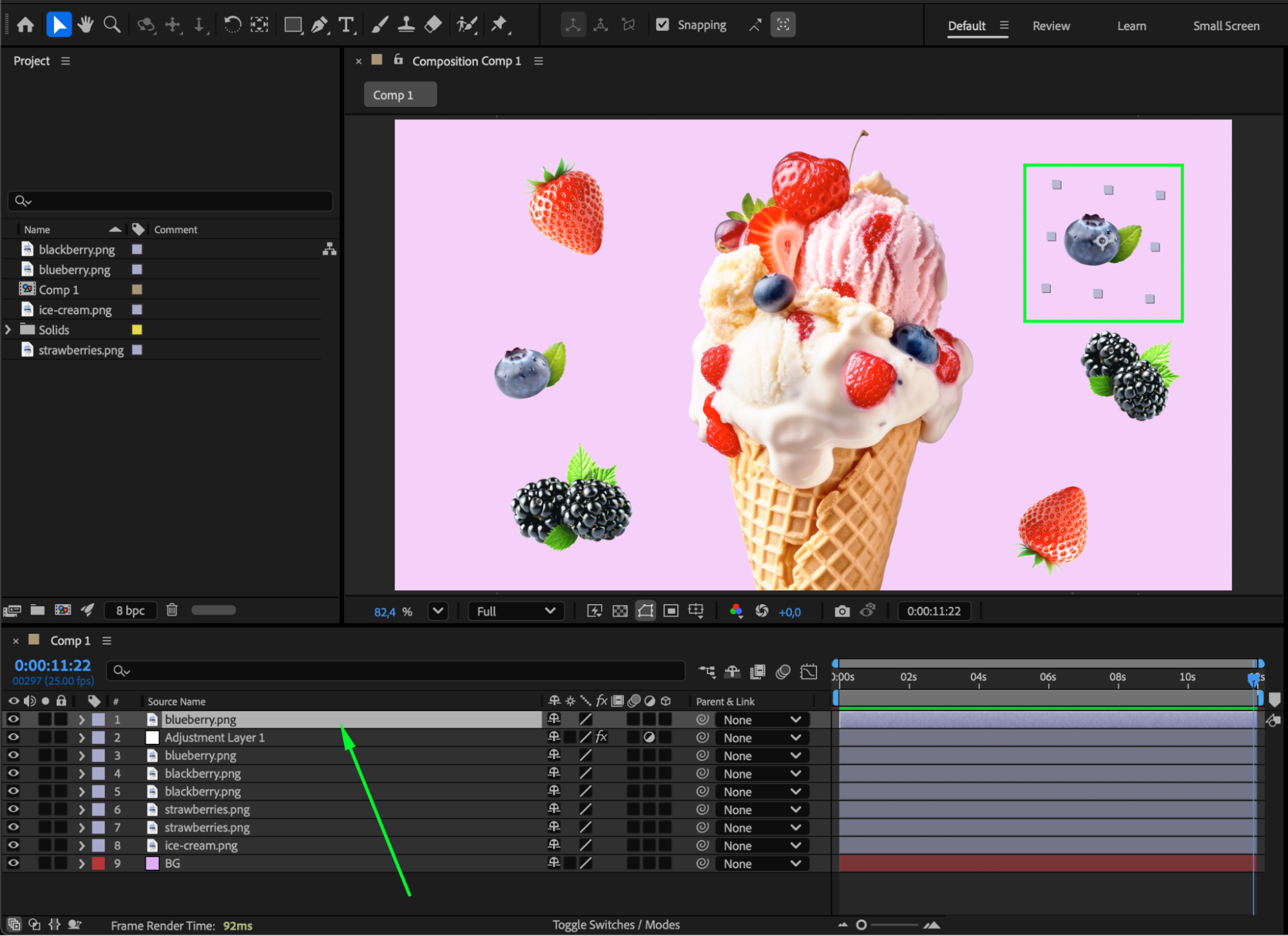
 Step 6: Preview and Fine-Tune
Press the spacebar or use the Preview panel to check your results. Adjust brightness and contrast until you achieve the look you want.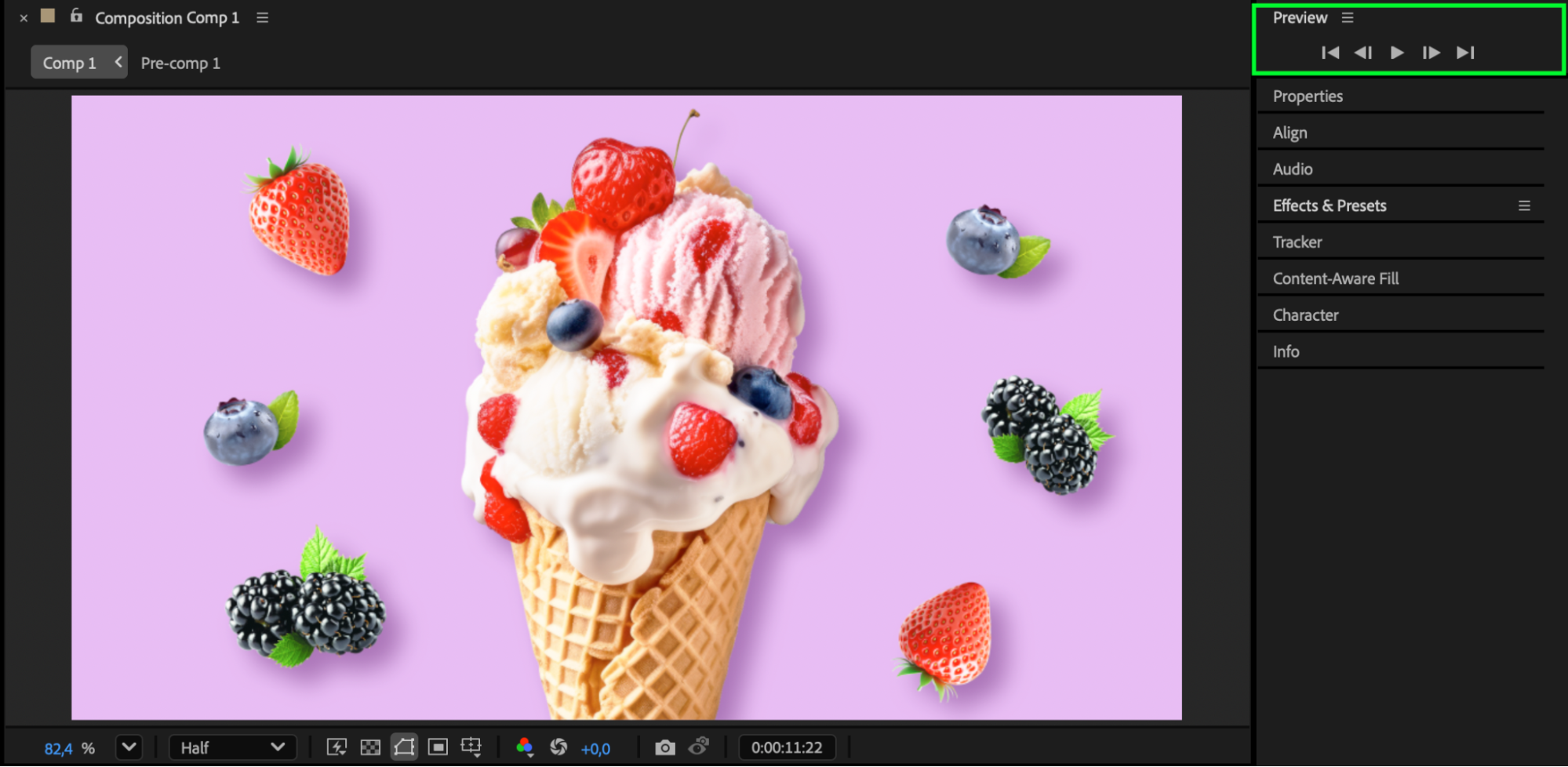
Conclusion
Using an adjustment layer is the fastest and most flexible way to control the brightness of multiple objects in After Effects. It allows you to apply consistent lighting changes, experiment easily, and maintain full control over which layers are affected — all without editing each element individually.
Our Bestsellers
Our Bestsellers


