
Introduction to Solids in After Effects
A solid layer in Adobe After Effects is a simple color-filled layer often used as a background, shape, or base for effects. You can easily change its size, color, and texture at any time to fit your composition. In this guide, you’ll learn two main ways to change the size of a solid — by scaling it or by adjusting its settings — plus a few creative options for adding visual texture.
Step 1: Create a New Composition
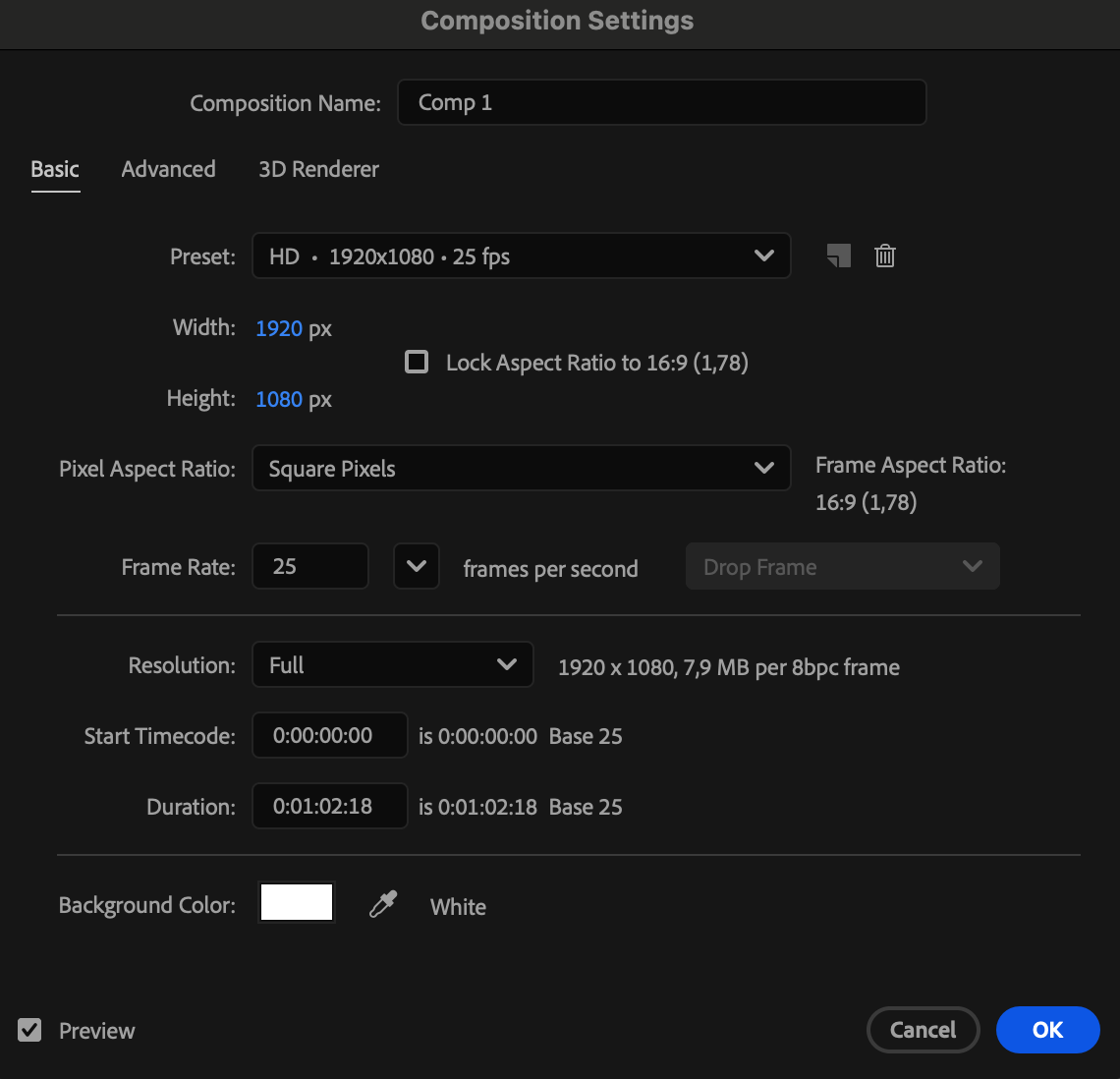
Go to Composition > New Composition and set your desired resolution, duration, and background color. Click OK to create the workspace for your solid.
 Step 2: Create a New Solid Layer
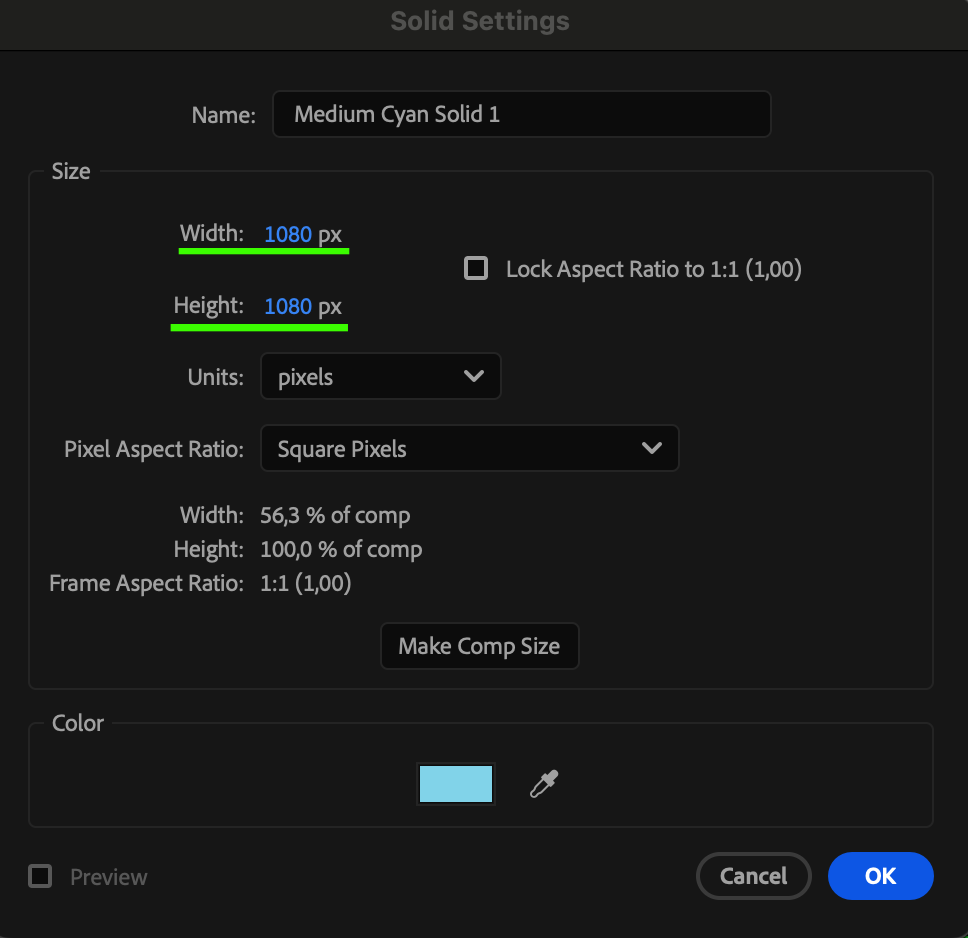
Navigate to Layer > New > Solid. In the Solid Settings window, choose a color, then set the Width and Height values. Click OK — the solid will appear in your composition.
Step 3: Resize the Solid Using Scale
Select the solid layer in the Timeline, then press “S” to reveal the Scale property. Adjust the percentage to make your solid smaller or larger. This method is ideal when you want to resize quickly without changing the original layer dimensions.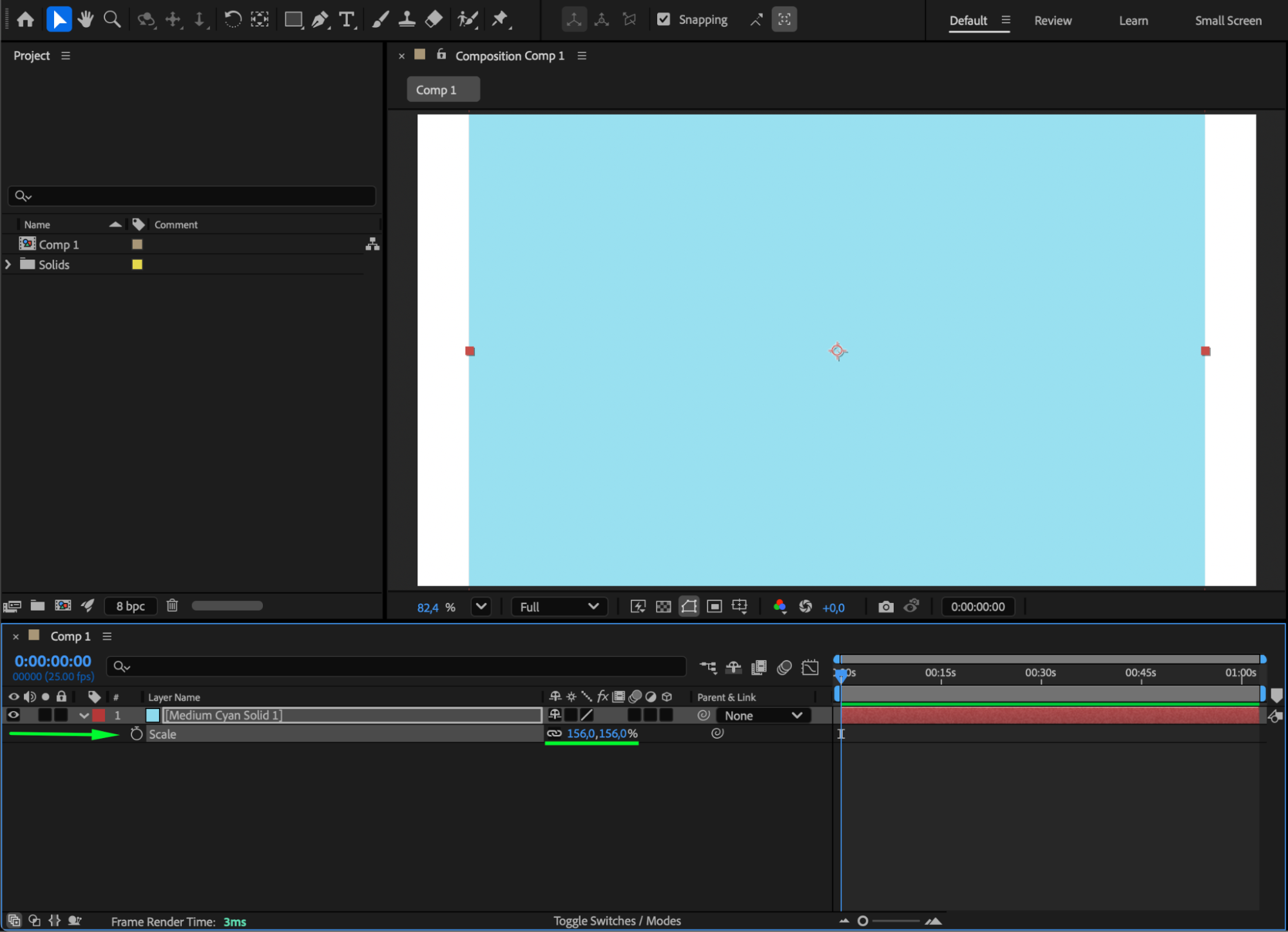
Step 4: Change the Solid’s Dimensions in Settings
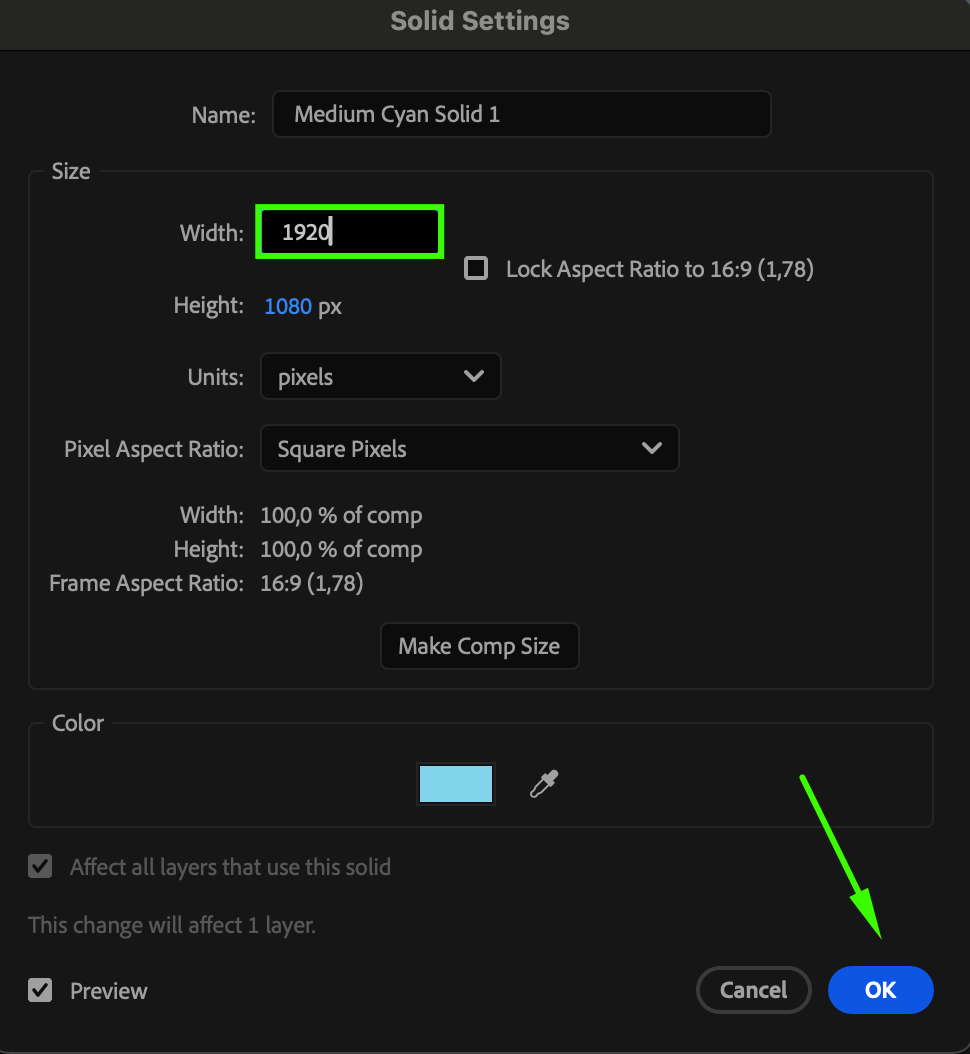
If you want to permanently change the solid’s shape or size, select the layer and go to Layer > Solid Settings. Here, modify the Width and Height values:
Equal width and height create a square.
Different values create a rectangle.
Experiment with various dimensions to get the shape you want.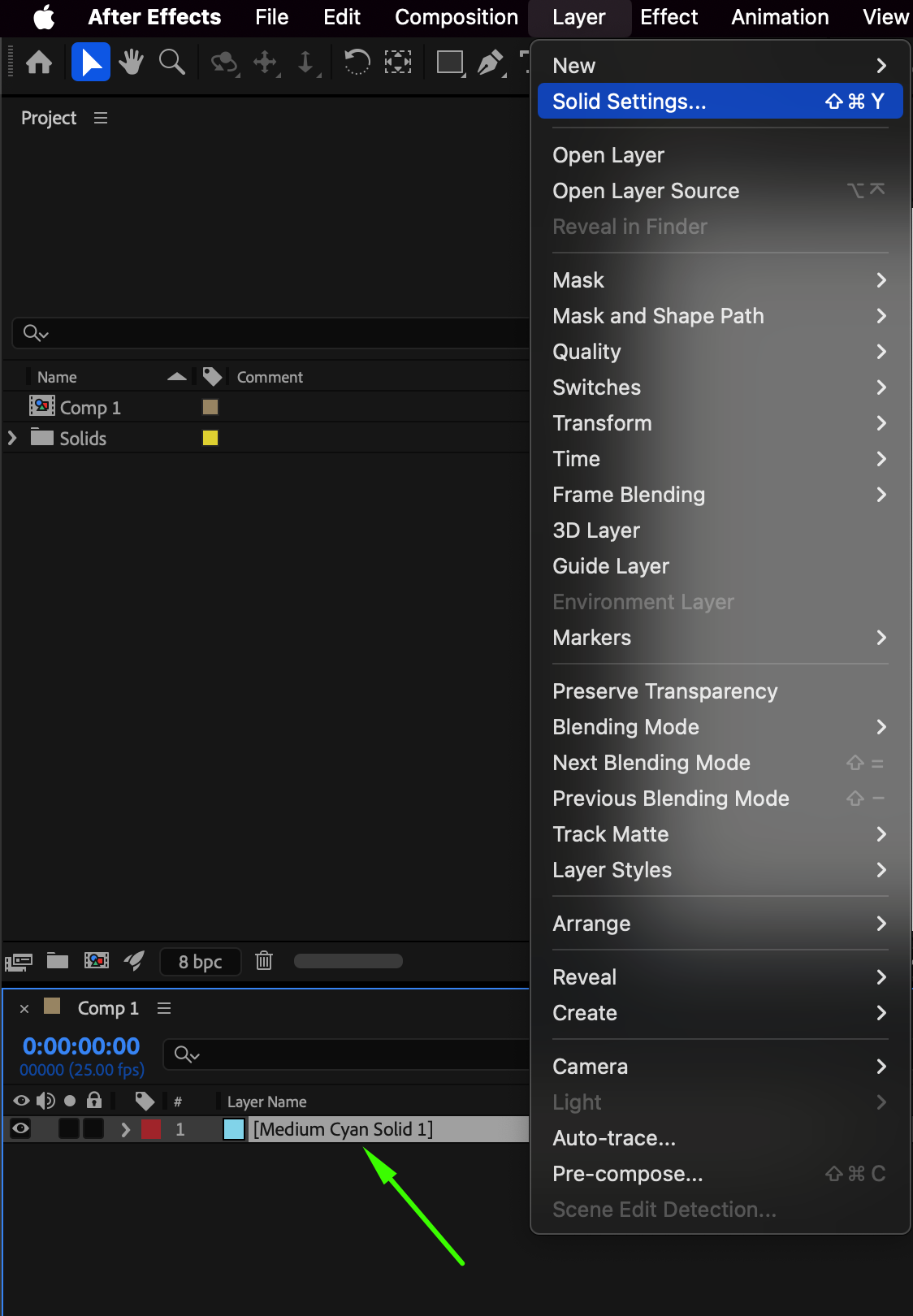
Step 5: Optional — Add Texture or Effects
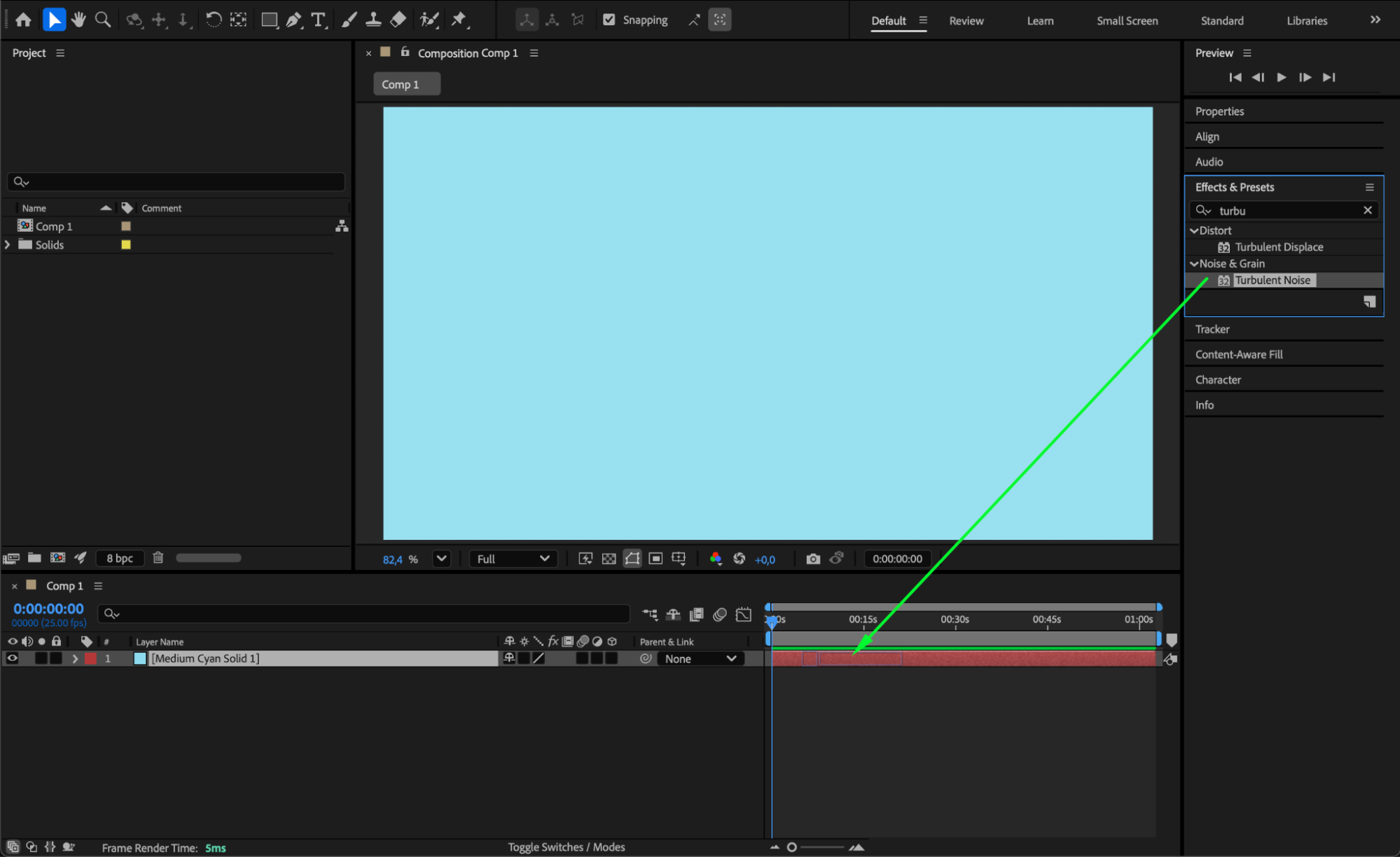
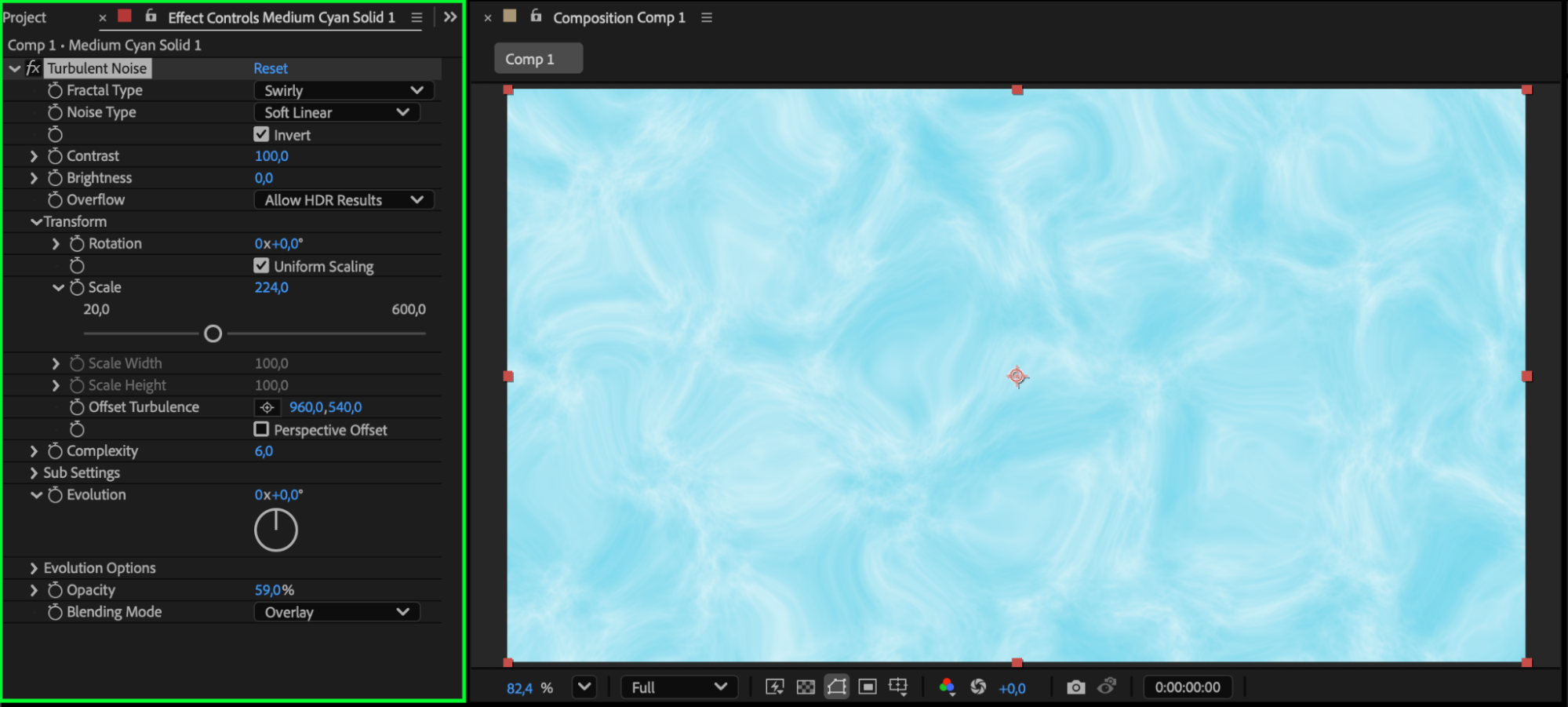
To make your solid more interesting, open the Effects & Presets panel and apply effects like Turbulent Noise, Noise, or Glow. These can add motion, grain, or lighting effects to your solid, making it look more dynamic.
 Step 6: Preview Your Composition
Press the Spacebar to preview your animation and make sure the solid’s size and style fit your project.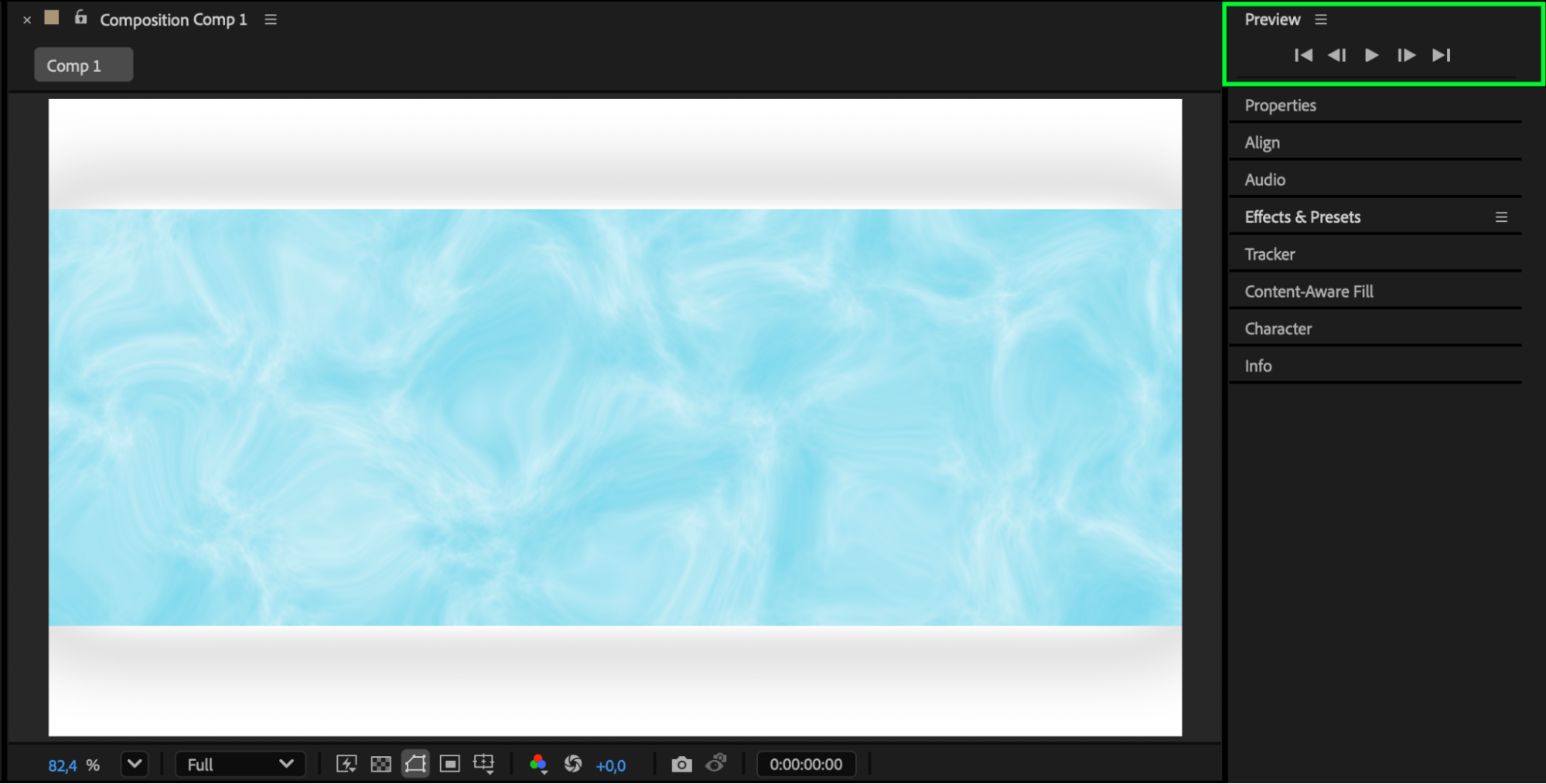
Conclusion
Changing the size of a solid in After Effects is simple and flexible. Whether you scale it directly or edit its solid settings, you have full control over its dimensions and appearance. You can also add effects to give your solid texture and depth, turning a basic color layer into a creative visual element.
Our Bestsellers
Our Bestsellers


