
Introduction
Clipmarking, or attaching text or shapes to a moving object, is a great way to highlight subjects in your video — for example, an athlete, car, or product. In After Effects, this can be done easily using motion tracking and a null object to link your elements precisely to the object’s movement.
Step 1: Import Your Footage
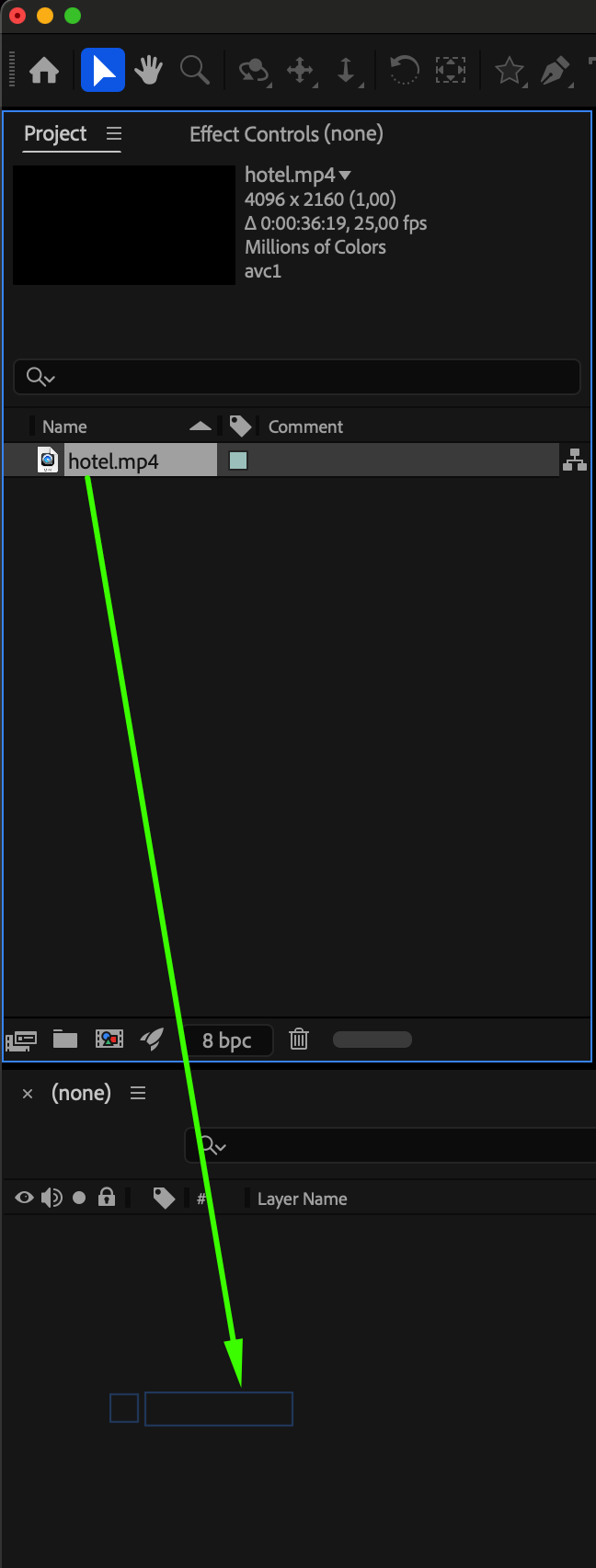
Go to File > Import > File and select your video clip. Once imported, drag it to the Timeline to create a new composition.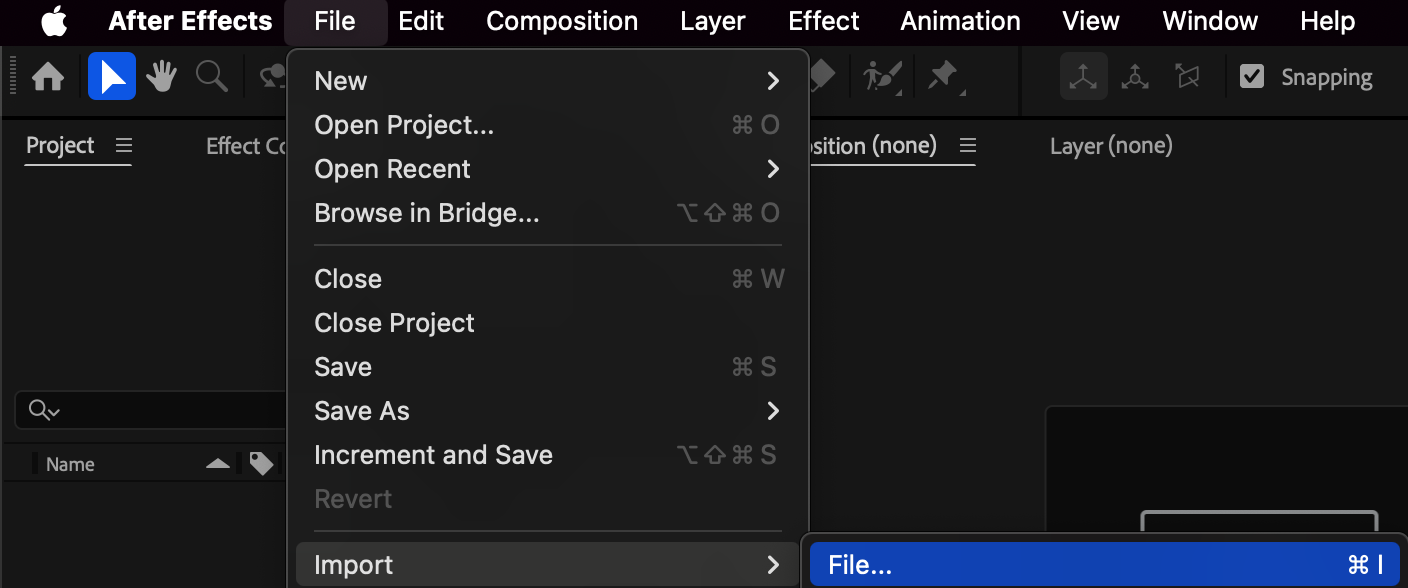
 Step 2: Track the Object’s Motion
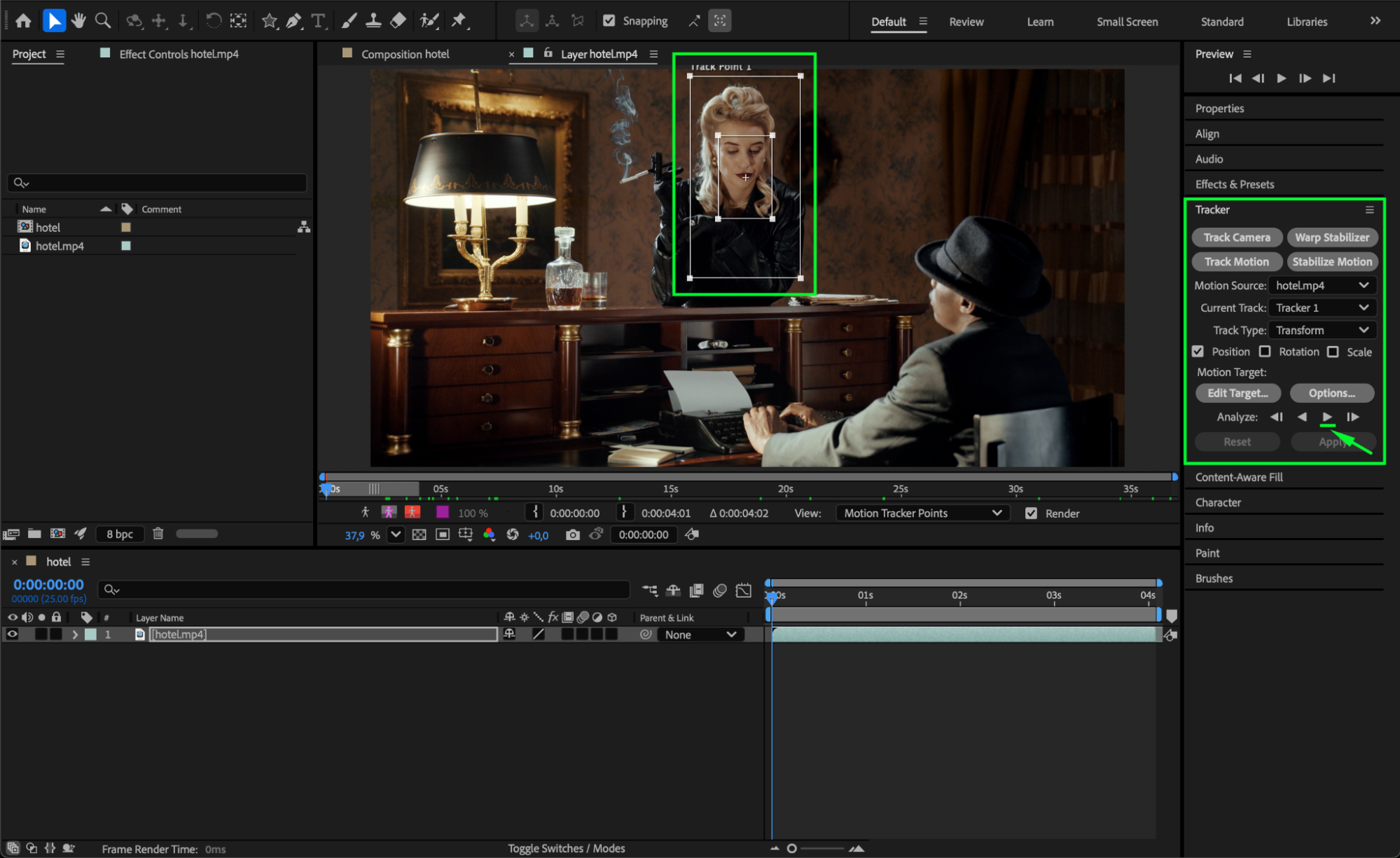
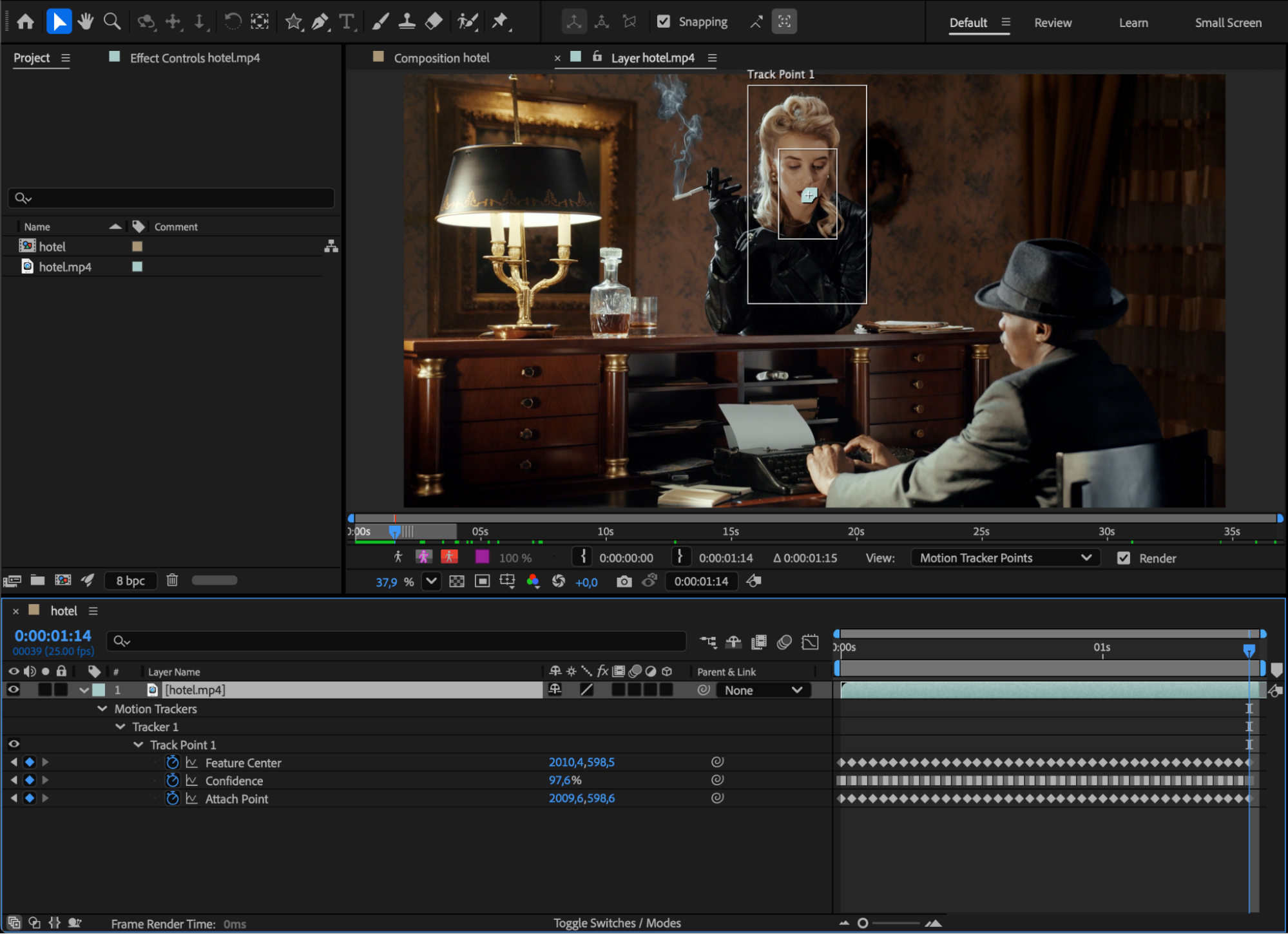
Go to Window > Tracker to open the Tracker Panel. Select your video layer and click Track Motion. A Track Point 1 will appear — position it over the object or person you want to track.
Then, in the Analyze section, click the “Play” button to analyze the motion throughout the clip.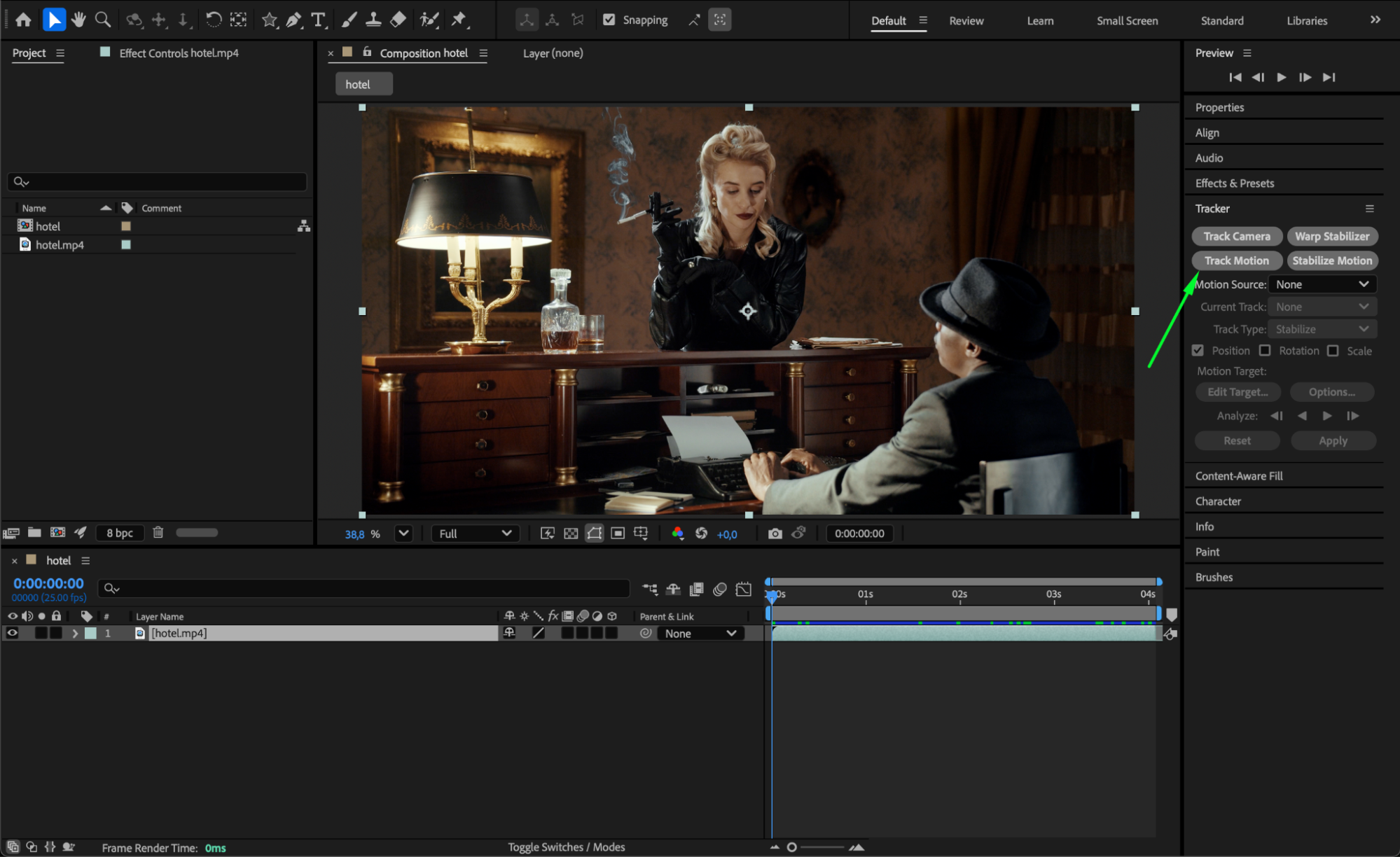
Step 3: Create a Null Object
Go to Layer > New > Null Object. This null object will store the tracking data and control the position of your attached elements. Step 4: Apply Tracking Data to the Null Object
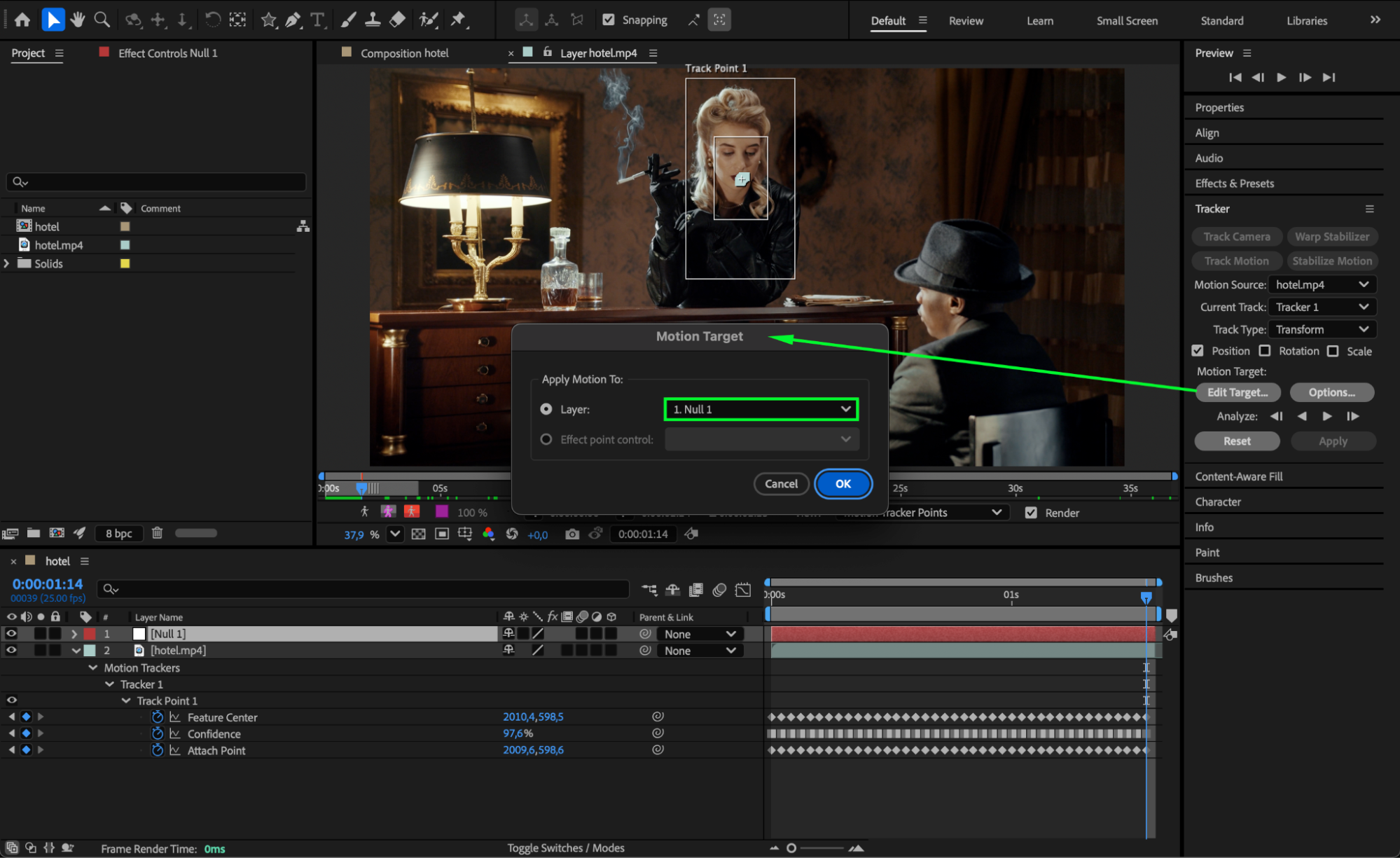
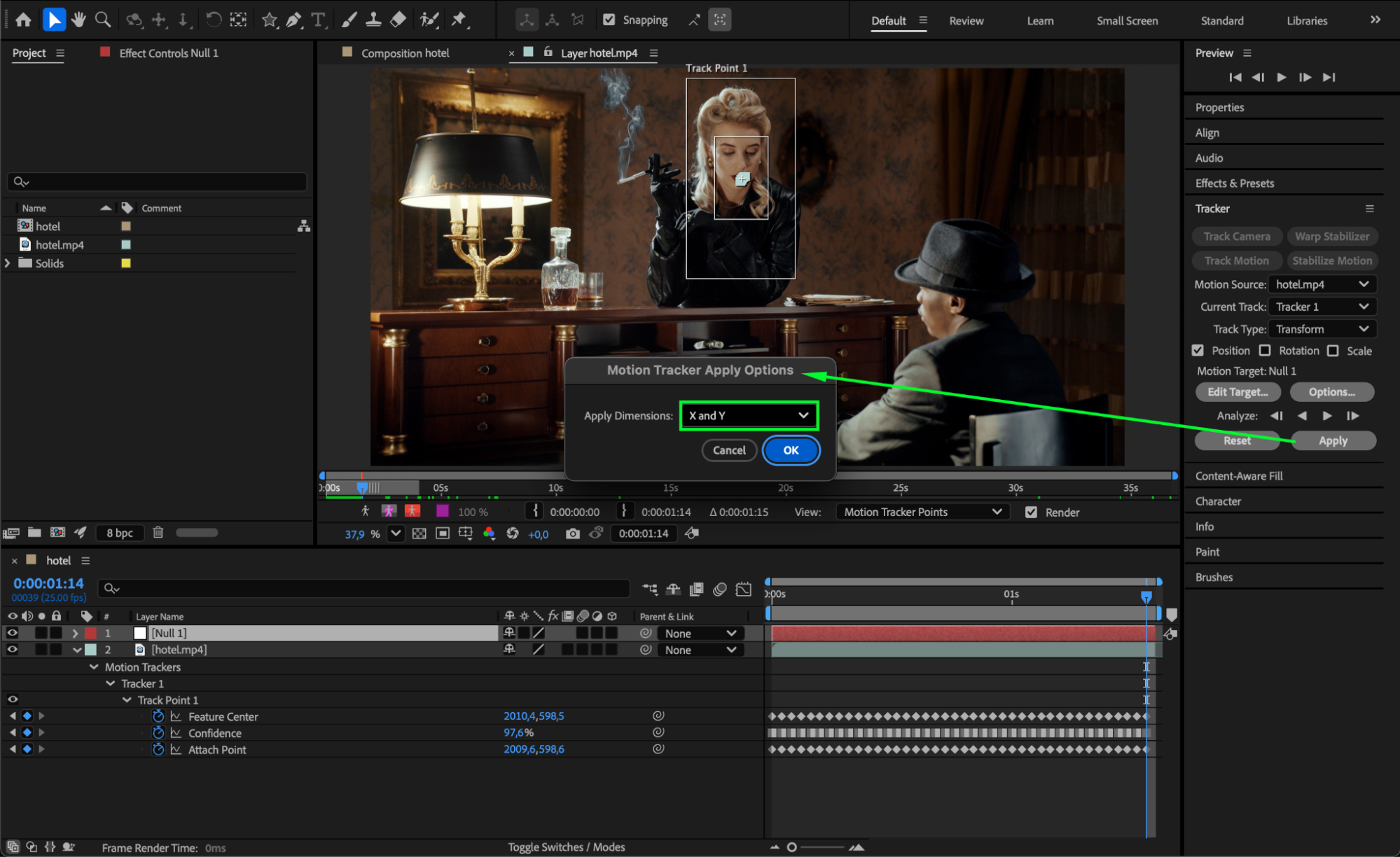
In the Tracker Panel, click Edit Target and choose the Null Object as the target layer. Click Apply, and when prompted, select Apply Dimensions: X and Y. Now the null object follows the movement of your tracked object.
 Step 5: Add Text and Graphics
Use the Horizontal Type Tool (Ctrl/Cmd + T) to create your text. You can also use the Pen Tool (G) or Shape Tool (Q) to design a line, box, or label background for your clipmark.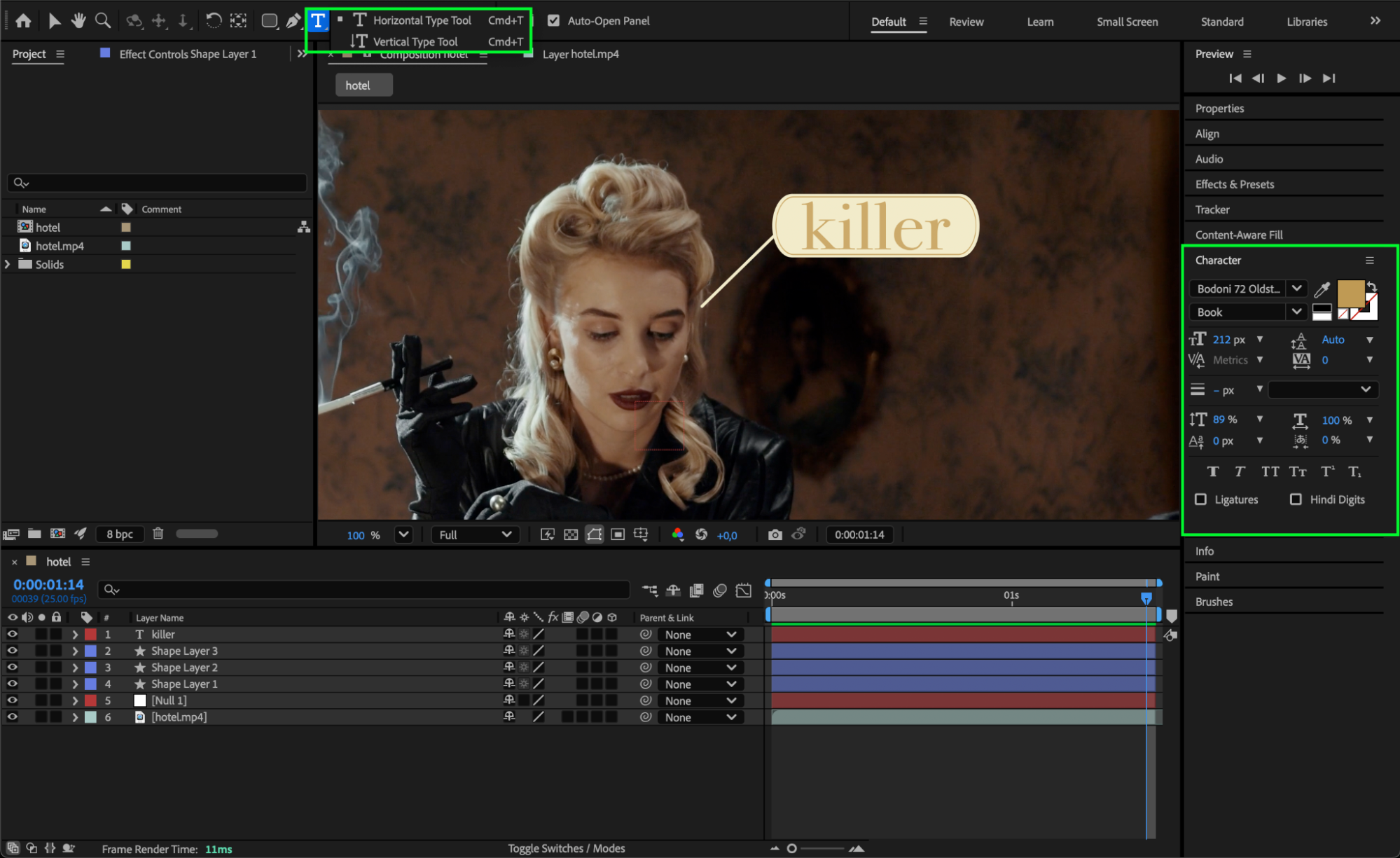
Step 6: Link Text and Graphics to the Null Object
Select your text and shape layers. Use the Pick Whip icon (the spiral symbol) to drag from each of them to the Null Object. This makes them child layers, so they will follow the movement of the tracked object.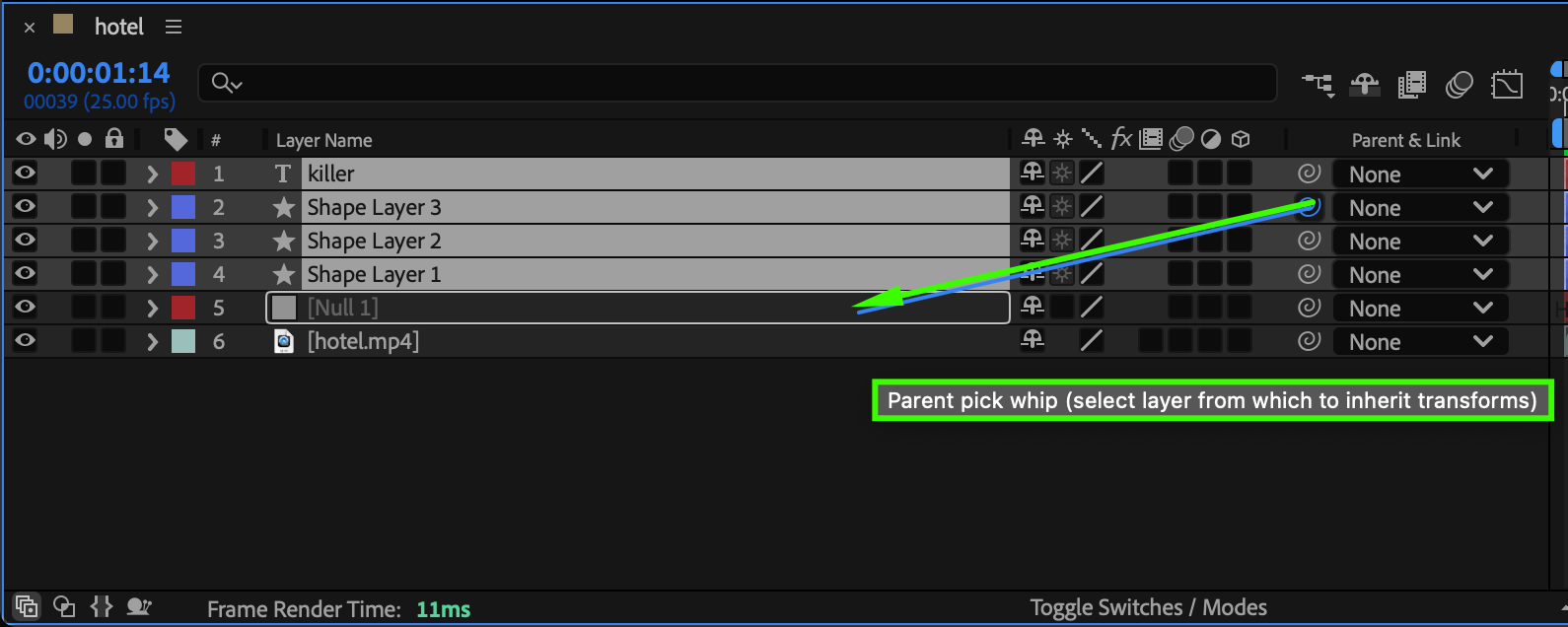 Step 7: Preview and Adjust
Press Spacebar to preview your composition. You’ll see your text and shapes move perfectly with the tracked object. If necessary, adjust the position or scale of your clipmark elements for better alignment.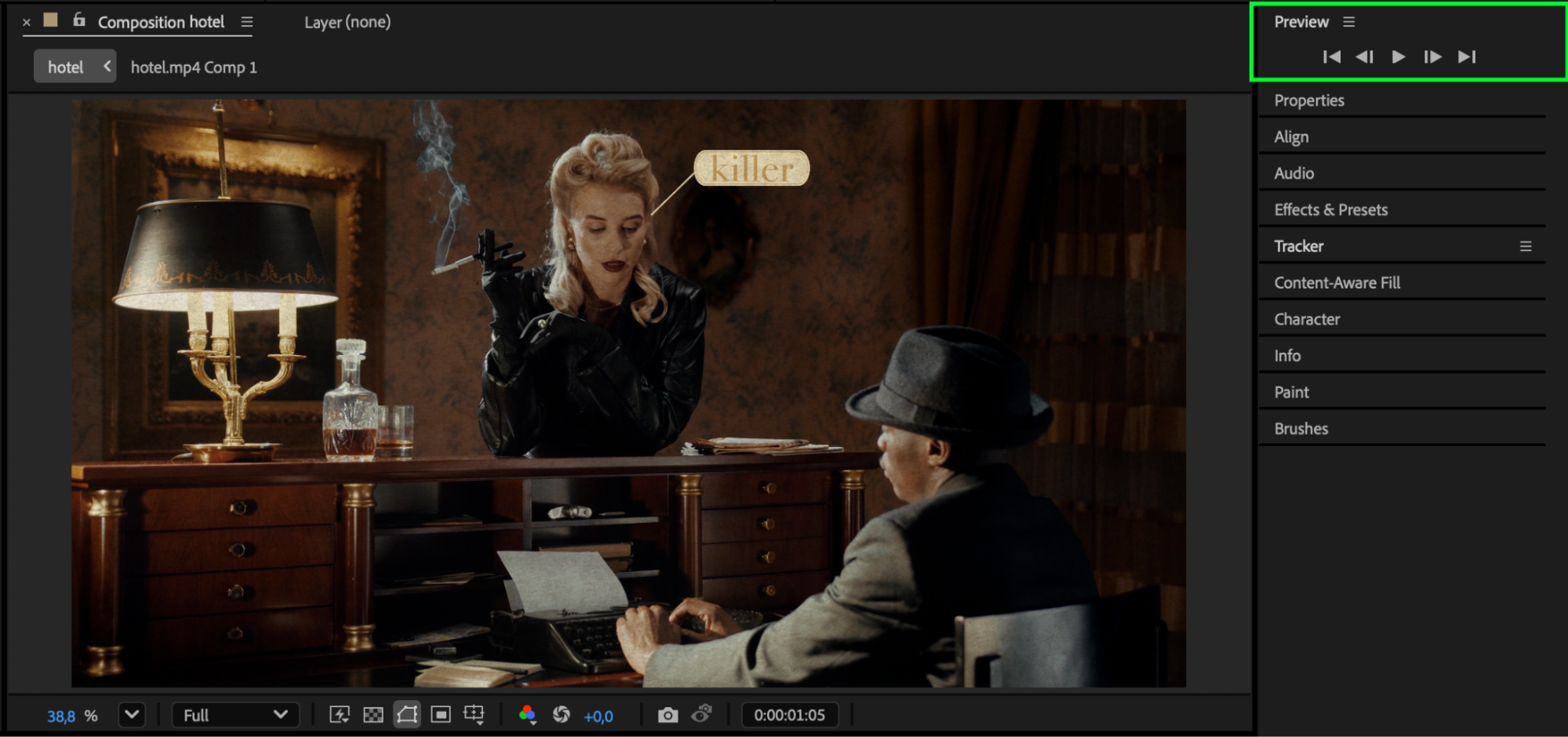 Conclusion
Creating a clipmark in After Effects is simple and powerful using motion tracking and a null object. This method lets you attach text or shapes to any moving subject, making your videos more engaging and professional — perfect for sports, product highlights, or informative overlays.
Our Bestsellers
Our Bestsellers


