
Introduction to Converting PNGs into Shapes
Turning a PNG image into a shape layer in After Effects allows you to animate, recolor, and modify it like any other vector element. This is especially useful when working with logos, icons, or simple graphic elements that you want to transform into editable vector paths. In this tutorial, you’ll learn how to trace a PNG and convert it into a fully editable shape layer using After Effects’ built-in tools.
Step 1: Import Your PNG File
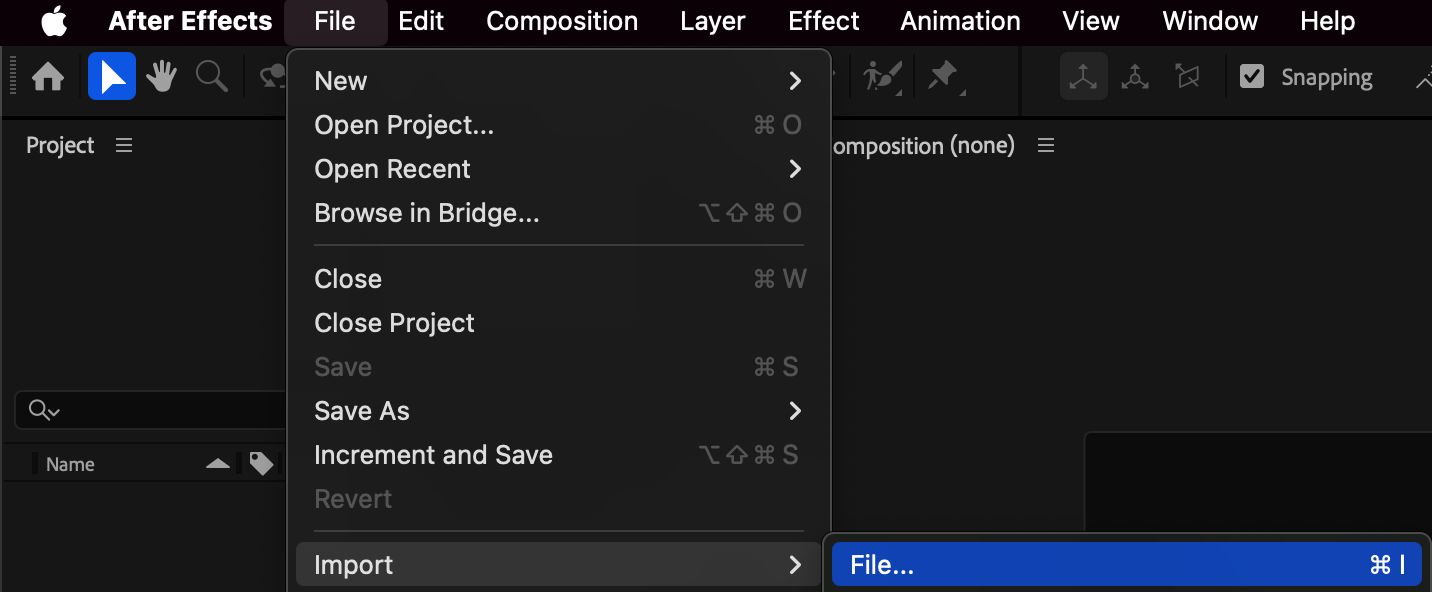
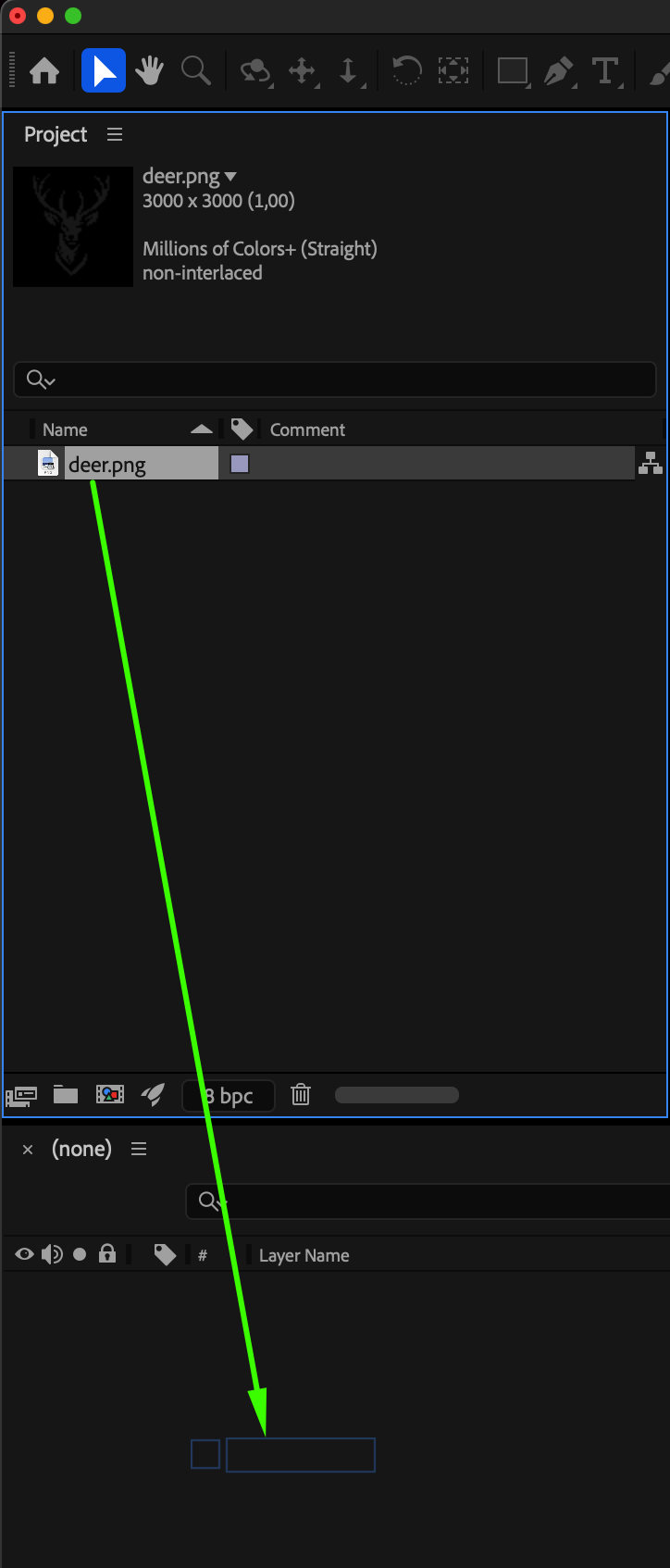
Go to File > Import > File and select your PNG image. Drag it onto the Timeline to create a new layer for editing.
 Step 2: Use the Auto Trace Tool
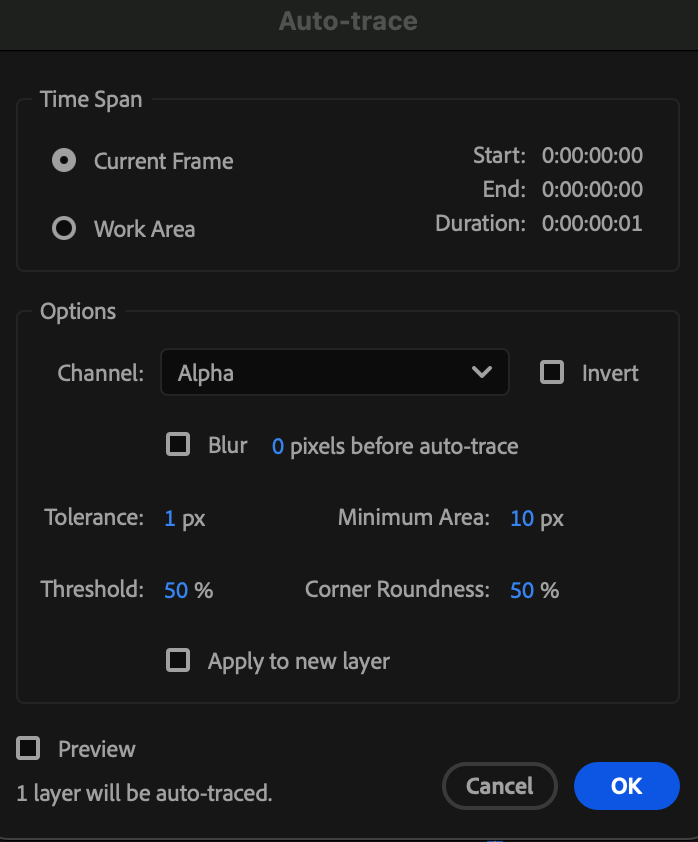
Select the PNG layer, then go to Layer > Auto-Trace. In the Auto Trace window, set the following options:
Channel: Alpha
Blur: 0
Tolerance: 1
Minimum Area: 10
Threshold: 50
Corner Roundness: 50
Click OK — After Effects will automatically generate mask paths based on the PNG’s transparent areas.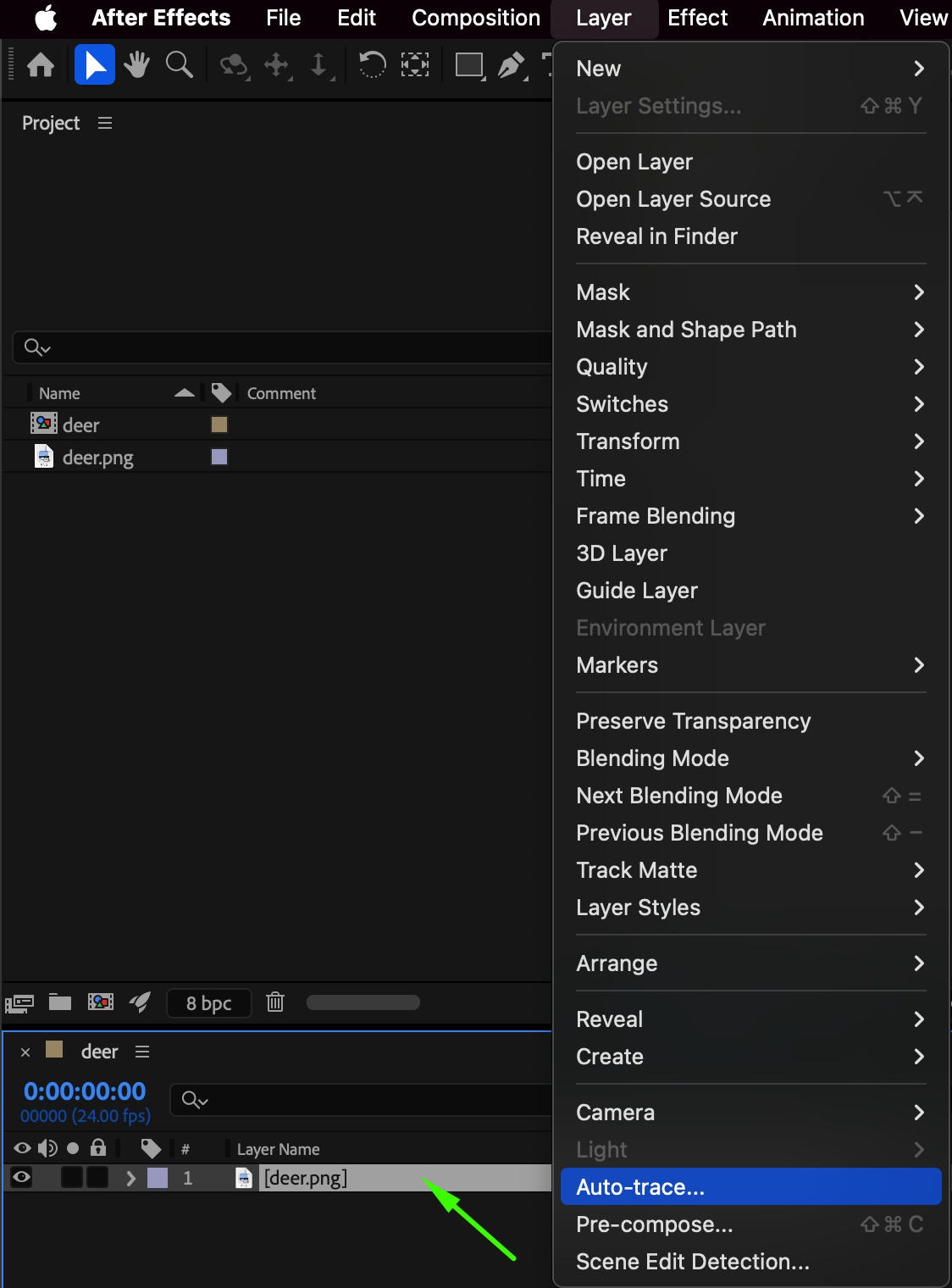
Step 3: Create a New Shape Layer
Double-click on the Rectangle Tool (Q) to create a new shape layer. In the Fill and Stroke options, set Fill to your desired color and Stroke to None. This layer will serve as the base for your vector shape.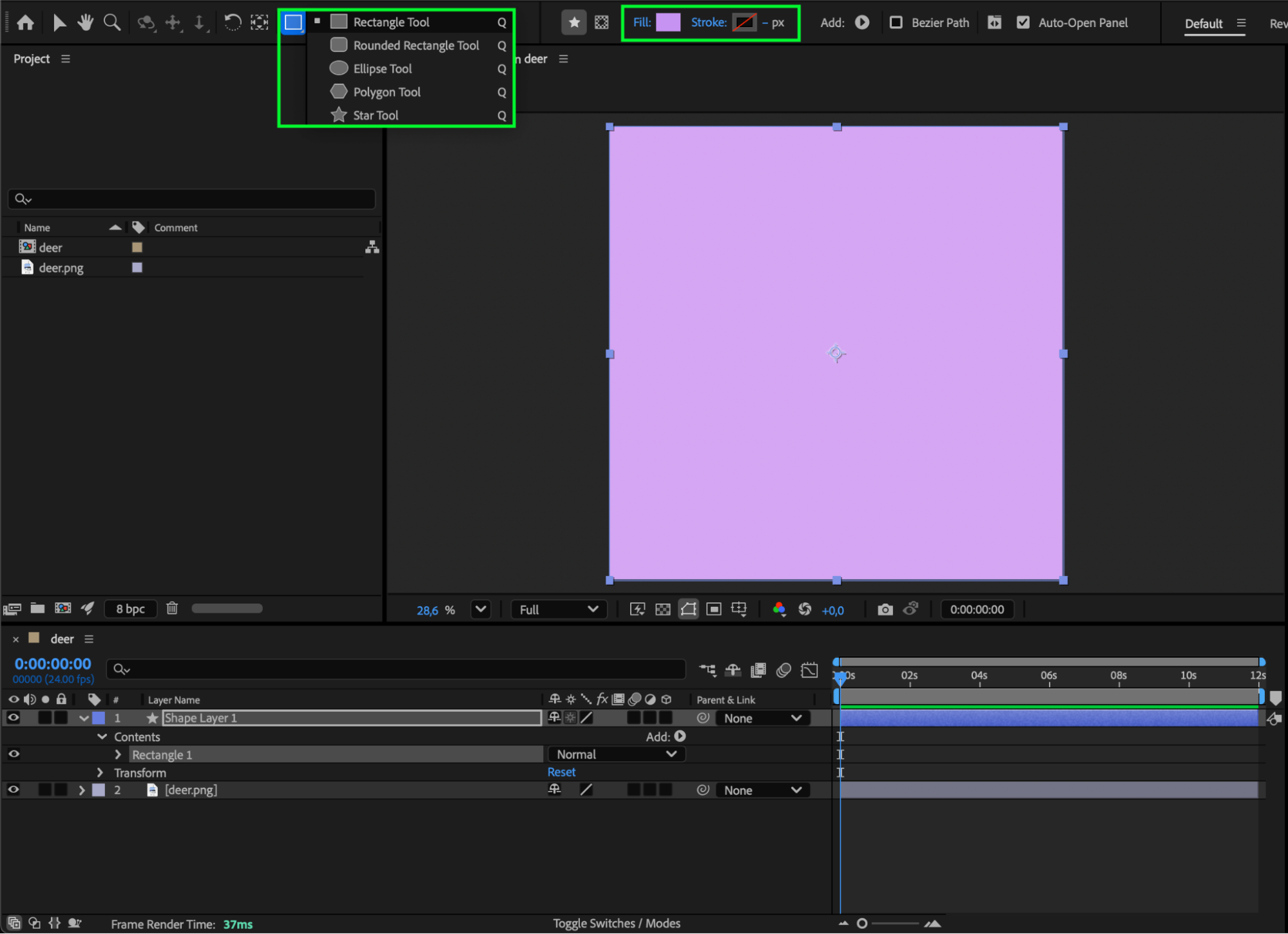 Step 4: Copy the Masks from the PNG Layer
Go back to your PNG layer with the traced masks. Select it and press “M” to reveal the mask paths. Then select the masks, and press “Ctrl/Cmd + C” to copy them.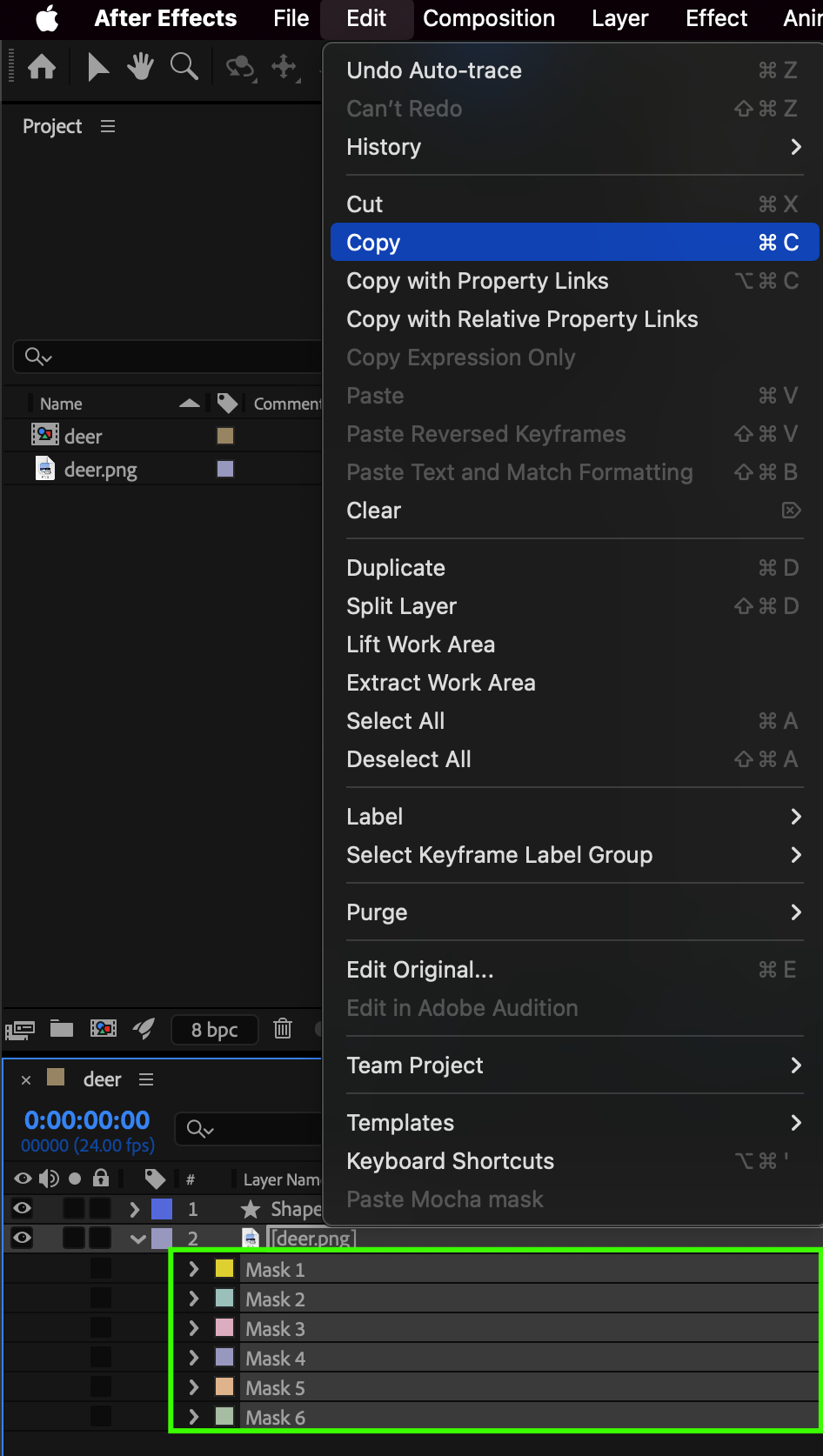
Step 5: Paste the Masks into the Shape Layer
Select your new Shape Layer and press “Ctrl/Cmd + V” to paste the copied masks. They will appear as Shape Paths, giving you full control over each path’s shape and animation. You can now delete the original PNG layer.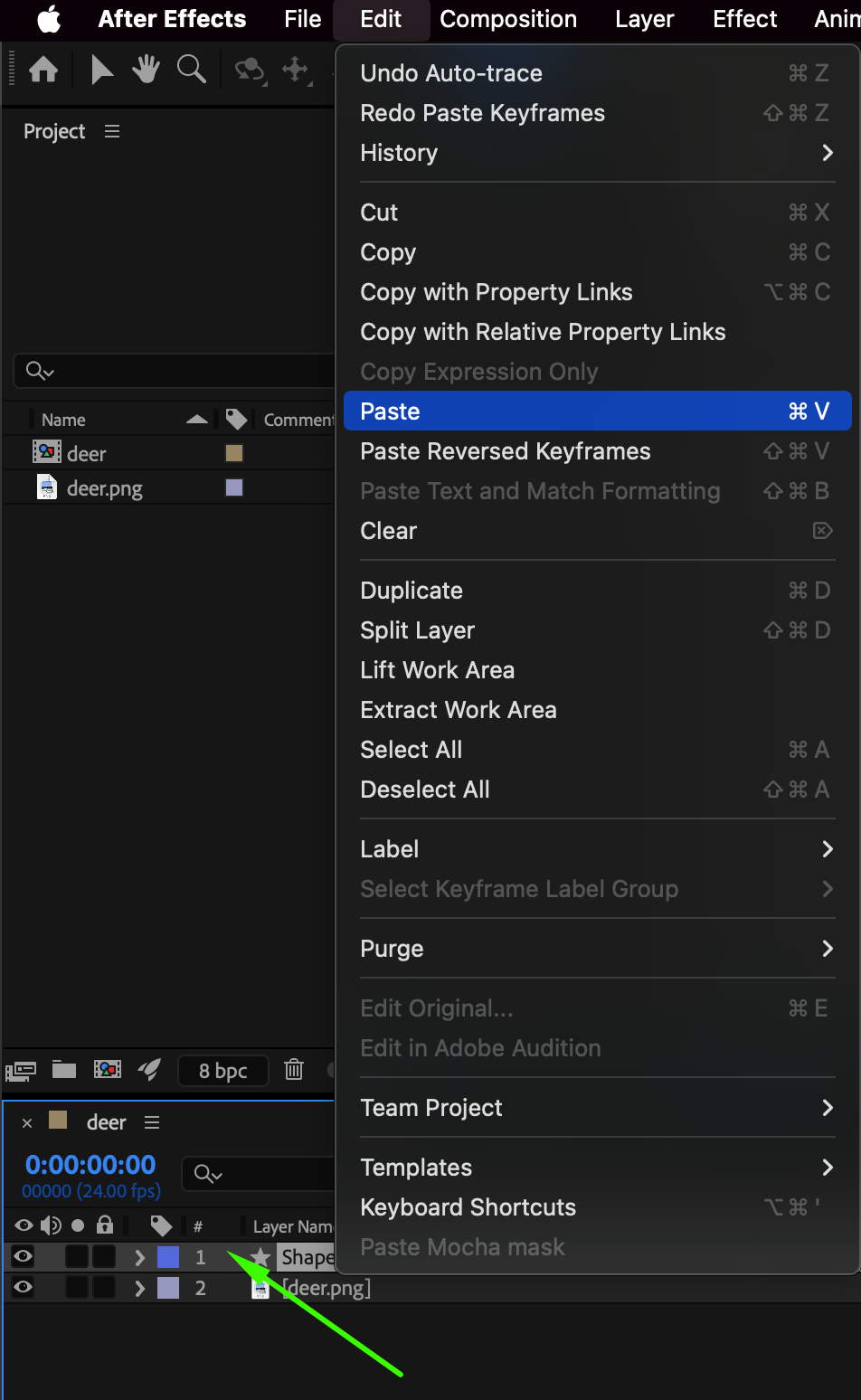
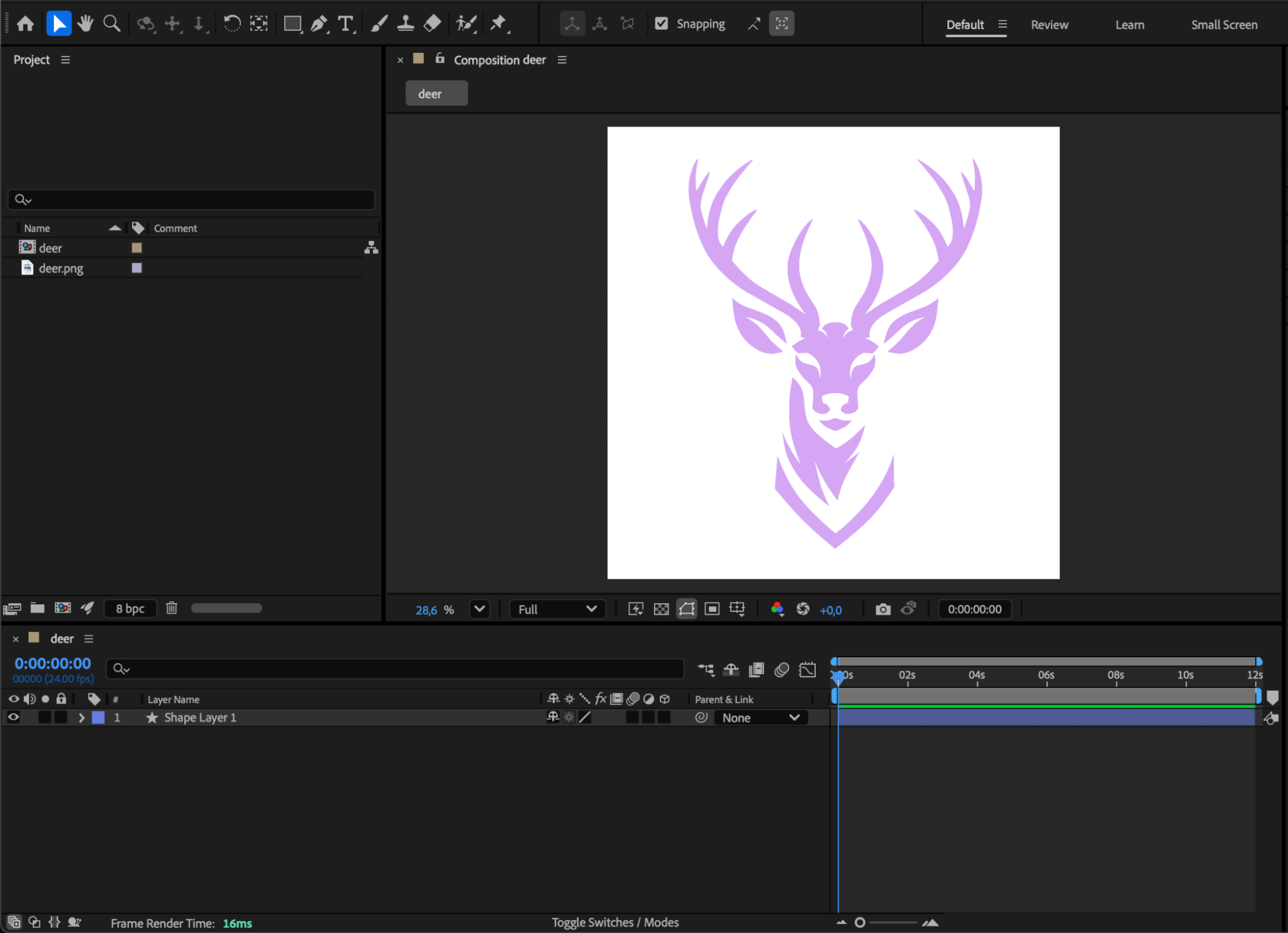 Step 6: Edit and Animate the Shape Layer
Now you can freely edit the Shape Layer — adjust colors, animate paths, add strokes, or apply effects. Press Spacebar to preview the result and ensure everything looks as expected.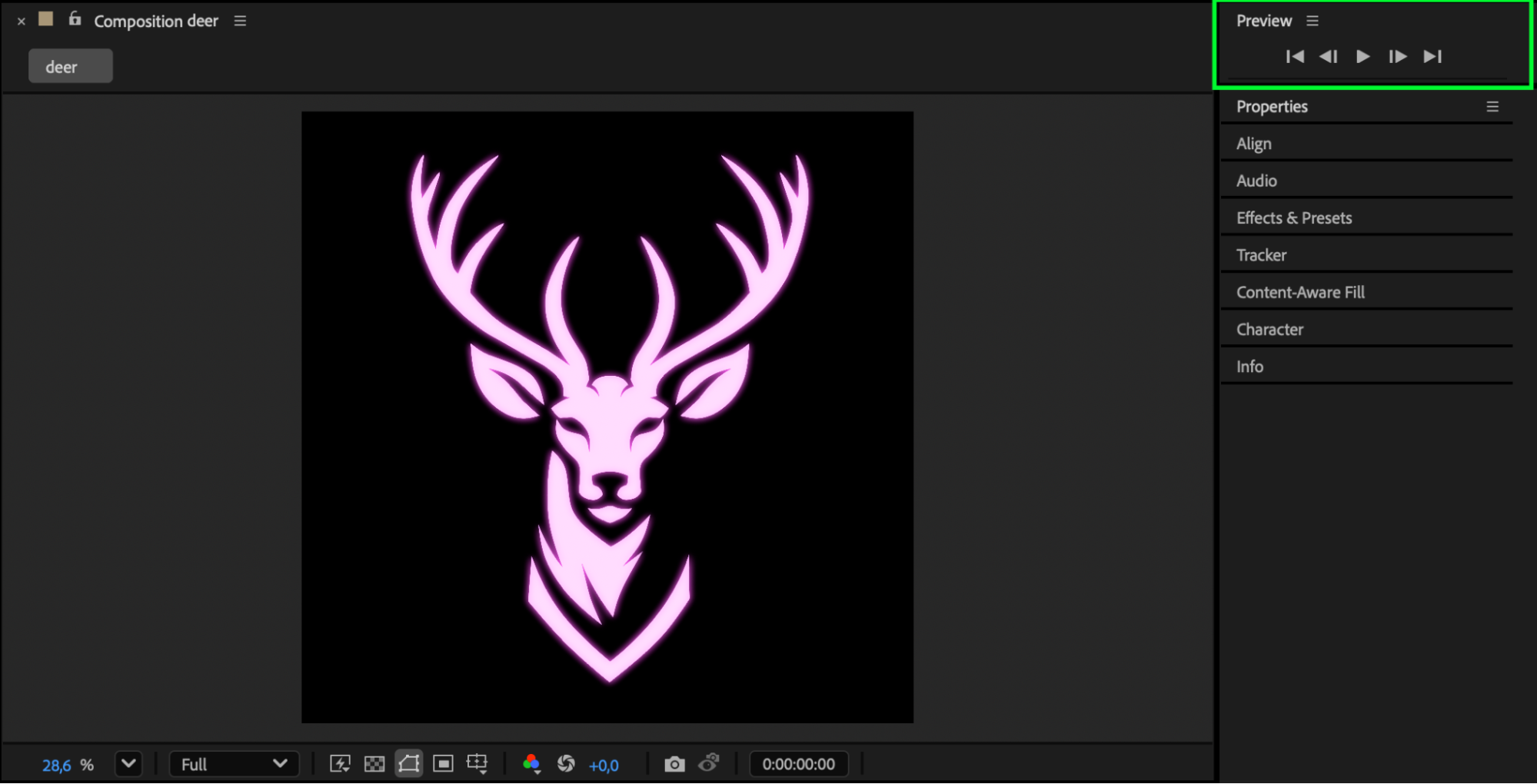
Conclusion
By using the Auto Trace feature, you can easily convert PNG images into editable shape layers in After Effects. This method lets you animate and stylize static images with complete control, giving your motion graphics a clean, professional, and vector-based look.
Our Bestsellers
Our Bestsellers


