
Introduction
A 3D spin animation is a clean and effective way to add depth and motion to text, logos, or graphic elements. In this tutorial, you’ll learn how to create a smooth 3D rotation using a Null Object, proper anchor point alignment, and motion blur in After Effects.
Step 1: Open Your Project
Open the After Effects project that contains the layer or layers you want to rotate.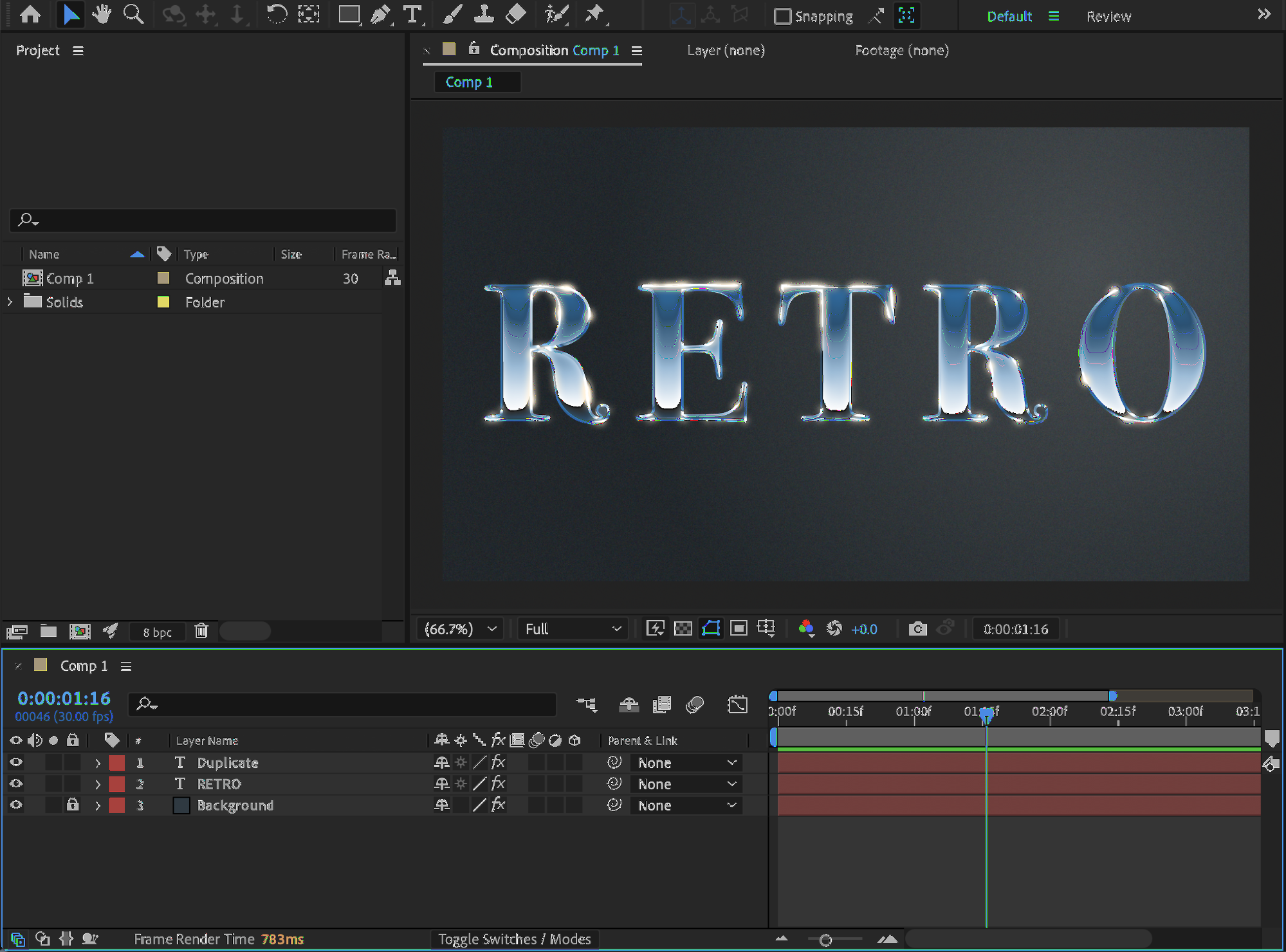 Step 2: Center the Anchor Point
Select the layer (or layers) you want to spin. Right-click and choose: Transform → Center Anchor Point in Layer Content. This ensures the rotation happens from the correct center point.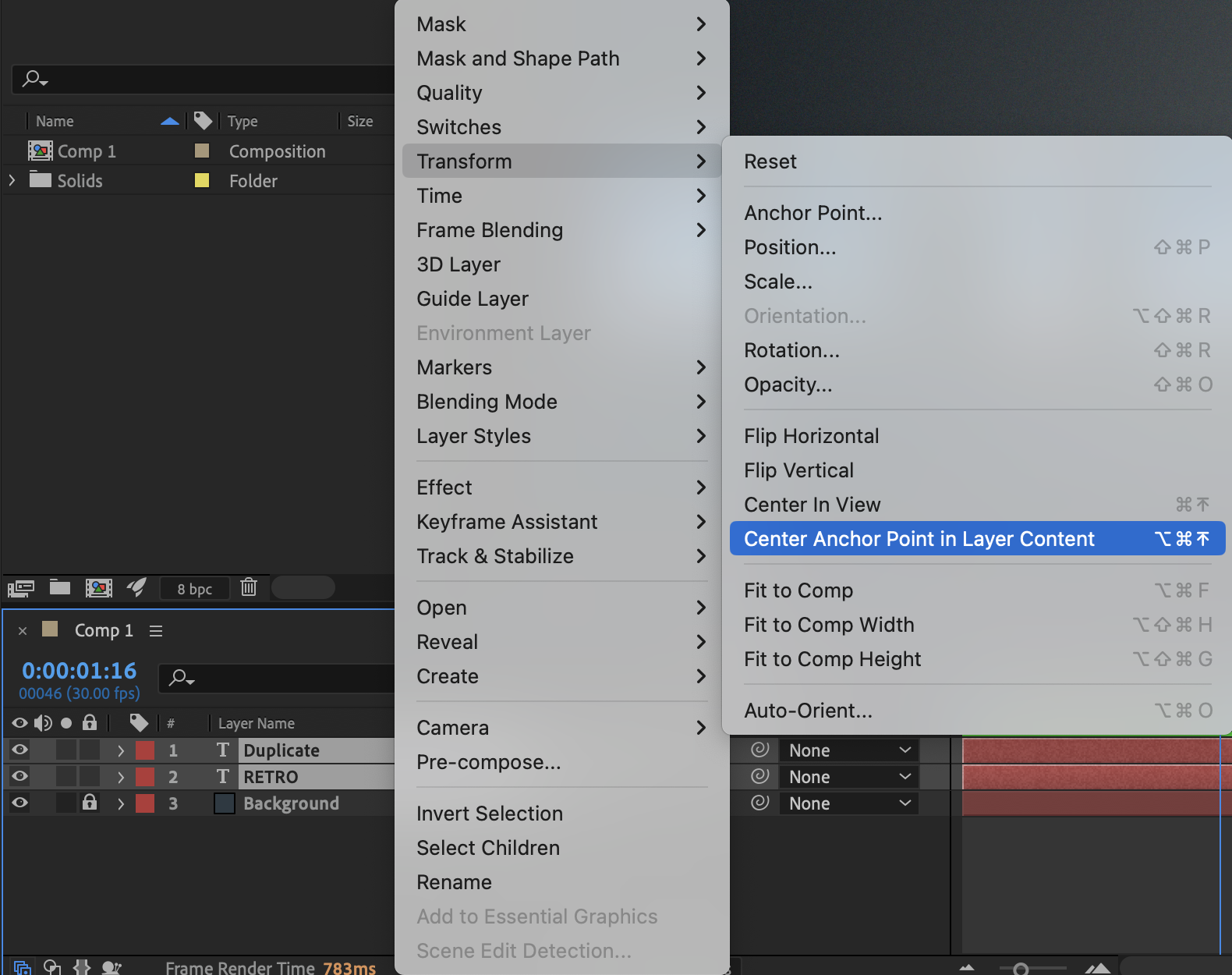 Step 3: Create a Null Object
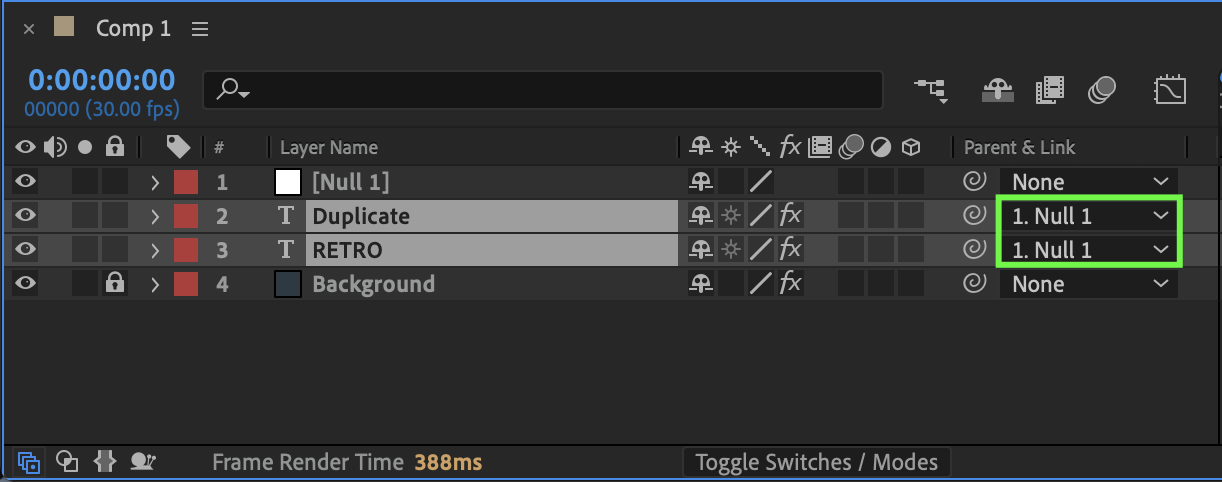
Go to Layer → New → Null Object. In the Parent column, parent your layer(s) to the Null Object. This allows you to control the rotation cleanly from one central controller.
Step 4: Enable 3D Layers
Click the 3D Layer (cube) icon for both:
The Null Object
The layer(s) you want to rotate
This enables 3D rotation controls.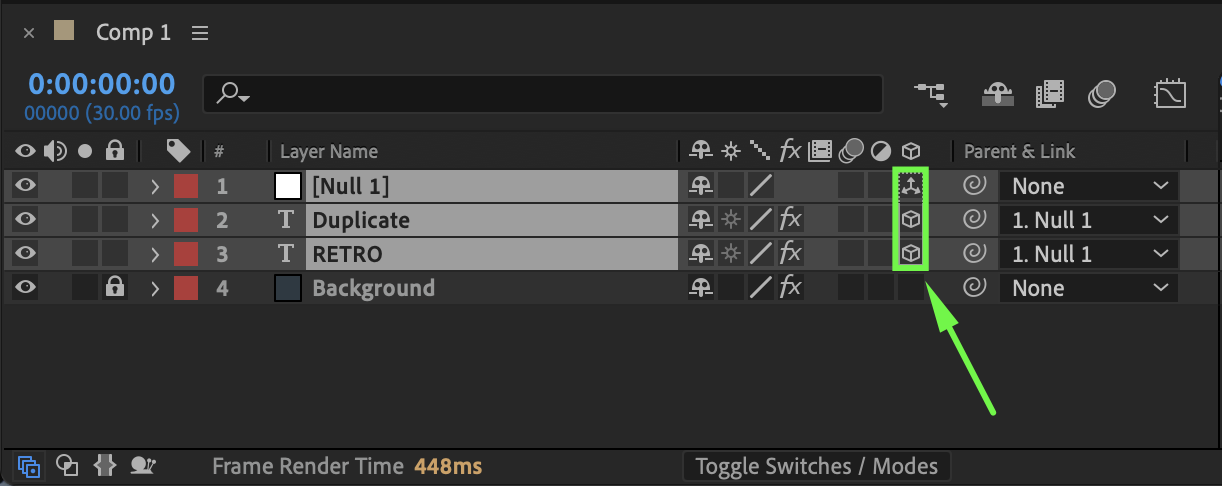
Step 5: Animate Y Rotation
Select the Null Object and press R to reveal rotation properties. At the beginning of the timeline, click the stopwatch next to Y Rotation to create the first keyframe.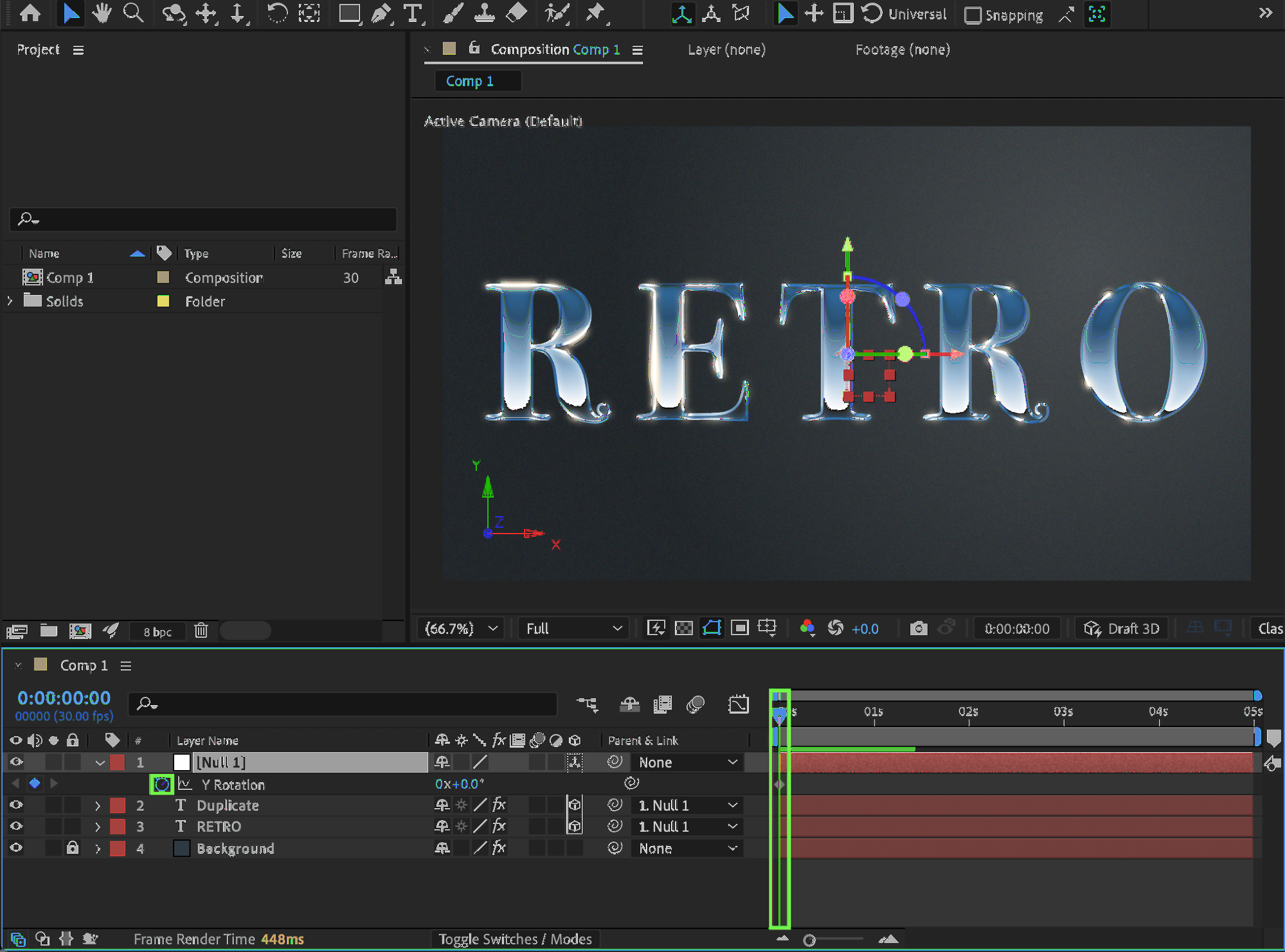 Step 6: Complete the Spin
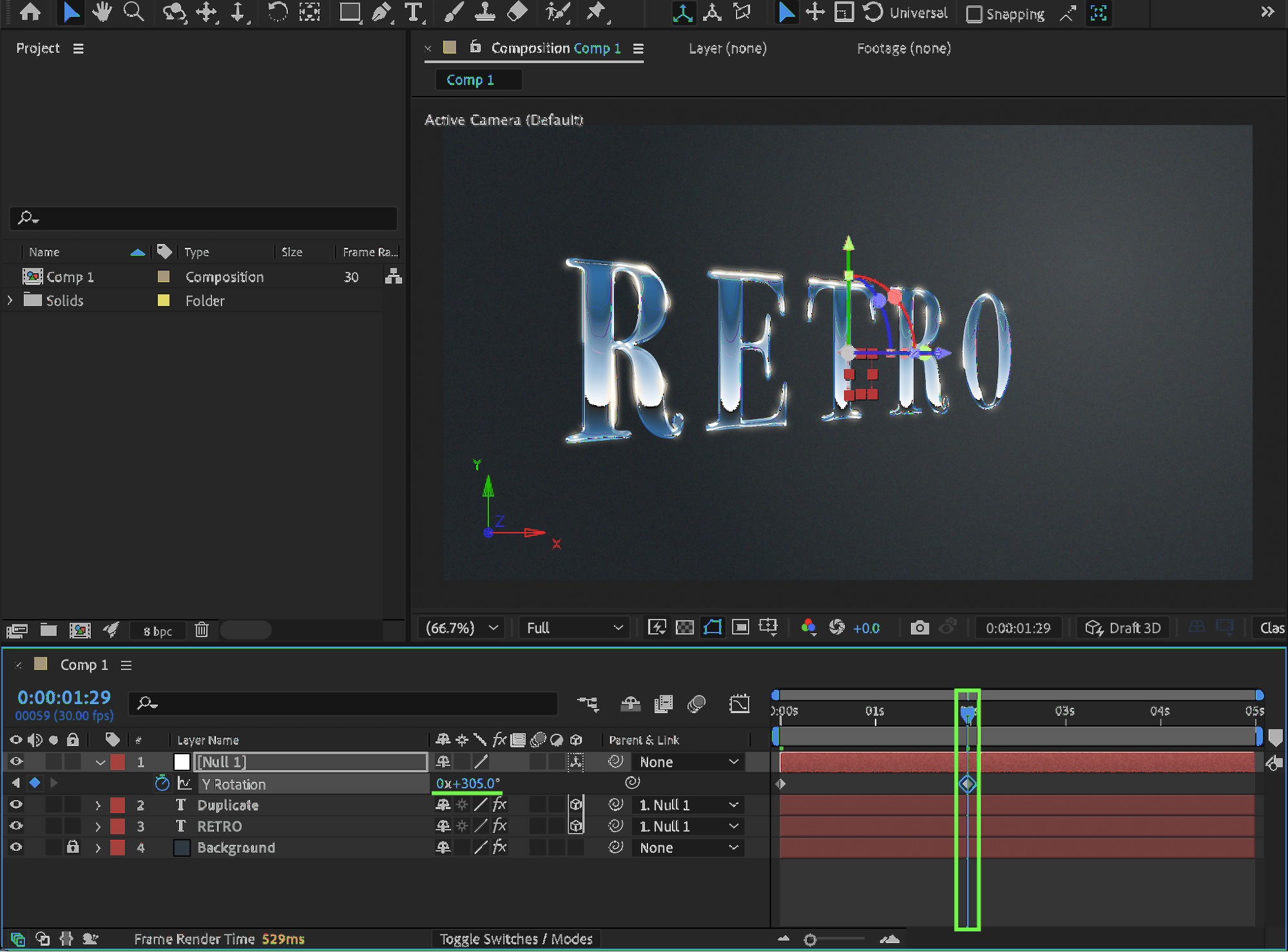
Move the Current Time Indicator (CTI) to the middle of the composition and create another keyframe while the object is still rotating.
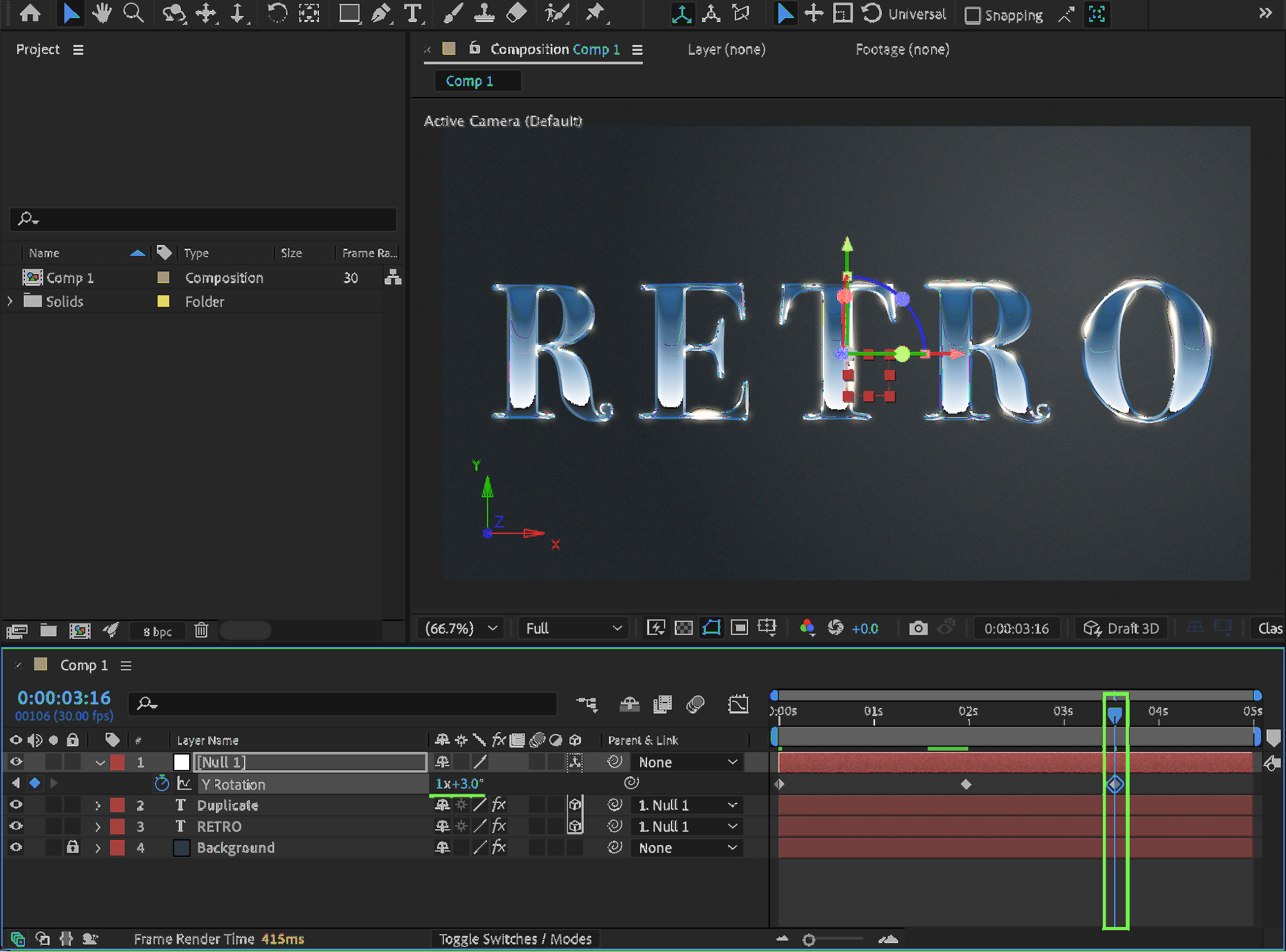
Move the CTI about one second forward and set the final Y Rotation value to:
360° for one full spin, or
Slightly more than 360° for extra momentum
Step 7: Smooth the Animation
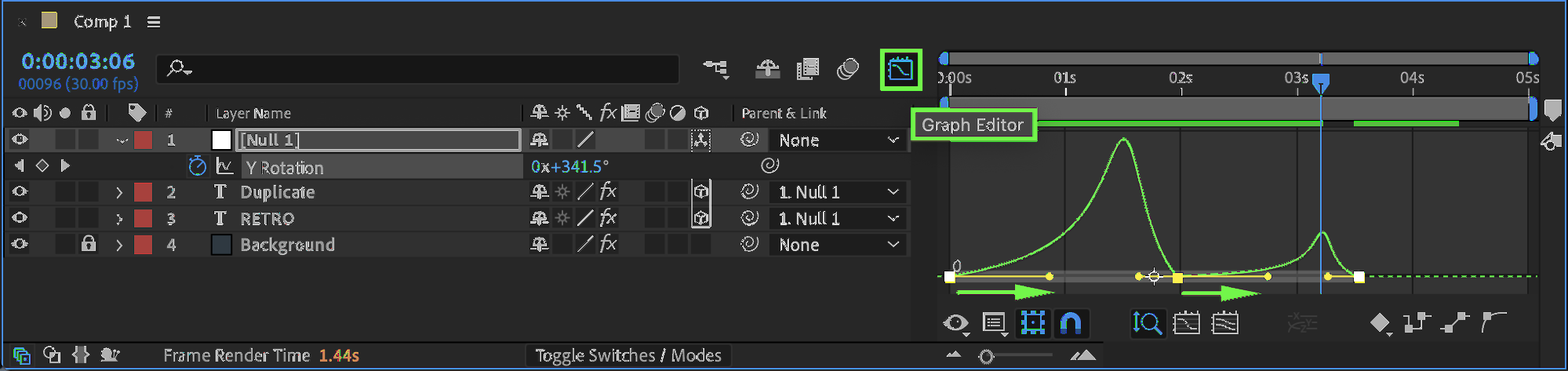
Select all rotation keyframes and apply Easy Ease. Open the Graph Editor and adjust the curves to create a smooth and natural spinning motion.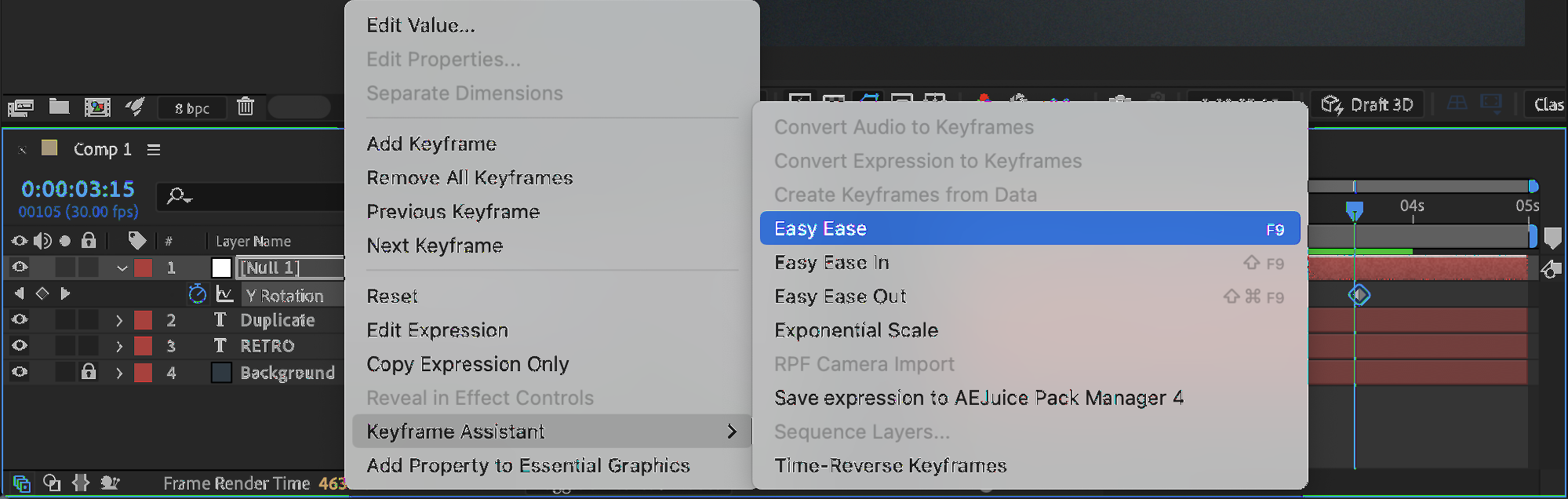
 Step 8: Enable Motion Blur
Enable Motion Blur for:
The spinning layer(s)
The composition
This adds realism and smooths fast rotation.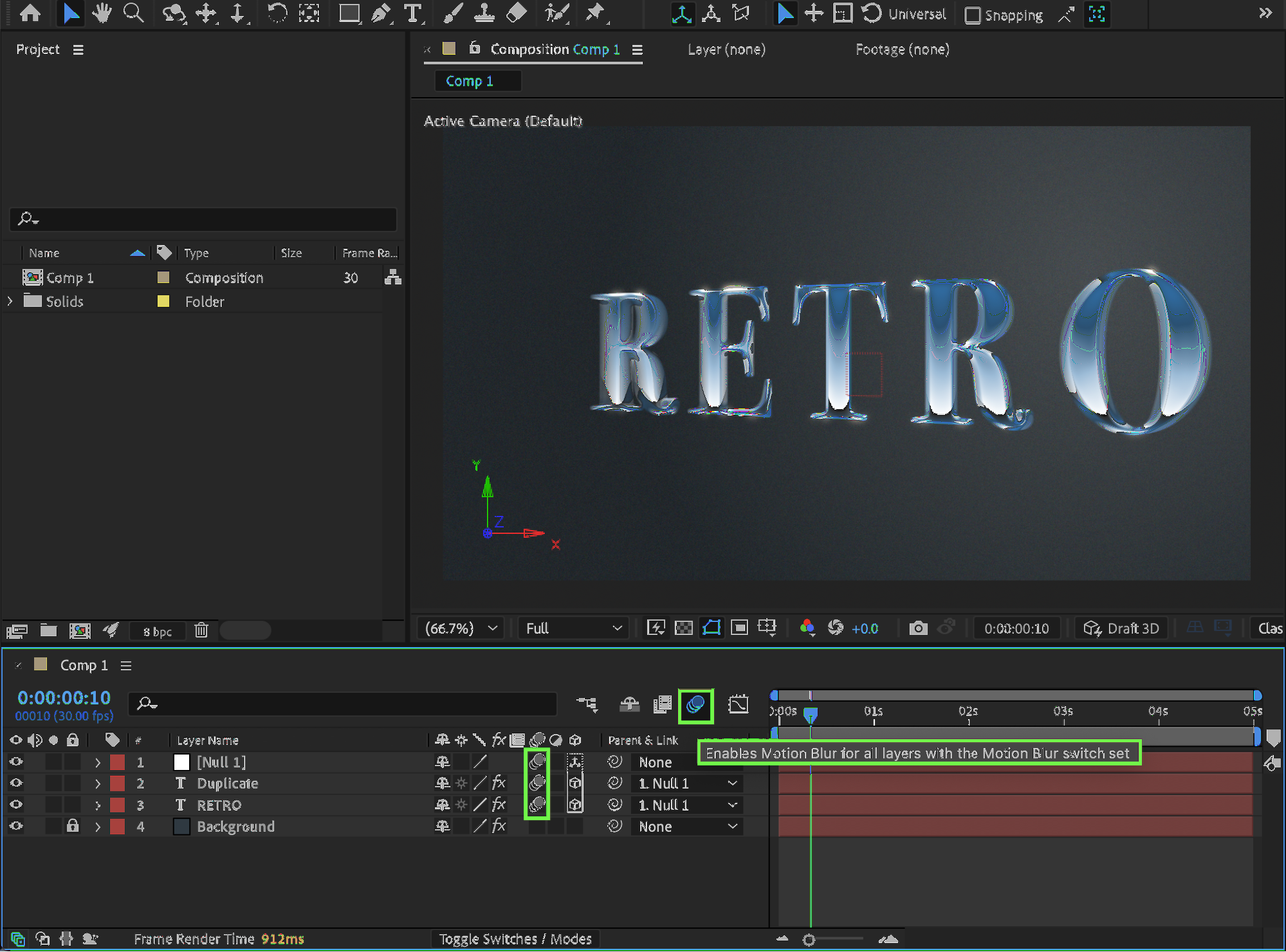 Step 9: Preview the Animation
Preview your composition and fine-tune the rotation speed, easing, or motion blur until the 3D spin feels polished and dynamic.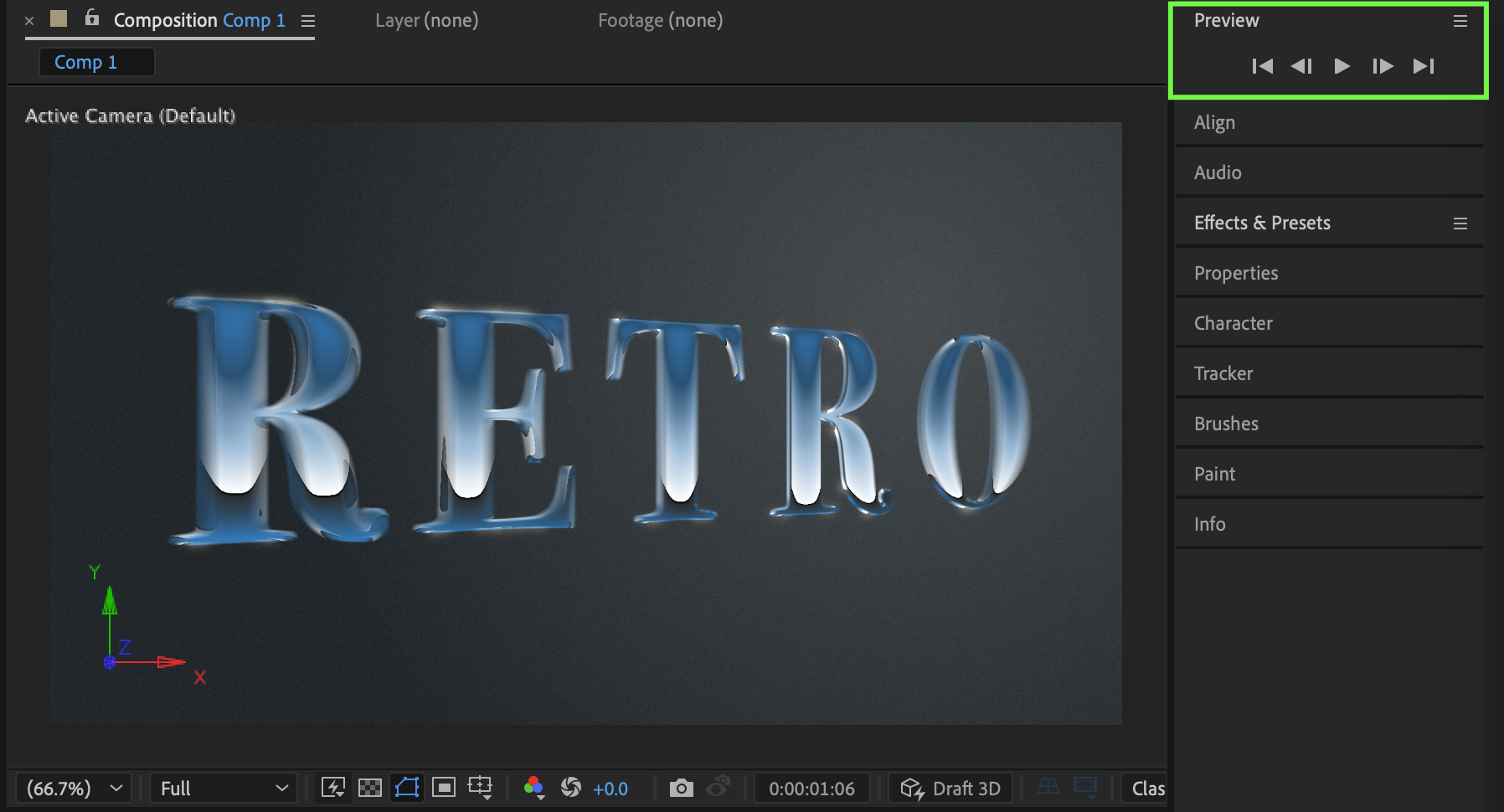
Conclusion
By using a Null Object, 3D layers, easing, and motion blur, you can create professional 3D spin animations in After Effects. This technique works perfectly for logos, titles, and UI elements that need depth and energy.
Our Bestsellers
Our Bestsellers


