
Introduction
The classic 80s computer screen style is defined by glowing text, scanlines, color channel offsets, blur, and analog noise. In this tutorial, you’ll build this retro look step by step using native After Effects effects and simple expressions.
Step 1: Create a New Composition
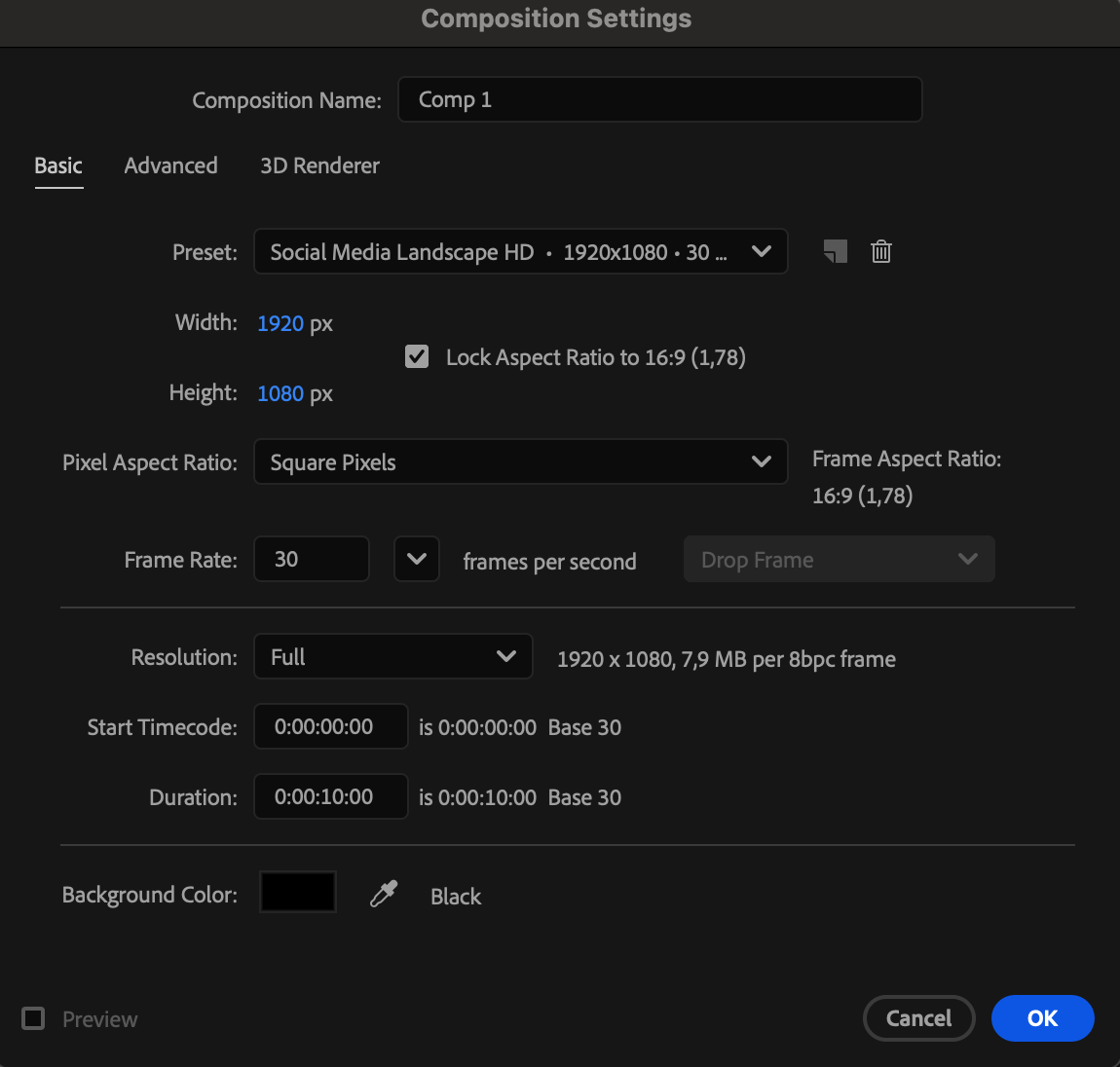
Go to Composition > New Composition and set your desired resolution, frame rate, and duration.
 Step 2: Create the Background
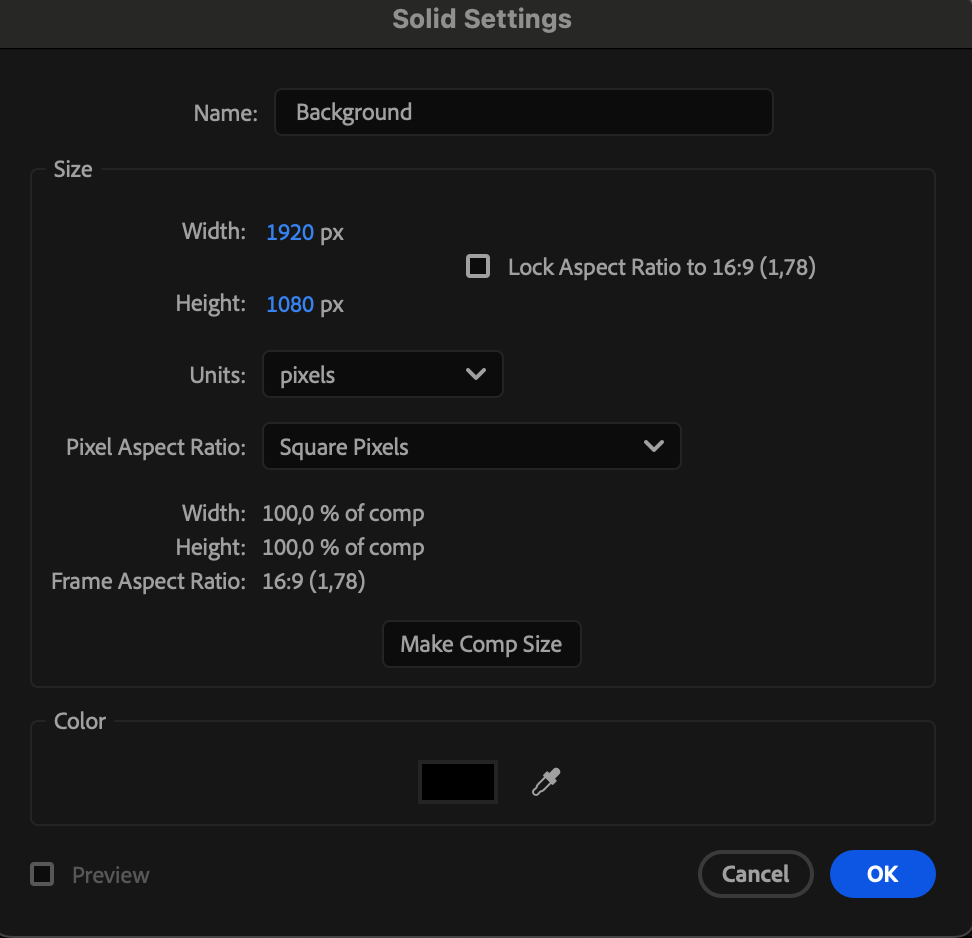
Go to Layer > New > Solid, choose black, and name the layer Background. This will act as the screen base.
 Step 3: Add and Customize the Text
Use the Type Tool (Ctrl/Cmd + T) to create your text. Customize the font, size, tracking, and color in the Character panel. Monospaced or pixel-style fonts work best for an authentic 80s look.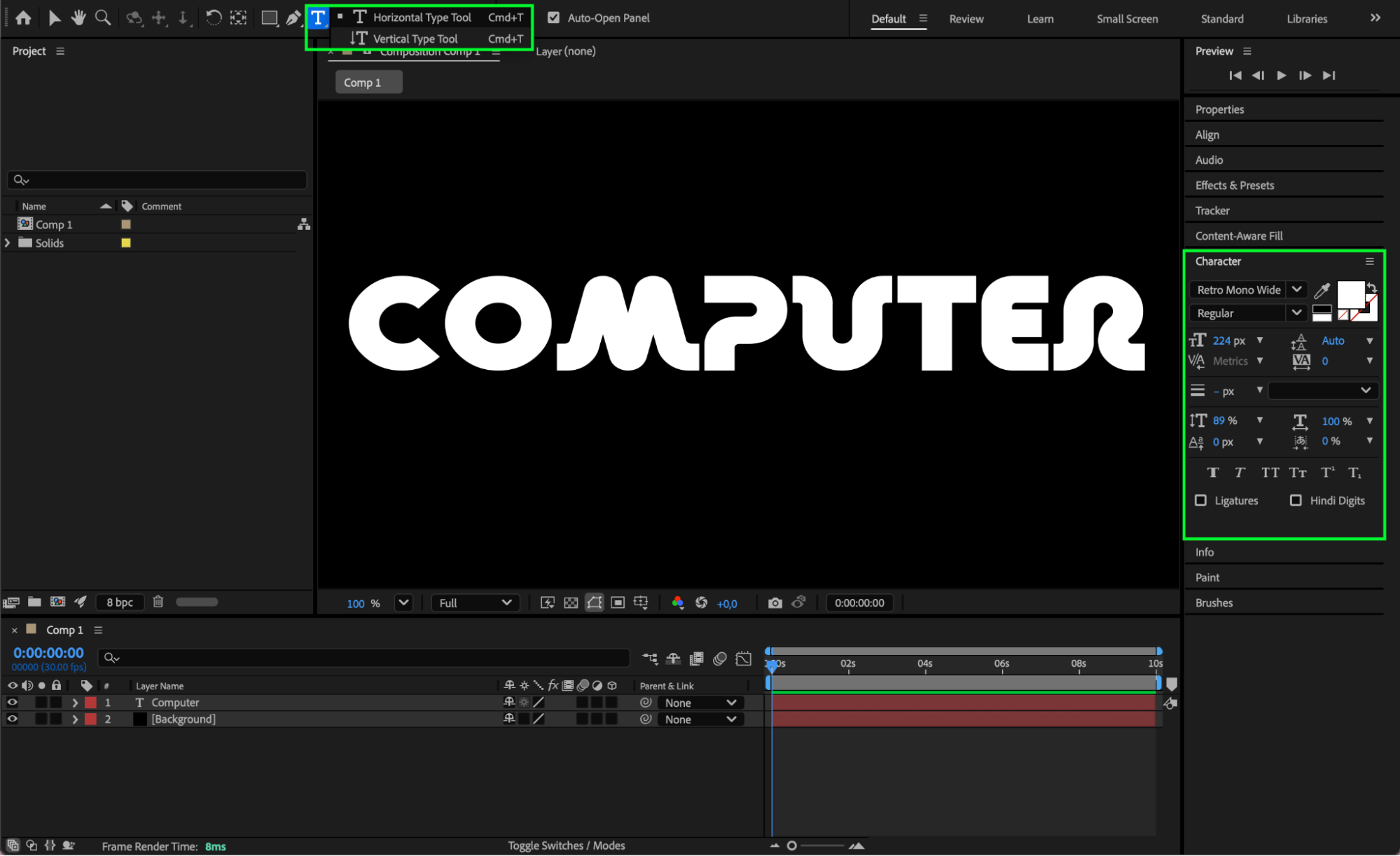 Step 4: Add Subtle Text Movement
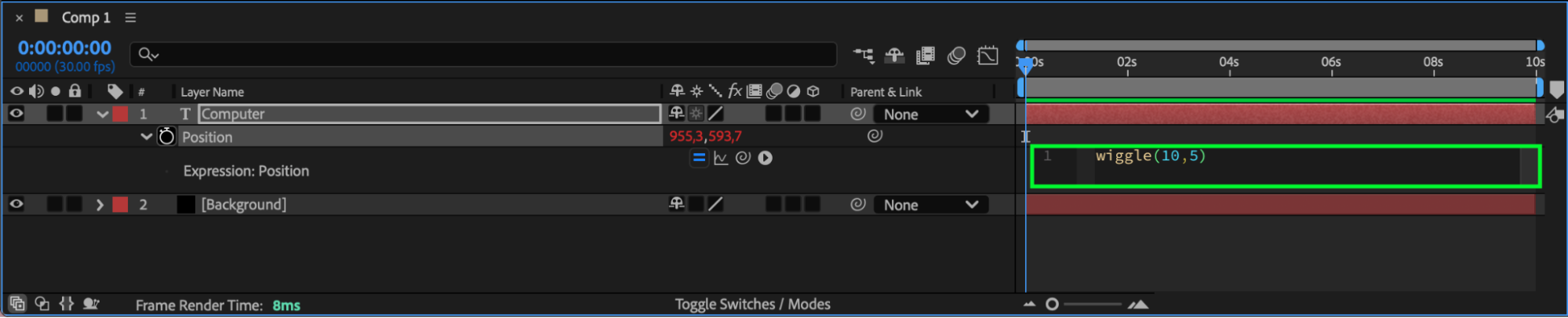
Select the text layer and press “P” to reveal Position. Alt/Option-click the stopwatch and enter the following expression:
wiggle(10, 5)
This adds subtle jitter, simulating an unstable CRT display.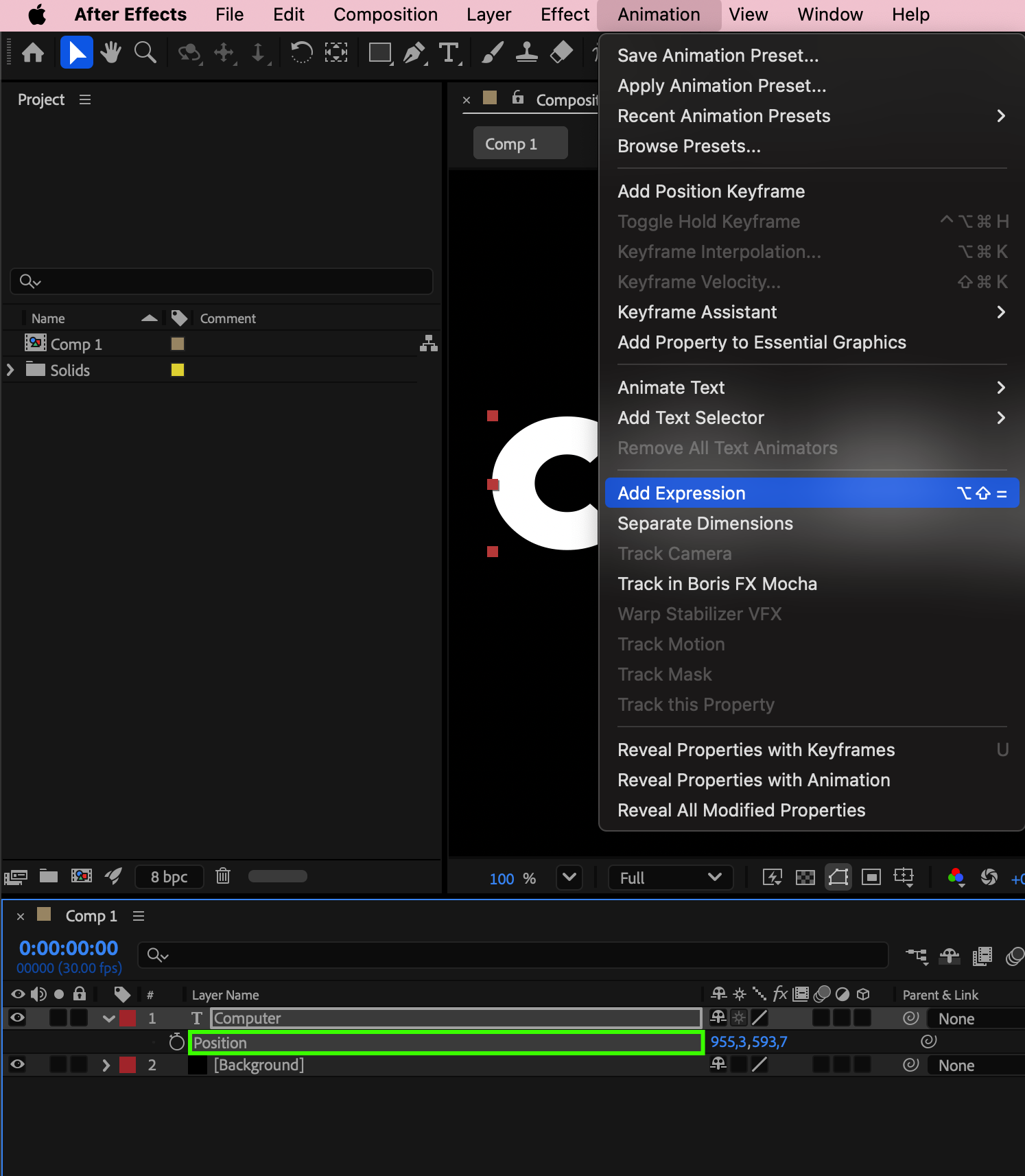
Step 5: Apply the Decoder Fade In Preset
From the Effects & Presets panel, apply the Decoder Fade In preset to the text layer. This creates a classic computer-style text reveal.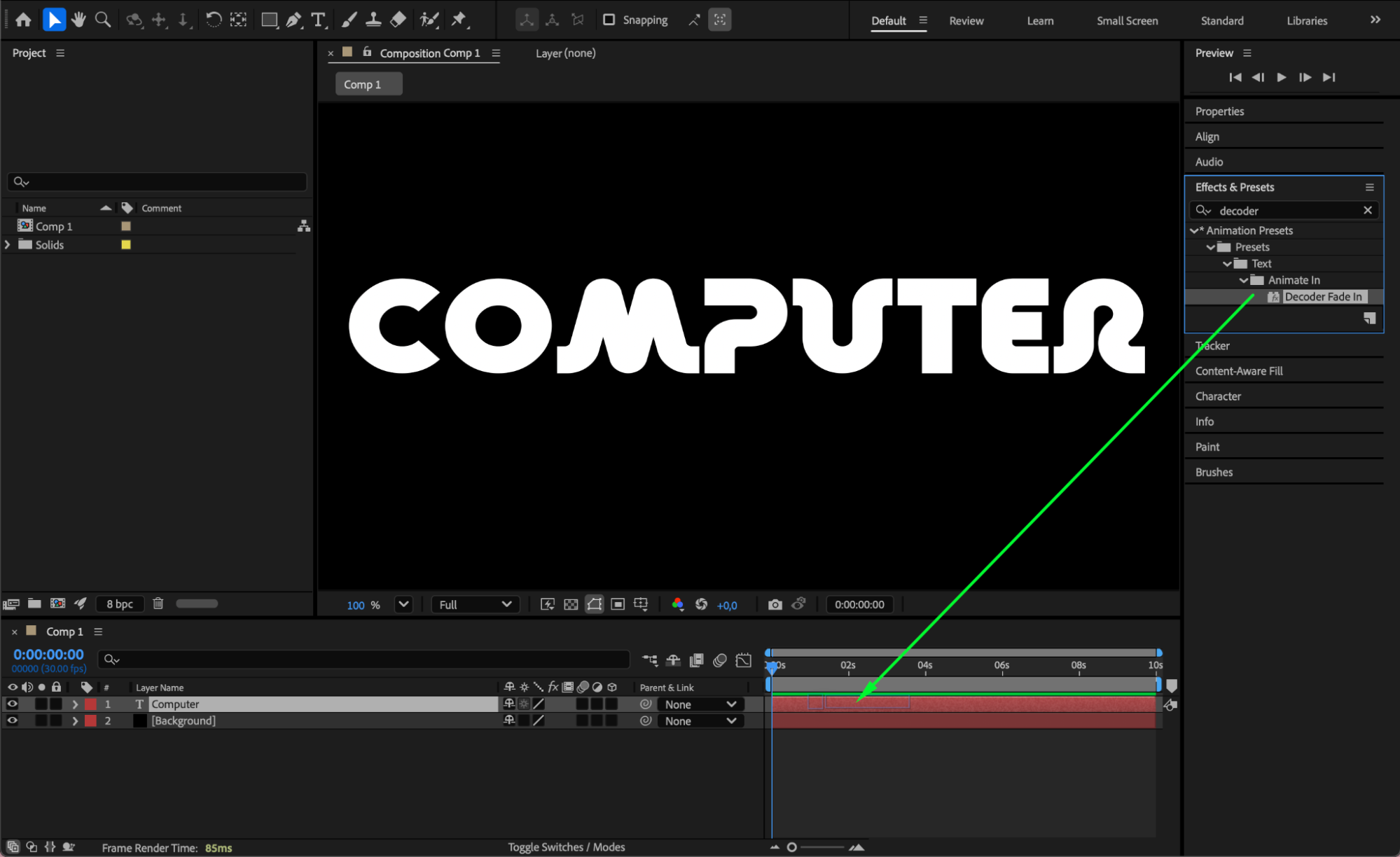 Step 6: Create an Adjustment Layer
Go to Layer > New > Adjustment Layer. This layer will control global screen effects.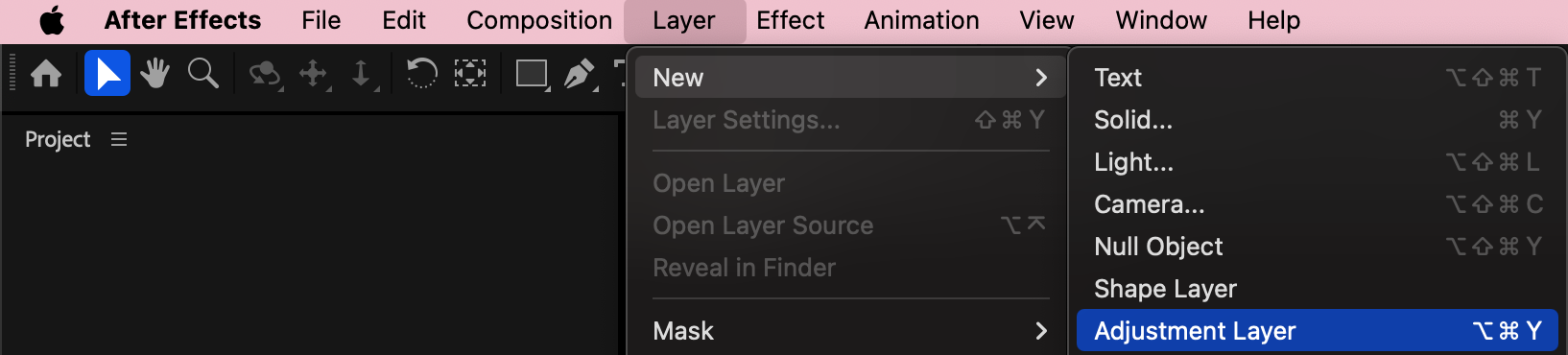
Step 7: Add Gaussian Blur
Apply Gaussian Blur to the adjustment layer and set:
Blurriness: 28
This softens the image, mimicking CRT phosphor bleed.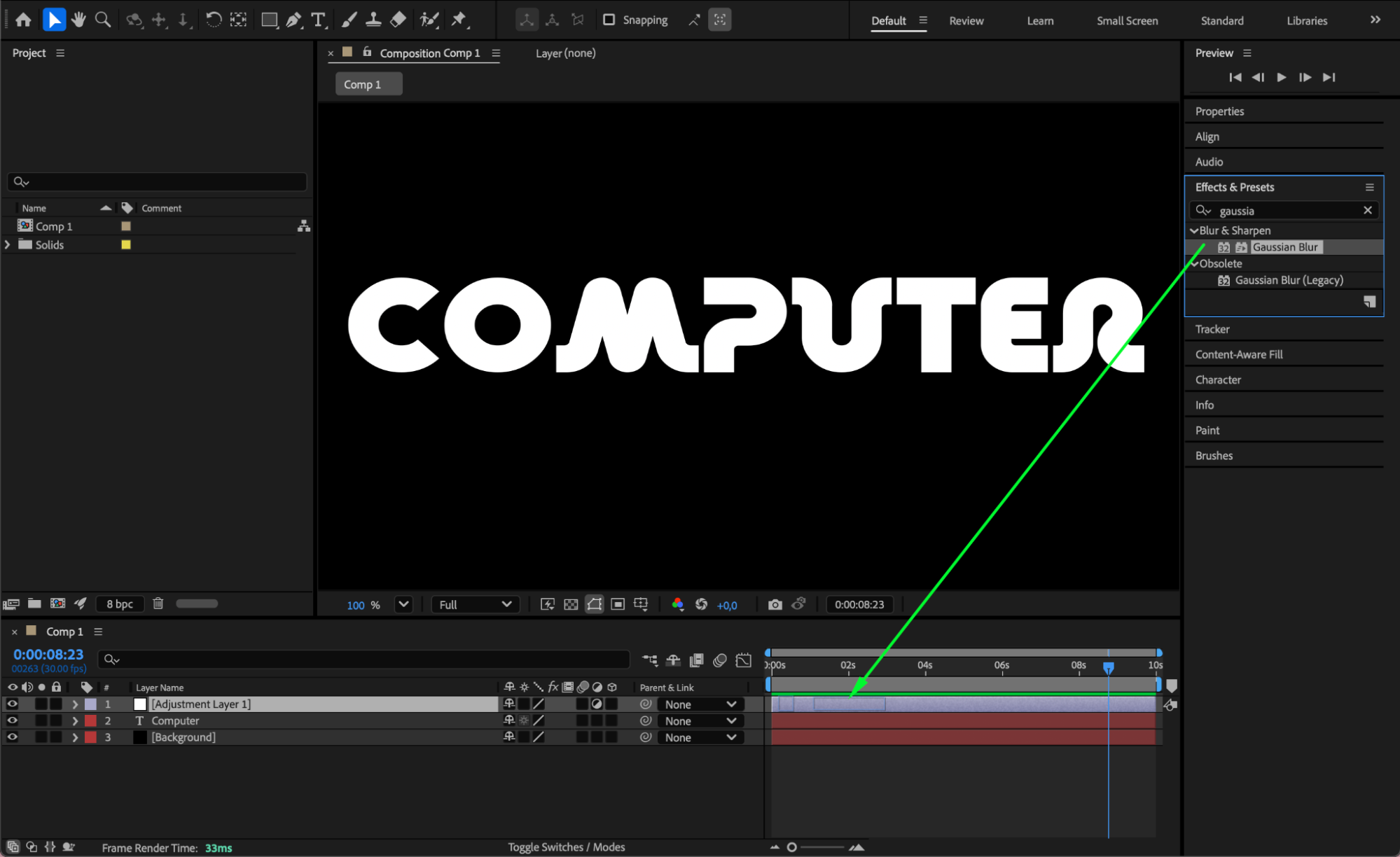
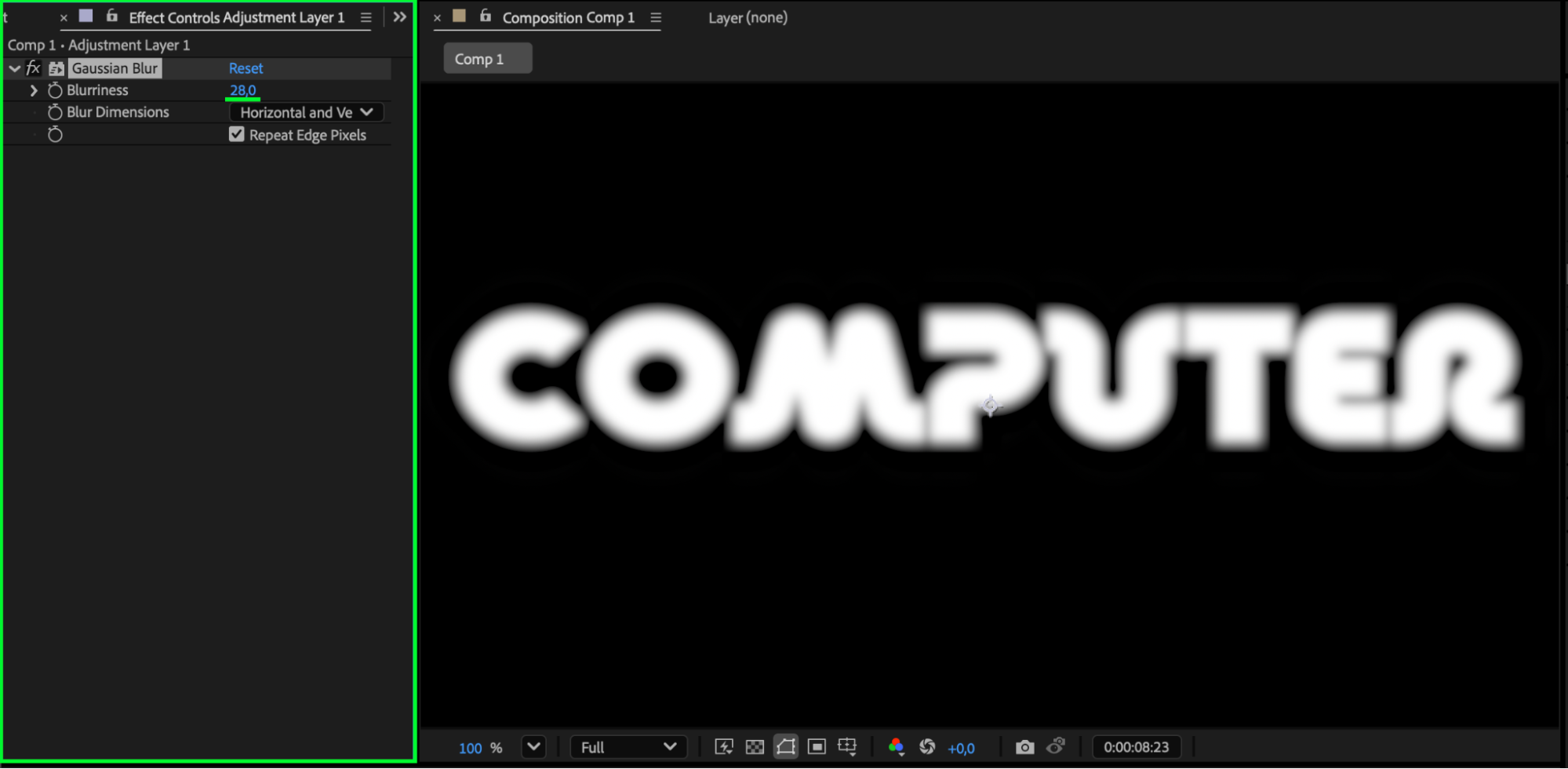 Step 8: Add Scanlines Using Venetian Blinds
Apply Venetian Blinds to the same adjustment layer and set:
Transition Completion: 66
Direction: 90°
Width: 20
This creates horizontal scanlines across the screen.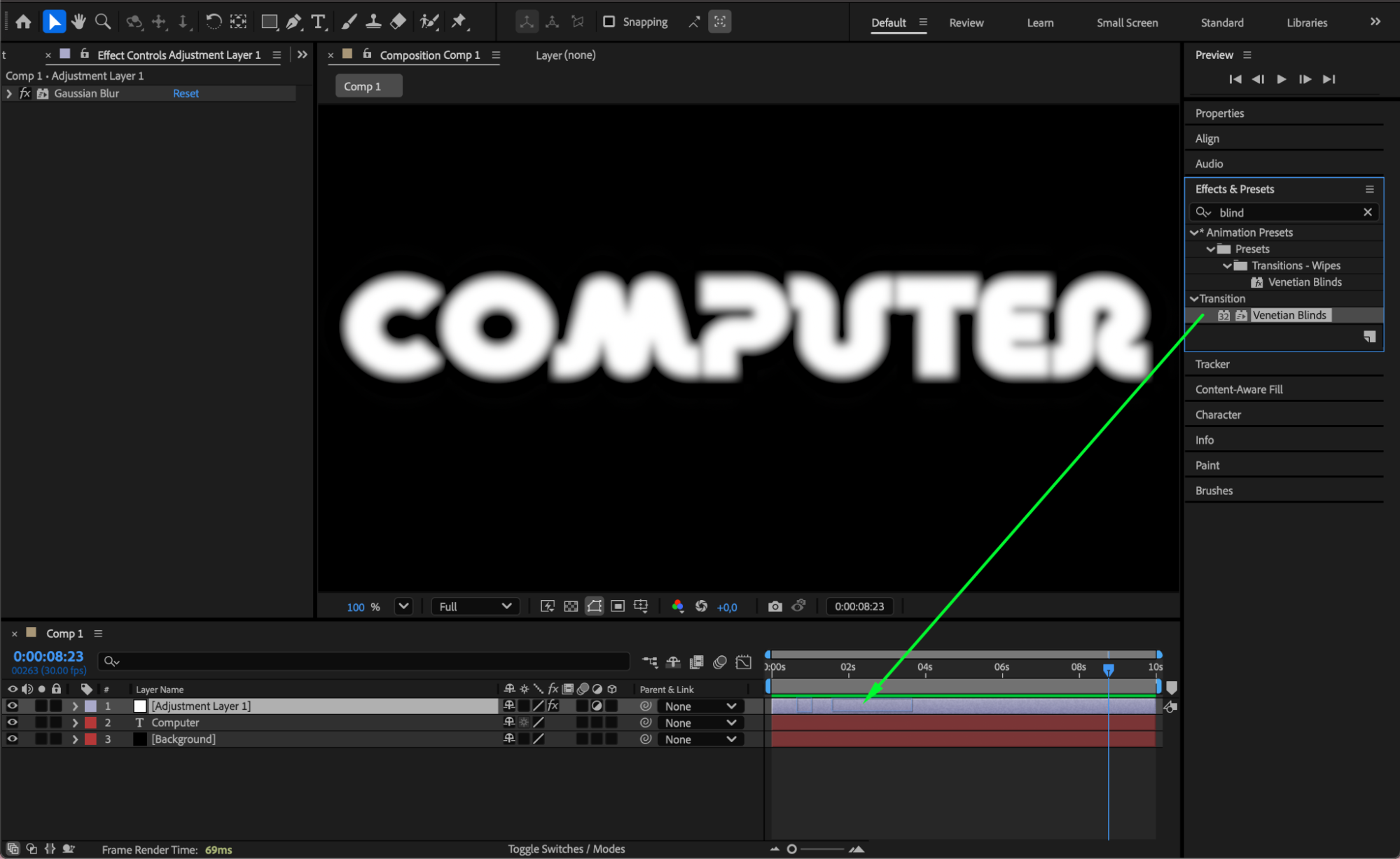
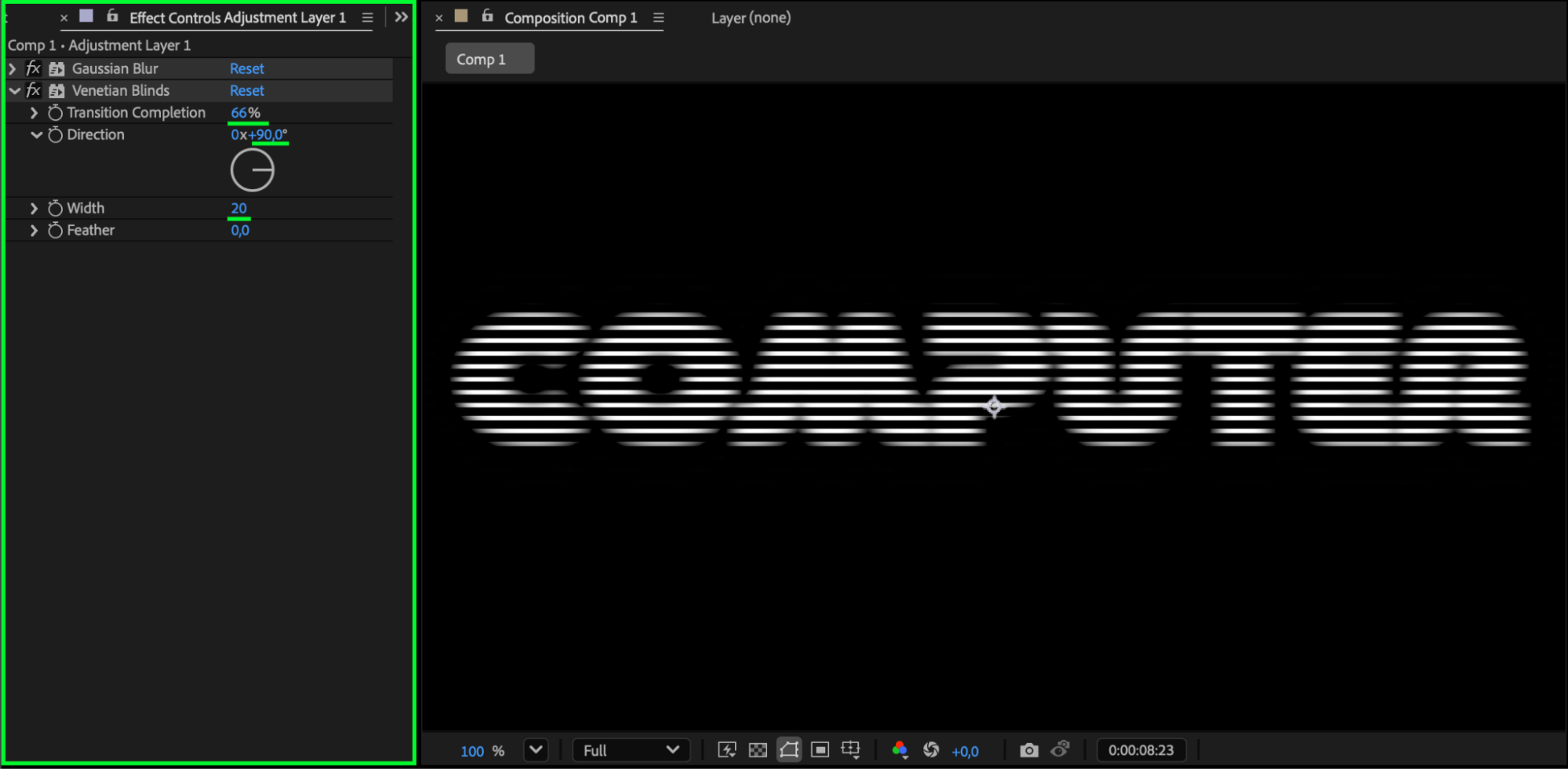 Step 9: Add Secondary Blur
Duplicate the Gaussian Blur effect and place it below the Venetian Blinds effect. Set Blurriness to 18 for layered softness.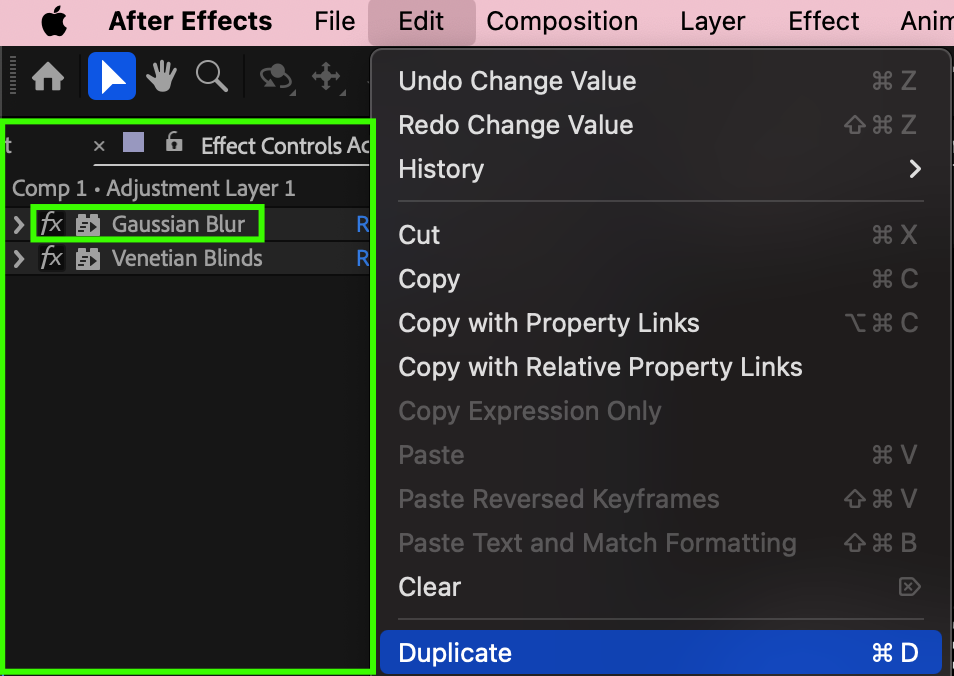
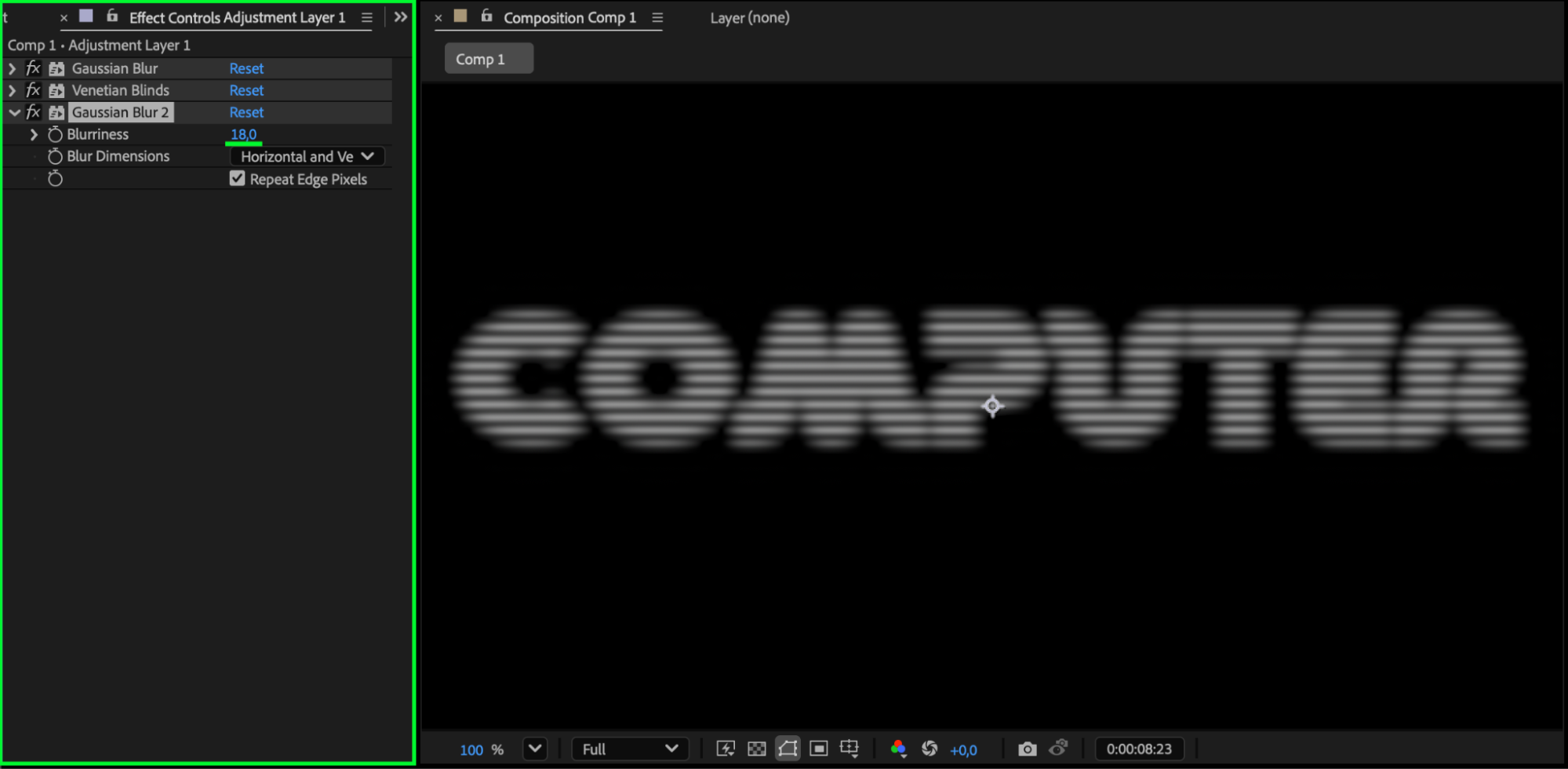 Step 10: Pre-compose All Layers
Select all layers, right-click, and choose Pre-compose. Move all attributes.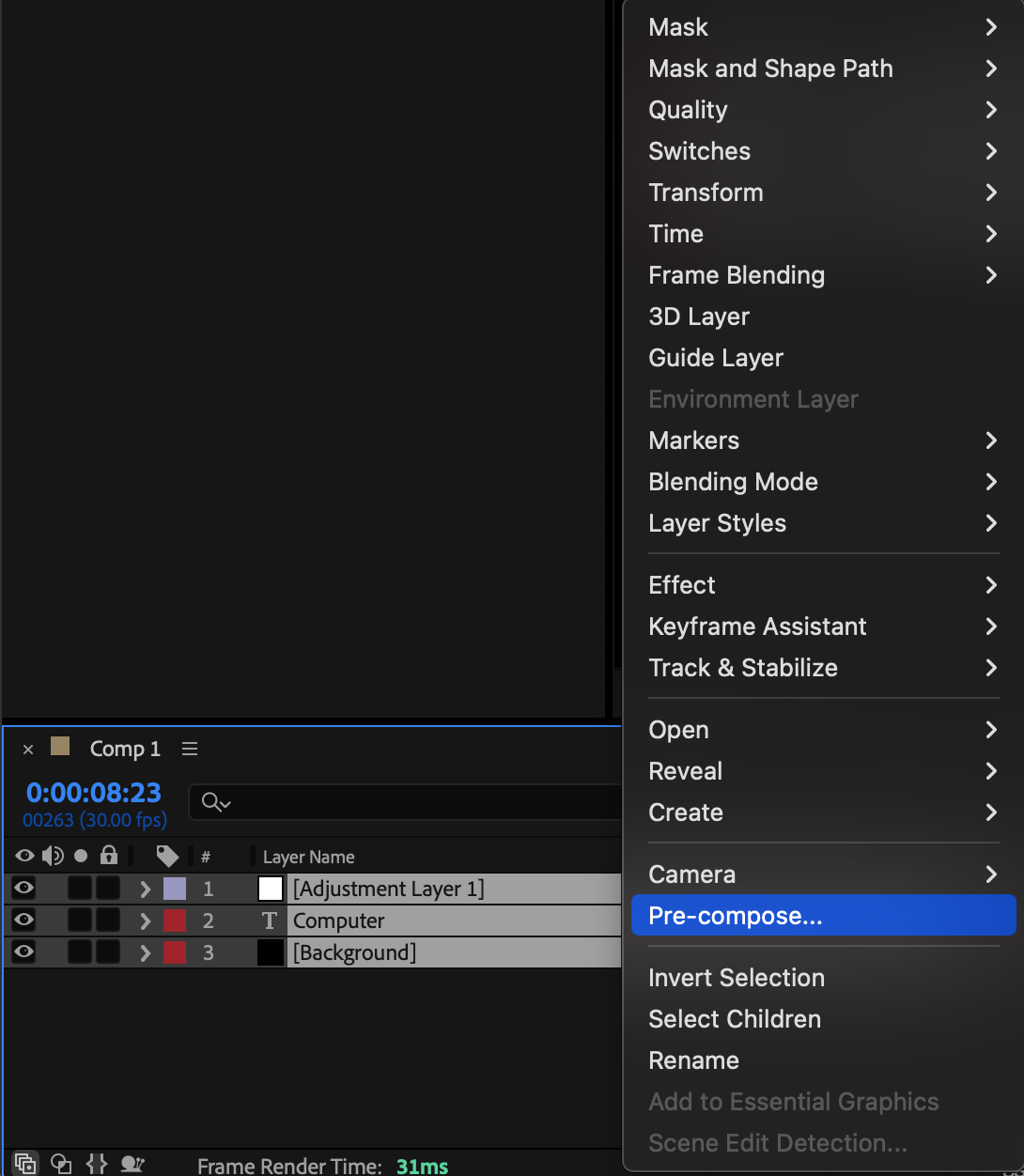
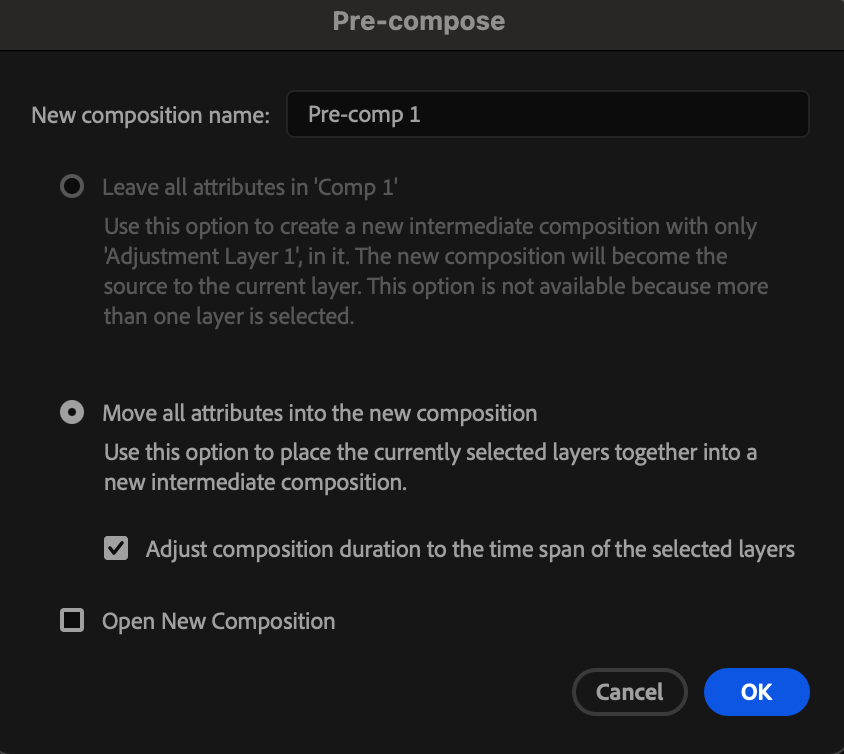
Step 11: Apply Shift Channels
Apply the Shift Channels effect to the final pre-comp.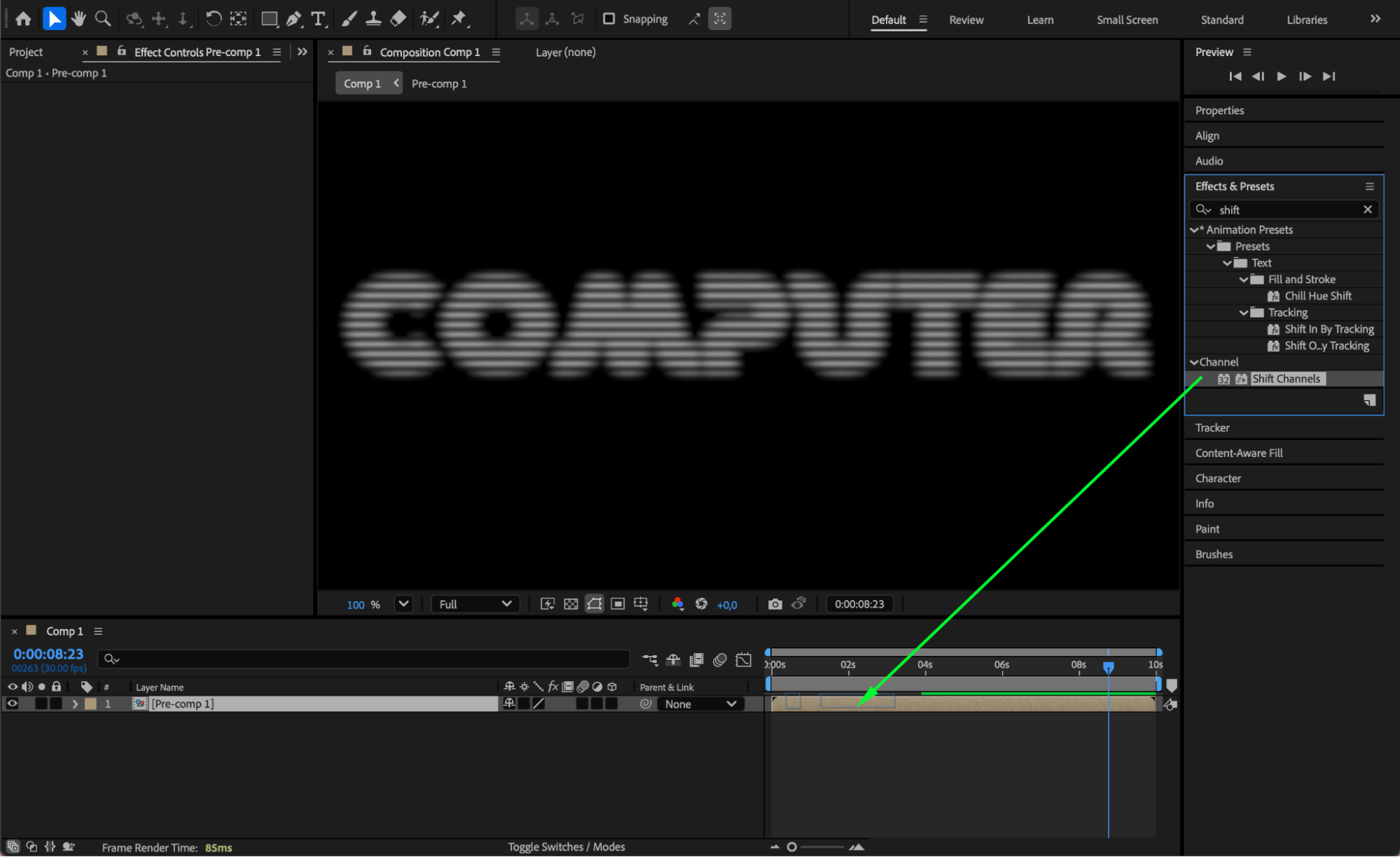 Step 12: Duplicate the Pre-comp
Duplicate the final pre-comp twice, so you have three identical layers.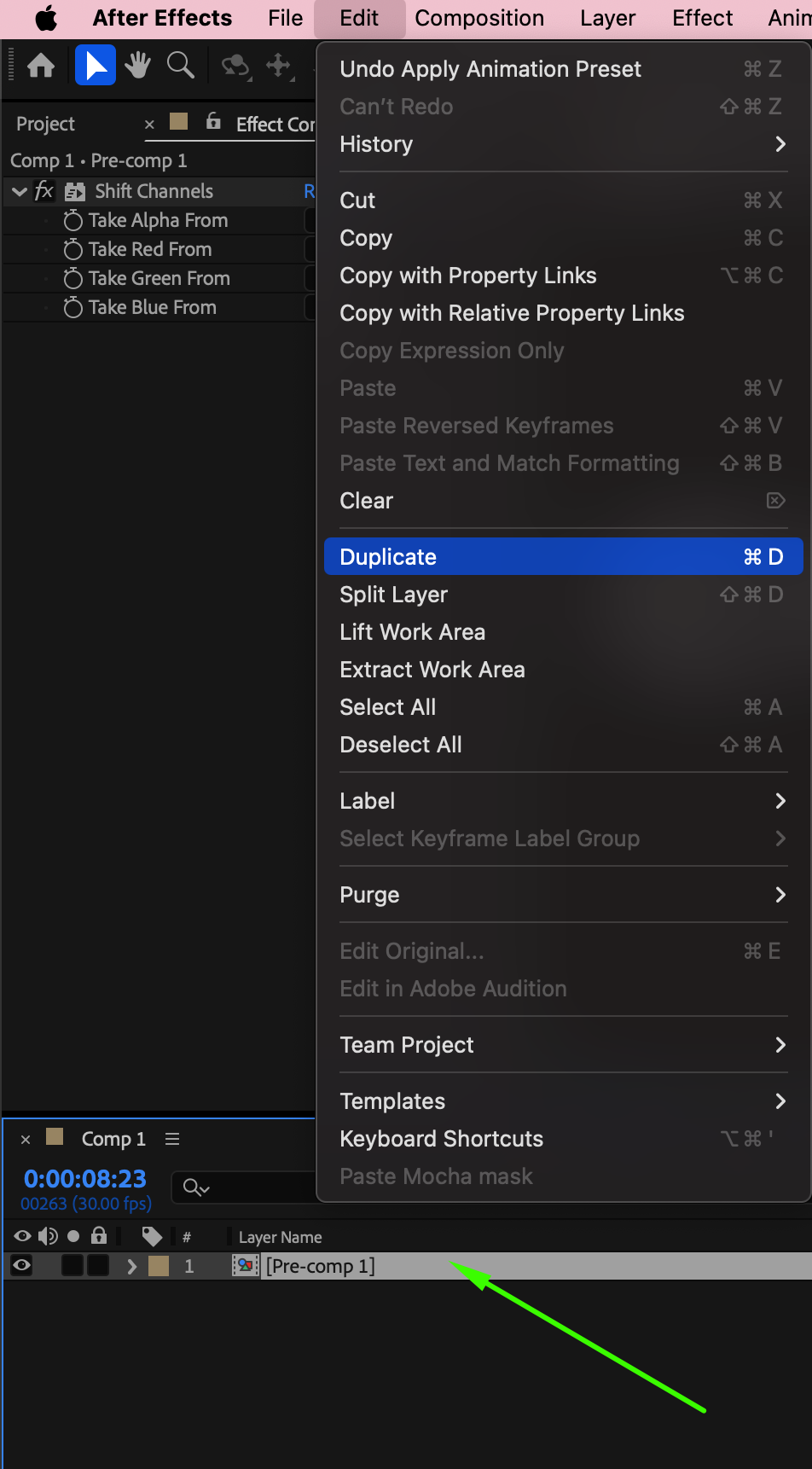 Step 13: Isolate Color Channels
In the Effect Controls panel:
Layer 1: Set Green and Blue to Full Off
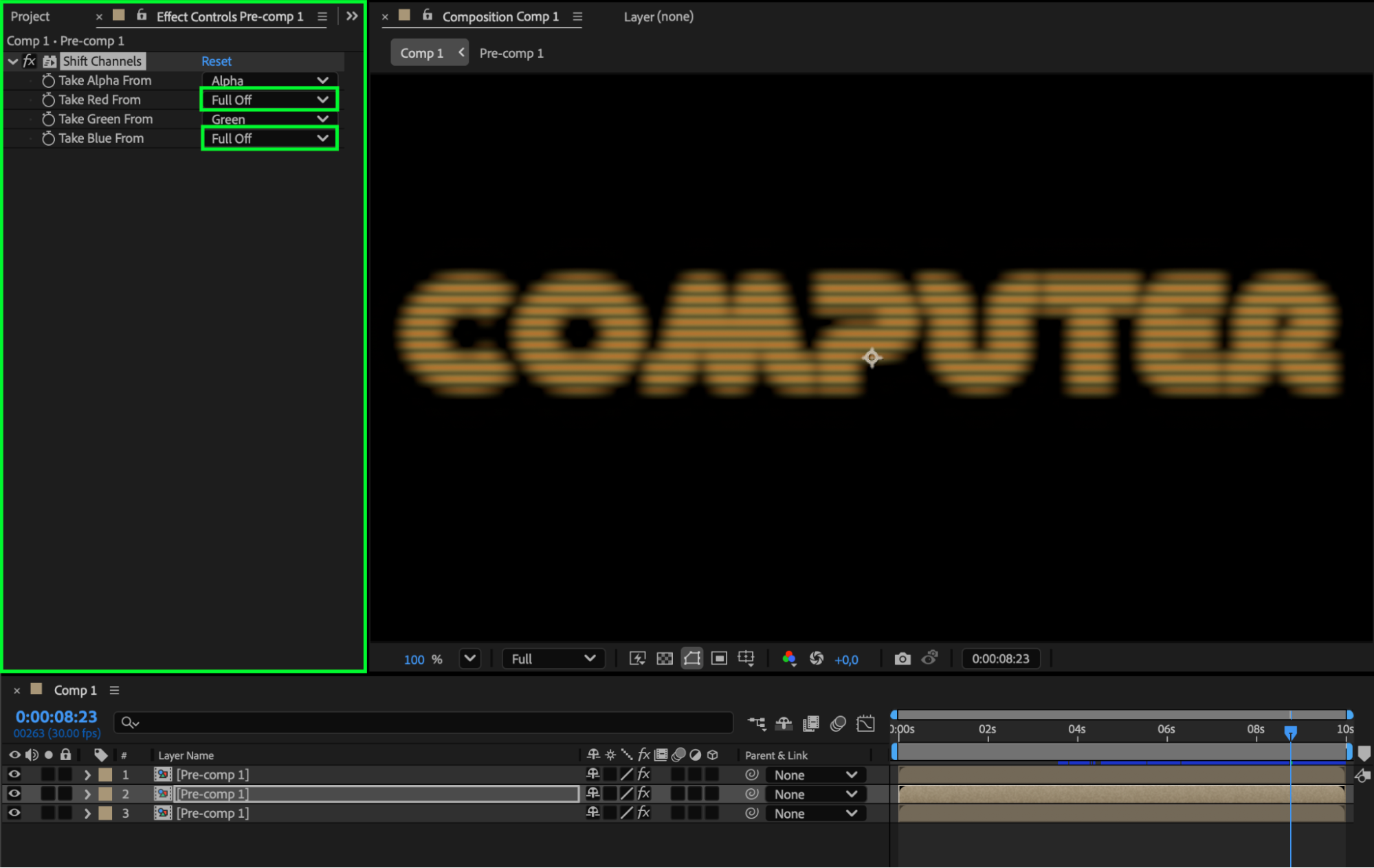
Layer 2: Set Red and Blue to Full Off
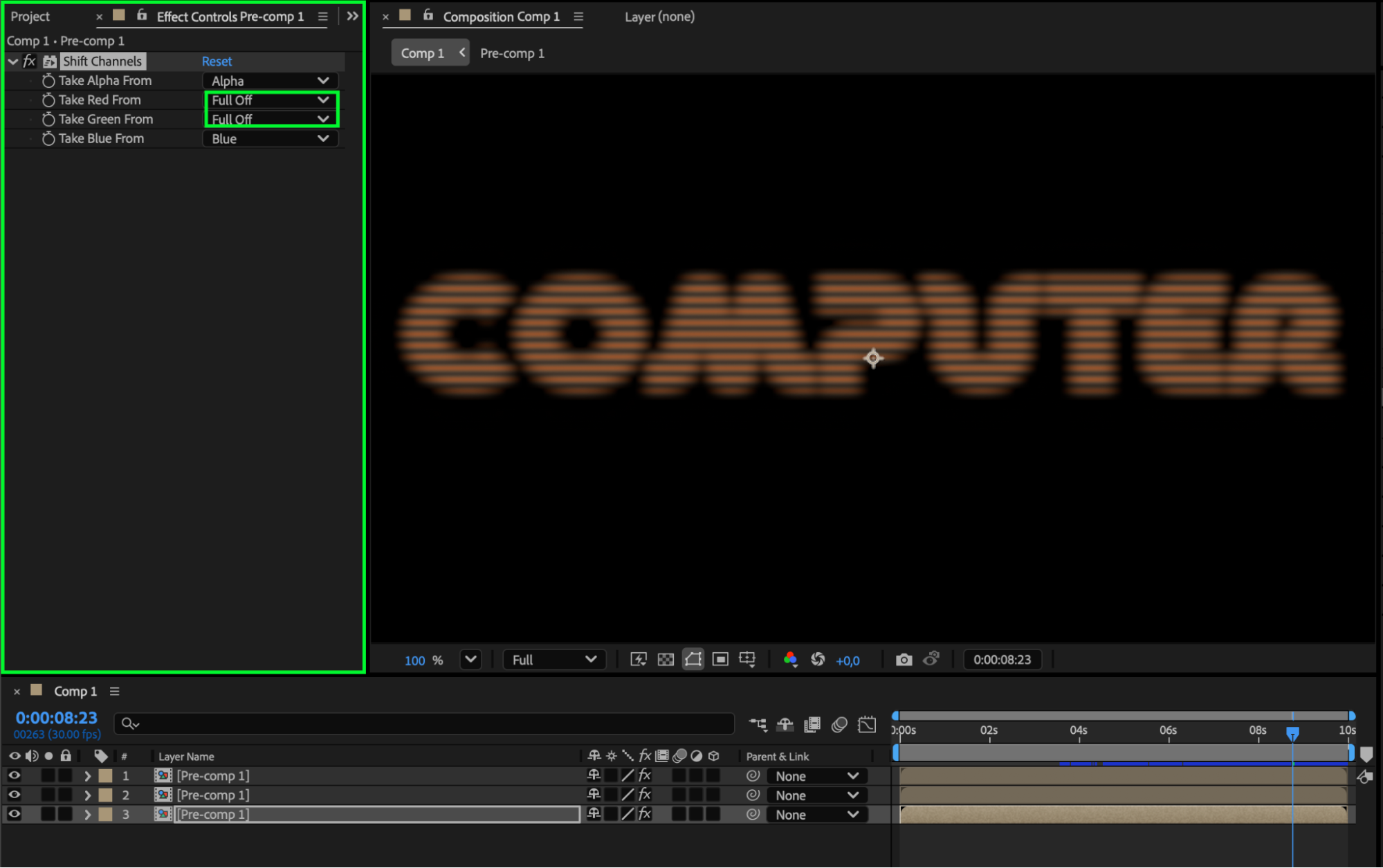
Layer 3: Set Red and Green to Full Off
This separates the RGB channels.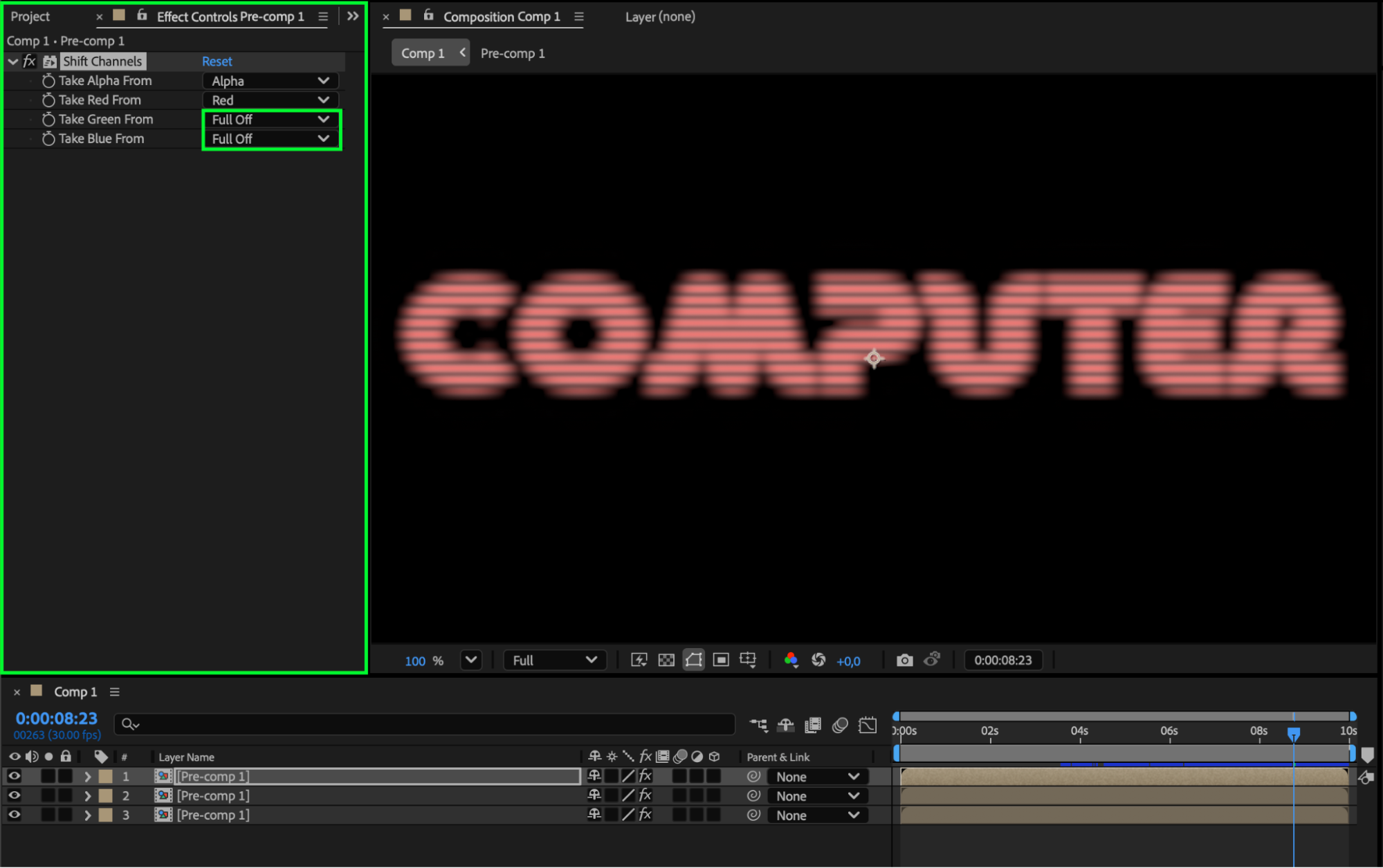
 Step 14: Blend and Offset the Channels
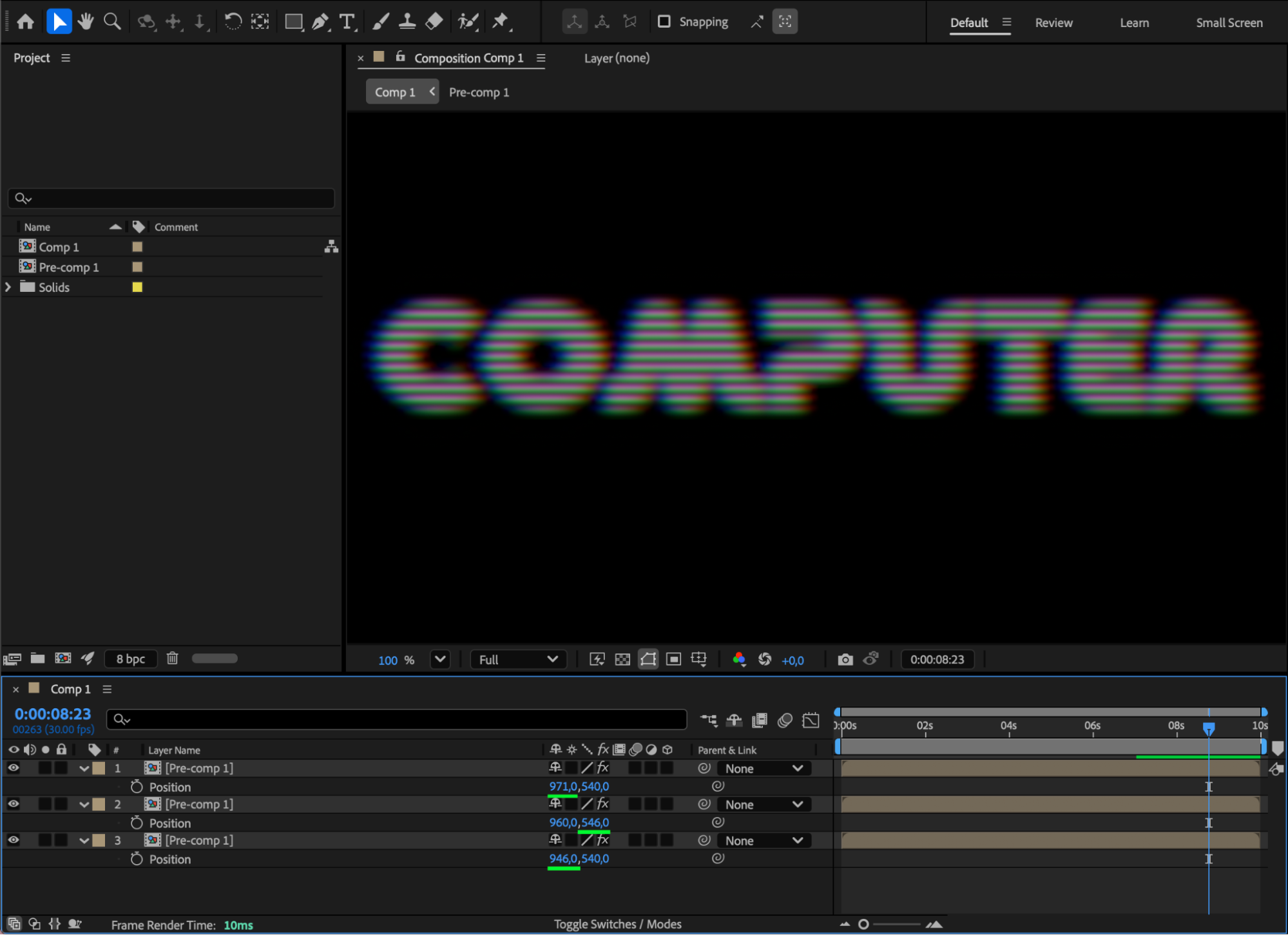
Select all three layers, right-click, and choose Blending Mode > Add. Slightly offset each layer’s Position by a few pixels to create chromatic aberration.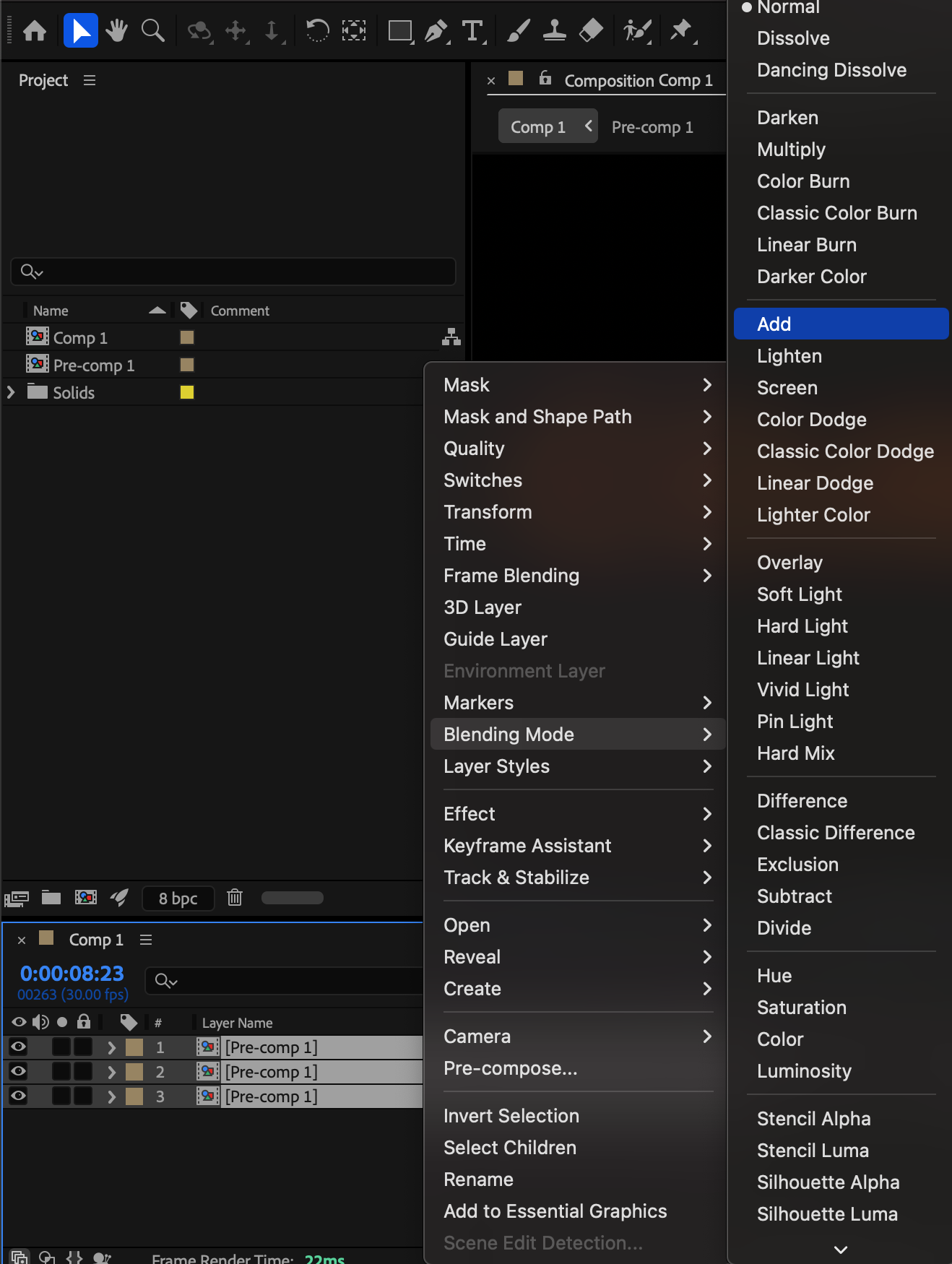
 Step 15: Add a Final Adjustment Layer
Go to Layer > New > Adjustment Layer and place it above all layers.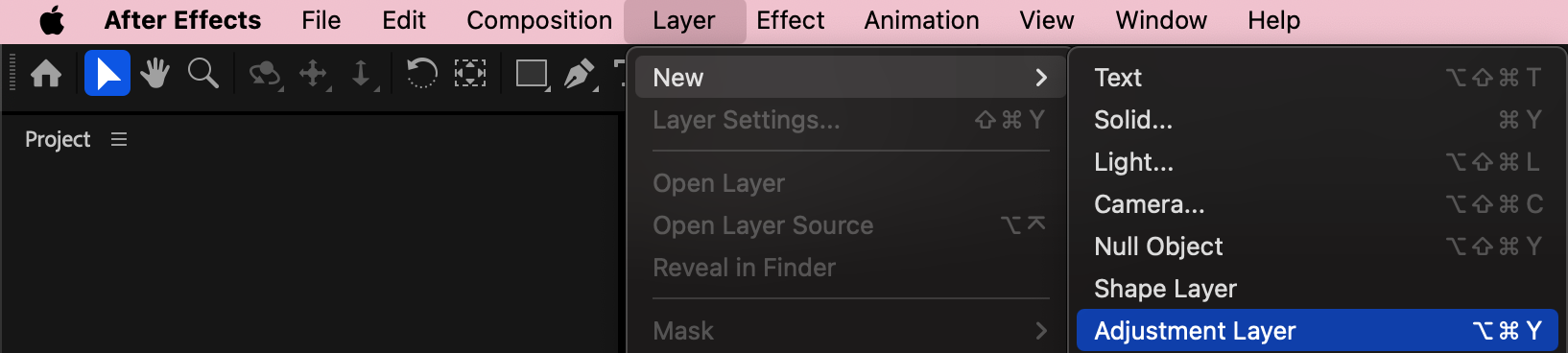 Step 16: Add Film Grain
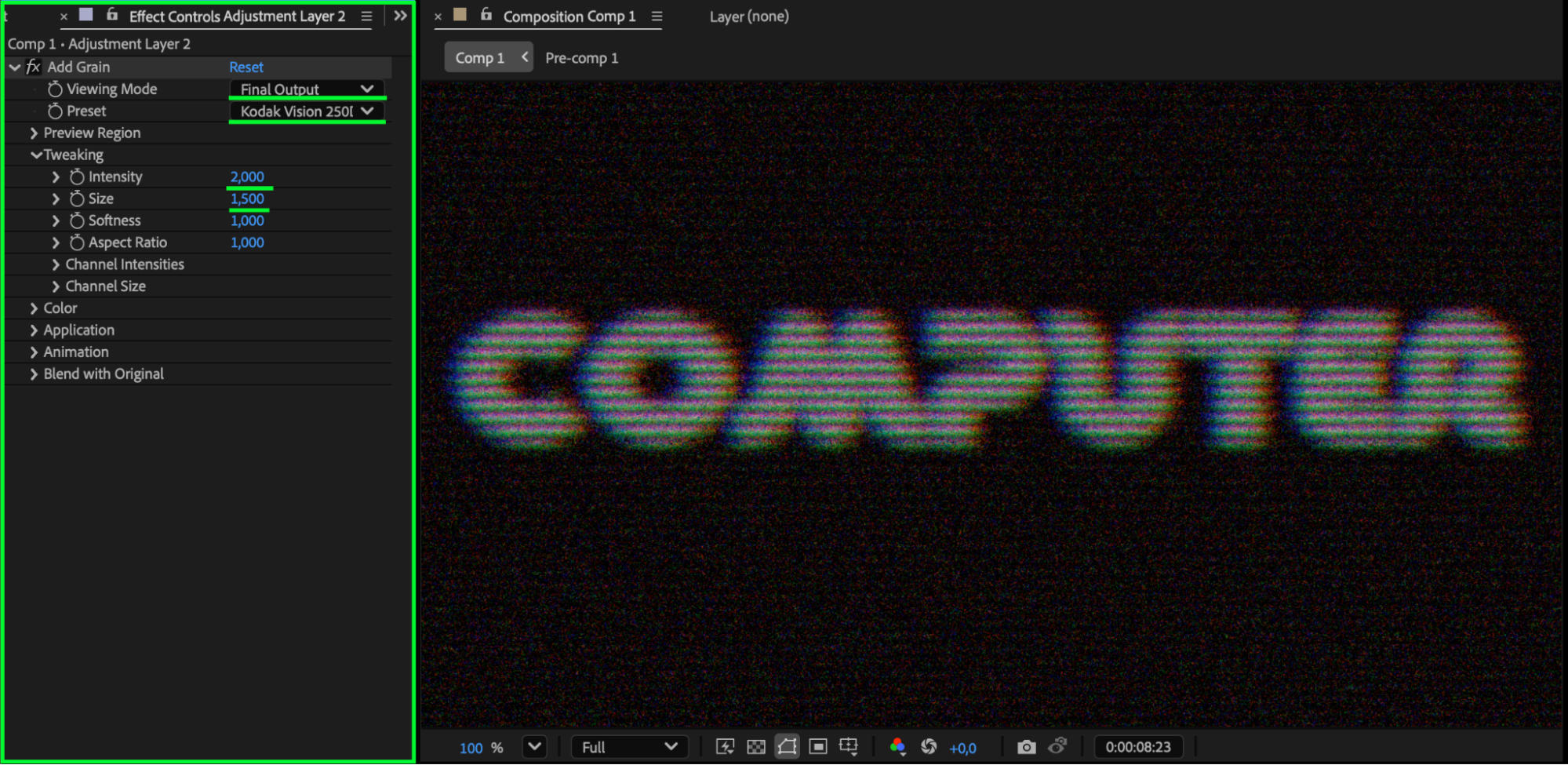
Apply Add Grain to the adjustment layer and set:
View Mode: Final Output
Preset: Kodak Vision 250D
Intensity: 2
Size: 1.5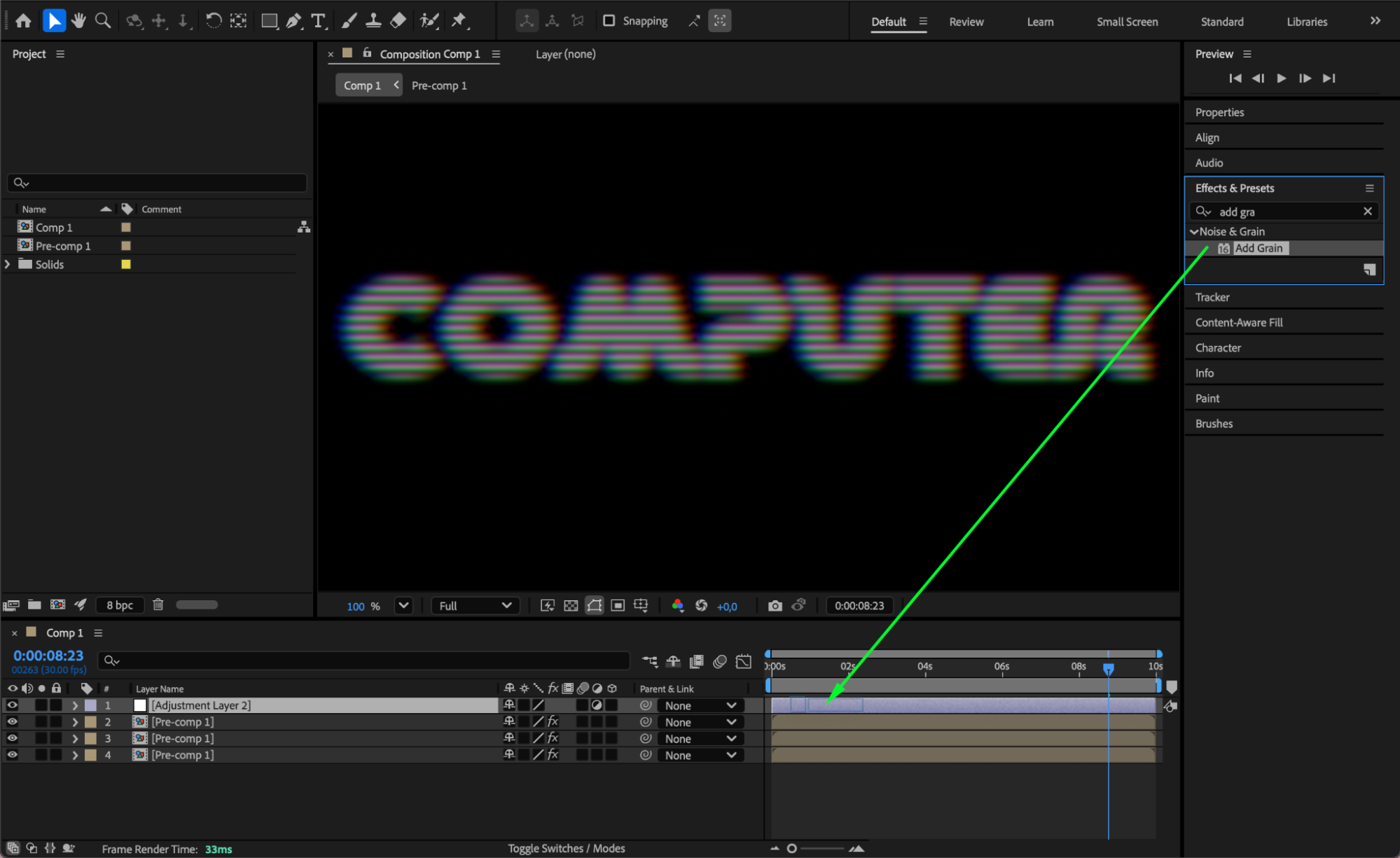
 Step 17: Boost Color Saturation
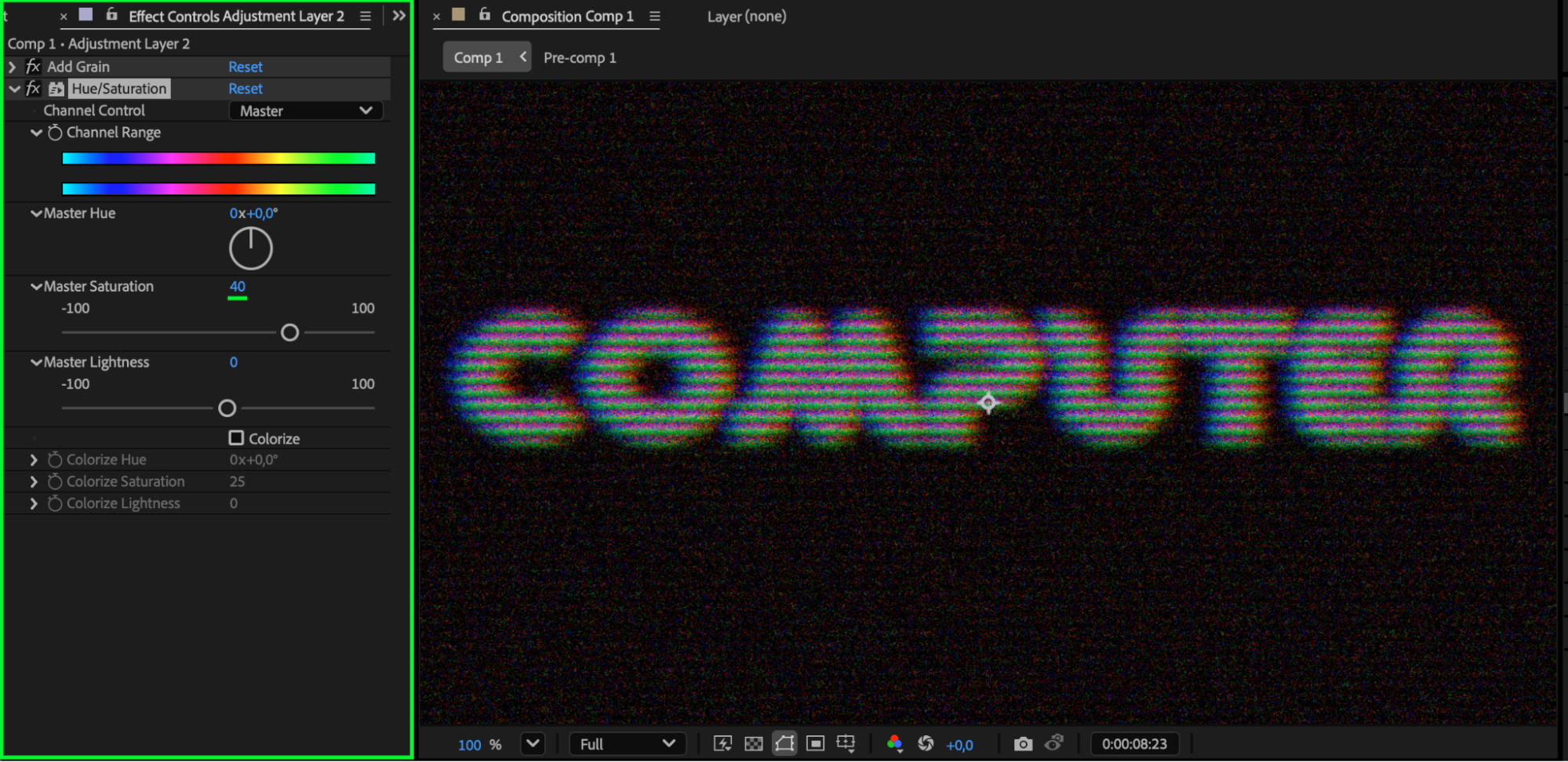
Apply Hue/Saturation and set:
Master Saturation: 40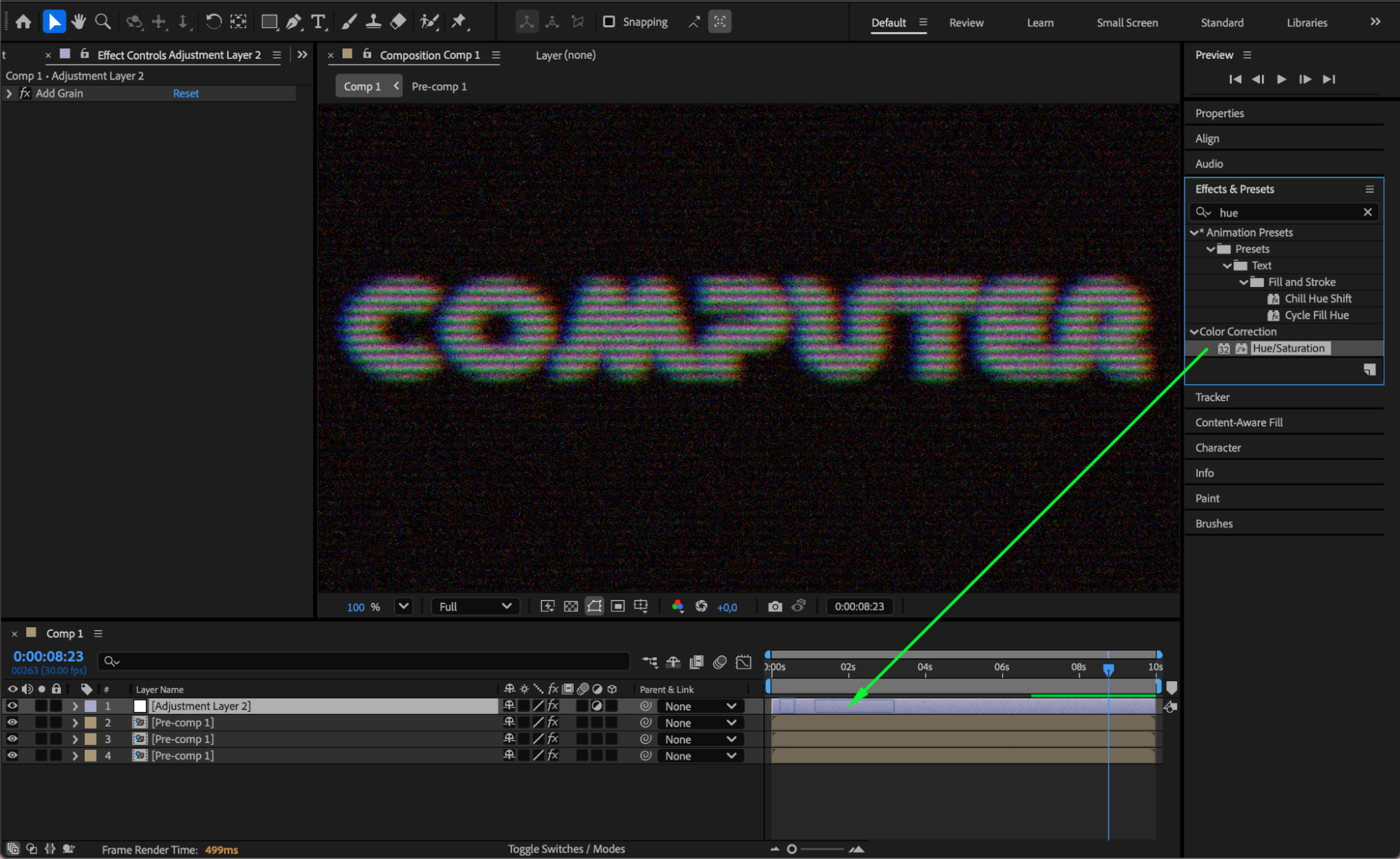
 Step 18: Add Glow
Apply Glow and set:
Glow Radius: 130
This enhances the CRT glow effect.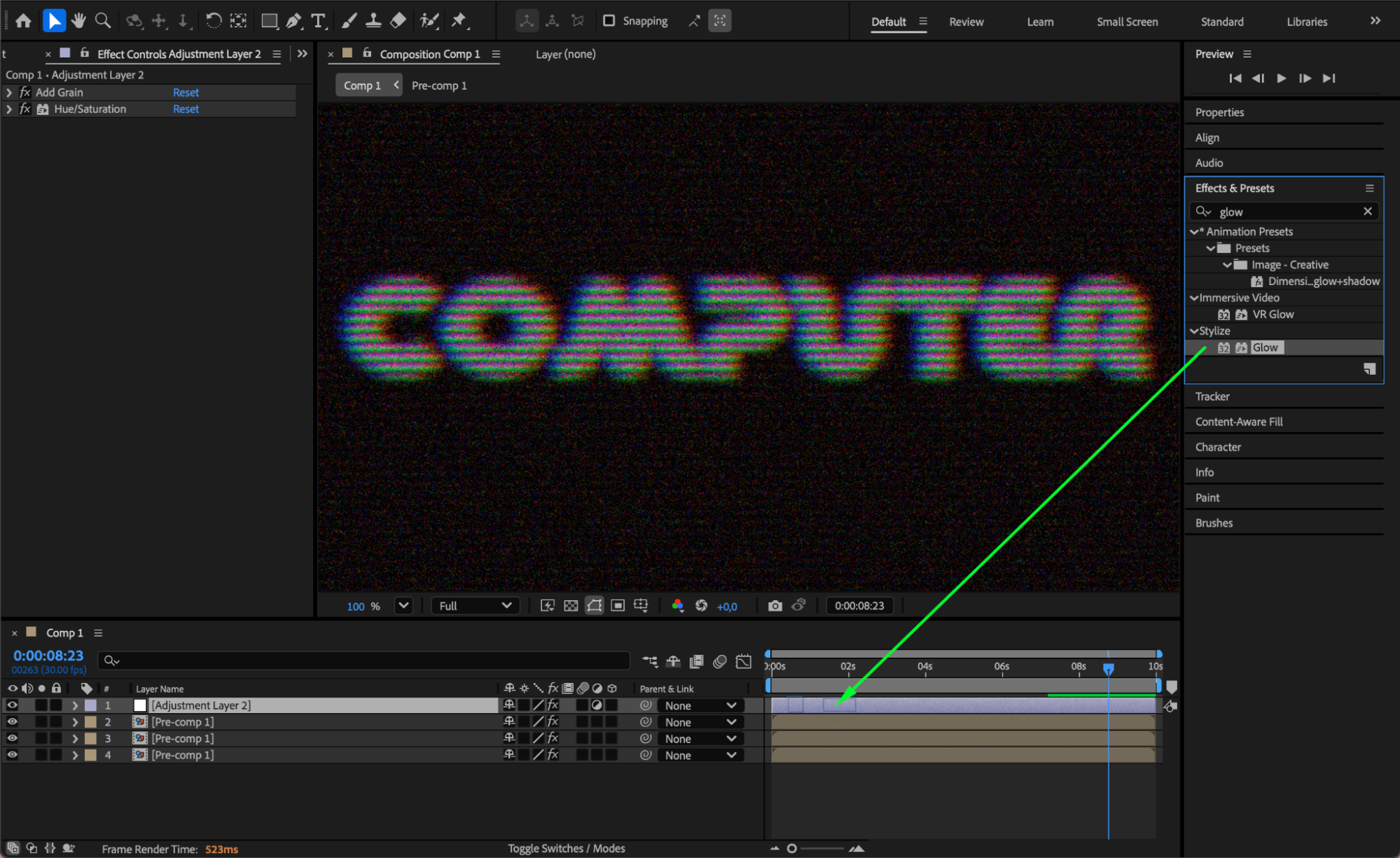
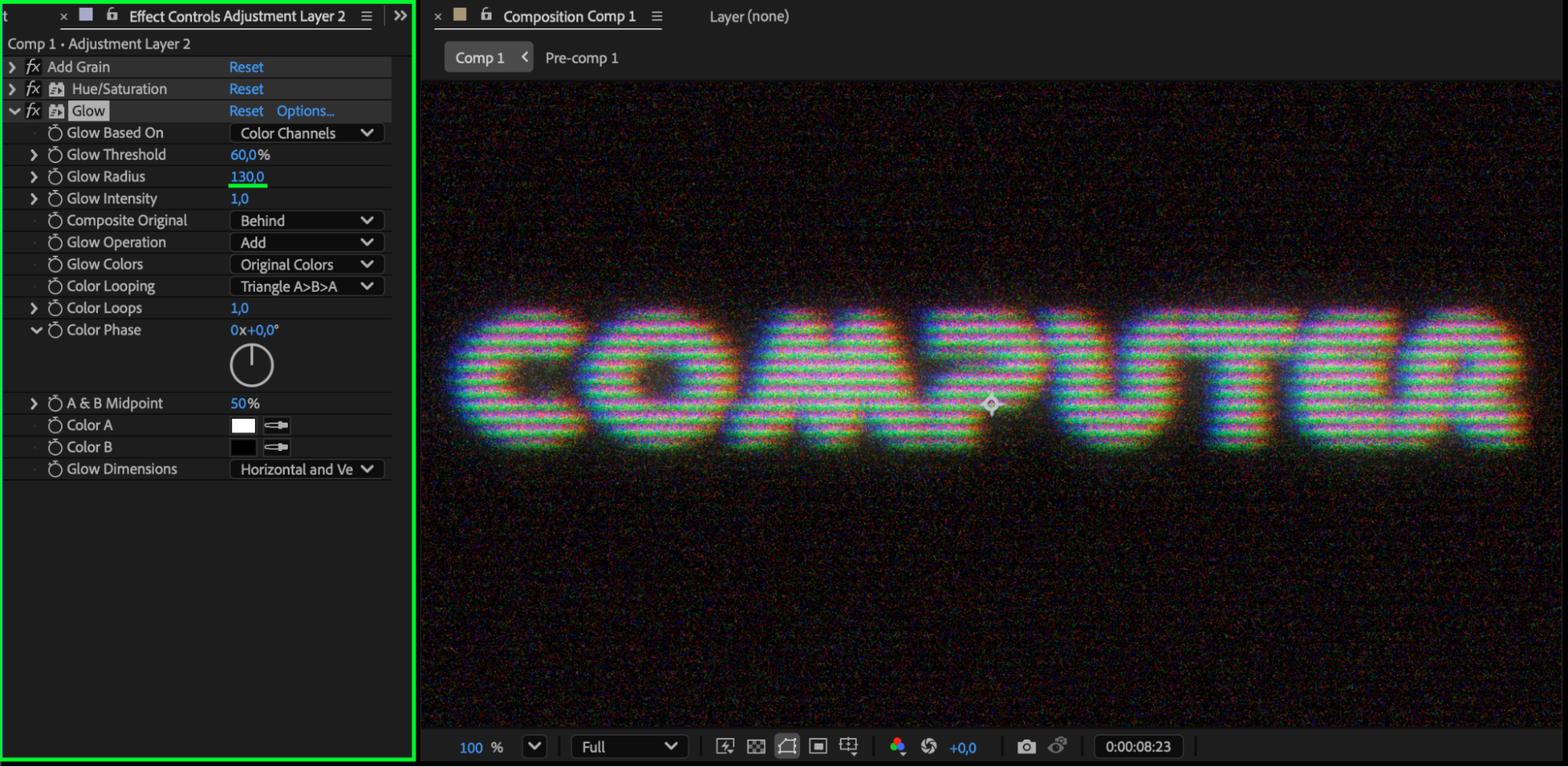 Step 19: Preview and Refine
Preview your animation and adjust blur, glow, scanlines, or color offsets to taste.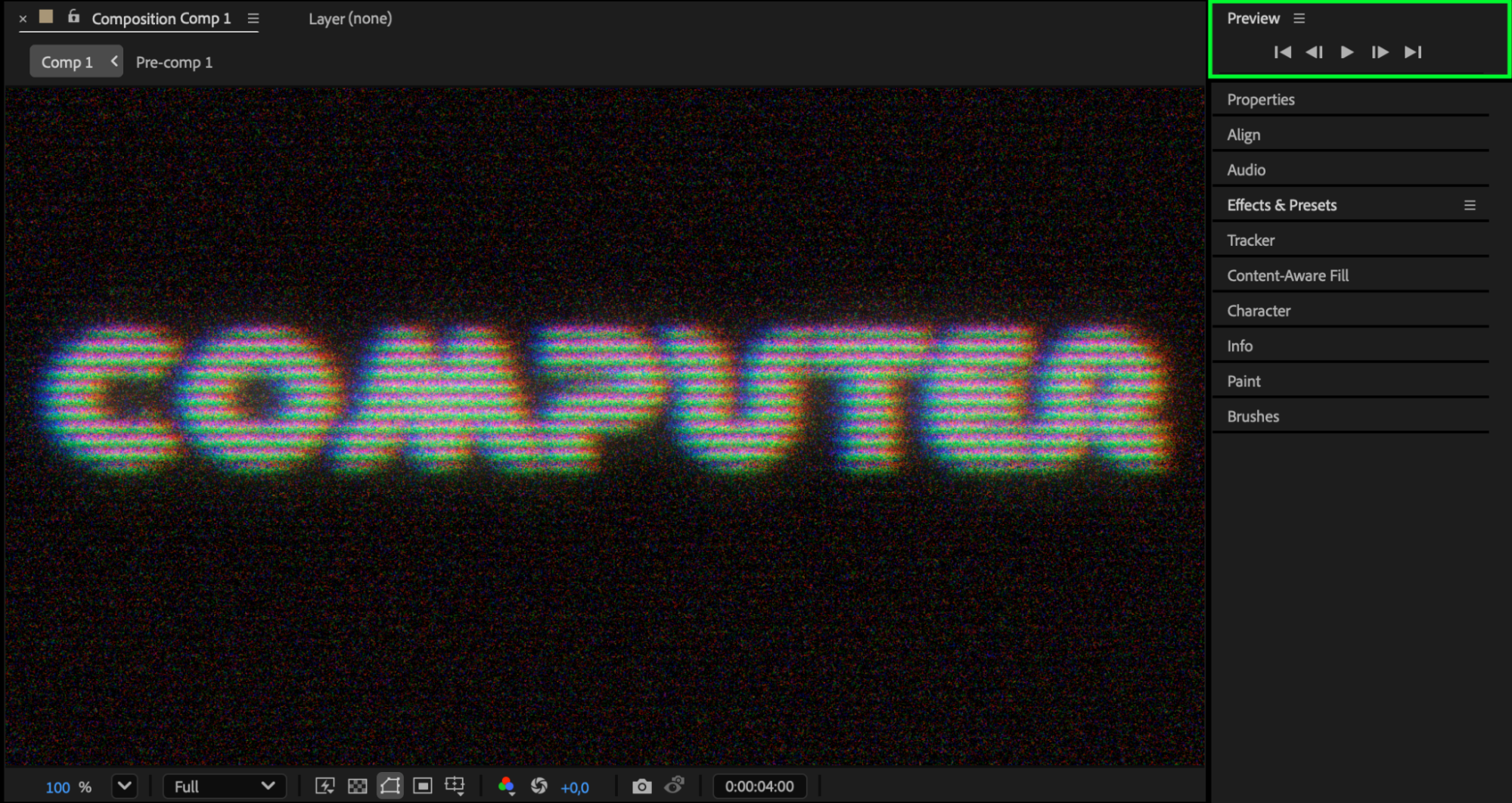
Conclusion
By combining text animation, scanlines, blur, RGB channel separation, grain, and glow, you can recreate a convincing 1980s computer screen effect in After Effects. This style is perfect for retro titles, sci-fi interfaces, and nostalgic motion graphics.
Our Bestsellers
Our Bestsellers


