
Introduction
Creating a realistic 80s-style TV screen effect requires accurate screen tracking and proper compositing. In this tutorial, you will use Mocha AE to track the TV screen and insert custom footage that follows the screen’s movement naturally.
Step 1: Import the TV Footage
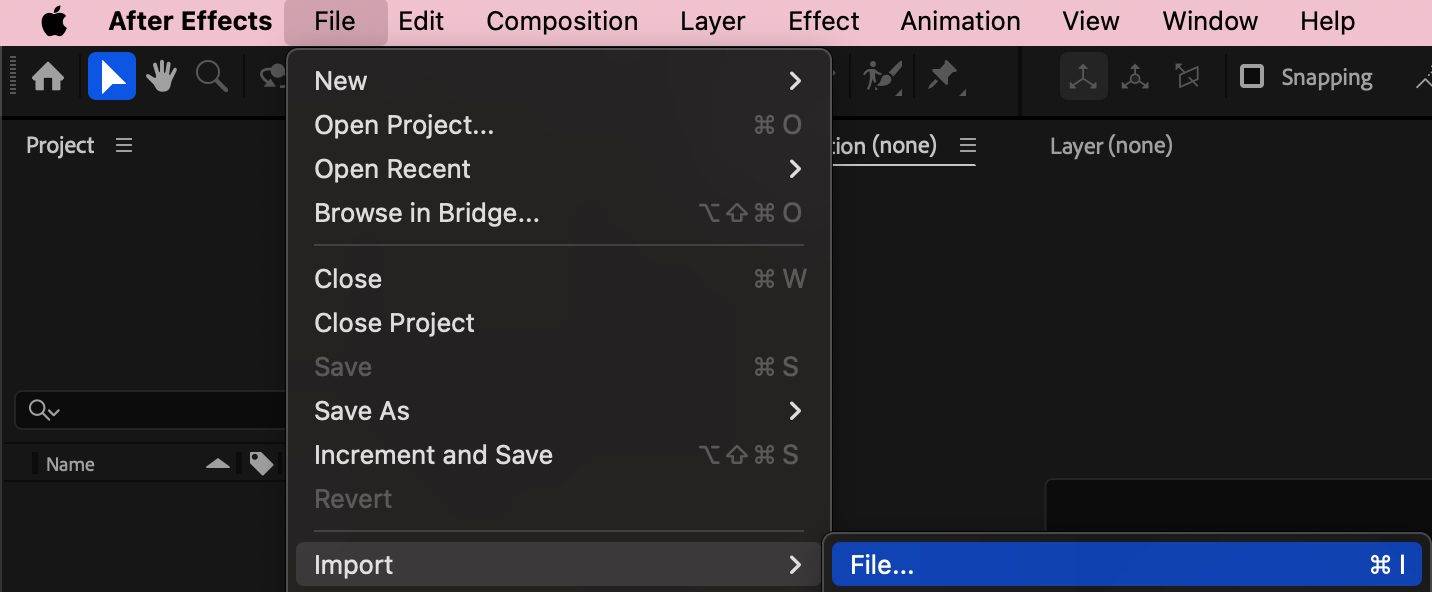
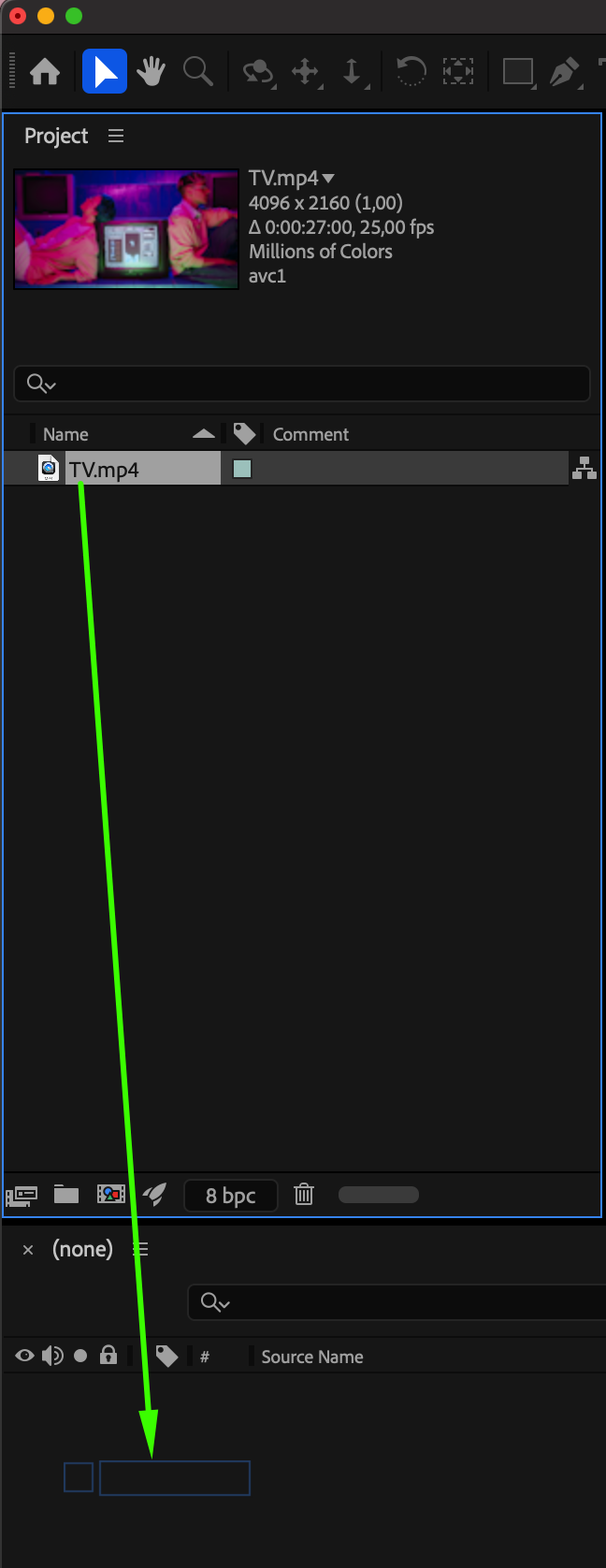
Go to File > Import > File and import the video with the TV screen. Drag the footage onto the timeline.
 Step 2: Apply Mocha AE
From the Effects & Presets panel, apply Mocha AE to the TV footage layer.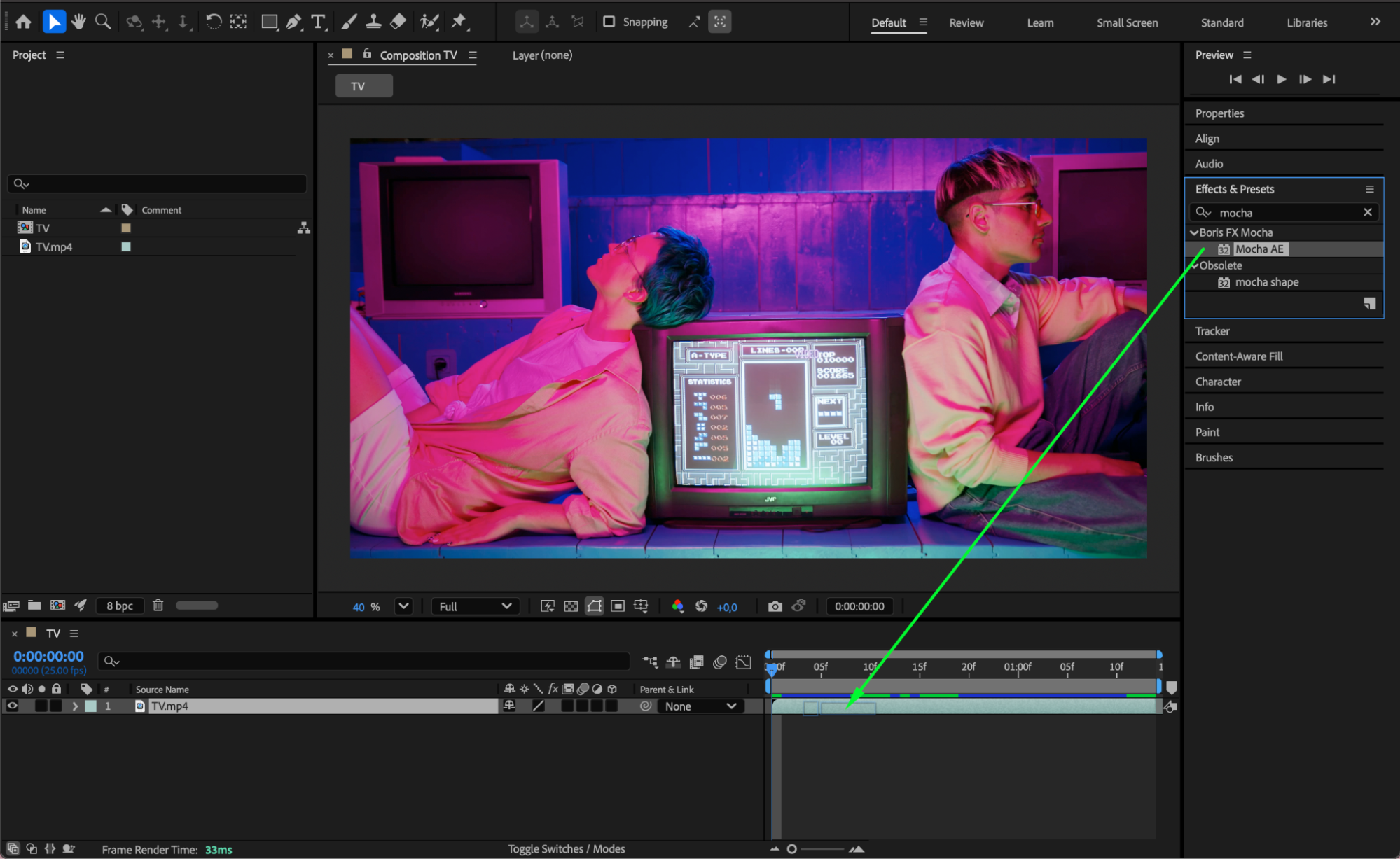
Step 3: Open Mocha AE
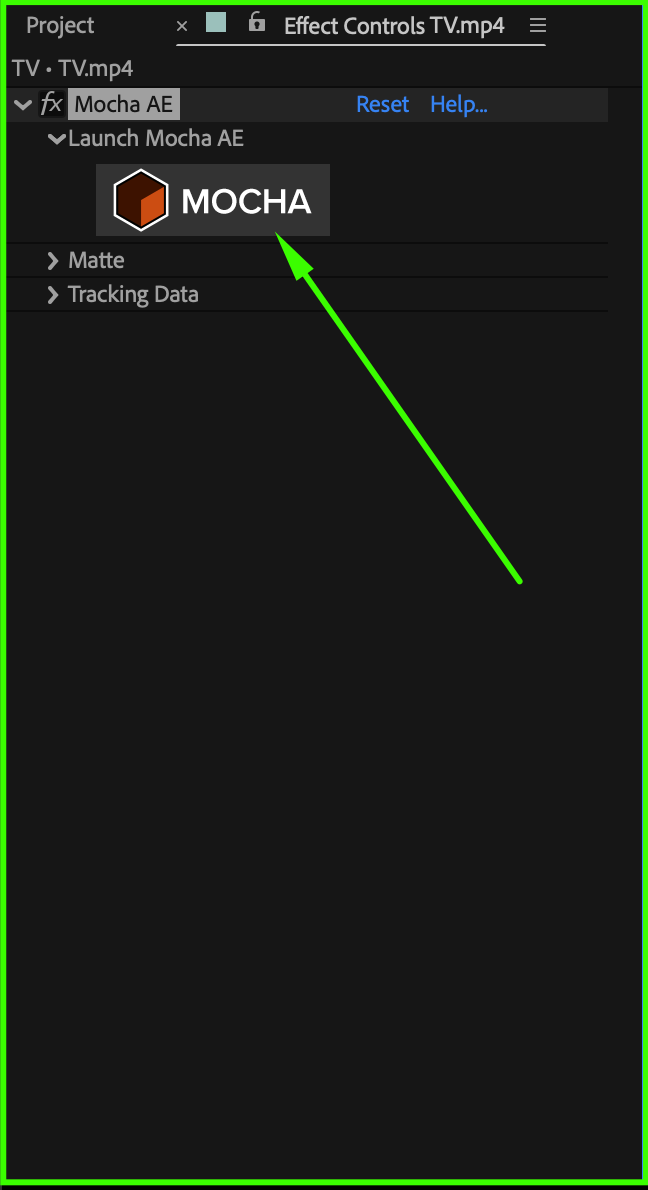
In the Effect Controls panel, click the Mocha button to launch Mocha AE.
 Step 4: Track the TV Screen
In the Mocha AE window:
Select the Create X-Spline Layer Tool
Draw a shape around the TV screen
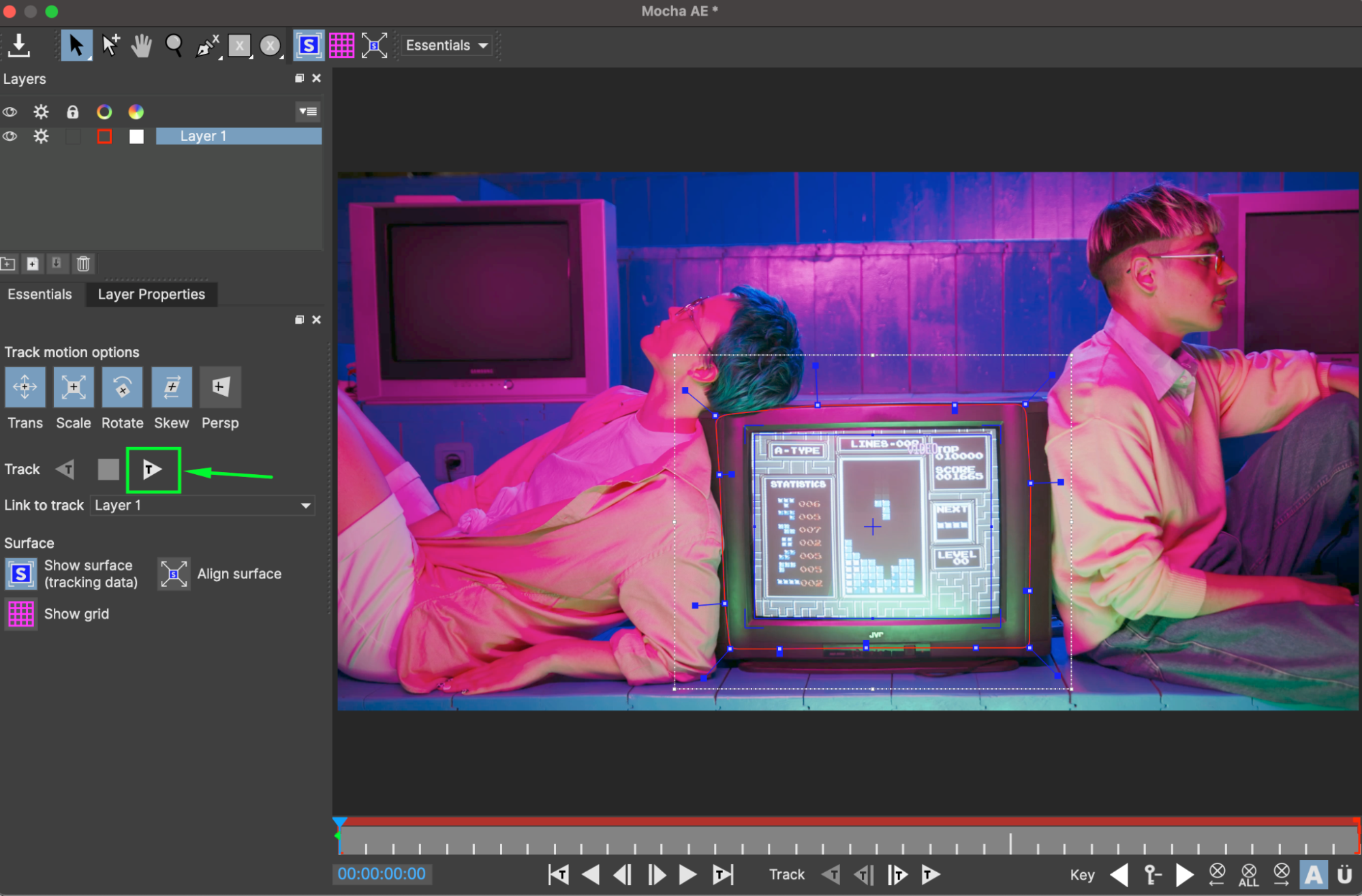
Press the Track Forward (Play) button
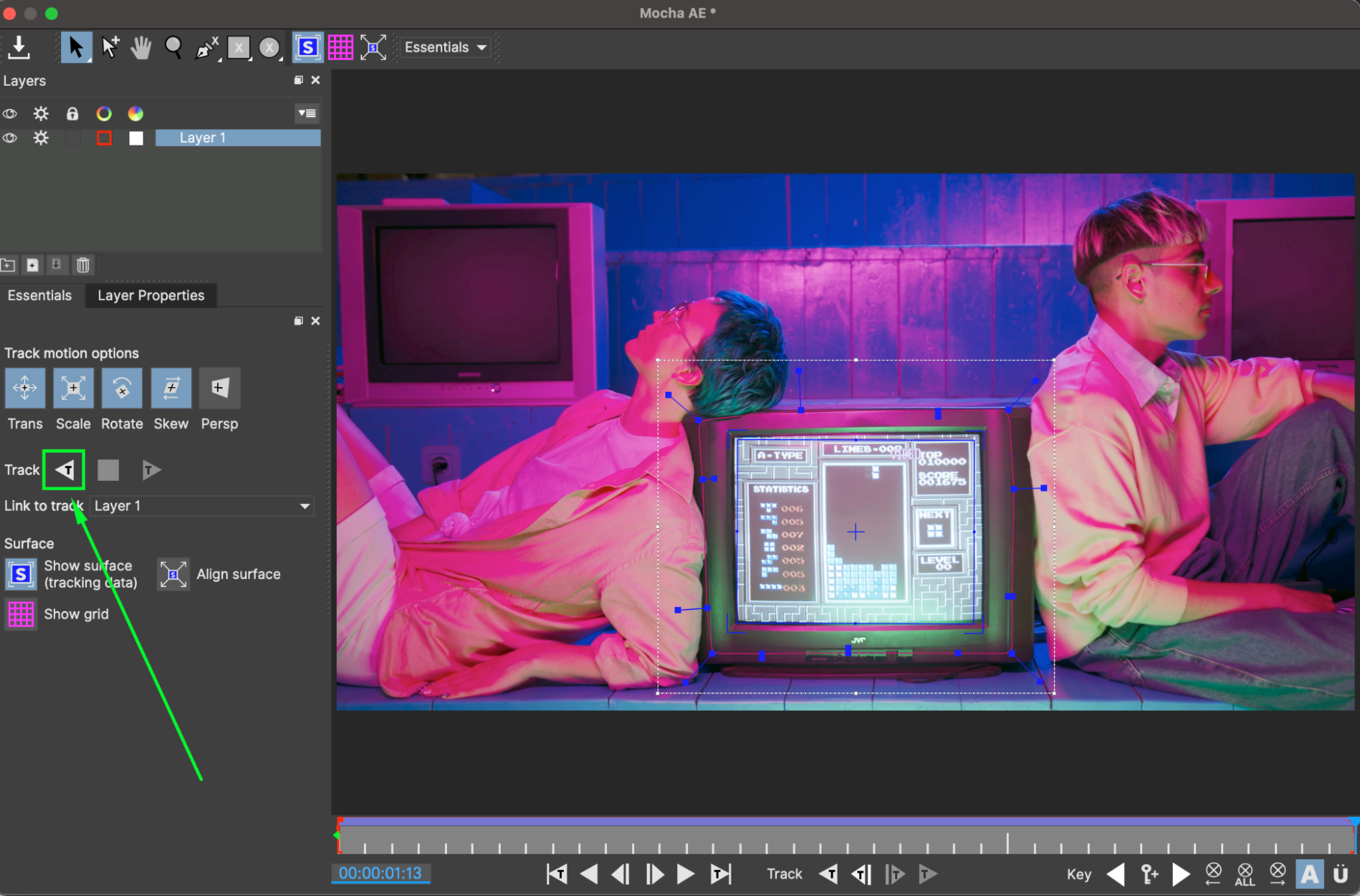
Once the tracking reaches the end, press Track Backward (Play)
This ensures a clean and stable track.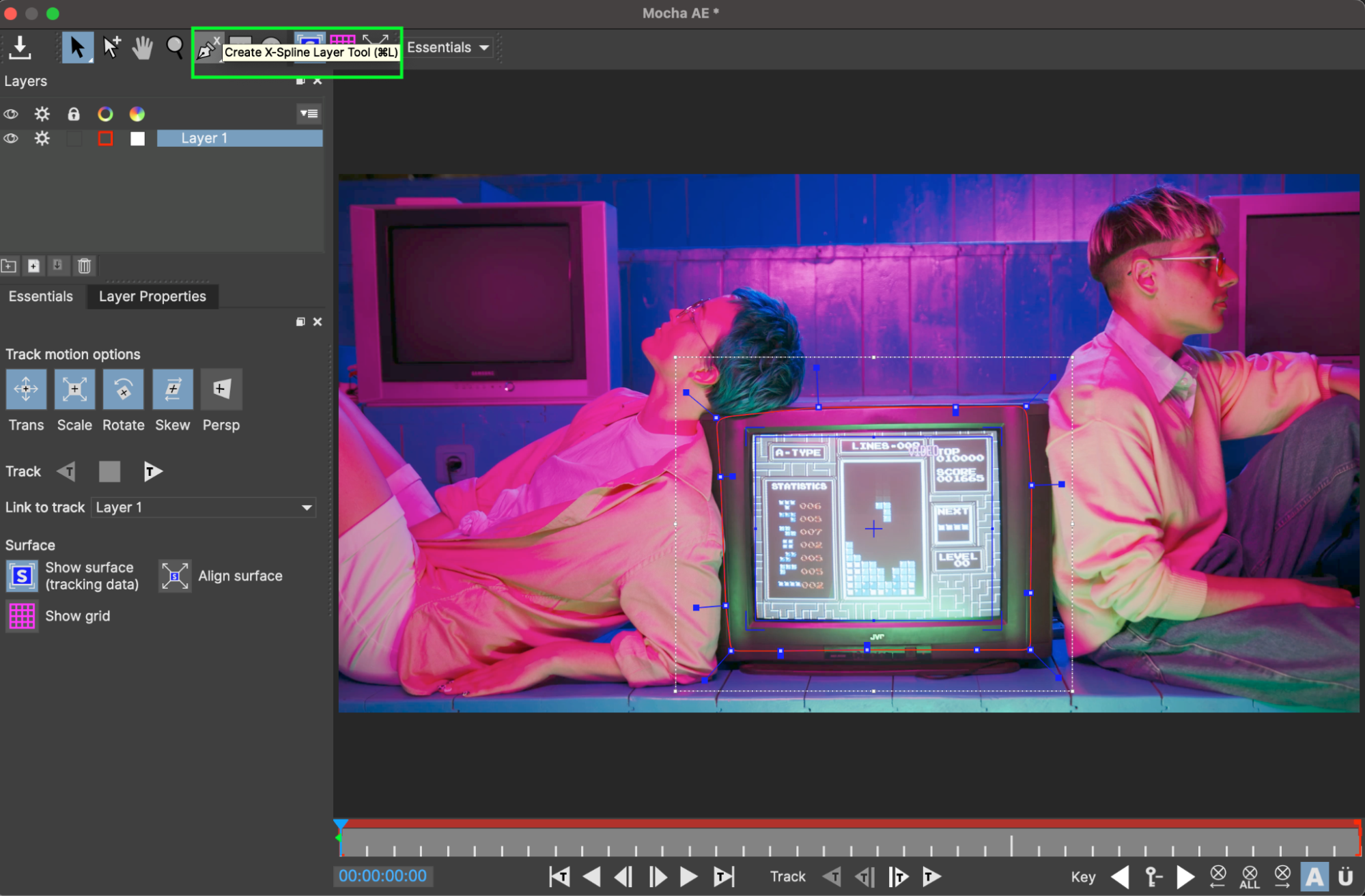
Step 5: Save and Exit Mocha AE
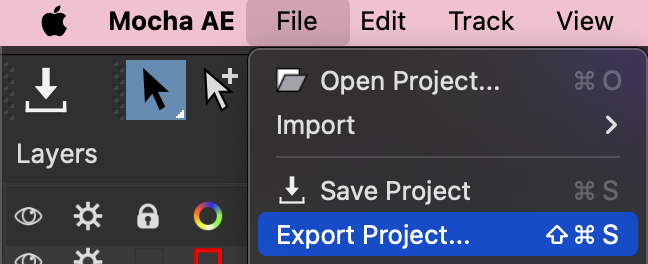
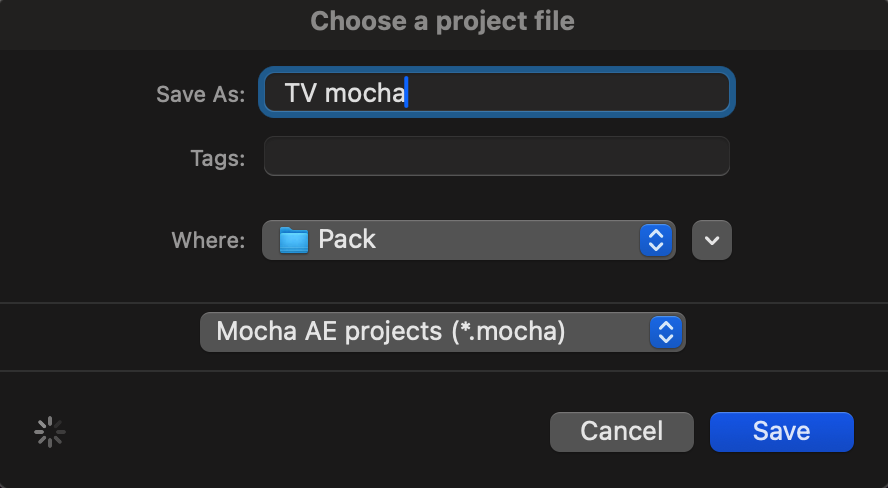
Save the Mocha project, export the tracking data, and close Mocha AE.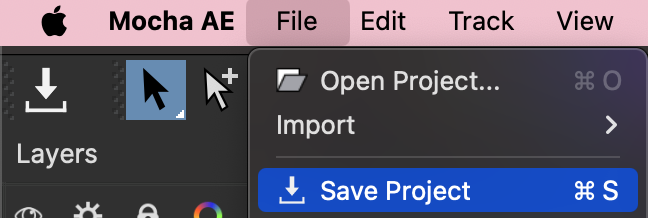
 Step 6: Create a Null Object
In After Effects, go to Layer > New > Null Object.
Step 7: Export Tracking Data
In the Effect Controls panel:
Click Create Track Data
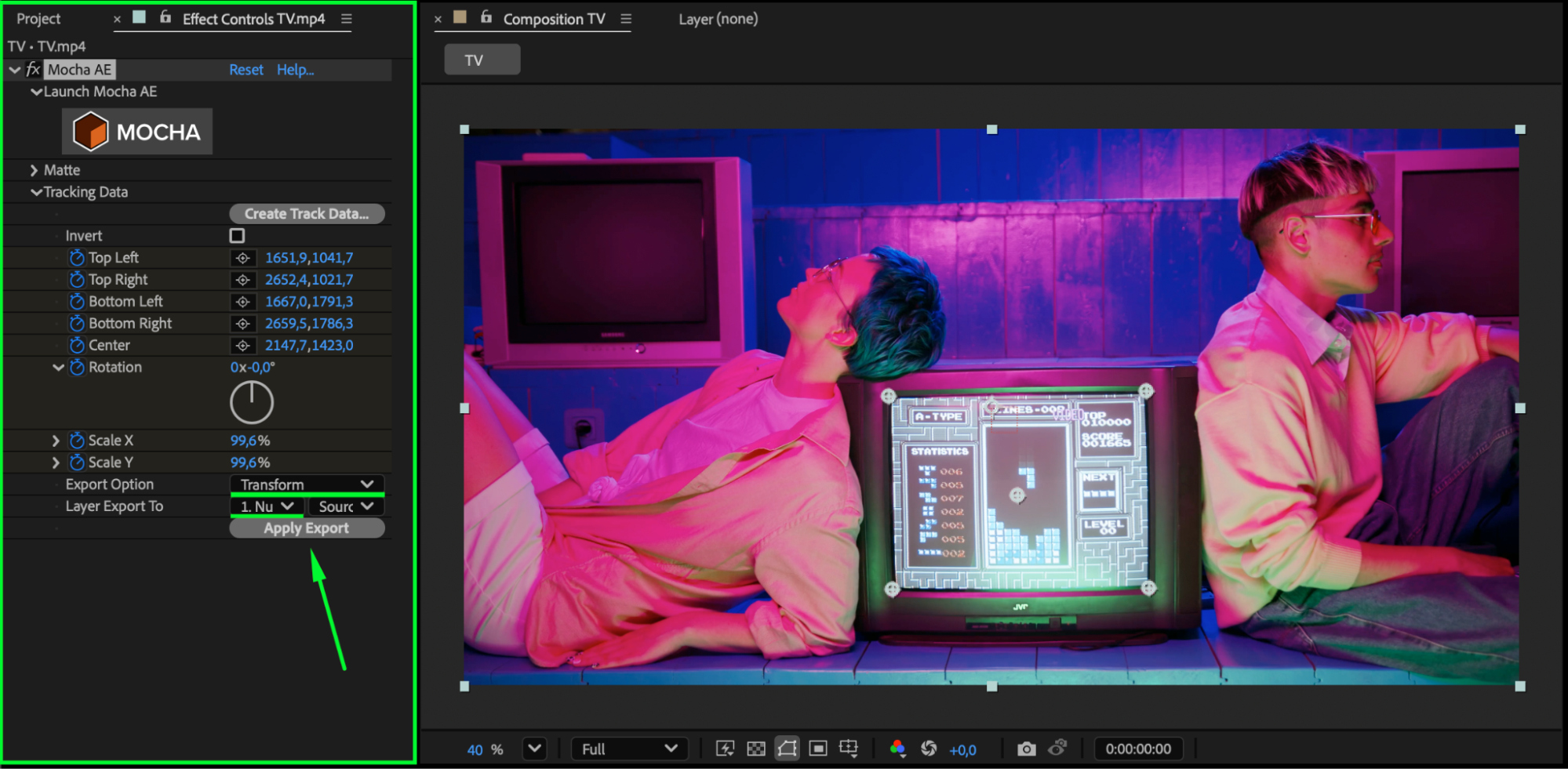
Set Export Option to Transform
Set Layer Export To as Null Object
Click Apply Export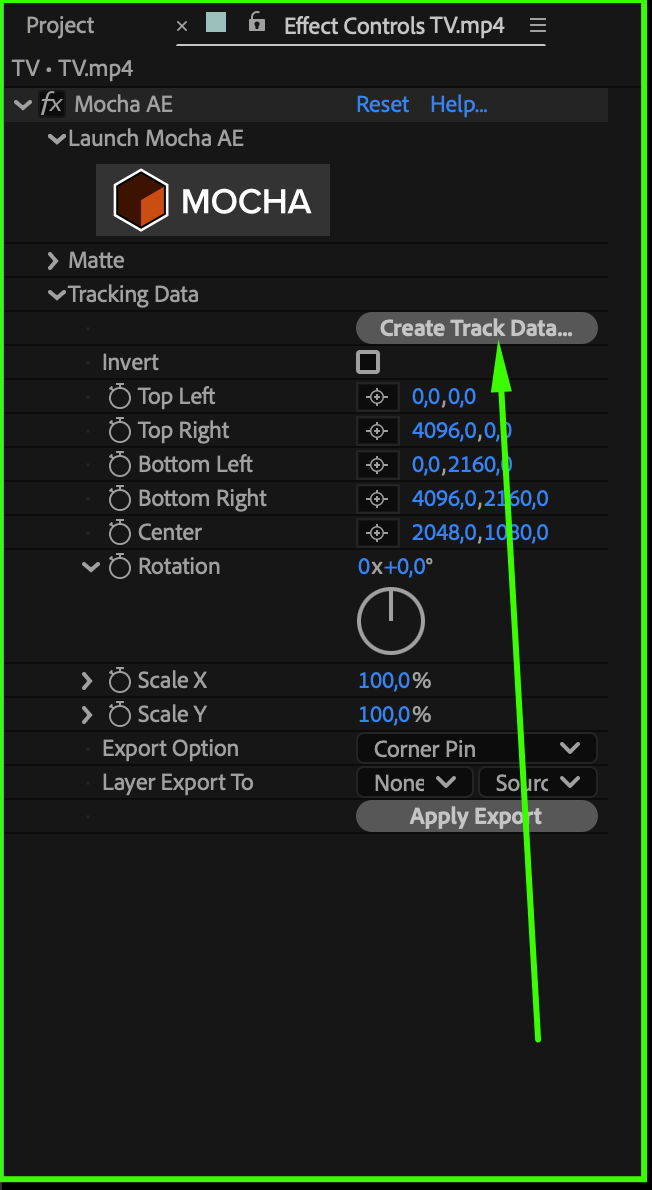
 Step 8: Import the Screen Footage
Drag the video you want to display inside the TV onto the timeline.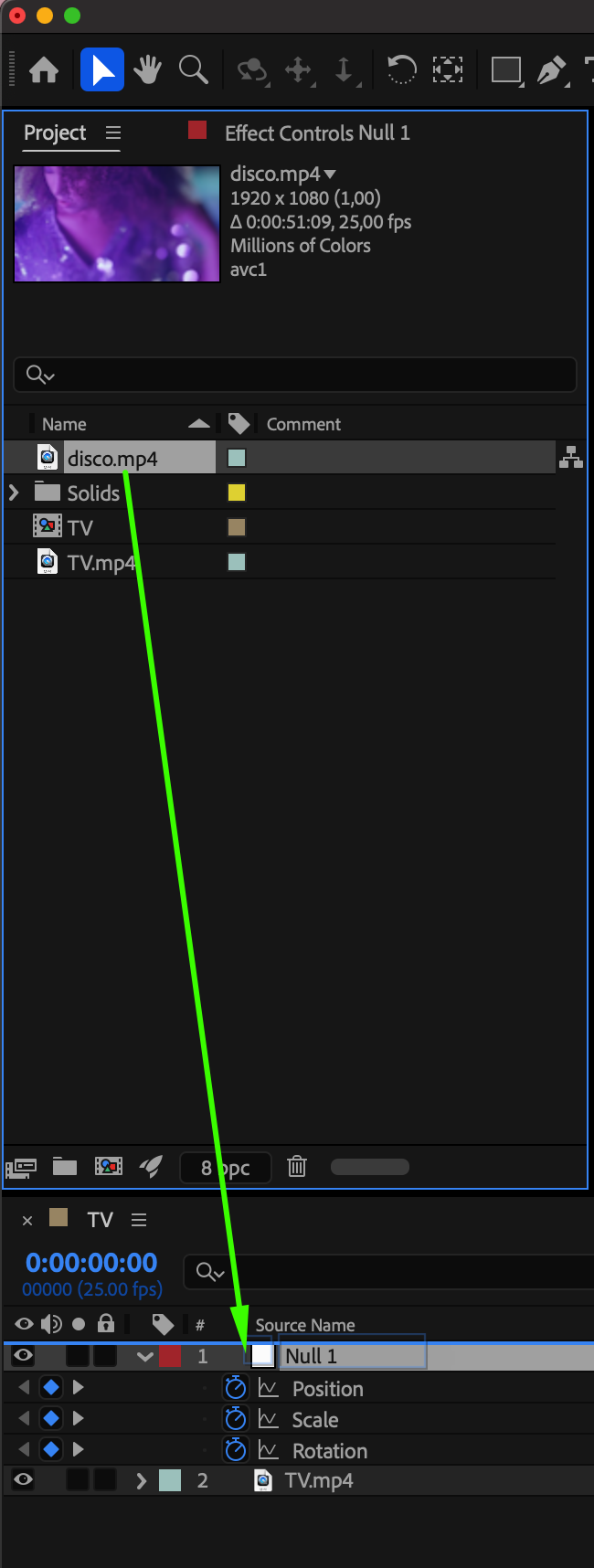 Step 9: Pre-compose the Screen Footage
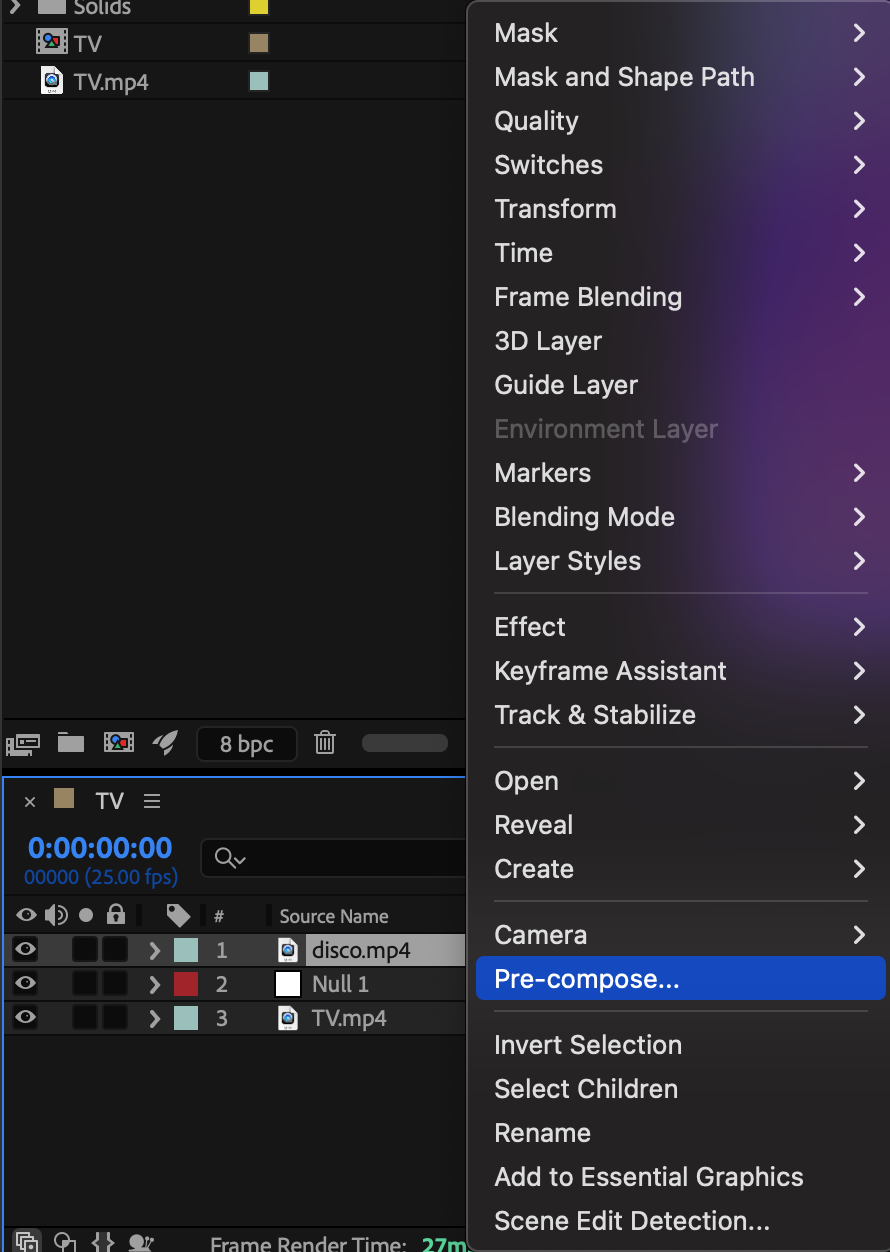
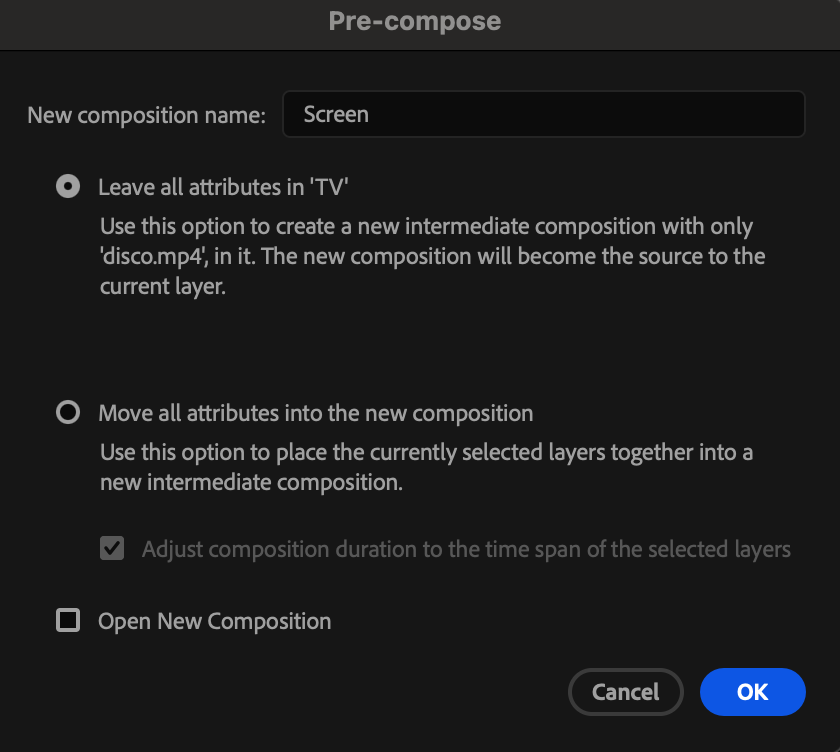
Select the inserted footage, right-click, and choose Pre-compose. Name it Screen.
 Step 10: Create a Matte Layer
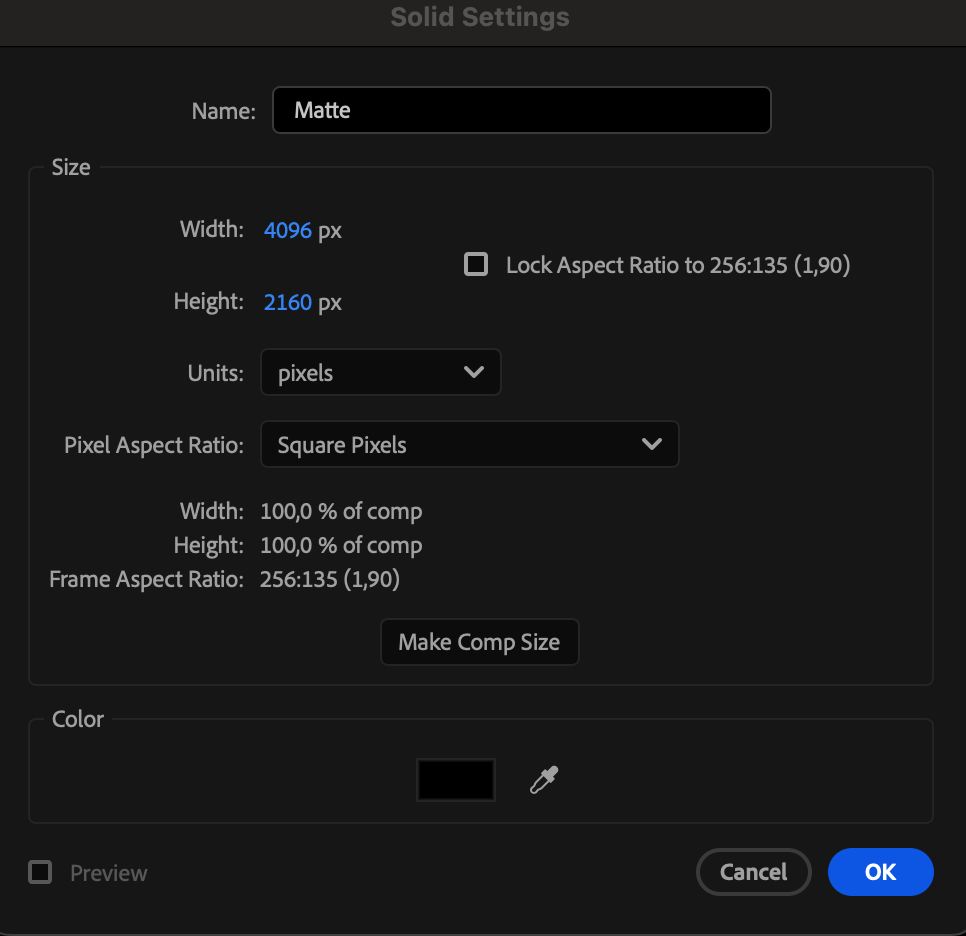
Go to Layer > New > Solid, choose Black, and name it Matte.
 Step 11: Hide Layers and Parent to Null
Turn off visibility (eye icon) for both Matte and Screen layers. Parent the Matte layer to the Null Object.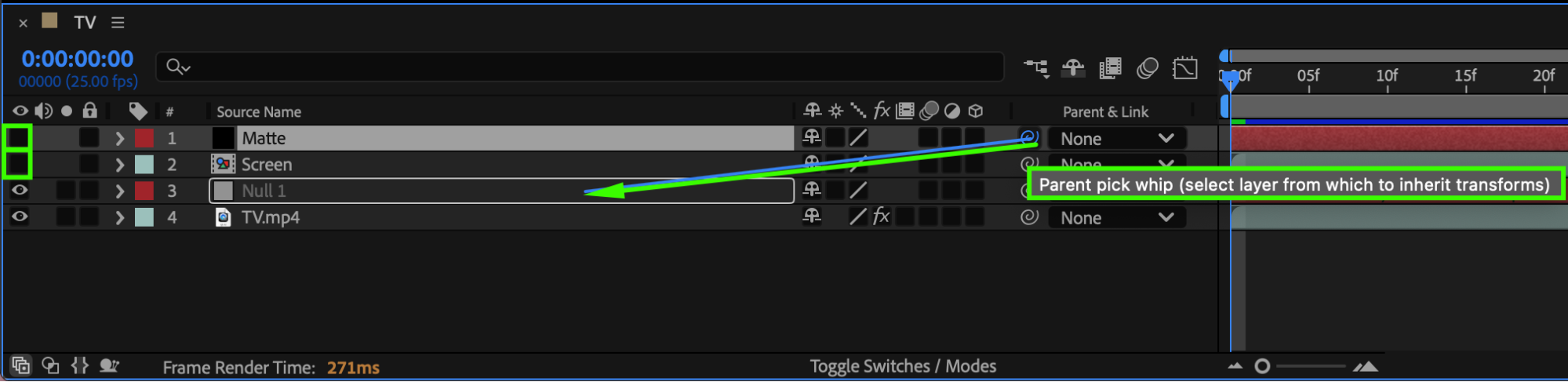 Step 12: Create the Screen Mask
Select the Matte layer. Using the Pen Tool (G), draw a mask matching the TV screen shape.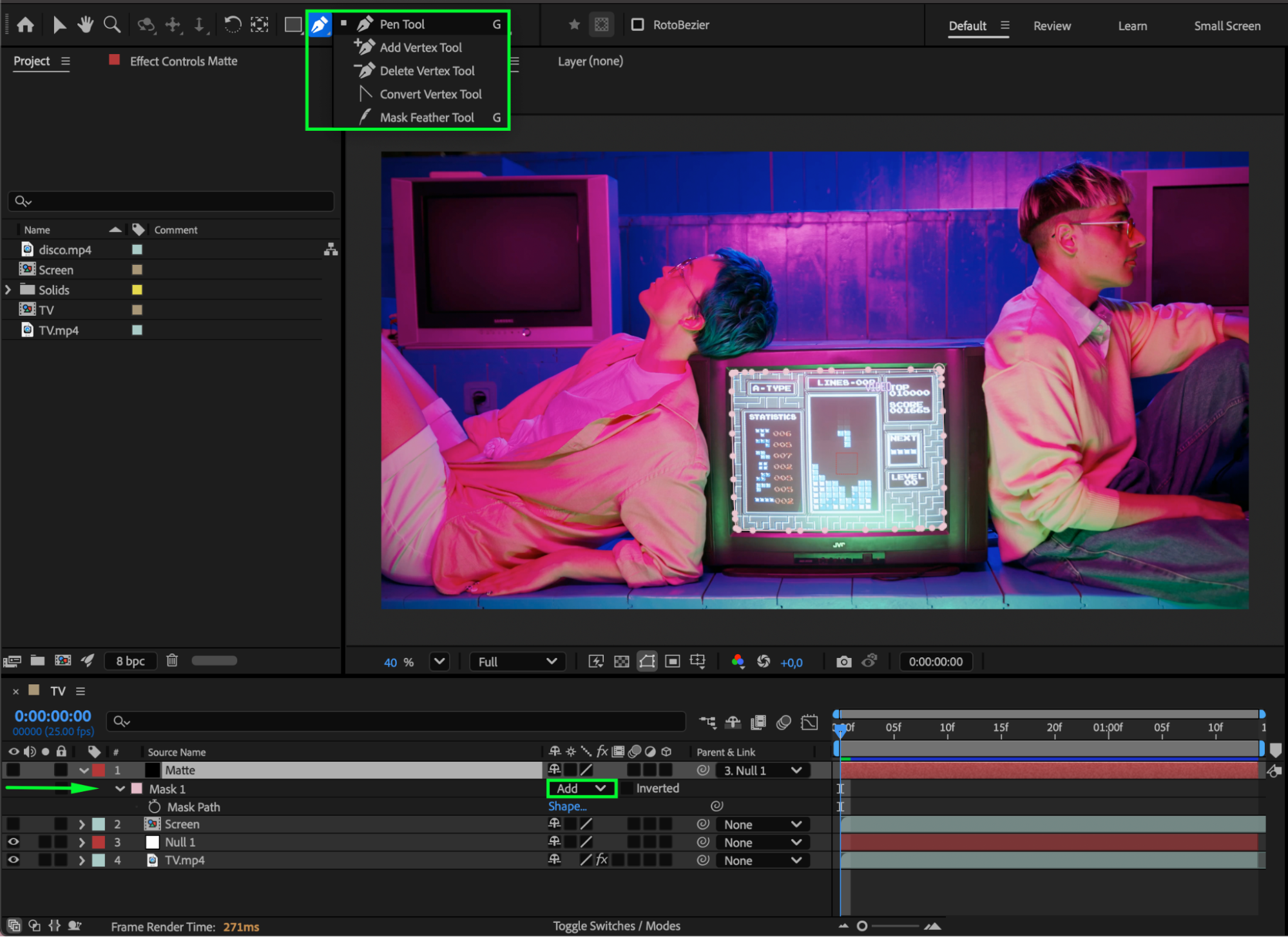
Step 13: Refine the Matte
Make the Matte layer visible. Set Mask Feather to 3 for softer edges.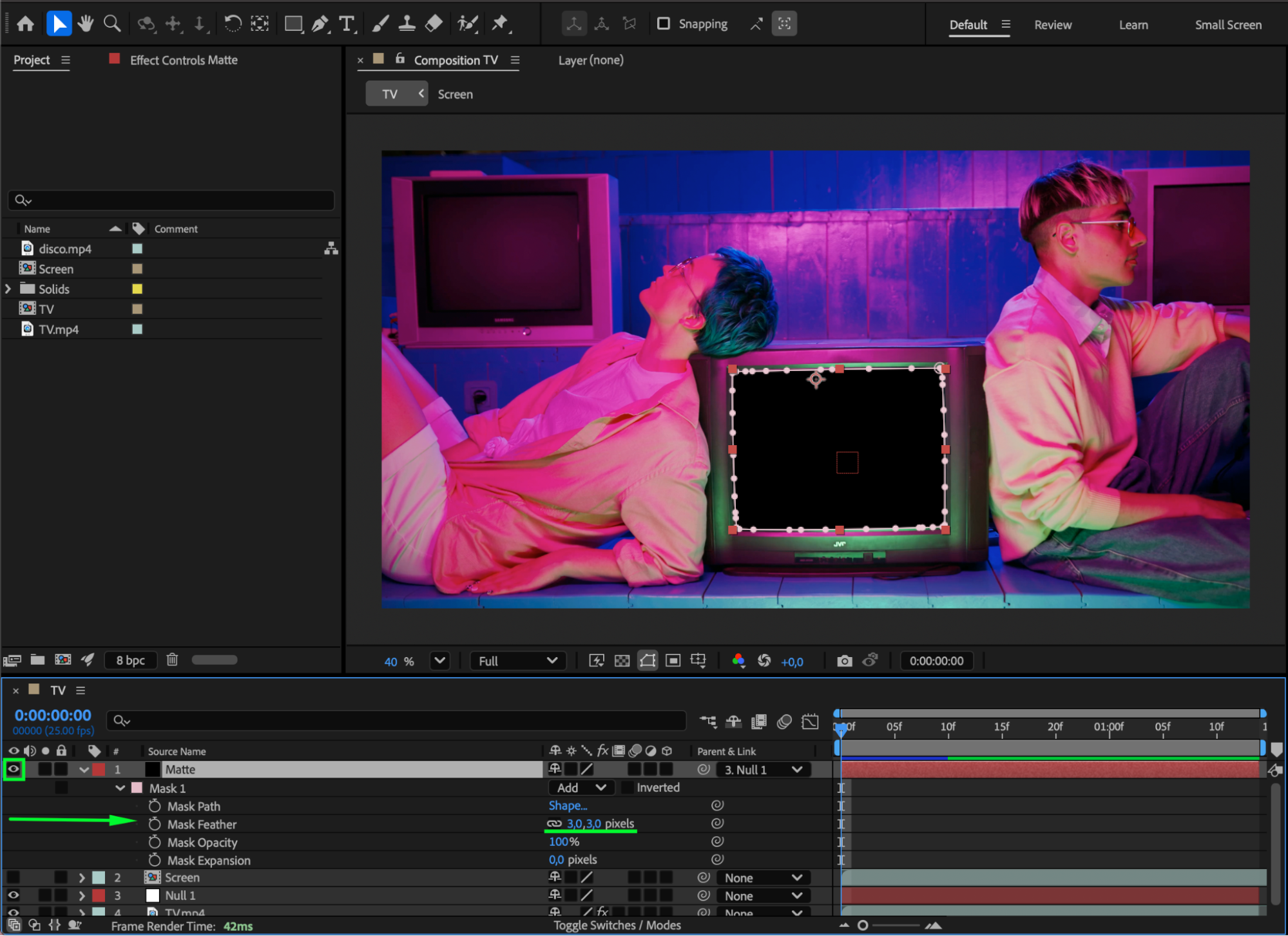 Step 14: Apply Track Matte
Set the Screen layer’s Track Matte to reference the Matte layer using the Pick Whip.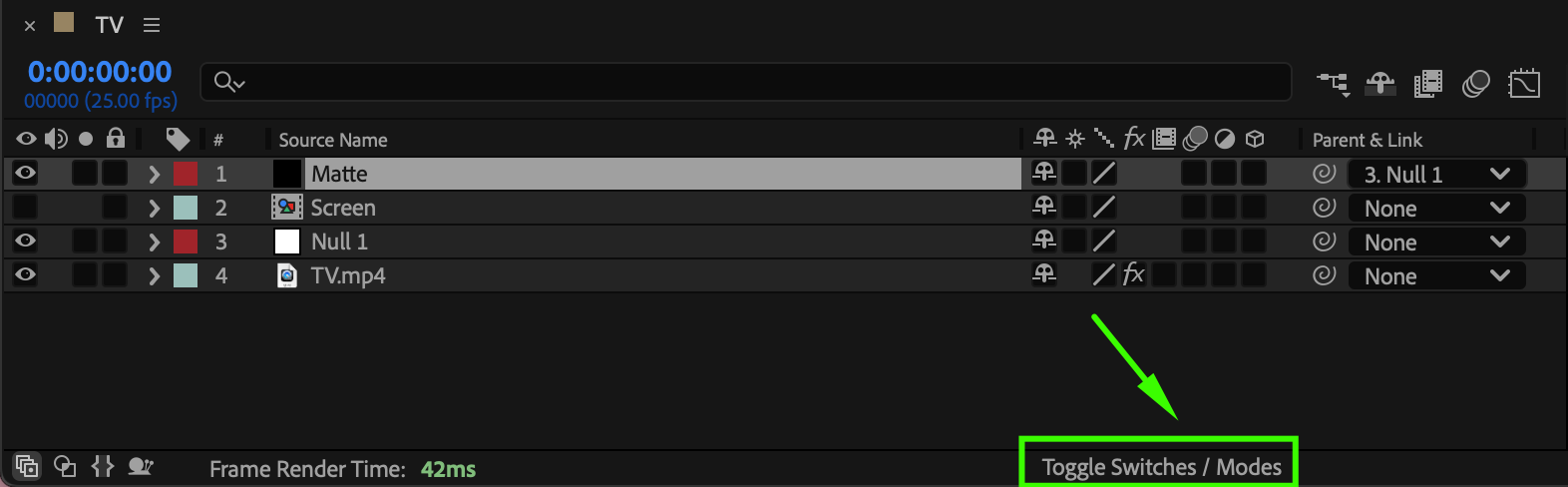
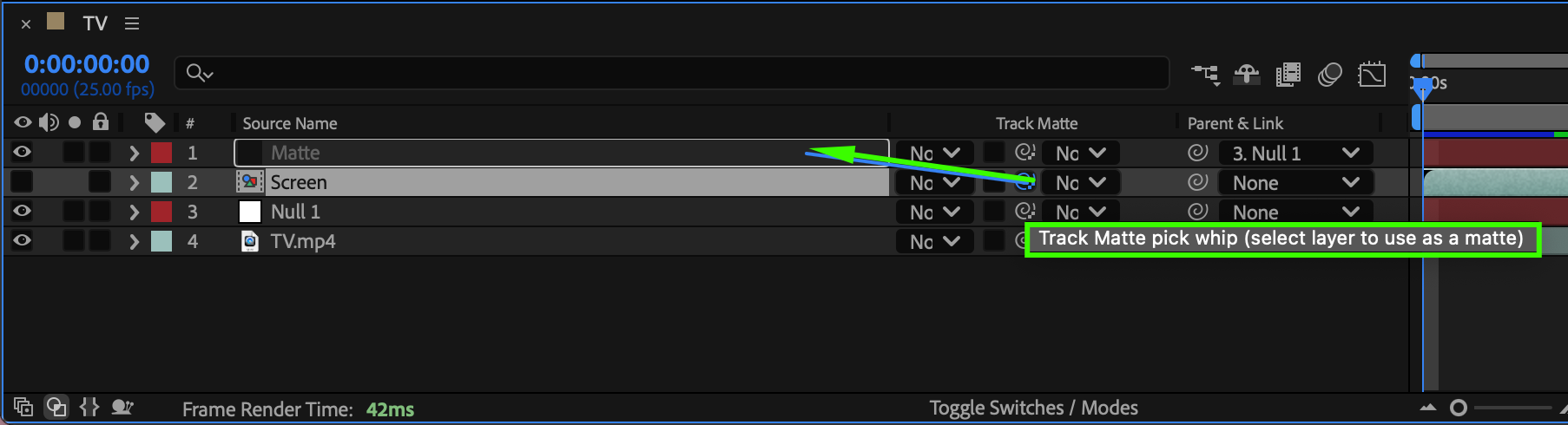 Step 15: Adjust Screen Position
Make the Screen layer visible. Adjust its Position and Scale so it fits naturally inside the TV.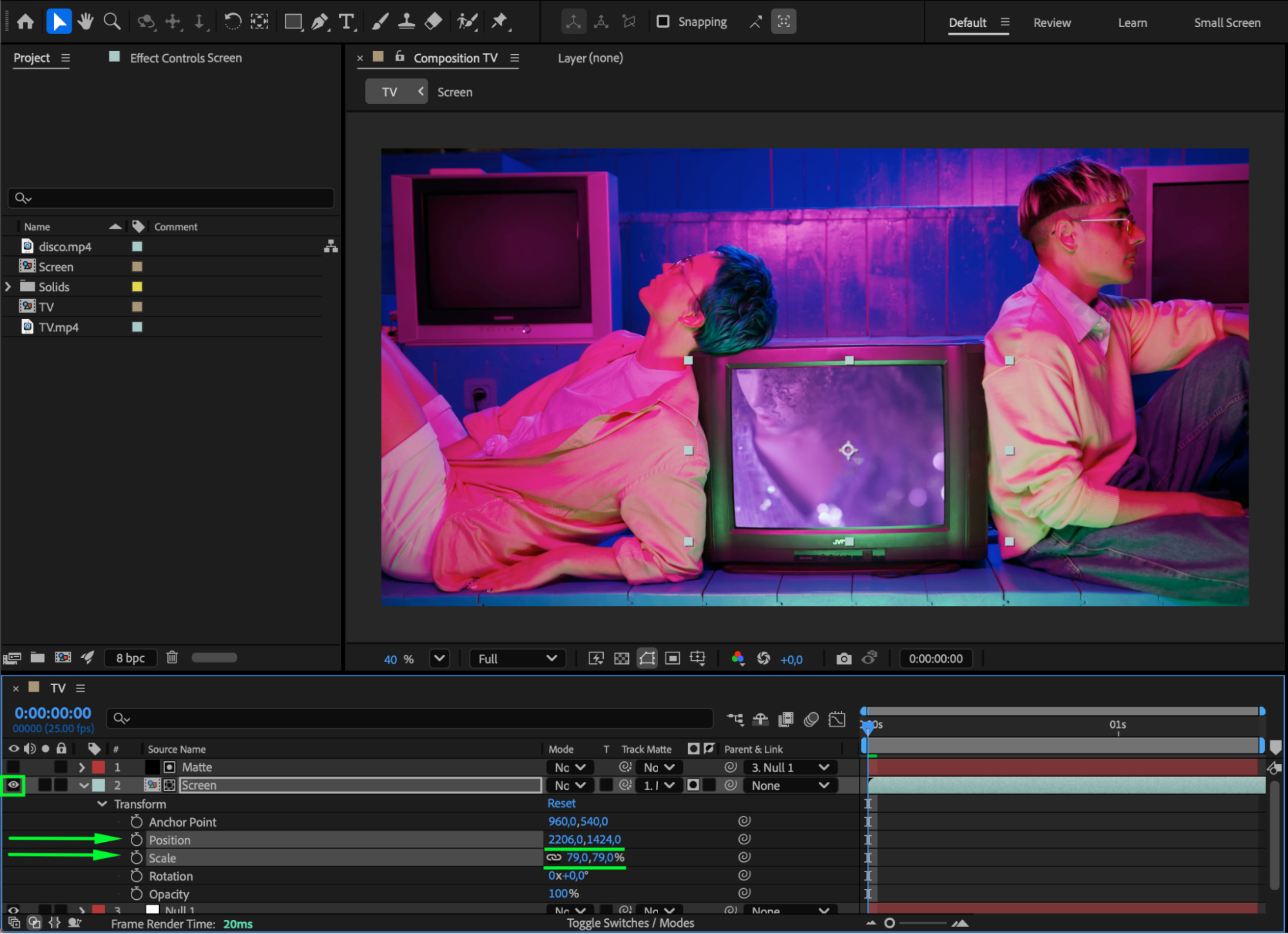 Step 16: Parent Screen to Null
Parent the Screen layer to the Null Object to inherit the tracking motion.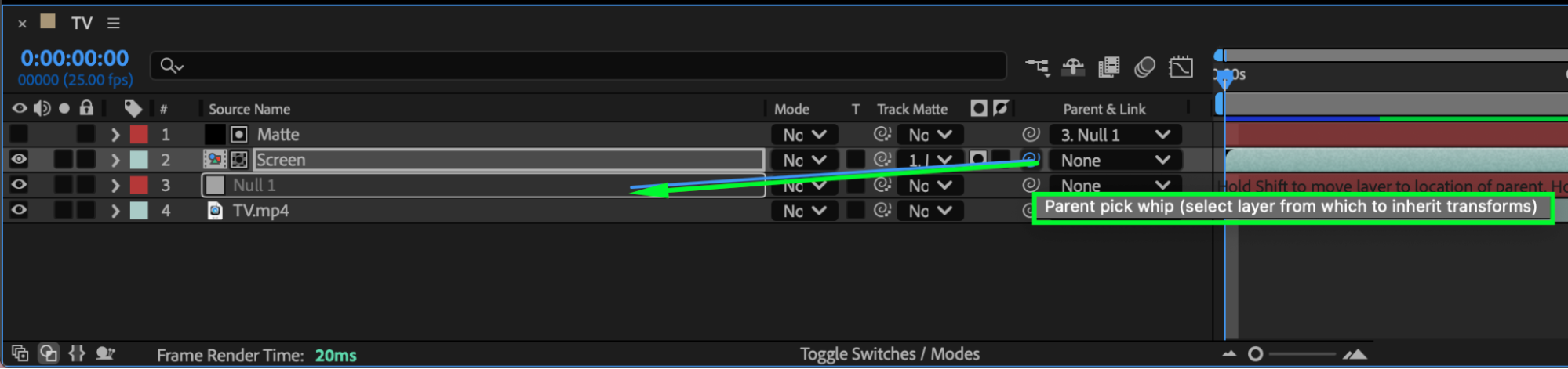
Step 17: Preview the Result
Preview the animation and fine-tune scaling, feathering, or positioning if necessary.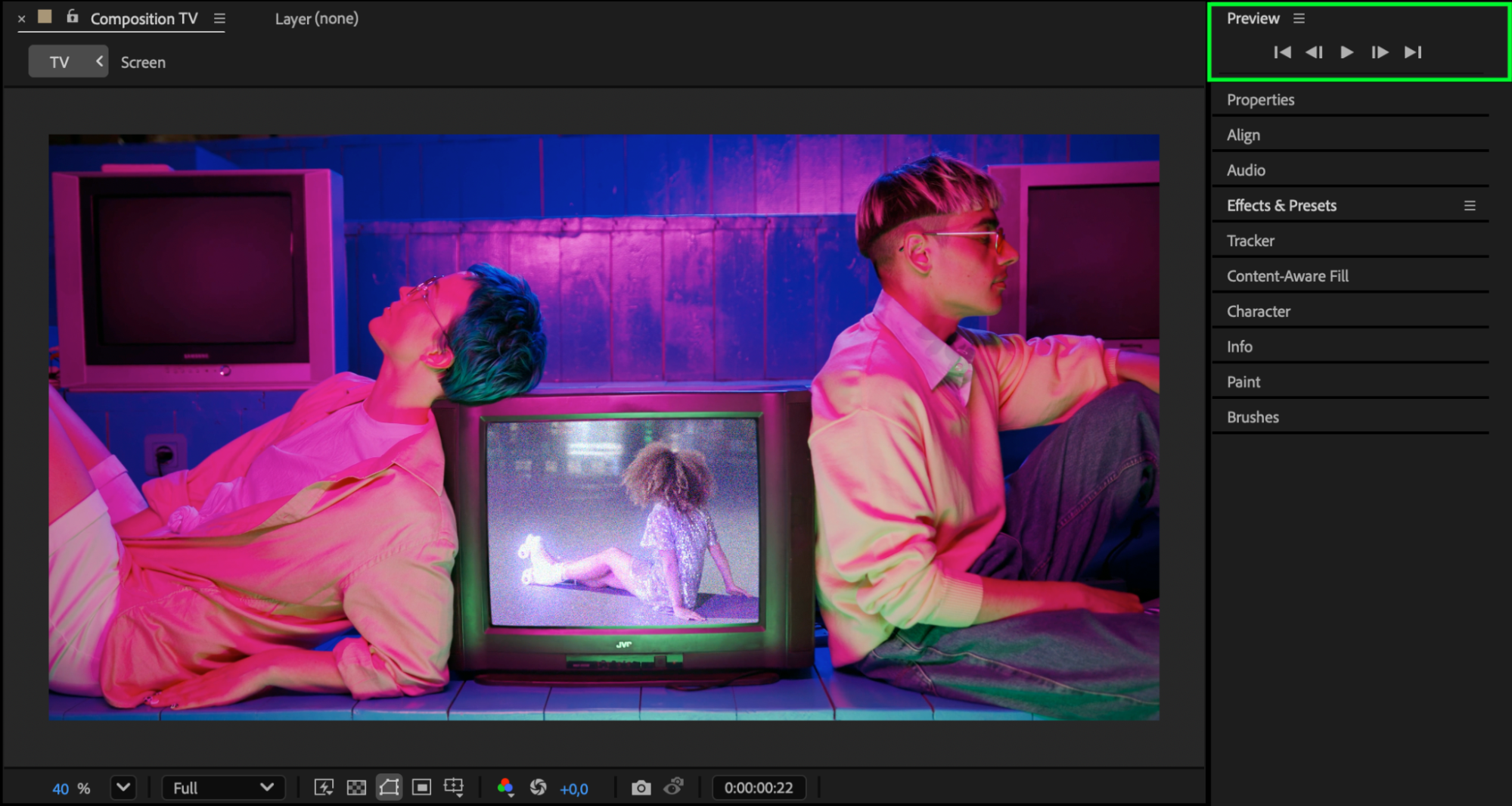
Conclusion
By combining Mocha AE tracking, null objects, and track mattes, you can seamlessly insert footage into a moving TV screen. This technique is perfect for creating authentic retro 80s TV effects, music videos, and cinematic motion graphics in After Effects.
Our Bestsellers
Our Bestsellers


