
Create an Electric Effect Using Saber in After Effects
Introduction to Electricity Effects with Saber
Electricity effects can add high-energy visuals to any composition — whether it’s a logo, text, or object in a video. In this guide, you’ll learn how to use the free Saber plugin by Video Copilot to create animated electric outlines and glows around elements in your After Effects project.
Step 1: Download and Install the Saber Plugin
Start by visiting the Video Copilot website and downloading the free Saber plugin. Follow the installation instructions for your system (Mac or Windows). After the installation is complete, restart After Effects so that Saber appears in your Effects & Presets panel.
Step 2: Import Your Media
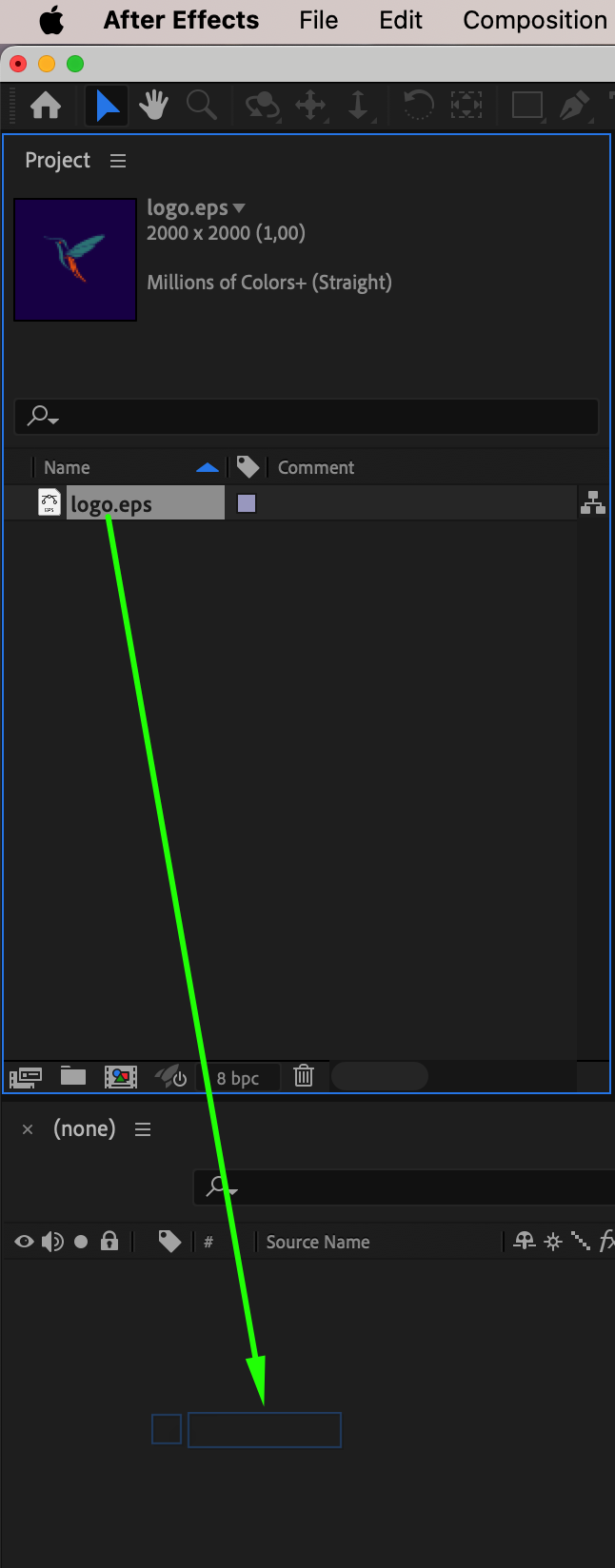
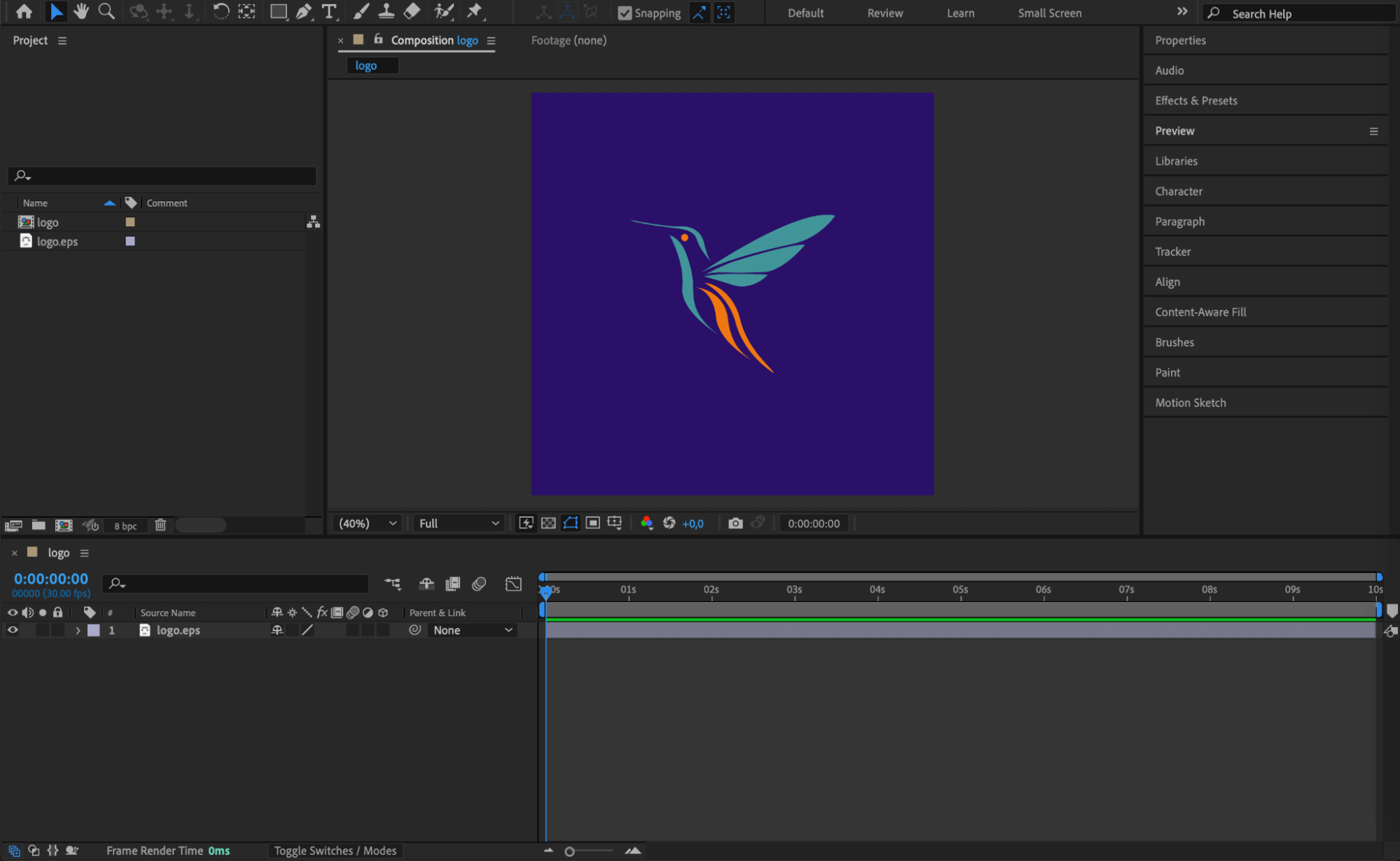
Go to File > Import > File, and select the video, photo, or logo you want to use. Drag your media into the timeline to create a new composition or place it into an existing one.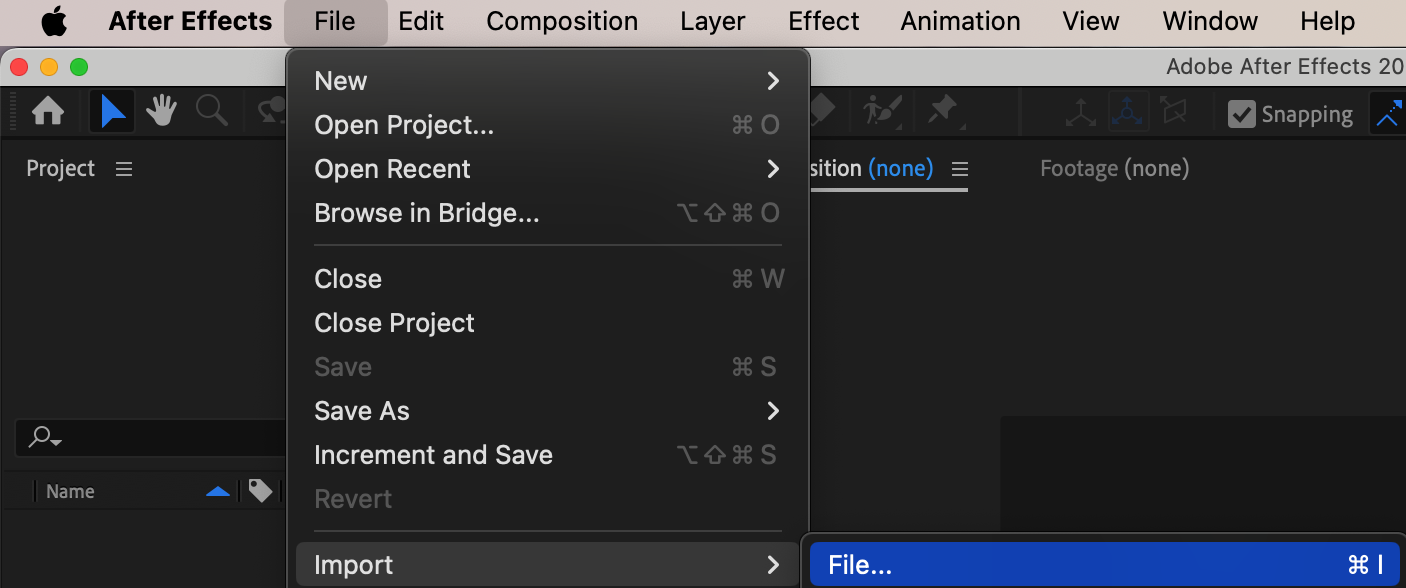
Step 3: Create a Solid Layer
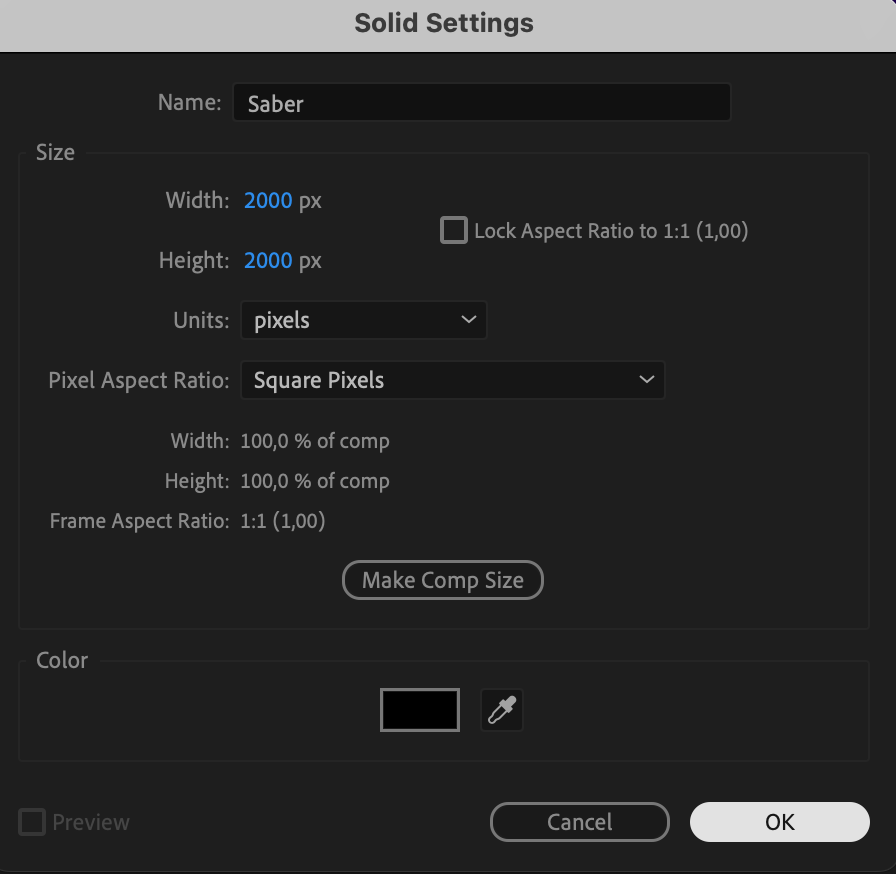
Go to Layer > New > Solid, choose black as the color, and name the layer “Saber.” Click OK. This solid layer will hold the Saber effect and sit above or below your media, depending on the design.
 Step 4: Draw a Mask Around the Object
Select the Saber solid layer and use the Pen Tool (G) to draw a mask around the object or logo you want to add electricity to. Make sure the mask follows the shape of the object closely. You can adjust the mask path at any time.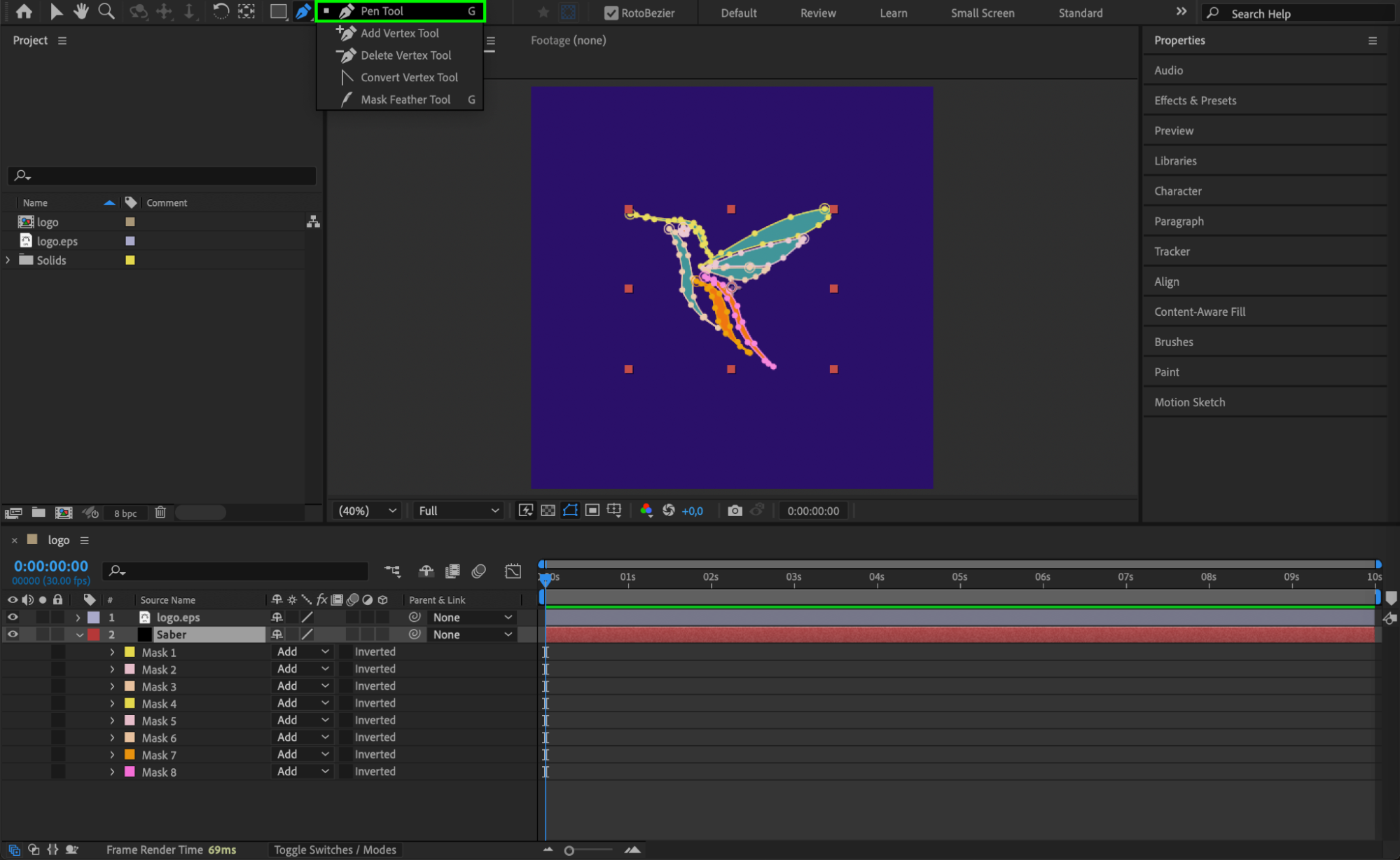 Step 5: Apply and Customize the Saber Effect
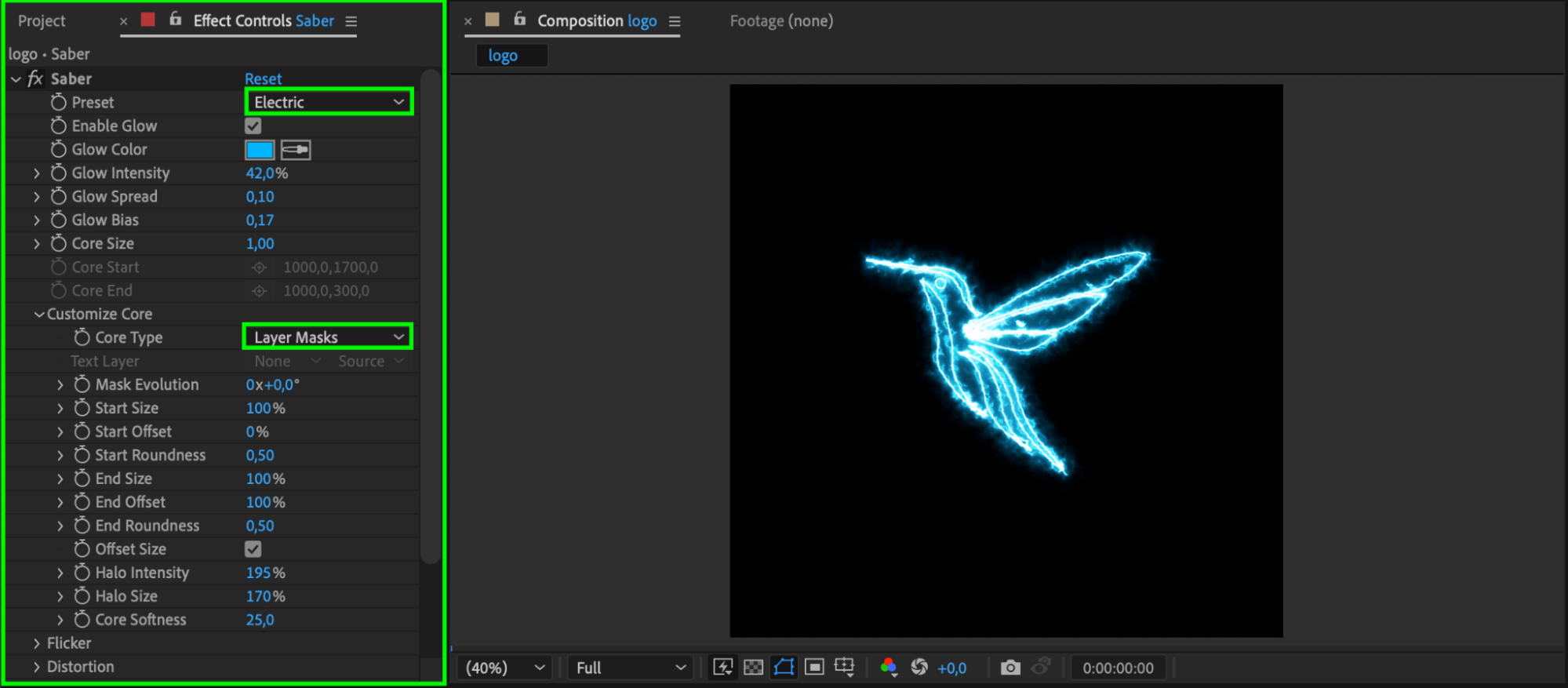
With the solid layer still selected, go to the Effects & Presets panel, search for Saber, and drag it onto the layer. In the Effect Controls panel, set Core Type to Layer Masks. Then choose a preset such as Electric to generate the animated electricity effect. You can tweak settings like Glow Intensity, Core Size, and Flicker to personalize the appearance.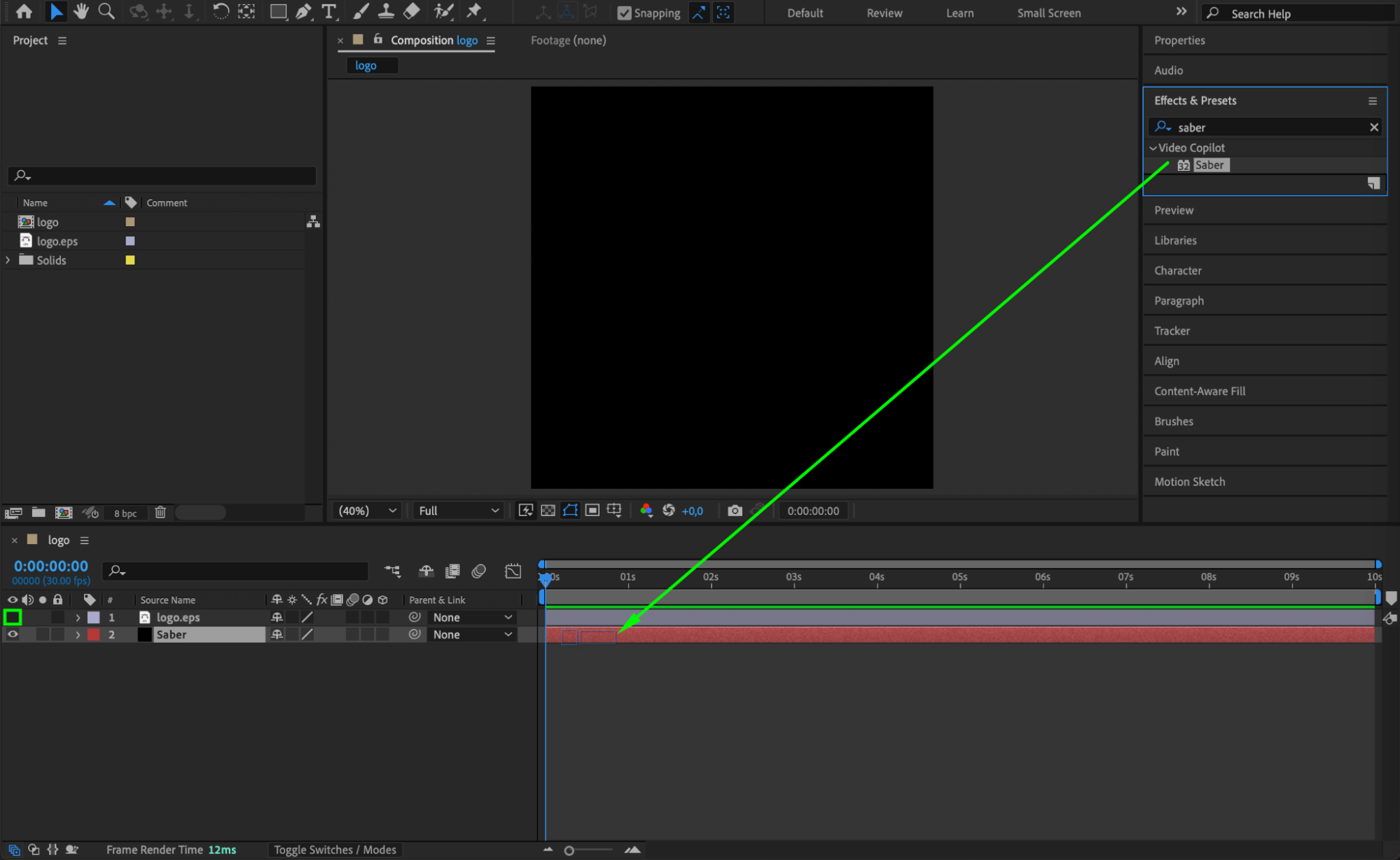
 Step 6: Preview the Effect
Press the Spacebar to preview your composition. The Saber effect will animate along the mask path, creating a dynamic electric glow. Make any needed adjustments to the mask or effect settings for better results.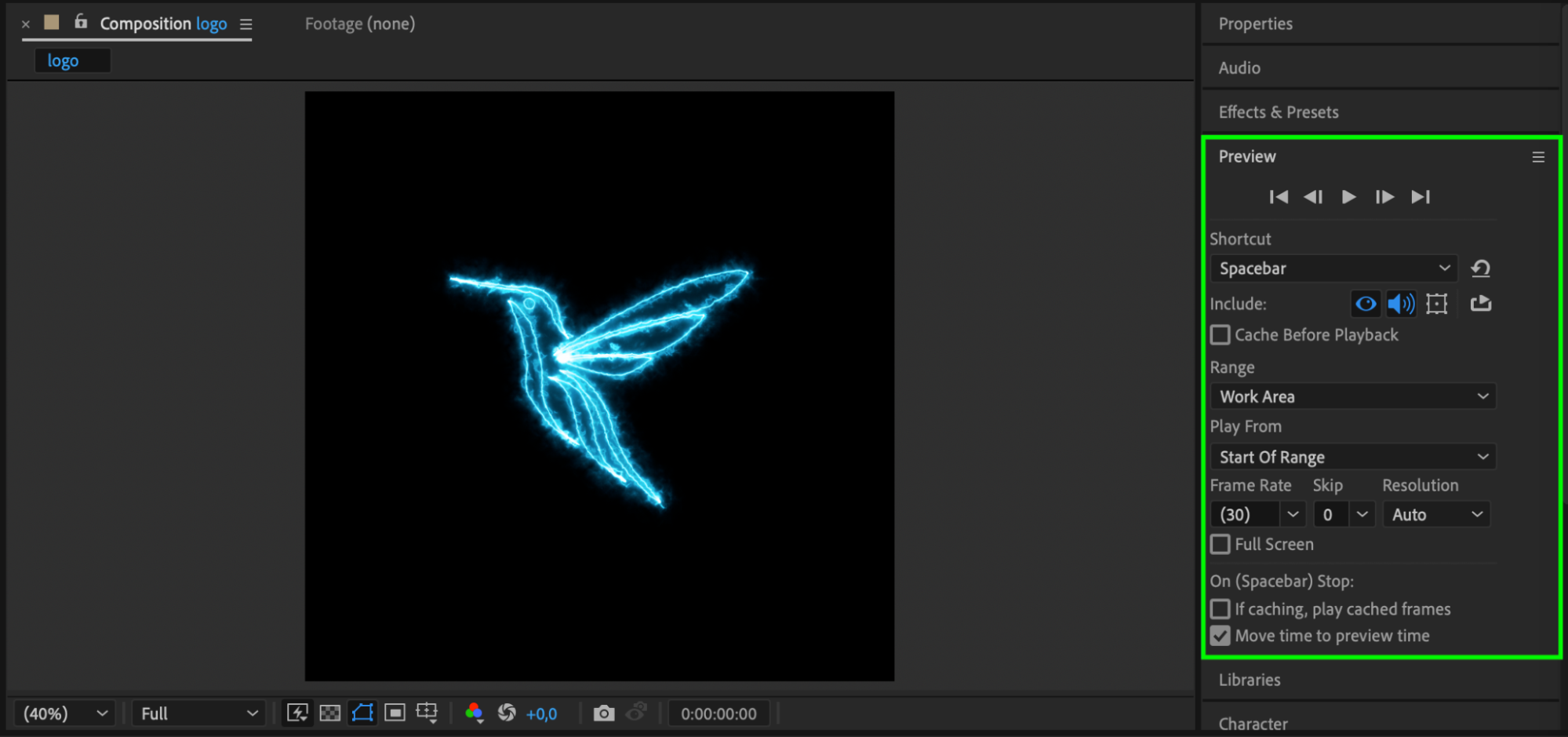 Step 7: Export Your Final Video
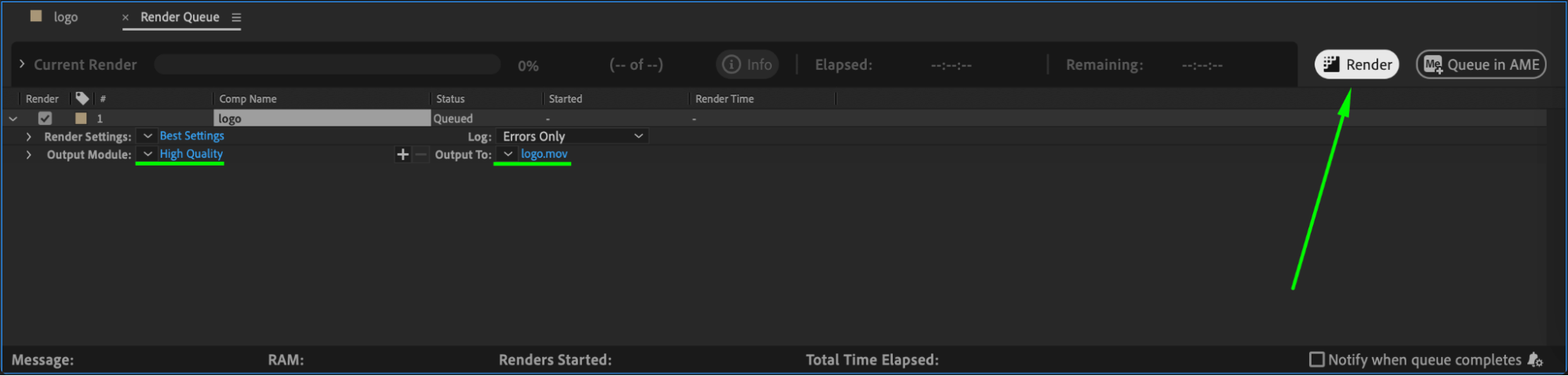
When you’re happy with the look, go to Composition > Add to Render Queue or use Adobe Media Encoder to export your animation. Choose the output format, resolution, and destination folder, then render the final video.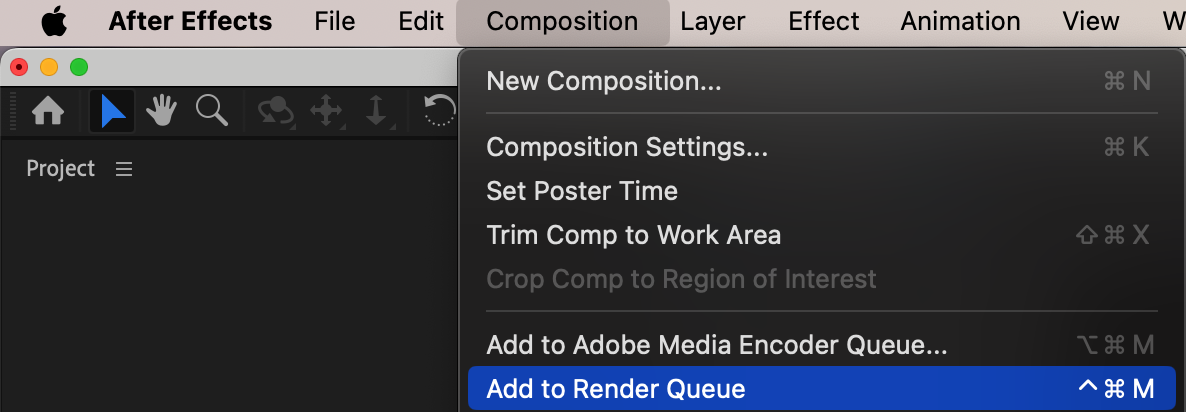
 Conclusion
Creating electricity effects in After Effects with the Saber plugin is quick, powerful, and flexible. Whether you’re electrifying a logo or enhancing an object in a scene, Saber gives you the tools to produce cinematic energy in minutes. Experiment with different presets and customize settings to match your unique style.
Our Bestsellers
Our Bestsellers


