
Introduction
In this tutorial, you’ll learn how to create a stylized ice text effect in After Effects. We’ll use noise textures, rough edges, glow, and displacement effects to simulate frozen, crystalline text.
Step 1: Create a New Composition
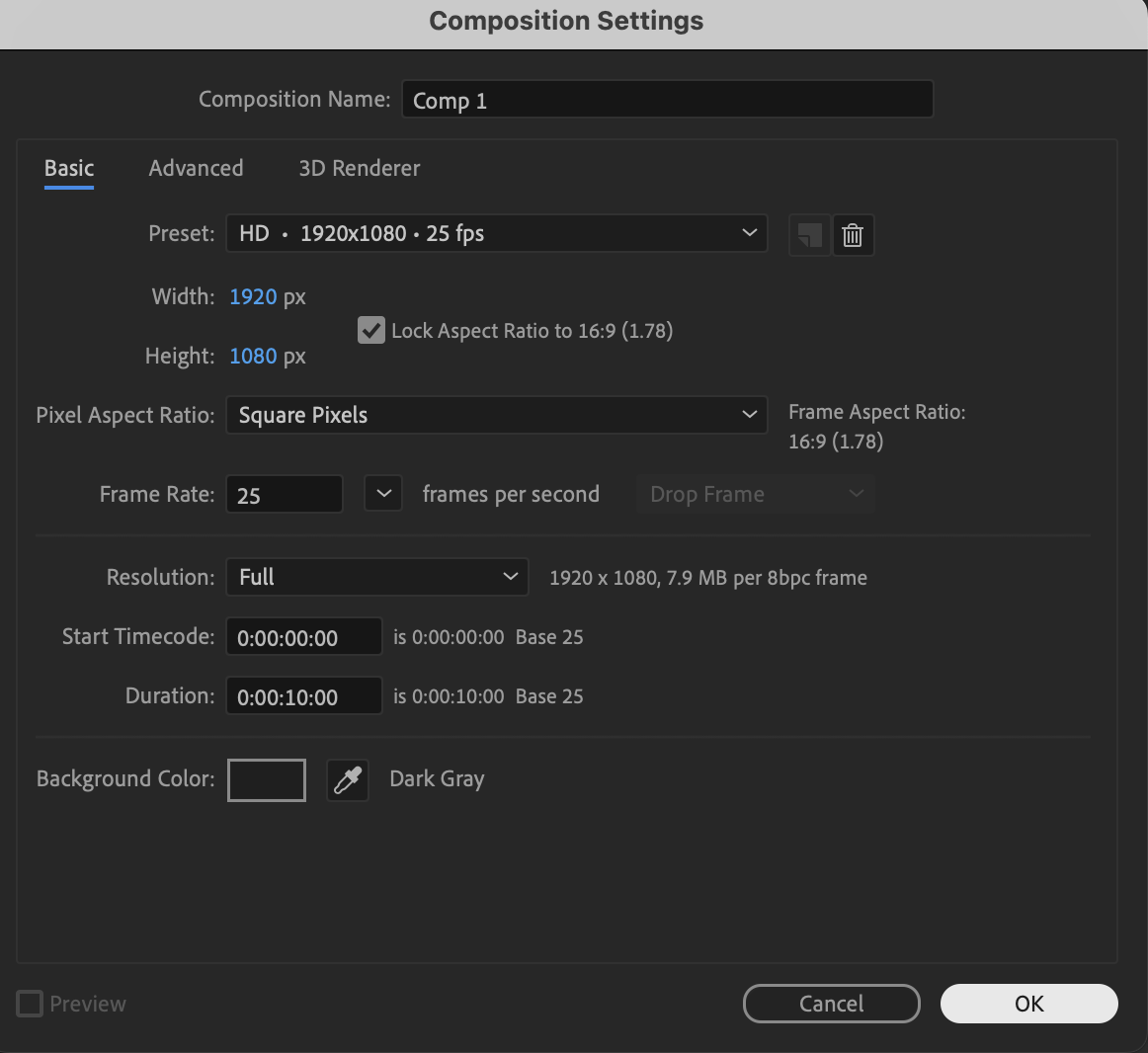
Create a new composition with your desired resolution and duration.
 Step 2: Create the Ice Texture Solid
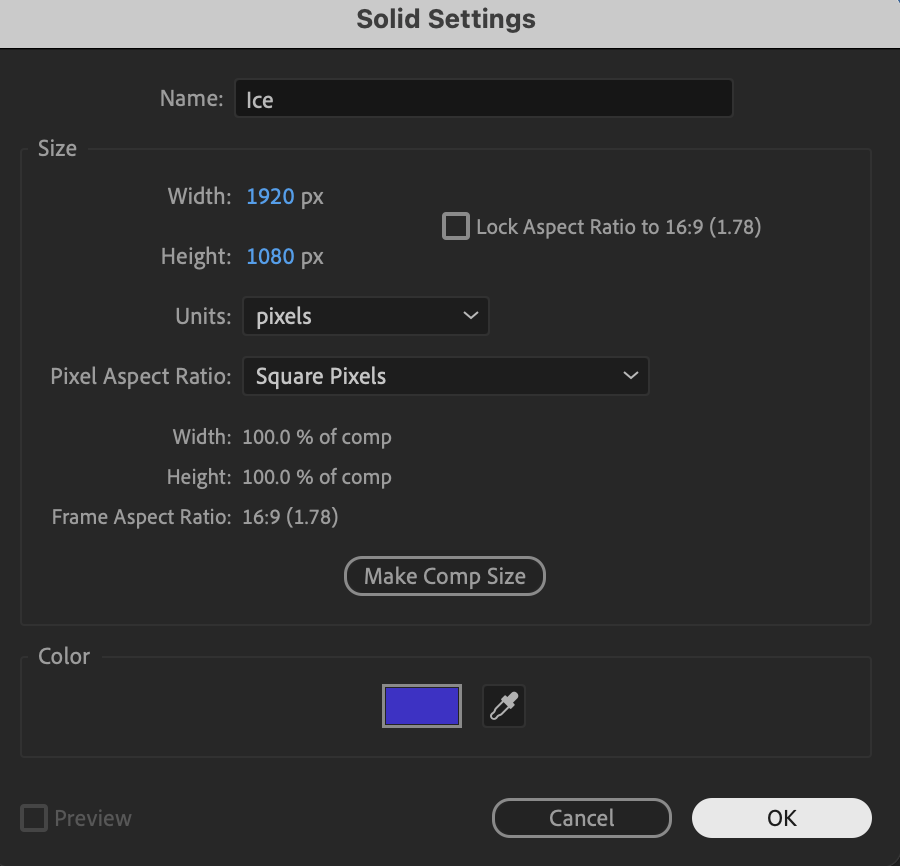
Go to Layer → New → Solid. Name the solid Ice and click OK.
 Step 3: Apply Turbulent Noise
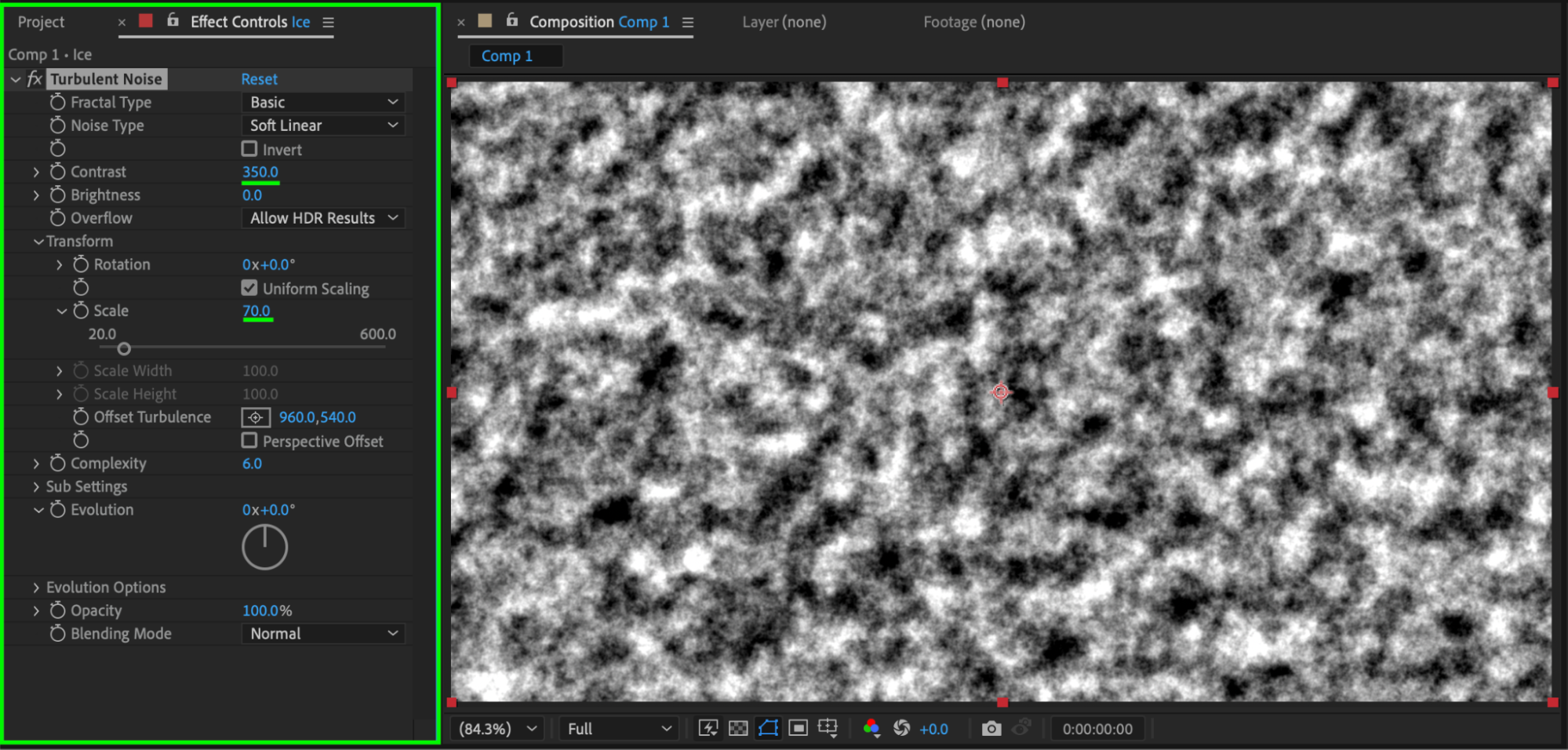
Apply Turbulent Noise from the Effects & Presets panel to the Ice solid. Set:
Contrast: 350
Scale: 70
This will form the base ice texture.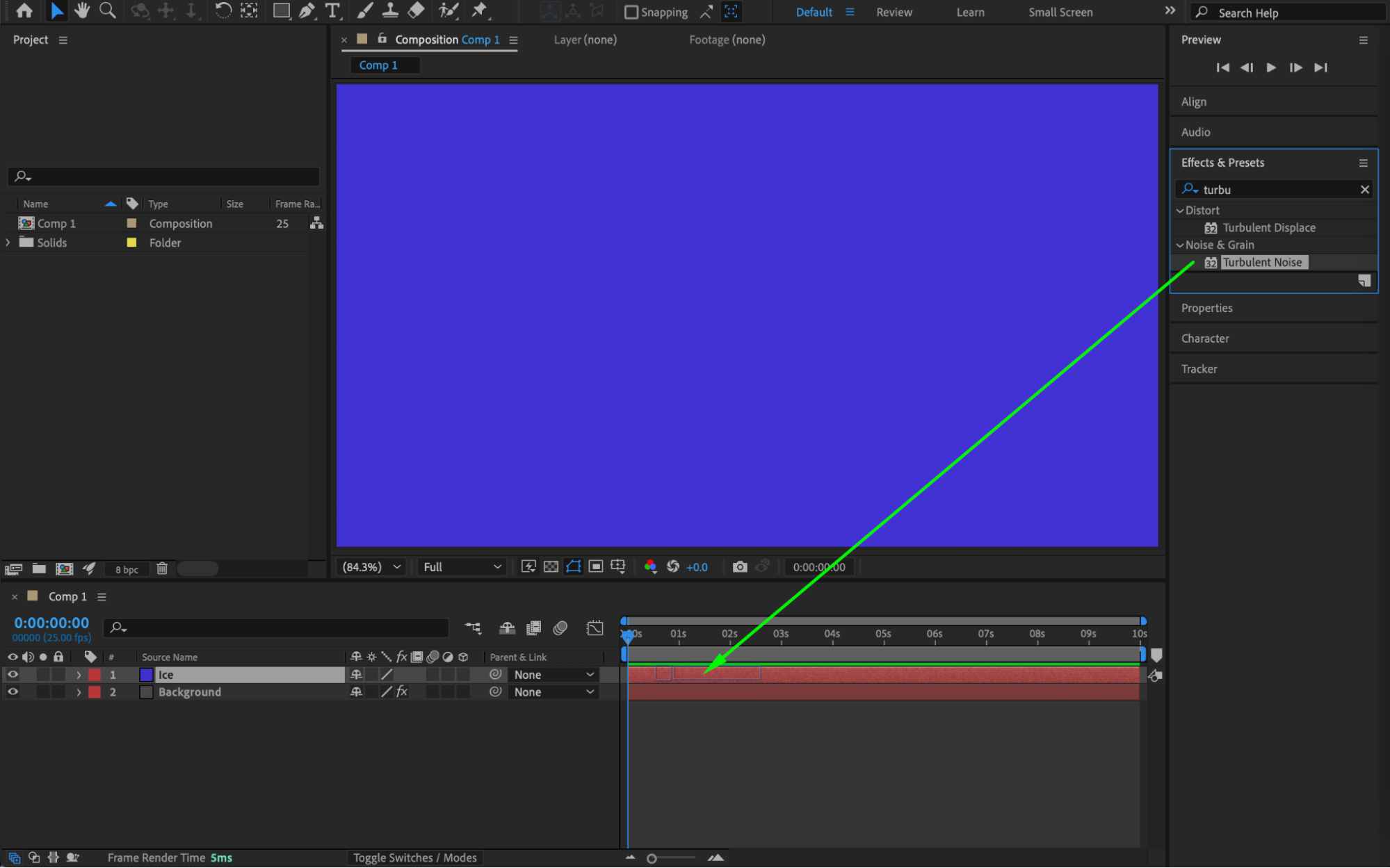
 Step 4: Create the Text
Use the Type Tool (Ctrl / Cmd + T) to create your text. Adjust font and size as needed.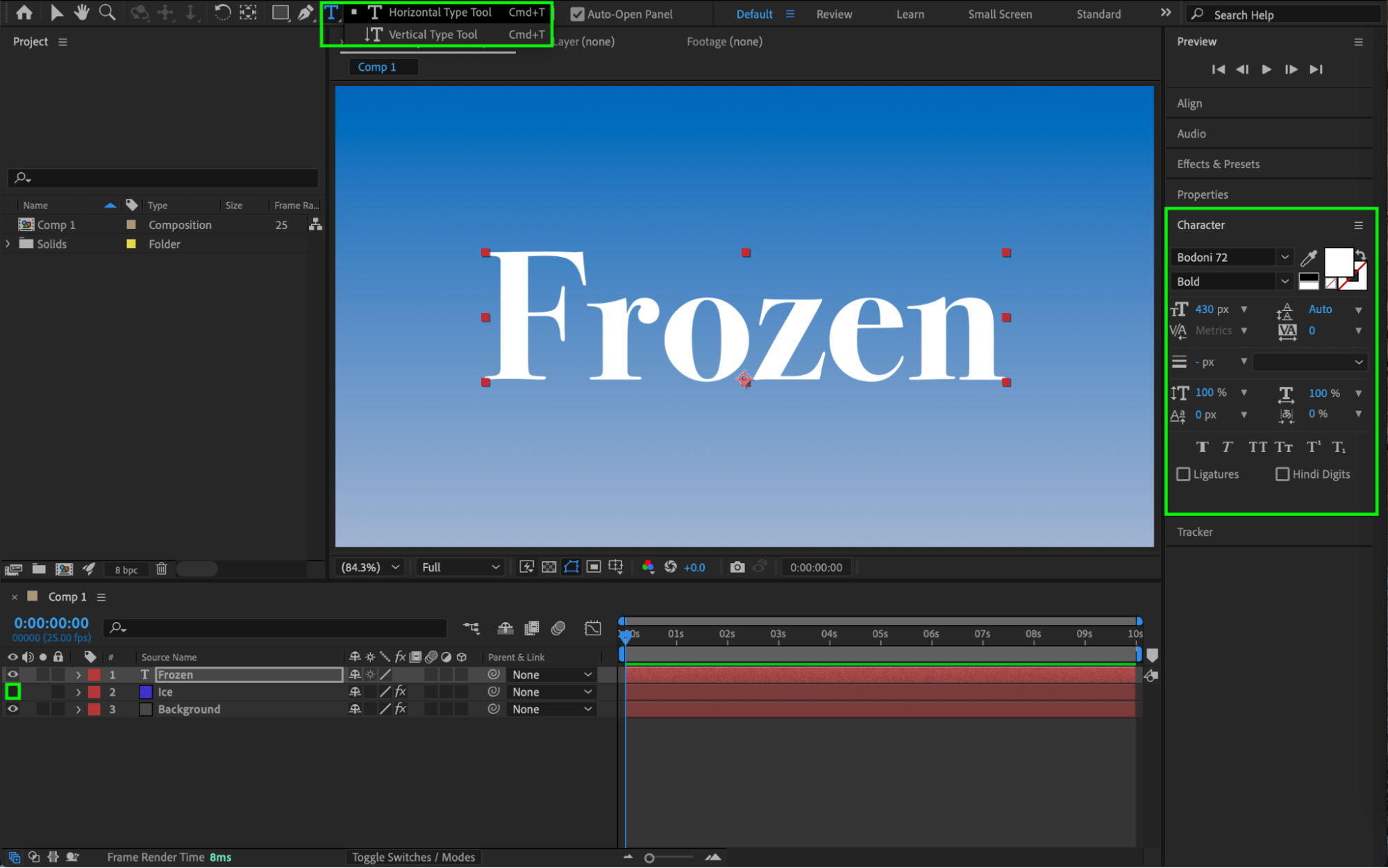
Step 5: Pre-compose the Text
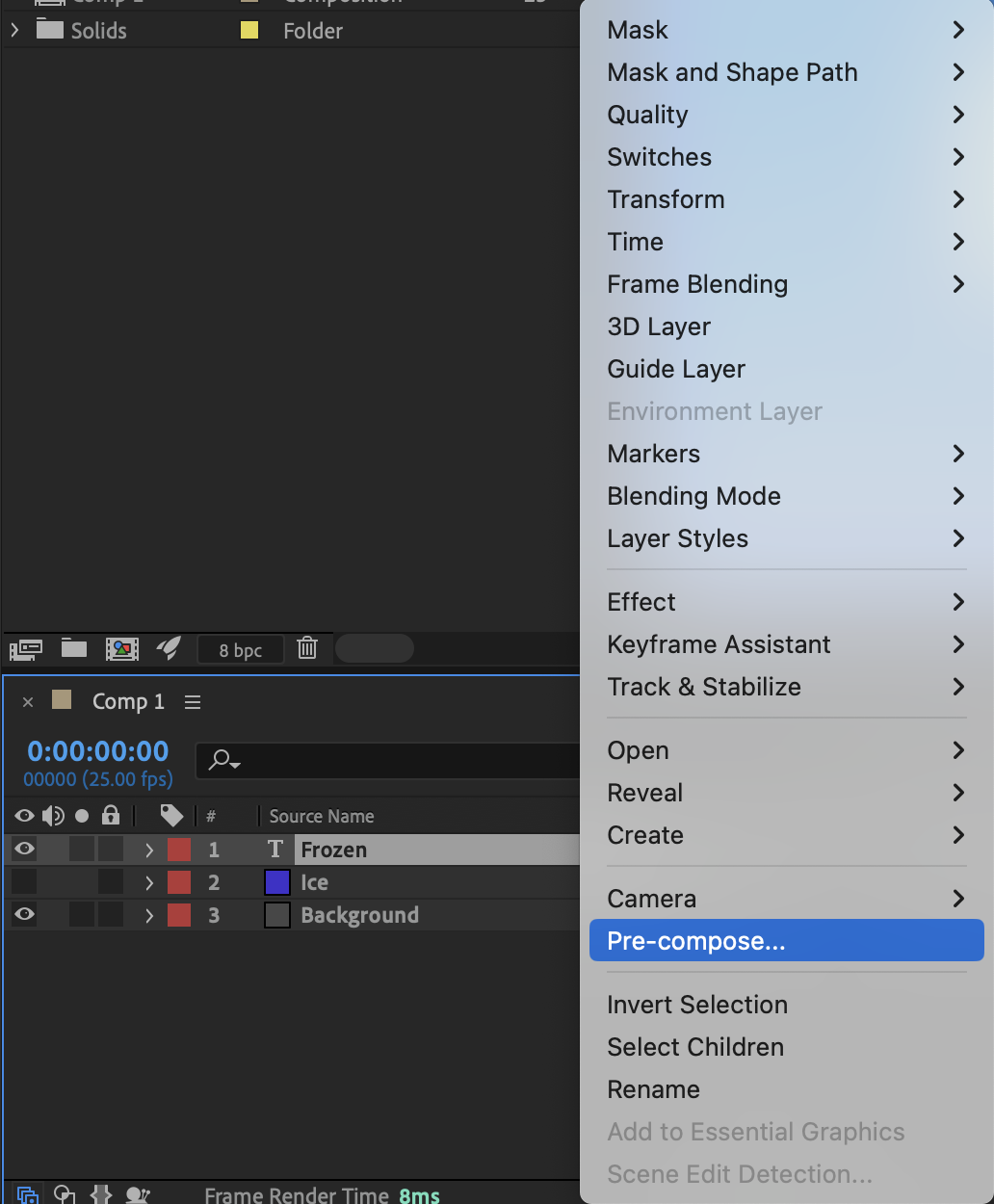
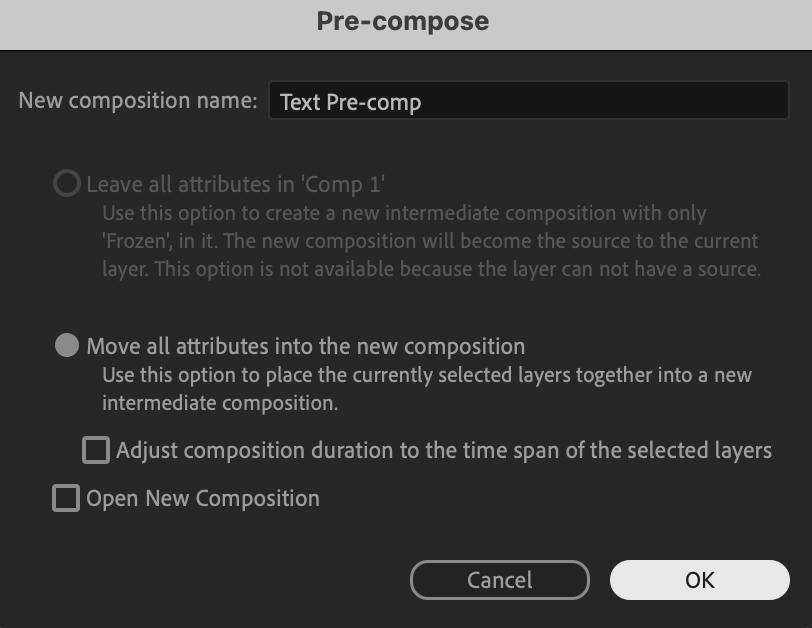
Select the text layer. Right-click and choose Pre-compose. Move all attributes into the new composition and confirm.
 Step 6: Add Roughen Edges to the Text
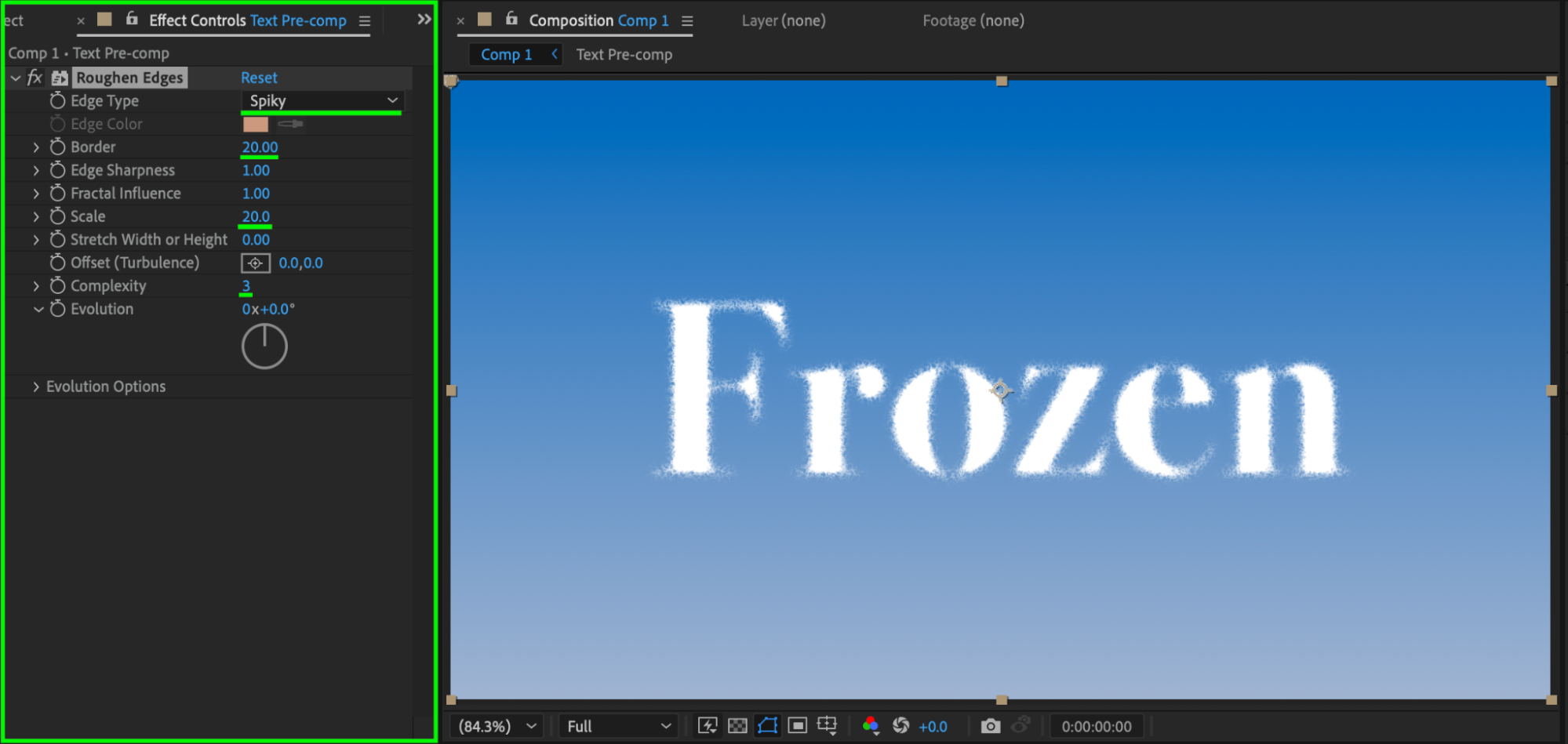
Apply the Roughen Edges effect to the text pre-comp. Set:
Edge Type: Spiky
Border: 20
Scale: 20
Complexity: 3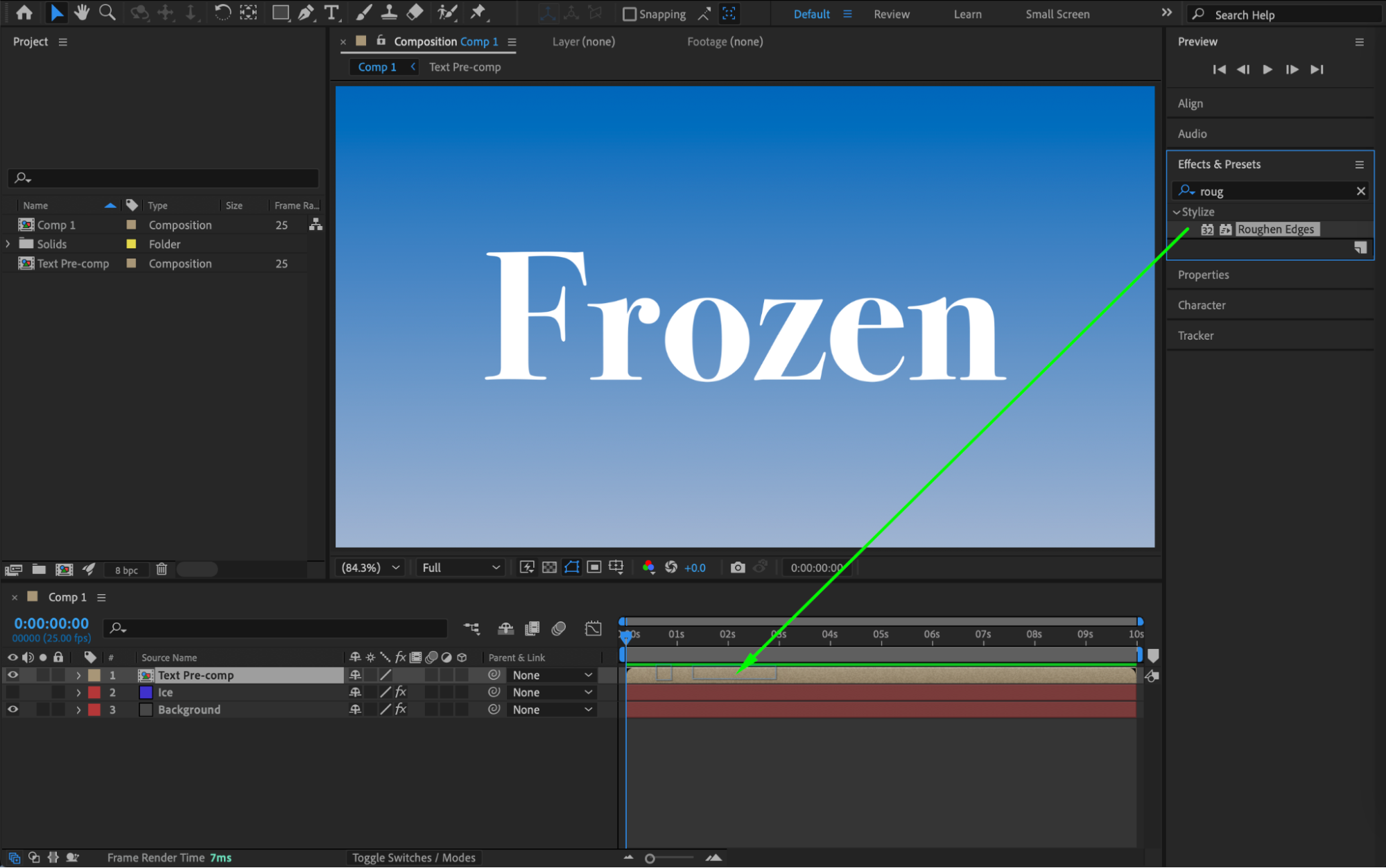
 Step 7: Duplicate the Text Pre-comp
Duplicate the text pre-composition so you have two identical text layers.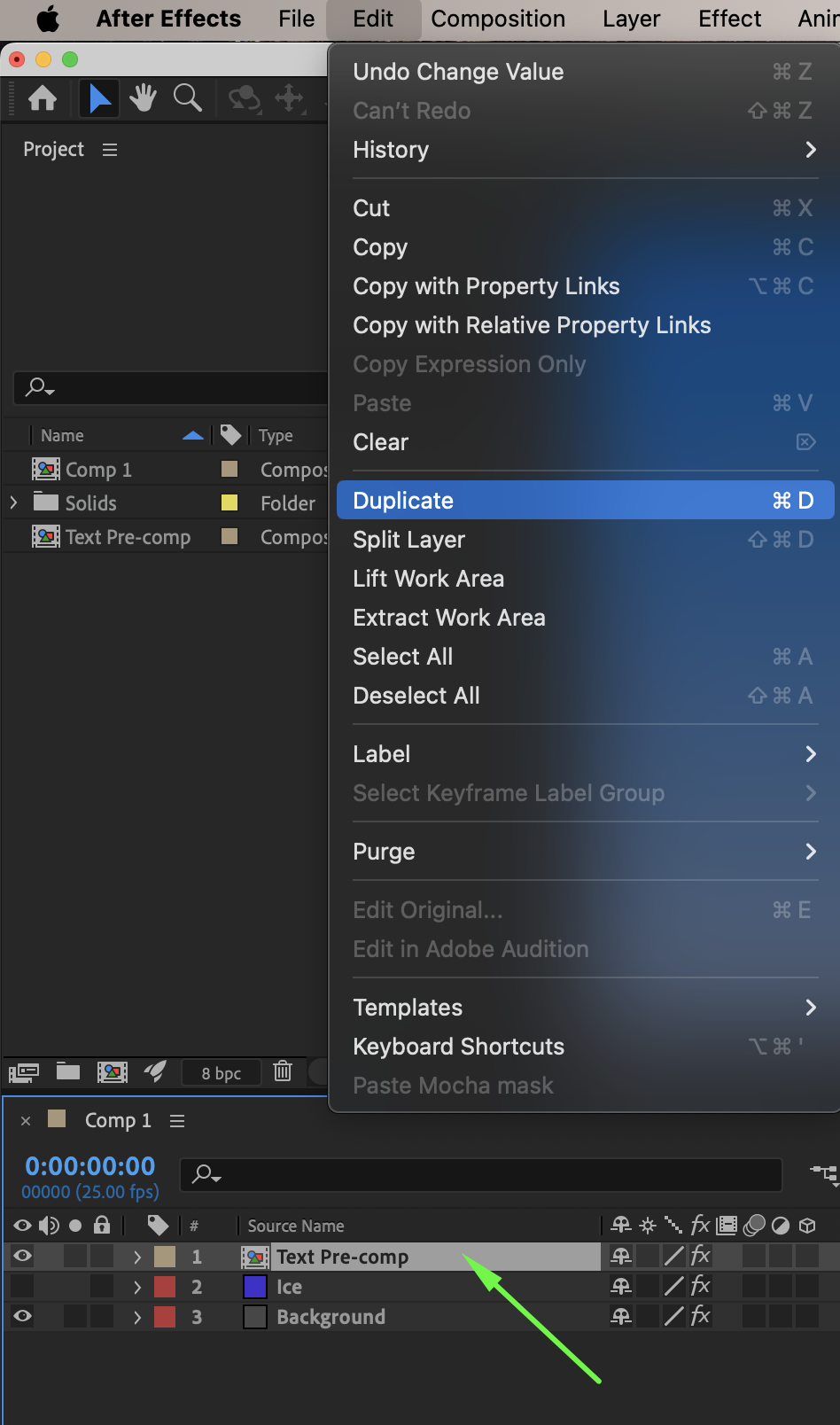 Step 8: Enhance the Glow Layer
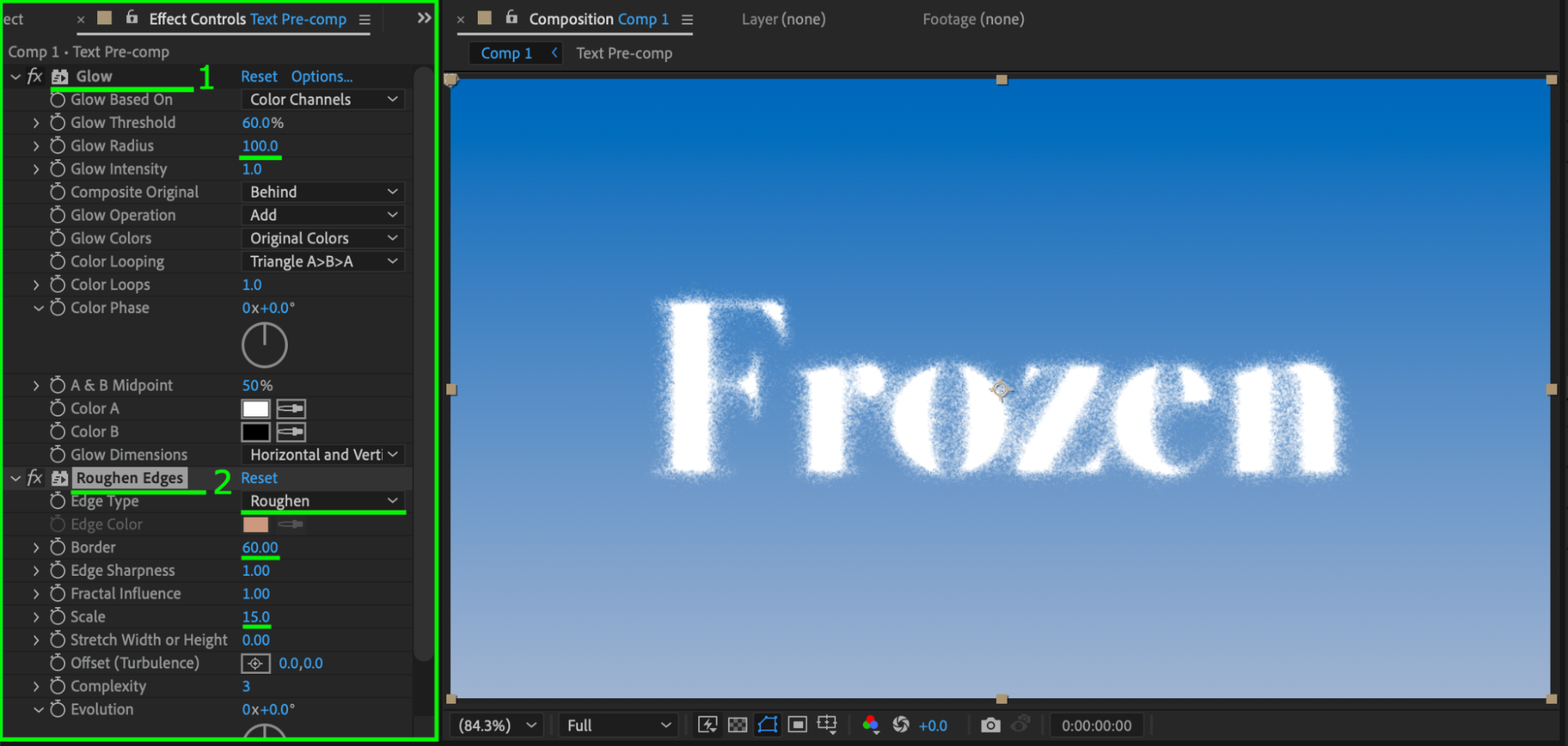
Select the duplicated text pre-comp. Apply Glow and place it above all other effects. Set:
Glow Radius: 100
In the Roughen Edges effect, change:
Edge Type: Roughen
Border: 60
Scale: 15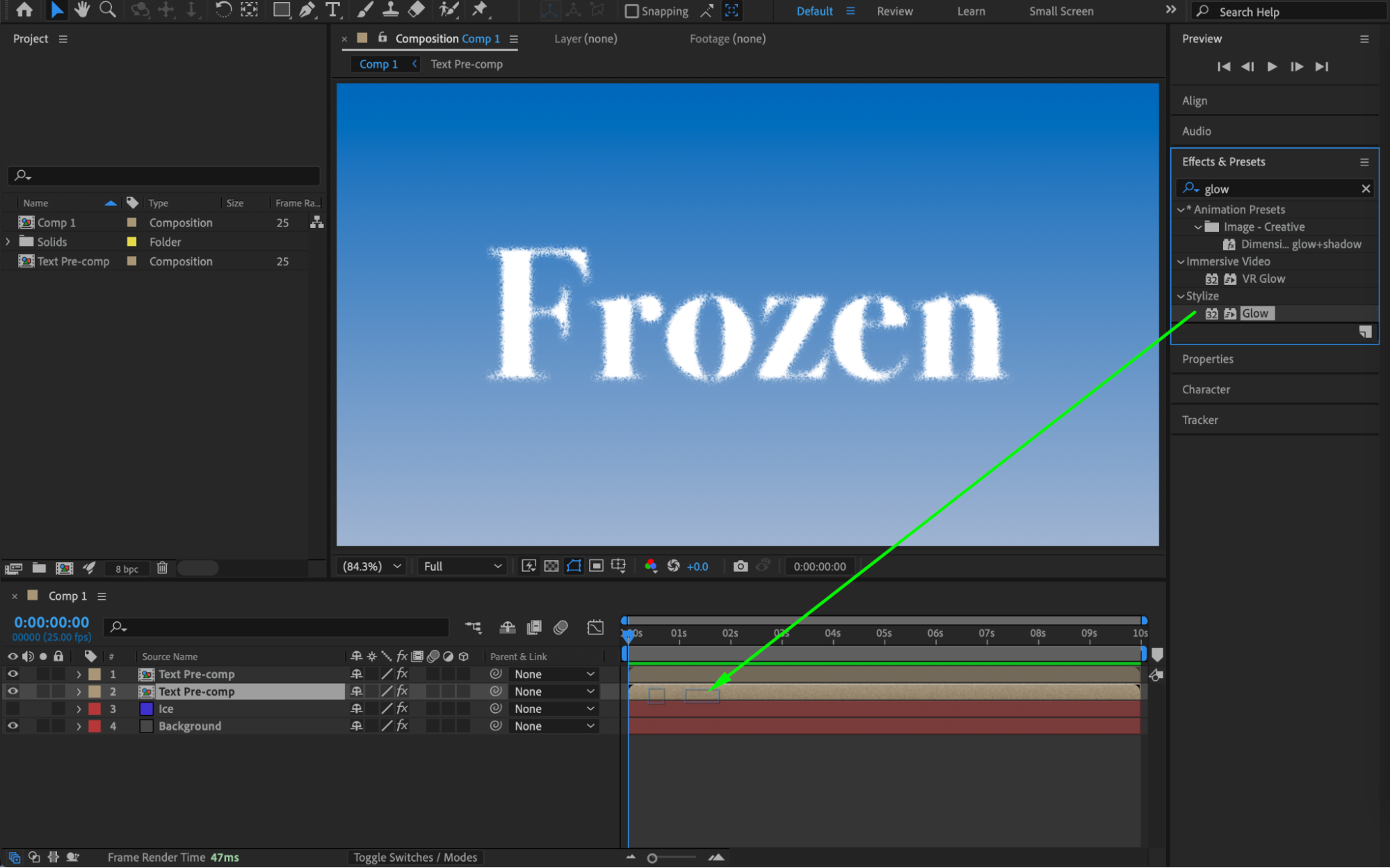
 Step 9: Add Turbulent Displace
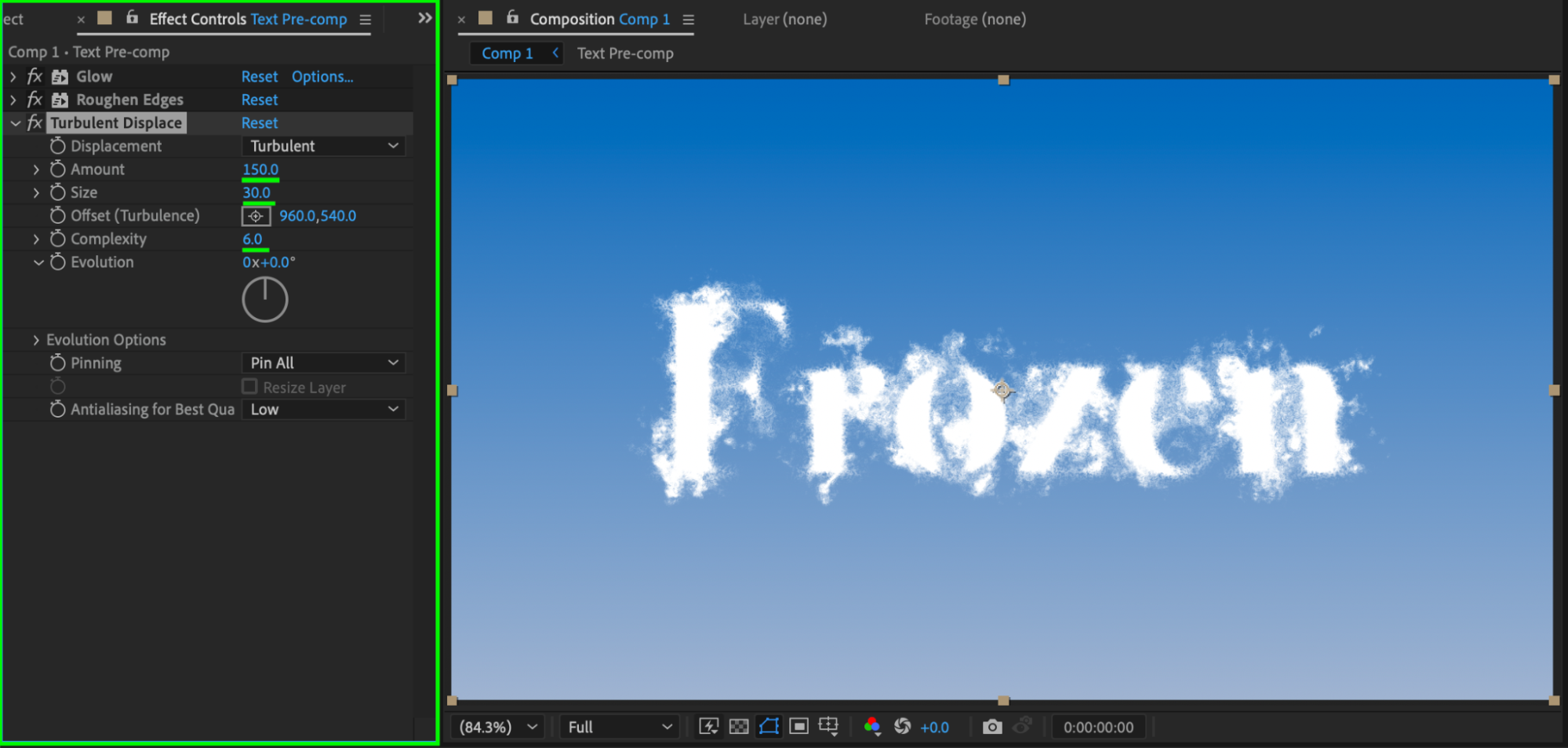
Apply Turbulent Displace to the duplicated text layer. Set:
Amount: 150
Size: 30
Complexity: 6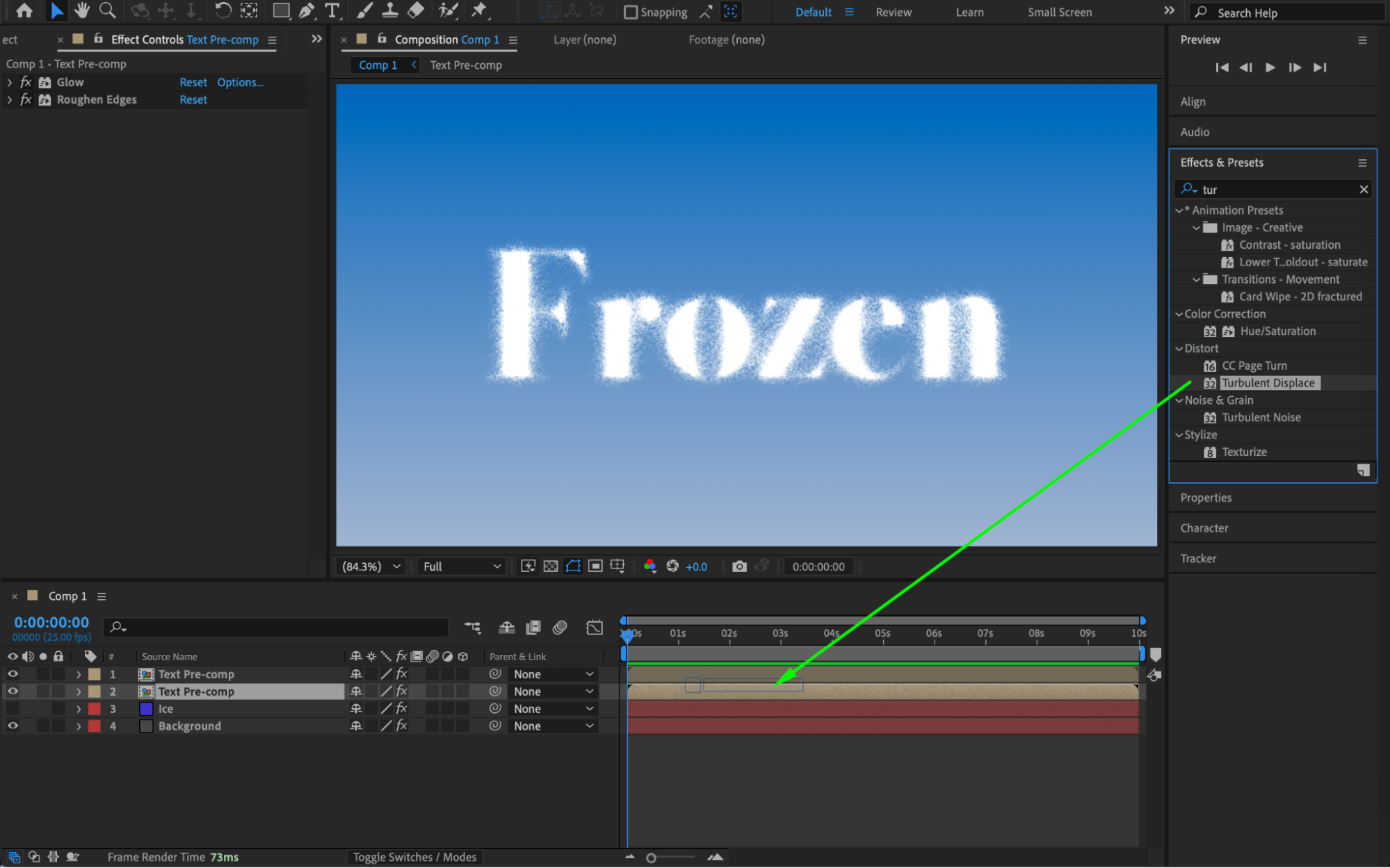
Step 10: Set Track Mattes
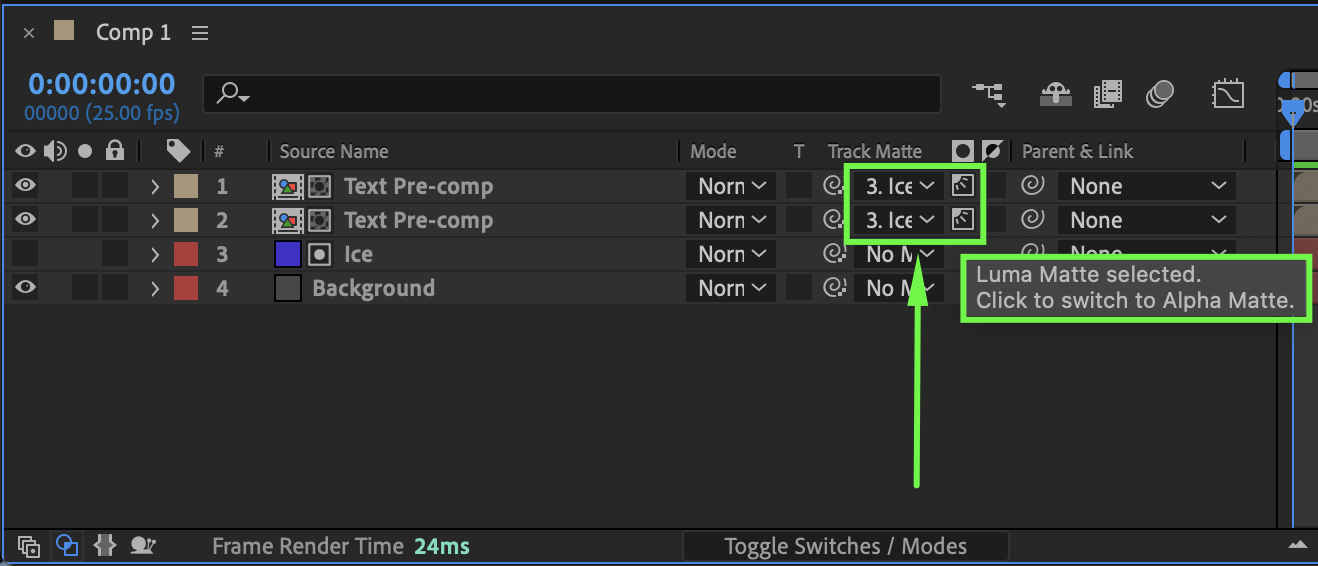
For both text pre-compositions, in the Track Matte column, choose:
Luma Matte – Ice Solid
This uses the ice texture to shape the text.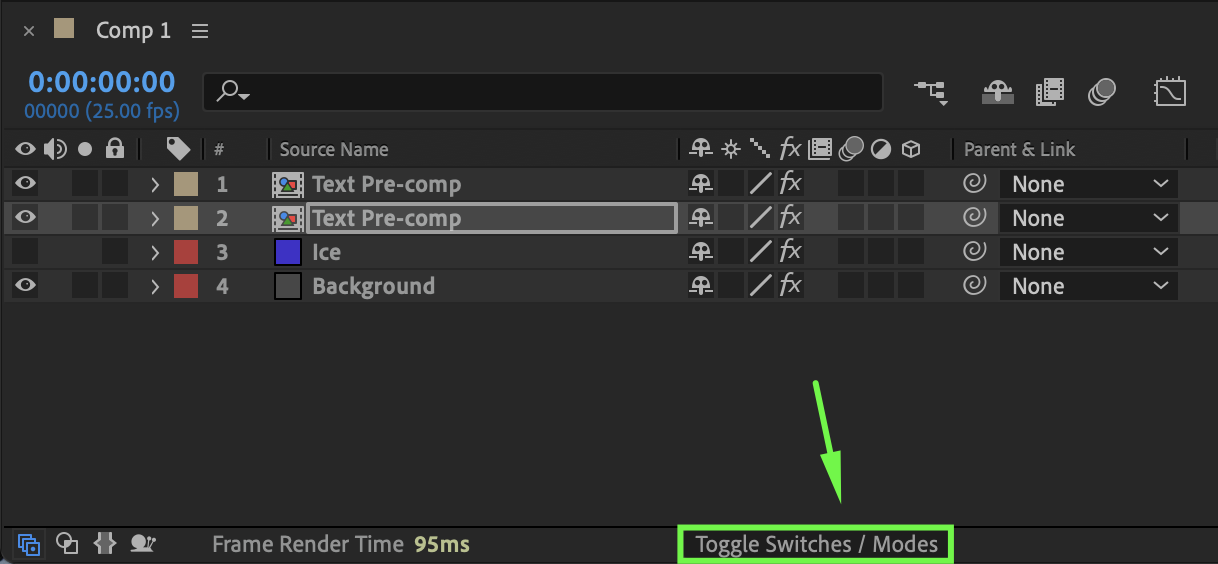
 Step 11: Add CC Blobbylize
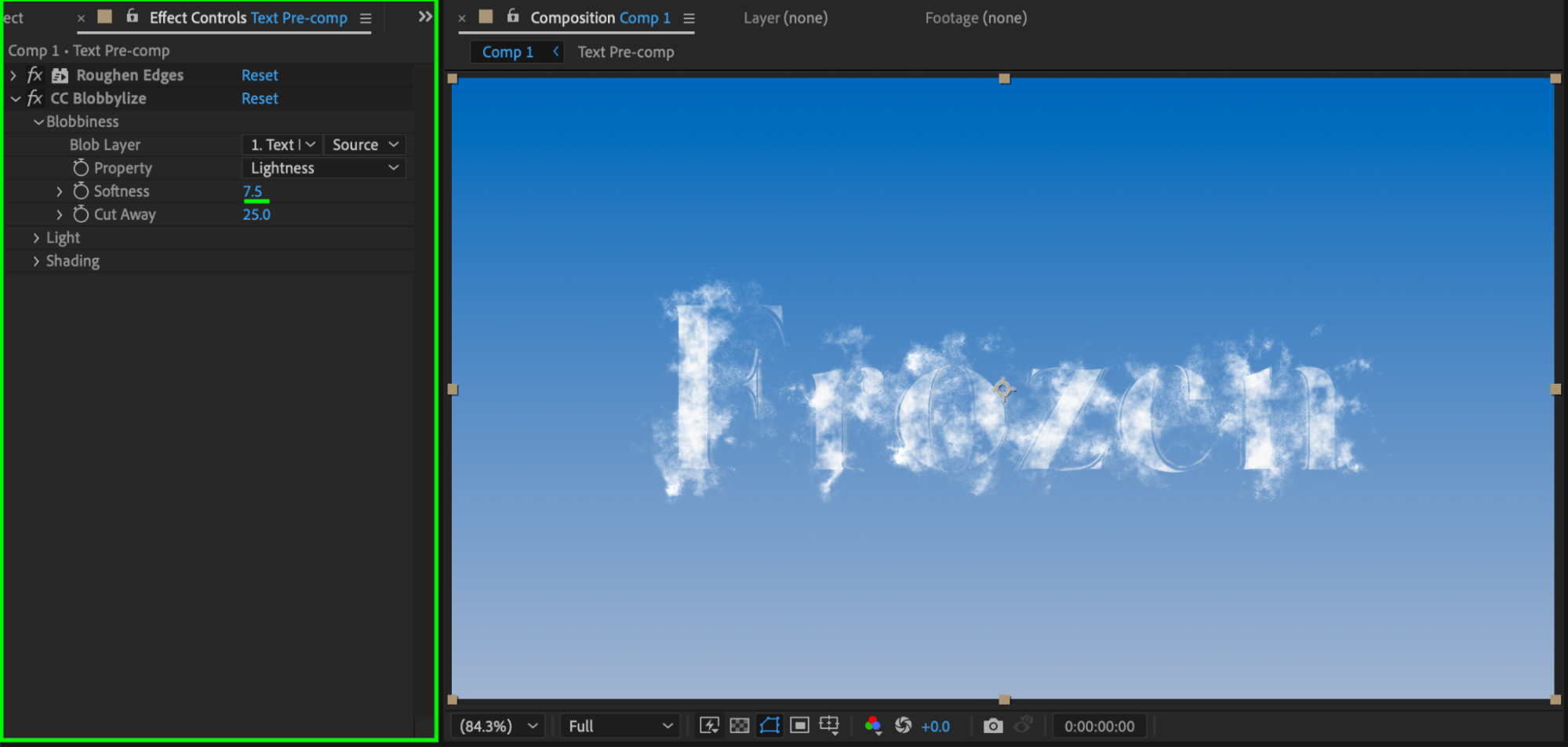
Apply CC Blobbylize to the top text pre-comp. Set:
Softness: 7.5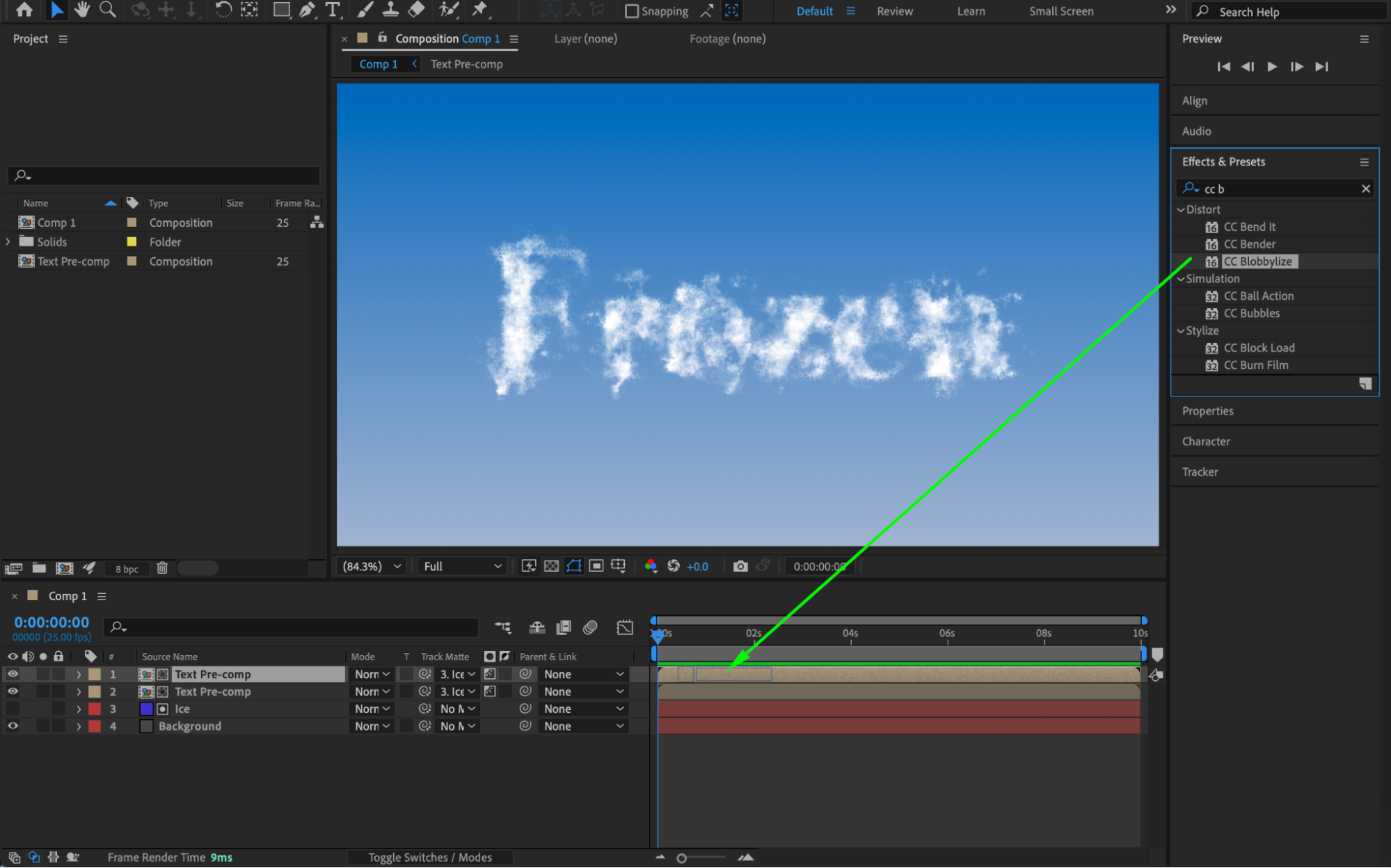
 Step 12: Add Final Glow
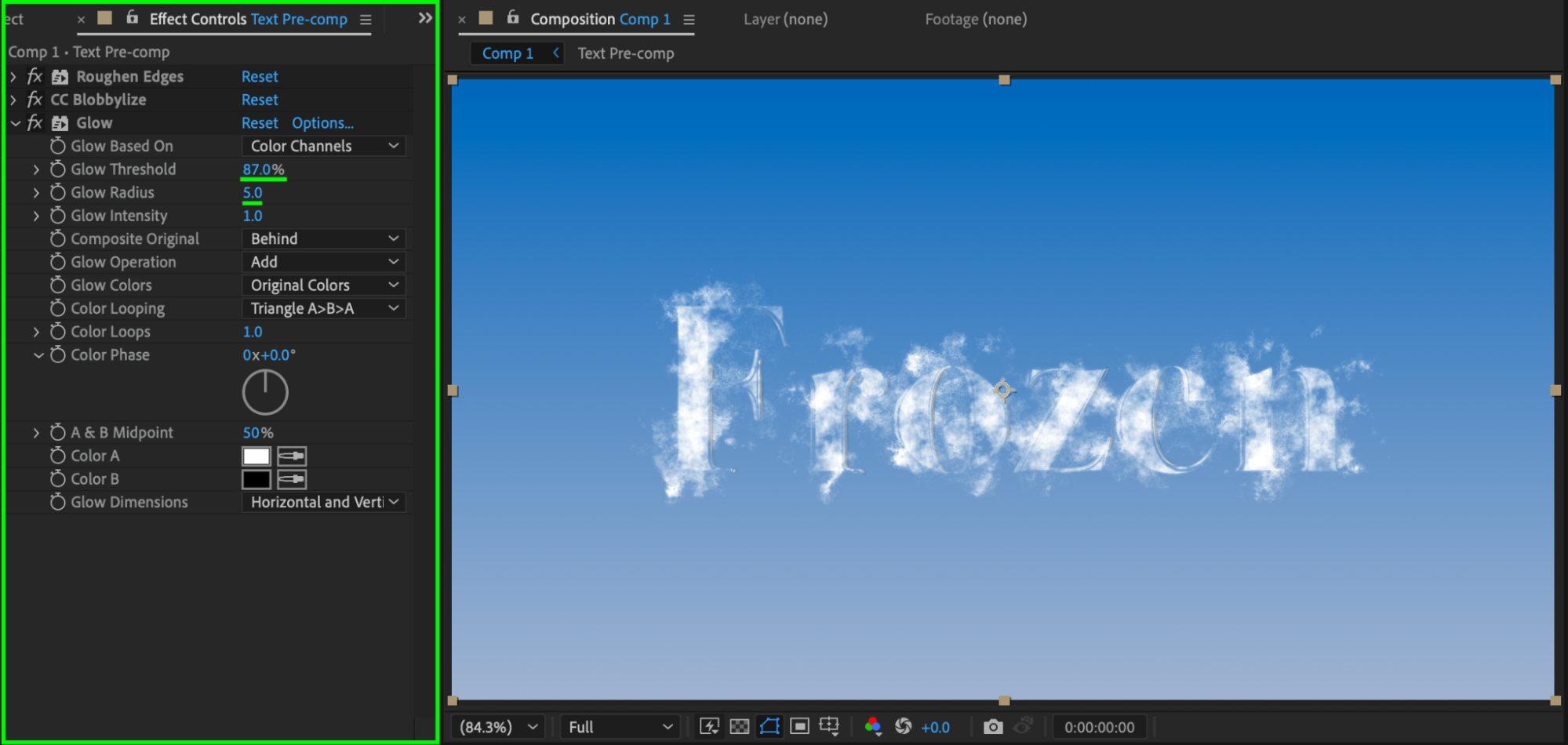
Add another Glow effect to the top text layer. Set:
Glow Threshold: 87
Glow Radius: 5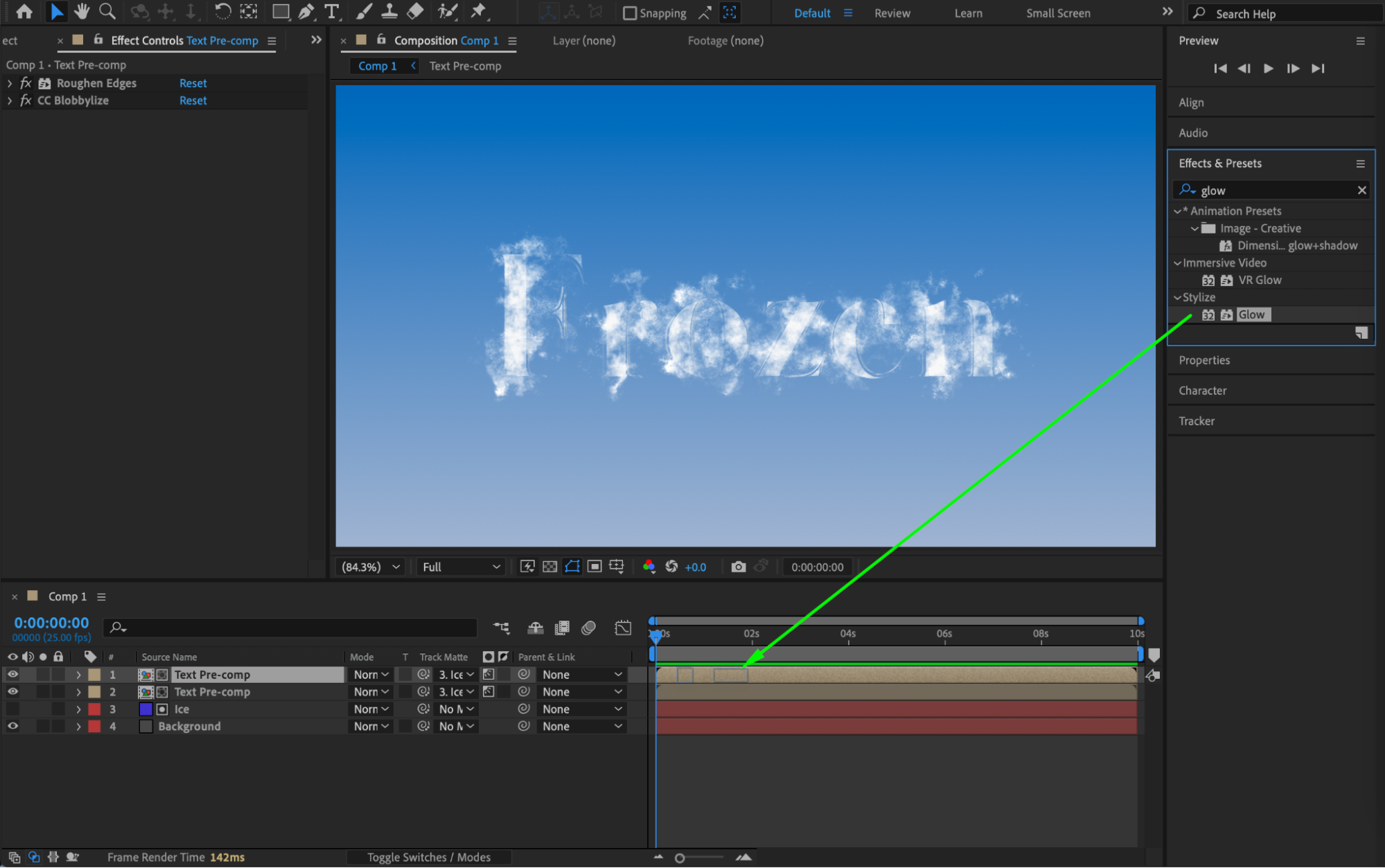
 Step 13: Posterize the Ice Texture
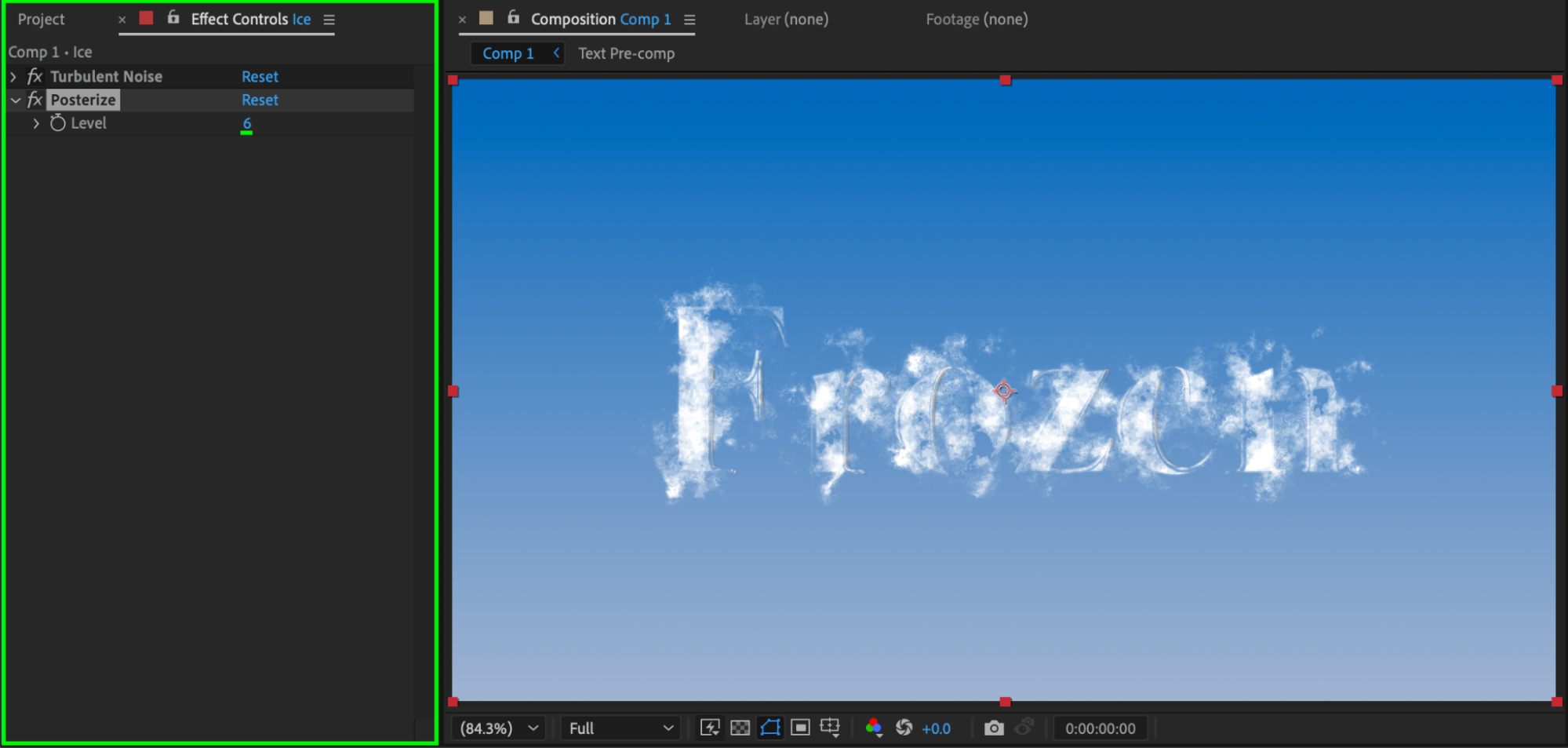
Apply Posterize to the Ice solid. Set:
Levels: 3-6
This adds a more stylized, crystalline look.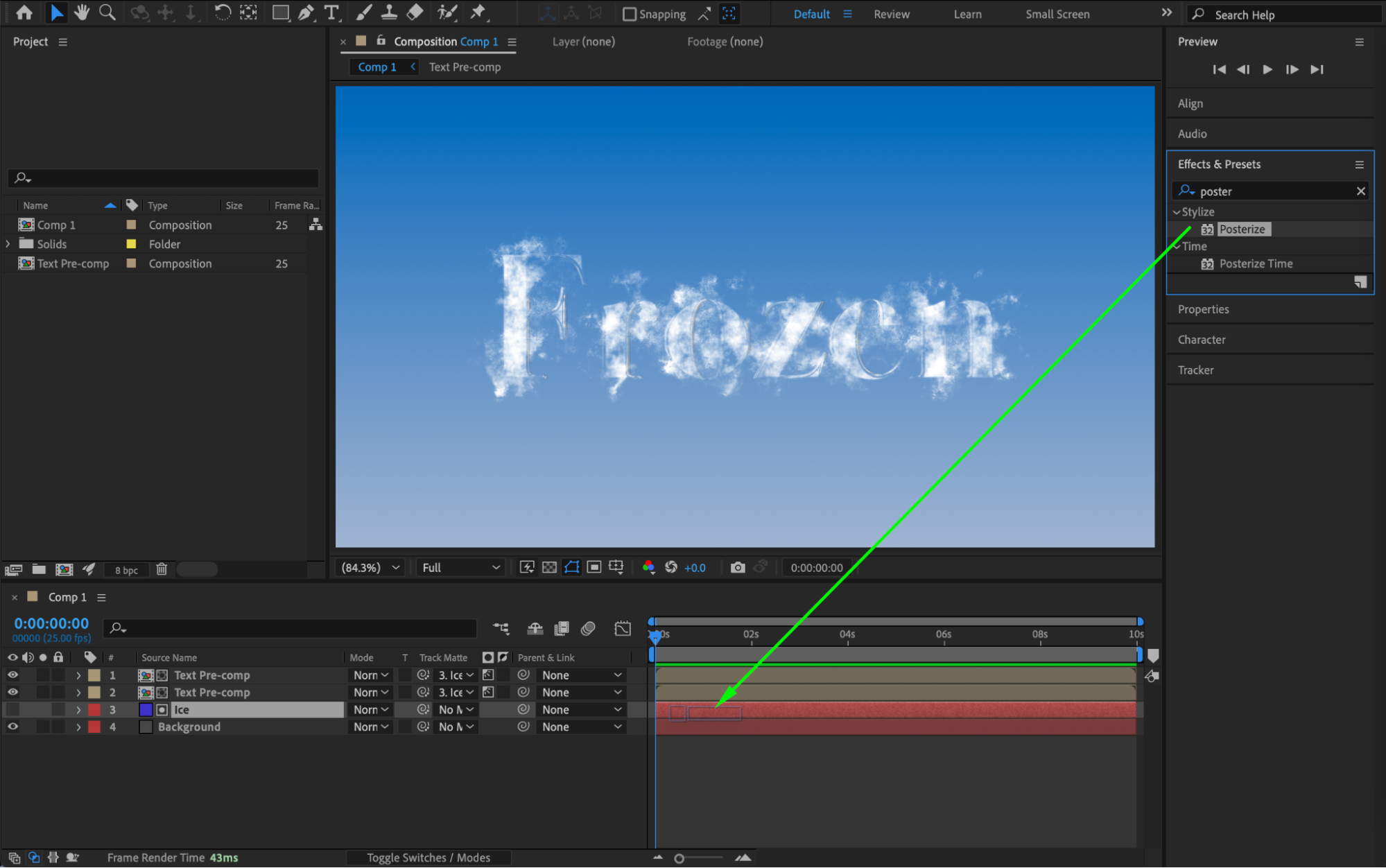
 Step 14: Preview and Adjust
Preview the composition and fine-tune glow, displacement, and roughness values if needed.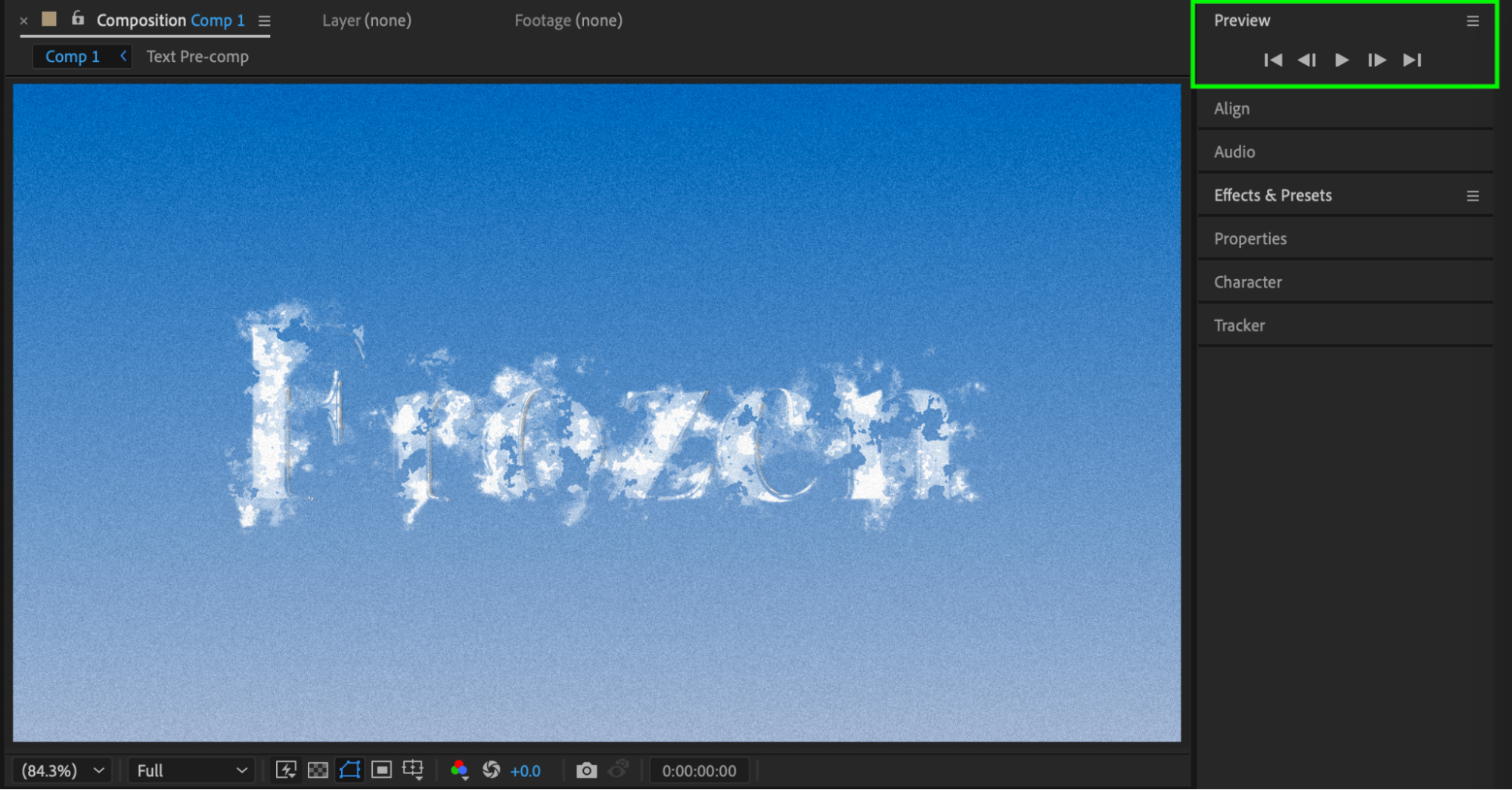
Conclusion
By combining noise textures, rough edges, glow, and displacement effects, you can create a convincing ice text effect in After Effects. This technique works well for titles, logos, and winter-themed motion graphics.
Our Bestsellers
Our Bestsellers


