
How to Use Cartoon Comics Pack in After Effects for Comic Animations
Introduction to Cartoon Comic Animation in After Effects
If you’re looking to create fun and dynamic cartoon-style animations for your videos, the Cartoon Comics Pack by AEJuice is one of the best tools available. Whether you’re making content for YouTube or adding some punch to your social media edits, this step-by-step cartoon comics animation tutorial will show you how to use the pack effectively in After Effects.
Step 1: Import Your Footage
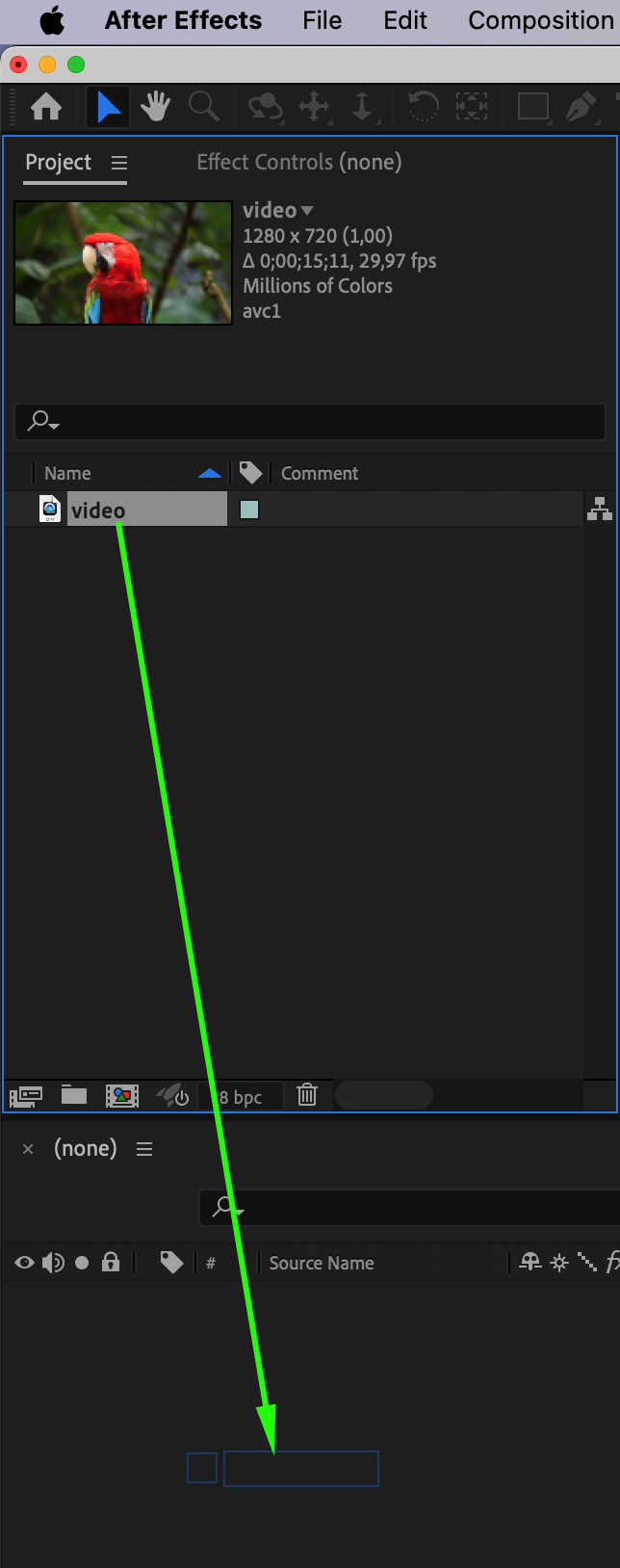
Start by going to File > Import > File and bring your video footage into After Effects. Drag it to the timeline to create a new composition. This footage will be the base for your comic-style animation.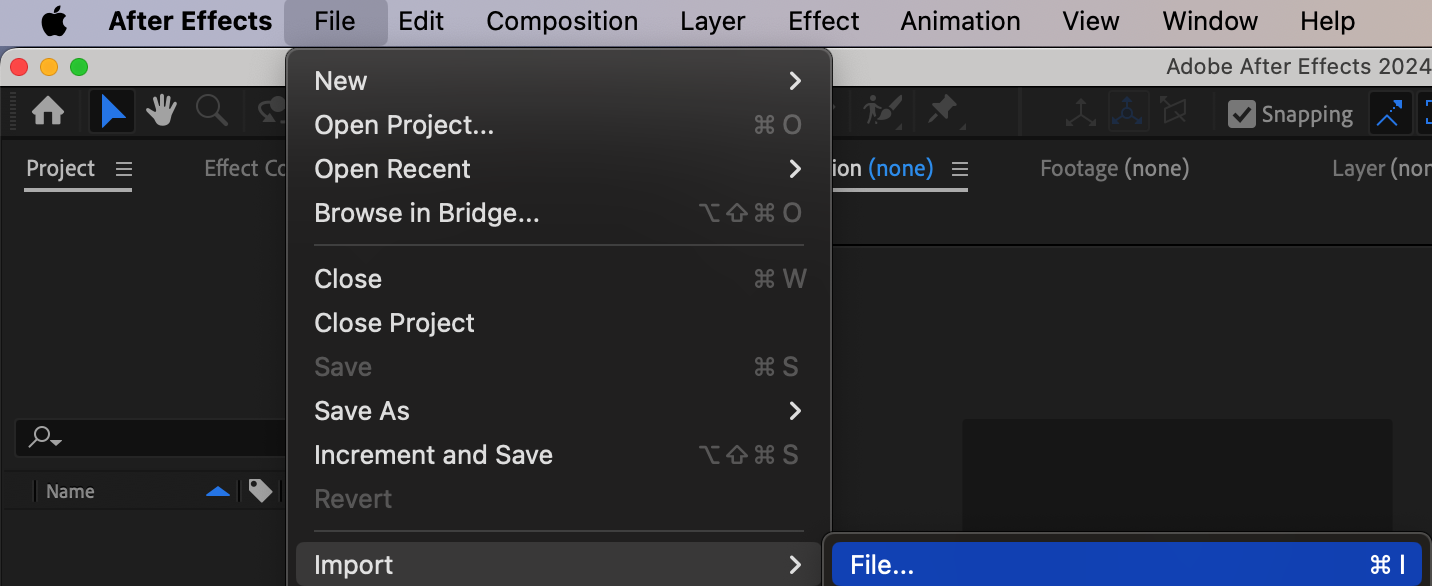
 Step 2: Open AEJuice Pack Manager 4
Go to Window > AEJuice Pack Manager 4 to open the plugin panel. Make sure AEJuice is installed properly to see this option. This panel gives you access to all your AEJuice packs. Step 3: Download the Cartoon Comics Pack
Inside the Pack Manager, scroll to find Cartoon Comics Pack. Click on it to download if you haven’t already. Once downloaded, the assets will be available for drag-and-drop use.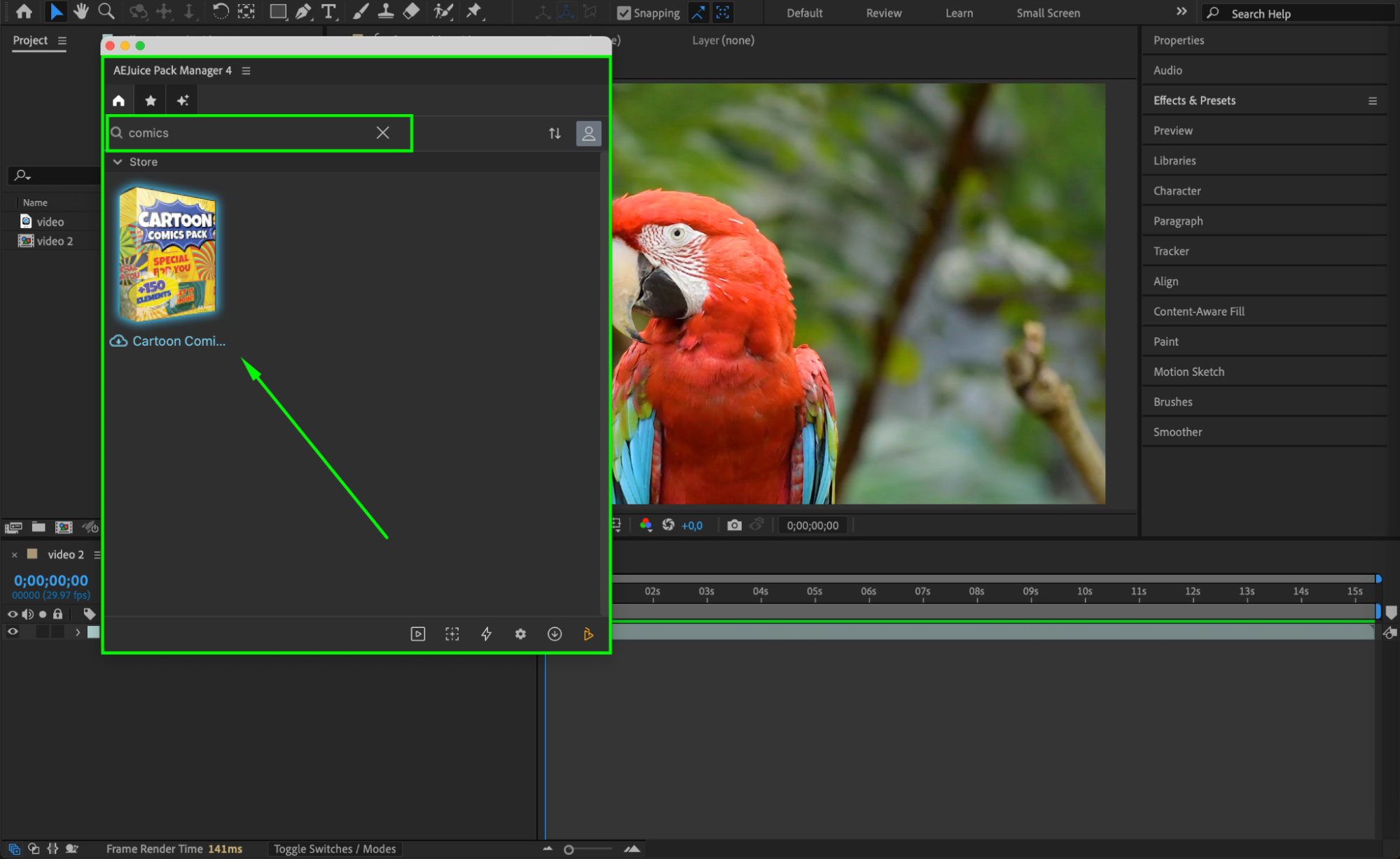
Step 4: Choose and Download a Template
Browse through the pack and find a comic-style template you like. Click the download icon on the template to bring it into your project. AEJuice will automatically add it to your composition.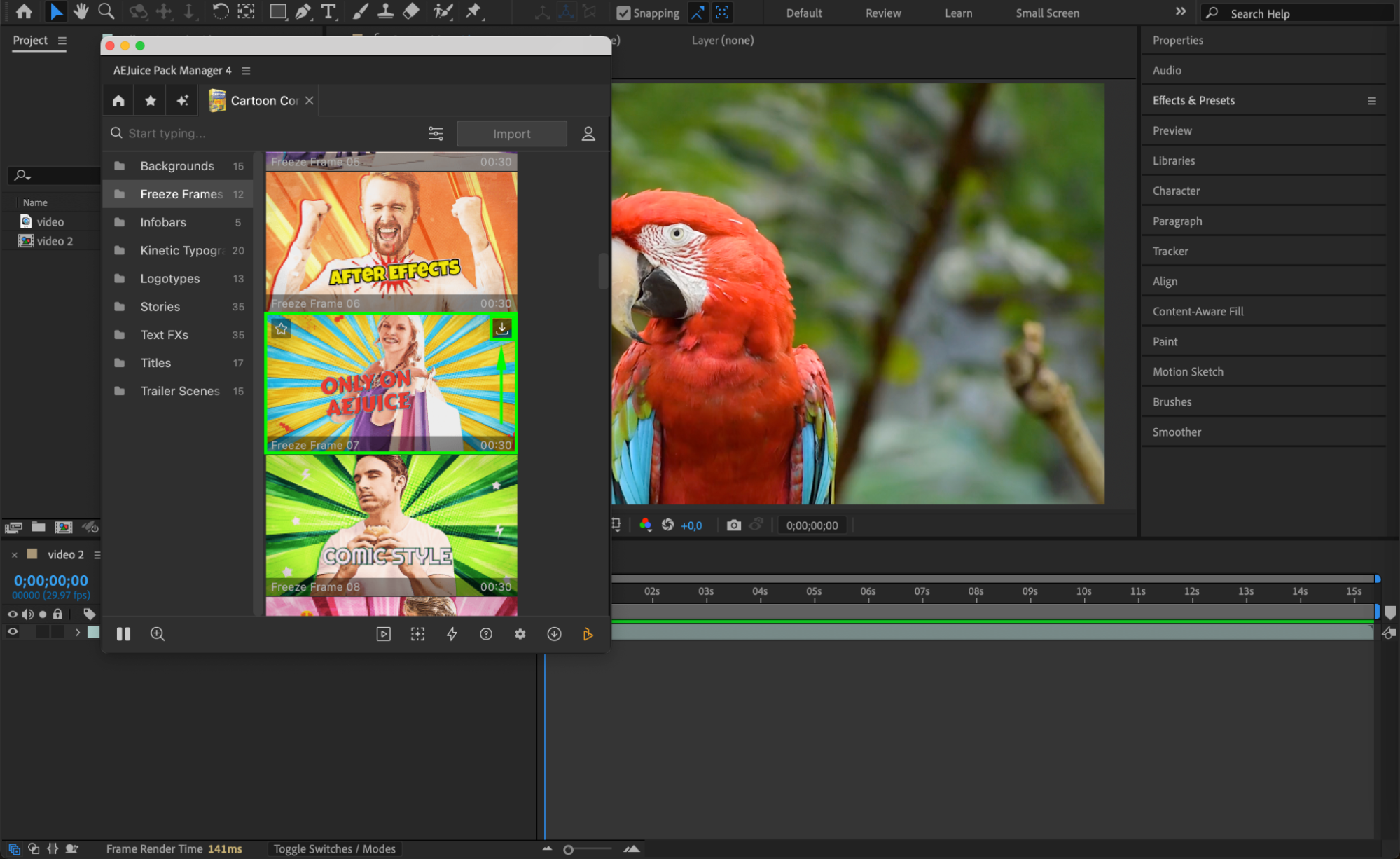 Step 5: Hide the AEJuice Pre-comp Temporarily
Once the template appears as a pre-composed layer in your composition, disable its visibility by clicking the eye icon. This will help you work with your footage before combining it with the comic effect.
Step 6: Split Your Footage at the Right Moment
Move the CTI (Current Time Indicator) to the moment where you want the comic effect to begin. Then go to Edit > Split Layer. Trim the new top layer to last only one frame by dragging its end.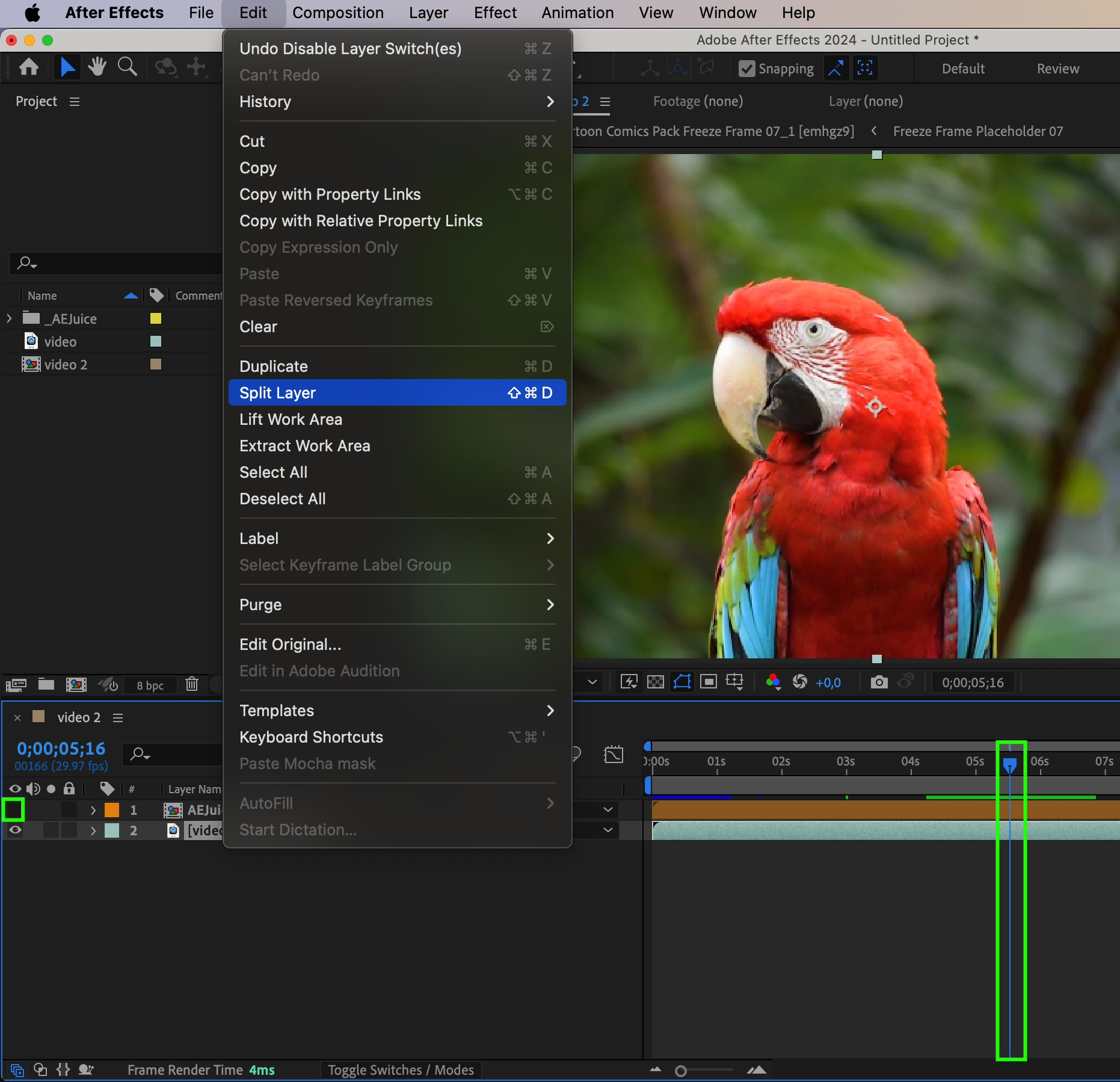
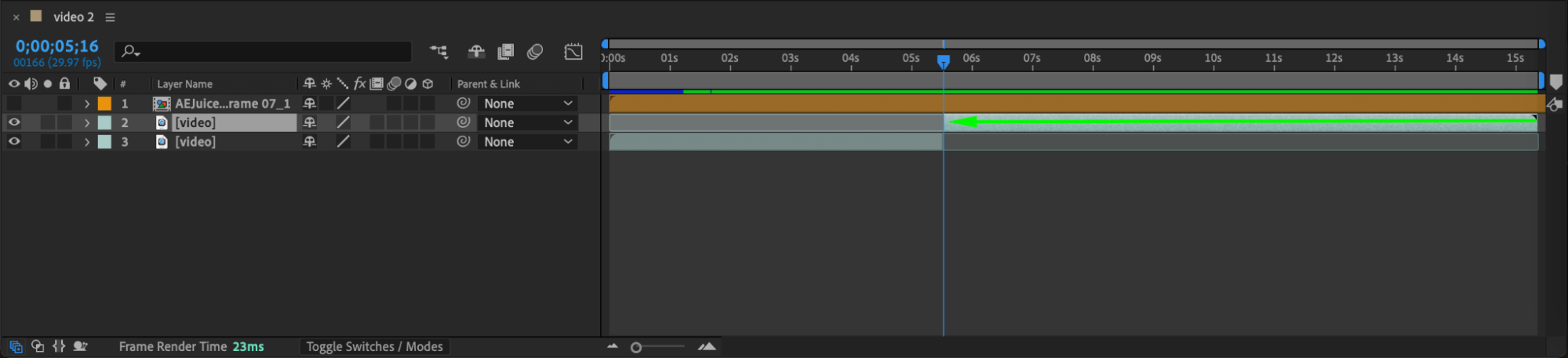 Step 7: Freeze the Frame
Rename the one-frame layer to “freeze”. Right-click on it, go to Time > Freeze Frame. This will hold that exact frame for as long as needed.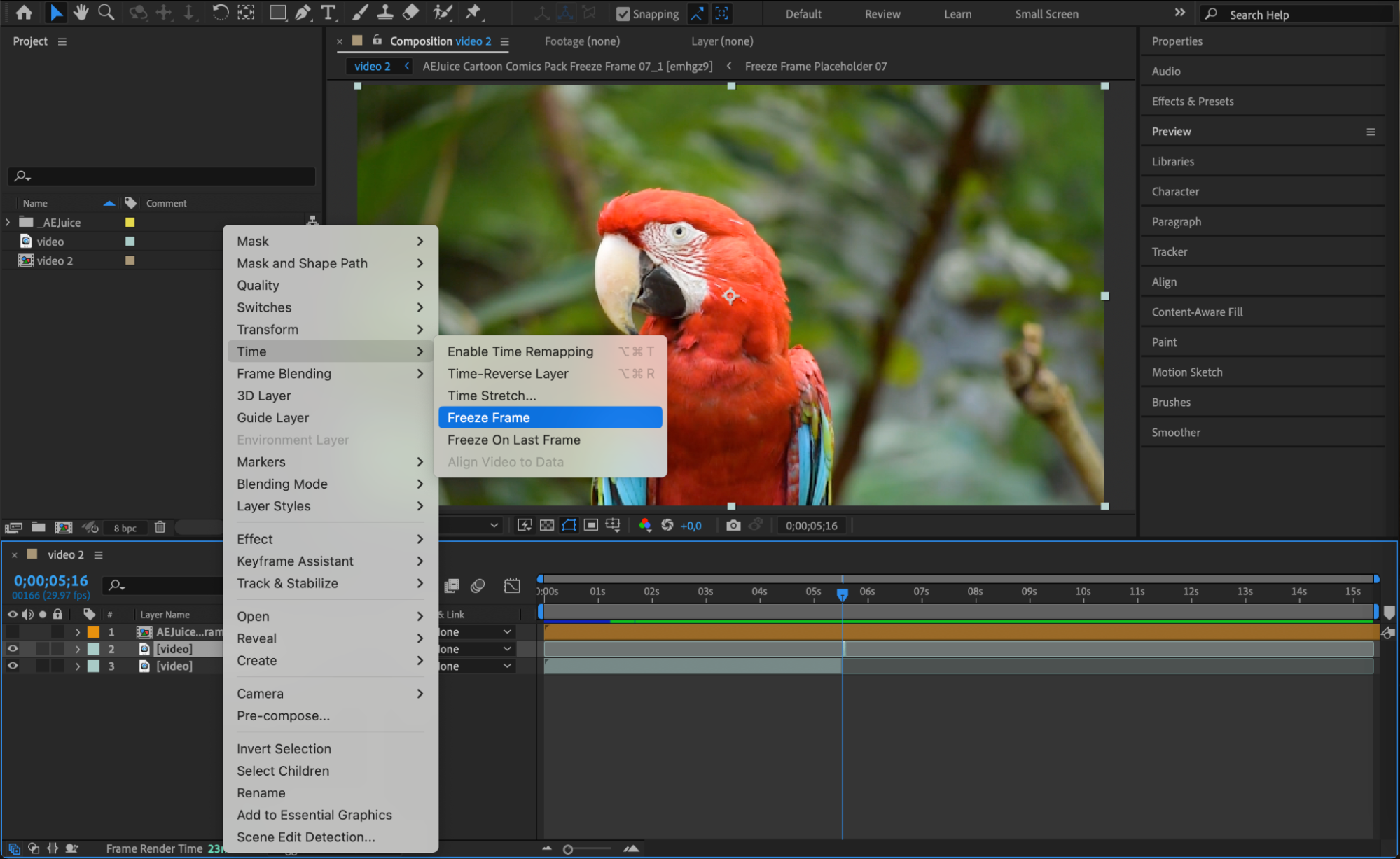 Step 8: Use Roto Brush to Isolate Your Character
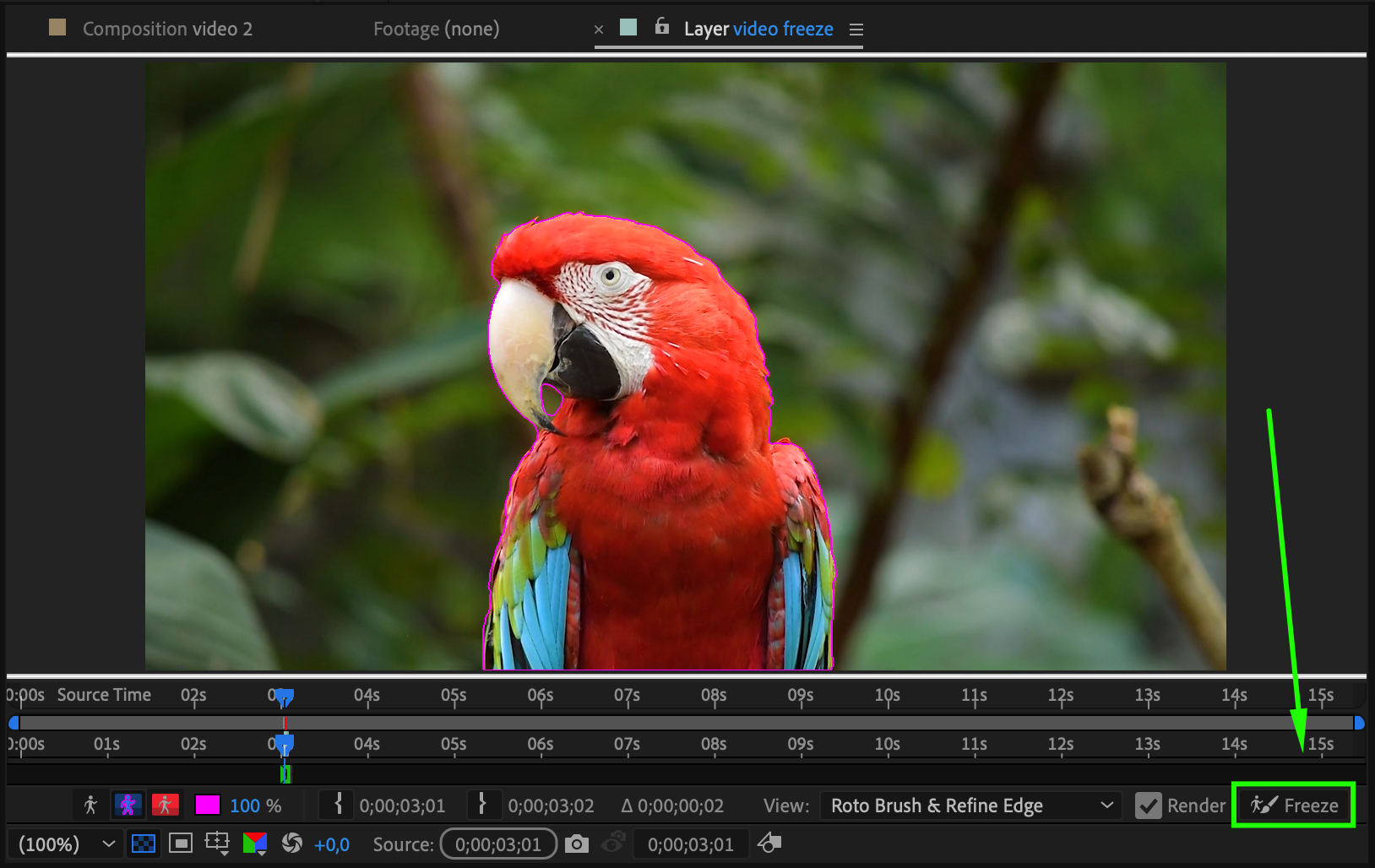
Double-click on the freeze layer to open it in the Layer panel. Press “Alt/Option + W” to activate the Roto Brush. Carefully brush over the subject you want to isolate. When finished, press Freeze in the Roto Brush panel to lock the selection.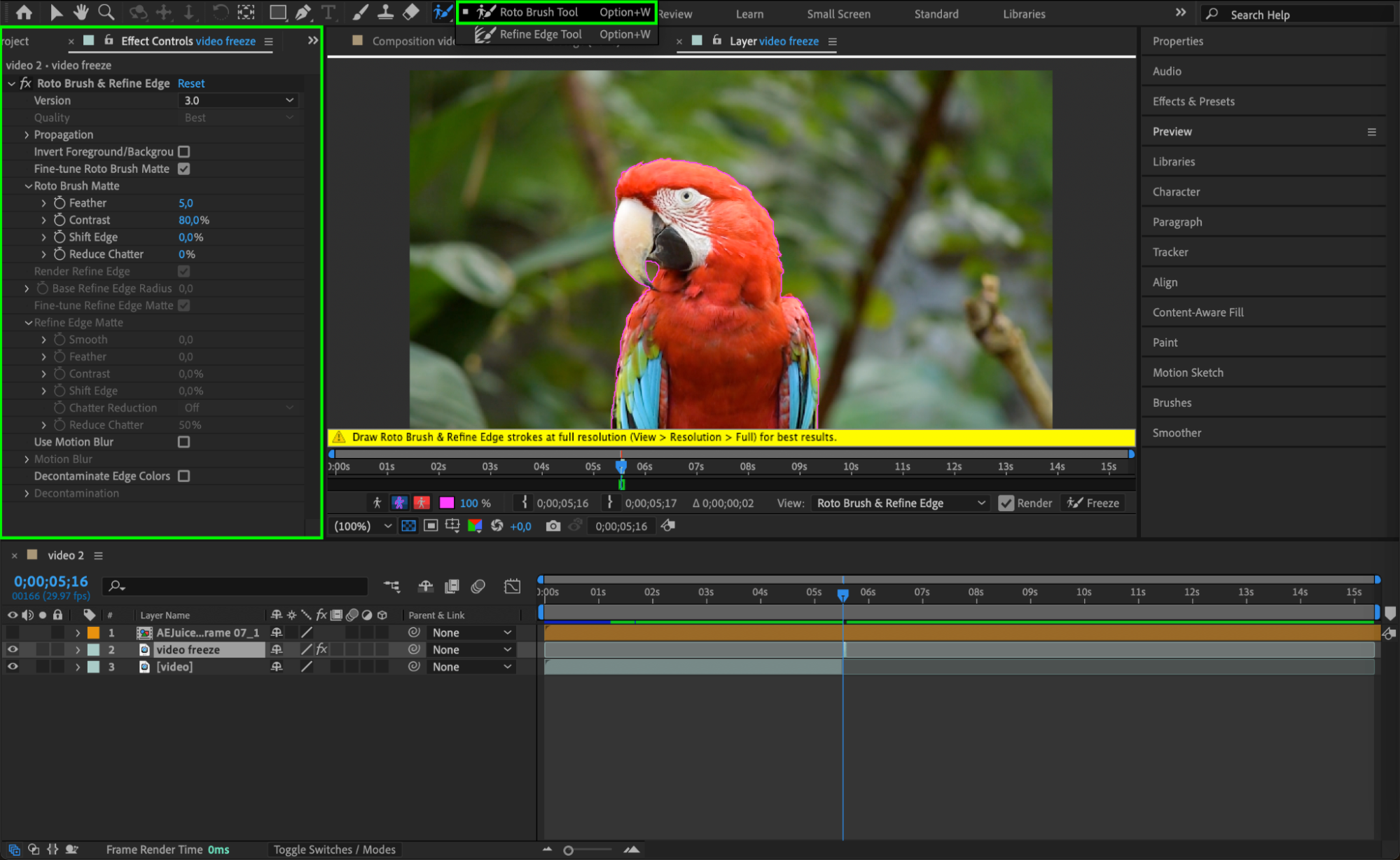
Step 9: Stretch the Freeze Frame Duration
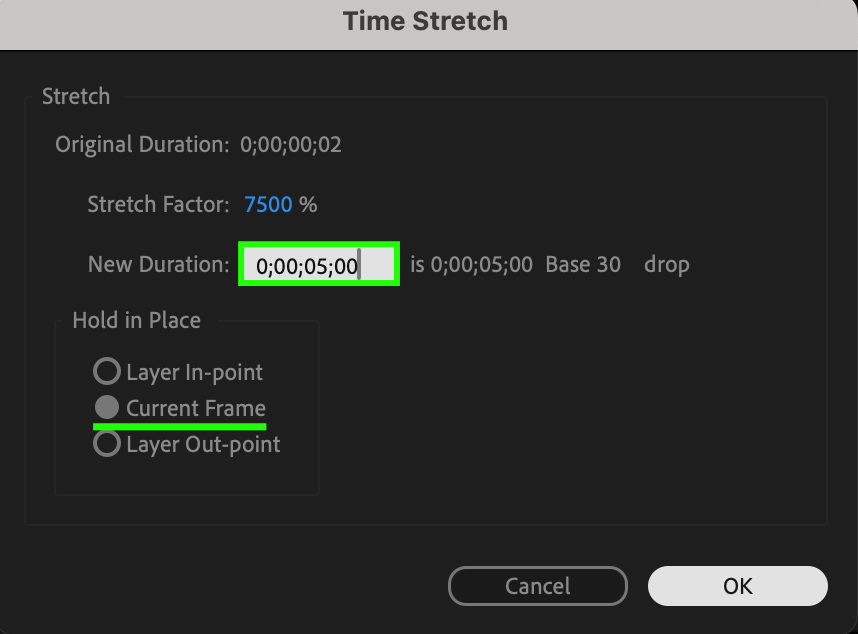
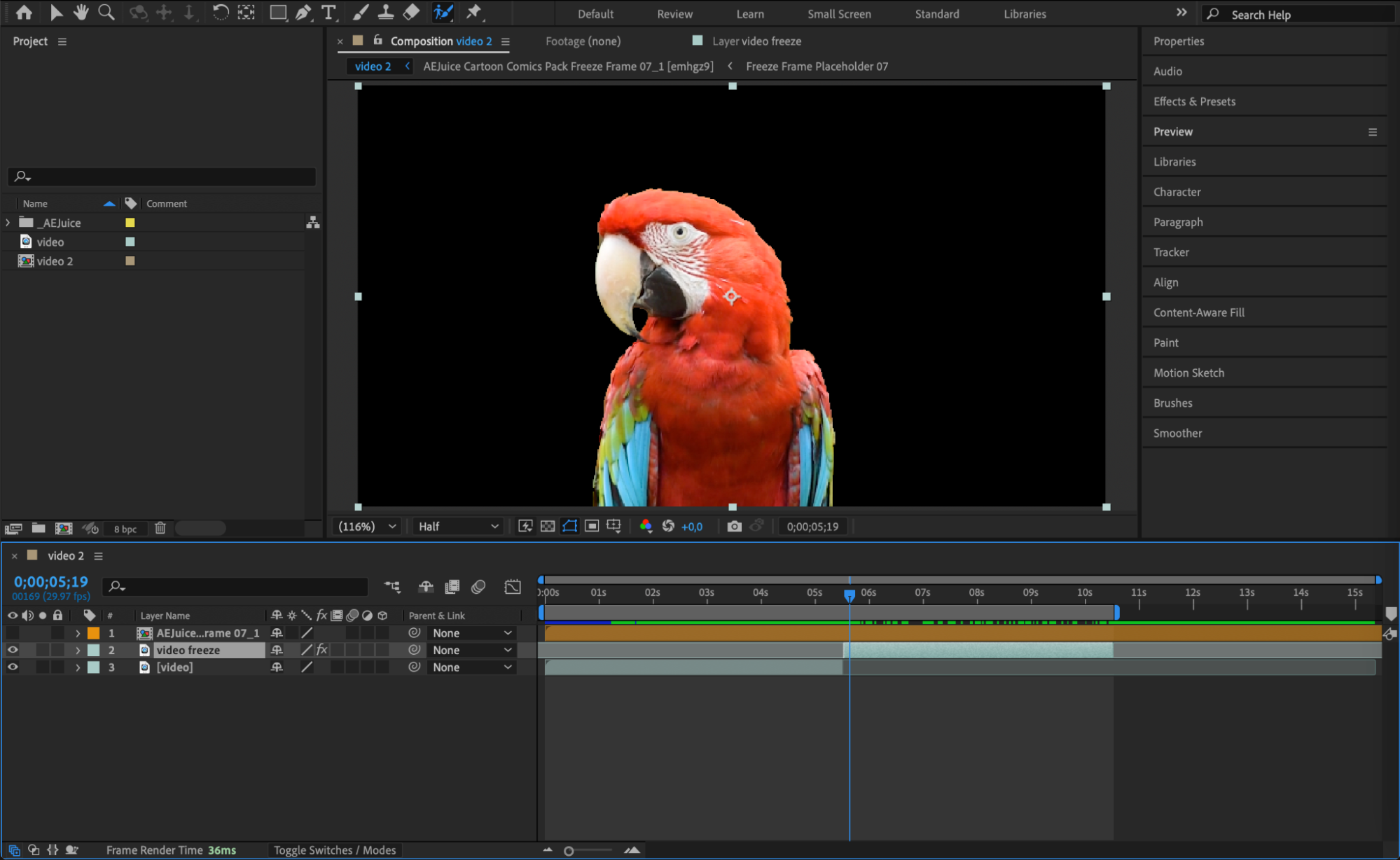
Go back to the main composition. Right-click the freeze layer and select Time > Time Stretch. Set a new duration, like 5 seconds, and enable Current Frame.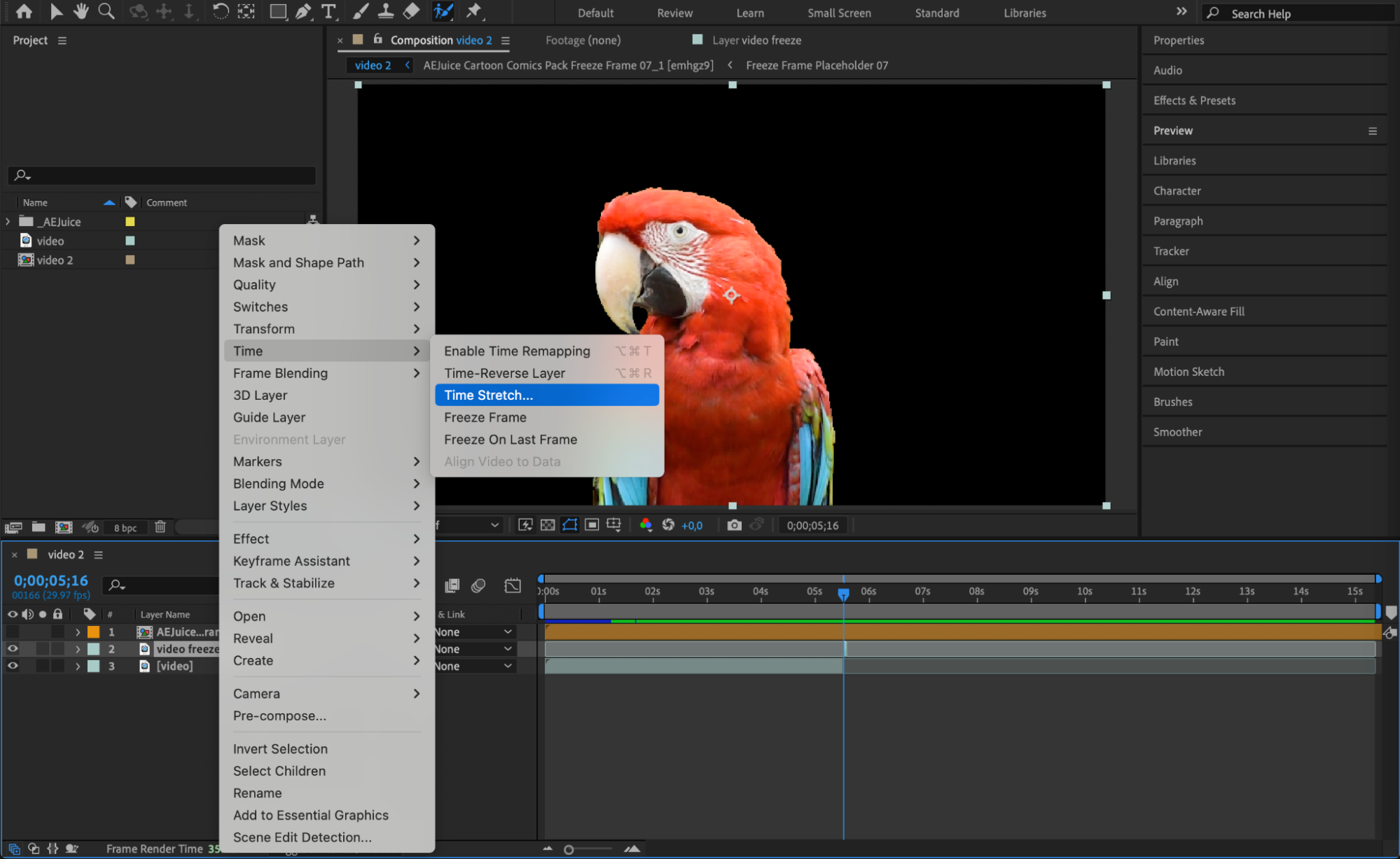
 Step 10: Pre-compose the Freeze Layer
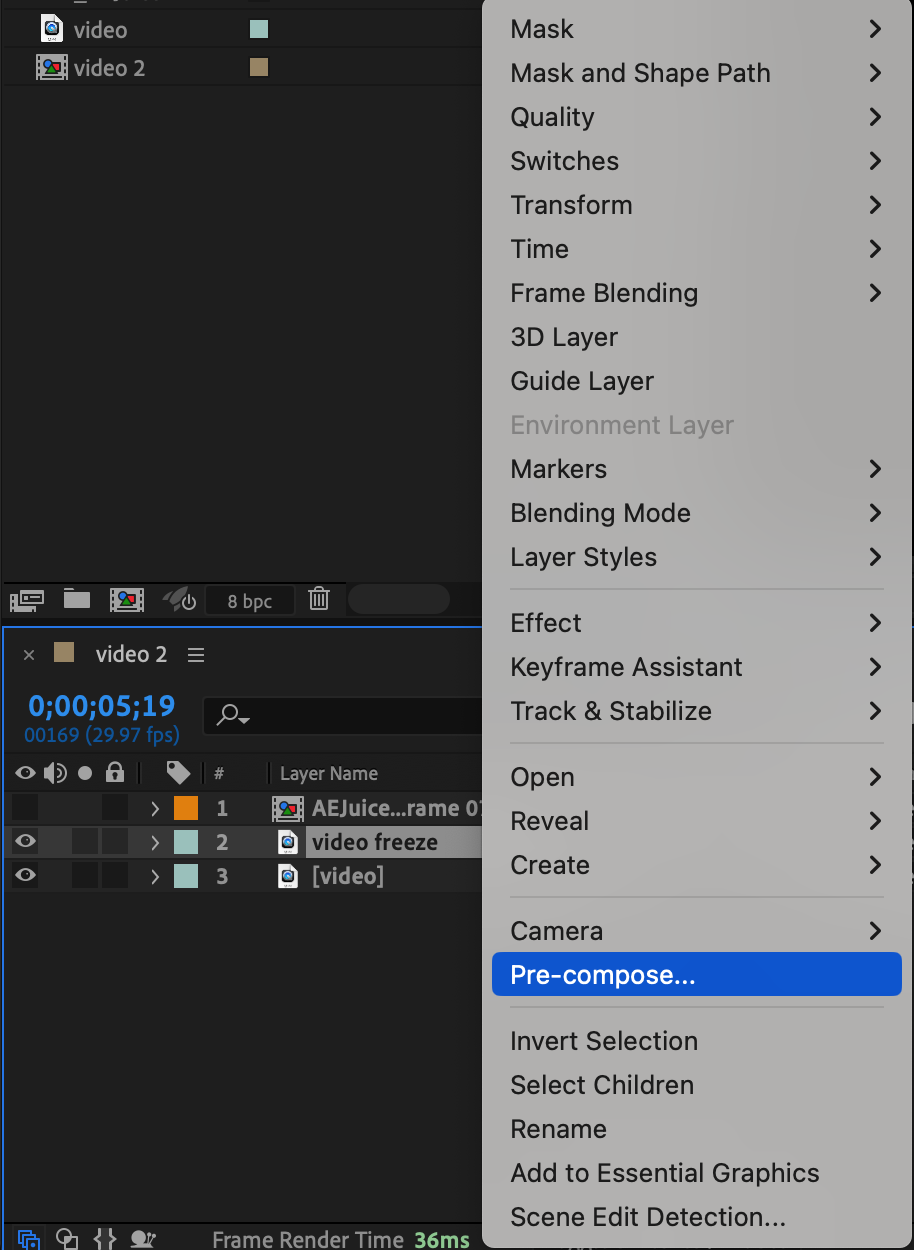
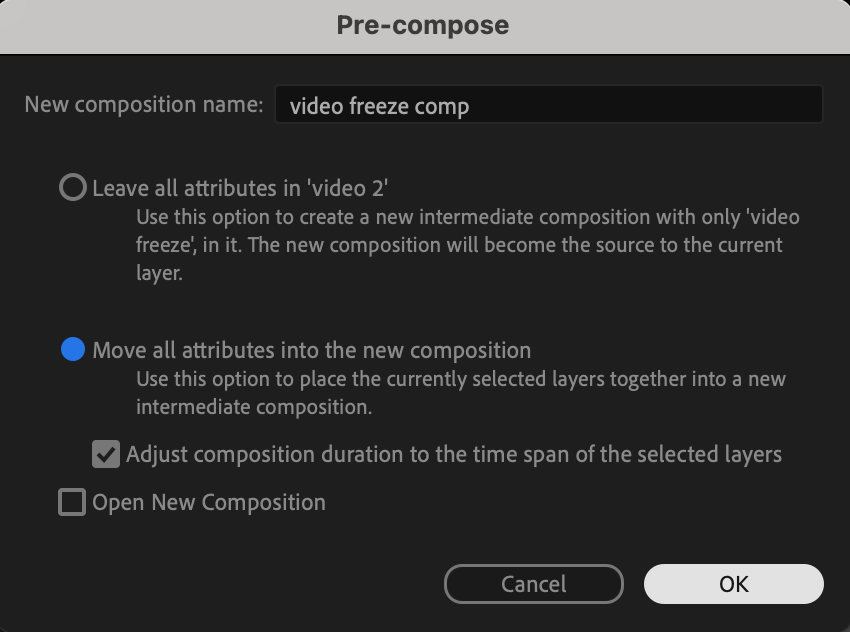
With the freeze layer selected, go to Layer > Pre-compose. Name it “Freeze Comp” and move all attributes into the new composition. This keeps things clean and organized.
 Step 11: Open the AEJuice Comic Template Pre-comp
Enable the eye icon for the AEJuice pre-comp and double-click it to open. This is where you will insert your own freeze frame.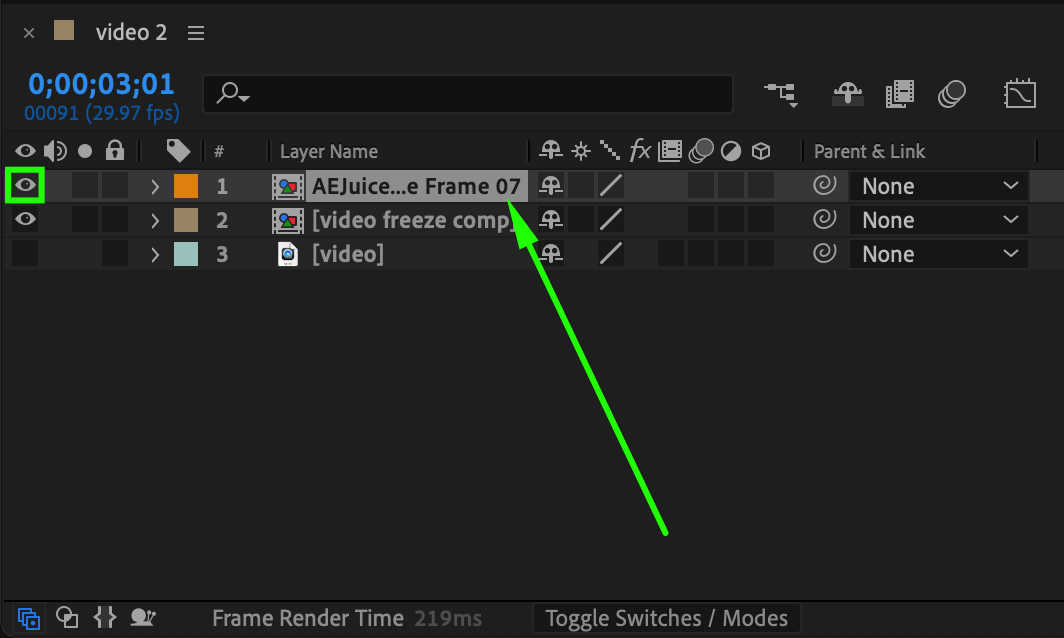 Step 12: Replace the Image in the Comic Template
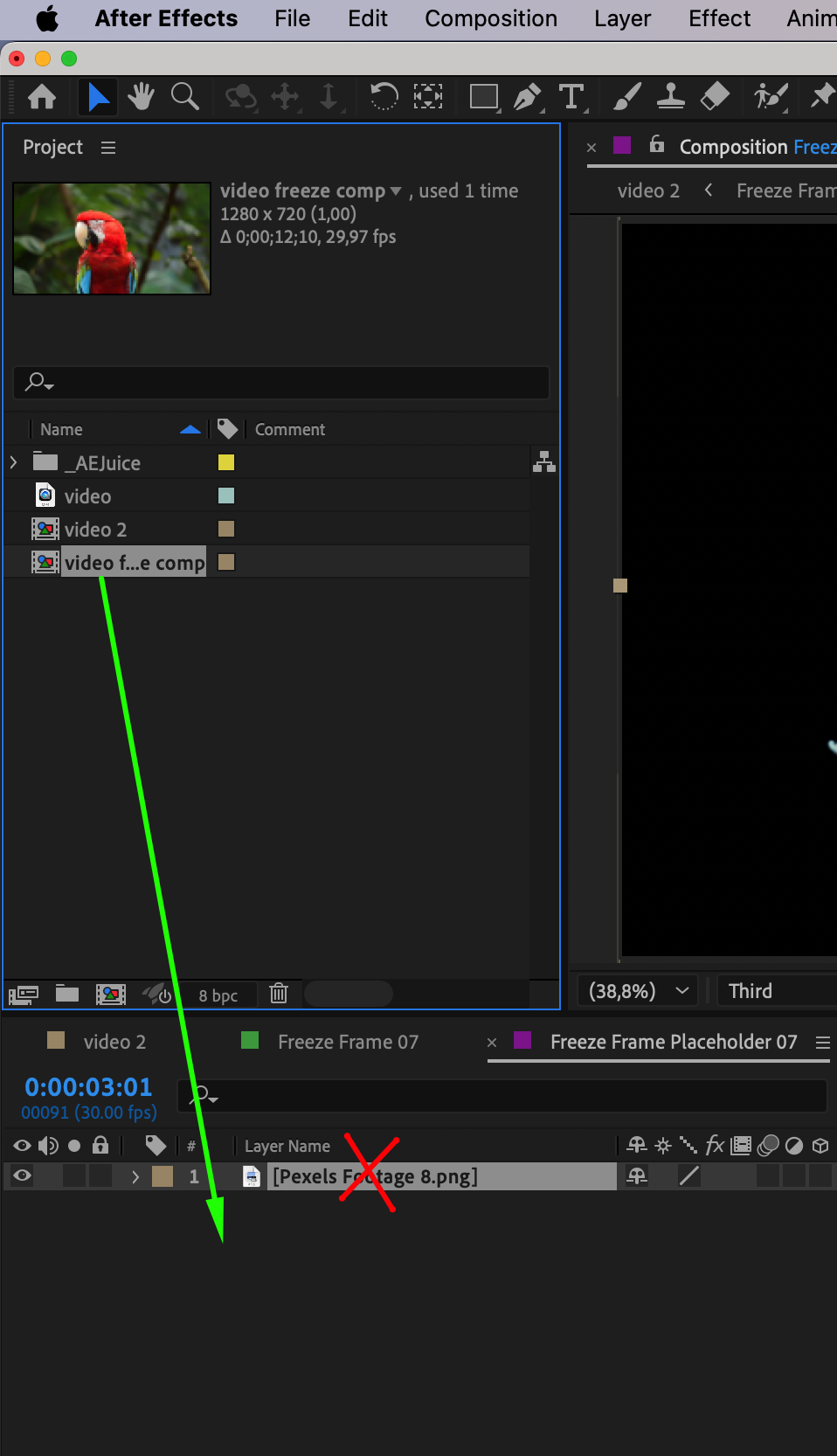
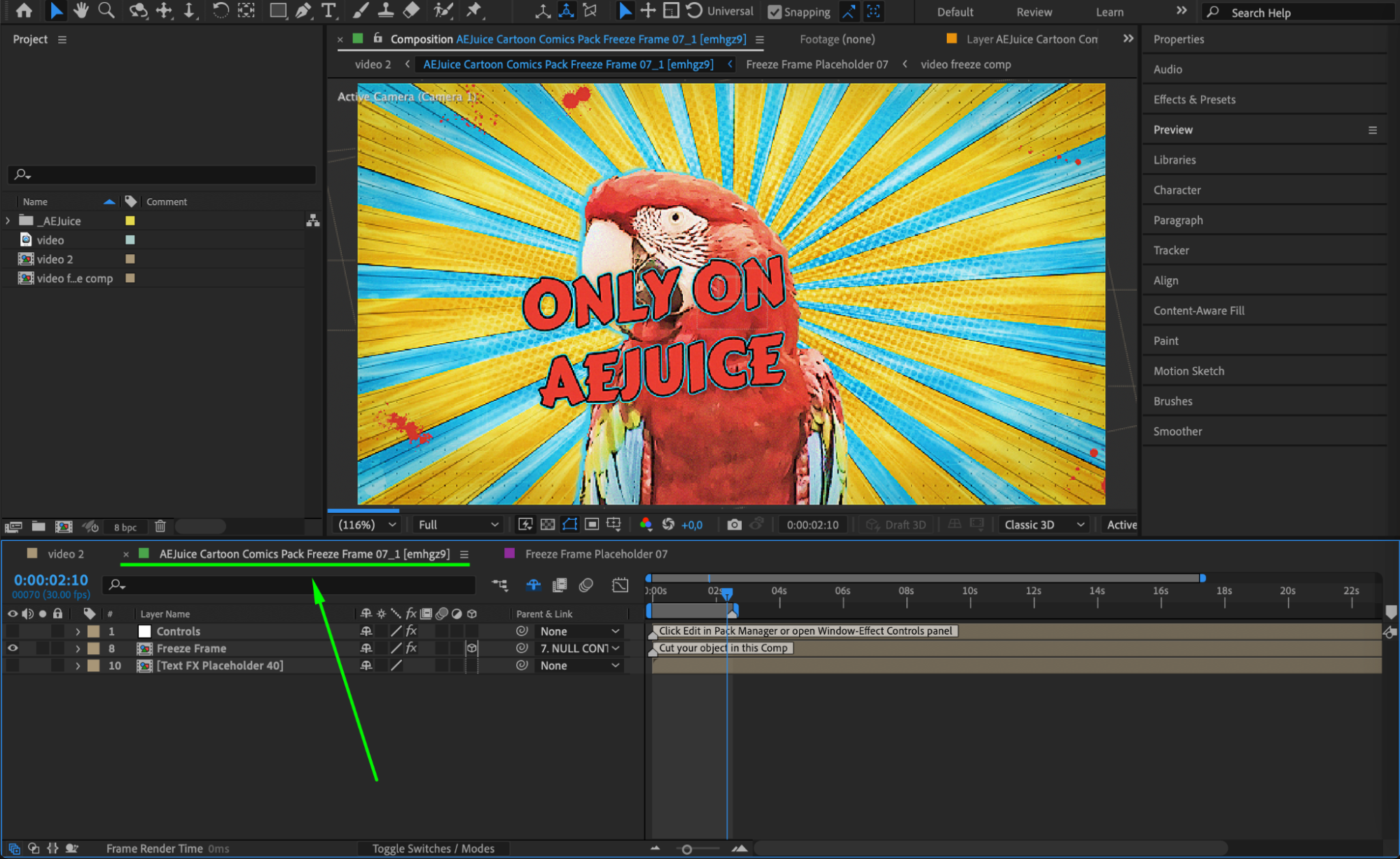
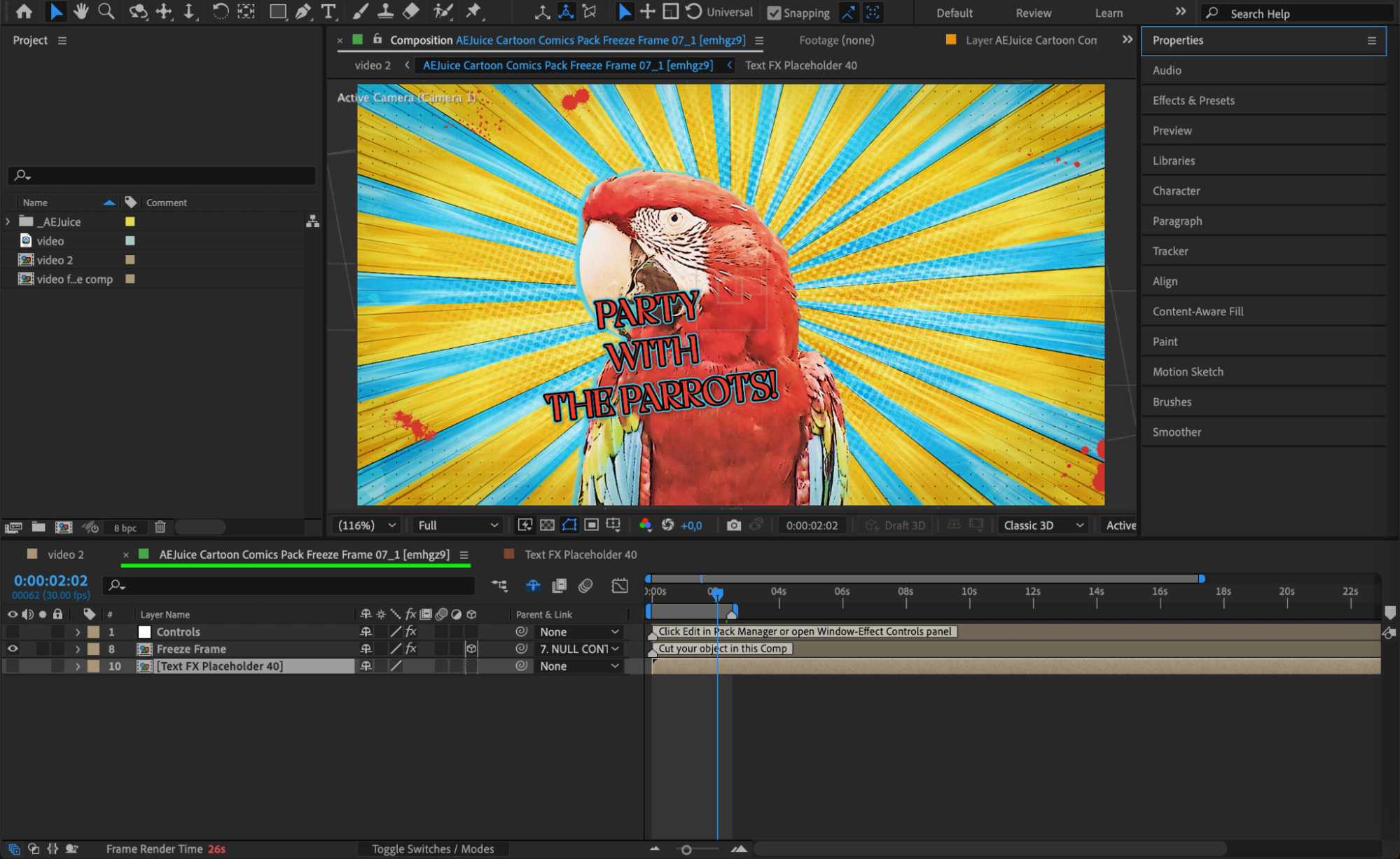
Inside the AEJuice pre-comp, double-click the placeholder pre-comp (often named “freeze frame”). Remove the default image and drag in your Freeze Comp in its place. Resize and position it if needed.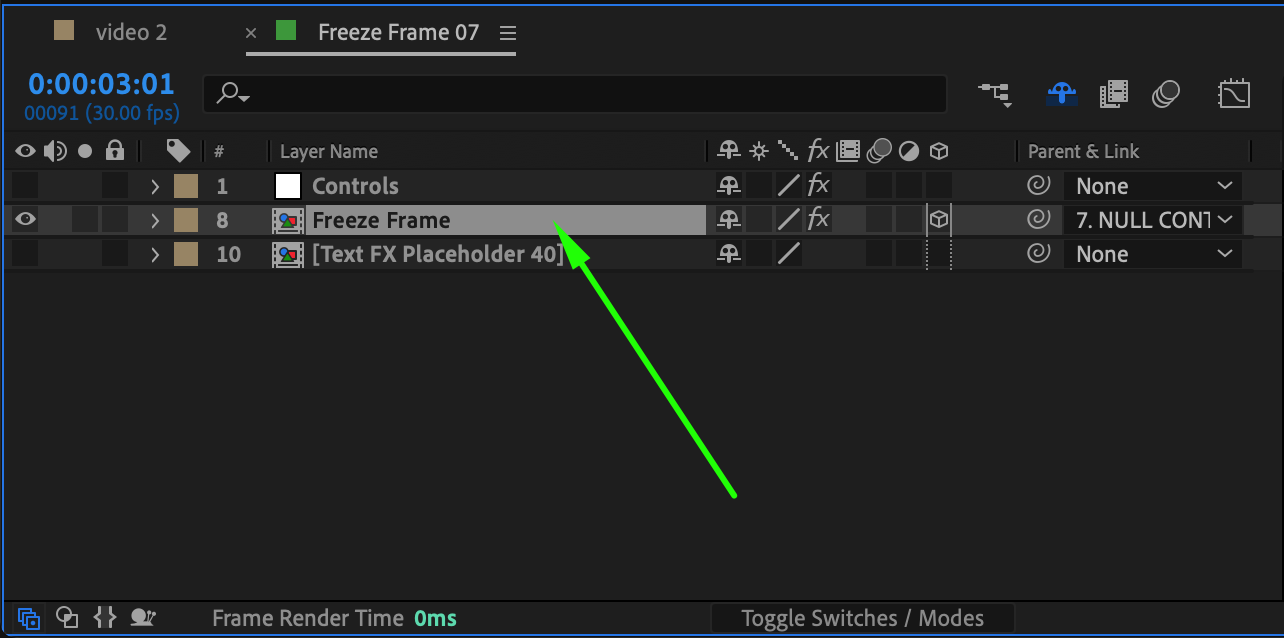
Step 13: Customize the Comic Text
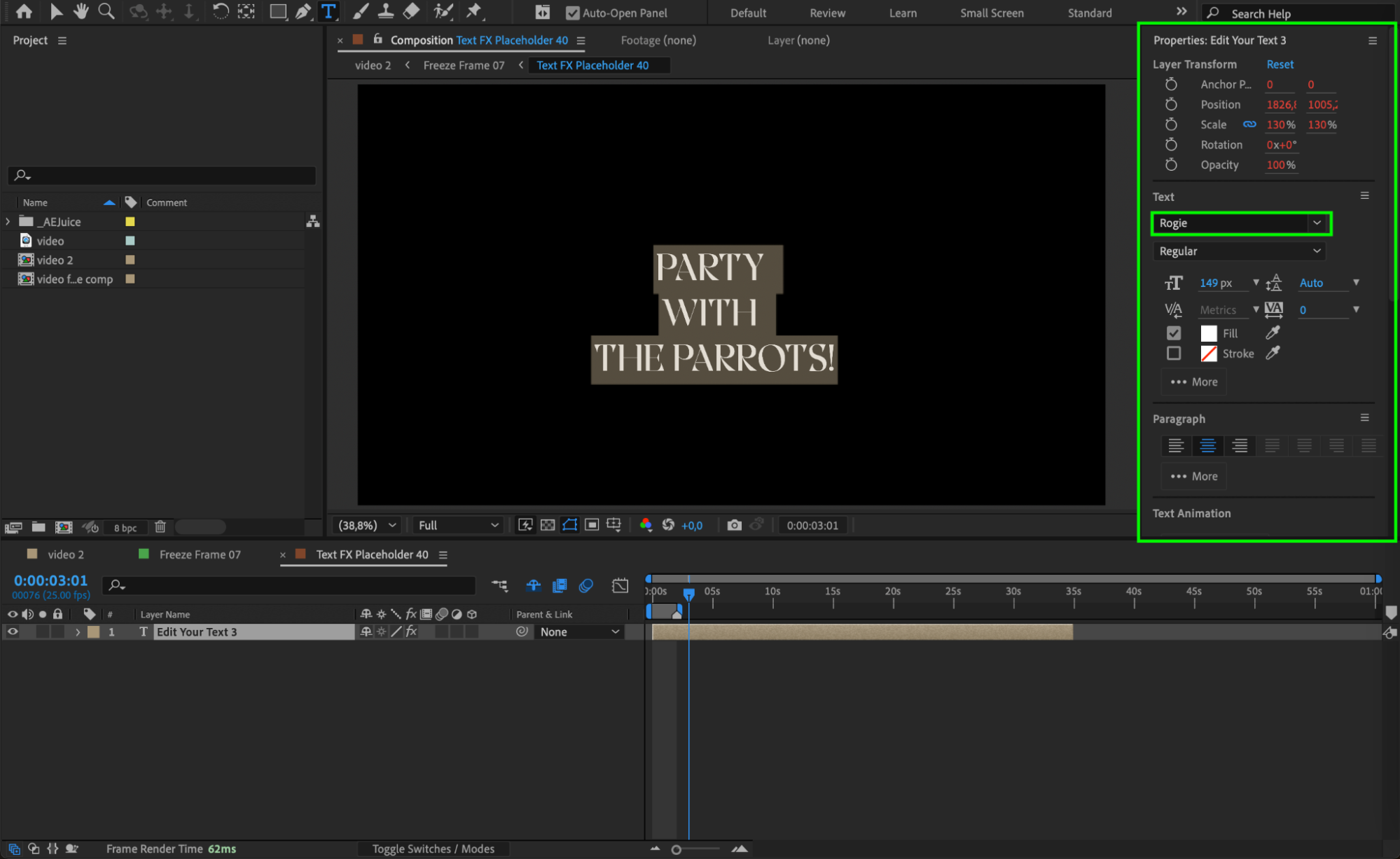
Find the text placeholder pre-comp and double-click it. Inside, edit the text to match your scene or story. You can change font, color, and message.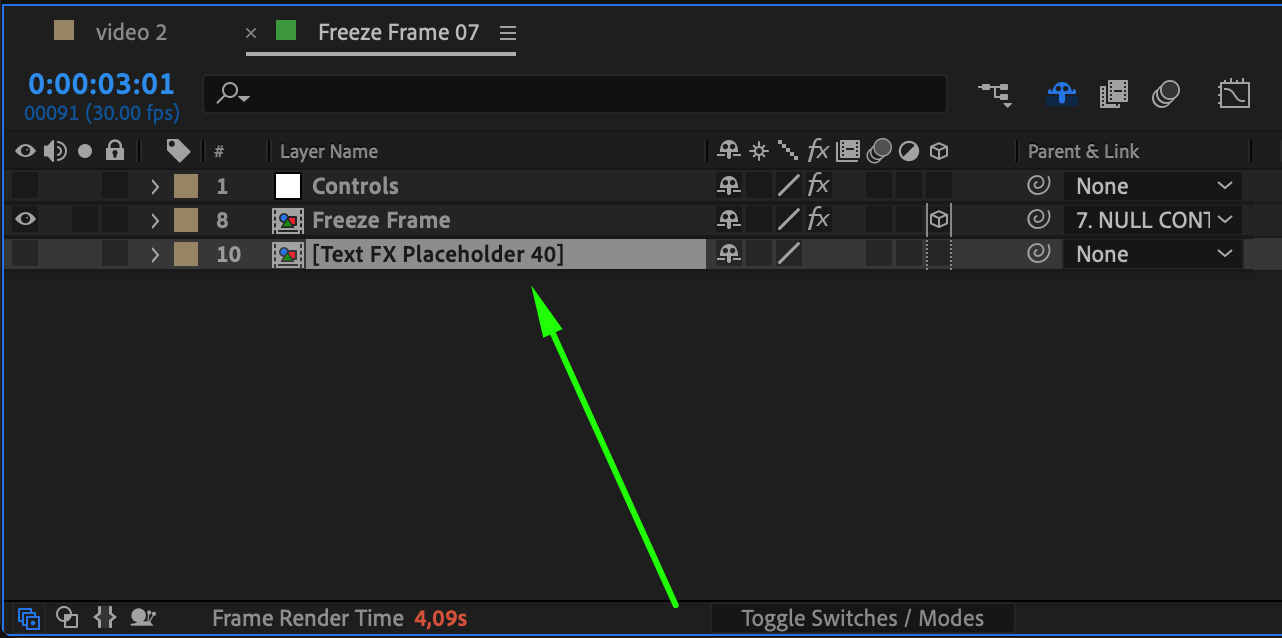
 Step 14: Align the Comic Pre-comp in Timeline
Go back to your main comp and move the AEJuice comic pre-comp to start exactly where your freeze frame begins. This ensures the comic effect syncs with the moment you want.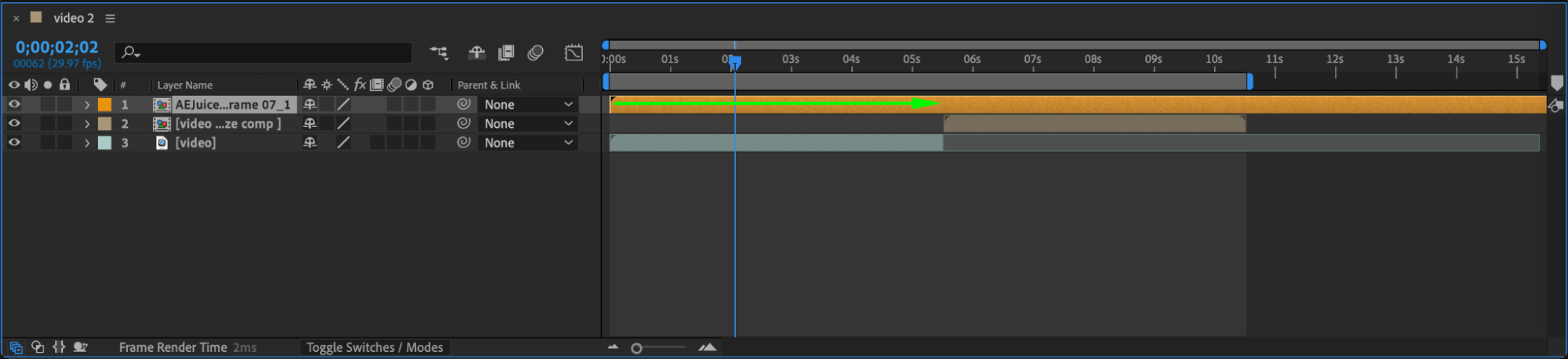 Step 15: Preview and Adjust
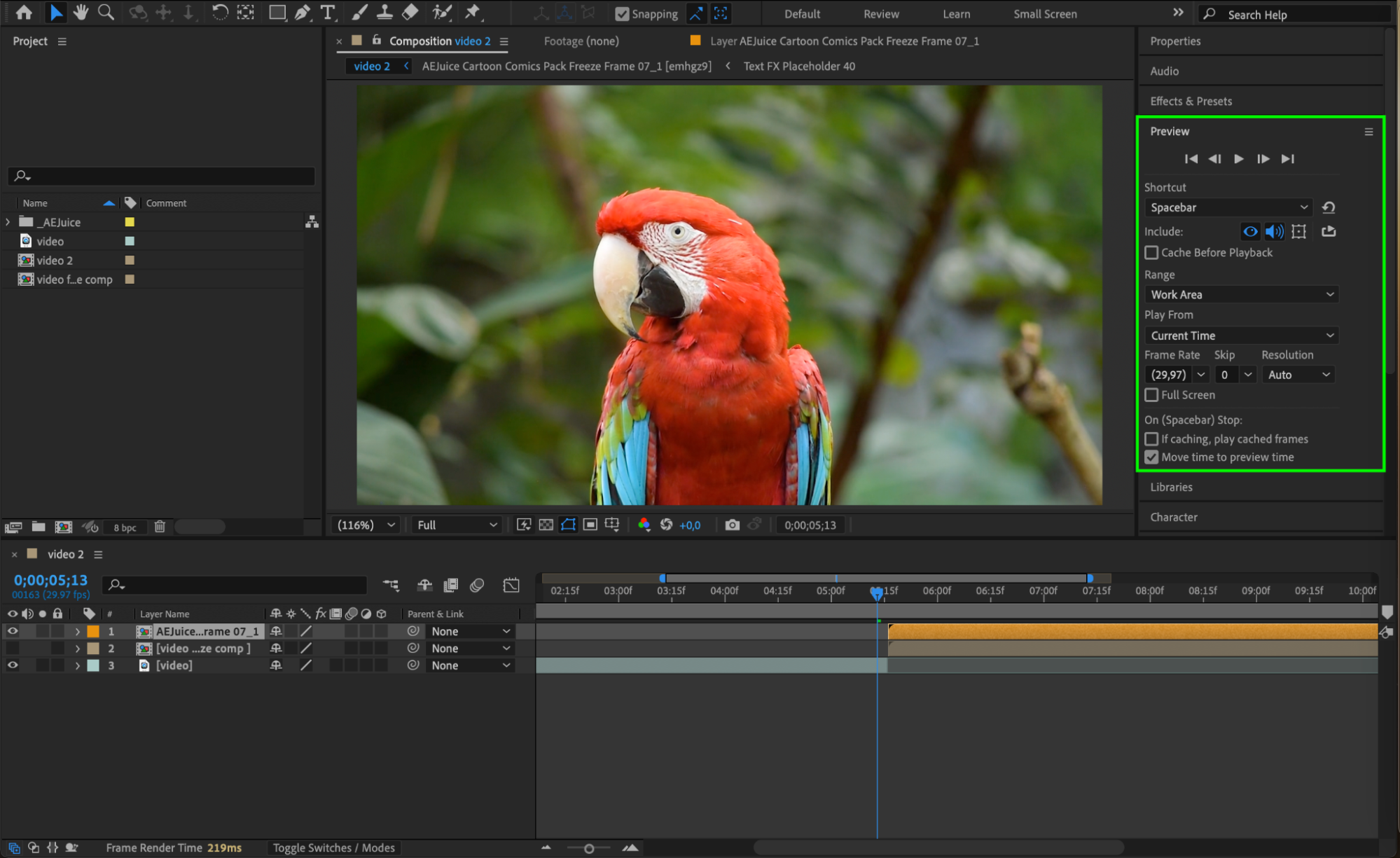
Press Spacebar to preview your animation. Adjust the timing, text, or position of layers to fine-tune your comic scene. You now have a fun, dynamic freeze frame moment with a comic punch.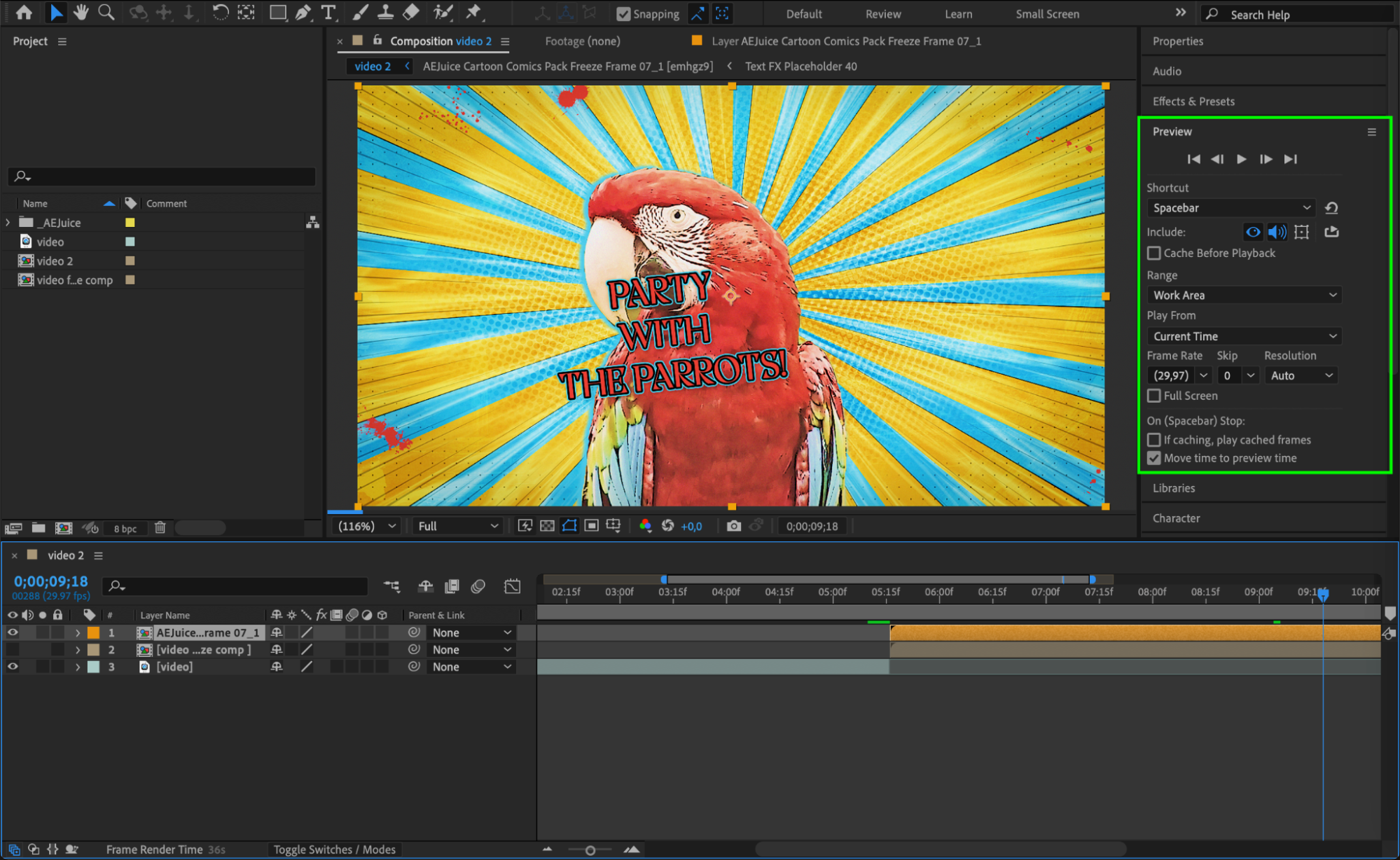
 Conclusion
The Cartoon Comics Pack is one of the best comic style effects tools for YouTube videos and social media content. With just a few steps, you can turn any video into a fun, stylized comic moment using AEJuice Pack Manager 4. Whether you’re highlighting a dramatic moment or adding humor, this pack makes it fast and easy.
Our Bestsellers
Our Bestsellers


