
Introduction to the Glass Parallax Effect
The glass parallax transition is a stylish and cinematic way to move between two video clips. It creates a realistic glass distortion that gives your edit more depth and energy. The effect uses scale animation combined with distortion layers to simulate light refraction. In this guide, you’ll learn how to build this transition from scratch using only built-in After Effects tools — no third-party plugins required.
Step 1: Import and Arrange Your Footage
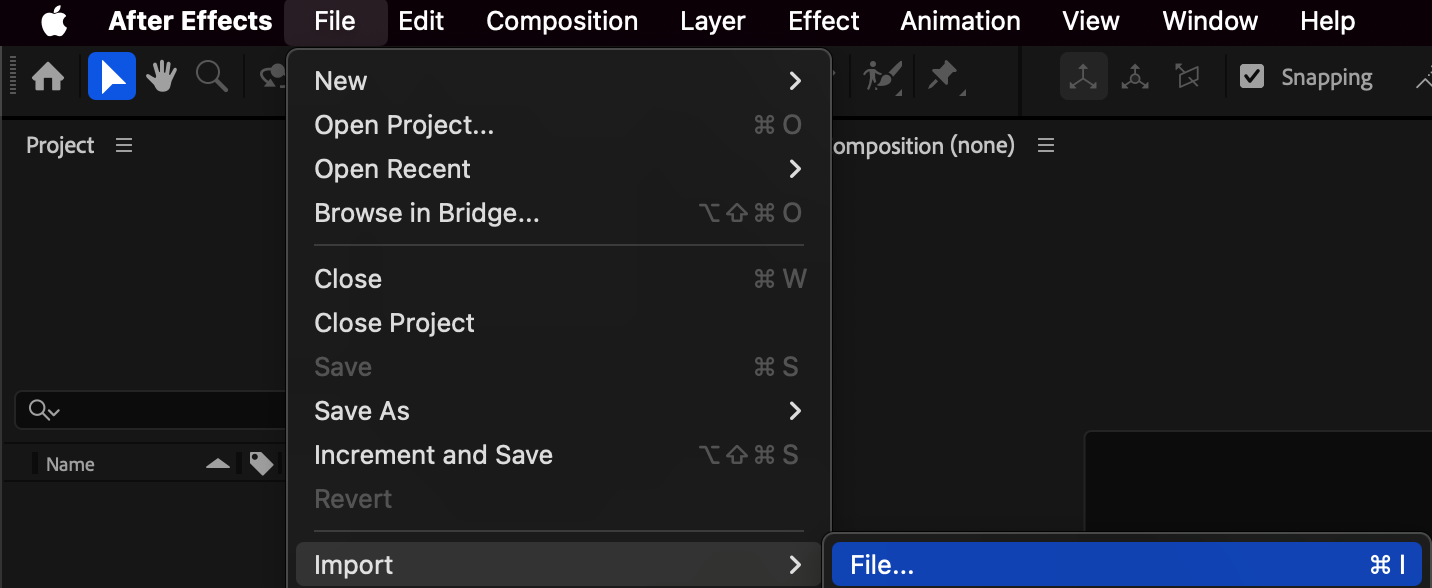
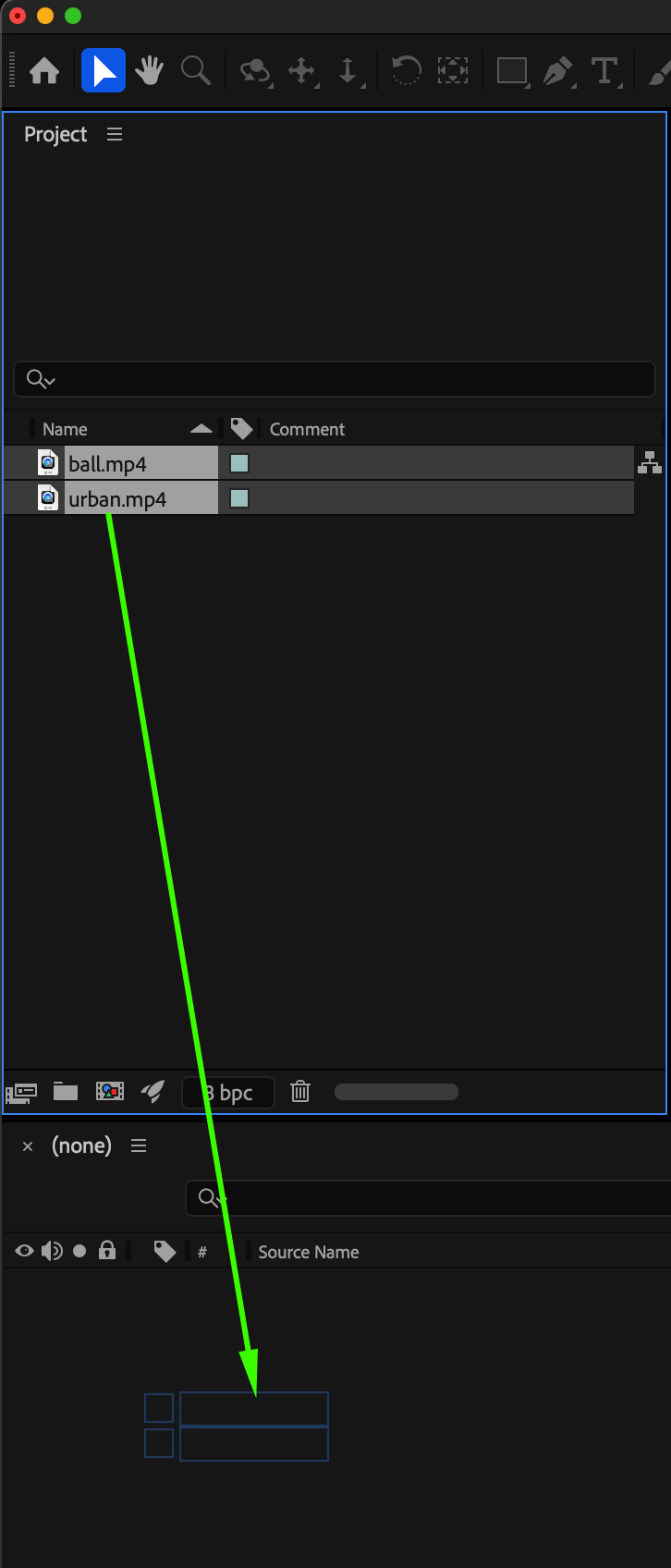
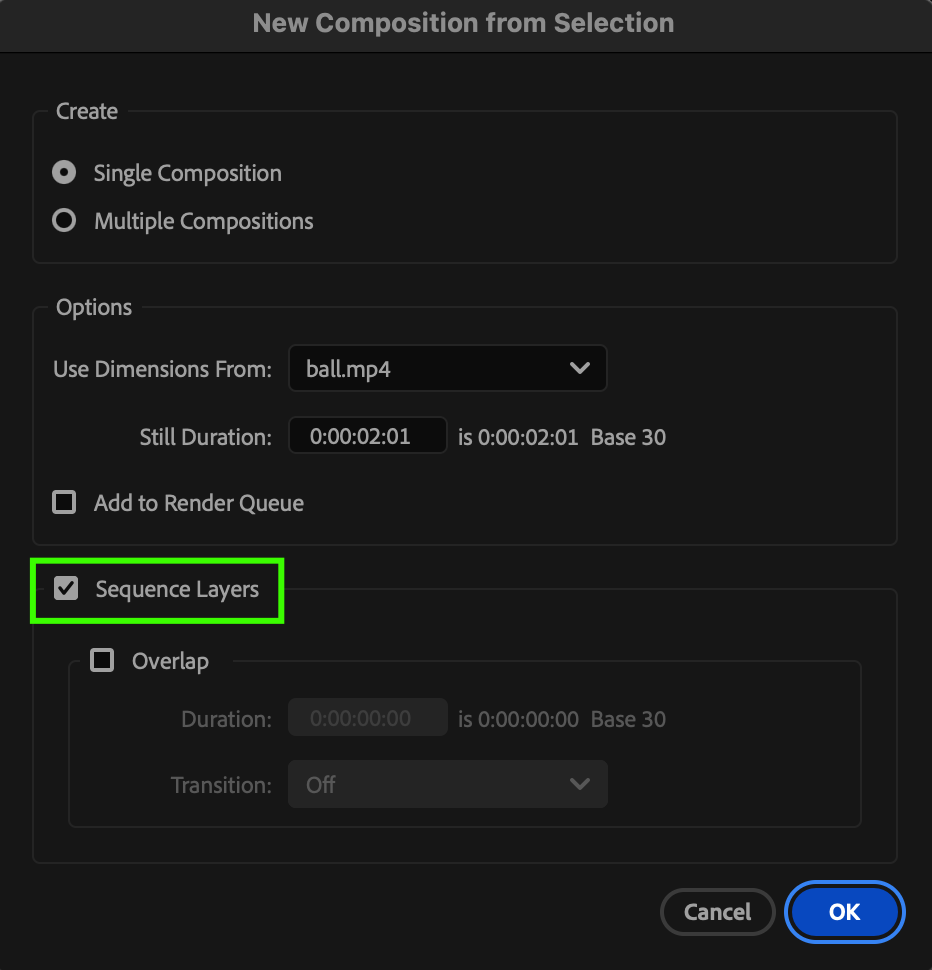
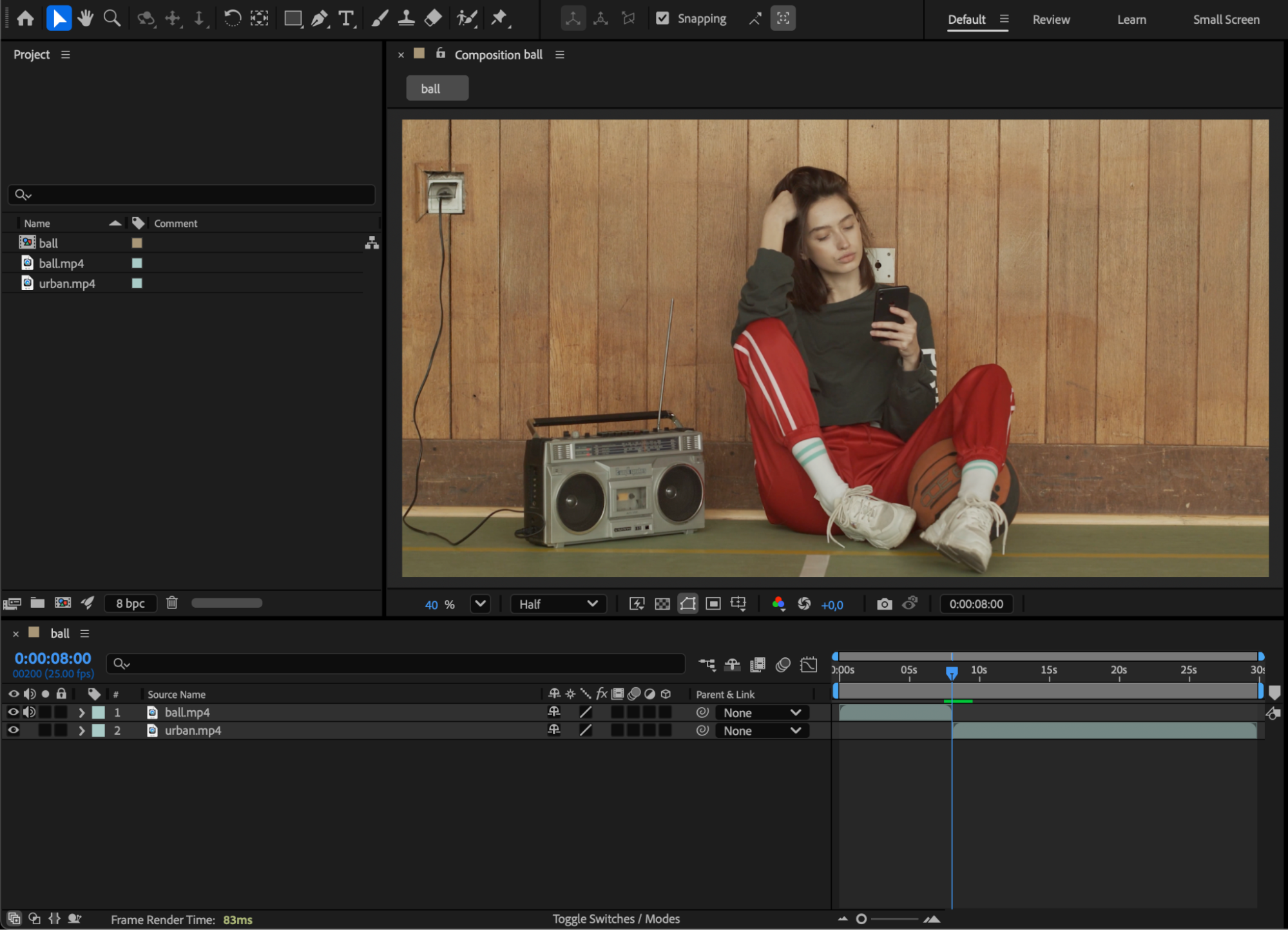
Go to File > Import > File and select the two video clips or images you want to use. Drag both clips onto the Timeline. When the New Composition from Selection window appears, check the Sequence Layers box and click OK. This will automatically place both clips one after another on the same timeline, ready for your transition.
 Step 2: Animate the Scale of the First Clip
Move the CTI (Current Time Indicator) to the point where the two clips meet. Press “Ctrl/Cmd + Shift + Left Arrow” to jump a few frames before the cut. Open the Transform properties for the first clip, click the Scale stopwatch, and set the value to 100%. Then move the CTI back to the cut point, press “Ctrl/Cmd + Shift + Right Arrow”, and increase the Scale value to 120%. This will make the first clip zoom in slightly as it transitions out.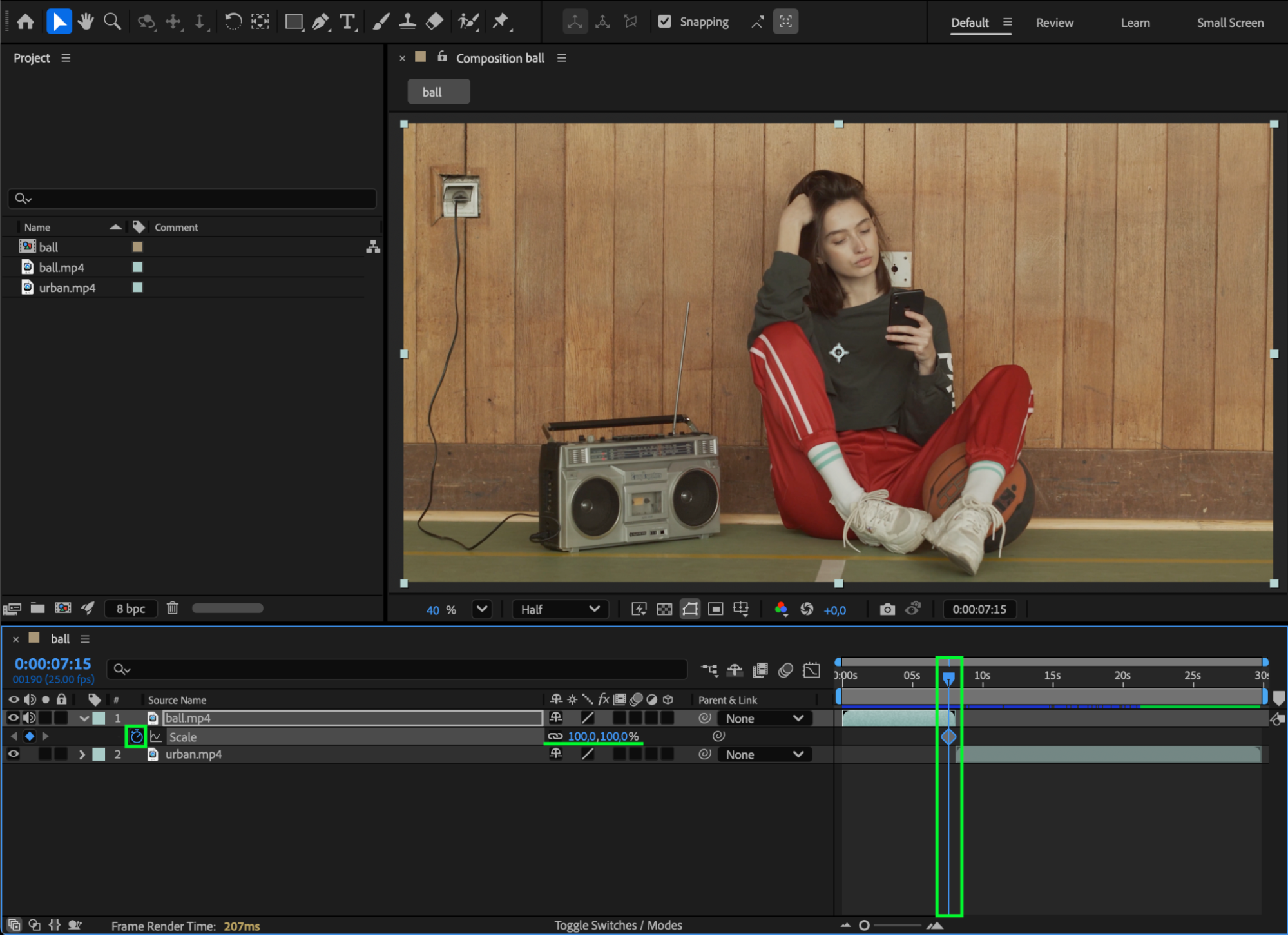
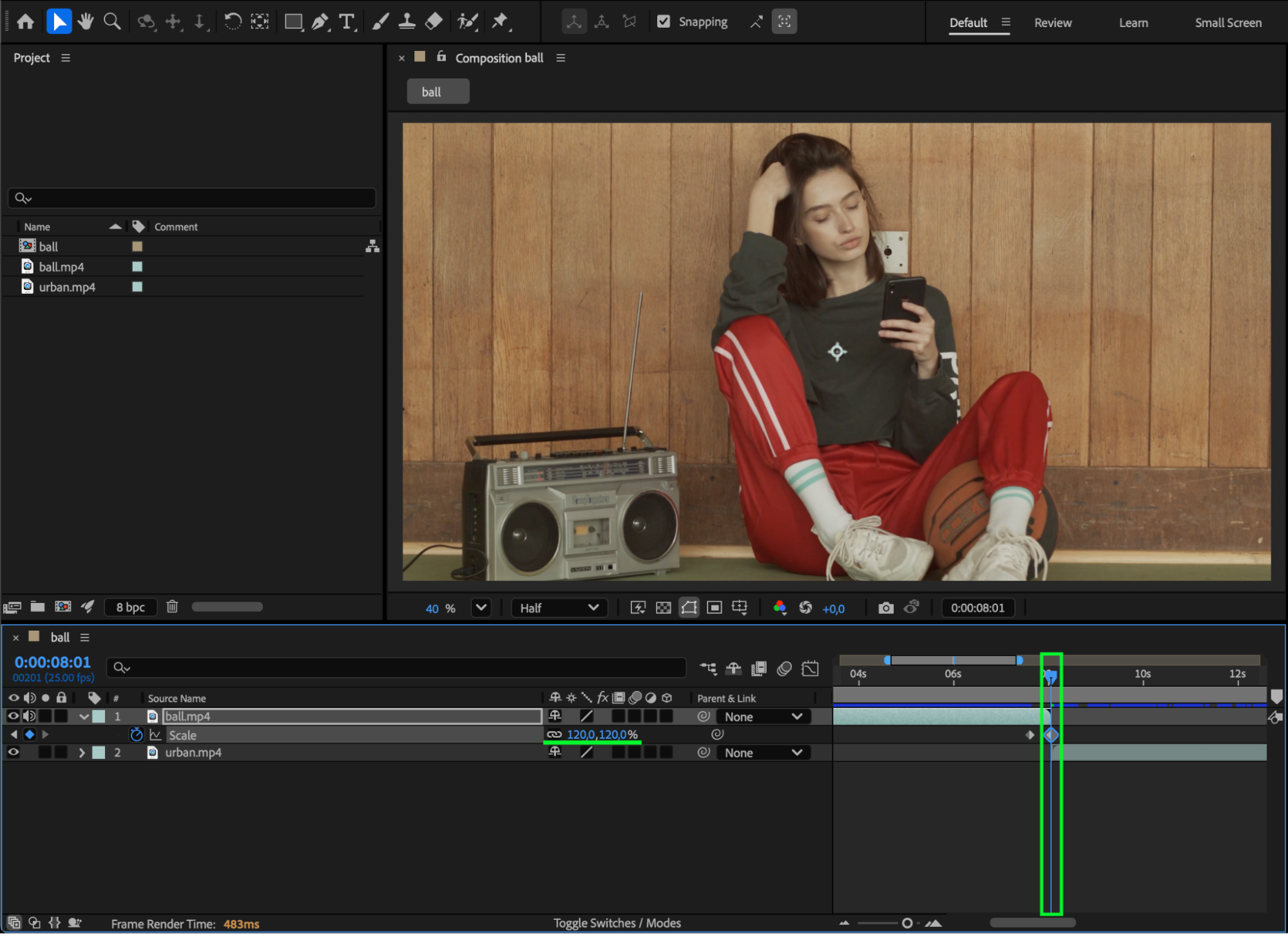 Step 3: Animate the Scale of the Second Clip
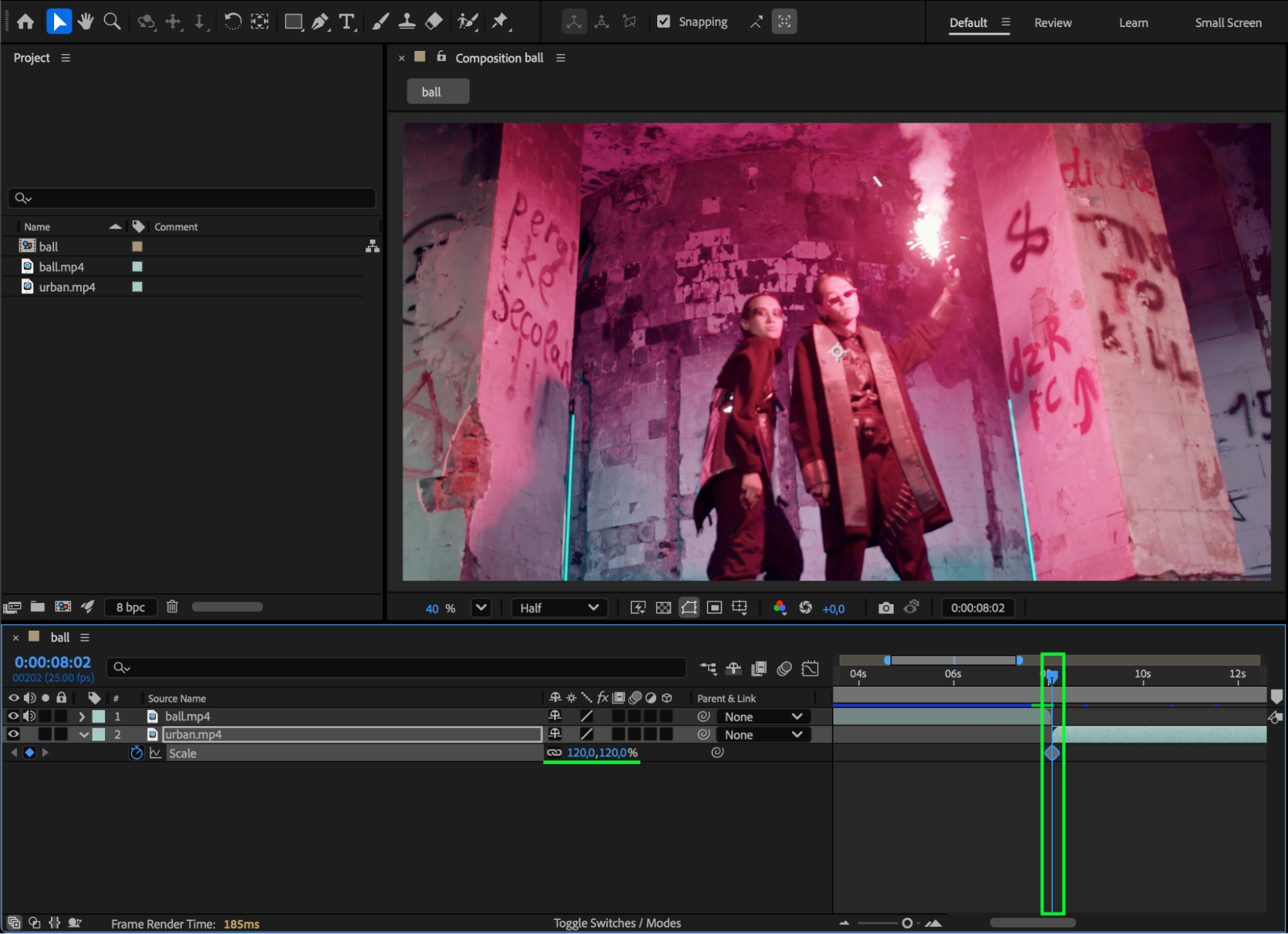
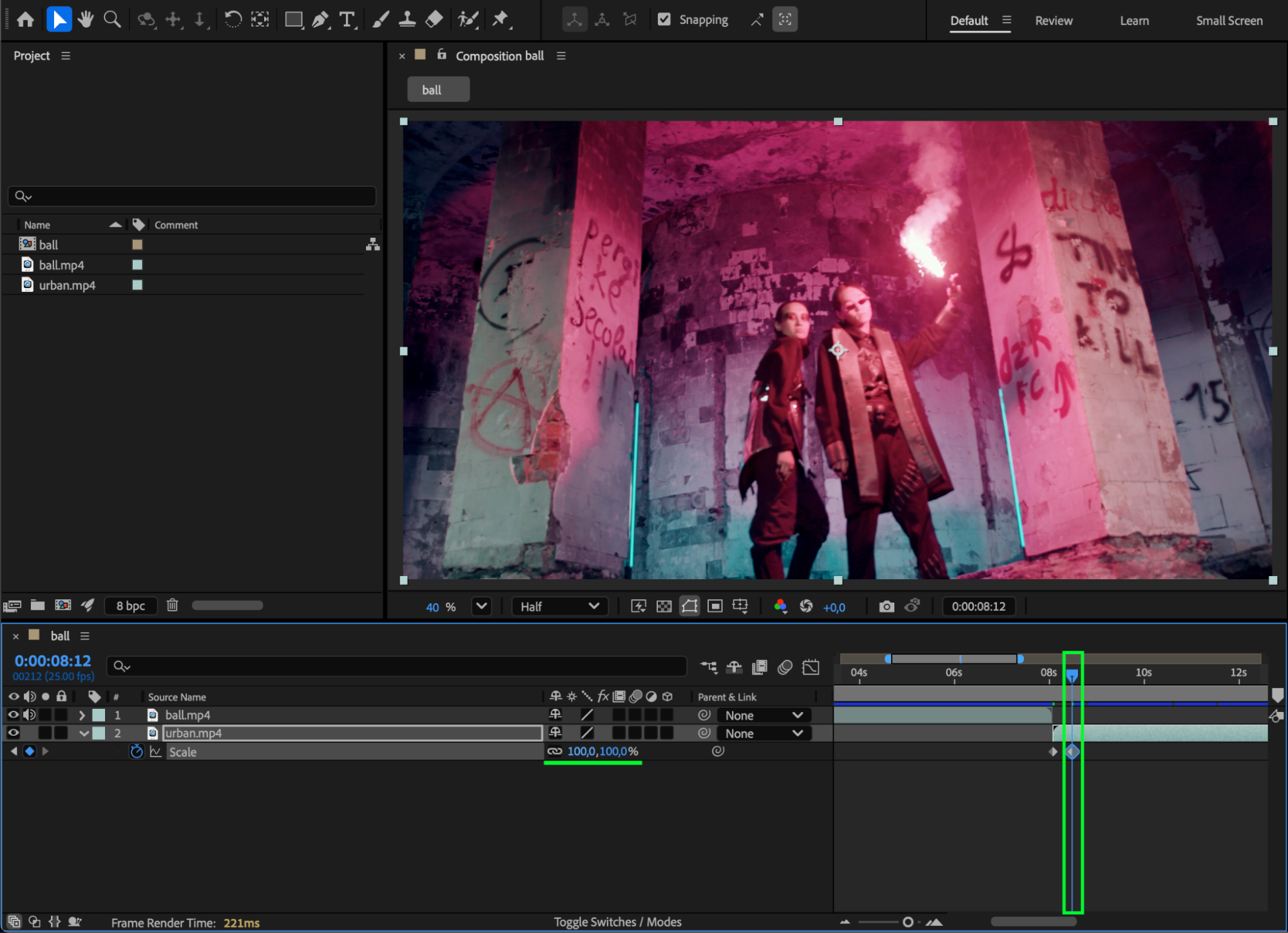
While the CTI is still at the cut point, open the Transform settings for the second clip. Click the Scale stopwatch and set the value to 120%. Then press “Ctrl/Cmd + Shift + Right Arrow” to move several frames forward and change the Scale value to 100%. This creates a smooth zoom-out effect for the second clip, completing the parallax motion.
Step 4: Create an Adjustment Layer for the Glass Effect
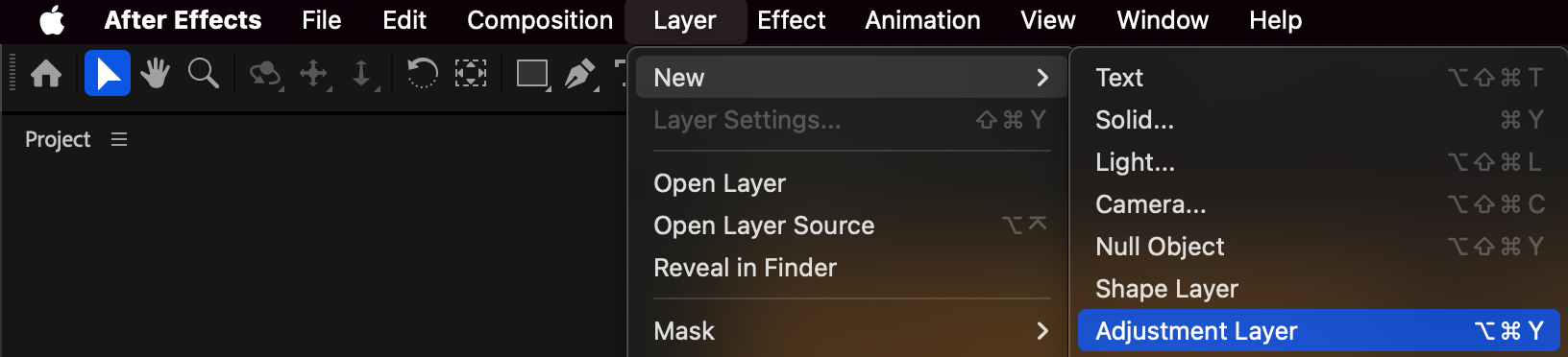
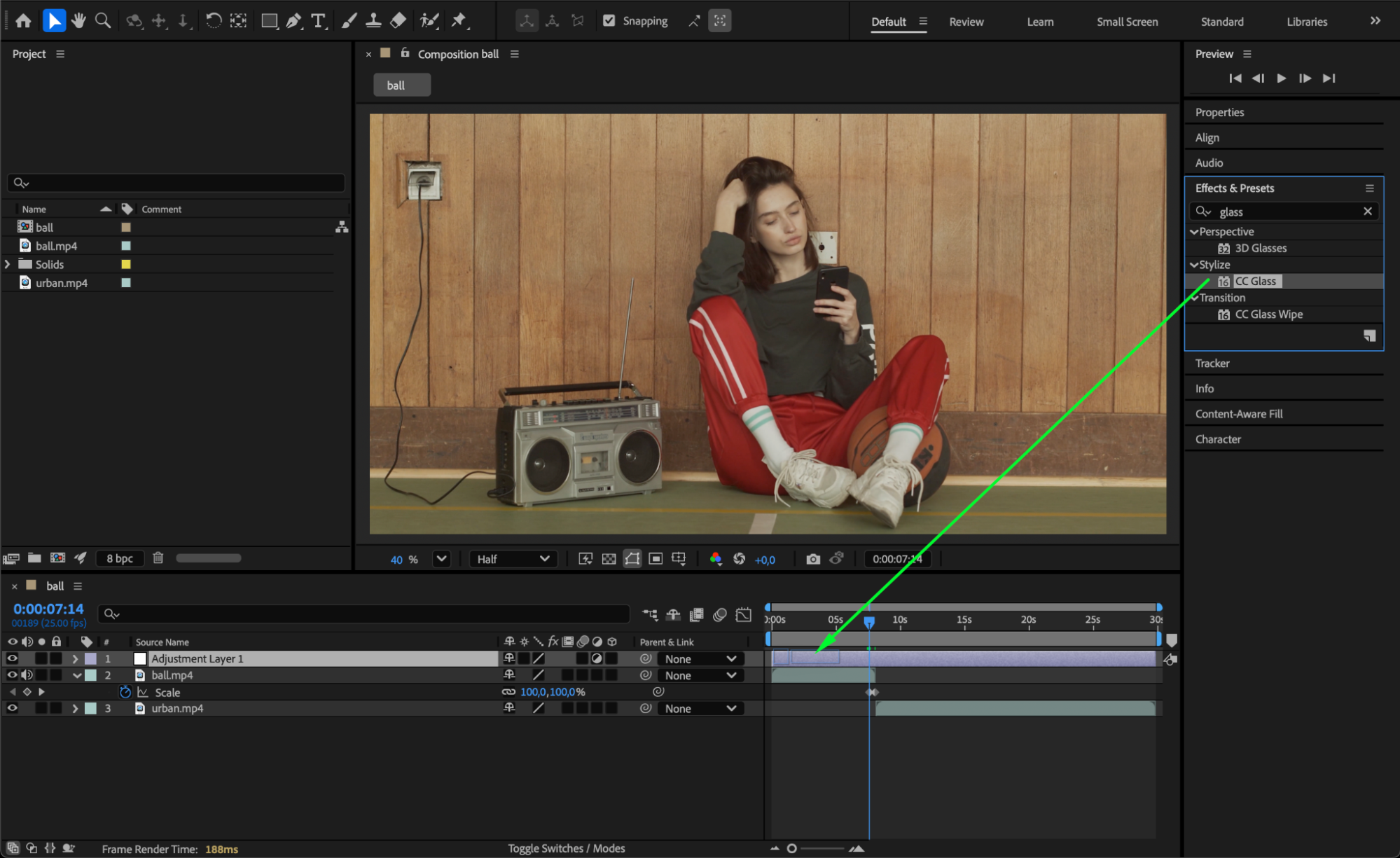
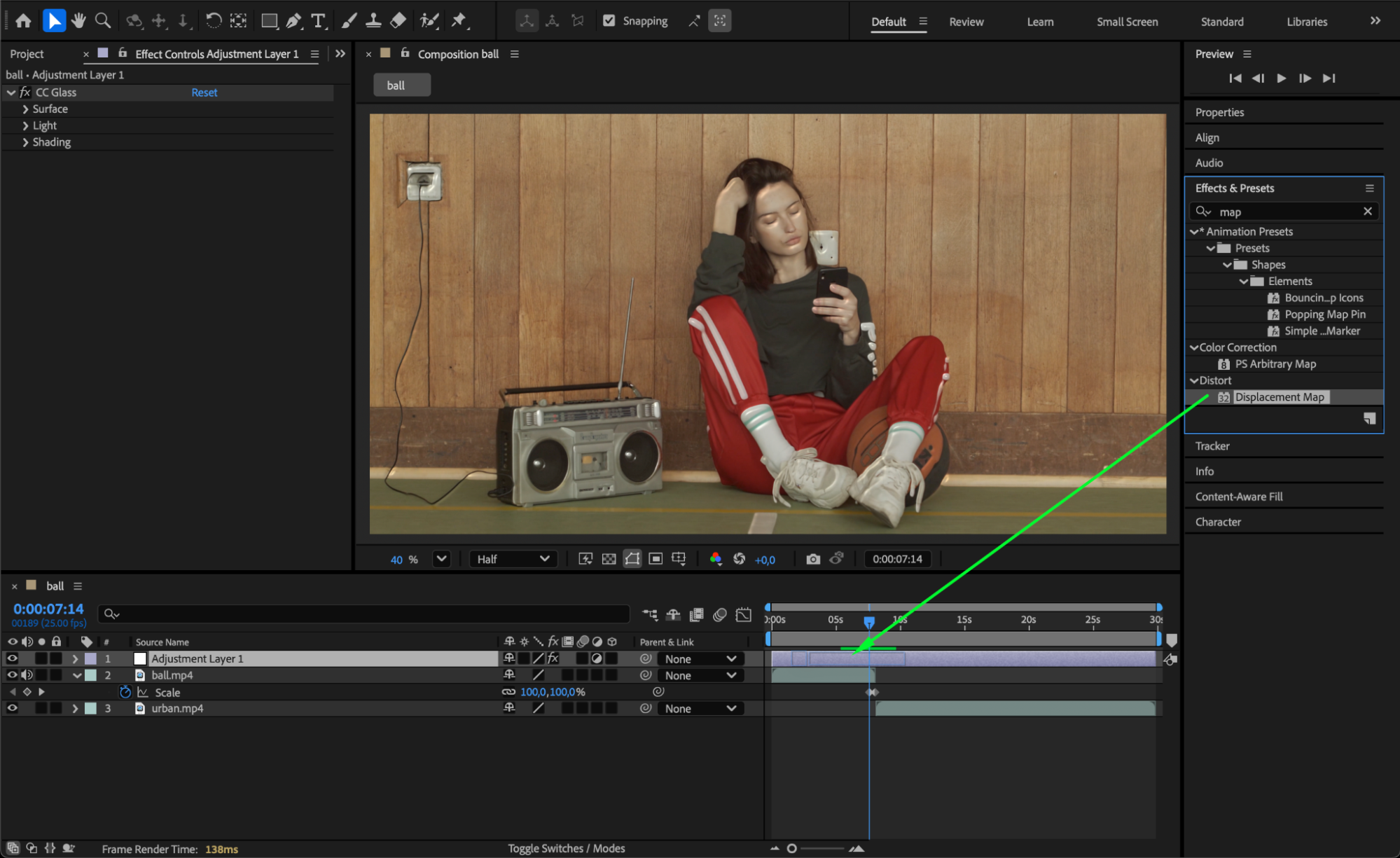
Go to Layer > New > Adjustment Layer to create a new layer above your clips. In the Effects & Presets panel, search for CC Glass and Displacement Map, and drag both effects onto the adjustment layer. These effects will be used to generate the glass-like distortion between the clips.
 Step 5: Animate the Glass and Displacement Settings
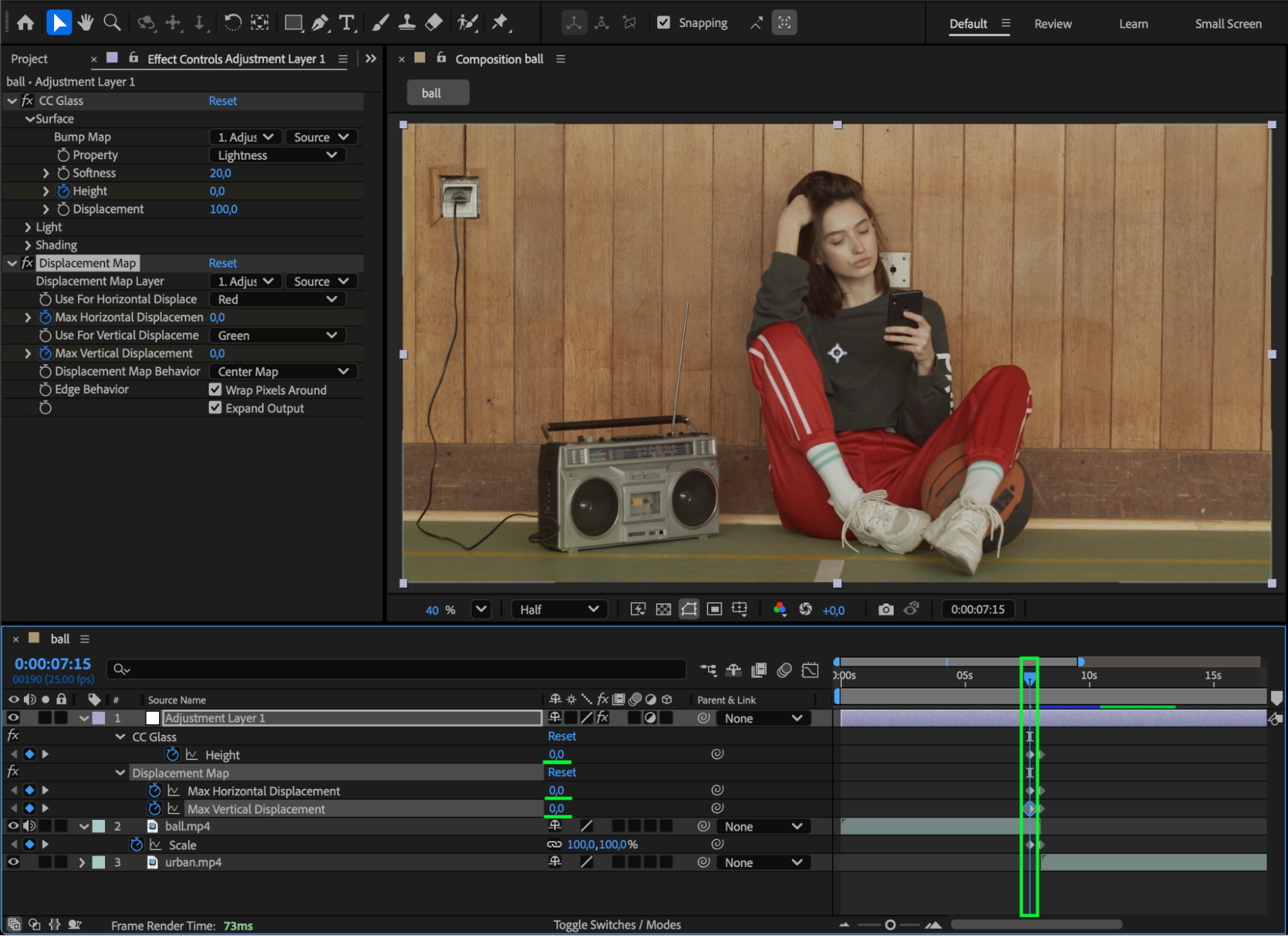
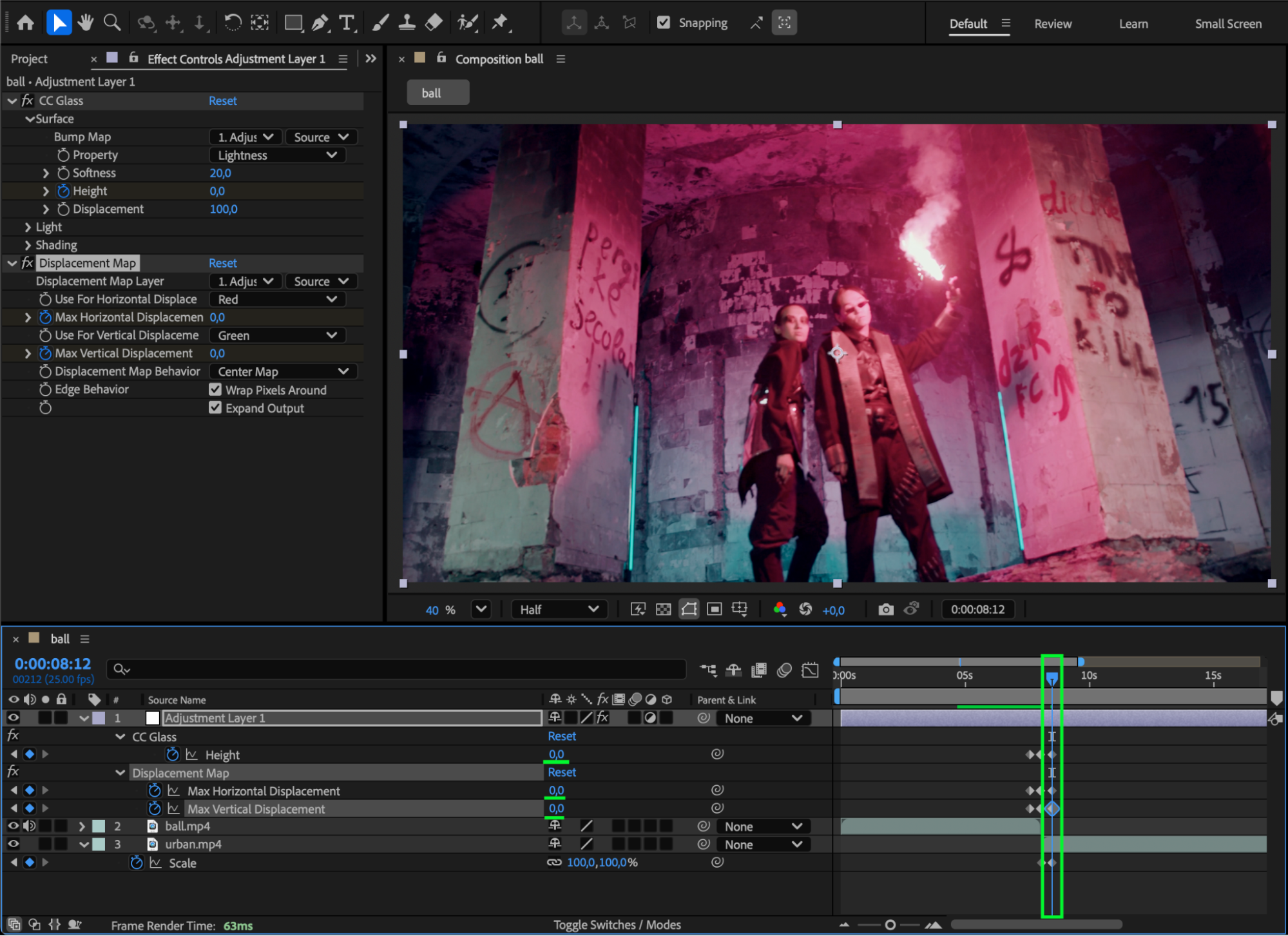
Select the Adjustment Layer and open the Effect Controls panel. For CC Glass, click the stopwatch next to Height and set the value to 30. For Displacement Map, click the stopwatches next to Max Horizontal Displacement (set to 37) and Max Vertical Displacement (set to 5).
Then move the CTI about 10 frames forward and backward from the cut point and set all three values (Height, Max Horizontal, Max Vertical) to 0 in both directions. This animation will make the distortion appear and disappear smoothly around the transition point.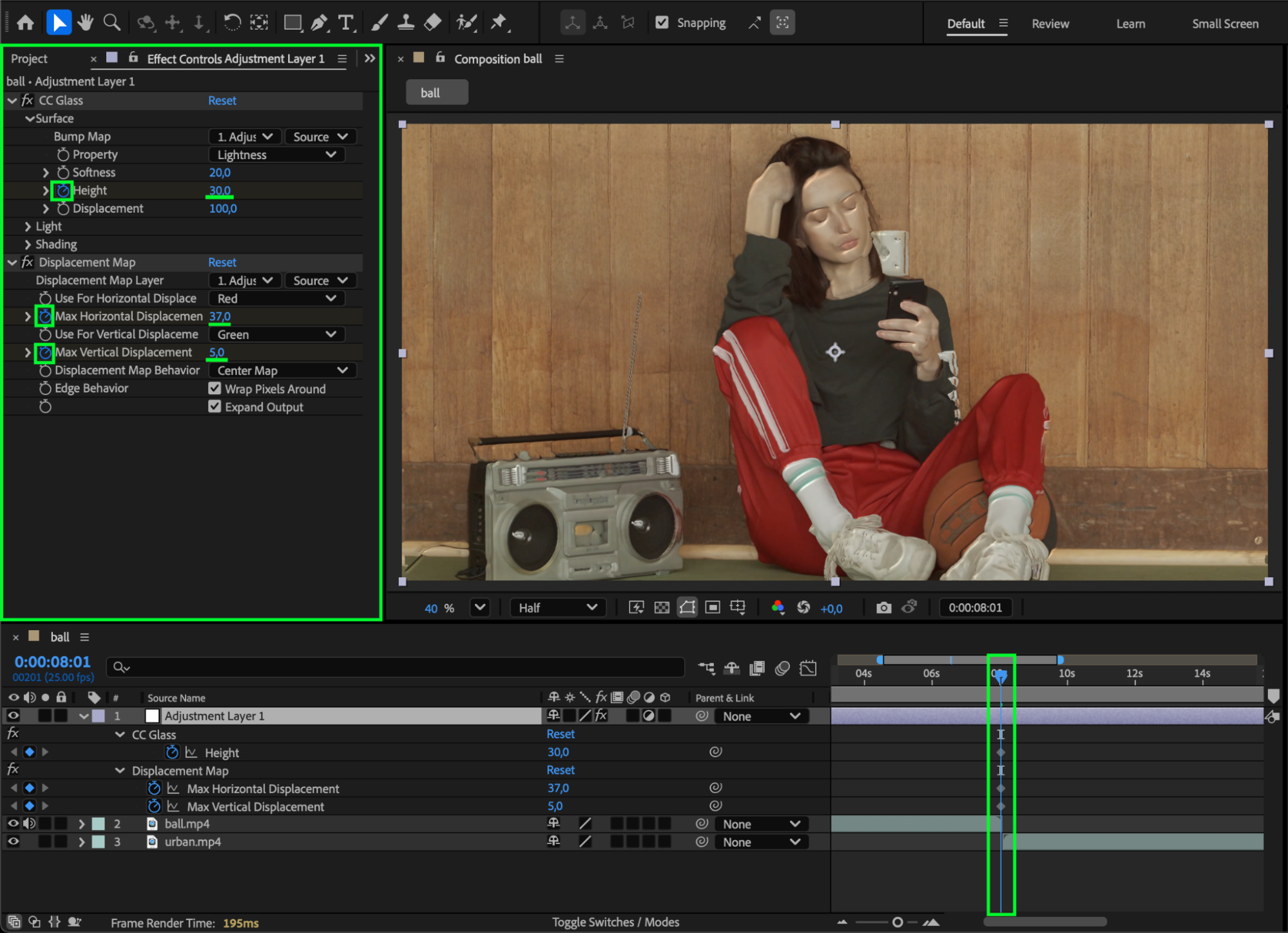
Step 6: Smooth the Motion with Easy Ease
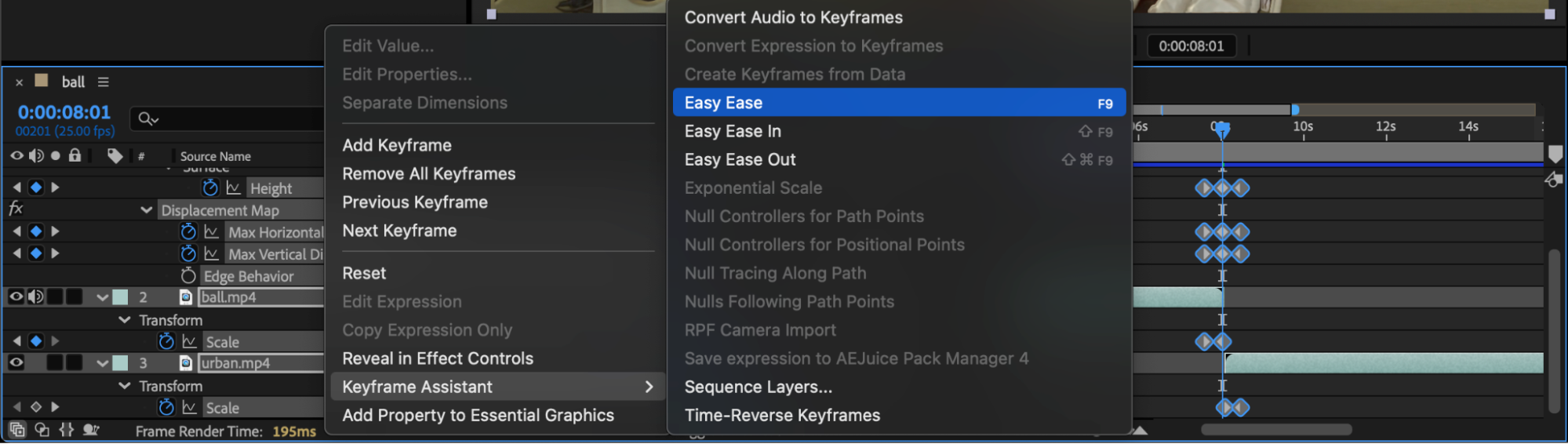
Select all your keyframes, right-click, and choose Keyframe Assistant > Easy Ease. This will make the animation smoother and more natural. You can also open the Graph Editor to refine the speed curve if needed for a more fluid motion.
 Step 7: Preview and Refine
Press the Spacebar to preview your transition. You should see a subtle glass distortion as the first clip zooms in and the second zooms out. Adjust the keyframe timing or displacement values if you want a stronger or softer glass effect.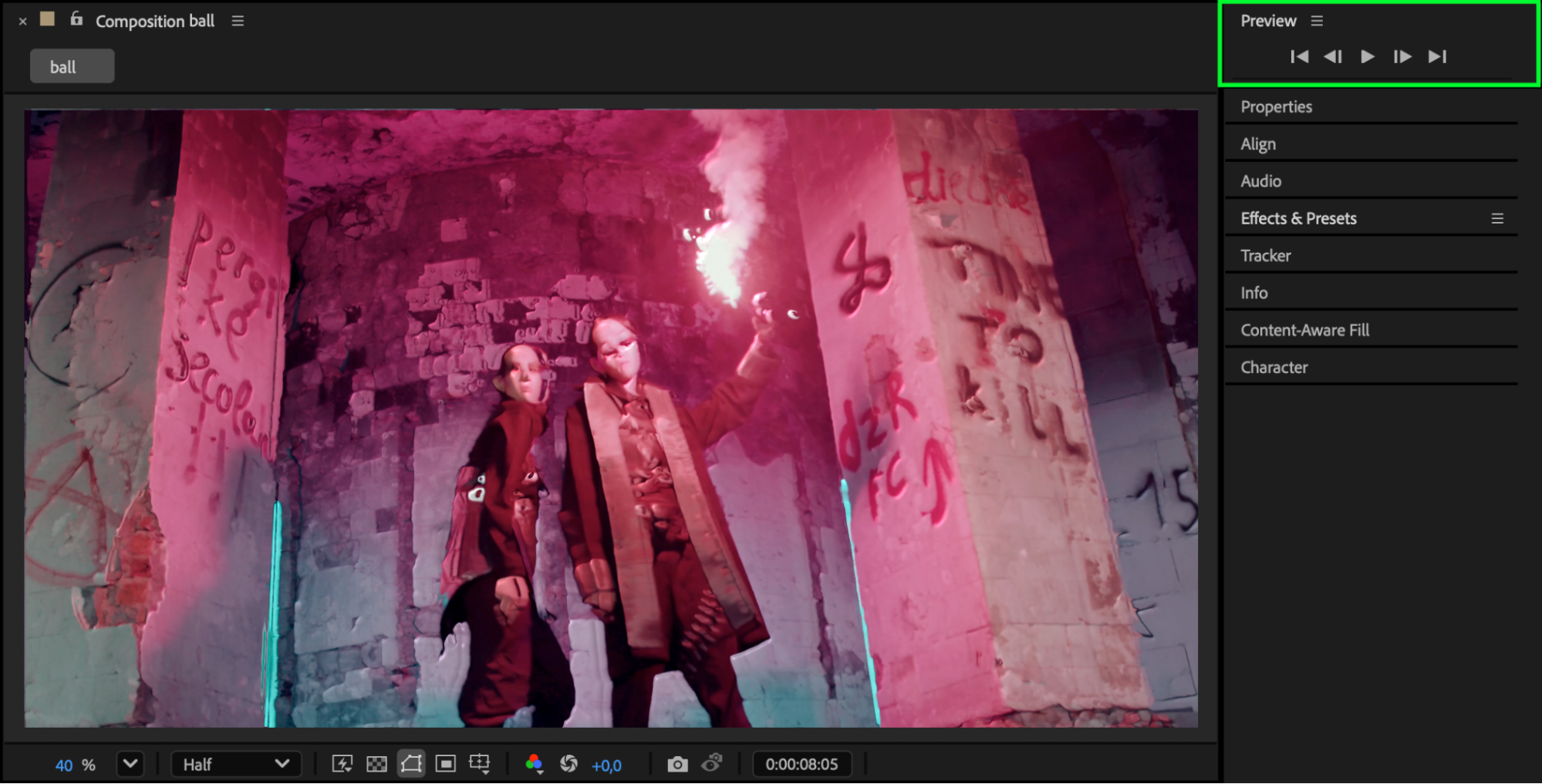
Conclusion
The glass parallax transition adds a sleek, high-end look to your videos and can be made entirely with native After Effects tools. By combining scale animation, displacement, and CC Glass, you can create a realistic light refraction effect that feels smooth and cinematic. With just a few tweaks, this technique can be customized for intros, music videos, or any modern motion design project.
Our Bestsellers
Our Bestsellers


