
Create Stunning Light Leaks in After Effects
Introduction
Light leaks can add a dynamic and cinematic touch to your footage, creating a subtle blend of colors and light. In this tutorial, we will walk through the steps to create light leaks in After Effects, from generating fractal noise to fine-tuning the effect and blending it with your video.
Step 1: Create a New Composition
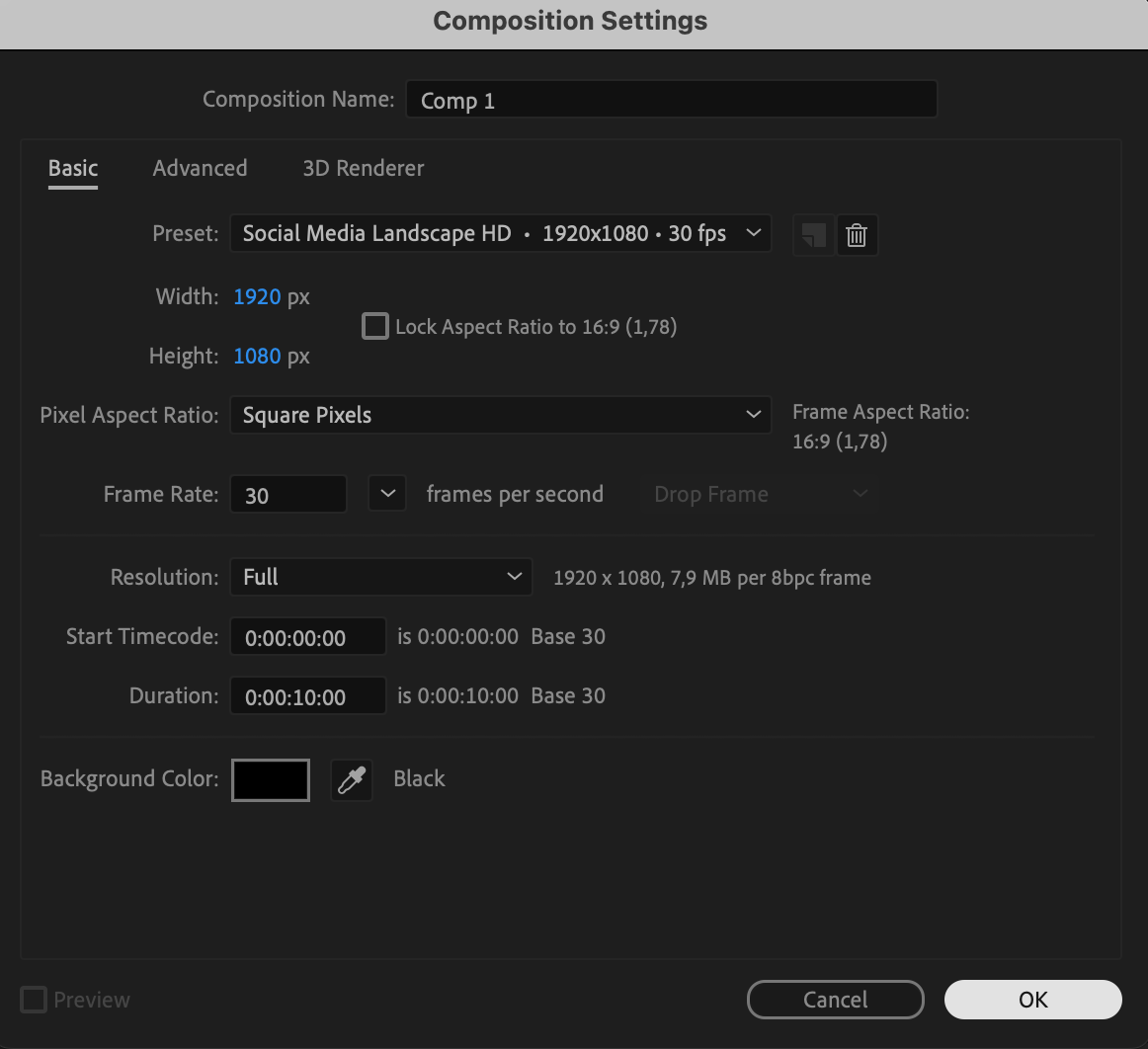
Start by creating a new composition in After Effects. Go to Composition > New Composition to begin, and set the desired resolution and duration.
Step 2: Add a Solid Layer
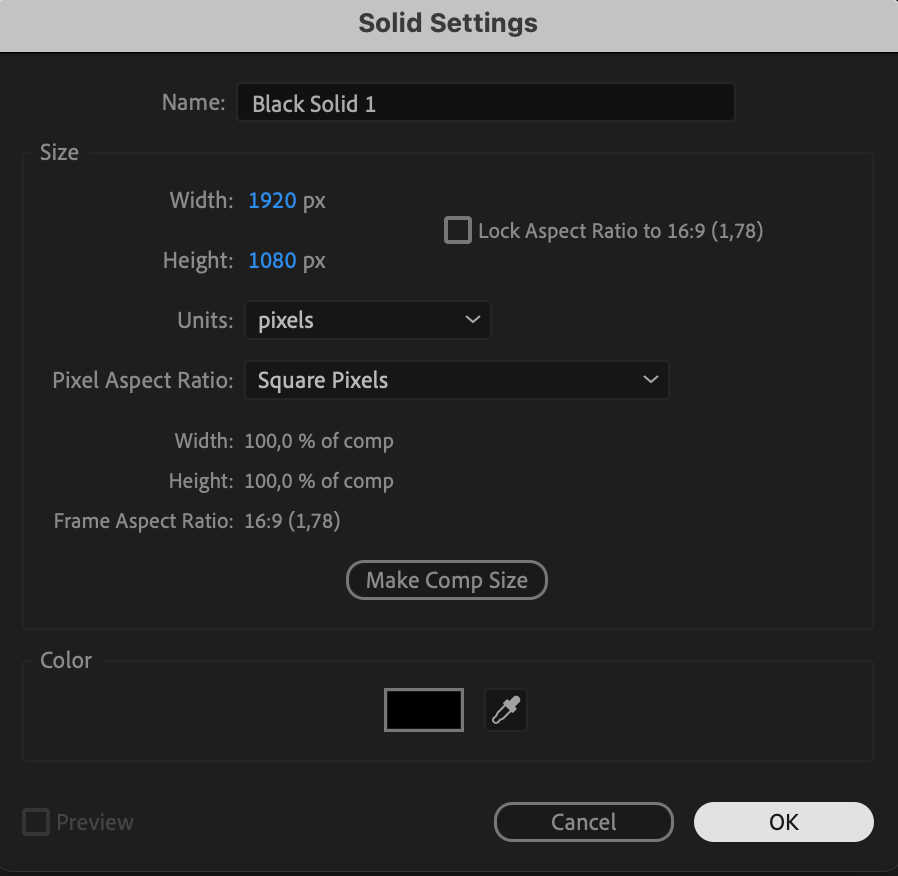
From the top menu, choose Layer > New > Solid. Select Black as the color.
 Step 3: Apply the Fractal Noise Effect
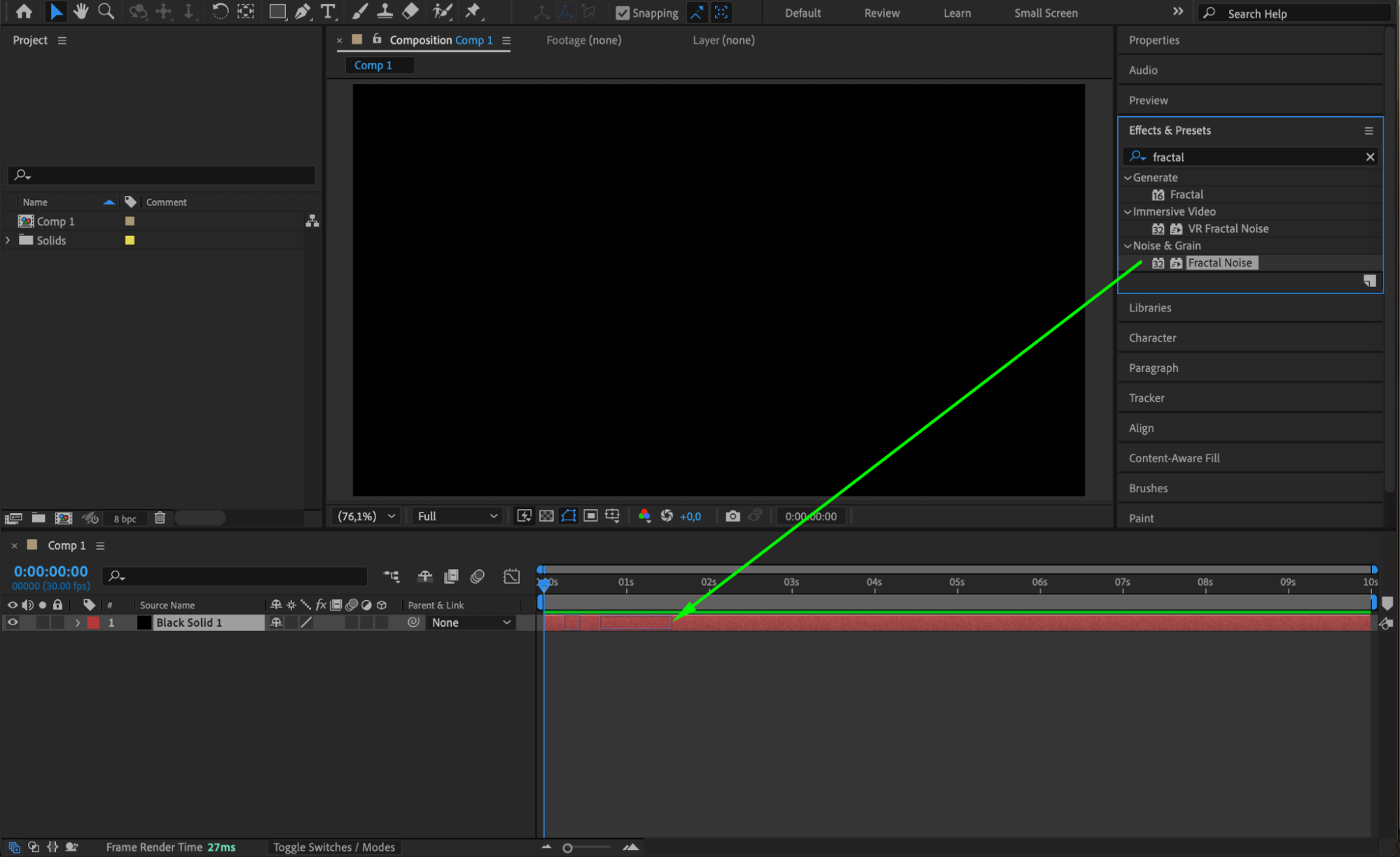
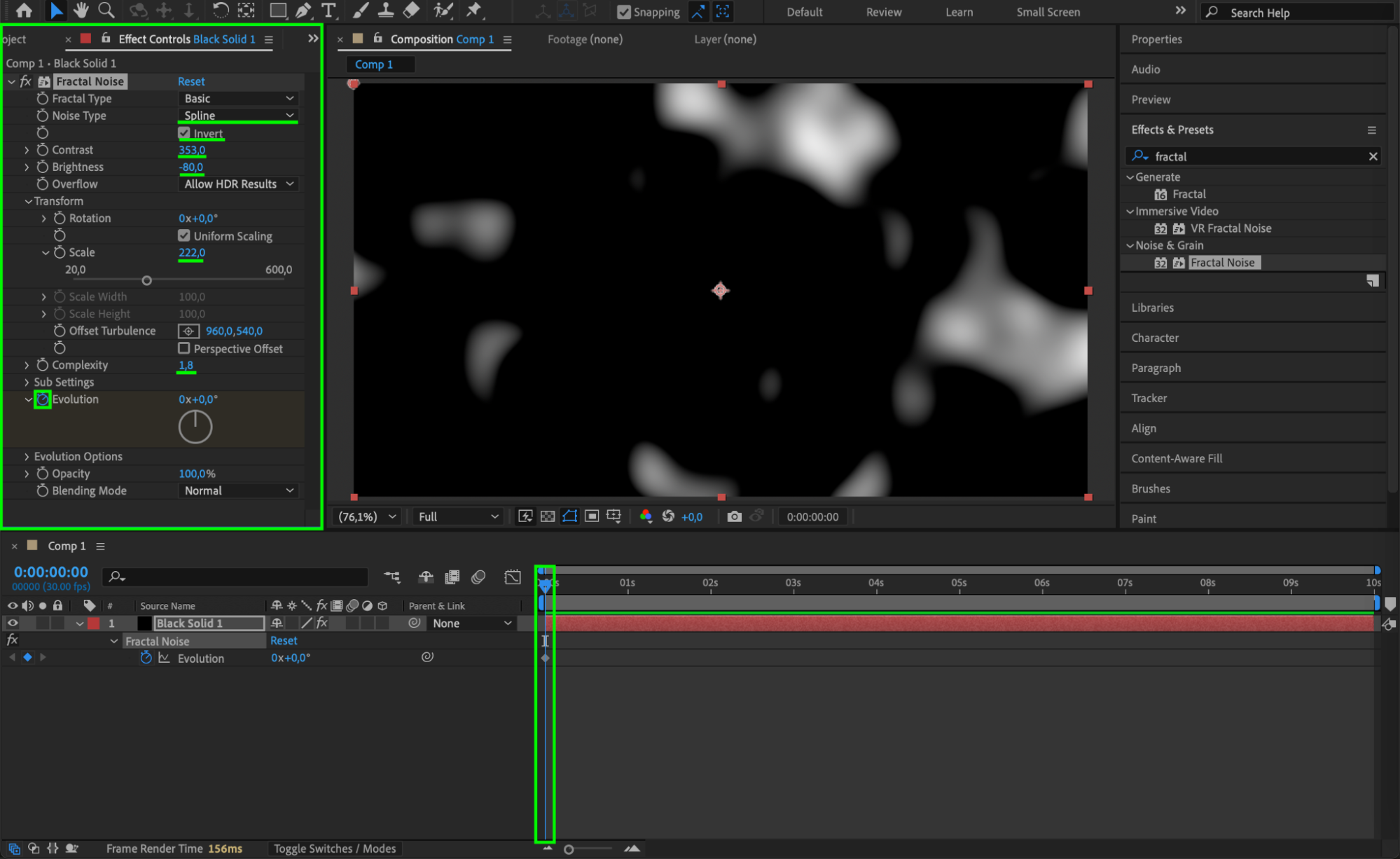
From the Effects & Presets panel, search for and apply the Fractal Noise effect to your solid layer. In the Effect Controls panel, set the following values:
Noise Type: Spline
Invert: Check the box to invert the noise.
Contrast: Set it to 353.
Brightness: Set to -80.
Scale: Set to 222.
Complexity: Set to 1.8.
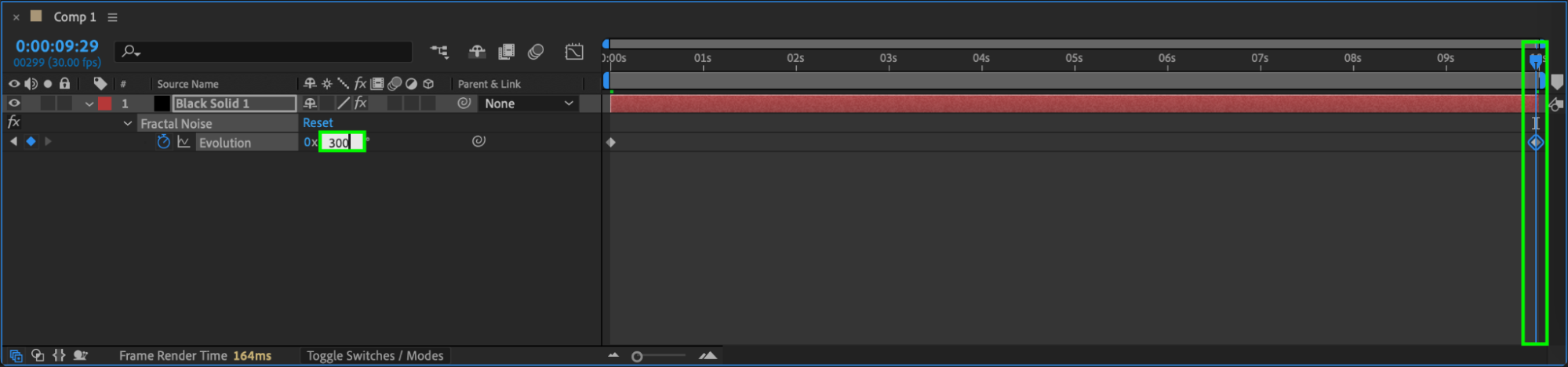
Evolution: Set to 0 and click the stopwatch to animate it. Change the evolution value to 350 at the end of the composition.
Step 4: Apply the Hue/Saturation Effect
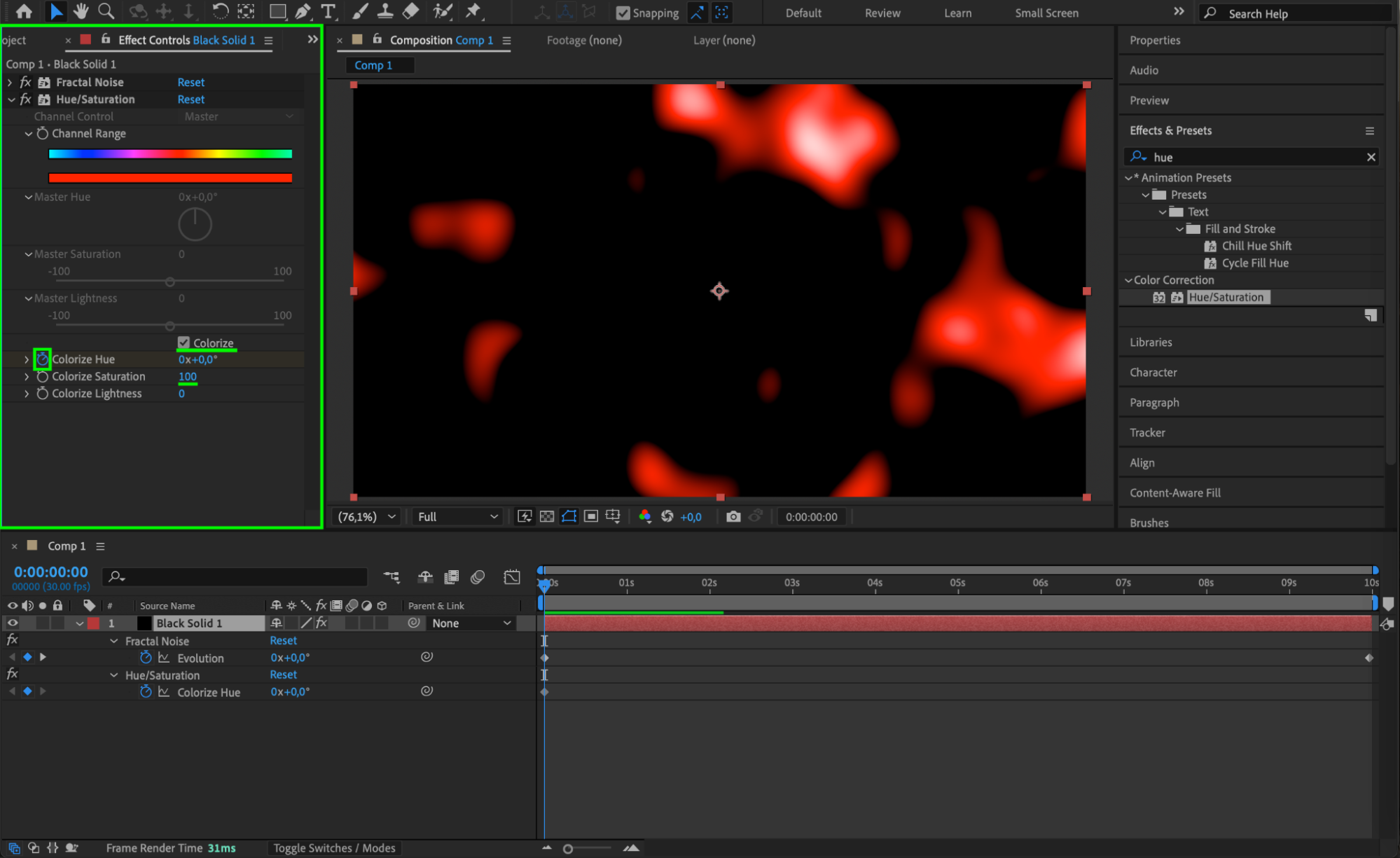
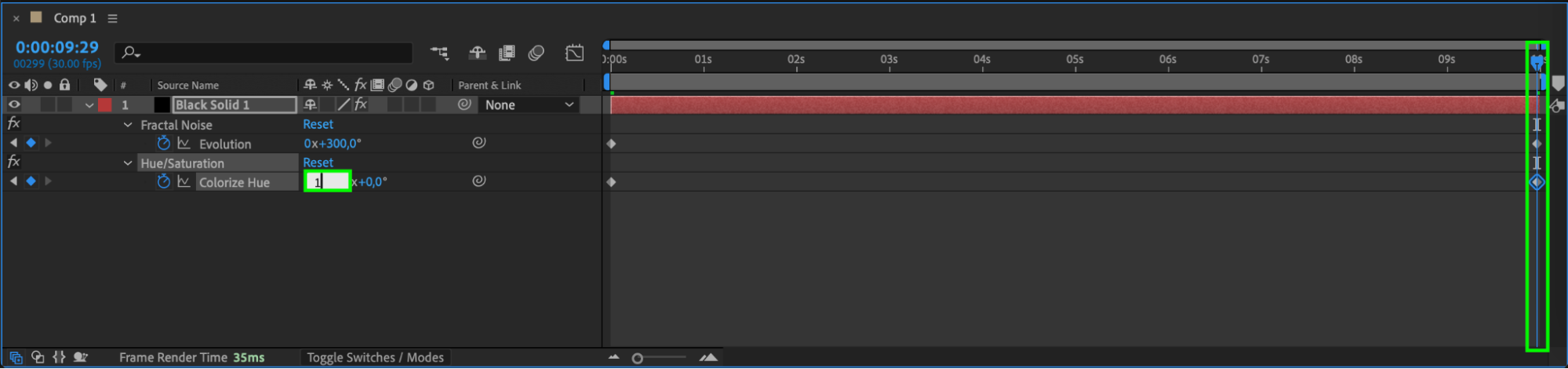
Next, apply the Hue/Saturation effect from the Effects & Presets panel to the solid layer. In the Effect Controls, check the box for Colorize. Set the Colorize Saturation to 100, and for the Colorize Hue, set it to 0 at the beginning of the timeline and 360 at the end. This will add color shifts over time, giving the light leak its dynamic look.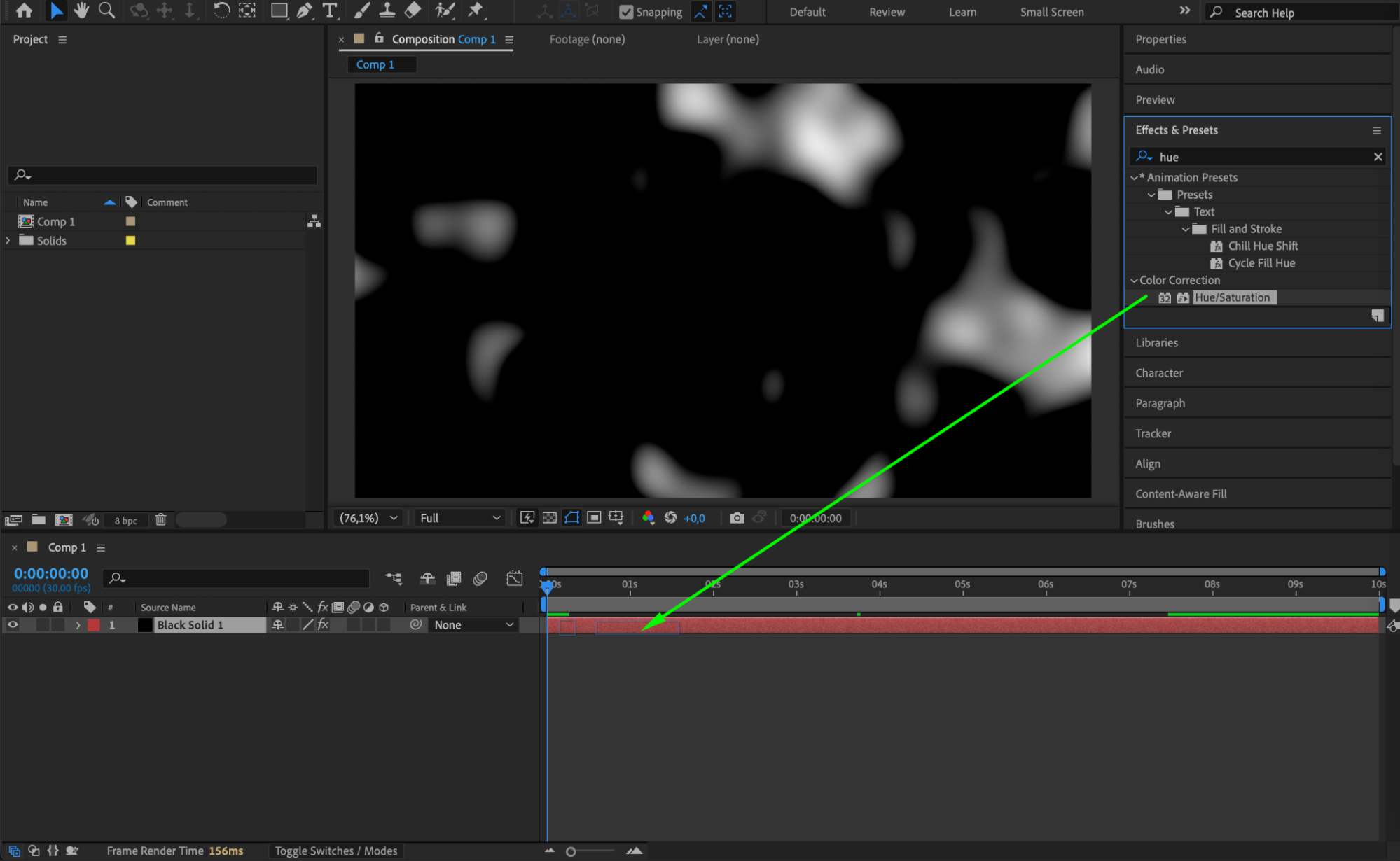
 Step 5: Import Your Video and Apply the Light Leak Effect
Import the video to which you want to add the light leak effect. Drag the video to the timeline and position it below the solid layer. Then, right-click on the solid layer and change its Blending Mode to Screen. This will make the light leak effect blend seamlessly with your video.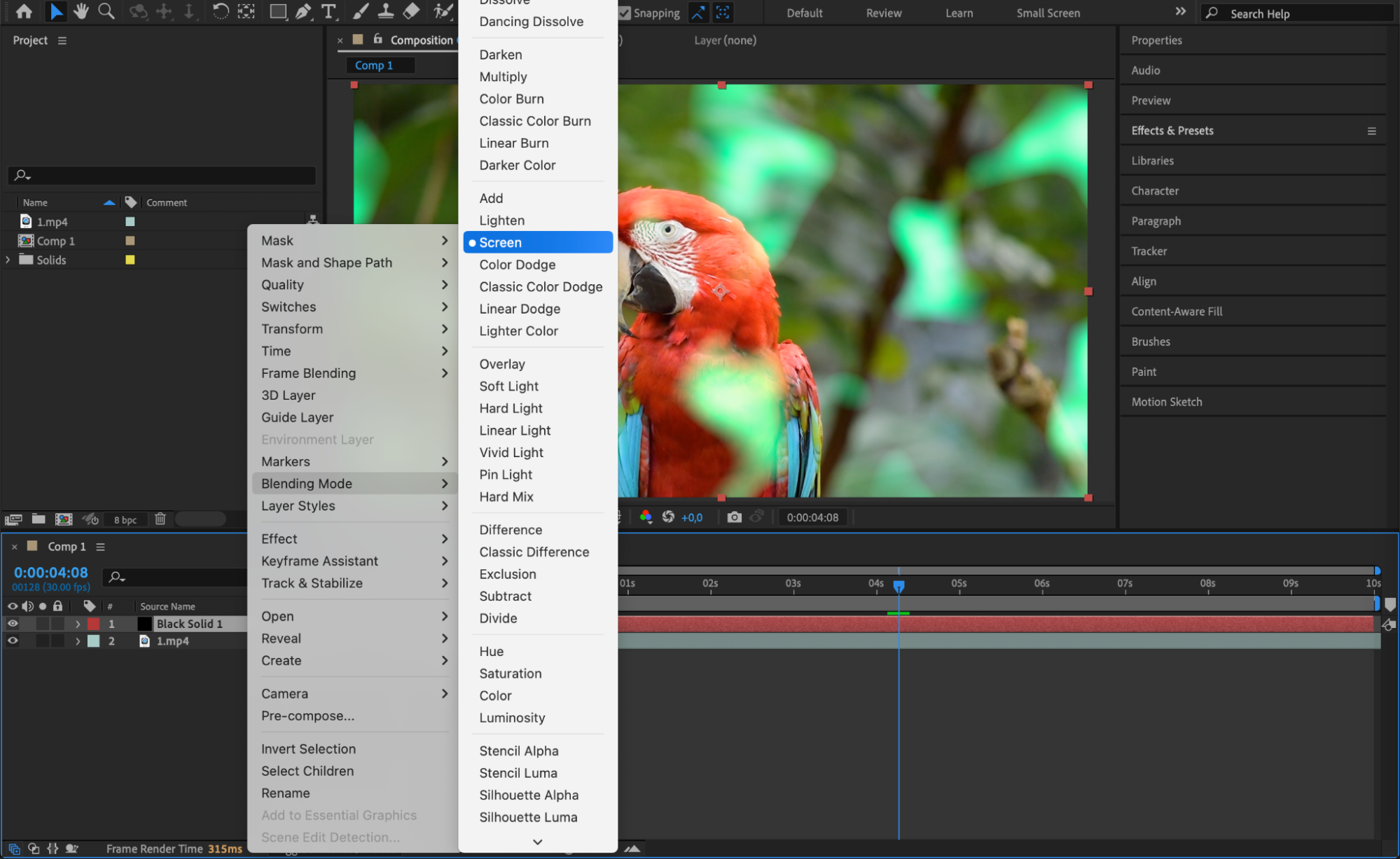
Step 6: Scale the Light Leak Effect
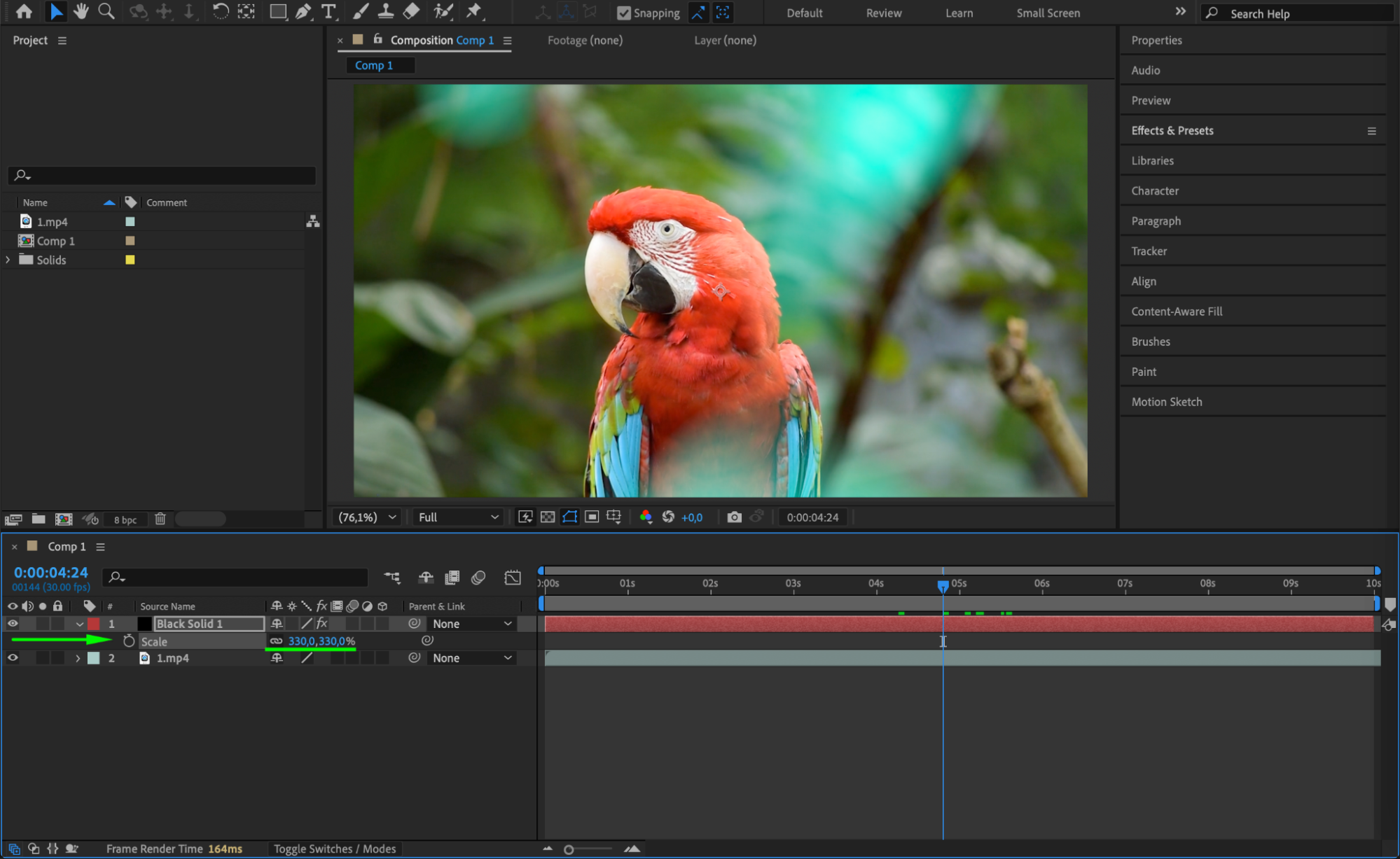
To further refine the light leak effect, adjust the Scale of the solid layer in the Transform settings. Increase or decrease the scale to control how much of the light leak is visible on the screen.
Step 7: Preview Your Effect
Press Spacebar to preview your composition and make sure everything looks smooth and dynamic. If needed, fine-tune the settings for the fractal noise or hue/saturation to achieve the desired look.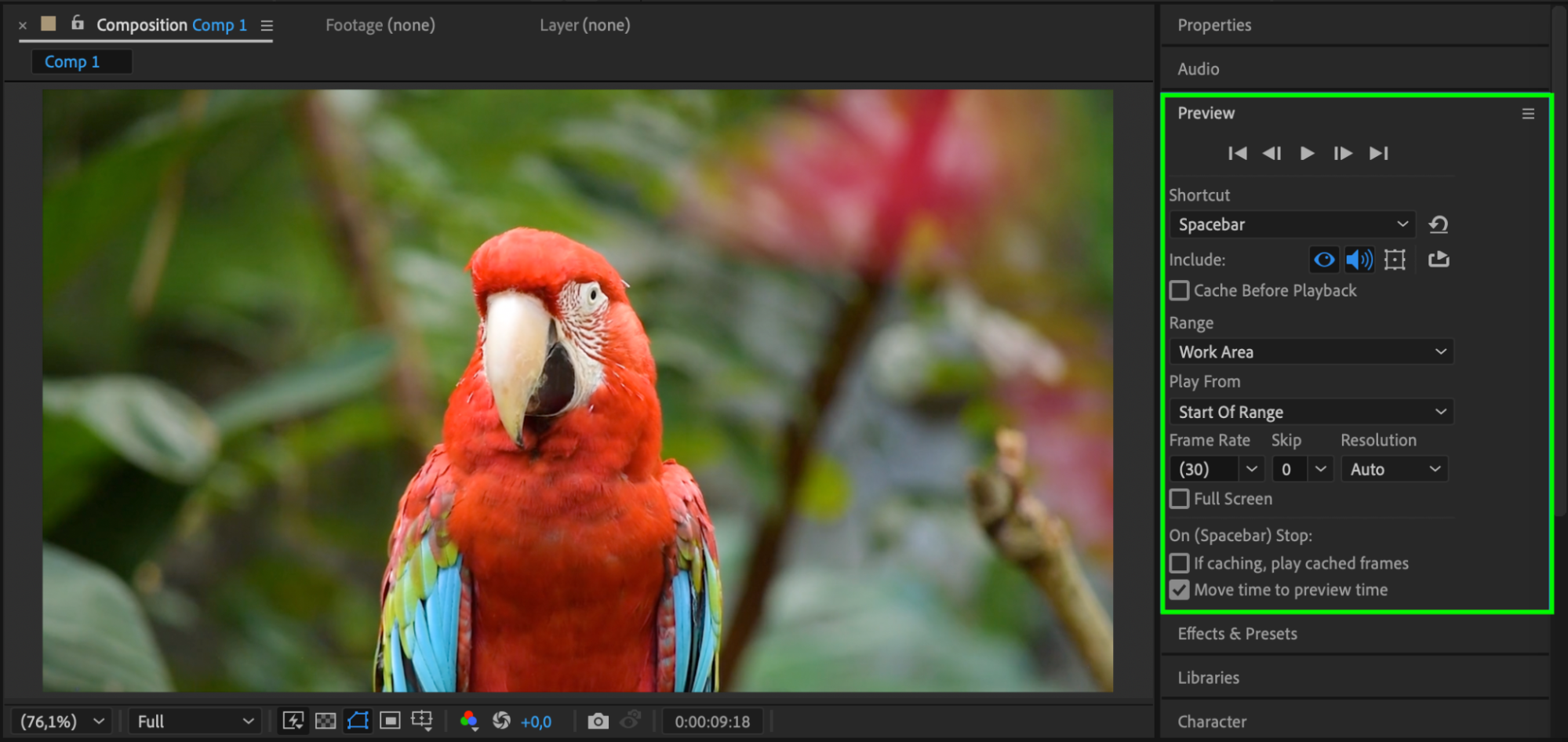
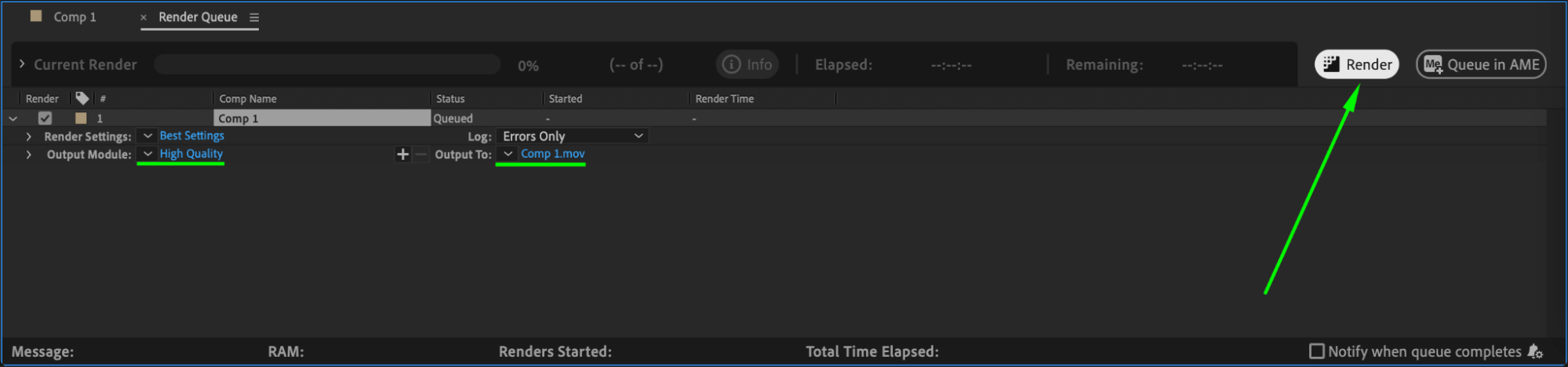
Step 8: Render Your Final Composition
Once you’re satisfied with the effect, go to Composition > Add to Render Queue and export your composition in the desired format.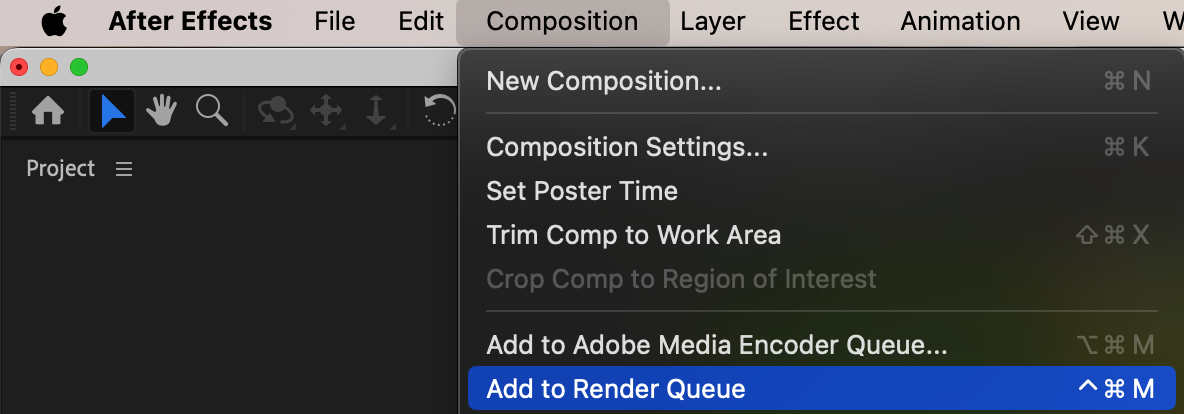
 Conclusion
By following these steps, you can create vibrant light leak effects in After Effects. These effects are perfect for enhancing your footage with a touch of color and cinematic flair.
Our Bestsellers
Our Bestsellers


