
Creating Matte Painting Effects in After Effects
Introduction to Matte Painting with Brush and Luma Matte
Matte painting effects in After Effects can be used to simulate hand-drawn animations, sketch overlays, or stylized visual storytelling. In this tutorial, you’ll learn how to use the Brush Tool with a Luma Matte setup to paint directly over your video. This method is great for animated outlines, glowing scribbles, or drawing reveals.
Step 1: Import Your Video
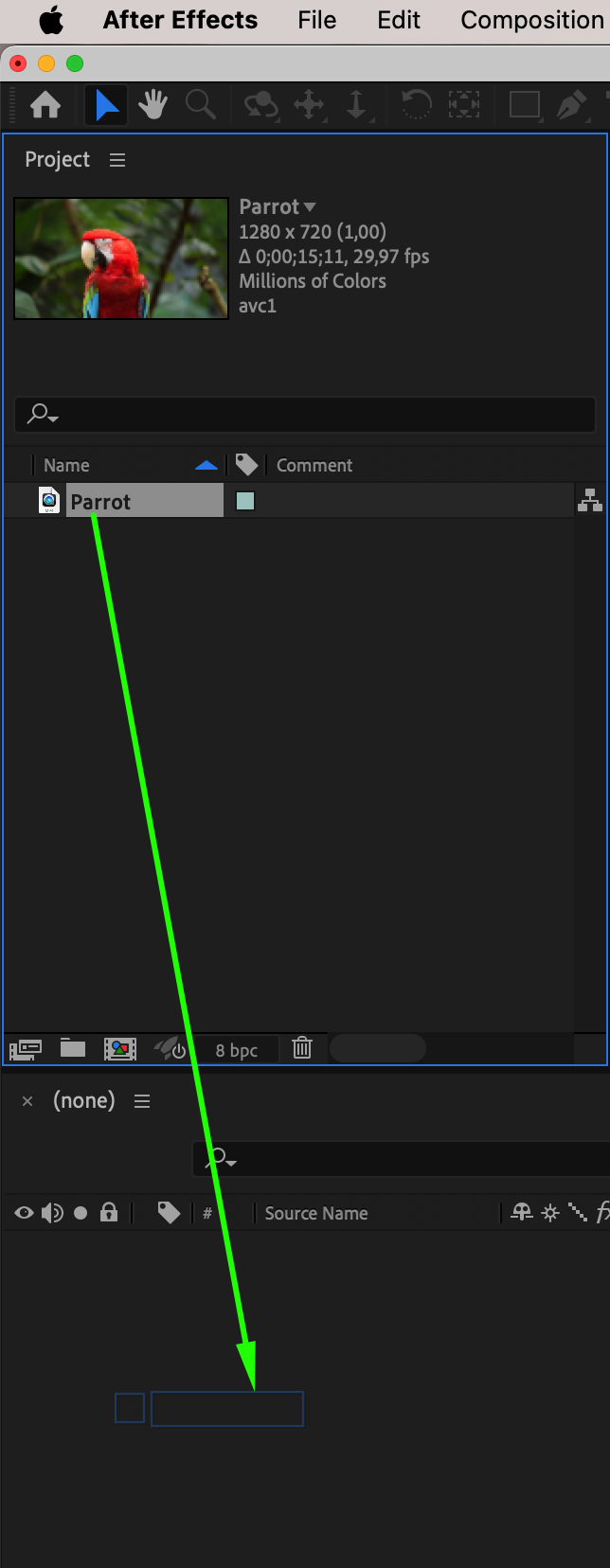
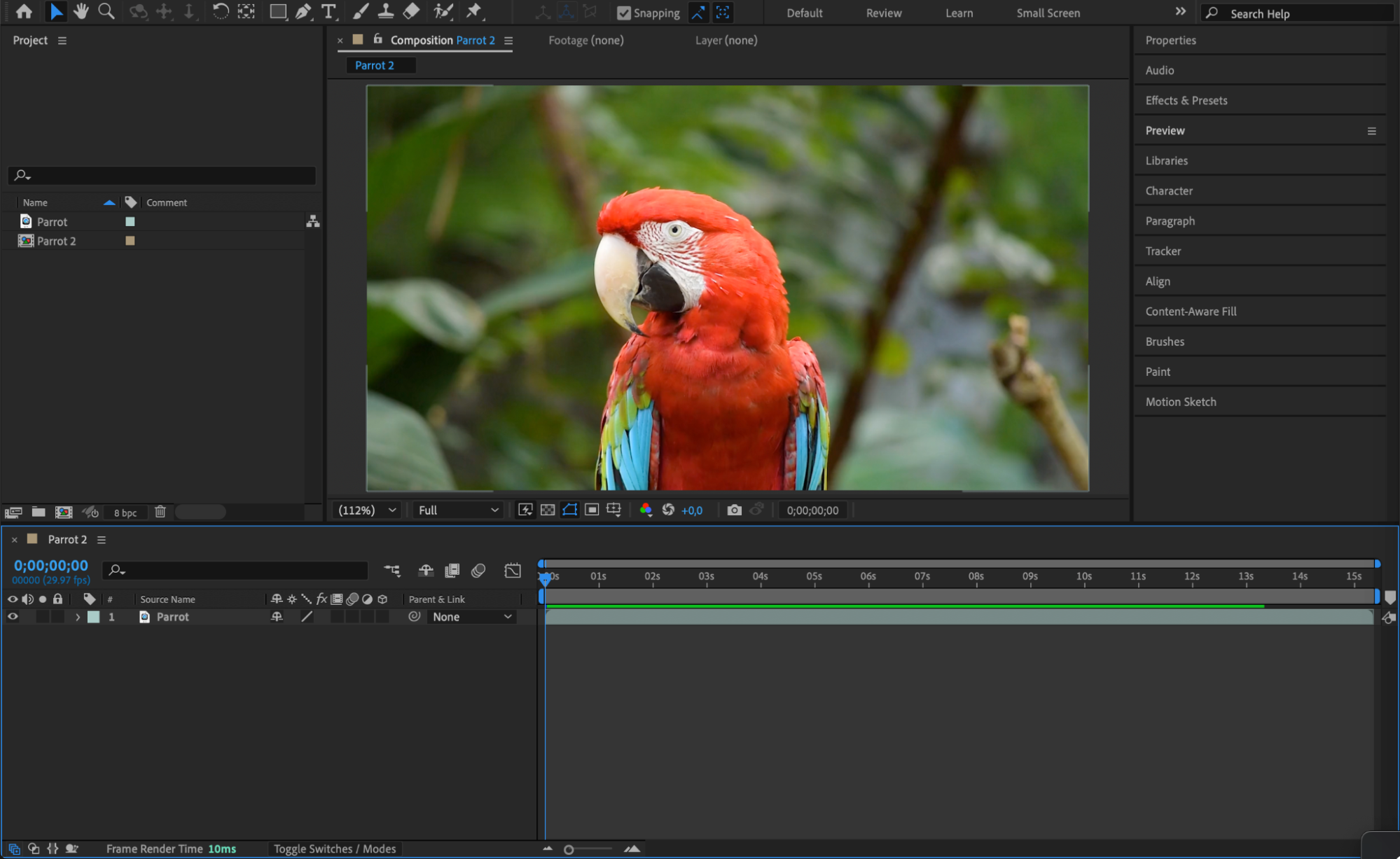
Go to File > Import > File and choose the video you want to work with. Drag it to the timeline to begin editing. 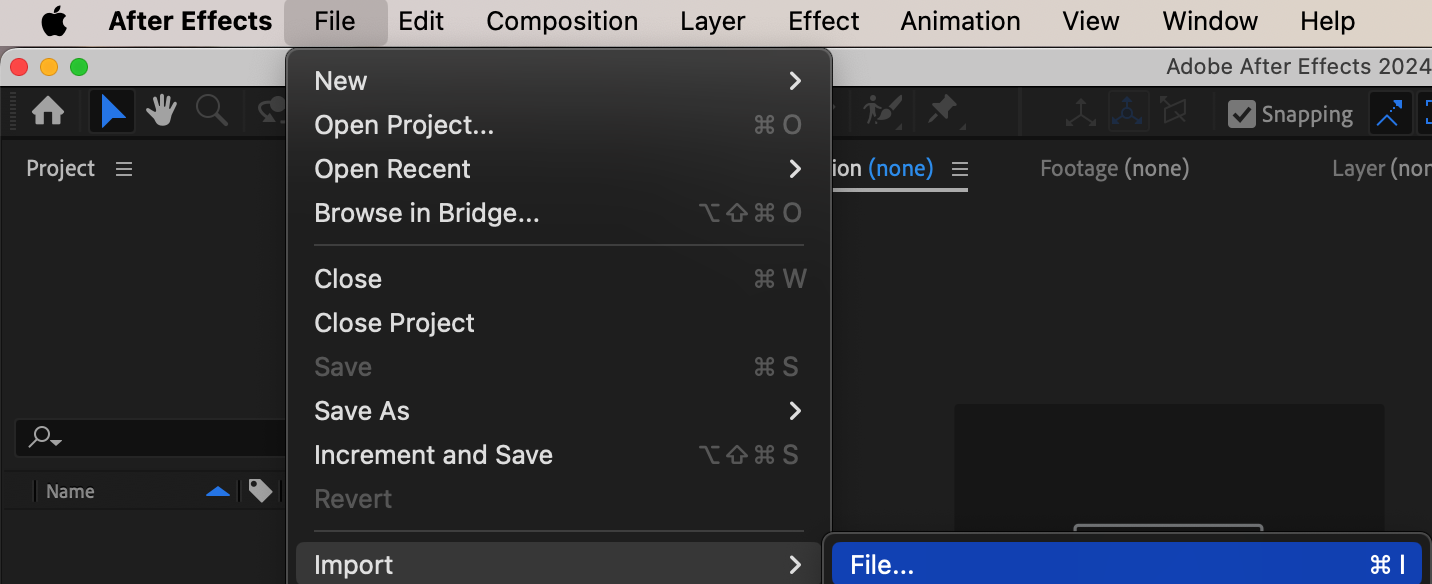
 Step 2: Create a Solid Layer for Drawing
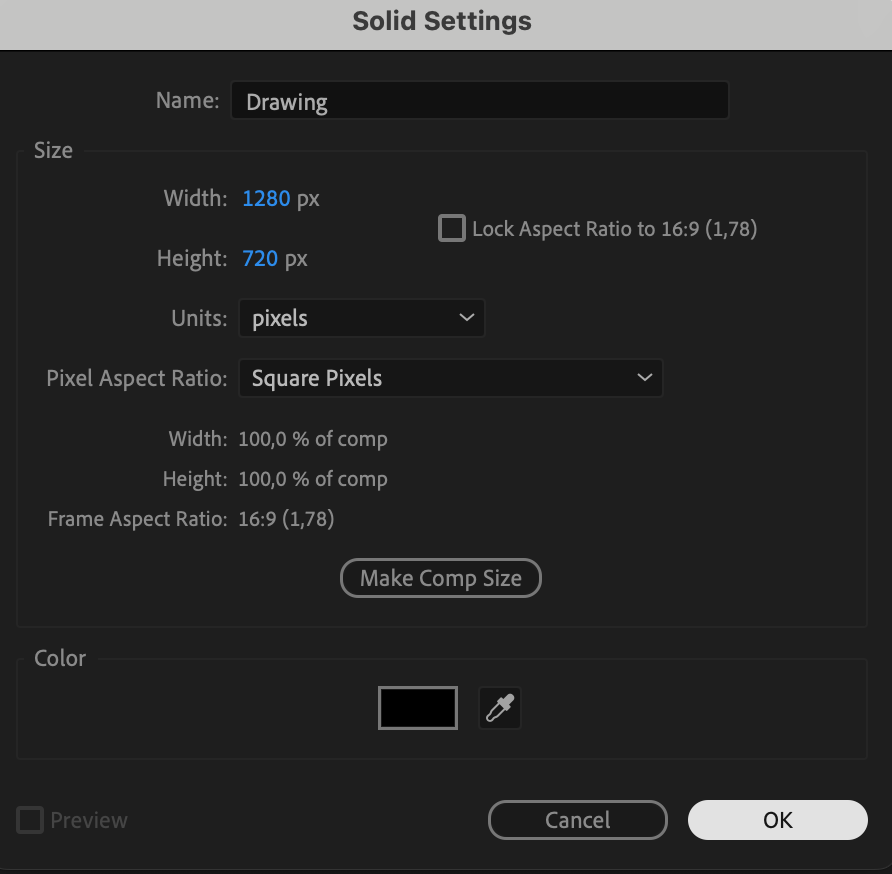
Go to Layer > New > Solid, choose a black color, and name it Drawing. This layer will be used to paint on top of your footage. Make sure it’s placed above your video layer in the timeline.
Step 3: Open the Layer Panel and Set Up the Brush
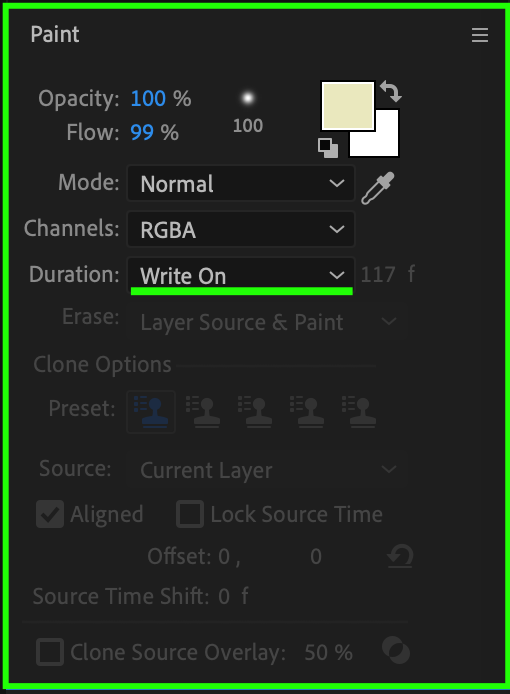
Double-click the Drawing solid in the timeline to open it in the Layer Panel (not the Composition panel). Select the Brush Tool (Ctrl/Cmd + B). In the Brushes Panel, adjust the size, hardness, and roundness of the brush. In the Paint Panel, set Duration to Write-On to make the strokes animate as they are drawn over time.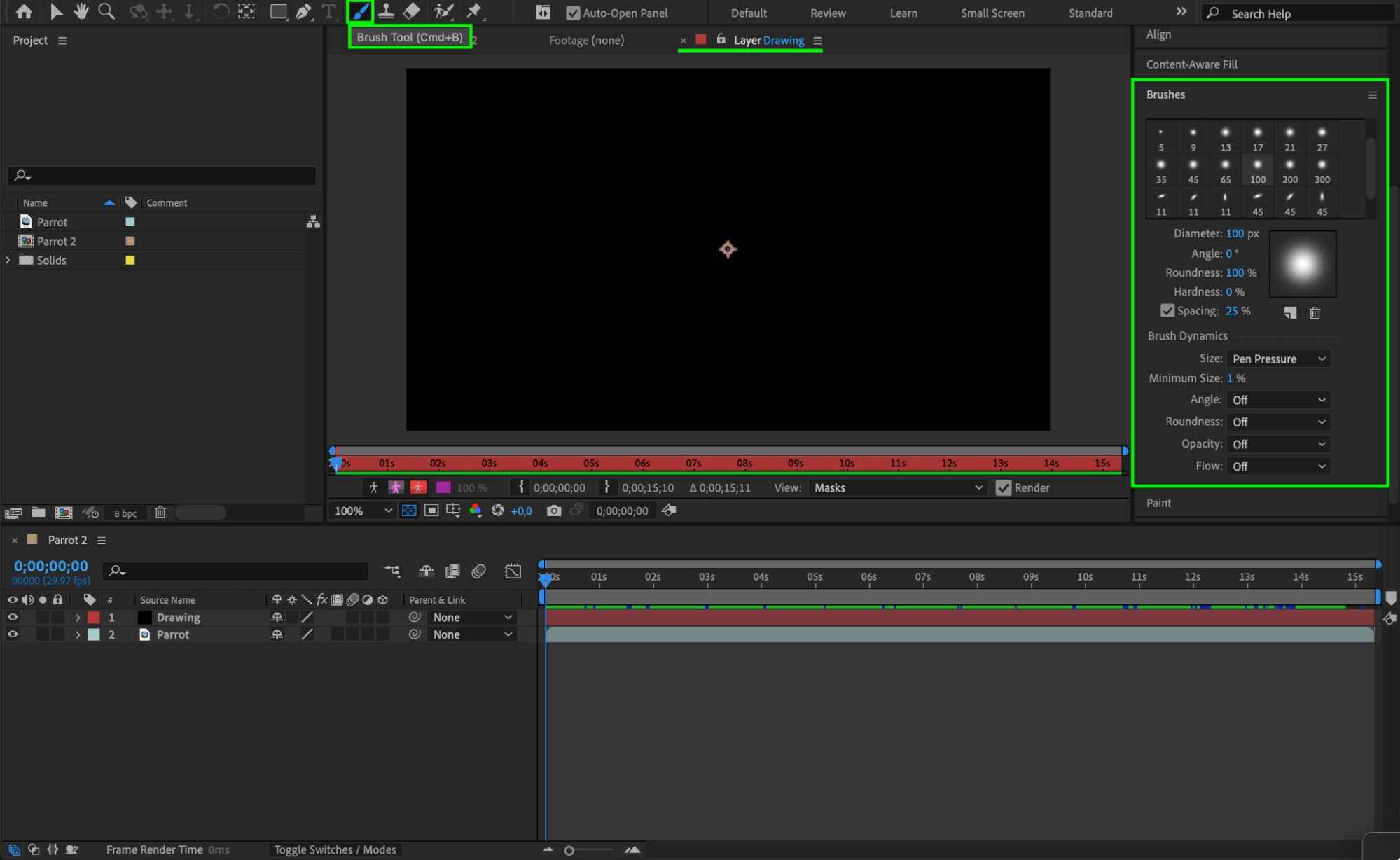
 Step 4: Start Painting
Begin drawing directly in the Layer Panel. As you paint, After Effects will automatically record the strokes frame by frame, creating an animated effect. You can paint outlines, shapes, or anything that fits your design.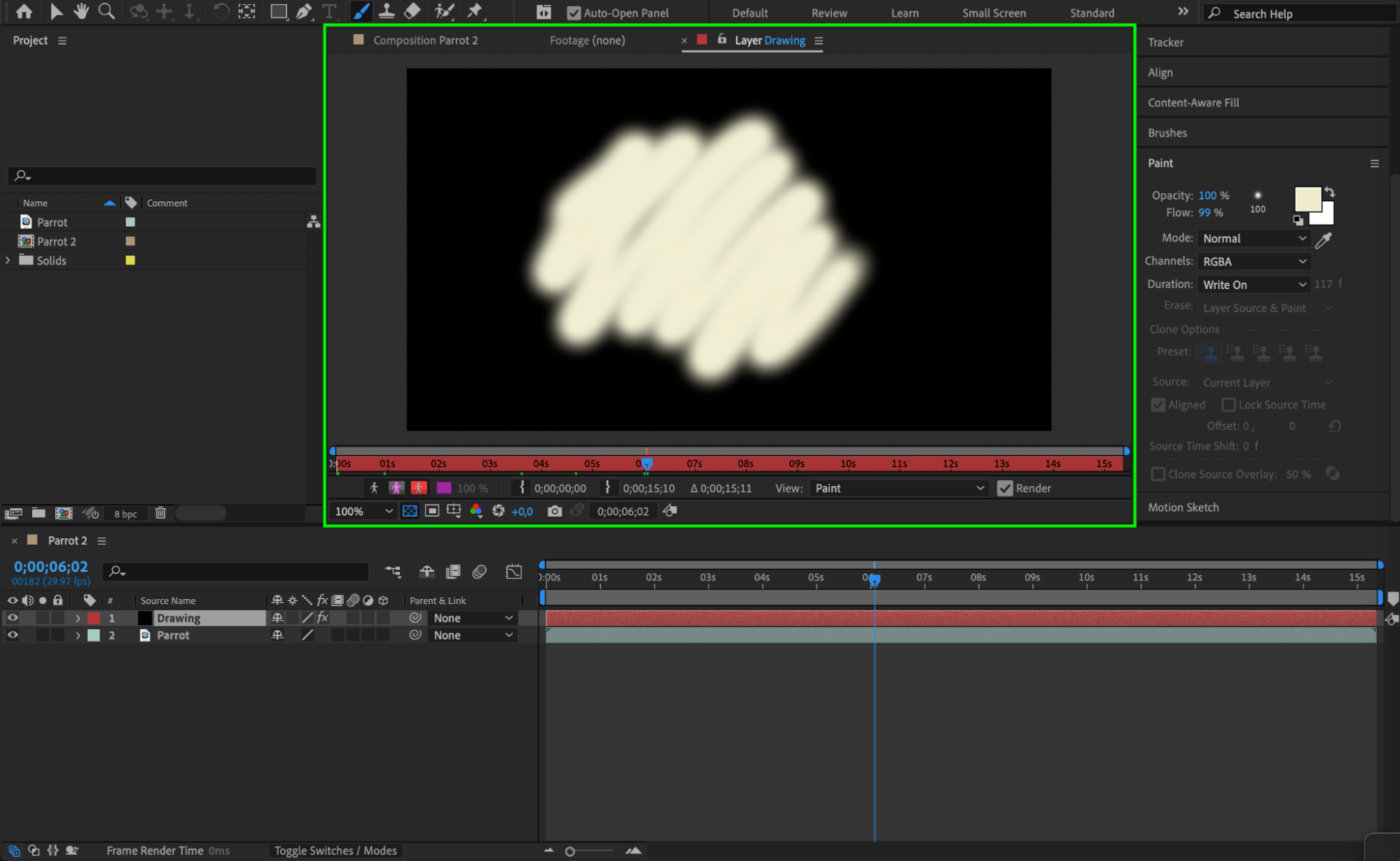
Step 5: Apply the Matte to Reveal the Drawing
Go back to the Composition Panel. Click Toggle Switches/Modes at the bottom of the timeline if needed. In the Track Matte column of your video layer, choose Luma Matte “Drawing”. This will make the video visible only where the drawing appears, using brightness values to control transparency.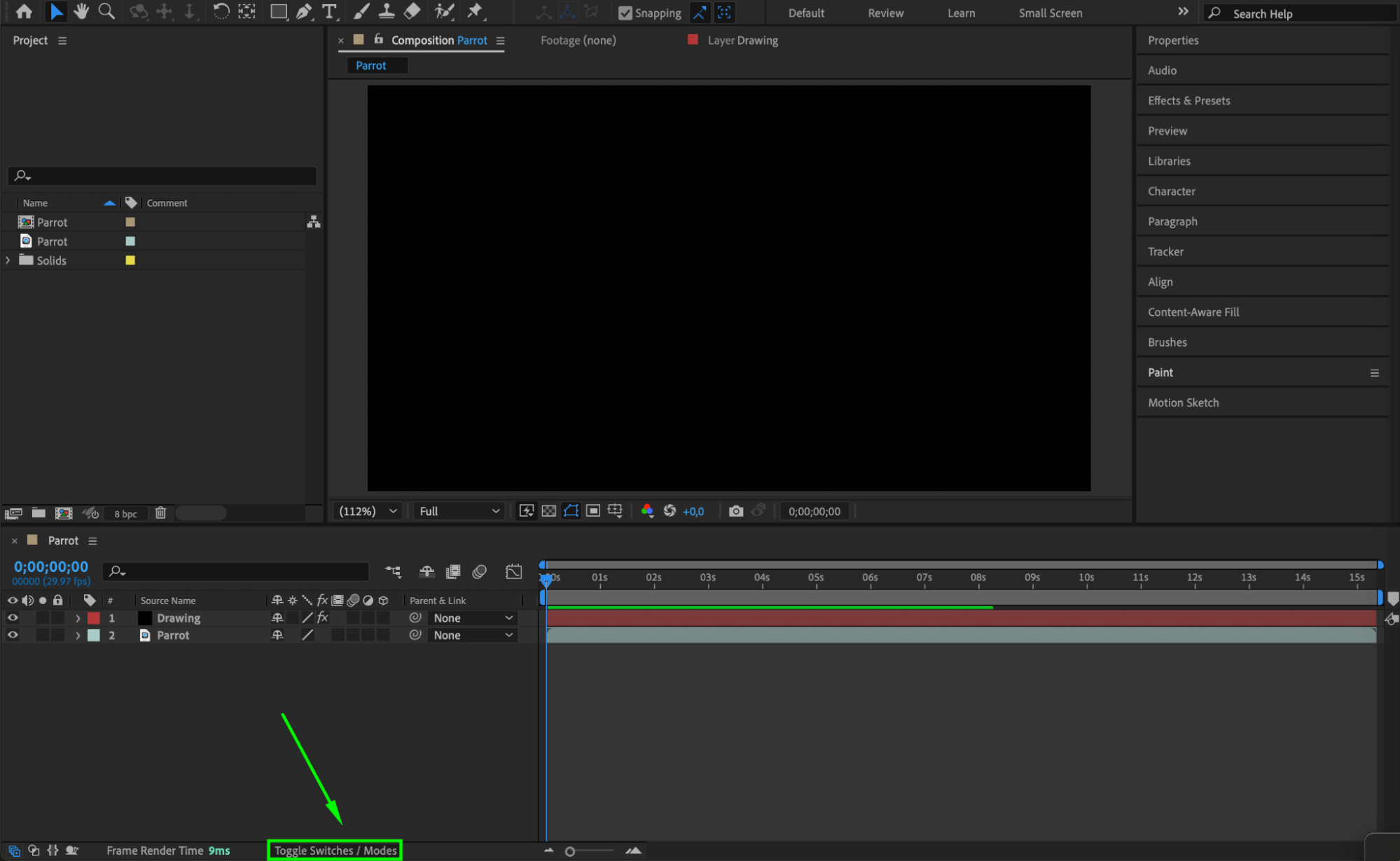
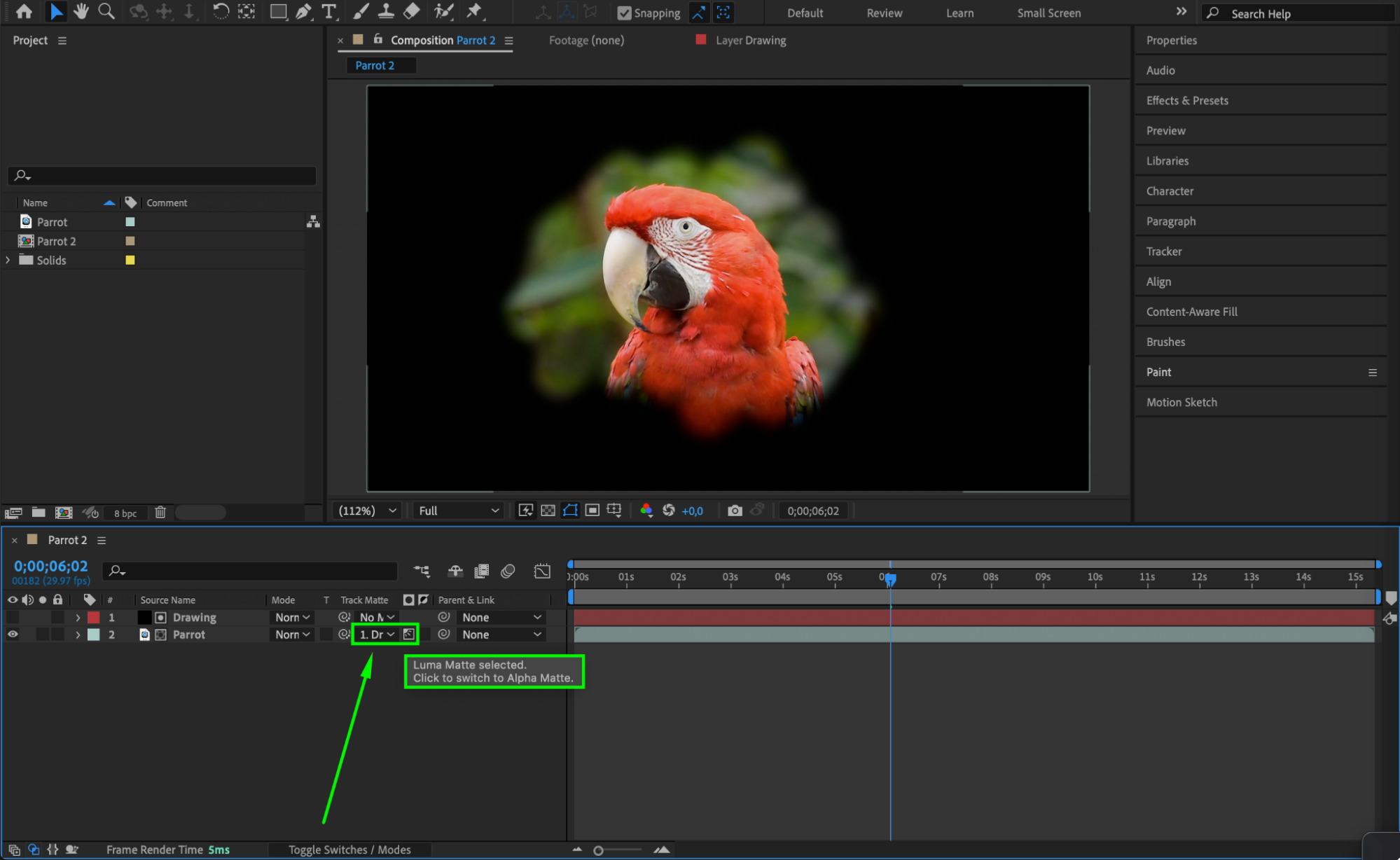 Step 6: Add Effects for Style
With the Drawing layer selected, go to the Effects & Presets panel and add effects like Glow to enhance the painted strokes. You can also experiment with Turbulent Displace or Colorama for stylized looks.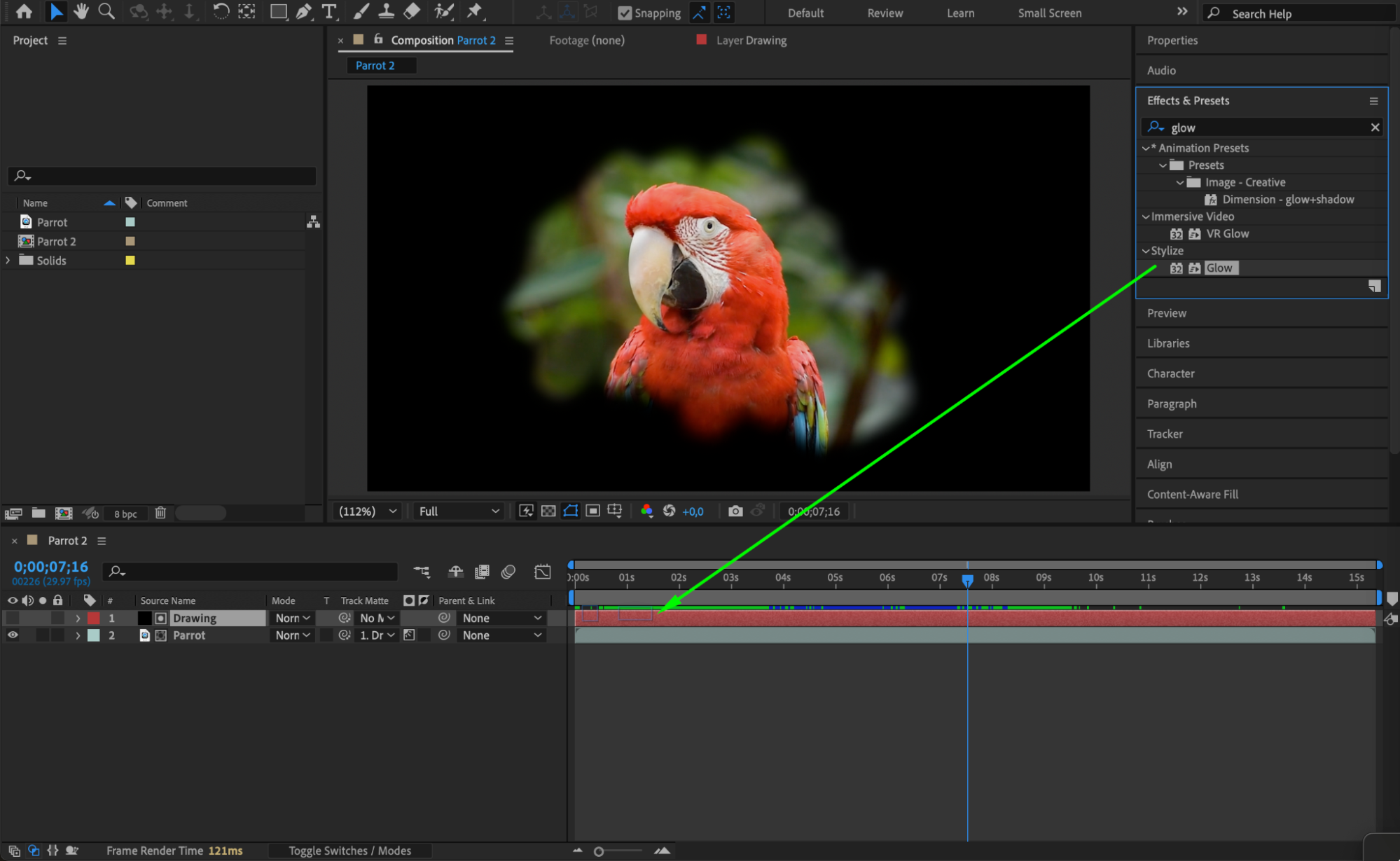
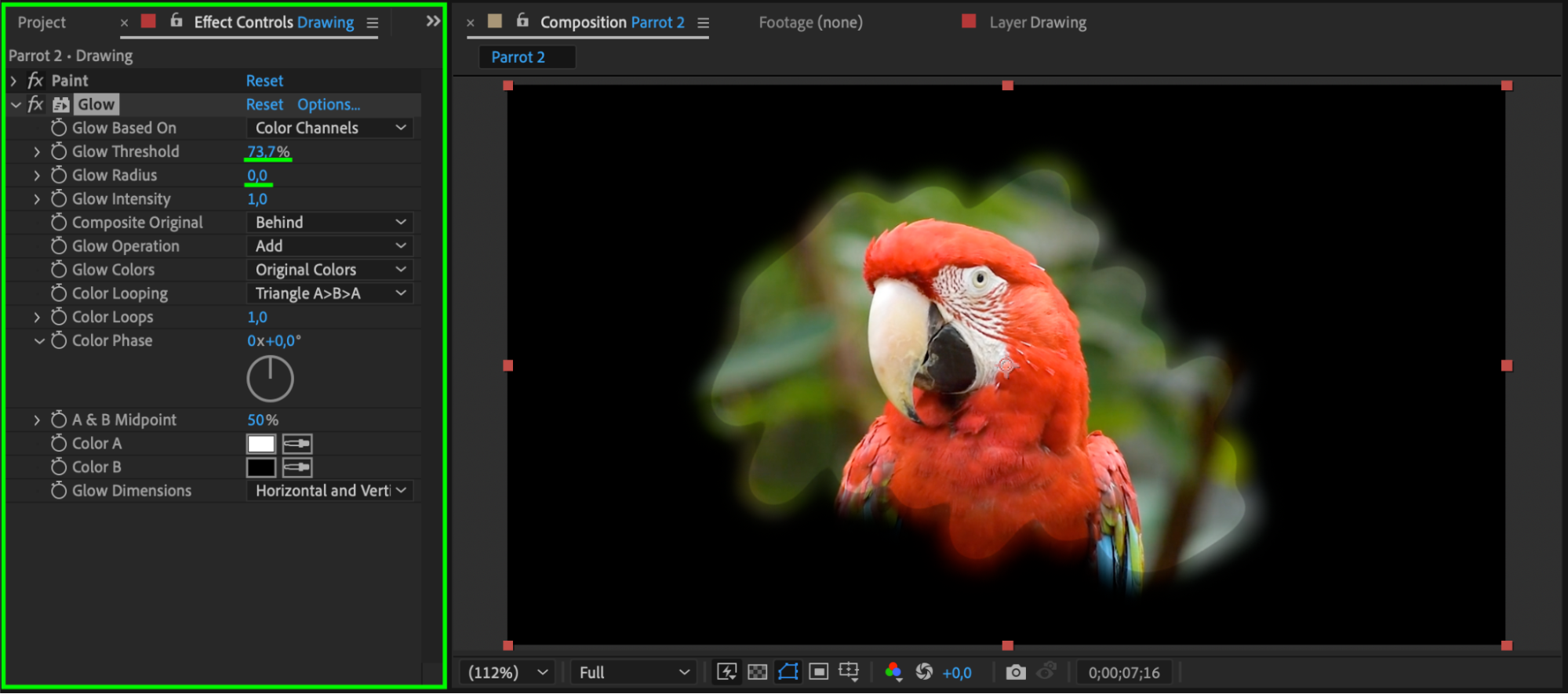 Step 7: Preview Your Animation
Press the spacebar to preview your animation. Adjust brush settings, timing, or effects as needed to refine the look.
Conclusion
Matte painting with the Brush Tool and Luma Matte in After Effects gives you a powerful way to add expressive, animated visuals to your videos. This workflow is ideal for music videos, creative transitions, or personal art projects.
Our Bestsellers
Our Bestsellers


