
Creating Stunning Text Animations in Adobe After Effects
Introduction to Motion Design with Text
Text animations are an essential part of modern motion design. Whether you’re making YouTube videos, social media promos, or cinematic titles, animated text helps grab attention and convey messages with style. This tutorial will guide you through the process of creating text animations in After Effects, using both native tools and AEJuice’s Text Animation Pack — one of the best collections of text animation presets for video editors.
Step 1: Import Your Footage
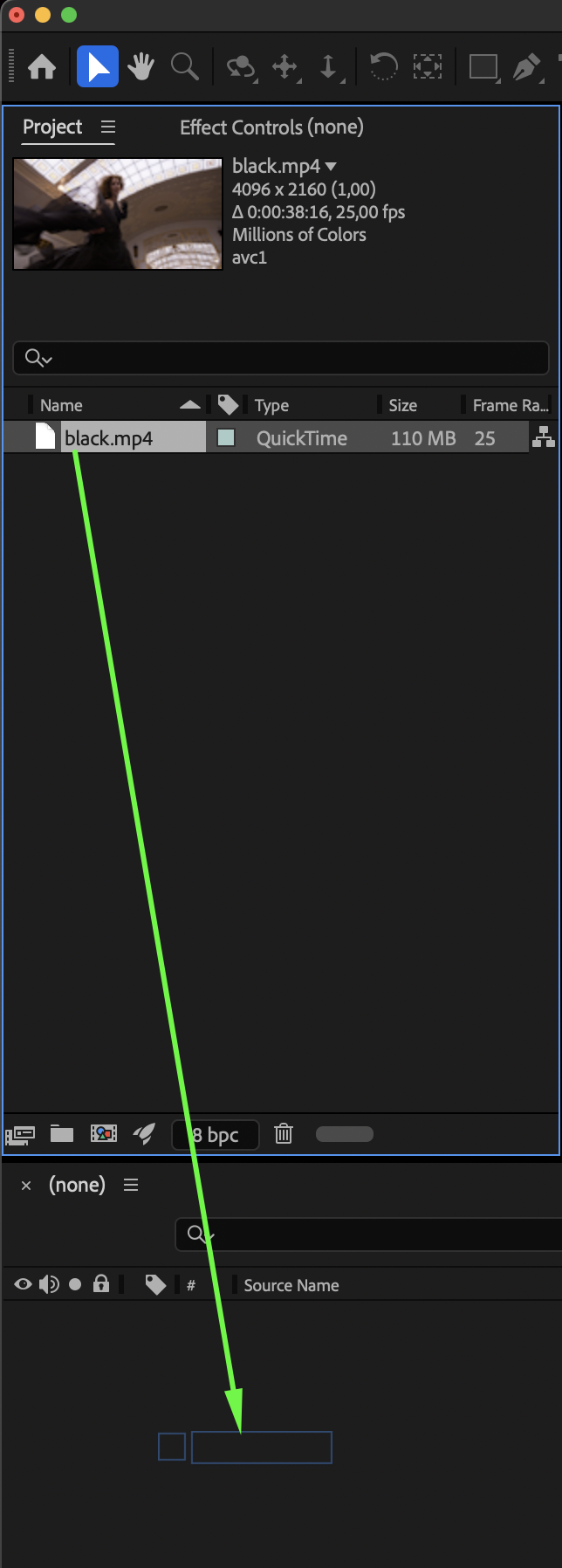
Start by going to File > Import > File and selecting your video clip. Drag it onto the timeline to create a new composition. This video will act as your background or base layer for placing animated text.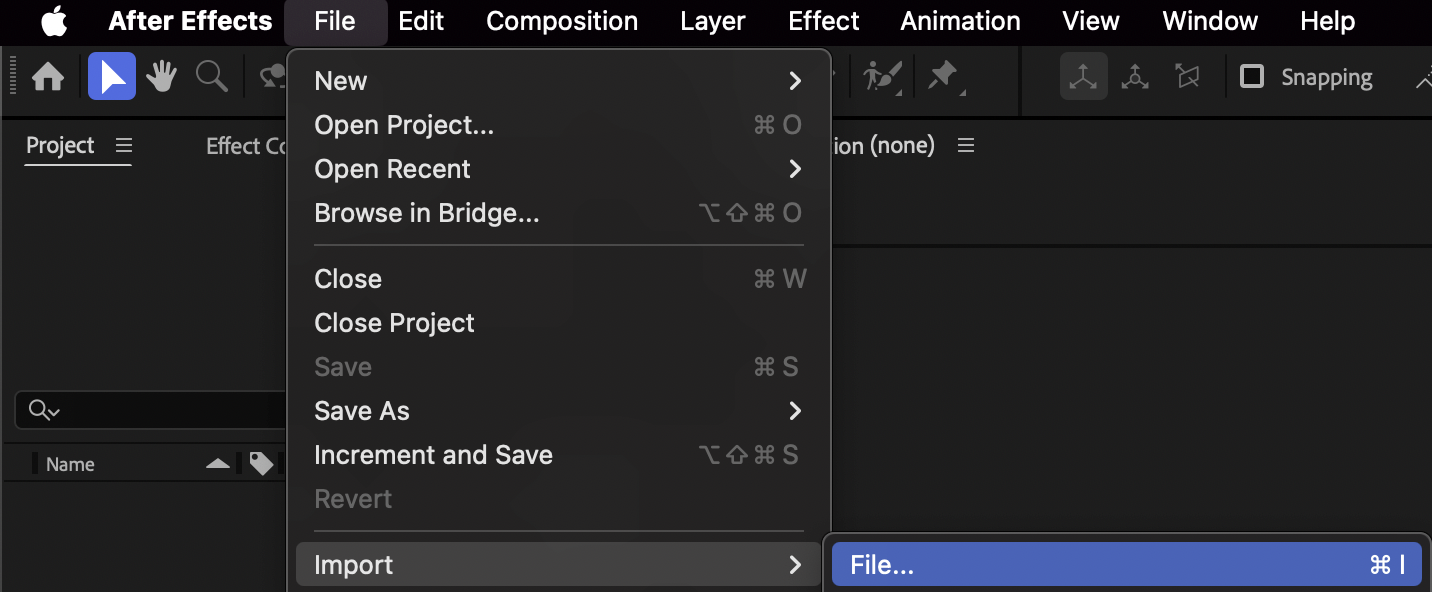
Step 2: Add a Text Layer
Select the Type Tool (Cmd/Ctrl + T) from the toolbar and click anywhere inside the Composition panel. Type your message and use the Character or Properties panels to adjust the font, size, alignment, and color.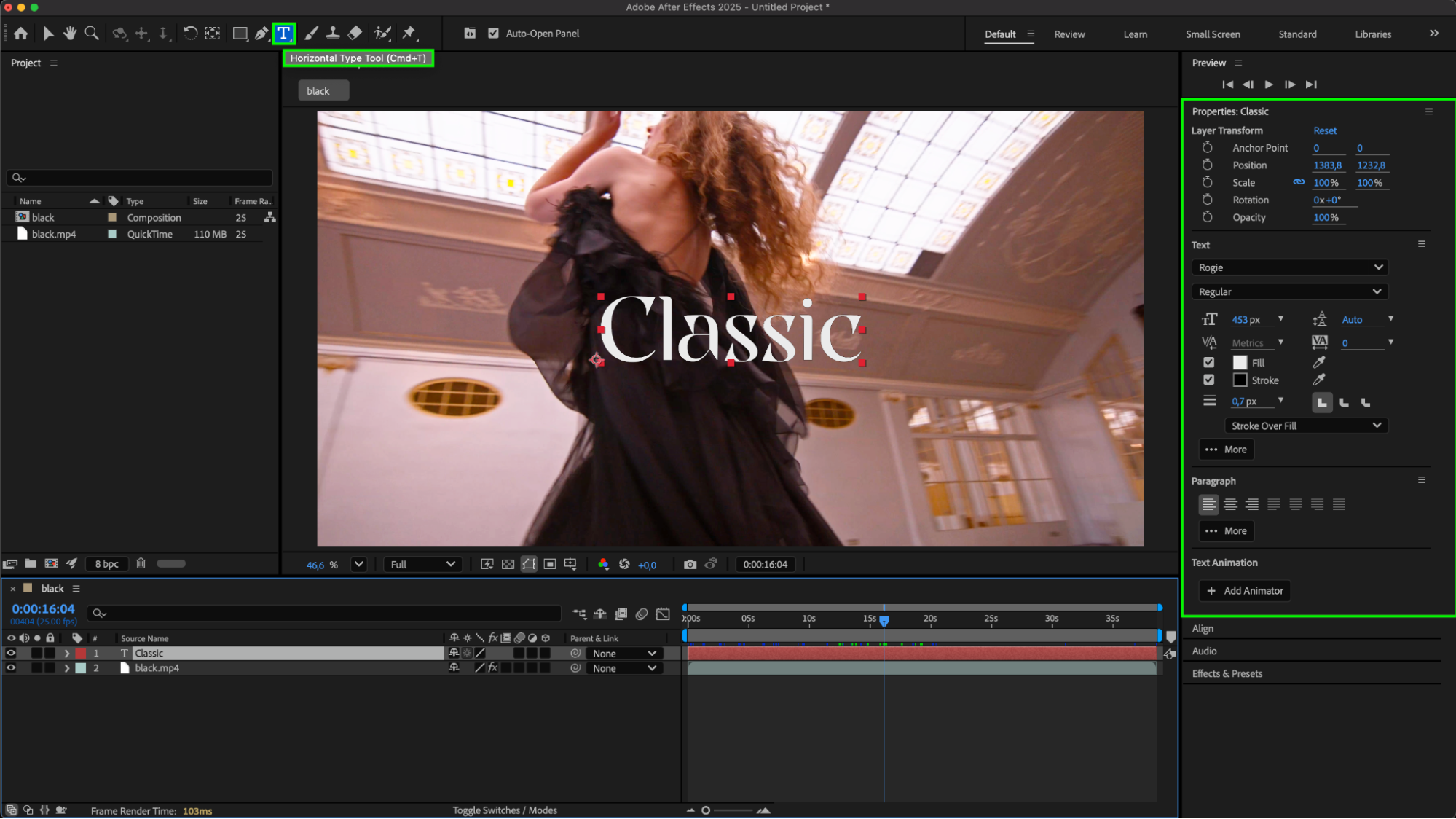 Step 3: Open AEJuice Pack Manager
Go to Window > AEJuice Pack Manager 4 to launch the plugin panel. This is where you’ll find various animation packs, including high-quality text presets for quick and professional results.
Step 4: Download the Text Animation Pack
Inside the Pack Manager, find and select the Text Animation Pack. Click on it to download if it’s not already installed. This pack includes a wide variety of presets — from simple fades to energetic bounce-ins — perfect for any type of project.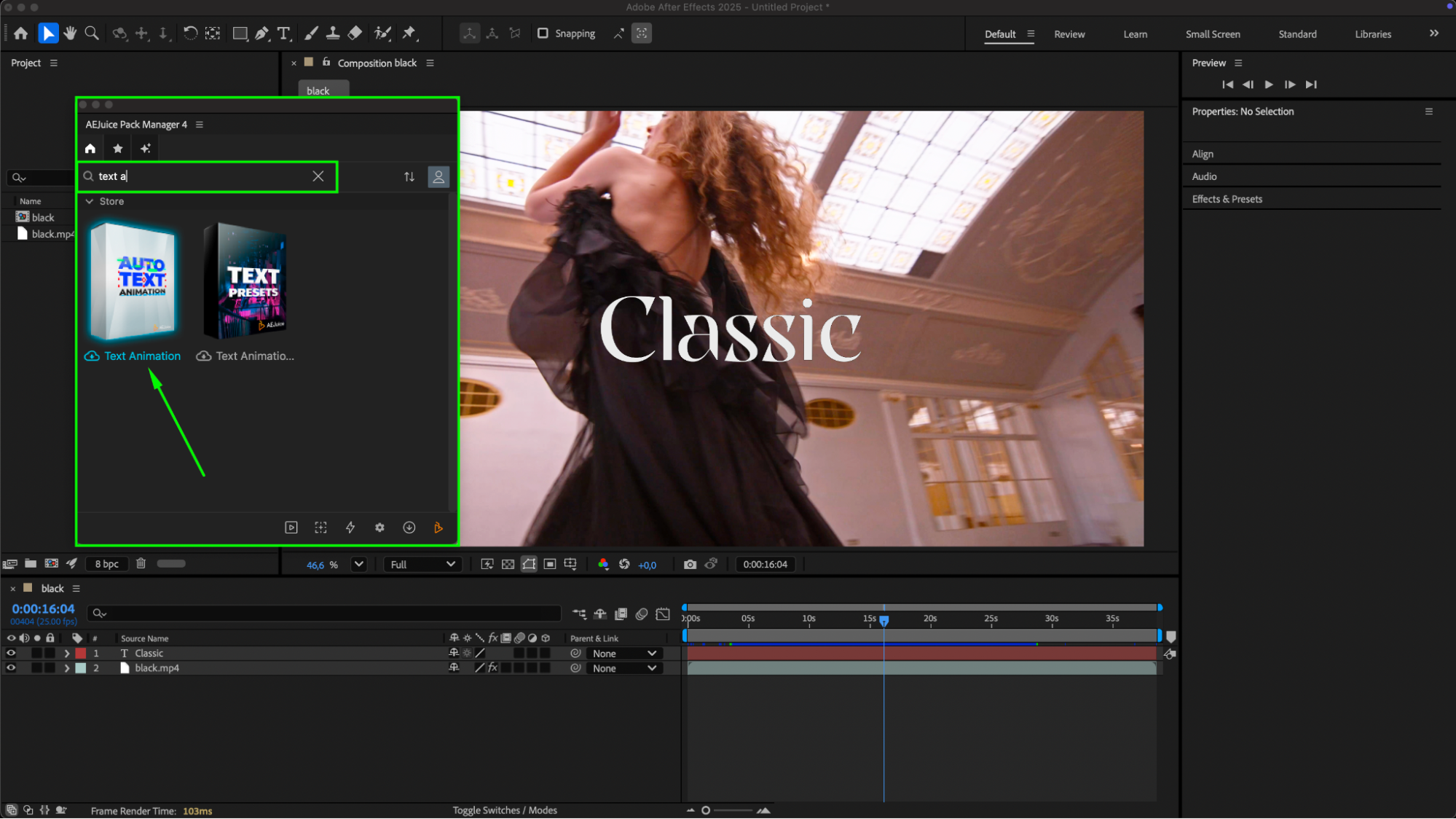 Step 5: Apply a Text Animation Preset
Select your text layer in the timeline, then preview available presets in the Pack Manager. Once you find one you like, click on it and press the Import button. The preset will automatically apply and convert your text into a pre-composition.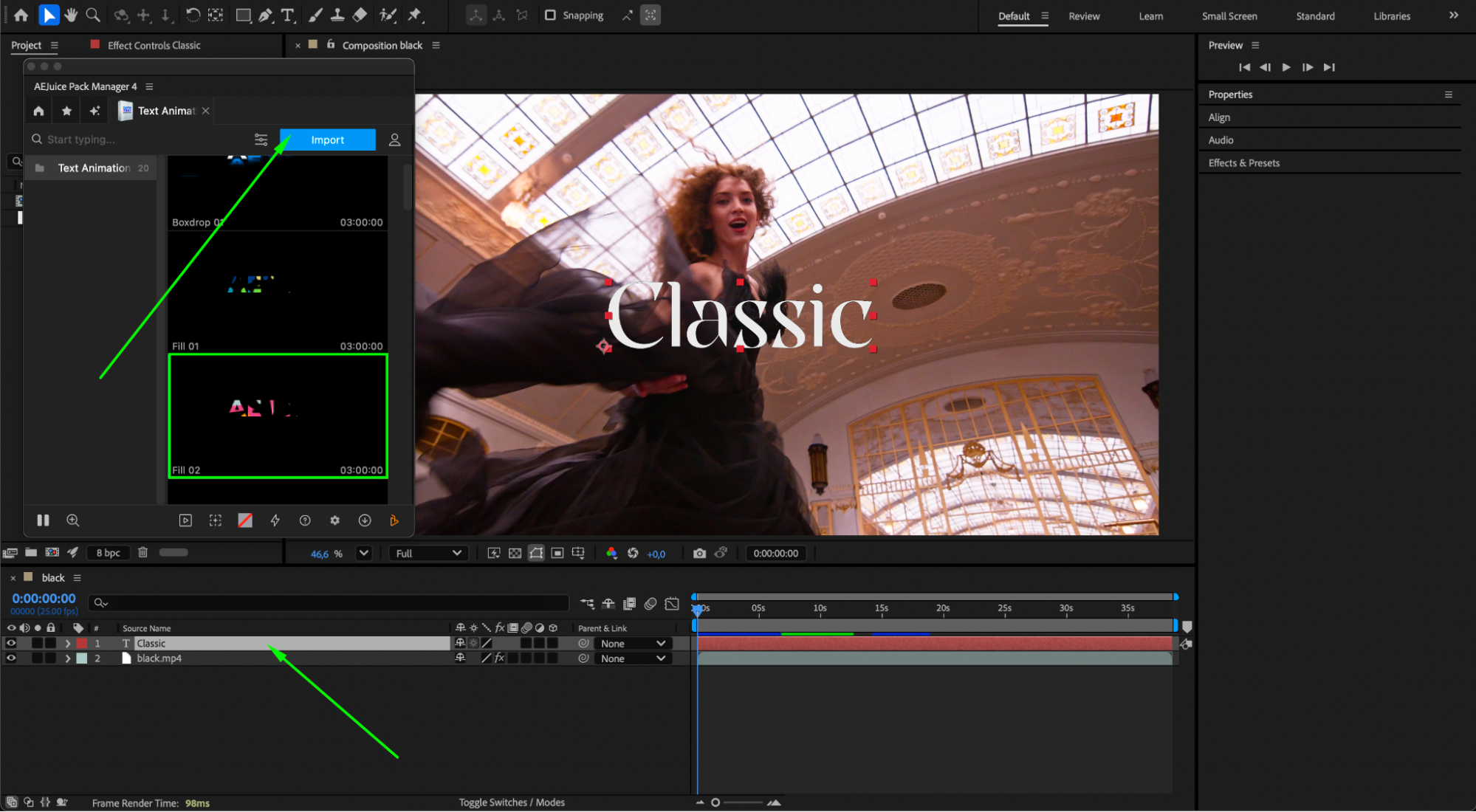
Step 6: Customize
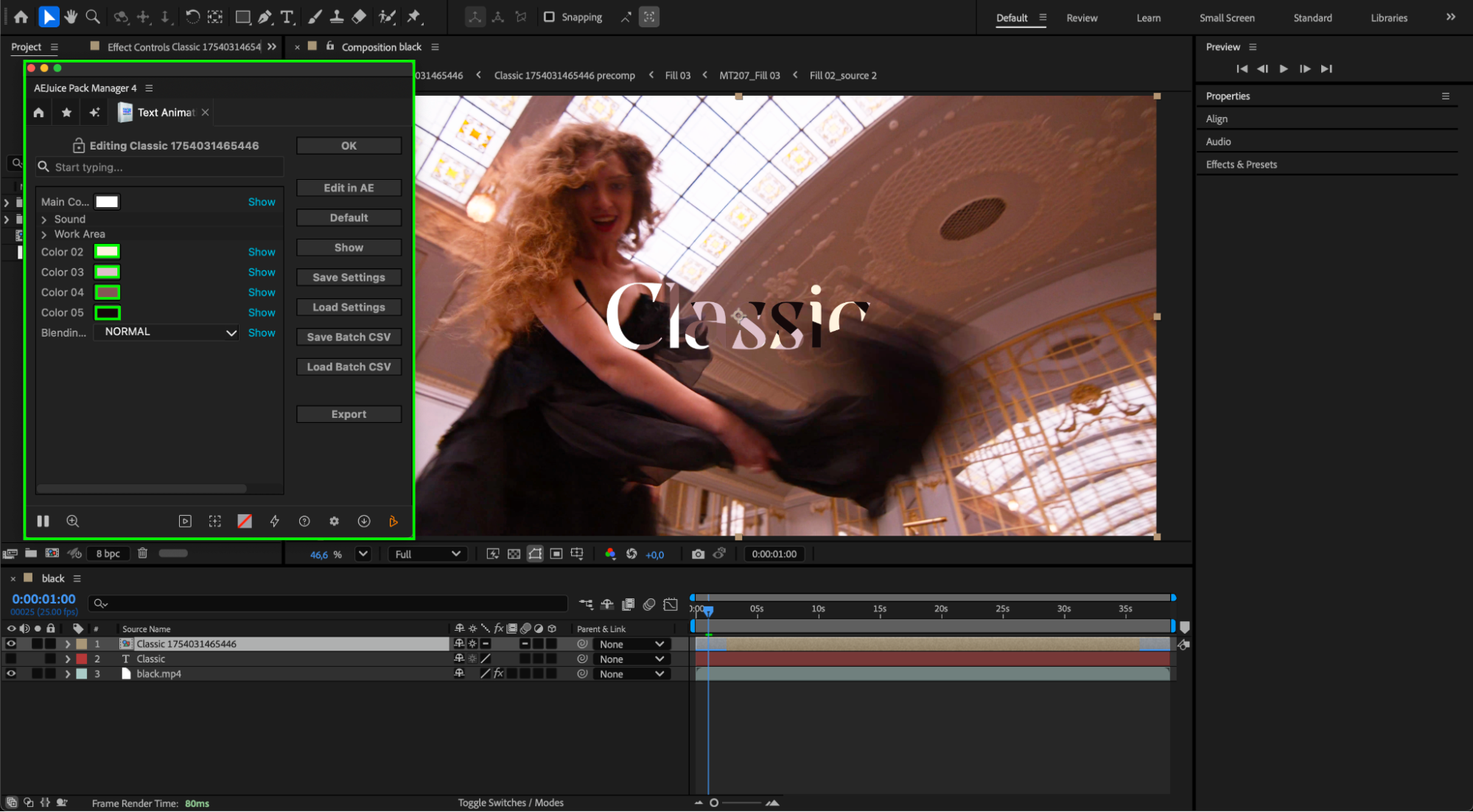
Select the pre-comp layer in the timeline. Then, in the AEJuice Pack Manager 4 panel, click the Edit button (represented by three sliders). This opens a customization panel where you can adjust options like the animation color or experiment with the blending mode to better fit your video style.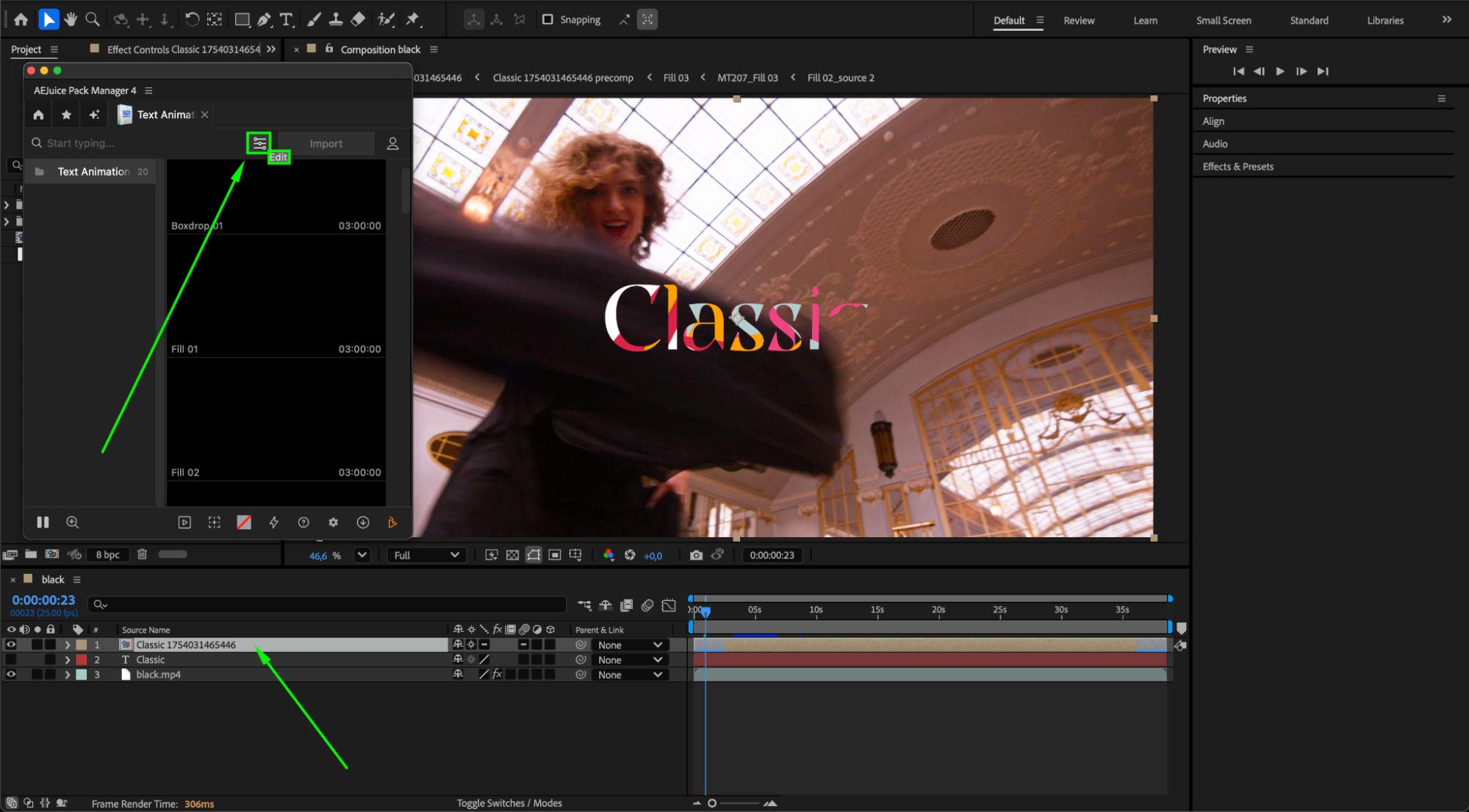
 Step 7: Preview and Export
Press the Spacebar to preview the animation. Once everything looks good, go to Composition > Add to Render Queue or use Adobe Media Encoder to render and export your animated video.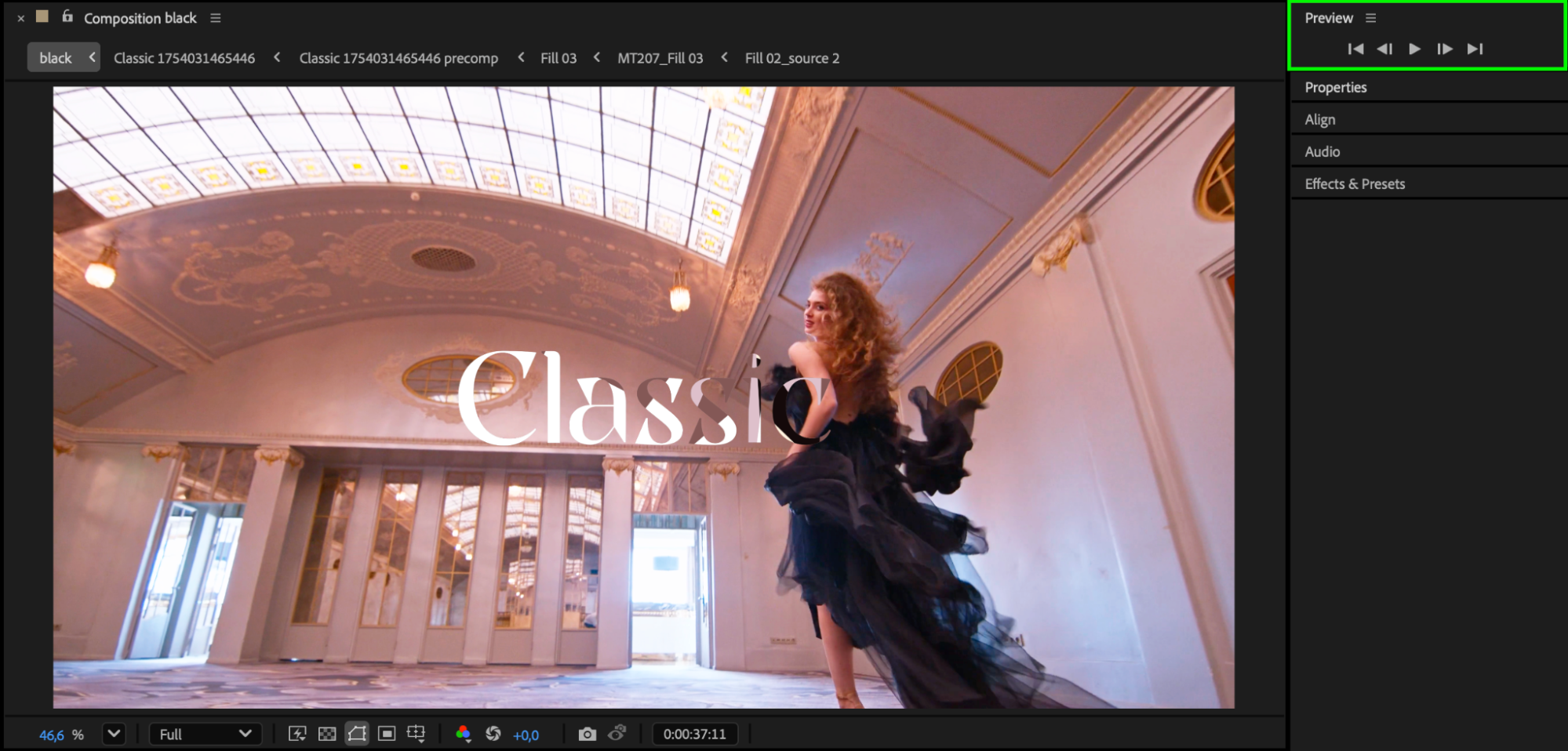
Conclusion
By following these steps, you can quickly add professional-grade text animations to your videos using After Effects. Whether you’re a beginner or a seasoned editor, tools like AEJuice’s Text Animation Pack offer an efficient way to enhance your motion design workflow.
Our Bestsellers
Our Bestsellers


