
Introduction – Why Cut Out a Section of the Frame?
In motion design and compositing, there are times when you need to remove a part of a video frame — for instance, to hide distractions, isolate a subject, or replace a section with custom graphics. After Effects makes this easy using masks and shape tools. You can also add new visual elements like gradients or text in the empty space you create. Let’s walk through the full process step by step.
Step 1: Open Your Project and Import Footage
Start by launching After Effects. Go to File > Import > File, select the footage you want to work with, and drag it onto your composition timeline. This will be the base layer where you cut out part of the frame.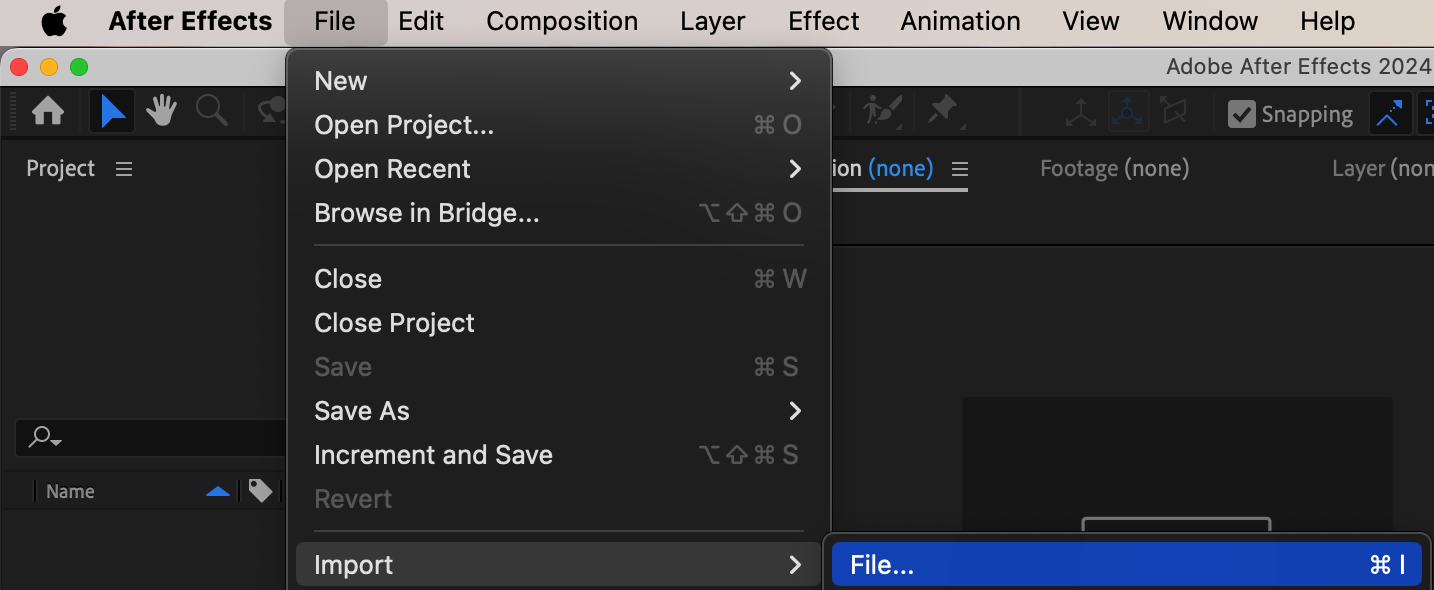
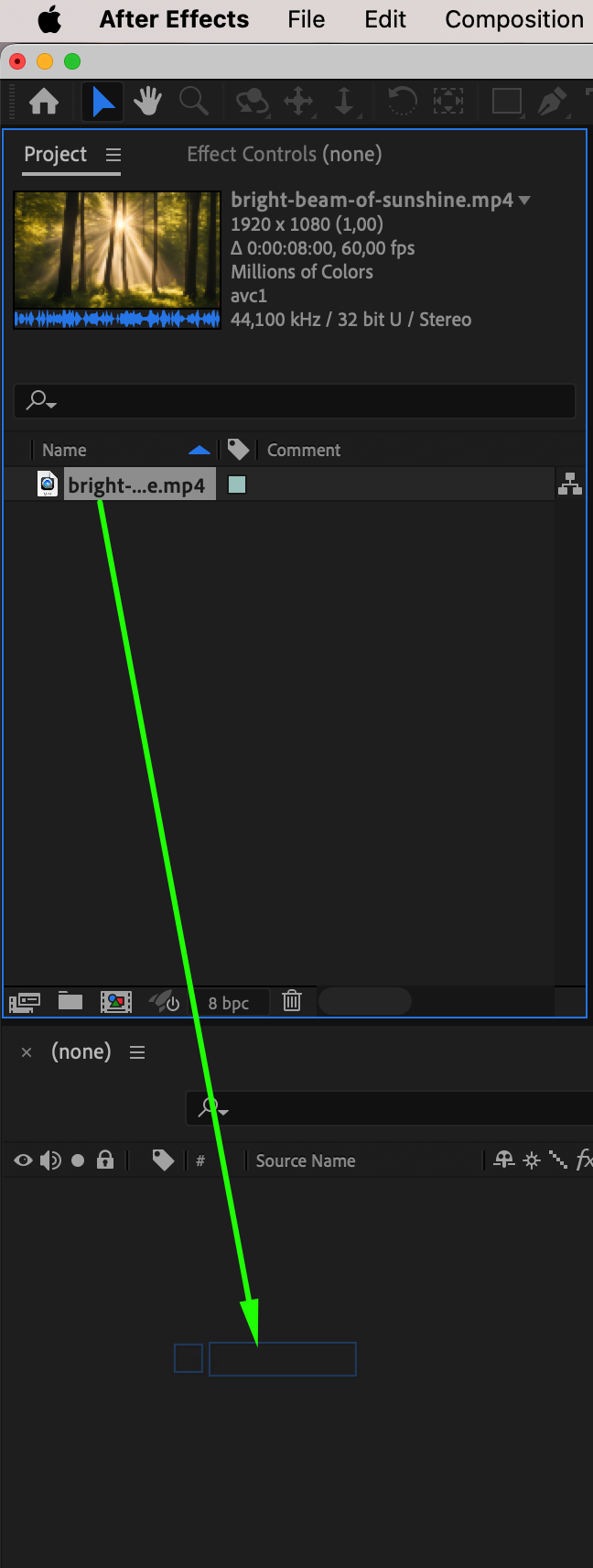 Step 2: Select the Footage Layer
Click on your footage layer in the timeline to make it active. Any masking or cutting actions will apply to this selected layer.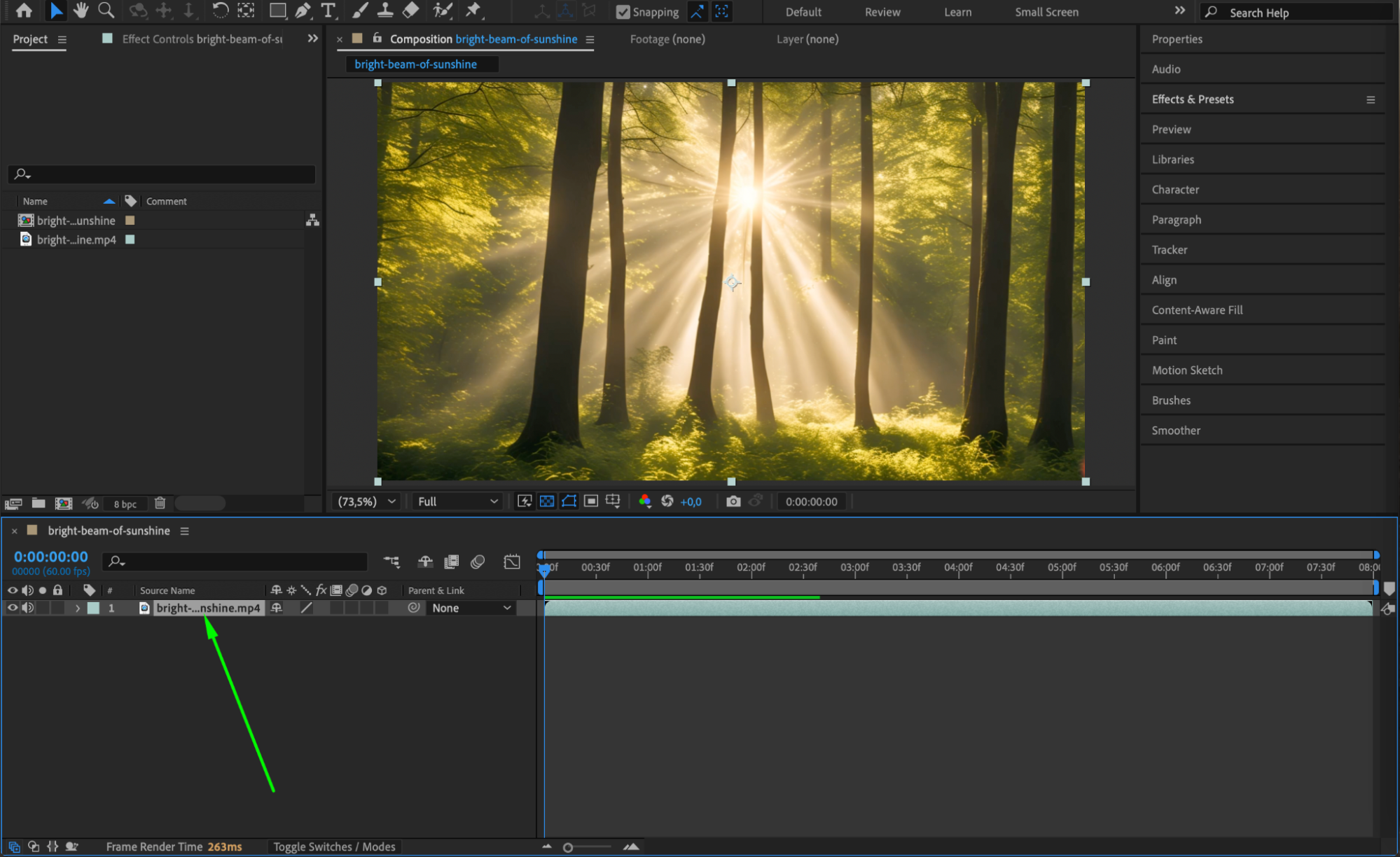
Step 3: Draw a Mask Using the Shape Tool
Select the Rectangle Tool or Ellipse Tool from the top bar (press Q to toggle between them). With your layer selected, draw the shape directly over the area you want to cut out. In the Mask Mode, choose Subtract to hide the selected area.
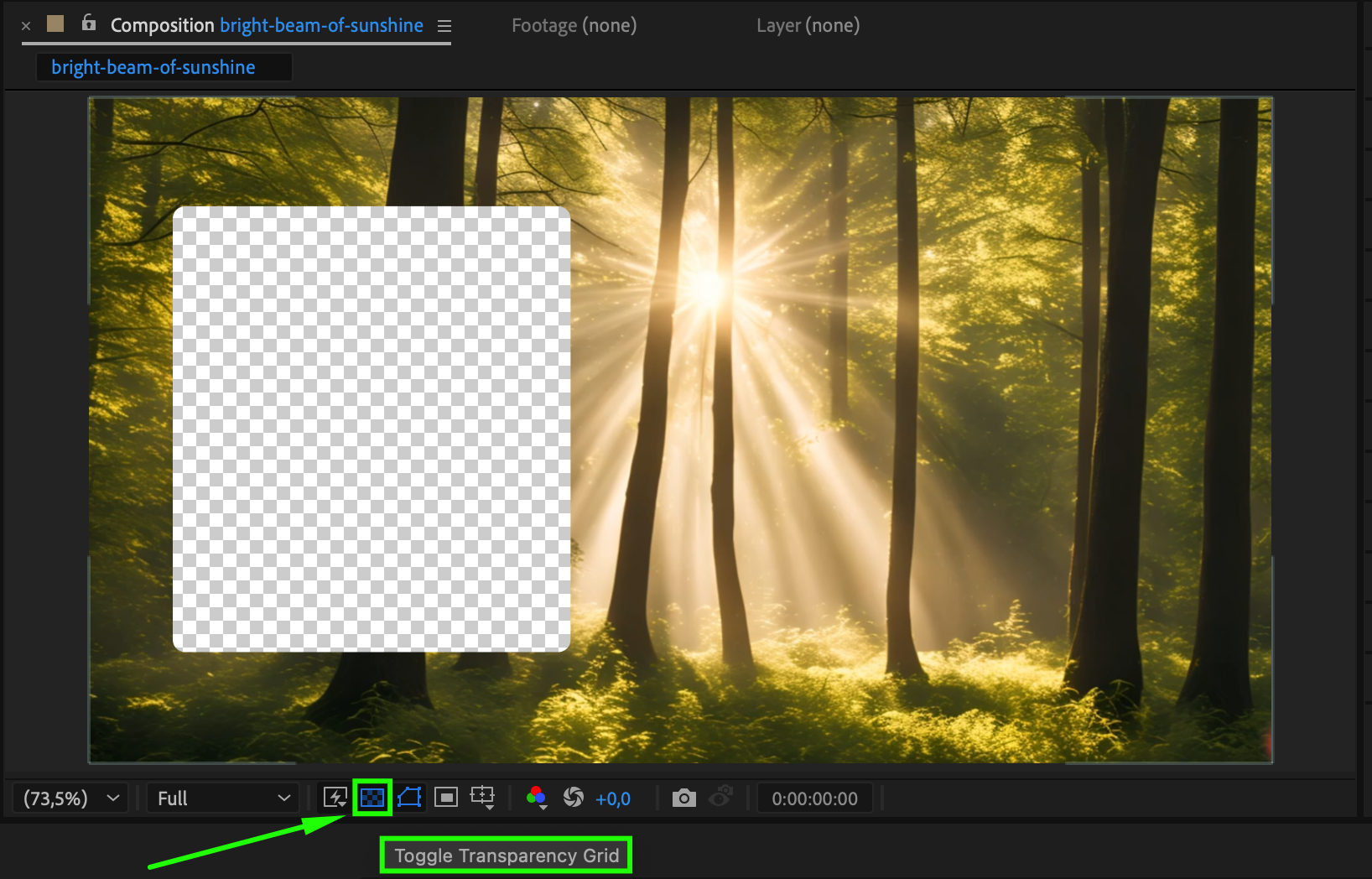
To see the transparency, click the Toggle Transparency Grid button in the preview panel.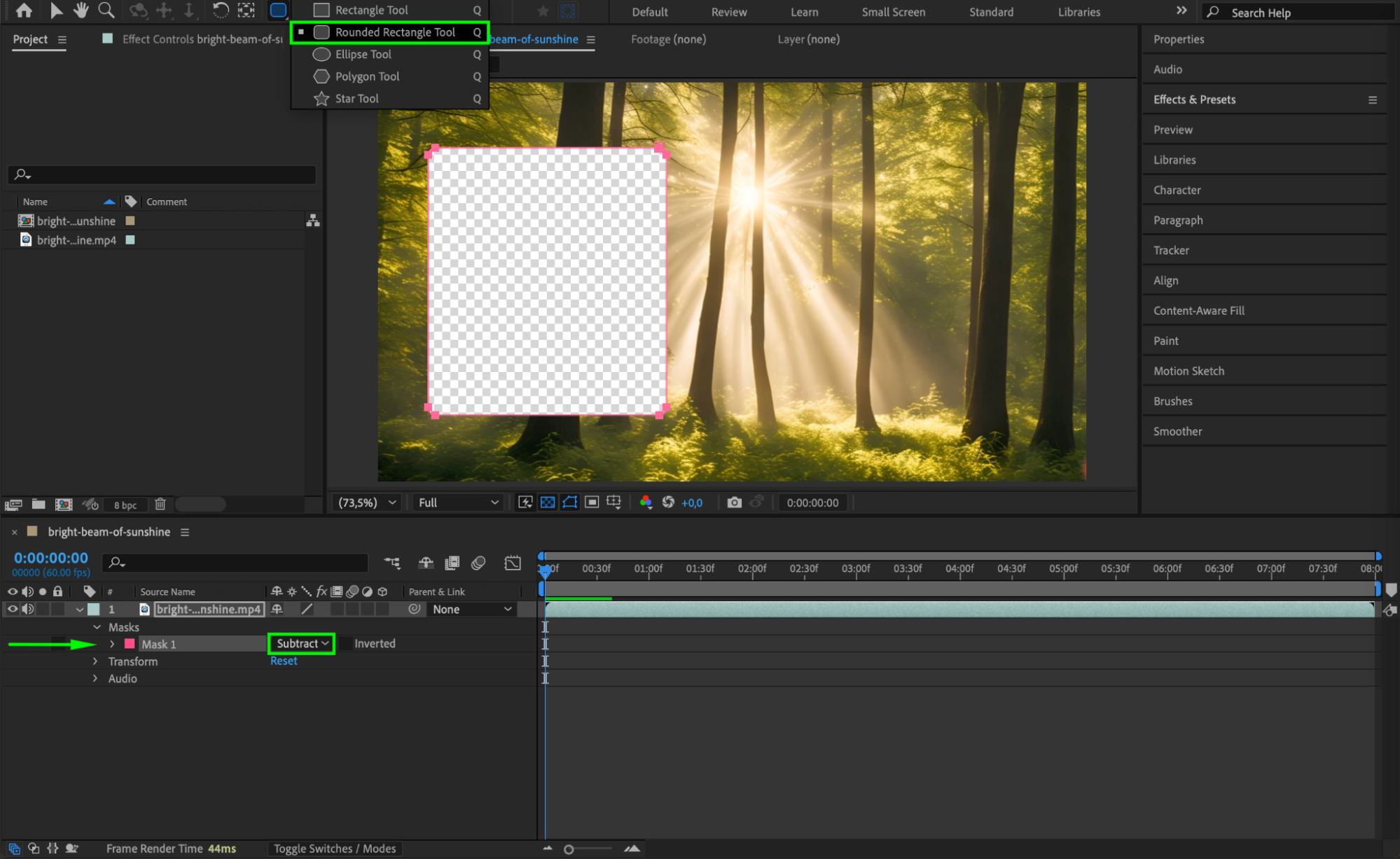
 Step 4: Adjust Mask Feather for Smooth Edges
To avoid sharp edges, go to the mask settings in the timeline and increase the Mask Feather value. This will blur the edges of your cutout, creating a smoother transition between the masked and unmasked areas.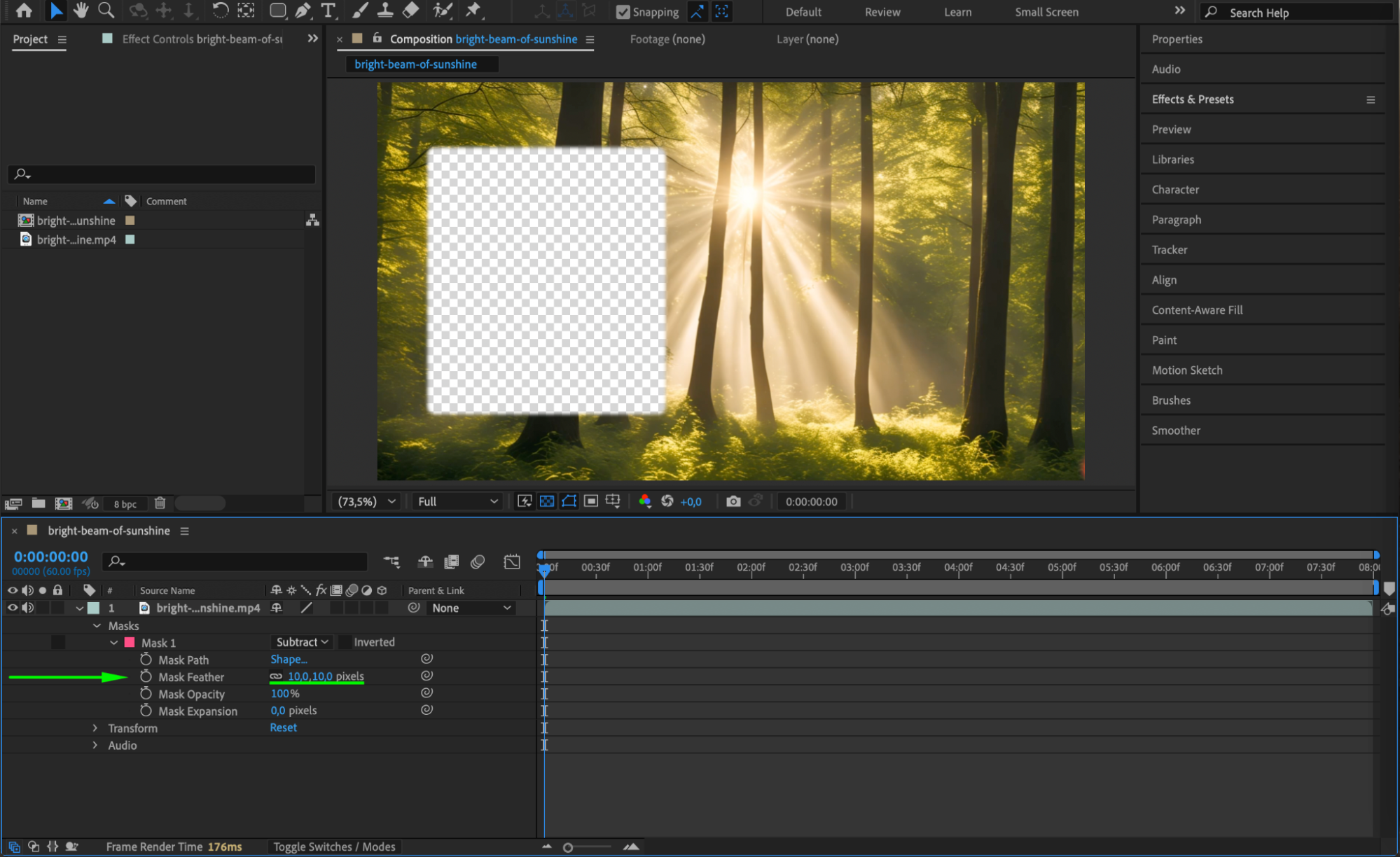 Step 5: Import a New Background or Create a Solid Layer
Now that part of your frame is transparent, you can fill that space creatively. Either import an image or video and place it beneath your footage, or go to Layer > New > Solid to create a colored background layer.
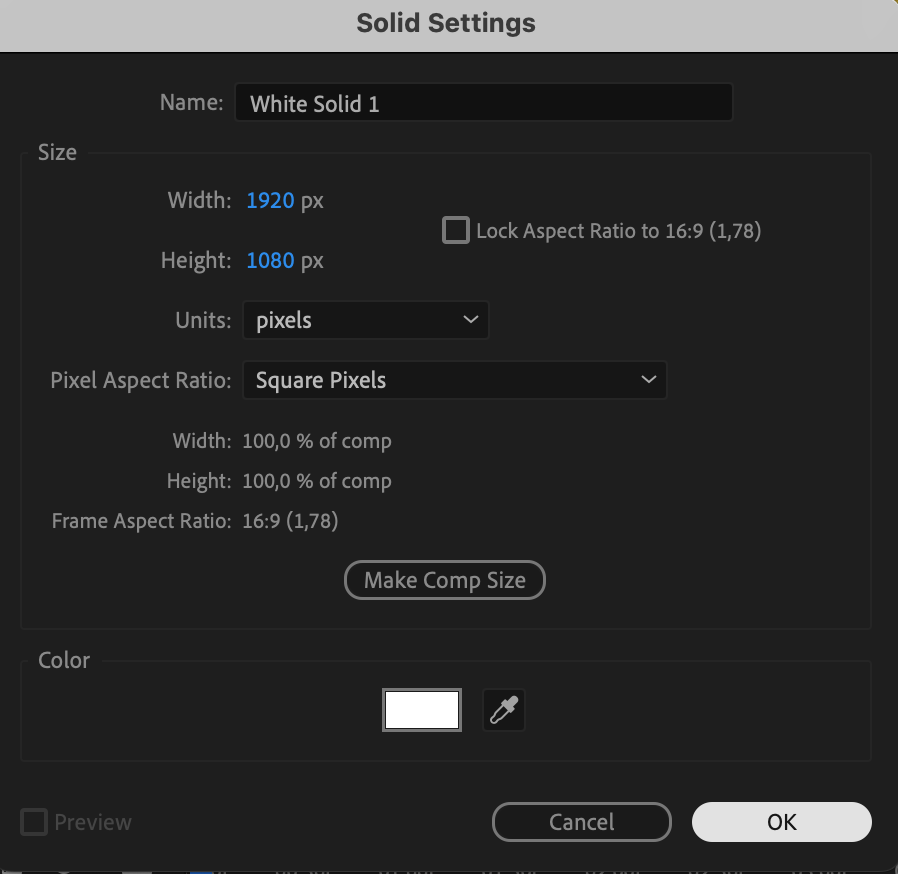
Step 6: Apply Effects to the New Layer
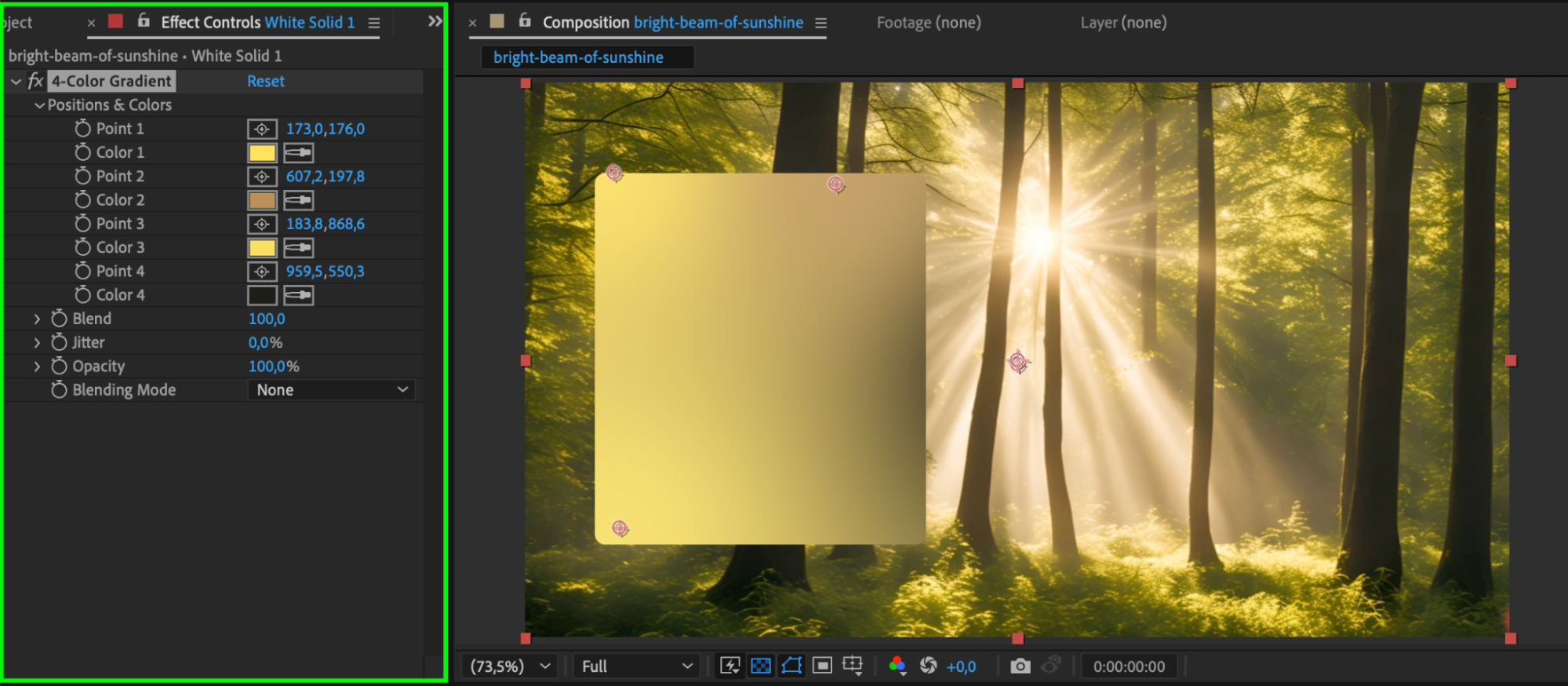
To make the new background more dynamic, you can apply effects like 4-Color Gradient, Fractal Noise, or Glow. Simply drag the effect from the Effects & Presets panel onto the solid or background layer.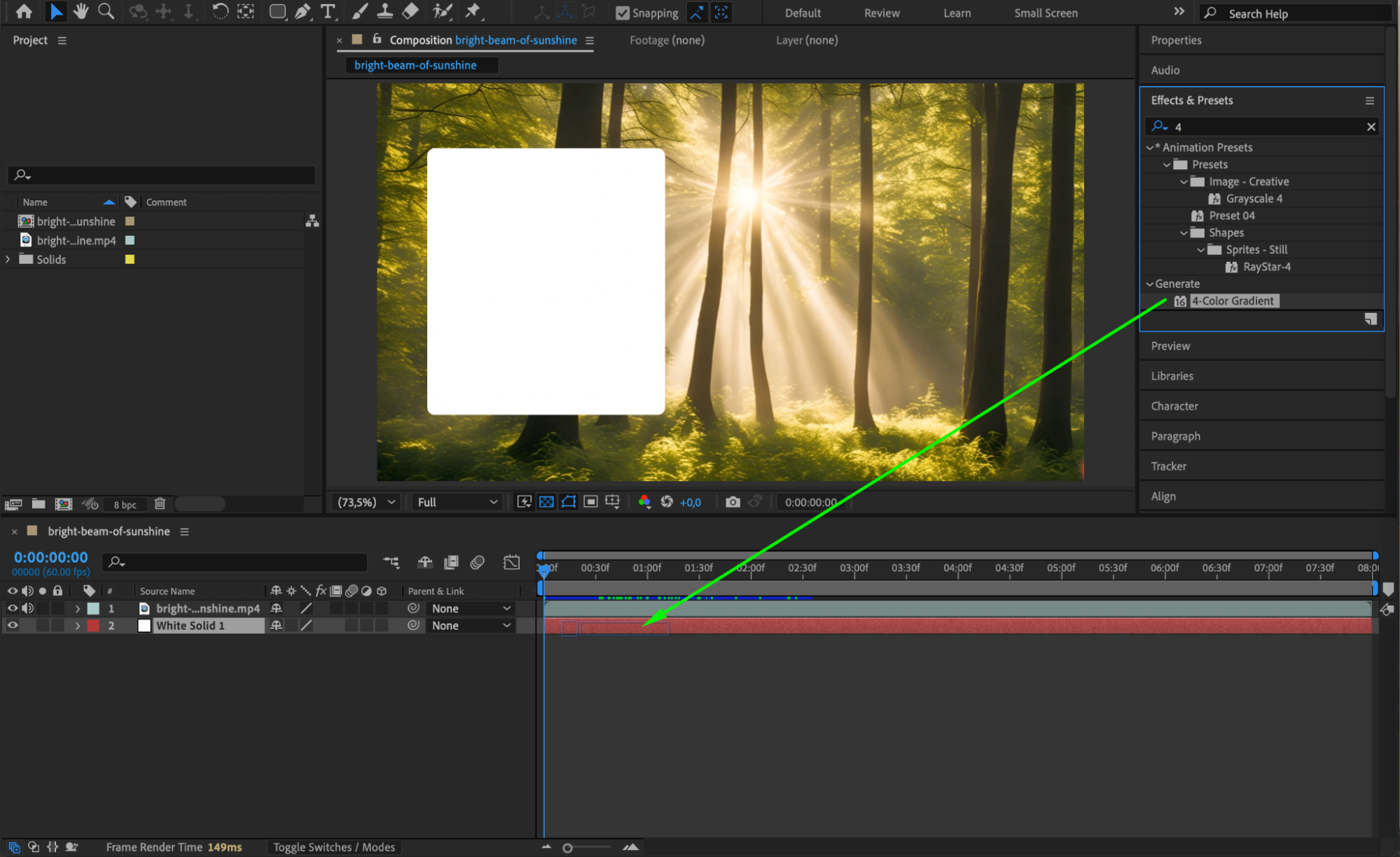
 Step 7: Add Text Over the Background (Optional)
Use the Type Tool (press Ctrl/Cmd + T) to create a text layer. This is useful if you want to display a title or label in the space you’ve created. Position and style your text as needed using the Character and Paragraph panels.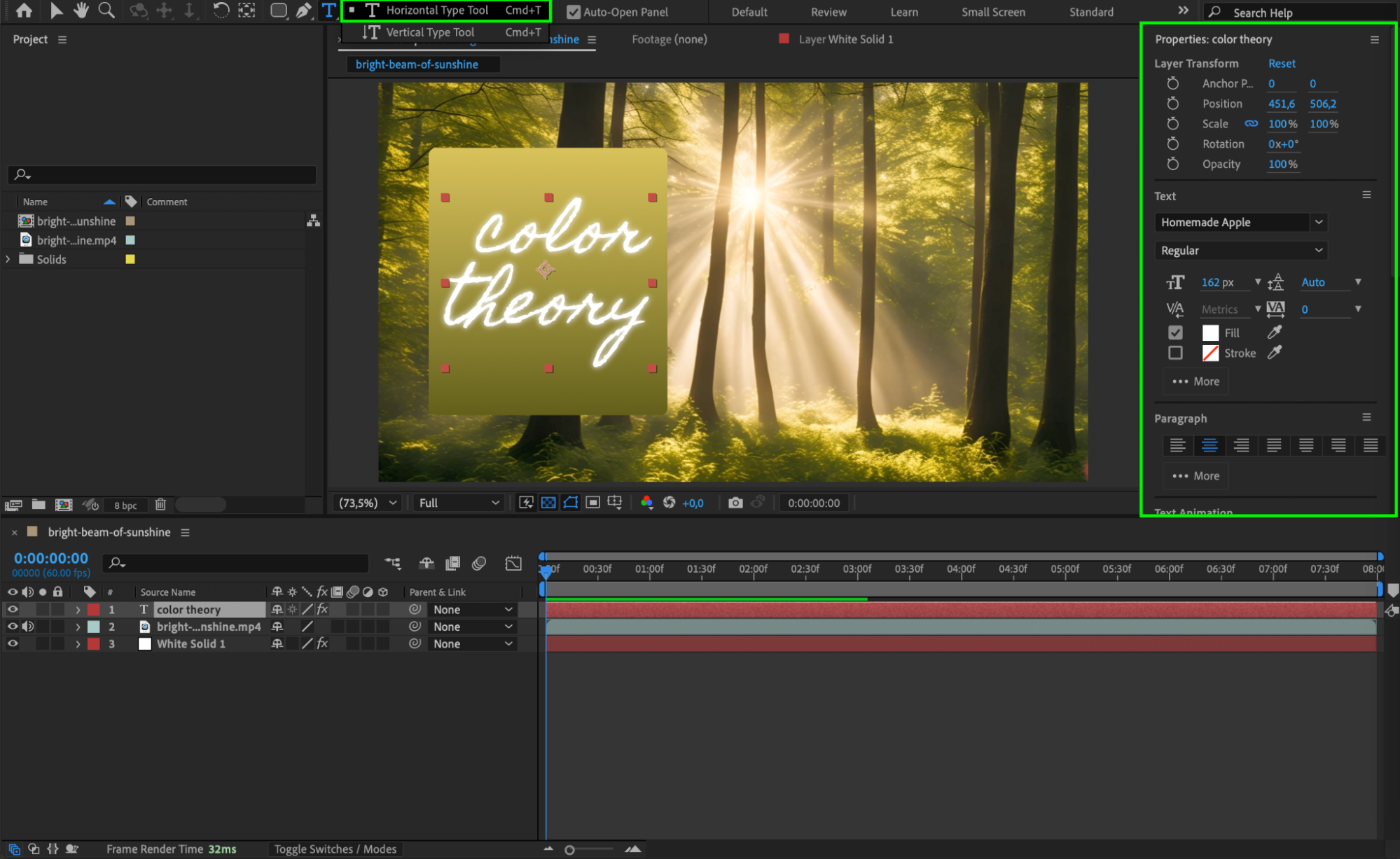 Step 8: Use the Mask Invert Button (Optional)
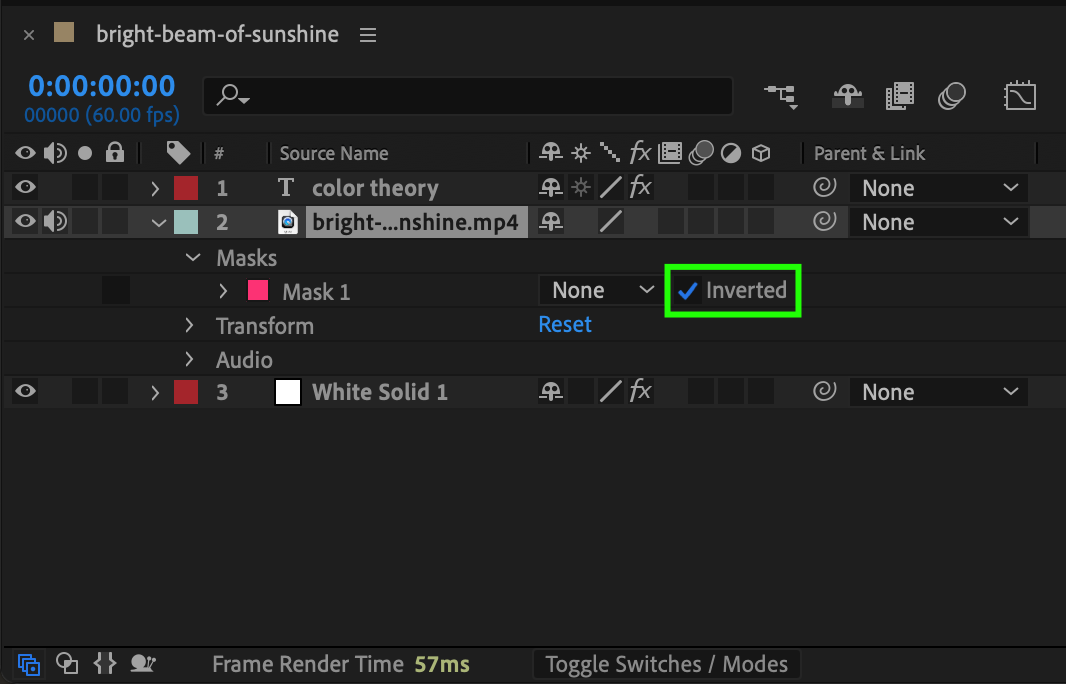
If you want to reverse the masked area (i.e., show the selected part and hide the rest), go to the mask settings and check the Invert option. This is helpful when you only want to show a small portion of the frame and darken or replace everything else.
 Step 9: Preview and Fine-Tune Your Composition
Press the spacebar or use the Preview Panel to watch your result. Make final adjustments to the mask shape, feather, or effects until it looks clean and intentional.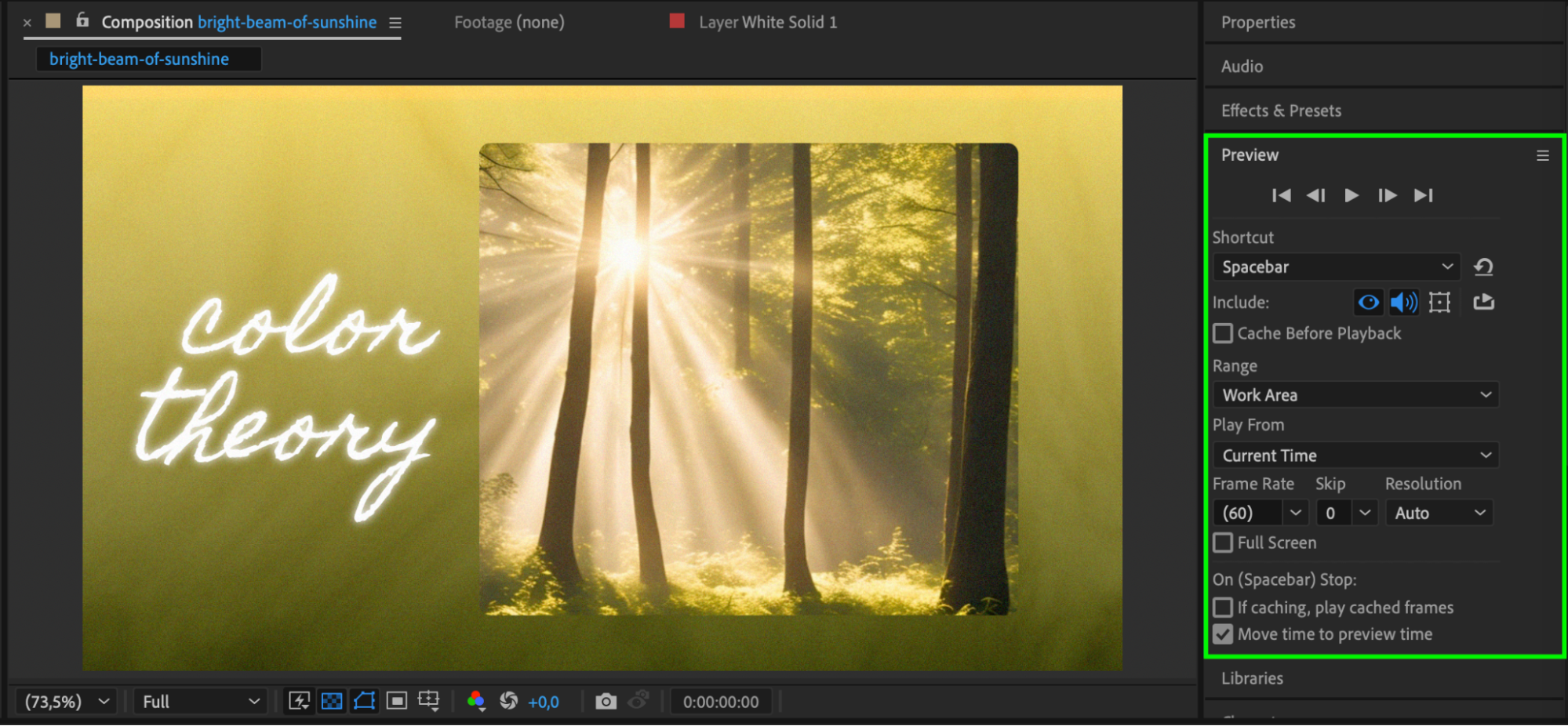
Conclusion
Cutting out part of a frame in After Effects is simple but highly flexible. Whether you’re hiding elements, replacing a background, or creating stylized visuals, masks and solids give you full control. By combining these tools with effects and text, you can build dynamic and professional-looking compositions in just a few steps.
Our Bestsellers
Our Bestsellers


