
Description: Learn how to create chilling and cinematic horror titles using AEJuice Horror Titles Pack and After Effects templates.
Designing Scary Titles in After Effects with AEJuice Horror Titles Pack
Introduction to Horror Title Templates for Video Editors
The Horror Titles pack from AEJuice is a must-have for editors who want to add eerie, unsettling, or cinematic horror vibes to their projects. With customizable templates, glitchy transitions, creepy typography, and dark effects, this pack simplifies the process of making high-impact horror intros. This step-by-step tutorial will show you how to apply and customize these templates using After Effects — ideal for Halloween content, short horror films, or dramatic trailers.
Step 1: Create a New Composition
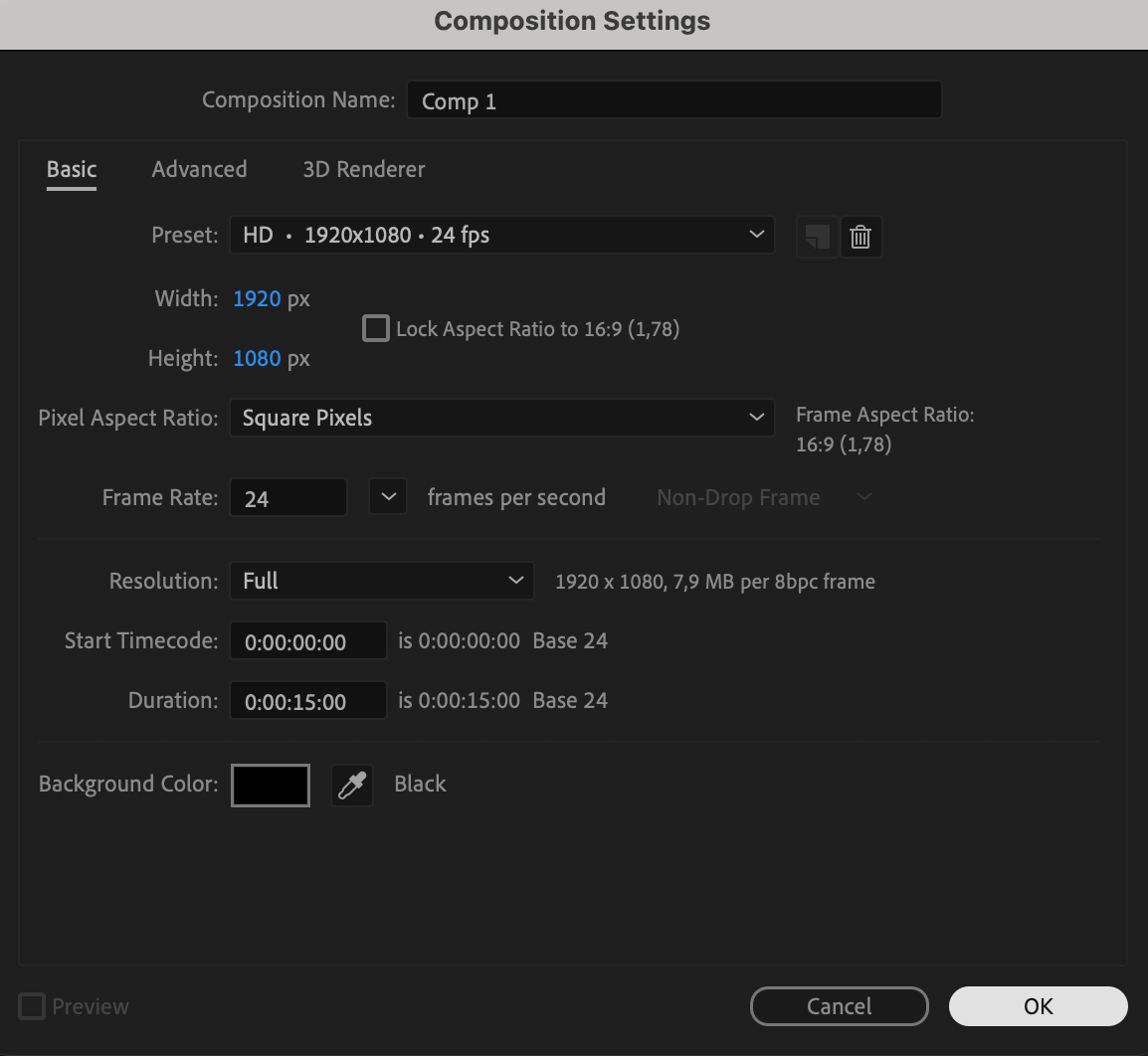
Open After Effects and go to Composition > New Composition. Set your desired resolution, frame rate, and duration. This new comp will be your main workspace, where all horror title elements come together.
 Step 2: Open AEJuice Pack Manager
Go to Window > AEJuice Pack Manager 4 to launch the plugin panel. This panel gives you access to all your installed AEJuice packs. Make sure AEJuice is properly installed before proceeding.
Step 3: Download the Horror Titles Pack
In the Pack Manager, scroll through the available packs and find Horror Titles. If it’s not installed yet, click to download it. Once installed, you’ll gain access to a collection of creepy, cinematic title templates that are ready to use.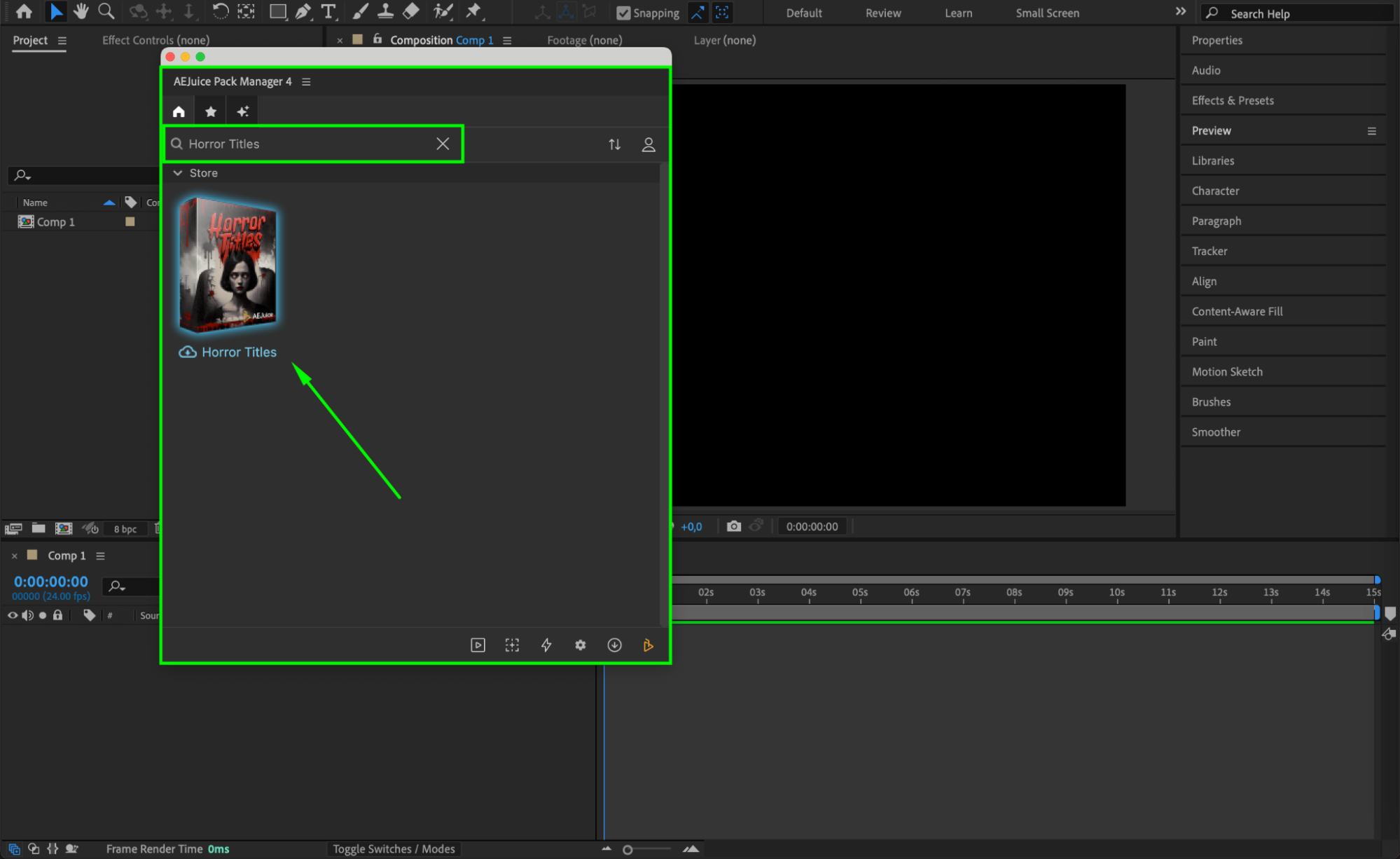 Step 4: Choose and Import a Template
Browse through the preview thumbnails and select a template that fits your project. For example, you might choose something like Horror Title 02 with dripping blood or glitch effects. Click Import — the template will appear in your timeline as a pre-composition.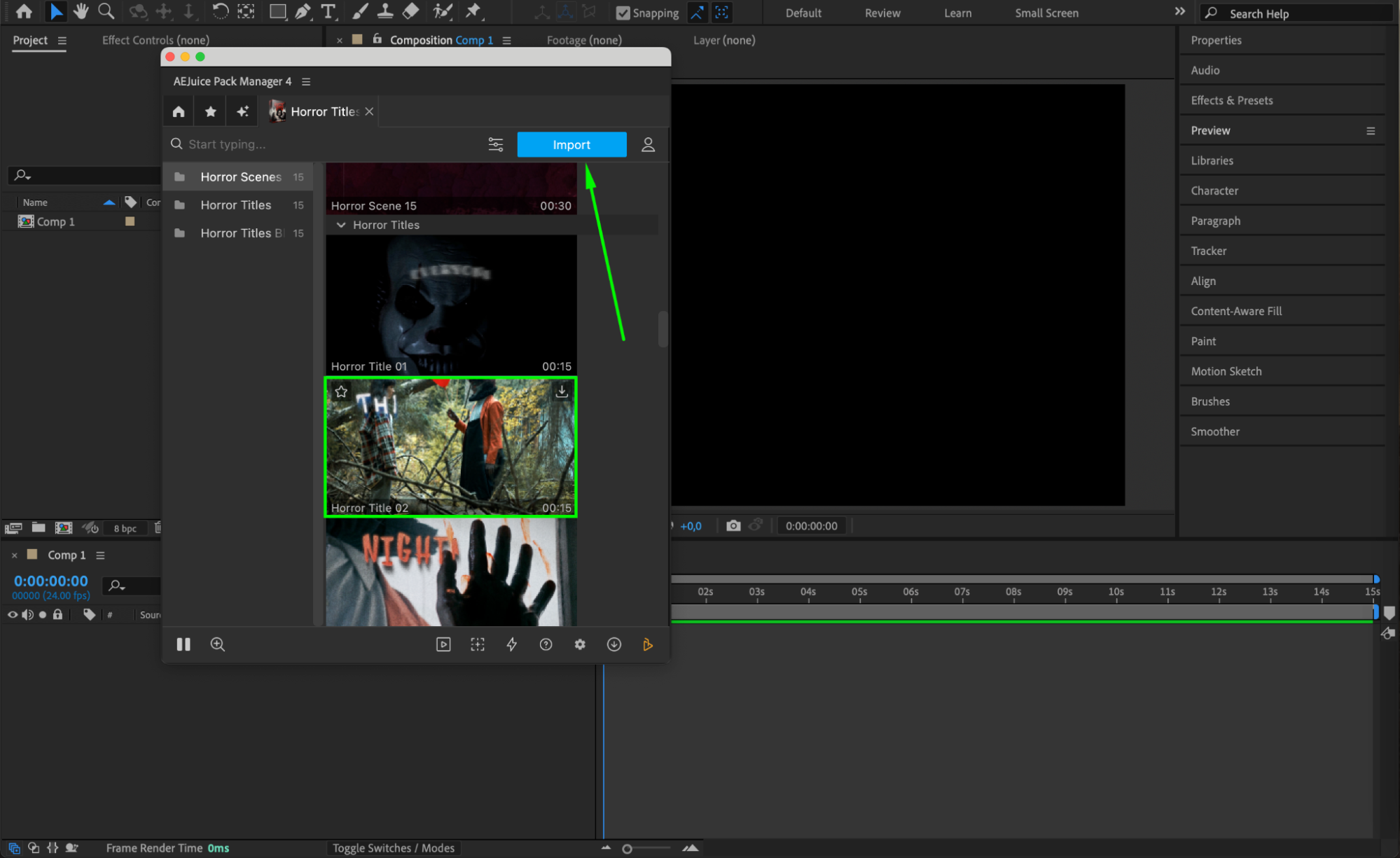
Step 5: Customize the Title
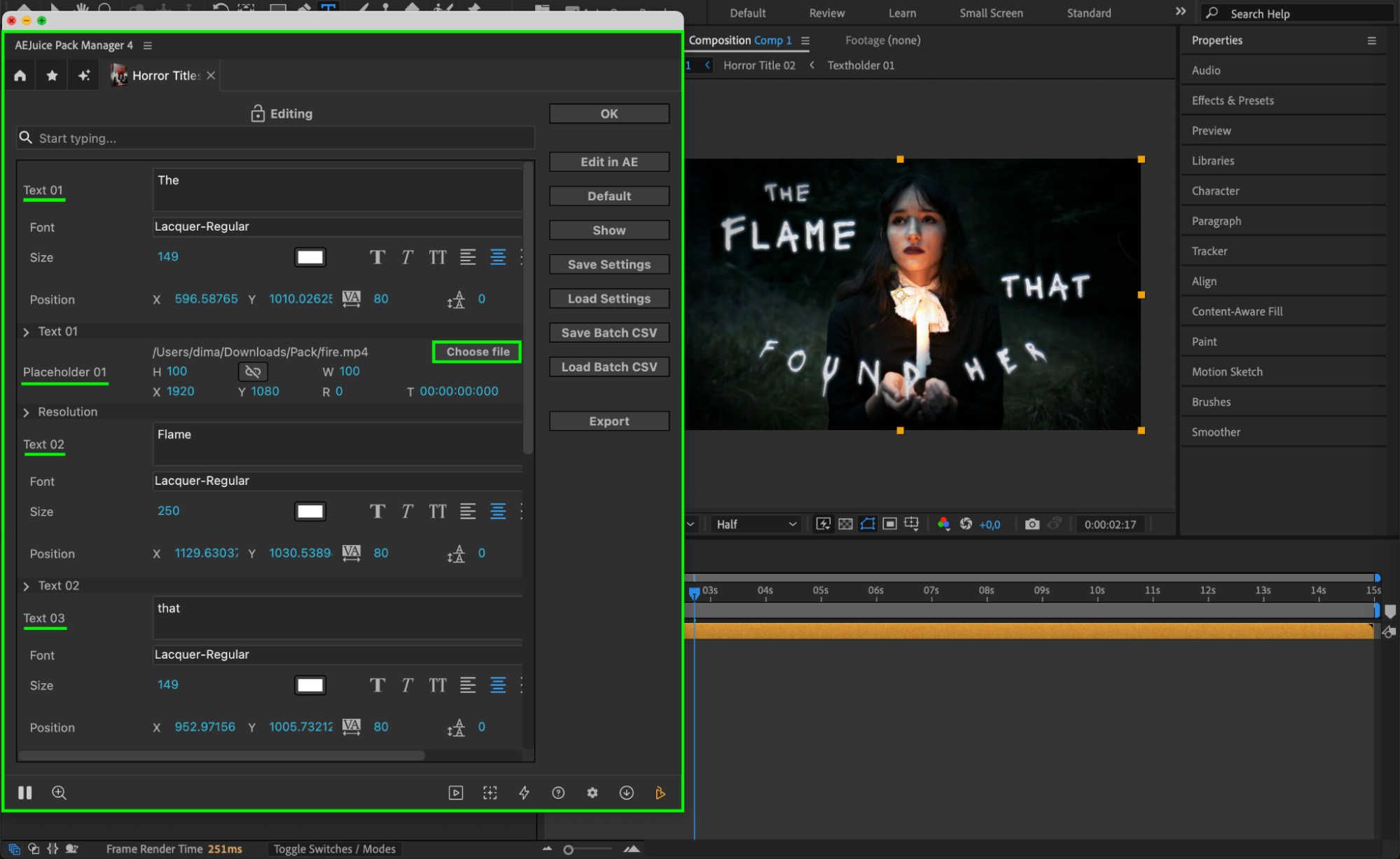
Select the imported pre-comp layer in the timeline. In the AEJuice Pack Manager 4 panel, click the Edit button (represented by three sliders). A customization panel will open where you can:
Change the text content
Adjust font, size, color, and positioning
Replace the background placeholder by clicking Choose File and uploading your footage
Modify other animation and style settings to better fit your project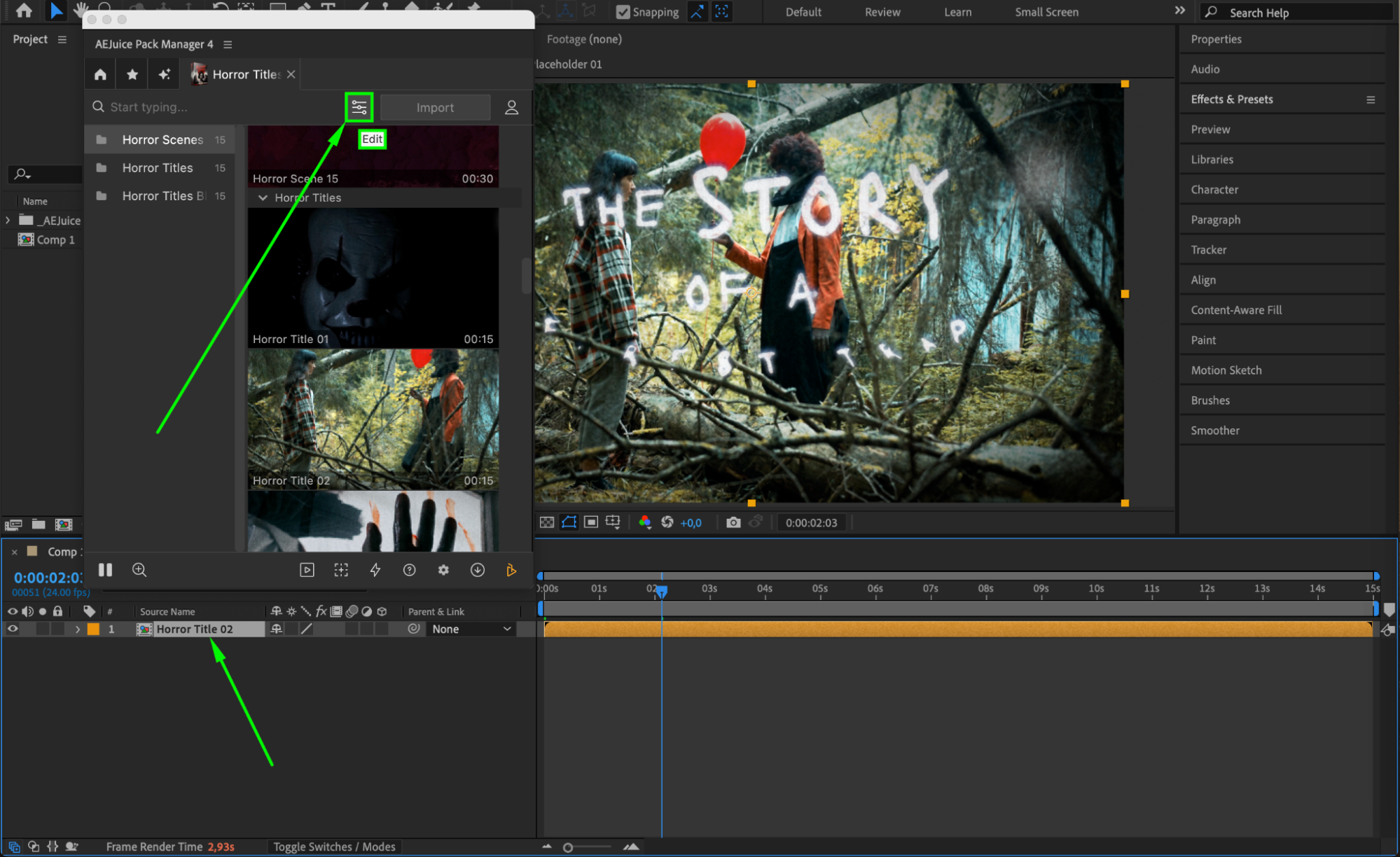
 Step 6: Preview Your Animation
Press the Spacebar to preview the result in real-time. Make sure the timing, effects, and layout look good. 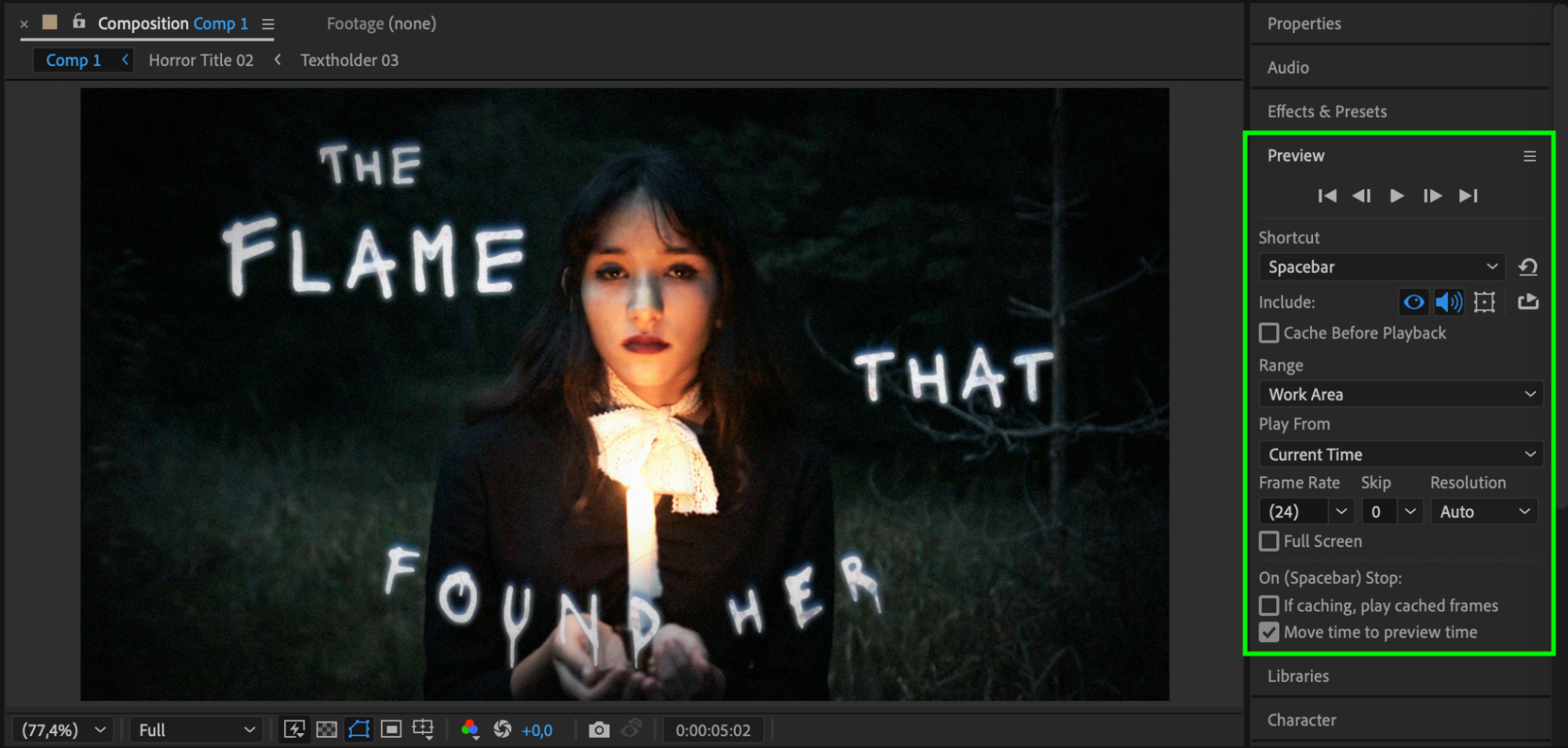
Conclusion
With the AEJuice Horror Titles Pack, creating professional, spine-chilling title animations is easier than ever. Whether you’re working on a horror short film, Halloween promo, or a cinematic trailer, this pack provides a fast and powerful solution.
Our Bestsellers
Our Bestsellers


