
Introduction – Why Duplicate Text Across the Screen?
Duplicating text across the screen is a popular motion design technique used in kinetic typography, animated backdrops, and modern layouts. Whether you’re designing a dynamic intro, looping background, or bold graphic look, After Effects allows you to copy and align text layers with ease. You can build patterns, grids, or offset layouts quickly — and even animate the entire group for polished results.
Step 1: Open Your Project
Begin by opening your After Effects project. Make sure the composition you want to work in is active, or create a new one with the desired resolution and frame rate.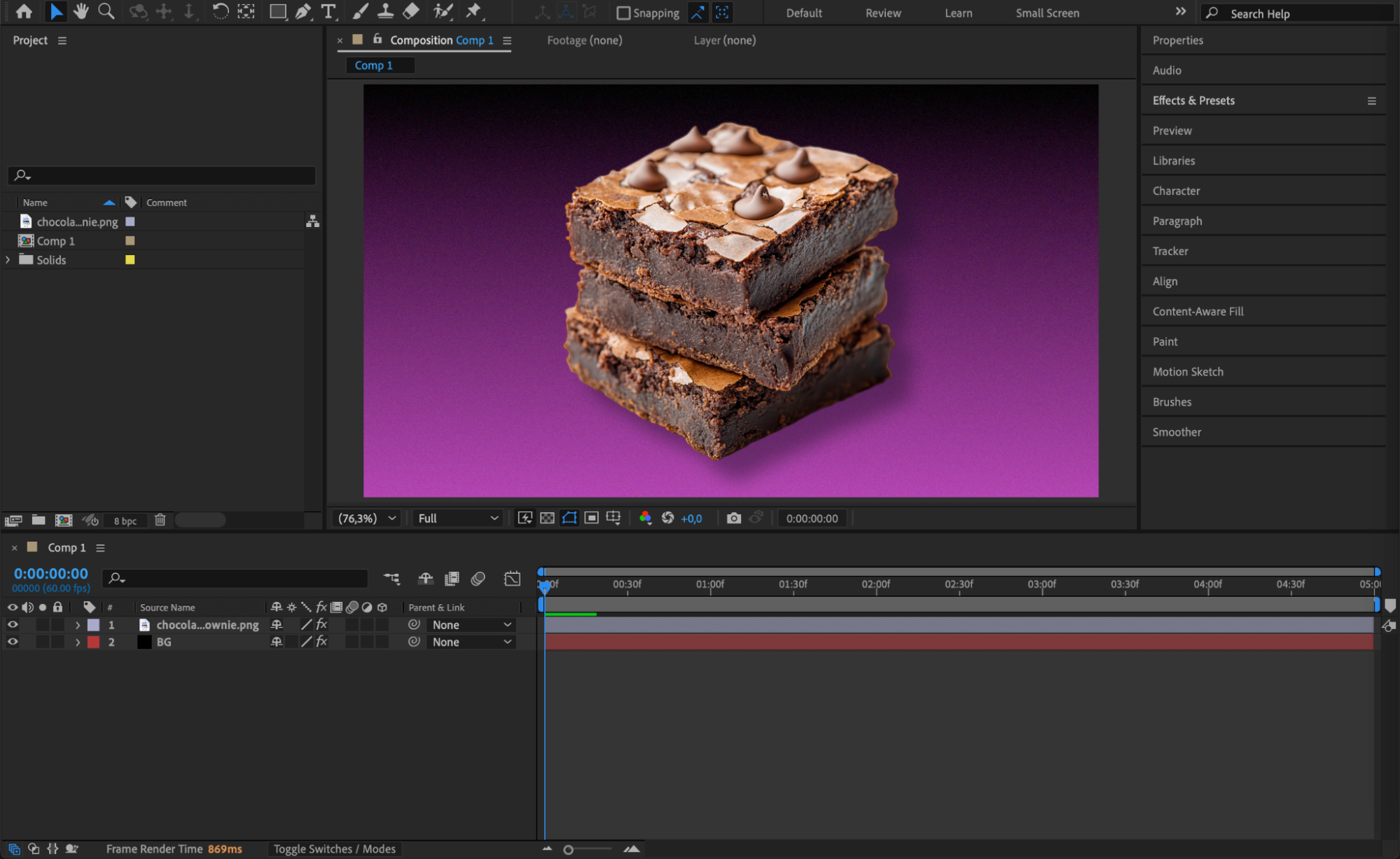 Step 2: Create a Text Layer
Select the Type Tool (Ctrl/Cmd + T) and click in the Composition panel to start typing your text. Customize the font, size, spacing, and color in the Character panel to fit your design. Use the Paragraph panel to set alignment (center, left, or right) depending on how you plan to duplicate the text.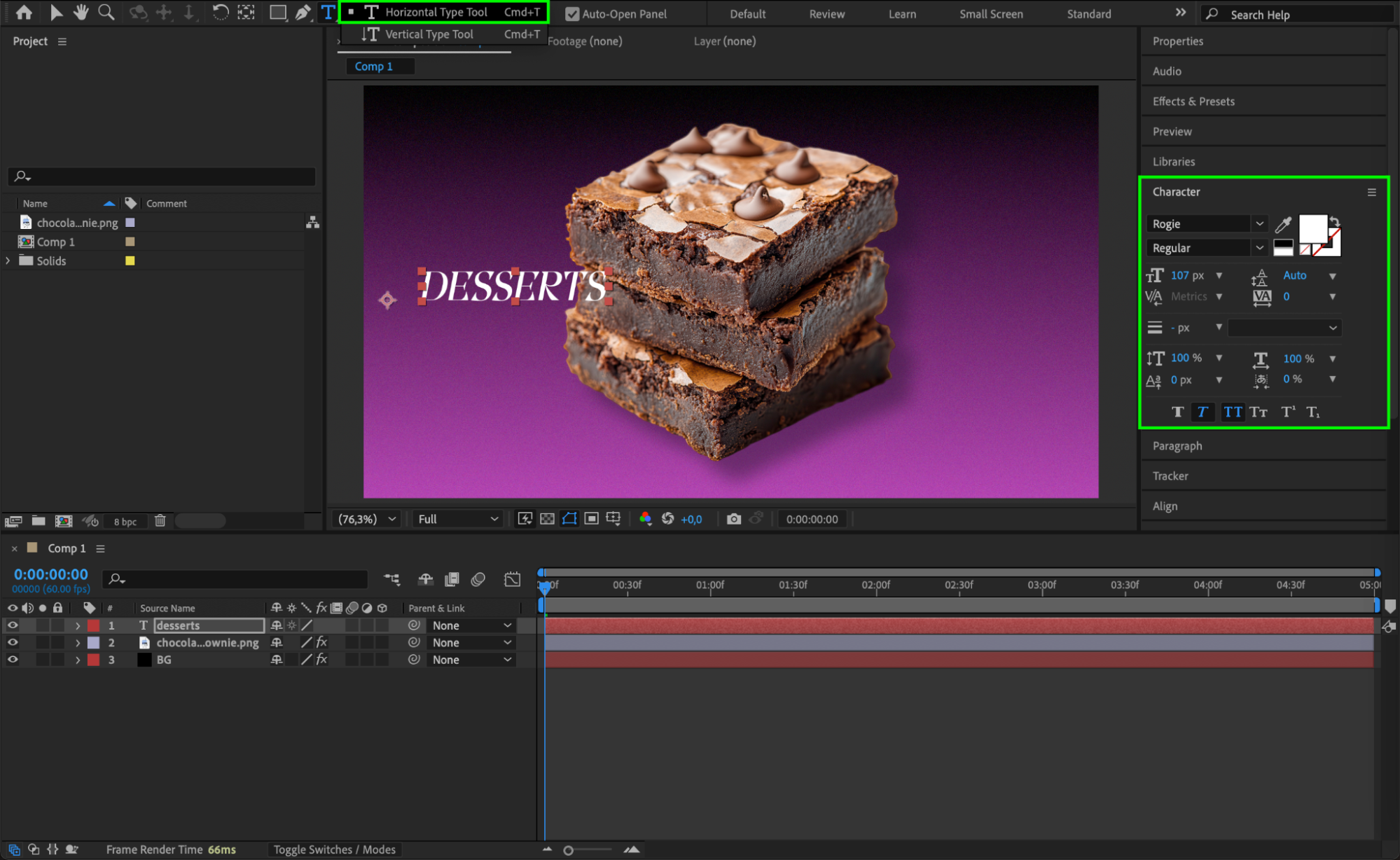 Step 3: Center the Anchor Point
Right-click on the text layer in the timeline and choose Transform > Center Anchor Point in Layer Content. This centers the anchor point to the middle of your text, which will help with precise alignment and transformations later.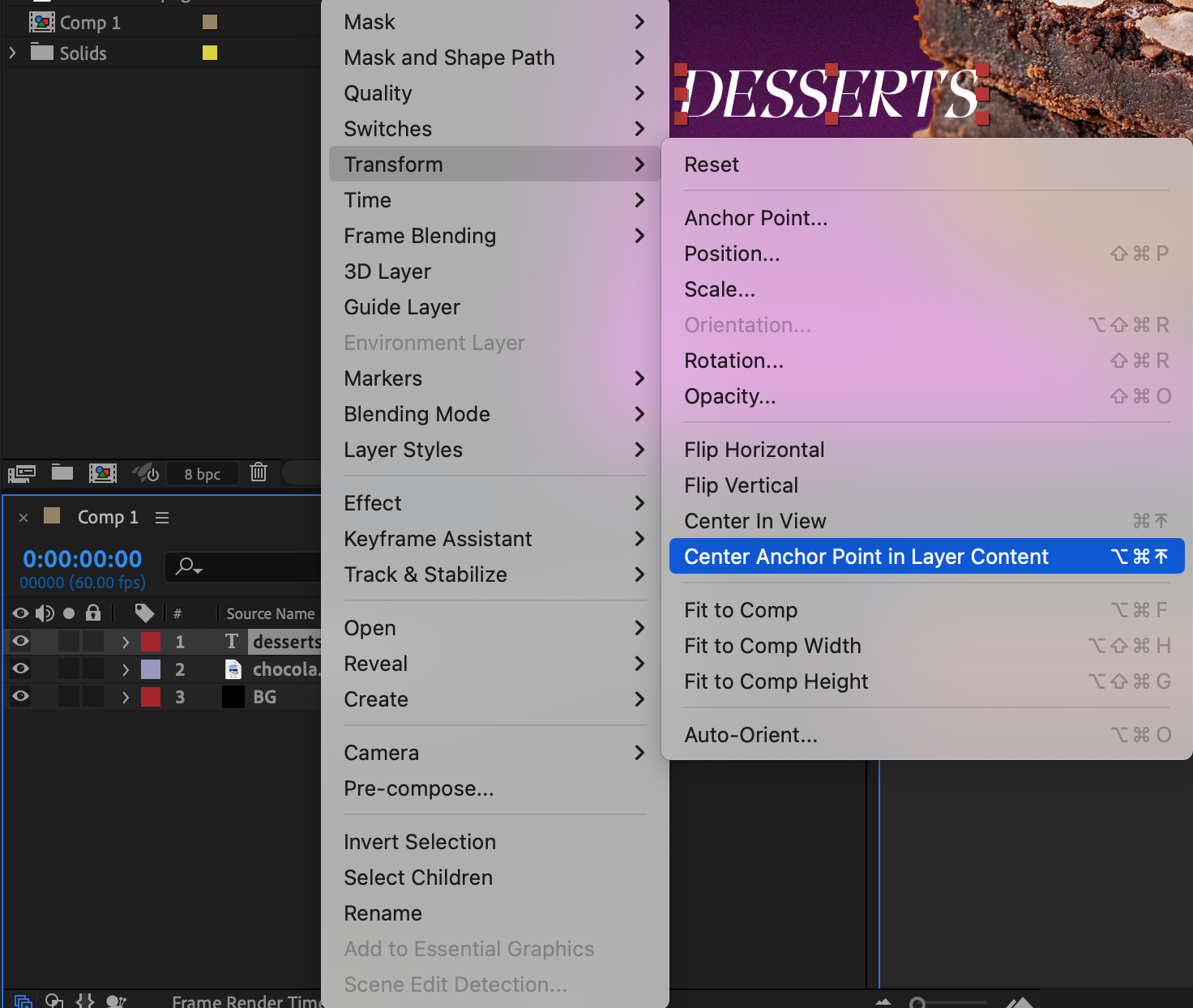
Step 4: Duplicate the Text Layer
To duplicate, select the text layer and press “Ctrl/Cmd + D”. Do this as many times as needed to fill your composition. This creates identical copies of the text layer stacked in the timeline.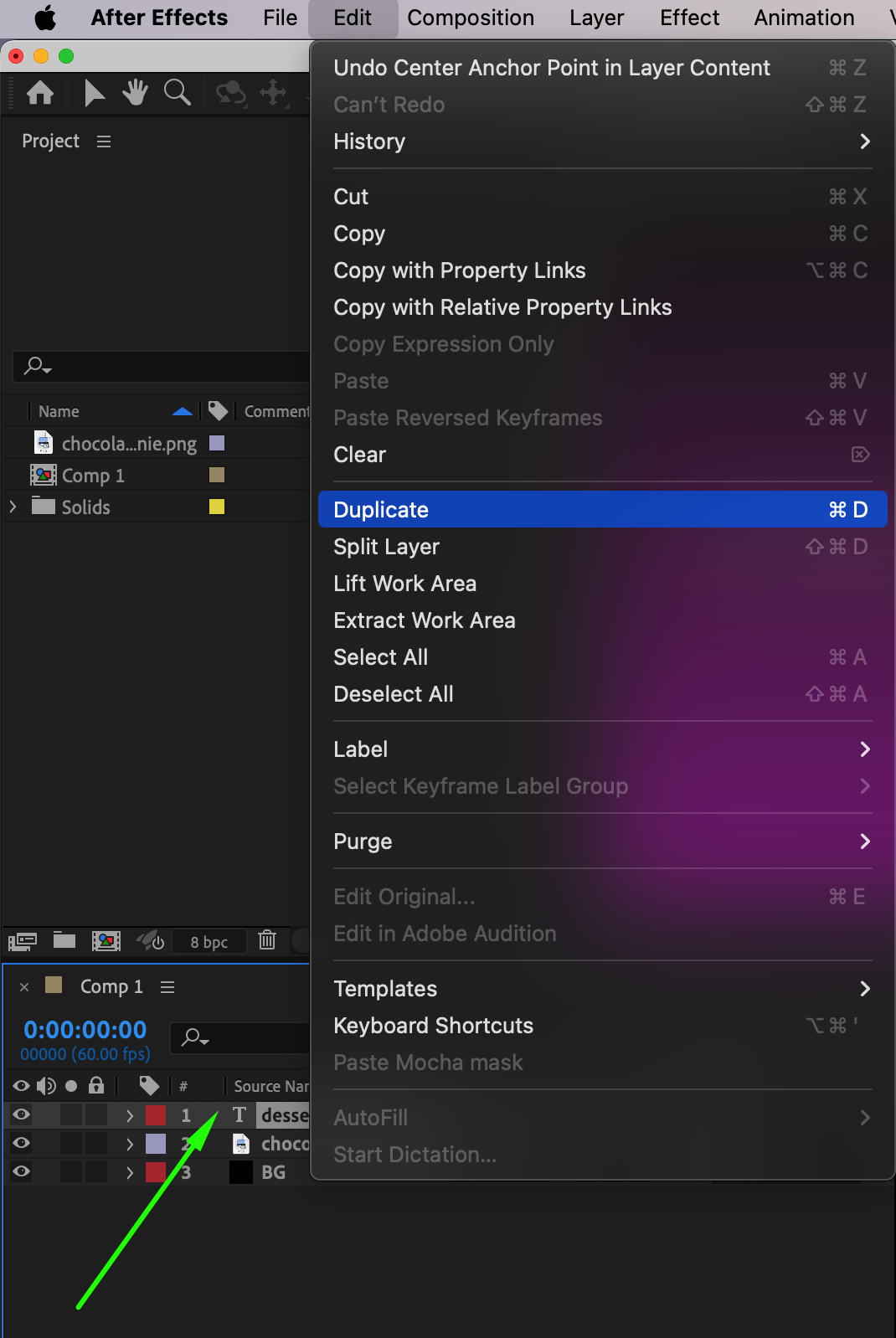 Step 5: Align and Snap Text Layers
Enable Snapping in the top menu for easier alignment. Then use the Align Panel (Window > Align) to distribute layers horizontally or vertically. This helps keep spacing even and layout clean. You can also manually position layers using the Selection Tool (V) with snapping turned on.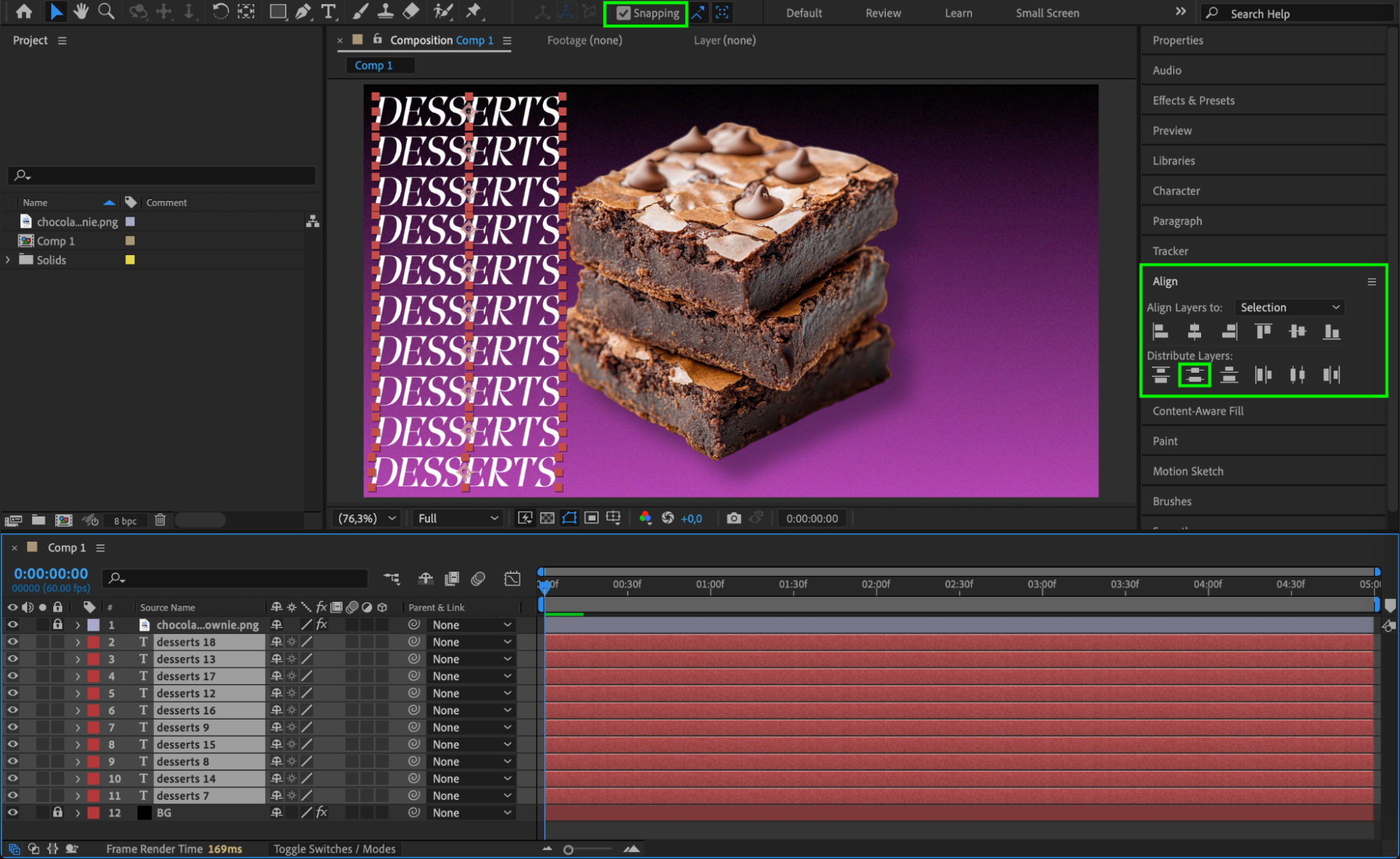 Step 6: Lock Other Layers and Use Grid
For easier editing, lock any layers you’re not using by clicking the lock icon next to them in the timeline. This prevents accidental movement. Enable Grid or Title/Action Safe guides from the bottom of the Composition panel to help line up your text elements.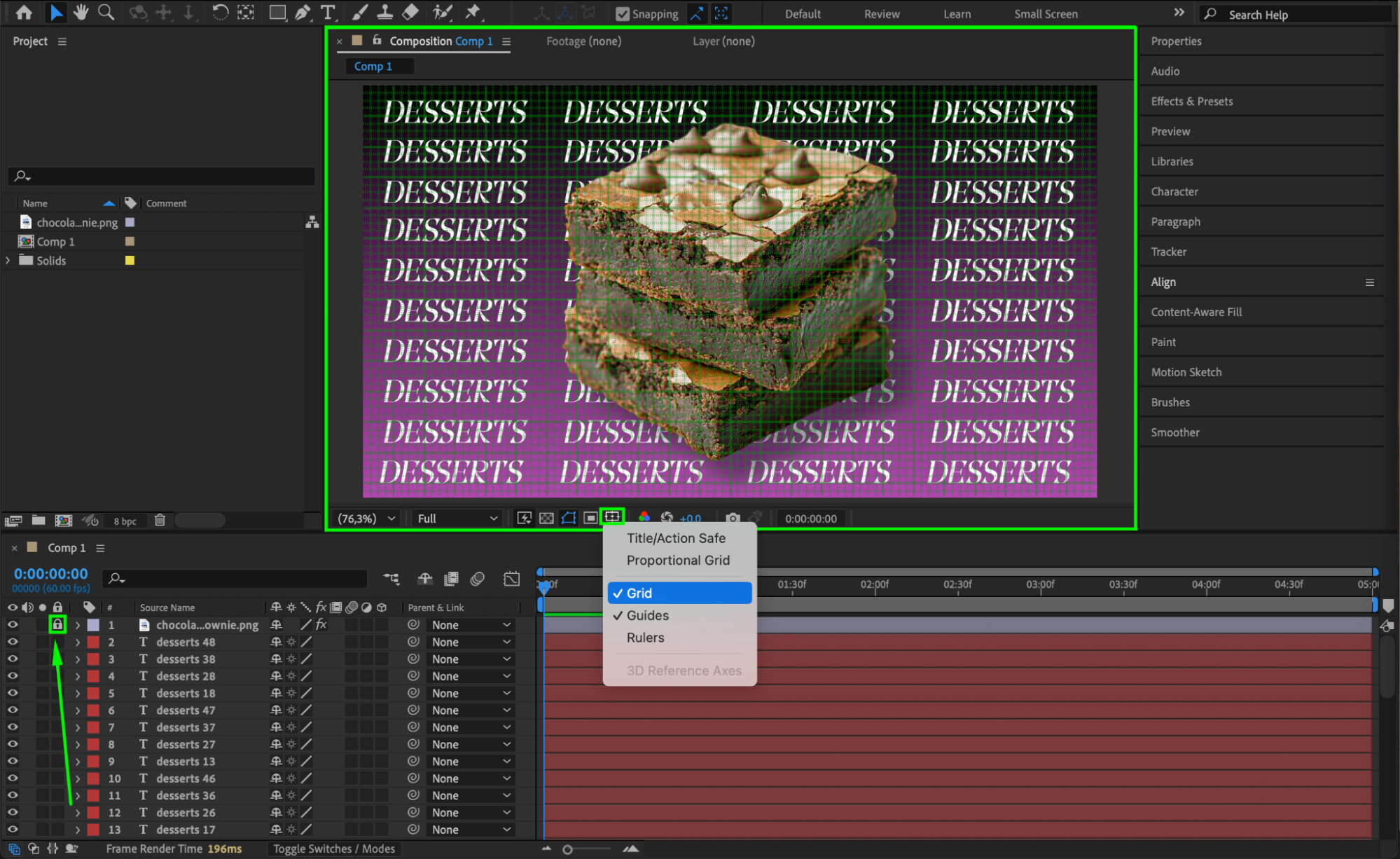
Step 7: Pre-Compose All Text Layers
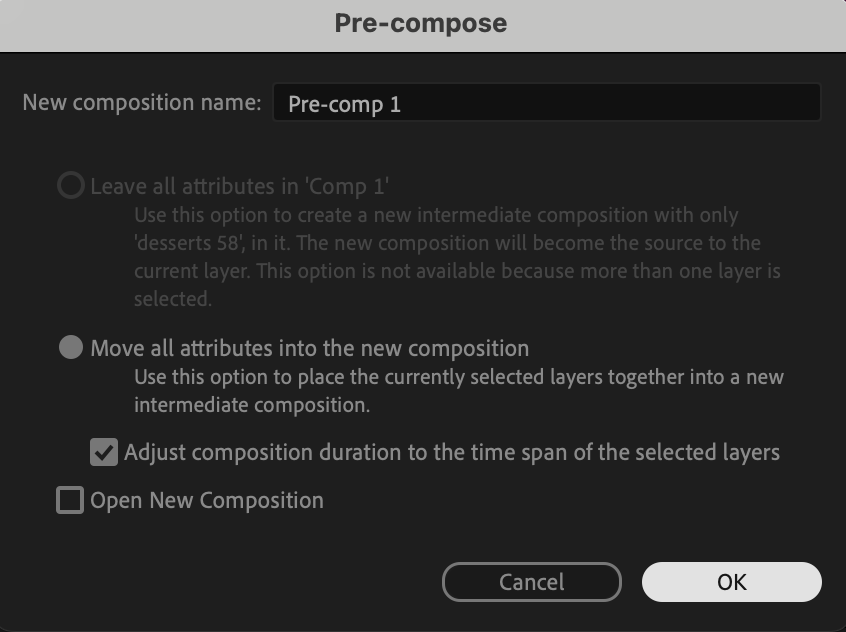
Once your duplicated text layout is complete, select all the text layers, right-click, and choose Pre-compose. Give the new pre-comp a name. This keeps your timeline organized and allows you to apply effects or animations to the entire group as a single layer.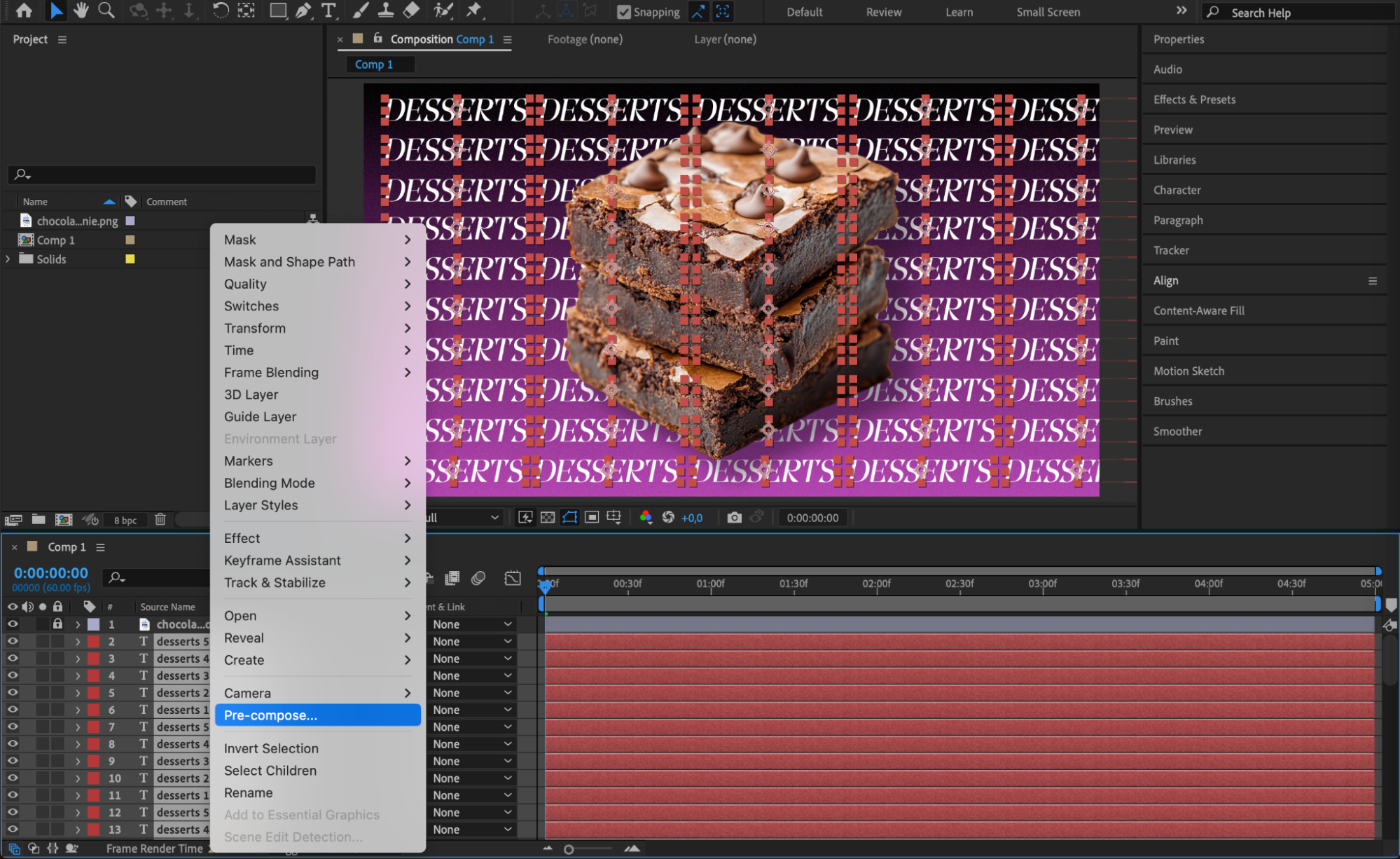
 Step 8: Adjust or Animate the Pre-Comp
With the pre-comp selected, press “P” for position, “S” for scale, or “R” for rotation. Keyframe any of these properties to animate the text layout as a whole. You can create subtle motion or looped animations depending on your design needs.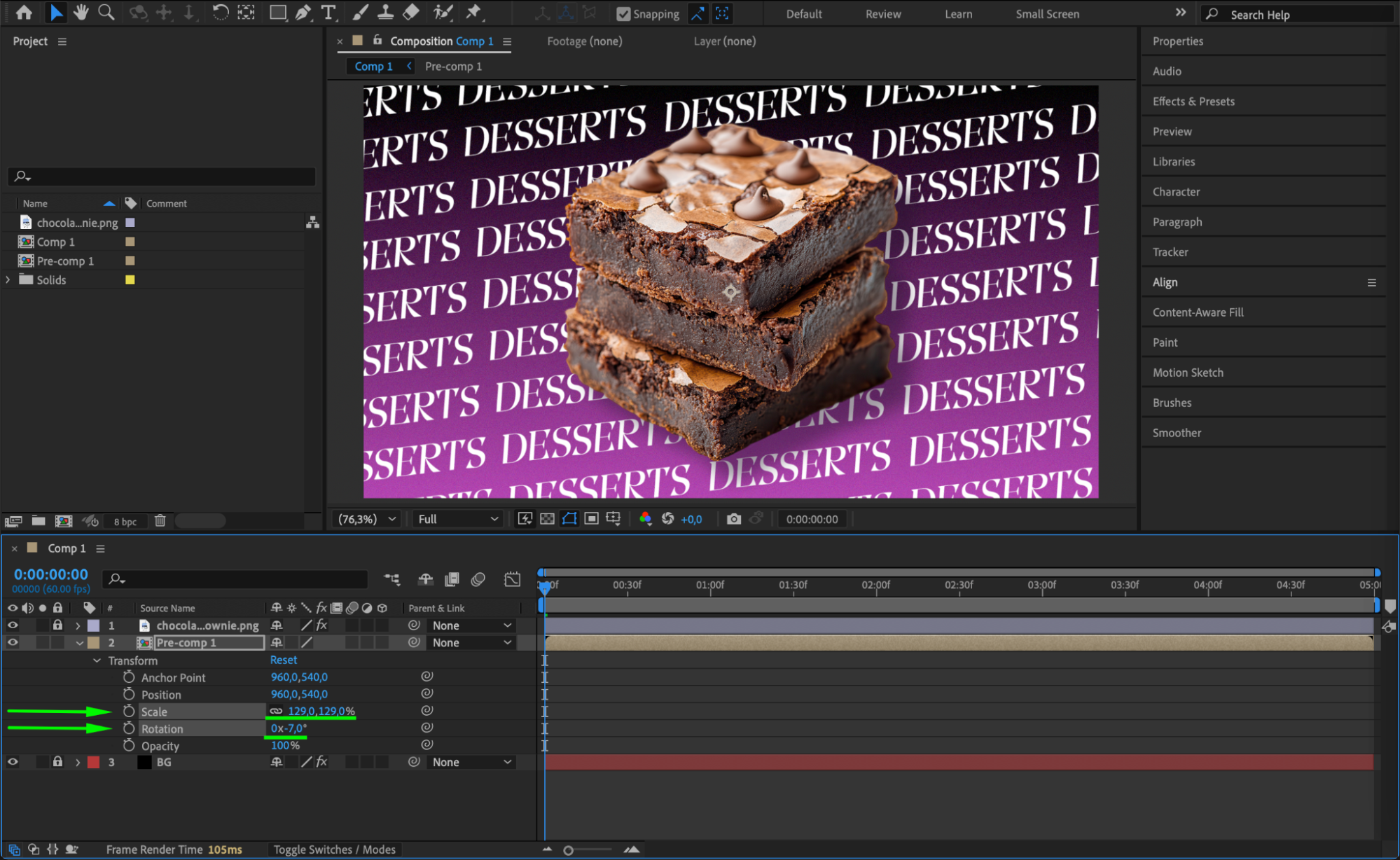 Step 9: Add Effects for Style
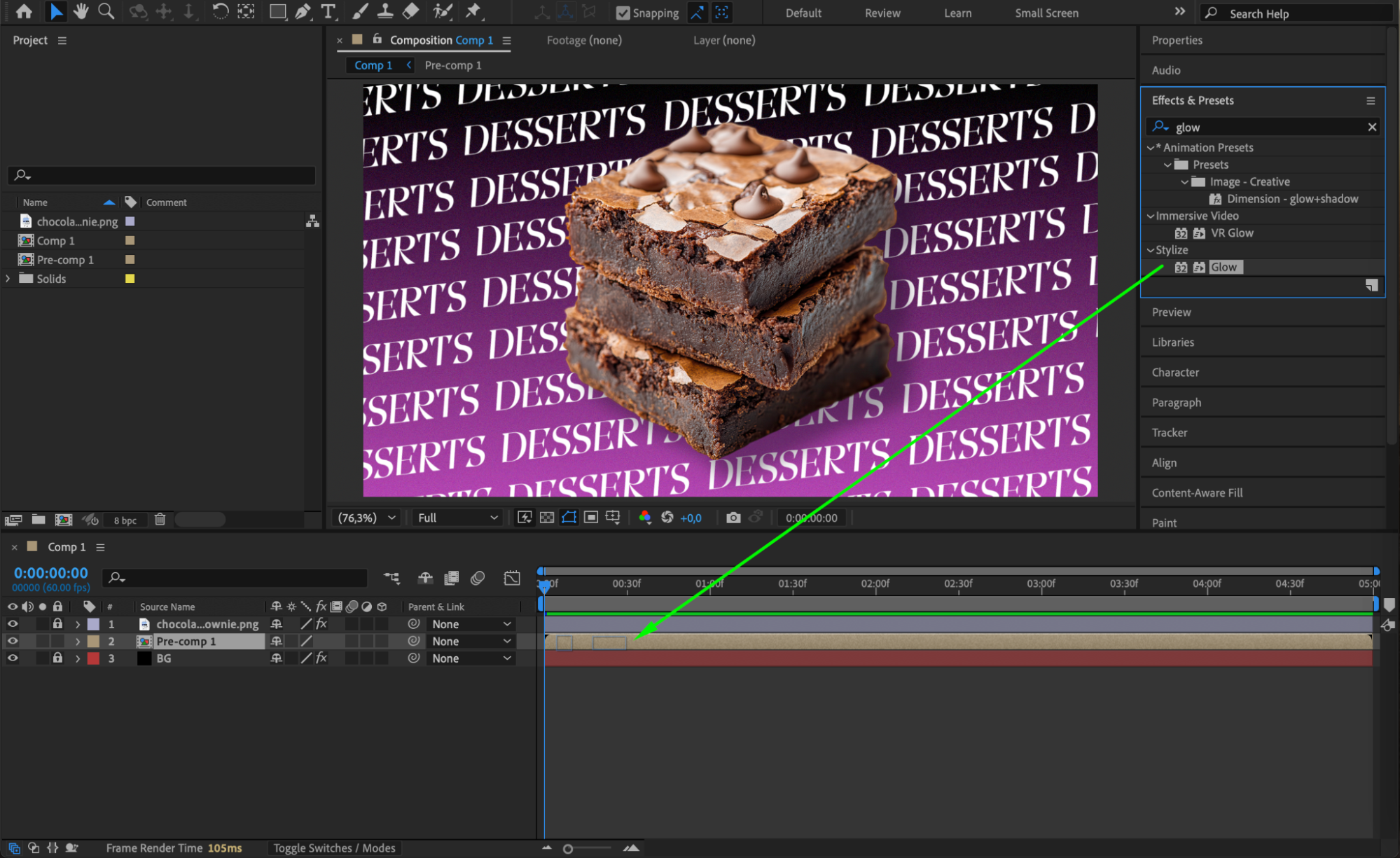
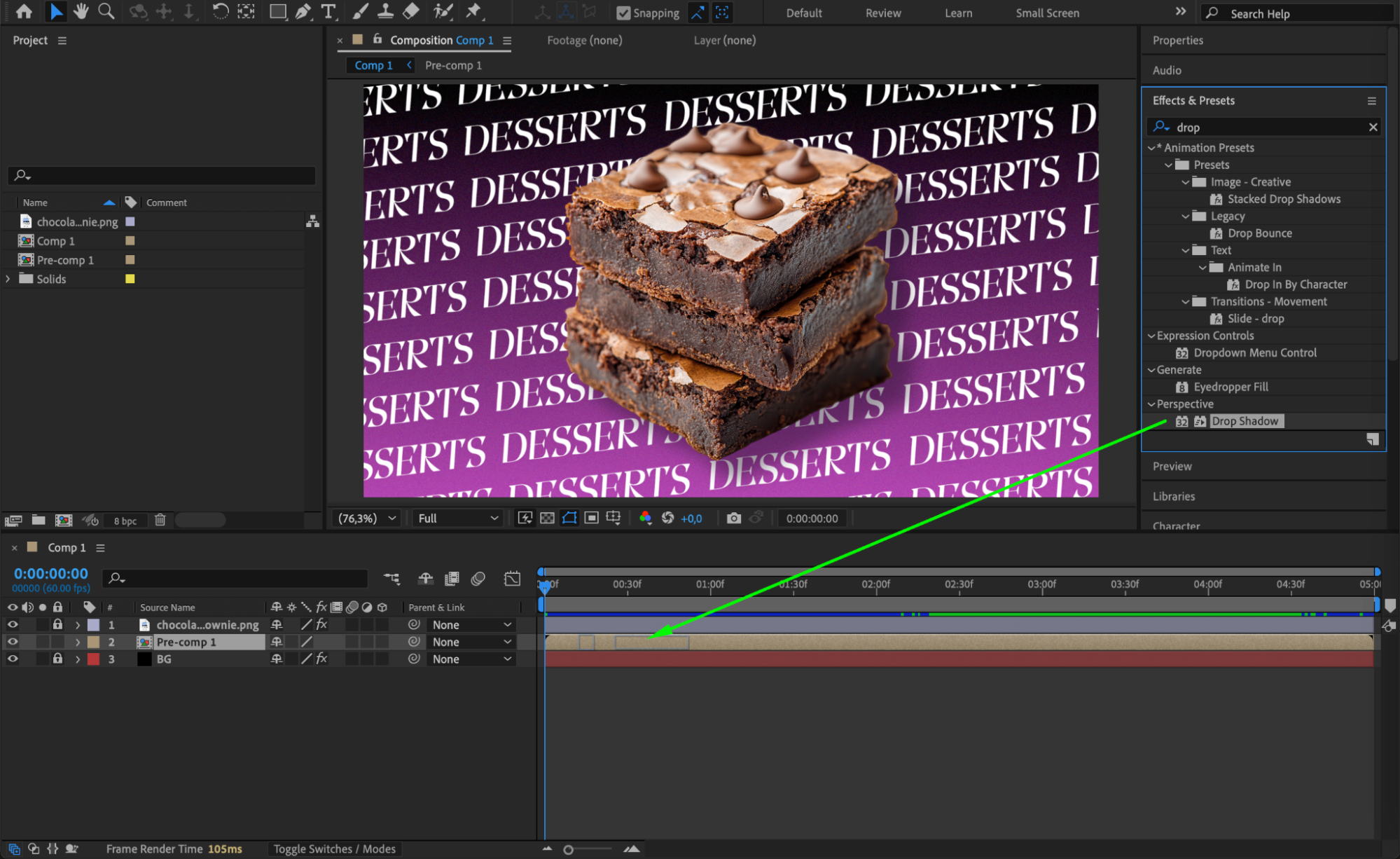
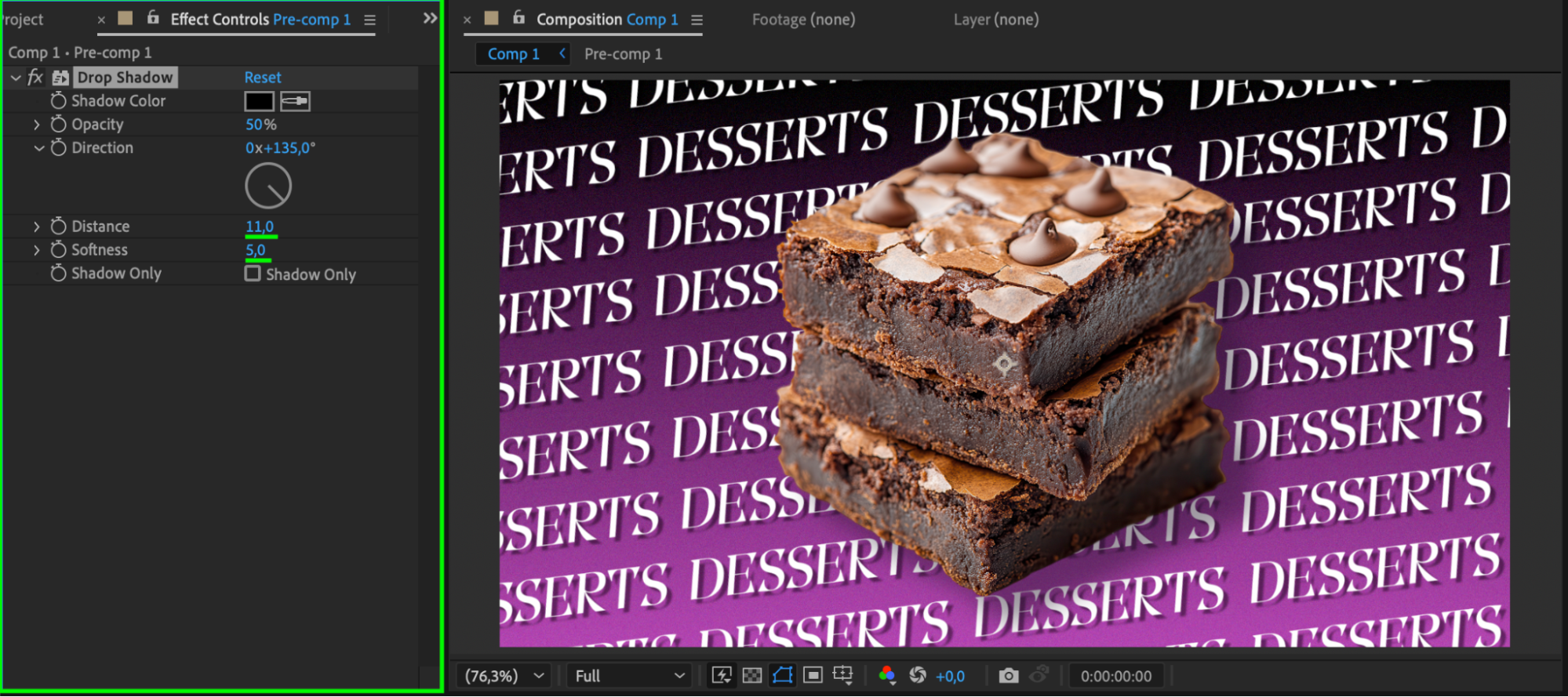
Go to the Effects & Presets panel and drag effects like Glow, Fill, or Drop Shadow onto your pre-comp. These effects help add dimension, contrast, or style to your text block. Adjust settings to match your design aesthetic.
 Step 10: Preview and Finalize
Press Spacebar to preview your animation. Make final adjustments to spacing, movement, or effects if needed. When satisfied, your repeated text pattern is ready for export or use in a larger motion design.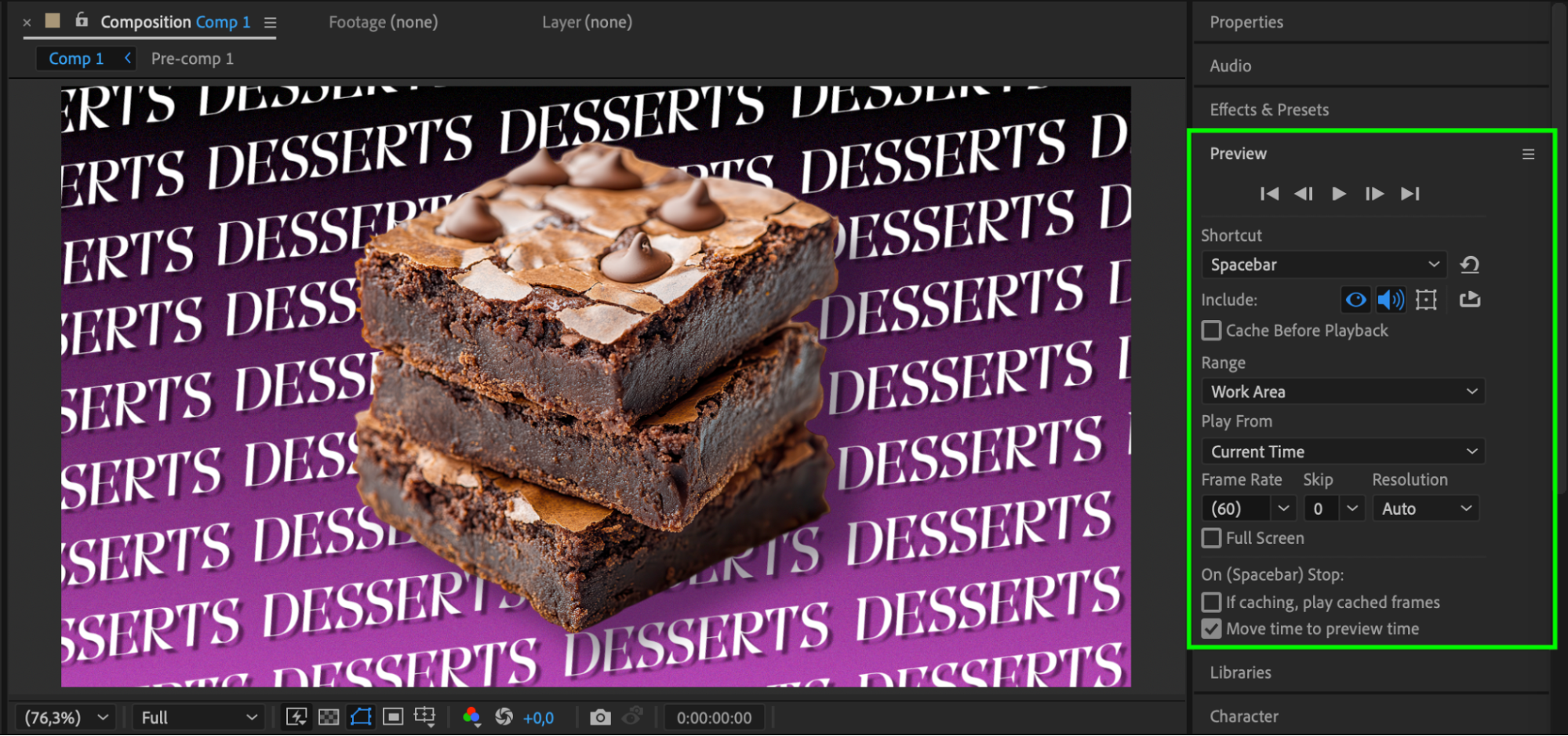
Conclusion
Duplicating and aligning text across the screen in After Effects is simple but powerful. Whether you’re building eye-catching patterns, kinetic type, or animated layouts, the process becomes fast and flexible with snapping, pre-comps, and creative effects. Once you learn the workflow, you can use it in countless projects across social media, branding, and title design.
Our Bestsellers
Our Bestsellers


