
Introduction – Why Track Mouth Movement?
Mouth tracking in After Effects lets you follow the natural movement of the lips and mouth to create engaging effects, lip-sync animations, or censoring elements. Whether you’re working on a stylized video, comedy edit, or motion graphics project, mouth tracking adds realism and precision to your visuals. Thanks to After Effects’ built-in face tracking tools, the process is fast and doesn’t require tedious manual keyframing.
Step 1: Import Your Footage
Start by importing your video into After Effects. Go to File > Import > File, select your video, and drag it into a new composition. Make sure your footage includes a clear view of the face, especially the mouth, to get the best tracking results.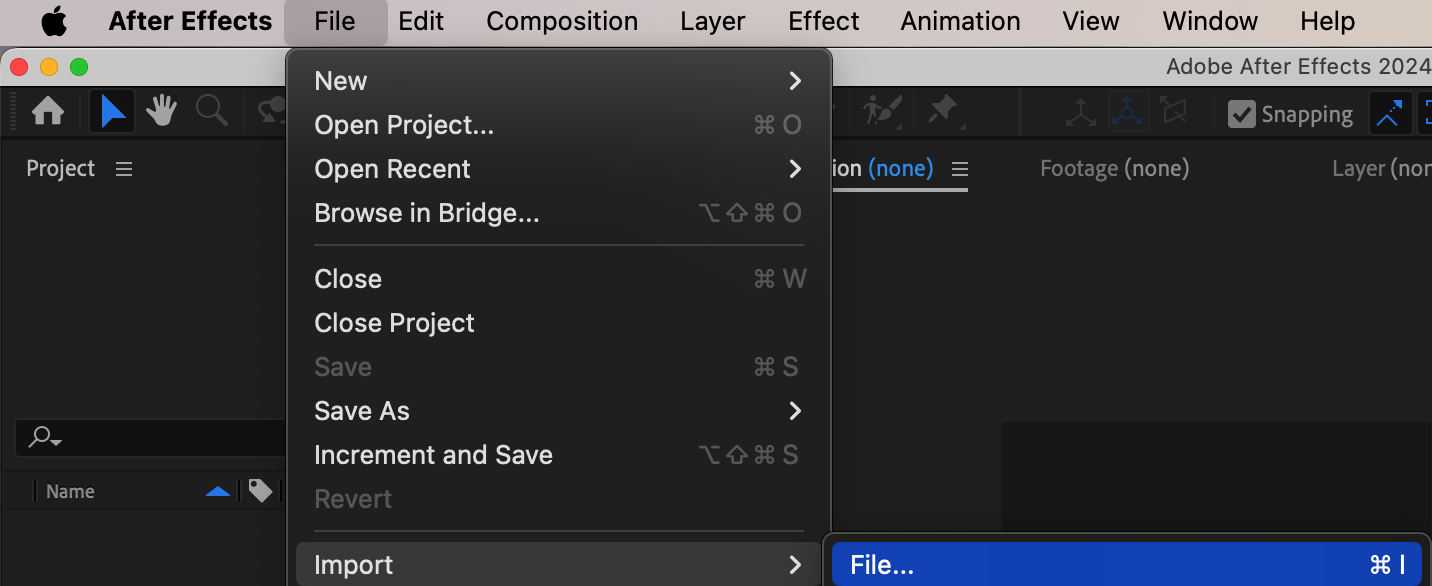
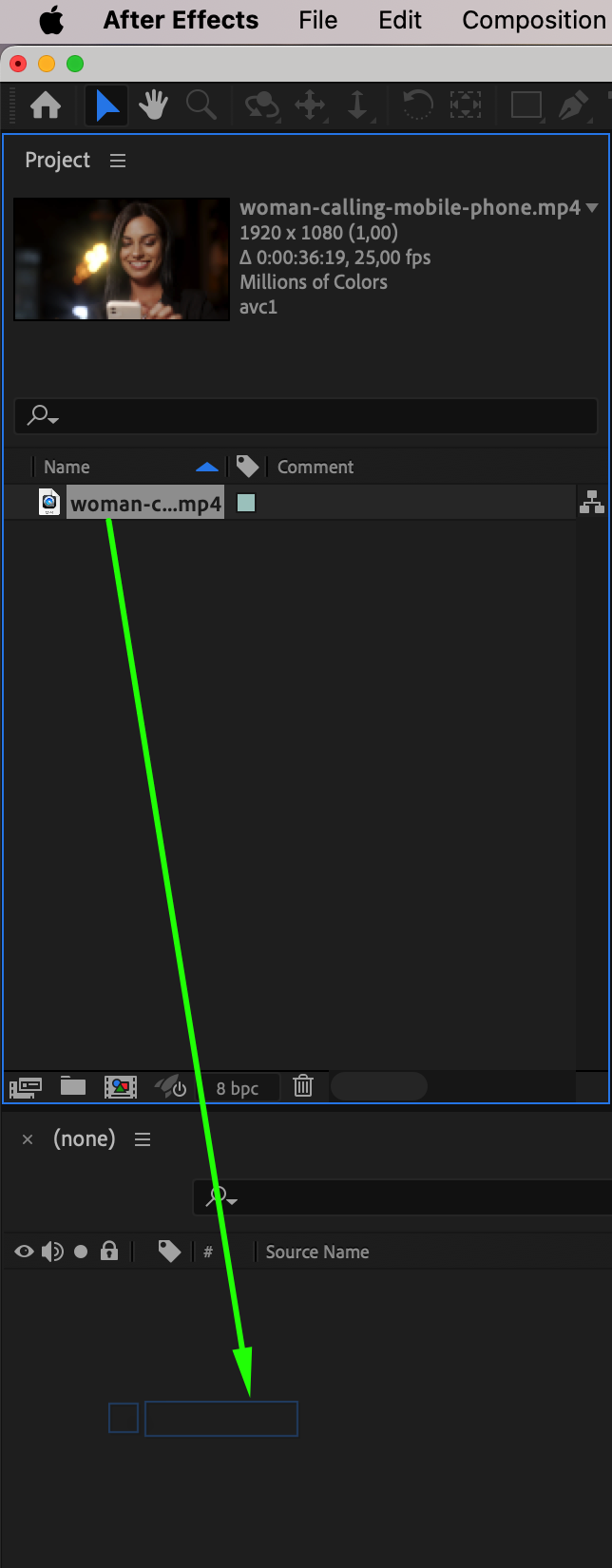
Step 2: Create a Mask Around the Face
Select the footage layer and use the Ellipse Tool (Q) to draw a mask roughly around the face. Set the Mask Mode to None so it doesn’t affect visibility, but helps After Effects focus on the area you want to track.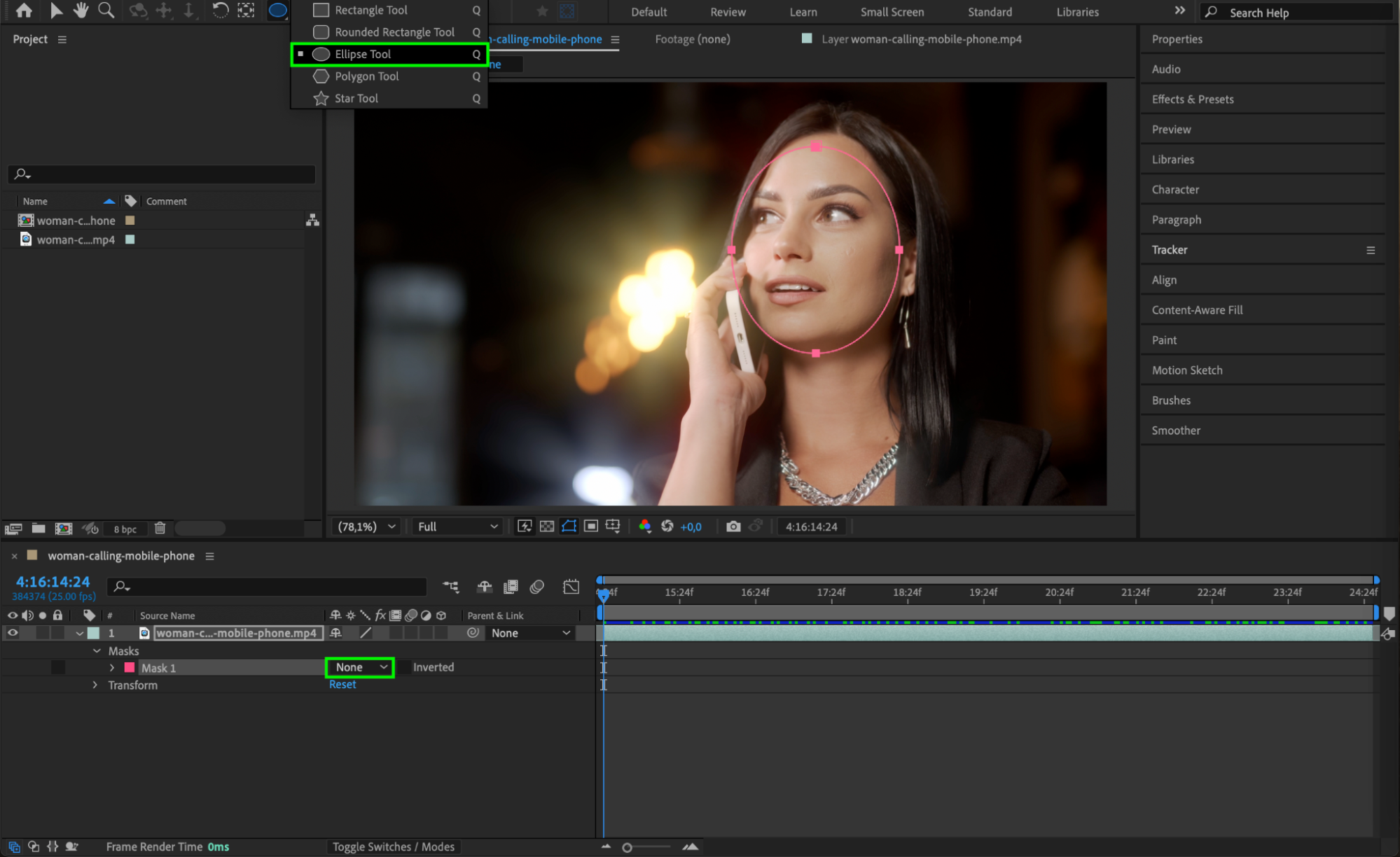
Step 3: Open the Tracker Panel
Go to Window > Tracker to open the Tracker panel. This panel provides access to tracking options including face tracking, which is what you’ll be using for mouth motion.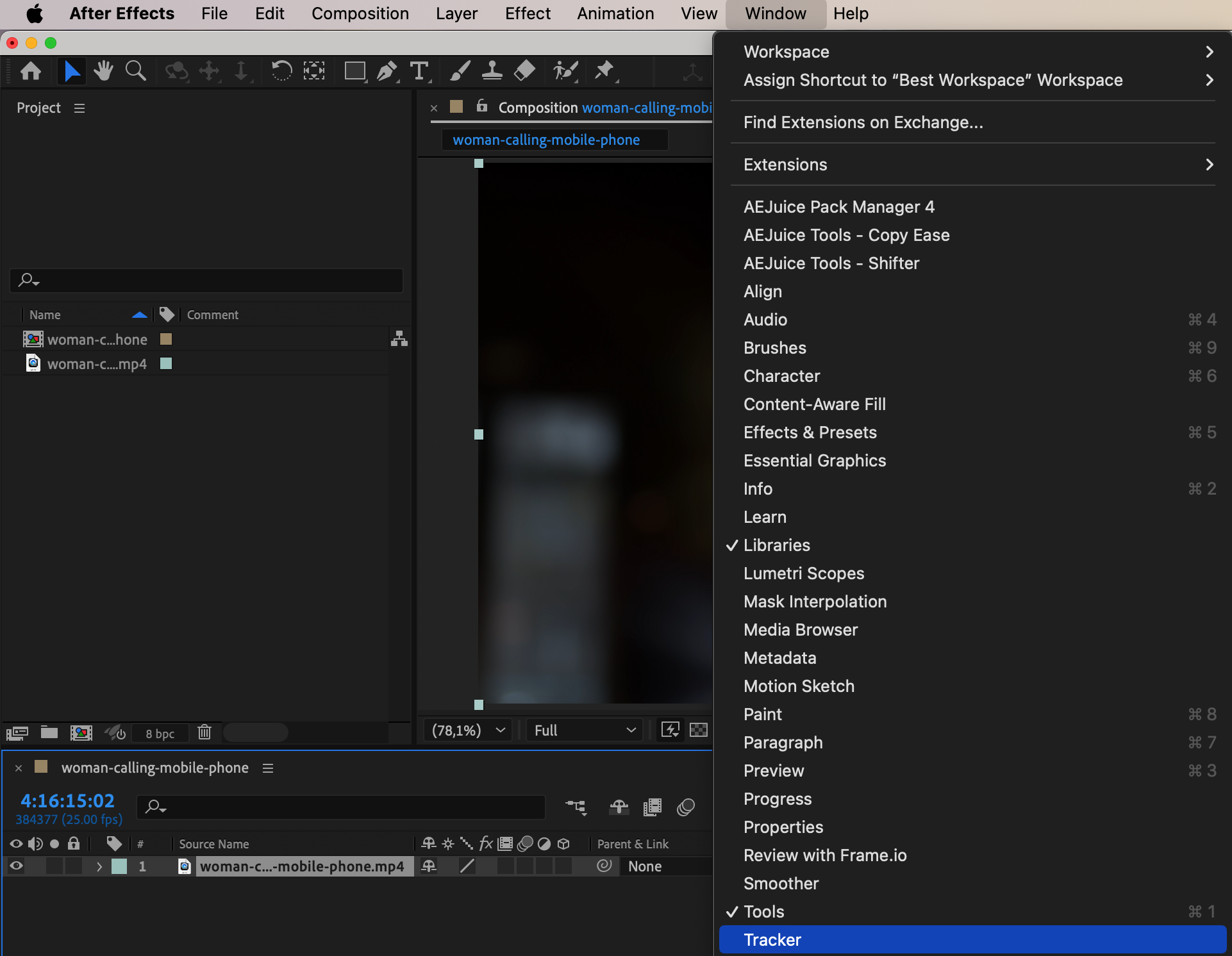 Step 4: Start Face Tracking
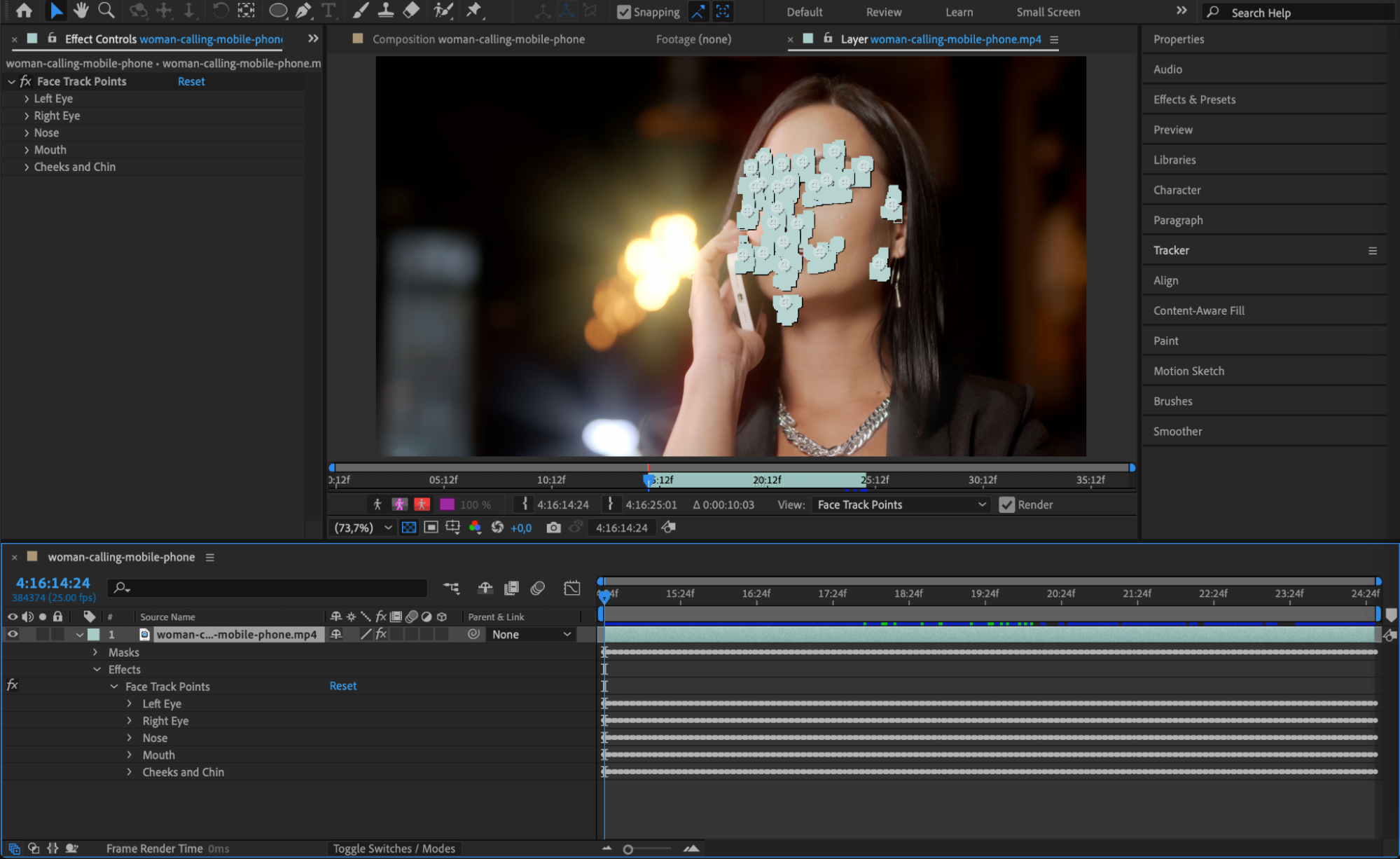
In the Tracker panel, choose Face Tracking (Detailed Features). This method automatically detects facial landmarks like eyes, nose, and mouth. Click Analyze Forward to start tracking. After Effects will generate keyframes for specific facial points, including the top and bottom of the mouth.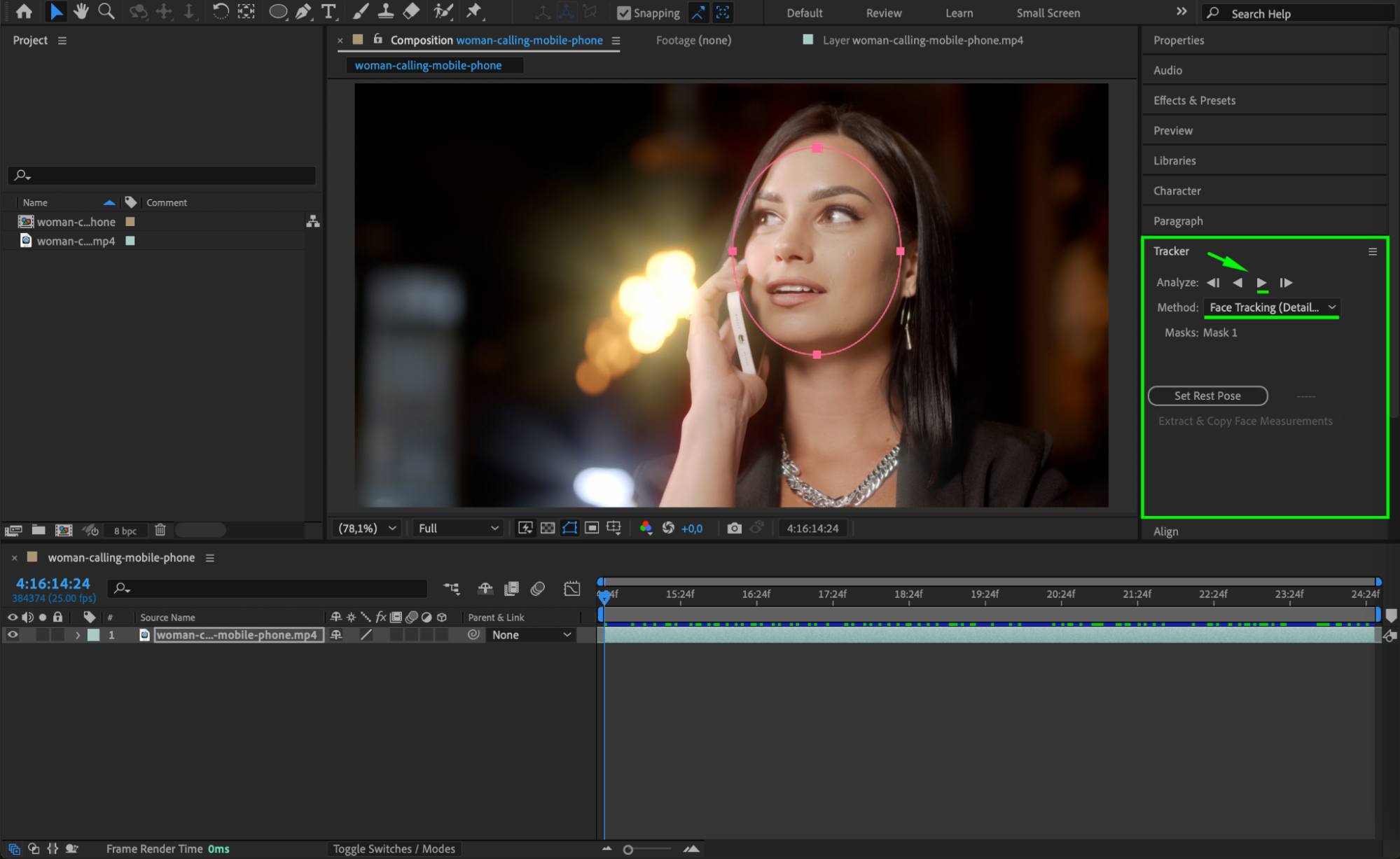
 Step 5: Add a Mouth Overlay or Shape
Now import any asset you want to attach to the mouth — for example, a cartoon mouth, blur, or rectangle. Alternatively, create a shape using the Rectangle Tool (Q) to cover the mouth if you want to anonymize speech or create a censorship effect. Set Fill to a black color and Stroke to none.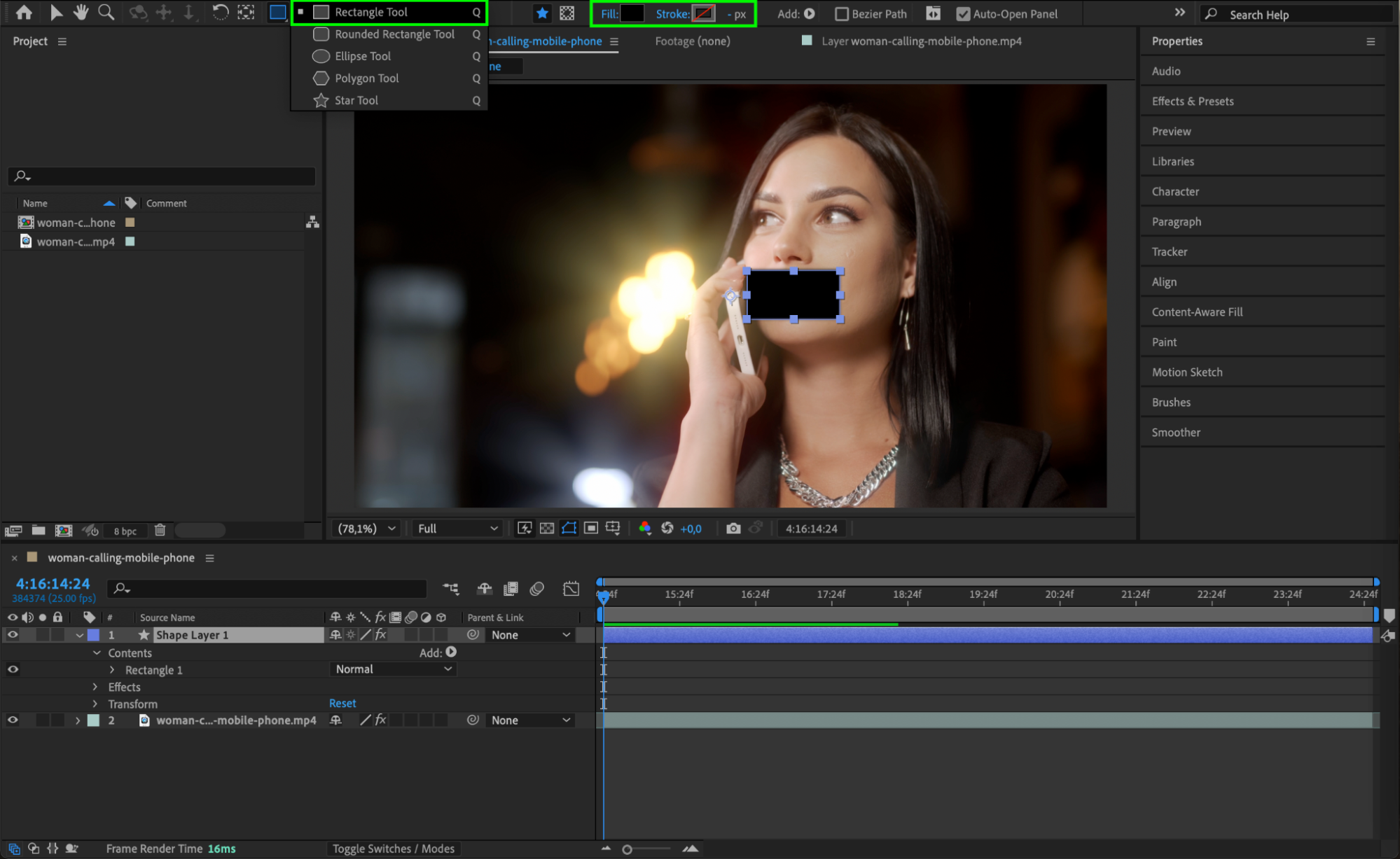
Step 6: Adjust Anchor Point Using Pan Behind Tool
Use the Pan Behind Tool (Y) to reposition the anchor point of your layer. Place it at the point where you want the layer to attach — for example, the top center of the shape if you’ll be linking it to the top of the mouth.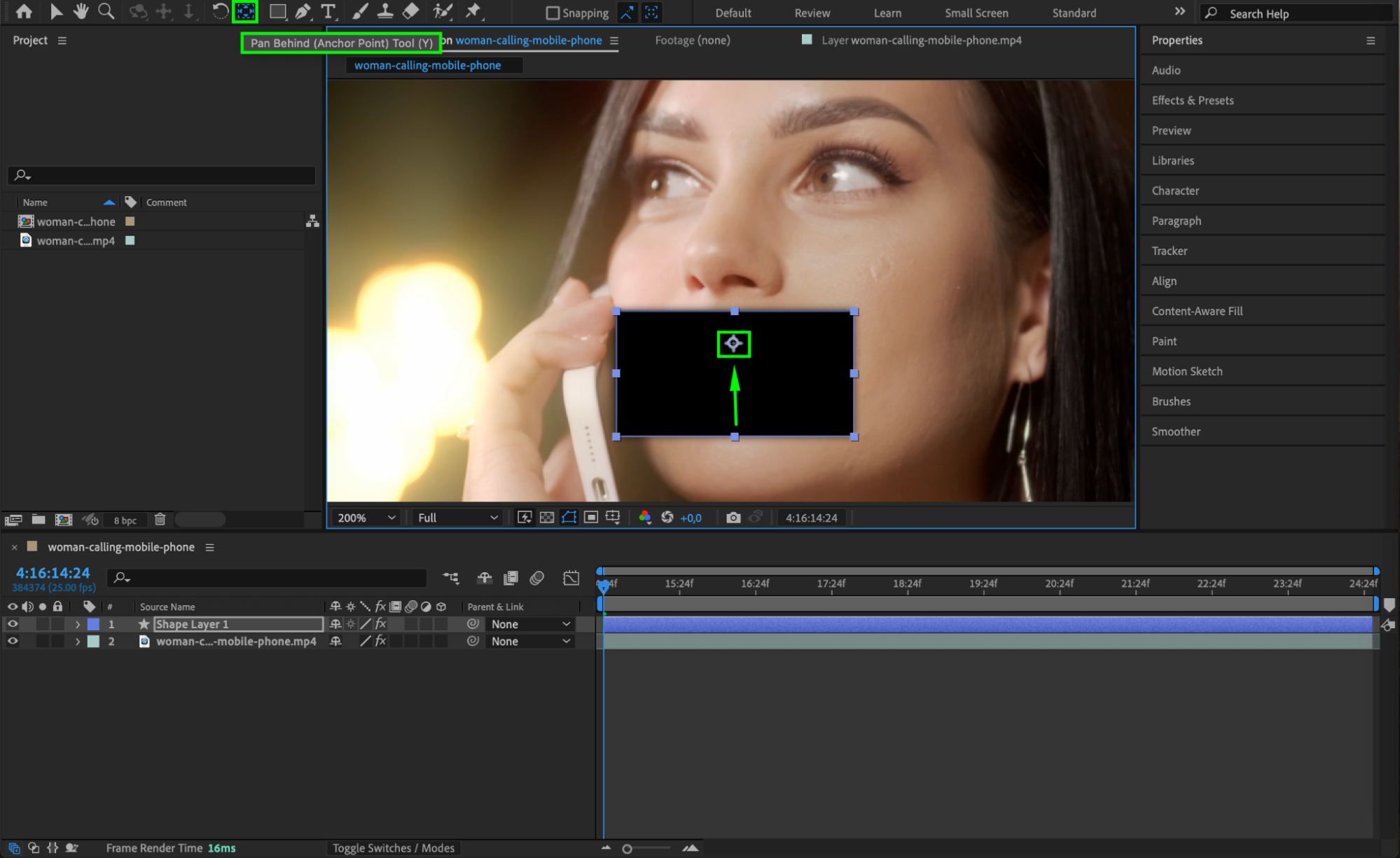 Step 7: Parent the Layer to the Mouth Tracker
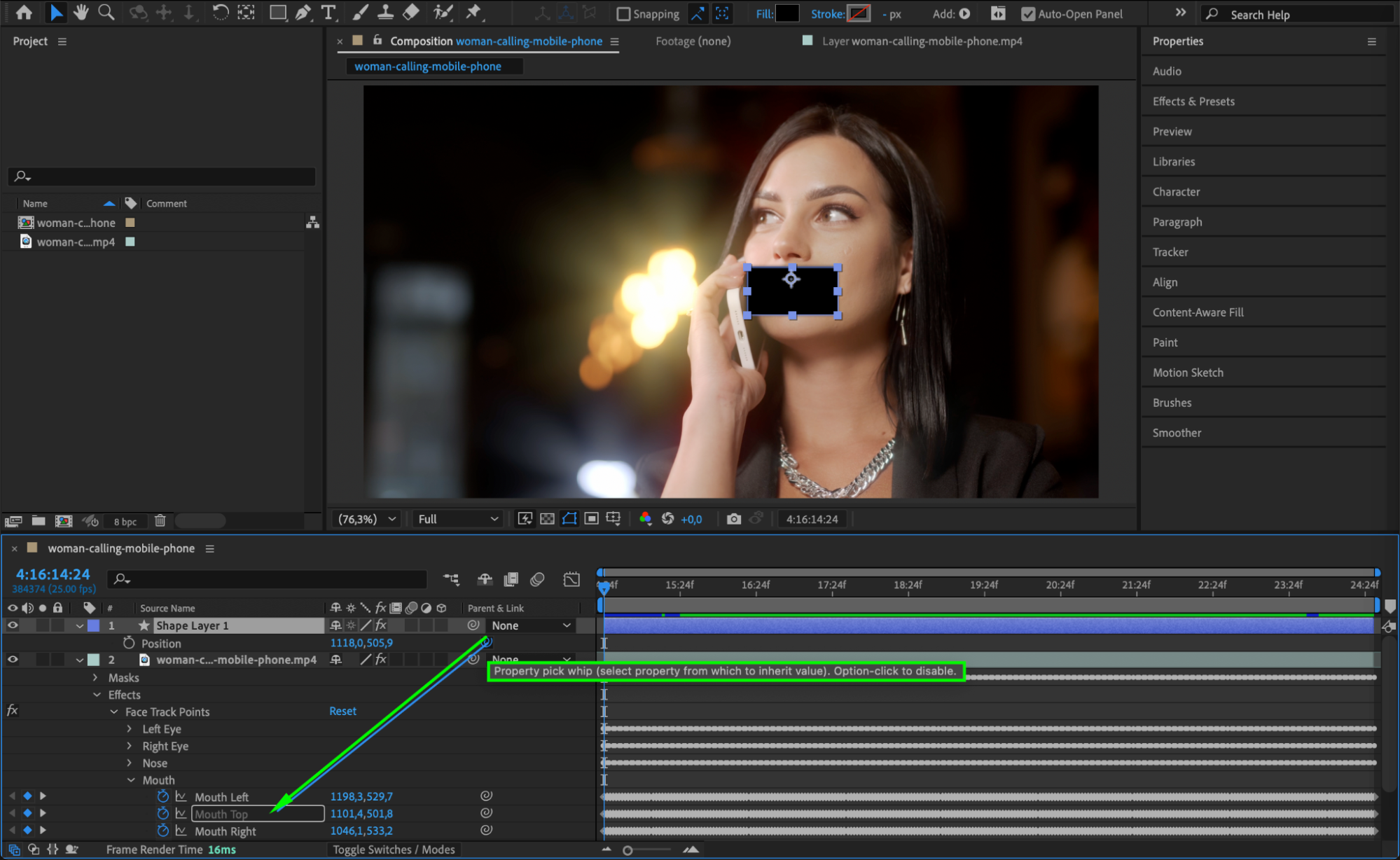
Press “P” to reveal the Position property of your layer. Find the mouth tracking keyframes — such as Mouth Top — and drag the pick whip from your layer’s position to that tracking data. This links the position of your object directly to the movement of the mouth.
 Step 8: Preview and Refine
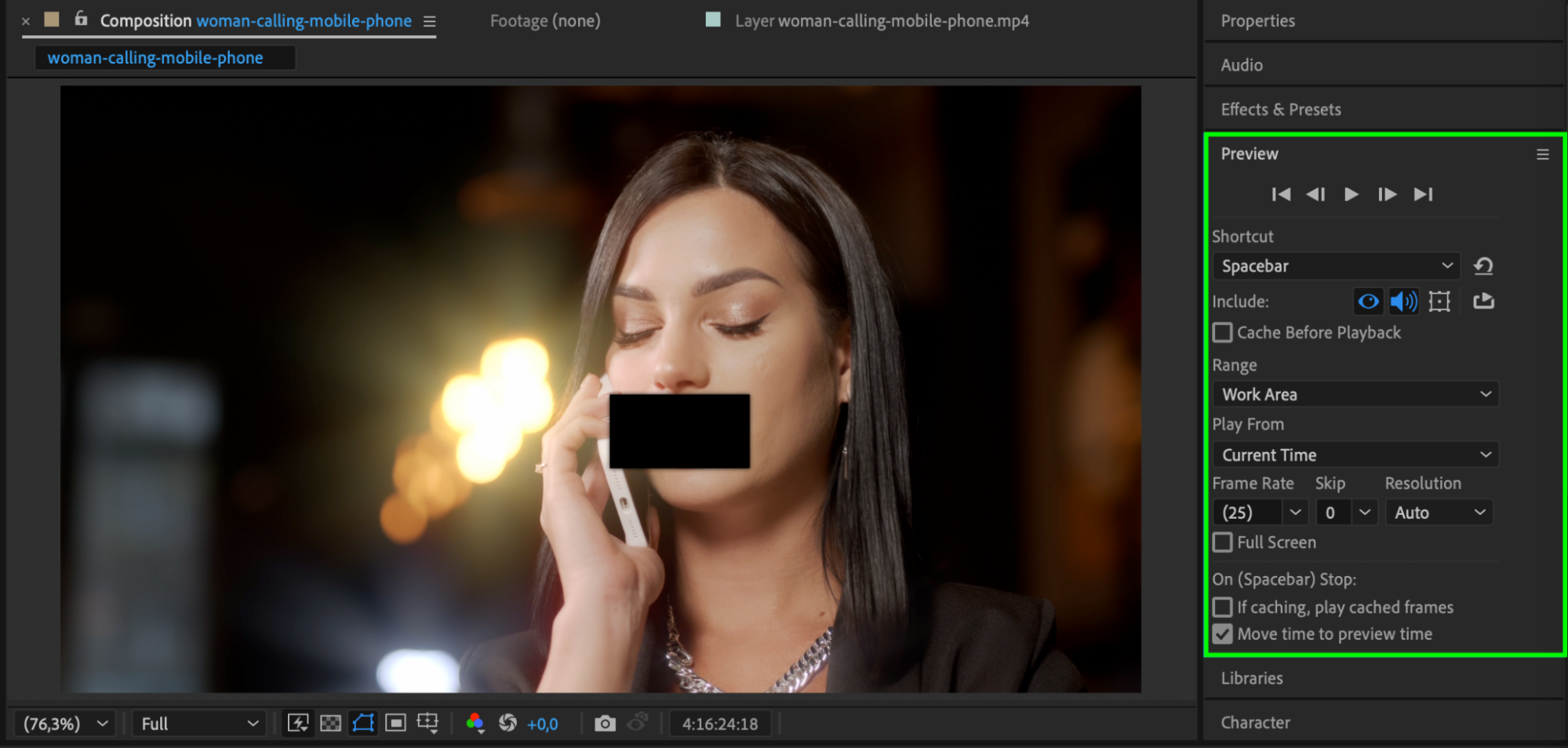
Press Spacebar to preview your animation. Adjust the size, rotation, or anchor point of your shape or asset to ensure it follows the mouth naturally. You can add motion blur or effects to blend it better with the footage.
Conclusion
Mouth tracking in After Effects allows you to attach any object or effect to a person’s lips with impressive accuracy. Whether you’re adding a cartoon element, censoring speech, or creating stylized mouth animations, this workflow makes it simple and effective. For more creative inspiration, check out mouth tracking animation tutorials or experiment with other tracked facial features.
Our Bestsellers
Our Bestsellers


