
Introduction – Why Fade-Out Matters
Fading out layers at the end of your animation helps transition smoothly between scenes or conclude a video with style. Whether you’re making a motion graphic, intro, or explainer video, learning how to apply a clean fade-out to all your layers will make your project look more polished and professional.
Step 1: Open Your Project
Start by opening your After Effects project and locating the composition where you want the fade-out to happen. Make sure all the layers you want to fade are visible in the timeline.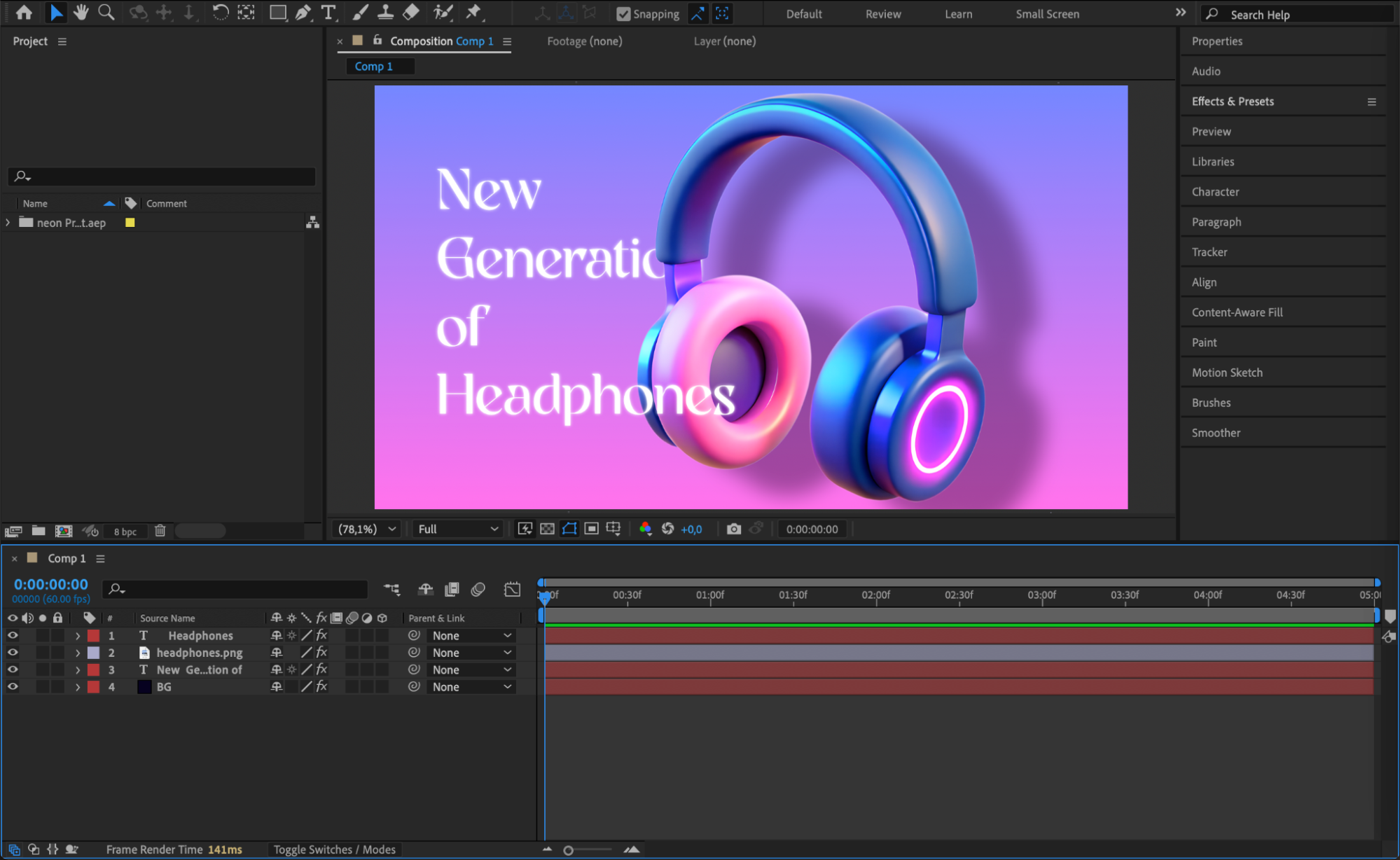
Step 2: Set a Background Color
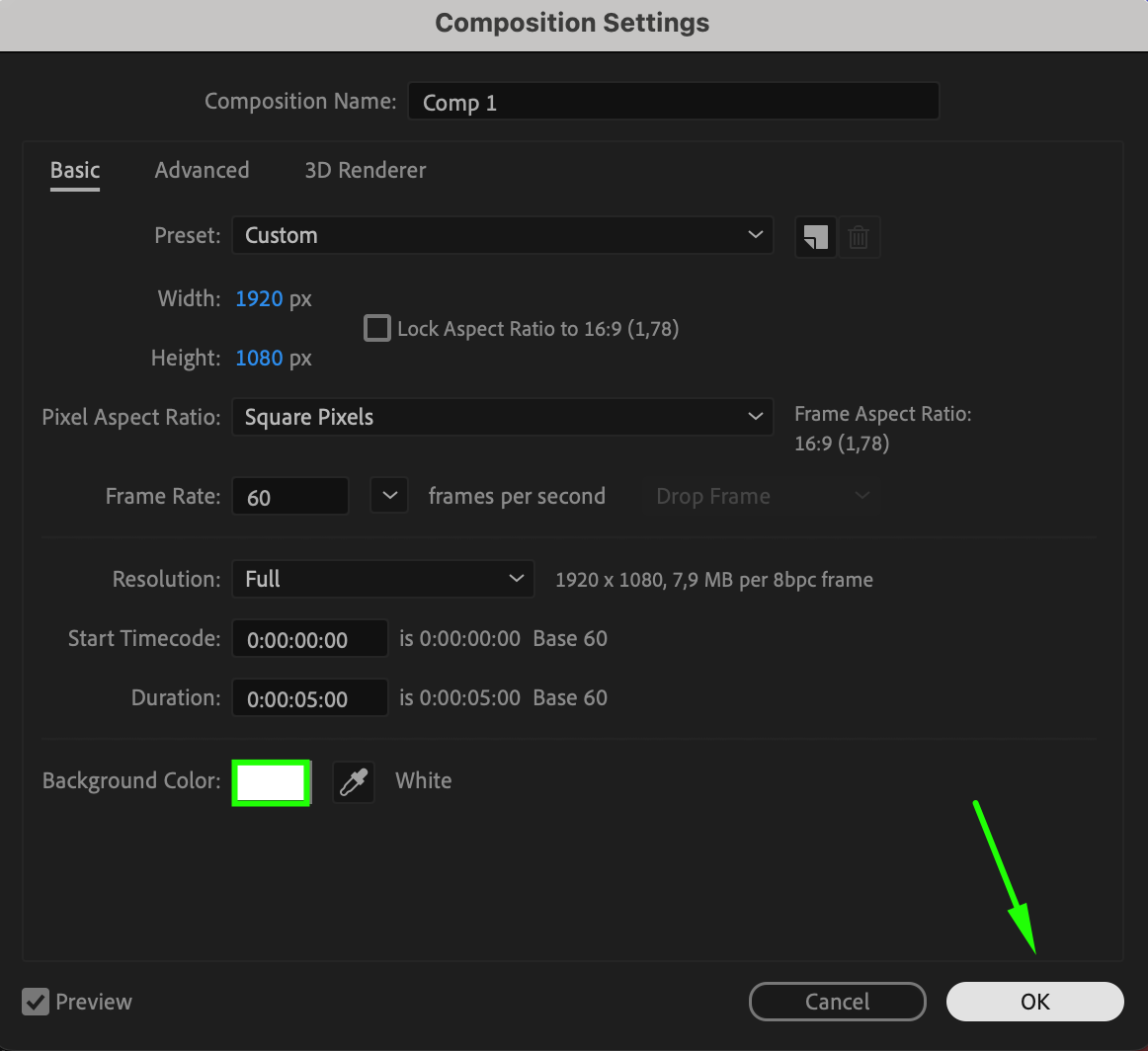
Go to Composition > Composition Settings and choose a background color. This will be the color that appears after your layers fade out. It’s usually black or white, but you can choose any color that fits your project’s style. Click OK to confirm.
 Step 3: Select All Layers and Set Opacity Keyframes
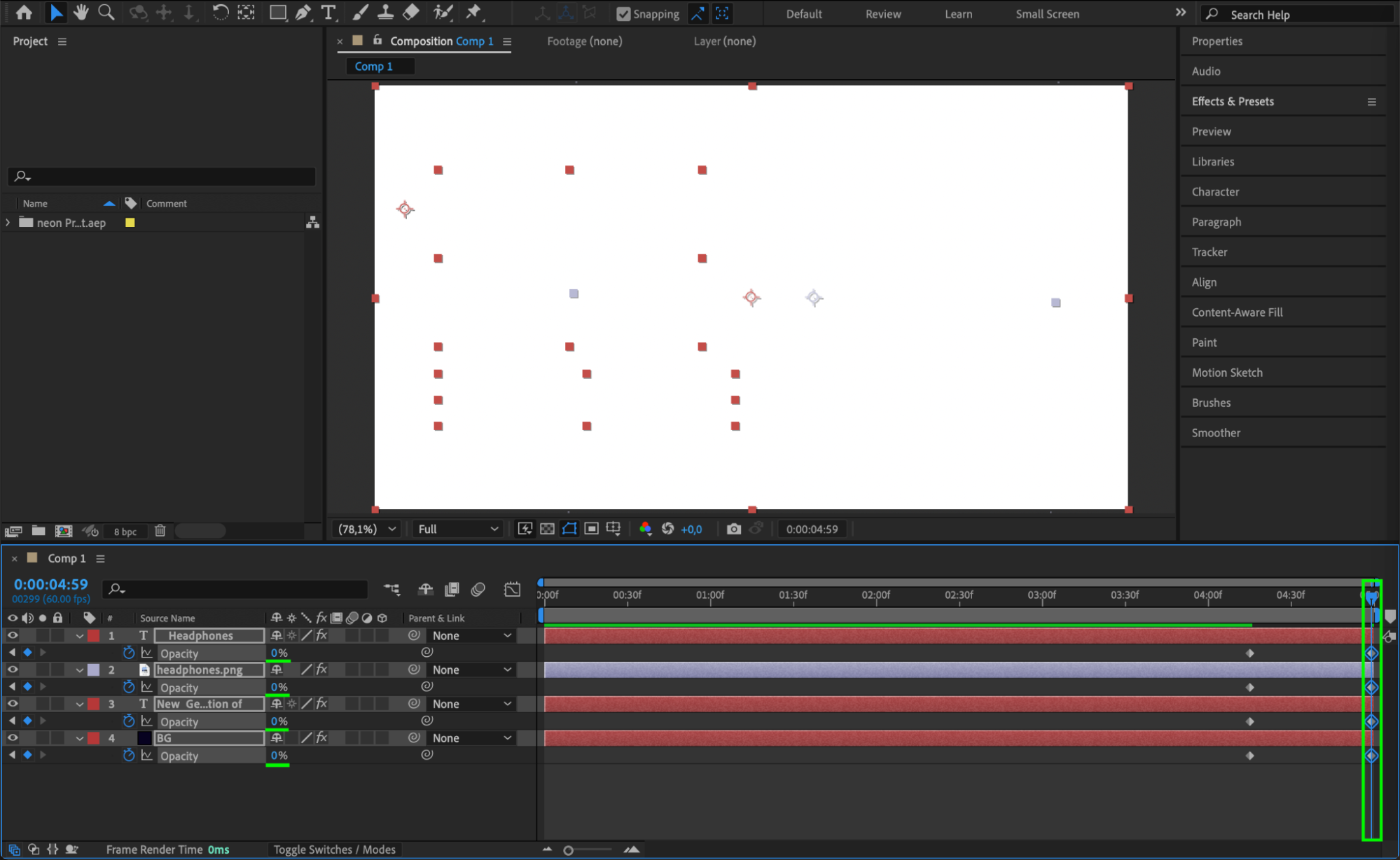
In the timeline, press “Ctrl/Cmd + A” to select all layers. Then press “T” to open the Opacity property. Move the CTI (Current Time Indicator) to the point where you want the fade-out to begin. Click the stopwatch next to Opacity on any one of the selected layers — this sets a keyframe for all of them. Move the CTI to the point where you want the fade-out to end (usually 1–2 seconds later) and change the Opacity to 0.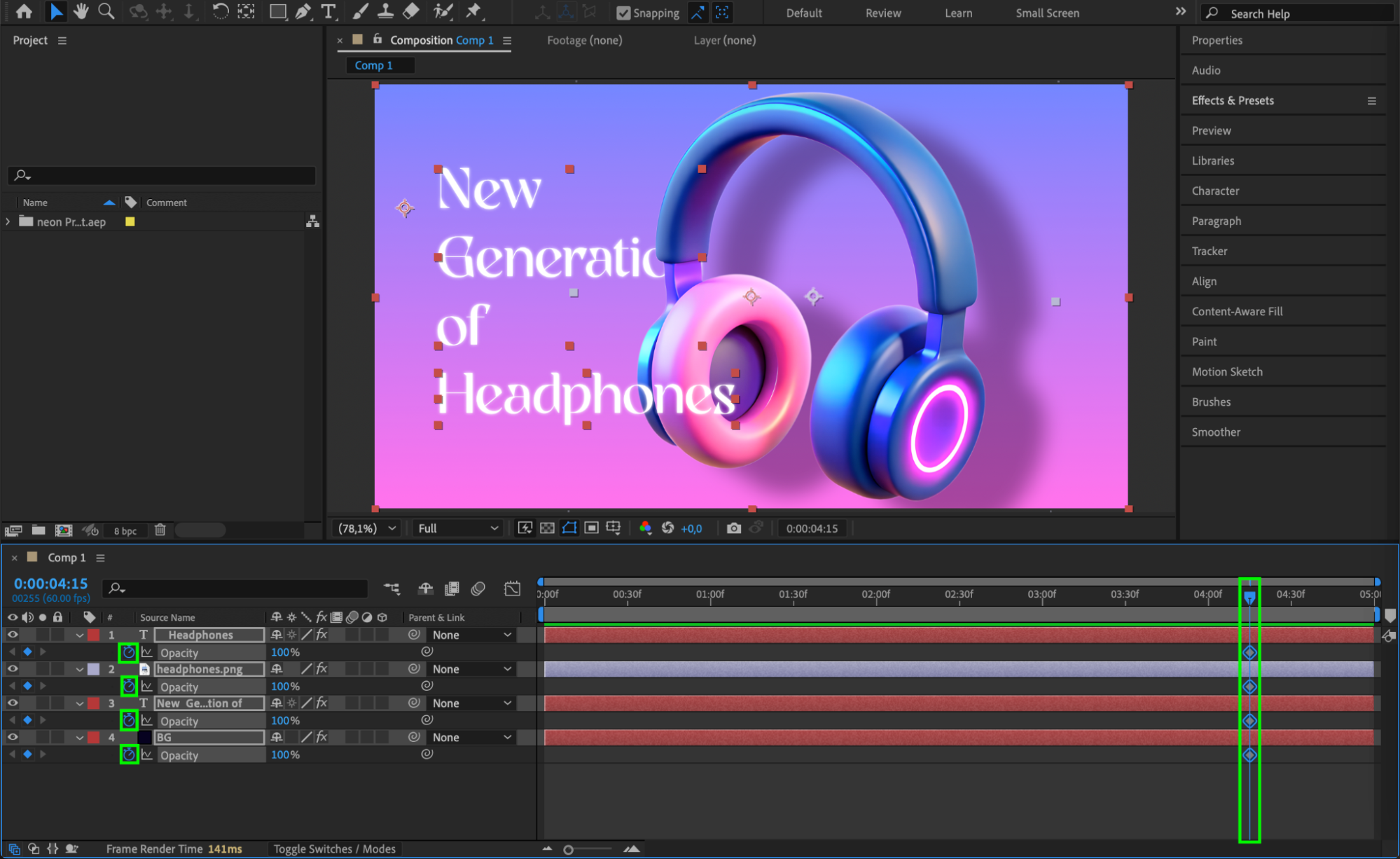
Step 4: Smooth the Animation with Easy Ease and Graph Editor
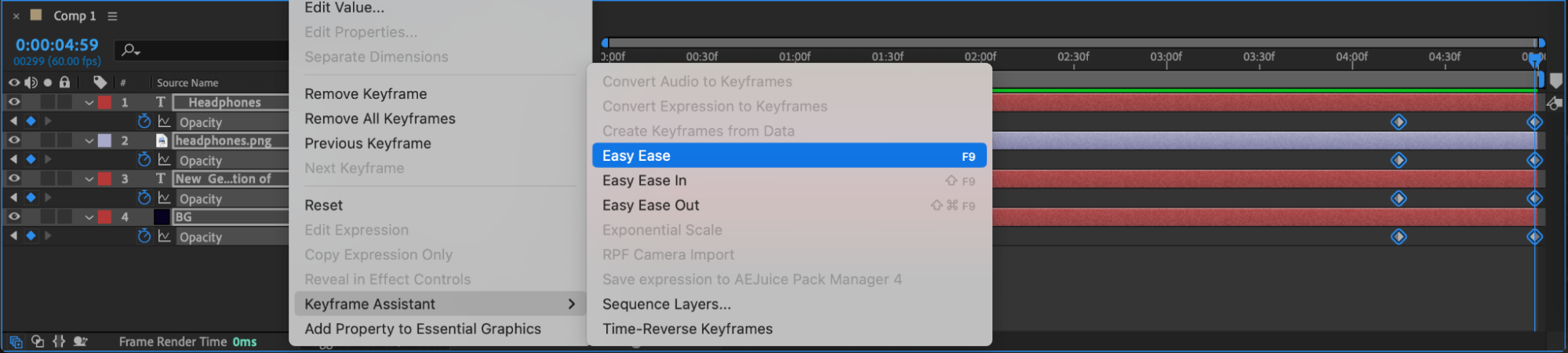
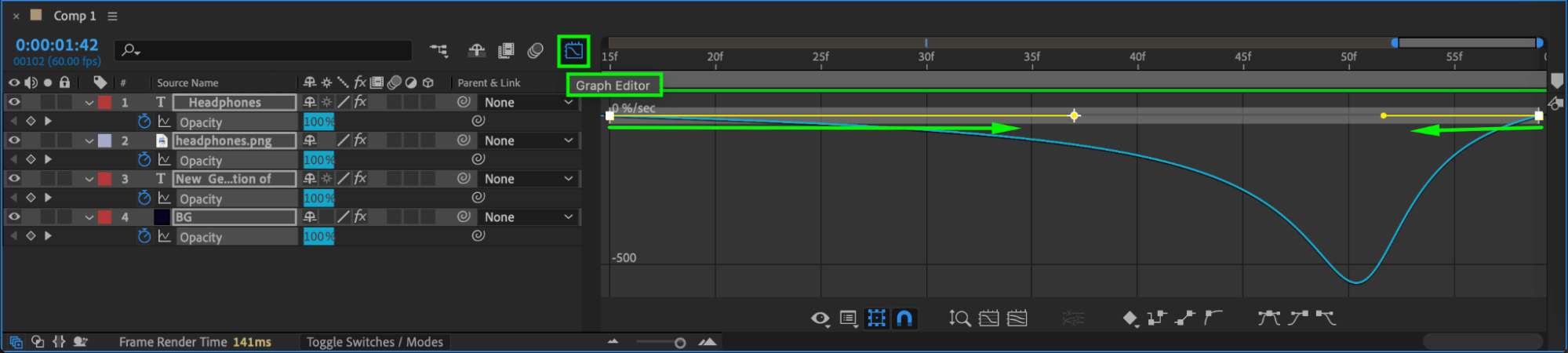
Select all the new opacity keyframes by clicking and dragging. Right-click on one of them and choose Keyframe Assistant > Easy Ease. Then, if you want smoother, more professional animation, open the Graph Editor and adjust the animation curves for a soft, natural-looking fade.
 Step 5: Preview Your Fade-Out
Press the Spacebar to preview your animation. Make sure all layers fade out smoothly to the background color. Adjust keyframe positions or easing curves if necessary to perfect the transition.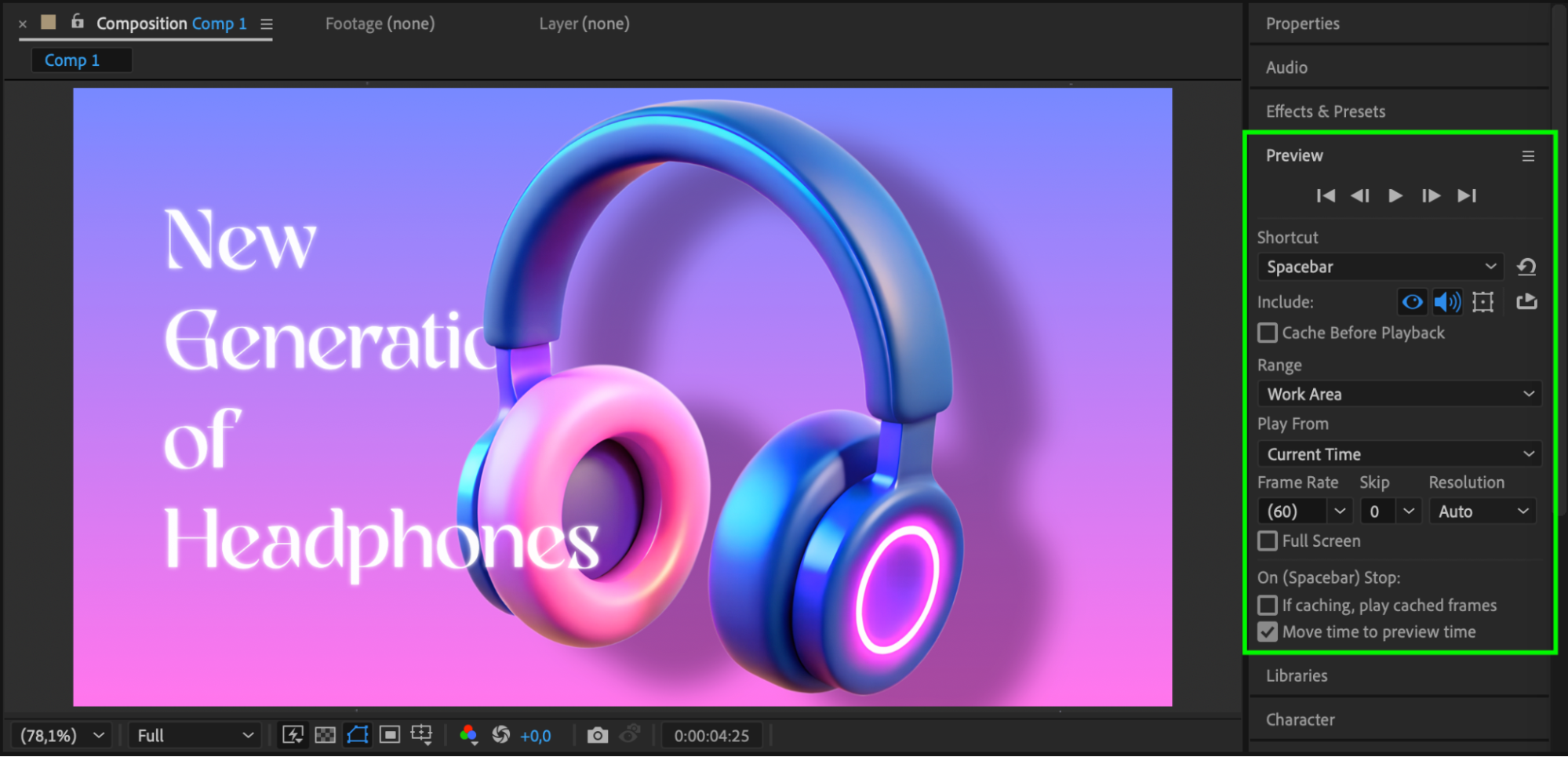
Conclusion
Fading out all layers in After Effects is a quick way to give your animation a clean, cinematic ending. With just a few keyframes and some basic easing, you can create a polished fade that improves the flow of your video. This technique works well for outros, transitions, or preparing your scene for the next section.
Our Bestsellers
Our Bestsellers


