
Introduction to Working with X Position
In Adobe After Effects, the X Position controls a layer’s movement from left to right. Understanding how to read and control this value is essential for basic animation, alignment, and expression work. This guide shows you how to access the X Position, separate it for more control, animate it, and apply expressions.
Step 1: Select Your Layer
Start by opening your composition and clicking on the layer you want to work with. You can use any layer type, such as text, shape, solid, or an image.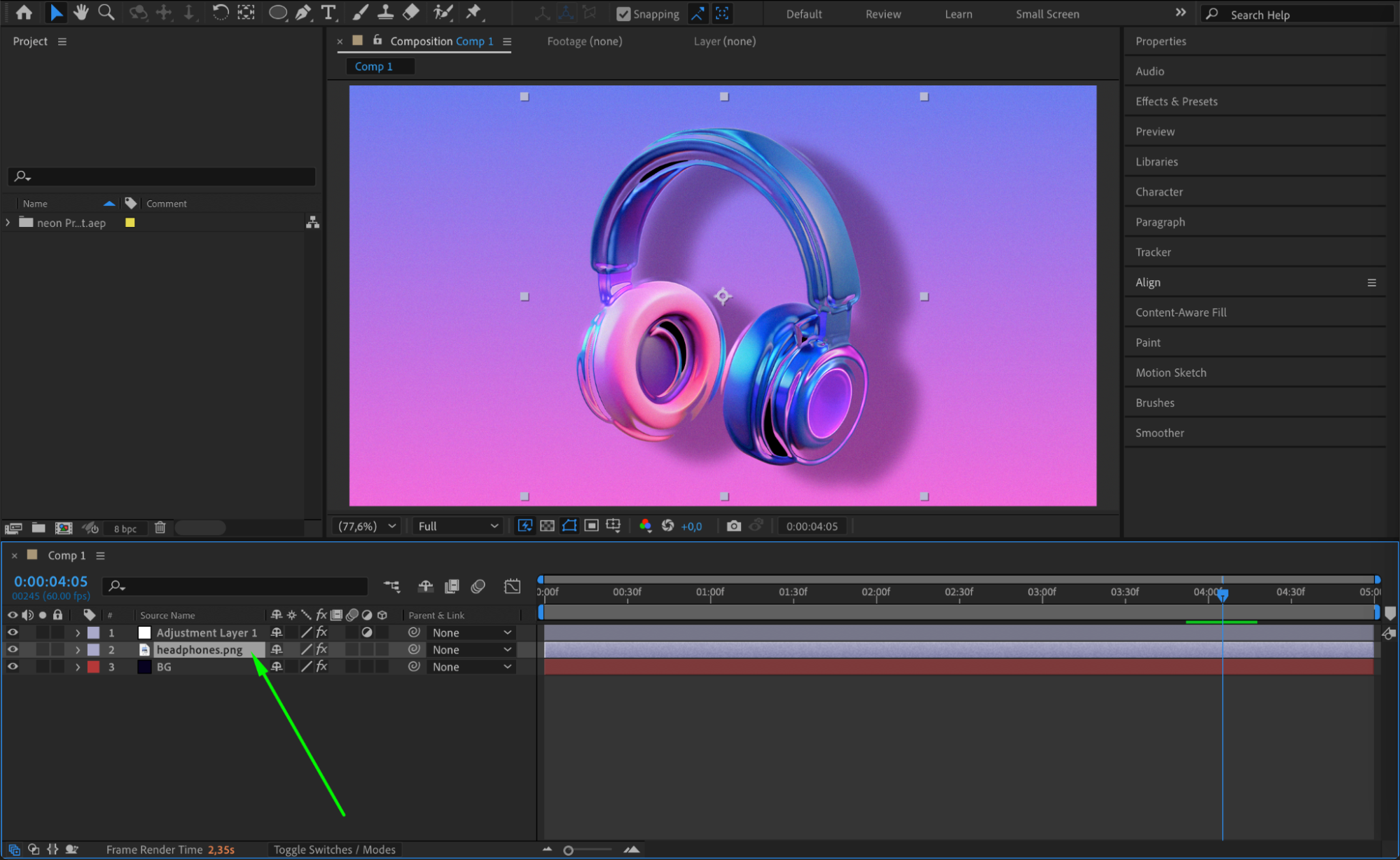
Step 2: Reveal the Position Property
With the layer selected, press “P” on your keyboard. This shortcut opens the Position property in the timeline. You’ll see two numbers: the first one is the X Position (horizontal), and the second is the Y Position (vertical).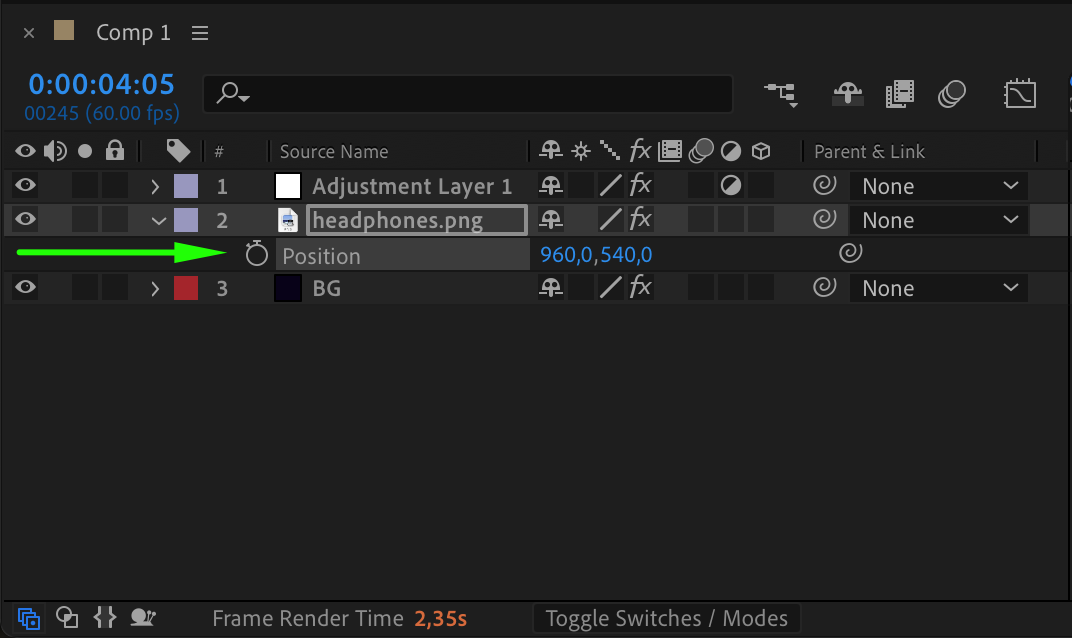
Step 3: Read the X Position Value
Look at the first number in the Position values (e.g., 960, 540). This is the X Position, which tells you how far the layer is placed from the left side of the composition. Higher values push the layer to the right; lower values pull it to the left.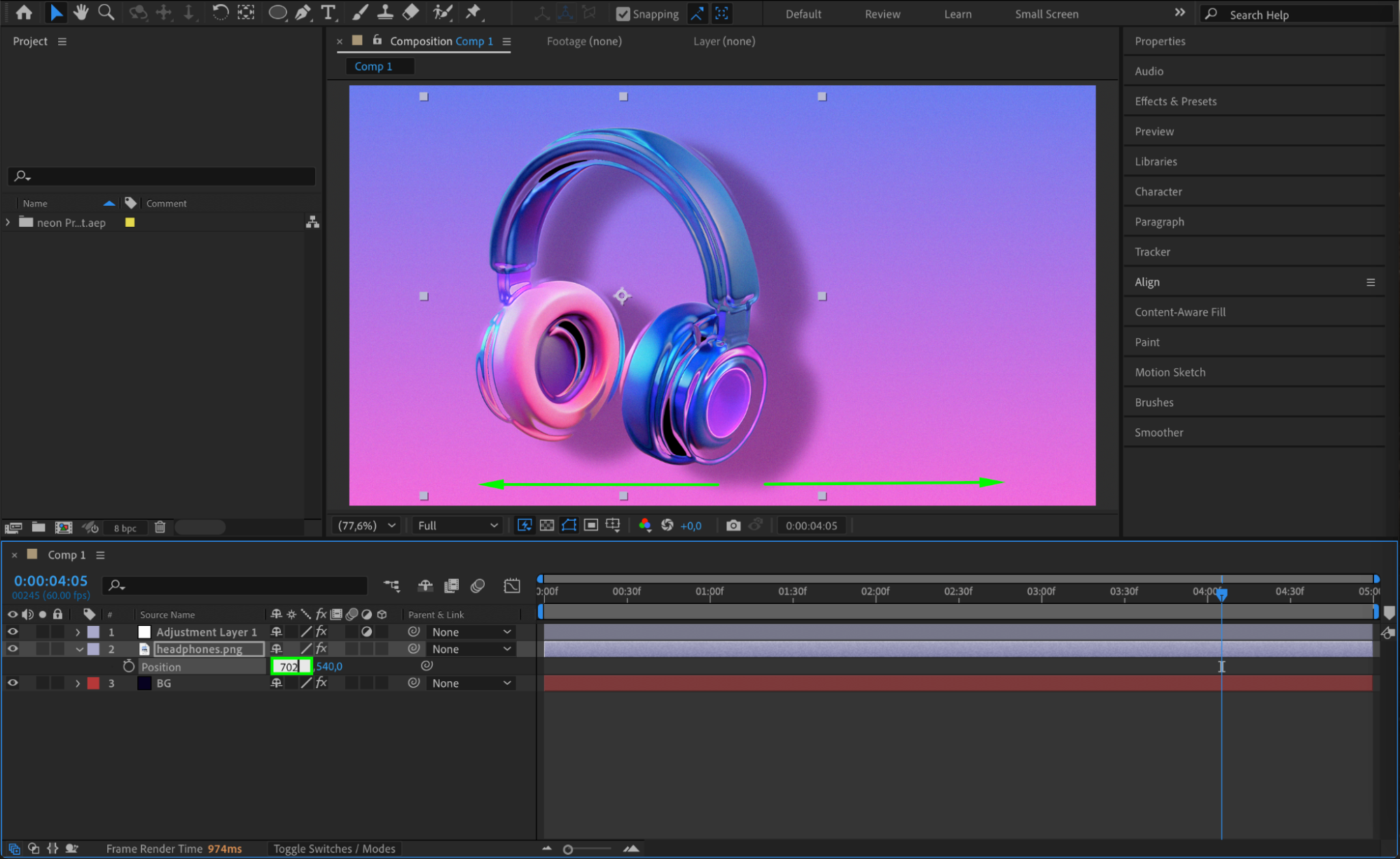 Step 4: Separate Dimensions for More Control
To gain more control over the X Position, right-click on the Position property and choose “Separate Dimensions.” This will split the Position into three separate values (X, Y, and Z for 3D layers), allowing you to animate or edit the X Position independently.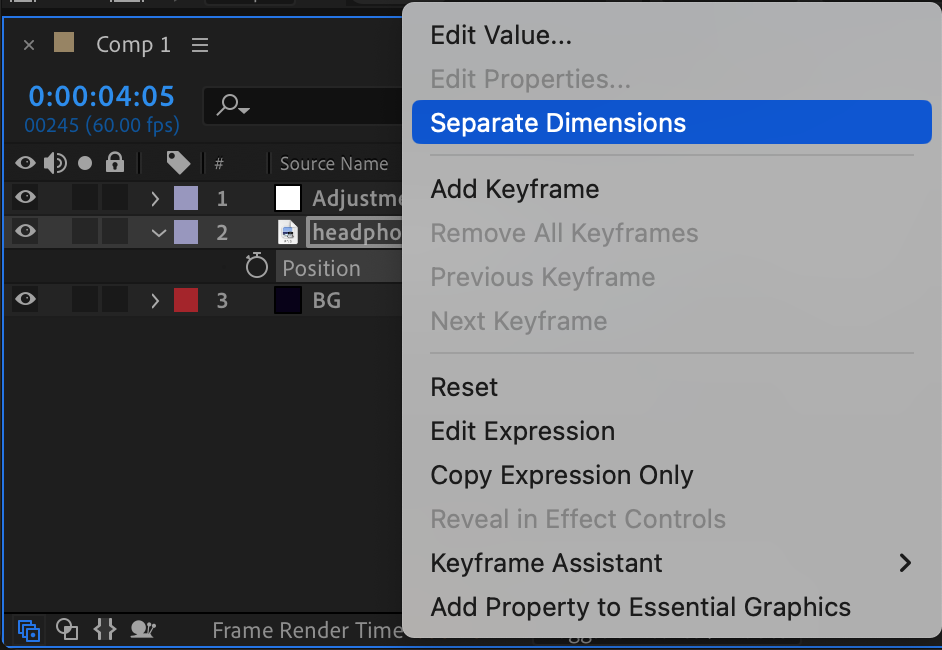
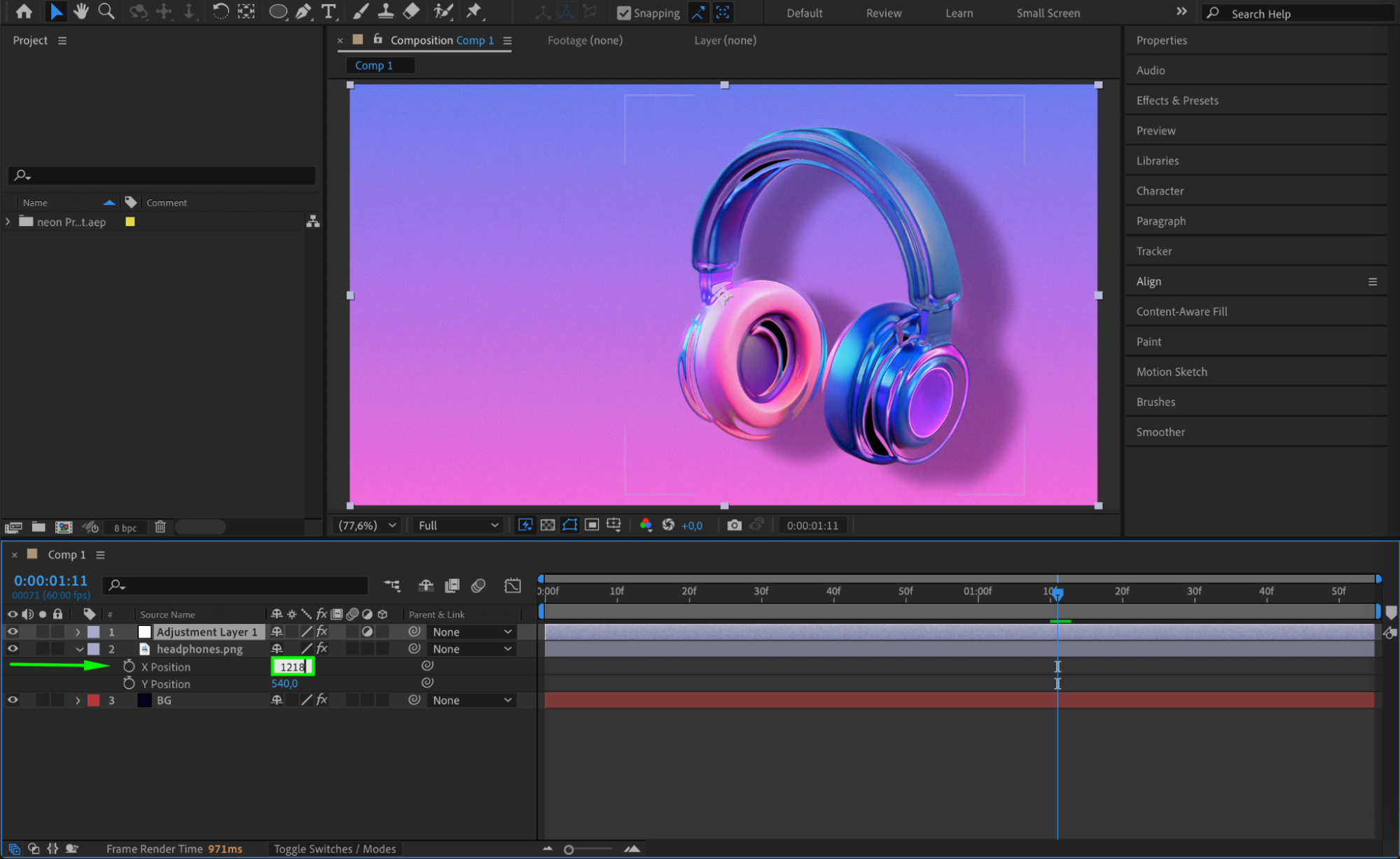
Step 5: Animate the X Position
Click the stopwatch icon next to the X Position property to create your first keyframe. Move the playhead forward in time and change the X value to create a second keyframe. After Effects will automatically animate the layer’s movement between those keyframes.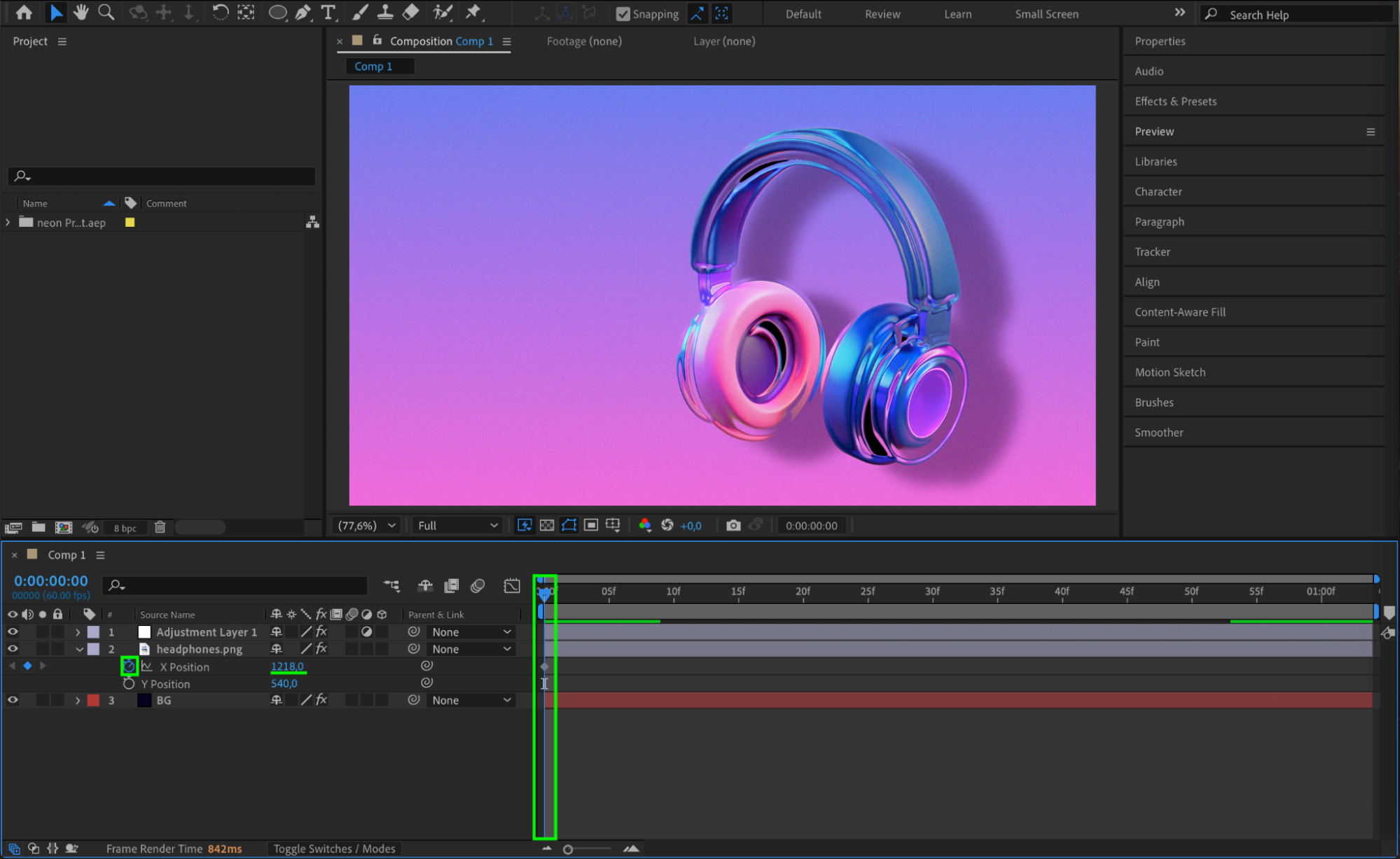
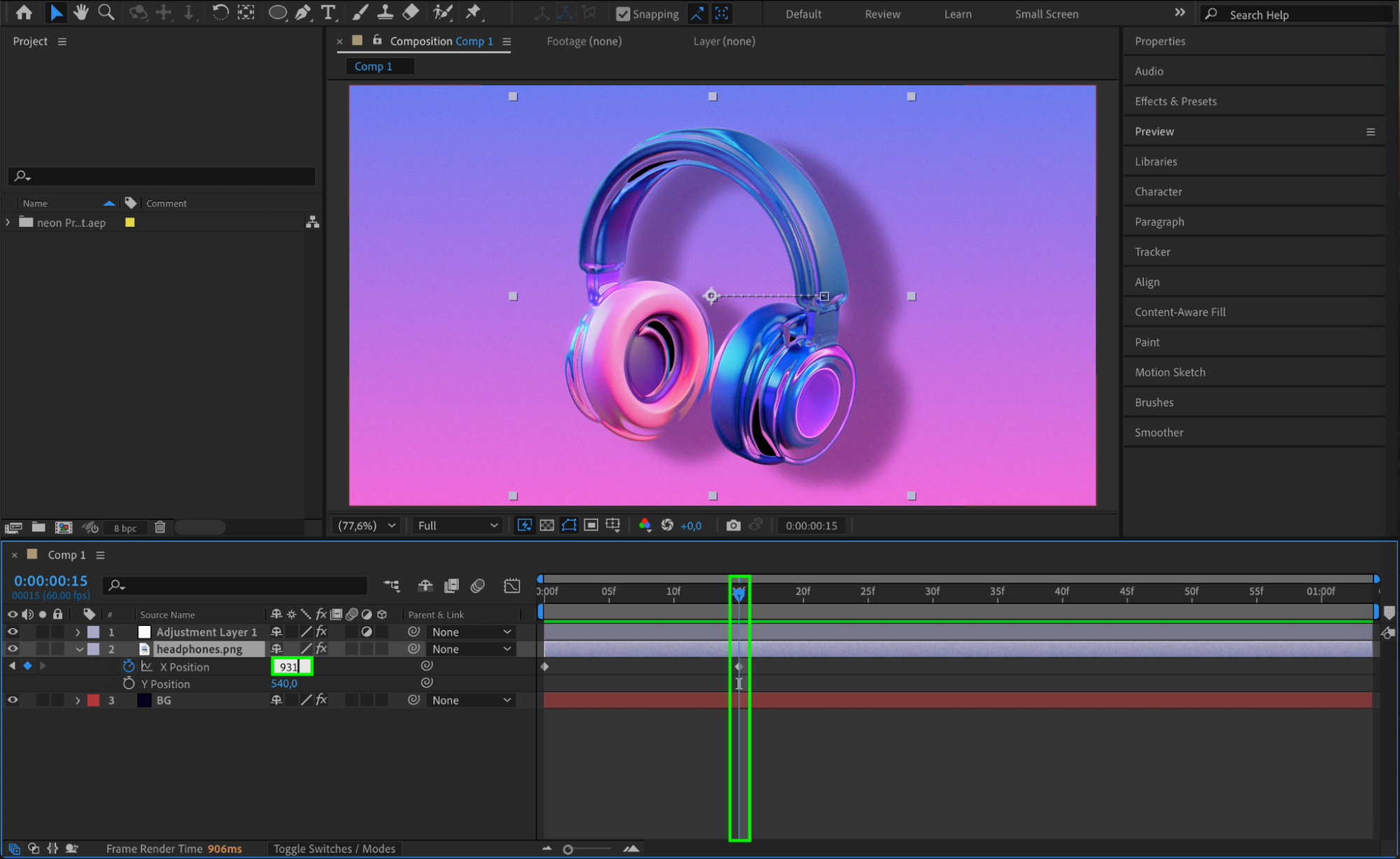 Step 6: Add an Expression to X Position (Optional)
If you want to add automatic motion, hold Alt (Windows) or Option (Mac) and click the stopwatch next to the X Position. Then type the expression wiggle(5,5) to add a random, natural movement effect. This is useful for camera shake or floating animations.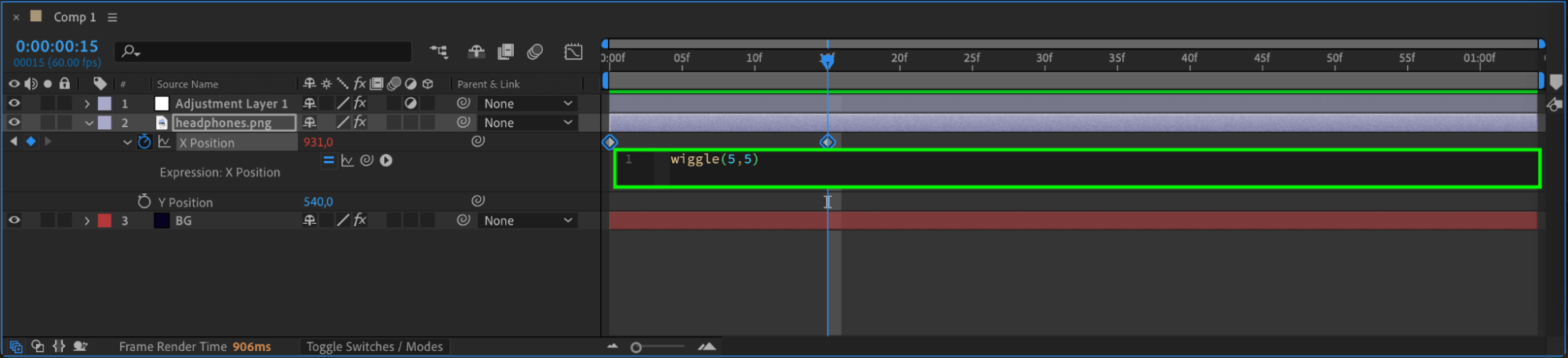
 Conclusion
Controlling the X Position in After Effects is a basic yet powerful part of animation. Whether you’re aligning a layer, building a motion path, or applying expressions, knowing how to access and animate the X value gives you more creative control.
Our Bestsellers
Our Bestsellers


