
Learn how to add and customize animated shape elements using AEJuice Shape Elements Pack in After Effects for titles and motion design.
How to Use Shape Elements for Motion Design in After Effects
Introduction to Animated Shape Elements
Shape elements are simple, eye-catching animations that help bring energy and style to your motion design. Whether you’re working on titles, lower thirds, or transitions, shape elements can add motion and personality to your project. In this guide, you’ll learn how to integrate shape elements in After Effects using the AEJuice Shape Elements Pack.
Step 1: Import Your Footage
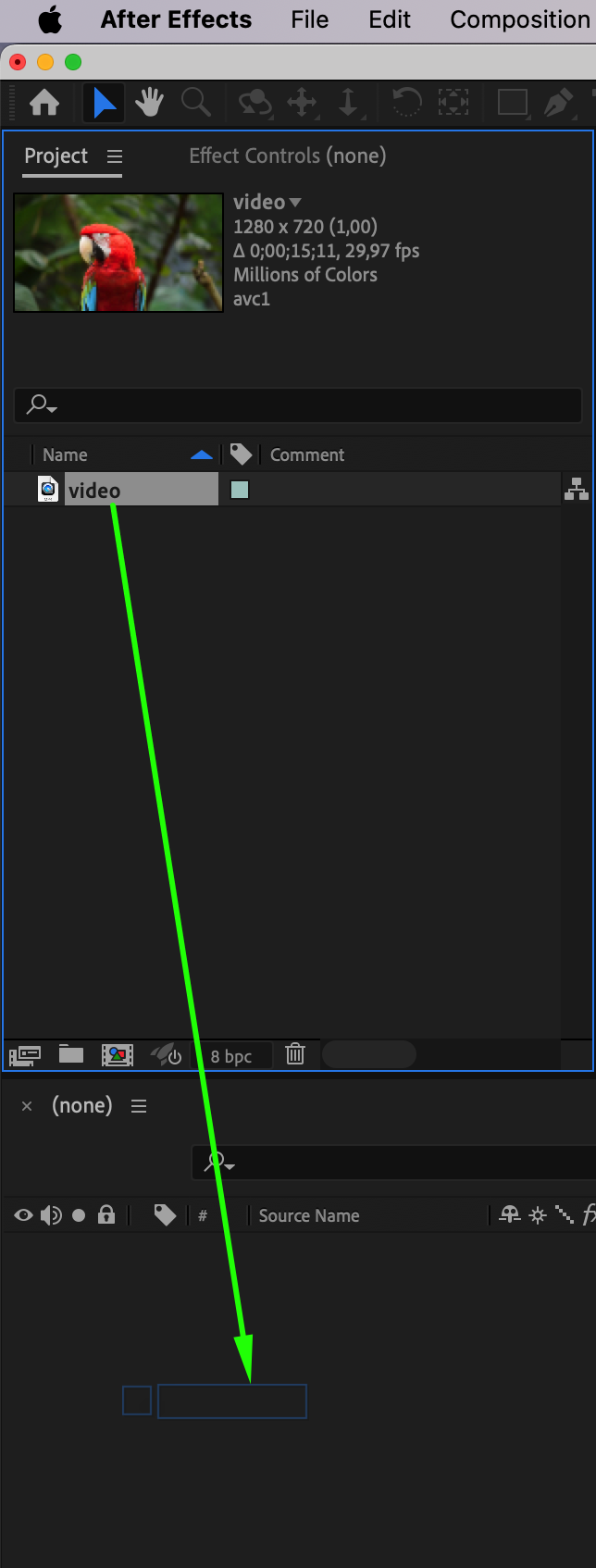
Start by going to File > Import > File and select your video or image. Drag it onto the timeline to create a new composition. This footage will be the base where you add your shape elements.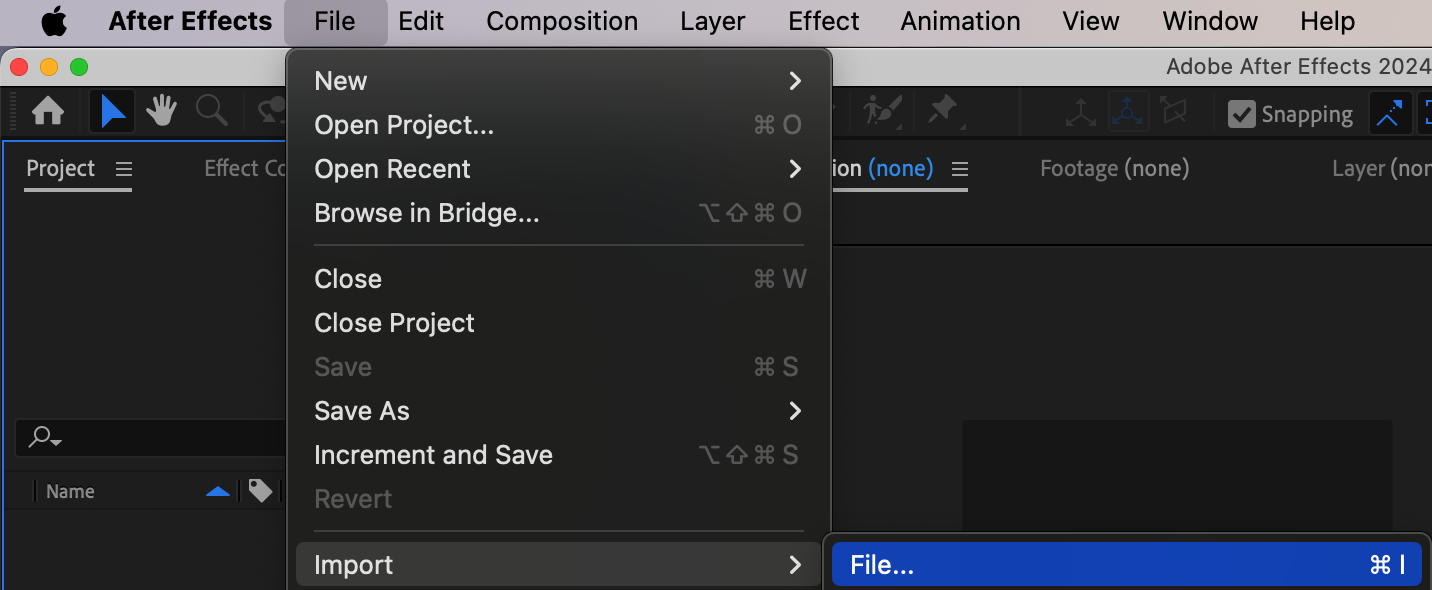
 Step 2: Open AEJuice Pack Manager
To access your shape elements, go to Window > AEJuice Pack Manager 4. This opens the plugin panel where all your installed and available AEJuice packs are displayed.
Step 3: Download the Shape Elements Pack
Inside the Pack Manager, scroll through the list of packs and locate Shape Elements Pack. If it’s not downloaded yet, click on it to start downloading. Once installed, you’ll be able to browse the included animations.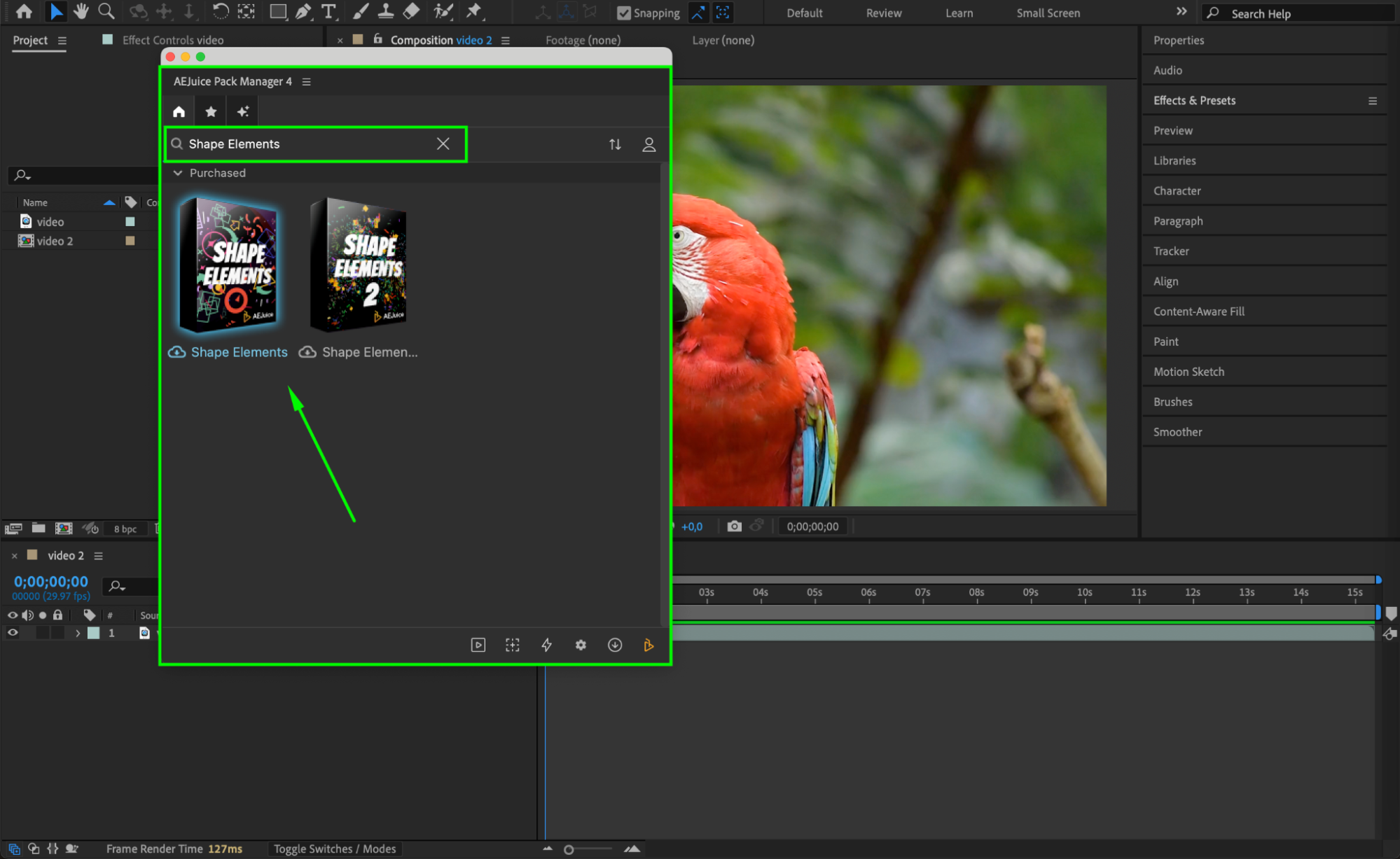 Step 4: Choose and Import a Shape Animation
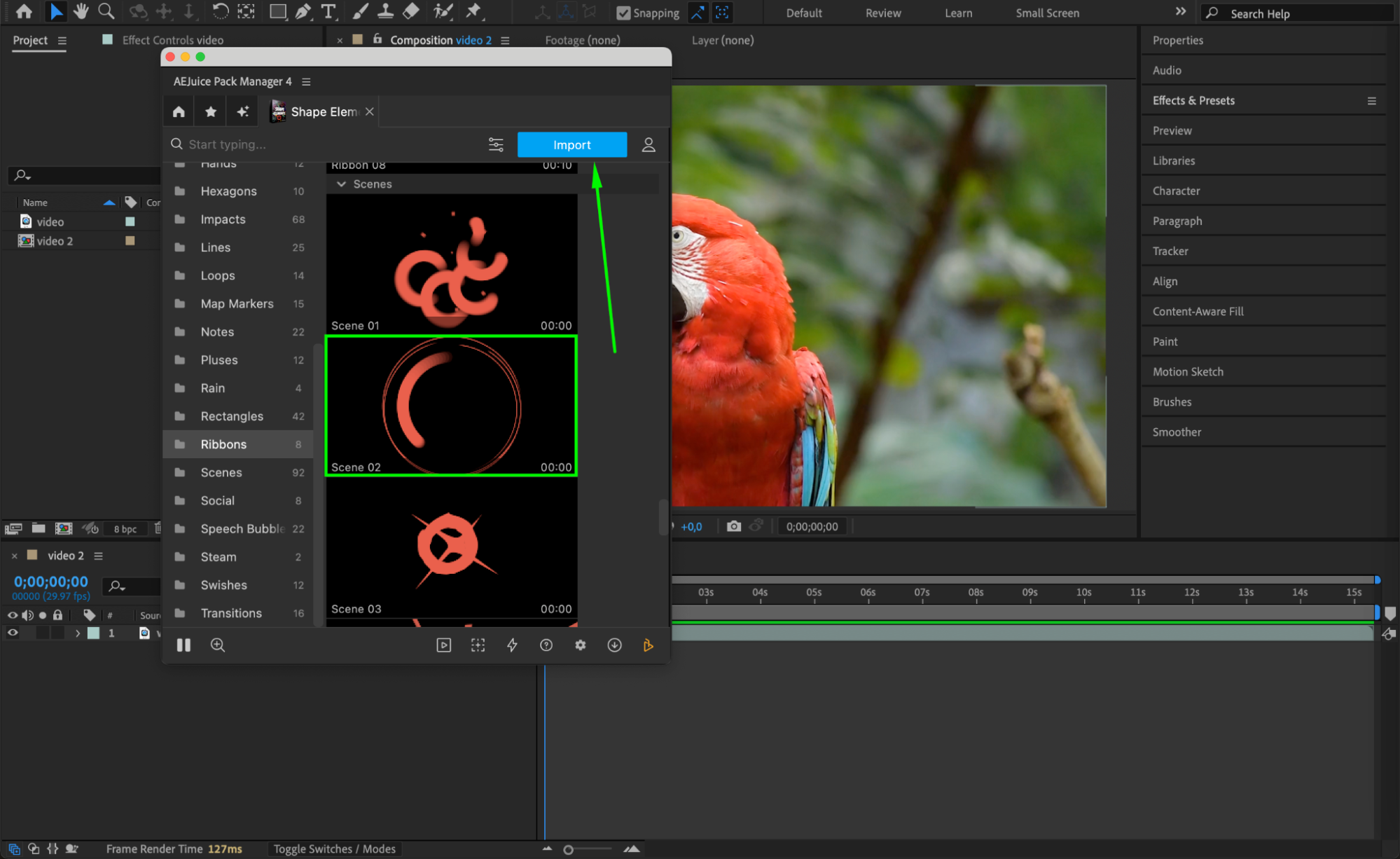
Browse through the Shape Elements Pack and choose a shape animation that fits your project. Click on the preview, then press Import. The animated shape will be added to your timeline as a pre-composition.
 Step 5: Position, Scale, and Rotate the Shape Element
After importing, select the shape pre-comp on your timeline. Use the Selection Tool (V) to move it into place. Press “S” to scale, “P” to adjust position, and “R” to rotate the element until it fits perfectly into your scene.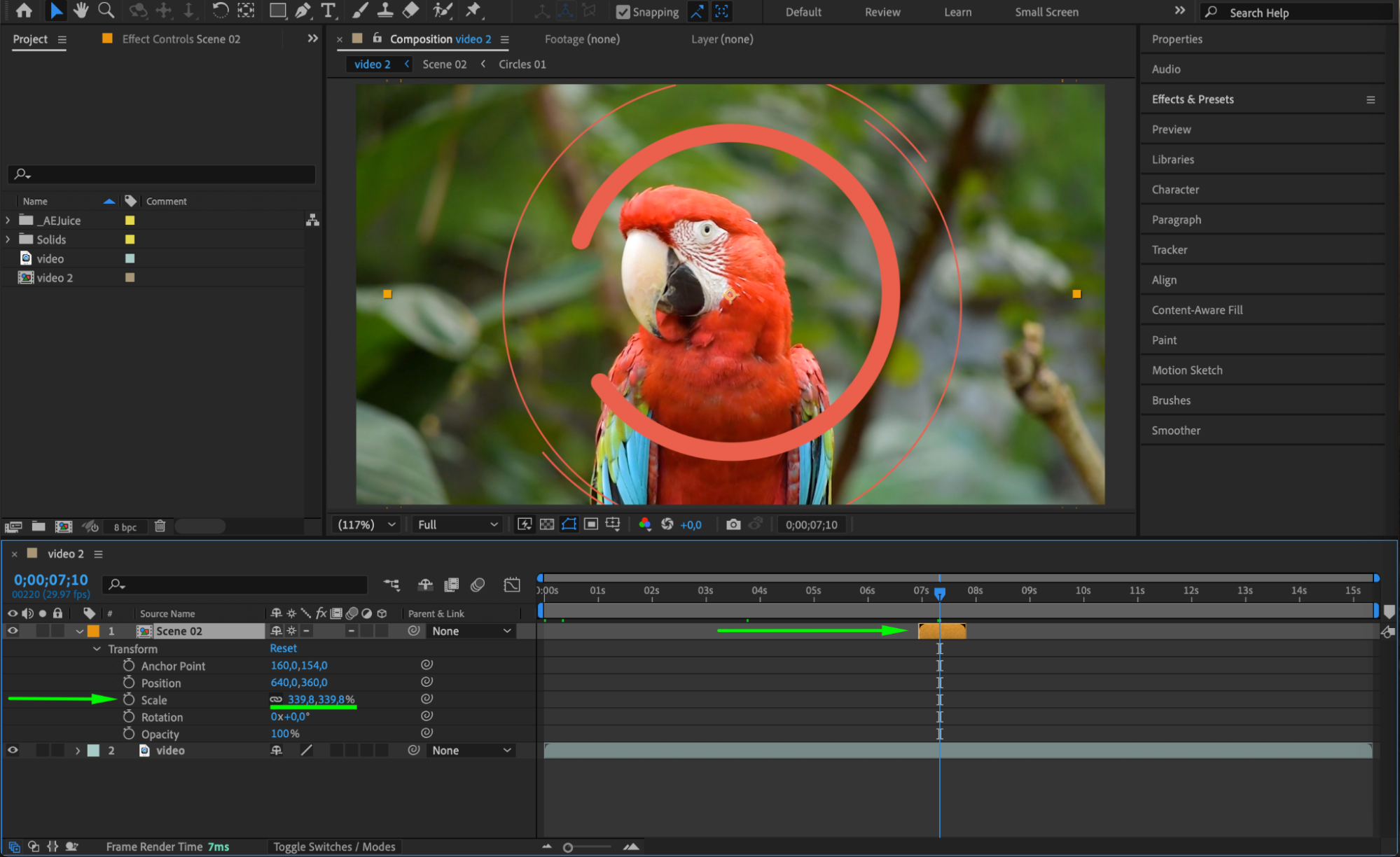
Step 6: Change the Color of the Shape Element
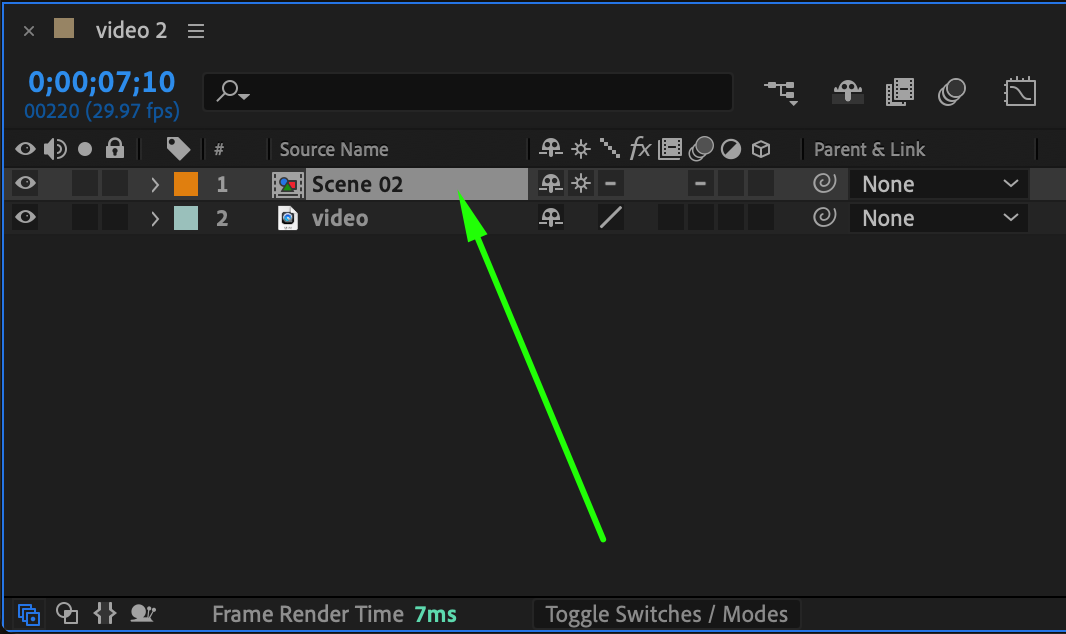
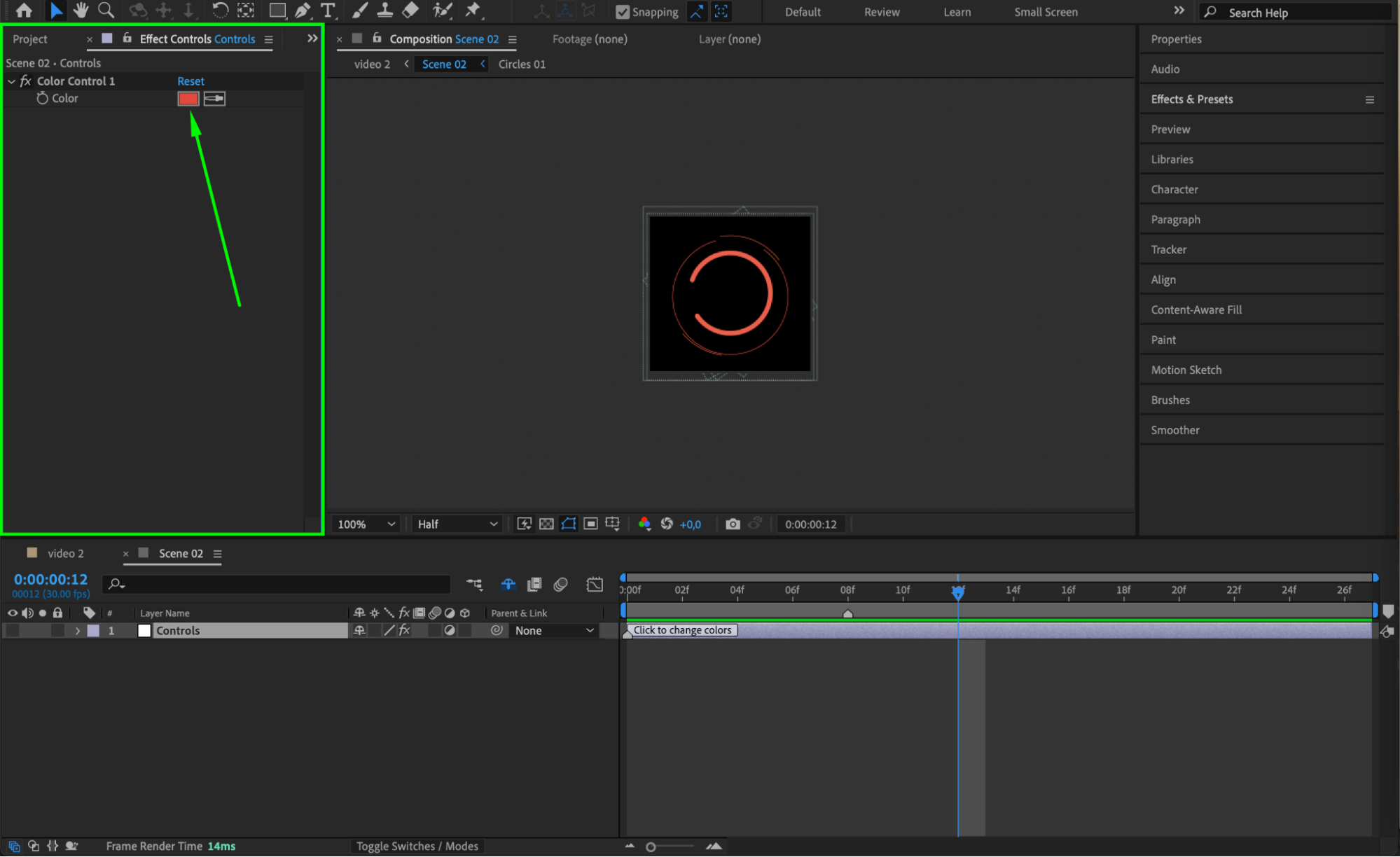
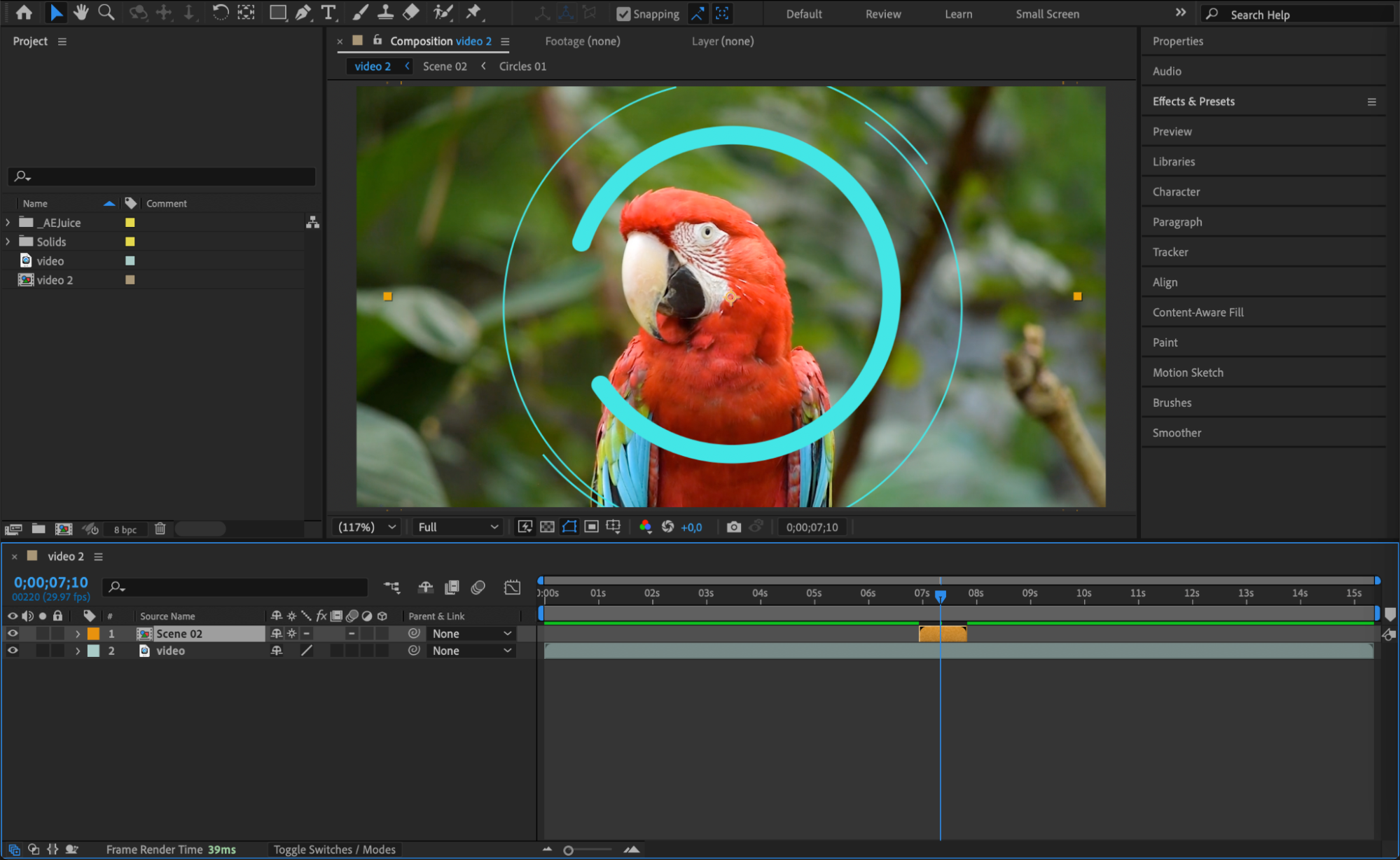
To change the color, double-click the pre-comp of the shape animation to open it. Select the Controls layer, then go to the Effect Controls Panel. Click on the color swatch and pick a new color to match your design.
 Step 7: Add Effects for Custom Style
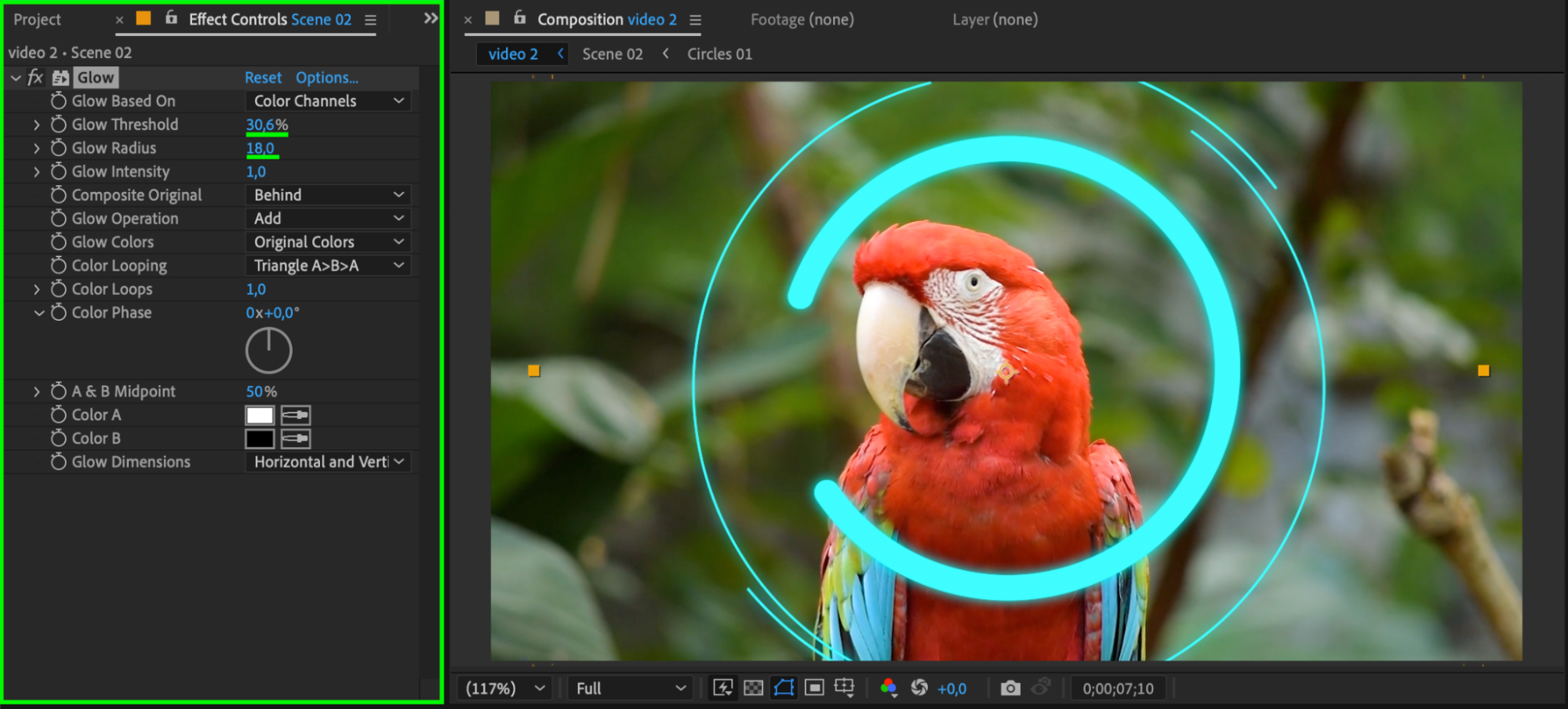
For extra style, go to the Effects & Presets panel and search for Glow. Drag it onto your shape layer to create a soft light effect. You can adjust intensity, radius, and color to match your design aesthetic.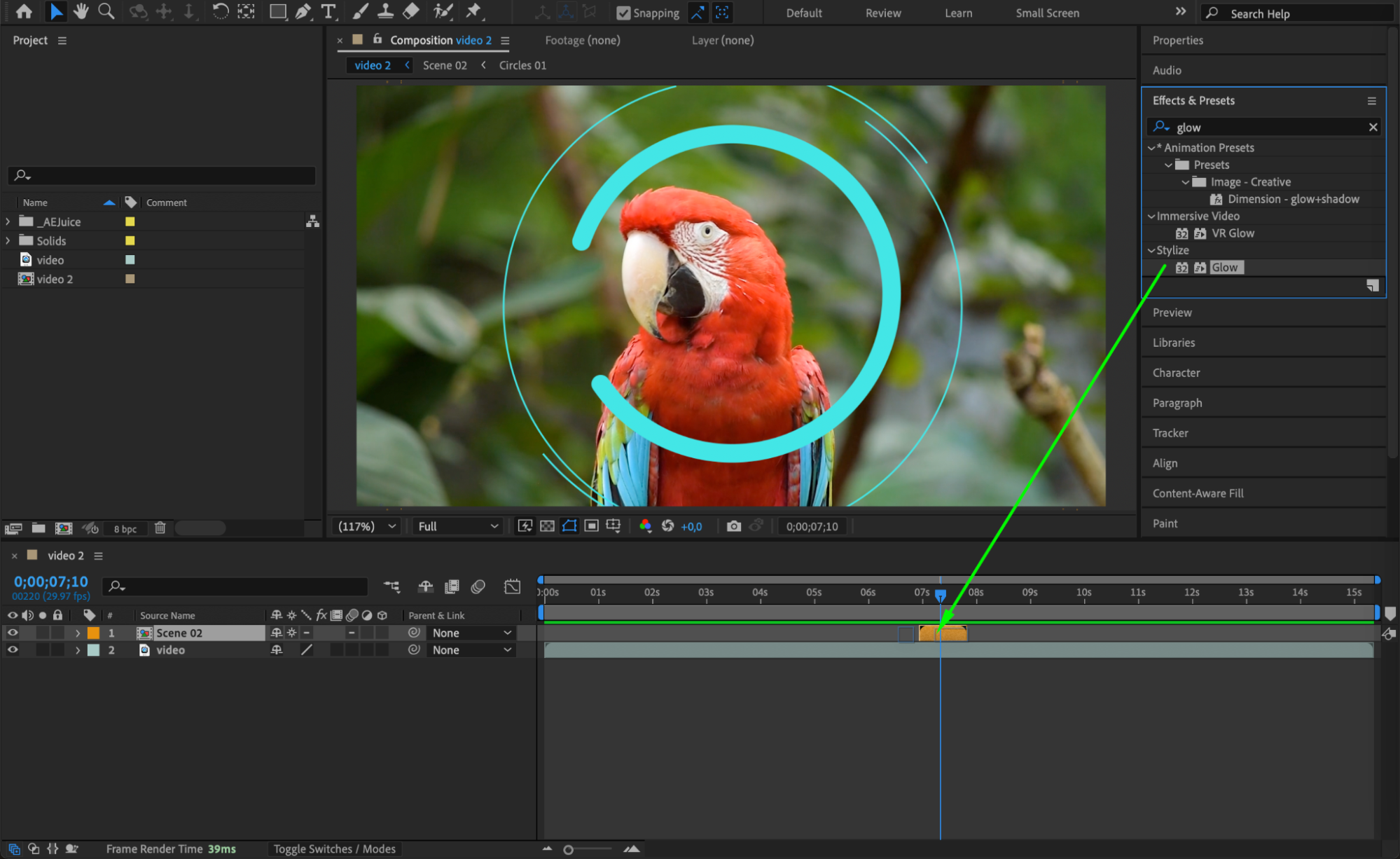
 Step 8: Preview and Adjust
Press Spacebar to preview your animation. Make any needed changes to timing, color, or position to finalize your scene. You can also duplicate the shape element for repeating patterns or layered motion.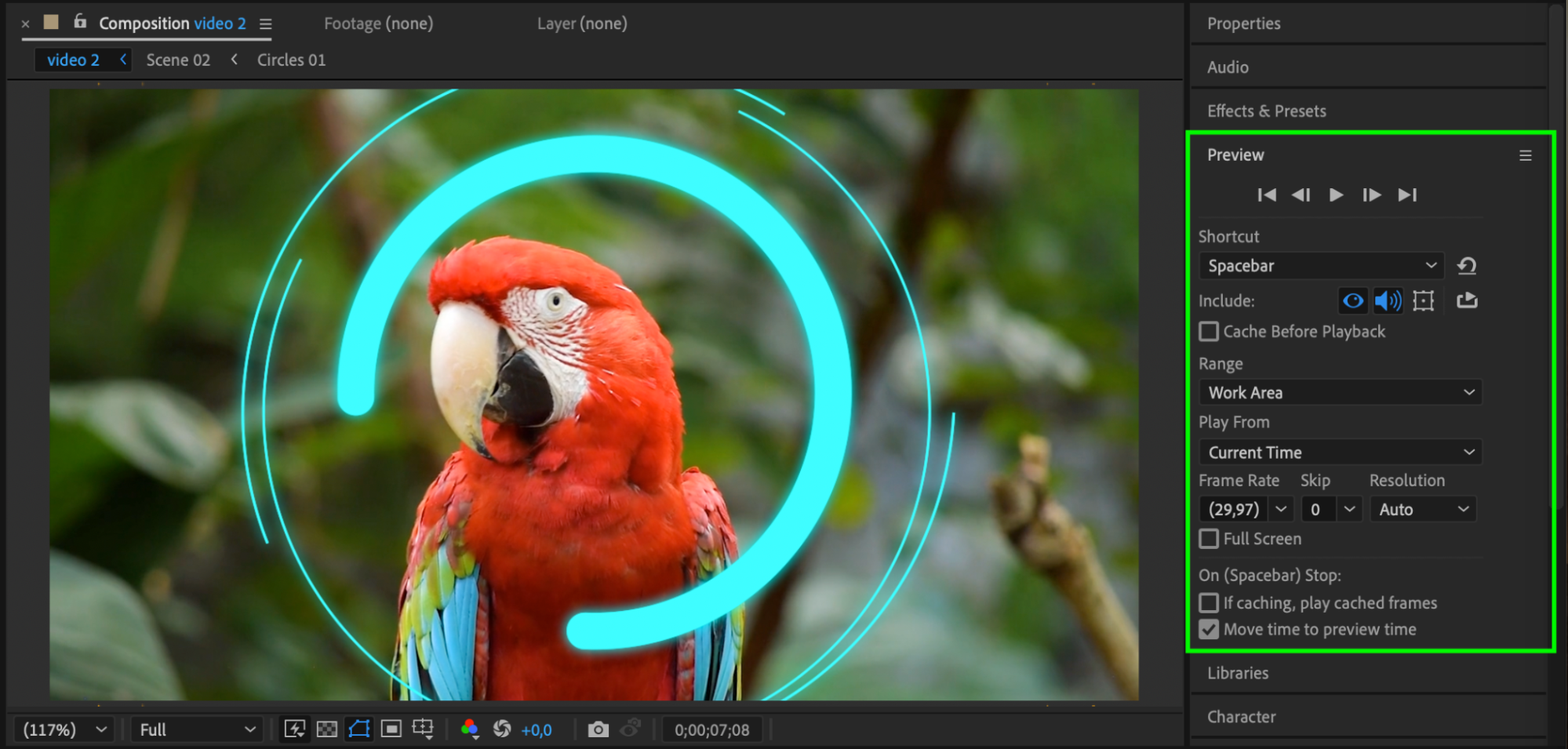 Conclusion
Using animated shape elements is a fast and effective way to bring your After Effects projects to life. With the AEJuice Shape Elements Pack, you can easily import, customize, and integrate professional-quality motion graphics into any scene.
Our Bestsellers
Our Bestsellers


